Yusuf Chowdhury
210-316-3123
www.meetup.com/SanAntonioWordPress
1
Secure and Maintain Your
WordPress Website!
2
@Geekdom
@WPEngine
@yusufchowdhury
#WPSecurityTips
3
1- Themes
2- Plugins
3- Web Hosting
4- Usability
4
5
Your website can
never be 100% secure!
That’s why we need
good security practice
to minimize risk.
6
Maintain Strong Passwords.
7
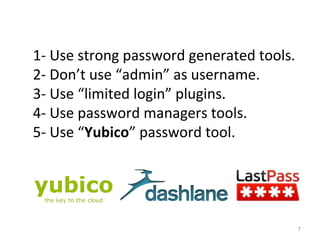
1- Use strong password generated tools.
2- Don’t use “admin” as username.
3- Use “limited login” plugins.
4- Use password managers tools.
5- Use “Yubico” password tool.
8
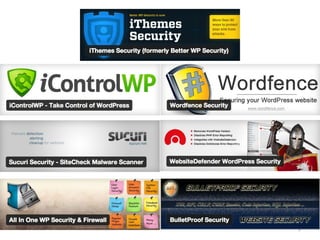
Install Security Plugins.
9
10
Always Keep Themes Up to Date.
11
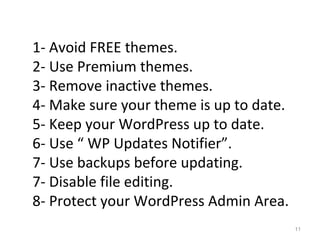
1- Avoid FREE themes.
2- Use Premium themes.
3- Remove inactive themes.
4- Make sure your theme is up to date.
5- Keep your WordPress up to date.
6- Use “ WP Updates Notifier”.
7- Use backups before updating.
7- Disable file editing.
8- Protect your WordPress Admin Area.
12
13
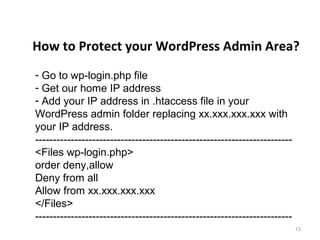
How to Protect your WordPress Admin Area?
- Go to wp-login.php file
- Get our home IP address
- Add your IP address in .htaccess file in your
WordPress admin folder replacing xx.xxx.xxx.xxx with
your IP address.
------------------------------------------------------------------------
<Files wp-login.php>
order deny,allow
Deny from all
Allow from xx.xxx.xxx.xxx
</Files>
------------------------------------------------------------------------
14
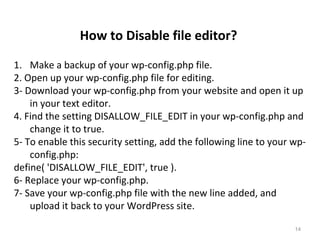
1. Make a backup of your wp-config.php file.
2. Open up your wp-config.php file for editing.
3- Download your wp-config.php from your website and open it up
in your text editor.
4. Find the setting DISALLOW_FILE_EDIT in your wp-config.php and
change it to true.
5- To enable this security setting, add the following line to your wp-
config.php:
define( 'DISALLOW_FILE_EDIT', true ).
6- Replace your wp-config.php.
7- Save your wp-config.php file with the new line added, and
upload it back to your WordPress site.
How to Disable file editor?
15
Always Keep Plugins Up to Date.
16
1- Avoid FREE Plugins.
2- Use Premium Plugins.
3- Remove inactive Plugins.
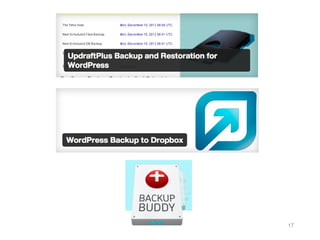
4- Use backups plugins.
5- Make sure your plugins is up to date.
6- Disable file editing for plugins.
17
18
Pick the Right Web Hosting!
19
20
RESOURCES!
21
http://wordpress.org/plugins/better-wp-security
http://wordpress.org/plugins/bulletproof-security
http://wordpress.org/plugins/all-in-one-wp-security-and-
firewall/
http://wordpress.org/plugins/sucuri-scanner/
http://wordpress.org/plugins/wordfence/
http://wordpress.org/plugins/websitedefender-wordpress-
security/
http://wordpress.org/plugins/exploit-scanner
Security Plugins
22
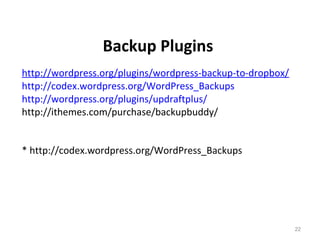
http://wordpress.org/plugins/wordpress-backup-to-dropbox/
http://codex.wordpress.org/WordPress_Backups
http://wordpress.org/plugins/updraftplus/
http://ithemes.com/purchase/backupbuddy/
* http://codex.wordpress.org/WordPress_Backups
Backup Plugins
23
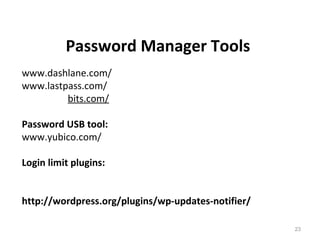
www.dashlane.com/
www.lastpass.com/
www.agilebits.com/
Password USB tool:
www.yubico.com/
Login limit plugins:
http://wordpress.org/plugins/force-strong-passwords/
http://wordpress.org/plugins/wp-updates-notifier/
Password Manager Tools

Secure & Maintain Your Self-Hosted WordPress Website