Making & Keeping
WordPress Secure
Prevent
Password Management
● Create strong passwords. Use a password manager like LastPass.
● Store passwords securely. Use a password manager like LastPass.
● Share passwords securely. Use a password manager like LastPass, or
encrypted messenger like Signal.
● Use SFTP or FTPS, not FTP.
● Each user must use their own account; no sharing.
● Give each user the lowest role possible. User Role Editor plugin can
fine-tune permissions.
Account Management
● Managed hosting
○ Probably the easiest way to improve security
○ Recommended: Flywheel, WP Engine
○ Managed hosts should handle security for you. It's worth checking
if you should do more; see their support docs, or ask them.
Hosting
● Shared hosting
○ Recommended: SiteGround
○ May offer security add-ons (e.g., SG Site Scanner). See if they remove
malware or just tell you about it.
○ Consider a security plugin. Weigh pros and cons (high resource usage,
false positives, increased attack surface). Free versions are usually
limited.
■ Wordfence
■ Sucuri Security
■ iThemes Security
■ MalCare Security
Hosting cont.
● Managed hosts may handle some of these.
● Put code from Securing wp-config.php in .htaccess.
● Put code from Securing wp-includes in .htaccess.
● Put code from Disable File Editing in wp-config.php.
● Ensure that no admin account is named admin.
● Add brute-force protection. Use Login LockDown or another plugin
(security plugins often include this).
● Add a TLS/SSL certificate.
● Consider Cloudflare for an extra layer of protection (firewall).
● Add two-factor authentication (2FA). Use Google Authenticator or
another plugin.
Hardening
● Back up before updating.
● Install updates as soon as possible, but balance risk of updates breaking
site.
● For risky plugins (Yoast SEO, WooCommerce, etc.), check changelog
before updating. If update doesn't include security fix, consider waiting
a few days.
Updates
● Automate.
● Store off-site.
● Keep for long enough (at least 30 days).
Backups
● Monitor suspicious login attempts.
● Consider an activity log.
○ ManageWP
○ WP Activity Log
● Logging is included in several security plugins.
Monitoring
● Remove unnecessary plugins.
● Remove unnecessary themes.
● Remove unnecessary users.
Decluttering
Respond & Recover
1. Host
○ They may do it for free, or charge. The charge may be less than
hiring a service.
2. Malware removal service
○ Sucuri
○ Wordfence
○ MalCare
3. DIY
Options
1. You need to be sure you know what you're doing, or you'll likely
overlook malware and get reinfected.
2. Download any available known good backups to your PC. Create new
backup if necessary.
3. WP > Settings > Reading: check box for Discourage search engines from
indexing this site.
4. Enable maintenance mode by adding .maintenance to root of WP
directory, or via plugin.
5. Restore known good backup. Check for evidence of malware.
Clean a WordPress Site
6. If there's no good backup, scan with security plugins. Remove any
malware.
○ Sucuri Security
○ Wordfence
○ MalCare Security
○ SiteAlert (Formerly WP Health)
○ Anti-Malware Security and Brute-Force Firewall
○ AntiVirus
○ Theme Check
Clean a WP Site cont.
7. If malware is too difficult to remove, use cleaning service (see above).
8. Reinstall WP (Updates screen).
9. Disable maintenance mode and remove .maintenance file or plugin.
10. WP > Settings > Reading: uncheck box for Discourage search engines
from indexing this site.
11. Use Sucuri plugin to reset WP user passwords and WordPress keys
(Settings > Post-Hack).
○ Manual way to reset WordPress secret keys: Create new set with
WordPress key generator. Copy those values and paste over values
in your wp-config.php file.
Clean a WP Site cont.
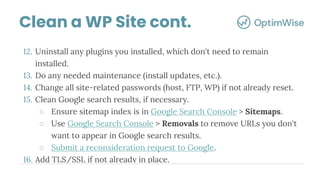
12. Uninstall any plugins you installed, which don't need to remain
installed.
13. Do any needed maintenance (install updates, etc.).
14. Change all site-related passwords (host, FTP, WP) if not already reset.
15. Clean Google search results, if necessary.
○ Ensure sitemap index is in Google Search Console > Sitemaps.
○ Use Google Search Console > Removals to remove URLs you don't
want to appear in Google search results.
○ Submit a reconsideration request to Google.
16. Add TLS/SSL if not already in place.
Clean a WP Site cont.
Contact Info
Chad Warner
Founder & Web Strategist
> optimwise.com

Making & Keeping WordPress Secure

  • 1.
  • 2.
  • 3.
    Password Management ● Createstrong passwords. Use a password manager like LastPass. ● Store passwords securely. Use a password manager like LastPass. ● Share passwords securely. Use a password manager like LastPass, or encrypted messenger like Signal. ● Use SFTP or FTPS, not FTP.
  • 4.
    ● Each usermust use their own account; no sharing. ● Give each user the lowest role possible. User Role Editor plugin can fine-tune permissions. Account Management
  • 5.
    ● Managed hosting ○Probably the easiest way to improve security ○ Recommended: Flywheel, WP Engine ○ Managed hosts should handle security for you. It's worth checking if you should do more; see their support docs, or ask them. Hosting
  • 6.
    ● Shared hosting ○Recommended: SiteGround ○ May offer security add-ons (e.g., SG Site Scanner). See if they remove malware or just tell you about it. ○ Consider a security plugin. Weigh pros and cons (high resource usage, false positives, increased attack surface). Free versions are usually limited. ■ Wordfence ■ Sucuri Security ■ iThemes Security ■ MalCare Security Hosting cont.
  • 7.
    ● Managed hostsmay handle some of these. ● Put code from Securing wp-config.php in .htaccess. ● Put code from Securing wp-includes in .htaccess. ● Put code from Disable File Editing in wp-config.php. ● Ensure that no admin account is named admin. ● Add brute-force protection. Use Login LockDown or another plugin (security plugins often include this). ● Add a TLS/SSL certificate. ● Consider Cloudflare for an extra layer of protection (firewall). ● Add two-factor authentication (2FA). Use Google Authenticator or another plugin. Hardening
  • 8.
    ● Back upbefore updating. ● Install updates as soon as possible, but balance risk of updates breaking site. ● For risky plugins (Yoast SEO, WooCommerce, etc.), check changelog before updating. If update doesn't include security fix, consider waiting a few days. Updates
  • 9.
    ● Automate. ● Storeoff-site. ● Keep for long enough (at least 30 days). Backups
  • 10.
    ● Monitor suspiciouslogin attempts. ● Consider an activity log. ○ ManageWP ○ WP Activity Log ● Logging is included in several security plugins. Monitoring
  • 11.
    ● Remove unnecessaryplugins. ● Remove unnecessary themes. ● Remove unnecessary users. Decluttering
  • 12.
  • 13.
    1. Host ○ Theymay do it for free, or charge. The charge may be less than hiring a service. 2. Malware removal service ○ Sucuri ○ Wordfence ○ MalCare 3. DIY Options
  • 14.
    1. You needto be sure you know what you're doing, or you'll likely overlook malware and get reinfected. 2. Download any available known good backups to your PC. Create new backup if necessary. 3. WP > Settings > Reading: check box for Discourage search engines from indexing this site. 4. Enable maintenance mode by adding .maintenance to root of WP directory, or via plugin. 5. Restore known good backup. Check for evidence of malware. Clean a WordPress Site
  • 15.
    6. If there'sno good backup, scan with security plugins. Remove any malware. ○ Sucuri Security ○ Wordfence ○ MalCare Security ○ SiteAlert (Formerly WP Health) ○ Anti-Malware Security and Brute-Force Firewall ○ AntiVirus ○ Theme Check Clean a WP Site cont.
  • 16.
    7. If malwareis too difficult to remove, use cleaning service (see above). 8. Reinstall WP (Updates screen). 9. Disable maintenance mode and remove .maintenance file or plugin. 10. WP > Settings > Reading: uncheck box for Discourage search engines from indexing this site. 11. Use Sucuri plugin to reset WP user passwords and WordPress keys (Settings > Post-Hack). ○ Manual way to reset WordPress secret keys: Create new set with WordPress key generator. Copy those values and paste over values in your wp-config.php file. Clean a WP Site cont.
  • 17.
    12. Uninstall anyplugins you installed, which don't need to remain installed. 13. Do any needed maintenance (install updates, etc.). 14. Change all site-related passwords (host, FTP, WP) if not already reset. 15. Clean Google search results, if necessary. ○ Ensure sitemap index is in Google Search Console > Sitemaps. ○ Use Google Search Console > Removals to remove URLs you don't want to appear in Google search results. ○ Submit a reconsideration request to Google. 16. Add TLS/SSL if not already in place. Clean a WP Site cont.
  • 18.
    Contact Info Chad Warner Founder& Web Strategist > optimwise.com