Security 101
                ~ Improving the security of your WordPress installation ~


@manifestphil                                                           manifestbozeman.com
Why would anyone hack me?
   It's not personal, but there are
   several motivating factors…

   ■    For attention

   ■    Profit scams

   ■    Own one, own them all…

   ■    To steal information
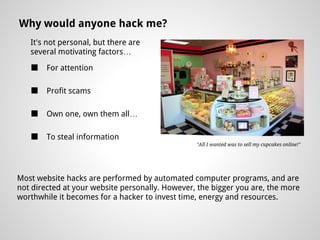
                                                 "All I wanted was to sell my cupcakes online!"


Most website hacks are performed by automated computer programs, and are
not directed at your website personally. However, the bigger you are, the more
worthwhile it becomes for a hacker to invest time, energy and resources.
Favorite WordPress Security Breaches
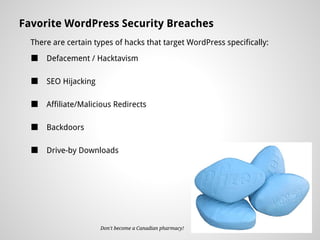
  There are certain types of hacks that target WordPress specifically:
  ■   Defacement / Hacktavism

  ■   SEO Hijacking

  ■   Affiliate/Malicious Redirects

  ■   Backdoors

  ■   Drive-by Downloads


                      Don't become a Canadian pharmacy!
What is security, exactly?

  ■   Security is about risk reduction.
      There is no silver bullet.
  ■   Security is never absolute.
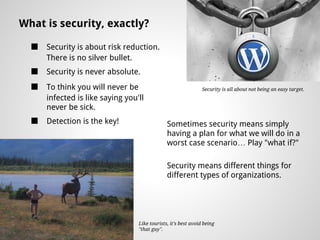
  ■   To think you will never be                                Security is all about not being an easy target.
      infected is like saying you'll
      never be sick.
  ■   Detection is the key!                    Sometimes security means simply
                                               having a plan for what we will do in a
                                               worst case scenario… Play "what if?"

                                               Security means different things for
                                               different types of organizations.


                                  Like tourists, it's best avoid being
                                  "that guy".
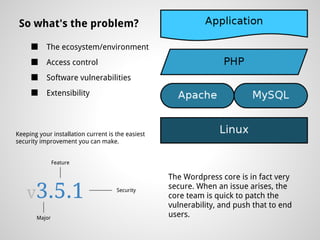
So what's the problem?

     ■     The ecosystem/environment
     ■     Access control
     ■     Software vulnerabilities
     ■     Extensibility


Keeping your installation current is the easiest
security improvement you can make.


               Feature

                                                   The Wordpress core is in fact very

    v3.5.1                           Security
                                                   secure. When an issue arises, the
                                                   core team is quick to patch the
                                                   vulnerability, and push that to end
       Major                                       users.
Start by securing your own computer…

      ■       Good, up-to-date antivirus software
      ■       Keep your own software up to date
      ■       Know where you're surfing the web


    And getting a good web host.

         ■      Not much you can do if you're using a shared host.
         ■      Consider a dedicated / VPS environment or go with a managed host.

●    What security does my host
     use?
●    What kind of reputation do
     they have?
●    What will they do if you get
     hacked?
                                    A managed WordPress host doesn't mean you'll be any safer, but it does mean
                                    you'll have resources to lean on.
Change your passwords… like yesterday.

  ■   Hard to guess. Hard for a brute force attack to succeed.
  ■   Avoid any combination of your name, company name, username,
      etc.
  ■   Don't use dictionary words; in any language.
  ■   Stop using the same password for everything. Email, DB, Admin, FTP.

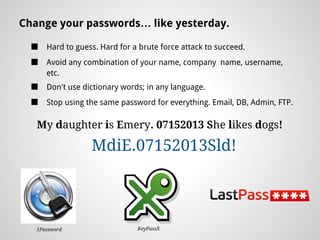
   My daughter is Emery. 07152013 She likes dogs!

                  MdiE.07152013Sld!


   1Password                   KeyPassX
You need a backup plan. Or two.

  ■   Clean backups mean you never need to start from scratch.
  ■   Backup your database, content, themes.
       ○     Specialized installations may need more, e.g. custom plugins, .htaccess, etc.

  ■   Backup to multiple locations.
       ○     Backups stored on your primary server cannot be trusted.
       ○     Hard drives fail. Homes burn down. Offices are burglarized.

  ■   Backup frequency
       ○     Depends on how much work or information you stand to lose.

  ■   Manual vs. Automatic


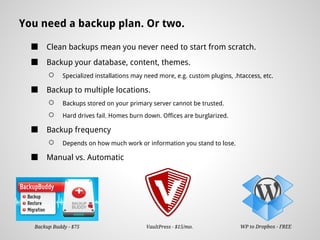
  Backup Buddy - $75                       VaultPress - $15/mo.              WP to Dropbox - FREE
Control the access to your site.

  ■   Connect using sFTP, SSH or FTP-SSL.
  ■   Login to wp-admin using SSL (https:
                                                     Reading
      //mydomain.com/wp-admin)                       Recommendation
  ■   Your FTP username/password should              Check out the eBook,
                                                     Locking Down
      not be the same as your WordPress              WordPress, by Michael
      admin username/password.                       Pick.

  ■   Least Privileged                               It's available as a free
                                                     download at CodePoet.
      ○   Everyone doesn't need to be an admin.      com

      ○   Every user should have own access.
                                                     What's in a free
      ○   You don't need to log in as admin
                                                     theme?
      ○   The focus is on the role, not their name
                                                     When you search Google
      ○   Kill generic accounts                      for free or cheap themes
                                                     you're probably going to
  ■   Blacklist known bad bots and users
                                                     create a security
                                                     vulnerability.

                                                     Go with more reputable
                                                     sources.
Setting up your WordPress installation

  ■   Turn off directory listings                  Maintainability Tips

  ■   Kill PHP execution
                                                   If you have plugins installed
                                                   that you do not use, delete
                                                   them!
  ■   Deny access to wp-config.php
                                                   Did you purchase or download

  ■   Ensure file permissions are correct
                                                   a theme? Use child themes to
                                                   allow the main theme to be
                                                   updated without breaking your
      ○   Directories should be 755                layout.

      ○   Files should be 644

  ■   Properly configure wp-config                 Developer Tips

      ○   Disable theme/plugin editing via admin   Following WordPress code
                                                   standards when developing a
      ○   Force SSL for admin login and use        theme will ensure that client
                                                   updates don't break the site.
      ○   Add secret keys
                                                   Because you're a ninja-coder,
  ■   Remove the admin account
                                                   you can confidently allow your
                                                   customer access to keep
                                                   WordPress updated.
  ■   Change the database table prefix
                                                   Help your clients setup
  ■   Use trusted sources for themes and plugins   automatic backups, please!
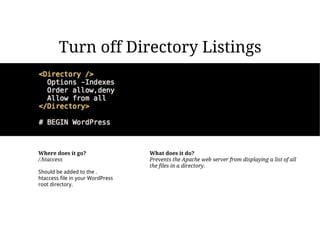
Turn off Directory Listings


Where does it go?                 What does it do?
/.htaccess                        Prevents the Apache web server from displaying a list of all
                                  the files in a directory.
Should be added to the .
htaccess file in your WordPress
root directory.
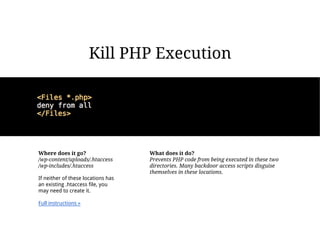
Kill PHP Execution


Where does it go?                   What does it do?
/wp-content/uploads/.htaccess       Prevents PHP code from being executed in these two
/wp-includes/.htaccess              directories. Many backdoor access scripts disguise
                                    themselves in these locations.
If neither of these locations has
an existing .htaccess file, you
may need to create it.

Full instructions »
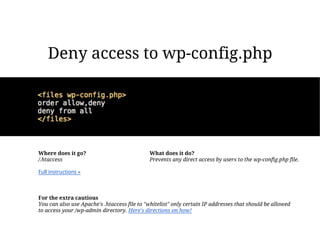
Deny access to wp-config.php


Where does it go?                            What does it do?
/.htaccess                                   Prevents any direct access by users to the wp-config.php file.

Full instructions »


For the extra cautious
You can also use Apache's .htaccess file to "whitelist" only certain IP addresses that should be allowed
to access your /wp-admin directory. Here's directions on how!
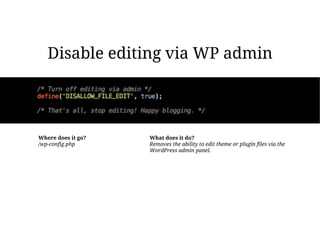
Disable editing via WP admin


Where does it go?   What does it do?
/wp-config.php      Removes the ability to edit theme or plugin files via the
                    WordPress admin panel.
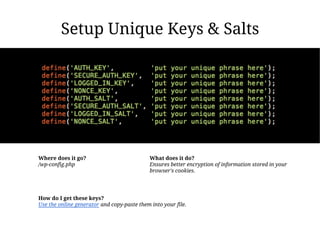
Setup Unique Keys & Salts


Where does it go?                            What does it do?
/wp-config.php                               Ensures better encryption of information stored in your
                                             browser's cookies.


How do I get these keys?
Use the online generator and copy-paste them into your file.
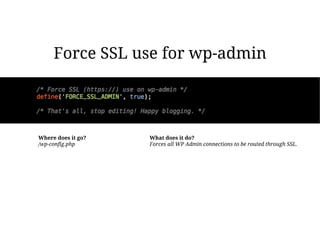
Force SSL use for wp-admin


Where does it go?   What does it do?
/wp-config.php      Forces all WP Admin connections to be routed through SSL.
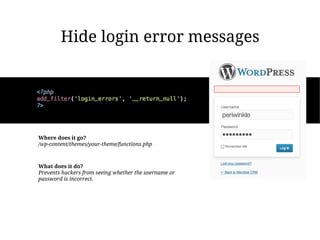
Hide login error messages


Where does it go?
/wp-content/themes/your-theme/functions.php


What does it do?
Prevents hackers from seeing whether the username or
password is incorrect.
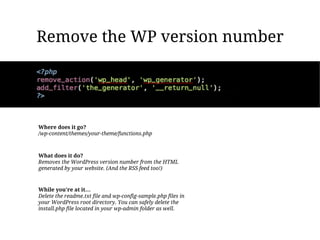
Remove the WP version number


Where does it go?
/wp-content/themes/your-theme/functions.php


What does it do?
Removes the WordPress version number from the HTML
generated by your website. (And the RSS feed too!)


While you're at it…
Delete the readme.txt file and wp-config-sample.php files in
your WordPress root directory. You can safely delete the
install.php file located in your wp-admin folder as well.
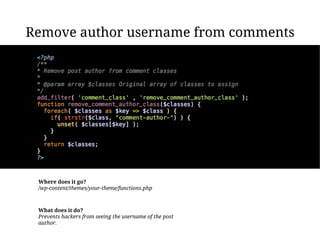
Remove author username from comments


 Where does it go?
 /wp-content/themes/your-theme/functions.php


 What does it do?
 Prevents hackers from seeing the username of the post
 author.
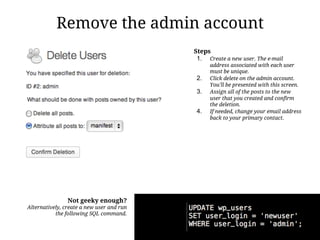
Remove the admin account
                                           Steps
                                            1. Create a new user. The e-mail
                                                 address associated with each user
                                                 must be unique.
                                            2.   Click delete on the admin account.
                                                 You'll be presented with this screen.
                                            3.   Assign all of the posts to the new
                                                 user that you created and confirm
                                                 the deletion.
                                            4.   If needed, change your email address
                                                 back to your primary contact.


                Not geeky enough?
Alternatively, create a new user and run
           the following SQL command.
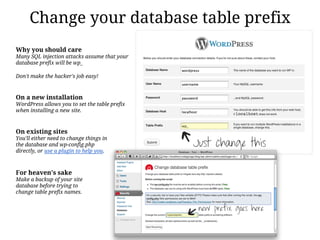
Change your database table prefix
Why you should care
Many SQL injection attacks assume that your
database prefix will be wp_

Don't make the hacker's job easy!


On a new installation
WordPress allows you to set the table prefix
when installing a new site.


On existing sites
You'll either need to change things in
the database and wp-config.php
directly, or use a plugin to help you.


For heaven's sake
Make a backup of your site
database before trying to
change table prefix names.
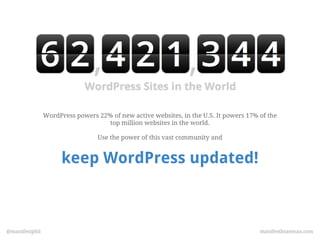
WordPress powers 22% of new active websites, in the U.S. It powers 17% of the
                                   top million websites in the world.

                                 Use the power of this vast community and


                      keep WordPress updated!


@manifestphil                                                                          manifestbozeman.com
Site Security Tools               Documentation, etc.
  ■   Securi Site Scanner           ■   WP Codex
  ■   Google Safe Browsing          ■   Perishable Press 5G Blacklist
  ■   Bots vs. Browsers             ■   How anyone can hack your
                                        WP site in less than 5 minutes
  ■   iSecLab.org - Wepawet
                                        (and what you can do…)
  ■   Unmask Parasites              ■   Protecting /wp-admin using
                                        Apache
                                    ■   Smashing Magazine
                                    ■   What to do if you're hacked
Plugin Recommendations
  ■   Limit Login Attempts
  ■   WP Security Scan
  ■   Duo Two-Factor
      Authentication          ■   WP File Monitor Plus

  ■   Theme Check             ■   Akismet
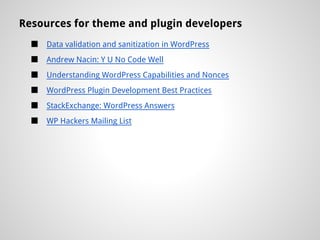
Resources for theme and plugin developers
  ■   Data validation and sanitization in WordPress
  ■   Andrew Nacin: Y U No Code Well
  ■   Understanding WordPress Capabilities and Nonces
  ■   WordPress Plugin Development Best Practices
  ■   StackExchange: WordPress Answers
  ■   WP Hackers Mailing List

WordPress Security 101

  • 1.
    Security 101 ~ Improving the security of your WordPress installation ~ @manifestphil manifestbozeman.com
  • 2.
    Why would anyonehack me? It's not personal, but there are several motivating factors… ■ For attention ■ Profit scams ■ Own one, own them all… ■ To steal information "All I wanted was to sell my cupcakes online!" Most website hacks are performed by automated computer programs, and are not directed at your website personally. However, the bigger you are, the more worthwhile it becomes for a hacker to invest time, energy and resources.
  • 3.
    Favorite WordPress SecurityBreaches There are certain types of hacks that target WordPress specifically: ■ Defacement / Hacktavism ■ SEO Hijacking ■ Affiliate/Malicious Redirects ■ Backdoors ■ Drive-by Downloads Don't become a Canadian pharmacy!
  • 4.
    What is security,exactly? ■ Security is about risk reduction. There is no silver bullet. ■ Security is never absolute. ■ To think you will never be Security is all about not being an easy target. infected is like saying you'll never be sick. ■ Detection is the key! Sometimes security means simply having a plan for what we will do in a worst case scenario… Play "what if?" Security means different things for different types of organizations. Like tourists, it's best avoid being "that guy".
  • 5.
    So what's theproblem? ■ The ecosystem/environment ■ Access control ■ Software vulnerabilities ■ Extensibility Keeping your installation current is the easiest security improvement you can make. Feature The Wordpress core is in fact very v3.5.1 Security secure. When an issue arises, the core team is quick to patch the vulnerability, and push that to end Major users.
  • 6.
    Start by securingyour own computer… ■ Good, up-to-date antivirus software ■ Keep your own software up to date ■ Know where you're surfing the web And getting a good web host. ■ Not much you can do if you're using a shared host. ■ Consider a dedicated / VPS environment or go with a managed host. ● What security does my host use? ● What kind of reputation do they have? ● What will they do if you get hacked? A managed WordPress host doesn't mean you'll be any safer, but it does mean you'll have resources to lean on.
  • 7.
    Change your passwords…like yesterday. ■ Hard to guess. Hard for a brute force attack to succeed. ■ Avoid any combination of your name, company name, username, etc. ■ Don't use dictionary words; in any language. ■ Stop using the same password for everything. Email, DB, Admin, FTP. My daughter is Emery. 07152013 She likes dogs! MdiE.07152013Sld! 1Password KeyPassX
  • 8.
    You need abackup plan. Or two. ■ Clean backups mean you never need to start from scratch. ■ Backup your database, content, themes. ○ Specialized installations may need more, e.g. custom plugins, .htaccess, etc. ■ Backup to multiple locations. ○ Backups stored on your primary server cannot be trusted. ○ Hard drives fail. Homes burn down. Offices are burglarized. ■ Backup frequency ○ Depends on how much work or information you stand to lose. ■ Manual vs. Automatic Backup Buddy - $75 VaultPress - $15/mo. WP to Dropbox - FREE
  • 9.
    Control the accessto your site. ■ Connect using sFTP, SSH or FTP-SSL. ■ Login to wp-admin using SSL (https: Reading //mydomain.com/wp-admin) Recommendation ■ Your FTP username/password should Check out the eBook, Locking Down not be the same as your WordPress WordPress, by Michael admin username/password. Pick. ■ Least Privileged It's available as a free download at CodePoet. ○ Everyone doesn't need to be an admin. com ○ Every user should have own access. What's in a free ○ You don't need to log in as admin theme? ○ The focus is on the role, not their name When you search Google ○ Kill generic accounts for free or cheap themes you're probably going to ■ Blacklist known bad bots and users create a security vulnerability. Go with more reputable sources.
  • 10.
    Setting up yourWordPress installation ■ Turn off directory listings Maintainability Tips ■ Kill PHP execution If you have plugins installed that you do not use, delete them! ■ Deny access to wp-config.php Did you purchase or download ■ Ensure file permissions are correct a theme? Use child themes to allow the main theme to be updated without breaking your ○ Directories should be 755 layout. ○ Files should be 644 ■ Properly configure wp-config Developer Tips ○ Disable theme/plugin editing via admin Following WordPress code standards when developing a ○ Force SSL for admin login and use theme will ensure that client updates don't break the site. ○ Add secret keys Because you're a ninja-coder, ■ Remove the admin account you can confidently allow your customer access to keep WordPress updated. ■ Change the database table prefix Help your clients setup ■ Use trusted sources for themes and plugins automatic backups, please!
  • 11.
    Turn off DirectoryListings Where does it go? What does it do? /.htaccess Prevents the Apache web server from displaying a list of all the files in a directory. Should be added to the . htaccess file in your WordPress root directory.
  • 12.
    Kill PHP Execution Wheredoes it go? What does it do? /wp-content/uploads/.htaccess Prevents PHP code from being executed in these two /wp-includes/.htaccess directories. Many backdoor access scripts disguise themselves in these locations. If neither of these locations has an existing .htaccess file, you may need to create it. Full instructions »
  • 13.
    Deny access towp-config.php Where does it go? What does it do? /.htaccess Prevents any direct access by users to the wp-config.php file. Full instructions » For the extra cautious You can also use Apache's .htaccess file to "whitelist" only certain IP addresses that should be allowed to access your /wp-admin directory. Here's directions on how!
  • 14.
    Disable editing viaWP admin Where does it go? What does it do? /wp-config.php Removes the ability to edit theme or plugin files via the WordPress admin panel.
  • 15.
    Setup Unique Keys& Salts Where does it go? What does it do? /wp-config.php Ensures better encryption of information stored in your browser's cookies. How do I get these keys? Use the online generator and copy-paste them into your file.
  • 16.
    Force SSL usefor wp-admin Where does it go? What does it do? /wp-config.php Forces all WP Admin connections to be routed through SSL.
  • 17.
    Hide login errormessages Where does it go? /wp-content/themes/your-theme/functions.php What does it do? Prevents hackers from seeing whether the username or password is incorrect.
  • 18.
    Remove the WPversion number Where does it go? /wp-content/themes/your-theme/functions.php What does it do? Removes the WordPress version number from the HTML generated by your website. (And the RSS feed too!) While you're at it… Delete the readme.txt file and wp-config-sample.php files in your WordPress root directory. You can safely delete the install.php file located in your wp-admin folder as well.
  • 19.
    Remove author usernamefrom comments Where does it go? /wp-content/themes/your-theme/functions.php What does it do? Prevents hackers from seeing the username of the post author.
  • 20.
    Remove the adminaccount Steps 1. Create a new user. The e-mail address associated with each user must be unique. 2. Click delete on the admin account. You'll be presented with this screen. 3. Assign all of the posts to the new user that you created and confirm the deletion. 4. If needed, change your email address back to your primary contact. Not geeky enough? Alternatively, create a new user and run the following SQL command.
  • 21.
    Change your databasetable prefix Why you should care Many SQL injection attacks assume that your database prefix will be wp_ Don't make the hacker's job easy! On a new installation WordPress allows you to set the table prefix when installing a new site. On existing sites You'll either need to change things in the database and wp-config.php directly, or use a plugin to help you. For heaven's sake Make a backup of your site database before trying to change table prefix names.
  • 22.
    WordPress powers 22%of new active websites, in the U.S. It powers 17% of the top million websites in the world. Use the power of this vast community and keep WordPress updated! @manifestphil manifestbozeman.com
  • 23.
    Site Security Tools Documentation, etc. ■ Securi Site Scanner ■ WP Codex ■ Google Safe Browsing ■ Perishable Press 5G Blacklist ■ Bots vs. Browsers ■ How anyone can hack your WP site in less than 5 minutes ■ iSecLab.org - Wepawet (and what you can do…) ■ Unmask Parasites ■ Protecting /wp-admin using Apache ■ Smashing Magazine ■ What to do if you're hacked Plugin Recommendations ■ Limit Login Attempts ■ WP Security Scan ■ Duo Two-Factor Authentication ■ WP File Monitor Plus ■ Theme Check ■ Akismet
  • 24.
    Resources for themeand plugin developers ■ Data validation and sanitization in WordPress ■ Andrew Nacin: Y U No Code Well ■ Understanding WordPress Capabilities and Nonces ■ WordPress Plugin Development Best Practices ■ StackExchange: WordPress Answers ■ WP Hackers Mailing List