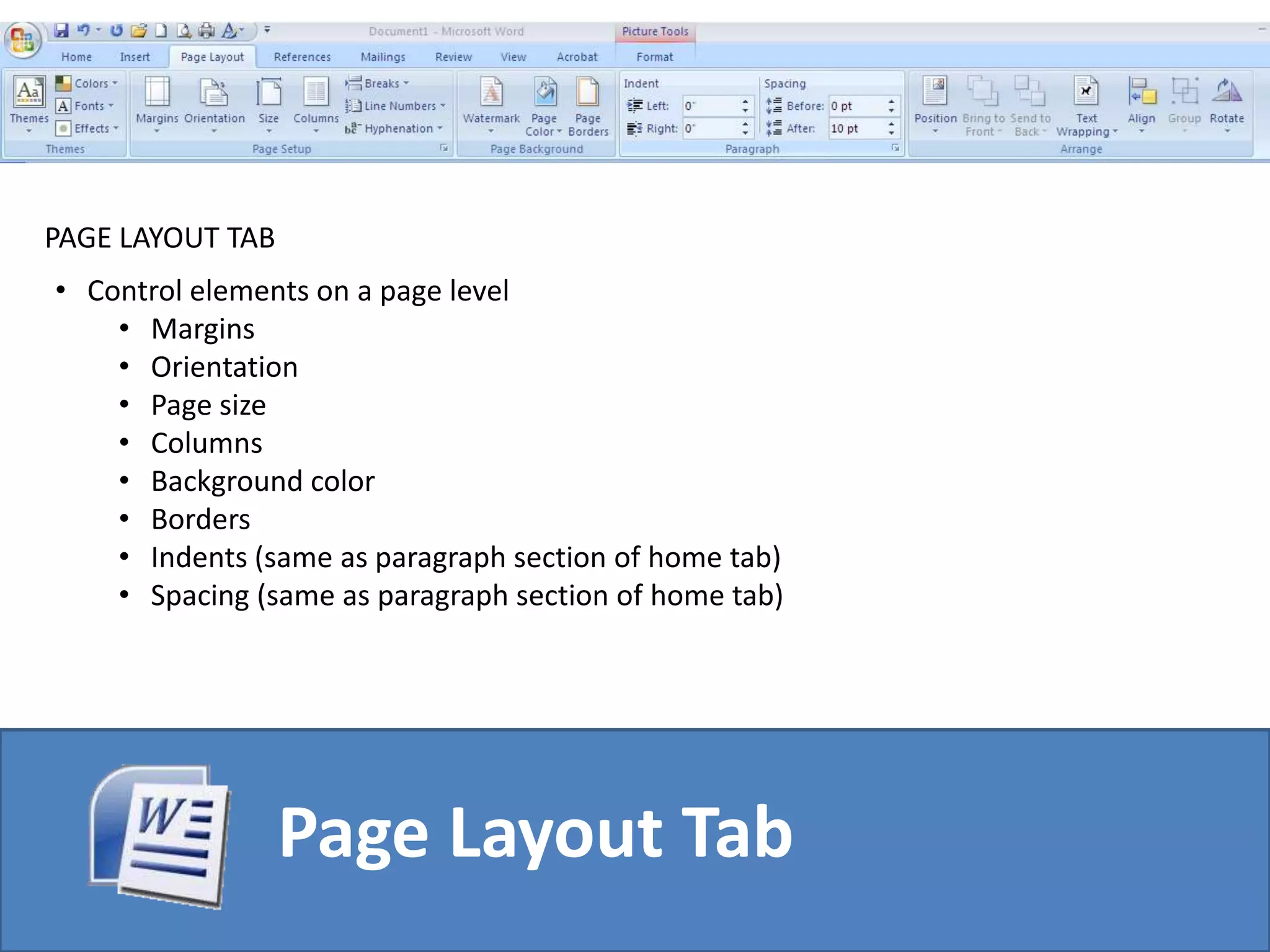
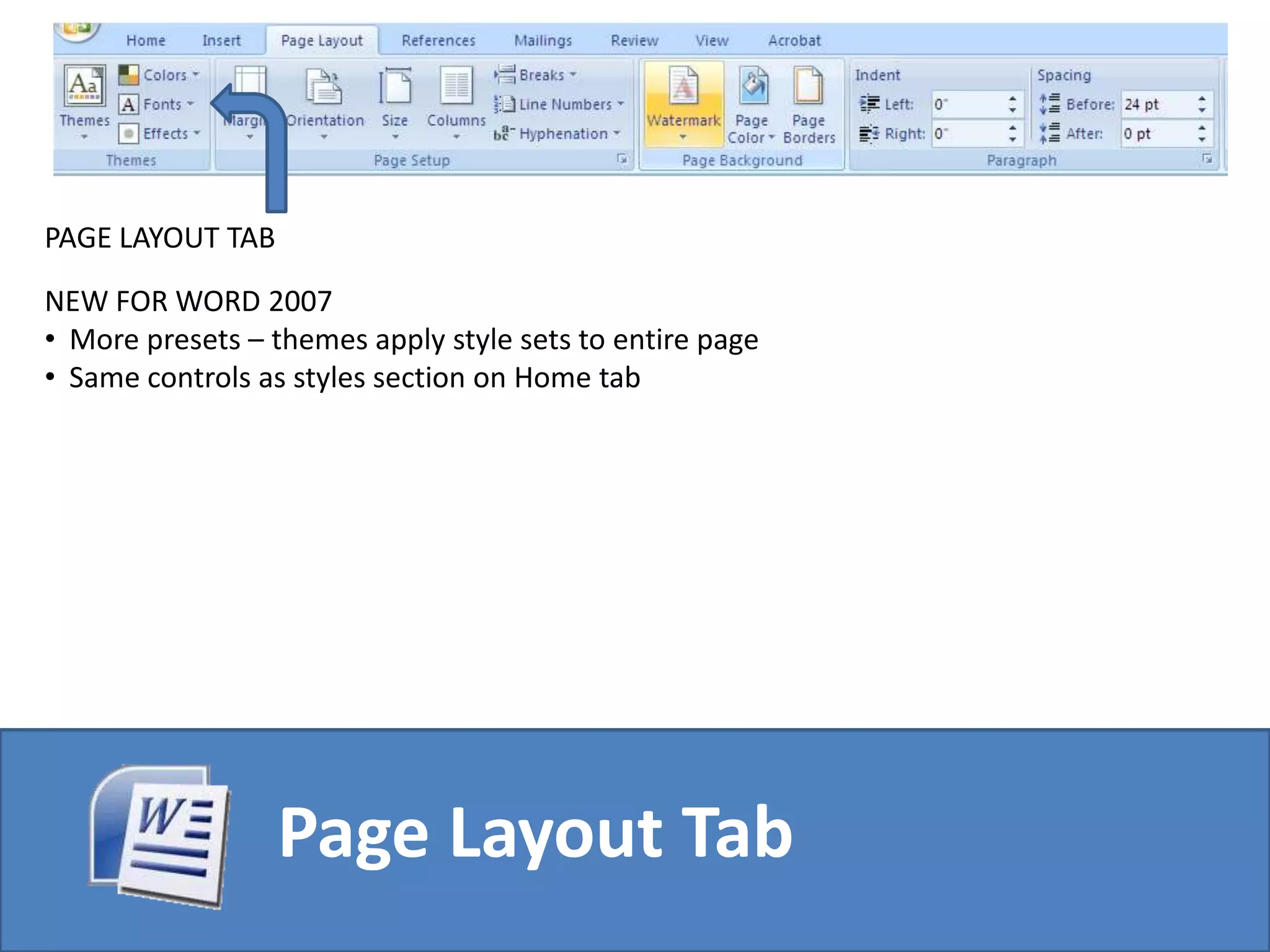
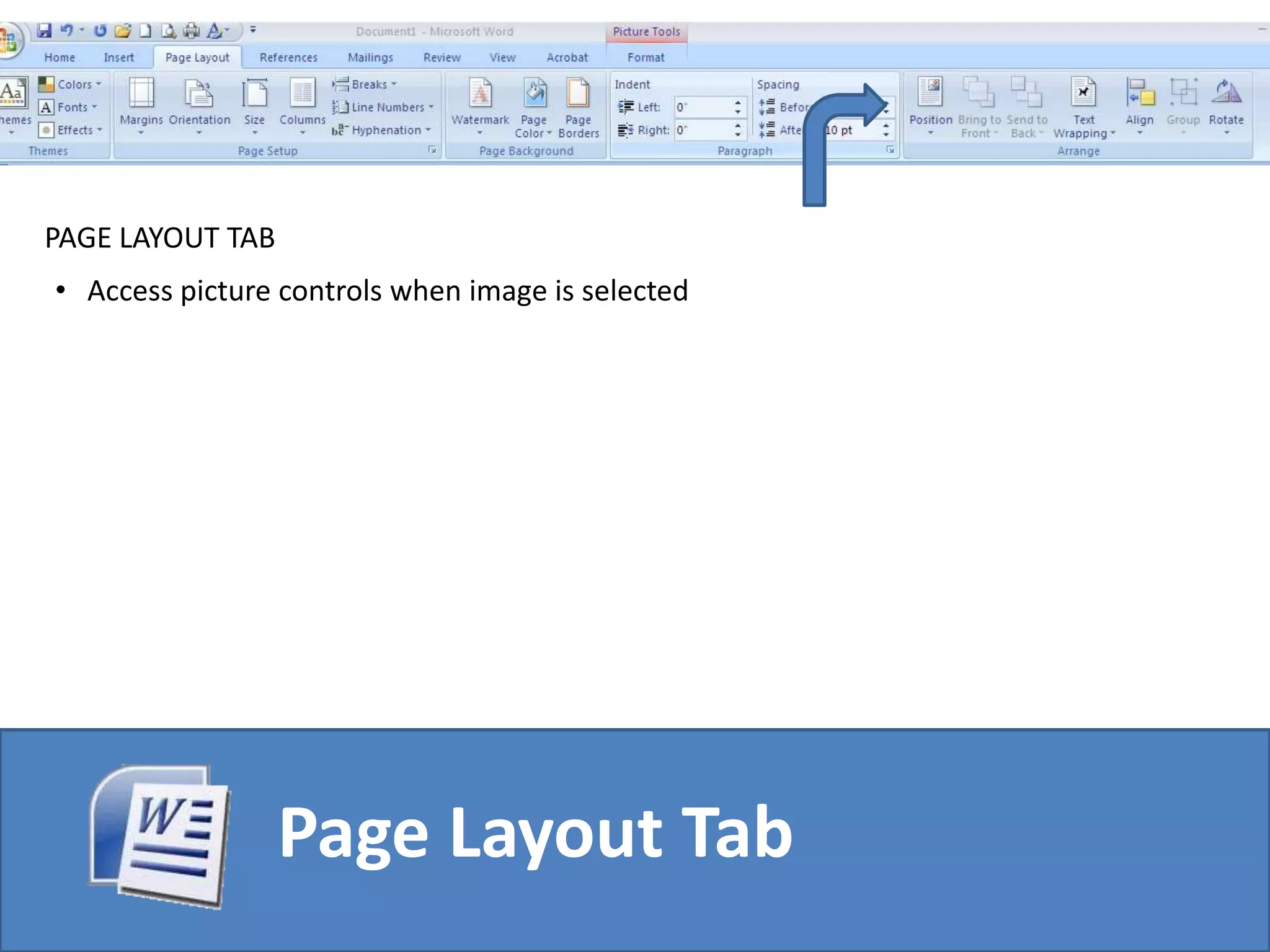
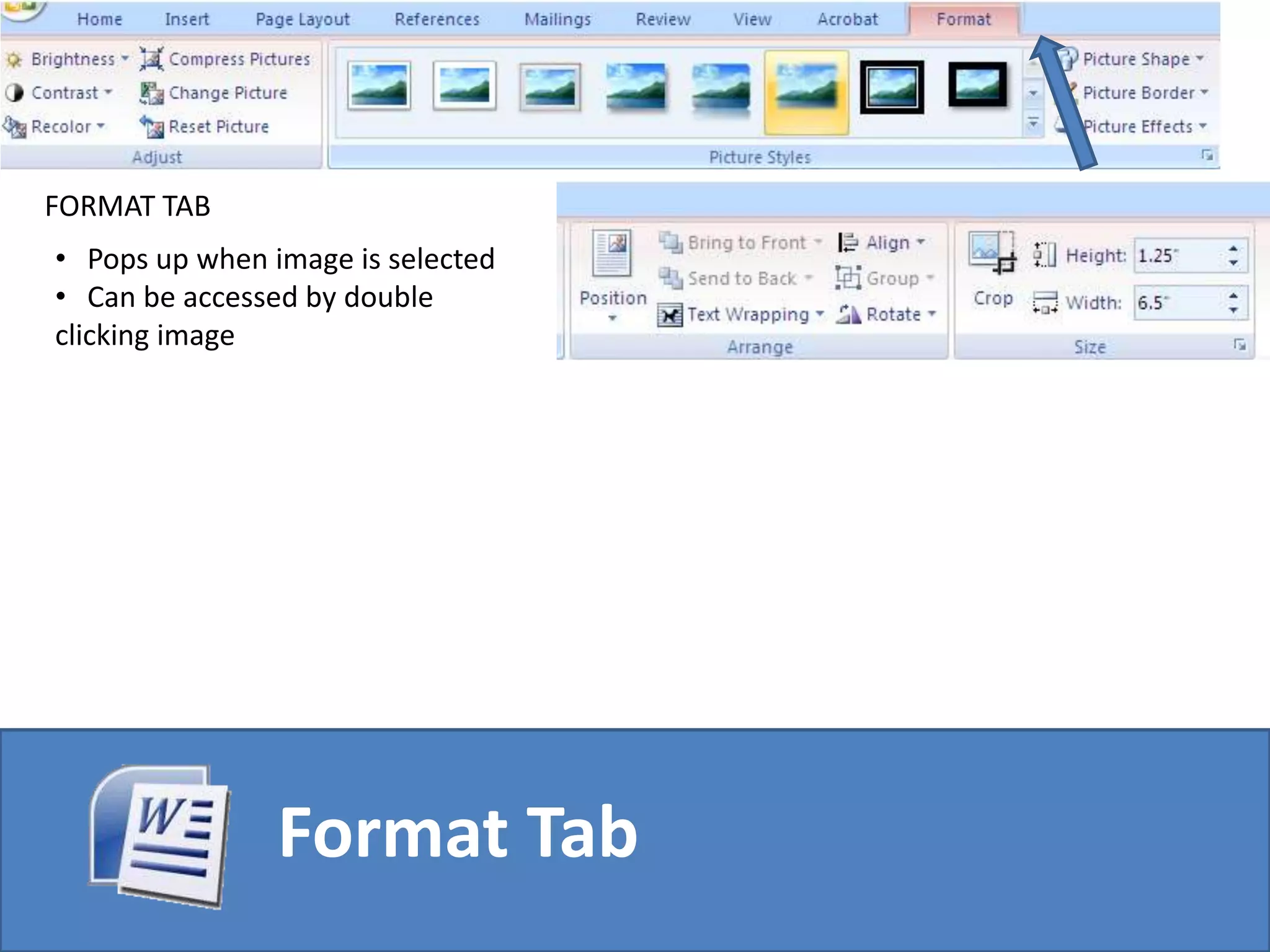
What’s New?Where is everything?Word 2007
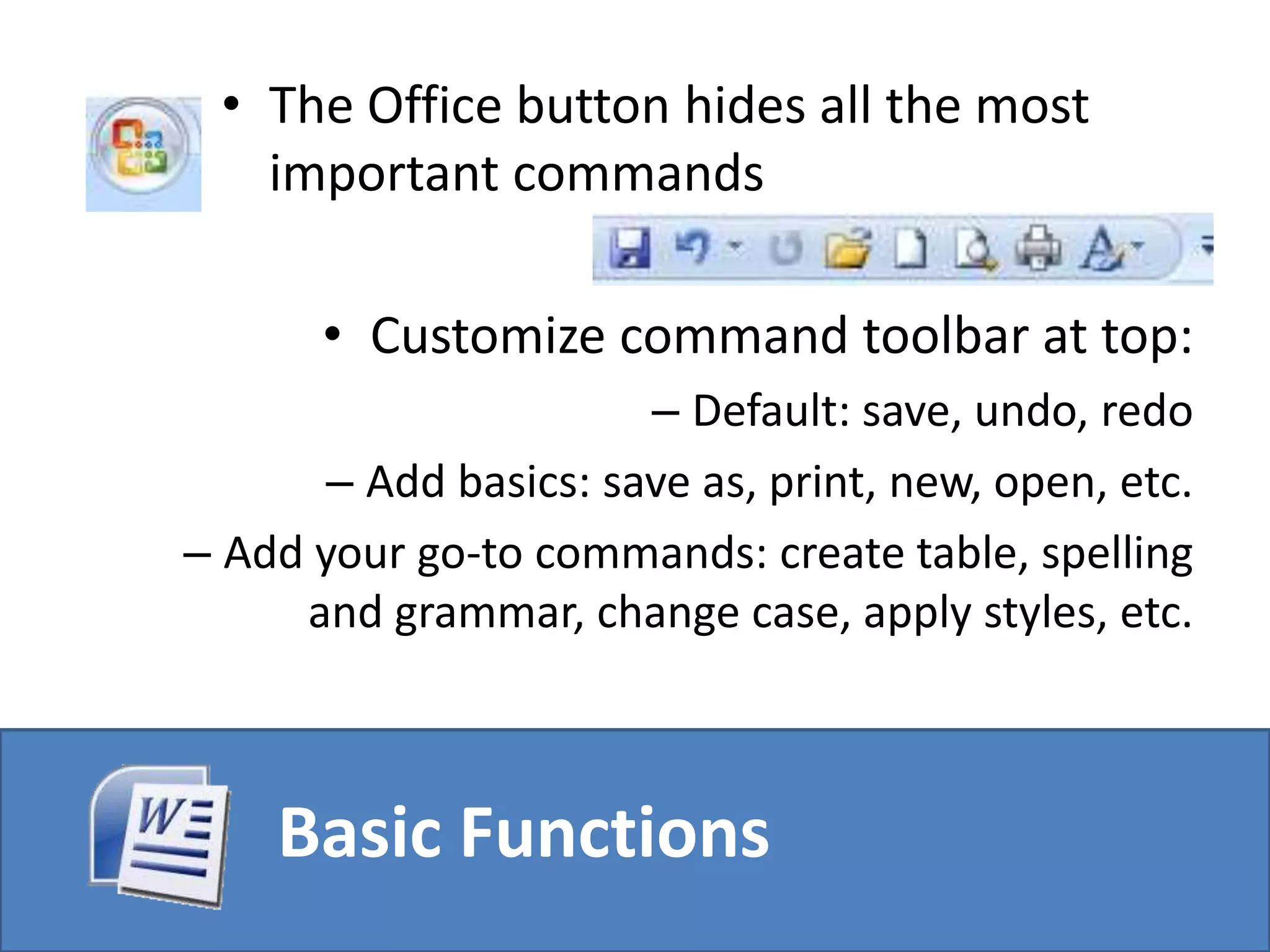
The Office button hides all the most important commandsCustomize command toolbar at top:Default: save, undo, redoAdd basics: save as, print, new, open, etc. Add your go-to commands: create table, spelling and grammar, change case, apply styles, etc.Basic Functions
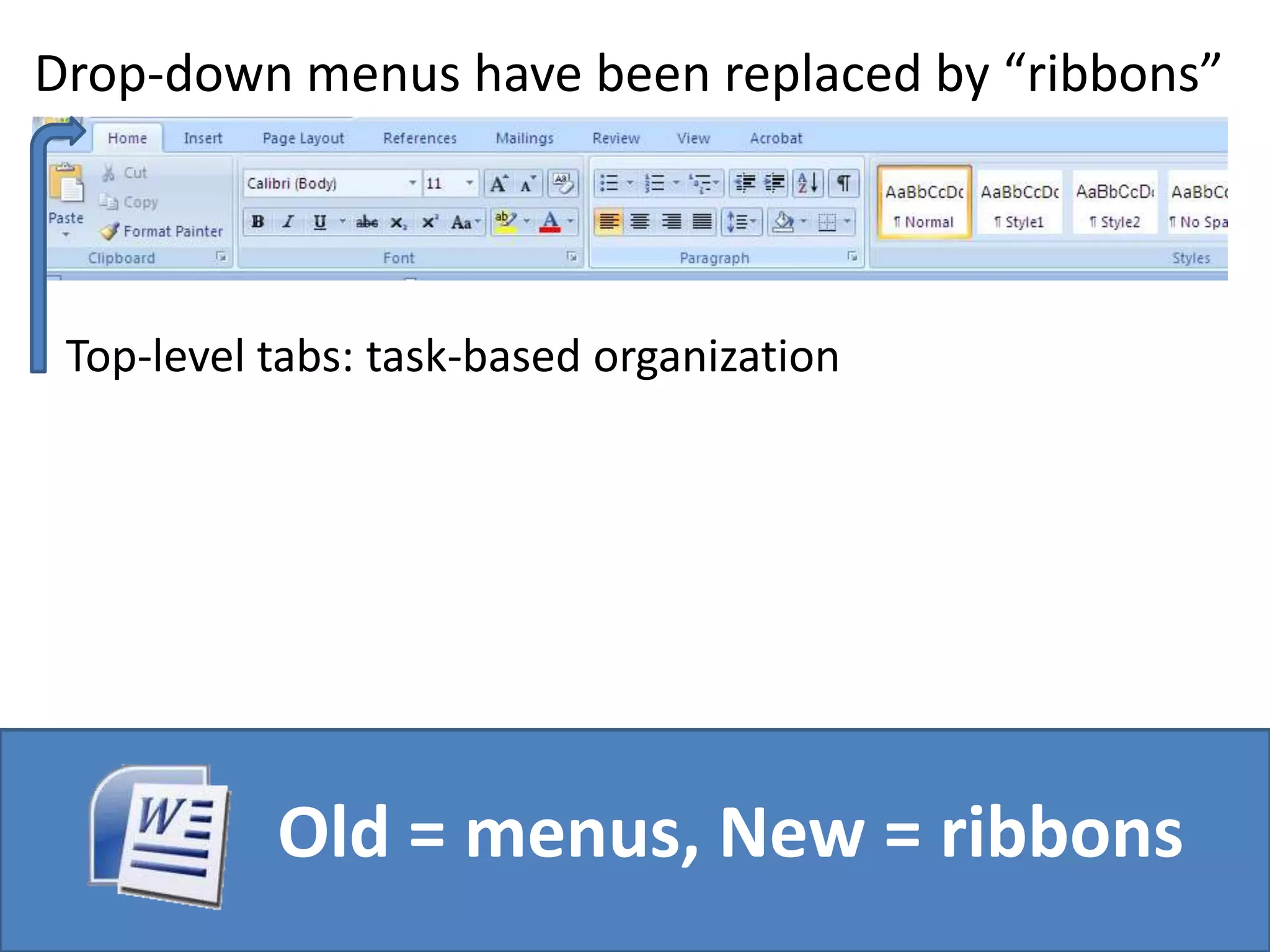
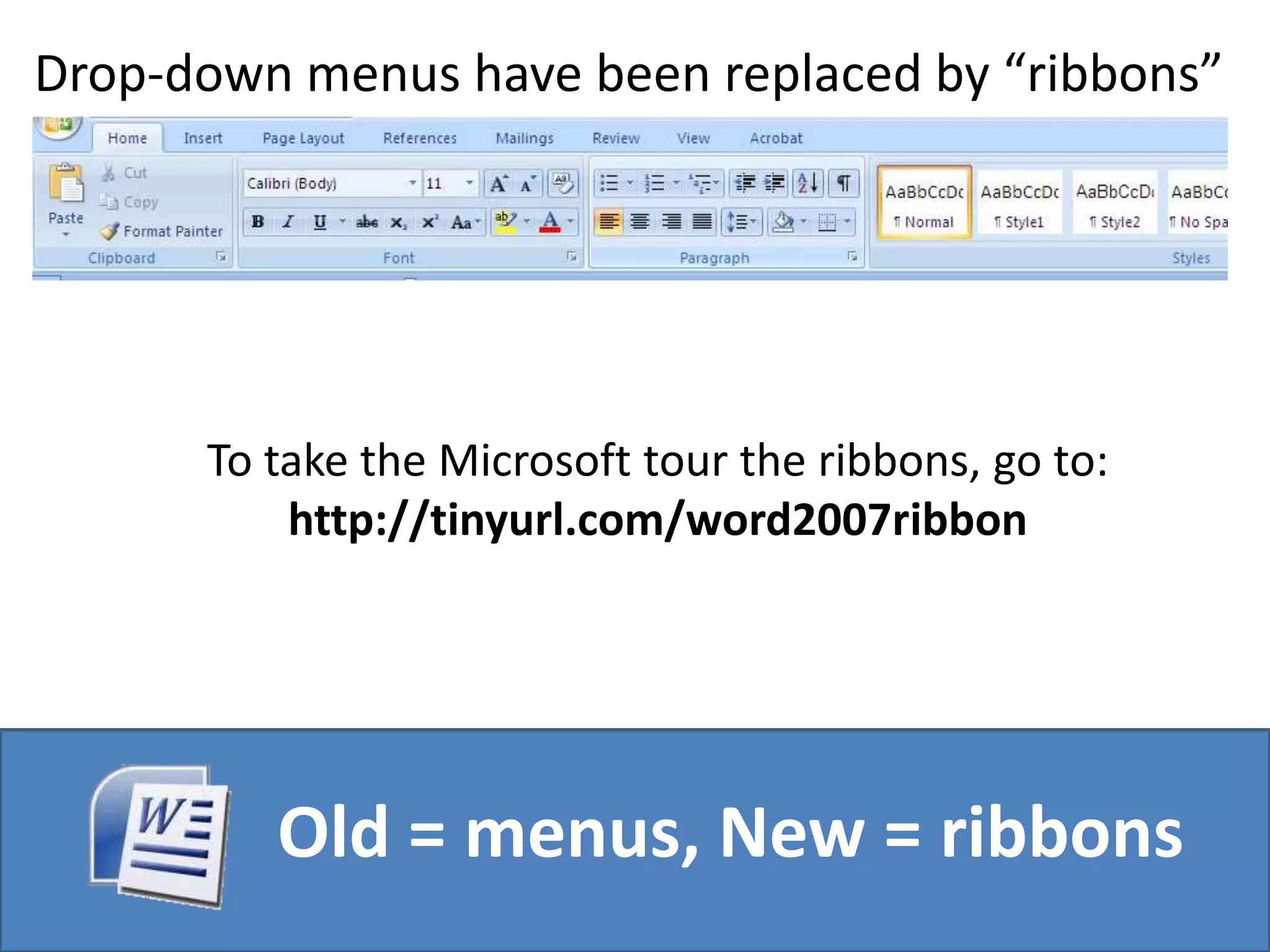
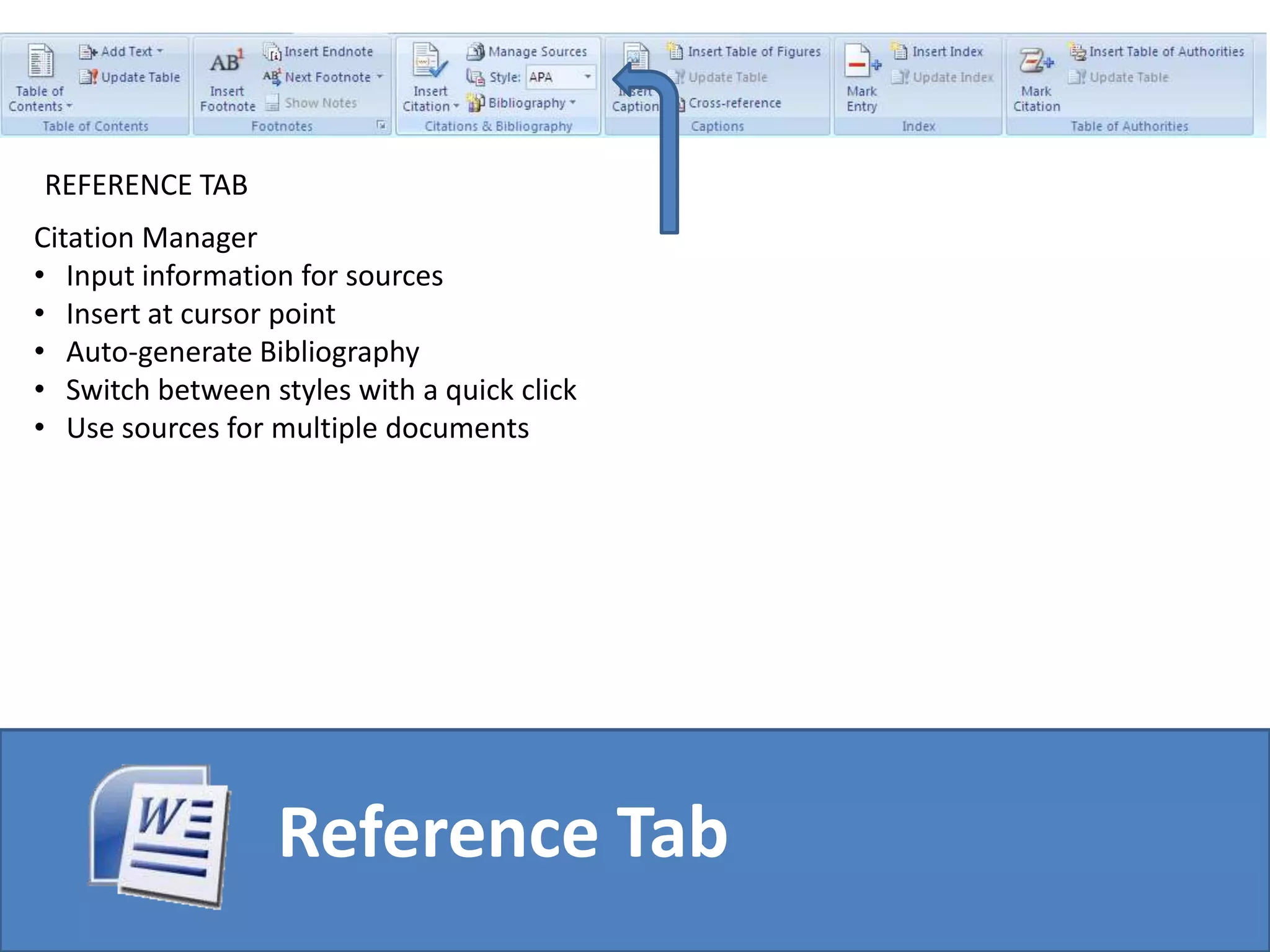
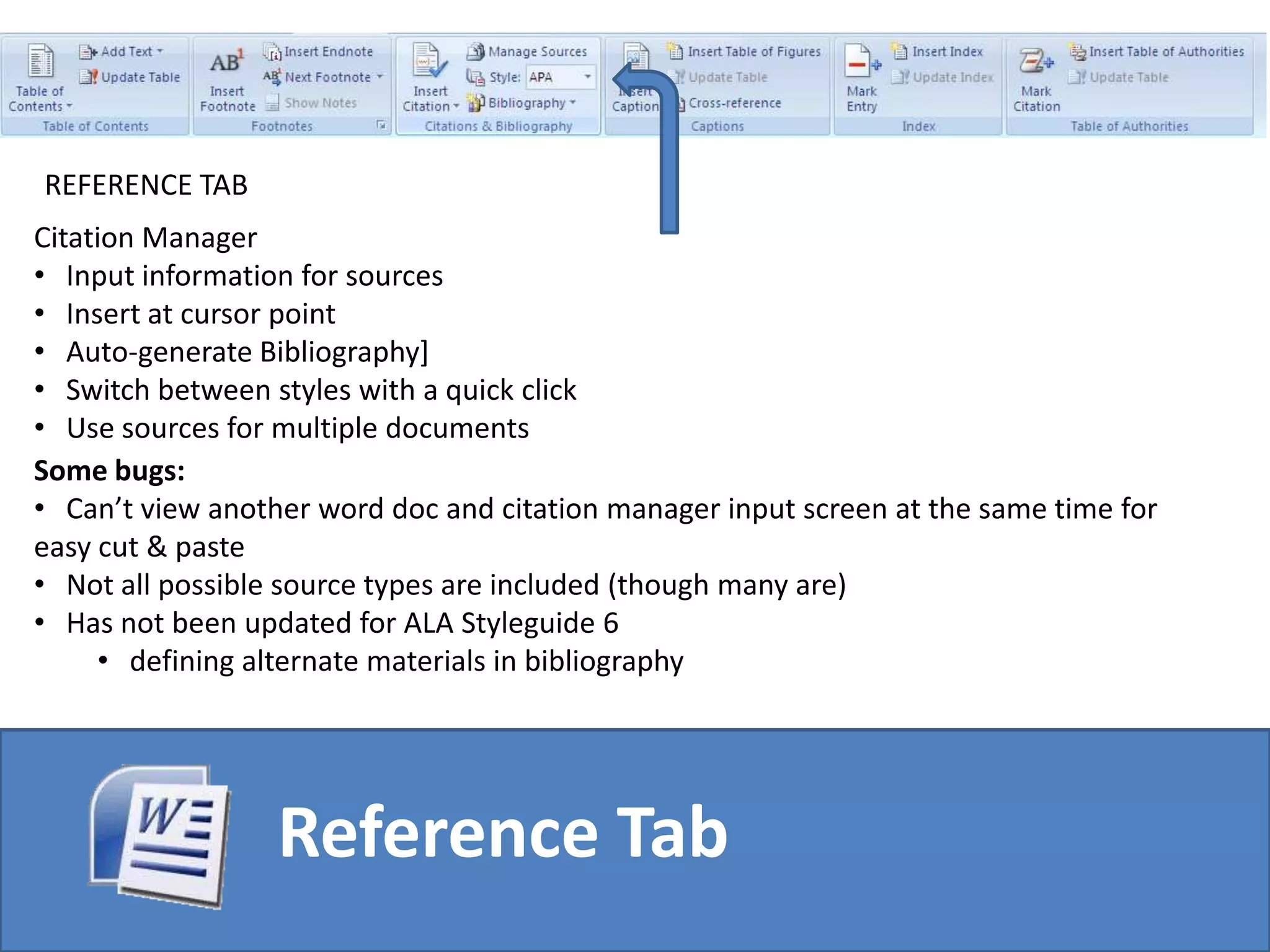
Drop-down menus have been replaced by “ribbons”Top-level tabs: task-based organization Old = menus, New = ribbons
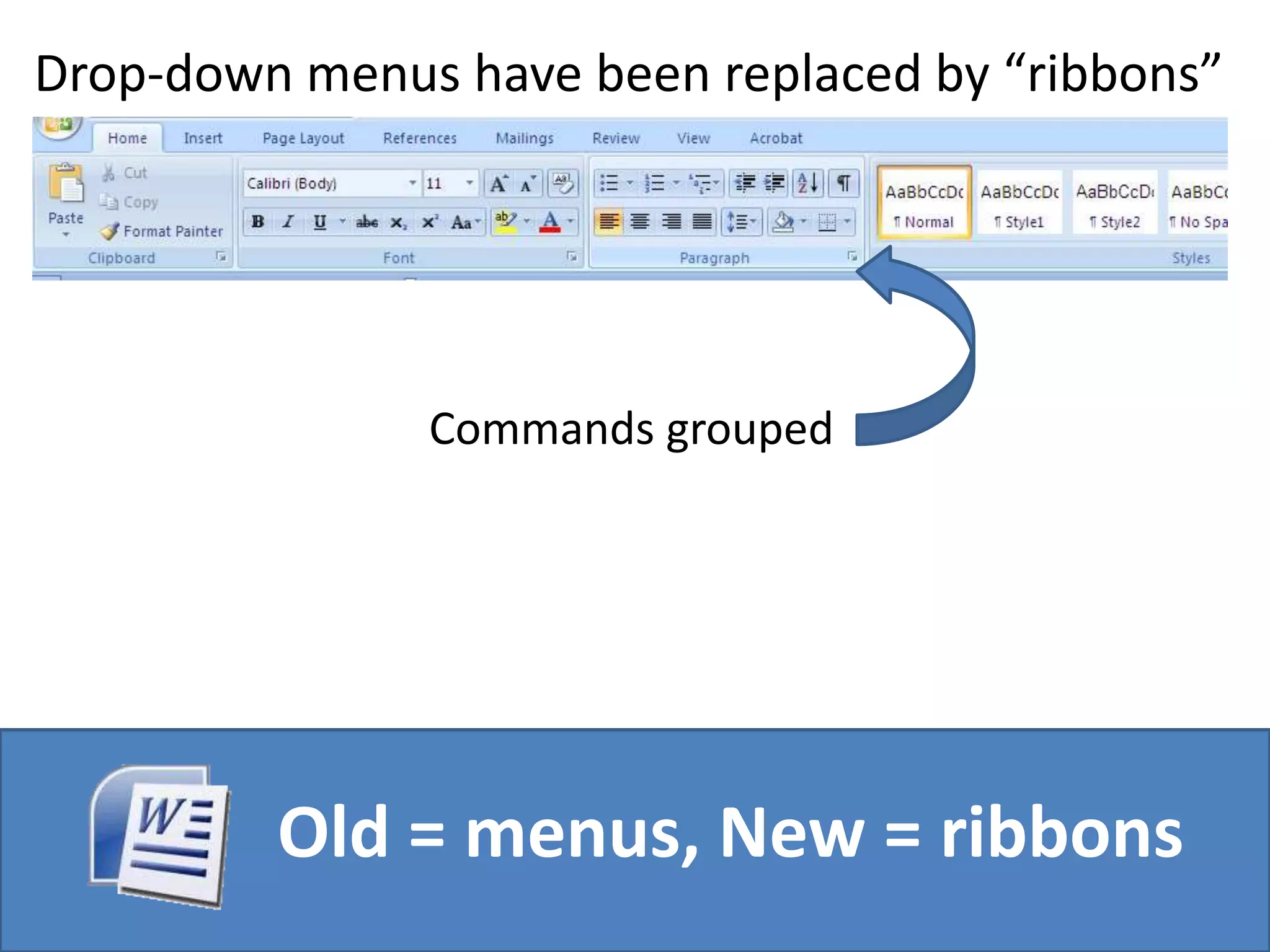
Drop-down menus have been replaced by “ribbons”Commands grouped Old = menus, New = ribbons
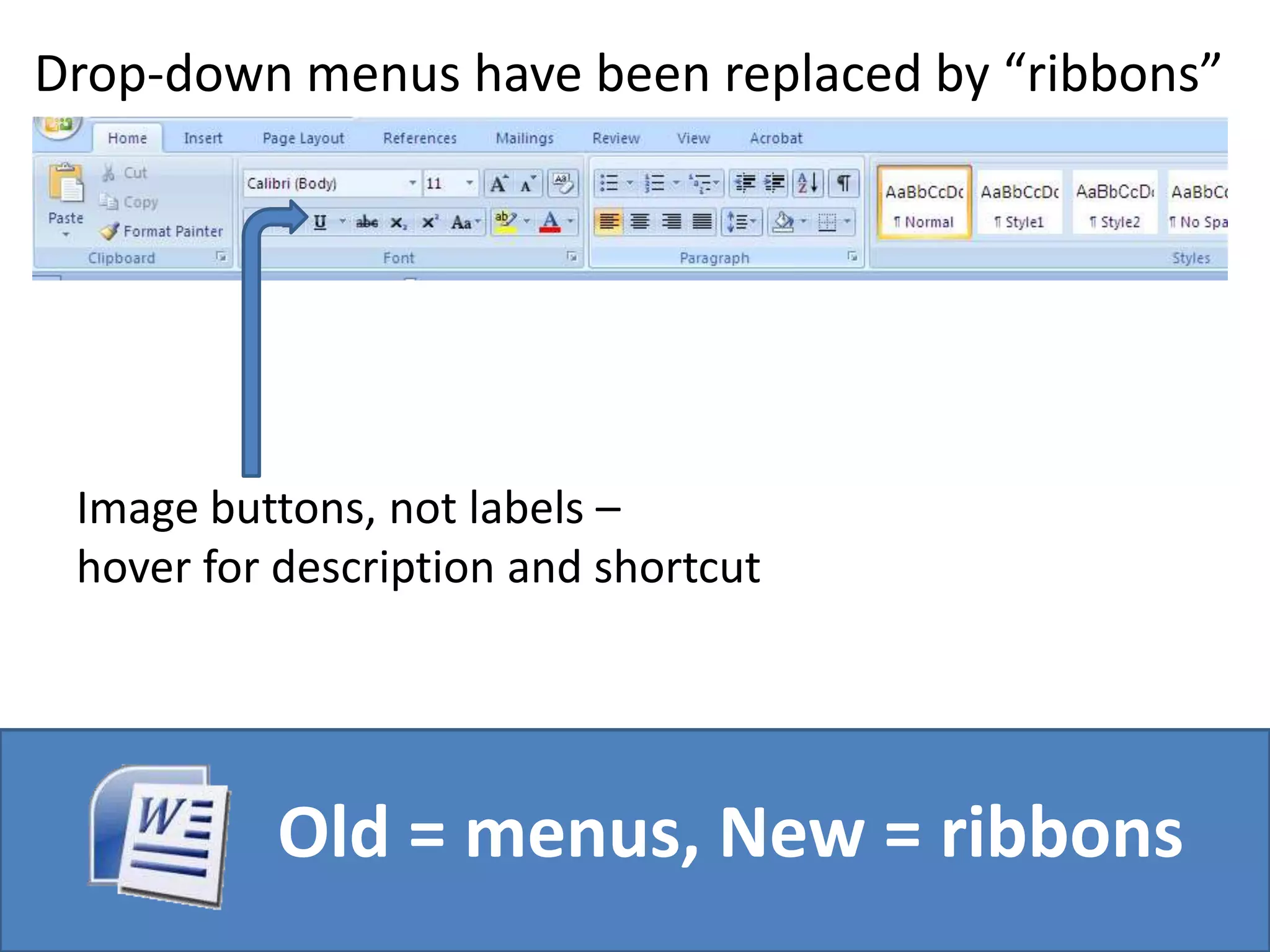
Drop-down menus have been replaced by “ribbons”Image buttons, not labels – hover for description and shortcutOld = menus, New = ribbons
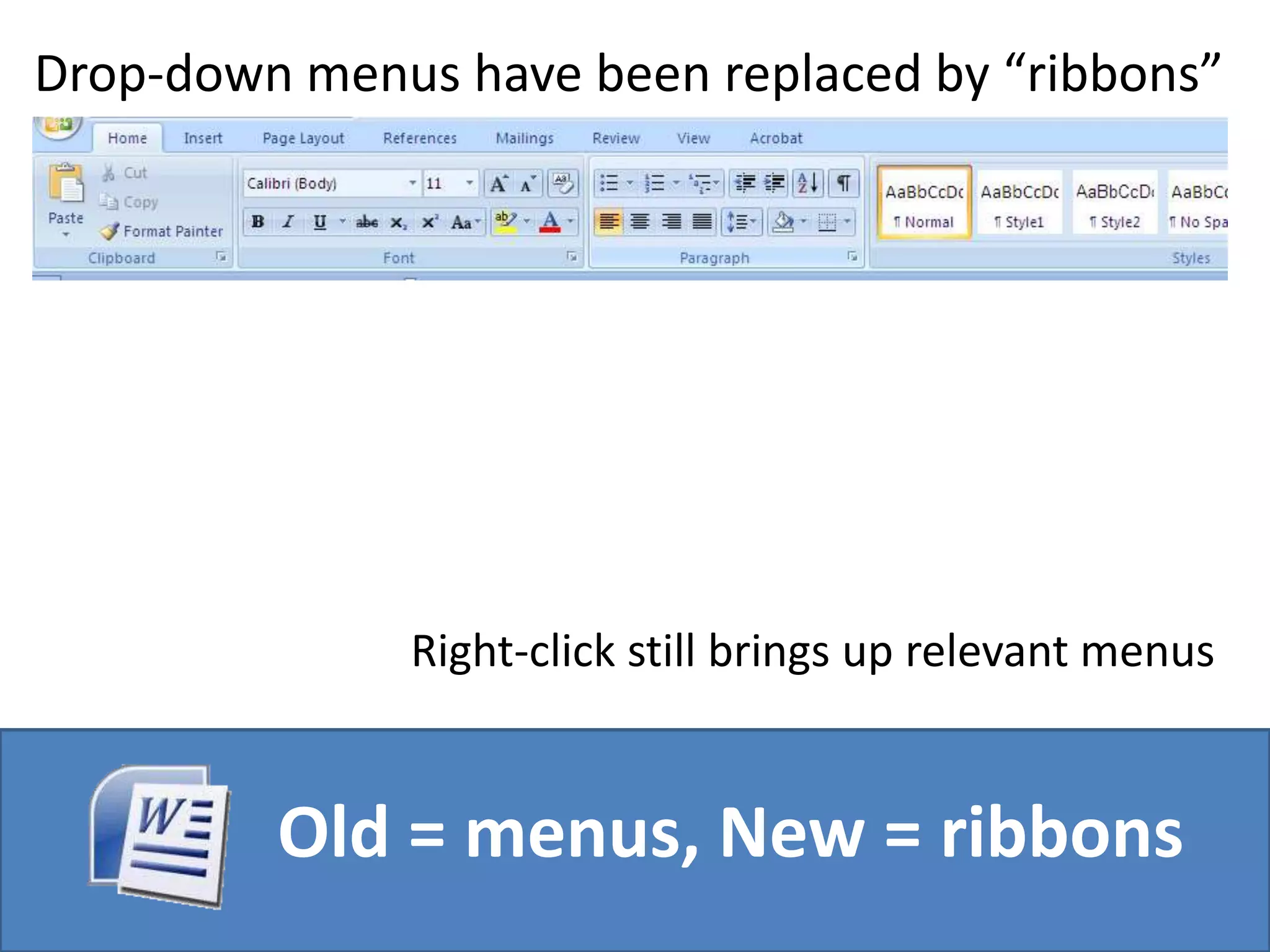
Drop-down menus have been replaced by “ribbons”Right-click still brings up relevant menusOld = menus, New = ribbons
Drop-down menus have been replaced by “ribbons”To take the Microsoft tour the ribbons, go to:http://tinyurl.com/word2007ribbonOld = menus, New = ribbons
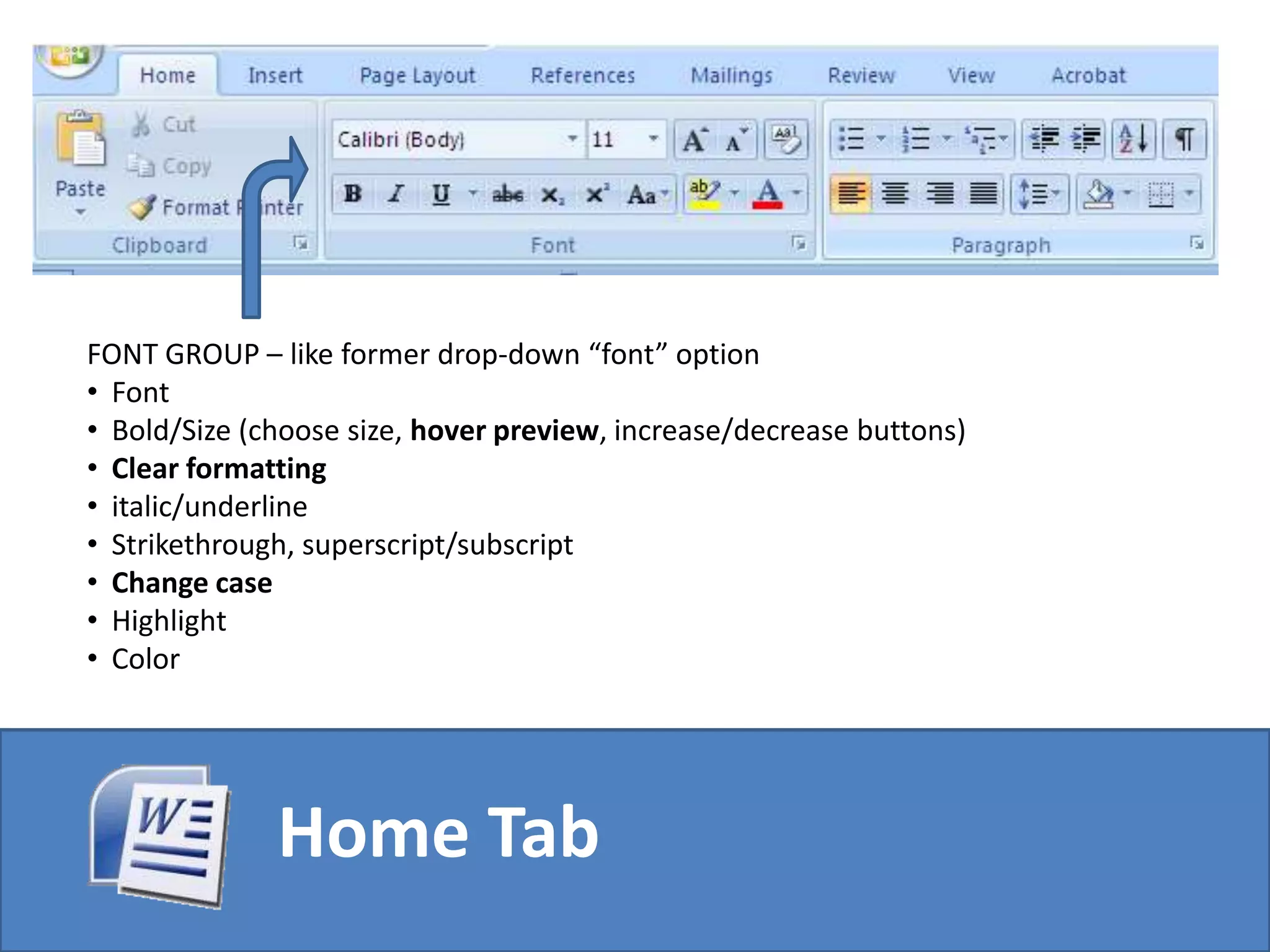
FONT GROUP – like former drop-down “font” option Font
Bold/Size (choose size, hover preview, increase/decrease buttons)
Clear formatting
italic/underline
Strikethrough, superscript/subscript
Change case
Highlight
ColorHome Tab
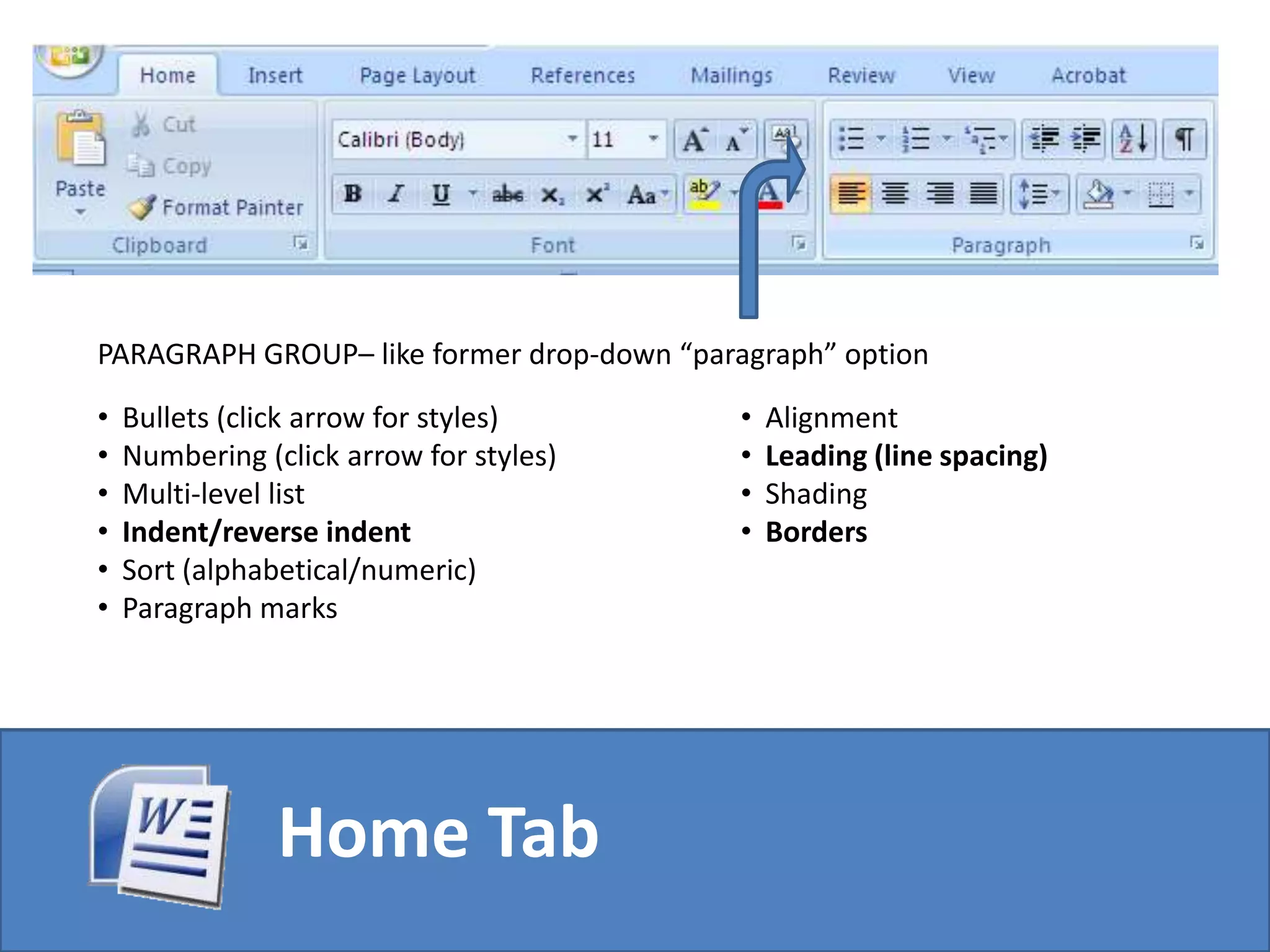
PARAGRAPH GROUP– like former drop-down “paragraph” optionBullets (click arrow for styles)
Numbering (click arrow for styles)
Multi-level list
Indent/reverse indent
Sort (alphabetical/numeric)
Paragraph marks
Alignment
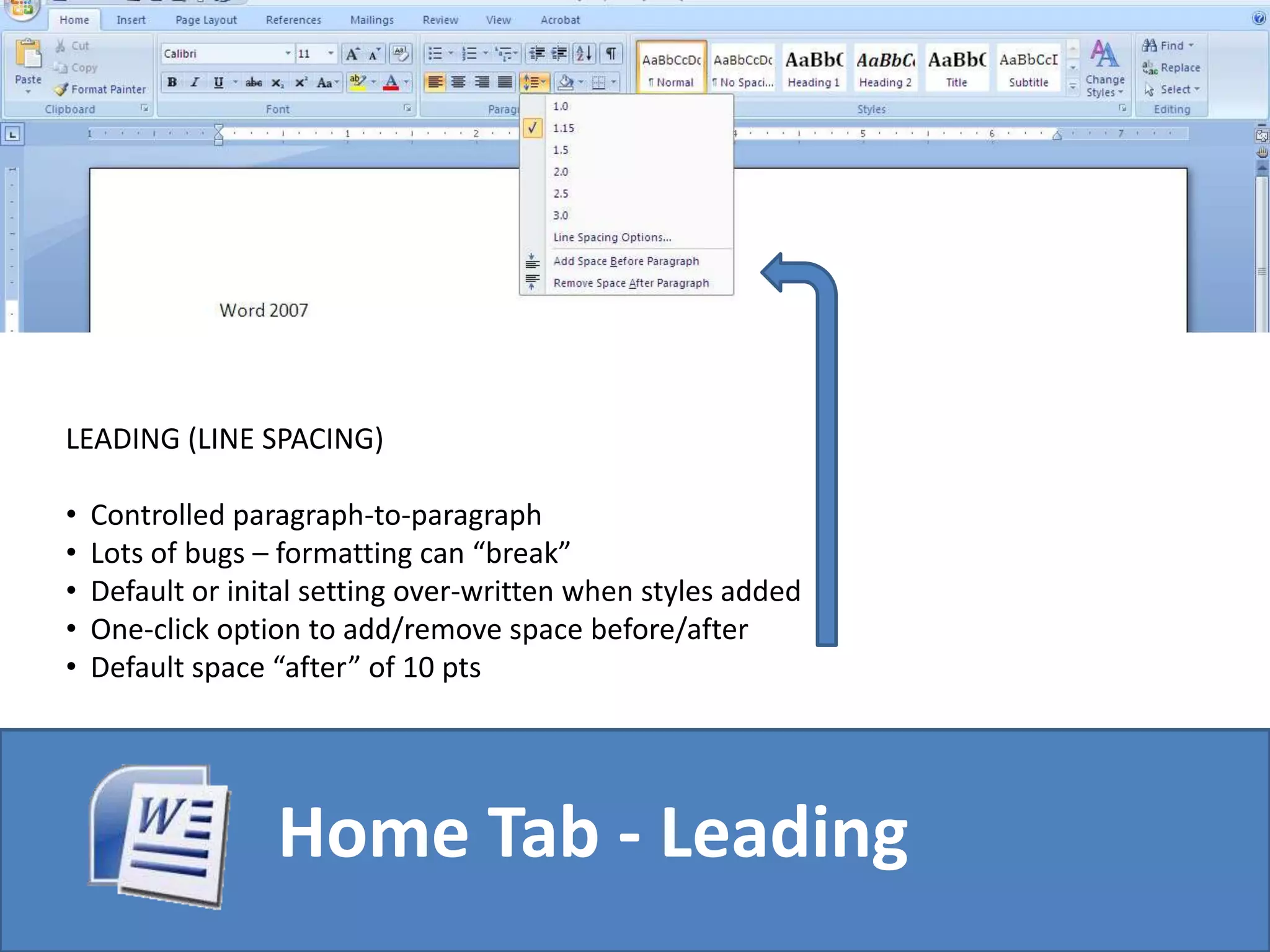
Leading (line spacing)
Shading
BordersHome Tab
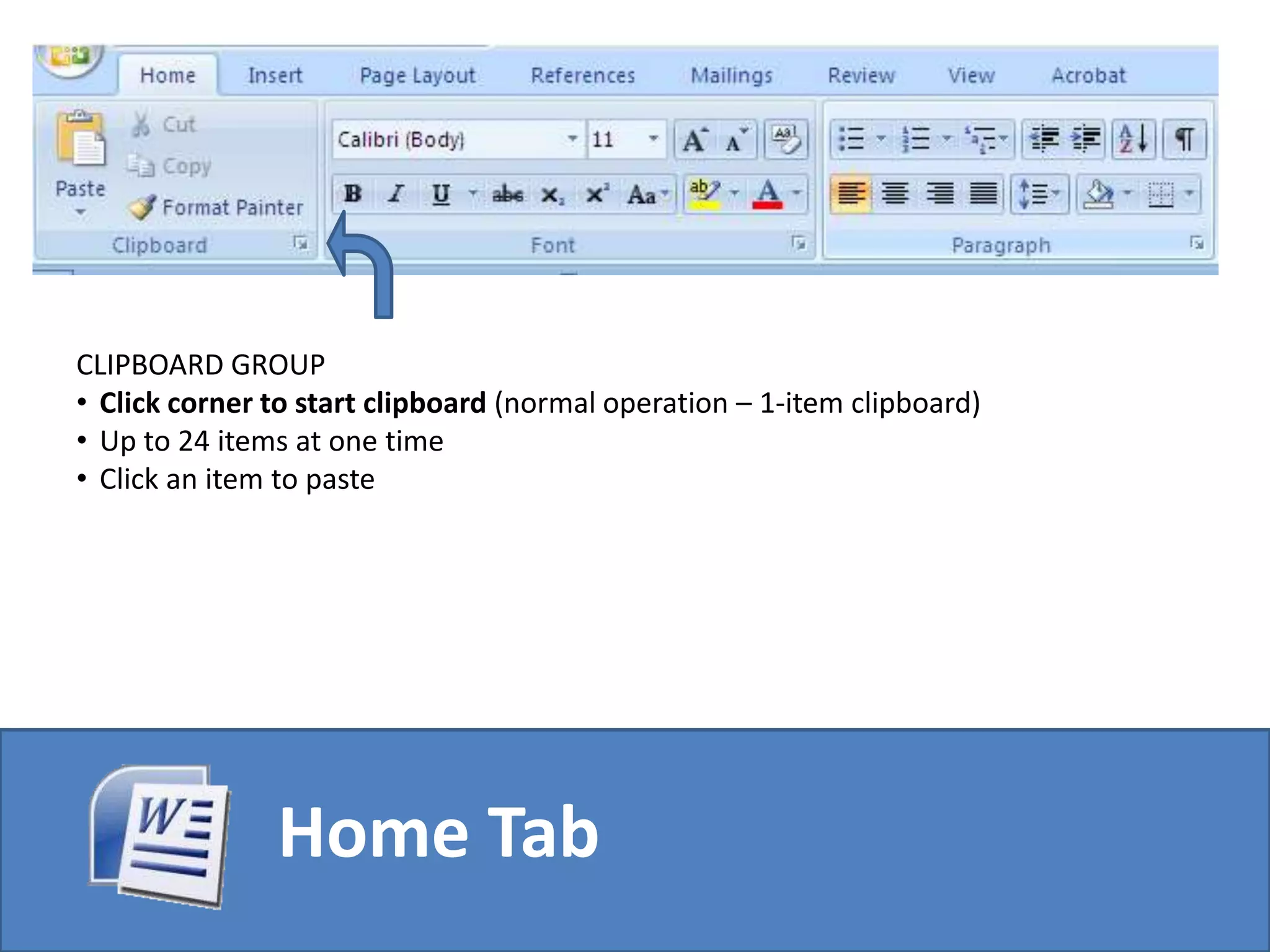
CLIPBOARD GROUPClick corner to start clipboard (normal operation – 1-item clipboard)
Up to 24 items at one time
Click an item to pasteHome Tab
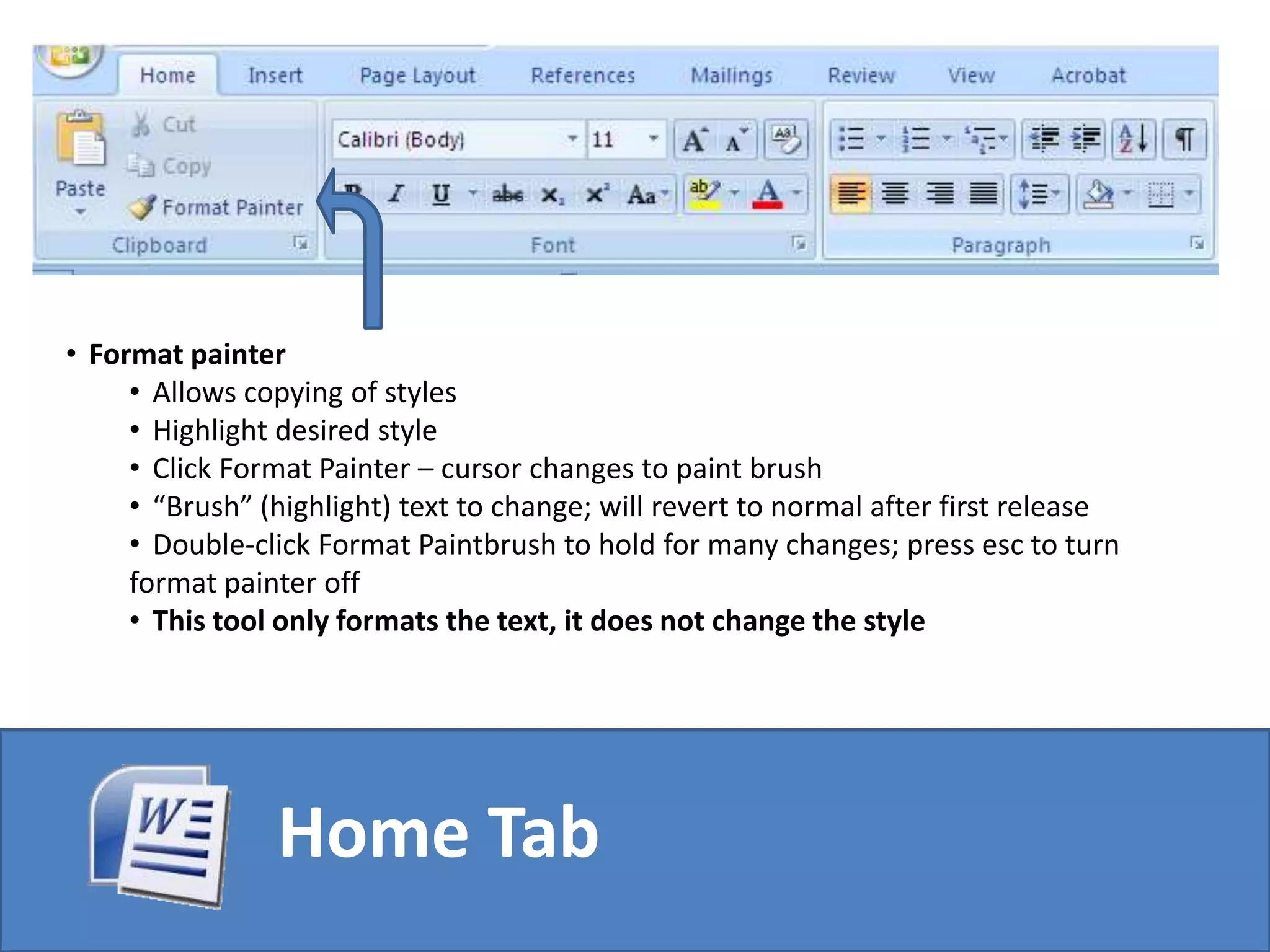
Format painter
Allows copying of styles
Highlight desired style
Click Format Painter – cursor changes to paint brush
“Brush” (highlight) text to change; will revert to normal after first release
Double-click Format Paintbrush to hold for many changes; press esc to turn format painter off
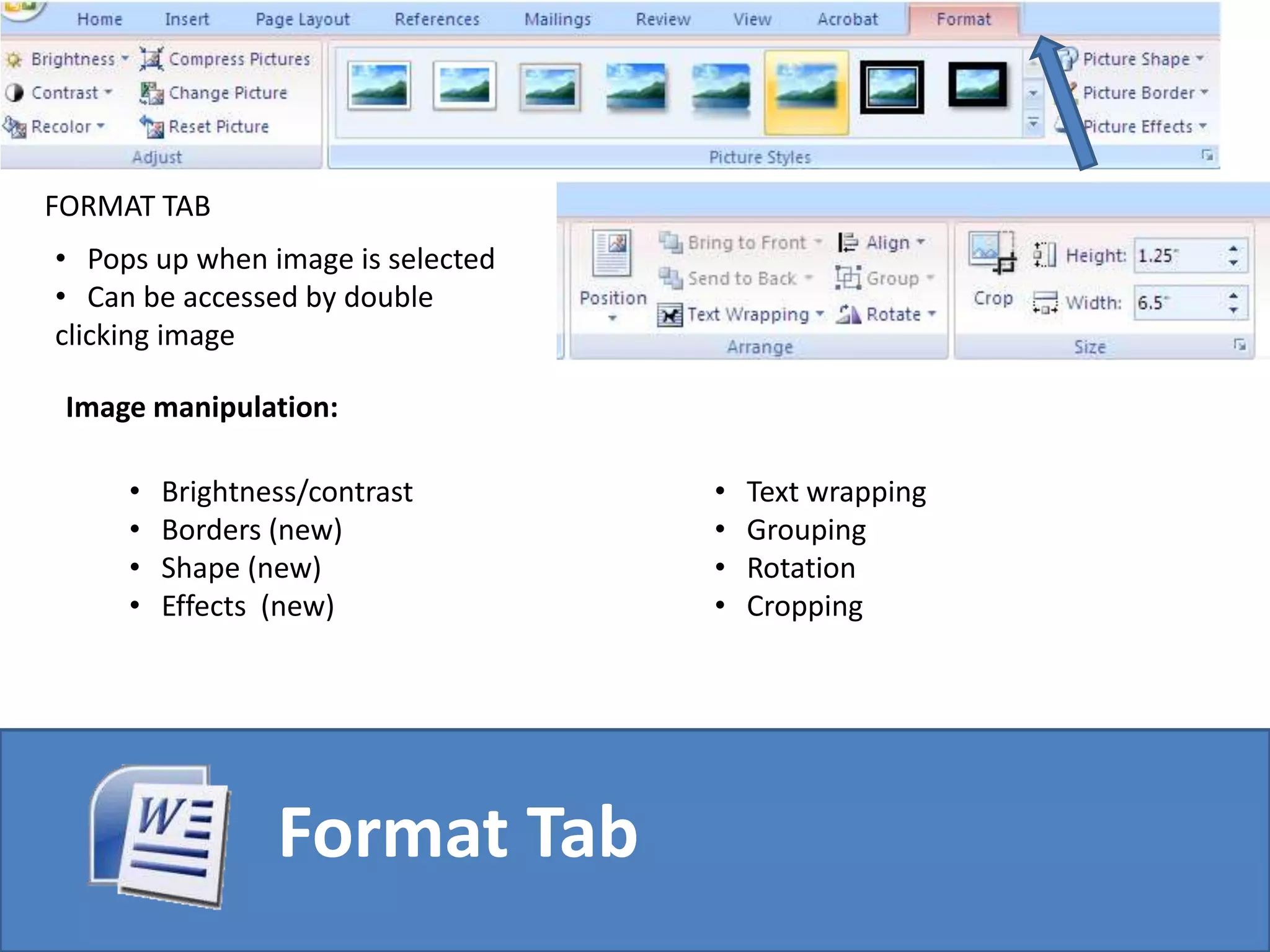
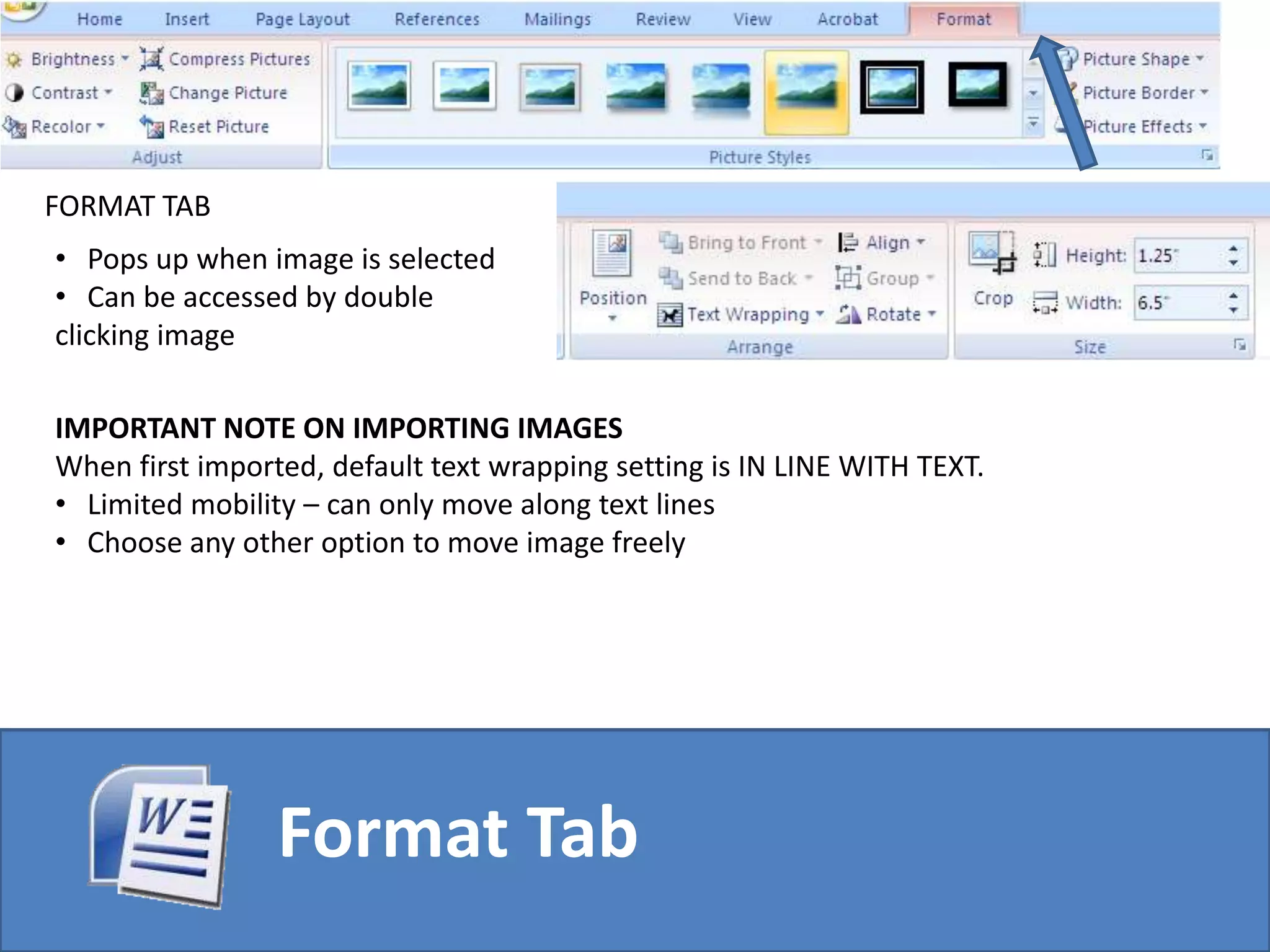
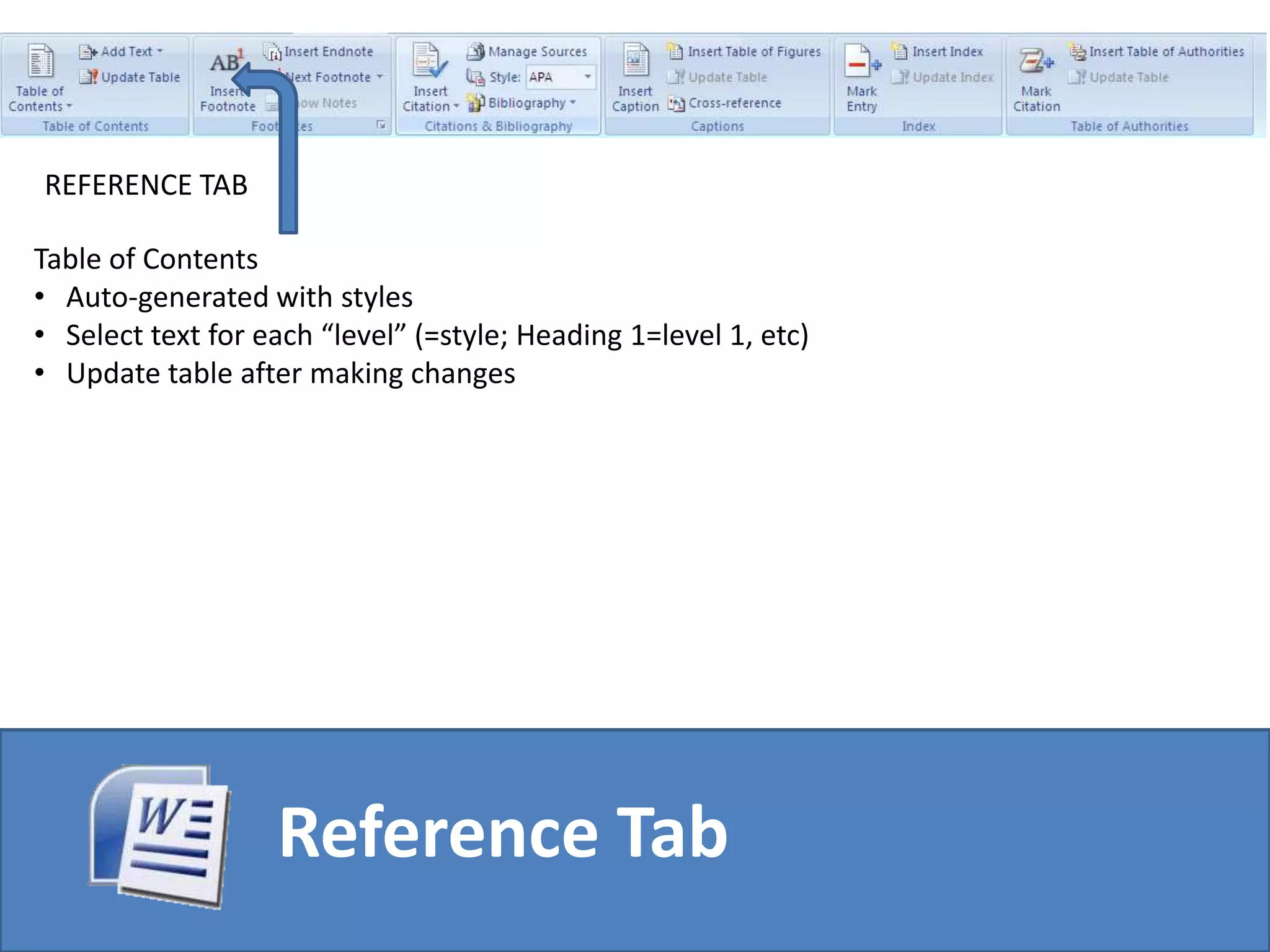
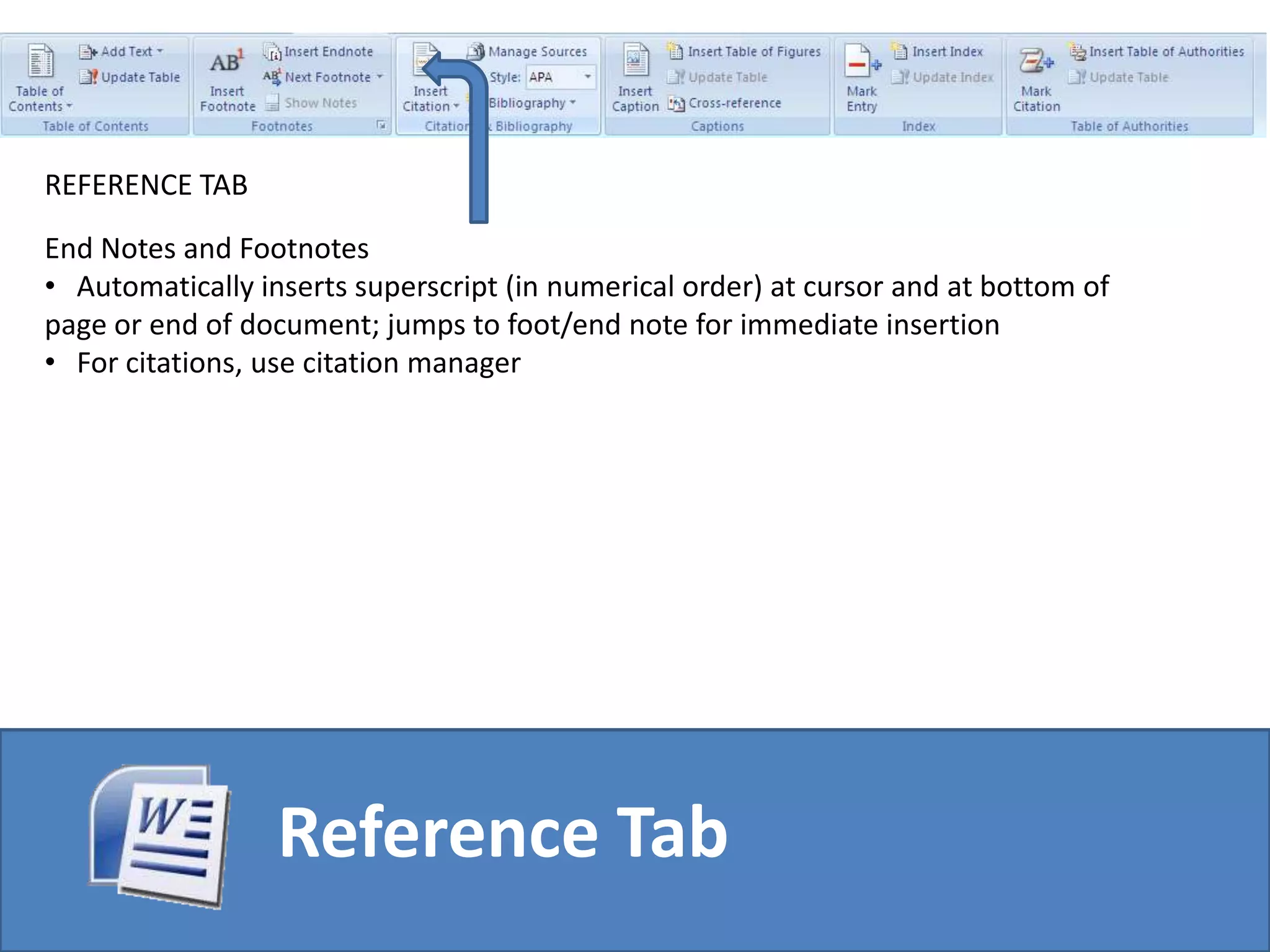
This tool only formats the text, it does not change the styleHome Tab

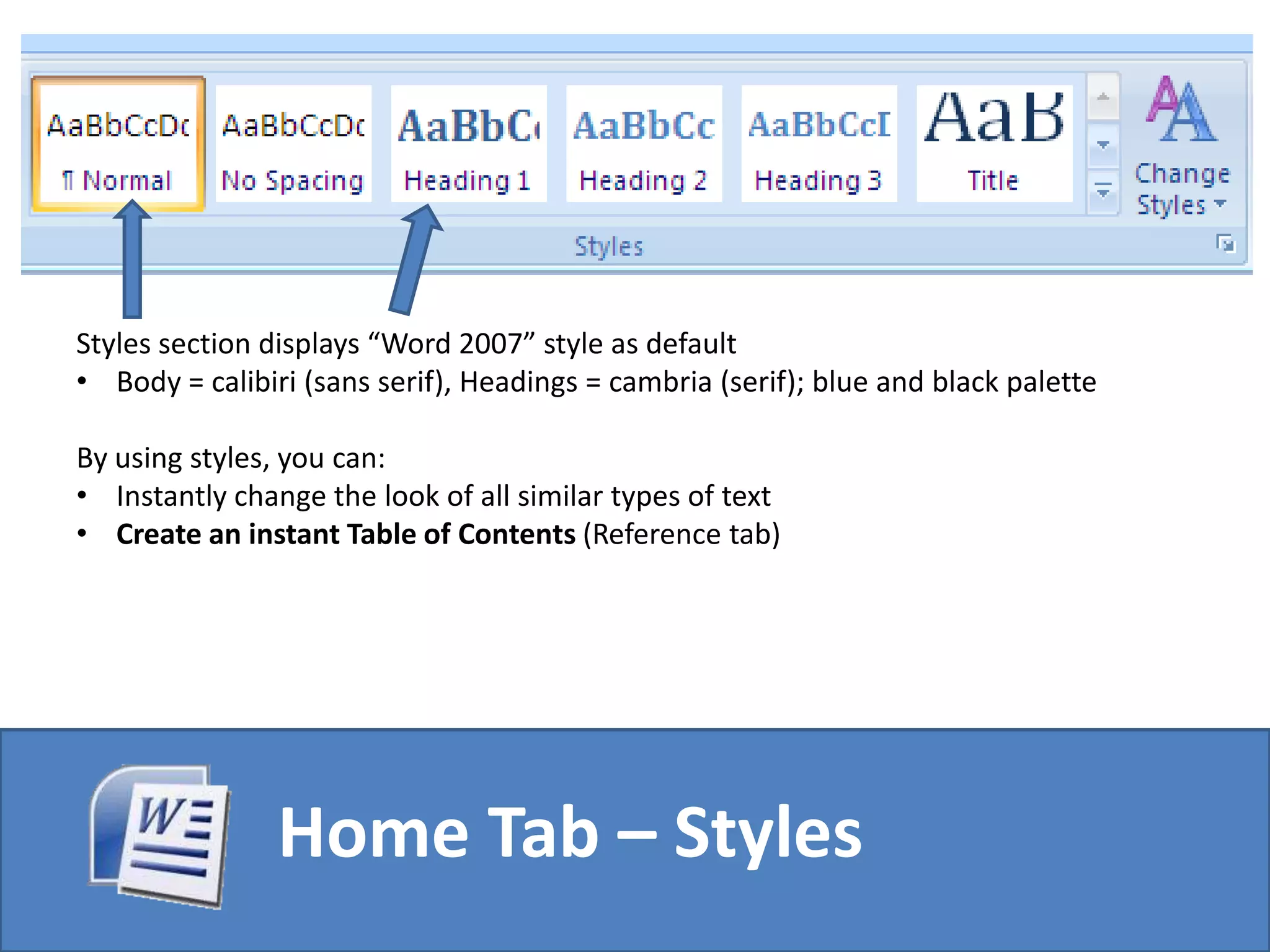
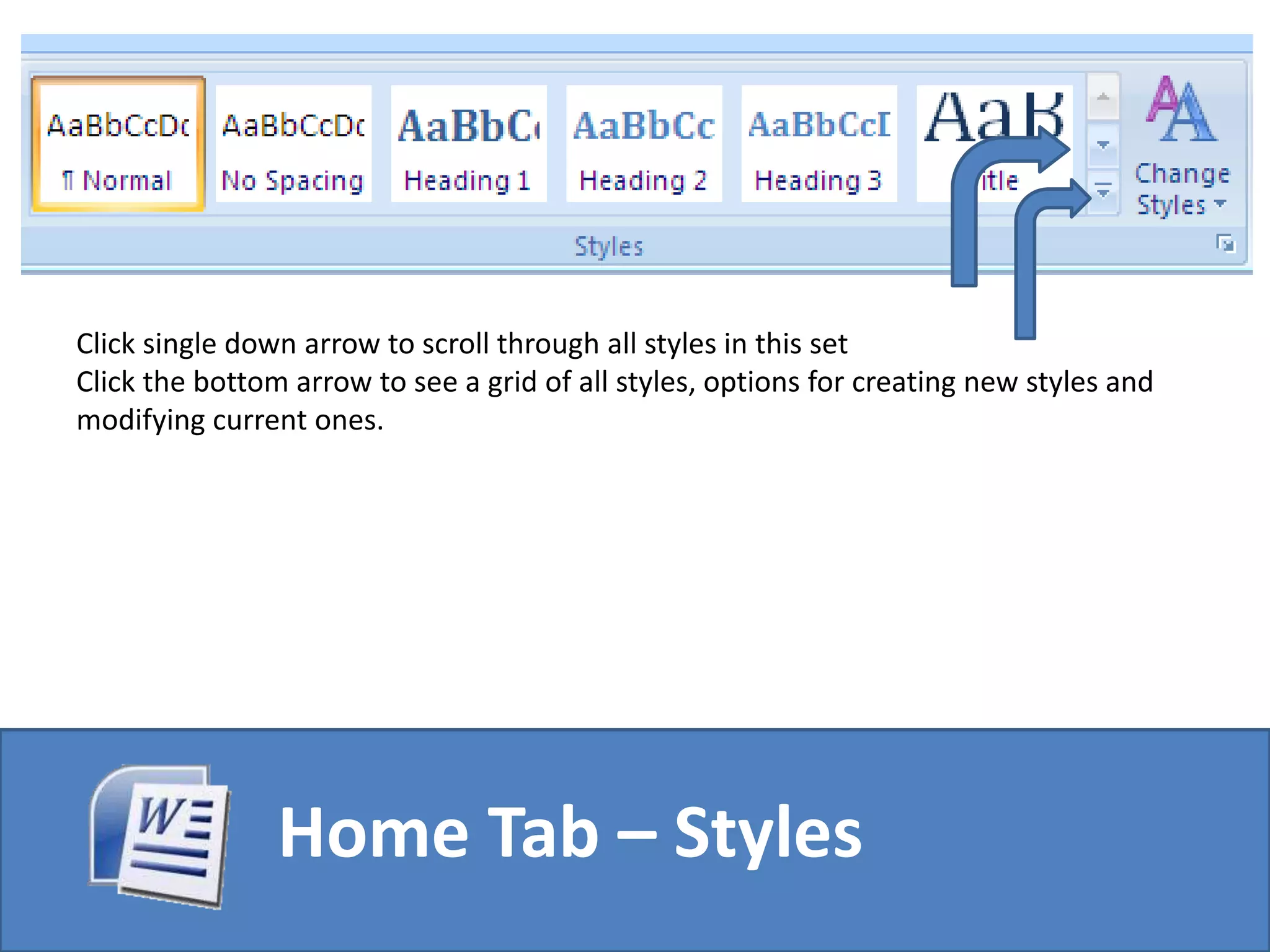
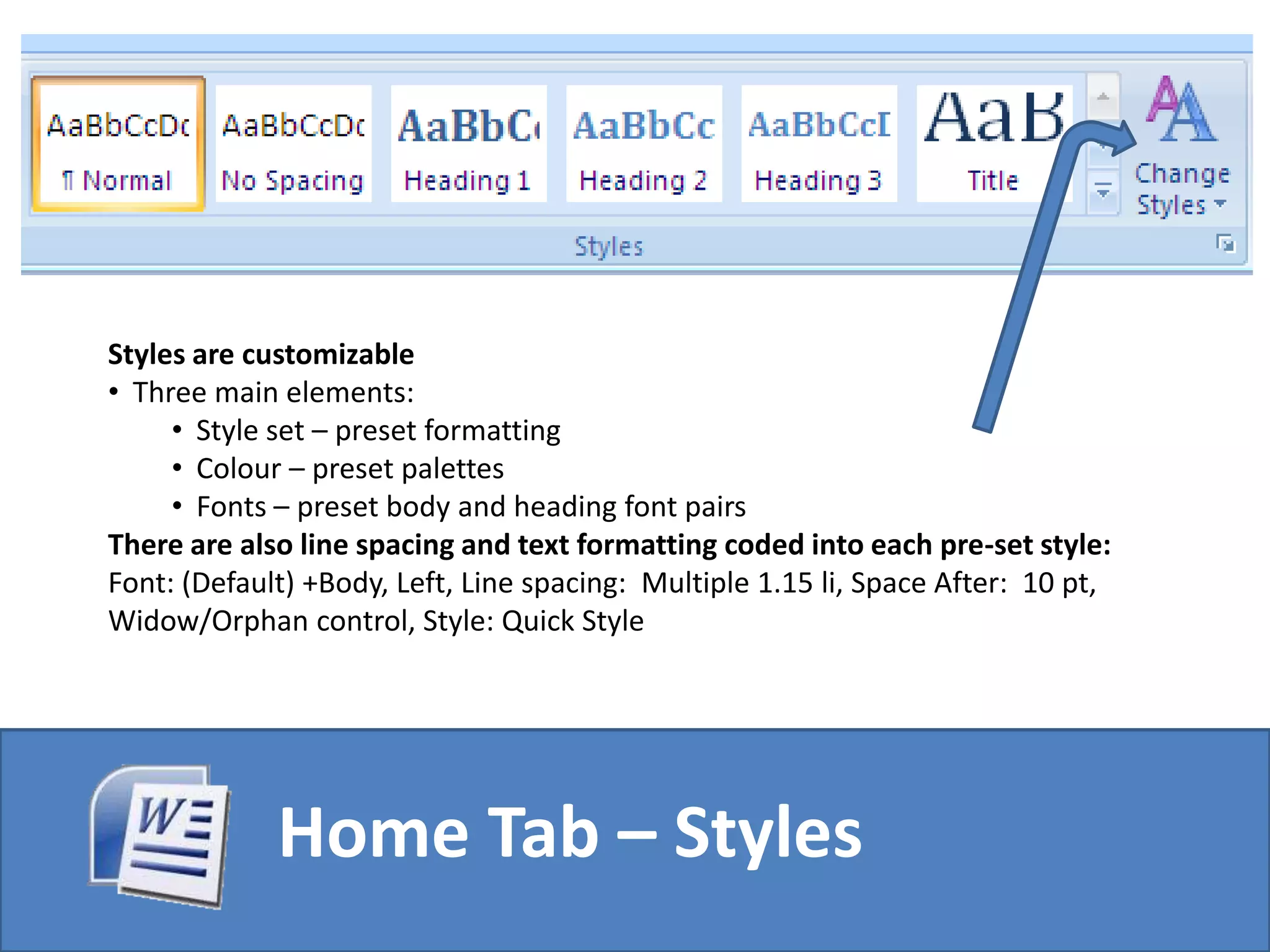
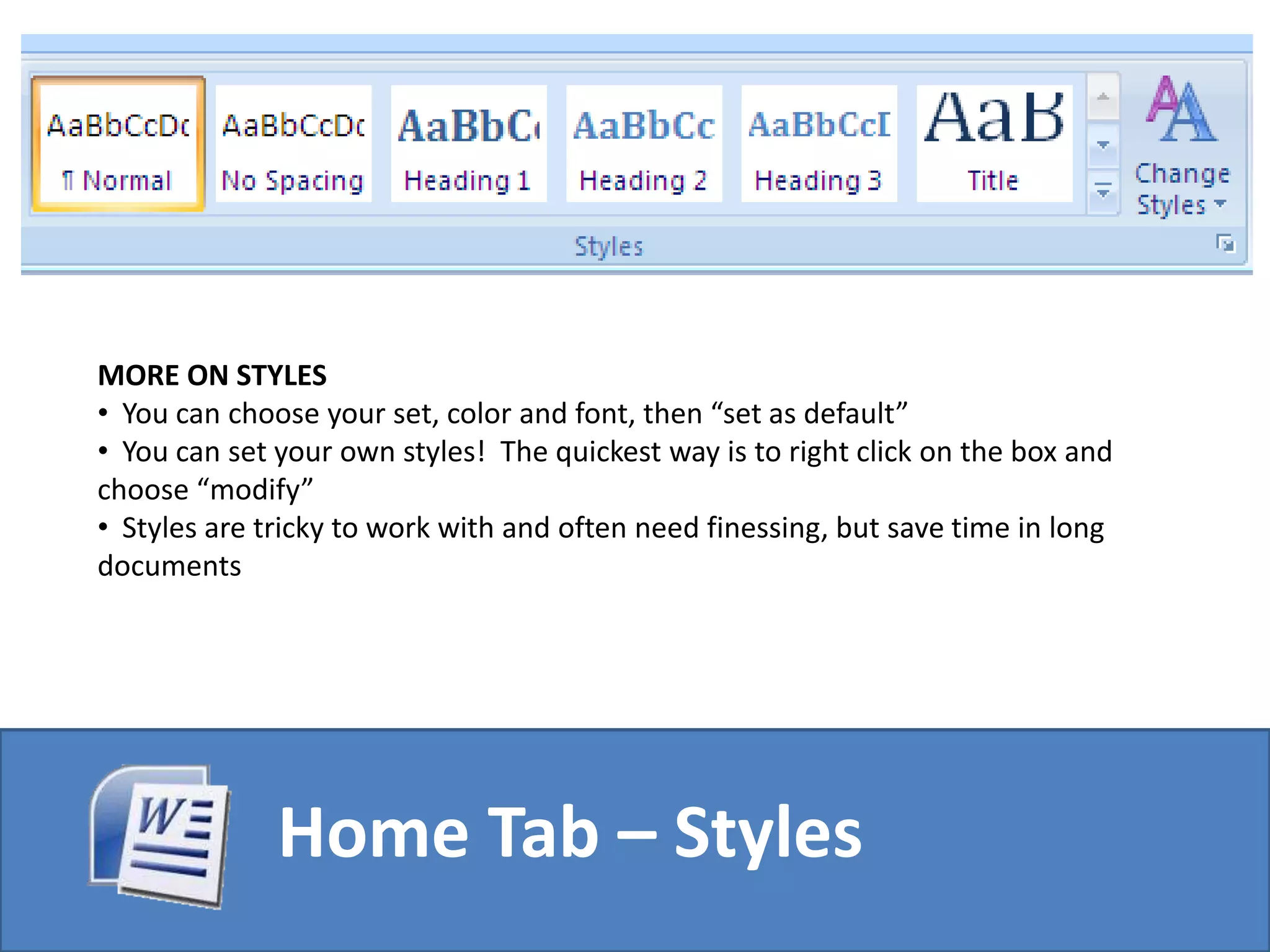
Word 2007 Overview