blog, blog, blog, blog, blog, blog, blog, blog, blog, blog, blog, blog, blog, blog, blog, blog, blog, blog, blog, blog, blog, blog, blog, blog, blog, blog, blog, blog, blog, blog, blog, blog, blog, blog, blog, blog, blog, blog, blog, blog, blog, blog, blog, blog, blog, blog, blog, blog, blog, blog, blog, blog, blog, blog, blog, blog, blog, blog, blog, blog, blog, blog, blog, blog, blog, blog, blog, blog, blog, blog, blog, blog, blog, blog, blog, blog, blog, blog, blog, blog, blog, blog, blog, blog, blog, blog, blog, blog, blog, blog, blog, blog, blog, blog, blog, blog, blog, blog, blog, blog, blog, blog, blog, blog, blog, blog, blog, blog, blog, blog, blog, blog, blog, blog, blog, blog, blog,blog, blog, blog, blog, blog, blog, blog, blog, blogHow to Use WordPress
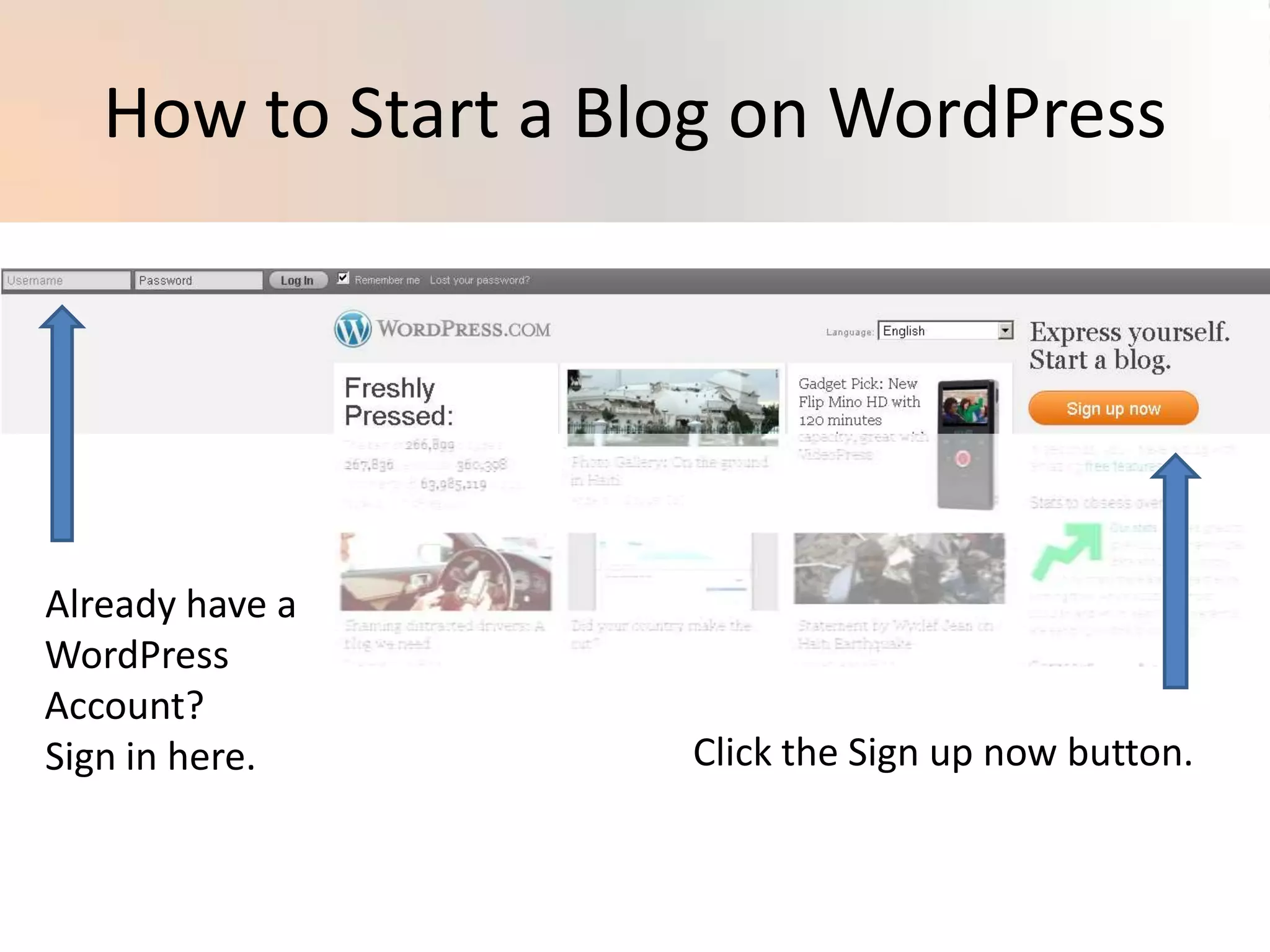
How to Start a Blog on WordPressAlready have a WordPress Account?Sign in here.Click the Sign up now button.
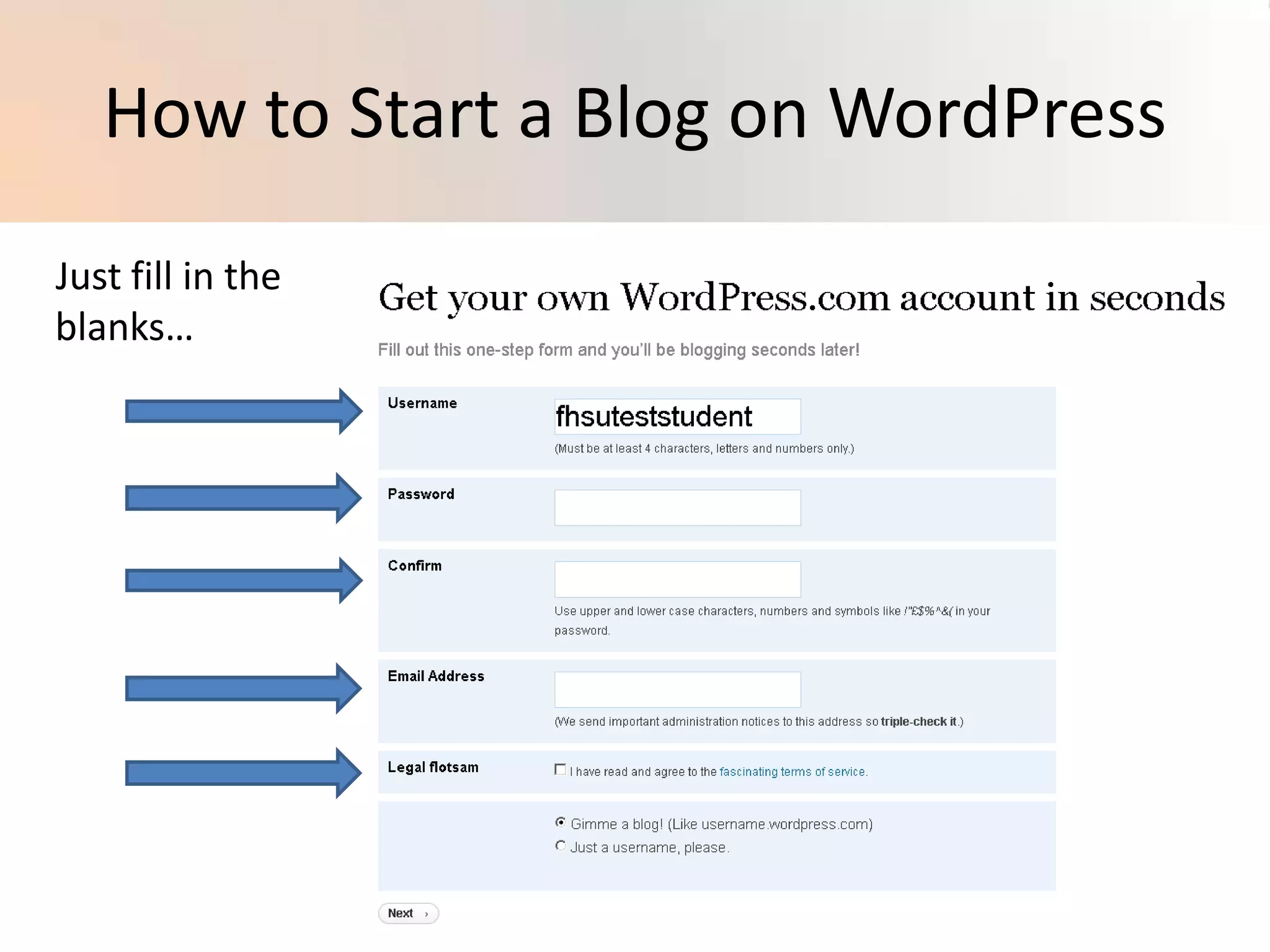
How to Start a Blog on WordPressJust fill in the blanks…
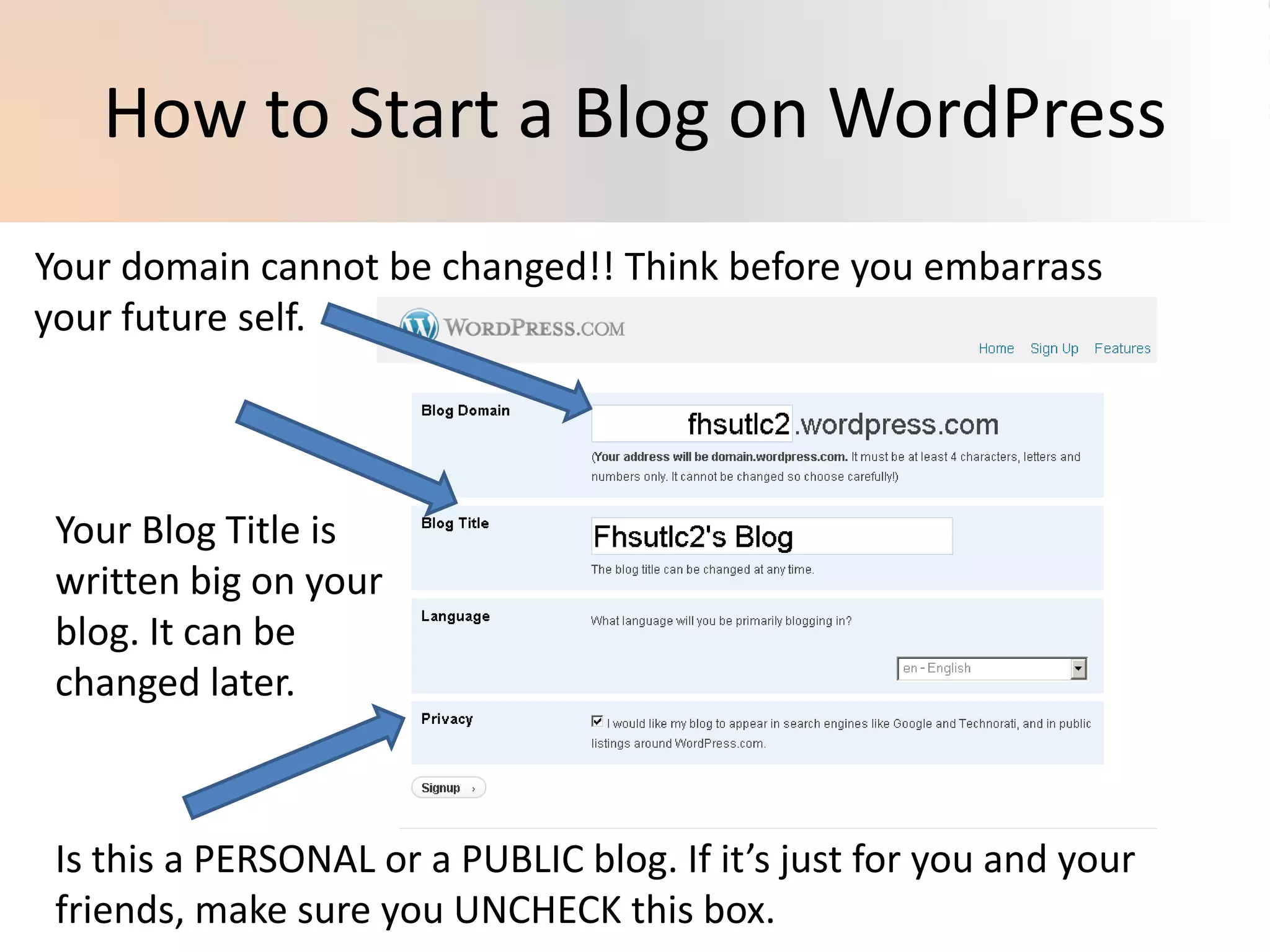
How to Start a Blog on WordPressYour domain cannot be changed!! Think before you embarrass your future self.Your Blog Title is written big on your blog. It can be changed later.Is this a PERSONAL or a PUBLIC blog. If it’s just for you and your friends, make sure you UNCHECK this box.
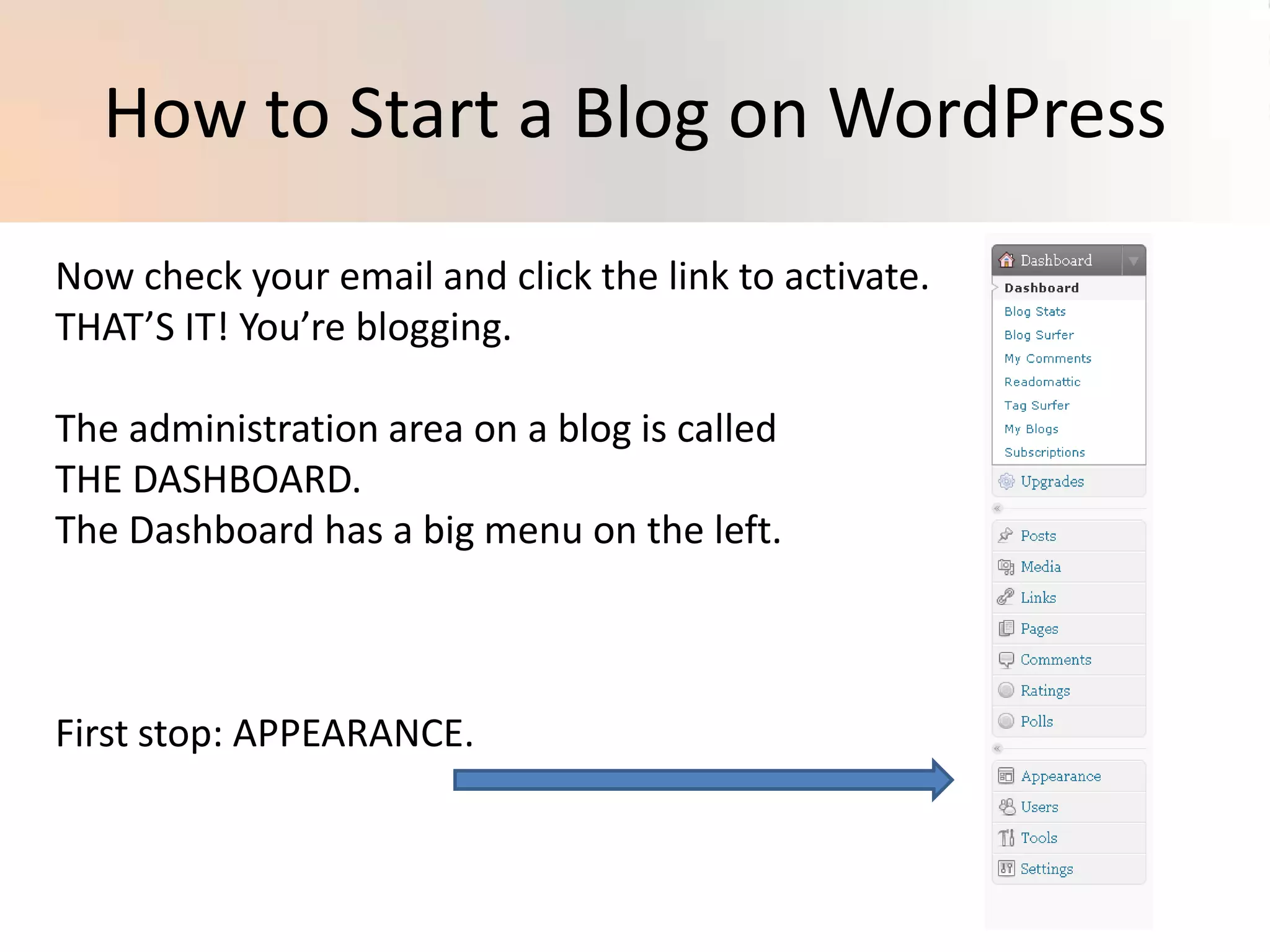
How to Start a Blog on WordPressNow check your email and click the link to activate. THAT’S IT! You’re blogging.The administration area on a blog is calledTHE DASHBOARD.The Dashboard has a big menu on the left.First stop: APPEARANCE.
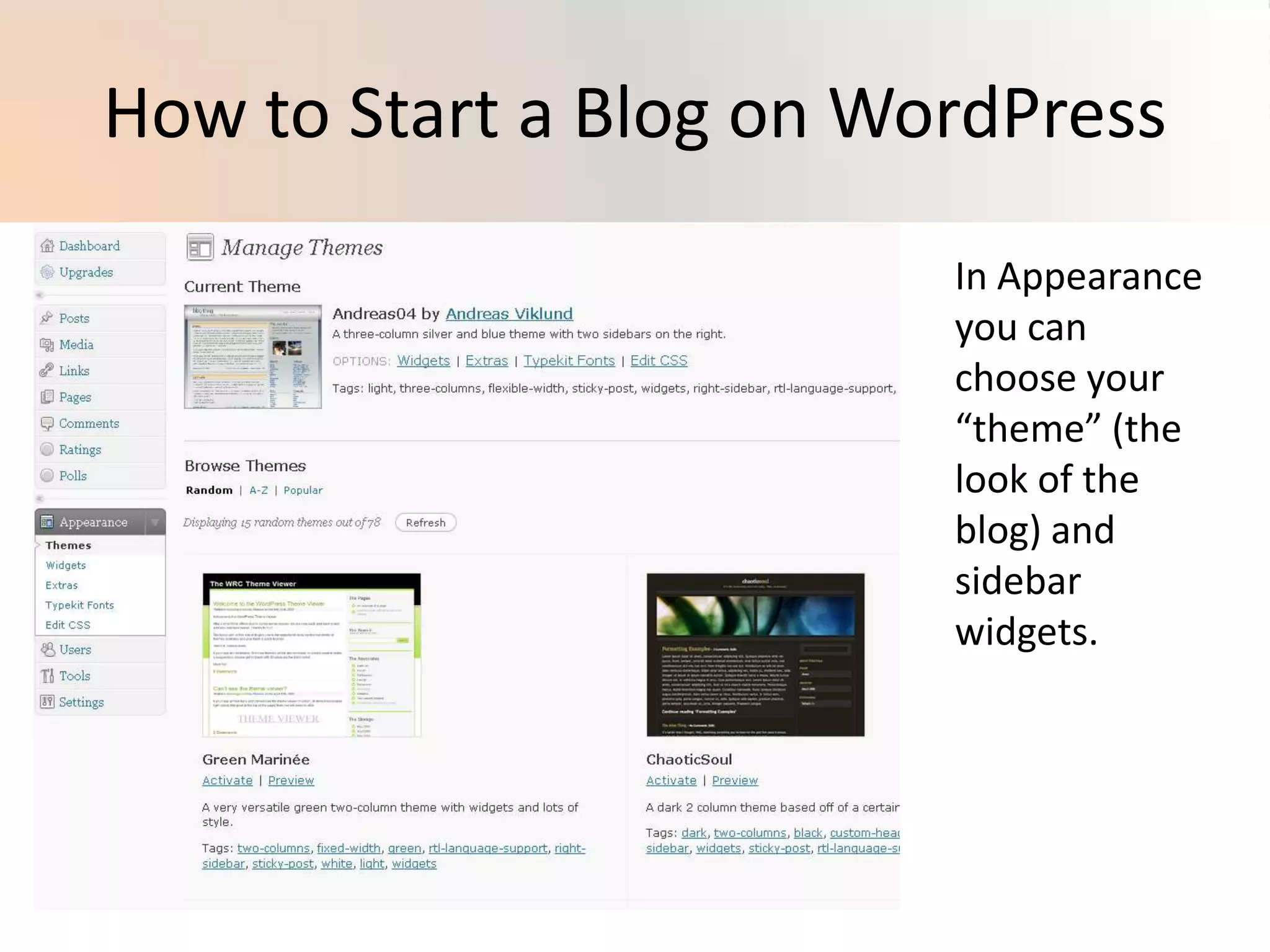
How to Start a Blog on WordPressIn Appearance you can choose your “theme” (the look of the blog) and sidebar widgets.
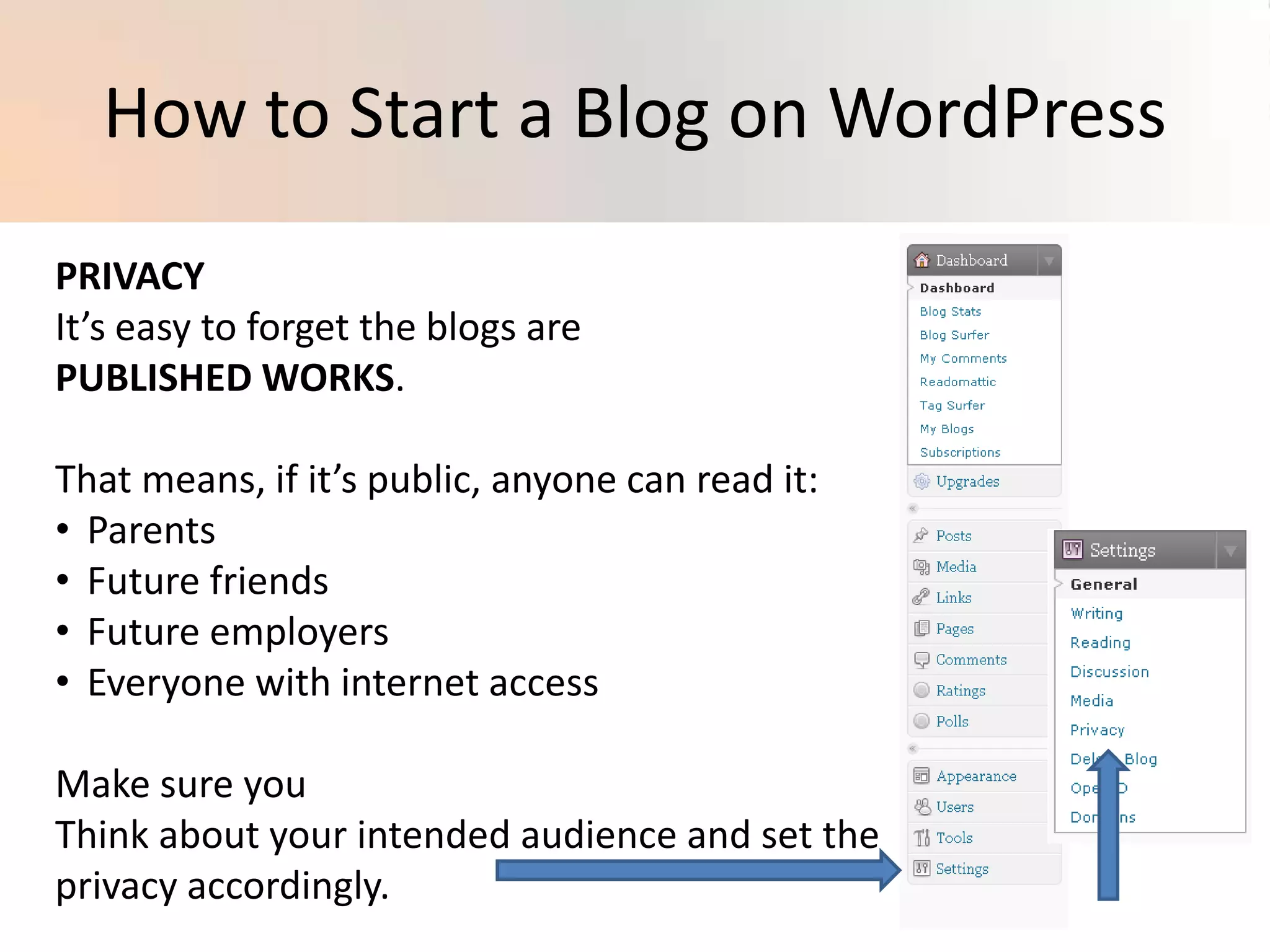
How to Start a Blog on WordPressPRIVACYIt’s easy to forget the blogs are PUBLISHED WORKS.That means, if it’s public, anyone can read it:Parents
Future friends
Future employers
Everyone with internet accessMake sure you Think about your intended audience and set the privacy accordingly.
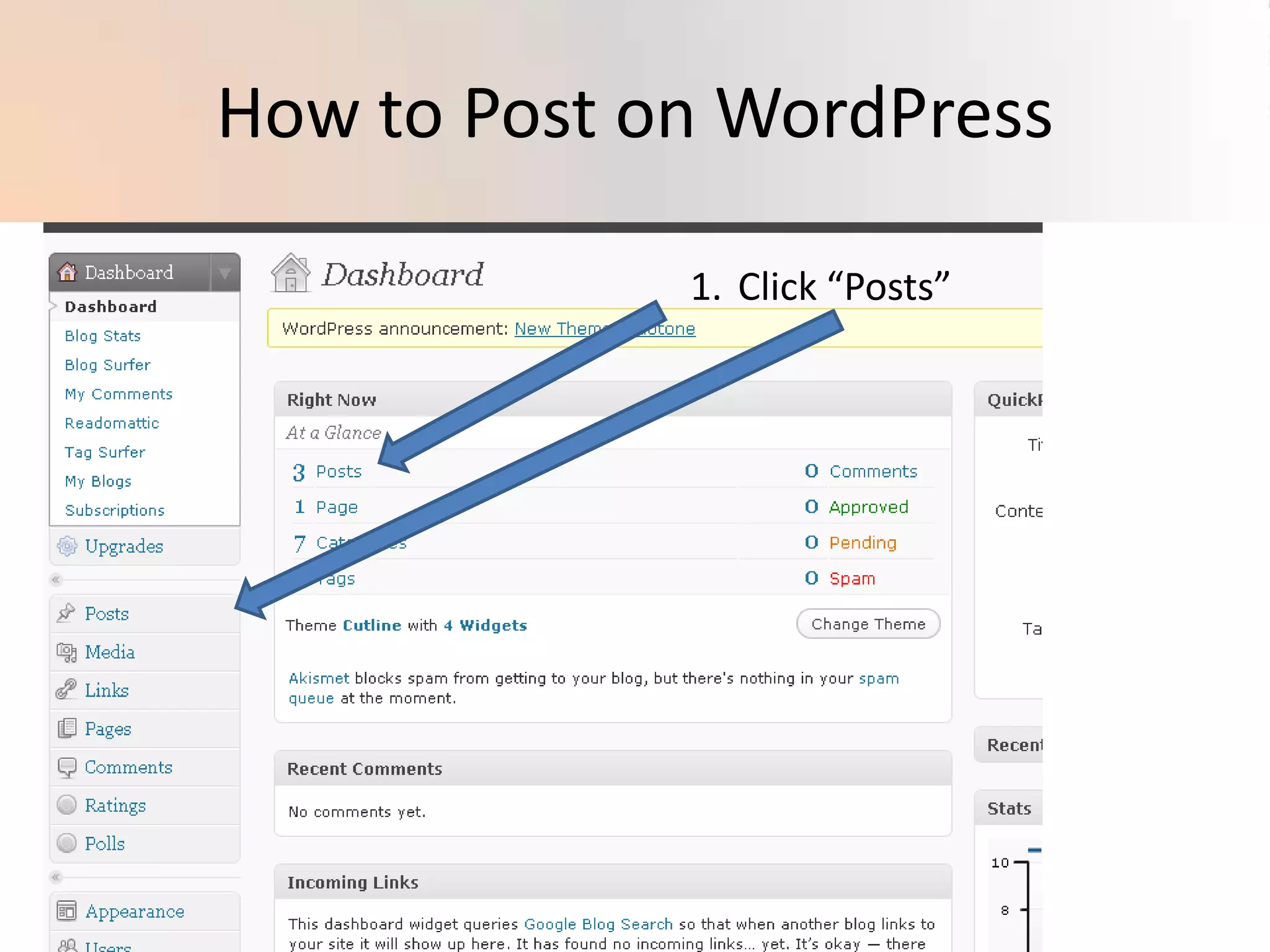
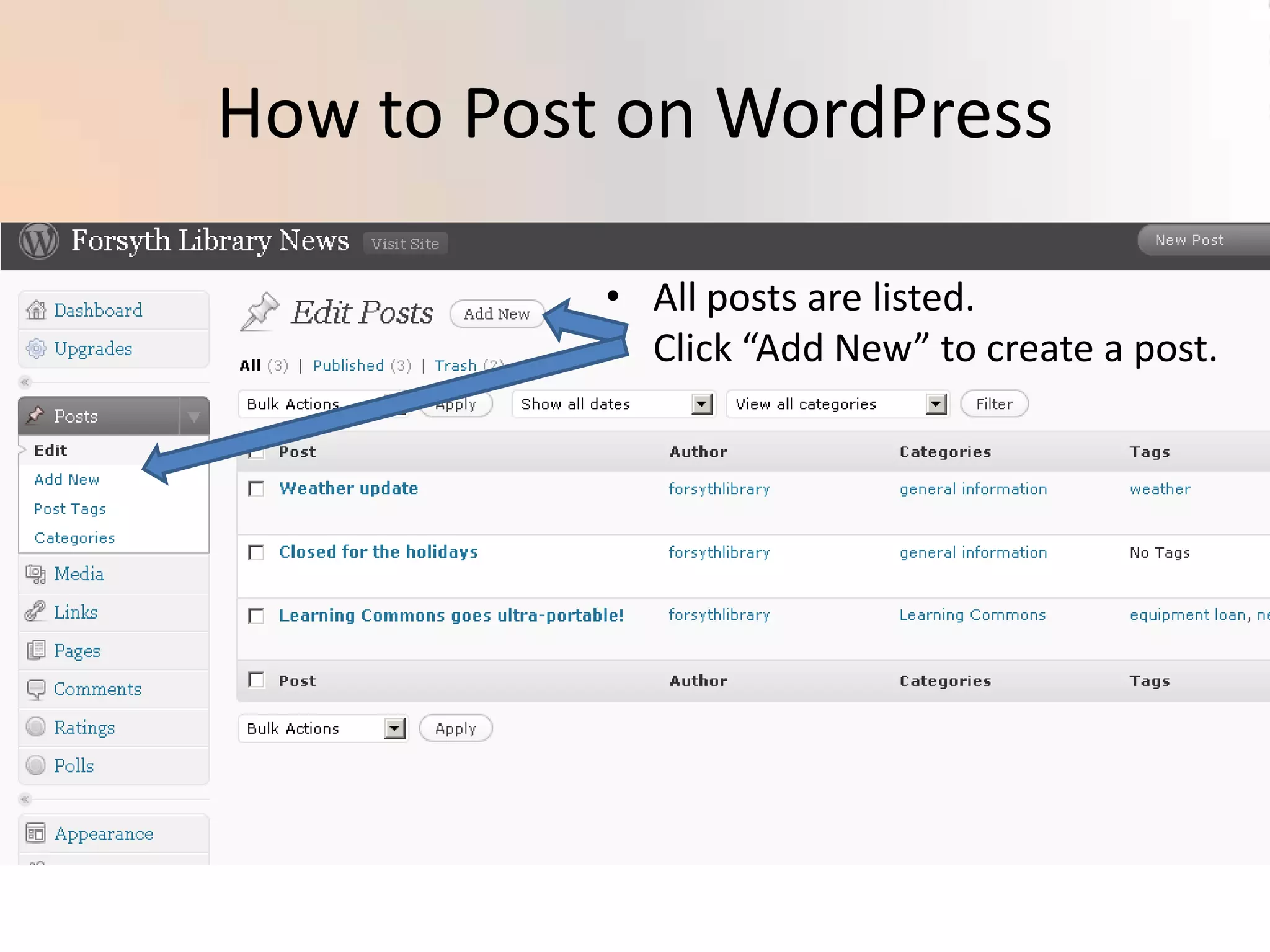
How to Post on WordPressClick “Posts”
How to Post on WordPressAll posts are listed.
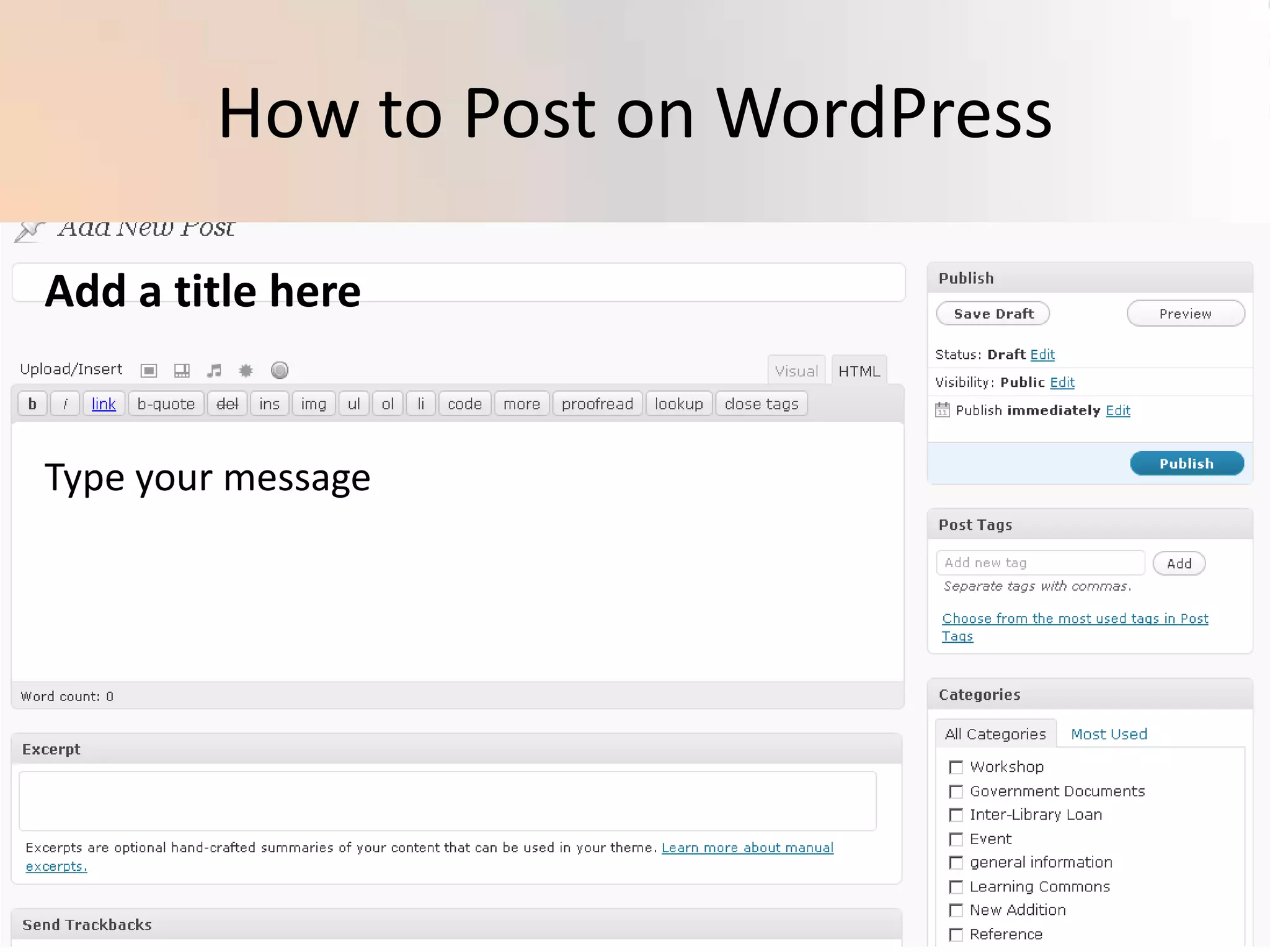
Click “Add New” to create a post.How to Post on WordPressAdd a title hereType your message
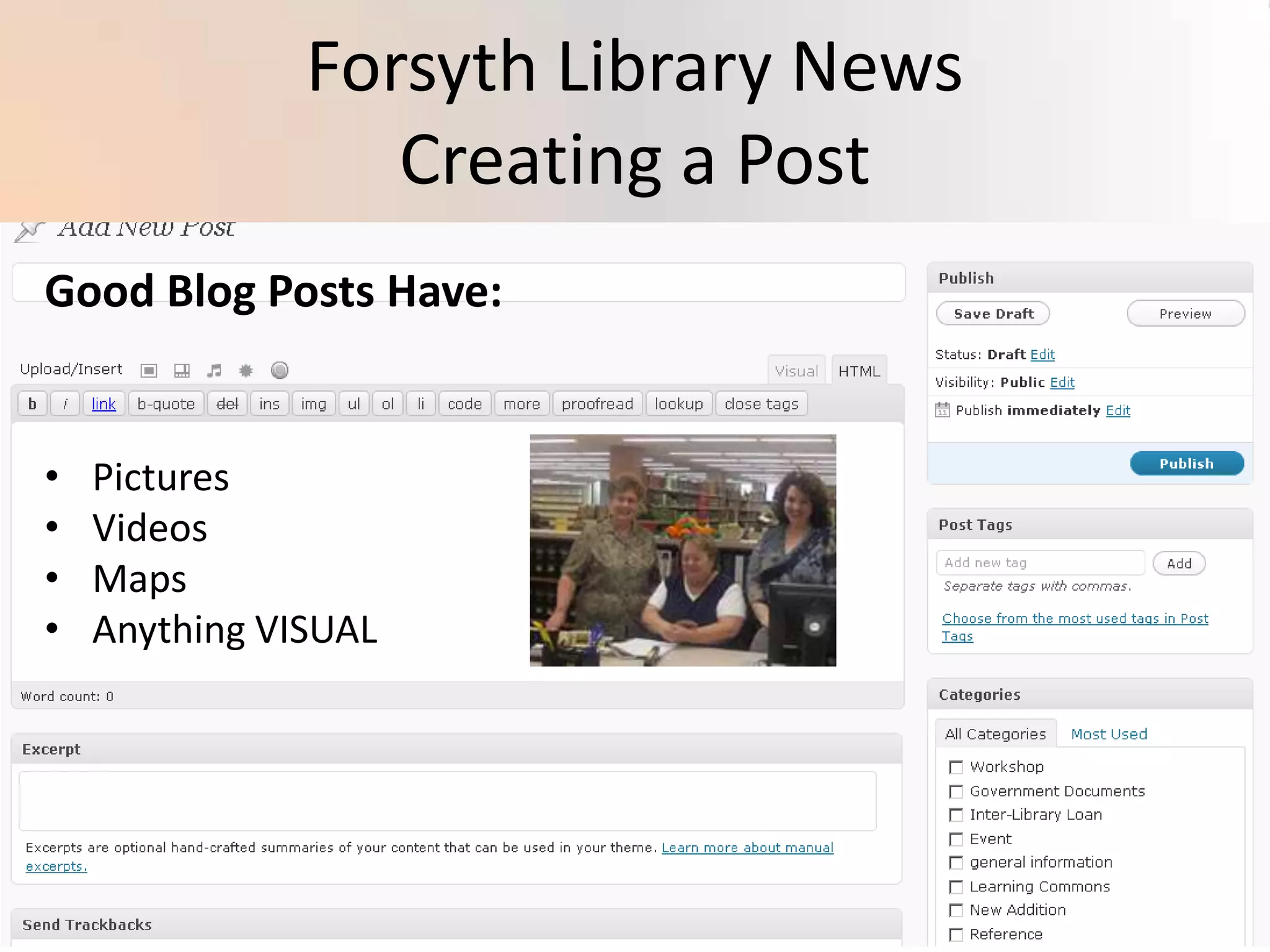
Forsyth Library NewsCreating a PostGood Blog Posts Have:Pictures
Videos
Maps

How To Use Word Press

  • 1.
    blog, blog, blog,blog, blog, blog, blog, blog, blog, blog, blog, blog, blog, blog, blog, blog, blog, blog, blog, blog, blog, blog, blog, blog, blog, blog, blog, blog, blog, blog, blog, blog, blog, blog, blog, blog, blog, blog, blog, blog, blog, blog, blog, blog, blog, blog, blog, blog, blog, blog, blog, blog, blog, blog, blog, blog, blog, blog, blog, blog, blog, blog, blog, blog, blog, blog, blog, blog, blog, blog, blog, blog, blog, blog, blog, blog, blog, blog, blog, blog, blog, blog, blog, blog, blog, blog, blog, blog, blog, blog, blog, blog, blog, blog, blog, blog, blog, blog, blog, blog, blog, blog, blog, blog, blog, blog, blog, blog, blog, blog, blog, blog, blog, blog, blog, blog, blog,blog, blog, blog, blog, blog, blog, blog, blog, blogHow to Use WordPress
  • 2.
    How to Starta Blog on WordPressAlready have a WordPress Account?Sign in here.Click the Sign up now button.
  • 3.
    How to Starta Blog on WordPressJust fill in the blanks…
  • 4.
    How to Starta Blog on WordPressYour domain cannot be changed!! Think before you embarrass your future self.Your Blog Title is written big on your blog. It can be changed later.Is this a PERSONAL or a PUBLIC blog. If it’s just for you and your friends, make sure you UNCHECK this box.
  • 5.
    How to Starta Blog on WordPressNow check your email and click the link to activate. THAT’S IT! You’re blogging.The administration area on a blog is calledTHE DASHBOARD.The Dashboard has a big menu on the left.First stop: APPEARANCE.
  • 6.
    How to Starta Blog on WordPressIn Appearance you can choose your “theme” (the look of the blog) and sidebar widgets.
  • 7.
    How to Starta Blog on WordPressPRIVACYIt’s easy to forget the blogs are PUBLISHED WORKS.That means, if it’s public, anyone can read it:Parents
  • 8.
  • 9.
  • 10.
    Everyone with internetaccessMake sure you Think about your intended audience and set the privacy accordingly.
  • 11.
    How to Poston WordPressClick “Posts”
  • 12.
    How to Poston WordPressAll posts are listed.
  • 13.
    Click “Add New”to create a post.How to Post on WordPressAdd a title hereType your message
  • 14.
    Forsyth Library NewsCreatinga PostGood Blog Posts Have:Pictures
  • 15.
  • 16.
  • 17.
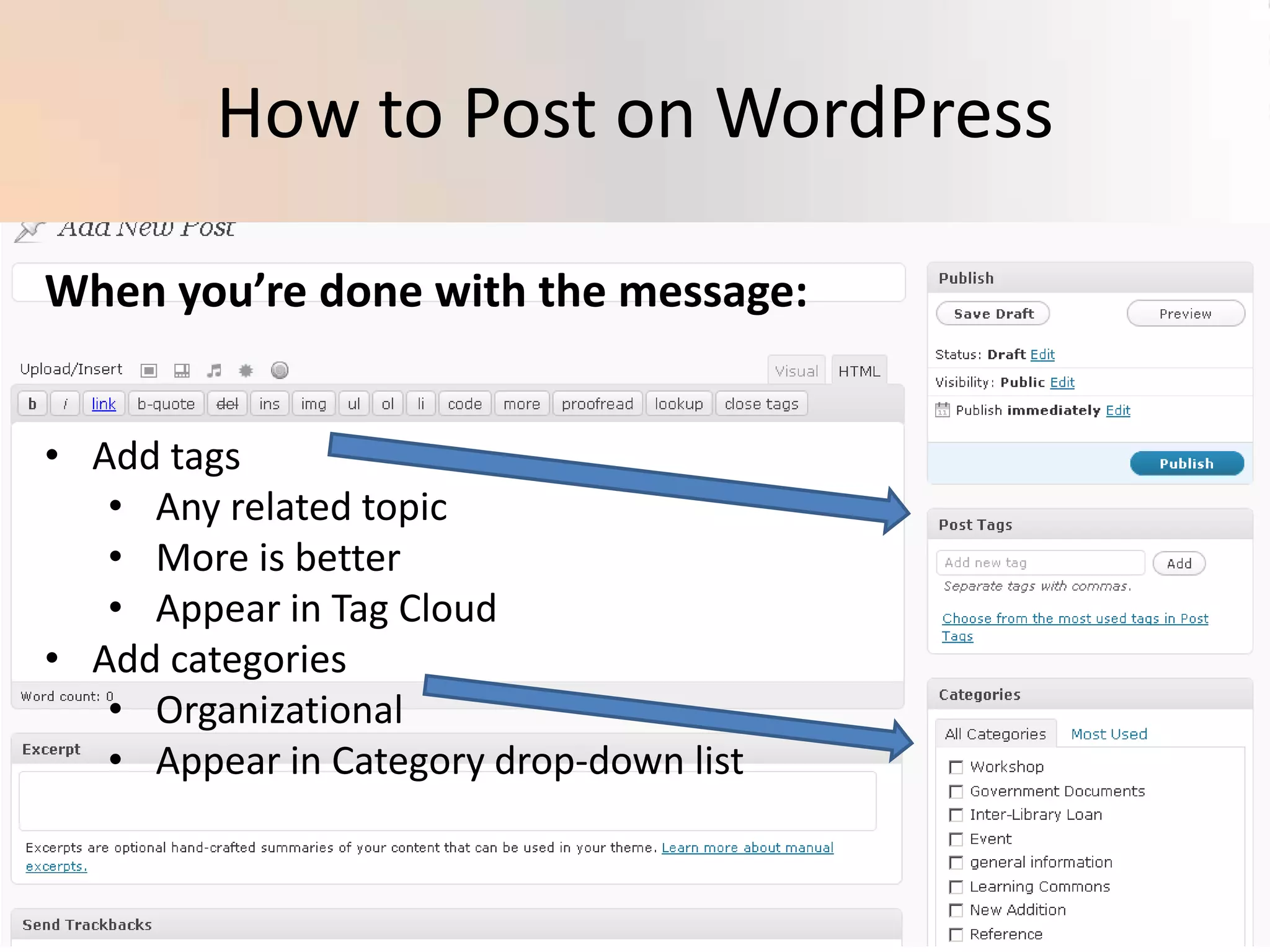
    Anything VISUALHow toPost on WordPressWhen you’re done with the message:Add tags
  • 18.
  • 19.
  • 20.
  • 21.
  • 22.
  • 23.
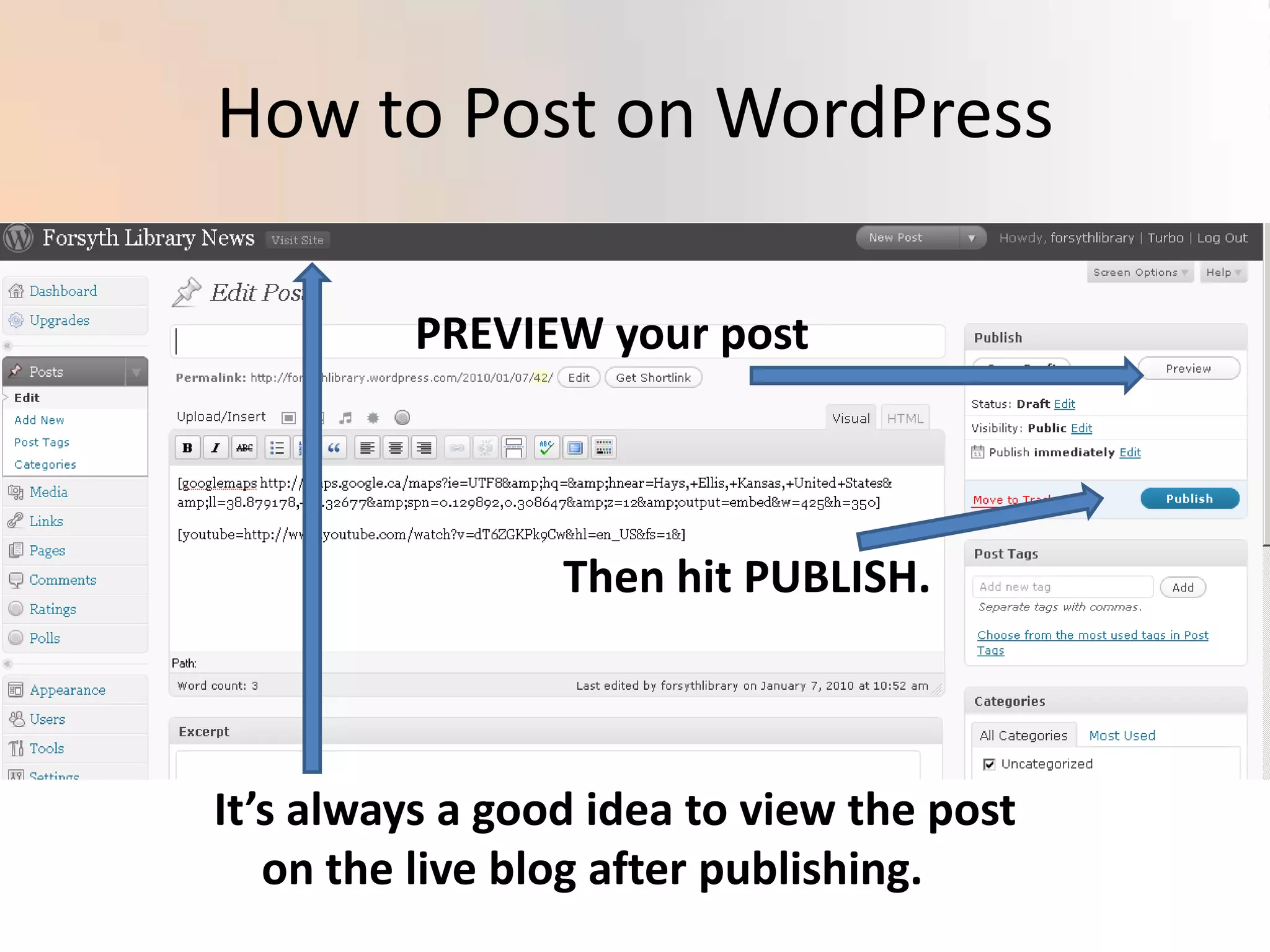
    Appear in Categorydrop-down listHow to Post on WordPressPREVIEW your postThen hit PUBLISH.It’s always a good idea to view the post on the live blog after publishing.
  • 24.
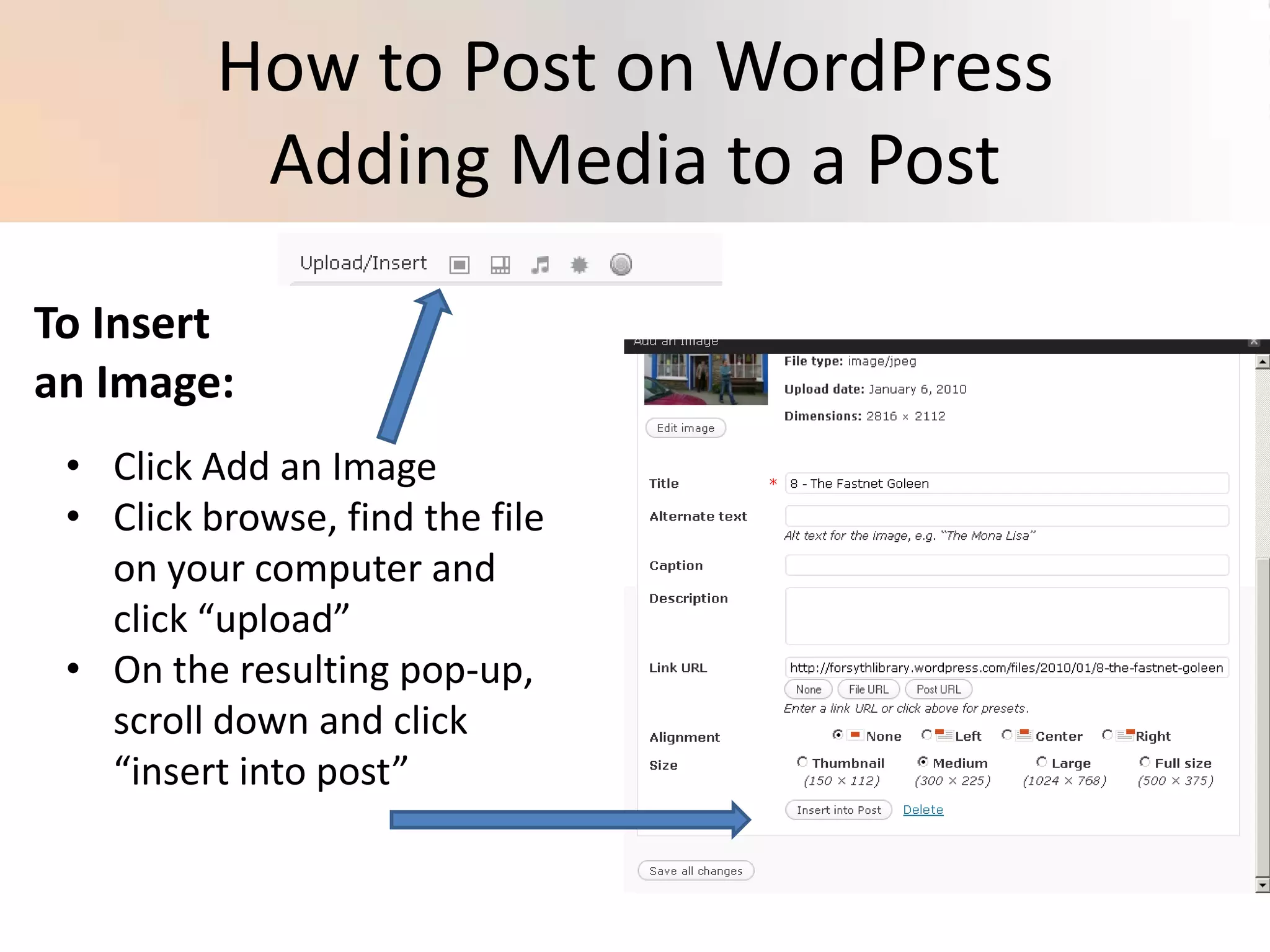
    How to Poston WordPressAdding Media to a PostTo Insert an Image:Click Add an Image
  • 25.
    Click browse, findthe file on your computer and click “upload”
  • 26.
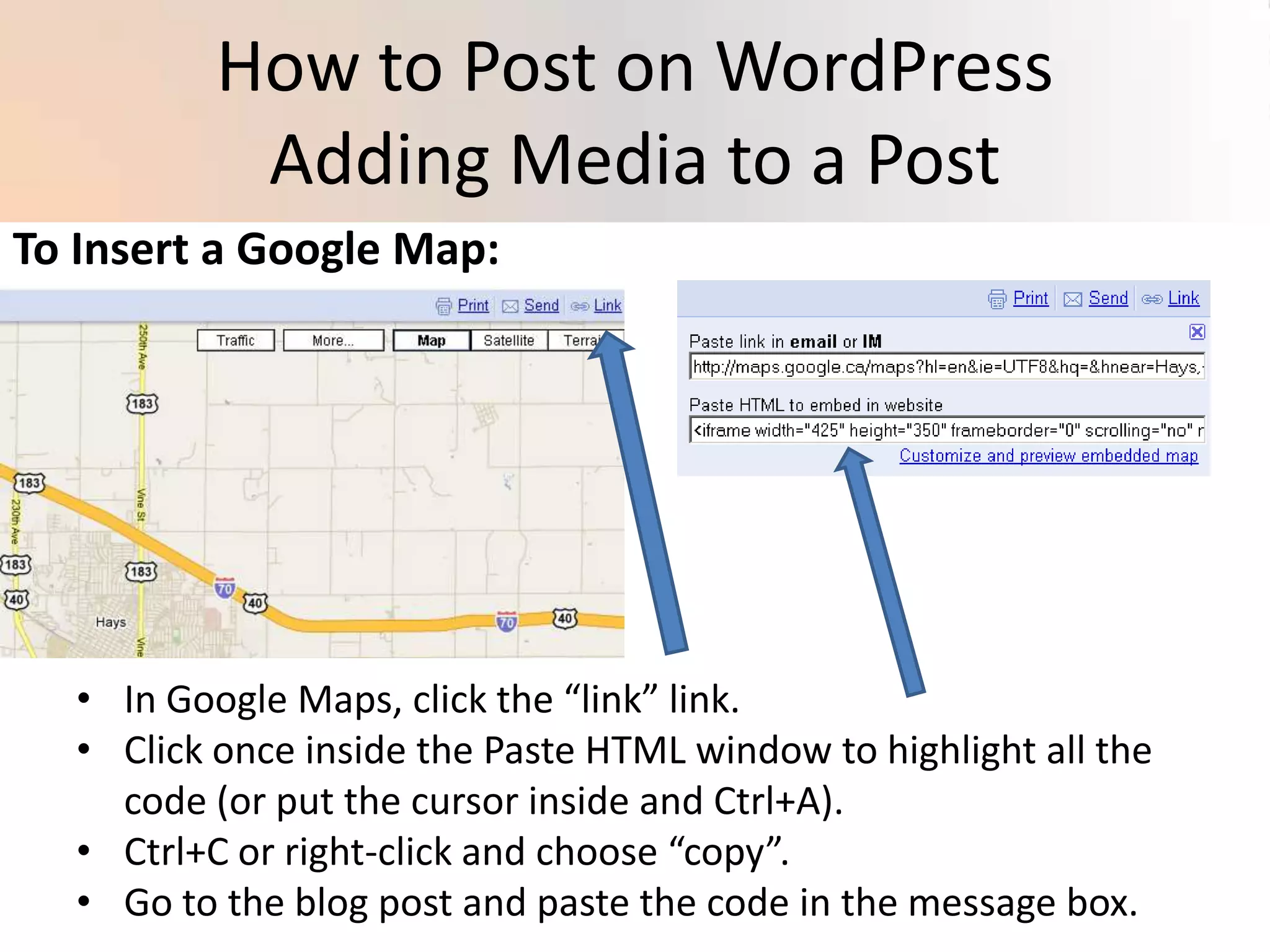
    On the resultingpop-up, scroll down and click “insert into post”How to Post on WordPressAdding Media to a PostTo Insert a Google Map:In Google Maps, click the “link” link.
  • 27.
    Click once insidethe Paste HTML window to highlight all the code (or put the cursor inside and Ctrl+A).
  • 28.
    Ctrl+C or right-clickand choose “copy”.
  • 29.
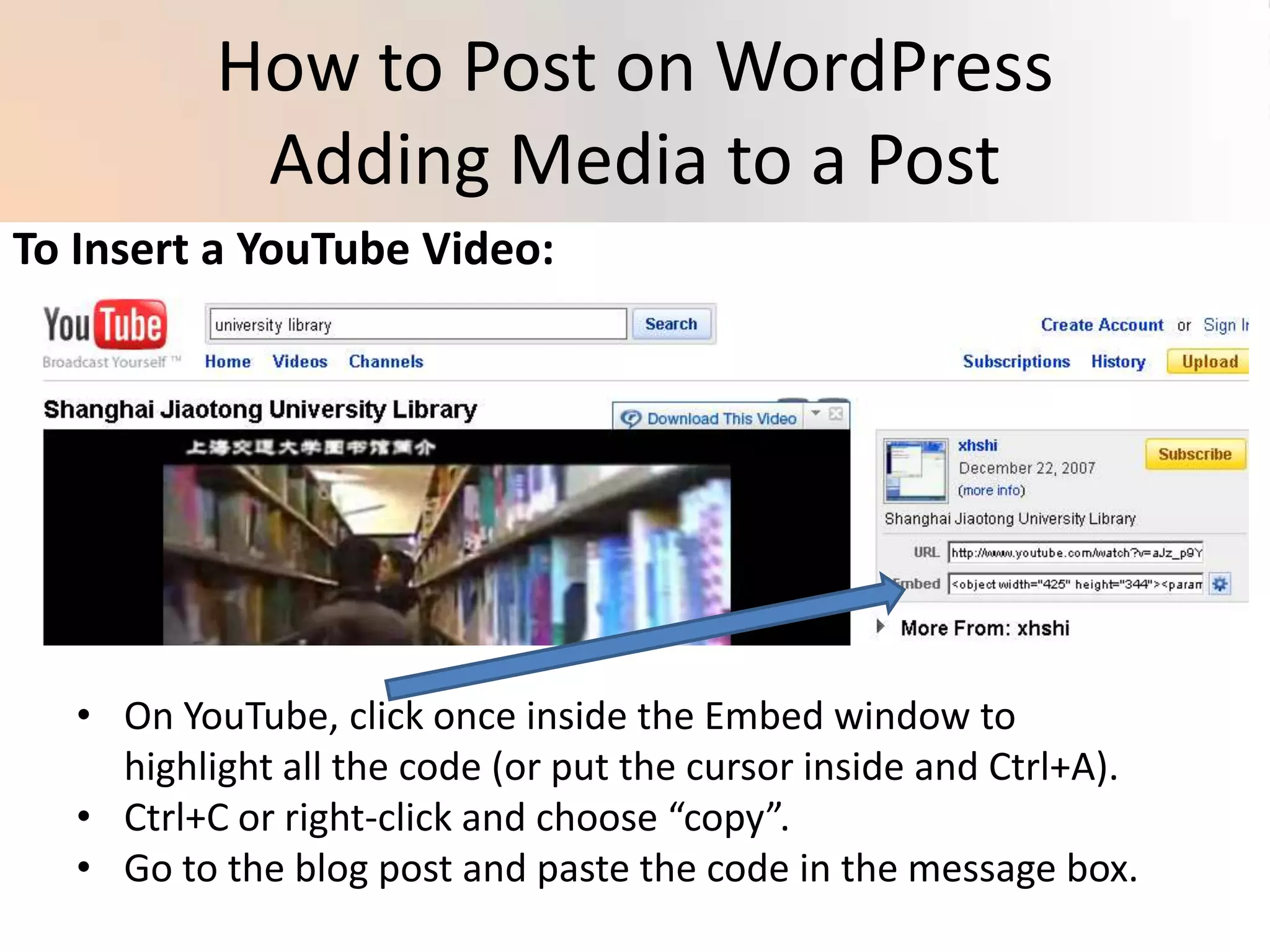
    Go to theblog post and paste the code in the message box.How to Post on WordPressAdding Media to a PostTo Insert a YouTube Video:On YouTube, click once inside the Embed window to highlight all the code (or put the cursor inside and Ctrl+A).
  • 30.
    Ctrl+C or right-clickand choose “copy”.
  • 31.
    Go to theblog post and paste the code in the message box.