LESSON:3
INTRODUCTION TO SPREADSHEET PROGRAM
(MICROSOFT EXCEL AND GOOGLE SHEETS)
GROUP 3 REPORTER’S:
DEJARLO, RENA JOY
BARCALA, JULY
GABANE, REAH JANE
GRATUITO,JANE
TAGANNA, NINA
CAUBALEJO, JESSEL
INSTRUCTOR:
JOHN CARLO F.ROTILLES
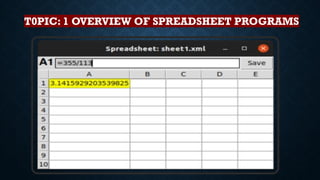
T0PIC: 1 OVERVIEW OF SPREADSHEET PROGRAMS
DEFINATION SPREADSHEET PROGRAMS
Spreadsheet was and is a large sheet of paper with columns and rows
that organizes data about transactions for a business person to examine.
It spreads or shows all of the costs, income, taxes, and other related data
on a single sheet of paper for a manager to examine when making a
decision.
An electronic spreadsheet organizes information into software defined
columns and rows. The data can then be "added up" by a formula to
give a total or sum.
THE PURPOSE OF SPREADSHEET
PROGRAMS INCLUDES:
•Data storage and organization
•Data manipulation and analysis
•Calculation and computation
•Visualization
•Forecasting and budgeting
•Automation
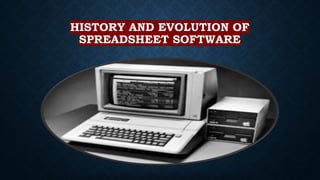
HISTORY AND EVOLUTION OF
SPREADSHEET SOFTWARE
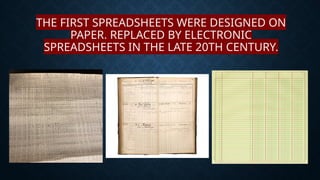
THE FIRST SPREADSHEETS WERE DESIGNED ON
PAPER, REPLACED BY ELECTRONIC
SPREADSHEETS IN THE LATE 20TH CENTURY.
 1961-Idea of spreadsheet belongs to the American
scientist Richard Mattesich published his study
“Budgeting Models and System Simulation”.
 1969 – LANPAR (Language for Programming Arrays
at Random, Canadians Rene Pardo and Remy Landau
developed the first commercial electronic
spreadsheet.
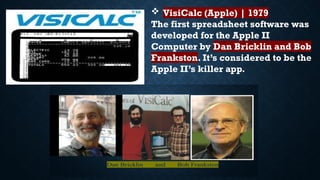
 VisiCalc (Apple) | 1979
The first spreadsheet software was
developed for the Apple II
Computer by Dan Bricklin and Bob
Frankston. It’s considered to be the
Apple II’s killer app.
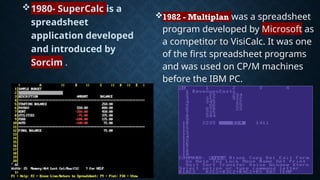
1982 - Multiplan was a spreadsheet
program developed by Microsoft as
a competitor to VisiCalc. It was one
of the first spreadsheet programs
and was used on CP/M machines
before the IBM PC.
1980- SuperCalc is a
spreadsheet
application developed
and introduced by
Sorcim .
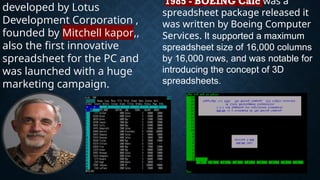
1985 - BOEING Calc was a
spreadsheet package released it
was written by Boeing Computer
Services. It supported a maximum
spreadsheet size of 16,000 columns
by 16,000 rows, and was notable for
introducing the concept of 3D
spreadsheets.
developed by Lotus
Development Corporation ,
founded by Mitchell kapor,,
also the first innovative
spreadsheet for the PC and
was launched with a huge
marketing campaign.
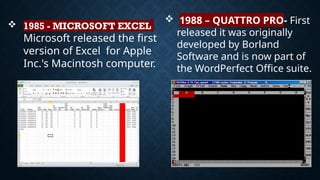
 1985 - MICROSOFT EXCEL
Microsoft released the first
version of Excel for Apple
Inc.'s Macintosh computer.
 1988 – QUATTRO PRO- First
released it was originally
developed by Borland
Software and is now part of
the WordPerfect Office suite.
MODERN SPREADSHEET
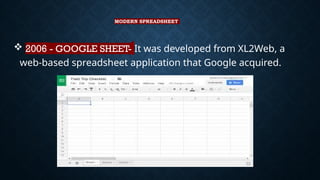
 2006 - GOOGLE SHEET- It was developed from XL2Web, a
web-based spreadsheet application that Google acquired.
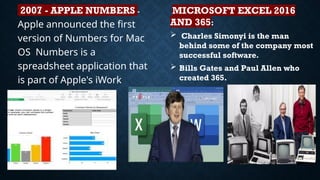
2007 - APPLE NUMBERS -
Apple announced the first
version of Numbers for Mac
OS Numbers is a
spreadsheet application that
is part of Apple's iWork
productivity suite.
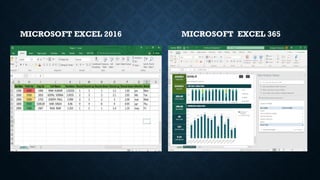
MICROSOFT EXCEL 2016
AND 365:
 Charles Simonyi is the man
behind some of the company most
successful software.
 Bills Gates and Paul Allen who
created 365.
MICROSOFT EXCEL 2016 MICROSOFT EXCEL 365
IMPORTANCE OF SPREADSHEET
PROGRAMS IN VARIOUS FIELDS
• Spreadsheet programs have significant importance across
many industries and professions due to their versality and
ability to manage data efficiently.
1. Accounting and Marketing
2. Business and Finance
3. Education
4. Healthcare
5. Project Management
6. Engineering and Science
TOPIC 2: GETTING STARTED WITH
MICROSOFT EXCEL
What is MS Excel
Excel is a part of the Microsoft Office suite software. It
is an electronic spreadsheet program that features a
grid of rows and columns, making it easy to input and
organize data. With 1,048,576 rows and 16,384
columns in Excel 2007 and newer versions, it can
handle vast datasets without hassle. Each intersection
of a row and column forms a cell, identified by a cell
reference like A1 or D2. These references help users
store data, perform calculations, and link information
effortlessly.
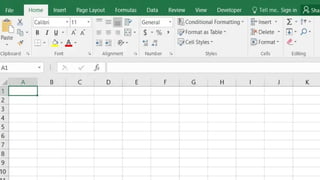
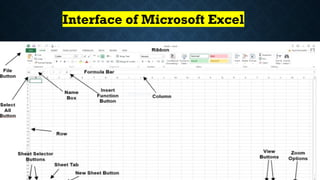
Interface of Microsoft Excel
The Ribbon and Quick Access Toolbar are where
you will find the commands to perform common
tasks in Excel.The Backstage view gives you
various options for saving, opening a file, printing,
and sharing your document.
Working with the Excel environment
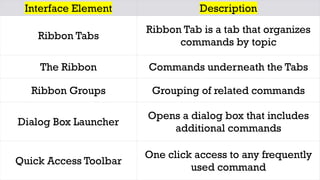
Interface Element Description
Ribbon Tabs
Ribbon Tab is a tab that organizes
commands by topic
The Ribbon Commands underneath the Tabs
Ribbon Groups Grouping of related commands
Dialog Box Launcher
Opens a dialog box that includes
additional commands
Quick Access Toolbar
One click access to any frequently
used command
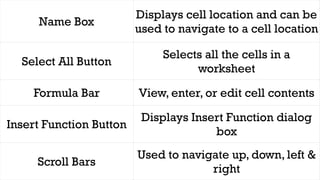
Name Box
Displays cell location and can be
used to navigate to a cell location
Select All Button
Selects all the cells in a
worksheet
Formula Bar View, enter, or edit cell contents
Insert Function Button
Displays Insert Function dialog
box
Scroll Bars
Used to navigate up, down, left &
right
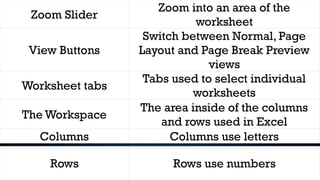
Zoom Slider
Zoom into an area of the
worksheet
View Buttons
Switch between Normal, Page
Layout and Page Break Preview
views
Worksheet tabs
Tabs used to select individual
worksheets
The Workspace
The area inside of the columns
and rows used in Excel
Columns Columns use letters
Rows Rows use numbers
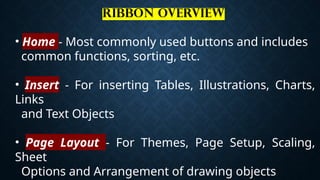
Ribbon Overview
• Home - Most commonly used buttons and includes
common functions, sorting, etc.
• Insert - For inserting Tables, Illustrations, Charts,
Links
and Text Objects
• Page Layout - For Themes, Page Setup, Scaling,
Sheet
Options and Arrangement of drawing objects
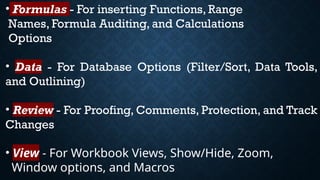
• Formulas - For inserting Functions, Range
Names, Formula Auditing, and Calculations
Options
• Data - For Database Options (Filter/Sort, Data Tools,
and Outlining)
• Review - For Proofing, Comments, Protection, and Track
Changes
• View - For Workbook Views, Show/Hide, Zoom,
Window options, and Macros
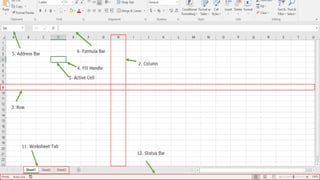
MICROSOFT EXCEL
COMPONENTS
Before you start using it, it’s really important to
understand what’s where in its window. So ahead we
have all the major components which you need to
know before entering the world of Microsoft Excel.
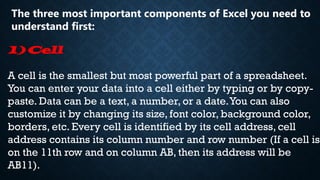
The three most important components of Excel you need to
understand first:
1) Cell

A cell is the smallest but most powerful part of a spreadsheet.
You can enter your data into a cell either by typing or by copy-
paste. Data can be a text, a number, or a date.You can also
customize it by changing its size, font color, background color,
borders, etc. Every cell is identified by its cell address, cell
address contains its column number and row number (If a cell is
on the 11th row and on column AB, then its address will be
AB11).
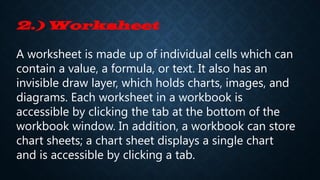
2.) Worksheet
A worksheet is made up of individual cells which can
contain a value, a formula, or text. It also has an
invisible draw layer, which holds charts, images, and
diagrams. Each worksheet in a workbook is
accessible by clicking the tab at the bottom of the
workbook window. In addition, a workbook can store
chart sheets; a chart sheet displays a single chart
and is accessible by clicking a tab.
3.) Workbook
In Excel, a workbook is a file that stores data in multiple
sheets. Each workbook is a separate entity. Below are
some of the features of an Excel workbook.
 Each workbook has its name.
 Each workbook has a specific format.
 Each workbook needs to be saved in a specific
location.
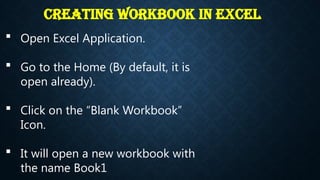
Creating Workbook in Excel
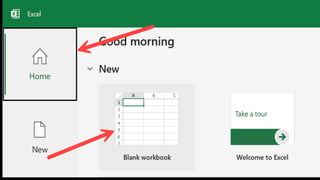
 Open Excel Application.
 Go to the Home (By default, it is
open already).
 Click on the “Blank Workbook”
Icon.
 It will open a new workbook with
the name Book1.
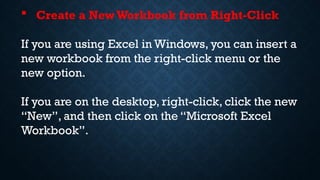
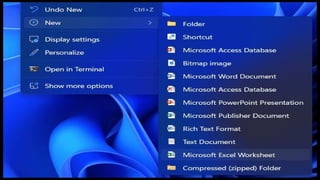
 Create a New Workbook from Right-Click
If you are using Excel in Windows, you can insert a
new workbook from the right-click menu or the
new option.
If you are on the desktop, right-click, click the new
“New”, and then click on the “Microsoft Excel
Workbook”.
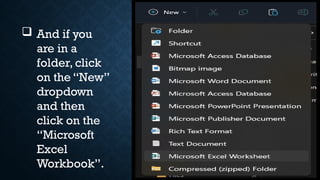
 And if you
are in a
folder, click
on the “New”
dropdown
and then
click on the
“Microsoft
Excel
Workbook”.
Keyboard Shortcut to Insert a New Workbook:
If you have an Excel workbook is already
open, and you want to add a new workbook,
you can use the keyboard shortcut:
 Ctrl + N
When you use the shortcut, it creates a new
workbook with the name Book and a number.
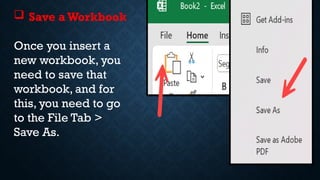
 Save aWorkbook
Once you insert a
new workbook, you
need to save that
workbook, and for
this, you need to go
to the File Tab >
Save As.
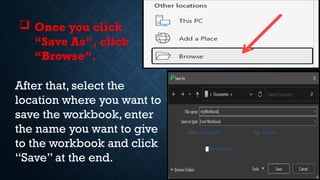
 Once you click
“Save As”, click
“Browse”.
After that, select the
location where you want to
save the workbook, enter
the name you want to give
to the workbook and click
“Save” at the end.
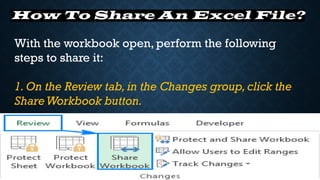
How To Share An Excel File?
With the workbook open, perform the following
steps to share it:
1. On the Review tab, in the Changes group, click the
ShareWorkbook button.
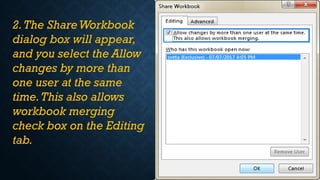
2.The ShareWorkbook
dialog box will appear,
and you select the Allow
changes by more than
one user at the same
time.This also allows
workbook merging
check box on the Editing
tab.
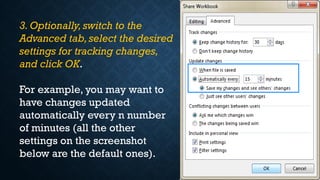
3. Optionally, switch to the
Advanced tab,select the desired
settings for tracking changes,
and click OK.
For example, you may want to
have changes updated
automatically every n number
of minutes (all the other
settings on the screenshot
below are the default ones).
4.Save you Excel file to a
network location where other
people can access it (the
fastest way is by using the Ctrl
+ S shortcut).
BASIC CELL
FROMATTING
AND DATA
Data Entry
The easiest way to enter data into a
worksheet is to type it directly into the active
cell, or into the formula bar. Once data has
been entered, the action may be completed
in a variety of different ways. Suppose we
have just entered data into cell C8.Then:
Enter moves to the next cell in the same column, i.e. C9.
Shift Enter moves to the previous cell in the same column,
i.e. C7.
Tab moves to the next cell in the same row, i.e. D8.
Shift Tab moves to the previous cell in the same row, i.e. B8.
The cursor keys move in the direction indicated.
The tick icon next to the formula bar completes the formula but
does not move to a new cell.
Esc does not move and cancels all modifications since the last
completion of type (1–6) above.
The cross icon next to the formula bar has the same effect
as Esc, as does the undo icon in the quick access toolbar.
TOPIC 3: ADVANCED FEATURES IN
MICROSOFT EXCEL
MICROSOFT EXCEL- Is a spreadsheet
program where one can record data in
form of tablets.
The Basics of Excel formulas
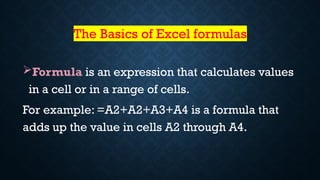
Formula is an expression that calculates values
in a cell or in a range of cells.
For example: =A2+A2+A3+A4 is a formula that
adds up the value in cells A2 through A4.
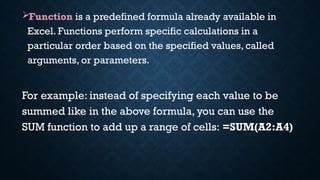
Function is a predefined formula already available in
Excel. Functions perform specific calculations in a
particular order based on the specified values, called
arguments, or parameters.
For example: instead of specifying each value to be
summed like in the above formula, you can use the
SUM function to add up a range of cells: =SUM(A2:A4)
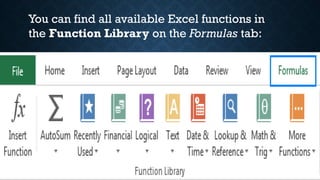
You can find all available Excel functions in
the Function Library on the Formulas tab:
10 Excel Basic Functions
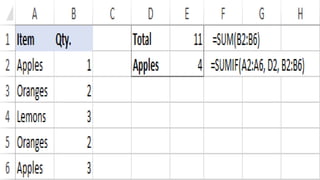
SUM
•The first Excel function you should be familiar with
is the one that performs the basic arithmetic
operation of addition:
SUM(number1, [number2], …)
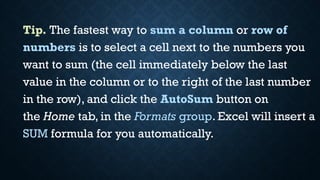
Tip. The fastest way to sum a column or row of
numbers is to select a cell next to the numbers you
want to sum (the cell immediately below the last
value in the column or to the right of the last number
in the row), and click the AutoSum button on
the Home tab, in the Formats group. Excel will insert a
SUM formula for you automatically.
Excel Sum formula examples - formulas to total a
column, rows, only filtered (visible) cells, or sum
across sheets.
Excel AutoSum - the fastest way to sum a column or
row of numbers.
SUMIF in Excel - formula examples to conditionally
sum cells.
SUMIFS in Excel - formula examples to sum cells
based on multiple criteria.
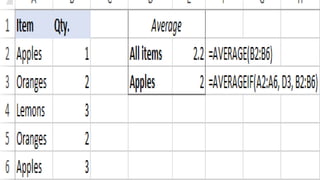
AVERAGE
•The Excel AVERAGE function does exactly what its
name suggests, i.e. finds an average, or arithmetic
mean, of numbers. Its syntax is similar to SUM’s:
AVERAGE(number1, [number2], …)
• Useful Resources:
Excel AVERAGE - average cells with numbers.
Excel AVERAGEA - find an average of cells with any data
(numbers, Boolean and text values).
Excel AVERAGEIF - average cells based on one criterion.
Excel AVERAGEIFS - average cells based on multiple
criteria.
How to calculate weighted average in Excel
How to find moving average in Excel
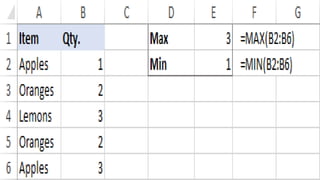
MAX & MIN
•The MAX and MIN formulas in Excel get the largest
and smallest value in a set of numbers,
respectively. For our sample data set, the formulas
will be as simple as:
=MAX(B2:B6)
=MIN(B2:B6)
•Useful Resources:
MAX function - find the highest value.
MAX IF formula - get the highest number with
conditions.
MAXIFS function - get the largest value based on
multiple criteria.
MIN function - return the smallest value in a data set.
MINIFS function - find the smallest number based on
one or several conditions.
COUNT & COUNTA
•If you are curious to know how many cells in a given
range contain numeric values (numbers or dates),
don't waste your time counting them by hand.The
Excel COUNT function will bring you the count in a
heartbeat:
COUNT(value1, [value2], …)
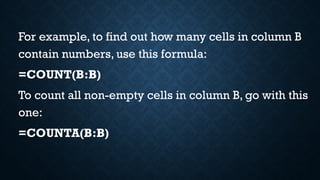
For example, to find out how many cells in column B
contain numbers, use this formula:
=COUNT(B:B)
To count all non-empty cells in column B, go with this
one:
=COUNTA(B:B)
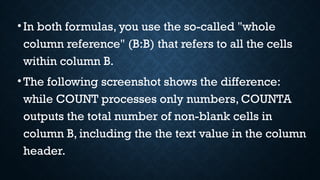
•In both formulas, you use the so-called "whole
column reference" (B:B) that refers to all the cells
within column B.
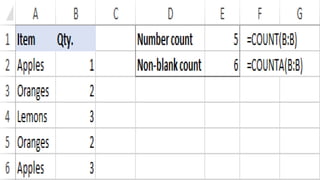
•The following screenshot shows the difference:
while COUNT processes only numbers, COUNTA
outputs the total number of non-blank cells in
column B, including the the text value in the column
header.
•Useful Resources:
•Excel COUNT function - a quick way to count cells
with numbers.
•Excel COUNTA function - count cells with any
values (non-empty cells).
•Excel COUNTIF function - count cells that meet one
condition.
•Excel COUNTIFS function - count cells with several
criteria.
IF
•Judging by the number of IF-related comments on
our blog, it's the most popular function in Excel. In
simple terms, you use an IF formula to ask Excel to
test a certain condition and return one value or
perform one calculation if the condition is met, and
another value or calculation if the condition is not
met:
IF(logical_test, [value_if_true], [value_if_false])
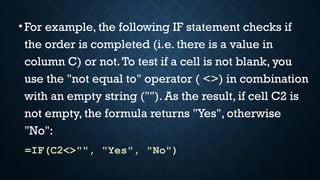
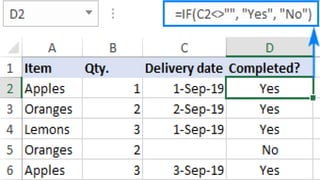
•For example, the following IF statement checks if
the order is completed (i.e. there is a value in
column C) or not.To test if a cell is not blank, you
use the "not equal to" operator ( <>) in combination
with an empty string (""). As the result, if cell C2 is
not empty, the formula returns "Yes", otherwise
"No":
=IF(C2<>"", "Yes", "No")
Useful Resources:
•IF function in Excel with formula examples
•How to use nested IFs in Excel
•IF formulas with multiple AND/OR
conditions
 TRIM
If your obviously correct Excel formulas return
just a bunch of errors, one of the first things to
check is extra spaces in the referenced cells.
There are several ways to remove unwanted
spaces in Excel, with the TRIM function being the
easiest one:
TRIM(text)
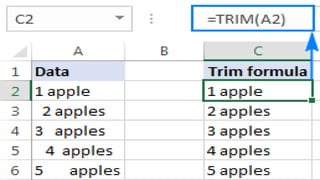
For example, to trim extra spaces in column A,
enter the following formula in cell A1, and then
copy it down the column:
=TRIM(A1)
It will eliminate all extra spaces in cells but a
single space character between words:
Useful Resources:
•Excel TRIM function with formula examples
•How to delete line breaks and non-printing char
acters
•How to remove non-breaking spaces (&nbsp;)
•How to delete a specific non-printing character
LEN
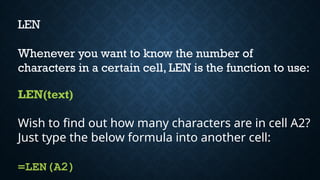
Whenever you want to know the number of
characters in a certain cell, LEN is the function to use:
LEN(text)
Wish to find out how many characters are in cell A2?
Just type the below formula into another cell:
=LEN(A2)
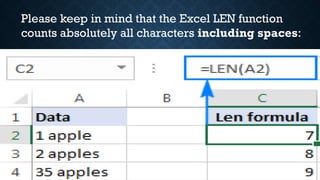
Please keep in mind that the Excel LEN function
counts absolutely all characters including spaces:
Want to get the total count of characters in a range or
cells or count only specific characters? Please check
out the following resources.
Useful resources:
•Excel LEN formulas to count characters in a cell
•Count the number of characters in cells and ranges
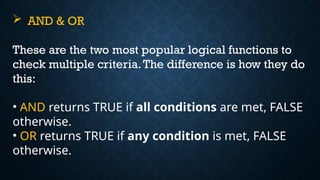
 AND & OR
These are the two most popular logical functions to
check multiple criteria.The difference is how they do
this:
• AND returns TRUE if all conditions are met, FALSE
otherwise.
• OR returns TRUE if any condition is met, FALSE
otherwise.
While rarely used on their own, these
functions come in very handy as part of
bigger formulas.
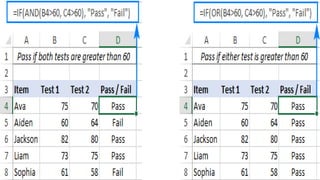
For example, to check the test results in
columns B and C and return "Pass" if
both are greater than 60, "Fail"
otherwise, use the following IF formula
with an embedded AND statement:
=IF(AND(B2>60, B2>60), "Pass","Fail")
If it's sufficient to have just one test score greater
than 60 (either test 1 or test 2), embed the OR
statement:
=IF(OR(B2>60, B2>60), "Pass","Fail")
Useful Resources:
•Excel AND function with formula examples
•Excel OR function with formula examples
 CONCATENATE
In case you want to take values from two or more
cells and combine them into one cell, use the
concatenate operator (&) or the CONCATENATE
function:
CONCATENATE(text1,[text2], …)
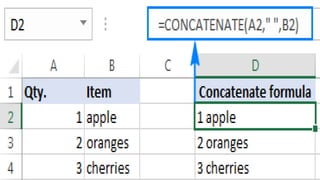
For example, to combine the values from cells A2
and B2, just enter the following formula in a
different cell
=CONCATENATE(A2, B2)
To separate the combined values with a space, type
the space character (" ") in the arguments list:
=CONCATENATE(A2, " ", B2)
Useful Resources:
•How to concatenate in Excel - formula
examples to combine text strings, cells
and columns.
•CONCAT function - newer and
improved function to combine the
contents of multiple cells into one cell.
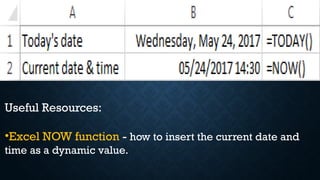
 TODAY & NOW
To see the current date and time whenever you open
your worksheet without having to manually update it
on a daily basis, use either:
=TODAY() to insert the today's date in a cell
=NOW() to insert the current date and time in a cell.
The beauty of these functions is that they don't require any
arguments at all, you type the formulas exactly as written
above.
Useful Resources:
•Excel NOW function - how to insert the current date and
time as a dynamic value.
•How to insert today's date in Excel - different ways to
enter the current date in Excel: as an unchangeable time
stamp or automatically updatable date and time.
•Excel date functions with formula examples - formulas
to convert date to text and vice versa, extract a day, month
or year from a date, calculate the difference between two
dates, and a lot more.
DATAVISUALIZATION WITH
CHARTS AND GRAPHS
What is a PivotTable?
A PivotTable allows you to take an extensive data set
with multiple columns and rows and summarize that
data in a compact, easy-to-read table.You can create
multiple PivotTables from the same data set, each
highlighting different aspects of the data. And
PivotTables are interactive — you can easily
manipulate them to filter or rearrange the data shown
in one.
What is a PivotChart?
A PivotChart is a chart visualization based on the
summarized information in a PivotTable.You can
choose from a wide variety of chart types to best
display a PivotTable’s data.The combinations you can
create using these tools are countless.
DATA ANALYSIS TOOLS:
TOPIC 4:INTRODUCTION TO GOOGLE SHEETS
OVERVIEW OF GOOGLE SHEET
INTERFACE,PARTS,AND ENVIRONMENTS
• GOOGLE SHEETS- is a free.Web-based spreadsheet
application that is provided by Google within Google Drive
service. Allows users to edit, organize, and analyze different
types of information.
• Google Sheets user interface is designed to be intuitive and
user-friendly, making it easy to navigate and use its features.
Key Components: Menu Bar: Contains drop-down menus for
File, Edit,View, Insert, Format, Data,Tools . Adds - ones , and
Help.
CREATING AND SHARING SPREADSHEETS IN
GOOGLE SHEETS
 OPEN GOOGLE SHEETS : Go to sheets.google.com and log in to your google account.
 CREATE A NEW SPREADSHEET : Click “NEW” to start a blank spreadsheet.
 ADD CONTENT : Input your data and format the cells as needed.
 CLICK “ SHARE” : Find the “SHARE” button in top right corner of your spreadsheet.
 ENTER EMAIL ADDRESSES :Type the email addresses of the people you want to share
with.
 SET ACCESS LEVEL : Select the level of access you want to give each person
( Viewer, Commenter ,or Editor ).
 SEND THE SHARE INVITATION : Click “Send” to share the spreadsheet.
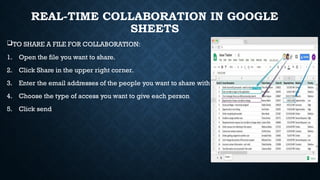
REAL-TIME COLLABORATION IN GOOGLE
SHEETS
TO SHARE A FILE FOR COLLABORATION:
1. Open the file you want to share.
2. Click Share in the upper right corner.
3. Enter the email addresses of the people you want to share with
4. Choose the type of access you want to give each person
5. Click send
BASIC CELL FORMATTING AND DATA ENTRY IN
GOOGLE SHEETS
 KEYS STEPS :
 SELECT A CELL : Click on the cell where you want to enter data.
 Enter DATA :Type your text,numbers,or dates directly into the selected cell.
 BASIC FORMATTING OPTIONS :
 TEXT FORMATTING :
1. BOLD,ITALIC, UNDERLINE : Use the icons on the toolbar to apply bold, italic, or
underline styles to your text.
2. TEXT ALIGNMENT : Click the alignment icons to left-align, center , or right-align
text.
3. FONT SIZE AND COLOR : Adjust the font size and select a color from the dropdown
menu.
 NUMBER FORMATTING :
1. DECIMAL PLACES : Select the desired number of decimal
places to display.
2. CURRENCY FORMAT :Apply currency symbols like “$”
or
3. DATE FORMATTING : Chose a date display format.
 CELL FORMATTING :
1. BACKGROUND COLOR : Select a fill color for the cell.
2. BORDERS : Add borders around the cell.
Google Sheets is a powerful and versatile online
spreadsheet application that offers a wide range
of features for both novice and advanced users.
While its basic functionality might seem similar to
Microsoft Excel, Google Sheets boasts several
advanced features that can significantly enhance
productivity, data analysis, and collaboration.
This response will explore some of the most
notable advanced features in Google Sheets,
highlighting their benefits and practical
Topic 5: Advanced Features in Google
sheets
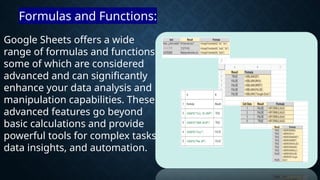
Google Sheets offers a wide
range of formulas and functions,
some of which are considered
advanced and can significantly
enhance your data analysis and
manipulation capabilities. These
advanced features go beyond
basic calculations and provide
powerful tools for complex tasks,
data insights, and automation.
Formulas and Functions:
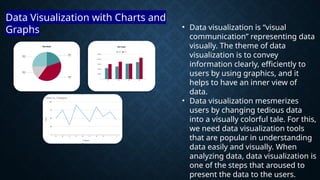
• Data visualization is “visual
communication” representing data
visually. The theme of data
visualization is to convey
information clearly, efficiently to
users by using graphics, and it
helps to have an inner view of
data.
• Data visualization mesmerizes
users by changing tedious data
into a visually colorful tale. For this,
we need data visualization tools
that are popular in understanding
data easily and visually. When
analyzing data, data visualization is
one of the steps that aroused to
present the data to the users.
Data Visualization with Charts and
Graphs
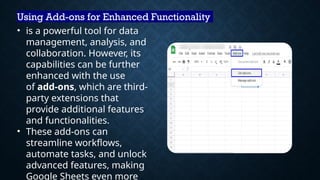
Using Add-ons for Enhanced Functionality
• is a powerful tool for data
management, analysis, and
collaboration. However, its
capabilities can be further
enhanced with the use
of add-ons, which are third-
party extensions that
provide additional features
and functionalities.
• These add-ons can
streamline workflows,
automate tasks, and unlock
advanced features, making
Google Sheets even more
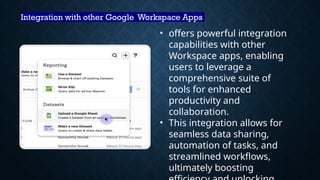
Integration with other Google Workspace Apps
• offers powerful integration
capabilities with other
Workspace apps, enabling
users to leverage a
comprehensive suite of
tools for enhanced
productivity and
collaboration.
• This integration allows for
seamless data sharing,
automation of tasks, and
streamlined workflows,
ultimately boosting
TOPIC 6: COMPARISON OF THE ADVANTAGES OF
MICROSOFT EXCEL AND GOOGLE SHEETS
 STRENGTHS AND WEAKNESSES OF EACH PLATFORM:
STRENGTHS OF MICROSOFT EXCEL
1.EASY TO USE - The interface is simple, making it
easy to organize data.
2.POWERFUL DATA ANALYSIS - It has built-in
formulas and tools like PivotTables for data
analysis.
3.AUTOMATIONWITH MACROS - Repetitive tasks
can be automated using Macros and VBA.
4.DATAVISUALIZALITION -Allows the creation of
charts and graphs to present data clearly.
5.WIDELY USED & COMPATIBLE - Used across
industries and works well with Microsoft Office
tools.
6. CLOUD INTEGRATION & COLLABORATION –
Easy to collaborate with OneDrive and Microsoft
365,
7. LARGE DATA HANDALING – Efficiently
manages large datasets and offers tools to organize
them quickly.
WEAKNESSES OF MICROSOFT EXCEL
1. PRONE TO HUMAN ERRORS – Relies on manual data
entry, leading to mistakes in formulas and typos.
2. NOT IDEAL FOR LARGE DATA SETS – Struggles with
massive datasets, especially millions of rows.
3. LIMITED AUTOMATION – Complicated for non-
programmers, and other tools are better for large-scale
automation.
4. SECURITY ISSUES – Files are easy to share but not as
secure as database systems.
5. COLLABORATION CHALLENGES – Can cause
version conflicts and is difficult to track changes in
complex spreadsheets.
6. NOT A DATABASE – Lacks advanced data
management features like relational linking and
scalability.
7.CAN BE EXPENSIVE – Requires a Microsoft 365
subscription, while free alternatives like Google Sheets
are available.
STRENGTHS OF GOOGLE SHEETS
1.FREE TO USE – Completely free with just a
Google account.
2.REAL-TIME COLLABORATION – Multiple
people can work on the same file at once.
3.CLOUD-BASED ACCESS – Access files from
any device with internet connection.
4.EASY SHARING & PERMISSIONS – Share
files with a link and control access.
5. INTEGRATIONWITH GOOGLE APPS – Works
seamlessly with Google Docs ,Drive, Forms, and Gmail.
6. BUILT-IN AI FEATURES – Automatically suggests
charts ,data analysis, and functions.
7.WORKS ON ANY DEVICE – Accessible on
Windows ,Mac, Linux , and mobile without installation.
8. AUTOMATICVERSION HISTORY – Keeps track of
changes and lets you revert to previous versions.
WEAKNESSES OF GOOGLE SHEETS
1. LIMITED DATA CAPACITY – Can handle fewer cells than Excel, which
can affect performance.
2. FEWER ADVANCED FEATURES – Lacks Excel’s advanced tools like
Power Query and VBA.
3. REQUIRES INTERNET – Features work best with internet connection.
4. SLOWER PERFORMANCE WITH LARGE DATA – Struggles with large
data sets and complex formulas.
5.LIMITED CUSTOMIZATION – Fewer
automation options and customization compared to
Excel.
6.SECURITY & PRIVACY CONCERNS – Data is
stored on Google servers, raising privacy issues.
7.FEWER FORMATING OPTIONS – Basic design
and charting options compared to Excel.
USE CASES FOR MICROSOFT EXCEL
1. DATA ORGANIZATION – Organize data into tables, such as
inventory tracking or managing grades.
2. FINANCIAL ANALYSIS – Create budgets and financial
reports using formulas and functions.
3. DATAVISUALIZATION – Generate charts and graphs for
easy-to-understand data presentation.
4. PROJECT MANAGEMENT – Track tasks ,timeline ,and
resources with Gantt charts and to-do-lists.
5. STATISCAL ANALYSIS – Perform calculations and analysis
like averages and regression.
6. INVENTORY MANAGEMENT – Track stock levels
and orders in real time.
7. DATA CLEANING AND TRANSFORMATION –
Clean and filter raw data to make it usable.
8. SCHEDULING AND TIME TRACKING – Plan
schedules and track time worked.
9. CRM ( CUSTOMER RELATIONSHIP
MANAGEMENT ) – Track customer details and
monitor sales leads.
10. SURVEY DATA ANALYSIS – Analyze survey data
and identify trends using pivot tables and charts.
USE CASES FOR GOOGLE SHEETS
1. COLLABORATION – Multiple users can work on the same document in real time, ideal for
team projects and shared data management.
2. DATA ORGANIZATION – Organize data like inventory list ,contact databases, or event
planning in a shared spreadsheet.
3. FINANCIAL TRACKING – Track budgets, expenses , and personal finances, with real-time
updates accessible from anywhere.
4. PROJECT MANAGEMENT -Use Google Sheets to manage tasks ,deadlines , and reasources ,
with results automatically populated in sheets.
5. SURVEY DATA ANALYSIS – Collect and analyze survey responses using Google forms, with
results automatically populated in sheets.
6. DATA VISUALIZATION – Create charts and graphs to present data clearly and visually.
7. TIME TRACKING – Track work hours, employee schedules, or project timelines in a shared
and editable format.
8. CUSTOMER RELATIONSHIP MANAGEMENT (CRM ) – Manage customer details and sales
leads in collaborative environment.
9 .EVENT PLANNING – Organize guest lists, budgets, and
schedules for events with real-time updates and collaboration.
10. SIMPLE DATABASE MANAGEMENT – Create simple databases
for small-scale tracking or managing small inventories.
INTEROPERABILITY BETWEEN MICROSOFT EXCEL AND
GOOGLE SHEET
-Refers to the ability to share and work with data across both
platforms, enabling users
To transfer ,edit , and collaborative on files seamlessly, with some
challenges.
1.LINKED DATA : Google Sheets API and Excel’s Power
Query enable users to pull data from one platform to
another, especially for advanced users.
2.COLLABORATION : Both support real-time
collaboration, though working between the two require
file conversion or syncing.
1. IMPORT AND EXPORT : You can upload Excel files to Google Sheets and
vice versa, but some formatting ,formulas , or advanced features may not
be preserved.
2. CLOUD INTEGRATION : Google Sheets uses Google Drive and Excel
integrates with OneDrive, allowing users to store and access files across
both platforms.
3. LINKED DATA : Google Sheets API and Excel’s Power Query enable users
to pull data from one platform to another, especially for advanced users.
4. COLLABORATION : Both support real-time collaboration, though working
between the two require file conversion or syncing.
THANK YOU ! !
FOR LISTENING WITH OUR PRESENTATION

inbound8892906594451662013.pptx informatics

  • 1.
    LESSON:3 INTRODUCTION TO SPREADSHEETPROGRAM (MICROSOFT EXCEL AND GOOGLE SHEETS) GROUP 3 REPORTER’S: DEJARLO, RENA JOY BARCALA, JULY GABANE, REAH JANE GRATUITO,JANE TAGANNA, NINA CAUBALEJO, JESSEL INSTRUCTOR: JOHN CARLO F.ROTILLES
  • 2.
    T0PIC: 1 OVERVIEWOF SPREADSHEET PROGRAMS
  • 3.
    DEFINATION SPREADSHEET PROGRAMS Spreadsheetwas and is a large sheet of paper with columns and rows that organizes data about transactions for a business person to examine. It spreads or shows all of the costs, income, taxes, and other related data on a single sheet of paper for a manager to examine when making a decision. An electronic spreadsheet organizes information into software defined columns and rows. The data can then be "added up" by a formula to give a total or sum.
  • 4.
    THE PURPOSE OFSPREADSHEET PROGRAMS INCLUDES: •Data storage and organization •Data manipulation and analysis •Calculation and computation •Visualization •Forecasting and budgeting •Automation
  • 5.
    HISTORY AND EVOLUTIONOF SPREADSHEET SOFTWARE
  • 6.
    THE FIRST SPREADSHEETSWERE DESIGNED ON PAPER, REPLACED BY ELECTRONIC SPREADSHEETS IN THE LATE 20TH CENTURY.
  • 7.
     1961-Idea ofspreadsheet belongs to the American scientist Richard Mattesich published his study “Budgeting Models and System Simulation”.  1969 – LANPAR (Language for Programming Arrays at Random, Canadians Rene Pardo and Remy Landau developed the first commercial electronic spreadsheet.
  • 8.
     VisiCalc (Apple)| 1979 The first spreadsheet software was developed for the Apple II Computer by Dan Bricklin and Bob Frankston. It’s considered to be the Apple II’s killer app.
  • 9.
    1982 - Multiplanwas a spreadsheet program developed by Microsoft as a competitor to VisiCalc. It was one of the first spreadsheet programs and was used on CP/M machines before the IBM PC. 1980- SuperCalc is a spreadsheet application developed and introduced by Sorcim .
  • 10.
    1985 - BOEINGCalc was a spreadsheet package released it was written by Boeing Computer Services. It supported a maximum spreadsheet size of 16,000 columns by 16,000 rows, and was notable for introducing the concept of 3D spreadsheets. developed by Lotus Development Corporation , founded by Mitchell kapor,, also the first innovative spreadsheet for the PC and was launched with a huge marketing campaign.
  • 11.
     1985 -MICROSOFT EXCEL Microsoft released the first version of Excel for Apple Inc.'s Macintosh computer.  1988 – QUATTRO PRO- First released it was originally developed by Borland Software and is now part of the WordPerfect Office suite.
  • 12.
    MODERN SPREADSHEET  2006- GOOGLE SHEET- It was developed from XL2Web, a web-based spreadsheet application that Google acquired.
  • 13.
    2007 - APPLENUMBERS - Apple announced the first version of Numbers for Mac OS Numbers is a spreadsheet application that is part of Apple's iWork productivity suite. MICROSOFT EXCEL 2016 AND 365:  Charles Simonyi is the man behind some of the company most successful software.  Bills Gates and Paul Allen who created 365.
  • 14.
    MICROSOFT EXCEL 2016MICROSOFT EXCEL 365
  • 15.
    IMPORTANCE OF SPREADSHEET PROGRAMSIN VARIOUS FIELDS • Spreadsheet programs have significant importance across many industries and professions due to their versality and ability to manage data efficiently. 1. Accounting and Marketing 2. Business and Finance 3. Education 4. Healthcare 5. Project Management 6. Engineering and Science
  • 16.
    TOPIC 2: GETTINGSTARTED WITH MICROSOFT EXCEL What is MS Excel Excel is a part of the Microsoft Office suite software. It is an electronic spreadsheet program that features a grid of rows and columns, making it easy to input and organize data. With 1,048,576 rows and 16,384 columns in Excel 2007 and newer versions, it can handle vast datasets without hassle. Each intersection of a row and column forms a cell, identified by a cell reference like A1 or D2. These references help users store data, perform calculations, and link information effortlessly.
  • 18.
  • 19.
    The Ribbon andQuick Access Toolbar are where you will find the commands to perform common tasks in Excel.The Backstage view gives you various options for saving, opening a file, printing, and sharing your document. Working with the Excel environment
  • 20.
    Interface Element Description RibbonTabs Ribbon Tab is a tab that organizes commands by topic The Ribbon Commands underneath the Tabs Ribbon Groups Grouping of related commands Dialog Box Launcher Opens a dialog box that includes additional commands Quick Access Toolbar One click access to any frequently used command
  • 21.
    Name Box Displays celllocation and can be used to navigate to a cell location Select All Button Selects all the cells in a worksheet Formula Bar View, enter, or edit cell contents Insert Function Button Displays Insert Function dialog box Scroll Bars Used to navigate up, down, left & right
  • 22.
    Zoom Slider Zoom intoan area of the worksheet View Buttons Switch between Normal, Page Layout and Page Break Preview views Worksheet tabs Tabs used to select individual worksheets The Workspace The area inside of the columns and rows used in Excel Columns Columns use letters Rows Rows use numbers
  • 23.
    Ribbon Overview • Home- Most commonly used buttons and includes common functions, sorting, etc. • Insert - For inserting Tables, Illustrations, Charts, Links and Text Objects • Page Layout - For Themes, Page Setup, Scaling, Sheet Options and Arrangement of drawing objects
  • 24.
    • Formulas -For inserting Functions, Range Names, Formula Auditing, and Calculations Options • Data - For Database Options (Filter/Sort, Data Tools, and Outlining) • Review - For Proofing, Comments, Protection, and Track Changes • View - For Workbook Views, Show/Hide, Zoom, Window options, and Macros
  • 25.
    MICROSOFT EXCEL COMPONENTS Before youstart using it, it’s really important to understand what’s where in its window. So ahead we have all the major components which you need to know before entering the world of Microsoft Excel.
  • 27.
    The three mostimportant components of Excel you need to understand first: 1) Cell A cell is the smallest but most powerful part of a spreadsheet. You can enter your data into a cell either by typing or by copy- paste. Data can be a text, a number, or a date.You can also customize it by changing its size, font color, background color, borders, etc. Every cell is identified by its cell address, cell address contains its column number and row number (If a cell is on the 11th row and on column AB, then its address will be AB11).
  • 28.
    2.) Worksheet A worksheetis made up of individual cells which can contain a value, a formula, or text. It also has an invisible draw layer, which holds charts, images, and diagrams. Each worksheet in a workbook is accessible by clicking the tab at the bottom of the workbook window. In addition, a workbook can store chart sheets; a chart sheet displays a single chart and is accessible by clicking a tab.
  • 29.
    3.) Workbook In Excel,a workbook is a file that stores data in multiple sheets. Each workbook is a separate entity. Below are some of the features of an Excel workbook.  Each workbook has its name.  Each workbook has a specific format.  Each workbook needs to be saved in a specific location.
  • 30.
    Creating Workbook inExcel  Open Excel Application.  Go to the Home (By default, it is open already).  Click on the “Blank Workbook” Icon.  It will open a new workbook with the name Book1.
  • 32.
     Create aNew Workbook from Right-Click If you are using Excel in Windows, you can insert a new workbook from the right-click menu or the new option. If you are on the desktop, right-click, click the new “New”, and then click on the “Microsoft Excel Workbook”.
  • 34.
     And ifyou are in a folder, click on the “New” dropdown and then click on the “Microsoft Excel Workbook”.
  • 35.
    Keyboard Shortcut toInsert a New Workbook: If you have an Excel workbook is already open, and you want to add a new workbook, you can use the keyboard shortcut:  Ctrl + N When you use the shortcut, it creates a new workbook with the name Book and a number.
  • 36.
     Save aWorkbook Onceyou insert a new workbook, you need to save that workbook, and for this, you need to go to the File Tab > Save As.
  • 37.
     Once youclick “Save As”, click “Browse”. After that, select the location where you want to save the workbook, enter the name you want to give to the workbook and click “Save” at the end.
  • 38.
    How To ShareAn Excel File? With the workbook open, perform the following steps to share it: 1. On the Review tab, in the Changes group, click the ShareWorkbook button.
  • 39.
    2.The ShareWorkbook dialog boxwill appear, and you select the Allow changes by more than one user at the same time.This also allows workbook merging check box on the Editing tab.
  • 40.
    3. Optionally, switchto the Advanced tab,select the desired settings for tracking changes, and click OK. For example, you may want to have changes updated automatically every n number of minutes (all the other settings on the screenshot below are the default ones).
  • 41.
    4.Save you Excelfile to a network location where other people can access it (the fastest way is by using the Ctrl + S shortcut).
  • 42.
  • 43.
    Data Entry The easiestway to enter data into a worksheet is to type it directly into the active cell, or into the formula bar. Once data has been entered, the action may be completed in a variety of different ways. Suppose we have just entered data into cell C8.Then:
  • 44.
    Enter moves tothe next cell in the same column, i.e. C9. Shift Enter moves to the previous cell in the same column, i.e. C7. Tab moves to the next cell in the same row, i.e. D8. Shift Tab moves to the previous cell in the same row, i.e. B8. The cursor keys move in the direction indicated. The tick icon next to the formula bar completes the formula but does not move to a new cell. Esc does not move and cancels all modifications since the last completion of type (1–6) above. The cross icon next to the formula bar has the same effect as Esc, as does the undo icon in the quick access toolbar.
  • 45.
    TOPIC 3: ADVANCEDFEATURES IN MICROSOFT EXCEL MICROSOFT EXCEL- Is a spreadsheet program where one can record data in form of tablets.
  • 46.
    The Basics ofExcel formulas Formula is an expression that calculates values in a cell or in a range of cells. For example: =A2+A2+A3+A4 is a formula that adds up the value in cells A2 through A4.
  • 47.
    Function is apredefined formula already available in Excel. Functions perform specific calculations in a particular order based on the specified values, called arguments, or parameters. For example: instead of specifying each value to be summed like in the above formula, you can use the SUM function to add up a range of cells: =SUM(A2:A4)
  • 48.
    You can findall available Excel functions in the Function Library on the Formulas tab:
  • 49.
    10 Excel BasicFunctions SUM •The first Excel function you should be familiar with is the one that performs the basic arithmetic operation of addition: SUM(number1, [number2], …)
  • 51.
    Tip. The fastestway to sum a column or row of numbers is to select a cell next to the numbers you want to sum (the cell immediately below the last value in the column or to the right of the last number in the row), and click the AutoSum button on the Home tab, in the Formats group. Excel will insert a SUM formula for you automatically.
  • 52.
    Excel Sum formulaexamples - formulas to total a column, rows, only filtered (visible) cells, or sum across sheets. Excel AutoSum - the fastest way to sum a column or row of numbers. SUMIF in Excel - formula examples to conditionally sum cells. SUMIFS in Excel - formula examples to sum cells based on multiple criteria.
  • 53.
    AVERAGE •The Excel AVERAGEfunction does exactly what its name suggests, i.e. finds an average, or arithmetic mean, of numbers. Its syntax is similar to SUM’s: AVERAGE(number1, [number2], …)
  • 55.
    • Useful Resources: ExcelAVERAGE - average cells with numbers. Excel AVERAGEA - find an average of cells with any data (numbers, Boolean and text values). Excel AVERAGEIF - average cells based on one criterion. Excel AVERAGEIFS - average cells based on multiple criteria. How to calculate weighted average in Excel How to find moving average in Excel
  • 56.
    MAX & MIN •TheMAX and MIN formulas in Excel get the largest and smallest value in a set of numbers, respectively. For our sample data set, the formulas will be as simple as: =MAX(B2:B6) =MIN(B2:B6)
  • 58.
    •Useful Resources: MAX function- find the highest value. MAX IF formula - get the highest number with conditions. MAXIFS function - get the largest value based on multiple criteria. MIN function - return the smallest value in a data set. MINIFS function - find the smallest number based on one or several conditions.
  • 59.
    COUNT & COUNTA •Ifyou are curious to know how many cells in a given range contain numeric values (numbers or dates), don't waste your time counting them by hand.The Excel COUNT function will bring you the count in a heartbeat: COUNT(value1, [value2], …)
  • 60.
    For example, tofind out how many cells in column B contain numbers, use this formula: =COUNT(B:B) To count all non-empty cells in column B, go with this one: =COUNTA(B:B)
  • 61.
    •In both formulas,you use the so-called "whole column reference" (B:B) that refers to all the cells within column B. •The following screenshot shows the difference: while COUNT processes only numbers, COUNTA outputs the total number of non-blank cells in column B, including the the text value in the column header.
  • 63.
    •Useful Resources: •Excel COUNTfunction - a quick way to count cells with numbers. •Excel COUNTA function - count cells with any values (non-empty cells). •Excel COUNTIF function - count cells that meet one condition. •Excel COUNTIFS function - count cells with several criteria.
  • 64.
    IF •Judging by thenumber of IF-related comments on our blog, it's the most popular function in Excel. In simple terms, you use an IF formula to ask Excel to test a certain condition and return one value or perform one calculation if the condition is met, and another value or calculation if the condition is not met: IF(logical_test, [value_if_true], [value_if_false])
  • 65.
    •For example, thefollowing IF statement checks if the order is completed (i.e. there is a value in column C) or not.To test if a cell is not blank, you use the "not equal to" operator ( <>) in combination with an empty string (""). As the result, if cell C2 is not empty, the formula returns "Yes", otherwise "No": =IF(C2<>"", "Yes", "No")
  • 68.
    Useful Resources: •IF functionin Excel with formula examples •How to use nested IFs in Excel •IF formulas with multiple AND/OR conditions
  • 69.
     TRIM If yourobviously correct Excel formulas return just a bunch of errors, one of the first things to check is extra spaces in the referenced cells. There are several ways to remove unwanted spaces in Excel, with the TRIM function being the easiest one: TRIM(text)
  • 70.
    For example, totrim extra spaces in column A, enter the following formula in cell A1, and then copy it down the column: =TRIM(A1) It will eliminate all extra spaces in cells but a single space character between words:
  • 72.
    Useful Resources: •Excel TRIMfunction with formula examples •How to delete line breaks and non-printing char acters •How to remove non-breaking spaces (&nbsp;) •How to delete a specific non-printing character
  • 73.
    LEN Whenever you wantto know the number of characters in a certain cell, LEN is the function to use: LEN(text) Wish to find out how many characters are in cell A2? Just type the below formula into another cell: =LEN(A2)
  • 74.
    Please keep inmind that the Excel LEN function counts absolutely all characters including spaces:
  • 75.
    Want to getthe total count of characters in a range or cells or count only specific characters? Please check out the following resources. Useful resources: •Excel LEN formulas to count characters in a cell •Count the number of characters in cells and ranges
  • 76.
     AND &OR These are the two most popular logical functions to check multiple criteria.The difference is how they do this: • AND returns TRUE if all conditions are met, FALSE otherwise. • OR returns TRUE if any condition is met, FALSE otherwise.
  • 77.
    While rarely usedon their own, these functions come in very handy as part of bigger formulas. For example, to check the test results in columns B and C and return "Pass" if both are greater than 60, "Fail" otherwise, use the following IF formula with an embedded AND statement:
  • 78.
    =IF(AND(B2>60, B2>60), "Pass","Fail") Ifit's sufficient to have just one test score greater than 60 (either test 1 or test 2), embed the OR statement: =IF(OR(B2>60, B2>60), "Pass","Fail")
  • 80.
    Useful Resources: •Excel ANDfunction with formula examples •Excel OR function with formula examples
  • 81.
     CONCATENATE In caseyou want to take values from two or more cells and combine them into one cell, use the concatenate operator (&) or the CONCATENATE function: CONCATENATE(text1,[text2], …)
  • 82.
    For example, tocombine the values from cells A2 and B2, just enter the following formula in a different cell =CONCATENATE(A2, B2) To separate the combined values with a space, type the space character (" ") in the arguments list: =CONCATENATE(A2, " ", B2)
  • 84.
    Useful Resources: •How toconcatenate in Excel - formula examples to combine text strings, cells and columns. •CONCAT function - newer and improved function to combine the contents of multiple cells into one cell.
  • 85.
     TODAY &NOW To see the current date and time whenever you open your worksheet without having to manually update it on a daily basis, use either:
  • 86.
    =TODAY() to insertthe today's date in a cell =NOW() to insert the current date and time in a cell. The beauty of these functions is that they don't require any arguments at all, you type the formulas exactly as written above.
  • 87.
    Useful Resources: •Excel NOWfunction - how to insert the current date and time as a dynamic value.
  • 88.
    •How to inserttoday's date in Excel - different ways to enter the current date in Excel: as an unchangeable time stamp or automatically updatable date and time. •Excel date functions with formula examples - formulas to convert date to text and vice versa, extract a day, month or year from a date, calculate the difference between two dates, and a lot more.
  • 89.
  • 90.
    What is aPivotTable? A PivotTable allows you to take an extensive data set with multiple columns and rows and summarize that data in a compact, easy-to-read table.You can create multiple PivotTables from the same data set, each highlighting different aspects of the data. And PivotTables are interactive — you can easily manipulate them to filter or rearrange the data shown in one.
  • 91.
    What is aPivotChart? A PivotChart is a chart visualization based on the summarized information in a PivotTable.You can choose from a wide variety of chart types to best display a PivotTable’s data.The combinations you can create using these tools are countless.
  • 92.
  • 93.
  • 94.
    OVERVIEW OF GOOGLESHEET INTERFACE,PARTS,AND ENVIRONMENTS • GOOGLE SHEETS- is a free.Web-based spreadsheet application that is provided by Google within Google Drive service. Allows users to edit, organize, and analyze different types of information. • Google Sheets user interface is designed to be intuitive and user-friendly, making it easy to navigate and use its features. Key Components: Menu Bar: Contains drop-down menus for File, Edit,View, Insert, Format, Data,Tools . Adds - ones , and Help.
  • 95.
    CREATING AND SHARINGSPREADSHEETS IN GOOGLE SHEETS  OPEN GOOGLE SHEETS : Go to sheets.google.com and log in to your google account.  CREATE A NEW SPREADSHEET : Click “NEW” to start a blank spreadsheet.  ADD CONTENT : Input your data and format the cells as needed.  CLICK “ SHARE” : Find the “SHARE” button in top right corner of your spreadsheet.  ENTER EMAIL ADDRESSES :Type the email addresses of the people you want to share with.  SET ACCESS LEVEL : Select the level of access you want to give each person ( Viewer, Commenter ,or Editor ).  SEND THE SHARE INVITATION : Click “Send” to share the spreadsheet.
  • 96.
    REAL-TIME COLLABORATION INGOOGLE SHEETS TO SHARE A FILE FOR COLLABORATION: 1. Open the file you want to share. 2. Click Share in the upper right corner. 3. Enter the email addresses of the people you want to share with 4. Choose the type of access you want to give each person 5. Click send
  • 97.
    BASIC CELL FORMATTINGAND DATA ENTRY IN GOOGLE SHEETS  KEYS STEPS :  SELECT A CELL : Click on the cell where you want to enter data.  Enter DATA :Type your text,numbers,or dates directly into the selected cell.  BASIC FORMATTING OPTIONS :  TEXT FORMATTING : 1. BOLD,ITALIC, UNDERLINE : Use the icons on the toolbar to apply bold, italic, or underline styles to your text. 2. TEXT ALIGNMENT : Click the alignment icons to left-align, center , or right-align text. 3. FONT SIZE AND COLOR : Adjust the font size and select a color from the dropdown menu.
  • 98.
     NUMBER FORMATTING: 1. DECIMAL PLACES : Select the desired number of decimal places to display. 2. CURRENCY FORMAT :Apply currency symbols like “$” or 3. DATE FORMATTING : Chose a date display format.  CELL FORMATTING : 1. BACKGROUND COLOR : Select a fill color for the cell. 2. BORDERS : Add borders around the cell.
  • 99.
    Google Sheets isa powerful and versatile online spreadsheet application that offers a wide range of features for both novice and advanced users. While its basic functionality might seem similar to Microsoft Excel, Google Sheets boasts several advanced features that can significantly enhance productivity, data analysis, and collaboration. This response will explore some of the most notable advanced features in Google Sheets, highlighting their benefits and practical Topic 5: Advanced Features in Google sheets
  • 100.
    Google Sheets offersa wide range of formulas and functions, some of which are considered advanced and can significantly enhance your data analysis and manipulation capabilities. These advanced features go beyond basic calculations and provide powerful tools for complex tasks, data insights, and automation. Formulas and Functions:
  • 102.
    • Data visualizationis “visual communication” representing data visually. The theme of data visualization is to convey information clearly, efficiently to users by using graphics, and it helps to have an inner view of data. • Data visualization mesmerizes users by changing tedious data into a visually colorful tale. For this, we need data visualization tools that are popular in understanding data easily and visually. When analyzing data, data visualization is one of the steps that aroused to present the data to the users. Data Visualization with Charts and Graphs
  • 103.
    Using Add-ons forEnhanced Functionality • is a powerful tool for data management, analysis, and collaboration. However, its capabilities can be further enhanced with the use of add-ons, which are third- party extensions that provide additional features and functionalities. • These add-ons can streamline workflows, automate tasks, and unlock advanced features, making Google Sheets even more
  • 104.
    Integration with otherGoogle Workspace Apps • offers powerful integration capabilities with other Workspace apps, enabling users to leverage a comprehensive suite of tools for enhanced productivity and collaboration. • This integration allows for seamless data sharing, automation of tasks, and streamlined workflows, ultimately boosting
  • 105.
    TOPIC 6: COMPARISONOF THE ADVANTAGES OF MICROSOFT EXCEL AND GOOGLE SHEETS  STRENGTHS AND WEAKNESSES OF EACH PLATFORM:
  • 106.
    STRENGTHS OF MICROSOFTEXCEL 1.EASY TO USE - The interface is simple, making it easy to organize data. 2.POWERFUL DATA ANALYSIS - It has built-in formulas and tools like PivotTables for data analysis. 3.AUTOMATIONWITH MACROS - Repetitive tasks can be automated using Macros and VBA. 4.DATAVISUALIZALITION -Allows the creation of charts and graphs to present data clearly.
  • 107.
    5.WIDELY USED &COMPATIBLE - Used across industries and works well with Microsoft Office tools. 6. CLOUD INTEGRATION & COLLABORATION – Easy to collaborate with OneDrive and Microsoft 365, 7. LARGE DATA HANDALING – Efficiently manages large datasets and offers tools to organize them quickly.
  • 108.
    WEAKNESSES OF MICROSOFTEXCEL 1. PRONE TO HUMAN ERRORS – Relies on manual data entry, leading to mistakes in formulas and typos. 2. NOT IDEAL FOR LARGE DATA SETS – Struggles with massive datasets, especially millions of rows. 3. LIMITED AUTOMATION – Complicated for non- programmers, and other tools are better for large-scale automation. 4. SECURITY ISSUES – Files are easy to share but not as secure as database systems.
  • 109.
    5. COLLABORATION CHALLENGES– Can cause version conflicts and is difficult to track changes in complex spreadsheets. 6. NOT A DATABASE – Lacks advanced data management features like relational linking and scalability. 7.CAN BE EXPENSIVE – Requires a Microsoft 365 subscription, while free alternatives like Google Sheets are available.
  • 110.
    STRENGTHS OF GOOGLESHEETS 1.FREE TO USE – Completely free with just a Google account. 2.REAL-TIME COLLABORATION – Multiple people can work on the same file at once. 3.CLOUD-BASED ACCESS – Access files from any device with internet connection. 4.EASY SHARING & PERMISSIONS – Share files with a link and control access.
  • 111.
    5. INTEGRATIONWITH GOOGLEAPPS – Works seamlessly with Google Docs ,Drive, Forms, and Gmail. 6. BUILT-IN AI FEATURES – Automatically suggests charts ,data analysis, and functions. 7.WORKS ON ANY DEVICE – Accessible on Windows ,Mac, Linux , and mobile without installation. 8. AUTOMATICVERSION HISTORY – Keeps track of changes and lets you revert to previous versions.
  • 112.
    WEAKNESSES OF GOOGLESHEETS 1. LIMITED DATA CAPACITY – Can handle fewer cells than Excel, which can affect performance. 2. FEWER ADVANCED FEATURES – Lacks Excel’s advanced tools like Power Query and VBA. 3. REQUIRES INTERNET – Features work best with internet connection. 4. SLOWER PERFORMANCE WITH LARGE DATA – Struggles with large data sets and complex formulas.
  • 113.
    5.LIMITED CUSTOMIZATION –Fewer automation options and customization compared to Excel. 6.SECURITY & PRIVACY CONCERNS – Data is stored on Google servers, raising privacy issues. 7.FEWER FORMATING OPTIONS – Basic design and charting options compared to Excel.
  • 114.
    USE CASES FORMICROSOFT EXCEL 1. DATA ORGANIZATION – Organize data into tables, such as inventory tracking or managing grades. 2. FINANCIAL ANALYSIS – Create budgets and financial reports using formulas and functions. 3. DATAVISUALIZATION – Generate charts and graphs for easy-to-understand data presentation. 4. PROJECT MANAGEMENT – Track tasks ,timeline ,and resources with Gantt charts and to-do-lists. 5. STATISCAL ANALYSIS – Perform calculations and analysis like averages and regression.
  • 115.
    6. INVENTORY MANAGEMENT– Track stock levels and orders in real time. 7. DATA CLEANING AND TRANSFORMATION – Clean and filter raw data to make it usable. 8. SCHEDULING AND TIME TRACKING – Plan schedules and track time worked. 9. CRM ( CUSTOMER RELATIONSHIP MANAGEMENT ) – Track customer details and monitor sales leads. 10. SURVEY DATA ANALYSIS – Analyze survey data and identify trends using pivot tables and charts.
  • 116.
    USE CASES FORGOOGLE SHEETS 1. COLLABORATION – Multiple users can work on the same document in real time, ideal for team projects and shared data management. 2. DATA ORGANIZATION – Organize data like inventory list ,contact databases, or event planning in a shared spreadsheet. 3. FINANCIAL TRACKING – Track budgets, expenses , and personal finances, with real-time updates accessible from anywhere. 4. PROJECT MANAGEMENT -Use Google Sheets to manage tasks ,deadlines , and reasources , with results automatically populated in sheets. 5. SURVEY DATA ANALYSIS – Collect and analyze survey responses using Google forms, with results automatically populated in sheets. 6. DATA VISUALIZATION – Create charts and graphs to present data clearly and visually. 7. TIME TRACKING – Track work hours, employee schedules, or project timelines in a shared and editable format. 8. CUSTOMER RELATIONSHIP MANAGEMENT (CRM ) – Manage customer details and sales leads in collaborative environment.
  • 117.
    9 .EVENT PLANNING– Organize guest lists, budgets, and schedules for events with real-time updates and collaboration. 10. SIMPLE DATABASE MANAGEMENT – Create simple databases for small-scale tracking or managing small inventories. INTEROPERABILITY BETWEEN MICROSOFT EXCEL AND GOOGLE SHEET -Refers to the ability to share and work with data across both platforms, enabling users To transfer ,edit , and collaborative on files seamlessly, with some challenges.
  • 118.
    1.LINKED DATA :Google Sheets API and Excel’s Power Query enable users to pull data from one platform to another, especially for advanced users. 2.COLLABORATION : Both support real-time collaboration, though working between the two require file conversion or syncing.
  • 119.
    1. IMPORT ANDEXPORT : You can upload Excel files to Google Sheets and vice versa, but some formatting ,formulas , or advanced features may not be preserved. 2. CLOUD INTEGRATION : Google Sheets uses Google Drive and Excel integrates with OneDrive, allowing users to store and access files across both platforms. 3. LINKED DATA : Google Sheets API and Excel’s Power Query enable users to pull data from one platform to another, especially for advanced users. 4. COLLABORATION : Both support real-time collaboration, though working between the two require file conversion or syncing.
  • 120.
    THANK YOU !! FOR LISTENING WITH OUR PRESENTATION