Title: Windows 10 vs Windows 11 File History: What’s the Difference?
Keywords: windows11file history, enable filehistorywindows11,windows11file historyrestore
to newcomputer,whatisfile historyinwindows11, turn off file historywindows11, how does
windowsfilehistorywork,whatdoesfile historydoinwindows11
Description: Where to find File History in Windows 11? Is it still in Windows Settings? How does it
Work? What are the differences between Win10 and Win11 File History?
URL: https://www.minitool.com/backup-tips/windows-11-file-history.html
Summary: This article released by MiniTool solution compares the system backup tool File History
respectively in Windows 11 and Windows 10. It mainly introduces the location of File History in
Win11 and how to use it although it is generally similar to it is in Win10. Yet, there are still some
divergences.
The nextgenerationof Windowsoperatingsystem(OS)isaroundthe corner.Many people are
expectingitsnewappearance andnewfeatureswhile some usershave alreadybeenexperiencing
the newOS by joiningMicrosoftWindowsInsiderProgram.
Amongthose betausers,some praise the freshnew experience of Windows11while others
complainaboutthe errorsthat Win11 has broughtto them.Generally,the new systemhasboth
advantagesanddisadvantages.
Here in thisarticle,we will focuson one of the backupfeaturesinthe comingWindows11 OS – File
History.Afterreadingthe followingcontent,youwillhave abetterunderstandingof File Historyin
Windows11.
What Is File History in Windows 11?
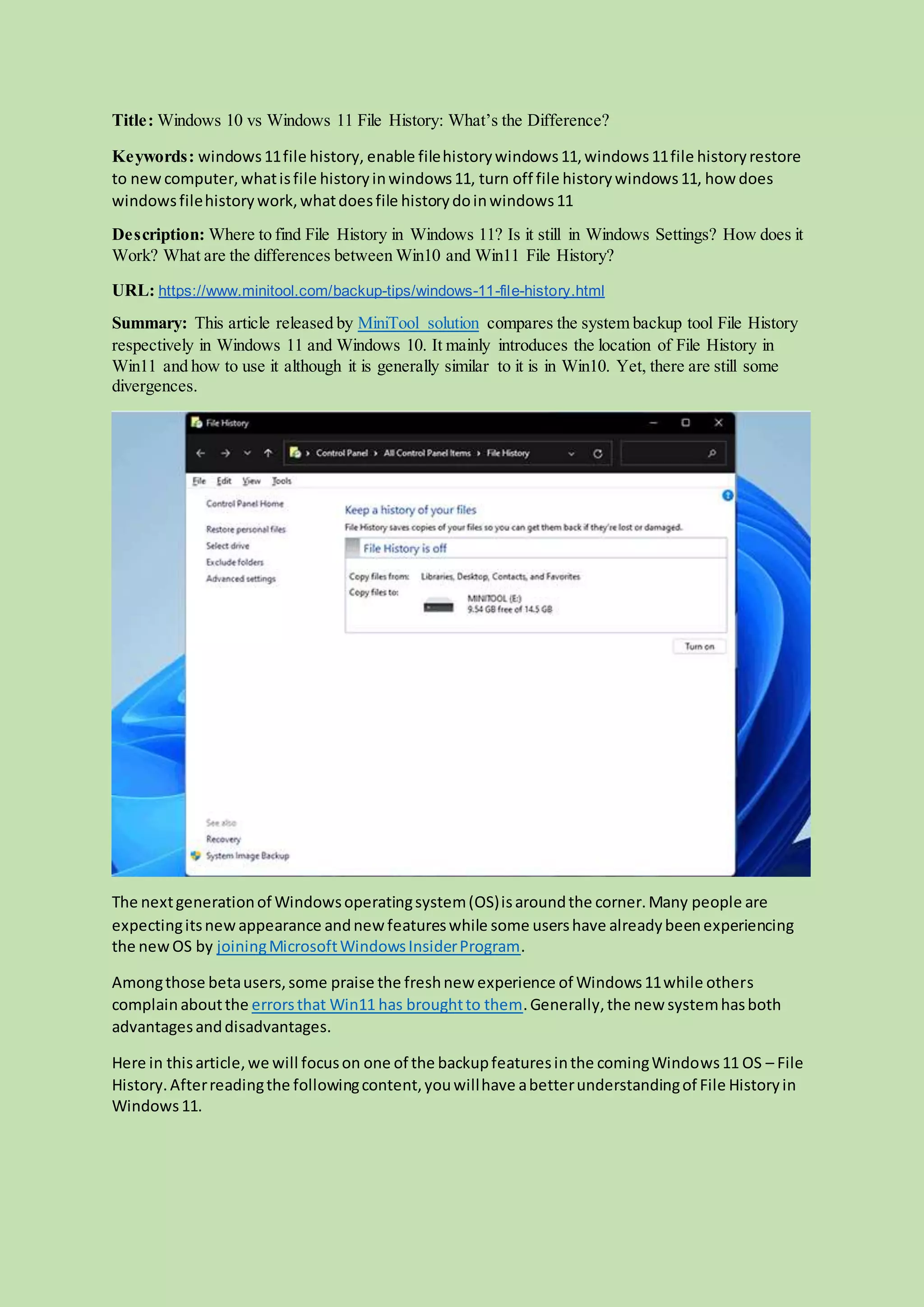
File HistoryWindows11is still the files/foldersbackuputilityinMicrosoftWindows.The different
thingisthat it isbuiltinthe comingnewversion11 system.
https://www.minitool.com/backup-tips/file-history-drive-disconnected.html
What Does File History Do in Windows 11?
Beingthe same as Windows10 File History,Windows11File Historyenablesuserstobackup
documentariesincludingDocuments,Pictures,Music,Videos,Desktop,Downloads,OneDrive,
Contacts,etc. to anotherinternal orexternal harddrive automaticallywithafrequencyof everya
fewminutes, everyafewhours,ordaily.
How Does Windows 11 File History Work?
In general, Win11File Historycreate acopy of selectedfolders/filesandsave the copyinthe
destinationwhichlocatesonadifferentharddisk.So,if youwantto setup a File Historybackupfor
your filesinWindows11,youneedto, firstof all,prepare an extradiskto store the backup copy.
Windows 11 File History Backup
Now,letussee howto conduct file backupwithFile HistoryonWindows11.
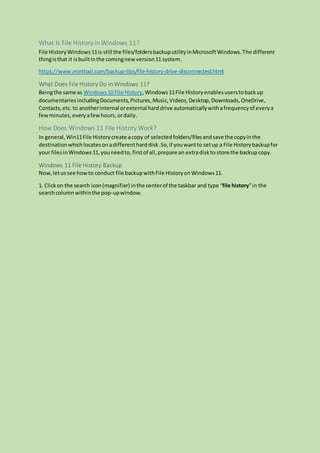
1. Clickon the search icon(magnifier) inthe centerof the taskbar and type “file history”in the
searchcolumnwithinthe pop-upwindow.
Alt=searchforFile History inWindows11
2. In the search result,openthe bestmatch File History.
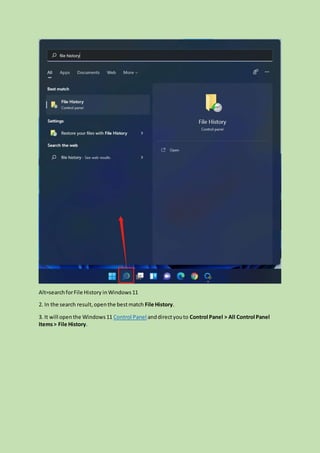
3. It will openthe Windows11 Control Panel anddirectyouto Control Panel > All Control Panel
Items> File History.
Alt=Windows11 File HistoryinControl Panel
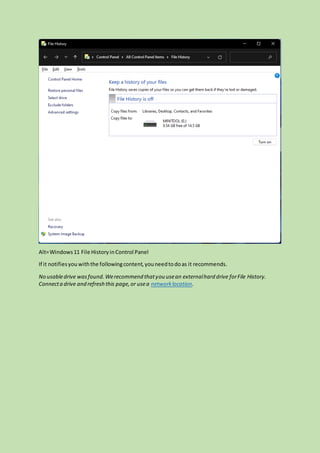
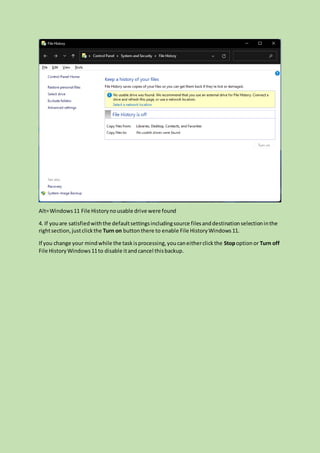
If it notifiesyou withthe followingcontent,youneedtodoas it recommends.
No usabledrive wasfound.Werecommend thatyou usean externalhard drive forFile History.
Connecta drive and refresh this page,or usea networklocation.
Alt=Windows11 File Historynousable drive were found
4. If youare satisfiedwiththe defaultsettingsincludingsource filesanddestinationselectioninthe
rightsection,justclickthe Turn on buttonthere to enable File HistoryWindows11.
If you change your mindwhile the taskisprocessing,youcaneitherclickthe Stopoption or Turn off
File HistoryWindows11to disable itand cancel thisbackup.
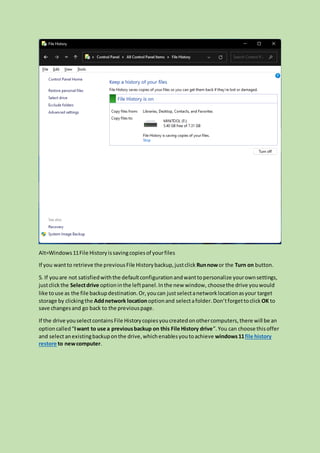
Alt=Windows11File Historyissavingcopiesof yourfiles
If you wantto retrieve the previousFile Historybackup,justclick Runnowor the Turn on button.
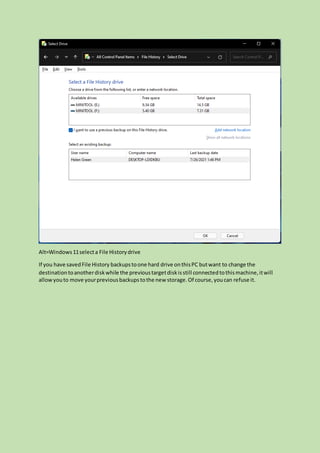
5. If youare not satisfiedwiththe defaultconfigurationandwanttopersonalize yourownsettings,
justclick the Selectdrive optioninthe leftpanel.Inthe new window, choosethe drive youwould
like touse as the file backupdestination.Or,youcan justselectanetworklocationasyour target
storage by clickingthe Addnetwork locationoptionand selectafolder.Don’tforgettoclick OK to
save changesand go back to the previouspage.
If the drive youselectcontainsFile Historycopiesyoucreatedonothercomputers,there will be an
optioncalled“Iwant to use a previousbackup on this File History drive”.You can choose thisoffer
and selectanexistingbackuponthe drive,whichenablesyoutoachieve windows11file history
restore to newcomputer.
Alt=Windows11selecta File Historydrive
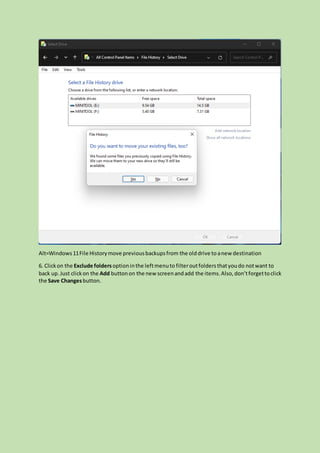
If you have savedFile History backupstoone hard drive onthisPC butwant to change the
destinationtoanotherdiskwhile the previoustargetdiskisstill connectedtothismachine,itwill
allowyouto move yourpreviousbackupstothe new storage.Of course,youcan refuse it.
Alt=Windows11File Historymove previousbackupsfrom the olddrive to anew destination
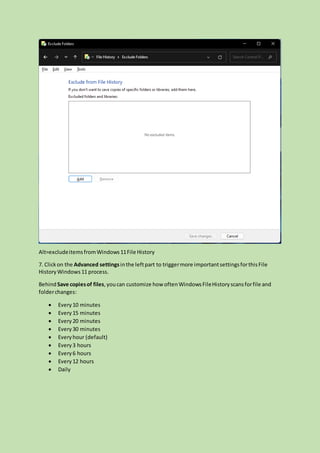
6. Clickon the Exclude foldersoptioninthe leftmenuto filteroutfolders thatyoudo notwant to
back up. Just clickon the Add buttonon the new screenandadd the items.Also,don’tforgettoclick
the Save Changesbutton.
Alt=excludeitemsfromWindows11File History
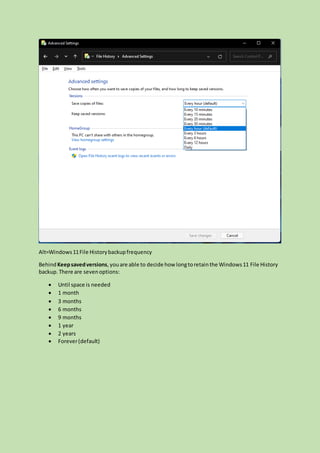
7. Clickon the Advanced settingsinthe leftpart to triggermore importantsettingsforthisFile
HistoryWindows11 process.
BehindSave copiesof files,youcan customize how oftenWindowsFileHistoryscansforfile and
folderchanges:
 Every10 minutes
 Every15 minutes
 Every20 minutes
 Every30 minutes
 Everyhour (default)
 Every3 hours
 Every6 hours
 Every12 hours
 Daily
Alt=Windows11File Historybackupfrequency
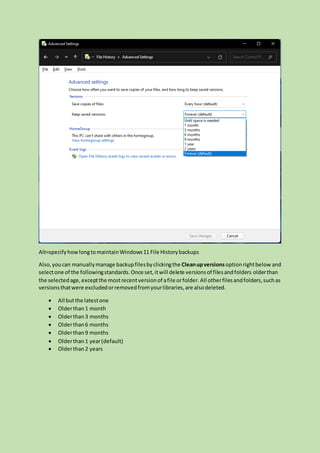
BehindKeepsavedversions,youare able to decide how longtoretainthe Windows11 File History
backup.There are sevenoptions:
 Until space is needed
 1 month
 3 months
 6 months
 9 months
 1 year
 2 years
 Forever(default)
Alt=specifyhowlongtomaintainWindows11 File Historybackups
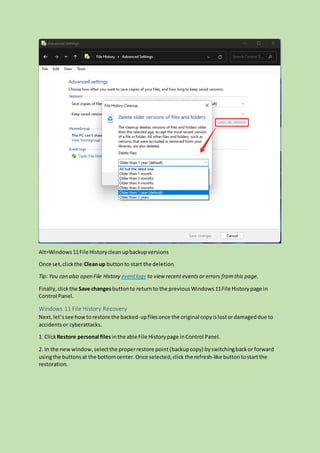
Also,youcan manuallymanage backupfilesbyclickingthe Cleanupversions optionrightbelow and
selectone of the followingstandards.Once set,itwill delete versionsof filesandfolders olderthan
the selectedage,exceptthe mostrecentversionof afile orfolder.All otherfilesandfolders,suchas
versionsthatwere excludedorremovedfromyourlibraries,are alsodeleted.
 All butthe latestone
 Olderthan1 month
 Olderthan3 months
 Olderthan6 months
 Olderthan9 months
 Olderthan1 year(default)
 Olderthan2 years
Alt=Windows11File Historycleanupbackupversions
Once set,clickthe Cleanup buttonto start the deletion.
Tip: You can also open File History eventlogs to view recent eventsor errors fromthis page.
Finally,clickthe Save changesbuttonto returnto the previousWindows11File Historypage in
Control Panel.
Windows 11 File History Recovery
Next,let’ssee howtorestore the backed-upfilesonce the original copyislostordamageddue to
accidentsor cyberattacks.
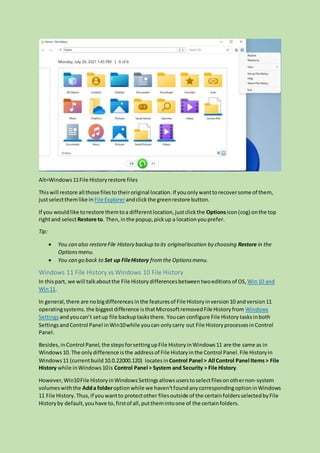
1. ClickRestore personal files inthe able File Historypage inControl Panel.
2. In the newwindow,selectthe properrestore point(backupcopy) byswitchingbackor forward
usingthe buttonsat the bottomcenter.Once selected,click the refresh-like buttontostartthe
restoration.
Alt=Windows11File Historyrestore files
Thiswill restore all those filesto theiroriginal location. If youonlywanttorecoversome of them,
justselectthemlike in File Explorerandclickthe greenrestore button.
If you wouldlike torestore themtoa differentlocation,justclickthe Optionsicon(cog) onthe top
rightand selectRestore to. Then,inthe popup,pickup a locationyouprefer.
Tip:
 You can also restoreFile History backup to its originallocation by choosing Restore in the
Optionsmenu.
 You can go back to Set up FileHistory fromthe Optionsmenu.
Windows 11 File History vs Windows 10 File History
In thispart, we will talkaboutthe File History differencesbetween twoeditionsof OS, Win10 and
Win11.
In general,there are nobigdifferences inthe featuresof File Historyinversion10 andversion11
operatingsystems.the biggestdifference isthatMicrosoftremovedFile Historyfrom Windows
Settings andyoucan’t setup file backuptasksthere. Youcan configure File History tasksinboth
SettingsandControl Panel inWin10while youcan onlycarry out File HistoryprocessesinControl
Panel.
Besides,inControl Panel,the stepsforsettingupFile HistoryinWindows11 are the same as in
Windows10. The onlydifference isthe address of File Historyin the Control Panel.File Historyin
Windows11 (currentbuild 10.0.22000.120) locatesin Control Panel > All Control Panel Items > File
History while inWindows10is Control Panel > System and Security > File History.
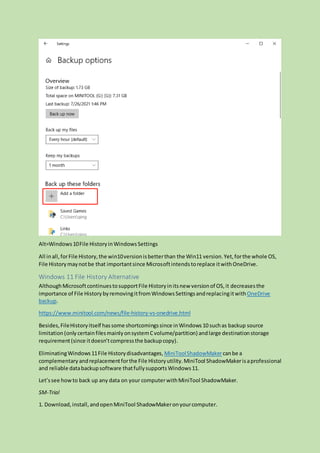
However,Win10File HistoryinWindowsSettingsallowsuserstoselectfilesonothernon-system
volumeswiththe Adda folderoptionwhile we haven’tfoundanycorrespondingoptioninWindows
11 File History. Thus,if youwantto protectother filesoutside of the certainfoldersselectedbyFile
Historyby default,youhave to,firstof all,putthemintoone of the certainfolders.
Alt=Windows10File HistoryinWindowsSettings
All inall,forFile History,the win10versionisbetterthan the Win11 version.Yet,forthe whole OS,
File Historymaynotbe that importantsince Microsoftintendstoreplace itwithOneDrive.
Windows 11 File History Alternative
AlthoughMicrosoftcontinuestosupportFile Historyinitsnew versionof OS,it decreasesthe
importance of File HistorybyremovingitfromWindowsSettingsandreplacingitwithOneDrive
backup.
https://www.minitool.com/news/file-history-vs-onedrive.html
Besides,FileHistoryitself hassome shortcomingssince inWindows10 suchas backup source
limitation(only certainfilesmainlyonsystemCvolume/partition) andlarge destinationstorage
requirement(since itdoesn’tcompressthe backupcopy).
EliminatingWindows11File Historydisadvantages, MiniToolShadowMakercanbe a
complementary andreplacementforthe File Historyutility.MiniTool ShadowMakerisaprofessional
and reliable databackupsoftware thatfullysupportsWindows11.
Let’ssee howto back up any data on your computerwithMiniTool ShadowMaker.
SM-Trial
1. Download,install,andopenMiniTool ShadowMakeronyourcomputer.
2. If it requiresyoutobuy,justclickthe KeepTrial buttonon the upperleftof the screento
continue.
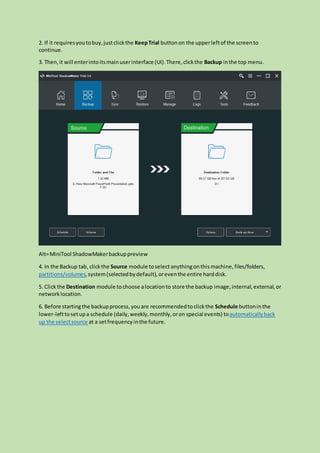
3. Then,it will enterintoitsmainuserinterface (UI).There,clickthe Backup inthe top menu.
Alt=MiniTool ShadowMakerbackuppreview
4. In the Backup tab, clickthe Source module toselect anythingonthis machine,files/folders,
partitions/volumes,system(selectedbydefault),oreventhe entire harddisk.
5. Clickthe Destination module tochoose alocationto store the backup image,internal,external,or
networklocation.
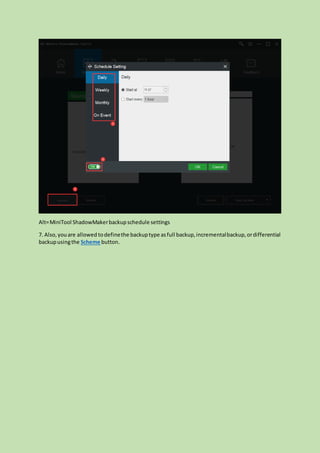
6. Before startingthe backupprocess,youare recommendedtoclickthe Schedule buttoninthe
lower-lefttosetupa schedule (daily,weekly,monthly,oron special events) toautomaticallyback
up the selectsource at a setfrequencyinthe future.
Alt=MiniTool ShadowMakerbackupschedule settings
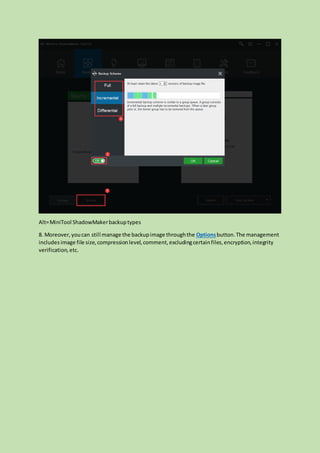
7. Also,youare allowed todefinethe backuptype asfull backup,incrementalbackup,ordifferential
backupusingthe Scheme button.
Alt=MiniTool ShadowMakerbackuptypes
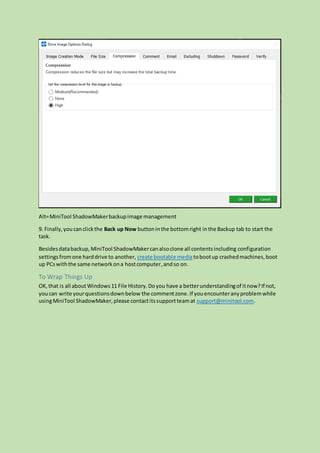
8. Moreover,youcan still manage the backupimage throughthe Optionsbutton.The management
includesimage file size,compressionlevel,comment,excludingcertainfiles,encryption,integrity
verification,etc.
Alt=MiniTool ShadowMakerbackupimage management
9. Finally,youcanclickthe Back up Now buttoninthe bottomright inthe Backup tab to start the
task.
Besidesdatabackup,MiniTool ShadowMakercanalsoclone all contentsincluding configuration
settingsfromone harddrive to another, create bootable mediatobootup crashedmachines,boot
up PCswiththe same networkona hostcomputer,andso on.
To Wrap Things Up
OK,that is all aboutWindows11 File History.Doyou have a betterunderstandingof itnow?If not,
youcan write yourquestionsdownbelow the commentzone.If youencounteranyproblemwhile
usingMiniTool ShadowMaker,please contactitssupportteamat support@minitool.com.

Windows 11 file history

  • 1.
    Title: Windows 10vs Windows 11 File History: What’s the Difference? Keywords: windows11file history, enable filehistorywindows11,windows11file historyrestore to newcomputer,whatisfile historyinwindows11, turn off file historywindows11, how does windowsfilehistorywork,whatdoesfile historydoinwindows11 Description: Where to find File History in Windows 11? Is it still in Windows Settings? How does it Work? What are the differences between Win10 and Win11 File History? URL: https://www.minitool.com/backup-tips/windows-11-file-history.html Summary: This article released by MiniTool solution compares the system backup tool File History respectively in Windows 11 and Windows 10. It mainly introduces the location of File History in Win11 and how to use it although it is generally similar to it is in Win10. Yet, there are still some divergences. The nextgenerationof Windowsoperatingsystem(OS)isaroundthe corner.Many people are expectingitsnewappearance andnewfeatureswhile some usershave alreadybeenexperiencing the newOS by joiningMicrosoftWindowsInsiderProgram. Amongthose betausers,some praise the freshnew experience of Windows11while others complainaboutthe errorsthat Win11 has broughtto them.Generally,the new systemhasboth advantagesanddisadvantages. Here in thisarticle,we will focuson one of the backupfeaturesinthe comingWindows11 OS – File History.Afterreadingthe followingcontent,youwillhave abetterunderstandingof File Historyin Windows11.
  • 2.
    What Is FileHistory in Windows 11? File HistoryWindows11is still the files/foldersbackuputilityinMicrosoftWindows.The different thingisthat it isbuiltinthe comingnewversion11 system. https://www.minitool.com/backup-tips/file-history-drive-disconnected.html What Does File History Do in Windows 11? Beingthe same as Windows10 File History,Windows11File Historyenablesuserstobackup documentariesincludingDocuments,Pictures,Music,Videos,Desktop,Downloads,OneDrive, Contacts,etc. to anotherinternal orexternal harddrive automaticallywithafrequencyof everya fewminutes, everyafewhours,ordaily. How Does Windows 11 File History Work? In general, Win11File Historycreate acopy of selectedfolders/filesandsave the copyinthe destinationwhichlocatesonadifferentharddisk.So,if youwantto setup a File Historybackupfor your filesinWindows11,youneedto, firstof all,prepare an extradiskto store the backup copy. Windows 11 File History Backup Now,letussee howto conduct file backupwithFile HistoryonWindows11. 1. Clickon the search icon(magnifier) inthe centerof the taskbar and type “file history”in the searchcolumnwithinthe pop-upwindow.
  • 3.
    Alt=searchforFile History inWindows11 2.In the search result,openthe bestmatch File History. 3. It will openthe Windows11 Control Panel anddirectyouto Control Panel > All Control Panel Items> File History.
  • 4.
    Alt=Windows11 File HistoryinControlPanel If it notifiesyou withthe followingcontent,youneedtodoas it recommends. No usabledrive wasfound.Werecommend thatyou usean externalhard drive forFile History. Connecta drive and refresh this page,or usea networklocation.
  • 5.
    Alt=Windows11 File Historynousabledrive were found 4. If youare satisfiedwiththe defaultsettingsincludingsource filesanddestinationselectioninthe rightsection,justclickthe Turn on buttonthere to enable File HistoryWindows11. If you change your mindwhile the taskisprocessing,youcaneitherclickthe Stopoption or Turn off File HistoryWindows11to disable itand cancel thisbackup.
  • 6.
    Alt=Windows11File Historyissavingcopiesof yourfiles Ifyou wantto retrieve the previousFile Historybackup,justclick Runnowor the Turn on button. 5. If youare not satisfiedwiththe defaultconfigurationandwanttopersonalize yourownsettings, justclick the Selectdrive optioninthe leftpanel.Inthe new window, choosethe drive youwould like touse as the file backupdestination.Or,youcan justselectanetworklocationasyour target storage by clickingthe Addnetwork locationoptionand selectafolder.Don’tforgettoclick OK to save changesand go back to the previouspage. If the drive youselectcontainsFile Historycopiesyoucreatedonothercomputers,there will be an optioncalled“Iwant to use a previousbackup on this File History drive”.You can choose thisoffer and selectanexistingbackuponthe drive,whichenablesyoutoachieve windows11file history restore to newcomputer.
  • 7.
    Alt=Windows11selecta File Historydrive Ifyou have savedFile History backupstoone hard drive onthisPC butwant to change the destinationtoanotherdiskwhile the previoustargetdiskisstill connectedtothismachine,itwill allowyouto move yourpreviousbackupstothe new storage.Of course,youcan refuse it.
  • 8.
    Alt=Windows11File Historymove previousbackupsfromthe olddrive to anew destination 6. Clickon the Exclude foldersoptioninthe leftmenuto filteroutfolders thatyoudo notwant to back up. Just clickon the Add buttonon the new screenandadd the items.Also,don’tforgettoclick the Save Changesbutton.
  • 9.
    Alt=excludeitemsfromWindows11File History 7. Clickonthe Advanced settingsinthe leftpart to triggermore importantsettingsforthisFile HistoryWindows11 process. BehindSave copiesof files,youcan customize how oftenWindowsFileHistoryscansforfile and folderchanges:  Every10 minutes  Every15 minutes  Every20 minutes  Every30 minutes  Everyhour (default)  Every3 hours  Every6 hours  Every12 hours  Daily
  • 10.
    Alt=Windows11File Historybackupfrequency BehindKeepsavedversions,youare ableto decide how longtoretainthe Windows11 File History backup.There are sevenoptions:  Until space is needed  1 month  3 months  6 months  9 months  1 year  2 years  Forever(default)
  • 11.
    Alt=specifyhowlongtomaintainWindows11 File Historybackups Also,youcanmanuallymanage backupfilesbyclickingthe Cleanupversions optionrightbelow and selectone of the followingstandards.Once set,itwill delete versionsof filesandfolders olderthan the selectedage,exceptthe mostrecentversionof afile orfolder.All otherfilesandfolders,suchas versionsthatwere excludedorremovedfromyourlibraries,are alsodeleted.  All butthe latestone  Olderthan1 month  Olderthan3 months  Olderthan6 months  Olderthan9 months  Olderthan1 year(default)  Olderthan2 years
  • 12.
    Alt=Windows11File Historycleanupbackupversions Once set,clicktheCleanup buttonto start the deletion. Tip: You can also open File History eventlogs to view recent eventsor errors fromthis page. Finally,clickthe Save changesbuttonto returnto the previousWindows11File Historypage in Control Panel. Windows 11 File History Recovery Next,let’ssee howtorestore the backed-upfilesonce the original copyislostordamageddue to accidentsor cyberattacks. 1. ClickRestore personal files inthe able File Historypage inControl Panel. 2. In the newwindow,selectthe properrestore point(backupcopy) byswitchingbackor forward usingthe buttonsat the bottomcenter.Once selected,click the refresh-like buttontostartthe restoration.
  • 13.
    Alt=Windows11File Historyrestore files Thiswillrestore all those filesto theiroriginal location. If youonlywanttorecoversome of them, justselectthemlike in File Explorerandclickthe greenrestore button. If you wouldlike torestore themtoa differentlocation,justclickthe Optionsicon(cog) onthe top rightand selectRestore to. Then,inthe popup,pickup a locationyouprefer. Tip:  You can also restoreFile History backup to its originallocation by choosing Restore in the Optionsmenu.  You can go back to Set up FileHistory fromthe Optionsmenu. Windows 11 File History vs Windows 10 File History In thispart, we will talkaboutthe File History differencesbetween twoeditionsof OS, Win10 and Win11. In general,there are nobigdifferences inthe featuresof File Historyinversion10 andversion11 operatingsystems.the biggestdifference isthatMicrosoftremovedFile Historyfrom Windows Settings andyoucan’t setup file backuptasksthere. Youcan configure File History tasksinboth SettingsandControl Panel inWin10while youcan onlycarry out File HistoryprocessesinControl Panel. Besides,inControl Panel,the stepsforsettingupFile HistoryinWindows11 are the same as in Windows10. The onlydifference isthe address of File Historyin the Control Panel.File Historyin Windows11 (currentbuild 10.0.22000.120) locatesin Control Panel > All Control Panel Items > File History while inWindows10is Control Panel > System and Security > File History. However,Win10File HistoryinWindowsSettingsallowsuserstoselectfilesonothernon-system volumeswiththe Adda folderoptionwhile we haven’tfoundanycorrespondingoptioninWindows 11 File History. Thus,if youwantto protectother filesoutside of the certainfoldersselectedbyFile Historyby default,youhave to,firstof all,putthemintoone of the certainfolders.
  • 14.
    Alt=Windows10File HistoryinWindowsSettings All inall,forFileHistory,the win10versionisbetterthan the Win11 version.Yet,forthe whole OS, File Historymaynotbe that importantsince Microsoftintendstoreplace itwithOneDrive. Windows 11 File History Alternative AlthoughMicrosoftcontinuestosupportFile Historyinitsnew versionof OS,it decreasesthe importance of File HistorybyremovingitfromWindowsSettingsandreplacingitwithOneDrive backup. https://www.minitool.com/news/file-history-vs-onedrive.html Besides,FileHistoryitself hassome shortcomingssince inWindows10 suchas backup source limitation(only certainfilesmainlyonsystemCvolume/partition) andlarge destinationstorage requirement(since itdoesn’tcompressthe backupcopy). EliminatingWindows11File Historydisadvantages, MiniToolShadowMakercanbe a complementary andreplacementforthe File Historyutility.MiniTool ShadowMakerisaprofessional and reliable databackupsoftware thatfullysupportsWindows11. Let’ssee howto back up any data on your computerwithMiniTool ShadowMaker. SM-Trial 1. Download,install,andopenMiniTool ShadowMakeronyourcomputer.
  • 15.
    2. If itrequiresyoutobuy,justclickthe KeepTrial buttonon the upperleftof the screento continue. 3. Then,it will enterintoitsmainuserinterface (UI).There,clickthe Backup inthe top menu. Alt=MiniTool ShadowMakerbackuppreview 4. In the Backup tab, clickthe Source module toselect anythingonthis machine,files/folders, partitions/volumes,system(selectedbydefault),oreventhe entire harddisk. 5. Clickthe Destination module tochoose alocationto store the backup image,internal,external,or networklocation. 6. Before startingthe backupprocess,youare recommendedtoclickthe Schedule buttoninthe lower-lefttosetupa schedule (daily,weekly,monthly,oron special events) toautomaticallyback up the selectsource at a setfrequencyinthe future.
  • 16.
    Alt=MiniTool ShadowMakerbackupschedule settings 7.Also,youare allowed todefinethe backuptype asfull backup,incrementalbackup,ordifferential backupusingthe Scheme button.
  • 17.
    Alt=MiniTool ShadowMakerbackuptypes 8. Moreover,youcanstill manage the backupimage throughthe Optionsbutton.The management includesimage file size,compressionlevel,comment,excludingcertainfiles,encryption,integrity verification,etc.
  • 18.
    Alt=MiniTool ShadowMakerbackupimage management 9.Finally,youcanclickthe Back up Now buttoninthe bottomright inthe Backup tab to start the task. Besidesdatabackup,MiniTool ShadowMakercanalsoclone all contentsincluding configuration settingsfromone harddrive to another, create bootable mediatobootup crashedmachines,boot up PCswiththe same networkona hostcomputer,andso on. To Wrap Things Up OK,that is all aboutWindows11 File History.Doyou have a betterunderstandingof itnow?If not, youcan write yourquestionsdownbelow the commentzone.If youencounteranyproblemwhile usingMiniTool ShadowMaker,please contactitssupportteamat support@minitool.com.