17 JUN 2019 2
INTRODUCTION
History
• Windows 7 is an operating system released by
Microsoft on 22 Oct 2009.
• Window 7 has graphical user interface (GUI)
that allows you to visually interact with your
computer’s function in a logical, fun, and easy
way.
17 JUN 2019 3
INTRODUCTION
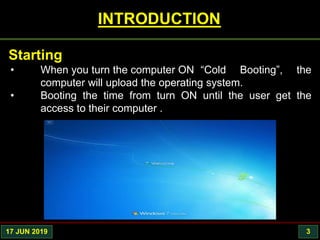
• When you turn the computer ON “Cold Booting”, the
computer will upload the operating system.
• Booting the time from turn ON until the user get the
access to their computer .
Starting
17 JUN 2019 4
COMPONENTS
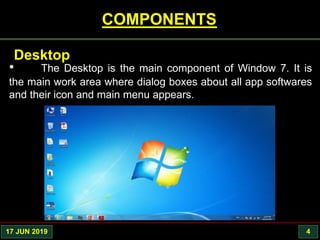
• The Desktop is the main component of Window 7. It is
the main work area where dialog boxes about all app softwares
and their icon and main menu appears.
Desktop
17 JUN 2019 5
COMPONENTS
• Desktop
• Taskbar
• Window
• Icon
• Desktop Pic &
Background
Desktop
Taskbar
Icons
Start button
Desktop Pic or
Background
17 JUN 2019 6
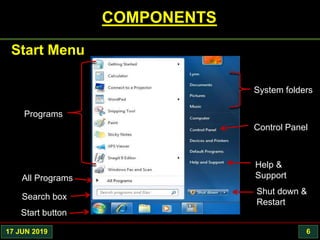
COMPONENTS
Start Menu
Programs
Control Panel
System folders
Help &
SupportAll Programs
Shut down &
Restart
Search box
Start button
17 JUN 2019 7
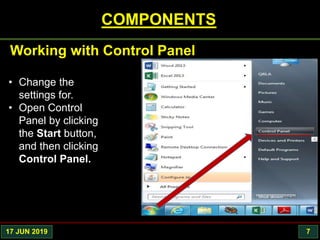
COMPONENTS
• Change the
settings for.
• Open Control
Panel by clicking
the Start button,
and then clicking
Control Panel.
Working with Control Panel
17 JUN 2019 8
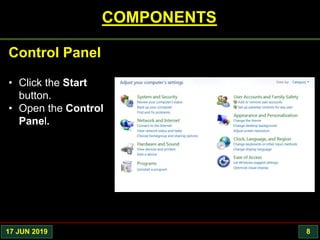
COMPONENTS
• Click the Start
button.
• Open the Control
Panel.
Control Panel
17 JUN 2019 9
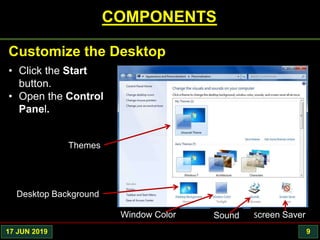
COMPONENTS
• Click the Start
button.
• Open the Control
Panel.
Customize the Desktop
Screen SaverWindow Color
Desktop Background
Themes
Sound
17 JUN 2019 10
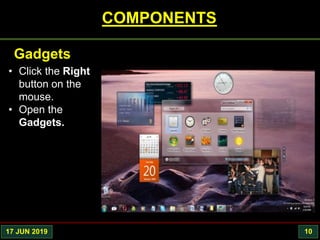
COMPONENTS
• Click the Right
button on the
mouse.
• Open the
Gadgets.
Gadgets
17 JUN 2019 11
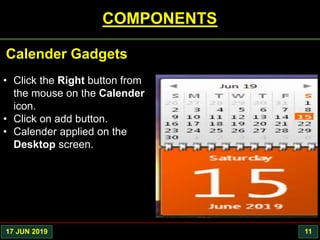
COMPONENTS
• Click the Right button from
the mouse on the Calender
icon.
• Click on add button.
• Calender applied on the
Desktop screen.
Calender Gadgets
17 JUN 2019 12
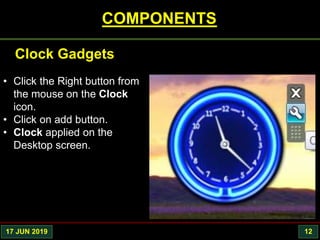
COMPONENTS
• Click the Right button from
the mouse on the Clock
icon.
• Click on add button.
• Clock applied on the
Desktop screen.
Clock Gadgets
17 JUN 2019 13
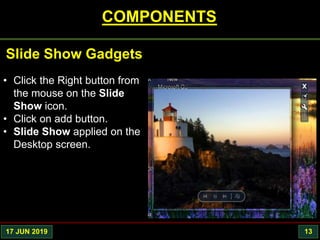
COMPONENTS
• Click the Right button from
the mouse on the Slide
Show icon.
• Click on add button.
• Slide Show applied on the
Desktop screen.
Slide Show Gadgets
17 JUN 2019 14
COMPONENTS
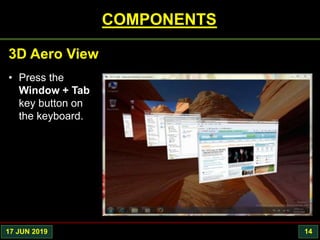
• Press the
Window + Tab
key button on
the keyboard.
3D Aero View
17 JUN 2019 15
COMPONENTS
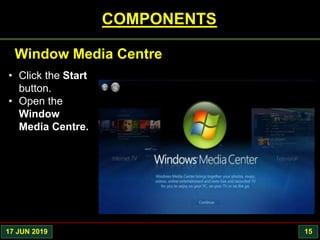
• Click the Start
button.
• Open the
Window
Media Centre.
Window Media Centre
17 JUN 2019 16
COMPONENTS
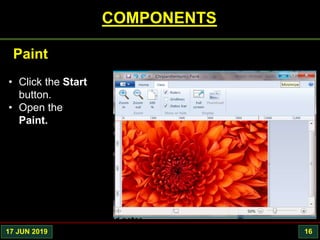
• Click the Start
button.
• Open the
Paint.
Paint
17 JUN 2019 17
THANK YOU

Window 7 component

  • 2.
    17 JUN 20192 INTRODUCTION History • Windows 7 is an operating system released by Microsoft on 22 Oct 2009. • Window 7 has graphical user interface (GUI) that allows you to visually interact with your computer’s function in a logical, fun, and easy way.
  • 3.
    17 JUN 20193 INTRODUCTION • When you turn the computer ON “Cold Booting”, the computer will upload the operating system. • Booting the time from turn ON until the user get the access to their computer . Starting
  • 4.
    17 JUN 20194 COMPONENTS • The Desktop is the main component of Window 7. It is the main work area where dialog boxes about all app softwares and their icon and main menu appears. Desktop
  • 5.
    17 JUN 20195 COMPONENTS • Desktop • Taskbar • Window • Icon • Desktop Pic & Background Desktop Taskbar Icons Start button Desktop Pic or Background
  • 6.
    17 JUN 20196 COMPONENTS Start Menu Programs Control Panel System folders Help & SupportAll Programs Shut down & Restart Search box Start button
  • 7.
    17 JUN 20197 COMPONENTS • Change the settings for. • Open Control Panel by clicking the Start button, and then clicking Control Panel. Working with Control Panel
  • 8.
    17 JUN 20198 COMPONENTS • Click the Start button. • Open the Control Panel. Control Panel
  • 9.
    17 JUN 20199 COMPONENTS • Click the Start button. • Open the Control Panel. Customize the Desktop Screen SaverWindow Color Desktop Background Themes Sound
  • 10.
    17 JUN 201910 COMPONENTS • Click the Right button on the mouse. • Open the Gadgets. Gadgets
  • 11.
    17 JUN 201911 COMPONENTS • Click the Right button from the mouse on the Calender icon. • Click on add button. • Calender applied on the Desktop screen. Calender Gadgets
  • 12.
    17 JUN 201912 COMPONENTS • Click the Right button from the mouse on the Clock icon. • Click on add button. • Clock applied on the Desktop screen. Clock Gadgets
  • 13.
    17 JUN 201913 COMPONENTS • Click the Right button from the mouse on the Slide Show icon. • Click on add button. • Slide Show applied on the Desktop screen. Slide Show Gadgets
  • 14.
    17 JUN 201914 COMPONENTS • Press the Window + Tab key button on the keyboard. 3D Aero View
  • 15.
    17 JUN 201915 COMPONENTS • Click the Start button. • Open the Window Media Centre. Window Media Centre
  • 16.
    17 JUN 201916 COMPONENTS • Click the Start button. • Open the Paint. Paint
  • 17.
  • 18.