International Islamic University H-10, Islamabad, Pakistan
Mobile Applications Development
Week 01
Introduction to
Android Studio
Engr. Rashid Farid Chishti
http://youtube.com/rfchishti
http://sites.google.com/site/chisht
i
 Android OS is based on Linux kernel and provides a framework for building
mobile applications.
 Key Components:
 Linux Kernel: Handles hardware interactions, memory, power, and security.
 Libraries & Android Runtime (ART): Provide core functionalities such as
graphics, SQLite, and runtime for apps.
 Application Framework: Contains APIs like Activity Manager, Notification
Manager, and Content Providers.
 Applications: The top layer where user-installed and system apps run.
Overview of Android OS and Its Architecture
 Linux Kernel:
 Hardware drivers, power management, process and memory management.
 Hardware Abstraction Layer (HAL):
 Standard interfaces for hardware (camera, GPS, sensors).
 Android Runtime (ART):
 Executes apps, replaces Dalvik VM, uses ahead-of-time compilation.
 Native C/C++ Libraries:
 SQLite (database), OpenGL ES (graphics), WebKit (browser engine).
 Application Framework:
 Activity Manager, Content Providers, Resource Manager.
 Applications:
 Pre-installed apps + User apps.
Android OS Architecture (Layered Model)
 Android: Open-source mobile operating system by Google.
 Based on Linux kernel for process, memory, and security management.
 Powers smartphones, tablets, TVs, and wearables.
 Main languages: Java, Kotlin (official), and C++.
 IDE: Android Studio (official development environment).
 Offers SDK tools, emulator, debugging, and profiling.
Introduction to Android Development
 Largest mobile OS market share worldwide.
 Vast ecosystem of devices and manufacturers.
 Google Play Store with millions of apps.
 Active developer community and open-source contributions.
 Job opportunities in app development, IoT, and embedded systems.
Why Android Development ?
 Download installer from: https://developer.android.com/studio
 The size of installation file is around 1.4 GB
 Run the installer → Choose standard setup.
 Install required components: Android SDK, Emulator, AVD.
 First run will set up SDK path and updates.
Installing Android Studio (Step by Step)
 The following are the system requirements for Android Studio on Windows.
 64-bit Microsoft® Windows® 8/10/11
 x86_64 CPU architecture; 2nd generation Intel Core or newer, or AMD CPU
with support for a Windows Hypervisor
 8 GB RAM or more
 8 GB of available disk space minimum (IDE + Android SDK + Android
Emulator)
 1280 x 800 minimum screen resolution
Android Studio system requirements
 SDK Manager:
 Install API levels, build tools, system images.
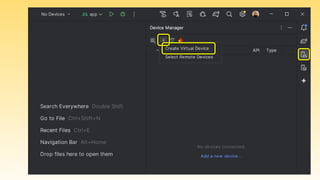
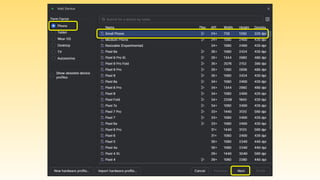
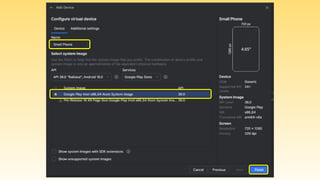
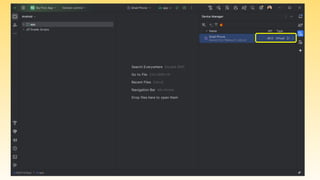
 AVD Manager:
 Create and configure virtual devices (Pixel, Nexus, etc.).
 Select Android version and hardware profile.
 Plugins and Extensions:
 Enable Kotlin support, Jetpack libraries.
 Add third-party libraries if needed.
Setting up SDK Tools and AVD
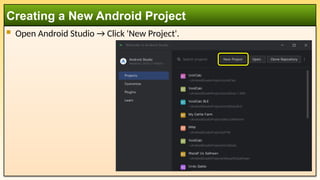
 Open Android Studio → Click 'New Project'.
Creating a New Android Project
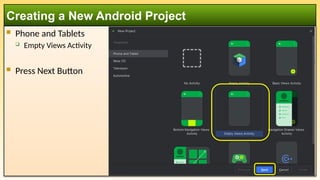
 Phone and Tablets
 Empty Views Activity
 Press Next Button
Creating a New Android Project
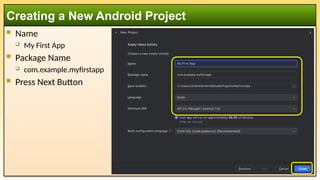
 Name
 My First App
 Package Name
 com.example.myfirstapp
 Press Next Button
Creating a New Android Project
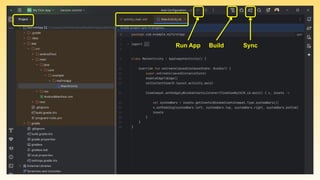
Run App Build Sync
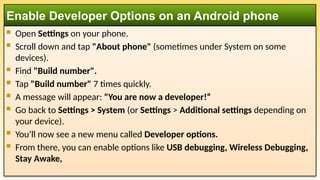
 Open Settings on your phone.
 Scroll down and tap "About phone" (sometimes under System on some
devices).
 Find "Build number".
 Tap "Build number" 7 times quickly.
 A message will appear: "You are now a developer!“
 Go back to Settings > System (or Settings > Additional settings depending on
your device).
 You’ll now see a new menu called Developer options.
 From there, you can enable options like USB debugging, Wireless Debugging,
Stay Awake,
Enable Developer Options on an Android phone
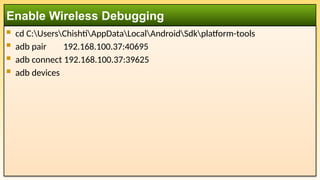
 cd C:UsersChishtiAppDataLocalAndroidSdkplatform-tools
 adb pair 192.168.100.37:40695
 adb connect 192.168.100.37:39625
 adb devices
Enable Wireless Debugging
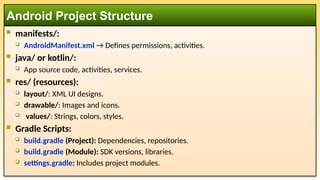
 manifests/:
 AndroidManifest.xml → Defines permissions, activities.
 java/ or kotlin/:
 App source code, activities, services.
 res/ (resources):
 layout/: XML UI designs.
 drawable/: Images and icons.
 values/: Strings, colors, styles.
 Gradle Scripts:
 build.gradle (Project): Dependencies, repositories.
 build.gradle (Module): SDK versions, libraries.
 settings.gradle: Includes project modules.
Android Project Structure
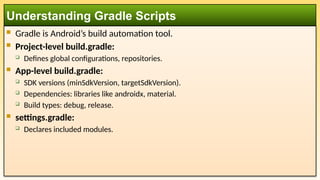
 Gradle is Android’s build automation tool.
 Project-level build.gradle:
 Defines global configurations, repositories.
 App-level build.gradle:
 SDK versions (minSdkVersion, targetSdkVersion).
 Dependencies: libraries like androidx, material.
 Build types: debug, release.
 settings.gradle:
 Declares included modules.
Understanding Gradle Scripts
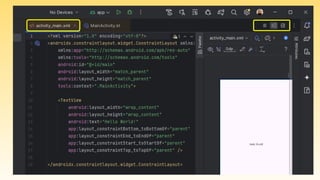
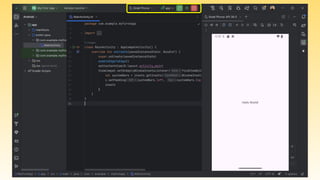
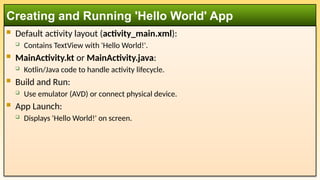
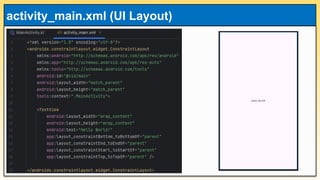
 Default activity layout (activity_main.xml):
 Contains TextView with 'Hello World!'.
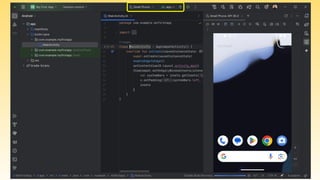
 MainActivity.kt or MainActivity.java:
 Kotlin/Java code to handle activity lifecycle.
 Build and Run:
 Use emulator (AVD) or connect physical device.
 App Launch:
 Displays 'Hello World!' on screen.
Creating and Running 'Hello World' App
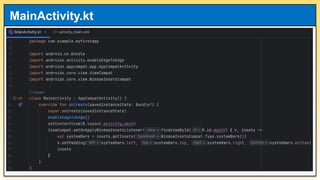
MainActivity.kt
activity_main.xml (UI Layout)
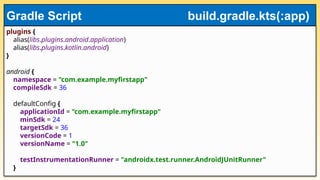
plugins {
alias(libs.plugins.android.application)
alias(libs.plugins.kotlin.android)
}
android {
namespace = "com.example.myfirstapp"
compileSdk = 36
defaultConfig {
applicationId = "com.example.myfirstapp"
minSdk = 24
targetSdk = 36
versionCode = 1
versionName = "1.0"
testInstrumentationRunner = "androidx.test.runner.AndroidJUnitRunner"
}
Gradle Script build.gradle.kts(:app)
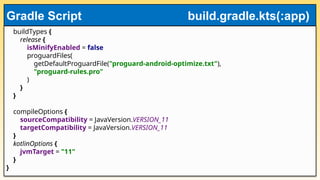
buildTypes {
release {
isMinifyEnabled = false
proguardFiles(
getDefaultProguardFile("proguard-android-optimize.txt"),
"proguard-rules.pro"
)
}
}
compileOptions {
sourceCompatibility = JavaVersion.VERSION_11
targetCompatibility = JavaVersion.VERSION_11
}
kotlinOptions {
jvmTarget = "11"
}
}
Gradle Script build.gradle.kts(:app)
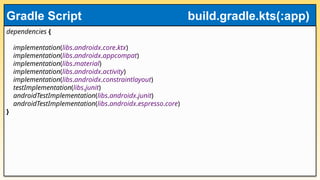
dependencies {
implementation(libs.androidx.core.ktx)
implementation(libs.androidx.appcompat)
implementation(libs.material)
implementation(libs.androidx.activity)
implementation(libs.androidx.constraintlayout)
testImplementation(libs.junit)
androidTestImplementation(libs.androidx.junit)
androidTestImplementation(libs.androidx.espresso.core)
}
Gradle Script build.gradle.kts(:app)

Week 01 - Introduction to Android Studio.pptx

  • 1.
    International Islamic UniversityH-10, Islamabad, Pakistan Mobile Applications Development Week 01 Introduction to Android Studio Engr. Rashid Farid Chishti http://youtube.com/rfchishti http://sites.google.com/site/chisht i
  • 2.
     Android OSis based on Linux kernel and provides a framework for building mobile applications.  Key Components:  Linux Kernel: Handles hardware interactions, memory, power, and security.  Libraries & Android Runtime (ART): Provide core functionalities such as graphics, SQLite, and runtime for apps.  Application Framework: Contains APIs like Activity Manager, Notification Manager, and Content Providers.  Applications: The top layer where user-installed and system apps run. Overview of Android OS and Its Architecture
  • 3.
     Linux Kernel: Hardware drivers, power management, process and memory management.  Hardware Abstraction Layer (HAL):  Standard interfaces for hardware (camera, GPS, sensors).  Android Runtime (ART):  Executes apps, replaces Dalvik VM, uses ahead-of-time compilation.  Native C/C++ Libraries:  SQLite (database), OpenGL ES (graphics), WebKit (browser engine).  Application Framework:  Activity Manager, Content Providers, Resource Manager.  Applications:  Pre-installed apps + User apps. Android OS Architecture (Layered Model)
  • 4.
     Android: Open-sourcemobile operating system by Google.  Based on Linux kernel for process, memory, and security management.  Powers smartphones, tablets, TVs, and wearables.  Main languages: Java, Kotlin (official), and C++.  IDE: Android Studio (official development environment).  Offers SDK tools, emulator, debugging, and profiling. Introduction to Android Development
  • 5.
     Largest mobileOS market share worldwide.  Vast ecosystem of devices and manufacturers.  Google Play Store with millions of apps.  Active developer community and open-source contributions.  Job opportunities in app development, IoT, and embedded systems. Why Android Development ?
  • 6.
     Download installerfrom: https://developer.android.com/studio  The size of installation file is around 1.4 GB  Run the installer → Choose standard setup.  Install required components: Android SDK, Emulator, AVD.  First run will set up SDK path and updates. Installing Android Studio (Step by Step)
  • 7.
     The followingare the system requirements for Android Studio on Windows.  64-bit Microsoft® Windows® 8/10/11  x86_64 CPU architecture; 2nd generation Intel Core or newer, or AMD CPU with support for a Windows Hypervisor  8 GB RAM or more  8 GB of available disk space minimum (IDE + Android SDK + Android Emulator)  1280 x 800 minimum screen resolution Android Studio system requirements
  • 8.
     SDK Manager: Install API levels, build tools, system images.  AVD Manager:  Create and configure virtual devices (Pixel, Nexus, etc.).  Select Android version and hardware profile.  Plugins and Extensions:  Enable Kotlin support, Jetpack libraries.  Add third-party libraries if needed. Setting up SDK Tools and AVD
  • 9.
     Open AndroidStudio → Click 'New Project'. Creating a New Android Project
  • 10.
     Phone andTablets  Empty Views Activity  Press Next Button Creating a New Android Project
  • 11.
     Name  MyFirst App  Package Name  com.example.myfirstapp  Press Next Button Creating a New Android Project
  • 12.
  • 20.
     Open Settingson your phone.  Scroll down and tap "About phone" (sometimes under System on some devices).  Find "Build number".  Tap "Build number" 7 times quickly.  A message will appear: "You are now a developer!“  Go back to Settings > System (or Settings > Additional settings depending on your device).  You’ll now see a new menu called Developer options.  From there, you can enable options like USB debugging, Wireless Debugging, Stay Awake, Enable Developer Options on an Android phone

  • 21.
     cd C:UsersChishtiAppDataLocalAndroidSdkplatform-tools adb pair 192.168.100.37:40695  adb connect 192.168.100.37:39625  adb devices Enable Wireless Debugging
  • 22.
     manifests/:  AndroidManifest.xml→ Defines permissions, activities.  java/ or kotlin/:  App source code, activities, services.  res/ (resources):  layout/: XML UI designs.  drawable/: Images and icons.  values/: Strings, colors, styles.  Gradle Scripts:  build.gradle (Project): Dependencies, repositories.  build.gradle (Module): SDK versions, libraries.  settings.gradle: Includes project modules. Android Project Structure
  • 23.
     Gradle isAndroid’s build automation tool.  Project-level build.gradle:  Defines global configurations, repositories.  App-level build.gradle:  SDK versions (minSdkVersion, targetSdkVersion).  Dependencies: libraries like androidx, material.  Build types: debug, release.  settings.gradle:  Declares included modules. Understanding Gradle Scripts
  • 24.
     Default activitylayout (activity_main.xml):  Contains TextView with 'Hello World!'.  MainActivity.kt or MainActivity.java:  Kotlin/Java code to handle activity lifecycle.  Build and Run:  Use emulator (AVD) or connect physical device.  App Launch:  Displays 'Hello World!' on screen. Creating and Running 'Hello World' App
  • 25.
  • 26.
  • 27.
    plugins { alias(libs.plugins.android.application) alias(libs.plugins.kotlin.android) } android { namespace= "com.example.myfirstapp" compileSdk = 36 defaultConfig { applicationId = "com.example.myfirstapp" minSdk = 24 targetSdk = 36 versionCode = 1 versionName = "1.0" testInstrumentationRunner = "androidx.test.runner.AndroidJUnitRunner" } Gradle Script build.gradle.kts(:app)
  • 28.
    buildTypes { release { isMinifyEnabled= false proguardFiles( getDefaultProguardFile("proguard-android-optimize.txt"), "proguard-rules.pro" ) } } compileOptions { sourceCompatibility = JavaVersion.VERSION_11 targetCompatibility = JavaVersion.VERSION_11 } kotlinOptions { jvmTarget = "11" } } Gradle Script build.gradle.kts(:app)
  • 29.