International Islamic University H-10, Islamabad, Pakistan
Mobile Applications Development
Week 05
Using SharedPreferences
Engr. Rashid Farid Chishti
http://youtube.com/rfchishti
http://sites.google.com/site/chisht
i
 Understand what SharedPreferences is.
 Learn to save and retrieve data.
 Build a settings screen using SharedPreferences.
Objective
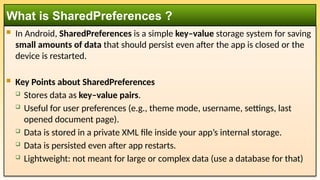
 In Android, SharedPreferences is a simple key–value storage system for saving
small amounts of data that should persist even after the app is closed or the
device is restarted.
 Key Points about SharedPreferences
 Stores data as key–value pairs.
 Useful for user preferences (e.g., theme mode, username, settings, last
opened document page).
 Data is stored in a private XML file inside your app’s internal storage.
 Data is persisted even after app restarts.
 Lightweight: not meant for large or complex data (use a database for that)
What is SharedPreferences ?
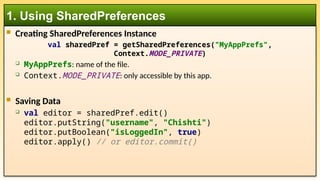
 Creating SharedPreferences Instance
val sharedPref = getSharedPreferences("MyAppPrefs",
Context.MODE_PRIVATE)
 MyAppPrefs: name of the file.
 Context.MODE_PRIVATE: only accessible by this app.
 Saving Data
 val editor = sharedPref.edit()
editor.putString("username", "Chishti")
editor.putBoolean("isLoggedIn", true)
editor.apply() // or editor.commit()
1. Using SharedPreferences
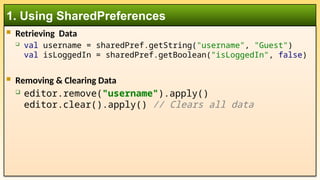
 Retrieving Data
 val username = sharedPref.getString("username", "Guest")
val isLoggedIn = sharedPref.getBoolean("isLoggedIn", false)
 Removing & Clearing Data
 editor.remove("username").apply()
editor.clear().apply() // Clears all data
1. Using SharedPreferences
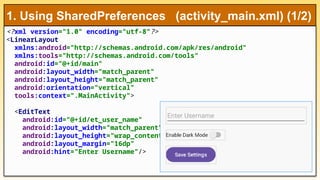
<?xml version="1.0" encoding="utf-8"?>
<LinearLayout
xmlns:android="http://schemas.android.com/apk/res/android"
xmlns:tools="http://schemas.android.com/tools"
android:id="@+id/main"
android:layout_width="match_parent"
android:layout_height="match_parent"
android:orientation="vertical"
tools:context=".MainActivity">
<EditText
android:id="@+id/et_user_name"
android:layout_width="match_parent"
android:layout_height="wrap_content"
android:layout_margin="16dp"
android:hint="Enter Username"/>
1. Using SharedPreferences (activity_main.xml) (1/2)
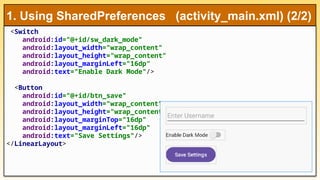
<Switch
android:id="@+id/sw_dark_mode"
android:layout_width="wrap_content"
android:layout_height="wrap_content"
android:layout_marginLeft="16dp“
android:text="Enable Dark Mode"/>
<Button
android:id="@+id/btn_save"
android:layout_width="wrap_content"
android:layout_height="wrap_content"
android:layout_marginTop="16dp"
android:layout_marginLeft="16dp"
android:text="Save Settings"/>
</LinearLayout>
1. Using SharedPreferences (activity_main.xml) (2/2)
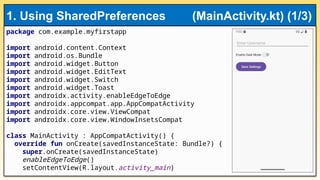
package com.example.myfirstapp
import android.content.Context
import android.os.Bundle
import android.widget.Button
import android.widget.EditText
import android.widget.Switch
import android.widget.Toast
import androidx.activity.enableEdgeToEdge
import androidx.appcompat.app.AppCompatActivity
import androidx.core.view.ViewCompat
import androidx.core.view.WindowInsetsCompat
class MainActivity : AppCompatActivity() {
override fun onCreate(savedInstanceState: Bundle?) {
super.onCreate(savedInstanceState)
enableEdgeToEdge()
setContentView(R.layout.activity_main)
1. Using SharedPreferences (MainActivity.kt) (1/3)
ViewCompat.setOnApplyWindowInsetsListener(findViewById(R.id.main)) { v, insets -
>
val systemBars = insets.getInsets(WindowInsetsCompat.Type.systemBars())
v.setPadding(systemBars.left, systemBars.top, systemBars.right,
systemBars.bottom)
insets
}
val usernameEditText: EditText = findViewById(R.id.et_user_name)
val darkModeSwitch: Switch = findViewById(R.id.sw_dark_mode)
val saveButton: Button = findViewById(R.id.btn_save)
val prefs = getSharedPreferences("MyAppPrefs", Context.MODE_PRIVATE)
val editor = prefs.edit()
// Load saved data
usernameEditText.setText(prefs.getString("username", ""))
darkModeSwitch.isChecked = prefs.getBoolean("darkMode", false)
1. Using SharedPreferences (MainActivity.kt) (2/3)
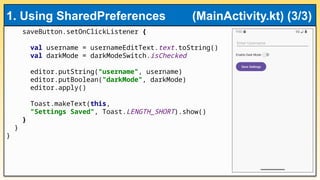
saveButton.setOnClickListener {
val username = usernameEditText.text.toString()
val darkMode = darkModeSwitch.isChecked
editor.putString("username", username)
editor.putBoolean("darkMode", darkMode)
editor.apply()
Toast.makeText(this,
"Settings Saved", Toast.LENGTH_SHORT).show()
}
}
}
1. Using SharedPreferences (MainActivity.kt) (3/3)
 Best Practices
 Use for simple settings or preferences.
 Not suitable for large or complex data.
 Consider Room DB for complex needs.
 Summary
 SharedPreferences stores key-value pairs.
 Easy way to implement user settings.
 Supports saving strings, booleans, ints, etc.
 Hands-On Task
 Build a settings screen to toggle dark mode.
1. SharedPreferences
 In Android development, a Menu is a collection of options (commands or
actions) that the user can choose from within an app.
 Menus are part of the Android UI (User Interface) framework and provide a
way to offer extra functionality without cluttering the main screen.
 Types of Menus in Android
 Options Menu: The primary menu for an activity. Appears in the app bar (three-dot
overflow icon). Example: Settings, Search, About.
 Context Menu: Opens when the user long-presses on a view. Used for actions that affect
the selected item. Example: Copy, Paste, Delete.
 Popup Menu: A small menu that anchors to a view. Shows a dropdown list of actions.
Example: Clicking a button shows quick options.
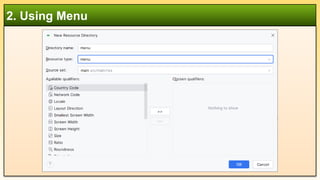
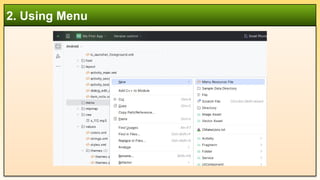
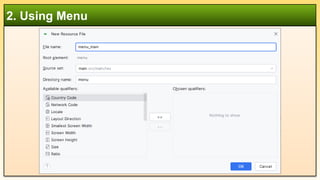
2. Menu
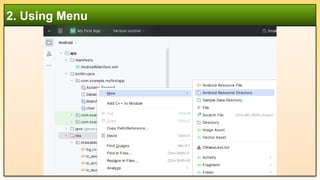
2. Using Menu
2. Using Menu
2. Using Menu
2. Using Menu
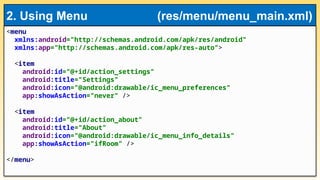
<menu
xmlns:android="http://schemas.android.com/apk/res/android"
xmlns:app="http://schemas.android.com/apk/res-auto">
<item
android:id="@+id/action_settings"
android:title="Settings"
android:icon="@android:drawable/ic_menu_preferences"
app:showAsAction="never" />
<item
android:id="@+id/action_about"
android:title="About"
android:icon="@android:drawable/ic_menu_info_details"
app:showAsAction="ifRoom" />
</menu>
2. Using Menu (res/menu/menu_main.xml)
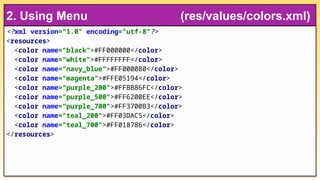
<?xml version="1.0" encoding="utf-8"?>
<resources>
<color name="black">#FF000000</color>
<color name="white">#FFFFFFFF</color>
<color name="navy_blue">#FF000080</color>
<color name="magenta">#FFE05194</color>
<color name="purple_200">#FFBB86FC</color>
<color name="purple_500">#FF6200EE</color>
<color name="purple_700">#FF3700B3</color>
<color name="teal_200">#FF03DAC5</color>
<color name="teal_700">#FF018786</color>
</resources>
2. Using Menu (res/values/colors.xml)
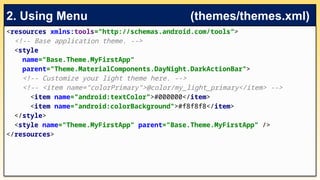
<resources xmlns:tools="http://schemas.android.com/tools">
<!-- Base application theme. -->
<style
name="Base.Theme.MyFirstApp“
parent="Theme.MaterialComponents.DayNight.DarkActionBar">
<!-- Customize your light theme here. -->
<!-- <item name="colorPrimary">@color/my_light_primary</item> -->
<item name="android:textColor">#000000</item>
<item name="android:colorBackground">#f8f8f8</item>
</style>
<style name="Theme.MyFirstApp" parent="Base.Theme.MyFirstApp" />
</resources>
2. Using Menu (themes/themes.xml)
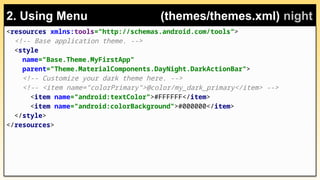
<resources xmlns:tools="http://schemas.android.com/tools">
<!-- Base application theme. -->
<style
name="Base.Theme.MyFirstApp"
parent="Theme.MaterialComponents.DayNight.DarkActionBar">
<!-- Customize your dark theme here. -->
<!-- <item name="colorPrimary">@color/my_dark_primary</item> -->
<item name="android:textColor">#FFFFFF</item>
<item name="android:colorBackground">#000000</item>
</style>
</resources>
2. Using Menu (themes/themes.xml) night
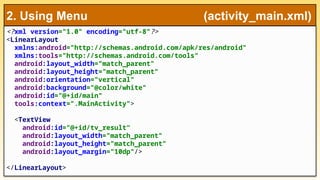
<?xml version="1.0" encoding="utf-8"?>
<LinearLayout
xmlns:android="http://schemas.android.com/apk/res/android"
xmlns:tools="http://schemas.android.com/tools"
android:layout_width="match_parent"
android:layout_height="match_parent"
android:orientation="vertical"
android:background="@color/white"
android:id="@+id/main"
tools:context=".MainActivity">
<TextView
android:id="@+id/tv_result“
android:layout_width="match_parent"
android:layout_height="match_parent"
android:layout_margin="10dp"/>
</LinearLayout>
2. Using Menu (activity_main.xml)
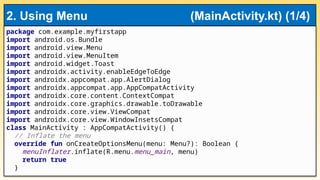
package com.example.myfirstapp
import android.os.Bundle
import android.view.Menu
import android.view.MenuItem
import android.widget.Toast
import androidx.activity.enableEdgeToEdge
import androidx.appcompat.app.AlertDialog
import androidx.appcompat.app.AppCompatActivity
import androidx.core.content.ContextCompat
import androidx.core.graphics.drawable.toDrawable
import androidx.core.view.ViewCompat
import androidx.core.view.WindowInsetsCompat
class MainActivity : AppCompatActivity() {
// Inflate the menu
override fun onCreateOptionsMenu(menu: Menu?): Boolean {
menuInflater.inflate(R.menu.menu_main, menu)
return true
}
2. Using Menu (MainActivity.kt) (1/4)
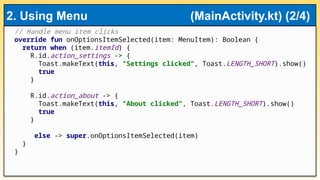
// Handle menu item clicks
override fun onOptionsItemSelected(item: MenuItem): Boolean {
return when (item.itemId) {
R.id.action_settings -> {
Toast.makeText(this, "Settings clicked", Toast.LENGTH_SHORT).show()
true
}
R.id.action_about -> {
Toast.makeText(this, "About clicked", Toast.LENGTH_SHORT).show()
true
}
else -> super.onOptionsItemSelected(item)
}
}
2. Using Menu (MainActivity.kt) (2/4)
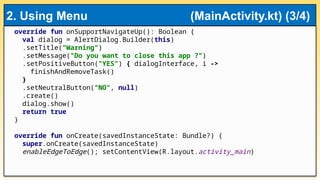
override fun onSupportNavigateUp(): Boolean {
val dialog = AlertDialog.Builder(this)
.setTitle("Warning")
.setMessage("Do you want to close this app ?")
.setPositiveButton("YES") { dialogInterface, i ->
finishAndRemoveTask()
}
.setNeutralButton("NO", null)
.create()
dialog.show()
return true
}
override fun onCreate(savedInstanceState: Bundle?) {
super.onCreate(savedInstanceState)
enableEdgeToEdge(); setContentView(R.layout.activity_main)
2. Using Menu (MainActivity.kt) (3/4)
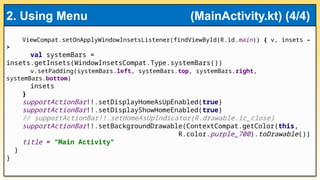
ViewCompat.setOnApplyWindowInsetsListener(findViewById(R.id.main)) { v, insets -
>
val systemBars =
insets.getInsets(WindowInsetsCompat.Type.systemBars())
v.setPadding(systemBars.left, systemBars.top, systemBars.right,
systemBars.bottom)
insets
}
supportActionBar!!.setDisplayHomeAsUpEnabled(true)
supportActionBar!!.setDisplayShowHomeEnabled(true)
// supportActionBar!!.setHomeAsUpIndicator(R.drawable.ic_close)
supportActionBar!!.setBackgroundDrawable(ContextCompat.getColor(this,
R.color.purple_700).toDrawable())
title = "Main Activity"
}
}
2. Using Menu (MainActivity.kt) (4/4)


Week 05 - Using SharedPreferences in Android.pptx