Android Studio
INSTALLATION AND CONFIGURATION
Android Studio
The Official IDE for Android
Android Studio provides the fastest tools for building apps on every type
of Android device.
World-class code editing, debugging, performance tooling, a flexible
build system, and an instant build/deploy system all allow you to focus
on building unique and high quality apps.
Note: Android Studio Latest Version 2.3.3
Get started with Android Studio
Android Studio is the official Integrated Development Environment (IDE)
for Android app development, based on IntelliJ IDEA.
On top of IntelliJ's powerful code editor and developer tools, Android
Studio offers even more features that enhance your productivity when
building Android apps.
Android Studio features (Cont..)
Instant Run
Push code and resource changes to your app running on a device or
emulator and see the changes instantly come to life.
Instant Run dramatically speeds up your edit, build, and run cycles,
keeping you "in the flow.“
Intelligent code editor
Write better code, work faster, and be more productive with an
intelligent code editor that helps you each step of the way.
Android Studio is built on IntelliJ and is capable of advanced code
completion, refactoring, and code analysis.
Android Studio features (Cont..)
Fast and feature-rich emulator
Install and run your apps faster than with a physical device and test your
app on virtually any Android device configuration: Android phones,
Android tablets, Android Wear, and Android TV devices.
The new Android Emulator 2.0 is faster than ever and allows you to
dynamically resize the emulator and access a suite of sensor controls.
Robust and flexible build system
Easily configure your project to include code libraries and generate
multiple build variants from a single project.
With Gradle, Android Studio offers high-performance build automation,
robust dependency management, and customizable build
configurations.
Android Studio features
Develop for all Android devices
Target multiple form factors with a single project to easily share code
among your different versions of your app.
Android Studio provides a unified environment to develop apps for
Android phones, tablets, Android Wear, Android TV, and Android Auto.
Code templates and GitHub integration
Start projects with code templates for patterns such as navigation
drawer and view pagers, or import Google code samples from GitHub.
Android Studio's project wizards make it easier than ever to add code in
a new project.
System Requirements for Android Studio
You can start your Android application development on either of the
following operating systems;
1. Microsoft® Windows® (32 or 64-bit)
2. Mac® OS X®
3. Linux GNOME or KDE desktop
Windows OS
Microsoft® Windows® 7/8/10 (32- or 64-bit)
3 GB RAM minimum, 8 GB RAM recommended; plus 1 GB for the
Android Emulator
2 GB of available disk space minimum, 4 GB Recommended (500 MB
for IDE + 1.5 GB for Android SDK and emulator system image)
1280 x 800 minimum screen resolution
For accelerated emulator: Intel® processor with support for Intel® VT-x,
Intel® EM64T (Intel® 64), and Execute Disable (XD) Bit functionality
Mac OS
Mac® OS X® 10.10 (Yosemite) or higher, up to 10.12 (macOS Sierra)
3 GB RAM minimum, 8 GB RAM recommended; plus 1 GB for the
Android Emulator
2 GB of available disk space minimum, 4 GB Recommended (500 MB for
IDE + 1.5 GB for Android SDK and emulator system image)
1280 x 800 minimum screen resolution
Linux OS
GNOME or KDE desktopTested on Ubuntu® 14.04 LTS, Trusty Tahr (64-bit
distribution capable of running 32-bit applications)
64-bit distribution capable of running 32-bit applications
GNU C Library (glibc) 2.19 or later
3 GB RAM minimum, 8 GB RAM recommended; plus 1 GB for the Android
Emulator
2 GB of available disk space minimum, 4 GB Recommended (500 MB for
IDE + 1.5 GB for Android SDK and emulator system image)
1280 x 800 minimum screen resolution
For accelerated emulator: Intel® processor with support for Intel® VT-x,
Intel® EM64T (Intel® 64), and Execute Disable (XD) Bit functionality, or
AMD processor with support for AMD Virtualization™ (AMD-V™)
Essential Tools
All the required tools to develop Android applications are open source
and can be downloaded from the Web. Following software's you will
need before you start your Android application development.
1. Java Development Kit (JDK) Latest Version
2. Android Studio
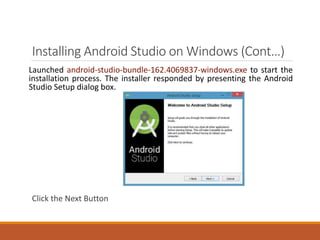
Installing Android Studio on Windows (Cont…)
Launched android-studio-bundle-162.4069837-windows.exe to start the
installation process. The installer responded by presenting the Android
Studio Setup dialog box.
Click the Next Button
Installing Android Studio on Windows (Cont…)
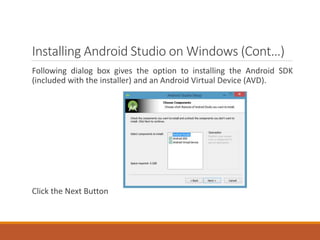
Following dialog box gives the option to installing the Android SDK
(included with the installer) and an Android Virtual Device (AVD).
Click the Next Button
Installing Android Studio on Windows (Cont…)
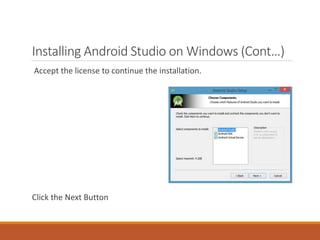
Accept the license to continue the installation.
Click the Next Button
Installing Android Studio on Windows (Cont…)
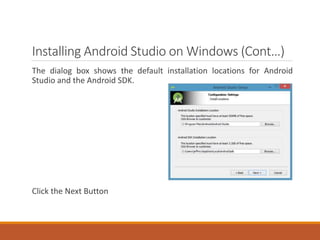
The dialog box shows the default installation locations for Android
Studio and the Android SDK.
Click the Next Button
Installing Android Studio on Windows (Cont…)
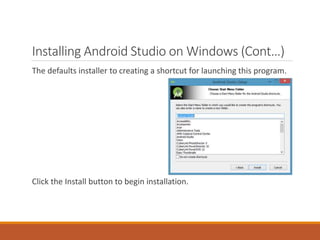
The defaults installer to creating a shortcut for launching this program.
Click the Install button to begin installation.
Installing Android Studio on Windows
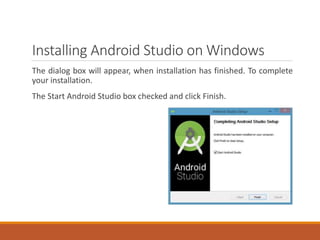
The dialog box will appear, when installation has finished. To complete
your installation.
The Start Android Studio box checked and click Finish.
Running Android Studio (Cont…)
Android Studio presents a splash screen when it starts running:
Running Android Studio (Cont…)
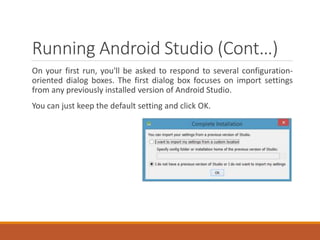
On your first run, you'll be asked to respond to several configuration-
oriented dialog boxes. The first dialog box focuses on import settings
from any previously installed version of Android Studio.
You can just keep the default setting and click OK.
Running Android Studio (Cont…)
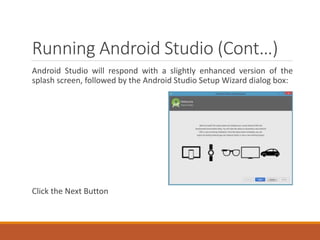
Android Studio will respond with a slightly enhanced version of the
splash screen, followed by the Android Studio Setup Wizard dialog box:
Click the Next Button
Running Android Studio (Cont…)
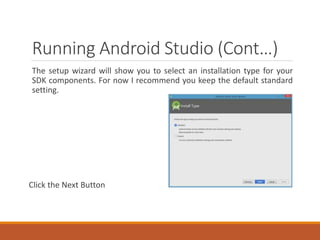
The setup wizard will show you to select an installation type for your
SDK components. For now I recommend you keep the default standard
setting.
Click the Next Button
Running Android Studio (Cont…)
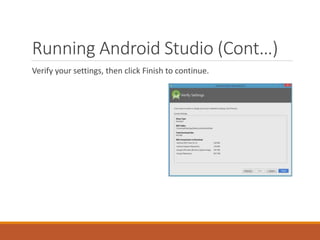
Verify your settings, then click Finish to continue.
Running Android Studio (Cont…)
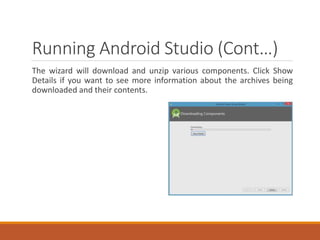
The wizard will download and unzip various components. Click Show
Details if you want to see more information about the archives being
downloaded and their contents.
Running Android Studio (Cont…)
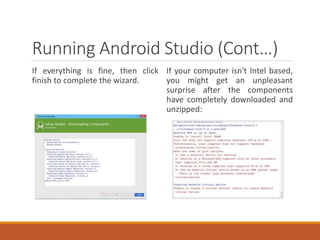
If everything is fine, then click
finish to complete the wizard.
If your computer isn't Intel based,
you might get an unpleasant
surprise after the components
have completely downloaded and
unzipped:
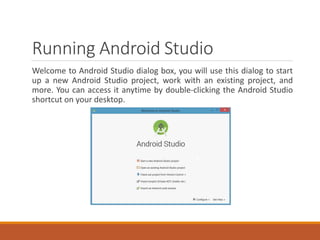
Running Android Studio
Welcome to Android Studio dialog box, you will use this dialog to start
up a new Android Studio project, work with an existing project, and
more. You can access it anytime by double-clicking the Android Studio
shortcut on your desktop.

android studio

  • 1.
  • 2.
    Android Studio The OfficialIDE for Android Android Studio provides the fastest tools for building apps on every type of Android device. World-class code editing, debugging, performance tooling, a flexible build system, and an instant build/deploy system all allow you to focus on building unique and high quality apps. Note: Android Studio Latest Version 2.3.3
  • 3.
    Get started withAndroid Studio Android Studio is the official Integrated Development Environment (IDE) for Android app development, based on IntelliJ IDEA. On top of IntelliJ's powerful code editor and developer tools, Android Studio offers even more features that enhance your productivity when building Android apps.
  • 4.
    Android Studio features(Cont..) Instant Run Push code and resource changes to your app running on a device or emulator and see the changes instantly come to life. Instant Run dramatically speeds up your edit, build, and run cycles, keeping you "in the flow.“ Intelligent code editor Write better code, work faster, and be more productive with an intelligent code editor that helps you each step of the way. Android Studio is built on IntelliJ and is capable of advanced code completion, refactoring, and code analysis.
  • 5.
    Android Studio features(Cont..) Fast and feature-rich emulator Install and run your apps faster than with a physical device and test your app on virtually any Android device configuration: Android phones, Android tablets, Android Wear, and Android TV devices. The new Android Emulator 2.0 is faster than ever and allows you to dynamically resize the emulator and access a suite of sensor controls. Robust and flexible build system Easily configure your project to include code libraries and generate multiple build variants from a single project. With Gradle, Android Studio offers high-performance build automation, robust dependency management, and customizable build configurations.
  • 6.
    Android Studio features Developfor all Android devices Target multiple form factors with a single project to easily share code among your different versions of your app. Android Studio provides a unified environment to develop apps for Android phones, tablets, Android Wear, Android TV, and Android Auto. Code templates and GitHub integration Start projects with code templates for patterns such as navigation drawer and view pagers, or import Google code samples from GitHub. Android Studio's project wizards make it easier than ever to add code in a new project.
  • 7.
    System Requirements forAndroid Studio You can start your Android application development on either of the following operating systems; 1. Microsoft® Windows® (32 or 64-bit) 2. Mac® OS X® 3. Linux GNOME or KDE desktop
  • 8.
    Windows OS Microsoft® Windows®7/8/10 (32- or 64-bit) 3 GB RAM minimum, 8 GB RAM recommended; plus 1 GB for the Android Emulator 2 GB of available disk space minimum, 4 GB Recommended (500 MB for IDE + 1.5 GB for Android SDK and emulator system image) 1280 x 800 minimum screen resolution For accelerated emulator: Intel® processor with support for Intel® VT-x, Intel® EM64T (Intel® 64), and Execute Disable (XD) Bit functionality
  • 9.
    Mac OS Mac® OSX® 10.10 (Yosemite) or higher, up to 10.12 (macOS Sierra) 3 GB RAM minimum, 8 GB RAM recommended; plus 1 GB for the Android Emulator 2 GB of available disk space minimum, 4 GB Recommended (500 MB for IDE + 1.5 GB for Android SDK and emulator system image) 1280 x 800 minimum screen resolution
  • 10.
    Linux OS GNOME orKDE desktopTested on Ubuntu® 14.04 LTS, Trusty Tahr (64-bit distribution capable of running 32-bit applications) 64-bit distribution capable of running 32-bit applications GNU C Library (glibc) 2.19 or later 3 GB RAM minimum, 8 GB RAM recommended; plus 1 GB for the Android Emulator 2 GB of available disk space minimum, 4 GB Recommended (500 MB for IDE + 1.5 GB for Android SDK and emulator system image) 1280 x 800 minimum screen resolution For accelerated emulator: Intel® processor with support for Intel® VT-x, Intel® EM64T (Intel® 64), and Execute Disable (XD) Bit functionality, or AMD processor with support for AMD Virtualization™ (AMD-V™)
  • 11.
    Essential Tools All therequired tools to develop Android applications are open source and can be downloaded from the Web. Following software's you will need before you start your Android application development. 1. Java Development Kit (JDK) Latest Version 2. Android Studio
  • 12.
    Installing Android Studioon Windows (Cont…) Launched android-studio-bundle-162.4069837-windows.exe to start the installation process. The installer responded by presenting the Android Studio Setup dialog box. Click the Next Button
  • 13.
    Installing Android Studioon Windows (Cont…) Following dialog box gives the option to installing the Android SDK (included with the installer) and an Android Virtual Device (AVD). Click the Next Button
  • 14.
    Installing Android Studioon Windows (Cont…) Accept the license to continue the installation. Click the Next Button
  • 15.
    Installing Android Studioon Windows (Cont…) The dialog box shows the default installation locations for Android Studio and the Android SDK. Click the Next Button
  • 16.
    Installing Android Studioon Windows (Cont…) The defaults installer to creating a shortcut for launching this program. Click the Install button to begin installation.
  • 17.
    Installing Android Studioon Windows The dialog box will appear, when installation has finished. To complete your installation. The Start Android Studio box checked and click Finish.
  • 18.
    Running Android Studio(Cont…) Android Studio presents a splash screen when it starts running:
  • 19.
    Running Android Studio(Cont…) On your first run, you'll be asked to respond to several configuration- oriented dialog boxes. The first dialog box focuses on import settings from any previously installed version of Android Studio. You can just keep the default setting and click OK.
  • 20.
    Running Android Studio(Cont…) Android Studio will respond with a slightly enhanced version of the splash screen, followed by the Android Studio Setup Wizard dialog box: Click the Next Button
  • 21.
    Running Android Studio(Cont…) The setup wizard will show you to select an installation type for your SDK components. For now I recommend you keep the default standard setting. Click the Next Button
  • 22.
    Running Android Studio(Cont…) Verify your settings, then click Finish to continue.
  • 23.
    Running Android Studio(Cont…) The wizard will download and unzip various components. Click Show Details if you want to see more information about the archives being downloaded and their contents.
  • 24.
    Running Android Studio(Cont…) If everything is fine, then click finish to complete the wizard. If your computer isn't Intel based, you might get an unpleasant surprise after the components have completely downloaded and unzipped:
  • 25.
    Running Android Studio Welcometo Android Studio dialog box, you will use this dialog to start up a new Android Studio project, work with an existing project, and more. You can access it anytime by double-clicking the Android Studio shortcut on your desktop.