1
Mobile Application development
Training
Outline
2
 Introduction to Mobile Application Development
 Mobile ApplicationTools
 Android System Overview
 Getting StartedWith Android Studio IDE
What is Mobile Application Development?
3
Mobile application development is the set of
processes and procedures involved in writing
software for small, wireless computing devices
sucsh as smartphones or tablet
Mobile application development is similar to web
application development and has its roots in
software development.
Mobile Application Tools
4
Mobile Application Tools are also known as Mobile IDEs
which mean Mobile Integrated Development Environments
The tools include:
• ANDROID STUDIO
• ECLIPSE
• NETBEANS
• INTELLIJIDEA
• XAMARIN
• CORDOVA E.T.C
Android System Overview
5
There are more than a two billion smartphones
and tablet PC users worldwide. There is a growing
expectation that everything and anything will be
available as a mobile application.
More and more organization are benefiting from
improving business processes by providing their
users with access to application via their mobile
devices and tablet.
Introduction to Android
6
Android is an operating system for mobile devices such
as smartphones and tablet computers. It is developed by the Open
HandsetAlliance led by Google.
Android has beaten Apple iOS, being the leading mobile operating
system from first quarter of 2011
Version:Android 1.0, 1.1 to 1.5 (Cupcake), 1.6 (Donut), 2.0/2.1
(Eclair), 2.2 (Froyo), 2.3 (Gingerbread), to 3.0
(Honeycomb), 4.0 (Ice Cream Sandwich), 5.0 (Lollipop)
What is Android
TOP U.S SMARTPHONE OS SHARE
7
 Popular mobile device OS:
52% of U.S. smartphone
market
 Developed by Open
HandsetAlliance, led by
Google
 Google claims 900,000
Android device activations
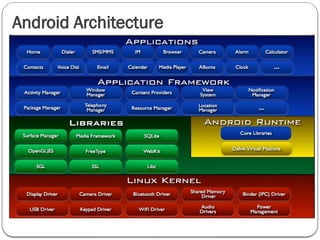
Android Architecture
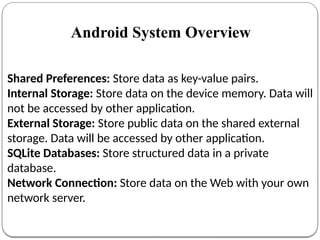
Shared Preferences: Store data as key-value pairs.
Internal Storage: Store data on the device memory. Data will
not be accessed by other application.
External Storage: Store public data on the shared external
storage. Data will be accessed by other application.
SQLite Databases: Store structured data in a private
database.
Network Connection: Store data on the Web with your own
network server.
Android System Overview
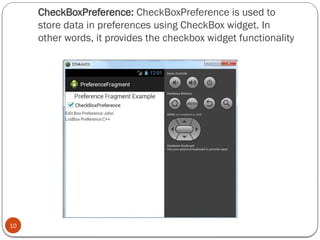
CheckBoxPreference: CheckBoxPreference is used to
store data in preferences using CheckBox widget. In
other words, it provides the checkbox widget functionality
10
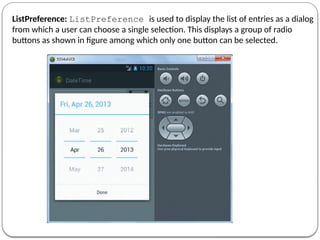
ListPreference: ListPreference is used to display the list of entries as a dialog
from which a user can choose a single selection. This displays a group of radio
buttons as shown in figure among which only one button can be selected.
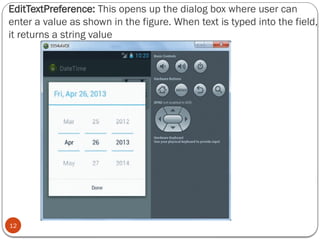
EditTextPreference: This opens up the dialog box where user can
enter a value as shown in the figure. When text is typed into the field,
it returns a string value
12
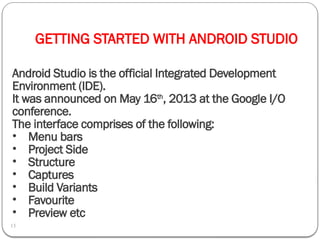
GETTING STARTED WITH ANDROID STUDIO
13
Android Studio is the official Integrated Development
Environment (IDE).
It was announced on May 16th
, 2013 at the Google I/O
conference.
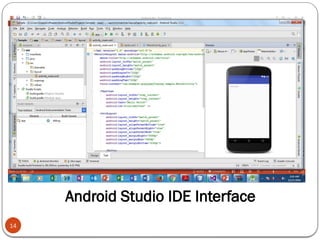
The interface comprises of the following:
• Menu bars
• Project Side
• Structure
• Captures
• Build Variants
• Favourite
• Preview etc
Android Studio IDE Interface
14
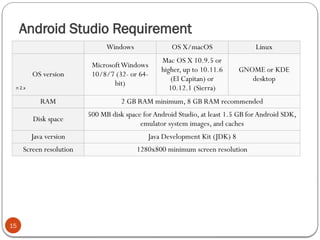
Android Studio Requirement
15
Windows OS X/macOS Linux
OS version
MicrosoftWindows
10/8/7 (32- or 64-
bit)
Mac OS X 10.9.5 or
higher, up to 10.11.6
(El Capitan) or
10.12.1 (Sierra)
GNOME or KDE
desktop
RAM 2 GB RAM minimum, 8 GB RAM recommended
Disk space
500 MB disk space for Android Studio, at least 1.5 GB forAndroid SDK,
emulator system images, and caches
Java version Java Development Kit (JDK) 8
Screen resolution 1280x800 minimum screen resolution
n 2.x
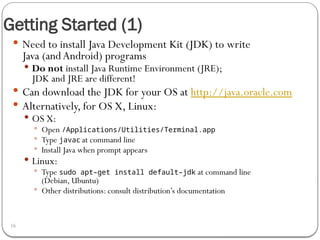
Getting Started (1)
16
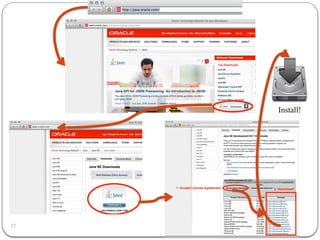
 Need to install Java Development Kit (JDK) to write
Java (andAndroid) programs
 Do not install Java Runtime Environment (JRE);
JDK and JRE are different!
 Can download the JDK for your OS at http://java.oracle.com
 Alternatively, for OS X, Linux:
 OS X:
 Open /Applications/Utilities/Terminal.app
 Type javac at command line
 Install Java when prompt appears
 Linux:
 Type sudo apt–get install default–jdk at command line
(Debian, Ubuntu)
 Other distributions: consult distribution’s documentation
Install!
17
Getting Started (2)
18
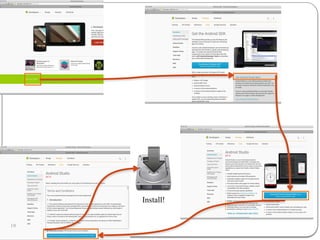
After installing JDK, download Android SDK from
http://developer.android.com
Simplest: download and install Android Studio bundle
(includingAndroid SDK) for your OS
Alternatives:
Download/installAndroid DeveloperTools from this site
(based on Eclipse)
Install Android SDK tools by themselves, then installADT
for Eclipse separately (from this site)
We’ll useAndroid Studio with SDK included (easy)
Install!
19
Getting Started (3)
20
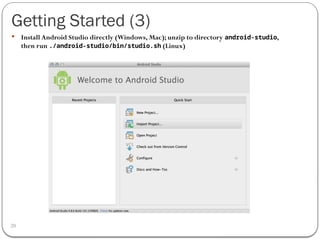
 Install Android Studio directly (Windows, Mac); unzip to directory android-studio,
then run ./android-studio/bin/studio.sh (Linux)
Getting Started (4)
21
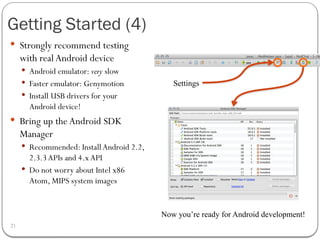
 Strongly recommend testing
with real Android device
 Android emulator: very slow
 Faster emulator: Genymotion
 Install USB drivers for your
Android device!
 Bring up the Android SDK
Manager
 Recommended: InstallAndroid 2.2,
2.3.3APIs and 4.xAPI
 Do not worry about Intel x86
Atom, MIPS system images
Settings
Now you’re ready for Android development!
Outline
22
 Introduction to Android
 Getting Started
 Android Programming
Android Highlights (1)
24
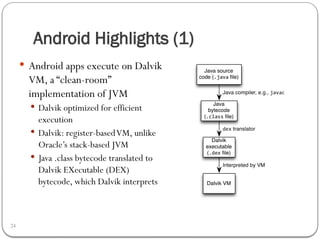
 Android apps execute on Dalvik
VM, a “clean-room”
implementation of JVM
 Dalvik optimized for efficient
execution
 Dalvik: register-basedVM, unlike
Oracle’s stack-based JVM
 Java .class bytecode translated to
Dalvik EXecutable (DEX)
bytecode, which Dalvik interprets
Android Highlights (2)
25
Android apps written in Java 5
 Actually, a Java dialect (Apache Harmony)
 Everything we’ve learned still holds
Apps use four main components:
 Activity:A “single screen” that’s visible to user
 Service: Long-running background “part” of app (not separate
process or thread)
 ContentProvider: Manages app data (usually stored in
database) and data access for queries
 BroadcastReceiver: Component that listens for particular
Android system “events”, e.g.,“found wireless device”, and
responds accordingly
App Manifest
26
EveryAndroid app must include an
AndroidManifest.xml file describing functionality
The manifest specifies:
App’s Activities, Services, etc.
Permissions requested by app
Minimum API required
Hardware features required, e.g., camera with autofocus
External libraries to which app is linked, e.g., Google Maps
library
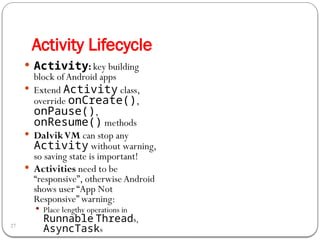
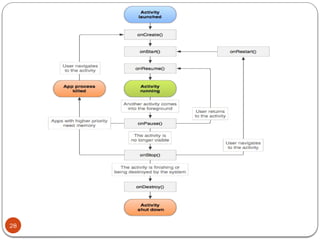
Activity Lifecycle
27
 Activity: key building
block of Android apps
 Extend Activity class,
override onCreate(),
onPause(),
onResume() methods
 DalvikVM can stop any
Activity without warning,
so saving state is important!
 Activities need to be
“responsive”, otherwise Android
shows user “App Not
Responsive” warning:
 Place lengthy operations in
Runnable Threads,
AsyncTasks
28
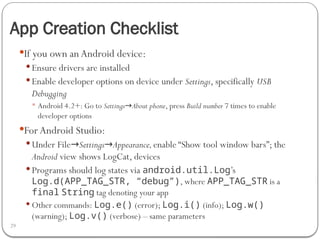
App Creation Checklist
29
If you own anAndroid device:
 Ensure drivers are installed
 Enable developer options on device under Settings, specifically USB
Debugging
 Android 4.2+: Go to Settings About phone
→ , press Build number 7 times to enable
developer options
For Android Studio:
 Under File→Settings→Appearance,enable “Show tool window bars”; the
Android view shows LogCat, devices
 Programs should log states via android.util.Log’s
Log.d(APP_TAG_STR, “debug”), where APP_TAG_STR is a
final String tag denoting your app
 Other commands: Log.e() (error); Log.i() (info); Log.w()
(warning); Log.v() (verbose) – same parameters
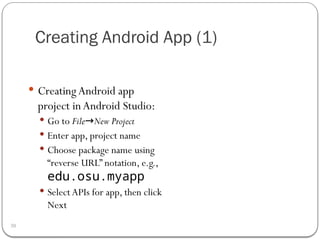
Creating Android App (1)
30
 CreatingAndroid app
project inAndroid Studio:
 Go to File New Project
→
 Enter app, project name
 Choose package name using
“reverse URL” notation, e.g.,
edu.osu.myapp
 Select APIs for app, then click
Next
31
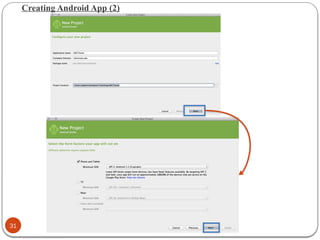
Creating Android App (2)
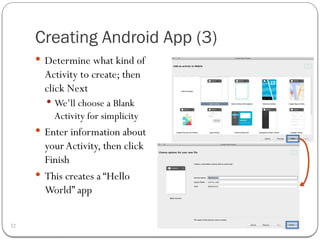
Creating Android App (3)
32
 Determine what kind of
Activity to create; then
click Next
 We’ll choose a Blank
Activity for simplicity
 Enter information about
your Activity, then click
Finish
 This creates a “Hello
World” app
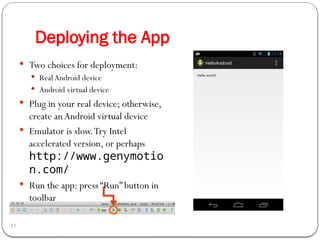
Deploying the App
33
 Two choices for deployment:
 Real Android device
 Android virtual device
 Plug in your real device; otherwise,
create anAndroid virtual device
 Emulator is slow.Try Intel
accelerated version, or perhaps
http://www.genymotio
n.com/
 Run the app: press “Run” button in
toolbar
Underlying Source Code
34
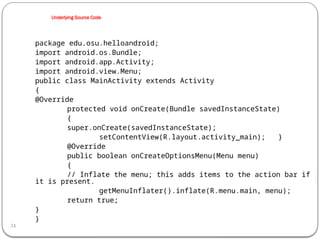
package edu.osu.helloandroid;
import android.os.Bundle;
import android.app.Activity;
import android.view.Menu;
public class MainActivity extends Activity
{
@Override
protected void onCreate(Bundle savedInstanceState)
{
super.onCreate(savedInstanceState);
setContentView(R.layout.activity_main); }
@Override
public boolean onCreateOptionsMenu(Menu menu)
{
// Inflate the menu; this adds items to the action bar if
it is present.
getMenuInflater().inflate(R.menu.main, menu);
return true;
}
}
Underlying GUI Code
35
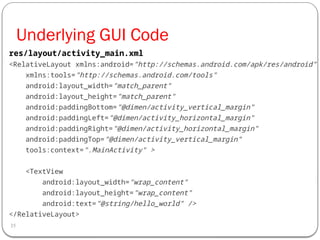
<RelativeLayout xmlns:android="http://schemas.android.com/apk/res/android"
xmlns:tools="http://schemas.android.com/tools"
android:layout_width="match_parent"
android:layout_height="match_parent"
android:paddingBottom="@dimen/activity_vertical_margin"
android:paddingLeft="@dimen/activity_horizontal_margin"
android:paddingRight="@dimen/activity_horizontal_margin"
android:paddingTop="@dimen/activity_vertical_margin"
tools:context=".MainActivity" >
<TextView
android:layout_width="wrap_content"
android:layout_height="wrap_content"
android:text="@string/hello_world" />
</RelativeLayout>
res/layout/activity_main.xml
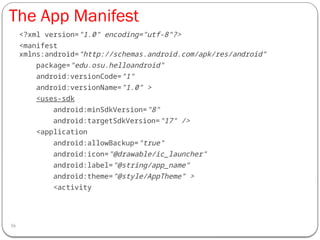
The App Manifest
36
<?xml version="1.0" encoding="utf-8"?>
<manifest
xmlns:android="http://schemas.android.com/apk/res/android"
package="edu.osu.helloandroid"
android:versionCode="1"
android:versionName="1.0" >
<uses-sdk
android:minSdkVersion="8"
android:targetSdkVersion="17" />
<application
android:allowBackup="true"
android:icon="@drawable/ic_launcher"
android:label="@string/app_name"
android:theme="@style/AppTheme" >
<activity
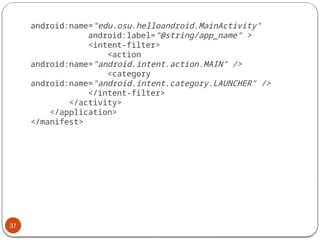
37
android:name="edu.osu.helloandroid.MainActivity"
android:label="@string/app_name" >
<intent-filter>
<action
android:name="android.intent.action.MAIN" />
<category
android:name="android.intent.category.LAUNCHER" />
</intent-filter>
</activity>
</application>
</manifest>
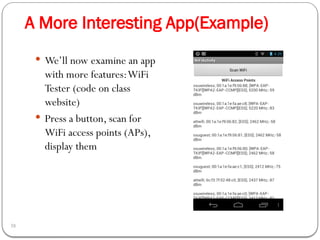
A More Interesting App(Example)
38
 We’ll now examine an app
with more features:WiFi
Tester (code on class
website)
 Press a button, scan for
WiFi access points (APs),
display them
Underlying Source Code (1)
39
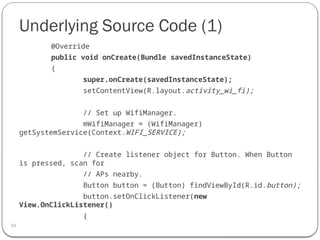
@Override
public void onCreate(Bundle savedInstanceState)
{
super.onCreate(savedInstanceState);
setContentView(R.layout.activity_wi_fi);
// Set up WifiManager.
mWifiManager = (WifiManager)
getSystemService(Context.WIFI_SERVICE);
// Create listener object for Button. When Button
is pressed, scan for
// APs nearby.
Button button = (Button) findViewById(R.id.button);
button.setOnClickListener(new
View.OnClickListener()
{
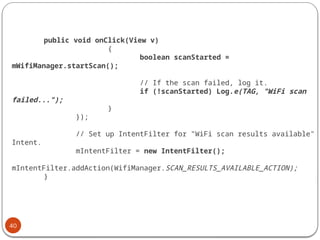
40
public void onClick(View v)
{
boolean scanStarted =
mWifiManager.startScan();
// If the scan failed, log it.
if (!scanStarted) Log.e(TAG, "WiFi scan
failed...");
}
});
// Set up IntentFilter for "WiFi scan results available"
Intent.
mIntentFilter = new IntentFilter();
mIntentFilter.addAction(WifiManager.SCAN_RESULTS_AVAILABLE_ACTION);
}
Underlying Source Code (2)
41
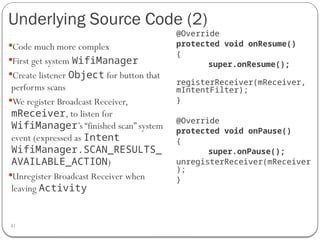
Code much more complex
First get system WifiManager
Create listener Object for button that
performs scans
We register Broadcast Receiver,
mReceiver, to listen for
WifiManager’s “finished scan” system
event (expressed as Intent
WifiManager.SCAN_RESULTS_
AVAILABLE_ACTION)
Unregister Broadcast Receiver when
leaving Activity
@Override
protected void onResume()
{
super.onResume();
registerReceiver(mReceiver,
mIntentFilter);
}
@Override
protected void onPause()
{
super.onPause();
unregisterReceiver(mReceiver
);
}
The Broadcast Receiver
42
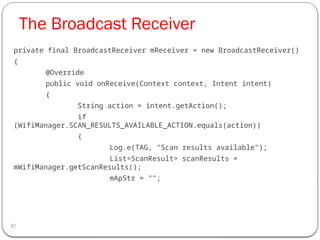
private final BroadcastReceiver mReceiver = new BroadcastReceiver()
{
@Override
public void onReceive(Context context, Intent intent)
{
String action = intent.getAction();
if
(WifiManager.SCAN_RESULTS_AVAILABLE_ACTION.equals(action))
{
Log.e(TAG, "Scan results available");
List<ScanResult> scanResults =
mWifiManager.getScanResults();
mApStr = "";
43
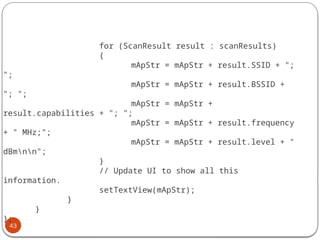
for (ScanResult result : scanResults)
{
mApStr = mApStr + result.SSID + ";
";
mApStr = mApStr + result.BSSID +
"; ";
mApStr = mApStr +
result.capabilities + "; ";
mApStr = mApStr + result.frequency
+ " MHz;";
mApStr = mApStr + result.level + "
dBmnn";
}
// Update UI to show all this
information.
setTextView(mApStr);
}
}
};
User Interface
44
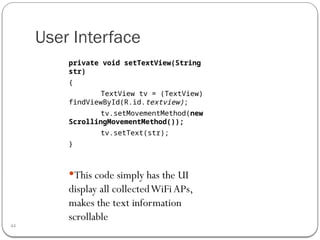
private void setTextView(String
str)
{
TextView tv = (TextView)
findViewById(R.id.textview);
tv.setMovementMethod(new
ScrollingMovementMethod());
tv.setText(str);
}
This code simply has the UI
display all collectedWiFi APs,
makes the text information
scrollable
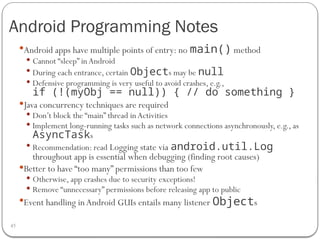
Android Programming Notes
45
Android apps have multiple points of entry: no main() method
 Cannot “sleep” inAndroid
 During each entrance, certain Objects may be null
 Defensive programming is very useful to avoid crashes, e.g.,
if (!(myObj == null)) { // do something }
Java concurrency techniques are required
 Don’t block the “main” thread inActivities
 Implement long-running tasks such as network connections asynchronously, e.g., as
AsyncTasks
 Recommendation: read Logging state via android.util.Log
throughout app is essential when debugging (finding root causes)
Better to have “too many” permissions than too few
 Otherwise, app crashes due to security exceptions!
 Remove “unnecessary” permissions before releasing app to public
Event handling inAndroid GUIs entails many listener Objects
Android User Interface -1
46
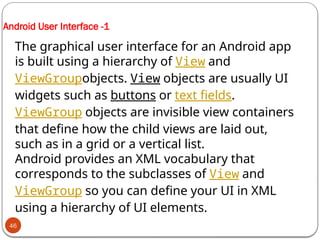
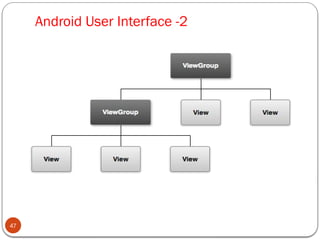
The graphical user interface for an Android app
is built using a hierarchy of View and
ViewGroupobjects. View objects are usually UI
widgets such as buttons or text fields.
ViewGroup objects are invisible view containers
that define how the child views are laid out,
such as in a grid or a vertical list.
Android provides an XML vocabulary that
corresponds to the subclasses of View and
ViewGroup so you can define your UI in XML
using a hierarchy of UI elements.
Android User Interface -2
47
Create a Linear Layout -1
48
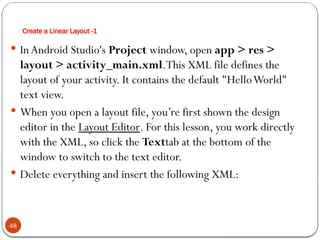
 InAndroid Studio's Project window, open app > res >
layout > activity_main.xml.This XML file defines the
layout of your activity. It contains the default "HelloWorld"
text view.
 When you open a layout file, you’re first shown the design
editor in the Layout Editor. For this lesson, you work directly
with the XML, so click the Texttab at the bottom of the
window to switch to the text editor.
 Delete everything and insert the following XML:
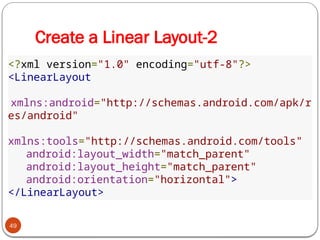
Create a Linear Layout-2
49
<?xml version="1.0" encoding="utf-8"?>
<LinearLayout
xmlns:android="http://schemas.android.com/apk/r
es/android"
xmlns:tools="http://schemas.android.com/tools"
android:layout_width="match_parent"
android:layout_height="match_parent"
android:orientation="horizontal">
</LinearLayout>
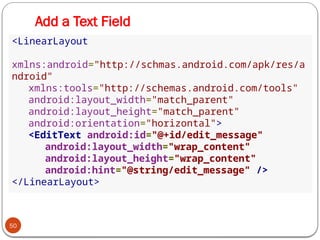
Add a Text Field
50
<LinearLayout
xmlns:android="http://schmas.android.com/apk/res/a
ndroid"
xmlns:tools="http://schemas.android.com/tools"
android:layout_width="match_parent"
android:layout_height="match_parent"
android:orientation="horizontal">
<EditText android:id="@+id/edit_message"
android:layout_width="wrap_content"
android:layout_height="wrap_content"
android:hint="@string/edit_message" />
</LinearLayout>
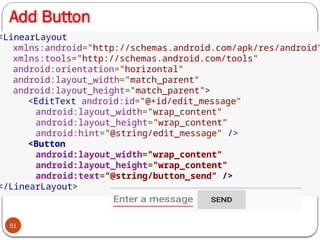
Add Button
51
<LinearLayout
xmlns:android="http://schemas.android.com/apk/res/android"
xmlns:tools="http://schemas.android.com/tools"
android:orientation="horizontal"
android:layout_width="match_parent"
android:layout_height="match_parent">
<EditText android:id="@+id/edit_message"
android:layout_width="wrap_content"
android:layout_height="wrap_content"
android:hint="@string/edit_message" />
<Button
android:layout_width="wrap_content"
android:layout_height="wrap_content"
android:text="@string/button_send" />
</LinearLayout>
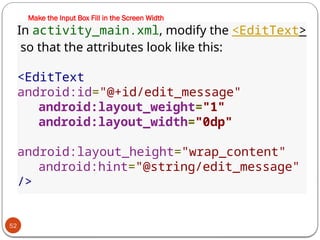
Make the Input Box Fill in the Screen Width
52
In activity_main.xml, modify the <EditText>
so that the attributes look like this:
<EditText
android:id="@+id/edit_message"
android:layout_weight="1"
android:layout_width="0dp"
android:layout_height="wrap_content"
android:hint="@string/edit_message"
/>
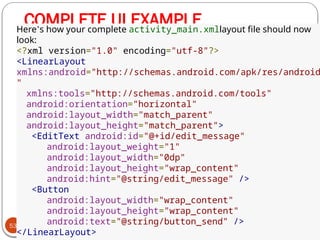
COMPLETE UI EXAMPLE
53
Here’s how your complete activity_main.xmllayout file should now
look:
<?xml version="1.0" encoding="utf-8"?>
<LinearLayout
xmlns:android="http://schemas.android.com/apk/res/android
"
xmlns:tools="http://schemas.android.com/tools"
android:orientation="horizontal"
android:layout_width="match_parent"
android:layout_height="match_parent">
<EditText android:id="@+id/edit_message"
android:layout_weight="1"
android:layout_width="0dp"
android:layout_height="wrap_content"
android:hint="@string/edit_message" />
<Button
android:layout_width="wrap_content"
android:layout_height="wrap_content"
android:text="@string/button_send" />
</LinearLayout>
Android Studio practice
54
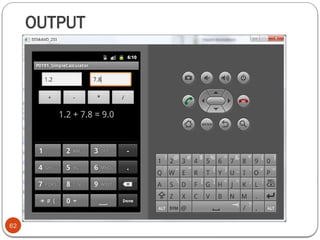
Developing A Simple Calculator
Mobile Application
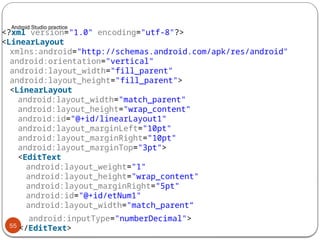
Android Studio practice
55
<?xml version="1.0" encoding="utf-8"?>
<LinearLayout
xmlns:android="http://schemas.android.com/apk/res/android"
android:orientation="vertical"
android:layout_width="fill_parent"
android:layout_height="fill_parent">
<LinearLayout
android:layout_width="match_parent"
android:layout_height="wrap_content"
android:id="@+id/linearLayout1"
android:layout_marginLeft="10pt"
android:layout_marginRight="10pt"
android:layout_marginTop="3pt">
<EditText
android:layout_weight="1"
android:layout_height="wrap_content"
android:layout_marginRight="5pt"
android:id="@+id/etNum1"
android:layout_width="match_parent“
android:inputType="numberDecimal">
</EditText>
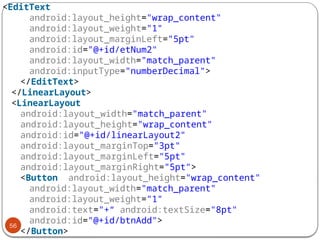
56
<EditText
android:layout_height="wrap_content"
android:layout_weight="1"
android:layout_marginLeft="5pt"
android:id="@+id/etNum2"
android:layout_width="match_parent"
android:inputType="numberDecimal">
</EditText>
</LinearLayout>
<LinearLayout
android:layout_width="match_parent"
android:layout_height="wrap_content"
android:id="@+id/linearLayout2"
android:layout_marginTop="3pt"
android:layout_marginLeft="5pt"
android:layout_marginRight="5pt">
<Button android:layout_height="wrap_content"
android:layout_width="match_parent"
android:layout_weight="1"
android:text="+“ android:textSize="8pt"
android:id="@+id/btnAdd">
</Button>
57
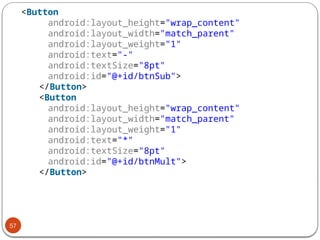
<Button
android:layout_height="wrap_content"
android:layout_width="match_parent"
android:layout_weight="1"
android:text="-"
android:textSize="8pt"
android:id="@+id/btnSub">
</Button>
<Button
android:layout_height="wrap_content"
android:layout_width="match_parent"
android:layout_weight="1"
android:text="*"
android:textSize="8pt"
android:id="@+id/btnMult">
</Button>
58
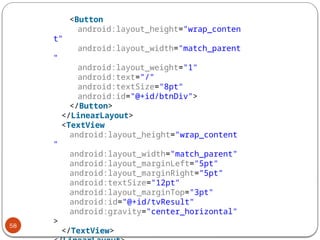
<Button
android:layout_height="wrap_conten
t"
android:layout_width="match_parent
"
android:layout_weight="1"
android:text="/"
android:textSize="8pt"
android:id="@+id/btnDiv">
</Button>
</LinearLayout>
<TextView
android:layout_height="wrap_content
"
android:layout_width="match_parent"
android:layout_marginLeft="5pt"
android:layout_marginRight="5pt"
android:textSize="12pt"
android:layout_marginTop="3pt"
android:id="@+id/tvResult"
android:gravity="center_horizontal"
>
</TextView>
59
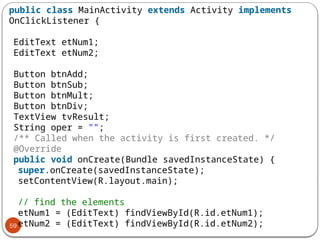
public class MainActivity extends Activity implements
OnClickListener {
EditText etNum1;
EditText etNum2;
Button btnAdd;
Button btnSub;
Button btnMult;
Button btnDiv;
TextView tvResult;
String oper = "";
/** Called when the activity is first created. */
@Override
public void onCreate(Bundle savedInstanceState) {
super.onCreate(savedInstanceState);
setContentView(R.layout.main);
// find the elements
etNum1 = (EditText) findViewById(R.id.etNum1);
etNum2 = (EditText) findViewById(R.id.etNum2);
60
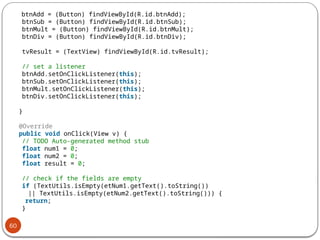
btnAdd = (Button) findViewById(R.id.btnAdd);
btnSub = (Button) findViewById(R.id.btnSub);
btnMult = (Button) findViewById(R.id.btnMult);
btnDiv = (Button) findViewById(R.id.btnDiv);
tvResult = (TextView) findViewById(R.id.tvResult);
// set a listener
btnAdd.setOnClickListener(this);
btnSub.setOnClickListener(this);
btnMult.setOnClickListener(this);
btnDiv.setOnClickListener(this);
}
@Override
public void onClick(View v) {
// TODO Auto-generated method stub
float num1 = 0;
float num2 = 0;
float result = 0;
// check if the fields are empty
if (TextUtils.isEmpty(etNum1.getText().toString())
|| TextUtils.isEmpty(etNum2.getText().toString())) {
return;
}
61
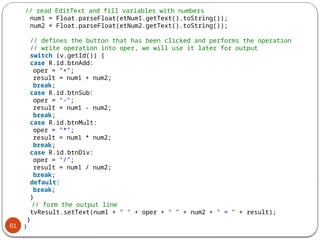
// read EditText and fill variables with numbers
num1 = Float.parseFloat(etNum1.getText().toString());
num2 = Float.parseFloat(etNum2.getText().toString());
// defines the button that has been clicked and performs the operation
// write operation into oper, we will use it later for output
switch (v.getId()) {
case R.id.btnAdd:
oper = "+";
result = num1 + num2;
break;
case R.id.btnSub:
oper = "-";
result = num1 - num2;
break;
case R.id.btnMult:
oper = "*";
result = num1 * num2;
break;
case R.id.btnDiv:
oper = "/";
result = num1 / num2;
break;
default:
break;
}
// form the output line
tvResult.setText(num1 + " " + oper + " " + num2 + " = " + result);
}
}
OUTPUT
62
How to Start Mobile Application Business
63
DEPLOYMENT AND PUBLISING OF
APPLICATION ON GOOGLE
ANDROID MARKET
64
The Android Market or the
Android central is known to be the
very own repository of Google for
Android applications.
65
Android Market recently renamed as
Google play is developed and
maintained by Google. It is an online
electronic store or digital application
distribution platform for android
powered devices.
66
The application developed by any
developer has to be tested before
it is uploaded to the Android
market to ensure that your app is
error and bug free.
67
The developer needs to register
before publishing the app with a
publisher account by visiting the
Google Play Developer console at
https://play.google.com/apps/
publish/.
TOOLS & MATERIALS NEEDED FOR THE
DEVELOPMENT
68
 THIS MATERIAL
 VIDEOTUTORIALS (ONLINE & OFFLINE)
 INTERNET
 GOOD BOOK (BEGINNER LEVEL IN MOBILE APP
DEVELOPMENT)
 HIGH CONFIGURATION LAPTOPWITH AT LEAST 4GB RAM
 ETC.
Thank YOU
69

Mobile Application and Development training

  • 1.
  • 2.
    Outline 2  Introduction toMobile Application Development  Mobile ApplicationTools  Android System Overview  Getting StartedWith Android Studio IDE
  • 3.
    What is MobileApplication Development? 3 Mobile application development is the set of processes and procedures involved in writing software for small, wireless computing devices sucsh as smartphones or tablet Mobile application development is similar to web application development and has its roots in software development.
  • 4.
    Mobile Application Tools 4 MobileApplication Tools are also known as Mobile IDEs which mean Mobile Integrated Development Environments The tools include: • ANDROID STUDIO • ECLIPSE • NETBEANS • INTELLIJIDEA • XAMARIN • CORDOVA E.T.C
  • 5.
    Android System Overview 5 Thereare more than a two billion smartphones and tablet PC users worldwide. There is a growing expectation that everything and anything will be available as a mobile application. More and more organization are benefiting from improving business processes by providing their users with access to application via their mobile devices and tablet.
  • 6.
    Introduction to Android 6 Androidis an operating system for mobile devices such as smartphones and tablet computers. It is developed by the Open HandsetAlliance led by Google. Android has beaten Apple iOS, being the leading mobile operating system from first quarter of 2011 Version:Android 1.0, 1.1 to 1.5 (Cupcake), 1.6 (Donut), 2.0/2.1 (Eclair), 2.2 (Froyo), 2.3 (Gingerbread), to 3.0 (Honeycomb), 4.0 (Ice Cream Sandwich), 5.0 (Lollipop) What is Android
  • 7.
    TOP U.S SMARTPHONEOS SHARE 7  Popular mobile device OS: 52% of U.S. smartphone market  Developed by Open HandsetAlliance, led by Google  Google claims 900,000 Android device activations
  • 8.
  • 9.
    Shared Preferences: Storedata as key-value pairs. Internal Storage: Store data on the device memory. Data will not be accessed by other application. External Storage: Store public data on the shared external storage. Data will be accessed by other application. SQLite Databases: Store structured data in a private database. Network Connection: Store data on the Web with your own network server. Android System Overview
  • 10.
    CheckBoxPreference: CheckBoxPreference isused to store data in preferences using CheckBox widget. In other words, it provides the checkbox widget functionality 10
  • 11.
    ListPreference: ListPreference isused to display the list of entries as a dialog from which a user can choose a single selection. This displays a group of radio buttons as shown in figure among which only one button can be selected.
  • 12.
    EditTextPreference: This opensup the dialog box where user can enter a value as shown in the figure. When text is typed into the field, it returns a string value 12
  • 13.
    GETTING STARTED WITHANDROID STUDIO 13 Android Studio is the official Integrated Development Environment (IDE). It was announced on May 16th , 2013 at the Google I/O conference. The interface comprises of the following: • Menu bars • Project Side • Structure • Captures • Build Variants • Favourite • Preview etc
  • 14.
    Android Studio IDEInterface 14
  • 15.
    Android Studio Requirement 15 WindowsOS X/macOS Linux OS version MicrosoftWindows 10/8/7 (32- or 64- bit) Mac OS X 10.9.5 or higher, up to 10.11.6 (El Capitan) or 10.12.1 (Sierra) GNOME or KDE desktop RAM 2 GB RAM minimum, 8 GB RAM recommended Disk space 500 MB disk space for Android Studio, at least 1.5 GB forAndroid SDK, emulator system images, and caches Java version Java Development Kit (JDK) 8 Screen resolution 1280x800 minimum screen resolution n 2.x
  • 16.
    Getting Started (1) 16 Need to install Java Development Kit (JDK) to write Java (andAndroid) programs  Do not install Java Runtime Environment (JRE); JDK and JRE are different!  Can download the JDK for your OS at http://java.oracle.com  Alternatively, for OS X, Linux:  OS X:  Open /Applications/Utilities/Terminal.app  Type javac at command line  Install Java when prompt appears  Linux:  Type sudo apt–get install default–jdk at command line (Debian, Ubuntu)  Other distributions: consult distribution’s documentation
  • 17.
  • 18.
    Getting Started (2) 18 Afterinstalling JDK, download Android SDK from http://developer.android.com Simplest: download and install Android Studio bundle (includingAndroid SDK) for your OS Alternatives: Download/installAndroid DeveloperTools from this site (based on Eclipse) Install Android SDK tools by themselves, then installADT for Eclipse separately (from this site) We’ll useAndroid Studio with SDK included (easy)
  • 19.
  • 20.
    Getting Started (3) 20 Install Android Studio directly (Windows, Mac); unzip to directory android-studio, then run ./android-studio/bin/studio.sh (Linux)
  • 21.
    Getting Started (4) 21 Strongly recommend testing with real Android device  Android emulator: very slow  Faster emulator: Genymotion  Install USB drivers for your Android device!  Bring up the Android SDK Manager  Recommended: InstallAndroid 2.2, 2.3.3APIs and 4.xAPI  Do not worry about Intel x86 Atom, MIPS system images Settings Now you’re ready for Android development!
  • 22.
    Outline 22  Introduction toAndroid  Getting Started  Android Programming
  • 23.
    Android Highlights (1) 24 Android apps execute on Dalvik VM, a “clean-room” implementation of JVM  Dalvik optimized for efficient execution  Dalvik: register-basedVM, unlike Oracle’s stack-based JVM  Java .class bytecode translated to Dalvik EXecutable (DEX) bytecode, which Dalvik interprets
  • 24.
    Android Highlights (2) 25 Androidapps written in Java 5  Actually, a Java dialect (Apache Harmony)  Everything we’ve learned still holds Apps use four main components:  Activity:A “single screen” that’s visible to user  Service: Long-running background “part” of app (not separate process or thread)  ContentProvider: Manages app data (usually stored in database) and data access for queries  BroadcastReceiver: Component that listens for particular Android system “events”, e.g.,“found wireless device”, and responds accordingly
  • 25.
    App Manifest 26 EveryAndroid appmust include an AndroidManifest.xml file describing functionality The manifest specifies: App’s Activities, Services, etc. Permissions requested by app Minimum API required Hardware features required, e.g., camera with autofocus External libraries to which app is linked, e.g., Google Maps library
  • 26.
    Activity Lifecycle 27  Activity:key building block of Android apps  Extend Activity class, override onCreate(), onPause(), onResume() methods  DalvikVM can stop any Activity without warning, so saving state is important!  Activities need to be “responsive”, otherwise Android shows user “App Not Responsive” warning:  Place lengthy operations in Runnable Threads, AsyncTasks
  • 27.
  • 28.
    App Creation Checklist 29 Ifyou own anAndroid device:  Ensure drivers are installed  Enable developer options on device under Settings, specifically USB Debugging  Android 4.2+: Go to Settings About phone → , press Build number 7 times to enable developer options For Android Studio:  Under File→Settings→Appearance,enable “Show tool window bars”; the Android view shows LogCat, devices  Programs should log states via android.util.Log’s Log.d(APP_TAG_STR, “debug”), where APP_TAG_STR is a final String tag denoting your app  Other commands: Log.e() (error); Log.i() (info); Log.w() (warning); Log.v() (verbose) – same parameters
  • 29.
    Creating Android App(1) 30  CreatingAndroid app project inAndroid Studio:  Go to File New Project →  Enter app, project name  Choose package name using “reverse URL” notation, e.g., edu.osu.myapp  Select APIs for app, then click Next
  • 30.
  • 31.
    Creating Android App(3) 32  Determine what kind of Activity to create; then click Next  We’ll choose a Blank Activity for simplicity  Enter information about your Activity, then click Finish  This creates a “Hello World” app
  • 32.
    Deploying the App 33 Two choices for deployment:  Real Android device  Android virtual device  Plug in your real device; otherwise, create anAndroid virtual device  Emulator is slow.Try Intel accelerated version, or perhaps http://www.genymotio n.com/  Run the app: press “Run” button in toolbar
  • 33.
    Underlying Source Code 34 packageedu.osu.helloandroid; import android.os.Bundle; import android.app.Activity; import android.view.Menu; public class MainActivity extends Activity { @Override protected void onCreate(Bundle savedInstanceState) { super.onCreate(savedInstanceState); setContentView(R.layout.activity_main); } @Override public boolean onCreateOptionsMenu(Menu menu) { // Inflate the menu; this adds items to the action bar if it is present. getMenuInflater().inflate(R.menu.main, menu); return true; } }
  • 34.
    Underlying GUI Code 35 <RelativeLayoutxmlns:android="http://schemas.android.com/apk/res/android" xmlns:tools="http://schemas.android.com/tools" android:layout_width="match_parent" android:layout_height="match_parent" android:paddingBottom="@dimen/activity_vertical_margin" android:paddingLeft="@dimen/activity_horizontal_margin" android:paddingRight="@dimen/activity_horizontal_margin" android:paddingTop="@dimen/activity_vertical_margin" tools:context=".MainActivity" > <TextView android:layout_width="wrap_content" android:layout_height="wrap_content" android:text="@string/hello_world" /> </RelativeLayout> res/layout/activity_main.xml
  • 35.
    The App Manifest 36 <?xmlversion="1.0" encoding="utf-8"?> <manifest xmlns:android="http://schemas.android.com/apk/res/android" package="edu.osu.helloandroid" android:versionCode="1" android:versionName="1.0" > <uses-sdk android:minSdkVersion="8" android:targetSdkVersion="17" /> <application android:allowBackup="true" android:icon="@drawable/ic_launcher" android:label="@string/app_name" android:theme="@style/AppTheme" > <activity
  • 36.
  • 37.
    A More InterestingApp(Example) 38  We’ll now examine an app with more features:WiFi Tester (code on class website)  Press a button, scan for WiFi access points (APs), display them
  • 38.
    Underlying Source Code(1) 39 @Override public void onCreate(Bundle savedInstanceState) { super.onCreate(savedInstanceState); setContentView(R.layout.activity_wi_fi); // Set up WifiManager. mWifiManager = (WifiManager) getSystemService(Context.WIFI_SERVICE); // Create listener object for Button. When Button is pressed, scan for // APs nearby. Button button = (Button) findViewById(R.id.button); button.setOnClickListener(new View.OnClickListener() {
  • 39.
    40 public void onClick(Viewv) { boolean scanStarted = mWifiManager.startScan(); // If the scan failed, log it. if (!scanStarted) Log.e(TAG, "WiFi scan failed..."); } }); // Set up IntentFilter for "WiFi scan results available" Intent. mIntentFilter = new IntentFilter(); mIntentFilter.addAction(WifiManager.SCAN_RESULTS_AVAILABLE_ACTION); }
  • 40.
    Underlying Source Code(2) 41 Code much more complex First get system WifiManager Create listener Object for button that performs scans We register Broadcast Receiver, mReceiver, to listen for WifiManager’s “finished scan” system event (expressed as Intent WifiManager.SCAN_RESULTS_ AVAILABLE_ACTION) Unregister Broadcast Receiver when leaving Activity @Override protected void onResume() { super.onResume(); registerReceiver(mReceiver, mIntentFilter); } @Override protected void onPause() { super.onPause(); unregisterReceiver(mReceiver ); }
  • 41.
    The Broadcast Receiver 42 privatefinal BroadcastReceiver mReceiver = new BroadcastReceiver() { @Override public void onReceive(Context context, Intent intent) { String action = intent.getAction(); if (WifiManager.SCAN_RESULTS_AVAILABLE_ACTION.equals(action)) { Log.e(TAG, "Scan results available"); List<ScanResult> scanResults = mWifiManager.getScanResults(); mApStr = "";
  • 42.
    43 for (ScanResult result: scanResults) { mApStr = mApStr + result.SSID + "; "; mApStr = mApStr + result.BSSID + "; "; mApStr = mApStr + result.capabilities + "; "; mApStr = mApStr + result.frequency + " MHz;"; mApStr = mApStr + result.level + " dBmnn"; } // Update UI to show all this information. setTextView(mApStr); } } };
  • 43.
    User Interface 44 private voidsetTextView(String str) { TextView tv = (TextView) findViewById(R.id.textview); tv.setMovementMethod(new ScrollingMovementMethod()); tv.setText(str); } This code simply has the UI display all collectedWiFi APs, makes the text information scrollable
  • 44.
    Android Programming Notes 45 Androidapps have multiple points of entry: no main() method  Cannot “sleep” inAndroid  During each entrance, certain Objects may be null  Defensive programming is very useful to avoid crashes, e.g., if (!(myObj == null)) { // do something } Java concurrency techniques are required  Don’t block the “main” thread inActivities  Implement long-running tasks such as network connections asynchronously, e.g., as AsyncTasks  Recommendation: read Logging state via android.util.Log throughout app is essential when debugging (finding root causes) Better to have “too many” permissions than too few  Otherwise, app crashes due to security exceptions!  Remove “unnecessary” permissions before releasing app to public Event handling inAndroid GUIs entails many listener Objects
  • 45.
    Android User Interface-1 46 The graphical user interface for an Android app is built using a hierarchy of View and ViewGroupobjects. View objects are usually UI widgets such as buttons or text fields. ViewGroup objects are invisible view containers that define how the child views are laid out, such as in a grid or a vertical list. Android provides an XML vocabulary that corresponds to the subclasses of View and ViewGroup so you can define your UI in XML using a hierarchy of UI elements.
  • 46.
  • 47.
    Create a LinearLayout -1 48  InAndroid Studio's Project window, open app > res > layout > activity_main.xml.This XML file defines the layout of your activity. It contains the default "HelloWorld" text view.  When you open a layout file, you’re first shown the design editor in the Layout Editor. For this lesson, you work directly with the XML, so click the Texttab at the bottom of the window to switch to the text editor.  Delete everything and insert the following XML:
  • 48.
    Create a LinearLayout-2 49 <?xml version="1.0" encoding="utf-8"?> <LinearLayout xmlns:android="http://schemas.android.com/apk/r es/android" xmlns:tools="http://schemas.android.com/tools" android:layout_width="match_parent" android:layout_height="match_parent" android:orientation="horizontal"> </LinearLayout>
  • 49.
    Add a TextField 50 <LinearLayout xmlns:android="http://schmas.android.com/apk/res/a ndroid" xmlns:tools="http://schemas.android.com/tools" android:layout_width="match_parent" android:layout_height="match_parent" android:orientation="horizontal"> <EditText android:id="@+id/edit_message" android:layout_width="wrap_content" android:layout_height="wrap_content" android:hint="@string/edit_message" /> </LinearLayout>
  • 50.
  • 51.
    Make the InputBox Fill in the Screen Width 52 In activity_main.xml, modify the <EditText> so that the attributes look like this: <EditText android:id="@+id/edit_message" android:layout_weight="1" android:layout_width="0dp" android:layout_height="wrap_content" android:hint="@string/edit_message" />
  • 52.
    COMPLETE UI EXAMPLE 53 Here’show your complete activity_main.xmllayout file should now look: <?xml version="1.0" encoding="utf-8"?> <LinearLayout xmlns:android="http://schemas.android.com/apk/res/android " xmlns:tools="http://schemas.android.com/tools" android:orientation="horizontal" android:layout_width="match_parent" android:layout_height="match_parent"> <EditText android:id="@+id/edit_message" android:layout_weight="1" android:layout_width="0dp" android:layout_height="wrap_content" android:hint="@string/edit_message" /> <Button android:layout_width="wrap_content" android:layout_height="wrap_content" android:text="@string/button_send" /> </LinearLayout>
  • 53.
    Android Studio practice 54 DevelopingA Simple Calculator Mobile Application
  • 54.
    Android Studio practice 55 <?xmlversion="1.0" encoding="utf-8"?> <LinearLayout xmlns:android="http://schemas.android.com/apk/res/android" android:orientation="vertical" android:layout_width="fill_parent" android:layout_height="fill_parent"> <LinearLayout android:layout_width="match_parent" android:layout_height="wrap_content" android:id="@+id/linearLayout1" android:layout_marginLeft="10pt" android:layout_marginRight="10pt" android:layout_marginTop="3pt"> <EditText android:layout_weight="1" android:layout_height="wrap_content" android:layout_marginRight="5pt" android:id="@+id/etNum1" android:layout_width="match_parent“ android:inputType="numberDecimal"> </EditText>
  • 55.
  • 56.
  • 57.
  • 58.
    59 public class MainActivityextends Activity implements OnClickListener { EditText etNum1; EditText etNum2; Button btnAdd; Button btnSub; Button btnMult; Button btnDiv; TextView tvResult; String oper = ""; /** Called when the activity is first created. */ @Override public void onCreate(Bundle savedInstanceState) { super.onCreate(savedInstanceState); setContentView(R.layout.main); // find the elements etNum1 = (EditText) findViewById(R.id.etNum1); etNum2 = (EditText) findViewById(R.id.etNum2);
  • 59.
    60 btnAdd = (Button)findViewById(R.id.btnAdd); btnSub = (Button) findViewById(R.id.btnSub); btnMult = (Button) findViewById(R.id.btnMult); btnDiv = (Button) findViewById(R.id.btnDiv); tvResult = (TextView) findViewById(R.id.tvResult); // set a listener btnAdd.setOnClickListener(this); btnSub.setOnClickListener(this); btnMult.setOnClickListener(this); btnDiv.setOnClickListener(this); } @Override public void onClick(View v) { // TODO Auto-generated method stub float num1 = 0; float num2 = 0; float result = 0; // check if the fields are empty if (TextUtils.isEmpty(etNum1.getText().toString()) || TextUtils.isEmpty(etNum2.getText().toString())) { return; }
  • 60.
    61 // read EditTextand fill variables with numbers num1 = Float.parseFloat(etNum1.getText().toString()); num2 = Float.parseFloat(etNum2.getText().toString()); // defines the button that has been clicked and performs the operation // write operation into oper, we will use it later for output switch (v.getId()) { case R.id.btnAdd: oper = "+"; result = num1 + num2; break; case R.id.btnSub: oper = "-"; result = num1 - num2; break; case R.id.btnMult: oper = "*"; result = num1 * num2; break; case R.id.btnDiv: oper = "/"; result = num1 / num2; break; default: break; } // form the output line tvResult.setText(num1 + " " + oper + " " + num2 + " = " + result); } }
  • 61.
  • 62.
    How to StartMobile Application Business 63 DEPLOYMENT AND PUBLISING OF APPLICATION ON GOOGLE ANDROID MARKET
  • 63.
    64 The Android Marketor the Android central is known to be the very own repository of Google for Android applications.
  • 64.
    65 Android Market recentlyrenamed as Google play is developed and maintained by Google. It is an online electronic store or digital application distribution platform for android powered devices.
  • 65.
    66 The application developedby any developer has to be tested before it is uploaded to the Android market to ensure that your app is error and bug free.
  • 66.
    67 The developer needsto register before publishing the app with a publisher account by visiting the Google Play Developer console at https://play.google.com/apps/ publish/.
  • 67.
    TOOLS & MATERIALSNEEDED FOR THE DEVELOPMENT 68  THIS MATERIAL  VIDEOTUTORIALS (ONLINE & OFFLINE)  INTERNET  GOOD BOOK (BEGINNER LEVEL IN MOBILE APP DEVELOPMENT)  HIGH CONFIGURATION LAPTOPWITH AT LEAST 4GB RAM  ETC.
  • 68.