International Islamic University H-10, Islamabad, Pakistan
Mobile Applications Development
Week 06
Using Explicit Intents
in Android
Engr. Rashid Farid Chishti
http://youtube.com/rfchishti
http://sites.google.com/site/chisht
i
 Understanding Intents
 Learn to send and receive data via intents.
 Sending back data using Back Intent
Objective
 In Android, an explicit intent is an intent that clearly specifies the target
component (such as a particular Activity, Service, or BroadcastReceiver) that
should handle the request.
 In simple words:
 With an explicit intent, you tell exactly which component you want to open.
 This is mostly used inside your own app, when you want to move from one
activity to another or start a known service.
 Use Case:
 Navigate from one screen (Activity) to another.
 Pass data between activities.
What are Explicit Intents?
 Example of Explicit Intent
 Suppose you have two activities: MainActivity and Activity_Second.
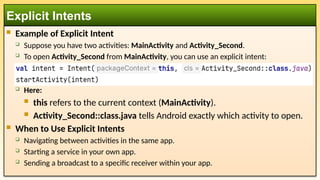
 To open Activity_Second from MainActivity, you can use an explicit intent:
 Here:
 this refers to the current context (MainActivity).
 Activity_Second::class.java tells Android exactly which activity to open.
 When to Use Explicit Intents
 Navigating between activities in the same app.
 Starting a service in your own app.
 Sending a broadcast to a specific receiver within your app.
Explicit Intents
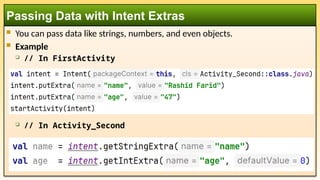
 You can pass data like strings, numbers, and even objects.
 Example
 // In FirstActivity
 // In Activity_Second
Passing Data with Intent Extras
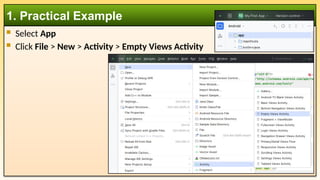
 Select App
 Click File > New > Activity > Empty Views Activity
1. Practical Example
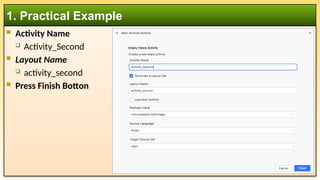
 Activity Name
 Activity_Second
 Layout Name
 activity_second
 Press Finish Botton
1. Practical Example
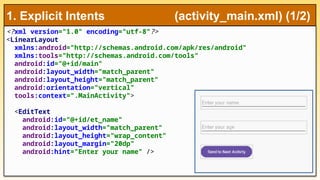
<?xml version="1.0" encoding="utf-8"?>
<LinearLayout
xmlns:android="http://schemas.android.com/apk/res/android"
xmlns:tools="http://schemas.android.com/tools"
android:id="@+id/main"
android:layout_width="match_parent"
android:layout_height="match_parent"
android:orientation="vertical"
tools:context=".MainActivity">
<EditText
android:id="@+id/et_name"
android:layout_width="match_parent"
android:layout_height="wrap_content"
android:layout_margin="20dp"
android:hint="Enter your name" />
1. Explicit Intents (activity_main.xml) (1/2)
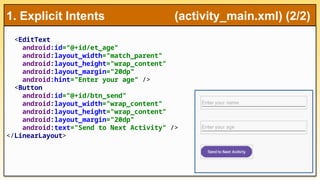
<EditText
android:id="@+id/et_age"
android:layout_width="match_parent"
android:layout_height="wrap_content"
android:layout_margin="20dp"
android:hint="Enter your age" />
<Button
android:id="@+id/btn_send"
android:layout_width="wrap_content"
android:layout_height="wrap_content"
android:layout_margin="20dp"
android:text="Send to Next Activity" />
</LinearLayout>
1. Explicit Intents (activity_main.xml) (2/2)
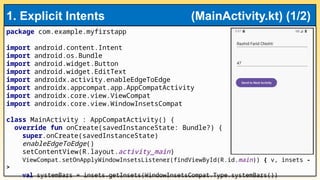
package com.example.myfirstapp
import android.content.Intent
import android.os.Bundle
import android.widget.Button
import android.widget.EditText
import androidx.activity.enableEdgeToEdge
import androidx.appcompat.app.AppCompatActivity
import androidx.core.view.ViewCompat
import androidx.core.view.WindowInsetsCompat
class MainActivity : AppCompatActivity() {
override fun onCreate(savedInstanceState: Bundle?) {
super.onCreate(savedInstanceState)
enableEdgeToEdge()
setContentView(R.layout.activity_main)
ViewCompat.setOnApplyWindowInsetsListener(findViewById(R.id.main)) { v, insets -
>
val systemBars = insets.getInsets(WindowInsetsCompat.Type.systemBars())
1. Explicit Intents (MainActivity.kt) (1/2)
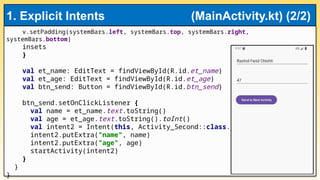
v.setPadding(systemBars.left, systemBars.top, systemBars.right,
systemBars.bottom)
insets
}
val et_name: EditText = findViewById(R.id.et_name)
val et_age: EditText = findViewById(R.id.et_age)
val btn_send: Button = findViewById(R.id.btn_send)
btn_send.setOnClickListener {
val name = et_name.text.toString()
val age = et_age.text.toString().toInt()
val intent2 = Intent(this, Activity_Second::class.java)
intent2.putExtra("name", name)
intent2.putExtra("age", age)
startActivity(intent2)
}
}
}
1. Explicit Intents (MainActivity.kt) (2/2)
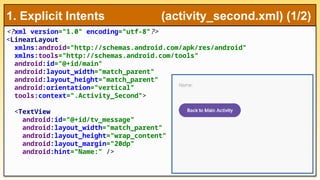
<?xml version="1.0" encoding="utf-8"?>
<LinearLayout
xmlns:android="http://schemas.android.com/apk/res/android"
xmlns:tools="http://schemas.android.com/tools"
android:id="@+id/main"
android:layout_width="match_parent"
android:layout_height="match_parent"
android:orientation="vertical"
tools:context=".Activity_Second">
<TextView
android:id="@+id/tv_message"
android:layout_width="match_parent"
android:layout_height="wrap_content"
android:layout_margin="20dp"
android:hint="Name:" />
1. Explicit Intents (activity_second.xml) (1/2)
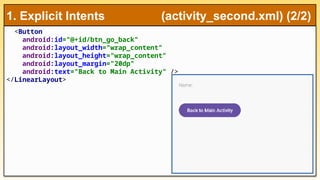
<Button
android:id="@+id/btn_go_back"
android:layout_width="wrap_content"
android:layout_height="wrap_content"
android:layout_margin="20dp"
android:text="Back to Main Activity" />
</LinearLayout>
1. Explicit Intents (activity_second.xml) (2/2)
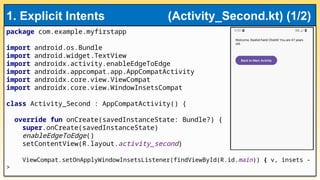
package com.example.myfirstapp
import android.os.Bundle
import android.widget.TextView
import androidx.activity.enableEdgeToEdge
import androidx.appcompat.app.AppCompatActivity
import androidx.core.view.ViewCompat
import androidx.core.view.WindowInsetsCompat
class Activity_Second : AppCompatActivity() {
override fun onCreate(savedInstanceState: Bundle?) {
super.onCreate(savedInstanceState)
enableEdgeToEdge()
setContentView(R.layout.activity_second)
ViewCompat.setOnApplyWindowInsetsListener(findViewById(R.id.main)) { v, insets -
>
1. Explicit Intents (Activity_Second.kt) (1/2)
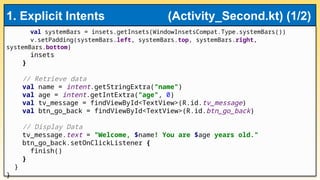
val systemBars = insets.getInsets(WindowInsetsCompat.Type.systemBars())
v.setPadding(systemBars.left, systemBars.top, systemBars.right,
systemBars.bottom)
insets
}
// Retrieve data
val name = intent.getStringExtra("name")
val age = intent.getIntExtra("age", 0)
val tv_message = findViewById<TextView>(R.id.tv_message)
val btn_go_back = findViewById<TextView>(R.id.btn_go_back)
// Display Data
tv_message.text = "Welcome, $name! You are $age years old."
btn_go_back.setOnClickListener {
finish()
}
}
}
1. Explicit Intents (Activity_Second.kt) (1/2)
 There isn’t an actual Intent called "Back", but developers often say “back
intent” when they mean:
 Navigating back to the previous screen
 This usually happens when the user presses the Back button (system back
gesture or button).
 Android handles this automatically by finishing the current activity and
returning to the one below it in the stack.
2. Back Intent
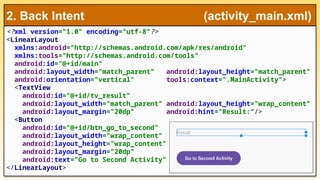
<?xml version="1.0" encoding="utf-8"?>
<LinearLayout
xmlns:android="http://schemas.android.com/apk/res/android"
xmlns:tools="http://schemas.android.com/tools"
android:id="@+id/main"
android:layout_width="match_parent" android:layout_height="match_parent"
android:orientation="vertical" tools:context=".MainActivity">
<TextView
android:id="@+id/tv_result"
android:layout_width="match_parent" android:layout_height="wrap_content"
android:layout_margin="20dp" android:hint="Result:"/>
<Button
android:id="@+id/btn_go_to_second"
android:layout_width="wrap_content"
android:layout_height="wrap_content"
android:layout_margin="20dp"
android:text="Go to Second Activity" />
</LinearLayout>
2. Back Intent (activity_main.xml)
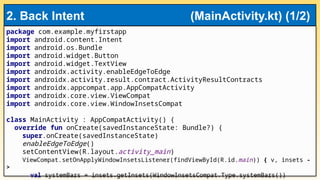
package com.example.myfirstapp
import android.content.Intent
import android.os.Bundle
import android.widget.Button
import android.widget.TextView
import androidx.activity.enableEdgeToEdge
import androidx.activity.result.contract.ActivityResultContracts
import androidx.appcompat.app.AppCompatActivity
import androidx.core.view.ViewCompat
import androidx.core.view.WindowInsetsCompat
class MainActivity : AppCompatActivity() {
override fun onCreate(savedInstanceState: Bundle?) {
super.onCreate(savedInstanceState)
enableEdgeToEdge()
setContentView(R.layout.activity_main)
ViewCompat.setOnApplyWindowInsetsListener(findViewById(R.id.main)) { v, insets -
>
val systemBars = insets.getInsets(WindowInsetsCompat.Type.systemBars())
2. Back Intent (MainActivity.kt) (1/2)
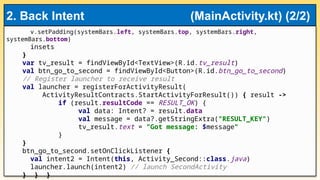
v.setPadding(systemBars.left, systemBars.top, systemBars.right,
systemBars.bottom)
insets
}
var tv_result = findViewById<TextView>(R.id.tv_result)
val btn_go_to_second = findViewById<Button>(R.id.btn_go_to_second)
// Register launcher to receive result
val launcher = registerForActivityResult(
ActivityResultContracts.StartActivityForResult()) { result ->
if (result.resultCode == RESULT_OK) {
val data: Intent? = result.data
val message = data?.getStringExtra("RESULT_KEY")
tv_result.text = "Got message: $message"
}
}
btn_go_to_second.setOnClickListener {
val intent2 = Intent(this, Activity_Second::class.java)
launcher.launch(intent2) // launch SecondActivity
} } }
2. Back Intent (MainActivity.kt) (2/2)
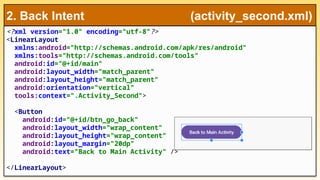
<?xml version="1.0" encoding="utf-8"?>
<LinearLayout
xmlns:android="http://schemas.android.com/apk/res/android"
xmlns:tools="http://schemas.android.com/tools"
android:id="@+id/main"
android:layout_width="match_parent"
android:layout_height="match_parent"
android:orientation="vertical"
tools:context=".Activity_Second">
<Button
android:id="@+id/btn_go_back"
android:layout_width="wrap_content"
android:layout_height="wrap_content"
android:layout_margin="20dp"
android:text="Back to Main Activity" />
</LinearLayout>
2. Back Intent (activity_second.xml)
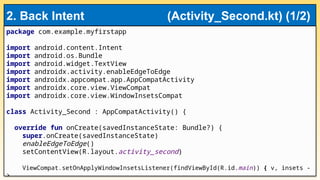
package com.example.myfirstapp
import android.content.Intent
import android.os.Bundle
import android.widget.TextView
import androidx.activity.enableEdgeToEdge
import androidx.appcompat.app.AppCompatActivity
import androidx.core.view.ViewCompat
import androidx.core.view.WindowInsetsCompat
class Activity_Second : AppCompatActivity() {
override fun onCreate(savedInstanceState: Bundle?) {
super.onCreate(savedInstanceState)
enableEdgeToEdge()
setContentView(R.layout.activity_second)
ViewCompat.setOnApplyWindowInsetsListener(findViewById(R.id.main)) { v, insets -
>
2. Back Intent (Activity_Second.kt) (1/2)
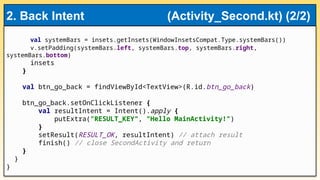
val systemBars = insets.getInsets(WindowInsetsCompat.Type.systemBars())
v.setPadding(systemBars.left, systemBars.top, systemBars.right,
systemBars.bottom)
insets
}
val btn_go_back = findViewById<TextView>(R.id.btn_go_back)
btn_go_back.setOnClickListener {
val resultIntent = Intent().apply {
putExtra("RESULT_KEY", "Hello MainActivity!")
}
setResult(RESULT_OK, resultIntent) // attach result
finish() // close SecondActivity and return
}
}
}
2. Back Intent (Activity_Second.kt) (2/2)
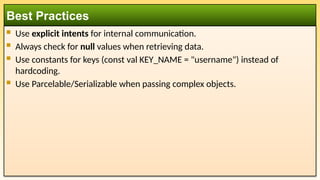
 Use explicit intents for internal communication.
 Always check for null values when retrieving data.
 Use constants for keys (const val KEY_NAME = "username") instead of
hardcoding.
 Use Parcelable/Serializable when passing complex objects.
Best Practices

Week 06 - Using Explicit Intents in Android.pptx