17:00
Saturday, September 28
5:00 PM
9/28/2024
Group 2
Login
5:00 PM
9/28/2024
Charity Ligero
next
a
Johaina Racman
5:00 PM
9/28/2024
Charity Ligero
next
a
Johaina Racman
x
Marra Manansala
5:00 PM
9/28/2024
next
Johaina Racman
x
Rosete, Mark Angelo
t
Marra Manansala
5:00 PM
9/28/2024
next
x
Marra Manansala
Rosete, Mark
Angelo
t
Ian Carl Avila
5:00 PM
9/28/2024
next
c
Mark Noel Maratas
Rosete, Mark
Angelo
t
Ian Carl Avila
5:00 PM
9/28/2024
next
c
Mark Noel Maratas
Ian Carl Avila
5:00 PM
9/28/2024
1
2
3
4
Android
Development
5:00 PM
9/28/2024
1
2
3
4
5:00 PM
9/28/2024
Introduction to
Android
Development
1
2
3
4
5:00 PM
9/28/2024
Android development
involves creating
applications for devices
running the Android
operating system. It is a
popular platform due to its
open-source nature and
wide user base.
1
2
3
4
5:00 PM
9/28/2024
- Founded by Andy, Rubin, Rich
Miner, Nick Sears, and Chris
White.
- The first Android Beta was
released in 2027
1
2
3
4
5:00 PM
9/28/2024
Integrated
Development
Environment (IDE):
1
2
3
4
5:00 PM
9/28/2024
An IDE is a software application
that provides comprehensive
facilities to computer
programmers for software
development. For Android
development, the official IDE is
*Android Studio.
1
2
3
4
5:00 PM
9/28/2024
Background
Information on IDE
1
2
3
4
5:00 PM
9/28/2024
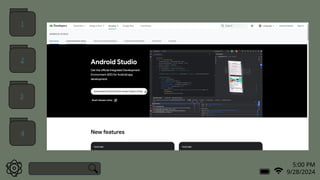
Android Studio, developed by
Google, is based on IntelliJ IDEA
and provides tools for building,
testing, and debugging Android
apps. It supports both Java and
Kotlin, with Kotlin being the
preferred language due to its
modern features and enhanced
safety.
1
2
3
4
5:00 PM
9/28/2024
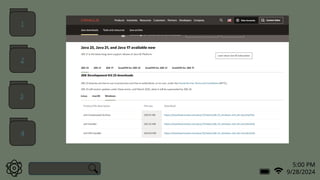
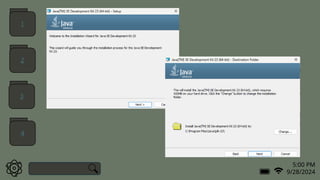
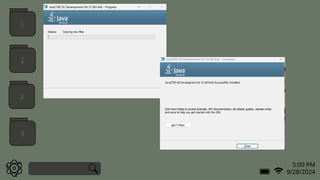
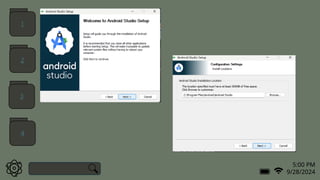
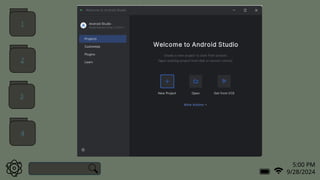
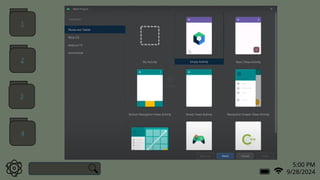
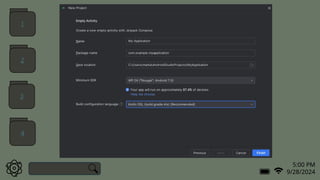
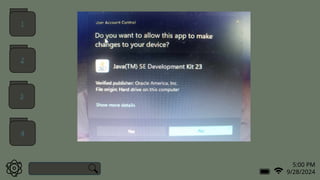
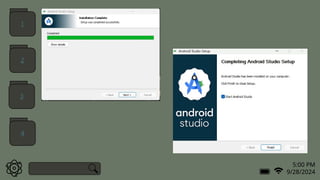
How to install
Android Studio?
1
2
3
4
5:00 PM
9/28/2024
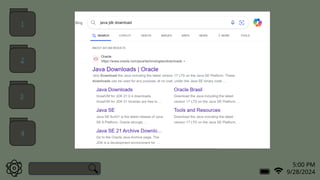
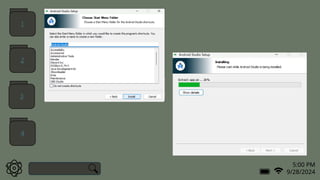
How to install
Android Studio?
1
2
3
4
5:00 PM
9/28/2024
1
2
3
4
5:00 PM
9/28/2024
1
2
3
4
5:00 PM
9/28/2024
1
2
3
4
5:00 PM
9/28/2024
1
2
3
4
5:00 PM
9/28/2024
1
2
3
4
5:00 PM
9/28/2024
1
2
3
4
5:00 PM
9/28/2024
1
2
3
4
5:00 PM
9/28/2024
1
2
3
4
5:00 PM
9/28/2024
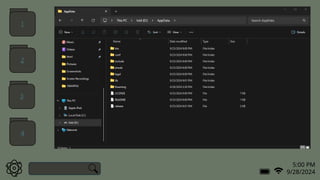
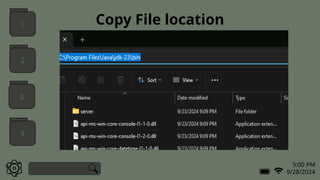
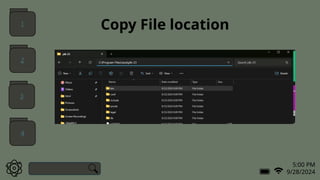
Copy File location
1
2
3
4
5:00 PM
9/28/2024
1
2
3
4
5:00 PM
9/28/2024
Copy File location
1
2
3
4
5:00 PM
9/28/2024
1
2
3
4
5:00 PM
9/28/2024
1
2
3
4
5:00 PM
9/28/2024
1
2
3
4
5:00 PM
9/28/2024
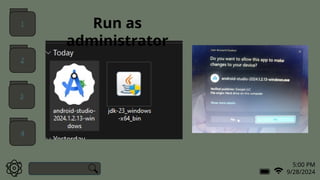
Run as
administrator
1
2
3
4
5:00 PM
9/28/2024
1
2
3
4
5:00 PM
9/28/2024
1
2
3
4
5:00 PM
9/28/2024
1
2
3
4
5:00 PM
9/28/2024
1
2
3
4
5:00 PM
9/28/2024
1
2
3
4
5:00 PM
9/28/2024
1
2
3
4
5:00 PM
9/28/2024
1
2
3
4
5:00 PM
9/28/2024
1
2
3
4
5:00 PM
9/28/2024
1
2
3
4
5:00 PM
9/28/2024
1
2
3
4
5:00 PM
9/28/2024
1
2
3
4
5:00 PM
9/28/2024
1
2
3
4
5:00 PM
9/28/202
Workspace
1
2
3
4
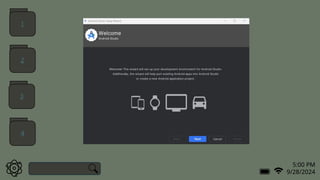
Welcome to Android
Studio
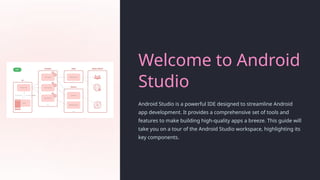
Android Studio is a powerful IDE designed to streamline Android
app development. It provides a comprehensive set of tools and
features to make building high-quality apps a breeze. This guide will
take you on a tour of the Android Studio workspace, highlighting its
key components.
The Android Studio
Workspace
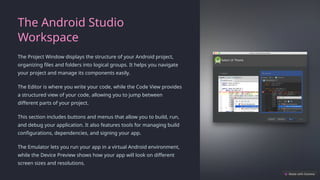
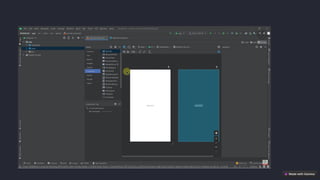
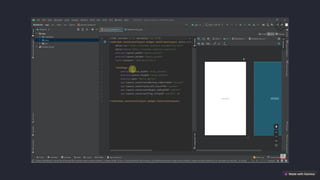
The Project Window displays the structure of your Android project,
organizing files and folders into logical groups. It helps you navigate
your project and manage its components easily.
The Editor is where you write your code, while the Code View provides
a structured view of your code, allowing you to jump between
different parts of your project.
This section includes buttons and menus that allow you to build, run,
and debug your application. It also features tools for managing build
configurations, dependencies, and signing your app.
The Emulator lets you run your app in a virtual Android environment,
while the Device Preview shows how your app will look on different
screen sizes and resolutions.
The Editor and Code View
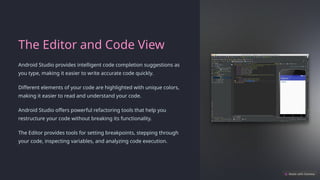
Android Studio provides intelligent code completion suggestions as
you type, making it easier to write accurate code quickly.
Different elements of your code are highlighted with unique colors,
making it easier to read and understand your code.
Android Studio offers powerful refactoring tools that help you
restructure your code without breaking its functionality.
The Editor provides tools for setting breakpoints, stepping through
your code, inspecting variables, and analyzing code execution.
The Emulator and Device
Preview
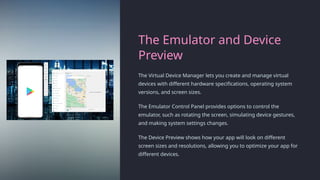
The Virtual Device Manager lets you create and manage virtual
devices with different hardware specifications, operating system
versions, and screen sizes.
The Emulator Control Panel provides options to control the
emulator, such as rotating the screen, simulating device gestures,
and making system settings changes.
The Device Preview shows how your app will look on different
screen sizes and resolutions, allowing you to optimize your app for
different devices.
The Build and Run Tools
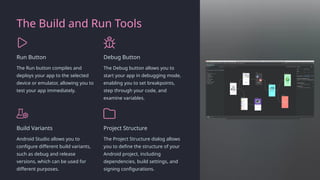
Run Button
The Run button compiles and
deploys your app to the selected
device or emulator, allowing you to
test your app immediately.
Debug Button
The Debug button allows you to
start your app in debugging mode,
enabling you to set breakpoints,
step through your code, and
examine variables.
Build Variants
Android Studio allows you to
configure different build variants,
such as debug and release
versions, which can be used for
different purposes.
Project Structure
The Project Structure dialog allows
you to define the structure of your
Android project, including
dependencies, build settings, and
signing configurations.
The Debugging and Profiling
Utilities
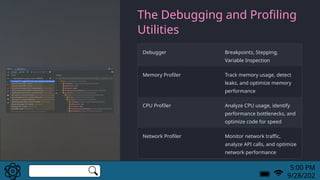
Debugger Breakpoints, Stepping,
Variable Inspection
Memory Profiler Track memory usage, detect
leaks, and optimize memory
performance
CPU Profiler Analyze CPU usage, identify
performance bottlenecks, and
optimize code for speed
Network Profiler Monitor network traffic,
analyze API calls, and optimize
network performance
5:00 PM
9/28/202
The Debugging and Profiling
Utilities
Debugger Breakpoints, Stepping,
Variable Inspection
Memory Profiler Track memory usage, detect
leaks, and optimize memory
performance
CPU Profiler Analyze CPU usage, identify
performance bottlenecks, and
optimize code for speed
Network Profiler Monitor network traffic,
analyze API calls, and optimize
network performance
5:00 PM
9/28/202
Lock
Restart
Shutdown
Thank
you!!

Android-studio-reporting ntrue.pptx.....