Week 09 - Using Media Player to Play mp3 files.pptx
1.
International Islamic UniversityH-10, Islamabad, Pakistan
Mobile Applications Development
Week 09
Using MediaPlayer
in Android
Engr. Rashid Farid Chishti
http://youtube.com/rfchishti
http://sites.google.com/site/chisht
i
2.
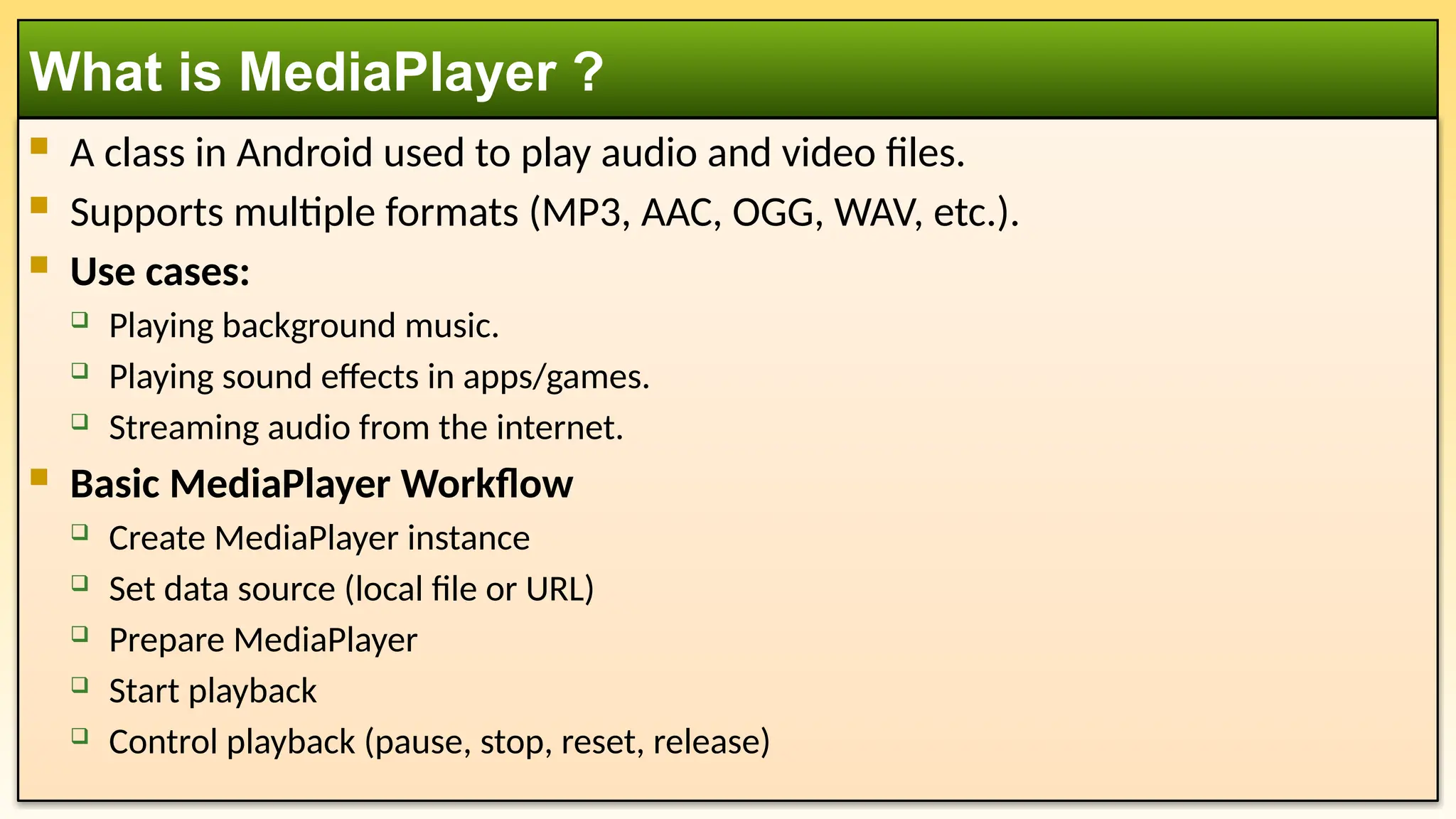
A classin Android used to play audio and video files.
Supports multiple formats (MP3, AAC, OGG, WAV, etc.).
Use cases:
Playing background music.
Playing sound effects in apps/games.
Streaming audio from the internet.
Basic MediaPlayer Workflow
Create MediaPlayer instance
Set data source (local file or URL)
Prepare MediaPlayer
Start playback
Control playback (pause, stop, reset, release)
What is MediaPlayer ?
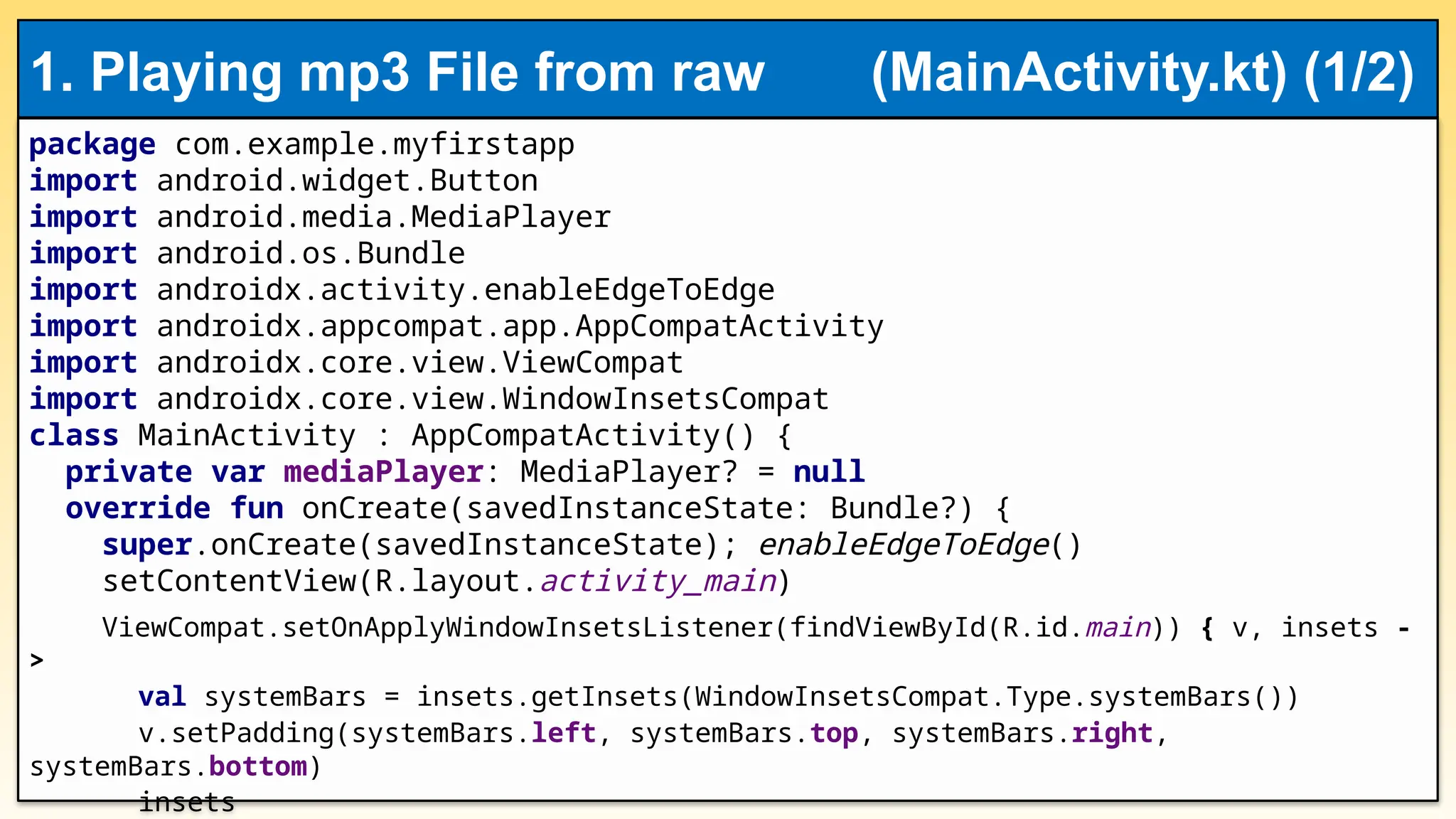
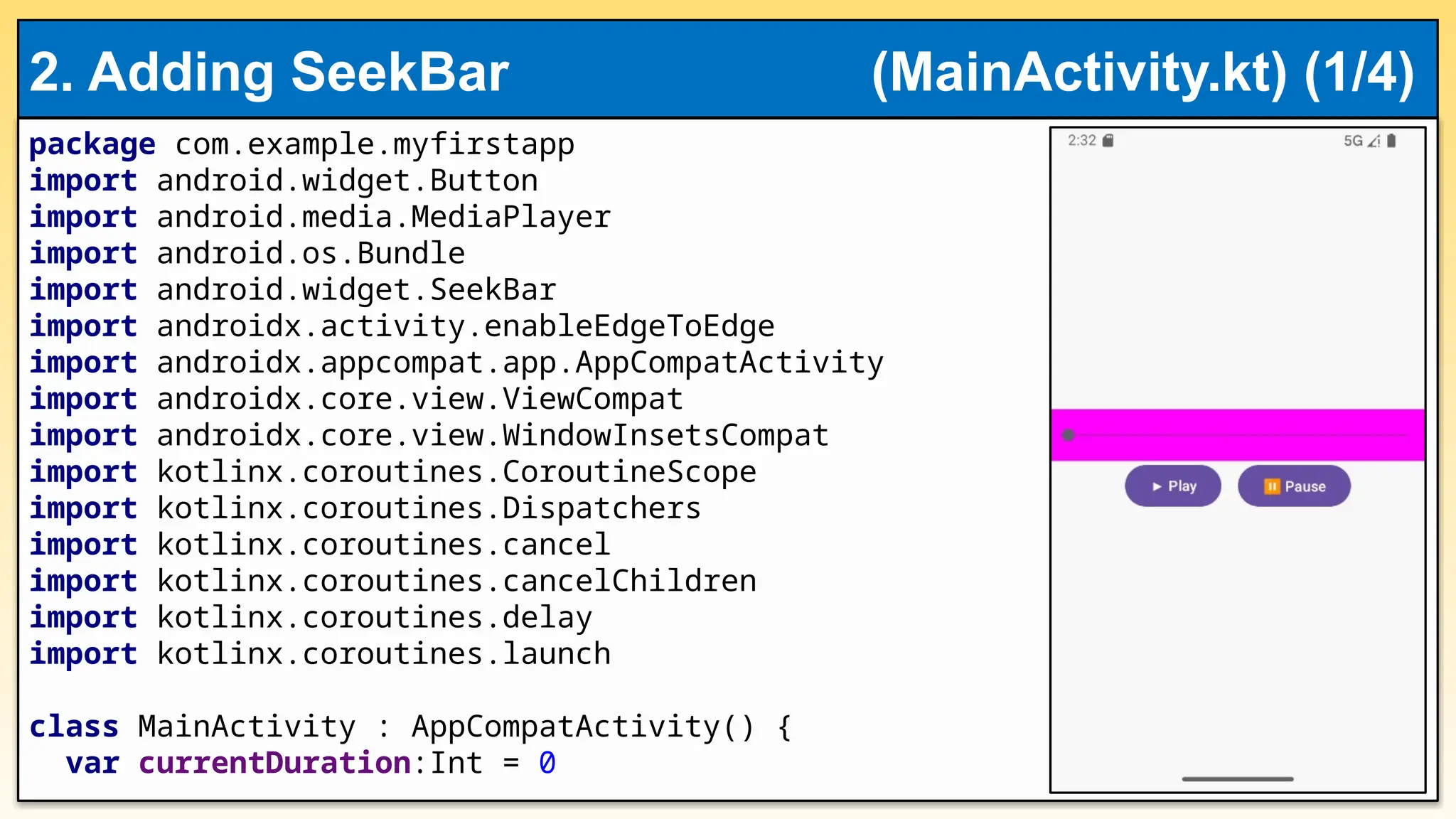
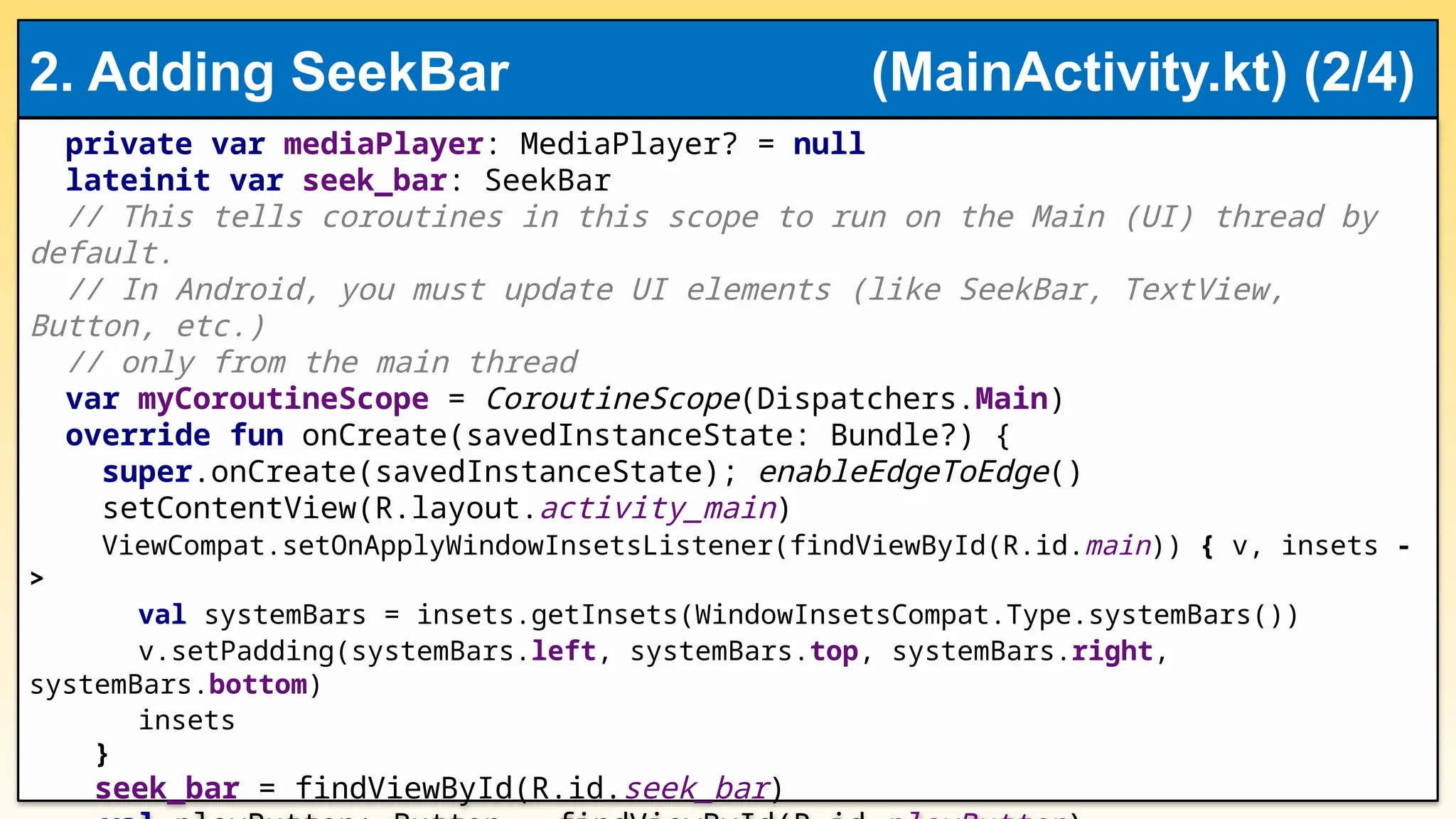
private var mediaPlayer:MediaPlayer? = null
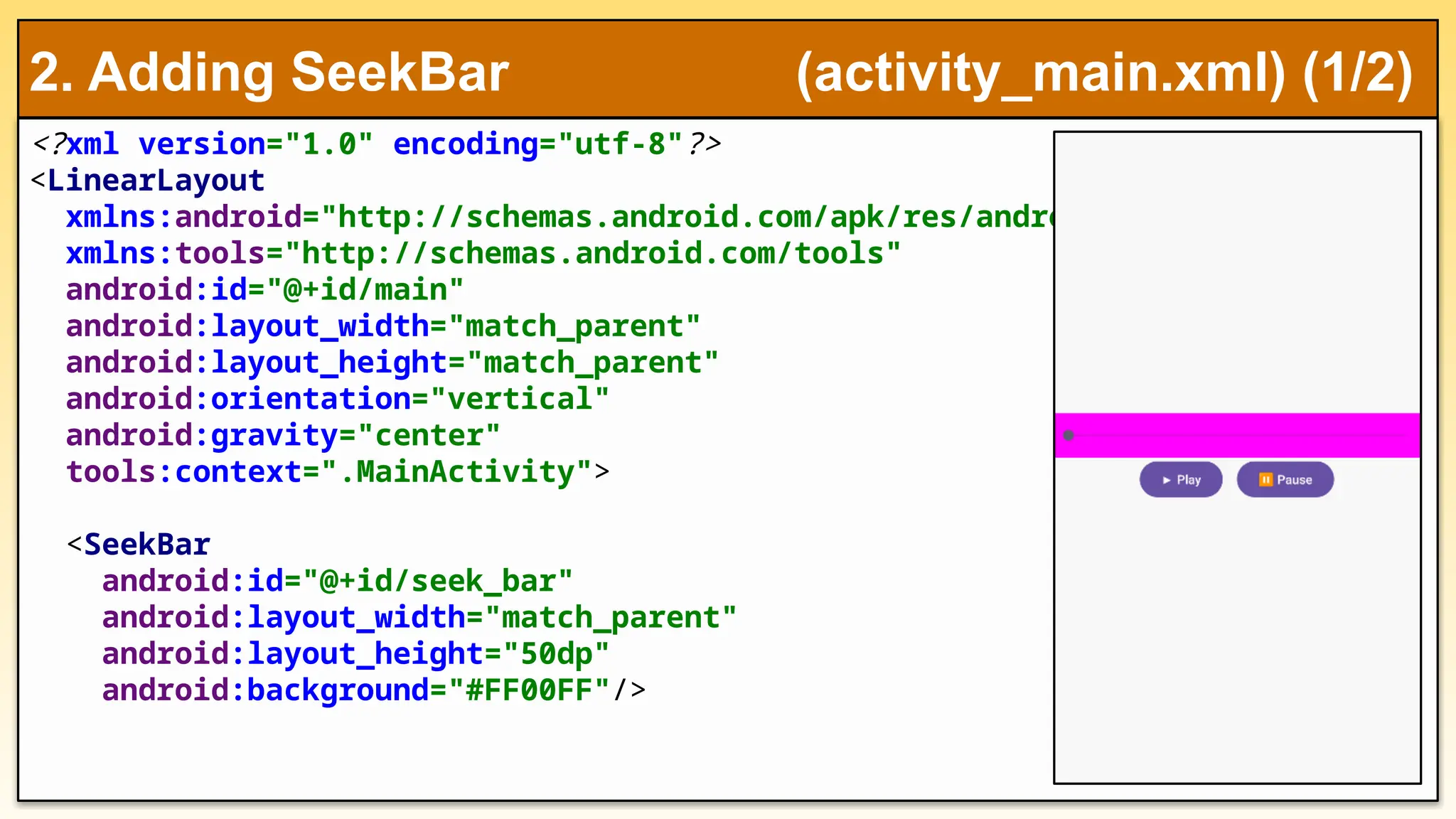
lateinit var seek_bar: SeekBar
// This tells coroutines in this scope to run on the Main (UI) thread by
default.
// In Android, you must update UI elements (like SeekBar, TextView,
Button, etc.)
// only from the main thread
var myCoroutineScope = CoroutineScope(Dispatchers.Main)
override fun onCreate(savedInstanceState: Bundle?) {
super.onCreate(savedInstanceState); enableEdgeToEdge()
setContentView(R.layout.activity_main)
ViewCompat.setOnApplyWindowInsetsListener(findViewById(R.id.main)) { v, insets -
>
val systemBars = insets.getInsets(WindowInsetsCompat.Type.systemBars())
v.setPadding(systemBars.left, systemBars.top, systemBars.right,
systemBars.bottom)
insets
}
seek_bar = findViewById(R.id.seek_bar)
2. Adding SeekBar (MainActivity.kt) (2/4)
12.
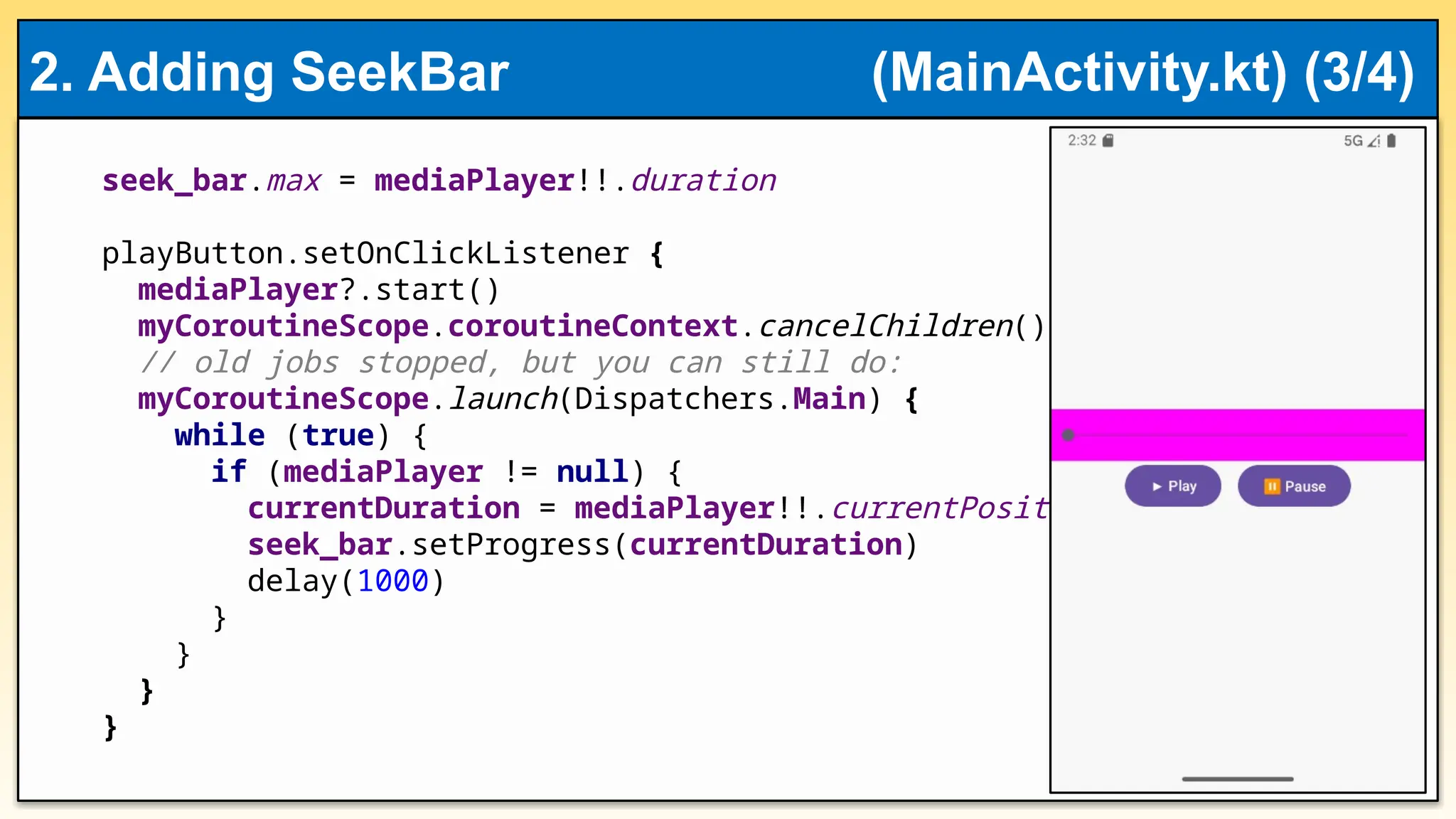
seek_bar.max = mediaPlayer!!.duration
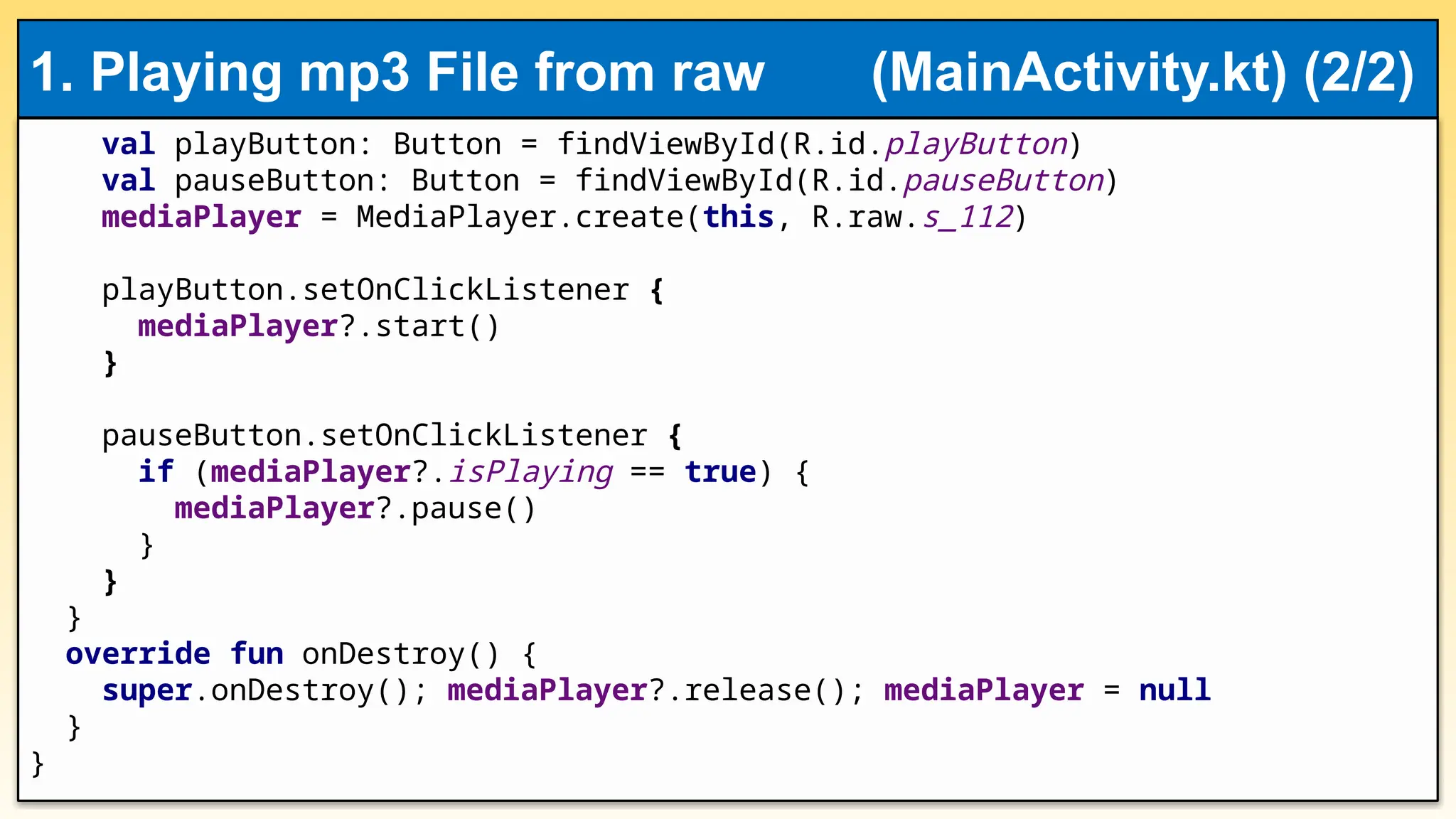
playButton.setOnClickListener{
mediaPlayer?.start()
myCoroutineScope.coroutineContext.cancelChildren()
// old jobs stopped, but you can still do:
myCoroutineScope.launch(Dispatchers.Main) {
while (true) {
if (mediaPlayer != null) {
currentDuration = mediaPlayer!!.currentPosition
seek_bar.setProgress(currentDuration)
delay(1000)
}
}
}
}
2. Adding SeekBar (MainActivity.kt) (3/4)
13.
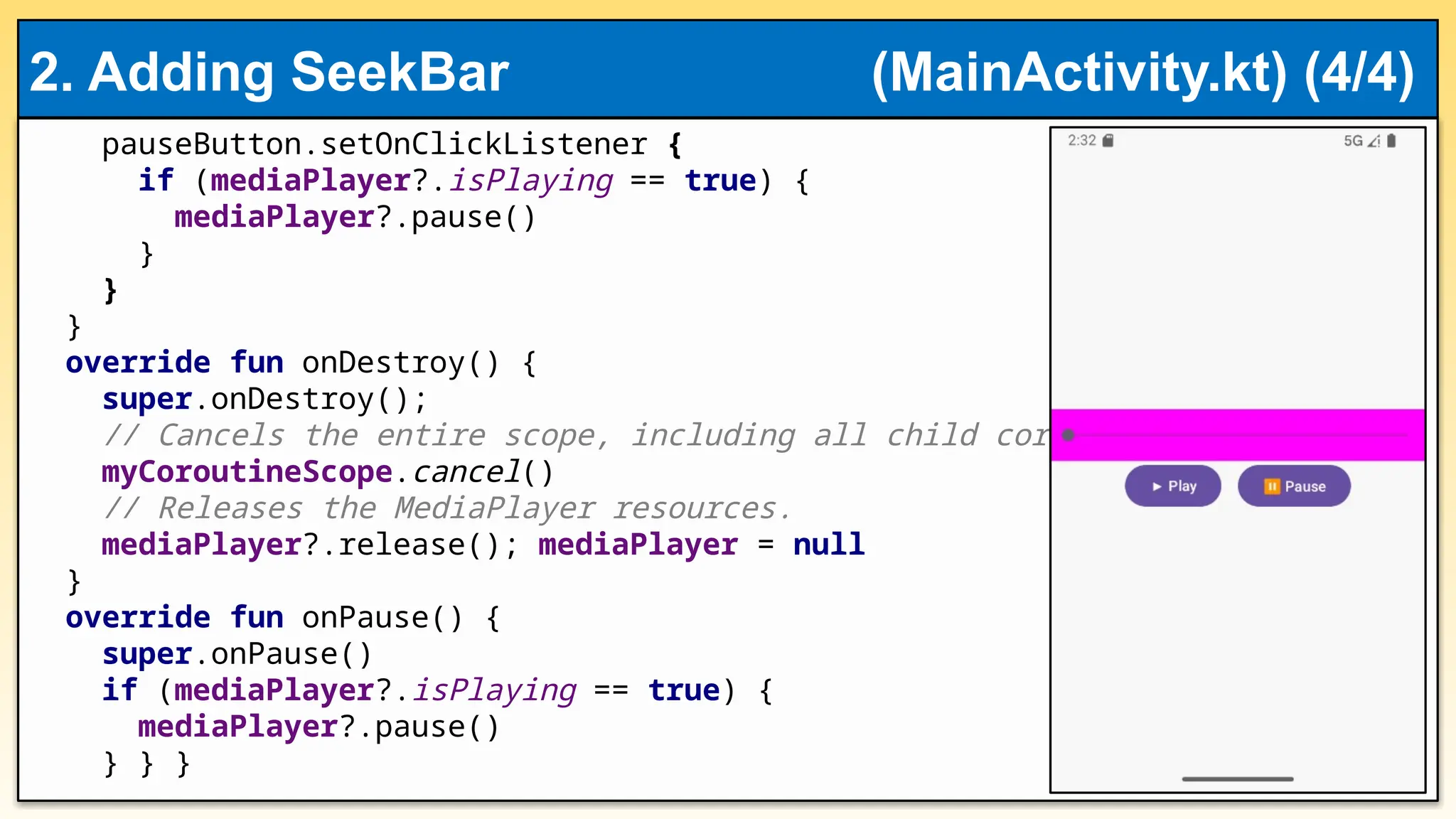
pauseButton.setOnClickListener {
if (mediaPlayer?.isPlaying== true) {
mediaPlayer?.pause()
}
}
}
override fun onDestroy() {
super.onDestroy();
// Cancels the entire scope, including all child coroutines.
myCoroutineScope.cancel()
// Releases the MediaPlayer resources.
mediaPlayer?.release(); mediaPlayer = null
}
override fun onPause() {
super.onPause()
if (mediaPlayer?.isPlaying == true) {
mediaPlayer?.pause()
} } }
2. Adding SeekBar (MainActivity.kt) (4/4)
14.
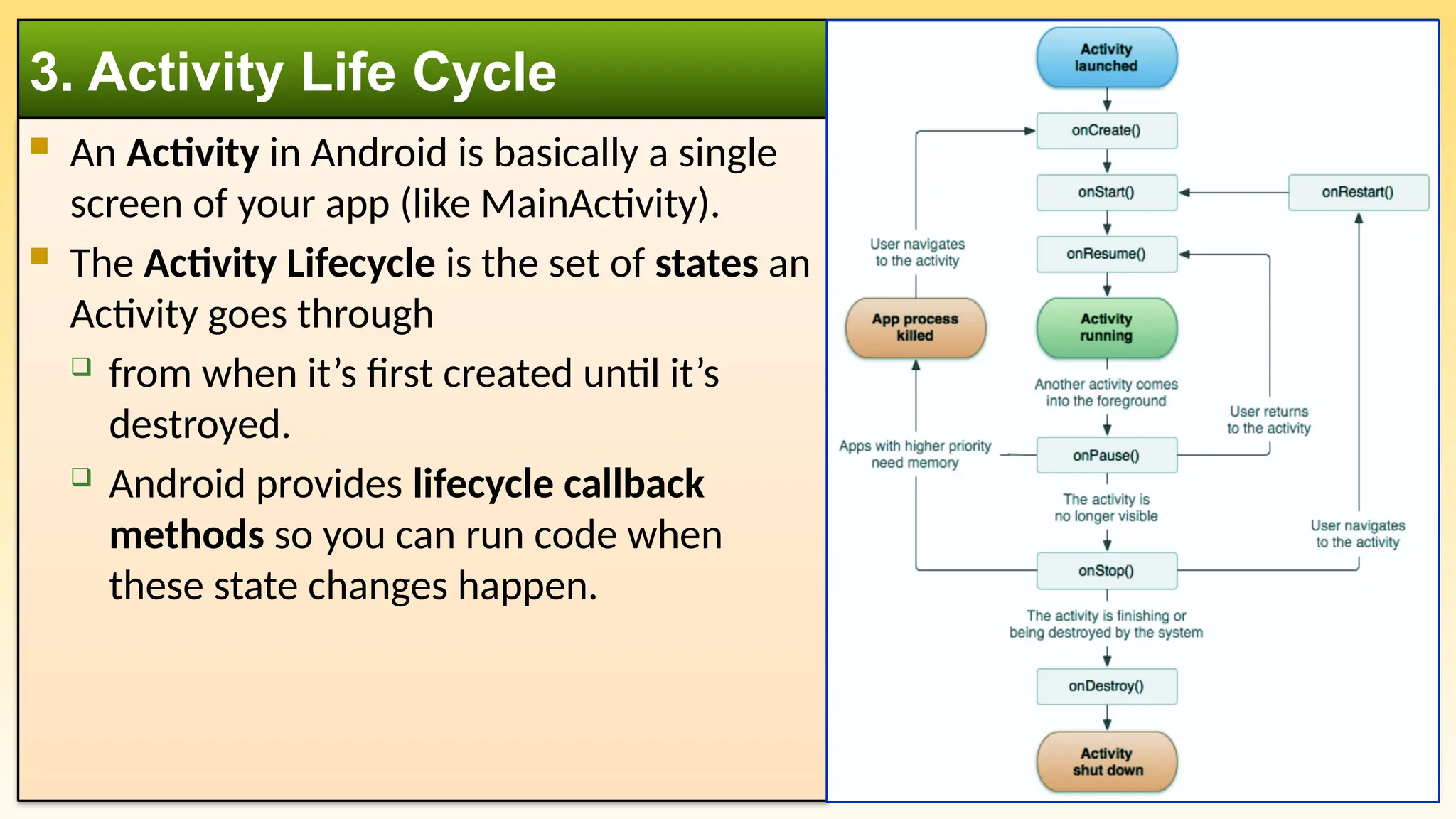
An Activityin Android is basically a single
screen of your app (like MainActivity).
The Activity Lifecycle is the set of states an
Activity goes through
from when it’s first created until it’s
destroyed.
Android provides lifecycle callback
methods so you can run code when
these state changes happen.
3. Activity Life Cycle
15.
onCreate()
Calledonce when the activity is created. Used for initialization (UI setup,
listeners, variables).
onStart()
Called when the activity becomes visible to the user but not yet interactive.
onResume()
Called when the activity is visible and interactive (user can see and
interact).
onPause()
Called when the activity is partially hidden (e.g., another activity appears on
top). Activity is still alive but not in the foreground.
3. Key Lifecycles Methods
16.
onStop()
Calledwhen the activity is no longer visible to the user.
onRestart()
Called before onStart() when the activity is being restarted after being
stopped
onDestroy()
Called before the activity is destroyed (when the app is closed or system
kills it).
The lifecycle makes sure your app behaves properly when users
switch between apps, rotate the screen, or lock/unlock the phone.
3. Key Lifecycle Methods
17.
MediaPlayer holdssystem resources (audio, video decoders).
Not releasing it can cause your app (or others) to fail to play audio.
Call mediaPlayer?.release() when the Activity/Fragment is destroyed.
Reuse a single MediaPlayer object instead of creating new ones unnecessarily.
If you need to play a new file, call: mediaPlayer?.reset();
mediaPlayer?.setDataSource("new_file_path"); mediaPlayer?.prepare()
Handle Activity Lifecycle
onPause() → pause playback if user leaves screen.
onResume() → resume if appropriate.
onStop() → release heavy resources if app is not visible
For streaming, playlists, buffering, or advanced controls, use ExoPlayer
Best Practices