International Islamic UniversityH-10, Islamabad, Pakistan
Mobile Applications Development
Week 08
Using Notifications
in Android
Engr. Rashid Farid Chishti
http://youtube.com/rfchishti
http://sites.google.com/site/chisht
i
2.
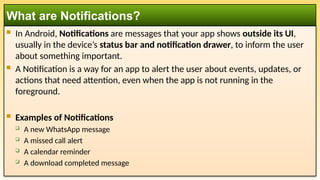
In Android,Notifications are messages that your app shows outside its UI,
usually in the device’s status bar and notification drawer, to inform the user
about something important.
A Notification is a way for an app to alert the user about events, updates, or
actions that need attention, even when the app is not running in the
foreground.
Examples of Notifications
A new WhatsApp message
A missed call alert
A calendar reminder
A download completed message
What are Notifications?
3.
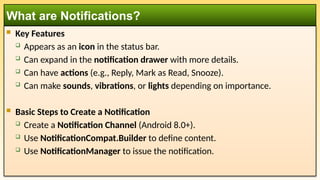
Key Features
Appears as an icon in the status bar.
Can expand in the notification drawer with more details.
Can have actions (e.g., Reply, Mark as Read, Snooze).
Can make sounds, vibrations, or lights depending on importance.
Basic Steps to Create a Notification
Create a Notification Channel (Android 8.0+).
Use NotificationCompat.Builder to define content.
Use NotificationManager to issue the notification.
What are Notifications?
4.
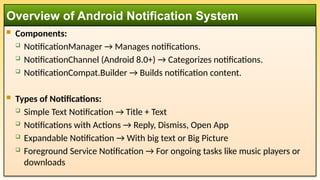
Components:
NotificationManager→ Manages notifications.
NotificationChannel (Android 8.0+) → Categorizes notifications.
NotificationCompat.Builder → Builds notification content.
Types of Notifications:
Simple Text Notification → Title + Text
Notifications with Actions → Reply, Dismiss, Open App
Expandable Notification → With big text or Big Picture
Foreground Service Notification → For ongoing tasks like music players or
downloads
Overview of Android Notification System
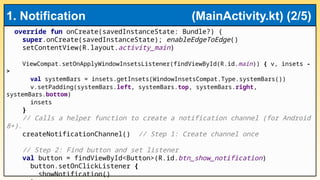
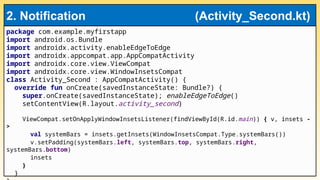
override fun onCreate(savedInstanceState:Bundle?) {
super.onCreate(savedInstanceState); enableEdgeToEdge()
setContentView(R.layout.activity_main)
ViewCompat.setOnApplyWindowInsetsListener(findViewById(R.id.main)) { v, insets -
>
val systemBars = insets.getInsets(WindowInsetsCompat.Type.systemBars())
v.setPadding(systemBars.left, systemBars.top, systemBars.right,
systemBars.bottom)
insets
}
// Calls a helper function to create a notification channel (for Android
8+).
createNotificationChannel() // Step 1: Create channel once
// Step 2: Find button and set listener
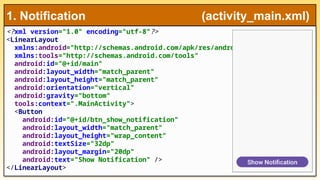
val button = findViewById<Button>(R.id.btn_show_notification)
button.setOnClickListener {
showNotification()
1. Notification (MainActivity.kt) (2/5)
10.
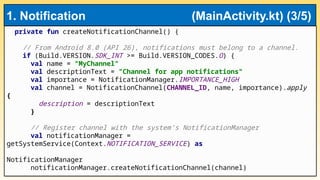
private fun createNotificationChannel(){
// From Android 8.0 (API 26), notifications must belong to a channel.
if (Build.VERSION.SDK_INT >= Build.VERSION_CODES.O) {
val name = "MyChannel"
val descriptionText = "Channel for app notifications"
val importance = NotificationManager.IMPORTANCE_HIGH
val channel = NotificationChannel(CHANNEL_ID, name, importance).apply
{
description = descriptionText
}
// Register channel with the system’s NotificationManager
val notificationManager =
getSystemService(Context.NOTIFICATION_SERVICE) as
NotificationManager
notificationManager.createNotificationChannel(channel)
1. Notification (MainActivity.kt) (3/5)
11.
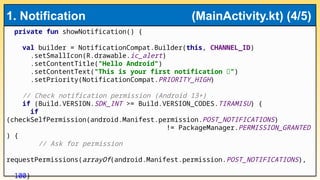
private fun showNotification(){
val builder = NotificationCompat.Builder(this, CHANNEL_ID)
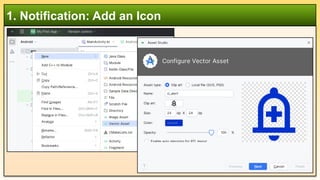
.setSmallIcon(R.drawable.ic_alert)
.setContentTitle("Hello Android")
.setContentText("This is your first notification 🚀")
.setPriority(NotificationCompat.PRIORITY_HIGH)
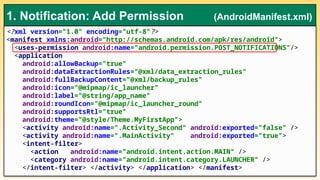
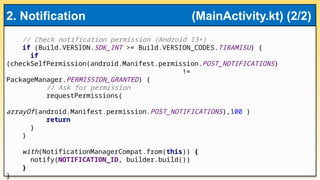
// Check notification permission (Android 13+)
if (Build.VERSION.SDK_INT >= Build.VERSION_CODES.TIRAMISU) {
if
(checkSelfPermission(android.Manifest.permission.POST_NOTIFICATIONS)
!= PackageManager.PERMISSION_GRANTED
) {
// Ask for permission
requestPermissions(arrayOf(android.Manifest.permission.POST_NOTIFICATIONS),
100)
1. Notification (MainActivity.kt) (4/5)
12.
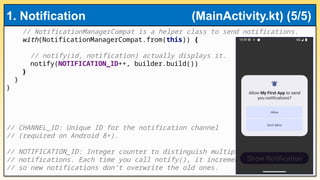
// NotificationManagerCompat isa helper class to send notifications.
with(NotificationManagerCompat.from(this)) {
// notify(id, notification) actually displays it.
notify(NOTIFICATION_ID++, builder.build())
}
}
}
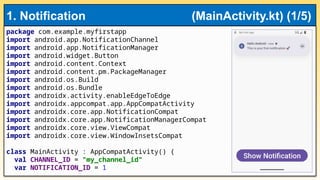
// CHANNEL_ID: Unique ID for the notification channel
// (required on Android 8+).
// NOTIFICATION_ID: Integer counter to distinguish multiple
// notifications. Each time you call notify(), it increments
// so new notifications don’t overwrite the old ones.
1. Notification (MainActivity.kt) (5/5)
13.
Let’s extendthe example so that when the user taps the notification, it will
open your app (or a different activity inside your app).
2. Adding Actions to Notifications
14.
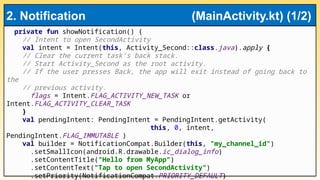
private fun showNotification(){
// Intent to open SecondActivity
val intent = Intent(this, Activity_Second::class.java).apply {
// Clear the current task’s back stack.
// Start Activity_Second as the root activity.
// If the user presses Back, the app will exit instead of going back to
the
// previous activity.
flags = Intent.FLAG_ACTIVITY_NEW_TASK or
Intent.FLAG_ACTIVITY_CLEAR_TASK
}
val pendingIntent: PendingIntent = PendingIntent.getActivity(
this, 0, intent,
PendingIntent.FLAG_IMMUTABLE )
val builder = NotificationCompat.Builder(this, "my_channel_id")
.setSmallIcon(android.R.drawable.ic_dialog_info)
.setContentTitle("Hello from MyApp")
.setContentText("Tap to open SecondActivity")
.setPriority(NotificationCompat.PRIORITY_DEFAULT)
2. Notification (MainActivity.kt) (1/2)
Always createchannels for better user control.
Use priority levels appropriately.
Avoid spamming users.
Use expandable notifications for more details.
Support notification actions for quick tasks.
Best Practices
19.
User receivesa new message.
Notification shows sender name + preview text.
Action buttons: Reply and Mark as Read.
On tap → opens chat screen.
Practical Example – Chat App Notification