Reviewing Screen-based Content Rhonda Bracey [email_address] http://www.cybertext.com.au
In this session, I'll… Summarise some elements you should check in: Web content Online animations/tutorials Software application interfaces AND Demonstrate some tools and techniques to: Help you with your reviewing, and  Automate some of these processes.
Screen Content Critical difference to paper : Most screen content: Has few contextual clues Is viewed independently of surrounding content Result : Logical navigational structures are necessary to guide the user and give them a 'sense of place' in the content. User goal : " Don't make me think! "  (Steve Krug)
Screen Content Elements Editorial  text, grammar,   punctuation, technical meaning… Visual layout, design, colours, images, fonts, dynamic elements… Interactive hyperlinks, forms, files, animations, streaming media… Accessible universal design, browser compatibility, download time, language level… Elements you should consider… Based on content wheel from: http://conttext.com/topics.html#comparison
Brief/Scope Know what you’re checking for… and why Don’t be tempted to go beyond scope
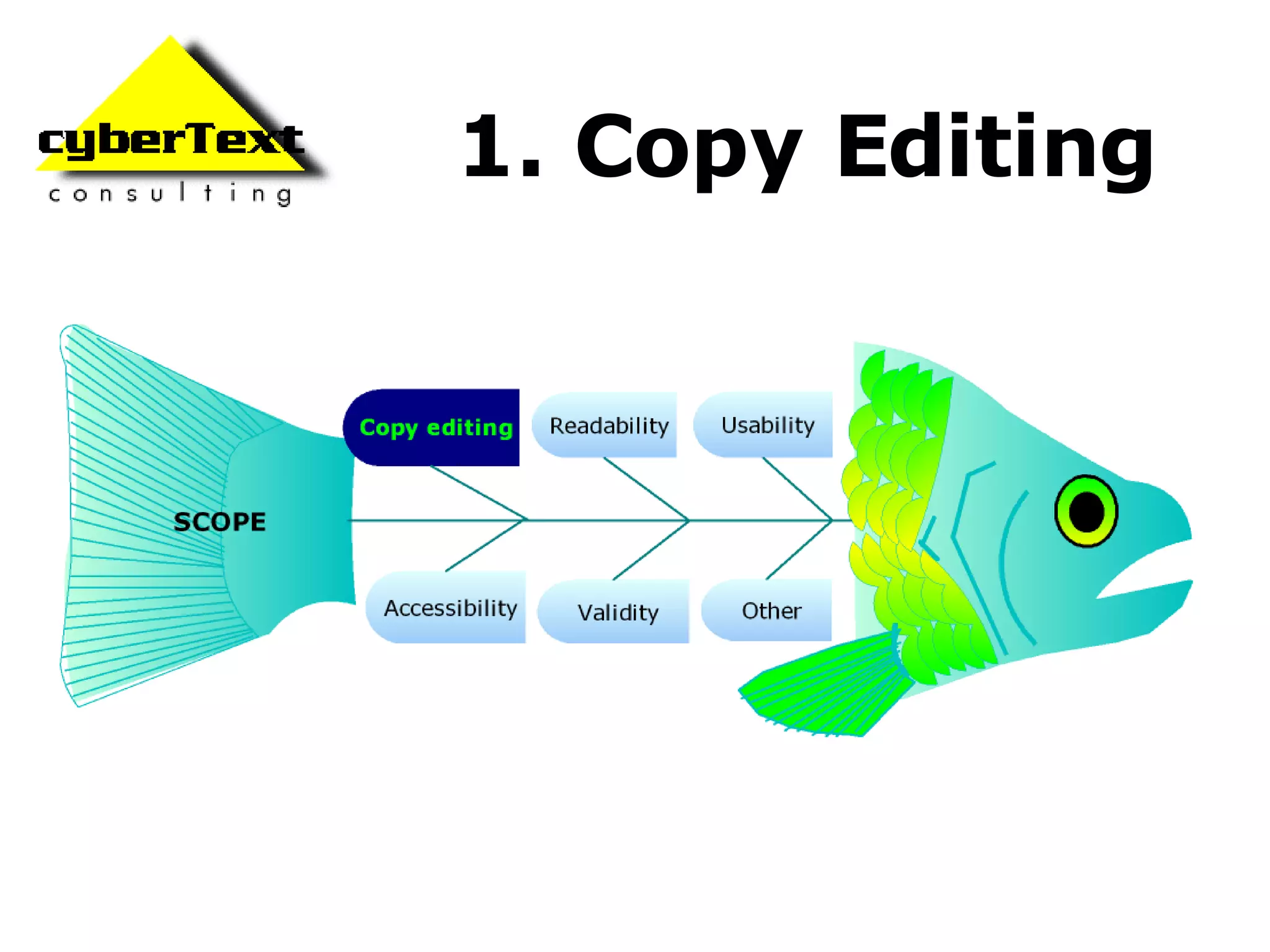
1. Copy Editing
General Text Misspellings and typos Punctuation and capitalisation Grammatical errors Language used – e.g. Australian/US/UK English Familiar text used for common commands, actions, functions Parallel structure Tense Person  Voice
Label Text Check:  Menus Tooltips Field labels Grouping boxes Reference : Official Guidelines for User Interface Developers and Designers : http://msdn.microsoft.com/library/default.asp?url=/library/en-us/ dnwue/html/ch14d.asp Tabs Title bars Command buttons/icons Error messages
Headings TOC, Index, and topic headings: Parallel structure Logical hierarchy Watch out for: "How to...", "To..." headings Wording for overview topics
2. Readability
Readability  Writing style: Clear Simple Suitable for audience Test against common readability algorithms: Flesch Reading Ease  Flesch-Kincaid grade level Gunning-Fog Index  Web page readability tester  (free): http://juicystudio.com/ services/readability.php StyleWriter : Analyses writing style and Plain English in Word documents
Fonts Families Serif v. sans serif Limited quantity used Sizes Relative or absolute Resizable Case Upper, mixed, lower References to some  font studies  available from: http://www.cybertext.com.au/ services_edit.htm  and conference CD Decoration Underlining, bold, italic Colour
Display Browser differences Resize browser window Display in various browsers Apply own CSS and other window settings Monitor resolution Wide-screen PDA AODC website displayed with 'small screen rendering'
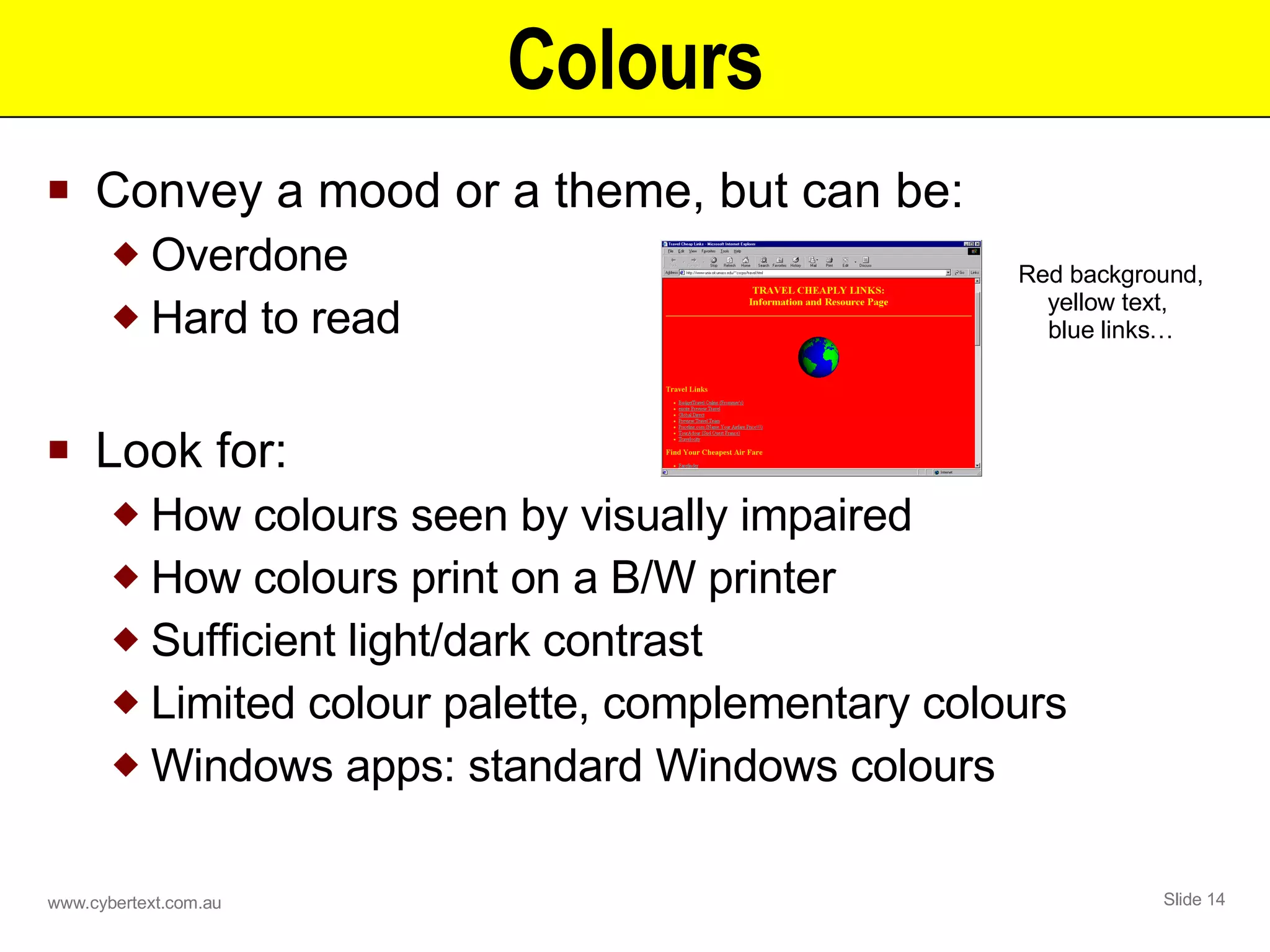
Colours Convey a mood or a theme, but can be: Overdone Hard to read Look for: How colours seen by visually impaired How colours print on a B/W printer Sufficient light/dark contrast Limited colour palette, complementary colours Windows apps: standard Windows colours Red background, yellow text,  blue links…
Graphics  Look for: Broken images  Jaggy rendering Distorted resizing Transparency that isn't Graphics/Flash used as text substitute Familiar icons for common commands, actions, functions Web graphics file types : GIF (256 colours) PNG (16m colours) JPG (16m colours; photos only) SVG (16m colours; minimal use to date)
3. Usability
Structure Overall structure Diagram or sitemap Physical layout  Tables CSS Frames Visual layout Too many, too few elements Graphical display of web page structure  (free): http://www.ilovejackdaniels.com/ resources/view-page-structure/
Pages and Forms Alignment, spacing of fields and content blocks Placement of fields and content blocks: Workflow Logical flow of elements – top-bottom, left-right TAB through fields Keyboard accessibility (hot keys) Other Do forms work?  Does  Search  give you the results you expect?
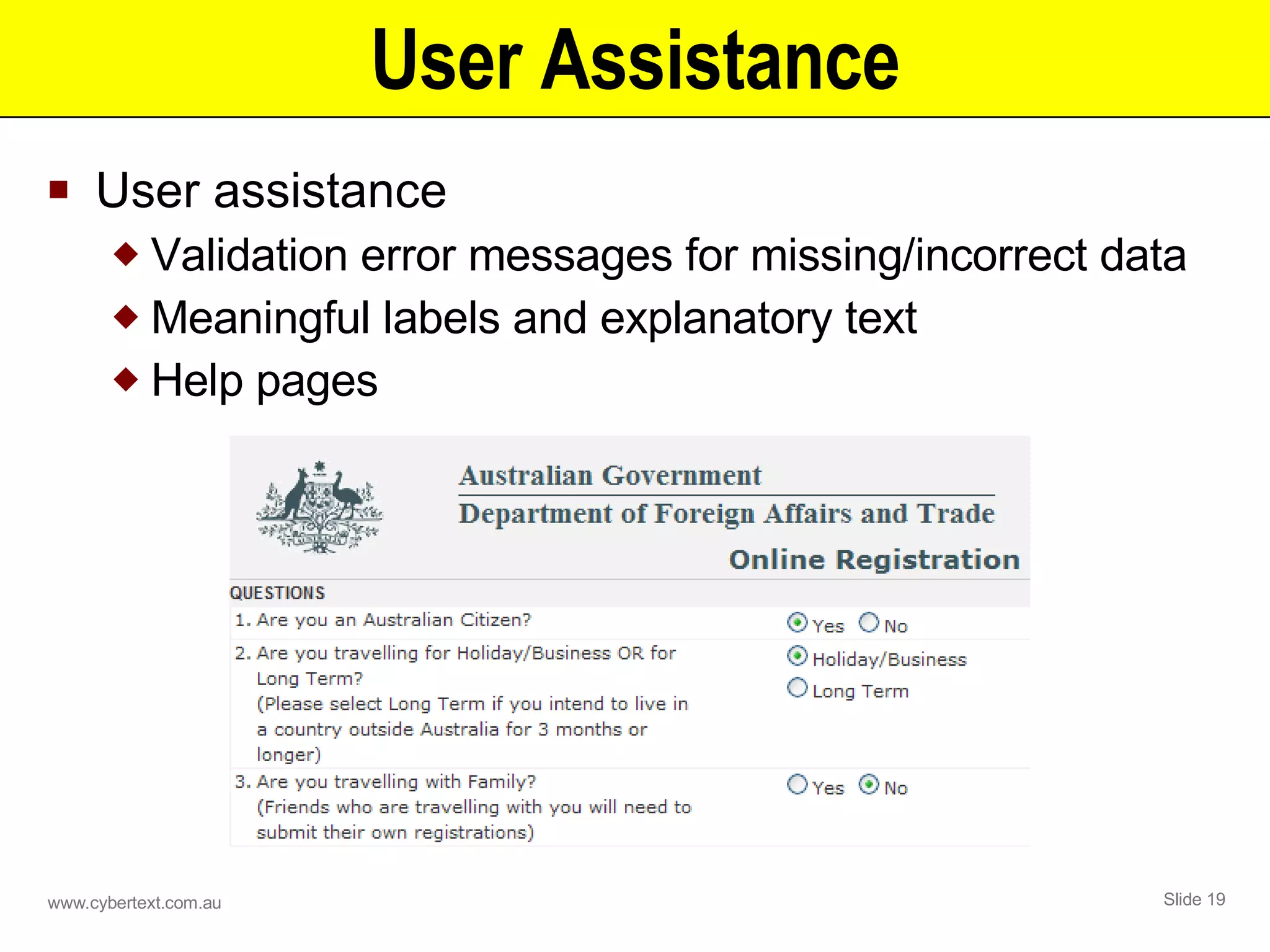
User Assistance User assistance Validation error messages for missing/incorrect data Meaningful labels and explanatory text Help pages
Printing Test print in colour AND black & white Check for: Missing or cut off content (e.g. tables) How backgrounds, graphics, and colours print How framed content prints
4. Accessibility
Accessibility issues Visual impairment, such as: Colour blindness Glaucoma, cataracts, macular degeneration etc. Blindness Motor impairment – may require: Voice activation Keyboard AND mouse alternatives
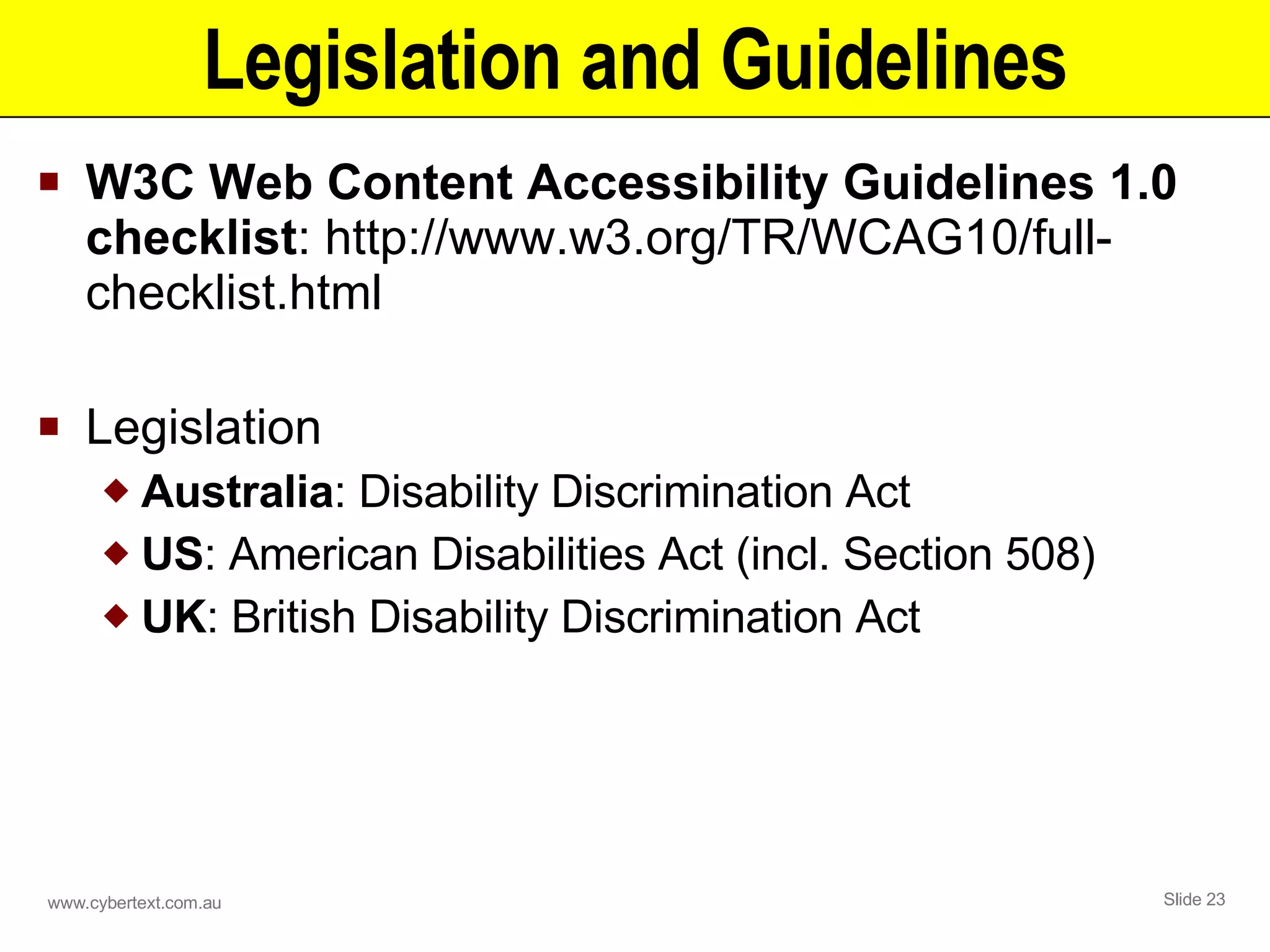
Legislation and Guidelines W3C Web Content Accessibility Guidelines 1.0 checklist : http://www.w3.org/TR/WCAG10/full-checklist.html Legislation Australia : Disability Discrimination Act US : American Disabilities Act (incl. Section 508) UK : British Disability Discrimination Act
Free Web Accessibility Tools VisCheck : http://www.vischeck.com/vischeck/ AIS Web Accessibility Toolbar  (IE only): http://www.visionaustralia.org.au/info.aspx? page=614 Web Developer Extension  (Firefox only): http://chrispederick.com/work/webdeveloper/
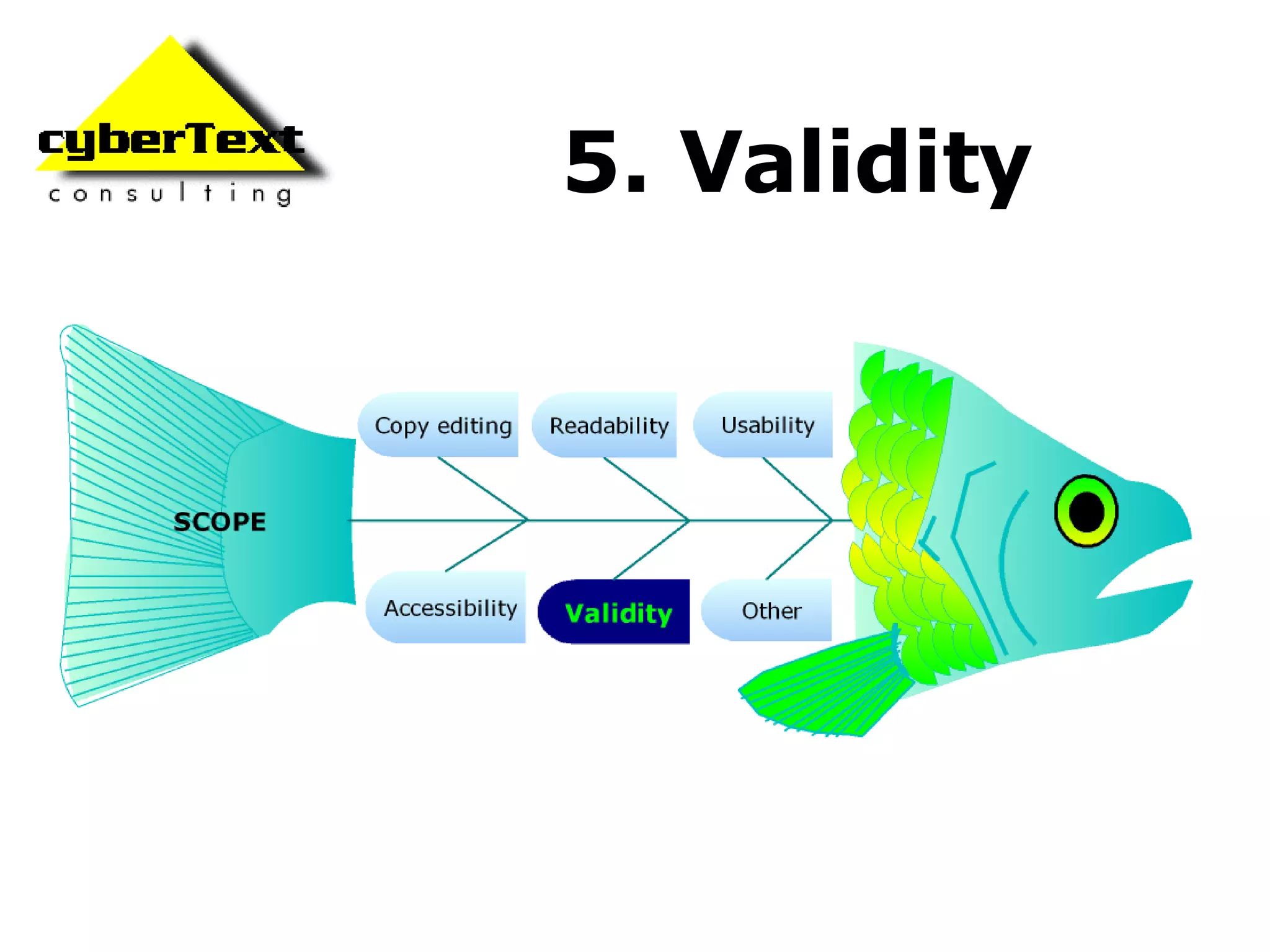
5. Validity
HTML code Correct  DOCTYPE  used Valid code used for that  DOCTYPE  (no deprecated tags) Valid syntax used for tags such as  <style>  and  <script> Images have  <alt>  attributes W3C validators  (free): HTML : http://validator.w3.org/ CSS : http://jigsaw.w3.org/ css-validator/
Links: Navigation Menus, sub-menus, sidebars Headers, footers Breadcrumbs Back to top Next/previous browse sequences Related topics/sites Popups Show/hide topics TOC, index, search Sections on same page Other pages - same site External URLs, files, email addresses Image maps Look for consistent link mechanisms
Free Link Checkers W3C Link Checker : http://validator.w3.org/checklink XENU Link Sleuth : http://home.snafu.de/tilman/xenulink.html
6. Other
Animated Demos (1) Timing is critical: Text, voice, action - must 'gel' Too fast/slow? Look for: Smooth mouse movements / transitions Consistent screen sizes Consistent and appropriate fade in/out Controls to pause, restart, skip, etc. Intro and concluding slides Duration, sound, size
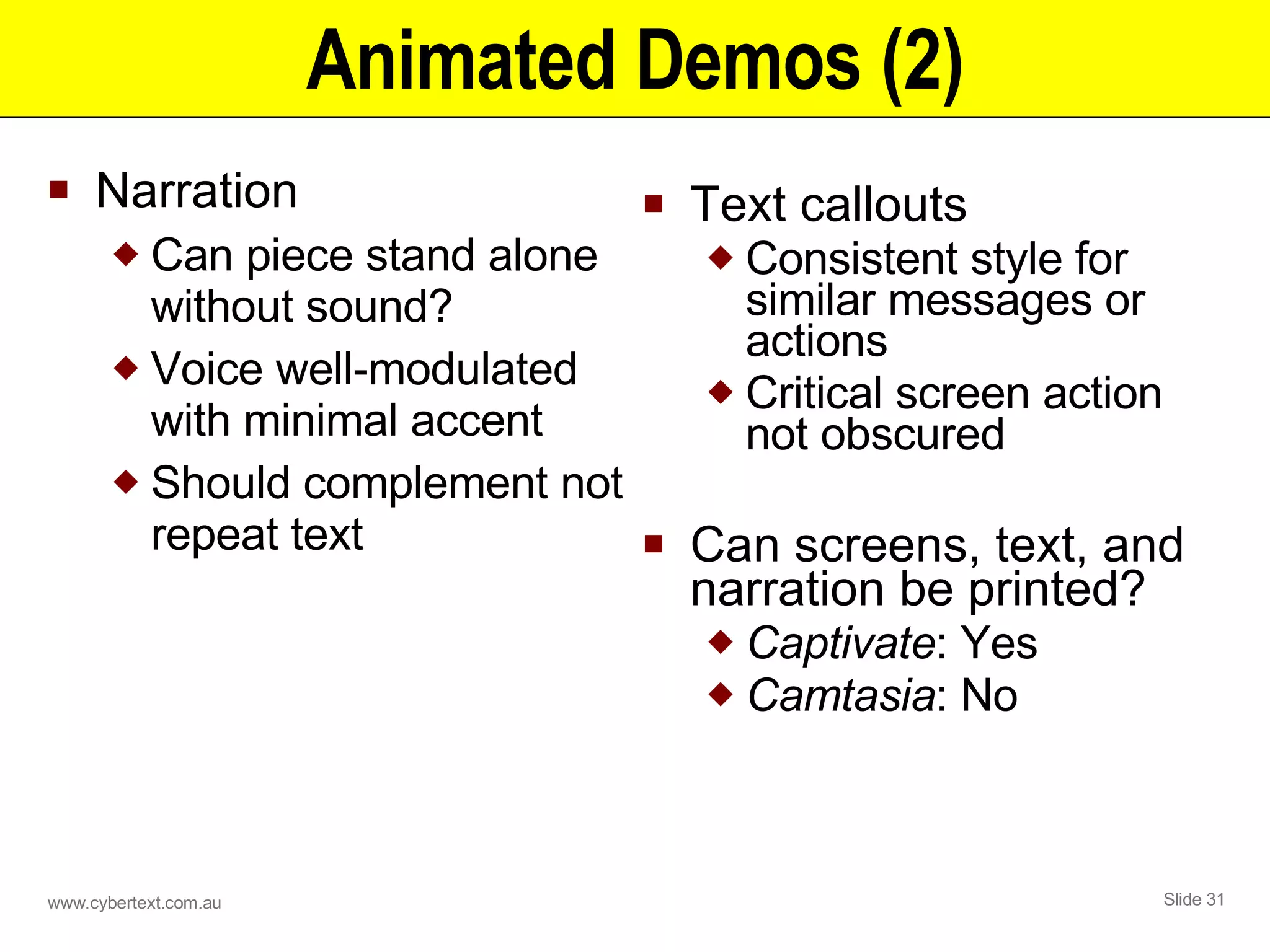
Animated Demos (2) Narration Can piece stand alone without sound? Voice well-modulated with minimal accent Should complement not repeat text Text callouts Consistent style for similar messages or actions Critical screen action not obscured Can screens, text, and narration be printed? Captivate : Yes Camtasia : No
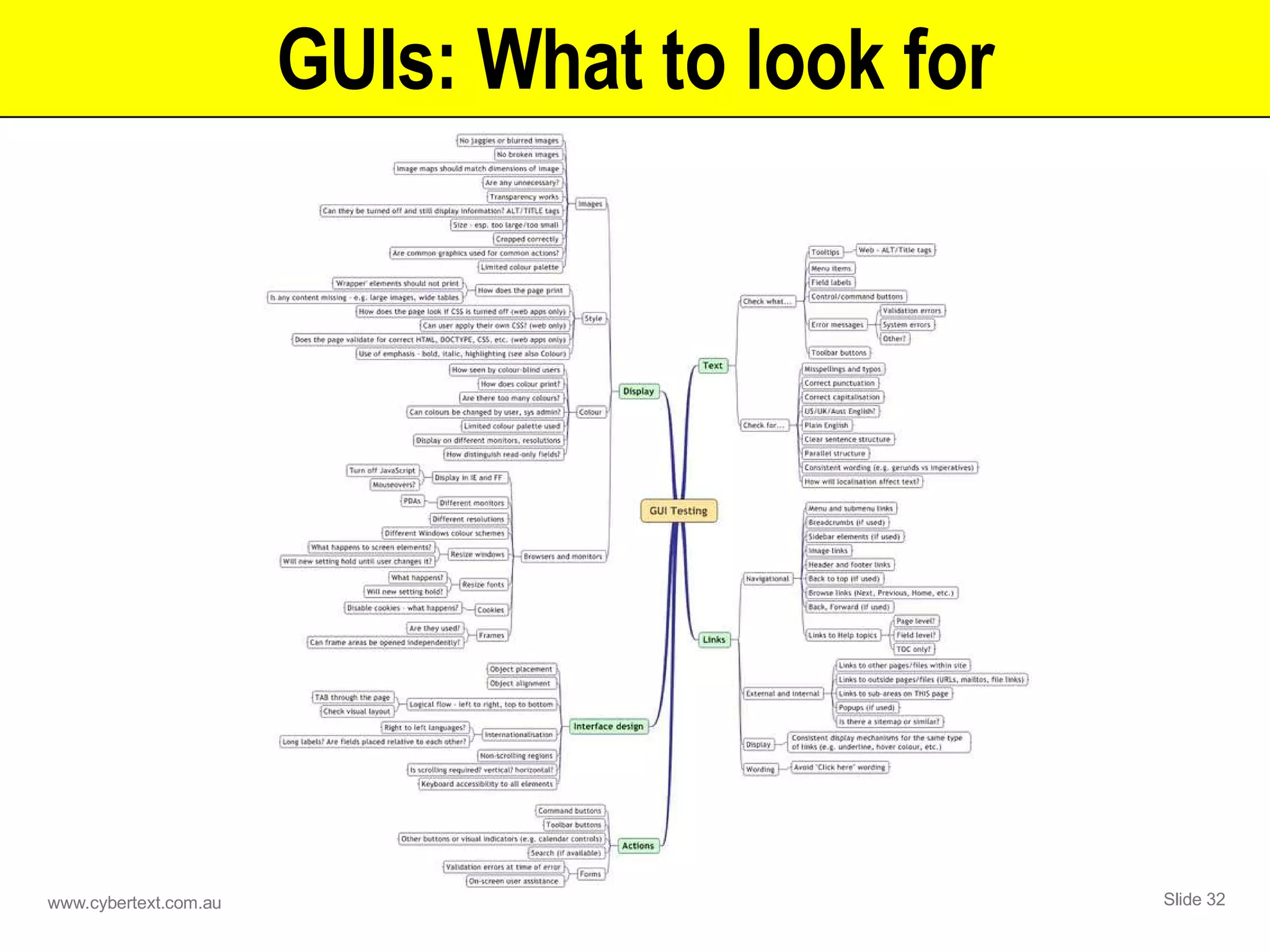
GUIs: What to look for
I18N/L10N  How will I18N/L10N affect: Labels, field lengths Right-to-left languages Resizable label length (e.g. German) Default language used: Hard-coded or in linked resource files Anything culturally specific? I18N : Internationalisation L10N : Localisation
Cool tools!
Validate CSE HTML Validator :  http://www.htmlvalidator.com HTML/XHTML/CSS code to standards Links, spelling, and accessibility Total Validator : http://www.totalvalidator.com/ HTML, links, spelling, accessibility Shows how page looks in various browsers InSite : http://www.inspyder.com Checks spelling and links; generates reports Profiles for different websites/intranet
Capture and Edit SnagIt  (v8): http://www.techsmith.com Shows links graphically Captures scrolling web pages Allows markup Acrobat  (full): http://www.adobe.com Captures partial or complete web sites Full editing functions ( Acrobat Reader 7  also has editing functions)
Analyse Web Page Analyzer : http://www.websiteoptimization.com/services/ analyze/  Performance/speed analysis Sitescore : http://www.silktide.com/tools/sitescore  Tests and rates website (and produces a report) for: Accessibility Usability Standards compliance
Useful Tools (1) Colour scheme generators : http://www.colorschemer.com/online.html http://www.siteprocentral.com/html_color_code.html Zoom Search Engine : http://www.wrensoft.com Screen Ruler : http://www.microfox.com/ Skype  (VOIP): http://www.skype.com
Useful Tools (2) Word Cleaner : http://www.zapadoo.com/ Produces clean HTML from Word docs StyleWriter : http://www.cybertext.com.au/ editorsoftware/affiliate_index.html  Analyses writing style in Word docs FinePrint : http://www.fineprint.com/products/ fineprint/index.html Saves paper!
Examples and demonstrations… Copy of example graphics available on AODC CD
Summary Understand - and stay within - the review's scope Be aware of all elements that are within scope Use tools to assist you Ultimately, your eyes and brain are the best tools you have
Thank you! Any questions? Please fill out your evaluation sheets Contact me: [email_address] http://www.cybertext.com.au Enjoy FNQ!

Reviewing Screen-Based Content

  • 1.
    Reviewing Screen-based ContentRhonda Bracey [email_address] http://www.cybertext.com.au
  • 2.
    In this session,I'll… Summarise some elements you should check in: Web content Online animations/tutorials Software application interfaces AND Demonstrate some tools and techniques to: Help you with your reviewing, and Automate some of these processes.
  • 3.
    Screen Content Criticaldifference to paper : Most screen content: Has few contextual clues Is viewed independently of surrounding content Result : Logical navigational structures are necessary to guide the user and give them a 'sense of place' in the content. User goal : &quot; Don't make me think! &quot; (Steve Krug)
  • 4.
    Screen Content ElementsEditorial text, grammar, punctuation, technical meaning… Visual layout, design, colours, images, fonts, dynamic elements… Interactive hyperlinks, forms, files, animations, streaming media… Accessible universal design, browser compatibility, download time, language level… Elements you should consider… Based on content wheel from: http://conttext.com/topics.html#comparison
  • 5.
    Brief/Scope Know whatyou’re checking for… and why Don’t be tempted to go beyond scope
  • 6.
  • 7.
    General Text Misspellingsand typos Punctuation and capitalisation Grammatical errors Language used – e.g. Australian/US/UK English Familiar text used for common commands, actions, functions Parallel structure Tense Person Voice
  • 8.
    Label Text Check: Menus Tooltips Field labels Grouping boxes Reference : Official Guidelines for User Interface Developers and Designers : http://msdn.microsoft.com/library/default.asp?url=/library/en-us/ dnwue/html/ch14d.asp Tabs Title bars Command buttons/icons Error messages
  • 9.
    Headings TOC, Index,and topic headings: Parallel structure Logical hierarchy Watch out for: &quot;How to...&quot;, &quot;To...&quot; headings Wording for overview topics
  • 10.
  • 11.
    Readability Writingstyle: Clear Simple Suitable for audience Test against common readability algorithms: Flesch Reading Ease Flesch-Kincaid grade level Gunning-Fog Index Web page readability tester (free): http://juicystudio.com/ services/readability.php StyleWriter : Analyses writing style and Plain English in Word documents
  • 12.
    Fonts Families Serifv. sans serif Limited quantity used Sizes Relative or absolute Resizable Case Upper, mixed, lower References to some font studies available from: http://www.cybertext.com.au/ services_edit.htm and conference CD Decoration Underlining, bold, italic Colour
  • 13.
    Display Browser differencesResize browser window Display in various browsers Apply own CSS and other window settings Monitor resolution Wide-screen PDA AODC website displayed with 'small screen rendering'
  • 14.
    Colours Convey amood or a theme, but can be: Overdone Hard to read Look for: How colours seen by visually impaired How colours print on a B/W printer Sufficient light/dark contrast Limited colour palette, complementary colours Windows apps: standard Windows colours Red background, yellow text, blue links…
  • 15.
    Graphics Lookfor: Broken images Jaggy rendering Distorted resizing Transparency that isn't Graphics/Flash used as text substitute Familiar icons for common commands, actions, functions Web graphics file types : GIF (256 colours) PNG (16m colours) JPG (16m colours; photos only) SVG (16m colours; minimal use to date)
  • 16.
  • 17.
    Structure Overall structureDiagram or sitemap Physical layout Tables CSS Frames Visual layout Too many, too few elements Graphical display of web page structure (free): http://www.ilovejackdaniels.com/ resources/view-page-structure/
  • 18.
    Pages and FormsAlignment, spacing of fields and content blocks Placement of fields and content blocks: Workflow Logical flow of elements – top-bottom, left-right TAB through fields Keyboard accessibility (hot keys) Other Do forms work? Does Search give you the results you expect?
  • 19.
    User Assistance Userassistance Validation error messages for missing/incorrect data Meaningful labels and explanatory text Help pages
  • 20.
    Printing Test printin colour AND black & white Check for: Missing or cut off content (e.g. tables) How backgrounds, graphics, and colours print How framed content prints
  • 21.
  • 22.
    Accessibility issues Visualimpairment, such as: Colour blindness Glaucoma, cataracts, macular degeneration etc. Blindness Motor impairment – may require: Voice activation Keyboard AND mouse alternatives
  • 23.
    Legislation and GuidelinesW3C Web Content Accessibility Guidelines 1.0 checklist : http://www.w3.org/TR/WCAG10/full-checklist.html Legislation Australia : Disability Discrimination Act US : American Disabilities Act (incl. Section 508) UK : British Disability Discrimination Act
  • 24.
    Free Web AccessibilityTools VisCheck : http://www.vischeck.com/vischeck/ AIS Web Accessibility Toolbar (IE only): http://www.visionaustralia.org.au/info.aspx? page=614 Web Developer Extension (Firefox only): http://chrispederick.com/work/webdeveloper/
  • 25.
  • 26.
    HTML code Correct DOCTYPE used Valid code used for that DOCTYPE (no deprecated tags) Valid syntax used for tags such as <style> and <script> Images have <alt> attributes W3C validators (free): HTML : http://validator.w3.org/ CSS : http://jigsaw.w3.org/ css-validator/
  • 27.
    Links: Navigation Menus,sub-menus, sidebars Headers, footers Breadcrumbs Back to top Next/previous browse sequences Related topics/sites Popups Show/hide topics TOC, index, search Sections on same page Other pages - same site External URLs, files, email addresses Image maps Look for consistent link mechanisms
  • 28.
    Free Link CheckersW3C Link Checker : http://validator.w3.org/checklink XENU Link Sleuth : http://home.snafu.de/tilman/xenulink.html
  • 29.
  • 30.
    Animated Demos (1)Timing is critical: Text, voice, action - must 'gel' Too fast/slow? Look for: Smooth mouse movements / transitions Consistent screen sizes Consistent and appropriate fade in/out Controls to pause, restart, skip, etc. Intro and concluding slides Duration, sound, size
  • 31.
    Animated Demos (2)Narration Can piece stand alone without sound? Voice well-modulated with minimal accent Should complement not repeat text Text callouts Consistent style for similar messages or actions Critical screen action not obscured Can screens, text, and narration be printed? Captivate : Yes Camtasia : No
  • 32.
    GUIs: What tolook for
  • 33.
    I18N/L10N Howwill I18N/L10N affect: Labels, field lengths Right-to-left languages Resizable label length (e.g. German) Default language used: Hard-coded or in linked resource files Anything culturally specific? I18N : Internationalisation L10N : Localisation
  • 34.
  • 35.
    Validate CSE HTMLValidator : http://www.htmlvalidator.com HTML/XHTML/CSS code to standards Links, spelling, and accessibility Total Validator : http://www.totalvalidator.com/ HTML, links, spelling, accessibility Shows how page looks in various browsers InSite : http://www.inspyder.com Checks spelling and links; generates reports Profiles for different websites/intranet
  • 36.
    Capture and EditSnagIt (v8): http://www.techsmith.com Shows links graphically Captures scrolling web pages Allows markup Acrobat (full): http://www.adobe.com Captures partial or complete web sites Full editing functions ( Acrobat Reader 7 also has editing functions)
  • 37.
    Analyse Web PageAnalyzer : http://www.websiteoptimization.com/services/ analyze/ Performance/speed analysis Sitescore : http://www.silktide.com/tools/sitescore Tests and rates website (and produces a report) for: Accessibility Usability Standards compliance
  • 38.
    Useful Tools (1)Colour scheme generators : http://www.colorschemer.com/online.html http://www.siteprocentral.com/html_color_code.html Zoom Search Engine : http://www.wrensoft.com Screen Ruler : http://www.microfox.com/ Skype (VOIP): http://www.skype.com
  • 39.
    Useful Tools (2)Word Cleaner : http://www.zapadoo.com/ Produces clean HTML from Word docs StyleWriter : http://www.cybertext.com.au/ editorsoftware/affiliate_index.html Analyses writing style in Word docs FinePrint : http://www.fineprint.com/products/ fineprint/index.html Saves paper!
  • 40.
    Examples and demonstrations…Copy of example graphics available on AODC CD
  • 41.
    Summary Understand -and stay within - the review's scope Be aware of all elements that are within scope Use tools to assist you Ultimately, your eyes and brain are the best tools you have
  • 42.
    Thank you! Anyquestions? Please fill out your evaluation sheets Contact me: [email_address] http://www.cybertext.com.au Enjoy FNQ!