Video Editing Software
Jörn Loviscach
Rule #1 for a lean production of videos
Do not use editing software
to fix your videos.
Do the video right,
or do it again,
or live with it.
In this video:
• Cleaning up audio and video
• Cutting, adding transitions
• Adding titles, logos
• Working with several parallel tracks
• Importing, exporting
• Lots of choices
Cleaning up audio and video
• Brightness,
contrast,
color tint, …
• Volume (level),
tone (equalization), …
Screenshots of
Adobe Premiere Elements
Cutting, adding transitions
• Remove pauses
• Remove mistakes
• Arrange the order
• What you don’t need:
fancy transitions
Screenshots of Adobe Premiere Elements
Adding titles, logos
• Who? What?
• Logo (audio logo?)
• Banners
• Callouts for graphics
• In-video errata
Working with several parallel tracks
• Picture in picture
• Motion
• Green screen
(color keying)
• Narration over
existing videos
ScreenshotofAdobePremiereElements
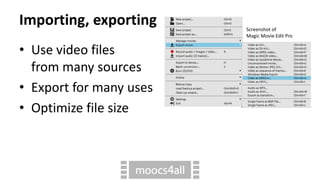
Importing, exporting
• Use video files
from many sources
• Export for many uses
• Optimize file size
Screenshot of
Magic Movie Edit Pro
Lots of choices
• Basic:
Microsoft Movie Maker, Apple iMovie;
Virtual Dub, Shotcut, OpenShot
• More than you will ever need, for < 100 €:
Adobe Premiere Elements,
Magix Movie Edit Pro, …
The LoCoMoTion project is funded by the Erasmus+ programme of the European Union. The European Commission
support for the production of this publication does not constitute an endorsement of the contents which reflects the
views only of the authors, and the Commission cannot be held responsible for any use which may be made of the
information contained therein.

Video editing software

  • 1.
  • 2.
    Rule #1 fora lean production of videos Do not use editing software to fix your videos. Do the video right, or do it again, or live with it.
  • 3.
    In this video: •Cleaning up audio and video • Cutting, adding transitions • Adding titles, logos • Working with several parallel tracks • Importing, exporting • Lots of choices
  • 4.
    Cleaning up audioand video • Brightness, contrast, color tint, … • Volume (level), tone (equalization), … Screenshots of Adobe Premiere Elements
  • 5.
    Cutting, adding transitions •Remove pauses • Remove mistakes • Arrange the order • What you don’t need: fancy transitions Screenshots of Adobe Premiere Elements
  • 6.
    Adding titles, logos •Who? What? • Logo (audio logo?) • Banners • Callouts for graphics • In-video errata
  • 7.
    Working with severalparallel tracks • Picture in picture • Motion • Green screen (color keying) • Narration over existing videos ScreenshotofAdobePremiereElements
  • 8.
    Importing, exporting • Usevideo files from many sources • Export for many uses • Optimize file size Screenshot of Magic Movie Edit Pro
  • 9.
    Lots of choices •Basic: Microsoft Movie Maker, Apple iMovie; Virtual Dub, Shotcut, OpenShot • More than you will ever need, for < 100 €: Adobe Premiere Elements, Magix Movie Edit Pro, …
  • 10.
    The LoCoMoTion projectis funded by the Erasmus+ programme of the European Union. The European Commission support for the production of this publication does not constitute an endorsement of the contents which reflects the views only of the authors, and the Commission cannot be held responsible for any use which may be made of the information contained therein.

Editor's Notes

  • #2 Video editing software. These days, editing software isn’t pricey any more. But you may not want to spend your time with editing. In this video, I talk about what you may be missing (or may not be missing) if you don’t use a full-blown video editor.
  • #3 To repeat: I think it‘s far quicker to redo videos or to live with minor blemishes in them rather than try and look professional. The learning will not suffer.
  • #4 Video editing software enables you in many ways to clean up what you‘ve recorded. It helps you to bring clips into the right order, to add titles and the like, and supports effects such as green screen to mix several clips playing at the same time. There are lots of video, audio, and image formats to support. Finally, I will indicate the range of editing software that is available.
  • #5 Hopefully, you have recorded video and audio material that can be used “as is”. Should the lighting or the acoustics be adverse, video editing software may help a little: It can improve the image or the sound on a digital basis. You don’t want to manually tweak the same settings for every video clip. This is where built-in presets come in handy.
  • #6 The main job in video editing software is to carve out the part of the video clips that you want to show. You cut away pauses and mistakes and arrange the order of clips. Commercial video editing software comes with dozens of animated transitions to insert between clips. At first, these seem to be impressive, but soon they look cheesy. So: occasionally a quick and simple dissolve, that‘s all you need.
  • #7 Who the author is and what the title of your video is may be spelled out in the description on the MOOC platform or, say, on YouTube. But someone may copy the video or watch it with an app that doesn‘t show such information. So it‘s a good idea to show the title in the video, perhaps even display a logo and play some jingle. If you film discussions or interviews, you can indicate the names of the persons in a banner. Images and videos of complicated machinery benefit from descriptions that you lay over them. You can use the same functions to correct errors: If you said nonsense or have a typo on a slide, just put some text with a correction onto the video. Again, reasonable templates in the program will help you save time.
  • #8 Video editing software cannot only put clips into any order, it can also place several clips in parallel. The technical term is „compositing“: The program forms a composite of several images, so to speak. This is what you use to place a talking head onto slides. Images and video clips can often also follow motion paths, for instance to bring different parts of an image into view. There are several ways of removing the background of a clip so that clips behind become visible. The green screen effect belongs to these. The technical term for this is color keying. A very different application of using several tracks in parallel is to add audio tracks, for instance to comment on what happens in a video taken from a physics experiment.
  • #9 There are may different types of video files: AVI, QuickTime, Windows Media, MPEG-2, MPEG-4 and more. Plus, each of these comes in different flavors. Decent video editing software can work with many formats. If you provide videos on YouTube and the like, file size is almost of no importance. But if you provide videos on your own server and/or for downloading onto mobile devices, it‘s important to have good control about the output format. To keep the files small, the picture quality of the exported videos must be reduced as much as you can afford.
  • #10 If all you need is to trim video clips, arrange them into order and add a title in the front, there is commercial software such as Movie Maker (which is free) for Windows and iMovie (which is cheap) for MacOS. I‘ve also listed three open-source alternatives. These may not be up to everybody‘s taste, however. Virtual Dub for Windows is very versatile if you can handle it; but it only works with AVI files. Shotcut (which is cross-platform) and OpenShot for Windows look and work more like you would expect. Actually, however, I would spend a little money and go for some program that‘s sold for less than 100 Euros. A typical choice would be Adobe Premiere Elements. It provides a simplified user interface for starters and lots of automatic settings. An underrated choice is Magix Movie Edit Pro (in Germany called Magix Video Deluxe) which is great on the audio side and feels like professional video editing software – which may be intimidating for first-time users. Luckily, there are 30-day trial versions of most video editing software. Have a look at our updated link list.