VIDEO EDITING
Unlocking ContentArea Vocabulary Introduce key terms with
definitions:
● Video Editing is the process of manipulating video by
rearranging different shots and scenes in order to create a new
output.
● User Interface (UI) is the layout and design of the software
that allows users to interact with the video editing application.
2.
● Video EditingApplications are software programs used to
edit video footage, such as Adobe Premiere Pro, Final Cut Pro,
iMovie, and DaVinci Resolve.
● User Experience (UX) - is the overall experience and
satisfaction a user has while using the video editing
application.
● Trim- is the process of cutting out unwanted sections from
a video clip.
● Crop- is the process of removing the outer parts of an
image or video to focus on a specific area.
3.
Video editing -is the art and science of manipulating
and assembling video clips, images, audio elements, and
text to create a finished video product. It is a powerful
tool used in various fields, from filmmaking to social
media, and understanding its core aspects can unlock
creativity. The process of video editing is essentially
taking something long and making it shorter. In order to
make that happen, the editor must identify which of the
video editing applications or software he or she will be
using.
4.
The Process ofVideo Editing
1. Pre-Production
1. Planning: This stage involves storyboarding the video, outlining
the sequence of events, and identifying the message you want to
convey. Here, references like storyboarding or online templates can
be helpful like
5.
2. Gathering Materials.This includes collecting video
footage, images, sound effects, and music. Consider
royalty-free or opensource stock media websites like
Pexels (https://www.pexels.com/) or Pixabay
(https://pixabay.com/) for visuals and sound libraries
like Freesound (https://freesound.org/) for audio.
6.
2. Production
Importing andOrganizing: Here, you import your
collected media files into a video editing application or
software (you may choose from the choices presented
in table 1 or you can have your own). Popular options
include free choices or open sources, and or paid
versions.
7.
Timeline Editing: Thetimeline editing is the heart of
video editing software. It is a virtual representation of
your video where you arrange clips in the desired
sequence.
8.
Adding Text andTitles: Text overlays and titles
enhances your video by providing information,
introductions, or captions.
9.
Transitions: Transitions likeclips smoothly and create
a visually pleasing flow between scenes
Effects: Video editing software offers a variety of
effects to enhance your video, like color corrections,
slow motion, and green screening compositing.
Audio Editing: This involves adding background music,
sound effects, and adjusting audio levels to create a
cohesive soundscape.
10.
3. Post-Production
3.1.Exporting: Onceyou are happy with your edited video, you
can export it in a specific format and resolution suitable for your
target platform (ex. YouTube, social media, Website).
3.2.Color Grading: This is an advanced technique for adjusting
the color palette of your video to create a specific mood or style.
11.
Application of VideoEditing
1.Filmmaking. Video editing is crucial for assembling movies,
documentaries, and short films. It allows for storytelling
through image manipulation and sound design.
2. Marketing and Advertising. Engaging video ads and product
demonstrations are created using video editing software.
3. Education. Explainer videos, tutorials, and presentations
can be crafted using video editing for a more engaging
learning experience.
12.
4. Social Media.Editing captivating content for
platforms like Youtube, Tiktok, and Instagram is a
major application.
5. Journalism. Edited video footage is used to
create news reports, documentaries, and
interviews.
6. Entertainment. Music videos, video game
montages, and vlogs (video blogs) are all products
of video editing.
13.
“Basic Video Editingwith a User-Friendly App”
2. Worked Example Activity 2:
“Basic Video Editing with a User-Friendly App”
Objective: To familiarize learners with the basic navigation and features of a video
editing application. Materials:
● Desktop computer/Laptop/Smartphone (Whichever is applicable) Instructions:
1. Choose a User-Friendly App: Select a free or opensource easy-to-use application
on the internet, or the one already installed in the computer, or similar mobile
application depending on your resources.
2. Demonstration: Briefly demonstrate the basic functionalities of the chosen app,
such as:
14.
2.1.Importing Files: Howto import video clips, images, and audio files.
2.2.Timeline Editing: Explain the timeline interface and how to arrange clips.
2.3.Trimming and Cutting: Show how to trim and cut unwanted footage.
2.4.Adding Text and Titles: Demonstrate adding text overlays and titles to your video.
3. Hands-on Activity: Divide Students into pairs and provide them with sample
video clips and images (royalty-free options can be found online).
4. Task: Challenge students to use the chosen application to create a short video (30
secs to 1 min). Encourage them to explore basic editing techniques like trimming, adding
files, and incorporating background music (if applicable).
5. Sharing and Discussion: Allow students to share their short videos with the class.
Discuss the editing techniques used and how they enhanced the storytelling aspect of
the video.
15.
SUB-TOPIC 2: UnderstandingUser Interface and User
Experience
1. Explicitation
Components of a Typical Video Editing Application's UI
Understanding the user interface (UI) of a video editing application is crucial
for efficiently navigating and utilizing its features.
1. Timeline is the heart of any video editing application.
It is a horizontal strip that displays the sequence of video
clips, audio tracks, and other media elements in
chronological order. The timeline allows you to arrange
and edit these elements to create a cohesive video.
16.
Contribution to UserExperience
● Visual Organization: The timeline provides a visual representation of your
project, making it easier to see the flow and structure of your video.
● Editing Precision: It allows for precise editing, as you can zoom in and out to
make frame-by-frame adjustments.
● Multitrack Editing: Most timelines support multiple tracks, enabling you to
layer video, audio, and effects for more complex projects.
2. Toolbar is a collection of tools and functions that you can use to
edit your video clips. Common tools include cut, trim, crop, zoom,
and various selection tools. The toolbar is usually located at the top
or side of the application window.
17.
Contribution to UserExperience
● Accessibility: The toolbar provides quick access to essential
editing tools, making the editing process more efficient.
● Customization: Some applications allow you to customize
the toolbar, adding or removing tools based on your needs,
which enhances the user experience by tailoring it to
individual workflows.
● Ease of Use: Icons and tooltips in the toolbar make it easy
for users to understand the function of each tool, reducing the
learning curve.
18.
3. Preview Windowdisplays the video as you edit it. It shows a real-
time playback of your project, allowing you to see the effects of your edits
immediately. The preview window often includes playback controls like play,
pause, and scrub. Contribution to User Experience
● Immediate Feedback: The preview window provides real-time feedback,
enabling you to see the results of your edits instantly. This helps in making
quick decisions and adjustments.
● Quality Control: It allows you to monitor the quality of your video,
ensuring that transitions, effects, and edits look as intended.
● Interactive Editing: Some preview windows support interactive editing,
where you can drag and drop elements directly in the preview area, making
the editing process more intuitive.
19.
4. Media Libraryis a repository where all your imported media files,
such as video clips, images, and audio files, are stored. It is usually located
on the left side of the application window and organizes media assets into
folders or bins. Contribution to User Experience
● Organization: The media library helps keep all your media assets
organized, making it easier to find and manage files. You can create
folders or bins to categorize your assets.
● Drag-and-Drop: Many media libraries support drag-and-drop
functionality, allowing you to easily add media files to the timeline or
preview window.
● Metadata and Search: Advanced media libraries include metadata and
search features, enabling you to quickly locate specific files based on
keywords, tags, or other attributes.
20.
Demonstration: Navigating theUI of a Video Editing
Application Objective: To demonstrate how to navigate the
user interface of a video editing application, specifically
focusing on using the timeline to arrange clips, the toolbar for
editing tools, and the preview window to view changes in
real-time. Click this link to watch the video:
https://www.youtube.com/watch?
v=ktNKnAmVfUM&ab_channel=macmostvideo
21.
Topic 3- BasicEditing Techniques - Trim and Crop and
Adding Text, Effects, are applicable to most video
editing software, including Adobe Premiere Pro, Final
Cut Pro, and DaVinci Resolve. Images, Transitions,
Narration, and Audio Effects
22.
Concepts of Trimmingand Cropping Video Clips Understanding the concepts of
trimming and cropping is essential for creating polished and professional-looking
videos. These basic editing techniques allow you to refine your video clips,
ensuring they meet your desired aesthetic and narrative goals.
Trimming Video Clips is the process of cutting out unwanted sections from the
beginning, middle, or end of a video clip. This technique helps in shortening the clip to
include only the necessary parts, making the video more concise and focused. How
Trimming Works:
● Removing Unwanted Sections: Trimming allows you to remove parts of the clip that
are not needed, such as mistakes, irrelevant content, or dead air.
● Enhancing Flow: By trimming clips, you can ensure that the video flows smoothly
from one scene to another, maintaining the viewer's interest.
● Precision Editing: Most video editing applications allow you to trim clips with frame-
by-frame precision, giving you control over exactly where the cuts are made.
23.
Example: Imagine youhave a video clip of an interview. The
first few seconds include the interviewer adjusting the
camera and the interviewee preparing to speak. By
trimming the first few seconds, you can start the clip right
when the interviewee begins talking, making the video more
engaging and to the point.
24.
Cropping Video Clipsis the process of removing
the outer parts of an image or video to focus on a
specific area. This technique helps in adjusting
the frame to highlight important elements or
eliminate distractions from the background.
25.
How Cropping Works:
●Focusing on Key Subjects: Cropping allows you to zoom in on the
main subject of the video, ensuring that viewers' attention is
directed where you want it.
● Removing Distractions: By cropping out unnecessary or
distracting elements from the frame, you can create a cleaner and
more visually appealing video.
● Adjusting Composition: Cropping can help improve the
composition of the shot, making it more balanced and aesthetically
pleasing.
26.
Example: Suppose youhave a video clip of a
landscape with a person standing in the middle. If
you want to focus on the person and eliminate
some of the surrounding scenery, you can crop
the video to center the person in the frame,
making them the focal point of the shot.
27.
- Importance ofAdding Enhancements to Videos Enhancing
videos with text, effects, images, transitions, narration, and
audio effects can significantly improve their storytelling and
visual appeal.
- Each element serves a unique purpose and, when used effectively, can transform a
simple video into a compelling piece of content.
1. Importance of Adding Text
● Context and Information: Text overlays can provide crucial information such as titles,
subtitles, captions, or annotations. This helps viewers understand the context, especially
in educational or informational videos.
● Highlighting Key Points: Text can emphasize important points, making them stand out
and ensuring that viewers remember them.
● Accessibility: Subtitles and captions make videos accessible to a wider audience,
including those who are deaf or hard of hearing, or those watching in a noisy
environment.
28.
Example: In atutorial video, adding text to label different steps or key
concepts can help viewers follow along more easily.
2. Importance of Adding Visual Effects
● Enhancing Visual Appeal: Visual effects can make a video more engaging
and visually interesting. They can add a professional touch and make the
video look more polished.
● Creating Atmosphere: Effects like color grading, filters, and lighting
adjustments can set the mood and tone of the video, enhancing the
storytelling experience.
● Illustrating Concepts: Special effects can help illustrate complex ideas or
concepts that are difficult to capture with regular footage.
29.
Example: In ascience fiction short film, visual effects can be used to create
futuristic environments or show fantastical elements that enhance the
narrative. 3. Importance of Adding Images
● Supplementing Content: Images can provide additional information or
context that complements the video content. They can be used to show
diagrams, charts, or supplementary visuals.
● Breaking Monotony: Adding images can break the monotony of continuous
video footage, making the content more dynamic and engaging.
● Highlighting Details: Close-up images can highlight specific details that might
be missed in broader video shots. Example: In a documentary about wildlife,
adding high-resolution images of animals can provide viewers with a closer
look at the subjects being discussed.
30.
4. Importance ofAdding Transitions
● Smooth Flow: Transitions help create a smooth flow between
different scenes or clips, making the video more cohesive and easier to
watch.
● Visual Continuity: They can maintain visual continuity and prevent
abrupt changes that might confuse or distract viewers. ● Setting the
Pace: Different types of transitions (e.g., fades, wipes, cuts) can set the
pace and rhythm of the video, contributing to the overall mood and
tone.
Example: In a travel vlog, using smooth transitions between different
locations can create a seamless viewing experience and maintain the
narrative flow.
31.
5. Importance ofAdding Narration
● Guiding the Viewer: Narration provides a voice-over that guides
the viewer through the video, offering explanations, insights, or
storytelling elements.
● Personal Connection: A narrator's voice can add a personal touch,
making the content more relatable and engaging.
● Clarifying Content: Narration can clarify complex information,
making it easier for viewers to understand and follow along.
Example: In an educational video about historical events, narration
can provide context and explanations that enhance the viewer's
understanding of the material.
32.
6. Importance ofAdding Audio Effects
● Enhancing Audio Quality: Audio effects like background music, sound
effects, and ambient sounds can enhance the overall audio quality and
make the video more immersive.
● Setting the Mood: Music and sound effects can set the mood and tone
of the video, evoking emotions and enhancing the storytelling experience.
● Emphasizing Actions: Sound effects can emphasize specific actions or
moments in the video, making them more impactful and memorable.
Example: In a suspense thriller, using eerie background music and sudden
sound effects can heighten the tension and keep viewers on the edge of
their seats.
33.
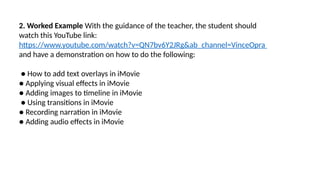
2. Worked ExampleWith the guidance of the teacher, the student should
watch this YouTube link:
https://www.youtube.com/watch?v=QN7bv6Y2JRg&ab_channel=VinceOpra
and have a demonstration on how to do the following:
● How to add text overlays in iMovie
● Applying visual effects in iMovie
● Adding images to timeline in iMovie
● Using transitions in iMovie
● Recording narration in iMovie
● Adding audio effects in iMovie