Using Video Strategically


(Thanks to Quentin Kruger for some of this great content)
What We’ll Cover

•   Why Use Video
•   Expectations
•   Things to Remember
•   Glossary of Terms
•   Step-By-Step Guide
•   Examples
Why Use Video

• Has emotional bandwidth and immense capacity
  for storytelling

• Is the most empathetic non-live medium out there

• Brings people to places and events that they
  otherwise can’t get to
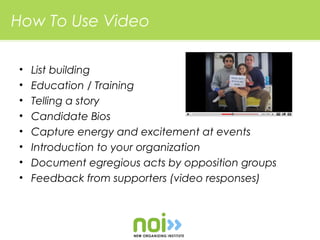
How To Use Video

•   List building
•   Education / Training
•   Telling a story
•   Candidate Bios
•   Capture energy and excitement at events
•   Introduction to your organization
•   Document egregious acts by opposition groups
•   Feedback from supporters (video responses)
Expectations

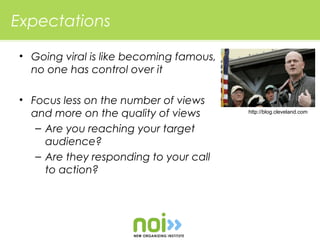
• Going viral is like becoming famous,
  no one has control over it

• Focus less on the number of views
  and more on the quality of views       http://blog.cleveland.com


   – Are you reaching your target
     audience?
   – Are they responding to your call
     to action?
Expectations

• Video can get a bad rap for being expensive

• Can’t think about it at the last second, otherwise it
  will be expensive

• Understand the process of making a quality video
  and plan accordingly
Things to Remember

• Bad video can work

• Bad audio NEVER works

• Be wary of showing a rough cut too early in the
  process

• Never promise anyone or anything will make the
  final cut
Glossary of Terms

 • DTC (direct to camera)
    – Speaker’s head and shoulders are filmed while
      they are looking directly at the camera. The
      intent is to provide a sense of an eye to eye
      connection with the viewer.

 • B-Roll
    – Footage used to “cover up” holes in a shot. By
      using B-roll, the editor has the option to cut away
      from a boring shot to something relevant and
      perhaps more interesting.
Glossary of Terms

 • SD (Standard Definition)
    – Has an acceptable amount of visual detail and
      richness. Usually the preference if you are not
      editing using higher end equipment.

 • HD (High Definition)
    – Has a greater amount of visual detail and
      richness. Requires large & fast storage (hard
      drives), large amounts of memory (RAM), and a
      fast processor.
Glossary of Terms

 • Compression/Encoding
   – Process that allows you to take a larger, higher
     quality video file and reduce it in size to a smaller
     file that can be easily transmitted across the
     Internet.
Getting Started

 1.   Resources
 2.   Strategy & Message
 3.   Tools
 4.   Pre-production
 5.   Production
 6.   Post-production
 7.   Track & Engage
1. Resources

 • What internal resources do you already have (staff,
   equipment, software)?

 • Who will take the lead?

 • Be specific about your goals when hiring

 • Build video into your overall operation and fund it
   from the beginning (your Return on Investment will
   be greater)
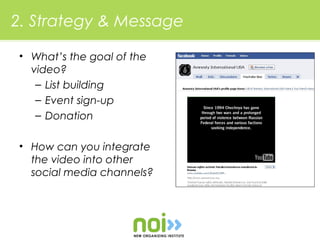
2. Strategy & Message

• What’s the goal of the
  video?
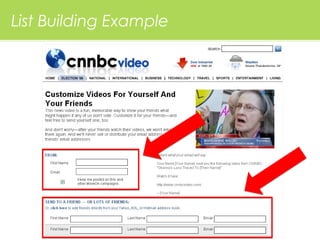
   – List building
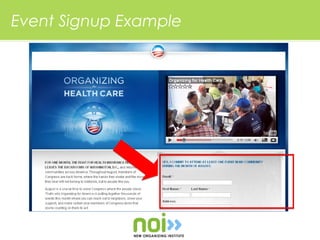
   – Event sign-up
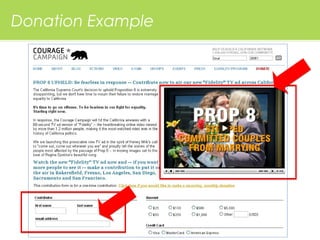
   – Donation

• How can you integrate
  the video into other
  social media channels?
2. Strategy & Message

• Weave together your organizational and
  community narrative to generate momentum on
  your issue

• Know your audience and what moves them
List Building Example
Event Signup Example
Donation Example
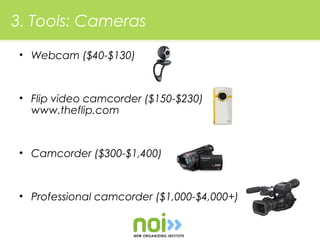
3. Tools: Cameras

 • Webcam ($40-$130)


 • Flip video camcorder ($150-$230)
   www.theflip.com


 • Camcorder ($300-$1,400)


 • Professional camcorder ($1,000-$4,000+)
3. Tools: Software
 • Low End ($100 or less)
    – Apple iMovie (free with new Macs)
    – Windows Movie Maker (free with XP & Vista)

 • Mid Range ($200-$600)
   – Adobe Premiere Elements (PC)
   – Sony Vegas Movie Studio (PC)
   – Pinnacle Studio (PC)
   – Cyberlink Power Director (PC)

 • High End ($800+)
    – Apple Final Cut Express (Mac)
    – Sony Vegas Pro (PC)
3. Tools: Video Hosting

 • YouTube (free; special nonprofit program)
   www.youtube.com/nonprofits

 • Vimeo (Basic package is free; Plus
   package is $60)

 • Tubemogul (free)
   - Post videos to multiple hosting sites and
   view the analytics in one place

 • Brightcove (free 30 day trial; contact the
   sales team for a quote)
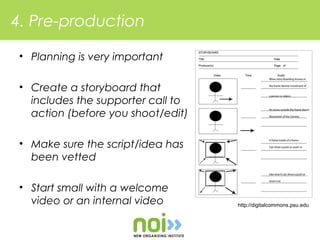
4. Pre-production

 • Planning is very important

 • Create a storyboard that
   includes the supporter call to
   action (before you shoot/edit)

 • Make sure the script/idea has
   been vetted

 • Start small with a welcome
   video or an internal video       http://digitalcommons.psu.edu
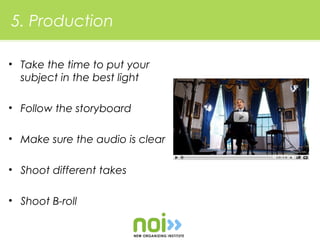
5. Production

• Take the time to put your
  subject in the best light

• Follow the storyboard

• Make sure the audio is clear

• Shoot different takes

• Shoot B-roll
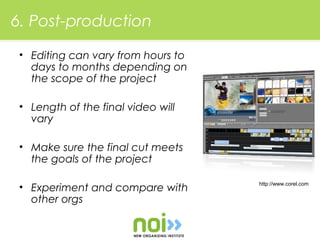
6. Post-production

 • Editing can vary from hours to
   days to months depending on
   the scope of the project

 • Length of the final video will
   vary

 • Make sure the final cut meets
   the goals of the project

                                    http://www.corel.com
 • Experiment and compare with
   other orgs
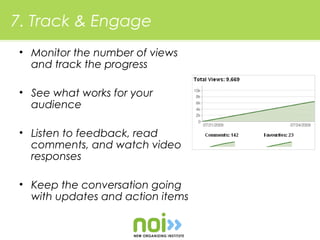
7. Track & Engage
• Monitor the number of views
  and track the progress

• See what works for your
  audience

• Listen to feedback, read
  comments, and watch video
  responses

• Keep the conversation going
  with updates and action items
Example: Lost by 1 Vote

• Created by MoveOn.org

• Expensive production cost

• Generated a lot of buzz in the run up to Nov. 4th

• Increased size of email list
Example: Lost by 1 Vote


 http://www.youtube.com/v/Gq8QDZydqvI
Example: Signs of Hope & Change

• Created by Obama ‘08

• Features footage and photos from supporters
  across the country

• Captured the intensity and emotion of the
  campaign
Example: Signs of Hope & Change


 http://www.youtube.com/v/EcRA2AZsR2Q
Example: Fidelity

 • Created by Courage Campaign

 • Inexpensive production cost

 • Photos of supporters holding similar sign (built a
   campaign asking for photos)

 • Set to music of Regina Spektor (used with her
   permission)
Example: Fidelity


 http://www.youtube.com/v/b-awVQkTeVE
Contact Info

New Organizing Institute
(202) 558-5585
info@neworganizing.com
www.neworganizing.com
www.twitter.com/neworganizing

Using Video 101 Guide

  • 1.
    Using Video Strategically (Thanksto Quentin Kruger for some of this great content)
  • 2.
    What We’ll Cover • Why Use Video • Expectations • Things to Remember • Glossary of Terms • Step-By-Step Guide • Examples
  • 3.
    Why Use Video •Has emotional bandwidth and immense capacity for storytelling • Is the most empathetic non-live medium out there • Brings people to places and events that they otherwise can’t get to
  • 4.
    How To UseVideo • List building • Education / Training • Telling a story • Candidate Bios • Capture energy and excitement at events • Introduction to your organization • Document egregious acts by opposition groups • Feedback from supporters (video responses)
  • 5.
    Expectations • Going viralis like becoming famous, no one has control over it • Focus less on the number of views and more on the quality of views http://blog.cleveland.com – Are you reaching your target audience? – Are they responding to your call to action?
  • 6.
    Expectations • Video canget a bad rap for being expensive • Can’t think about it at the last second, otherwise it will be expensive • Understand the process of making a quality video and plan accordingly
  • 7.
    Things to Remember •Bad video can work • Bad audio NEVER works • Be wary of showing a rough cut too early in the process • Never promise anyone or anything will make the final cut
  • 8.
    Glossary of Terms • DTC (direct to camera) – Speaker’s head and shoulders are filmed while they are looking directly at the camera. The intent is to provide a sense of an eye to eye connection with the viewer. • B-Roll – Footage used to “cover up” holes in a shot. By using B-roll, the editor has the option to cut away from a boring shot to something relevant and perhaps more interesting.
  • 9.
    Glossary of Terms • SD (Standard Definition) – Has an acceptable amount of visual detail and richness. Usually the preference if you are not editing using higher end equipment. • HD (High Definition) – Has a greater amount of visual detail and richness. Requires large & fast storage (hard drives), large amounts of memory (RAM), and a fast processor.
  • 10.
    Glossary of Terms • Compression/Encoding – Process that allows you to take a larger, higher quality video file and reduce it in size to a smaller file that can be easily transmitted across the Internet.
  • 11.
    Getting Started 1. Resources 2. Strategy & Message 3. Tools 4. Pre-production 5. Production 6. Post-production 7. Track & Engage
  • 12.
    1. Resources •What internal resources do you already have (staff, equipment, software)? • Who will take the lead? • Be specific about your goals when hiring • Build video into your overall operation and fund it from the beginning (your Return on Investment will be greater)
  • 13.
    2. Strategy &Message • What’s the goal of the video? – List building – Event sign-up – Donation • How can you integrate the video into other social media channels?
  • 14.
    2. Strategy &Message • Weave together your organizational and community narrative to generate momentum on your issue • Know your audience and what moves them
  • 15.
  • 16.
  • 17.
  • 18.
    3. Tools: Cameras • Webcam ($40-$130) • Flip video camcorder ($150-$230) www.theflip.com • Camcorder ($300-$1,400) • Professional camcorder ($1,000-$4,000+)
  • 19.
    3. Tools: Software • Low End ($100 or less) – Apple iMovie (free with new Macs) – Windows Movie Maker (free with XP & Vista) • Mid Range ($200-$600) – Adobe Premiere Elements (PC) – Sony Vegas Movie Studio (PC) – Pinnacle Studio (PC) – Cyberlink Power Director (PC) • High End ($800+) – Apple Final Cut Express (Mac) – Sony Vegas Pro (PC)
  • 20.
    3. Tools: VideoHosting • YouTube (free; special nonprofit program) www.youtube.com/nonprofits • Vimeo (Basic package is free; Plus package is $60) • Tubemogul (free) - Post videos to multiple hosting sites and view the analytics in one place • Brightcove (free 30 day trial; contact the sales team for a quote)
  • 21.
    4. Pre-production •Planning is very important • Create a storyboard that includes the supporter call to action (before you shoot/edit) • Make sure the script/idea has been vetted • Start small with a welcome video or an internal video http://digitalcommons.psu.edu
  • 22.
    5. Production • Takethe time to put your subject in the best light • Follow the storyboard • Make sure the audio is clear • Shoot different takes • Shoot B-roll
  • 23.
    6. Post-production •Editing can vary from hours to days to months depending on the scope of the project • Length of the final video will vary • Make sure the final cut meets the goals of the project http://www.corel.com • Experiment and compare with other orgs
  • 24.
    7. Track &Engage • Monitor the number of views and track the progress • See what works for your audience • Listen to feedback, read comments, and watch video responses • Keep the conversation going with updates and action items
  • 25.
    Example: Lost by1 Vote • Created by MoveOn.org • Expensive production cost • Generated a lot of buzz in the run up to Nov. 4th • Increased size of email list
  • 26.
    Example: Lost by1 Vote http://www.youtube.com/v/Gq8QDZydqvI
  • 27.
    Example: Signs ofHope & Change • Created by Obama ‘08 • Features footage and photos from supporters across the country • Captured the intensity and emotion of the campaign
  • 28.
    Example: Signs ofHope & Change http://www.youtube.com/v/EcRA2AZsR2Q
  • 29.
    Example: Fidelity •Created by Courage Campaign • Inexpensive production cost • Photos of supporters holding similar sign (built a campaign asking for photos) • Set to music of Regina Spektor (used with her permission)
  • 30.
  • 31.
    Contact Info New OrganizingInstitute (202) 558-5585 info@neworganizing.com www.neworganizing.com www.twitter.com/neworganizing