














Session Agenda
● The many different ways to go live
● Scheduling your Facebook Live event
● Boosting an event with sponsored posts
● Using Facebook Live from a phone or tablet
● Using Facebook Live with a web browser and computer
● Using multiple cameras with Facebook Live
● Strategies for after the event
Running Successful
Facebook Live Events
How to go live and not screw it up
facebook.com/

RichHarringtonStuff
linkedin.com/in/

richardharrington
twitter.com/
rhedpixel
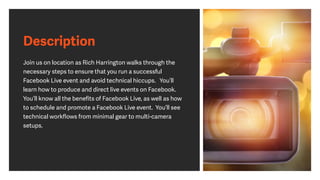
Description
Join us on location as Rich Harrington walks through the
necessary steps to ensure that you run a successful
Facebook Live event and avoid technical hiccups.   You’ll
learn how to produce and direct live events on Facebook. 
You’ll know all the benefits of Facebook Live, as well as how
to schedule and promote a Facebook Live event.  You’ll see
technical workflows from minimal gear to multi-camera
setups.
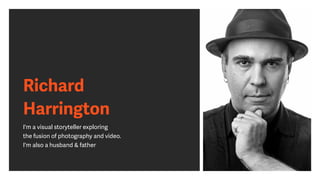
Richard
Harrington
I'm a visual storyteller exploring
the fusion of photography and video.
I'm also a husband & father
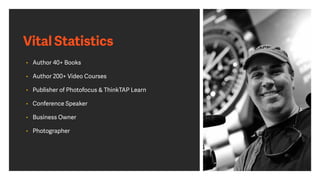
Vital Statistics
• Author 40+ Books
• Author 200+ Video Courses
• Publisher of Photofocus & ThinkTAP Learn
• Conference Speaker
• Business Owner
• Photographer
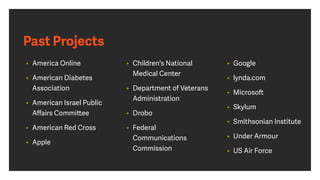
Past Projects
• America Online
• American Diabetes
Association
• American Israel Public
Affairs Committee
• American Red Cross
• Apple
• Children's National
Medical Center
• Department of Veterans
Administration
• Drobo
• Federal
Communications
Commission
• Google
• lynda.com
• Microsoft
• Skylum
• Smithsonian Institute
• Under Armour
• US Air Force
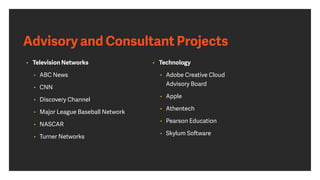
Advisory and Consultant Projects
• Television Networks
• ABC News
• CNN
• Discovery Channel
• Major League Baseball Network
• NASCAR
• Turner Networks
• Technology
• Adobe Creative Cloud
Advisory Board
• Apple
• Athentech
• Pearson Education
• Skylum Software
linkedin.com/in/richardharrington
Suggested Equipment and Gear
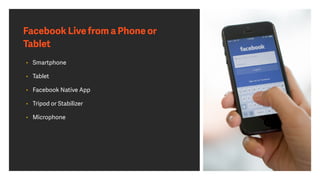
Facebook Live from a Phone or
Tablet
• Smartphone
• Tablet
• Facebook Native App
• Tripod or Stabilizer
• Microphone
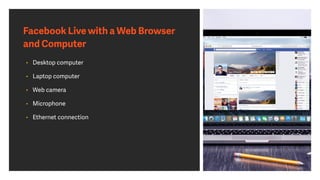
Facebook Live with a Web Browser
and Computer
• Desktop computer
• Laptop computer
• Web camera
• Microphone
• Ethernet connection
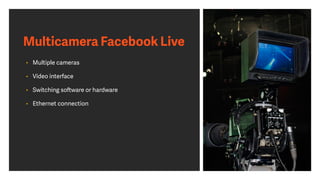
Multicamera Facebook Live
• Multiple cameras
• Video interface
• Switching software or hardware
• Ethernet connection
What is Facebook Live?
Add Communities
http://www.urlgoeshere.com
Title Text
http://www.urlgoeshere.com
Title Text
http://www.urlgoeshere.com
Title Text
http://www.urlgoeshere.com
Title Text
The Benefits of Facebook Live
The Benefits of
Facebook Live
• Connect with customers and clients
• Reach a broader audience
• Real-time interaction
• Behind the scenes access
• Control over access
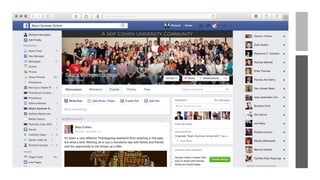
Facebook Live and Personal Pages
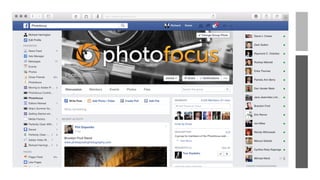
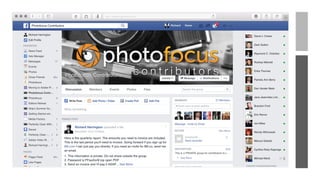
Facebook Live and Business Pages
Going Live On-Demand
• If possible pre-announce
• Have an outline
• Check internet connection
• Check battery level
• Is it safe?
Scheduling a Facebook Live Event
Creating Events
• Go to the Events tab on the left side of your home page
• Click Create Event in the upper-right corner of the page
• Enter details
• Start to invite friends and promote
• Events support live video
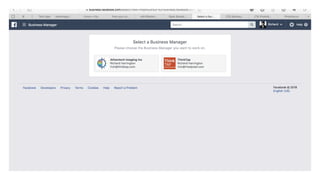
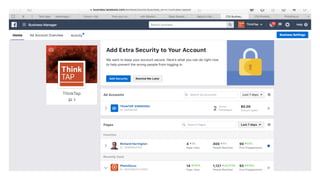
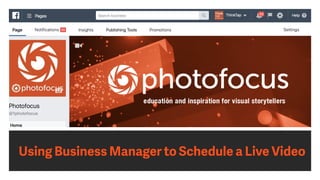
Using Business Manager to Schedule a Live Video
Promoting the Event in Advance Organically
Promoting the Event in Advance
Organically
• Mailing list integration
• Social connections
• Shareable links
• Newsletters and email invites
• 2—4 week lead time when possible
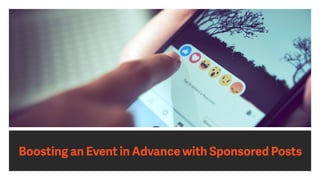
Boosting an Event in Advance with Sponsored Posts
A Checklist Before Going Live
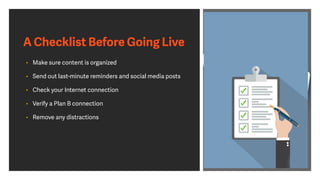
• Make sure content is organized
• Send out last-minute reminders and social media posts
• Check your Internet connection
• Verify a Plan B connection
• Remove any distractions
A Checklist Before Going Live
• Check your cables
• Clean lens of camera
• Run through slides and demo assets
• Setup a monitoring station
• Create a document with all links needed
• Have a backup computer standing by
A Checklist Before Going Live
• Have a glass of water nearby
• Eat a small meal
• Take any bio steps needed
• Relax for 15 minutes before starting
• Login 15-30 minutes early
• Start a backup recording
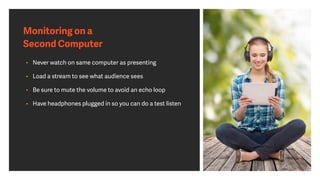
Monitoring on a
Second Computer
• Never watch on same computer as presenting
• Load a stream to see what audience sees
• Be sure to mute the volume to avoid an echo loop
• Have headphones plugged in so you can do a test listen
Planning for Audience Participation
• Registration polls
• Social media pre-conversations
• Unanswered questions from last event
• Live polls & surveys
• Backchannel/Twitter
• Chat pod (with moderator)
• Q&A (text or call-in)
Inviting Attendees to the Live Event
Inviting Attendees to the Webinar
• Mailing list integration
• Social connections
• Shareable links
• Newsletters and email invites
• 2—4 week lead time when possible
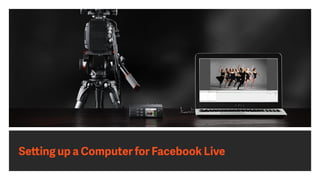
Setting up a Computer for Facebook Live
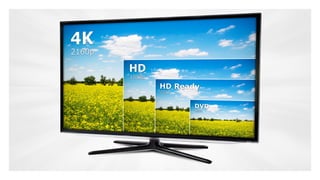
Screen Resolution Choices
• 16:9 (1.77:1)
• 1280×720, 1366×768, and 1920×1080 displays
• Became standard in 2010
• 4K Resolution
• Gaining in popularity
• Digital Cinema Initiatives is 4096×2160 (1.9:1)
• Ultra High Definition is 3840x2160 (1.77:1)
Screen Resolution Choices
• Think about the viewing audience
• The rise in online video makes 16:9 most popular
• Some software platforms only support specific
resolutions
• Consider recording options and future playback
Minimizing Data Transfer
• Turn off syncing software
• Cloud storage
• Photo streams
• Turn off data transfers
• Network copies
• Stop downloads/uploads
Minimizing Data Transfer
• Check for activity on network
• Is a dedicated line an option?
• Reduce number of connected devices
• Check Activity Monitor on a Mac
• Check Resource Monitor and Task Manager on a PC
Removing Distractions and
Embarrassment
• Computer
• Hide clock
• Clear desktop
• Minimize desktop pattern
• Hide dock/taskbar
• Cleanup shortcuts
• Dedicated user
Removing Distractions and
Embarrassment
• Web Browser
• Clear history
• Remove cache
• Hide unused tabs
• Hide favorites/bookmarks
Removing Distractions and
Embarrassment
• Physical location
• Remove distractions on desk/walls
• Consider privacy screen
• Simplify wardrobe
• Alert others to recording/broadcasting status
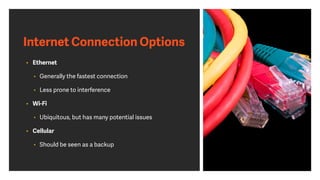
Internet Connection Options
• Ethernet
• Generally the fastest connection
• Less prone to interference
• Wi-Fi
• Ubiquitous, but has many potential issues
• Cellular
• Should be seen as a backup
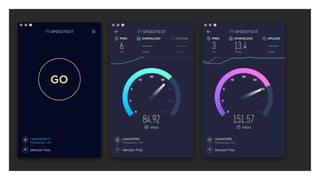
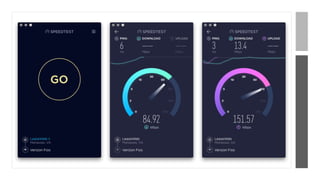
Connection Speed
• Minimum bandwidth required
• Outbound 300 kbps
• Inbound 300 kbps
• Ideal bandwidth
• Outbound 3.2 mbps
• Inbound 2.6 mbps
Reducing Audio Interference
• Remove cellphone from area
• Disable cell reception
• Avoid microphones crossing power cables
• Turn off connected drives and extra devices
• Fans/AC/mechanical
Live Streaming Tools
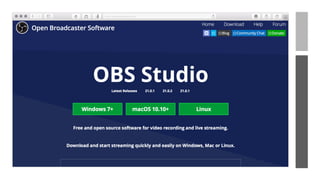
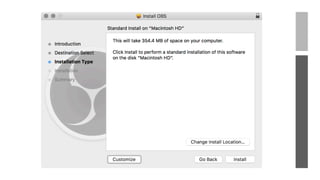
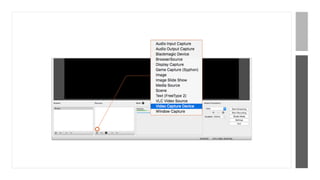
• OBS Studio 
• Mac, PC & Linux, Free, Open Source
• https://obsproject.com/
• Wirecast 
• Mac & PC, from $495
• https://www.telestream.net/wirecast/
http://www.urlgoeshere.com
Title Text
Live Streaming Tools
• mimoLive 
• Mac only - $199/year for personal use, from $699/year for commercial
• https://boinx.com/mimolive/
• Lightstream
• web app, currently free
• https://www.golightstream.com/facebook/
Live Streaming Tools
• Ecamm Live
• Mac only, $29.95
• http://www.ecamm.com/mac/ecammlive/
• BeLive
• FREE, web app with guests and multiple camera angles
• https://belive.tv
Live Streaming Tools
• BlueJeans onSocial 
• Web app - initial price $39.95/mth for live meetings with up to 25 guests and live
streaming to Facebook
• https://www.bluejeans.com/onsocial
• Zoom
• Mac & PC - Facebook integration on paid version with Webinar bolt-on - from
$14.99+$40/month upwards
• www.zoom.us
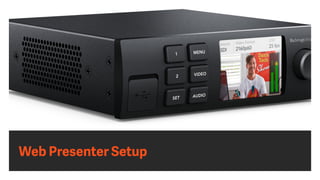
Web Presenter Setup
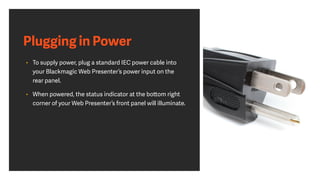
Plugging in Power
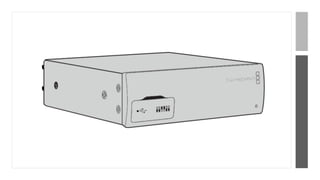
• To supply power, plug a standard IEC power cable into
your Blackmagic Web Presenter’s power input on the
rear panel.
• When powered, the status indicator at the bottom right
corner of your Web Presenter’s front panel will illuminate.
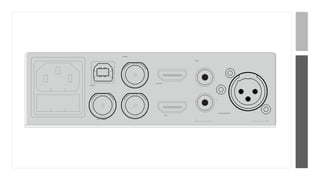
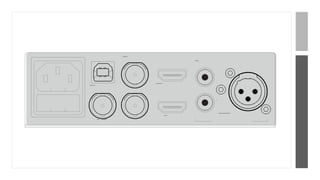
SDI PGM OUT
STEREO IN
L
USB WEB CAM
HDMI LOOP OUT
R
HDMI IN
SDI IN SDI LOOPOUT
LINE/MIC IN ANALOG AUDIO IN
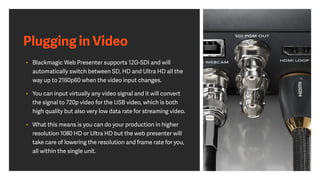
Plugging in Video
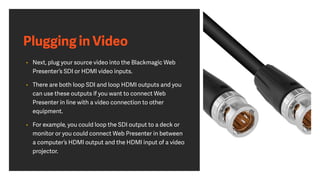
• Next, plug your source video into the Blackmagic Web
Presenter’s SDI or HDMI video inputs.
• There are both loop SDI and loop HDMI outputs and you
can use these outputs if you want to connect Web
Presenter in line with a video connection to other
equipment.
• For example, you could loop the SDI output to a deck or
monitor or you could connect Web Presenter in between
a computer’s HDMI output and the HDMI input of a video
projector.
Plugging in Video
• There is also a program SDI output and this will output
video after the SDI and HDMI switch, but before the
down conversion to 720p video.
• This SDI program output is the same resolution as the
video inputs, so is perfect for connecting to a deck for
master recording.
Plugging in Video
• Blackmagic Web Presenter supports 12G-SDI and will
automatically switch between SD, HD and Ultra HD all the
way up to 2160p60 when the video input changes.
• You can input virtually any video signal and it will convert
the signal to 720p video for the USB video, which is both
high quality but also very low data rate for streaming video.
• What this means is you can do your production in higher
resolution 1080 HD or Ultra HD but the web presenter will
take care of lowering the resolution and frame rate for you,
all within the single unit.
SDI PGM OUT
STEREO IN
L
USB WEB CAM
HDMI LOOP OUT
R
HDMI IN
SDI IN SDI LOOPOUT
LINE/MIC IN ANALOG AUDIO IN
Plugging in Audio
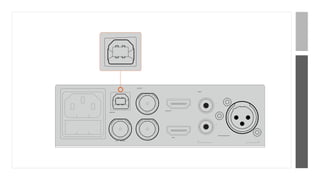
• The SDI and HDMI inputs include audio, however there
are also 2 additional analog audio inputs.
• The XLR audio input is a mono input that lets you plug in
microphones. It’s a single channel mono input because
microphones are mono and when you connect to this
balanced XLR audio input the audio will be sent to both
left and right audio channels internally.
Plugging in Audio
• The second analog audio input is a HiFi input using RCA
connectors.
• This input is good for computer audio or audio from a
music source such as smartphone, music player, audio
mixer or even a CD player.
Plugging in Audio
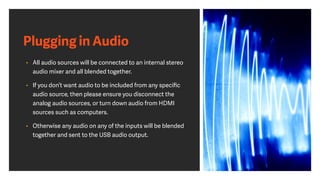
• All audio sources will be connected to an internal stereo
audio mixer and all blended together.
• If you don’t want audio to be included from any specific
audio source, then please ensure you disconnect the
analog audio sources, or turn down audio from HDMI
sources such as computers.
• Otherwise any audio on any of the inputs will be blended
together and sent to the USB audio output.
Reducing Audio Interference
• Remove cellphone from area
• Disable cell reception
• Avoid microphones crossing power cables
• Turn off connected drives and extra devices
SDI PGM OUT
STEREO IN
L
USB WEB CAM
HDMI LOOP OUT
R
HDMI IN
SDI IN SDI LOOPOUT
LINE/MIC IN ANALOG AUDIO IN
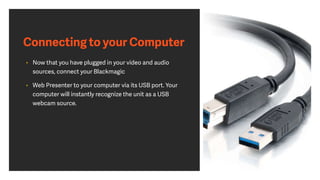
Connecting to your Computer
• Now that you have plugged in your video and audio
sources, connect your Blackmagic
• Web Presenter to your computer via its USB port. Your
computer will instantly recognize the unit as a USB
webcam source.
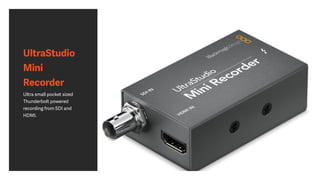
UltraStudio
Mini
Recorder
Ultra small pocket sized
Thunderbolt powered
recording from SDI and
HDMI.
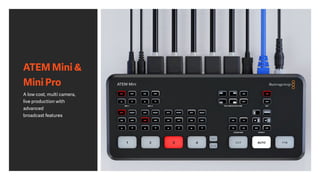
ATEM Mini &
Mini Pro
A low cost, multi camera,
live production with
advanced
broadcast features
Holding a Rehearsal
Testing Picture and Sound
• Check all cables
• Ensure adequate lighting
• Do a test recording
• Perform a test stream
• Watch test on a second computer
• Watch test on a mobile device
Holding a Rehearsal Event
• Plays and musicals hold rehearsals
• A rehearsal fulfills multiple needs
• Content issues
• Technical issues
• Host issues
• Experienced presenters can simply do a walk-through
• Avoid sounding over-rehearsed
Going Live
Monitoring on a Second Computer
• Never watch on same computer as presenting
• Load a stream to see what audience sees
• Be sure to mute the volume to avoid an echo loop
• Have headphones plugged in so you can do a test listen
A Checklist Before Going Live
• Make sure content is organized
• Send out last-minute reminders and social media posts
• Check your Internet connection
• Verify a Plan B connection
• Remove any distractions
A Checklist Before Going Live
• Check your cables
• Clean lens of camera
• Run through slides and demo assets
• Setup a monitoring station
• Create a document with all links needed
• Have a backup computer standing by
A Checklist Before Going Live
• Have a glass of water nearby
• Eat a small meal
• Take any bio steps needed
• Relax for 15 minutes before starting
• Login 15-30 minutes early
• Start a backup recording
Getting In Touch
twitter.com/rhedpixel
facebook.com/
RichHarringtonStuff
linkedin.com/in/
richardharrington
Photofocus.com
vimeo.com/rhedpixel
Two Free Classes | http://bit.ly/ttlmax2free
We hope you enjoyed this session.
Please be sure to fill out your attendee
evaluations which provide us with valuable
insights to improve future conferences!
Plus, you may even win a raffle prize during
our keynote sessions!
Platinum Sponsors Gold Sponsors
Don’t forget to fill
out your evaluation!

Running Successful Facebook Live Events

  • 2.
    Session Agenda ● Themany different ways to go live ● Scheduling your Facebook Live event ● Boosting an event with sponsored posts ● Using Facebook Live from a phone or tablet ● Using Facebook Live with a web browser and computer ● Using multiple cameras with Facebook Live ● Strategies for after the event
  • 3.
    Running Successful Facebook LiveEvents How to go live and not screw it up facebook.com/
 RichHarringtonStuff linkedin.com/in/
 richardharrington twitter.com/ rhedpixel
  • 4.
    Description Join us onlocation as Rich Harrington walks through the necessary steps to ensure that you run a successful Facebook Live event and avoid technical hiccups.   You’ll learn how to produce and direct live events on Facebook.  You’ll know all the benefits of Facebook Live, as well as how to schedule and promote a Facebook Live event.  You’ll see technical workflows from minimal gear to multi-camera setups.
  • 10.
    Richard Harrington I'm a visualstoryteller exploring the fusion of photography and video. I'm also a husband & father
  • 11.
    Vital Statistics • Author40+ Books • Author 200+ Video Courses • Publisher of Photofocus & ThinkTAP Learn • Conference Speaker • Business Owner • Photographer
  • 13.
    Past Projects • AmericaOnline • American Diabetes Association • American Israel Public Affairs Committee • American Red Cross • Apple • Children's National Medical Center • Department of Veterans Administration • Drobo • Federal Communications Commission • Google • lynda.com • Microsoft • Skylum • Smithsonian Institute • Under Armour • US Air Force
  • 14.
    Advisory and ConsultantProjects • Television Networks • ABC News • CNN • Discovery Channel • Major League Baseball Network • NASCAR • Turner Networks • Technology • Adobe Creative Cloud Advisory Board • Apple • Athentech • Pearson Education • Skylum Software
  • 15.
  • 16.
  • 17.
    Facebook Live froma Phone or Tablet • Smartphone • Tablet • Facebook Native App • Tripod or Stabilizer • Microphone
  • 18.
    Facebook Live witha Web Browser and Computer • Desktop computer • Laptop computer • Web camera • Microphone • Ethernet connection
  • 19.
    Multicamera Facebook Live •Multiple cameras • Video interface • Switching software or hardware • Ethernet connection
  • 20.
  • 27.
  • 28.
  • 29.
  • 30.
  • 31.
  • 32.
    The Benefits ofFacebook Live
  • 33.
    The Benefits of FacebookLive • Connect with customers and clients • Reach a broader audience • Real-time interaction • Behind the scenes access • Control over access
  • 34.
    Facebook Live andPersonal Pages
  • 35.
    Facebook Live andBusiness Pages
  • 36.
  • 37.
    Going Live On-Demand •If possible pre-announce • Have an outline • Check internet connection • Check battery level • Is it safe?
  • 38.
  • 39.
    Creating Events • Goto the Events tab on the left side of your home page • Click Create Event in the upper-right corner of the page • Enter details • Start to invite friends and promote • Events support live video
  • 40.
    Using Business Managerto Schedule a Live Video
  • 41.
    Promoting the Eventin Advance Organically
  • 42.
    Promoting the Eventin Advance Organically • Mailing list integration • Social connections • Shareable links • Newsletters and email invites • 2—4 week lead time when possible
  • 43.
    Boosting an Eventin Advance with Sponsored Posts
  • 44.
  • 45.
    • Make surecontent is organized • Send out last-minute reminders and social media posts • Check your Internet connection • Verify a Plan B connection • Remove any distractions A Checklist Before Going Live
  • 46.
    • Check yourcables • Clean lens of camera • Run through slides and demo assets • Setup a monitoring station • Create a document with all links needed • Have a backup computer standing by A Checklist Before Going Live
  • 47.
    A Checklist BeforeGoing Live • Have a glass of water nearby • Eat a small meal • Take any bio steps needed • Relax for 15 minutes before starting • Login 15-30 minutes early • Start a backup recording
  • 48.
    Monitoring on a SecondComputer • Never watch on same computer as presenting • Load a stream to see what audience sees • Be sure to mute the volume to avoid an echo loop • Have headphones plugged in so you can do a test listen
  • 49.
    Planning for AudienceParticipation
  • 50.
    Planning for AudienceParticipation • Registration polls • Social media pre-conversations • Unanswered questions from last event • Live polls & surveys • Backchannel/Twitter • Chat pod (with moderator) • Q&A (text or call-in)
  • 51.
    Inviting Attendees tothe Live Event
  • 52.
    Inviting Attendees tothe Webinar • Mailing list integration • Social connections • Shareable links • Newsletters and email invites • 2—4 week lead time when possible
  • 53.
    Setting up aComputer for Facebook Live
  • 54.
    Screen Resolution Choices •16:9 (1.77:1) • 1280×720, 1366×768, and 1920×1080 displays • Became standard in 2010 • 4K Resolution • Gaining in popularity • Digital Cinema Initiatives is 4096×2160 (1.9:1) • Ultra High Definition is 3840x2160 (1.77:1)
  • 55.
    Screen Resolution Choices •Think about the viewing audience • The rise in online video makes 16:9 most popular • Some software platforms only support specific resolutions • Consider recording options and future playback
  • 57.
    Minimizing Data Transfer •Turn off syncing software • Cloud storage • Photo streams • Turn off data transfers • Network copies • Stop downloads/uploads
  • 58.
    Minimizing Data Transfer •Check for activity on network • Is a dedicated line an option? • Reduce number of connected devices • Check Activity Monitor on a Mac • Check Resource Monitor and Task Manager on a PC
  • 59.
    Removing Distractions and Embarrassment •Computer • Hide clock • Clear desktop • Minimize desktop pattern • Hide dock/taskbar • Cleanup shortcuts • Dedicated user
  • 60.
    Removing Distractions and Embarrassment •Web Browser • Clear history • Remove cache • Hide unused tabs • Hide favorites/bookmarks
  • 61.
    Removing Distractions and Embarrassment •Physical location • Remove distractions on desk/walls • Consider privacy screen • Simplify wardrobe • Alert others to recording/broadcasting status
  • 62.
    Internet Connection Options •Ethernet • Generally the fastest connection • Less prone to interference • Wi-Fi • Ubiquitous, but has many potential issues • Cellular • Should be seen as a backup
  • 64.
    Connection Speed • Minimumbandwidth required • Outbound 300 kbps • Inbound 300 kbps • Ideal bandwidth • Outbound 3.2 mbps • Inbound 2.6 mbps
  • 65.
    Reducing Audio Interference •Remove cellphone from area • Disable cell reception • Avoid microphones crossing power cables • Turn off connected drives and extra devices • Fans/AC/mechanical
  • 66.
  • 67.
    Live Streaming Tools •OBS Studio  • Mac, PC & Linux, Free, Open Source • https://obsproject.com/ • Wirecast  • Mac & PC, from $495 • https://www.telestream.net/wirecast/
  • 68.
  • 71.
    Live Streaming Tools •mimoLive  • Mac only - $199/year for personal use, from $699/year for commercial • https://boinx.com/mimolive/ • Lightstream • web app, currently free • https://www.golightstream.com/facebook/
  • 72.
    Live Streaming Tools •Ecamm Live • Mac only, $29.95 • http://www.ecamm.com/mac/ecammlive/ • BeLive • FREE, web app with guests and multiple camera angles • https://belive.tv
  • 73.
    Live Streaming Tools •BlueJeans onSocial  • Web app - initial price $39.95/mth for live meetings with up to 25 guests and live streaming to Facebook • https://www.bluejeans.com/onsocial • Zoom • Mac & PC - Facebook integration on paid version with Webinar bolt-on - from $14.99+$40/month upwards • www.zoom.us
  • 74.
  • 75.
    Plugging in Power •To supply power, plug a standard IEC power cable into your Blackmagic Web Presenter’s power input on the rear panel. • When powered, the status indicator at the bottom right corner of your Web Presenter’s front panel will illuminate.
  • 76.
    SDI PGM OUT STEREOIN L USB WEB CAM HDMI LOOP OUT R HDMI IN SDI IN SDI LOOPOUT LINE/MIC IN ANALOG AUDIO IN
  • 78.
    Plugging in Video •Next, plug your source video into the Blackmagic Web Presenter’s SDI or HDMI video inputs. • There are both loop SDI and loop HDMI outputs and you can use these outputs if you want to connect Web Presenter in line with a video connection to other equipment. • For example, you could loop the SDI output to a deck or monitor or you could connect Web Presenter in between a computer’s HDMI output and the HDMI input of a video projector.
  • 79.
    Plugging in Video •There is also a program SDI output and this will output video after the SDI and HDMI switch, but before the down conversion to 720p video. • This SDI program output is the same resolution as the video inputs, so is perfect for connecting to a deck for master recording.
  • 80.
    Plugging in Video •Blackmagic Web Presenter supports 12G-SDI and will automatically switch between SD, HD and Ultra HD all the way up to 2160p60 when the video input changes. • You can input virtually any video signal and it will convert the signal to 720p video for the USB video, which is both high quality but also very low data rate for streaming video. • What this means is you can do your production in higher resolution 1080 HD or Ultra HD but the web presenter will take care of lowering the resolution and frame rate for you, all within the single unit.
  • 81.
    SDI PGM OUT STEREOIN L USB WEB CAM HDMI LOOP OUT R HDMI IN SDI IN SDI LOOPOUT LINE/MIC IN ANALOG AUDIO IN
  • 82.
    Plugging in Audio •The SDI and HDMI inputs include audio, however there are also 2 additional analog audio inputs. • The XLR audio input is a mono input that lets you plug in microphones. It’s a single channel mono input because microphones are mono and when you connect to this balanced XLR audio input the audio will be sent to both left and right audio channels internally.
  • 83.
    Plugging in Audio •The second analog audio input is a HiFi input using RCA connectors. • This input is good for computer audio or audio from a music source such as smartphone, music player, audio mixer or even a CD player.
  • 84.
    Plugging in Audio •All audio sources will be connected to an internal stereo audio mixer and all blended together. • If you don’t want audio to be included from any specific audio source, then please ensure you disconnect the analog audio sources, or turn down audio from HDMI sources such as computers. • Otherwise any audio on any of the inputs will be blended together and sent to the USB audio output.
  • 85.
    Reducing Audio Interference •Remove cellphone from area • Disable cell reception • Avoid microphones crossing power cables • Turn off connected drives and extra devices
  • 86.
    SDI PGM OUT STEREOIN L USB WEB CAM HDMI LOOP OUT R HDMI IN SDI IN SDI LOOPOUT LINE/MIC IN ANALOG AUDIO IN
  • 87.
    Connecting to yourComputer • Now that you have plugged in your video and audio sources, connect your Blackmagic • Web Presenter to your computer via its USB port. Your computer will instantly recognize the unit as a USB webcam source.
  • 88.
    UltraStudio Mini Recorder Ultra small pocketsized Thunderbolt powered recording from SDI and HDMI.
  • 89.
    ATEM Mini & MiniPro A low cost, multi camera, live production with advanced broadcast features
  • 90.
  • 92.
    Testing Picture andSound • Check all cables • Ensure adequate lighting • Do a test recording • Perform a test stream • Watch test on a second computer • Watch test on a mobile device
  • 93.
    Holding a RehearsalEvent • Plays and musicals hold rehearsals • A rehearsal fulfills multiple needs • Content issues • Technical issues • Host issues • Experienced presenters can simply do a walk-through • Avoid sounding over-rehearsed
  • 94.
  • 95.
    Monitoring on aSecond Computer • Never watch on same computer as presenting • Load a stream to see what audience sees • Be sure to mute the volume to avoid an echo loop • Have headphones plugged in so you can do a test listen
  • 96.
    A Checklist BeforeGoing Live • Make sure content is organized • Send out last-minute reminders and social media posts • Check your Internet connection • Verify a Plan B connection • Remove any distractions
  • 97.
    A Checklist BeforeGoing Live • Check your cables • Clean lens of camera • Run through slides and demo assets • Setup a monitoring station • Create a document with all links needed • Have a backup computer standing by
  • 98.
    A Checklist BeforeGoing Live • Have a glass of water nearby • Eat a small meal • Take any bio steps needed • Relax for 15 minutes before starting • Login 15-30 minutes early • Start a backup recording
  • 100.
  • 105.
    Two Free Classes| http://bit.ly/ttlmax2free
  • 106.
    We hope youenjoyed this session. Please be sure to fill out your attendee evaluations which provide us with valuable insights to improve future conferences! Plus, you may even win a raffle prize during our keynote sessions! Platinum Sponsors Gold Sponsors
  • 107.
    Don’t forget tofill out your evaluation!