“Producing Powerful and
Effective Presentations”

      Henry Osborne
1. Keep it Simple
Your slides should have
plenty of white space, or
negative space.
2. Limit Bullet Points
and Text

“The best slides may
have no text at all.”
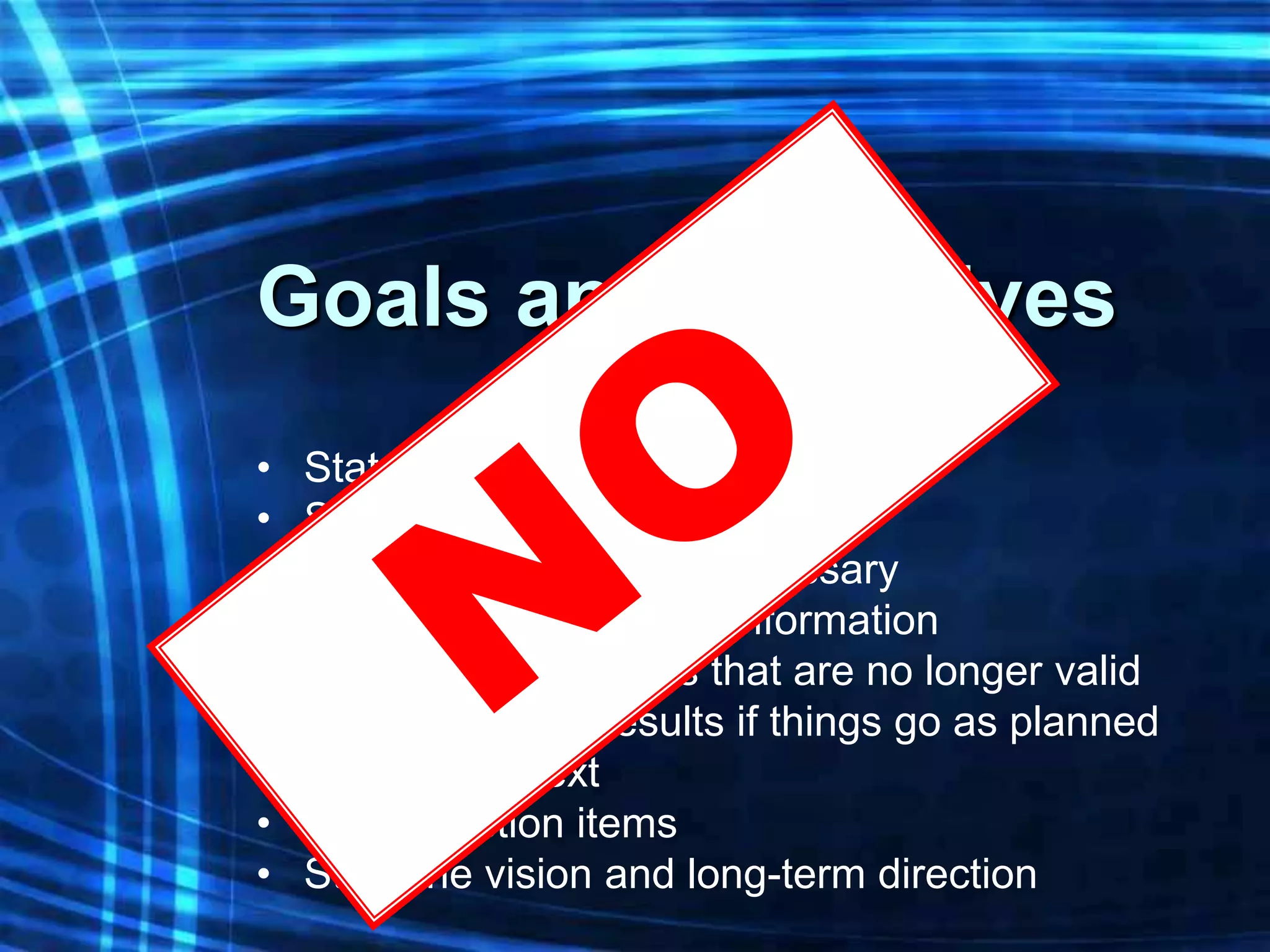
Goals and Objectives
•   State the desired goal
•   State the desired objective
•   Use multiple points if necessary
•   Any relevant historical information
•   Original assumptions that are no longer valid
•   Summarize the results if things go as planned
•   What to do next
•   Identify action items
•   State the vision and long-term direction
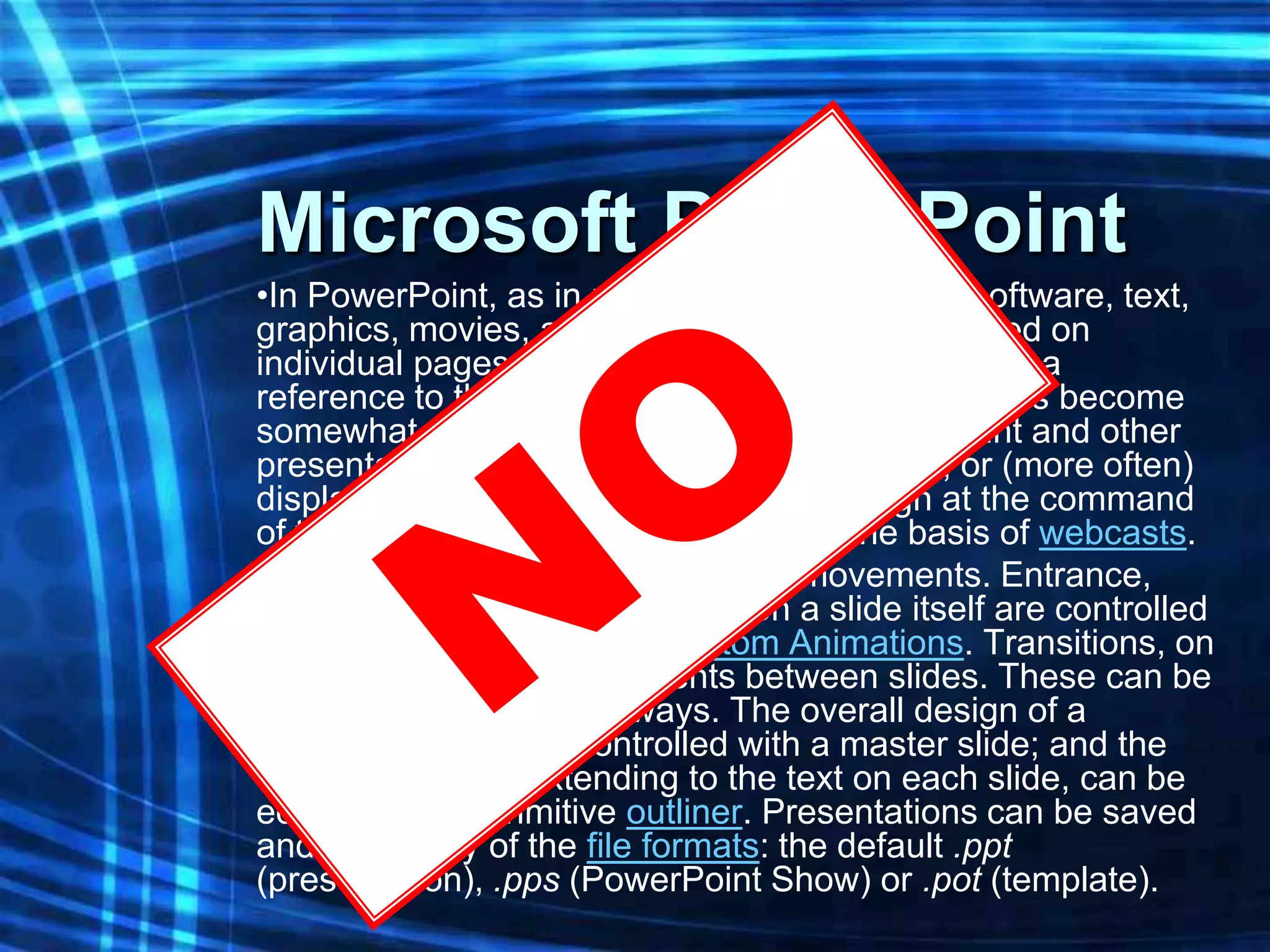
Microsoft PowerPoint
•In PowerPoint, as in most other presentation software, text,
graphics, movies, and other objects are positioned on
individual pages or "slides". The "slide" analogy is a
reference to the slide projector, a device which has become
somewhat obsolete due to the use of PowerPoint and other
presentation software. Slides can be printed, or (more often)
displayed on-screen and navigated through at the command
of the presenter. Slides can also form the basis of webcasts.
•PowerPoint provides two types of movements. Entrance,
emphasis, and exit of elements on a slide itself are controlled
by what PowerPoint calls Custom Animations. Transitions, on
the other hand are movements between slides. These can be
animated in a variety of ways. The overall design of a
presentation can be controlled with a master slide; and the
overall structure, extending to the text on each slide, can be
edited using a primitive outliner. Presentations can be saved
and run in any of the file formats: the default .ppt
(presentation), .pps (PowerPoint Show) or .pot (template).
3. Limit Transitions and
Animations
Use object builds
(animations) and slide
transitions judiciously.
Presentation Software
•   Microsoft PowerPoint
•   Apple KeyNote
•   OpenOffice.org Impress
•   Corel Presentations
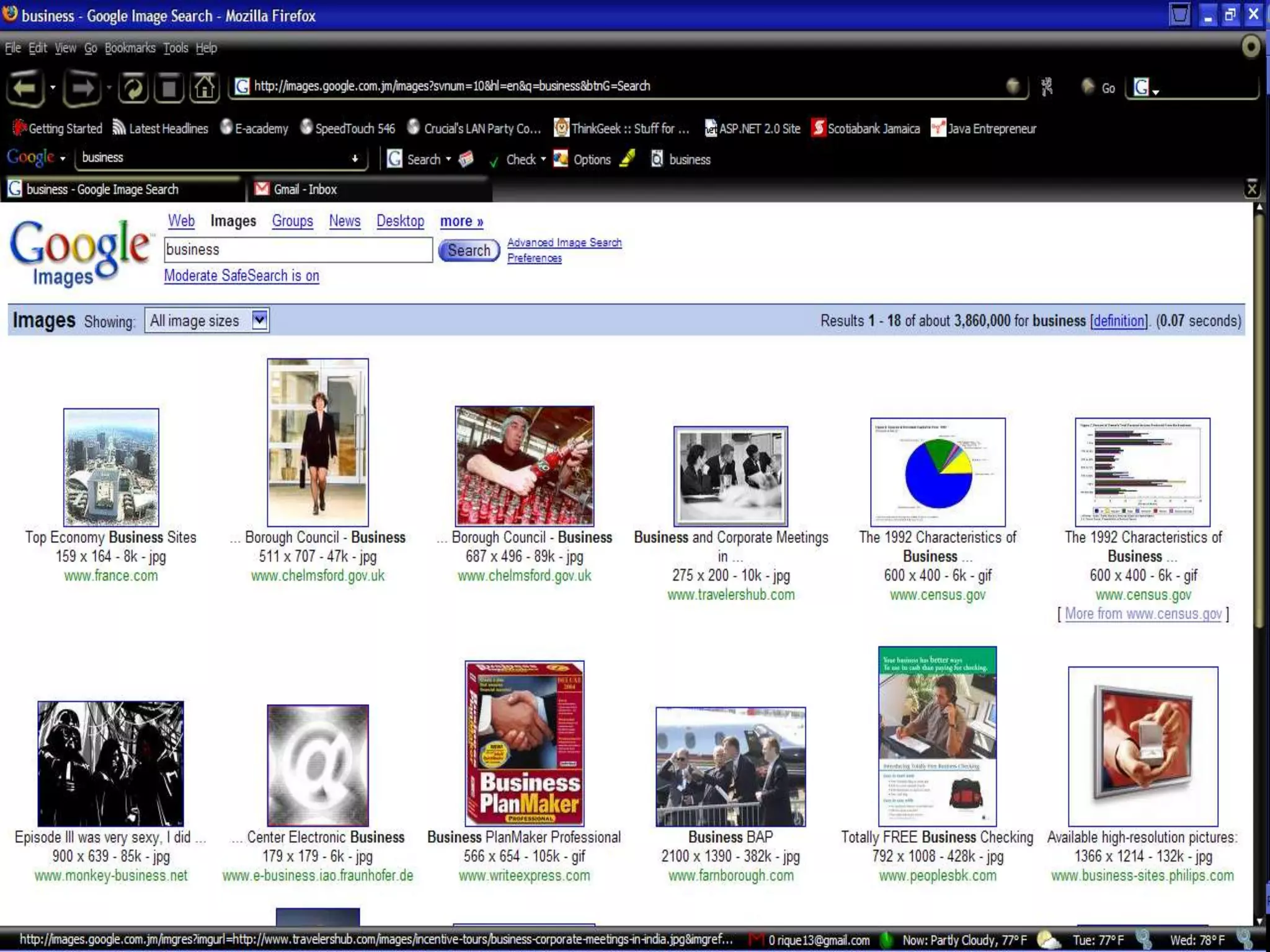
4. Use High Quality
Graphics
Never simply stretch a
small, low-resolution
photo to make it fit your
layout.
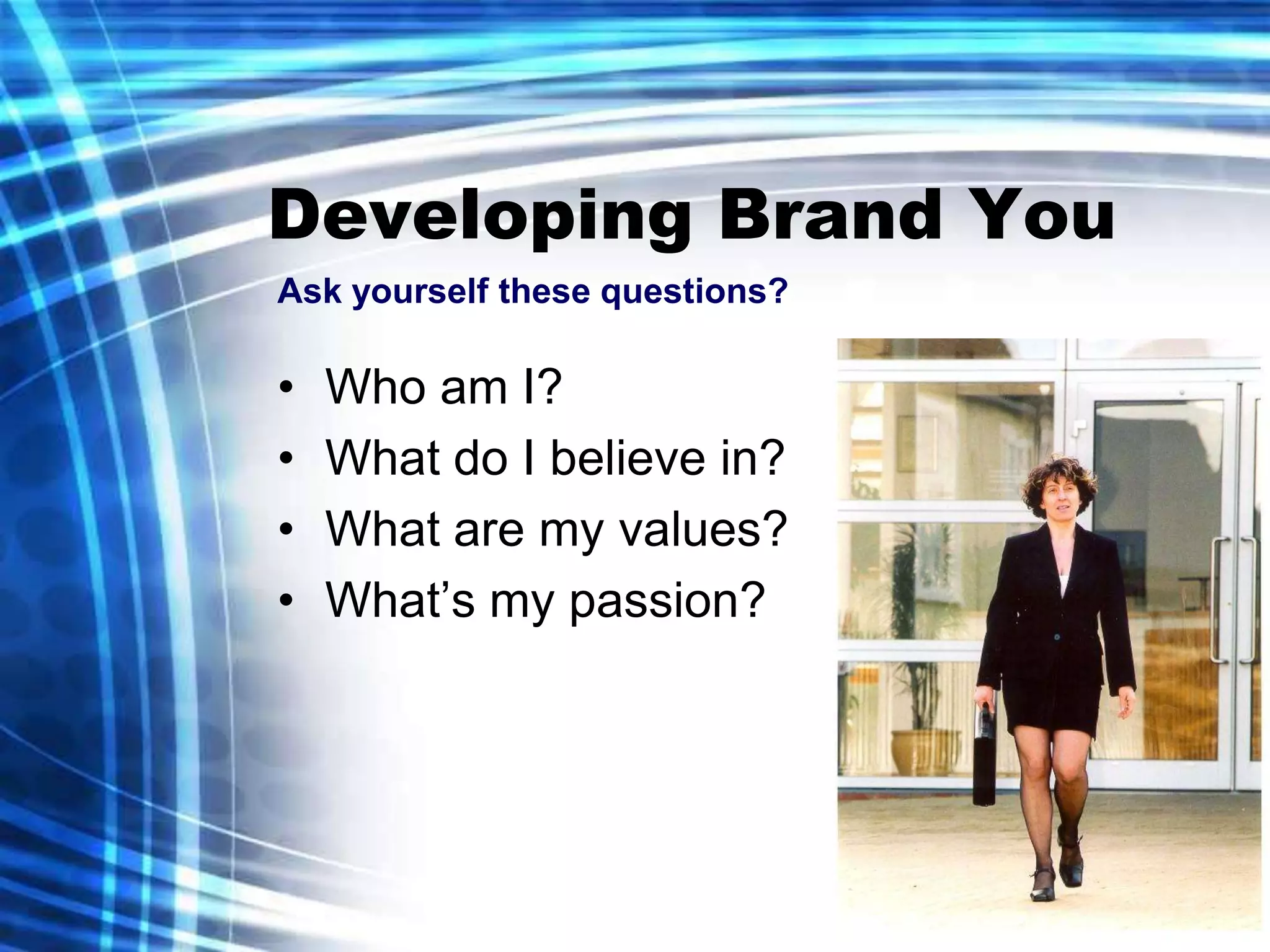
Developing Brand You
Ask yourself these questions?

• Who am I?
• What do I believe in?
• What are my values?
• What’s my passion?
• What am I great at?
• Where do I want to
  go?
• What’s my essence?
Developing Brand You
Ask yourself these questions?

•   Who am I?
•   What do I believe in?
•   What are my values?
•   What’s my passion?
5. Have a Visual Theme

Use a consistent theme
throughout your
presentation.
6. Use Appropriate
Charts
Always ask
yourself, “How much
detail do I need?”
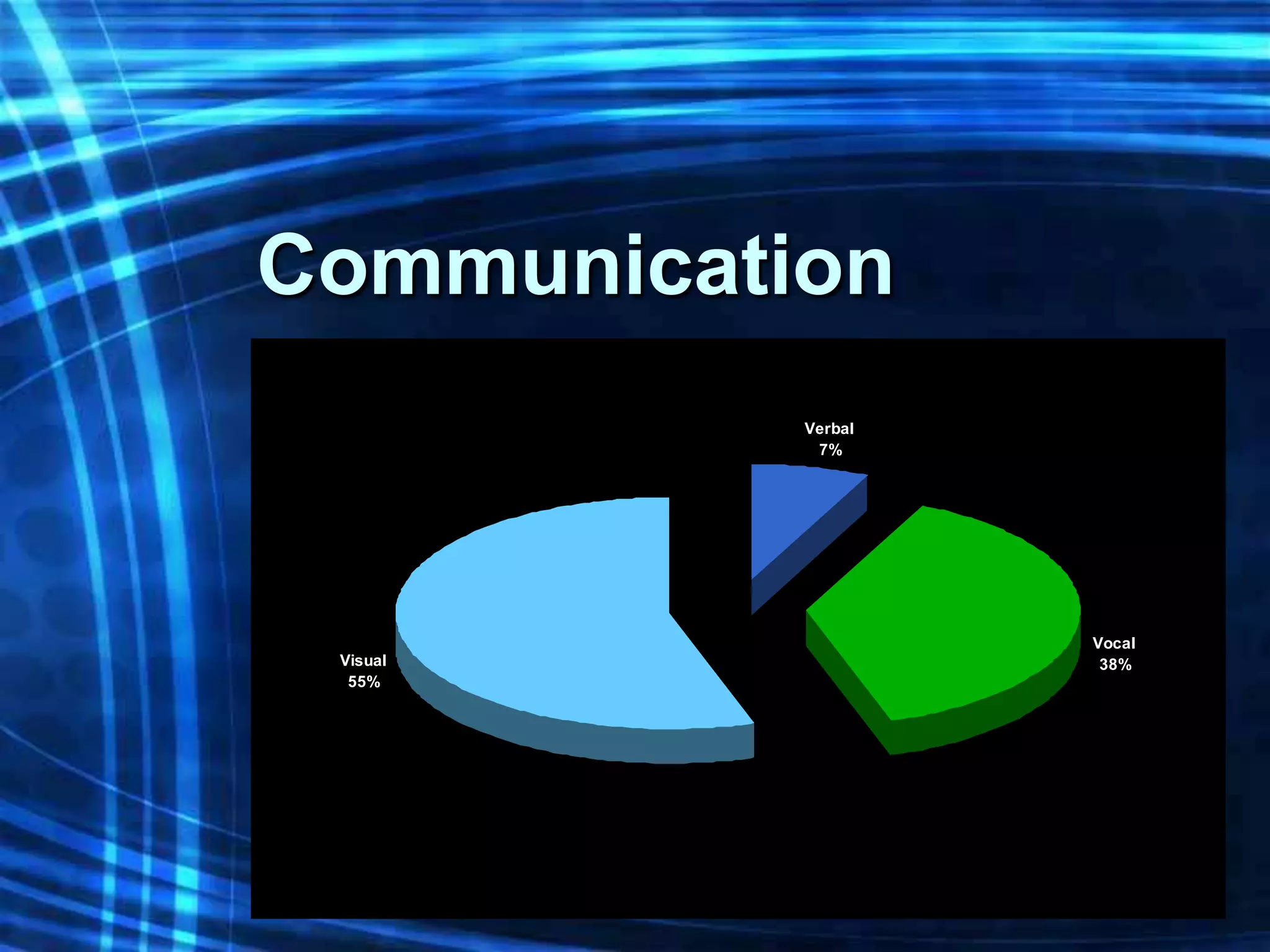
Communication
           Verbal
            7%


                    Vocal
 Visual              38%
  55%
Sales for June, 2004


                        North
                        West
                        East


 0    200   400   600
7. Use Color Well

Color evokes feelings.
Color is emotional.
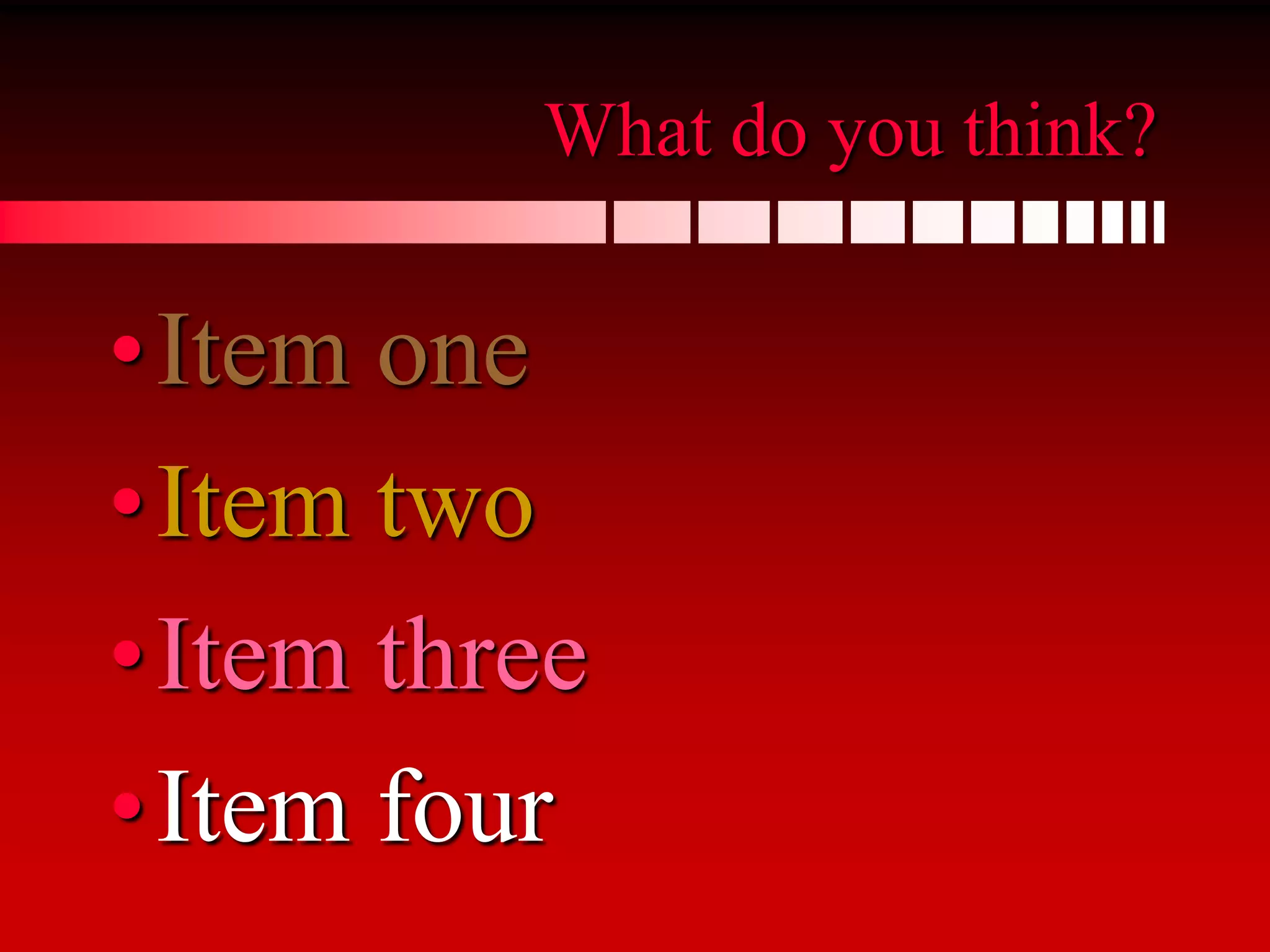
What do you think?

• Item one
• Item two
• Item three
• Item four
8. Choose Fonts Well

Use the same font set
throughout your entire
slide presentation.
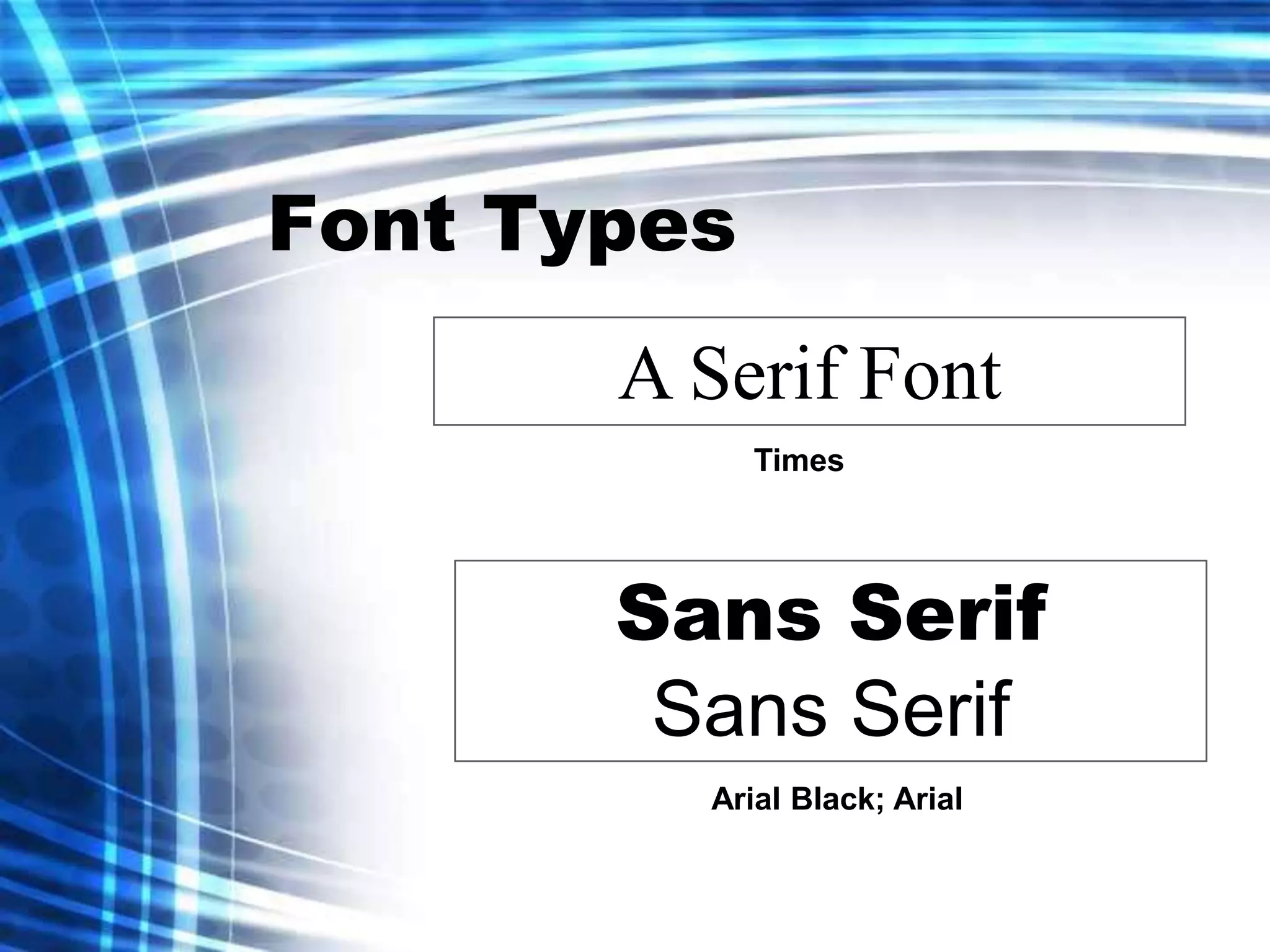
Font Types
       A Serif Font
             Times


       Sans Serif
        Sans Serif
         Arial Black; Arial
This font looks nice up close
but when projected….not so
nice to read.
9. Use Video or Audio

Use video and audio when
appropriate.
10. Spend Time in the
Slide Sorter
“People comprehend better
when information is presented
in small chunks or segments.”
        Segmentation Principle
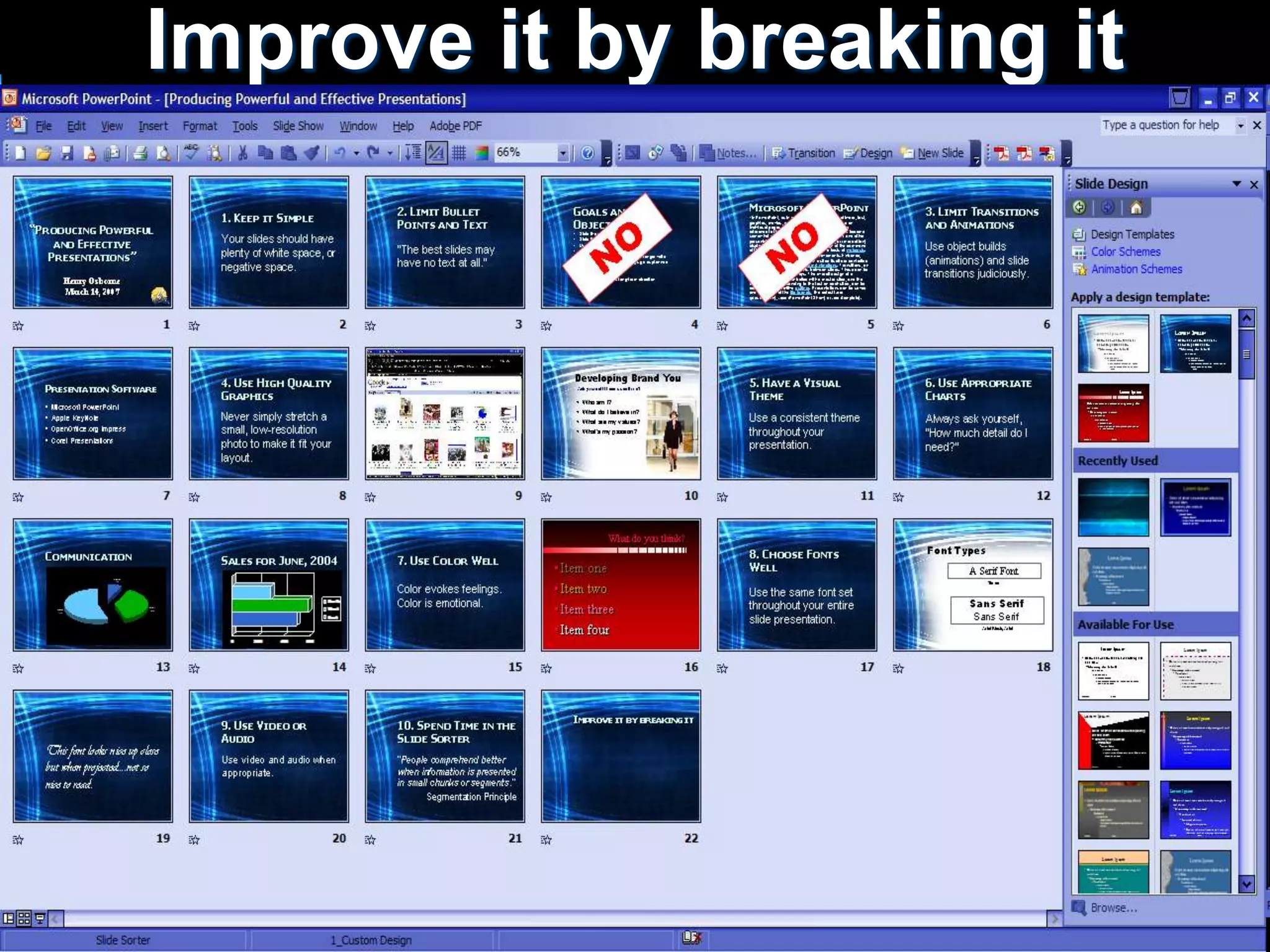
Improve it by breaking it
Other Tips
• Your audience can read
• Know your presentation
• Be conscious of people
  with disabilities
“Producing Powerful and
Effective Presentations”

Producing Powerful and Effective Presentations

  • 1.
    “Producing Powerful and EffectivePresentations” Henry Osborne
  • 2.
    1. Keep itSimple Your slides should have plenty of white space, or negative space.
  • 3.
    2. Limit BulletPoints and Text “The best slides may have no text at all.”
  • 4.
    Goals and Objectives • State the desired goal • State the desired objective • Use multiple points if necessary • Any relevant historical information • Original assumptions that are no longer valid • Summarize the results if things go as planned • What to do next • Identify action items • State the vision and long-term direction
  • 5.
    Microsoft PowerPoint •In PowerPoint,as in most other presentation software, text, graphics, movies, and other objects are positioned on individual pages or "slides". The "slide" analogy is a reference to the slide projector, a device which has become somewhat obsolete due to the use of PowerPoint and other presentation software. Slides can be printed, or (more often) displayed on-screen and navigated through at the command of the presenter. Slides can also form the basis of webcasts. •PowerPoint provides two types of movements. Entrance, emphasis, and exit of elements on a slide itself are controlled by what PowerPoint calls Custom Animations. Transitions, on the other hand are movements between slides. These can be animated in a variety of ways. The overall design of a presentation can be controlled with a master slide; and the overall structure, extending to the text on each slide, can be edited using a primitive outliner. Presentations can be saved and run in any of the file formats: the default .ppt (presentation), .pps (PowerPoint Show) or .pot (template).
  • 6.
    3. Limit Transitionsand Animations Use object builds (animations) and slide transitions judiciously.
  • 7.
    Presentation Software • Microsoft PowerPoint • Apple KeyNote • OpenOffice.org Impress • Corel Presentations
  • 8.
    4. Use HighQuality Graphics Never simply stretch a small, low-resolution photo to make it fit your layout.
  • 9.
    Developing Brand You Askyourself these questions? • Who am I? • What do I believe in? • What are my values? • What’s my passion? • What am I great at? • Where do I want to go? • What’s my essence?
  • 10.
    Developing Brand You Askyourself these questions? • Who am I? • What do I believe in? • What are my values? • What’s my passion?
  • 11.
    5. Have aVisual Theme Use a consistent theme throughout your presentation.
  • 12.
    6. Use Appropriate Charts Alwaysask yourself, “How much detail do I need?”
  • 13.
    Communication Verbal 7% Vocal Visual 38% 55%
  • 14.
    Sales for June,2004 North West East 0 200 400 600
  • 15.
    7. Use ColorWell Color evokes feelings. Color is emotional.
  • 16.
    What do youthink? • Item one • Item two • Item three • Item four
  • 17.
    8. Choose FontsWell Use the same font set throughout your entire slide presentation.
  • 18.
    Font Types A Serif Font Times Sans Serif Sans Serif Arial Black; Arial
  • 19.
    This font looksnice up close but when projected….not so nice to read.
  • 20.
    9. Use Videoor Audio Use video and audio when appropriate.
  • 21.
    10. Spend Timein the Slide Sorter “People comprehend better when information is presented in small chunks or segments.” Segmentation Principle
  • 22.
    Improve it bybreaking it
  • 23.
    Other Tips • Youraudience can read • Know your presentation • Be conscious of people with disabilities
  • 24.