Effective PowerPoint presentation Dr. T. Balasubramanian M.S. D.L.O.
Aims To help you to create effective presentation Help in avoiding common pitfalls in PowerPoint presentation To reveal some of the hidden but useful features in PowerPoint
Assumptions You are familiar with PowerPoint interface You have already tried and generated PowerPoint slides You use presentation software on a regular basis
Did you Know That you can add speaker notes to your slide? That you can print out not only the slides but also your notes? That you can add commentaries to your slide? That you can make your slide interactive? That you can undo the last 20 actions of PowerPoint.
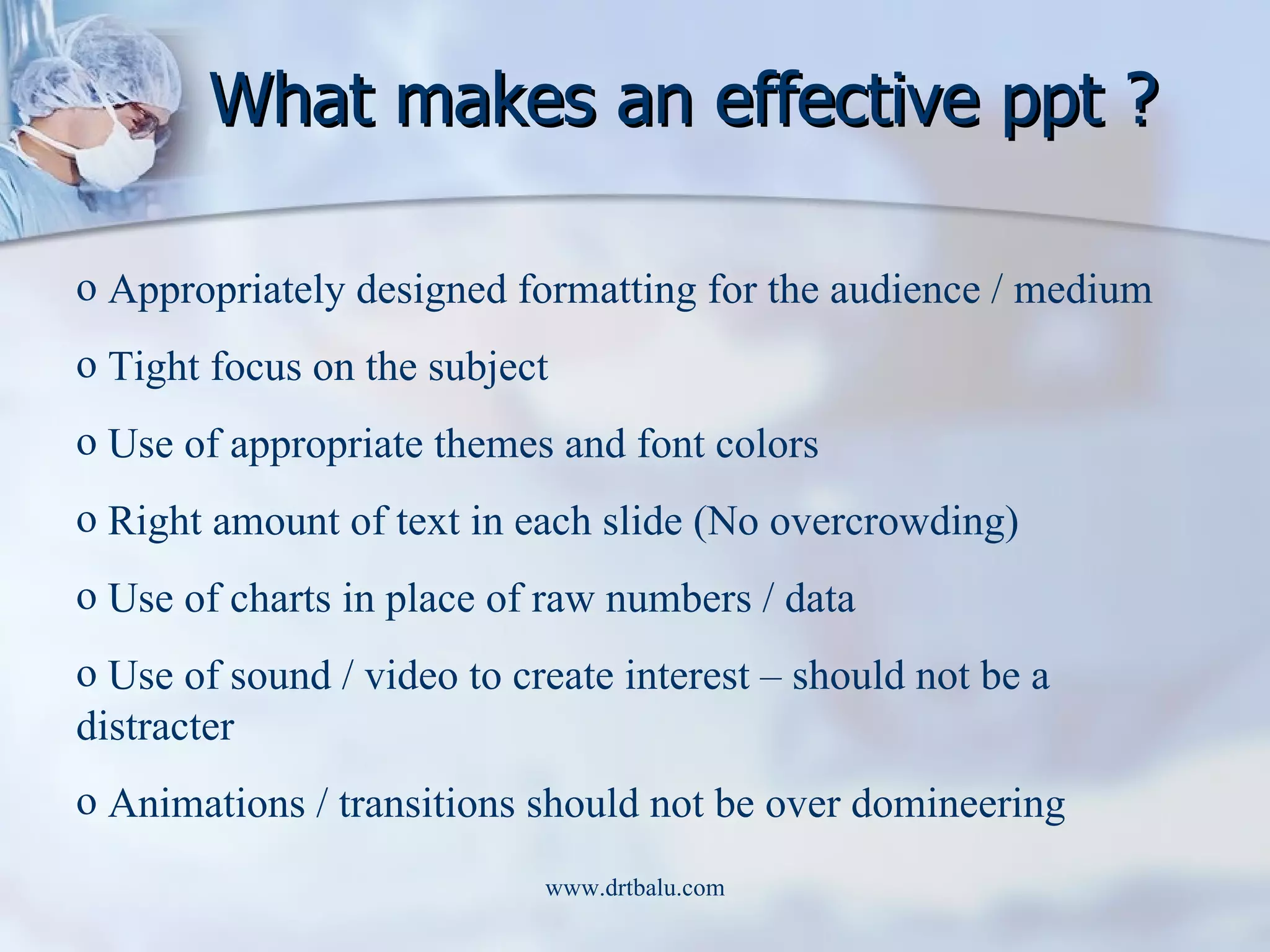
What makes an effective ppt ? Appropriately designed formatting for the audience / medium Tight focus on the subject Use of appropriate themes and font colors Right amount of text in each slide (No overcrowding) Use of charts in place of raw numbers / data Use of sound / video to create interest – should not be a distracter Animations / transitions should not be over domineering
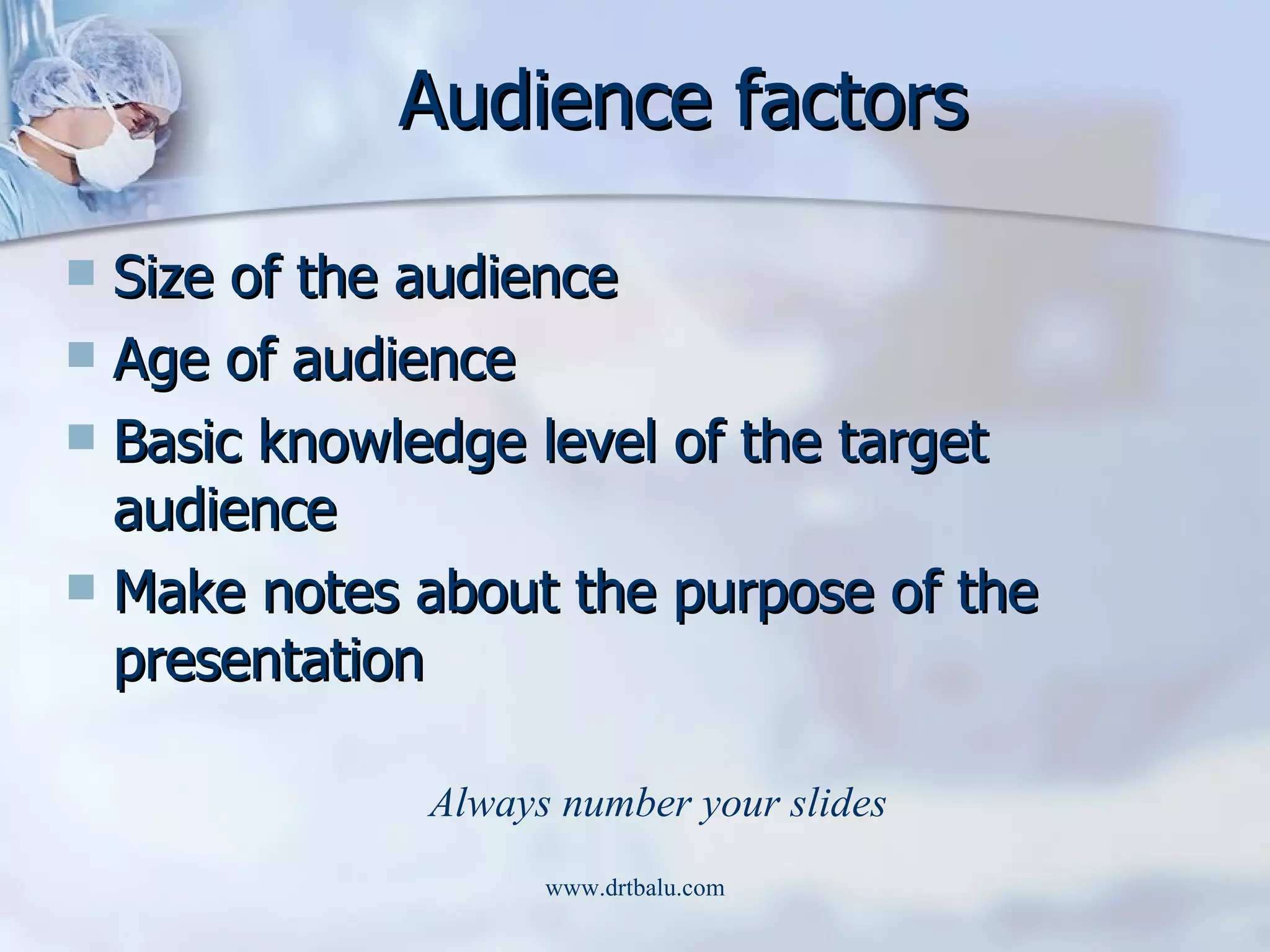
Audience factors Size of the audience Age of audience Basic knowledge level of the target audience Make notes about the purpose of the presentation  Always number your slides
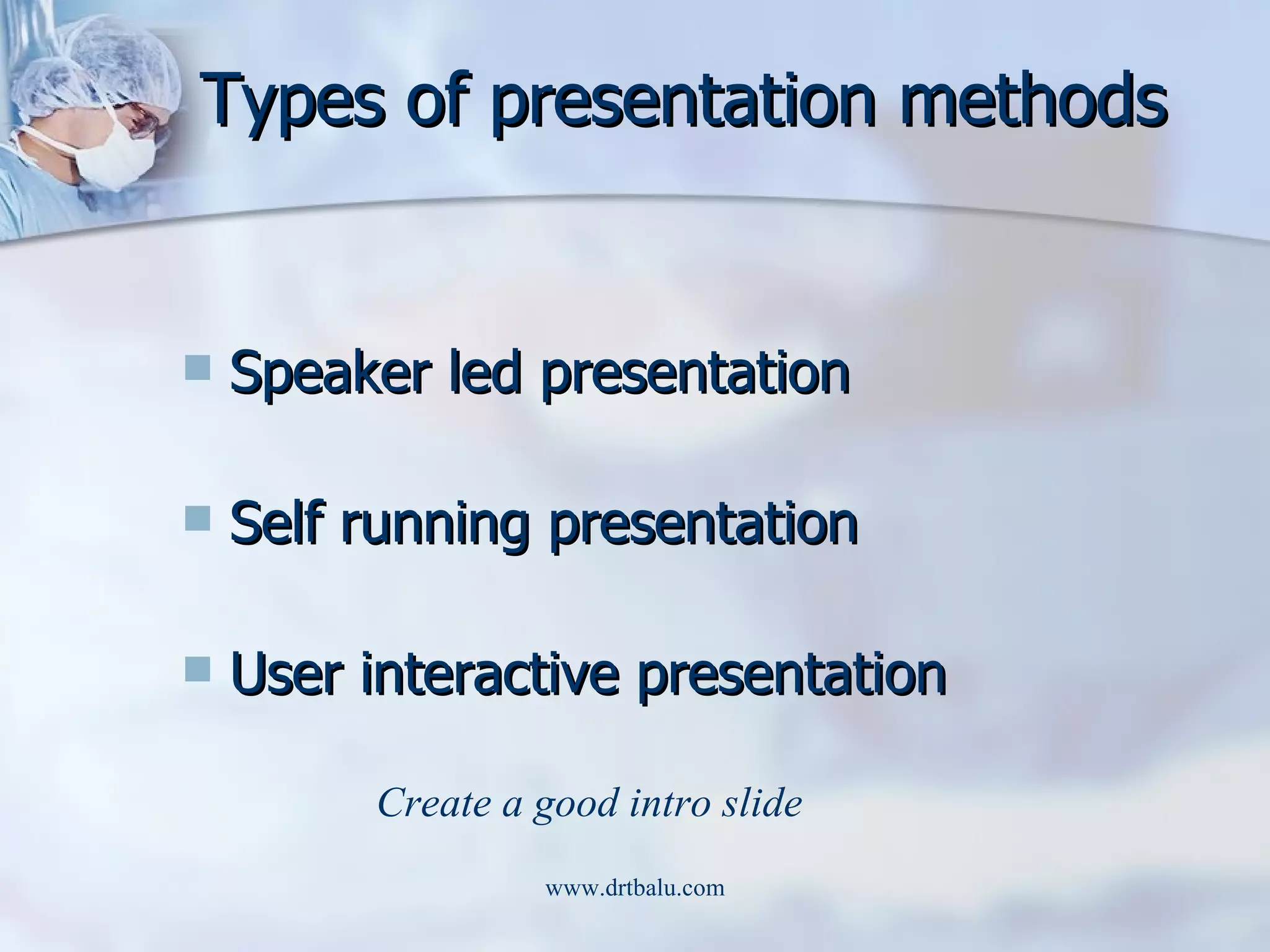
Types of presentation methods Speaker led presentation Self running presentation User interactive presentation Create a good intro slide
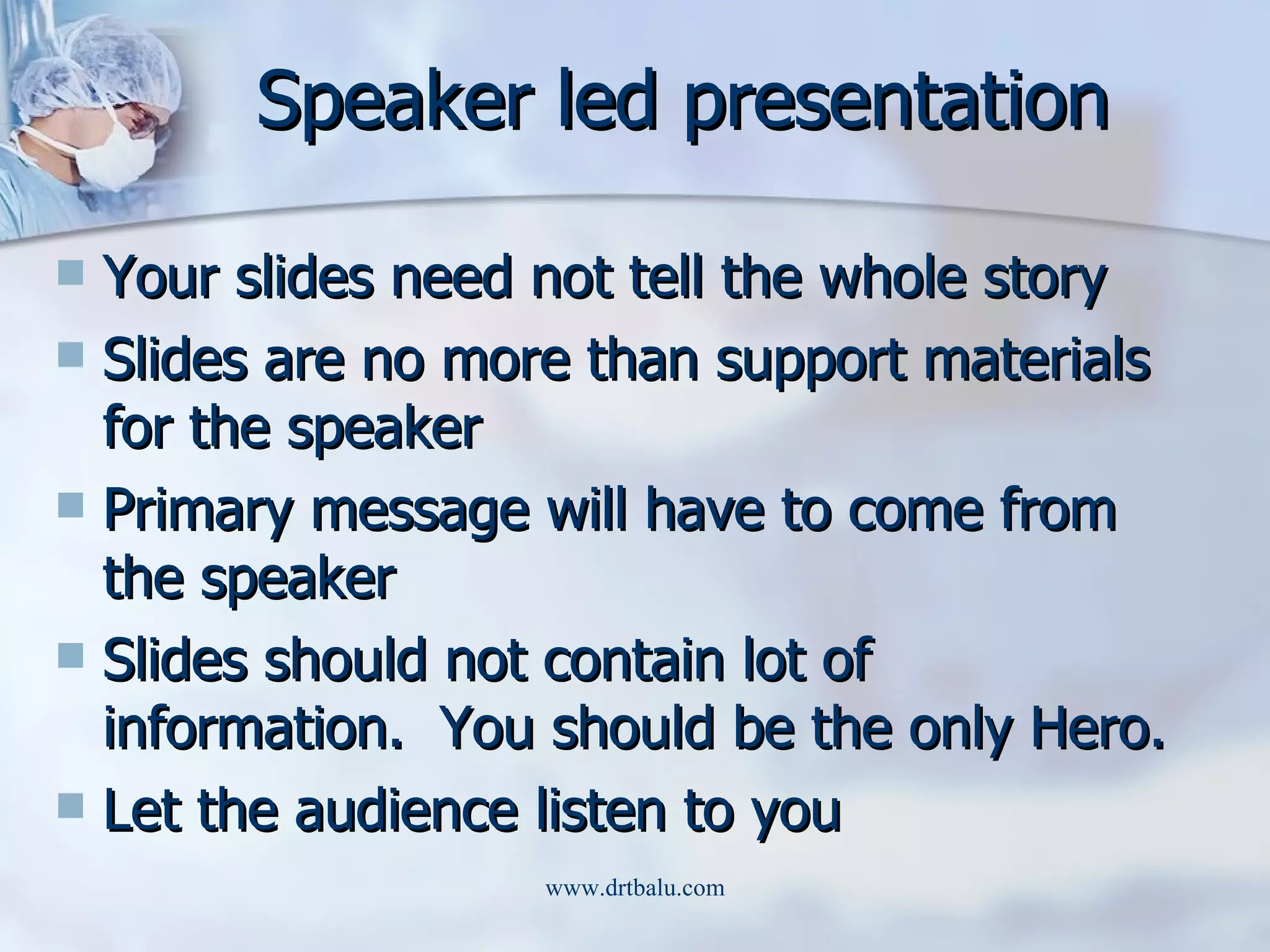
Speaker led presentation Your slides need not tell the whole story Slides are no more than support materials for the speaker Primary message will have to come from the speaker Slides should not contain lot of information.  You should be the only Hero. Let the audience listen to you
Speaker led presentation pitfalls Needs lot of planning Handouts to audience Handling PowerPoint controls Take care to create summary slide
Self running presentations Slides should carry the entire show All information should be there in the slides Voice commentary is a must Ideal for individual / small group teaching Timing should be precise – User should get to see the next slide as soon as he completes reading the previous one
User interactive presentation User input is needed for this presentation You need to place arrows for easy user interaction This presentation is ideal for mass distribution HTML / Web format is best for this type of presentation
Delivery methods PowerPoint slide show – you need to have PowerPoint programme / viewer installed in the user’s system Web browser show – No special software needed – used for self running / user interactive shows Show on CD – Useful for self running / user active shows
Delivery methods (contd) Over head transparencies – used only for speaker led show –  Beware of transparencies you buy.  Transparencies designed for inkjet printers may melt when laser printer is used. 35 mm slides – Expensive – Resolution high, image quality better. Paper handouts
Projection medium Overhead projector 35 mm slide projector Computer driven presentations For case change select and press Shift and F3
Overhead projection Not the ideal way to present Image is medium sized / poor quality For headings choose Arial / Times Roman fonts (Always choose Bold) Prefer black fonts in light background Keep the content pretty simple Avoid graphics
35 mm slides Choose 35 mm slides in page setup Prefer light text on dark background Avoid patterned backgrounds Bright yellow texts on navy blue background is preferred Animations / transitions don’t work Very expensive
Computer driven presentations Need computer / computer based projection systems (LCD) Any font can be used.  Caution – The chosen font should be available in the computer used for projection Background color should be tailored to the room’s illumination Animations /transitions / videos/audios can be used
Content creation A canvas should have a painting This is a classic example of bad slide design
Content creation A canvas should have a painting Shadow effect can be used to emphasize a point
Content creation (contd) Reassure the audience that you are a professional who knows what you are doing Assure the audience you had them in mind while creating the presentation Create content to suit your target audience
Text / Font size / Style Ideal font size – 28 – 34 (Bold) Titles / subtitles should be different font sizes Limit the amount of text. Use abbreviations Remember rule of 7 Emphasize key terms by playing with fonts
Use of pictures Pics enhance quality of presentation Don’t clutter a slide with too many pics Don’t use pics to enhance the design quality of presentation Preferable to use JPEG format
Animation Use subtle animations Animations should not distract the audience Lively animations can be used for informal presentation Use animation to highlight hyperlinks Use annotation facility to stress a point
Videos Videos enrich yr presentation Media should be ideally placed alongside to the text Always prefer to embed videos to the slide  (Caution) AVI format is preferred
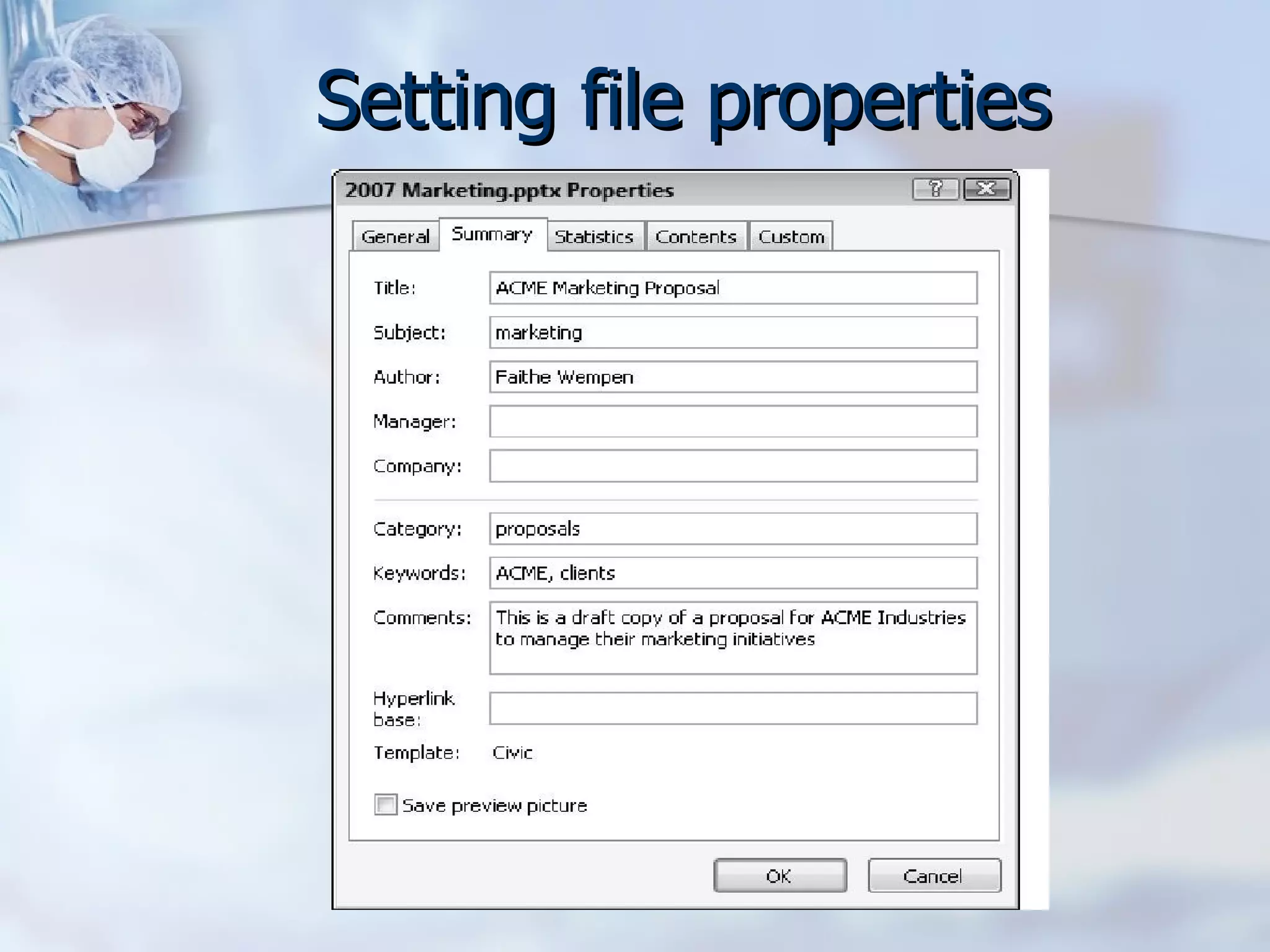
Naming convention Use short file names Following characters cannot be used in naming a ppt file: @, #, &, =, ?, $, /, \, ;. 8 letter word is preferred Following characters can be used in the naming convention: alphabets, number (0-9), _ , etc.

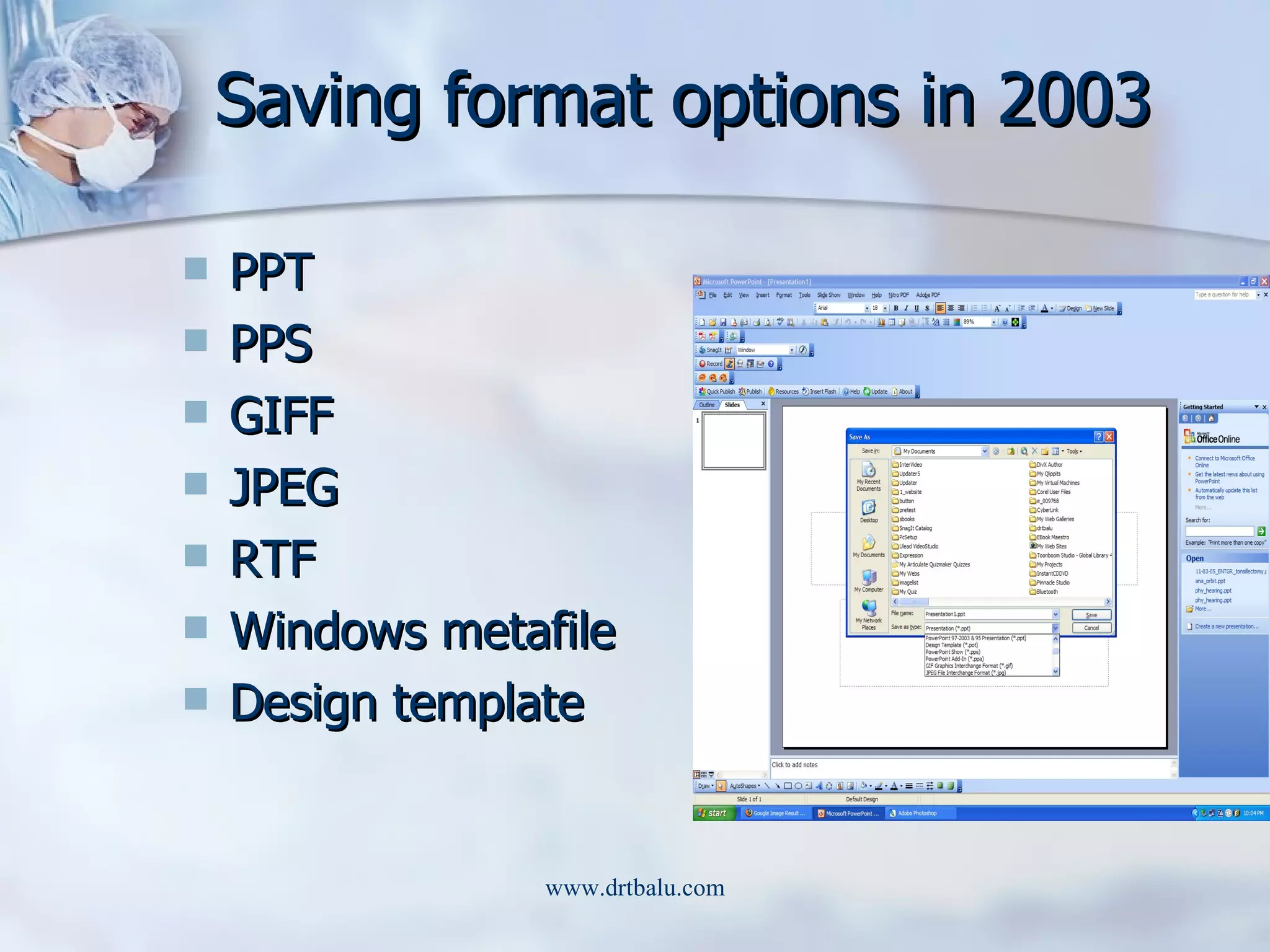
Saving format options in 2003 PPT PPS GIFF JPEG RTF Windows metafile Design template
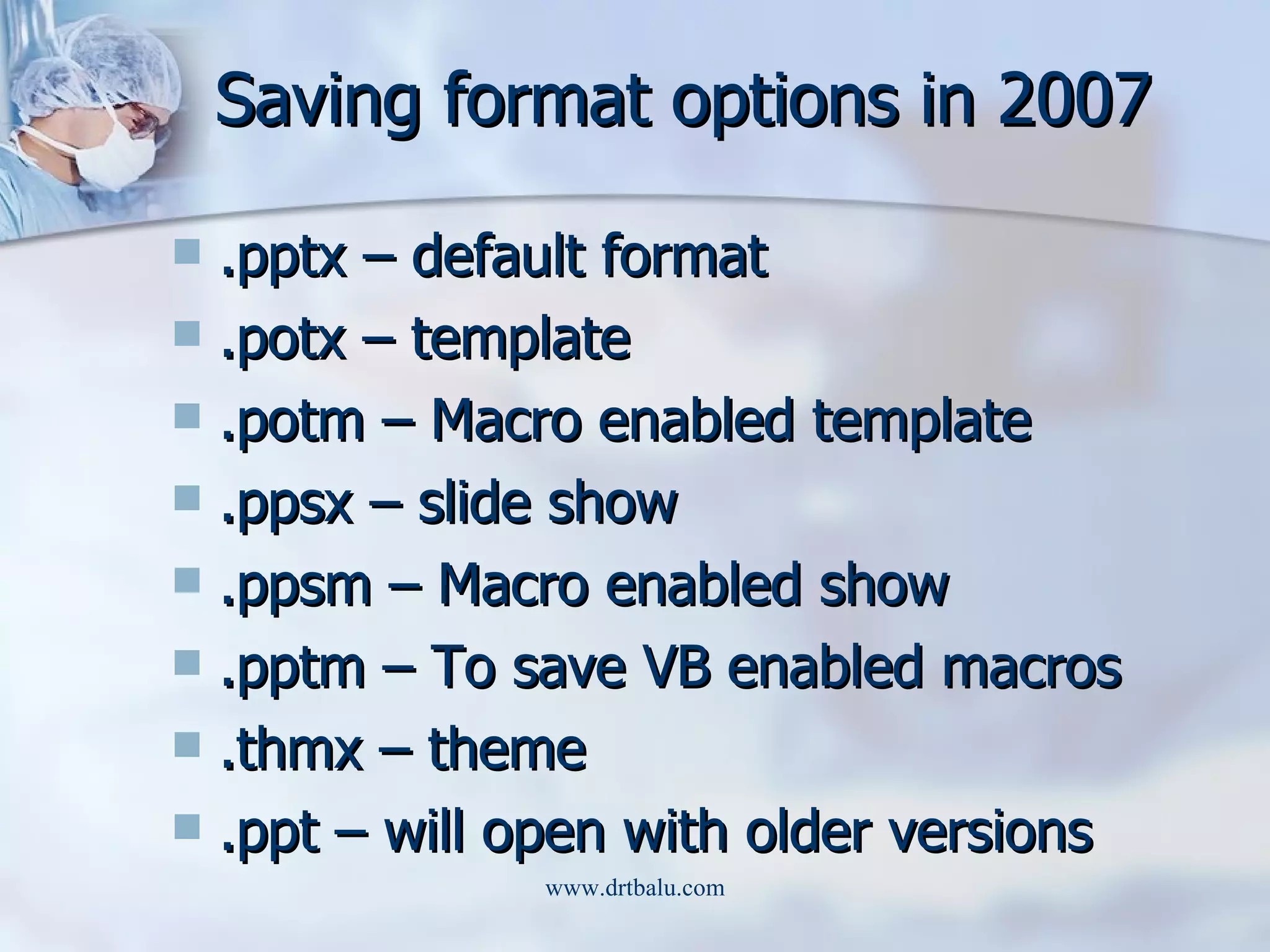
Saving format options in 2007 .pptx – default format .potx – template .potm – Macro enabled template .ppsx – slide show .ppsm – Macro enabled show .pptm – To save VB enabled macros .thmx – theme .ppt – will open with older versions
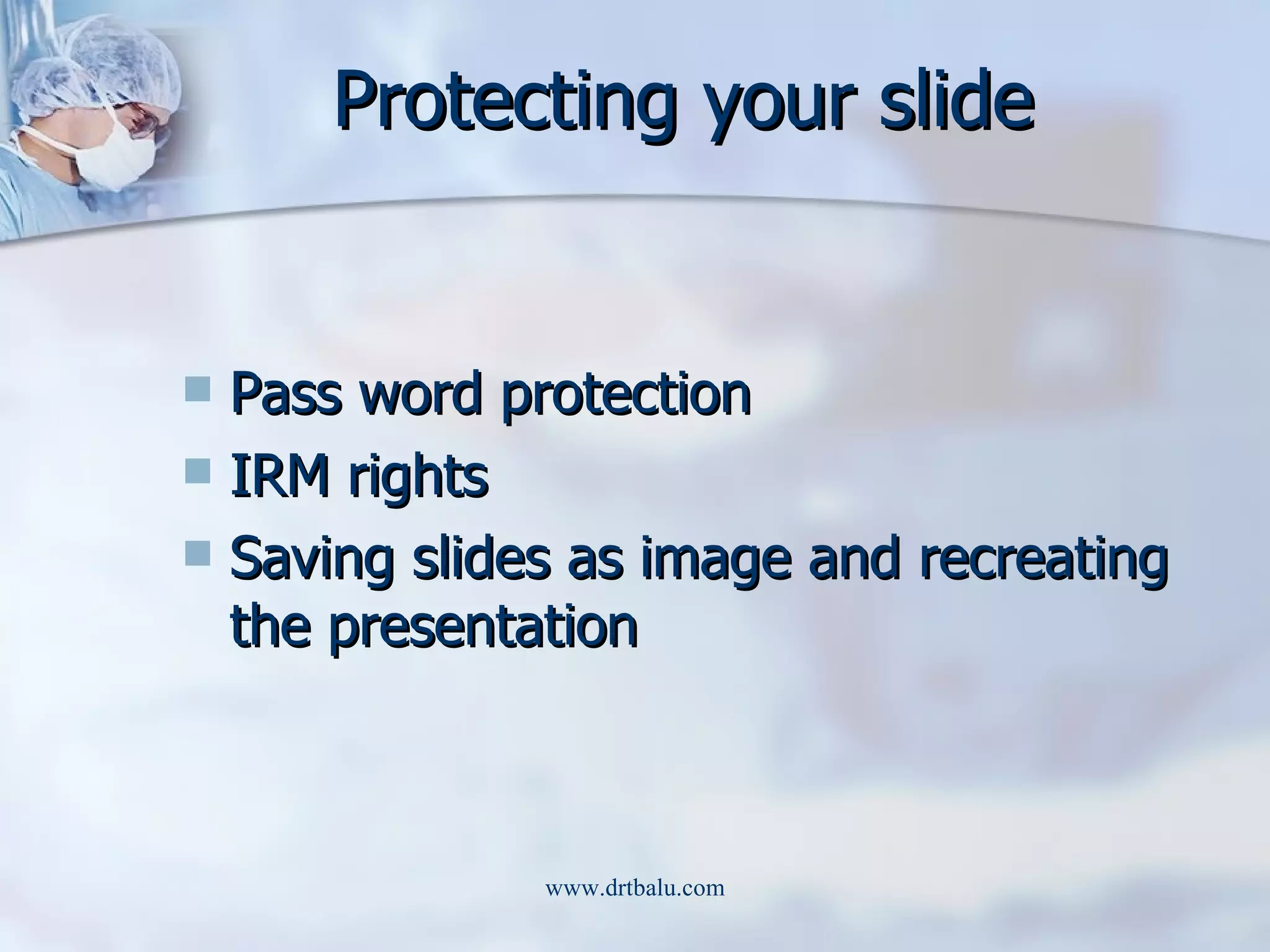
Protecting your slide Pass word protection IRM rights Saving slides as image and recreating the presentation


 
Setting file properties
Optimizing presentation Avoid using excessive embedded sounds Avoid using TIFF images Choose insert image option over dragging and pasting Recycle images by adding them to slide master rather than individual slides Compress images to optimize presentation further
Printing slides Color printing – will show background color well Gray scale printing – Inexpensive way of printing PowerPoint slides.  Graphic portions of the slides will  also get printed Black & white – Printing is fast.  Suitable for slides that don’t contain excessive images.  Non text images appear pitch black
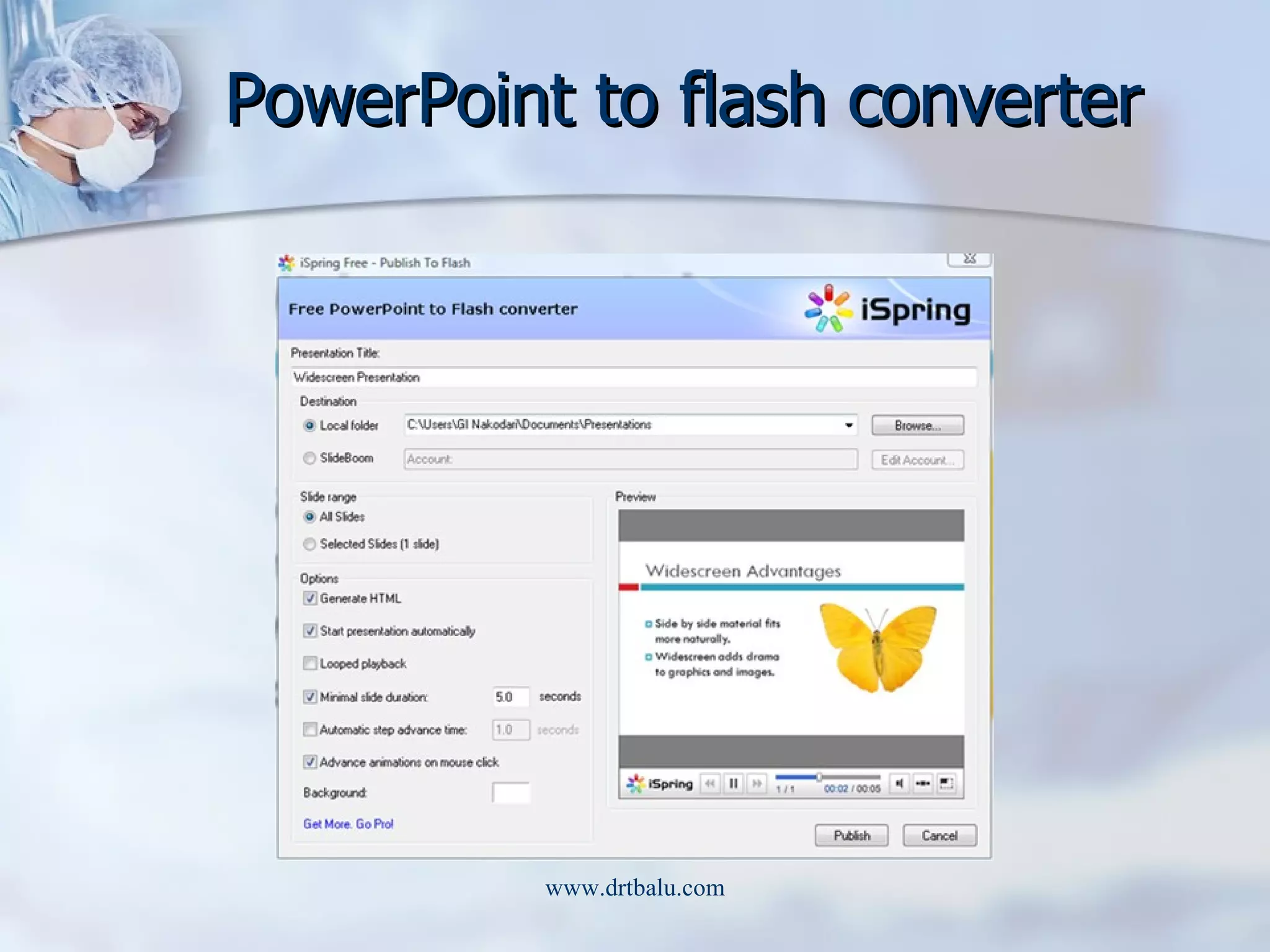
Converting PPT to flash Flash runs in all computers Useful for web based presentation Free converters are available : iSpring PowerPoint to flash converter Flash files cannot be plagiarized
PowerPoint to flash converter
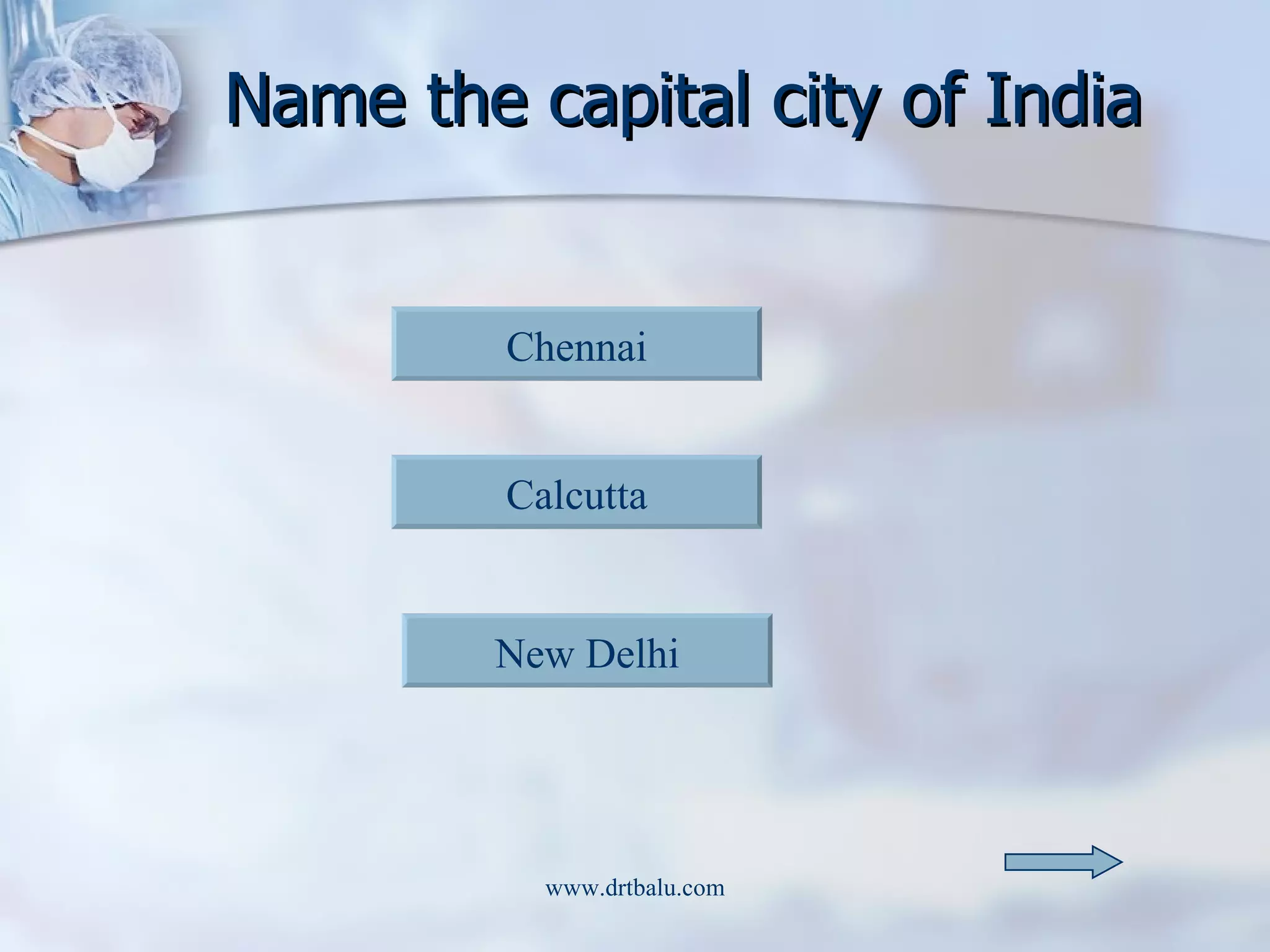
Name the capital city of India Chennai Calcutta New Delhi
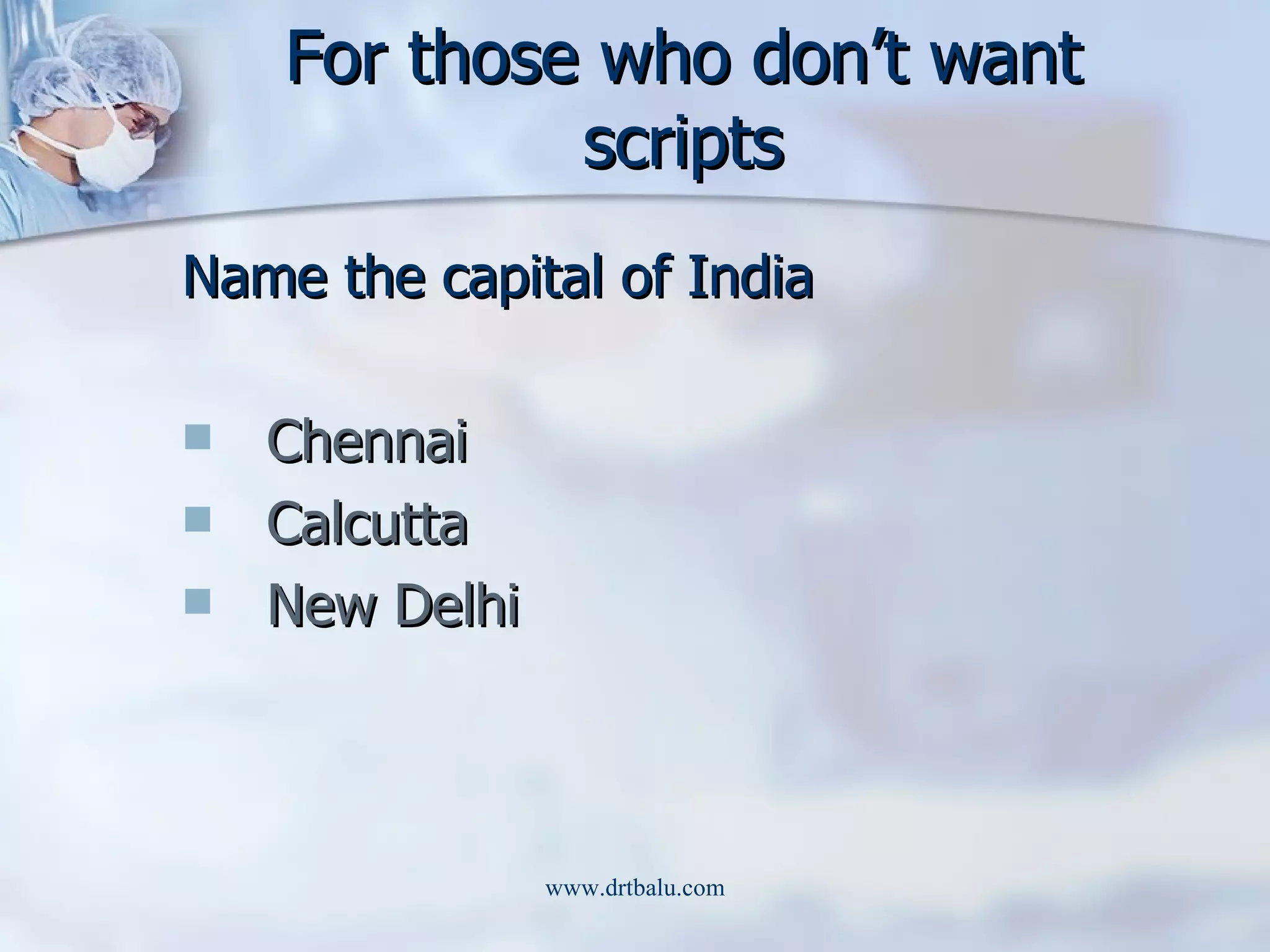
For those who don’t want scripts Name the capital of India Chennai Calcutta New Delhi
Congratulations that is the correct answer
Sorry that was wrong.  Try again.
Thankyou

How to make efficient powerpoint slides

  • 1.
    Effective PowerPoint presentationDr. T. Balasubramanian M.S. D.L.O.
  • 2.
    Aims To helpyou to create effective presentation Help in avoiding common pitfalls in PowerPoint presentation To reveal some of the hidden but useful features in PowerPoint
  • 3.
    Assumptions You arefamiliar with PowerPoint interface You have already tried and generated PowerPoint slides You use presentation software on a regular basis
  • 4.
    Did you KnowThat you can add speaker notes to your slide? That you can print out not only the slides but also your notes? That you can add commentaries to your slide? That you can make your slide interactive? That you can undo the last 20 actions of PowerPoint.
  • 5.
    What makes aneffective ppt ? Appropriately designed formatting for the audience / medium Tight focus on the subject Use of appropriate themes and font colors Right amount of text in each slide (No overcrowding) Use of charts in place of raw numbers / data Use of sound / video to create interest – should not be a distracter Animations / transitions should not be over domineering
  • 6.
    Audience factors Sizeof the audience Age of audience Basic knowledge level of the target audience Make notes about the purpose of the presentation Always number your slides
  • 7.
    Types of presentationmethods Speaker led presentation Self running presentation User interactive presentation Create a good intro slide
  • 8.
    Speaker led presentationYour slides need not tell the whole story Slides are no more than support materials for the speaker Primary message will have to come from the speaker Slides should not contain lot of information. You should be the only Hero. Let the audience listen to you
  • 9.
    Speaker led presentationpitfalls Needs lot of planning Handouts to audience Handling PowerPoint controls Take care to create summary slide
  • 10.
    Self running presentationsSlides should carry the entire show All information should be there in the slides Voice commentary is a must Ideal for individual / small group teaching Timing should be precise – User should get to see the next slide as soon as he completes reading the previous one
  • 11.
    User interactive presentationUser input is needed for this presentation You need to place arrows for easy user interaction This presentation is ideal for mass distribution HTML / Web format is best for this type of presentation
  • 12.
    Delivery methods PowerPointslide show – you need to have PowerPoint programme / viewer installed in the user’s system Web browser show – No special software needed – used for self running / user interactive shows Show on CD – Useful for self running / user active shows
  • 13.
    Delivery methods (contd)Over head transparencies – used only for speaker led show – Beware of transparencies you buy. Transparencies designed for inkjet printers may melt when laser printer is used. 35 mm slides – Expensive – Resolution high, image quality better. Paper handouts
  • 14.
    Projection medium Overheadprojector 35 mm slide projector Computer driven presentations For case change select and press Shift and F3
  • 15.
    Overhead projection Notthe ideal way to present Image is medium sized / poor quality For headings choose Arial / Times Roman fonts (Always choose Bold) Prefer black fonts in light background Keep the content pretty simple Avoid graphics
  • 16.
    35 mm slidesChoose 35 mm slides in page setup Prefer light text on dark background Avoid patterned backgrounds Bright yellow texts on navy blue background is preferred Animations / transitions don’t work Very expensive
  • 17.
    Computer driven presentationsNeed computer / computer based projection systems (LCD) Any font can be used. Caution – The chosen font should be available in the computer used for projection Background color should be tailored to the room’s illumination Animations /transitions / videos/audios can be used
  • 18.
    Content creation Acanvas should have a painting This is a classic example of bad slide design
  • 19.
    Content creation Acanvas should have a painting Shadow effect can be used to emphasize a point
  • 20.
    Content creation (contd)Reassure the audience that you are a professional who knows what you are doing Assure the audience you had them in mind while creating the presentation Create content to suit your target audience
  • 21.
    Text / Fontsize / Style Ideal font size – 28 – 34 (Bold) Titles / subtitles should be different font sizes Limit the amount of text. Use abbreviations Remember rule of 7 Emphasize key terms by playing with fonts
  • 22.
    Use of picturesPics enhance quality of presentation Don’t clutter a slide with too many pics Don’t use pics to enhance the design quality of presentation Preferable to use JPEG format
  • 23.
    Animation Use subtleanimations Animations should not distract the audience Lively animations can be used for informal presentation Use animation to highlight hyperlinks Use annotation facility to stress a point
  • 24.
    Videos Videos enrichyr presentation Media should be ideally placed alongside to the text Always prefer to embed videos to the slide (Caution) AVI format is preferred
  • 25.
    Naming convention Useshort file names Following characters cannot be used in naming a ppt file: @, #, &, =, ?, $, /, \, ;. 8 letter word is preferred Following characters can be used in the naming convention: alphabets, number (0-9), _ , etc.
  • 26.
    Saving format optionsin 2003 PPT PPS GIFF JPEG RTF Windows metafile Design template
  • 27.
    Saving format optionsin 2007 .pptx – default format .potx – template .potm – Macro enabled template .ppsx – slide show .ppsm – Macro enabled show .pptm – To save VB enabled macros .thmx – theme .ppt – will open with older versions
  • 28.
    Protecting your slidePass word protection IRM rights Saving slides as image and recreating the presentation
  • 29.
  • 30.
  • 31.
    Optimizing presentation Avoidusing excessive embedded sounds Avoid using TIFF images Choose insert image option over dragging and pasting Recycle images by adding them to slide master rather than individual slides Compress images to optimize presentation further
  • 32.
    Printing slides Colorprinting – will show background color well Gray scale printing – Inexpensive way of printing PowerPoint slides. Graphic portions of the slides will also get printed Black & white – Printing is fast. Suitable for slides that don’t contain excessive images. Non text images appear pitch black
  • 33.
    Converting PPT toflash Flash runs in all computers Useful for web based presentation Free converters are available : iSpring PowerPoint to flash converter Flash files cannot be plagiarized
  • 34.
  • 35.
    Name the capitalcity of India Chennai Calcutta New Delhi
  • 36.
    For those whodon’t want scripts Name the capital of India Chennai Calcutta New Delhi
  • 37.
    Congratulations that isthe correct answer
  • 38.
    Sorry that waswrong. Try again.
  • 39.