



Tips and tricks that will
    streamline your
   computer-use and
      impress your
friends and colleagues.
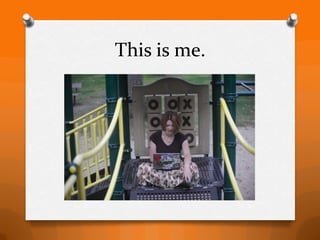
This is me.
Find me here.


  www.mariahandersen.com
www.StudyingSocialMedia.com
www.TeachingCollegeMath.com
The Secret Technology Club
        The Internet
          Browsers
           Search
         Windows
           Editing
           Images
The Code
HTML = Hypertext Markup Language
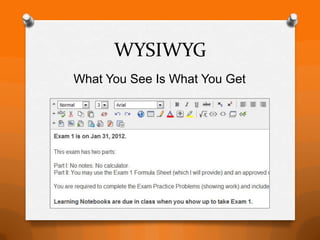
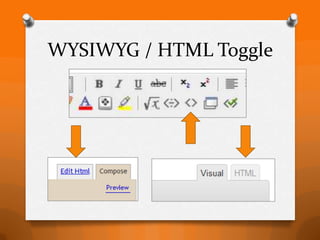
WYSIWYG
What You See Is What You Get
WYSIWYG / HTML Toggle
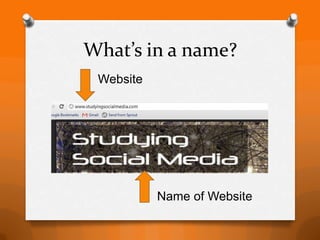
What’s in a name?
 Website


           Name of Website
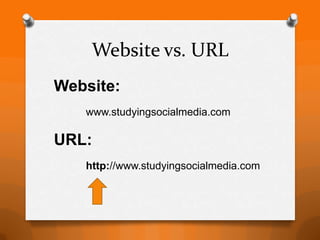
Website vs. URL
Website:
   www.studyingsocialmedia.com

URL:
   http://www.studyingsocialmedia.com
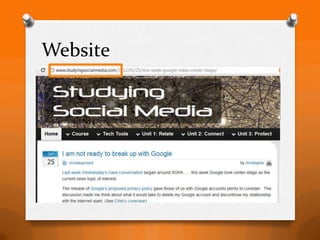
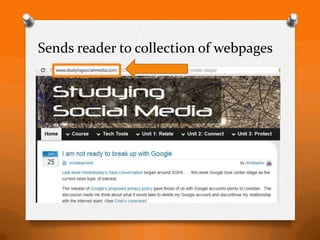
Website
Sends reader to collection of webpages
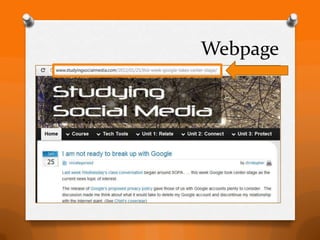
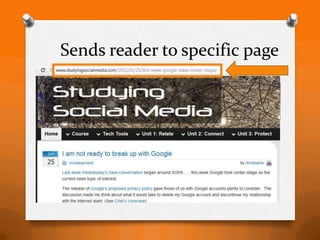
Webpage
Sends reader to specific page
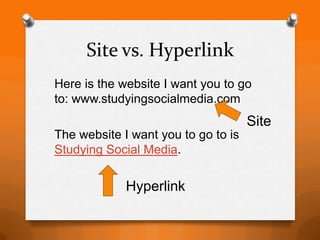
Site vs. Hyperlink
Here is the website I want you to go
to: www.studyingsocialmedia.com

The website I want you to go to is
Studying Social Media.
Site vs. Hyperlink
Here is the website I want you to go
to: www.studyingsocialmedia.com
                                     Site
The website I want you to go to is
Studying Social Media.

             Hyperlink
Creating a Hyperlink
  [select/highlight the text first]
Creating a Hyperlink
 [select/highlight the text first]
Creating a Hyperlink
[then click the hyperlink button]
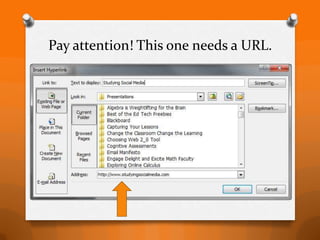
Pay attention! This one needs a URL.
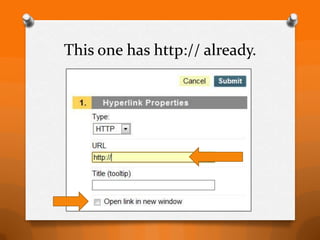
This one has http:// already.
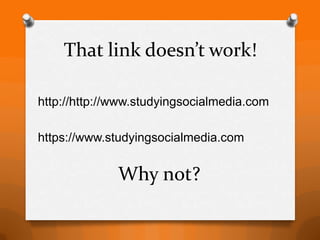
That link doesn’t work!

http://http://www.studyingsocialmedia.com

https://www.studyingsocialmedia.com


              Why not?
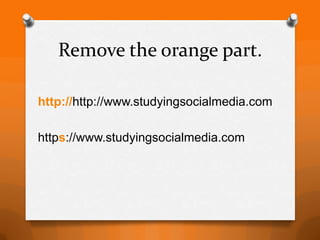
Remove the orange part.

http://http://www.studyingsocialmedia.com

https://www.studyingsocialmedia.com
Broken YouTube Links
http://www.youtube.com/watch?v=x0E
nhXn5boM&feature=g-vrec&context
=G294db32RVAAAAAAAAAg

   [Look for the CORE of the Link]
Broken YouTube Links
http://www.youtube.com/watch?v=x0E
nhXn5boM&feature=g-vrec&context
=G294db32RVAAAAAAAAAg

 [reduce the URL to the orange part, the
   part before the first & and it will work]
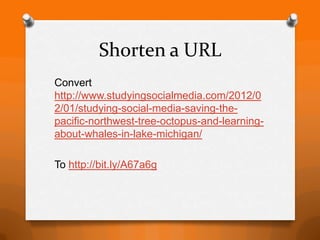
Shorten a URL
Convert
http://www.studyingsocialmedia.com/2012/0
2/01/studying-social-media-saving-the-
pacific-northwest-tree-octopus-and-learning-
about-whales-in-lake-michigan/

To http://bit.ly/A67a6g
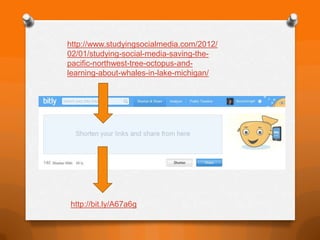
http://www.studyingsocialmedia.com/2012/
02/01/studying-social-media-saving-the-
pacific-northwest-tree-octopus-and-
learning-about-whales-in-lake-michigan/


http://bit.ly/A67a6g
The Secret Technology Club
        The Internet
         Browsers
          Search
         Windows
          Editing
          Images
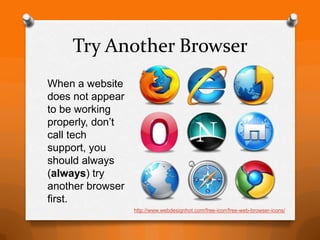
Try Another Browser
When a website
does not appear
to be working
properly, don’t
call tech
support, you
should always
(always) try

another browser
first.
                  http://www.webdesignhot.com/free-icon/free-web-browser-icons/
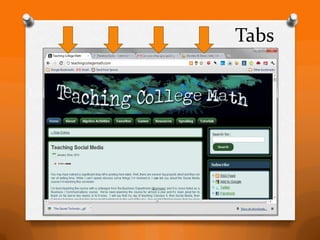
Tabs
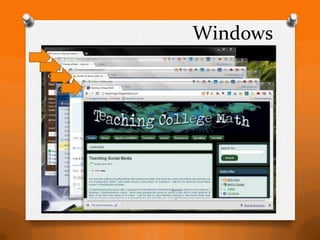
Windows
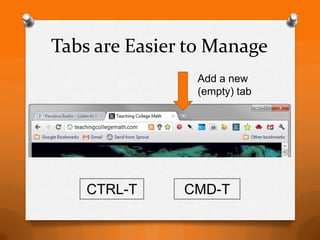
Tabs are Easier to Manage
                Add a new
                (empty) tab


    CTRL-T     CMD-T
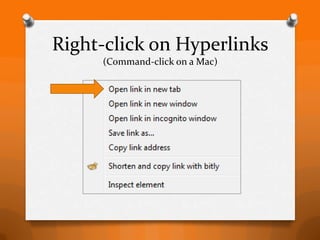
Right-click on Hyperlinks
     (Command-click on a Mac)
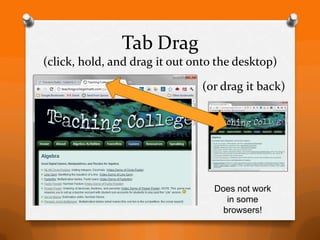
Tab Drag
(click, hold, and drag it out onto the desktop)

                               (or drag it back)


                                  Does not work
                                     in some
                                    browsers!
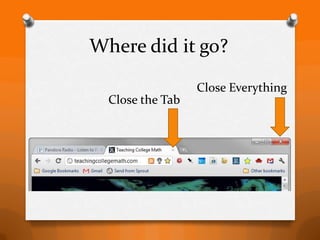
Where did it go?

                  Close Everything
  Close the Tab
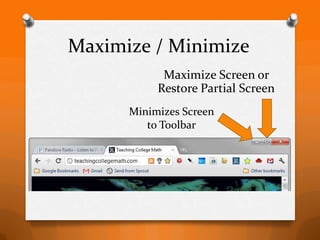
Maximize / Minimize
            Maximize Screen or
           Restore Partial Screen
      Minimizes Screen
         to Toolbar
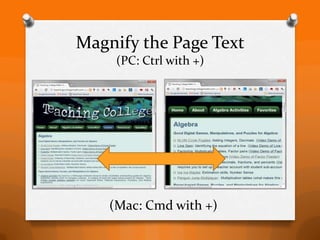
Magnify the Page Text
     (PC: Ctrl with +)


    (Mac: Cmd with +)
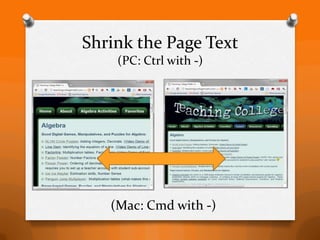
Shrink the Page Text
    (PC: Ctrl with -)


   (Mac: Cmd with -)
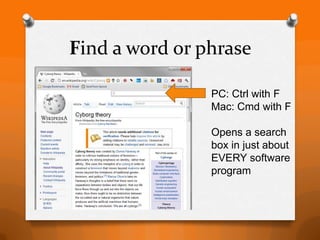
Find a word or phrase

                PC: Ctrl with F
                Mac: Cmd with F

                Opens a search
                box in just about
                EVERY software
                program
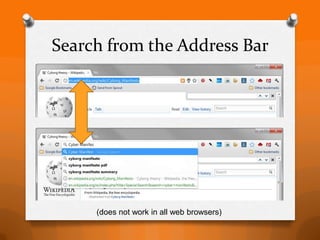
Search from the Address Bar


     (does not work in all web browsers)
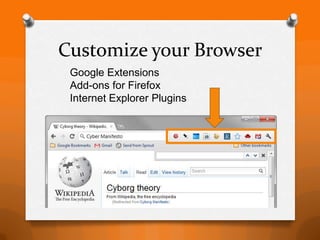
Customize your Browser
 Google Extensions
 Add-ons for Firefox
 Internet Explorer Plugins
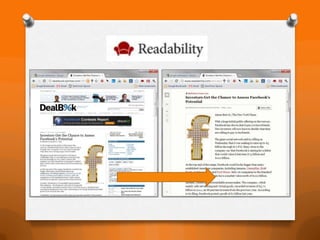
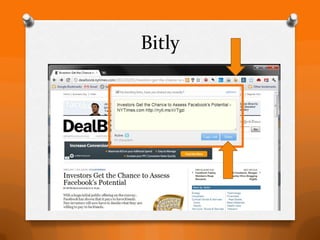
Bitly
The Secret Technology Club
        The Internet
         Browsers
          Search
         Windows
          Editing
          Images
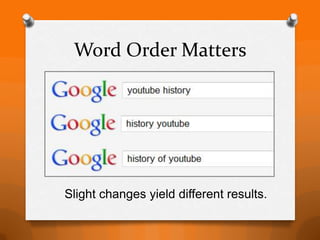
Word Order Matters


Slight changes yield different results.
Quotes for Exact Phrase
Quotes for Exact Spelling
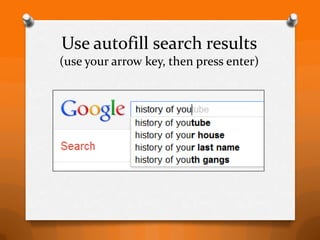
Use autofill search results
(use your arrow key, then press enter)
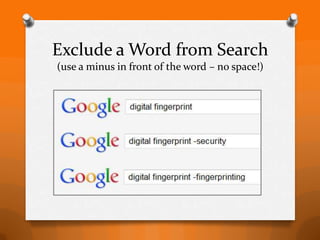
Exclude a Word from Search
(use a minus in front of the word – no space!)
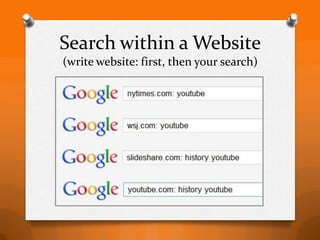
Search within a Website
(write website: first, then your search)
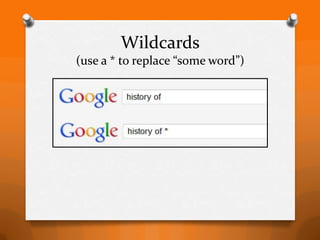
Wildcards
(use a * to replace “some word”)
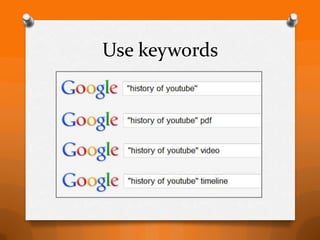
Use keywords
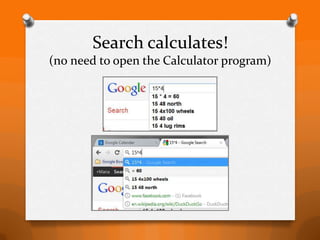
Search calculates!
(no need to open the Calculator program)
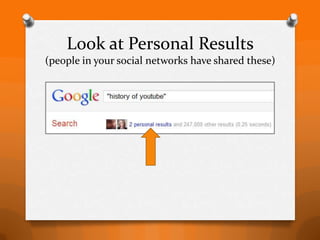
Look at Personal Results
(people in your social networks have shared these)
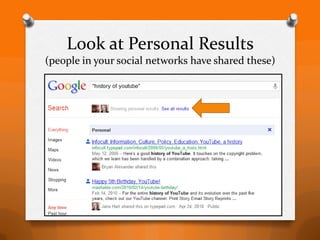
Look at Personal Results
(people in your social networks have shared these)
Search without Personalization
(Remove the filter bubble: DuckDuckGo)
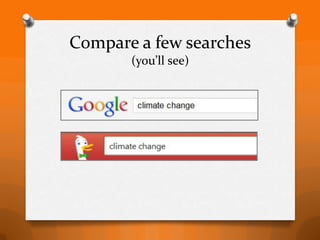
Compare a few searches
       (you’ll see)
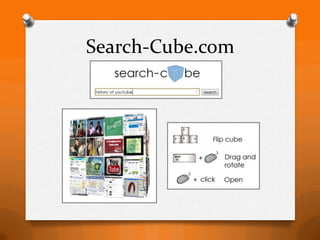
Search-Cube.com
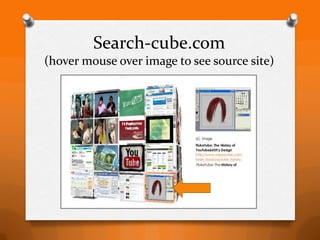
Search-cube.com
(hover mouse over image to see source site)
The Secret Technology Club
        The Internet
         Browsers
          Search
         Windows
          Editing
          Images
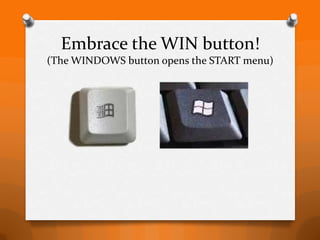
Embrace the WIN button!
(The WINDOWS button opens the START menu)
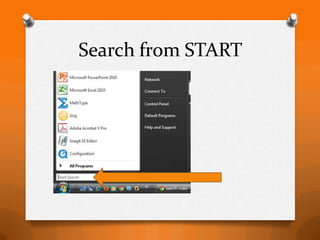
Search from START
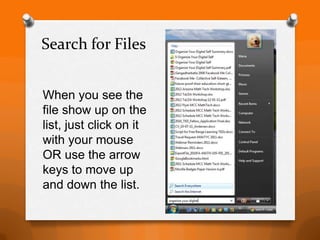
Search for Files


When you see the
file show up on the
list, just click on it
with your mouse
OR use the arrow
keys to move up
and down the list.
Search for Programs


Type the keyword and press
 enter to launch program.
Minimize EVERYTHING
       (WIN + M)


      Maybe you don’t want someone who just
walked in to see sensitive information on your screen.
     (or, maybe you were shopping at Zappos)
Minimize most everything
Pick up the window you want to keep
with your mouse (as if you were going
to move it) and then shake it. Yes,
use your mouse to rapidly shake it
back and forth. Poof!

   (okay, that only works in Windows 7
        – sorry to other versions!)
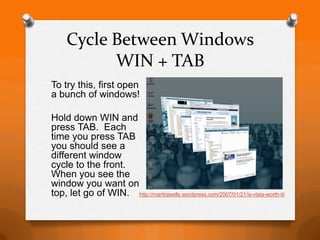
Cycle Between Windows
           WIN + TAB
To try this, first open
a bunch of windows!

Hold down WIN and
press TAB. Each
time you press TAB
you should see a
different window
cycle to the front.
When you see the
window you want on
top, let go of WIN. http://martinjwells.wordpress.com/2007/01/21/is-vista-worth-it/
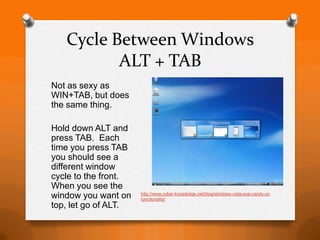
Cycle Between Windows
          ALT + TAB
Not as sexy as
WIN+TAB, but does
the same thing.

Hold down ALT and
press TAB. Each
time you press TAB
you should see a
different window
cycle to the front.
When you see the
window you want on    http://www.cyber-knowledge.net/blog/windows-vista-eye-candy-or-
                      functionality/
top, let go of ALT.
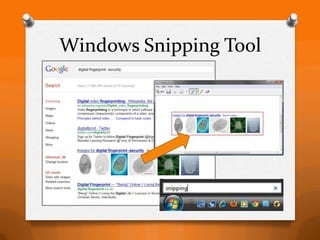
Windows Snipping Tool
The Secret Technology Club
        The Internet
         Browsers
          Search
         Windows
          Editing
          Images
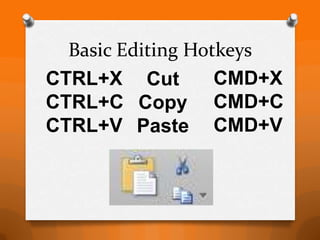
Basic Editing Hotkeys
CTRL+X Cut         CMD+X
CTRL+C Copy CMD+C
CTRL+V Paste CMD+V
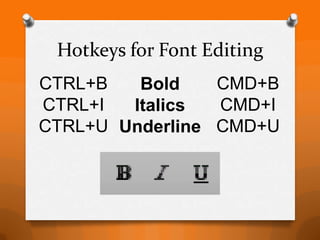
Hotkeys for Font Editing
CTRL+B   Bold    CMD+B
CTRL+I  Italics  CMD+I
CTRL+U Underline CMD+U
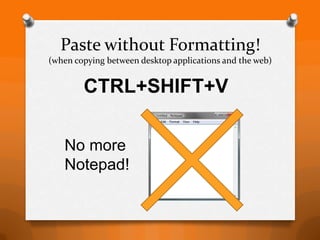
Paste without Formatting!
(when copying between desktop applications and the web)


        CTRL+SHIFT+V

   No more
   Notepad!
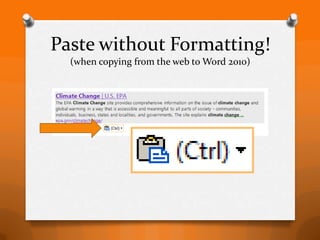
Paste without Formatting!
  (when copying from the web to Word 2010)
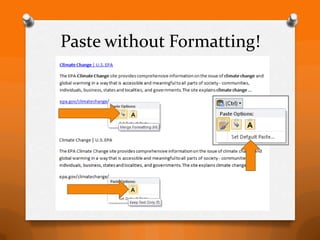
Paste without Formatting!
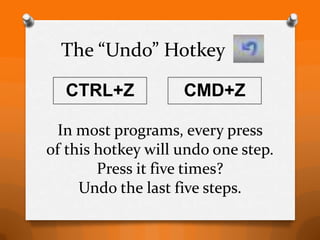
The “Undo” Hotkey

  CTRL+Z            CMD+Z

  In most programs, every press
of this hotkey will undo one step.
        Press it five times?
     Undo the last five steps.
Select Everything
CTRL+A        CMD+A

Great when you want to
change the font of an
entire page or document.
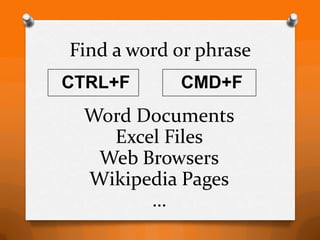
Find a word or phrase
CTRL+F      CMD+F
 Word Documents
   Excel Files
  Web Browsers
 Wikipedia Pages
       …
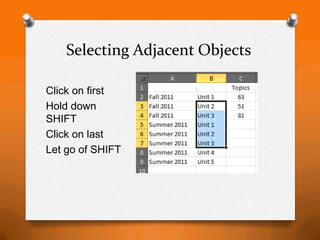
Selecting Adjacent Objects

Click on first
Hold down
SHIFT
Click on last
Let go of SHIFT
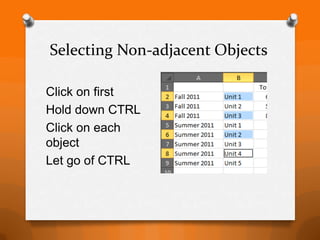
Selecting Non-adjacent Objects

Click on first
Hold down CTRL
Click on each
object
Let go of CTRL
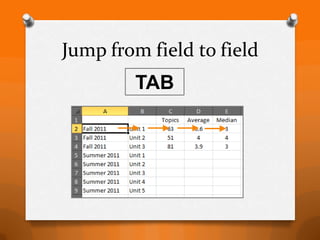
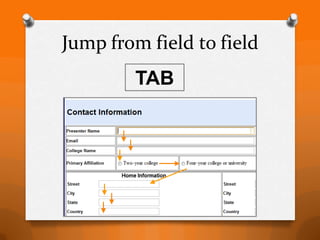
Jump from field to field
        TAB
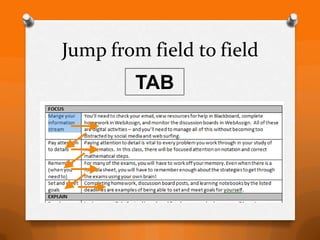
Jump from field to field
        TAB
Jump from field to field
        TAB
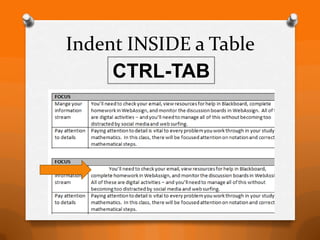
Indent INSIDE a Table
     CTRL-TAB
The Secret Technology Club
        The Internet
         Browsers
           Search
         Windows
          Editing
          Images
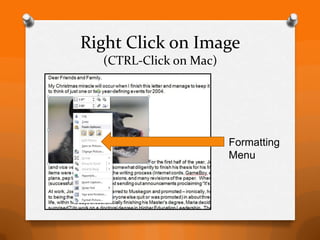
Right Click on Image
  (CTRL-Click on Mac)


                        Formatting
                        Menu
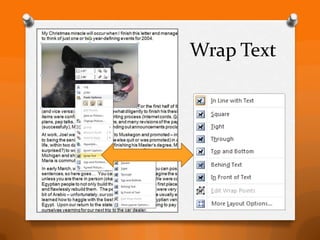
Wrap Text
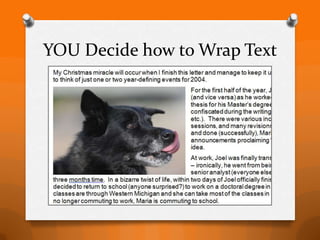
YOU Decide how to Wrap Text
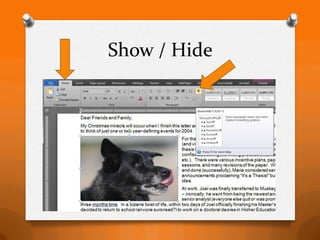
Show / Hide
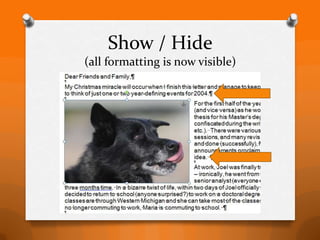
Show / Hide
(all formatting is now visible)
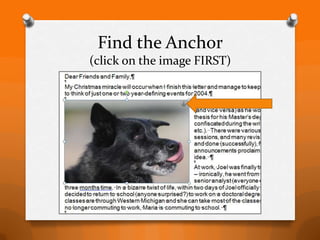
Find the Anchor
(click on the image FIRST)
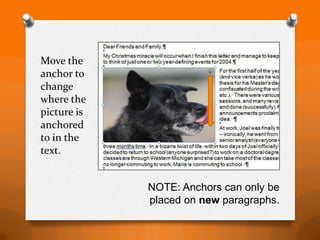
Move the
anchor to
change
where the
picture is
anchored
to in the
text.


             NOTE: Anchors can only be
             placed on new paragraphs.
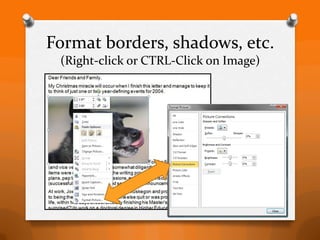
Format borders, shadows, etc.
 (Right-click or CTRL-Click on Image)
That’s all for
  this installment of
“The Secret Technology
         Club”

  Hope you learned
  something new!
Contact me here.


  www.mariahandersen.com
www.StudyingSocialMedia.com
www.TeachingCollegeMath.com

The Secret Technology Club