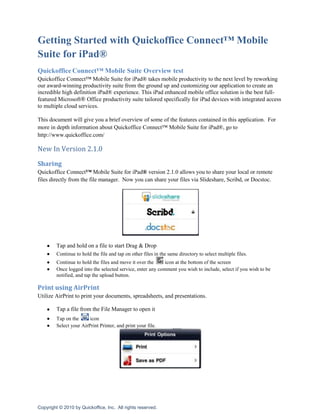
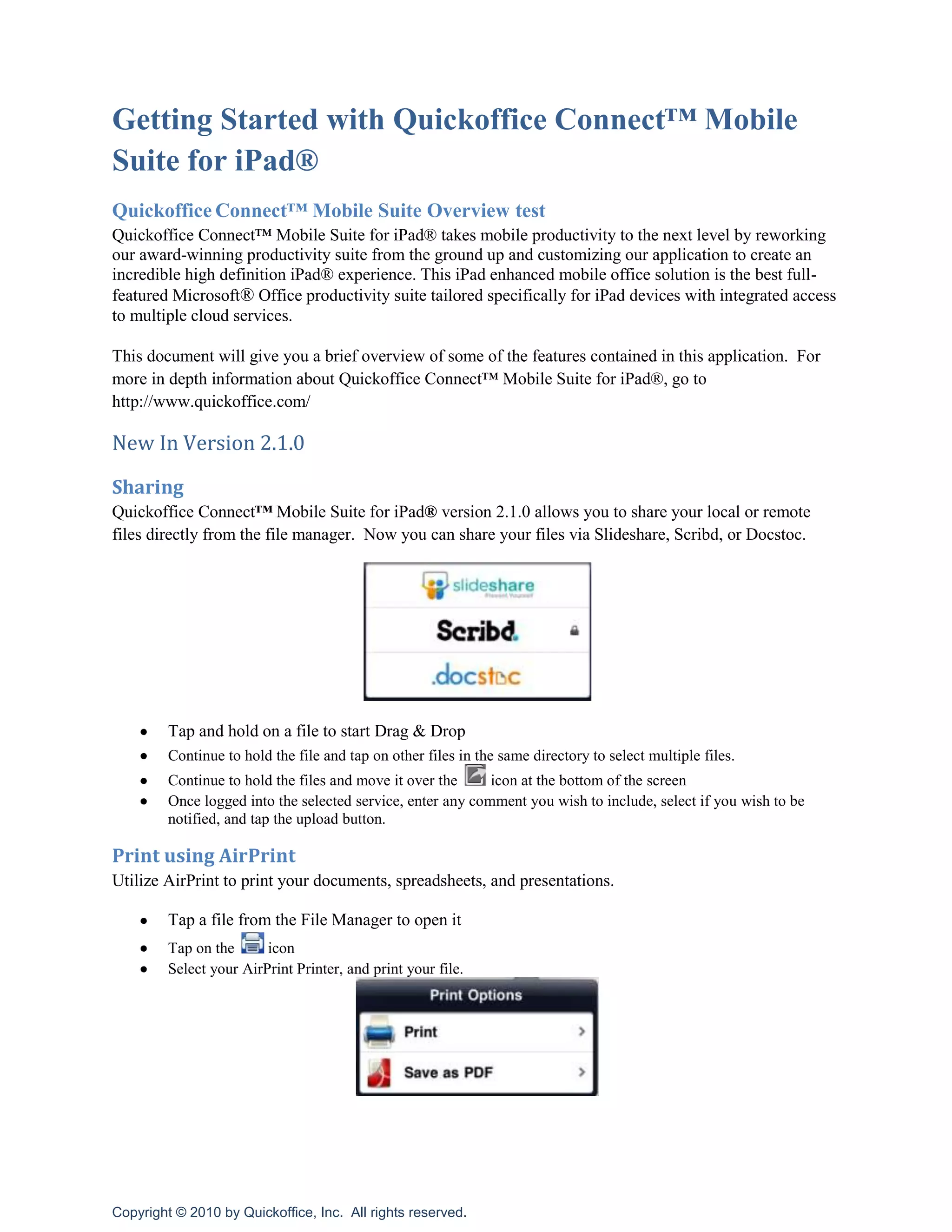
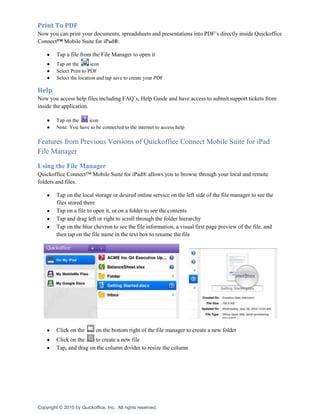
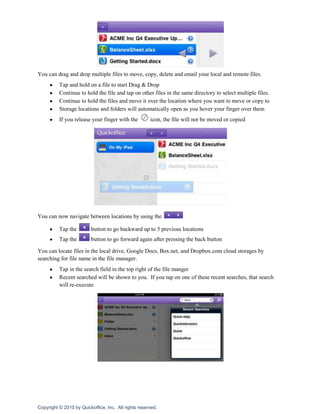
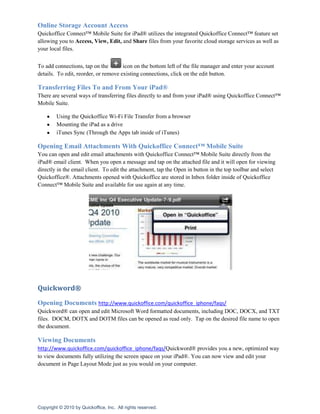
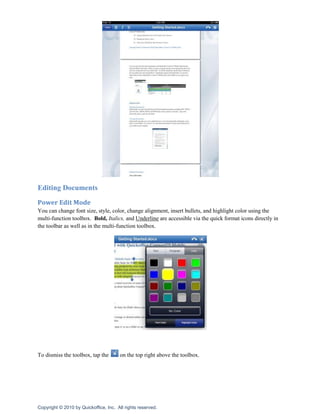
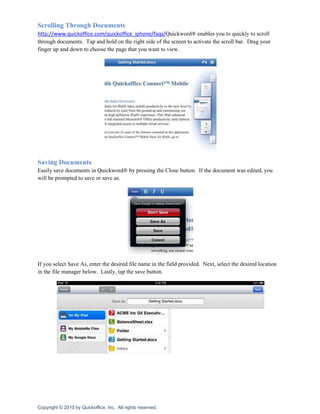
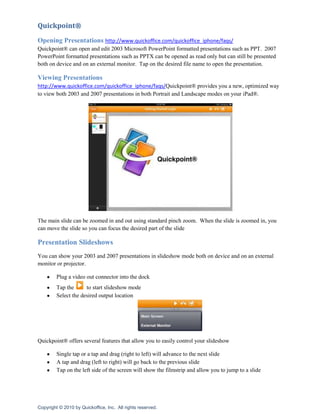
Getting Started with Quickoffice Connect™ Mobile Suite for iPad®<br />Quickoffice Connect™ Mobile Suite Overview test<br />Quickoffice Connect™ Mobile Suite for iPad® takes mobile productivity to the next level by reworking our award-winning productivity suite from the ground up and customizing our application to create an incredible high definition iPad® experience. This iPad enhanced mobile office solution is the best full-featured Microsoft® Office productivity suite tailored specifically for iPad devices with integrated access to multiple cloud services.<br />This document will give you a brief overview of some of the features contained in this application.  For more in depth information about Quickoffice Connect™ Mobile Suite for iPad®, go to http://www.quickoffice.com/<br />New In Version 2.1.0<br />Sharing <br />Quickoffice Connect™ Mobile Suite for iPad® version 2.1.0 allows you to share your local or remote files directly from the file manager.  Now you can share your files via Slideshare, Scribd, or Docstoc.  <br />Tap and hold on a file to start Drag & DropContinue to hold the file and tap on other files in the same directory to select multiple files. <br />Continue to hold the files and move it over the  icon at the bottom of the screen<br />Once logged into the selected service, enter any comment you wish to include, select if you wish to be notified, and tap the upload button.<br />Print using AirPrint <br />Utilize AirPrint to print your documents, spreadsheets, and presentations. <br />Tap a file from the File Manager to open itTap on the  icon <br />Select your AirPrint Printer, and print your file.<br />Print To PDF <br />Now you can print your documents, spreadsheets and presentations into PDF’s directly inside Quickoffice Connect™ Mobile Suite for iPad®. <br />Tap a file from the File Manager to open itTap on the  icon<br />Select Print to PDF<br />Select the location and tap save to create your PDF<br />Help <br />Now you access help files including FAQ’s, Help Guide and have access to submit support tickets from inside the application.<br />Tap on the  icon<br />Note: You have to be connected to the internet to access help<br />Features from Previous Versions of Quickoffice Connect Mobile Suite for iPad <br />File Manager <br />Using the File Manager<br />Quickoffice Connect™ Mobile Suite for iPad® allows you to browse through your local and remote folders and files.  <br />Tap on the local storage or desired online service on the left side of the file manager to see the files stored there
Tap on a file to open it, or on a folder to see the contents
Tap and drag left or right to scroll through the folder hierarchy
Tap on the blue chevron to see the file information, a visual first page preview of the file, and then tap on the file name in the text box to rename the file      <br />Click on the  on the bottom right of the file manager to create a new folder
Click on the  to create a new file
Tap, and drag on the column divider to resize the columnYou can drag and drop multiple files to move, copy, delete and email your local and remote files.<br />Tap and hold on a file to start Drag & Drop
Continue to hold the file and tap on other files in the same directory to select multiple files.
Continue to hold the files and move it over the location where you want to move or copy to
Storage locations and folders will automatically open as you hover your finger over them
If you release your finger with the  icon, the file will not be moved or copiedYou can now navigate between locations by using the <br />Tap the  button to go backward up to 5 previous locations
Tap the  button to go forward again after pressing the back buttonYou can locate files in the local drive, Google Docs, Box.net, and Dropbox.com cloud storages by searching for file name in the file manager.<br />Tap in the search field in the top right of the file manger
Recent searched will be shown to you.  If you tap on one of these recent searches, that search will re-executeOnline Storage Account Access<br />Quickoffice Connect™ Mobile Suite for iPad® utilizes the integrated Quickoffice Connect™ feature set allowing you to Access, View, Edit, and Share files from your favorite cloud storage services as well as your local files.<br />To add connections, tap on the  icon on the bottom left of the file manager and enter your account details.  To edit, reorder, or remove existing connections, click on the edit button.<br />Transferring Files To and From Your iPad®<br />There are several ways of transferring files directly to and from your iPad® using Quickoffice Connect™ Mobile Suite.<br />Using the Quickoffice Wi-Fi File Transfer from a browser

Getting Started

  • 1.
    Getting Started withQuickoffice Connect™ Mobile Suite for iPad®<br />Quickoffice Connect™ Mobile Suite Overview test<br />Quickoffice Connect™ Mobile Suite for iPad® takes mobile productivity to the next level by reworking our award-winning productivity suite from the ground up and customizing our application to create an incredible high definition iPad® experience. This iPad enhanced mobile office solution is the best full-featured Microsoft® Office productivity suite tailored specifically for iPad devices with integrated access to multiple cloud services.<br />This document will give you a brief overview of some of the features contained in this application. For more in depth information about Quickoffice Connect™ Mobile Suite for iPad®, go to http://www.quickoffice.com/<br />New In Version 2.1.0<br />Sharing <br />Quickoffice Connect™ Mobile Suite for iPad® version 2.1.0 allows you to share your local or remote files directly from the file manager. Now you can share your files via Slideshare, Scribd, or Docstoc. <br />Tap and hold on a file to start Drag & DropContinue to hold the file and tap on other files in the same directory to select multiple files. <br />Continue to hold the files and move it over the icon at the bottom of the screen<br />Once logged into the selected service, enter any comment you wish to include, select if you wish to be notified, and tap the upload button.<br />Print using AirPrint <br />Utilize AirPrint to print your documents, spreadsheets, and presentations. <br />Tap a file from the File Manager to open itTap on the icon <br />Select your AirPrint Printer, and print your file.<br />Print To PDF <br />Now you can print your documents, spreadsheets and presentations into PDF’s directly inside Quickoffice Connect™ Mobile Suite for iPad®. <br />Tap a file from the File Manager to open itTap on the icon<br />Select Print to PDF<br />Select the location and tap save to create your PDF<br />Help <br />Now you access help files including FAQ’s, Help Guide and have access to submit support tickets from inside the application.<br />Tap on the icon<br />Note: You have to be connected to the internet to access help<br />Features from Previous Versions of Quickoffice Connect Mobile Suite for iPad <br />File Manager <br />Using the File Manager<br />Quickoffice Connect™ Mobile Suite for iPad® allows you to browse through your local and remote folders and files. <br />Tap on the local storage or desired online service on the left side of the file manager to see the files stored there
  • 2.
    Tap on afile to open it, or on a folder to see the contents
  • 3.
    Tap and dragleft or right to scroll through the folder hierarchy
  • 4.
    Tap on theblue chevron to see the file information, a visual first page preview of the file, and then tap on the file name in the text box to rename the file <br />Click on the on the bottom right of the file manager to create a new folder
  • 5.
    Click on the to create a new file
  • 6.
    Tap, and dragon the column divider to resize the columnYou can drag and drop multiple files to move, copy, delete and email your local and remote files.<br />Tap and hold on a file to start Drag & Drop
  • 7.
    Continue to holdthe file and tap on other files in the same directory to select multiple files.
  • 8.
    Continue to holdthe files and move it over the location where you want to move or copy to
  • 9.
    Storage locations andfolders will automatically open as you hover your finger over them
  • 10.
    If you releaseyour finger with the icon, the file will not be moved or copiedYou can now navigate between locations by using the <br />Tap the button to go backward up to 5 previous locations
  • 11.
    Tap the button to go forward again after pressing the back buttonYou can locate files in the local drive, Google Docs, Box.net, and Dropbox.com cloud storages by searching for file name in the file manager.<br />Tap in the search field in the top right of the file manger
  • 12.
    Recent searched willbe shown to you. If you tap on one of these recent searches, that search will re-executeOnline Storage Account Access<br />Quickoffice Connect™ Mobile Suite for iPad® utilizes the integrated Quickoffice Connect™ feature set allowing you to Access, View, Edit, and Share files from your favorite cloud storage services as well as your local files.<br />To add connections, tap on the icon on the bottom left of the file manager and enter your account details. To edit, reorder, or remove existing connections, click on the edit button.<br />Transferring Files To and From Your iPad®<br />There are several ways of transferring files directly to and from your iPad® using Quickoffice Connect™ Mobile Suite.<br />Using the Quickoffice Wi-Fi File Transfer from a browser