. 14 Computer Tricks and Tips
Do you know how to get back to the tab you accidentally turned off? Do you know how to
take a screenshot of a part of the screen without installing software? If there's one thing that
Reddit users are best at, it's definitely computer tricks. The 14 tricks below are great Reddit
tips we all should know to make the desktop experience easier and more enjoyable than
ever.
1. Reopen accidentally closed tab
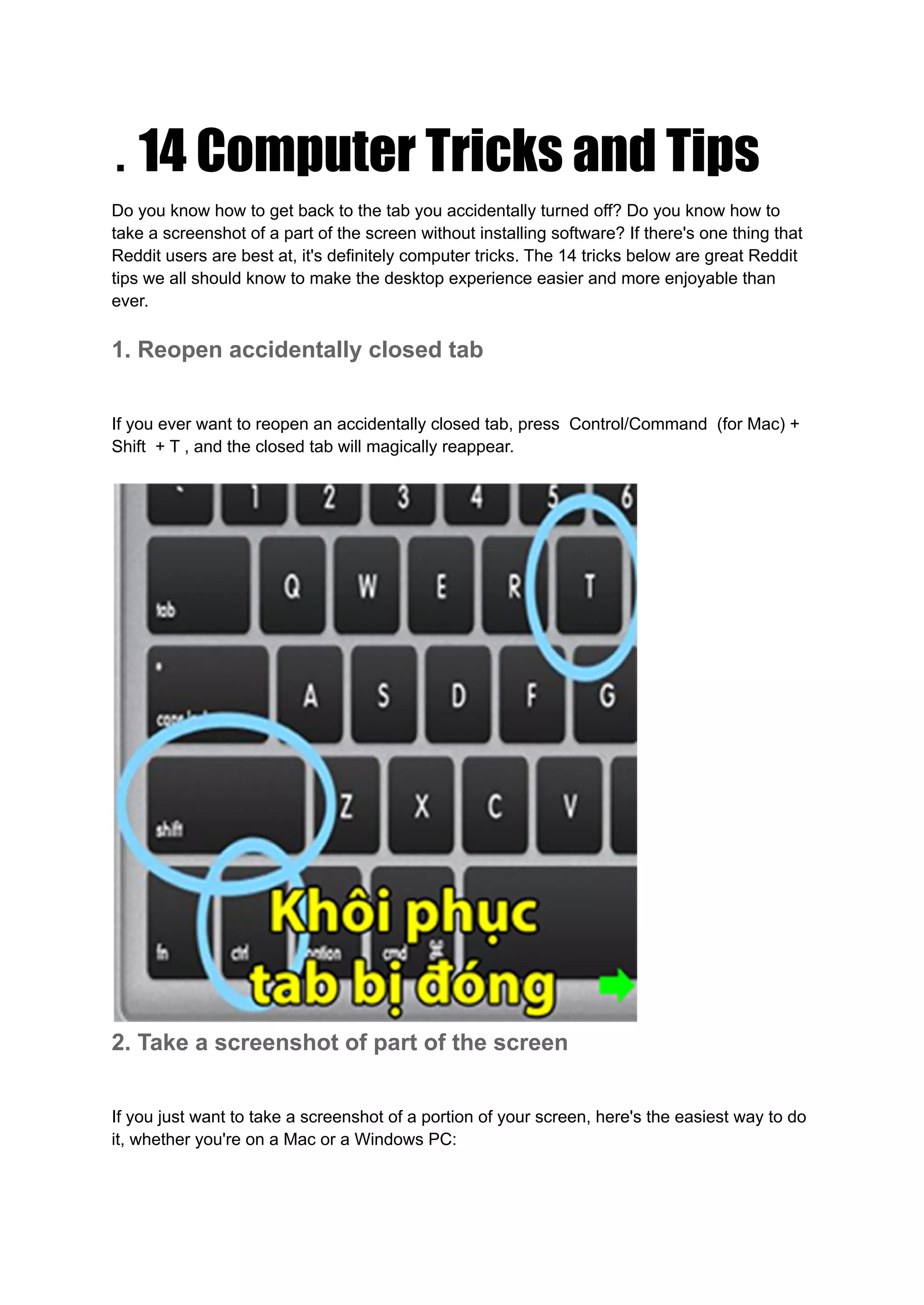
If you ever want to reopen an accidentally closed tab, press Control/Command (for Mac) +
Shift + T , and the closed tab will magically reappear.
2. Take a screenshot of part of the screen
If you just want to take a screenshot of a portion of your screen, here's the easiest way to do
it, whether you're on a Mac or a Windows PC:
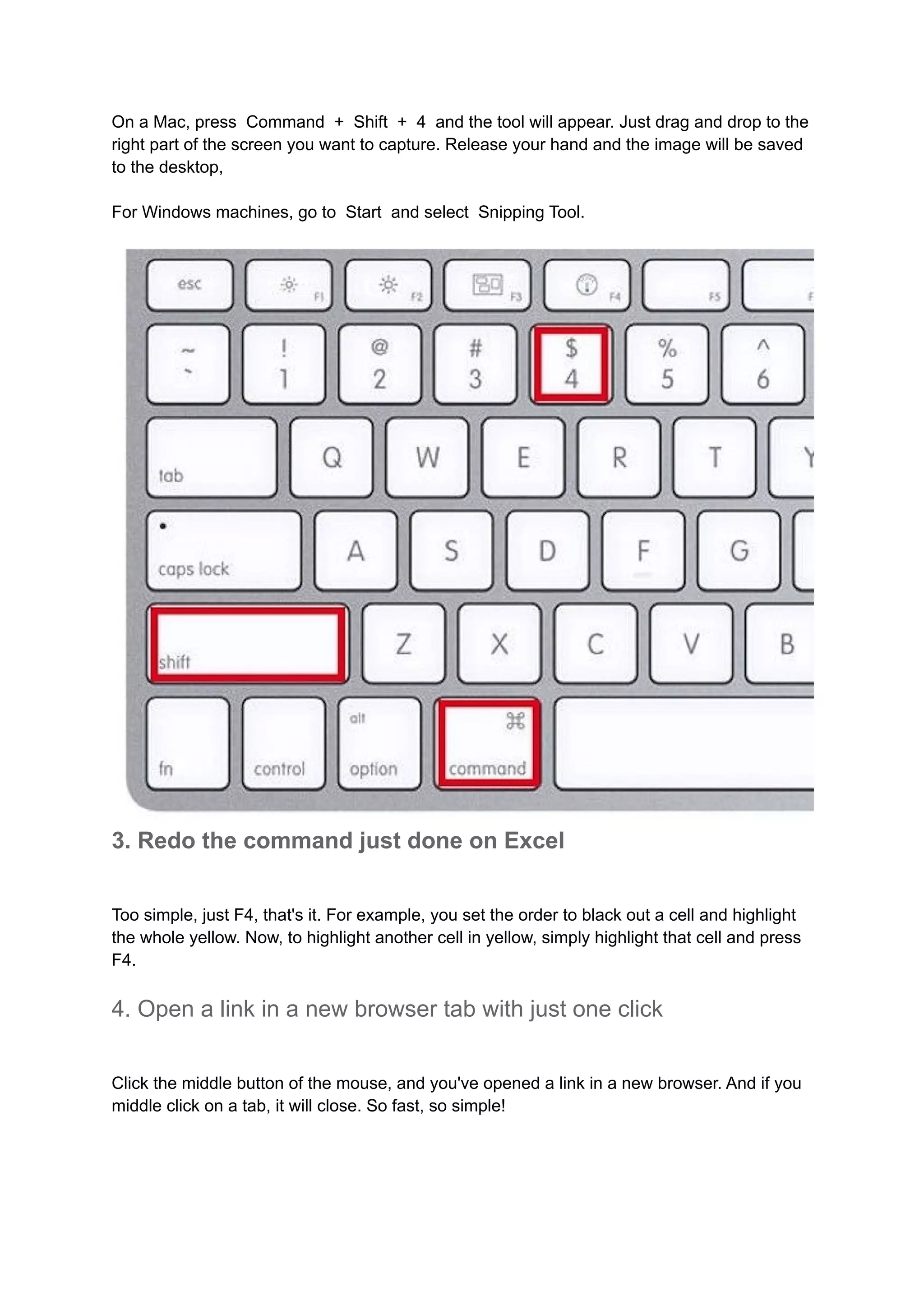
On a Mac, press Command + Shift + 4 and the tool will appear. Just drag and drop to the
right part of the screen you want to capture. Release your hand and the image will be saved
to the desktop,
For Windows machines, go to Start and select Snipping Tool.
3. Redo the command just done on Excel
Too simple, just F4, that's it. For example, you set the order to black out a cell and highlight
the whole yellow. Now, to highlight another cell in yellow, simply highlight that cell and press
F4.
4. Open a link in a new browser tab with just one click
Click the middle button of the mouse, and you've opened a link in a new browser. And if you
middle click on a tab, it will close. So fast, so simple!
5. Copy a file by drag and drop
To copy a file on a Mac, hold down Alt (or Control on Windows machines) then click and
drag the file. It's as simple as that, do you know how?
6. Pause the video playing on YouTube
Which button would you press to pause the video playing on YouTube? The empty way? If
so, then you are sorely mistaken. To pause a YouTube video, press the K key , to resume
playback, press the K key again . To fast forward 10 seconds, press J , to rewind 10
seconds, press L .
7. Move the window to any side of the screen or to the next
screen
If you click on the Windows key with an arrow key (right, left, top, bottom), your current
window will be moved to the respective sides of the screen. Likewise, when you press
Windows + Shift + arrow keys , you will move the Windows window to whatever screen is
on the corresponding side. Unfortunately, this feature is only available on Windows
machines.
8. Clear cache in seconds
To quickly clear the memory, just press Control + Shift + R . This will also refresh your
page.
9. Quick Lock
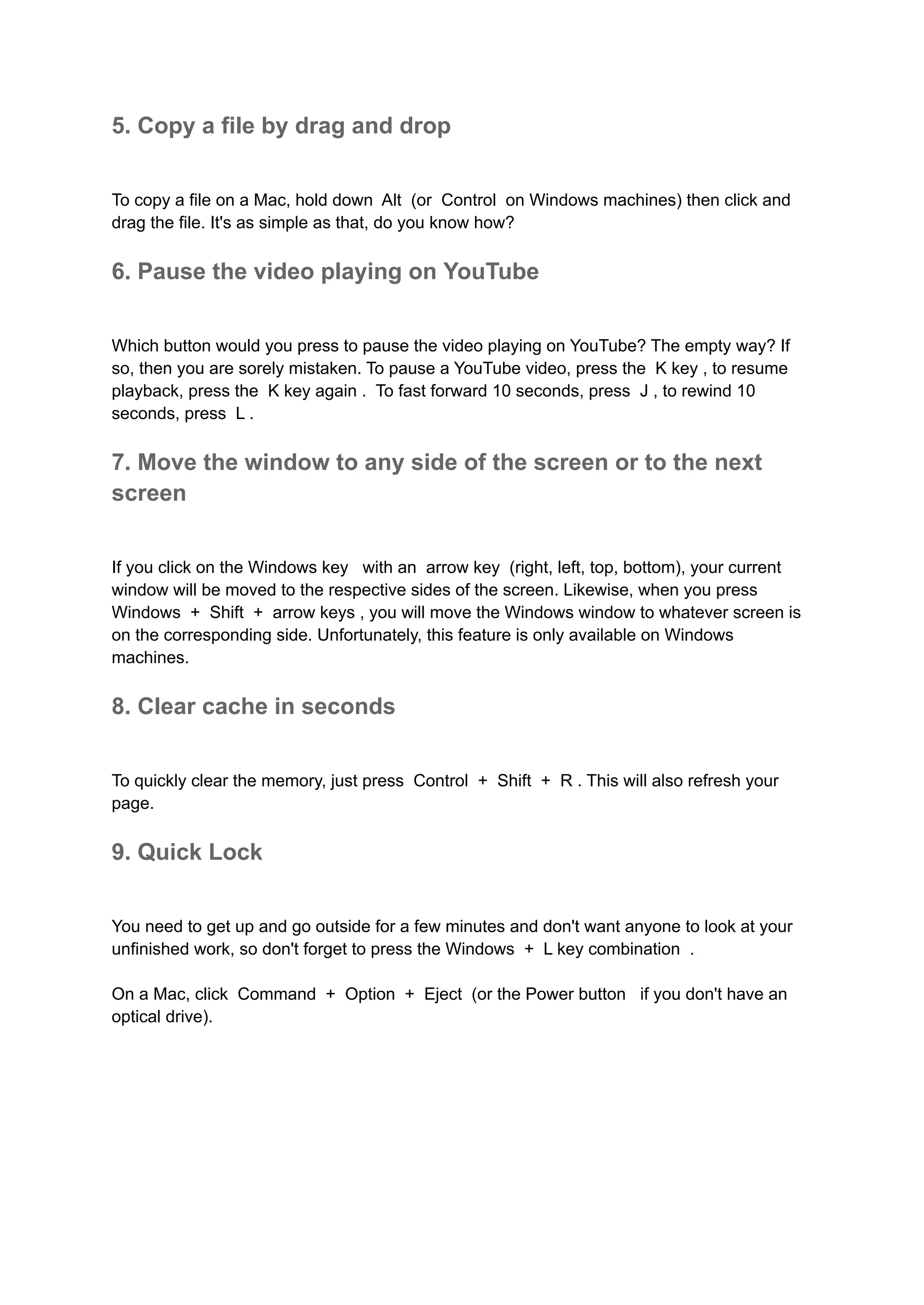
You need to get up and go outside for a few minutes and don't want anyone to look at your
unfinished work, so don't forget to press the Windows + L key combination .
On a Mac, click Command + Option + Eject (or the Power button if you don't have an
optical drive).
10. Turn the screen upside down
This game is mainly used to tease your friends. If you press Control + Alt + one of the
arrow keys , the screen will flip in the corresponding direction.
Note: This game can't be done for all machines (and only on Windows) but if you do, you will
really terrify your friend.
11. Turn a browser window into a text editor
If you want to turn the window in front of you into a tool for you to freely add notes, delete,
and even draw, try copying the following lines into the address bar: data:text/html,
12. Customize Chrome browser to your liking
If you want to prank someone, and send them a screenshot of something that never existed,
there's a super easy way in Chrome. First, go to Chrome, press F12 , then type
document.designMode = “on” . You can then edit whatever text appears on the screen.
13. Zoom in/out the screen
Press Control/Command (for Mac) + 0 to return to the default screen size
Control/Command (for Mac) + + to zoom in
Control/Command (for Mac) + – minimize
14. Reverse Search on Google Chrome
In Google Chrome, if you press S with the right mouse button on the image, you will
perform a reverse search command. That means instead of typing in a keyword to search for
an image, you can track it down and find out what website the image originates from.
According to zing.vn

14 computer tricks

  • 1.
    . 14 ComputerTricks and Tips Do you know how to get back to the tab you accidentally turned off? Do you know how to take a screenshot of a part of the screen without installing software? If there's one thing that Reddit users are best at, it's definitely computer tricks. The 14 tricks below are great Reddit tips we all should know to make the desktop experience easier and more enjoyable than ever. 1. Reopen accidentally closed tab If you ever want to reopen an accidentally closed tab, press Control/Command (for Mac) + Shift + T , and the closed tab will magically reappear. 2. Take a screenshot of part of the screen If you just want to take a screenshot of a portion of your screen, here's the easiest way to do it, whether you're on a Mac or a Windows PC:
  • 2.
    On a Mac,press Command + Shift + 4 and the tool will appear. Just drag and drop to the right part of the screen you want to capture. Release your hand and the image will be saved to the desktop, For Windows machines, go to Start and select Snipping Tool. 3. Redo the command just done on Excel Too simple, just F4, that's it. For example, you set the order to black out a cell and highlight the whole yellow. Now, to highlight another cell in yellow, simply highlight that cell and press F4. 4. Open a link in a new browser tab with just one click Click the middle button of the mouse, and you've opened a link in a new browser. And if you middle click on a tab, it will close. So fast, so simple!
  • 3.
    5. Copy afile by drag and drop To copy a file on a Mac, hold down Alt (or Control on Windows machines) then click and drag the file. It's as simple as that, do you know how? 6. Pause the video playing on YouTube Which button would you press to pause the video playing on YouTube? The empty way? If so, then you are sorely mistaken. To pause a YouTube video, press the K key , to resume playback, press the K key again . To fast forward 10 seconds, press J , to rewind 10 seconds, press L . 7. Move the window to any side of the screen or to the next screen If you click on the Windows key with an arrow key (right, left, top, bottom), your current window will be moved to the respective sides of the screen. Likewise, when you press Windows + Shift + arrow keys , you will move the Windows window to whatever screen is on the corresponding side. Unfortunately, this feature is only available on Windows machines. 8. Clear cache in seconds To quickly clear the memory, just press Control + Shift + R . This will also refresh your page. 9. Quick Lock You need to get up and go outside for a few minutes and don't want anyone to look at your unfinished work, so don't forget to press the Windows + L key combination . On a Mac, click Command + Option + Eject (or the Power button if you don't have an optical drive).
  • 4.
    10. Turn thescreen upside down This game is mainly used to tease your friends. If you press Control + Alt + one of the arrow keys , the screen will flip in the corresponding direction. Note: This game can't be done for all machines (and only on Windows) but if you do, you will really terrify your friend. 11. Turn a browser window into a text editor If you want to turn the window in front of you into a tool for you to freely add notes, delete, and even draw, try copying the following lines into the address bar: data:text/html, 12. Customize Chrome browser to your liking If you want to prank someone, and send them a screenshot of something that never existed, there's a super easy way in Chrome. First, go to Chrome, press F12 , then type document.designMode = “on” . You can then edit whatever text appears on the screen.
  • 5.
    13. Zoom in/outthe screen Press Control/Command (for Mac) + 0 to return to the default screen size Control/Command (for Mac) + + to zoom in Control/Command (for Mac) + – minimize 14. Reverse Search on Google Chrome In Google Chrome, if you press S with the right mouse button on the image, you will perform a reverse search command. That means instead of typing in a keyword to search for an image, you can track it down and find out what website the image originates from. According to zing.vn