Troubleshooting
  Technology
@#$! *#%! $#&*%@!
Hey!
That’s no way to talk to a computer.
But you know that
 feeling.
Where you start to feel
warm… hot… sweaty…
Your palms get a little clammy
and you have to wipe them on your
 pants.
All the muscles in your back tense up,
and you hunch over.
You’re sure your eyes
are going to shoot lasers,
or you wish they would.
Because then you could blow that
newfangled darnitall whiz-a-ma-jig
computer to smithereens!
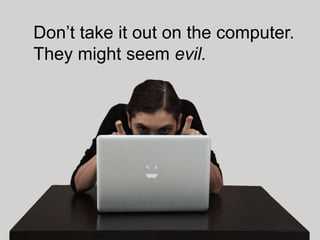
Don’t take it out on the computer.
They might seem evil.
Really you just have to get to
know them.
If you understand a few basics,
you should be able to manage,
or at least troubleshoot,
most technology challenges.
How to get a computer to behave,
and do what you want.
First, ask nicely.
If it’s acting a little out of
character, try rebooting to see if
that fixes the problem.
Once the computer is on and
working,
there are a few basics things to look
Simply speaking,
software programs
run entirely on your computer.
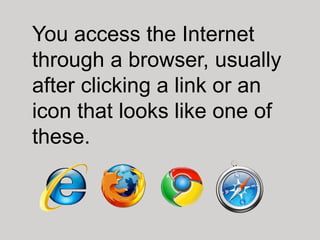
You access the Internet
through a browser, usually
after clicking a link or an
icon that looks like one of
these.

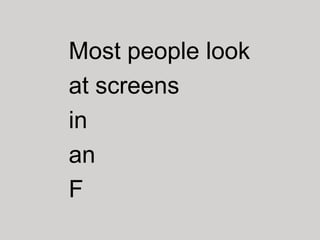
Most people look
at screens
in
an
F
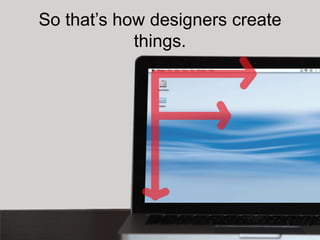
So that’s how designers create
            things.
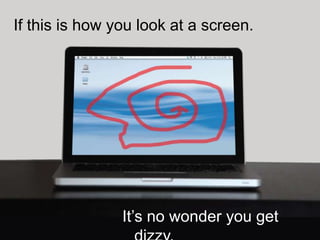
If this is how you look at a screen.


                It’s no wonder you get
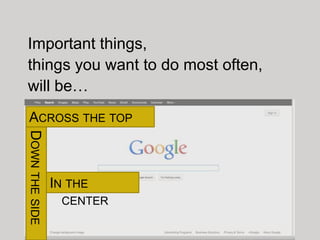
Important things,
things you want to do most often,
will be…
 ACROSS THE TOP
DOWN THE SIDE


                IN THE
                 CENTER
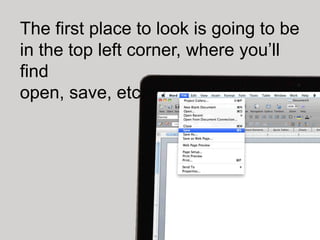
The first place to look is going to be
in the top left corner, where you’ll
find
open, save, etc.
Sometimes super-duper important
things are really BIG, in the
middle. So pay attention to them.
Unless that big bright thing
is an ad (ignore those.)
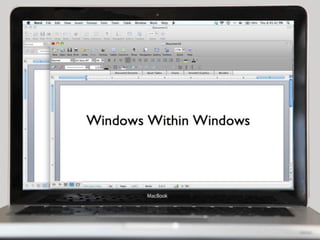
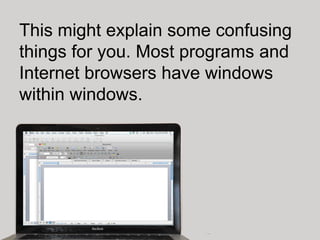
This might explain some confusing
things for you. Most programs and
Internet browsers have windows
within windows.
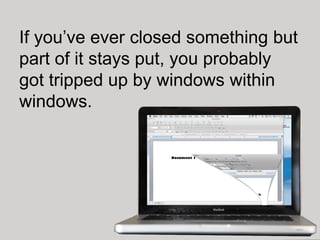
If you’ve ever closed something but
part of it stays put, you probably
got tripped up by windows within
windows.
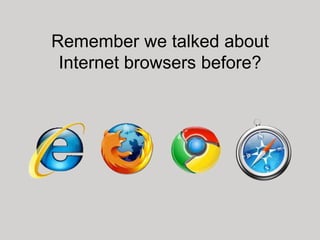
Remember we talked about
 Internet browsers before?
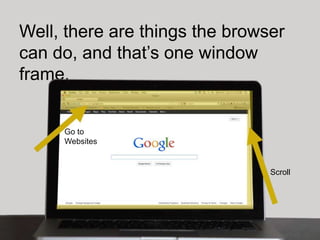
Well, there are things the browser
can do, and that’s one window
frame.


     Go to
     Websites


                                Scroll
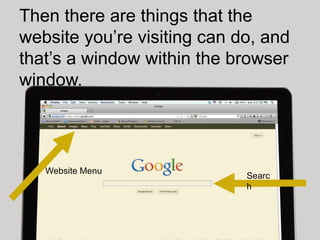
Then there are things that the
website you’re visiting can do, and
that’s a window within the browser
window.


   Website Menu
                             Searc
                             h
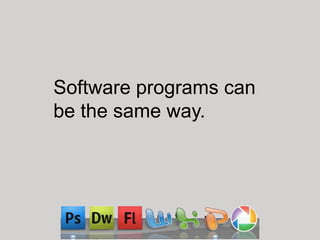
Software programs can
be the same way.
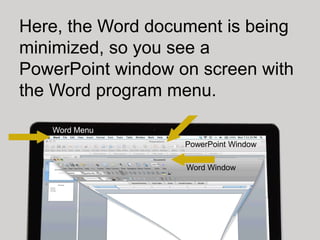
Here, the Word document is being
minimized, so you see a
PowerPoint window on screen with
the Word program menu.

   Word Menu
                   PowerPoint Window

                   Word Window
Confused?
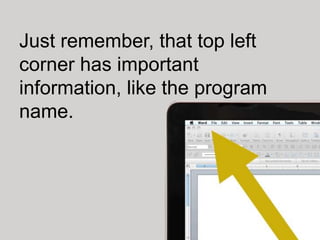
Just remember, that top left
corner has important
information, like the program
name.
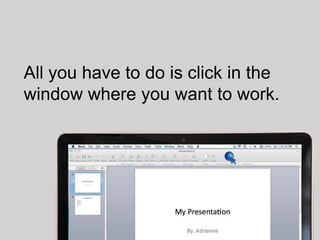
All you have to do is click in the
window where you want to work.
So you’re in the right frame.
Now what?
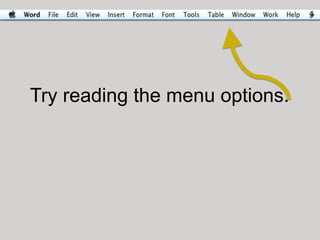
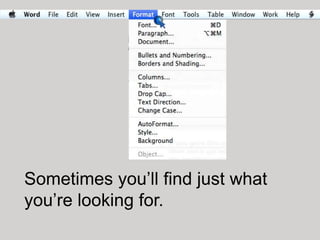
Try reading the menu options.
Sometimes you’ll find just what
you’re looking for.
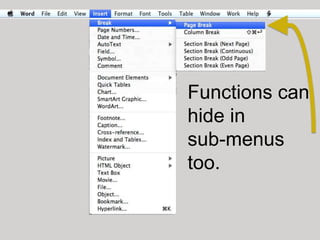
Functions can
hide in
sub-menus
too.
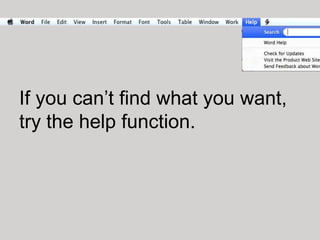
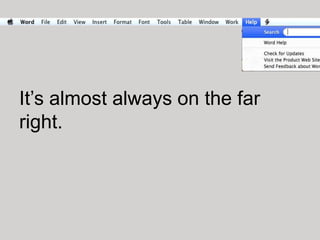
If you can’t find what you want,
try the help function.
It’s almost always on the far
right.
When you’re searching for
something, think like a
computer.
In key words, not sentences.
Can’t find the word you’re
searching for? Try simplifying.
You’ll get more results.

bio
biology
biologist
biologists
Still not finding your word?

Try thinking of synonyms…
Help
FAQ’s
Support
Questions
Contact Us
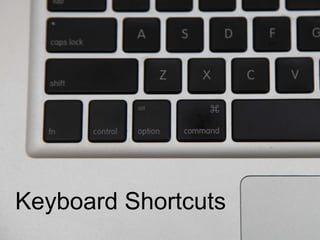
Keyboard Shortcuts
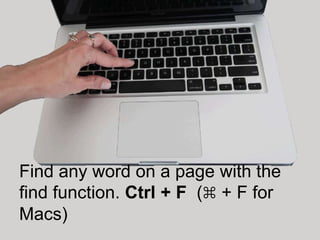
Find any word on a page with the
find function. Ctrl + F (⌘ + F for
Macs)
Whoops!
If you just did something by
mistake.
Ctrl + Z means UNDO!
This arrow works too.
Find your way.
If you’re lost in a website. Look in
the top left corner. That’s where
you’ll usually find the Home button
Next time you get a little stuck
don’t immediately call in the
geek squad.
Try figuring it out
using the tips &
tricks you just
learned.
You’ll be surprised
how far they’ll get
you.

Troubleshooting Technology Basics