PREPARED BY: Er. ANSHUL MAHAJAN
HOW TO CREATE SCENARIO USING
SUMO SIMULATOR
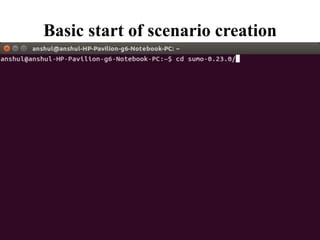
Basic start of scenario creation
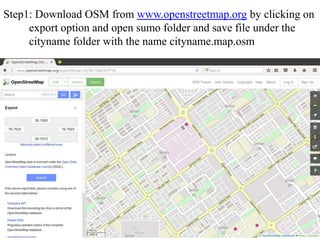
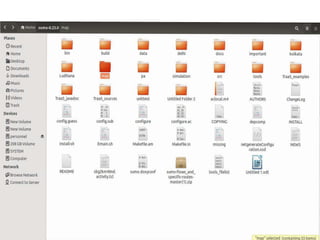
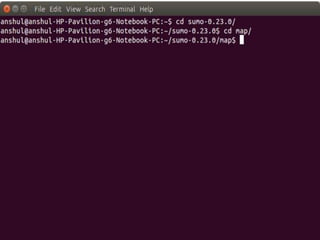
Step1: Download OSM from www.openstreetmap.org by clicking on
export option and open sumo folder and save file under the
cityname folder with the name cityname.map.osm
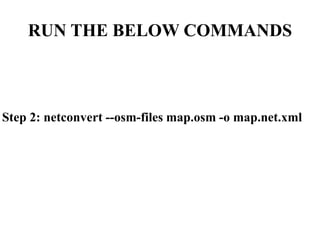
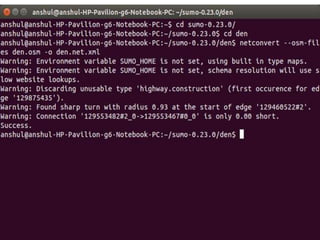
RUN THE BELOW COMMANDS
Step 2: netconvert --osm-files map.osm -o map.net.xml
Netconvert –osm-files map.osm -o map.net.xml
Step 3: After running the above command open the below
link http://sumo.dlr.de/wiki/Networks/Import/OpenStreetMap
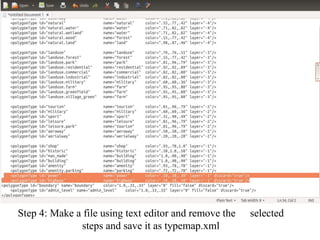
Step 4: Make a file using text editor and remove the selected
steps and save it as typemap.xml
Run the below command
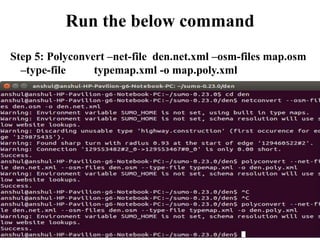
Step 5: Polyconvert –net-file den.net.xml –osm-files map.osm
–type-file typemap.xml -o map.poly.xml
Run the below command
Step 6: python /home/anshul/sumo-0.23.0/tools/trip/randomTrips.py -n
den.net.xml -e 100 -l
Step 7: python /home/anshul/sumo-0.23.0/tools/trip/randomTrips.py -n
den.net.xml -r den.rou.xml -e 100 -l
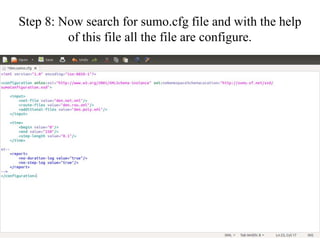
Step 8: Now search for sumo.cfg file and with the help
of this file all the file are configure.
Step 9: Run the command
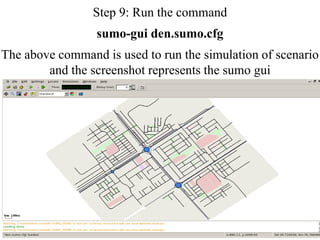
sumo-gui den.sumo.cfg
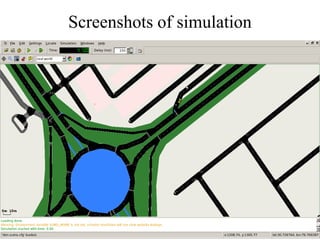
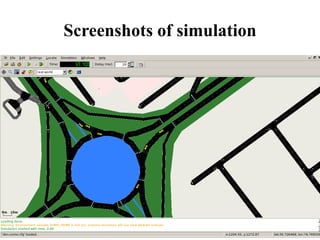
The above command is used to run the simulation of scenario
and the screenshot represents the sumo gui
Screenshots of simulation
Thank you

Sumo scenario

  • 1.
    PREPARED BY: Er.ANSHUL MAHAJAN HOW TO CREATE SCENARIO USING SUMO SIMULATOR
  • 2.
    Basic start ofscenario creation
  • 3.
    Step1: Download OSMfrom www.openstreetmap.org by clicking on export option and open sumo folder and save file under the cityname folder with the name cityname.map.osm
  • 6.
    RUN THE BELOWCOMMANDS Step 2: netconvert --osm-files map.osm -o map.net.xml
  • 8.
    Netconvert –osm-files map.osm-o map.net.xml Step 3: After running the above command open the below link http://sumo.dlr.de/wiki/Networks/Import/OpenStreetMap
  • 9.
    Step 4: Makea file using text editor and remove the selected steps and save it as typemap.xml
  • 10.
    Run the belowcommand Step 5: Polyconvert –net-file den.net.xml –osm-files map.osm –type-file typemap.xml -o map.poly.xml
  • 11.
    Run the belowcommand Step 6: python /home/anshul/sumo-0.23.0/tools/trip/randomTrips.py -n den.net.xml -e 100 -l Step 7: python /home/anshul/sumo-0.23.0/tools/trip/randomTrips.py -n den.net.xml -r den.rou.xml -e 100 -l
  • 12.
    Step 8: Nowsearch for sumo.cfg file and with the help of this file all the file are configure.
  • 13.
    Step 9: Runthe command sumo-gui den.sumo.cfg The above command is used to run the simulation of scenario and the screenshot represents the sumo gui
  • 14.
  • 15.
  • 16.