Grunt
Session 3
Front-End Web Developer Nanodegree
Node.js
• A very powerful JavaScript-based
framework/platform built on Google Chrome's
JavaScript V8 Engine.
• Node.js is an open source, cross-platform
runtime environment.
• It is used to develop I/O intensive web
applications like video streaming sites, single-
page applications, and other real time web
applications.
Grunt
• Grunt is a JavaScript Task Runner which can be
used as a command line tool for JavaScript
objects.
• It is a task manager written on top of NodeJS.
• Grunt can perform repetitive tasks very easily,
such as compilation, unit testing, minifying
files, running tests, etc.
• Grunt includes built-in tasks that extend the
functionality of your plugins and scripts.
Grunt
• Grunt can perform repetitive tasks very easily,
such as compilation, unit testing, minifying
files, running tests, etc.
• Grunt includes built-in tasks that extend the
functionality of your plugins and scripts.
Grunt
• Grunt includes built-in tasks that extend the
functionality of your plugins and scripts.
• Using Grunt, you can perform minification,
compilation, and testing of files easily.
• Grunt unifies the workflows of web
developers.
• You can easily work with a new codebase
using Grunt because it contains less
infrastructure.
INSTALLATION OF GRUNT
(WINDOWS)
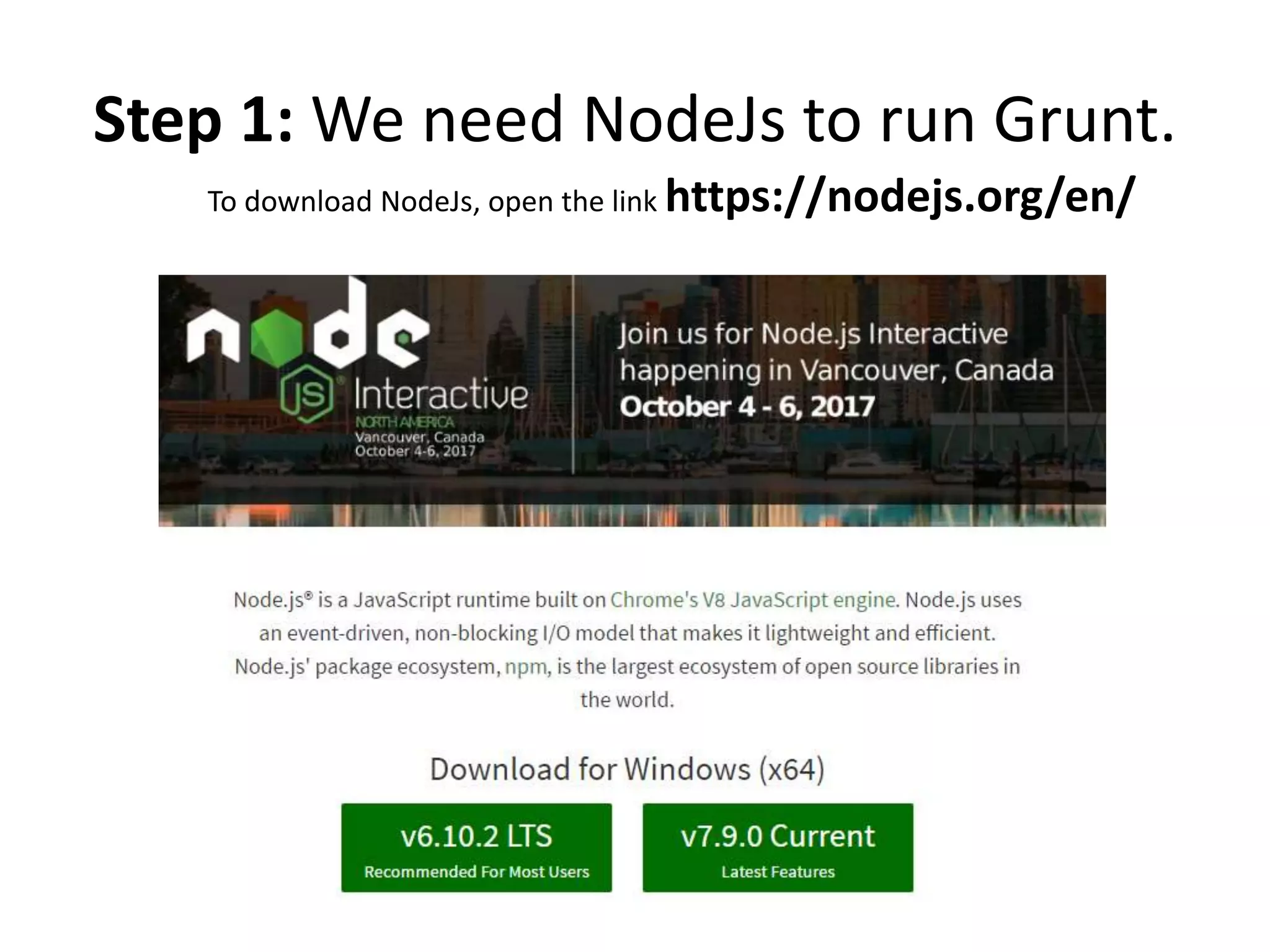
Step 1: We need NodeJs to run Grunt.
To download NodeJs, open the link https://nodejs.org/en/
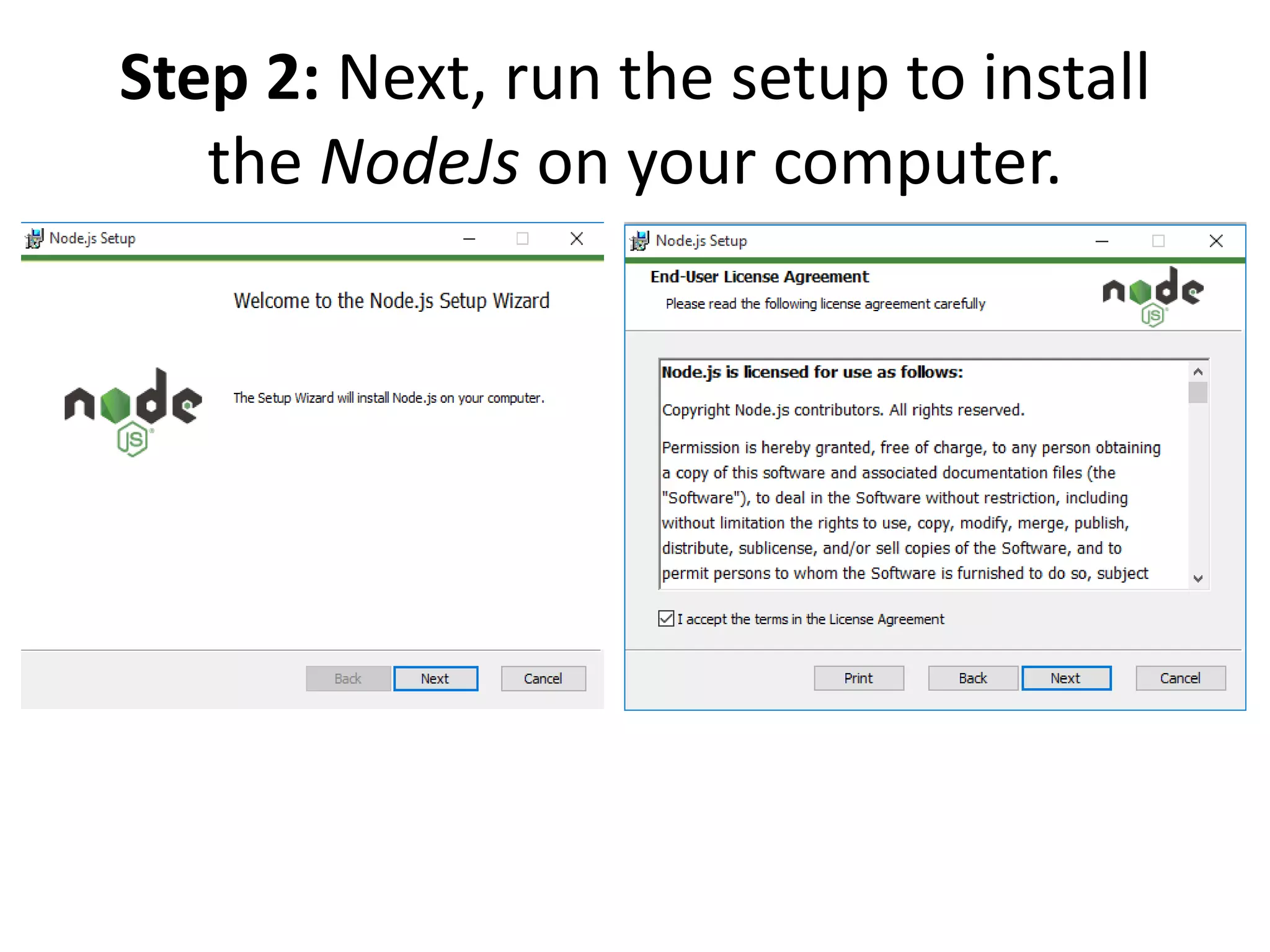
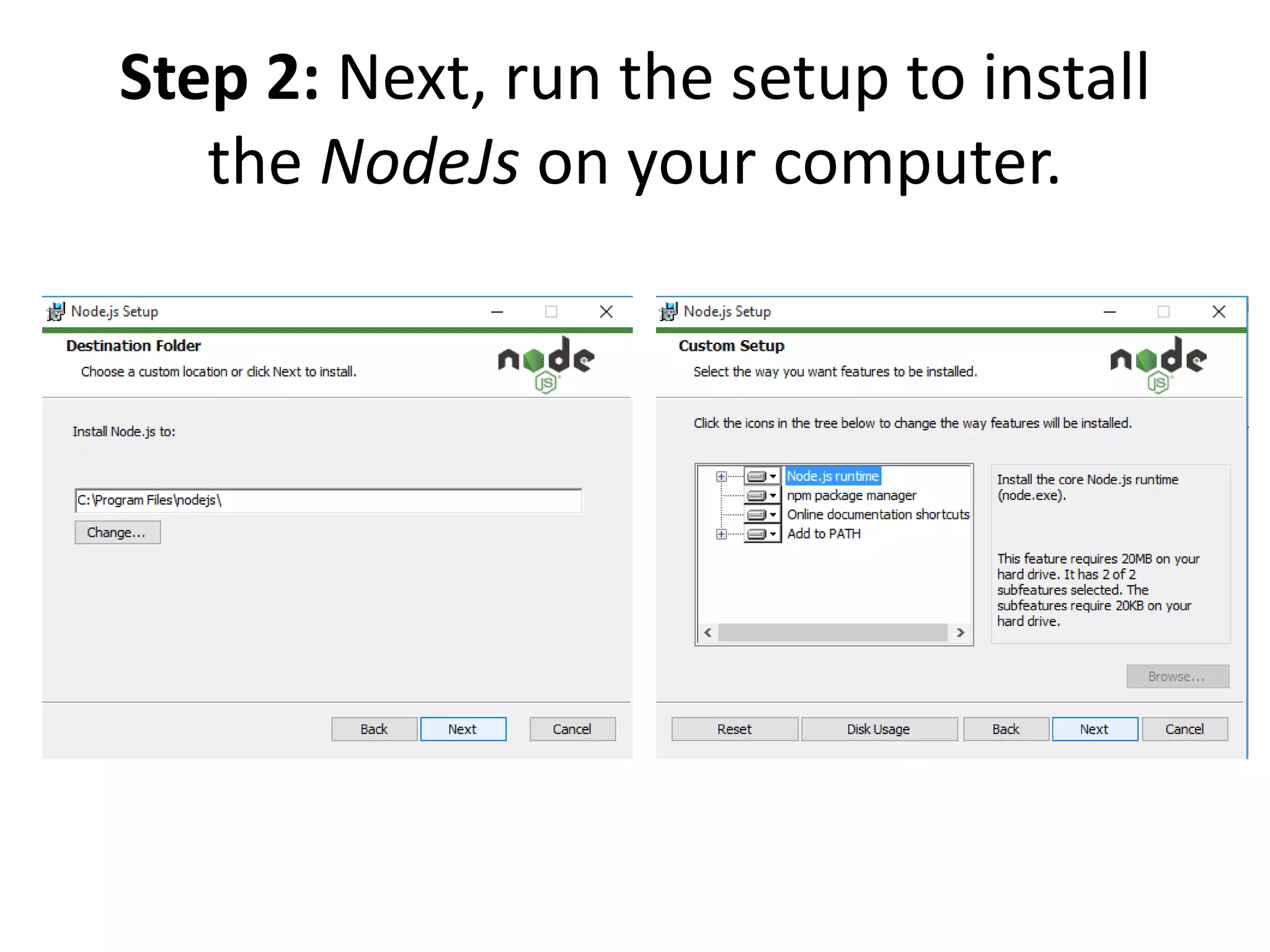
Step 2: Next, run the setup to install
the NodeJs on your computer.
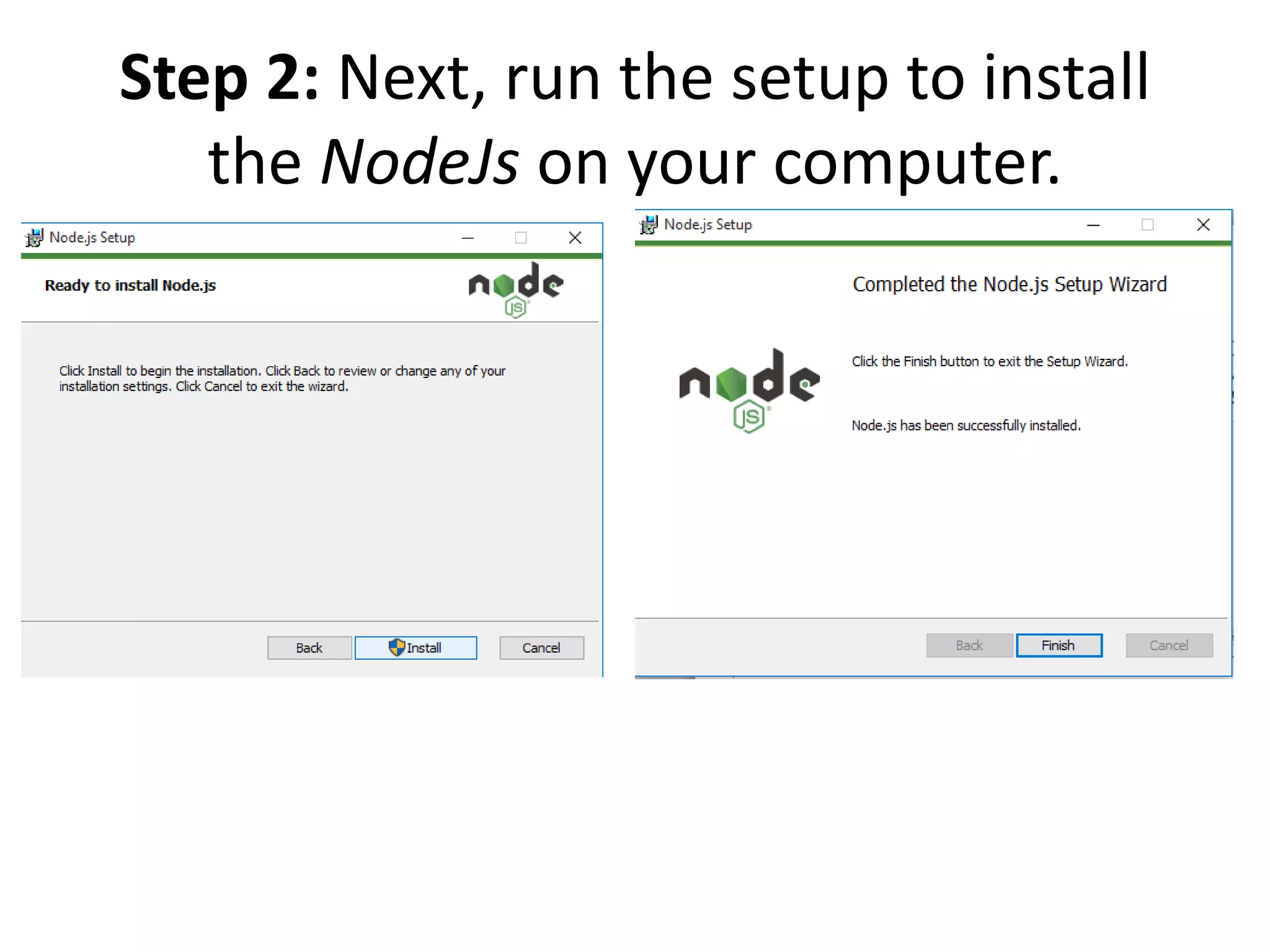
Step 2: Next, run the setup to install
the NodeJs on your computer.
Step 2: Next, run the setup to install
the NodeJs on your computer.
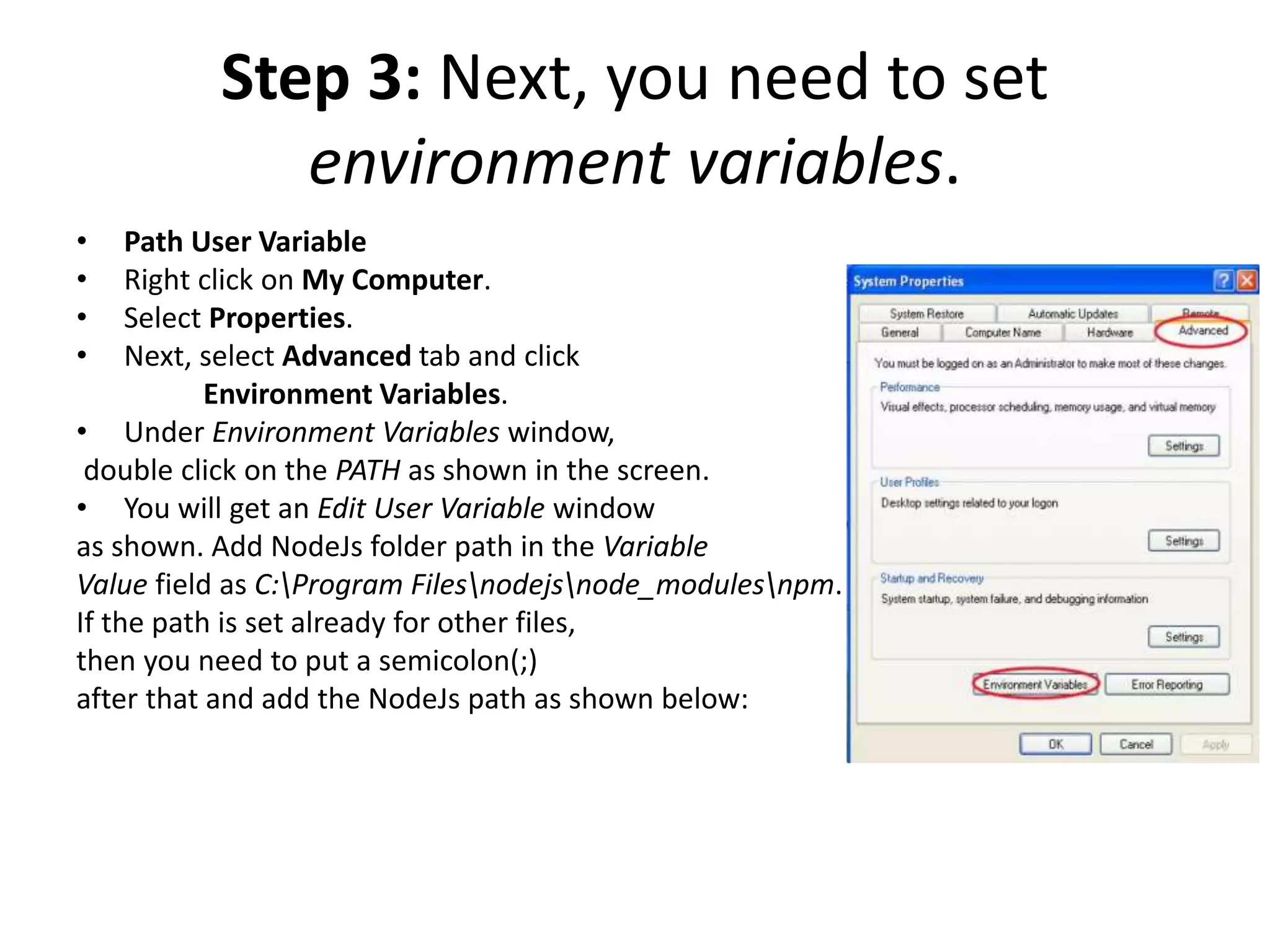
Step 3: Next, you need to set
environment variables.
• Path User Variable
• Right click on My Computer.
• Select Properties.
• Next, select Advanced tab and click
Environment Variables.
• Under Environment Variables window,
double click on the PATH as shown in the screen.
• You will get an Edit User Variable window
as shown. Add NodeJs folder path in the Variable
Value field as C:Program Filesnodejsnode_modulesnpm.
If the path is set already for other files,
then you need to put a semicolon(;)
after that and add the NodeJs path as shown below:
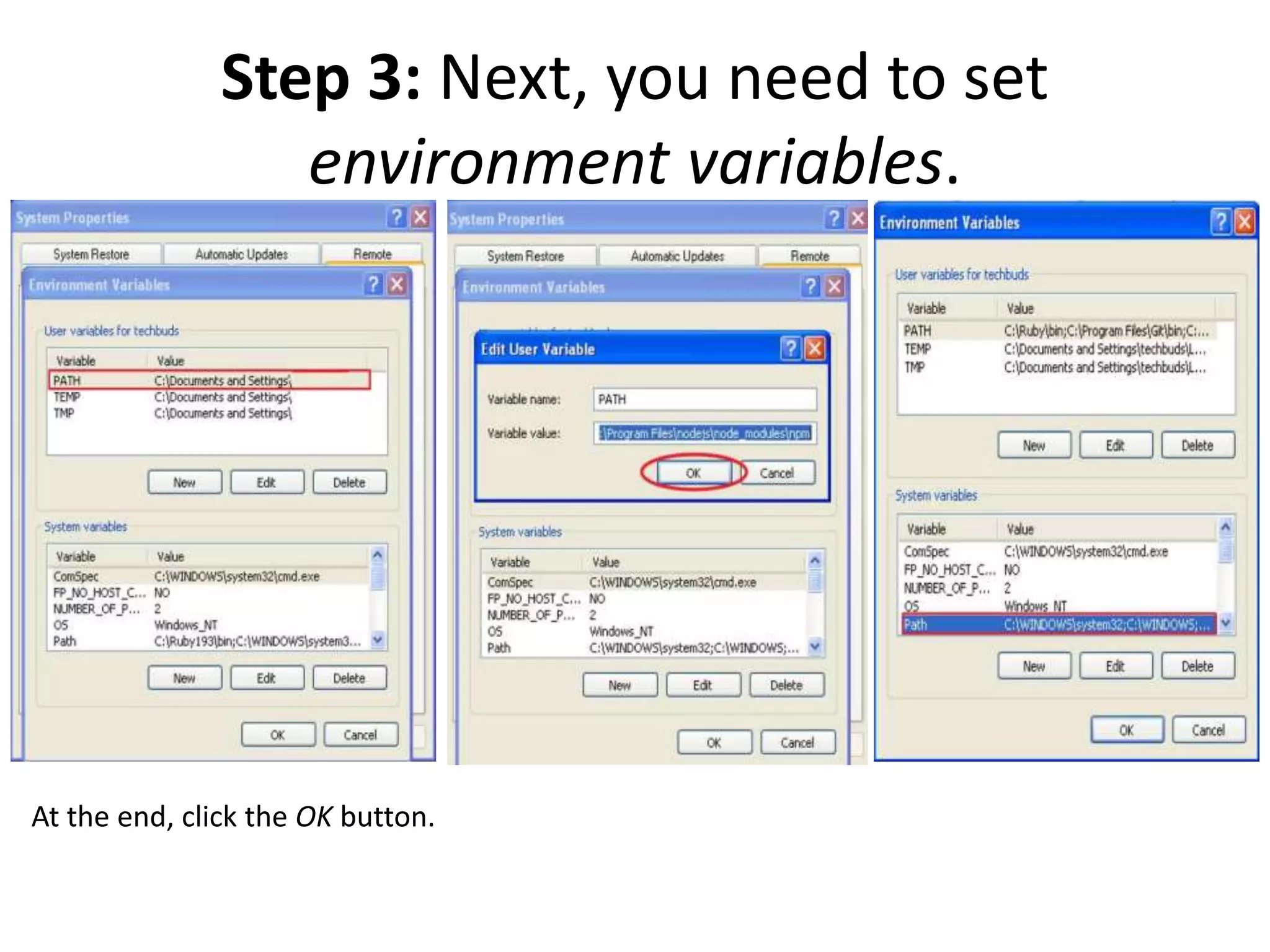
Step 3: Next, you need to set
environment variables.
At the end, click the OK button.
Step 3: Next, you need to set
environment variables.
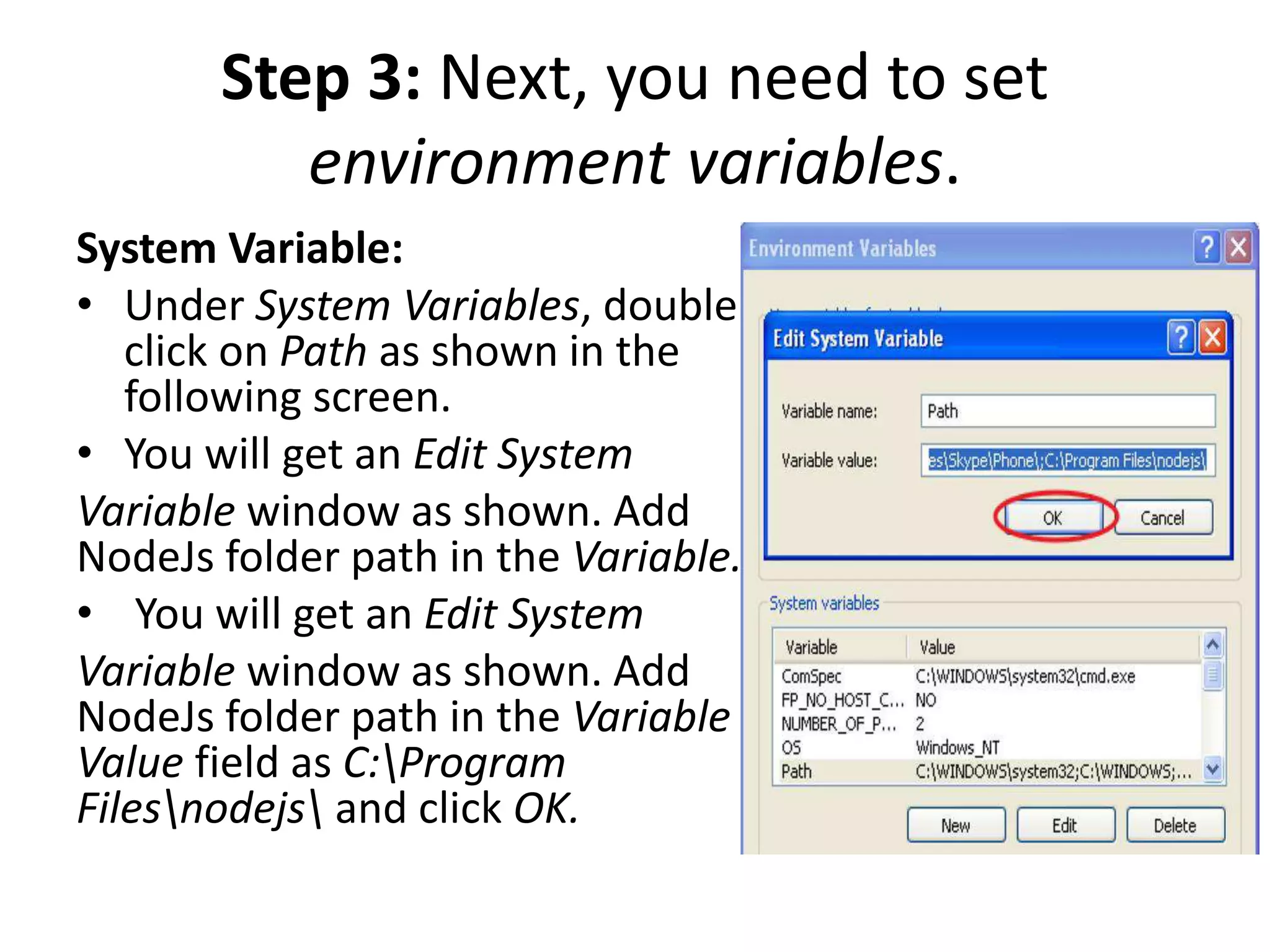
System Variable:
• Under System Variables, double
click on Path as shown in the
following screen.
• You will get an Edit System
Variable window as shown. Add
NodeJs folder path in the Variable.
• You will get an Edit System
Variable window as shown. Add
NodeJs folder path in the Variable
Value field as C:Program
Filesnodejs and click OK.
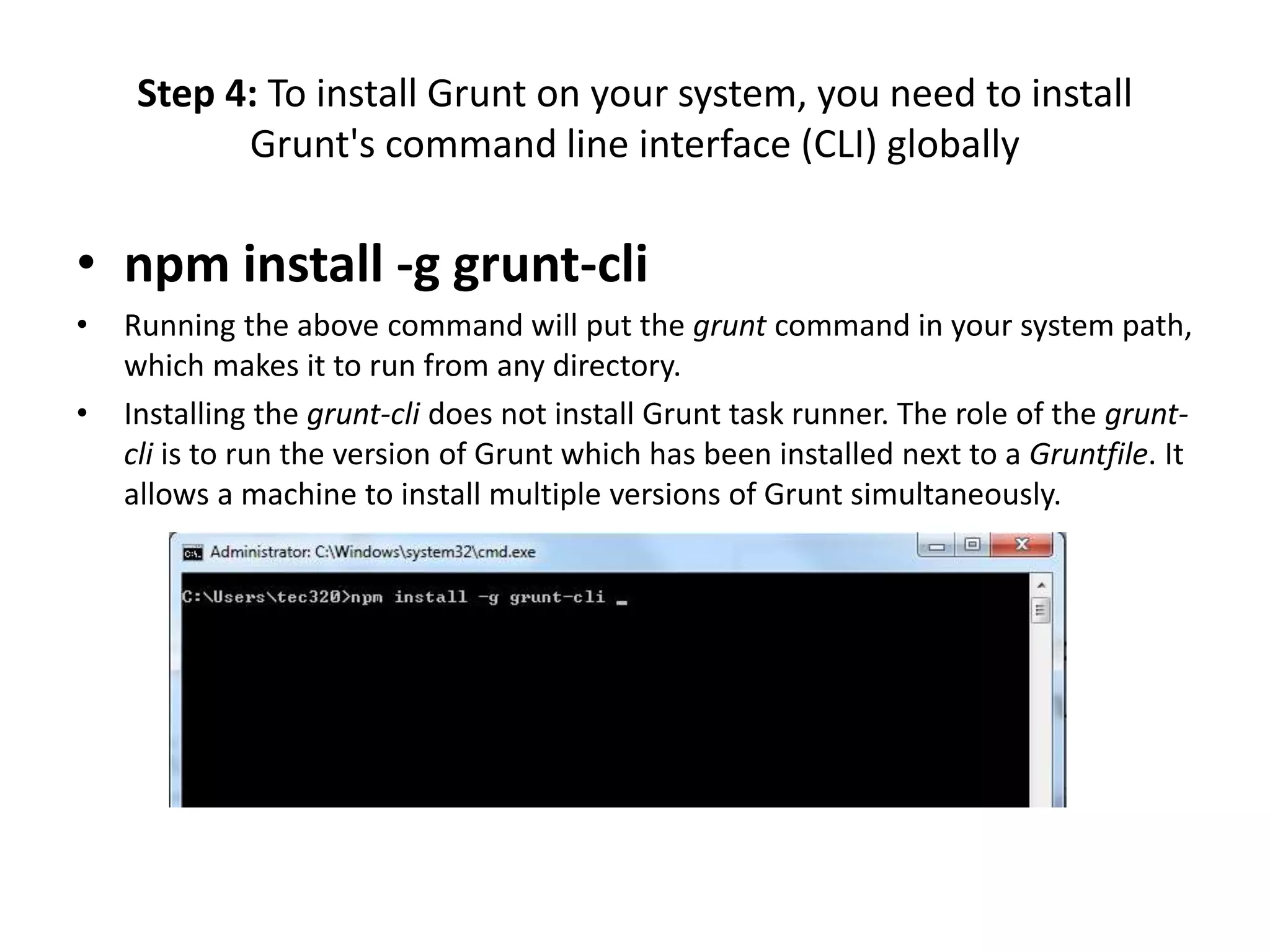
Step 4: To install Grunt on your system, you need to install
Grunt's command line interface (CLI) globally
• npm install -g grunt-cli
• Running the above command will put the grunt command in your system path,
which makes it to run from any directory.
• Installing the grunt-cli does not install Grunt task runner. The role of the grunt-
cli is to run the version of Grunt which has been installed next to a Gruntfile. It
allows a machine to install multiple versions of Grunt simultaneously.
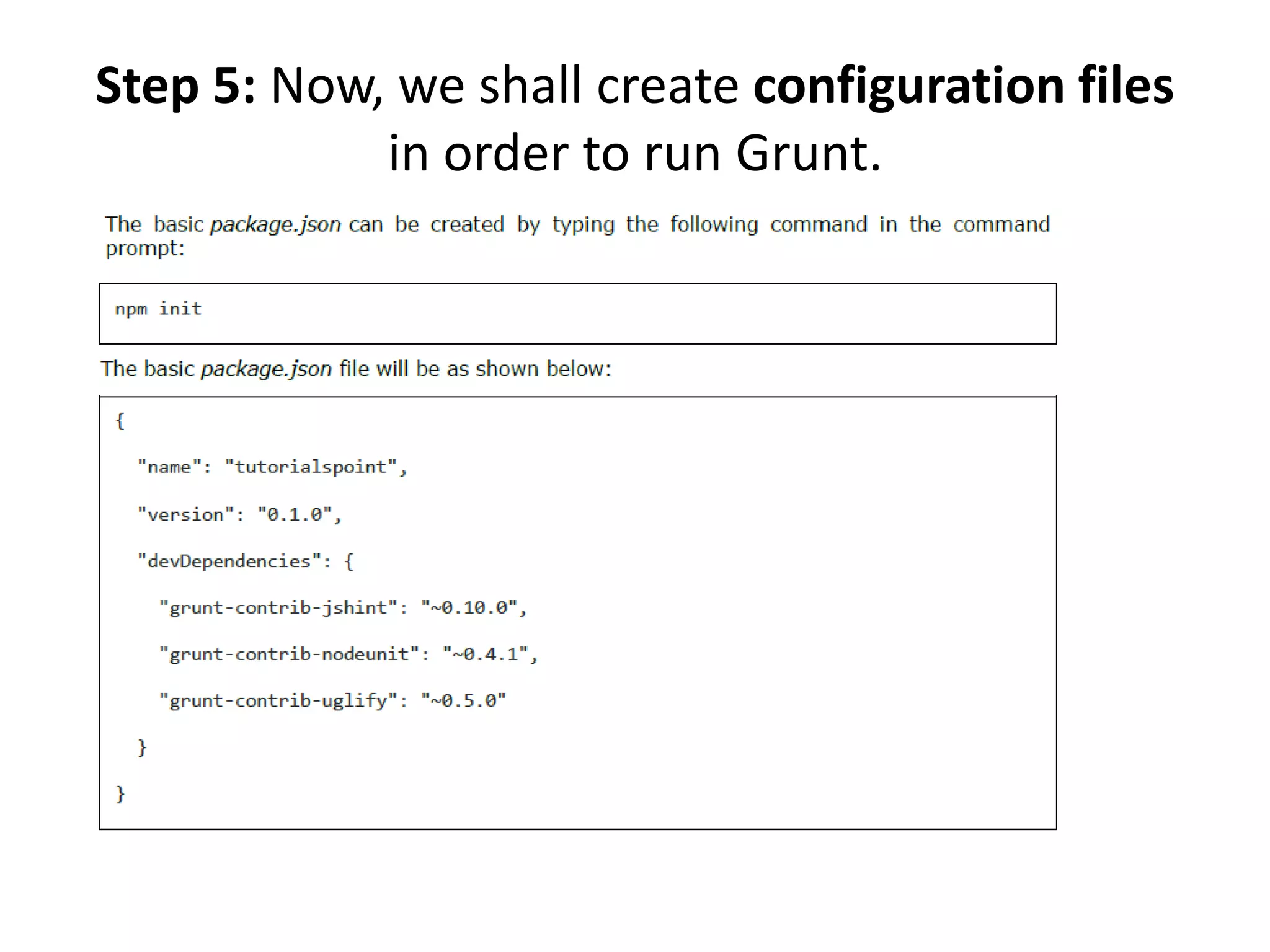
Step 5: Now, we shall create configuration files
in order to run Grunt.
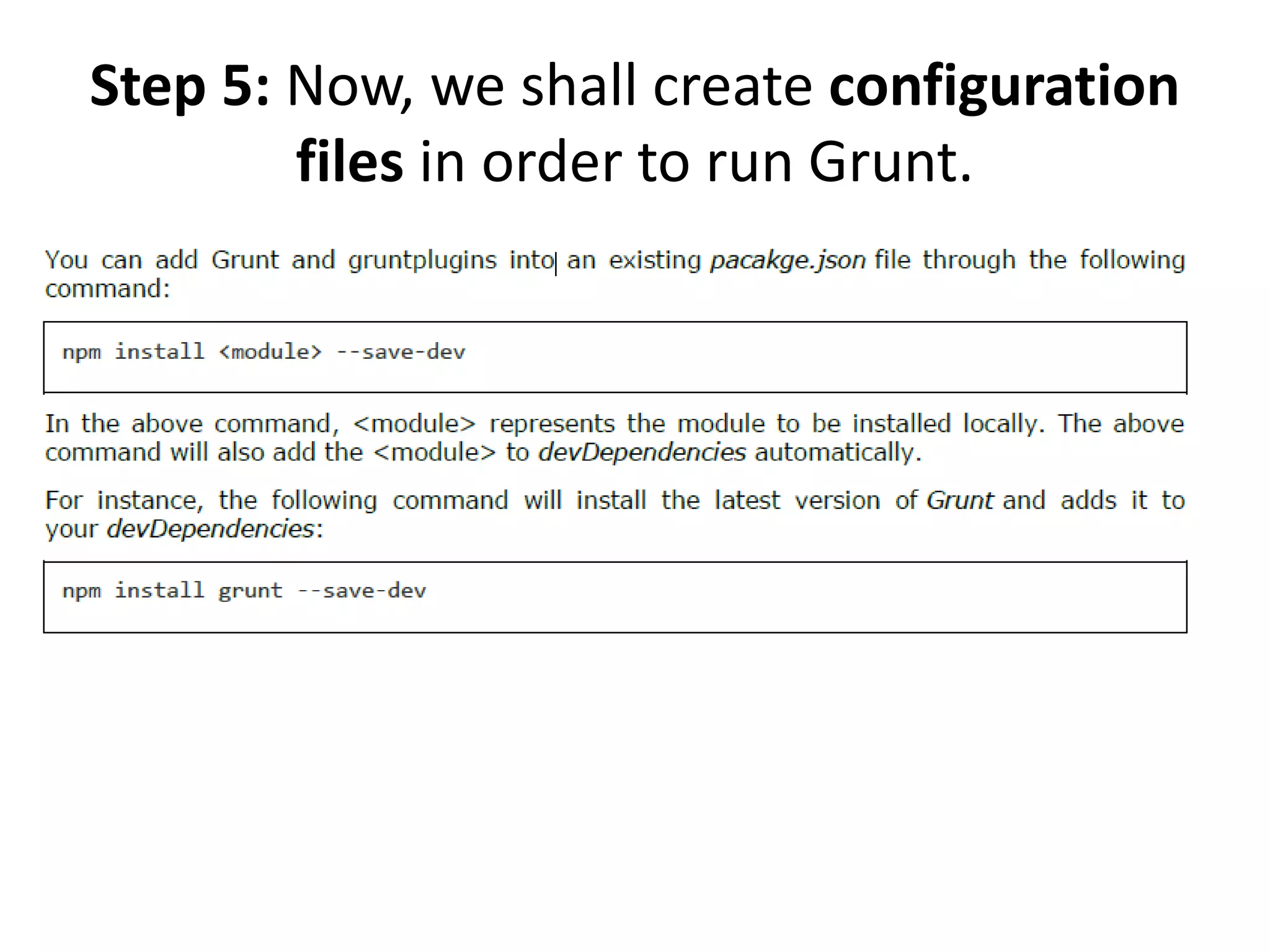
Step 5: Now, we shall create configuration
files in order to run Grunt.
Gruntfile.js :The Gruntfile.js file is used to define our configuration for Grunt. It is the place where our
settings will be written.
// our wrapper function (required by grunt and its plugins)
// all configuration goes inside this function
module.exports = function(grunt) {
// CONFIGURE GRUNT
grunt.initConfig({
// get the configuration info from package.json file
// this way we can use things like name and version (pkg.name)
pkg: grunt.file.readJSON('package.json'),
// all of our configuration goes here
uglify: {
// uglify task configuration
options: {
},
build: {
}
}
});
// log something
grunt.log.write('Hello world! Welcome to Tutorialspoint!!n');
// Load the plugin that provides the "uglify" task.
grunt.loadNpmTasks('grunt-contrib-uglify');
// Default task(s).
grunt.registerTask('default', ['uglify']);
};
Step 5: Now, we shall create configuration
files in order to run Grunt.
Contact me
Engmarwaayad@gmail.com
https://eg.linkedin.com/in/marwa-ayad-mohamed-0a405215
https://www.facebook.com/WTM.Cairo/

Front end development gurant

  • 1.
    Grunt Session 3 Front-End WebDeveloper Nanodegree
  • 3.
    Node.js • A verypowerful JavaScript-based framework/platform built on Google Chrome's JavaScript V8 Engine. • Node.js is an open source, cross-platform runtime environment. • It is used to develop I/O intensive web applications like video streaming sites, single- page applications, and other real time web applications.
  • 5.
    Grunt • Grunt isa JavaScript Task Runner which can be used as a command line tool for JavaScript objects. • It is a task manager written on top of NodeJS. • Grunt can perform repetitive tasks very easily, such as compilation, unit testing, minifying files, running tests, etc. • Grunt includes built-in tasks that extend the functionality of your plugins and scripts.
  • 6.
    Grunt • Grunt canperform repetitive tasks very easily, such as compilation, unit testing, minifying files, running tests, etc. • Grunt includes built-in tasks that extend the functionality of your plugins and scripts.
  • 7.
    Grunt • Grunt includesbuilt-in tasks that extend the functionality of your plugins and scripts. • Using Grunt, you can perform minification, compilation, and testing of files easily. • Grunt unifies the workflows of web developers. • You can easily work with a new codebase using Grunt because it contains less infrastructure.
  • 8.
  • 9.
    Step 1: Weneed NodeJs to run Grunt. To download NodeJs, open the link https://nodejs.org/en/
  • 10.
    Step 2: Next,run the setup to install the NodeJs on your computer.
  • 11.
    Step 2: Next,run the setup to install the NodeJs on your computer.
  • 12.
    Step 2: Next,run the setup to install the NodeJs on your computer.
  • 13.
    Step 3: Next,you need to set environment variables. • Path User Variable • Right click on My Computer. • Select Properties. • Next, select Advanced tab and click Environment Variables. • Under Environment Variables window, double click on the PATH as shown in the screen. • You will get an Edit User Variable window as shown. Add NodeJs folder path in the Variable Value field as C:Program Filesnodejsnode_modulesnpm. If the path is set already for other files, then you need to put a semicolon(;) after that and add the NodeJs path as shown below:
  • 14.
    Step 3: Next,you need to set environment variables. At the end, click the OK button.
  • 15.
    Step 3: Next,you need to set environment variables. System Variable: • Under System Variables, double click on Path as shown in the following screen. • You will get an Edit System Variable window as shown. Add NodeJs folder path in the Variable. • You will get an Edit System Variable window as shown. Add NodeJs folder path in the Variable Value field as C:Program Filesnodejs and click OK.
  • 16.
    Step 4: Toinstall Grunt on your system, you need to install Grunt's command line interface (CLI) globally • npm install -g grunt-cli • Running the above command will put the grunt command in your system path, which makes it to run from any directory. • Installing the grunt-cli does not install Grunt task runner. The role of the grunt- cli is to run the version of Grunt which has been installed next to a Gruntfile. It allows a machine to install multiple versions of Grunt simultaneously.
  • 17.
    Step 5: Now,we shall create configuration files in order to run Grunt.
  • 18.
    Step 5: Now,we shall create configuration files in order to run Grunt.
  • 19.
    Gruntfile.js :The Gruntfile.jsfile is used to define our configuration for Grunt. It is the place where our settings will be written. // our wrapper function (required by grunt and its plugins) // all configuration goes inside this function module.exports = function(grunt) { // CONFIGURE GRUNT grunt.initConfig({ // get the configuration info from package.json file // this way we can use things like name and version (pkg.name) pkg: grunt.file.readJSON('package.json'), // all of our configuration goes here uglify: { // uglify task configuration options: { }, build: { } } }); // log something grunt.log.write('Hello world! Welcome to Tutorialspoint!!n'); // Load the plugin that provides the "uglify" task. grunt.loadNpmTasks('grunt-contrib-uglify'); // Default task(s). grunt.registerTask('default', ['uglify']); }; Step 5: Now, we shall create configuration files in order to run Grunt.
  • 20.