How to run MOSES?
Step 1: Install CYGWIN Follow the instructions listed in the following URL:  http://x.cygwin.com/docs/ug/setup.html You have to install the whole packages After finishing CYGWIN installation, check the icon of CYGWIN on your desktop
Step 2: Preparing Your Environment Go to Drive C:\ Go to cygwin folder Go to home folder Access the only folder in home folder (for example:  agalal ) Paste the “ Demo ” Folder in your flash stick into the last folder
Step 3: Check “Demo” Folder Contents Data Folder  (empty folder) Tools Folder  (contains Giza++, SRILM, IRSTL, and MOSES) Work Folder  (contains corpus folder and lm where they must be empty before proceeding the translation process)
Step 4: Place your input files in Demo/Work/Corpus Copy the  Arabic File  (for example: un.ar) and the  Translated File  (for example: un.ar) to C:\cygwin\home\agalal\demo\work\corpus Change it according to the folder name in your computer
Step 5: Lower Case Your Input Files Go to Desktop and double Cygwin Write the following in the popup window: cd /home/agalal/demo  press enter Then write the following command in one line Press enter Then write the following command in one line Press enter Tools/scripts/tokenizer/lowercase.perl <work/corpus/un.ar> work/corpus/un.lowercased.ar Tools/scripts/tokenizer/lowercase.perl <work/corpus/un.en> work/corpus/un.lowercased.en Input Arabic file Input English file Output Arabic file Output English file
Step 6: Build Your language model (1/2) if you want to translate from  English  to  Arabic , you have to make the following: 1- Build Arabic Language Model  2- Consider  English  as the foreign language 3- Consider  Arabic  as the source language if you want to translate from  Arabic  to  English , you have to make the following: 1- Build English Language Model  2- Consider  Arabic  as the foreign language 3- Consider  English  as the source language
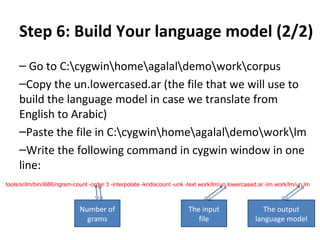
Step 6: Build Your language model (2/2) Go to C:\cygwin\home\agalal\demo\work\corpus Copy the un.lowercased.ar (the file that we will use to build the language model in case we translate from English to Arabic)  Paste the file in C:\cygwin\home\agalal\demo\work\lm Write the following command in cygwin window in one line: tools/srilm/bin/i686/ngram-count -order 3 -interpolate -kndiscount -unk -text work/lm/un.lowercased.ar -lm work/lm/un.lm   Number of grams The input file The output language model
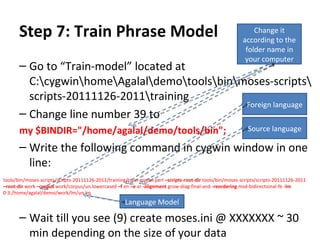
Step 7: Train Phrase Model Go to “Train-model” located at C:\cygwin\home\Agalal\demo\tools\bin\moses-scripts\scripts-20111126-2011\training Change line number 39 to my $BINDIR=&quot;/home/agalal/demo/tools/bin&quot;; Write the following command in cygwin window in one line: Wait till you see (9) create moses.ini @ XXXXXXX ~ 30 min depending on the size of your data Change it according to the folder name in your computer tools/bin/moses-scripts/scripts-20111126-2011/training/train-model.perl  –scripts-root-dir  tools/bin/moses-scripts/scripts-20111126-2011  – root-dir  work  –corpus  work/corpus/un.lowercased  –f  en  –e  ar  -alignment  grow-diag-final-and  -reordering  msd-bidirectional-fe  -lm  0:3:/home/agalal/demo/work/lm/un.lm Foreign language Source language Language Model
Step 8: Translate ! Put the English file (for example: un.en) that you want to translate at: C:\cygwin\home\agalal\demo Write the following command in cygwin: 3. Check the results at the following directory C:\cygwin\home\agalal\demo\out.txt Tools/moses/moses-cmd/src/moses –config work/model/moses.ini –input-file in.en 1> out.txt
Thank You!

How to run_moses 2

  • 1.
    How to runMOSES?
  • 2.
    Step 1: InstallCYGWIN Follow the instructions listed in the following URL: http://x.cygwin.com/docs/ug/setup.html You have to install the whole packages After finishing CYGWIN installation, check the icon of CYGWIN on your desktop
  • 3.
    Step 2: PreparingYour Environment Go to Drive C:\ Go to cygwin folder Go to home folder Access the only folder in home folder (for example: agalal ) Paste the “ Demo ” Folder in your flash stick into the last folder
  • 4.
    Step 3: Check“Demo” Folder Contents Data Folder (empty folder) Tools Folder (contains Giza++, SRILM, IRSTL, and MOSES) Work Folder (contains corpus folder and lm where they must be empty before proceeding the translation process)
  • 5.
    Step 4: Placeyour input files in Demo/Work/Corpus Copy the Arabic File (for example: un.ar) and the Translated File (for example: un.ar) to C:\cygwin\home\agalal\demo\work\corpus Change it according to the folder name in your computer
  • 6.
    Step 5: LowerCase Your Input Files Go to Desktop and double Cygwin Write the following in the popup window: cd /home/agalal/demo press enter Then write the following command in one line Press enter Then write the following command in one line Press enter Tools/scripts/tokenizer/lowercase.perl <work/corpus/un.ar> work/corpus/un.lowercased.ar Tools/scripts/tokenizer/lowercase.perl <work/corpus/un.en> work/corpus/un.lowercased.en Input Arabic file Input English file Output Arabic file Output English file
  • 7.
    Step 6: BuildYour language model (1/2) if you want to translate from English to Arabic , you have to make the following: 1- Build Arabic Language Model 2- Consider English as the foreign language 3- Consider Arabic as the source language if you want to translate from Arabic to English , you have to make the following: 1- Build English Language Model 2- Consider Arabic as the foreign language 3- Consider English as the source language
  • 8.
    Step 6: BuildYour language model (2/2) Go to C:\cygwin\home\agalal\demo\work\corpus Copy the un.lowercased.ar (the file that we will use to build the language model in case we translate from English to Arabic) Paste the file in C:\cygwin\home\agalal\demo\work\lm Write the following command in cygwin window in one line: tools/srilm/bin/i686/ngram-count -order 3 -interpolate -kndiscount -unk -text work/lm/un.lowercased.ar -lm work/lm/un.lm Number of grams The input file The output language model
  • 9.
    Step 7: TrainPhrase Model Go to “Train-model” located at C:\cygwin\home\Agalal\demo\tools\bin\moses-scripts\scripts-20111126-2011\training Change line number 39 to my $BINDIR=&quot;/home/agalal/demo/tools/bin&quot;; Write the following command in cygwin window in one line: Wait till you see (9) create moses.ini @ XXXXXXX ~ 30 min depending on the size of your data Change it according to the folder name in your computer tools/bin/moses-scripts/scripts-20111126-2011/training/train-model.perl –scripts-root-dir tools/bin/moses-scripts/scripts-20111126-2011 – root-dir work –corpus work/corpus/un.lowercased –f en –e ar -alignment grow-diag-final-and -reordering msd-bidirectional-fe -lm 0:3:/home/agalal/demo/work/lm/un.lm Foreign language Source language Language Model
  • 10.
    Step 8: Translate! Put the English file (for example: un.en) that you want to translate at: C:\cygwin\home\agalal\demo Write the following command in cygwin: 3. Check the results at the following directory C:\cygwin\home\agalal\demo\out.txt Tools/moses/moses-cmd/src/moses –config work/model/moses.ini –input-file in.en 1> out.txt
  • 11.