Supporting learning in
                    the class
                              https://elearn.uwcsea.edu.sg/


Created by Andrew McCarthy - Digital Literary Coach (Dover)
August 2011 anm@uwcsea.edu.sg
Very simply.....
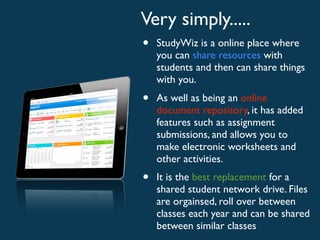
•   StudyWiz is a online place where
    you can share resources with
    students and then can share things
    with you.
•   As well as being an online
    document repository, it has added
    features such as assignment
    submissions, and allows you to
    make electronic worksheets and
    other activities.
•   It is the best replacement for a
    shared student network drive. Files
    are orgainsed, roll over between
    classes each year and can be shared
    between similar classes
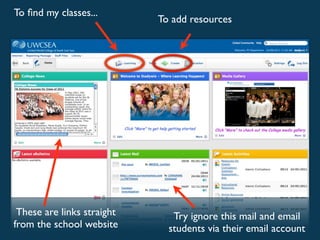
To find my classes...
                            To add resources


 These are links straight      Try ignore this mail and email
from the school website       students via their email account
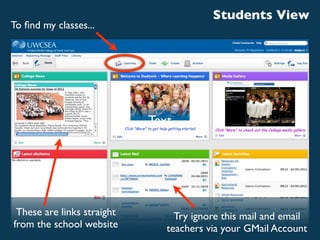
Students View
To find my classes...


                            Text


 These are links straight        Try ignore this mail and email
from the school website        teachers via your GMail Account
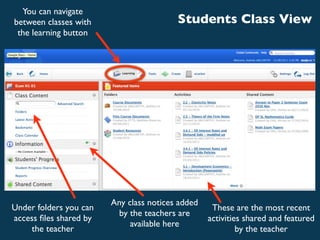
You can navigate
between classes with                     Students Class View
 the learning button


                        Any class notices added
Under folders you can                              These are the most recent
                          by the teachers are
access files shared by                             activities shared and featured
                             available here
    the teacher                                            by the teacher
Key Functions
Key Functions
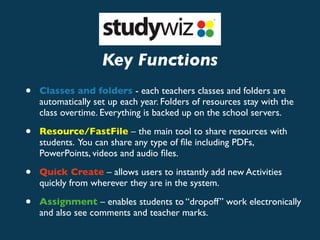
•   Classes and folders - each teachers classes and folders are
    automatically set up each year. Folders of resources stay with the
    class overtime. Everything is backed up on the school servers.
Key Functions
•   Classes and folders - each teachers classes and folders are
    automatically set up each year. Folders of resources stay with the
    class overtime. Everything is backed up on the school servers.

•   Resource/FastFile – the main tool to share resources with
    students. You can share any type of file including PDFs,
    PowerPoints, videos and audio files.
Key Functions
•   Classes and folders - each teachers classes and folders are
    automatically set up each year. Folders of resources stay with the
    class overtime. Everything is backed up on the school servers.

•   Resource/FastFile – the main tool to share resources with
    students. You can share any type of file including PDFs,
    PowerPoints, videos and audio files.

•   Quick Create – allows users to instantly add new Activities
    quickly from wherever they are in the system.
Key Functions
•   Classes and folders - each teachers classes and folders are
    automatically set up each year. Folders of resources stay with the
    class overtime. Everything is backed up on the school servers.

•   Resource/FastFile – the main tool to share resources with
    students. You can share any type of file including PDFs,
    PowerPoints, videos and audio files.

•   Quick Create – allows users to instantly add new Activities
    quickly from wherever they are in the system.

•   Assignment – enables students to “dropoff” work electronically
    and also see comments and teacher marks.
Folder systems
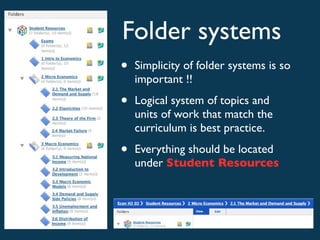
•   Simplicity of folder systems is so
    important !!

•   Logical system of topics and
    units of work that match the
    curriculum is best practice.

•   Everything should be located
    under Student Resources
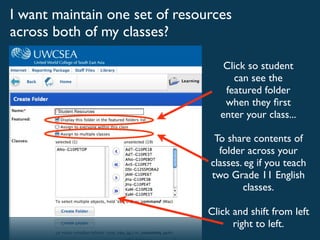
I want maintain one set of resources
across both of my classes?

                                    Click so student
                                      can see the
                                    featured folder
                                    when they first
                                   enter your class...

                                 To share contents of
                                  folder across your
                                classes. eg if you teach
                                two Grade 11 English
                                        classes.

                                Click and shift from left
                                      right to left.
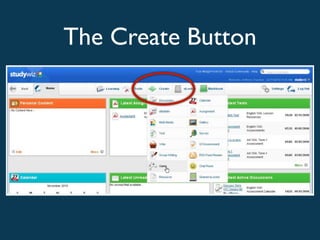
The Create Button
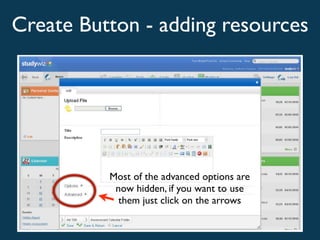
Create Button - adding resources


                  Text


          Most of the advanced options are
           now hidden, if you want to use
            them just click on the arrows
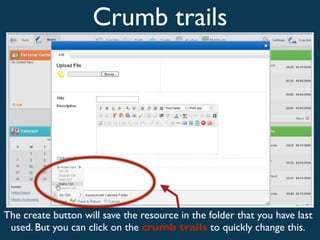
Crumb trails


The create button will save the resource in the folder that you have last
 used. But you can click on the crumb trails to quickly change this.
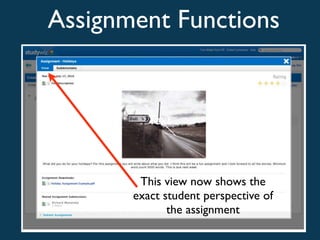
Assignment Functions


          Text


        This view now shows the
       exact student perspective of
              the assignment
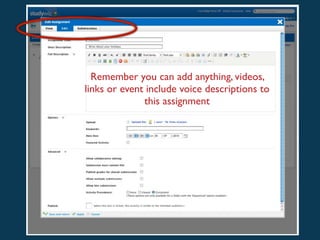
Remember you can add anything, videos,
links or event include voice descriptions to
              this assignment
               Text
Text
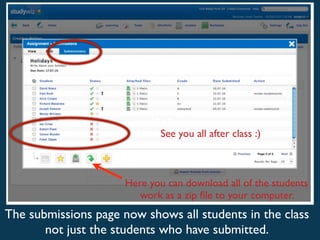
                             See you all after class :)


                      Here you can download all of the students
                         work as a zip file to your computer.
The submissions page now shows all students in the class
       not just the students who have submitted.
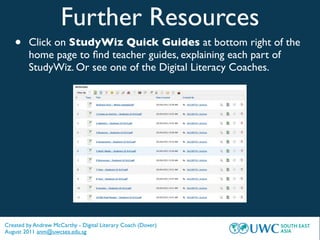
Further Resources
   •     Click on StudyWiz Quick Guides at bottom right of the
         home page to find teacher guides, explaining each part of
         StudyWiz. Or see one of the Digital Literacy Coaches.


Created by Andrew McCarthy - Digital Literary Coach (Dover)
August 2011 anm@uwcsea.edu.sg

Studywiz new staff introduction - aug 2011

  • 1.
    Supporting learning in the class https://elearn.uwcsea.edu.sg/ Created by Andrew McCarthy - Digital Literary Coach (Dover) August 2011 anm@uwcsea.edu.sg
  • 2.
    Very simply..... • StudyWiz is a online place where you can share resources with students and then can share things with you. • As well as being an online document repository, it has added features such as assignment submissions, and allows you to make electronic worksheets and other activities. • It is the best replacement for a shared student network drive. Files are orgainsed, roll over between classes each year and can be shared between similar classes
  • 3.
    To find myclasses... To add resources These are links straight Try ignore this mail and email from the school website students via their email account
  • 4.
    Students View To findmy classes... Text These are links straight Try ignore this mail and email from the school website teachers via your GMail Account
  • 5.
    You can navigate betweenclasses with Students Class View the learning button Any class notices added Under folders you can These are the most recent by the teachers are access files shared by activities shared and featured available here the teacher by the teacher
  • 6.
  • 7.
    Key Functions • Classes and folders - each teachers classes and folders are automatically set up each year. Folders of resources stay with the class overtime. Everything is backed up on the school servers.
  • 8.
    Key Functions • Classes and folders - each teachers classes and folders are automatically set up each year. Folders of resources stay with the class overtime. Everything is backed up on the school servers. • Resource/FastFile – the main tool to share resources with students. You can share any type of file including PDFs, PowerPoints, videos and audio files.
  • 9.
    Key Functions • Classes and folders - each teachers classes and folders are automatically set up each year. Folders of resources stay with the class overtime. Everything is backed up on the school servers. • Resource/FastFile – the main tool to share resources with students. You can share any type of file including PDFs, PowerPoints, videos and audio files. • Quick Create – allows users to instantly add new Activities quickly from wherever they are in the system.
  • 10.
    Key Functions • Classes and folders - each teachers classes and folders are automatically set up each year. Folders of resources stay with the class overtime. Everything is backed up on the school servers. • Resource/FastFile – the main tool to share resources with students. You can share any type of file including PDFs, PowerPoints, videos and audio files. • Quick Create – allows users to instantly add new Activities quickly from wherever they are in the system. • Assignment – enables students to “dropoff” work electronically and also see comments and teacher marks.
  • 11.
    Folder systems • Simplicity of folder systems is so important !! • Logical system of topics and units of work that match the curriculum is best practice. • Everything should be located under Student Resources
  • 12.
    I want maintainone set of resources across both of my classes? Click so student can see the featured folder when they first enter your class... To share contents of folder across your classes. eg if you teach two Grade 11 English classes. Click and shift from left right to left.
  • 13.
  • 14.
    Create Button -adding resources Text Most of the advanced options are now hidden, if you want to use them just click on the arrows
  • 15.
    Crumb trails The createbutton will save the resource in the folder that you have last used. But you can click on the crumb trails to quickly change this.
  • 16.
    Assignment Functions Text This view now shows the exact student perspective of the assignment
  • 17.
    Remember you canadd anything, videos, links or event include voice descriptions to this assignment Text
  • 18.
    Text See you all after class :) Here you can download all of the students work as a zip file to your computer. The submissions page now shows all students in the class not just the students who have submitted.
  • 19.
    Further Resources • Click on StudyWiz Quick Guides at bottom right of the home page to find teacher guides, explaining each part of StudyWiz. Or see one of the Digital Literacy Coaches. Created by Andrew McCarthy - Digital Literary Coach (Dover) August 2011 anm@uwcsea.edu.sg