Google Apps in the Classroom
                                                                       Created by CUE and WestEd for Google


                                                       Get the tool: http://www.google.com/a/edu/


What is it?
With Google Apps: Education Edition your entire campus
community can share information and ideas more easily.
Google Apps can give students, faculty, and staff at
your school custom email addresses, shared calendars,
collaborative web sites, shared online documents, safe instant
messaging, and more. Everyone can even have an easy-to-use
customizable start page. All educational accounts are free
of charge and you can use your school’s already registered
domain. The administrator of your domain can turn on
and off the services depending on your school or district’s
acceptable use policy. Save time and money with Google
Apps; worries about losing assignments or about updating
computer platforms and software versions are a thing of the
past. Best of all, these tools are available to you and your
students anytime - anywhere there is an Internet accessible
computer. Everyone can work together seamlessly and
easily.


Why use it?
Students can use Google Apps to:
• Collaborate with classmates using Google Sites.
                                                                      Expert Tip
• Make a presentation with Google Docs.                               You can provide specific
• Keep organized using Google Calendar.
                                                                      resources to your students
Teachers can use Google Apps to:                                      by placing a Google Gadget
• Have easy access to their colleagues using Google Talk.             into the locked section of
• Sign up for computer lab or library time using a Google
  Calendar.
                                                                      the home page. This way,
• Collect assignments online using Gmail or Google Docs.              students will always have
                                                                      access to the information
                                                                      you want them to have.
Instructional Ideas
  Elementary. Teachers can create a home page for students to use, with the links and Google services they
  want. Google Apps has a customizable home page, where the teacher can place “Gadgets” for students to
  use, including dictionaries, encyclopedias, online sticky notes, and many more educational tools.
  Middle School. Using Google Sites, the teacher can create a course web site with subordinate pages for
  each unit. Students can also be assigned their own page to display their classwork. This site can serve as a
  collaborative online textbook and as online student portfolios
  High School. The teacher can enable Google Talk, but limit its use to communicating only with other
  students, faculty, and staff in the domain. This gives students the experience of using instant messaging
  for legitimate purposes, and does so in a safe environment


  Google Apps: Education Edition in Action
  Project: Your School Portal
  Grade/Subject: 9th Grade Global Communications Class / Tech
  Arts Pathway
  URL: http://www.capuchinohighschool.org

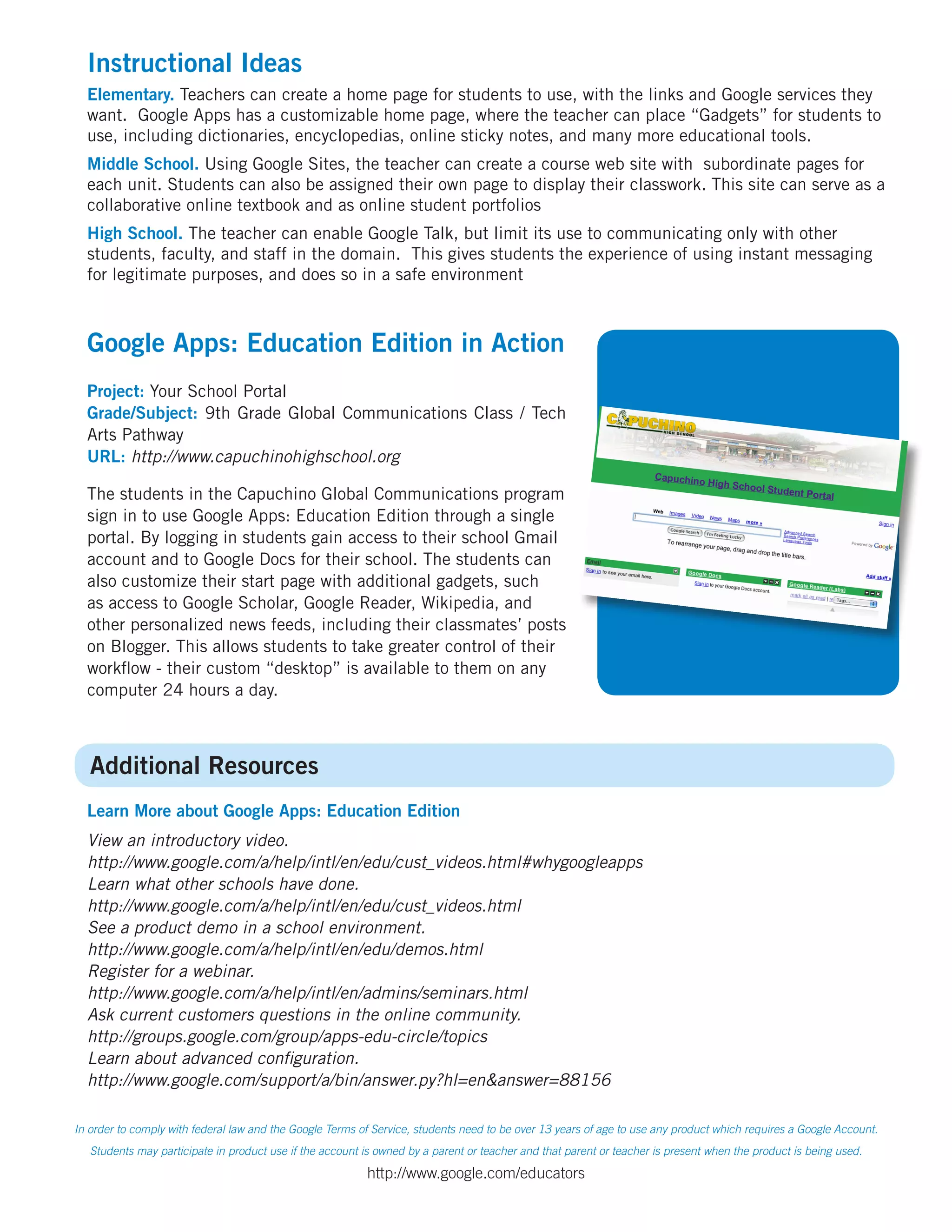
  The students in the Capuchino Global Communications program
  sign in to use Google Apps: Education Edition through a single
  portal. By logging in students gain access to their school Gmail
  account and to Google Docs for their school. The students can
  also customize their start page with additional gadgets, such
  as access to Google Scholar, Google Reader, Wikipedia, and
  other personalized news feeds, including their classmates’ posts
  on Blogger. This allows students to take greater control of their
  workflow - their custom “desktop” is available to them on any
  computer 24 hours a day.


   Additional Resources
  Learn More about Google Apps: Education Edition
  View an introductory video.
  http://www.google.com/a/help/intl/en/edu/cust_videos.html#whygoogleapps
  Learn what other schools have done.
  http://www.google.com/a/help/intl/en/edu/cust_videos.html
  See a product demo in a school environment.
  http://www.google.com/a/help/intl/en/edu/demos.html
  Register for a webinar.
  http://www.google.com/a/help/intl/en/admins/seminars.html
  Ask current customers questions in the online community.
  http://groups.google.com/group/apps-edu-circle/topics
  Learn about advanced configuration.
  http://www.google.com/support/a/bin/answer.py?hl=en&answer=88156

In order to comply with federal law and the Google Terms of Service, students need to be over 13 years of age to use any product which requires a Google Account.
   Students may participate in product use if the account is owned by a parent or teacher and that parent or teacher is present when the product is being used.

                                                          http://www.google.com/educators

Crib Apps

  • 1.
    Google Apps inthe Classroom Created by CUE and WestEd for Google Get the tool: http://www.google.com/a/edu/ What is it? With Google Apps: Education Edition your entire campus community can share information and ideas more easily. Google Apps can give students, faculty, and staff at your school custom email addresses, shared calendars, collaborative web sites, shared online documents, safe instant messaging, and more. Everyone can even have an easy-to-use customizable start page. All educational accounts are free of charge and you can use your school’s already registered domain. The administrator of your domain can turn on and off the services depending on your school or district’s acceptable use policy. Save time and money with Google Apps; worries about losing assignments or about updating computer platforms and software versions are a thing of the past. Best of all, these tools are available to you and your students anytime - anywhere there is an Internet accessible computer. Everyone can work together seamlessly and easily. Why use it? Students can use Google Apps to: • Collaborate with classmates using Google Sites. Expert Tip • Make a presentation with Google Docs. You can provide specific • Keep organized using Google Calendar. resources to your students Teachers can use Google Apps to: by placing a Google Gadget • Have easy access to their colleagues using Google Talk. into the locked section of • Sign up for computer lab or library time using a Google Calendar. the home page. This way, • Collect assignments online using Gmail or Google Docs. students will always have access to the information you want them to have.
  • 2.
    Instructional Ideas Elementary. Teachers can create a home page for students to use, with the links and Google services they want. Google Apps has a customizable home page, where the teacher can place “Gadgets” for students to use, including dictionaries, encyclopedias, online sticky notes, and many more educational tools. Middle School. Using Google Sites, the teacher can create a course web site with subordinate pages for each unit. Students can also be assigned their own page to display their classwork. This site can serve as a collaborative online textbook and as online student portfolios High School. The teacher can enable Google Talk, but limit its use to communicating only with other students, faculty, and staff in the domain. This gives students the experience of using instant messaging for legitimate purposes, and does so in a safe environment Google Apps: Education Edition in Action Project: Your School Portal Grade/Subject: 9th Grade Global Communications Class / Tech Arts Pathway URL: http://www.capuchinohighschool.org The students in the Capuchino Global Communications program sign in to use Google Apps: Education Edition through a single portal. By logging in students gain access to their school Gmail account and to Google Docs for their school. The students can also customize their start page with additional gadgets, such as access to Google Scholar, Google Reader, Wikipedia, and other personalized news feeds, including their classmates’ posts on Blogger. This allows students to take greater control of their workflow - their custom “desktop” is available to them on any computer 24 hours a day. Additional Resources Learn More about Google Apps: Education Edition View an introductory video. http://www.google.com/a/help/intl/en/edu/cust_videos.html#whygoogleapps Learn what other schools have done. http://www.google.com/a/help/intl/en/edu/cust_videos.html See a product demo in a school environment. http://www.google.com/a/help/intl/en/edu/demos.html Register for a webinar. http://www.google.com/a/help/intl/en/admins/seminars.html Ask current customers questions in the online community. http://groups.google.com/group/apps-edu-circle/topics Learn about advanced configuration. http://www.google.com/support/a/bin/answer.py?hl=en&answer=88156 In order to comply with federal law and the Google Terms of Service, students need to be over 13 years of age to use any product which requires a Google Account. Students may participate in product use if the account is owned by a parent or teacher and that parent or teacher is present when the product is being used. http://www.google.com/educators