SQL [Structured Query Language]
What is Oracle? Oracle  is one of the powerful  RDBMS  product, that provides efficient and effective solutions for major database management. It is one of many database systems that are used for Client/Server computing. It allows sharing of data by multiple users or applications (Client/Front end) by allowing them to concurrently access a centrally maintained database server (Server/Back end).  As Oracle 8 is a database server, it offers the capabilities of both relational and object oriented database system.  Hence, it is an  Object Relational Database Management System (ORDBMS),  which provides efficient solutions for major database management.
The three flavors of ORDBMS are Relational : The traditional Oracle RDBMS. Object Relational : The traditional Oracle RDBMS extended to include object Oriented concepts and structures such as abstract data types, nested tables and varying arrays. Object Oriented : An Object Oriented database whose design is based on object oriented analysis and design.
Features of Oracle Large database and space management control Concurrent database users High transaction processing performance Industry accepted standards Manageable security Database enforces integrity Client/Server environment Distributed database system Portability Compatibility Connectivity
Oracle Data types The information in a database is maintained in the form of tables. Each table consists of rows and columns to store the data. A particular column in a table must contain similar data, which is of particular type. The different Data types available are: CHAR (Size) To store character type of data. Default and minimum size is 1 and maximum size is 2000. VARCHAR2(Size) Similar to CHAR but can store variable number of characters minimum size is 1 and maximum size is 4000. Varchar is similar to Varchar2. NUMBER (p,s) Stores fixed and floating numbers. Maximum precision (p) and /or scale (s) is 38.
DATE Stores point-in-time values (i.e. dates and times) in table. Date data is stored in fixed-length fields of seven bytes each. Default format is DD-MON-YY. LONG Can store upto 2GB of characters. Only one column is a table can be long. Column cannot be indexed. RAW (Size) Used to store binary data such as graphics, sound etc. Maximum size is 2000 bytes. It can be indexed. LONGRAW Contains raw binary data otherwise the same as a LONG column. The values entered must be in hex notation. Maximum size is 2 GB. Cannot be indexed. Data types contd..
Data types contd.. From Oracle Version 8.0 onwards, you have a special datatype called LARGE OBJECTS (LOBs). (unstructured infor – video files ) CLOB A character large objects containing single byte characters. Maximum size is 4 GB. NCLOB A character large objects containing fixed-width multi-byte characters. Maximum size is 4 GB. BLOB Binary Large Objects. Maximum size is 4 GB. BFILE Binary File. Contains a locator to a large binary file stored outside the database. Enables byte stream I/O access to external LOBs residing on the database server, Maximum size is 4 GB.
SQL - Introduction SQL is generic to most true relational database management systems (RDBMS's) and is an ANSI standard. SQL is the language used to access the data and structures within a relational database.
SQL Features It is meant to be an English like language using set English phrases to manipulate the database. How well it achieves this is questionable.  It is non procedural. You specify the information required not the navigation and operations required to access the data. Each RDBMS has an inbuilt query optimiser which parses your SQL statements.  When you query data, all the rows affected by your statement are dealt with in one go as a set, they are not dealt with separately.  SQL encompasses a range of uses and users. DBA's, application programmers, management and end users can use SQL.
SQL Features contd .. It provides commands for the following tasks :-  * querying data,  * inserting, updating and deleting data * creating, modifying and deleting database objects * controlling access to the database and database objects * guaranteeing database consistency * monitoring database performance and configuration
Standard SQL statements can be subdivided into 4 distinct groups Group   Statements   Description   DDL  -  D ata  D efinition  L anguage [Create, Alter, Drop]    - Used to manipulate database structures and definitions.  DML   -  D ata  M anipulation  L anguage [Insert, Update, Delete]  -  Used to change database data.  DQL   - D ata  Q uery  L anguage [Select]    - Used to get data from the database and impose ordering upon it.  TCL   - T ransaction  C ontrol  L anguage. [commit, Rollback, Savepoint] - DCL   - Data Control Language. [Revoke, Grant]  - Used to give and take access rights to database objects. 
Data Definition Language (DDL) DDL is a subset of SQL commands which is used to Create, Alter/Modify  and Drop Oracle database structure which includes Tables, Views, Indexes etc., Creating Tables  Tables are created using  Create   Table  command Syntax Create Table <Table-name> (<Colum-name1> <Datatype(size)> <Constraint Specification>, ...... ); Example: Create Table Employee (  Empno  Number(4),     Ename  Varchar2(15),    Sal    Number(7,2),   Comm  Number(5),    Design  Varchar2(10),   Deptno  Number(2)  ); In SQL “;”(semicolon) is used at the end of SQL statement.  It is generally called as a statement termination character.  SQL*Plus will process the command and produce the output on the screen.
To view the Structure Syntax:  Desc  <Table Name> Example:  SQL>  desc  employee; Output:  Name  Null?  Type -------------------------------------   EMPNO  NUMBER(4)   ENAME  VARCHAR2(15)   SAL  NUMBER(7,2)   COMM  NUMBER(5)   DESIGN  VARCHAR2(10)   DEPTNO  NUMBER(2)
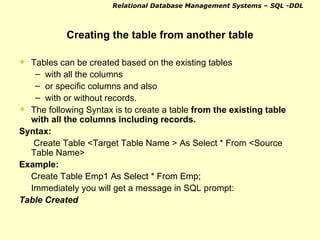
Creating the table from another table Tables can be created based on the existing tables  with all the columns  or specific columns and also  with or without records. The following Syntax is to create a table  from the existing table with all the columns including records. Syntax:   Create Table <Target Table Name > As Select * From <Source Table Name> Example:  Create Table Emp1 As Select * From Emp; Immediately you will get a message in SQL prompt: Table Created
To create a table from the existing table with only few specified columns including records. Syntax:  Create Table <Target Table Name> As Select <Column Name>, <Column Name> . . . From <Source Table Name>; Example: Create Table Emp1 As Select Empno, Ename, Sal, Deptno From Emp; Immediately you will get a message in SQL prompt:  Table Created.
To create a table from the existing table with all the columns but without records. Syntax: Create Table <Target Table Name > As Select  *  From <Source Table Name> Where < False Condition > Example: Create Table Emp1 As Select * From Emp Where  1> 2 ; Table Created.
To create a table from the existing table with only few specified columns but without records. Syntax:  Create Table <Target Table Name> As Select  <Column Name>, <Column Name> . . .  From <Source Table Name> Where < False Condition >; Example: Create Table Emp1 As Select  Empno, Ename, Sal, Deptno From Emp  Where  10 < 5 ; Immediately you will get a message in SQL prompt: Table Created.
Alter / Modify Table Through Data Definition Language (DDL) we can alter/modify the tables, sequences etc. Alter/Modify the tables involve Changing data type of a single column or multiple columns For Single Column In EMP table, to change the  COMM  column data type from  number  to  varchar2 . Syntax:  Alter Table <Table-name>  Modify  <Column-Name> <New Data Type(size)>; Example:   Alter Table Emp Modify Comm Varchar2(7);
For Multiple Columns In EMP table, to change the data type of  EMPNO, ENAME, SAL columns to new data types: Syntax: Alter Table Emp Modify (column-name Data type, Column-name Data type . . .); Example: Alter Table Emp Modify ( Empno Varchar2(4),  Ename Number(20),  Sal Varchar2(5)   );
Increasing   / Decreasing   width of the data types For Single Column In EMP table, to increase/decrease the JOB column data type: Syntax:   Alter Table <Table-name> Modify <Column-name> <Datatype(size); Example:  Alter Table Emp Modify Job Varchar2 (15);
For Multiple Column In EMP table, to increase/decrease EMPNO, ENAME,JOB columns: Syntax: Alter Table <Table-name> Modify (column-name Datatype(size), Column-name Datatype(size) . . .); Example: Alter Table Emp Modify (Empno Number(7), Ename Varchar2(25), Job Varchar2(15));  Note: Increasing or decreasing width of the data type depends on the new size specified (inside Parenthesis) in the ALTER TABLE command i.e. if you increase the size then the size of the data type will be increased and vice versa.  To Change the data type or to decrease the width of the data type for a column, that particular column should be empty (NULL) for all the records.
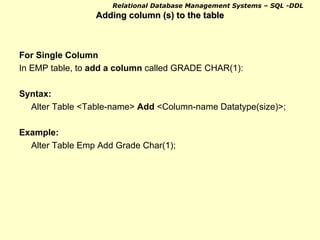
Adding column (s) to the table For Single Column In EMP table, to  add a column  called GRADE CHAR(1): Syntax:  Alter Table <Table-name>  Add  <Column-name Datatype(size)>; Example: Alter Table Emp Add Grade Char(1);
For Multiple Column In EMP table, to add columns by name  Dob Date, Sex Char(1), Last_name Varchar2(20): Syntax: Alter Table <Table-name> Add (<Column-name Datatype(size)>, <Column-name Datatype(size)>, . . .); Example: Alter Table Emp Add (dob Date, Sex Char(1),last_name Varchar2(20));
Dropping / Removing a column (s) from the table  For Single Column In EMP table, to  drop a column  COMM: Syntax: Alter Table <Table-name>  Drop Column  <Column-name>; Example: Alter Table Emp  Drop Column  Comm;
For   Multiple   Column In EMP table, to drop columns JOB, MGR, HIREDATE: Syntax: Alter Table <Table-name> Drop ( <Column-name>,  <Column-name>, .. . >     ); Example: Alter Table Emp Drop ( Mgr, Hiredate, Comm   ); Dropping a column (s) from the table is possible only from Oracle Ver.8i onwards.
Constraints
Constraints Constraints are a part of the table definition that limits the values entered into its columns. Different types of constraints are: Primary key Foreign key / References Check Unique Not null Null Default
Constraints can be created in three ways: Column level creation Table level creation Using DDL statement - ALTER TABLE command Difference between  column  and  table  level constraints is that,  column level constraints apply only to individual column,  table level constraints apply to an individual column or a group  of columns.  Constraints created using  ALTER TABLE  command also can  be applied to an  individual column  or  a group of columns .
Primary key Constraint It is used to identify each and every row of a table uniquely. The column will maintain the UNIQUE value and will not accept the NULL value for any single record. Primary key constraint to the EMPNO column ( column level ). Example: Create Table Employee ( Empno Number(4) Primary Key ,  Ename Varchar2(20), Job Varchar2(15), Sal  Number(5),  Deptno Number(2)); Whenever a constraint is created, Oracle will assign a unique name for the constraint, which can be selected from the data dictionary table  USER_CONSTRAINTS.
User Defined names for the constraints.  For the purpose of easy access the constraints can give user defined names for the constraints.  Constraints can be enabled/disabled or even it can be dropped. User defined constraint name should be unique for all the tables. The following example illustrates the declaration of a primary key constraint to the  EMPNO column  with  user defined constraint name at  ( column level ). Example: Create Table Employee ( Empno  Number(4)   Constraint  Emp_Empno_PK  PRIMARY KEY, Ename Varchar2(20),  Job  Varchar2(15),  Sal  Number(5), Deptno  Number(2) );
Table level The following example illustrates the declaration of a primary key constraint to the EMPNO column with user defined constraint name ( Table level ). Example: Create Table  Employee ( Empno  Number(4)     Ename Varchar2(20),   Job Varchar2(15),   Sal Number(5),   Deptno Number(2), Constraint  Employee_Empno_PK  PRIMARY KEY(Empno)   );
Reference/Foreign key constraint A foreign key is a combination of columns with values based on the primary key values from another table. A  Foreign key constraint  is also known as  Referential Integrity constraint. The values of the Foreign key must correspond to the actual values of the Primary key in another table. Example:  (column level) Create Table Employee (   Empno  Number(4), Ename Varchar2(20),  Design Varchar2(15),   Deptno Number(2)  Constraint  Emp_Dno_FK  REFERENCES   Dept(Deptno), Job  Varchar2(15),  Sal  Number(5) );
Reference/Foreign key constraint (Table Level) Example:  (Table Level) Create Table Employee (   Empno  Number(4), Ename Varchar2(20),  Design Varchar2(15),   Deptno Number(2) , Job Varchar2(15),  Sal Number(5),  Constraint  Emp_Dno_FK  Foreign key (Deptno)  References  Dept(Deptno) );
Points to note when Referential integrity is to be implemented The table with which the referential integrity is being specified (DEPT), should already exist. DEPTNO, the column name specified within the paranthesis must be a  Primary Key  or  Unique Key  in the DEPT table. DEPT  table can be called as  Parent table  and  Employee  table can be called as  Child Table . Column of the parent table (primary key) and column of the child table (foreign key) both must have the  same datatype  and  equal length  when you create a referential integrity constraint.
Check Constraint SQL provides the CHECK constraint, which allows the user to define the range of values to the column(s). The following example illustrates the definition of the check constraint to SAL column with user-defined name ( column level ). Create table Employee ( Empno number(4), Ename varchar2(20),  Design varchar2(15),  sal number(5)  Constraint   Emp_sal_ck  CHECK  (sal > 500 and sal < 10001),  Deptno number(2)  );
Check constraint to sal column with user-defined name at  table   level Example: Create table Employee (Empno  number(4), Ename varchar2(20),  Design varchar2(15),  Sal number(5), Deptno  number(2),  Constraint  Emp_sal_ck  CHECK  (sal > 500 and sal < 10001)); In the above two examples, the SAL column will accept values between 501 and 10000;
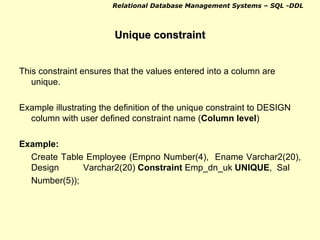
Unique constraint This constraint ensures that the values entered into a column are unique. Example illustrating the definition of the unique constraint to DESIGN column with user defined constraint name ( Column level ) Example: Create Table Employee (Empno Number(4),  Ename Varchar2(20), Design Varchar2(20)  Constraint  Emp_dn_uk  UNIQUE ,  Sal Number(5));
Unique constraint to DESIGN at ( Table level ). The following example illustrates the same definition of the unique constraint to DESIGN column with user defined constraint name ( Table level ). Example: Create Table Employee (EmpnoNumber(4), Ename Varcahr2(20), Design Varcahr2(20), Sal Number(5), Constraint  Emp_dn_uk  UNIQUE  (design));
Not Null Constraints This constraint will expect some values to be entered in the specified columns.  Any attempt to put NULL value in that column will be rejected.  Columns without NOT NULL constraint will allow NULL values. The definition of NOT NULL constraints to ENAME column at  Column level. Create Table Employee (Empno Number(4),  Ename Varchar2(20)  Constraint  Emp_name_nn  NOT NULL , Design Varchar2(20),  Sal Number(5)); NOT NULL constraints cannot be specified in the table level.
Default Constraint While inserting a row into a table without having value for a column, SQL will insert a default value to the specified column. Default value assignments are defined in the CREATE TABLE command in the same way as column constraints.  Default is actually not a constraint , but merely to specify what happens if the user does not enter values for the given columns? The following example illustrates the definition of the default constraints to MSTAT column ( Column level ) Create Table Employee(empno  Number(4), Ename Varchar2(20),  Design Varchar2(20), Sal Number(5), Mstatchar(1) Default ‘U’); For DEFAULT constraint,  user defined name cannot be given.  DEFAULT constraint  cannot be specified in the table level. After specifying the DEFAULT constraint, if the user enters a NULL value, then default value will not be entered to the column, only NULL will be entered.
Adding a Constraints to the table using  DATA DEFINITION LANGUAGE (DDL) Primary Key The following example illustrates how to add a Primary Key to EMPNO column. Syntax: Alter Table <Table-name>  Add  Constraint<constraint-name>  Primary Key (<Column- name>, <Column-name> . . .); Example: Alter Table Emp  Add  Constraint Emp_empno_pk  Primary Key  (empno);
Reference / Foreign Key The following example illustrates how to add foreign key constraint to DEPTNO column. Syntax: Alter Table <Table-name>  Add  Constraint <Constraint-name> Foreign Key (<column-name), <Column-name>,...)    References  <Table-name> (column-name, <Column-name>, . . .); Example: Alter Table Emp  Add  Constraint Emp_deptno_fk  Foreign Key  (deptno)  References  Dept (deptno);
Check Constraint The following example illustrates how to add check constraint to SAL column. Syntax: Alter Table <Table-name>  Add  Constraint <Constraint-name>  Check (<column-name> Value); Example: Alter Table Emp  Add  Constraint Emp_sal_ck  Check  (sal > 500 And Sal < 10001);
Unique Constraint The following example illustrates how to add Unique constraints to DESIGN column. Syntax: Alter Table <Table-name>  Add Constriant  <Constraint-name>  Unique  (<Column-name>, <Column-name>, . . .); Example: Alter Table Emp  Add  Constraint Emp_degn-uk  Unique  (design);
Not Null Constraint The following example illustrates  how to add Not Null constraints to ENAME column. Syntax: Alter Table <Table-name>  Modify  <Column-name> Constriant  <Constraint-name> Not Null; Example: Alter Table Emp Modify Ename Constraint Emp_ename_nn  Not Null; To add a NOT NULL constraint, the column should not have any NULL value for even a single record.
Default Constraint The following example illustrates  how to add default constraint to SAL column. Syntax: Alter Table <Table-name>  Modify  <Column-name>  Default <Value> Example: Alter Table Emp  Modify  Sal Default 1000;
Composite Primary Key If we want EMPNO, ENAME together as a Primary key then Composite PK is used Composite Key can be defined only in the  TABLE LEVEL  or using  ALTER TABLE  command. Composite Primary Key (Using Create Table Command) Syntax: Create Table  <Table-name> (<Column-name> Datatype(size)> ,...,  Constraint <Constraint-name> Primary Key(<column-name>,  <Column-name>); Example: Create Table Emp (Empno Number(4), Ename Varchar2(20),  Design Varchar2(15),  Sal Number(5),  Constraint  Emp_eno_name_nn  Primary Key (Empno, Ename));
Composite Primary key  (Using ALTER TABLE Command) Syntax: Alter Table <Table-name> Add Constraint Primary Key(<column-name>, <Column-name>, . . .); Example: Alter Table Emp  Add  Constraint Emp_empno_ename_pk  Primary Key(empno, Ename); For Foreign Key, Unique, Check the same syntax/method can be followed .
Adding more than one constraints to a column(s) A column can contain more than one constraint, if required. For example  Not Null and Unique ,  Default and Check  etc., The following example illustrates the definition of adding more than one constraint to a column. In Column level Example:  Create Table Emp (Empno Number(4),  Ename Varchar2(20)  Constraint  Emp_ename_nn  Not Null,   Constraint  Emp_ename_uk  Unique , Design Varchar2(20), Sal Number(5), Sex Char(1)  Default  ‘M’ Constraint  Emp_Sex_CK  Check (Sex in (‘M’, ‘m’, ‘F’,  ‘f’)) );
In ALTER TABLE command Example: Alter Table Emp  Modify  Sex  Default  ‘M’  Add  Constraint Emp_sex_ck  Check (Sex In (‘M’, ‘m’, ‘F’, ‘f’)); In the above two examples we assume that appropriate tables as well as columns are available.
Enable / Disable a constraint Constraints are enabled or disabled using  ENABLE/DISABLE  clause in  ALTER TABLE  command. Constraints can be enabled or disabled without dropping them or recreating them. Users can Enable or Disable a single constraint or all constraints  of the table using single command. Disabling a single constraint in a Table: Syntax:  Alter Table <Table-name>  Disable Constraint  <Constraint-name>; Example: Alter Table Emp  Disable Constraint  Emp_empno_pk; Disabling all constraints in a Table: Syntax:    Alter Table <Table-name>  Disable All Constraints; Example: Alter Table Emp  Disable All Constraints;
Enabling a single constraint in a Table: Syntax: Alter Table <Table-name>  Enable Constraint <Constraint-name>; Example: Alter Table Emp  Enable Constraint Emp_empno_pk; Enabling all constraints in a Table: Syntax:  Alter Table <Table-name>  Enable All Constraints ; Example:  Alter Table Emp  Enable All Constraints;
Dropping / Removing Constraints from the table A constraint can be dropped/removed from the table as and when required. Syntax: Alter Table <Table-name>  Drop Constraint <Constraint-name>; Example: Alter Table Emp  Drop Constraint Emp_sex_ck; To drop a constraint the user should know the constraint name and it will be easy if the constraint name is user defined. You cannot drop a Primary/Unique key constraint when it is referenced by some foreign key constraint. But still to drop the Primary key constraint from DEPT table and also to drop all the dependent foreign key constraints in child table the following code is used. Example: Alter Table Dept  Drop  Constraint Dept_deptno_pk  Cascade ; The keyword  CASCADE  in the above example  disables the dependent constraints also.
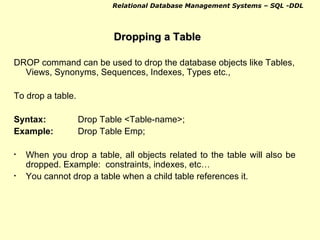
Dropping a Table DROP command can be used to drop the database objects like Tables, Views, Synonyms, Sequences, Indexes, Types etc.,  To drop a table. Syntax: Drop Table <Table-name>; Example: Drop Table Emp; When you drop a table, all objects related to the table will also be dropped. Example:  constraints, indexes, etc… You cannot drop a table when a child table references it.
Cascade Constraint But a user can drop table using  CASCADE CONSTRAINT  command. Syntax:  Drop Table < Table-name> Cascade Constraint; Example: Drop Table  Dept Cascade Constraint; Assume that DEPT table has EMP as a child table. When you drop a parent table using cascade constraint, no more integrity constraint will be continued with the respective child table(s). When you drop a parent table using cascade constraint, SQL will drop the parent table without affecting the child table i.e. child table records will not be deleted.
Renaming a table Table name can be renamed. Syntax:  Rename <Old-table-name> To <New-table-name>; Example:   Rename Emp To Emp3; You can rename a table, which may or may not have a child table.  Rename will still maintain the integrity constraint with child table (s). If the table has got any synonym or view, after renaming the table, these synonym(s) and view(s) will no longer be valid.

Sql intro & ddl 1

  • 1.
  • 2.
    What is Oracle?Oracle is one of the powerful RDBMS product, that provides efficient and effective solutions for major database management. It is one of many database systems that are used for Client/Server computing. It allows sharing of data by multiple users or applications (Client/Front end) by allowing them to concurrently access a centrally maintained database server (Server/Back end). As Oracle 8 is a database server, it offers the capabilities of both relational and object oriented database system. Hence, it is an Object Relational Database Management System (ORDBMS), which provides efficient solutions for major database management.
  • 3.
    The three flavorsof ORDBMS are Relational : The traditional Oracle RDBMS. Object Relational : The traditional Oracle RDBMS extended to include object Oriented concepts and structures such as abstract data types, nested tables and varying arrays. Object Oriented : An Object Oriented database whose design is based on object oriented analysis and design.
  • 4.
    Features of OracleLarge database and space management control Concurrent database users High transaction processing performance Industry accepted standards Manageable security Database enforces integrity Client/Server environment Distributed database system Portability Compatibility Connectivity
  • 5.
    Oracle Data typesThe information in a database is maintained in the form of tables. Each table consists of rows and columns to store the data. A particular column in a table must contain similar data, which is of particular type. The different Data types available are: CHAR (Size) To store character type of data. Default and minimum size is 1 and maximum size is 2000. VARCHAR2(Size) Similar to CHAR but can store variable number of characters minimum size is 1 and maximum size is 4000. Varchar is similar to Varchar2. NUMBER (p,s) Stores fixed and floating numbers. Maximum precision (p) and /or scale (s) is 38.
  • 6.
    DATE Stores point-in-timevalues (i.e. dates and times) in table. Date data is stored in fixed-length fields of seven bytes each. Default format is DD-MON-YY. LONG Can store upto 2GB of characters. Only one column is a table can be long. Column cannot be indexed. RAW (Size) Used to store binary data such as graphics, sound etc. Maximum size is 2000 bytes. It can be indexed. LONGRAW Contains raw binary data otherwise the same as a LONG column. The values entered must be in hex notation. Maximum size is 2 GB. Cannot be indexed. Data types contd..
  • 7.
    Data types contd..From Oracle Version 8.0 onwards, you have a special datatype called LARGE OBJECTS (LOBs). (unstructured infor – video files ) CLOB A character large objects containing single byte characters. Maximum size is 4 GB. NCLOB A character large objects containing fixed-width multi-byte characters. Maximum size is 4 GB. BLOB Binary Large Objects. Maximum size is 4 GB. BFILE Binary File. Contains a locator to a large binary file stored outside the database. Enables byte stream I/O access to external LOBs residing on the database server, Maximum size is 4 GB.
  • 8.
    SQL - IntroductionSQL is generic to most true relational database management systems (RDBMS's) and is an ANSI standard. SQL is the language used to access the data and structures within a relational database.
  • 9.
    SQL Features Itis meant to be an English like language using set English phrases to manipulate the database. How well it achieves this is questionable. It is non procedural. You specify the information required not the navigation and operations required to access the data. Each RDBMS has an inbuilt query optimiser which parses your SQL statements. When you query data, all the rows affected by your statement are dealt with in one go as a set, they are not dealt with separately. SQL encompasses a range of uses and users. DBA's, application programmers, management and end users can use SQL.
  • 10.
    SQL Features contd.. It provides commands for the following tasks :- * querying data, * inserting, updating and deleting data * creating, modifying and deleting database objects * controlling access to the database and database objects * guaranteeing database consistency * monitoring database performance and configuration
  • 11.
    Standard SQL statementscan be subdivided into 4 distinct groups Group   Statements   Description   DDL  - D ata D efinition L anguage [Create, Alter, Drop]   - Used to manipulate database structures and definitions.  DML  - D ata M anipulation L anguage [Insert, Update, Delete] - Used to change database data.  DQL  - D ata Q uery L anguage [Select]   - Used to get data from the database and impose ordering upon it.  TCL - T ransaction C ontrol L anguage. [commit, Rollback, Savepoint] - DCL - Data Control Language. [Revoke, Grant] - Used to give and take access rights to database objects. 
  • 12.
    Data Definition Language(DDL) DDL is a subset of SQL commands which is used to Create, Alter/Modify and Drop Oracle database structure which includes Tables, Views, Indexes etc., Creating Tables Tables are created using Create Table command Syntax Create Table <Table-name> (<Colum-name1> <Datatype(size)> <Constraint Specification>, ...... ); Example: Create Table Employee ( Empno Number(4), Ename Varchar2(15), Sal Number(7,2), Comm Number(5), Design Varchar2(10), Deptno Number(2) ); In SQL “;”(semicolon) is used at the end of SQL statement. It is generally called as a statement termination character. SQL*Plus will process the command and produce the output on the screen.
  • 13.
    To view theStructure Syntax: Desc <Table Name> Example: SQL> desc employee; Output: Name Null? Type ------------------------------------- EMPNO NUMBER(4) ENAME VARCHAR2(15) SAL NUMBER(7,2) COMM NUMBER(5) DESIGN VARCHAR2(10) DEPTNO NUMBER(2)
  • 14.
    Creating the tablefrom another table Tables can be created based on the existing tables with all the columns or specific columns and also with or without records. The following Syntax is to create a table from the existing table with all the columns including records. Syntax: Create Table <Target Table Name > As Select * From <Source Table Name> Example: Create Table Emp1 As Select * From Emp; Immediately you will get a message in SQL prompt: Table Created
  • 15.
    To create atable from the existing table with only few specified columns including records. Syntax: Create Table <Target Table Name> As Select <Column Name>, <Column Name> . . . From <Source Table Name>; Example: Create Table Emp1 As Select Empno, Ename, Sal, Deptno From Emp; Immediately you will get a message in SQL prompt: Table Created.
  • 16.
    To create atable from the existing table with all the columns but without records. Syntax: Create Table <Target Table Name > As Select * From <Source Table Name> Where < False Condition > Example: Create Table Emp1 As Select * From Emp Where 1> 2 ; Table Created.
  • 17.
    To create atable from the existing table with only few specified columns but without records. Syntax: Create Table <Target Table Name> As Select <Column Name>, <Column Name> . . . From <Source Table Name> Where < False Condition >; Example: Create Table Emp1 As Select Empno, Ename, Sal, Deptno From Emp Where 10 < 5 ; Immediately you will get a message in SQL prompt: Table Created.
  • 18.
    Alter / ModifyTable Through Data Definition Language (DDL) we can alter/modify the tables, sequences etc. Alter/Modify the tables involve Changing data type of a single column or multiple columns For Single Column In EMP table, to change the COMM column data type from number to varchar2 . Syntax: Alter Table <Table-name> Modify <Column-Name> <New Data Type(size)>; Example: Alter Table Emp Modify Comm Varchar2(7);
  • 19.
    For Multiple ColumnsIn EMP table, to change the data type of EMPNO, ENAME, SAL columns to new data types: Syntax: Alter Table Emp Modify (column-name Data type, Column-name Data type . . .); Example: Alter Table Emp Modify ( Empno Varchar2(4), Ename Number(20), Sal Varchar2(5) );
  • 20.
    Increasing / Decreasing width of the data types For Single Column In EMP table, to increase/decrease the JOB column data type: Syntax: Alter Table <Table-name> Modify <Column-name> <Datatype(size); Example: Alter Table Emp Modify Job Varchar2 (15);
  • 21.
    For Multiple ColumnIn EMP table, to increase/decrease EMPNO, ENAME,JOB columns: Syntax: Alter Table <Table-name> Modify (column-name Datatype(size), Column-name Datatype(size) . . .); Example: Alter Table Emp Modify (Empno Number(7), Ename Varchar2(25), Job Varchar2(15)); Note: Increasing or decreasing width of the data type depends on the new size specified (inside Parenthesis) in the ALTER TABLE command i.e. if you increase the size then the size of the data type will be increased and vice versa. To Change the data type or to decrease the width of the data type for a column, that particular column should be empty (NULL) for all the records.
  • 22.
    Adding column (s)to the table For Single Column In EMP table, to add a column called GRADE CHAR(1): Syntax: Alter Table <Table-name> Add <Column-name Datatype(size)>; Example: Alter Table Emp Add Grade Char(1);
  • 23.
    For Multiple ColumnIn EMP table, to add columns by name Dob Date, Sex Char(1), Last_name Varchar2(20): Syntax: Alter Table <Table-name> Add (<Column-name Datatype(size)>, <Column-name Datatype(size)>, . . .); Example: Alter Table Emp Add (dob Date, Sex Char(1),last_name Varchar2(20));
  • 24.
    Dropping / Removinga column (s) from the table For Single Column In EMP table, to drop a column COMM: Syntax: Alter Table <Table-name> Drop Column <Column-name>; Example: Alter Table Emp Drop Column Comm;
  • 25.
    For Multiple Column In EMP table, to drop columns JOB, MGR, HIREDATE: Syntax: Alter Table <Table-name> Drop ( <Column-name>, <Column-name>, .. . > ); Example: Alter Table Emp Drop ( Mgr, Hiredate, Comm ); Dropping a column (s) from the table is possible only from Oracle Ver.8i onwards.
  • 26.
  • 27.
    Constraints Constraints area part of the table definition that limits the values entered into its columns. Different types of constraints are: Primary key Foreign key / References Check Unique Not null Null Default
  • 28.
    Constraints can becreated in three ways: Column level creation Table level creation Using DDL statement - ALTER TABLE command Difference between column and table level constraints is that, column level constraints apply only to individual column, table level constraints apply to an individual column or a group of columns. Constraints created using ALTER TABLE command also can be applied to an individual column or a group of columns .
  • 29.
    Primary key ConstraintIt is used to identify each and every row of a table uniquely. The column will maintain the UNIQUE value and will not accept the NULL value for any single record. Primary key constraint to the EMPNO column ( column level ). Example: Create Table Employee ( Empno Number(4) Primary Key , Ename Varchar2(20), Job Varchar2(15), Sal Number(5), Deptno Number(2)); Whenever a constraint is created, Oracle will assign a unique name for the constraint, which can be selected from the data dictionary table USER_CONSTRAINTS.
  • 30.
    User Defined namesfor the constraints. For the purpose of easy access the constraints can give user defined names for the constraints. Constraints can be enabled/disabled or even it can be dropped. User defined constraint name should be unique for all the tables. The following example illustrates the declaration of a primary key constraint to the EMPNO column with user defined constraint name at ( column level ). Example: Create Table Employee ( Empno Number(4) Constraint Emp_Empno_PK PRIMARY KEY, Ename Varchar2(20), Job Varchar2(15), Sal Number(5), Deptno Number(2) );
  • 31.
    Table level Thefollowing example illustrates the declaration of a primary key constraint to the EMPNO column with user defined constraint name ( Table level ). Example: Create Table Employee ( Empno Number(4) Ename Varchar2(20), Job Varchar2(15), Sal Number(5), Deptno Number(2), Constraint Employee_Empno_PK PRIMARY KEY(Empno) );
  • 32.
    Reference/Foreign key constraintA foreign key is a combination of columns with values based on the primary key values from another table. A Foreign key constraint is also known as Referential Integrity constraint. The values of the Foreign key must correspond to the actual values of the Primary key in another table. Example: (column level) Create Table Employee ( Empno Number(4), Ename Varchar2(20), Design Varchar2(15), Deptno Number(2) Constraint Emp_Dno_FK REFERENCES Dept(Deptno), Job Varchar2(15), Sal Number(5) );
  • 33.
    Reference/Foreign key constraint(Table Level) Example: (Table Level) Create Table Employee ( Empno Number(4), Ename Varchar2(20), Design Varchar2(15), Deptno Number(2) , Job Varchar2(15), Sal Number(5), Constraint Emp_Dno_FK Foreign key (Deptno) References Dept(Deptno) );
  • 34.
    Points to notewhen Referential integrity is to be implemented The table with which the referential integrity is being specified (DEPT), should already exist. DEPTNO, the column name specified within the paranthesis must be a Primary Key or Unique Key in the DEPT table. DEPT table can be called as Parent table and Employee table can be called as Child Table . Column of the parent table (primary key) and column of the child table (foreign key) both must have the same datatype and equal length when you create a referential integrity constraint.
  • 35.
    Check Constraint SQLprovides the CHECK constraint, which allows the user to define the range of values to the column(s). The following example illustrates the definition of the check constraint to SAL column with user-defined name ( column level ). Create table Employee ( Empno number(4), Ename varchar2(20), Design varchar2(15), sal number(5) Constraint Emp_sal_ck CHECK (sal > 500 and sal < 10001), Deptno number(2) );
  • 36.
    Check constraint tosal column with user-defined name at table level Example: Create table Employee (Empno number(4), Ename varchar2(20), Design varchar2(15), Sal number(5), Deptno number(2), Constraint Emp_sal_ck CHECK (sal > 500 and sal < 10001)); In the above two examples, the SAL column will accept values between 501 and 10000;
  • 37.
    Unique constraint Thisconstraint ensures that the values entered into a column are unique. Example illustrating the definition of the unique constraint to DESIGN column with user defined constraint name ( Column level ) Example: Create Table Employee (Empno Number(4), Ename Varchar2(20), Design Varchar2(20) Constraint Emp_dn_uk UNIQUE , Sal Number(5));
  • 38.
    Unique constraint toDESIGN at ( Table level ). The following example illustrates the same definition of the unique constraint to DESIGN column with user defined constraint name ( Table level ). Example: Create Table Employee (EmpnoNumber(4), Ename Varcahr2(20), Design Varcahr2(20), Sal Number(5), Constraint Emp_dn_uk UNIQUE (design));
  • 39.
    Not Null ConstraintsThis constraint will expect some values to be entered in the specified columns. Any attempt to put NULL value in that column will be rejected. Columns without NOT NULL constraint will allow NULL values. The definition of NOT NULL constraints to ENAME column at Column level. Create Table Employee (Empno Number(4), Ename Varchar2(20) Constraint Emp_name_nn NOT NULL , Design Varchar2(20), Sal Number(5)); NOT NULL constraints cannot be specified in the table level.
  • 40.
    Default Constraint Whileinserting a row into a table without having value for a column, SQL will insert a default value to the specified column. Default value assignments are defined in the CREATE TABLE command in the same way as column constraints. Default is actually not a constraint , but merely to specify what happens if the user does not enter values for the given columns? The following example illustrates the definition of the default constraints to MSTAT column ( Column level ) Create Table Employee(empno Number(4), Ename Varchar2(20), Design Varchar2(20), Sal Number(5), Mstatchar(1) Default ‘U’); For DEFAULT constraint, user defined name cannot be given. DEFAULT constraint cannot be specified in the table level. After specifying the DEFAULT constraint, if the user enters a NULL value, then default value will not be entered to the column, only NULL will be entered.
  • 41.
    Adding a Constraintsto the table using DATA DEFINITION LANGUAGE (DDL) Primary Key The following example illustrates how to add a Primary Key to EMPNO column. Syntax: Alter Table <Table-name> Add Constraint<constraint-name> Primary Key (<Column- name>, <Column-name> . . .); Example: Alter Table Emp Add Constraint Emp_empno_pk Primary Key (empno);
  • 42.
    Reference / ForeignKey The following example illustrates how to add foreign key constraint to DEPTNO column. Syntax: Alter Table <Table-name> Add Constraint <Constraint-name> Foreign Key (<column-name), <Column-name>,...) References <Table-name> (column-name, <Column-name>, . . .); Example: Alter Table Emp Add Constraint Emp_deptno_fk Foreign Key (deptno) References Dept (deptno);
  • 43.
    Check Constraint Thefollowing example illustrates how to add check constraint to SAL column. Syntax: Alter Table <Table-name> Add Constraint <Constraint-name> Check (<column-name> Value); Example: Alter Table Emp Add Constraint Emp_sal_ck Check (sal > 500 And Sal < 10001);
  • 44.
    Unique Constraint Thefollowing example illustrates how to add Unique constraints to DESIGN column. Syntax: Alter Table <Table-name> Add Constriant <Constraint-name> Unique (<Column-name>, <Column-name>, . . .); Example: Alter Table Emp Add Constraint Emp_degn-uk Unique (design);
  • 45.
    Not Null ConstraintThe following example illustrates how to add Not Null constraints to ENAME column. Syntax: Alter Table <Table-name> Modify <Column-name> Constriant <Constraint-name> Not Null; Example: Alter Table Emp Modify Ename Constraint Emp_ename_nn Not Null; To add a NOT NULL constraint, the column should not have any NULL value for even a single record.
  • 46.
    Default Constraint Thefollowing example illustrates how to add default constraint to SAL column. Syntax: Alter Table <Table-name> Modify <Column-name> Default <Value> Example: Alter Table Emp Modify Sal Default 1000;
  • 47.
    Composite Primary KeyIf we want EMPNO, ENAME together as a Primary key then Composite PK is used Composite Key can be defined only in the TABLE LEVEL or using ALTER TABLE command. Composite Primary Key (Using Create Table Command) Syntax: Create Table <Table-name> (<Column-name> Datatype(size)> ,..., Constraint <Constraint-name> Primary Key(<column-name>, <Column-name>); Example: Create Table Emp (Empno Number(4), Ename Varchar2(20), Design Varchar2(15), Sal Number(5), Constraint Emp_eno_name_nn Primary Key (Empno, Ename));
  • 48.
    Composite Primary key (Using ALTER TABLE Command) Syntax: Alter Table <Table-name> Add Constraint Primary Key(<column-name>, <Column-name>, . . .); Example: Alter Table Emp Add Constraint Emp_empno_ename_pk Primary Key(empno, Ename); For Foreign Key, Unique, Check the same syntax/method can be followed .
  • 49.
    Adding more thanone constraints to a column(s) A column can contain more than one constraint, if required. For example Not Null and Unique , Default and Check etc., The following example illustrates the definition of adding more than one constraint to a column. In Column level Example: Create Table Emp (Empno Number(4), Ename Varchar2(20) Constraint Emp_ename_nn Not Null, Constraint Emp_ename_uk Unique , Design Varchar2(20), Sal Number(5), Sex Char(1) Default ‘M’ Constraint Emp_Sex_CK Check (Sex in (‘M’, ‘m’, ‘F’, ‘f’)) );
  • 50.
    In ALTER TABLEcommand Example: Alter Table Emp Modify Sex Default ‘M’ Add Constraint Emp_sex_ck Check (Sex In (‘M’, ‘m’, ‘F’, ‘f’)); In the above two examples we assume that appropriate tables as well as columns are available.
  • 51.
    Enable / Disablea constraint Constraints are enabled or disabled using ENABLE/DISABLE clause in ALTER TABLE command. Constraints can be enabled or disabled without dropping them or recreating them. Users can Enable or Disable a single constraint or all constraints of the table using single command. Disabling a single constraint in a Table: Syntax: Alter Table <Table-name> Disable Constraint <Constraint-name>; Example: Alter Table Emp Disable Constraint Emp_empno_pk; Disabling all constraints in a Table: Syntax: Alter Table <Table-name> Disable All Constraints; Example: Alter Table Emp Disable All Constraints;
  • 52.
    Enabling a singleconstraint in a Table: Syntax: Alter Table <Table-name> Enable Constraint <Constraint-name>; Example: Alter Table Emp Enable Constraint Emp_empno_pk; Enabling all constraints in a Table: Syntax: Alter Table <Table-name> Enable All Constraints ; Example: Alter Table Emp Enable All Constraints;
  • 53.
    Dropping / RemovingConstraints from the table A constraint can be dropped/removed from the table as and when required. Syntax: Alter Table <Table-name> Drop Constraint <Constraint-name>; Example: Alter Table Emp Drop Constraint Emp_sex_ck; To drop a constraint the user should know the constraint name and it will be easy if the constraint name is user defined. You cannot drop a Primary/Unique key constraint when it is referenced by some foreign key constraint. But still to drop the Primary key constraint from DEPT table and also to drop all the dependent foreign key constraints in child table the following code is used. Example: Alter Table Dept Drop Constraint Dept_deptno_pk Cascade ; The keyword CASCADE in the above example disables the dependent constraints also.
  • 54.
    Dropping a TableDROP command can be used to drop the database objects like Tables, Views, Synonyms, Sequences, Indexes, Types etc., To drop a table. Syntax: Drop Table <Table-name>; Example: Drop Table Emp; When you drop a table, all objects related to the table will also be dropped. Example: constraints, indexes, etc… You cannot drop a table when a child table references it.
  • 55.
    Cascade Constraint Buta user can drop table using CASCADE CONSTRAINT command. Syntax: Drop Table < Table-name> Cascade Constraint; Example: Drop Table Dept Cascade Constraint; Assume that DEPT table has EMP as a child table. When you drop a parent table using cascade constraint, no more integrity constraint will be continued with the respective child table(s). When you drop a parent table using cascade constraint, SQL will drop the parent table without affecting the child table i.e. child table records will not be deleted.
  • 56.
    Renaming a tableTable name can be renamed. Syntax: Rename <Old-table-name> To <New-table-name>; Example: Rename Emp To Emp3; You can rename a table, which may or may not have a child table. Rename will still maintain the integrity constraint with child table (s). If the table has got any synonym or view, after renaming the table, these synonym(s) and view(s) will no longer be valid.