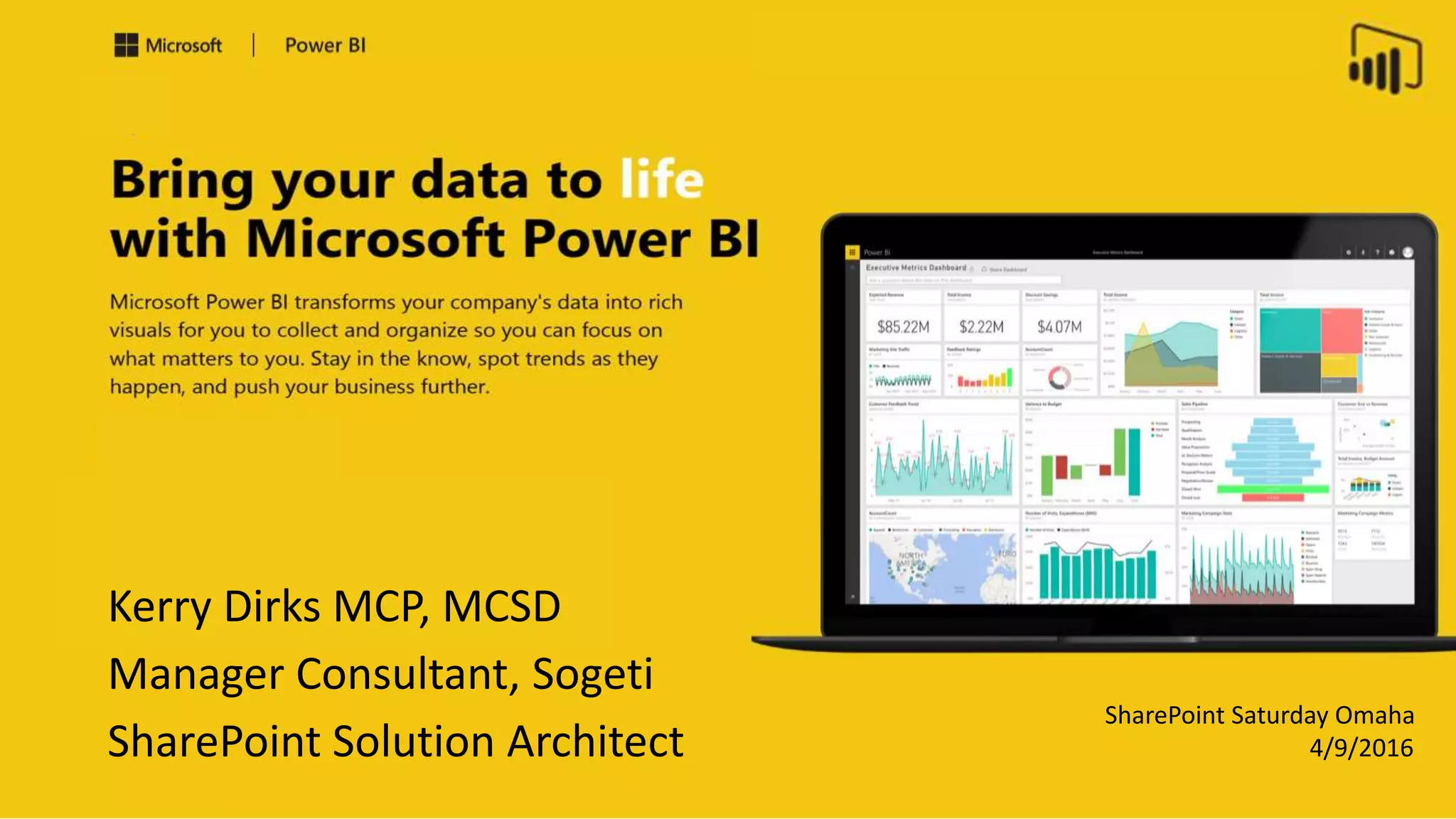
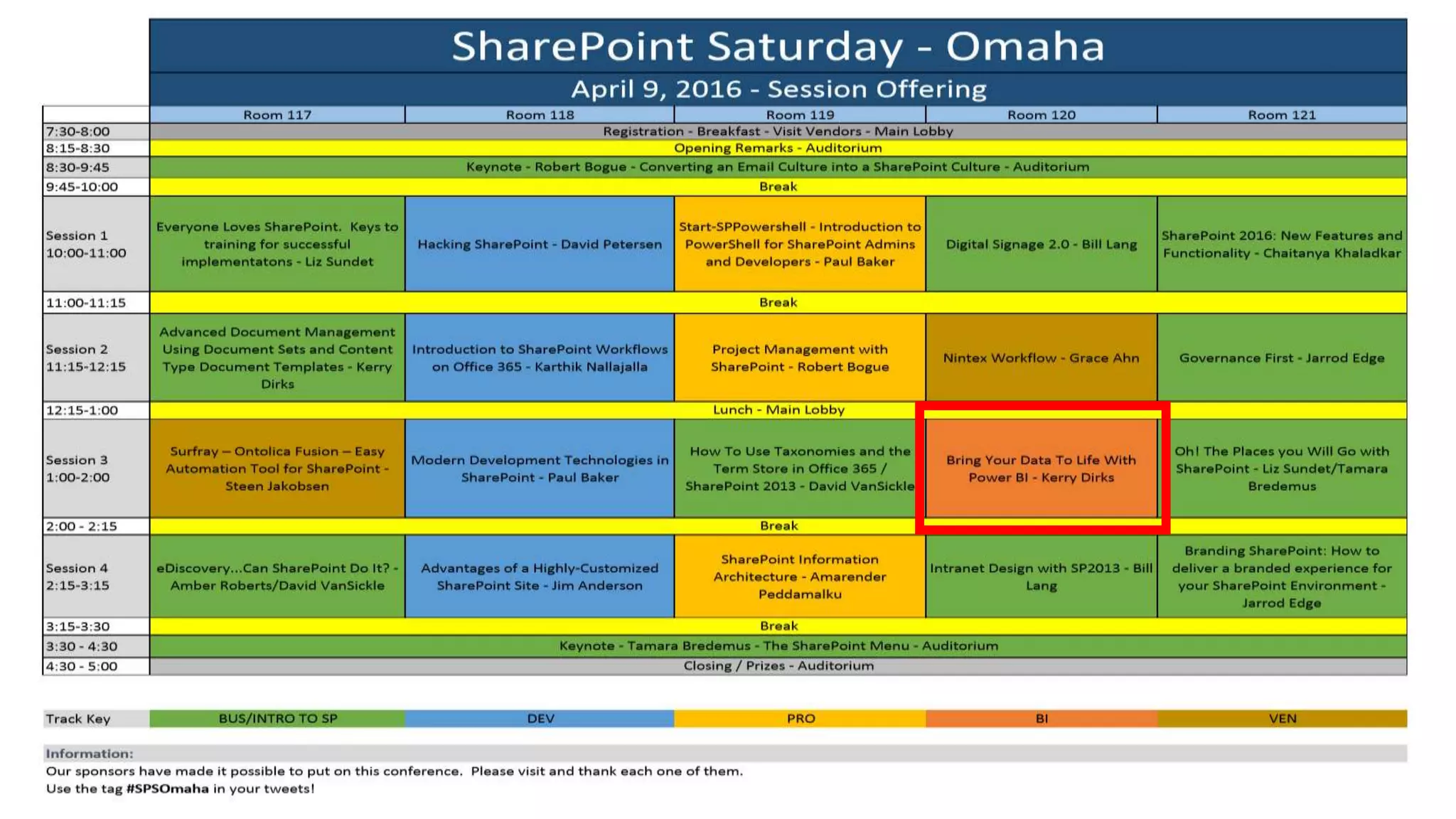



4/9/2016
SharePoint Saturday Omaha
Kerry Dirks MCP, MCSD
Manager Consultant, Sogeti
SharePoint Solution Architect
Use #SPSOmaha in your tweets to thank them!
ThankYou Sponsors !
GET TO KNOW SOGETI
LOCAL TOUCH—GLOBAL REACH™ AT YOUR SERVICE
Power BI
Agenda
• Introduction
• Demos
• Resources
• Q & A
Introduction
PBI transforms your company's data into rich visuals
[for you to collect and organize] so you can …
Power BI (PBI)
Focus on
what matters
[to you]
By clearing
the clutter
Stay in
the know
With real-
time data
Spot trends
as they
happen
With
insights
Push your
business
further
Competitive
advantage
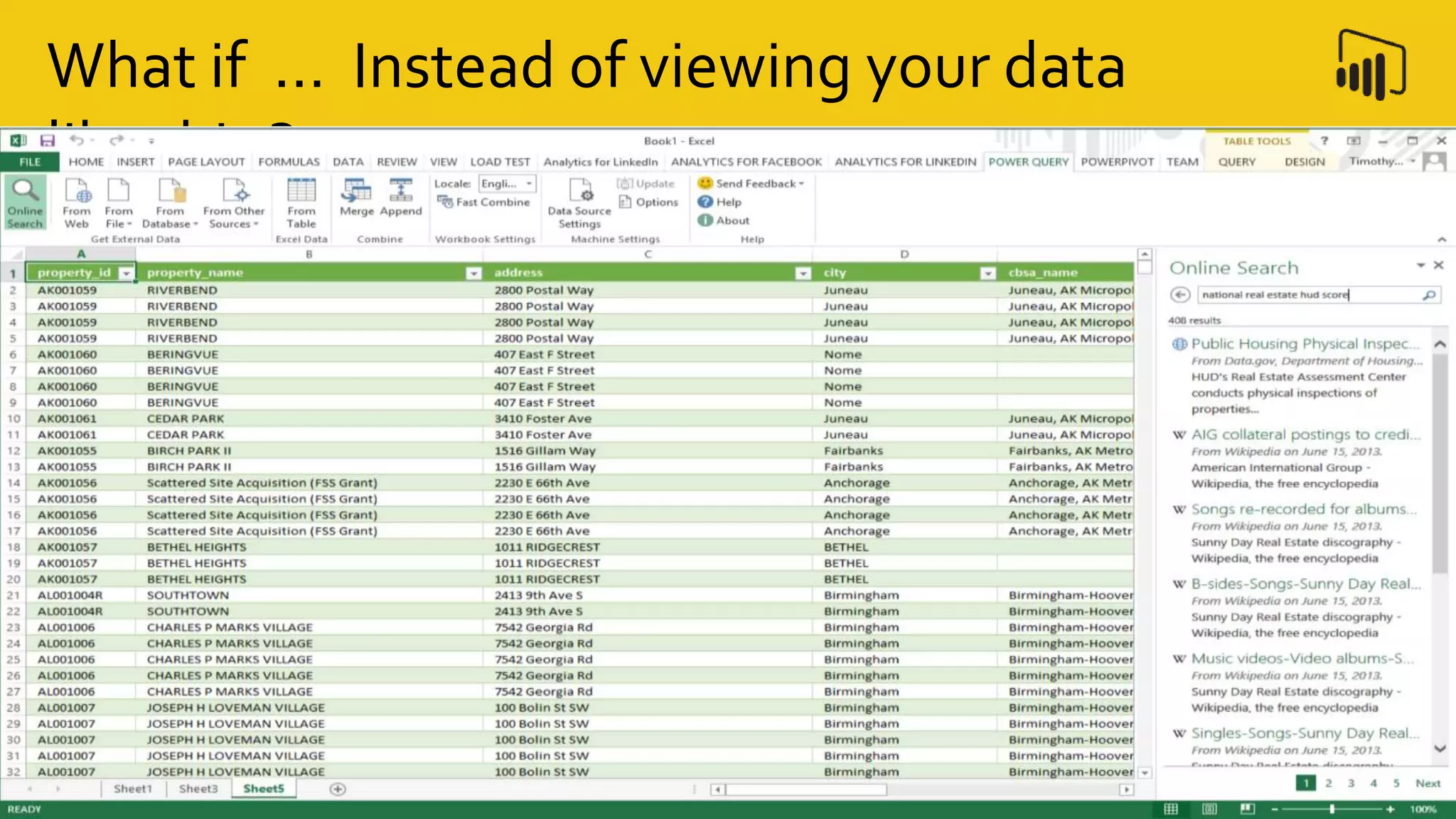
What if … Instead of viewing your data
like this ?
Which is often like viewing your data like
this !
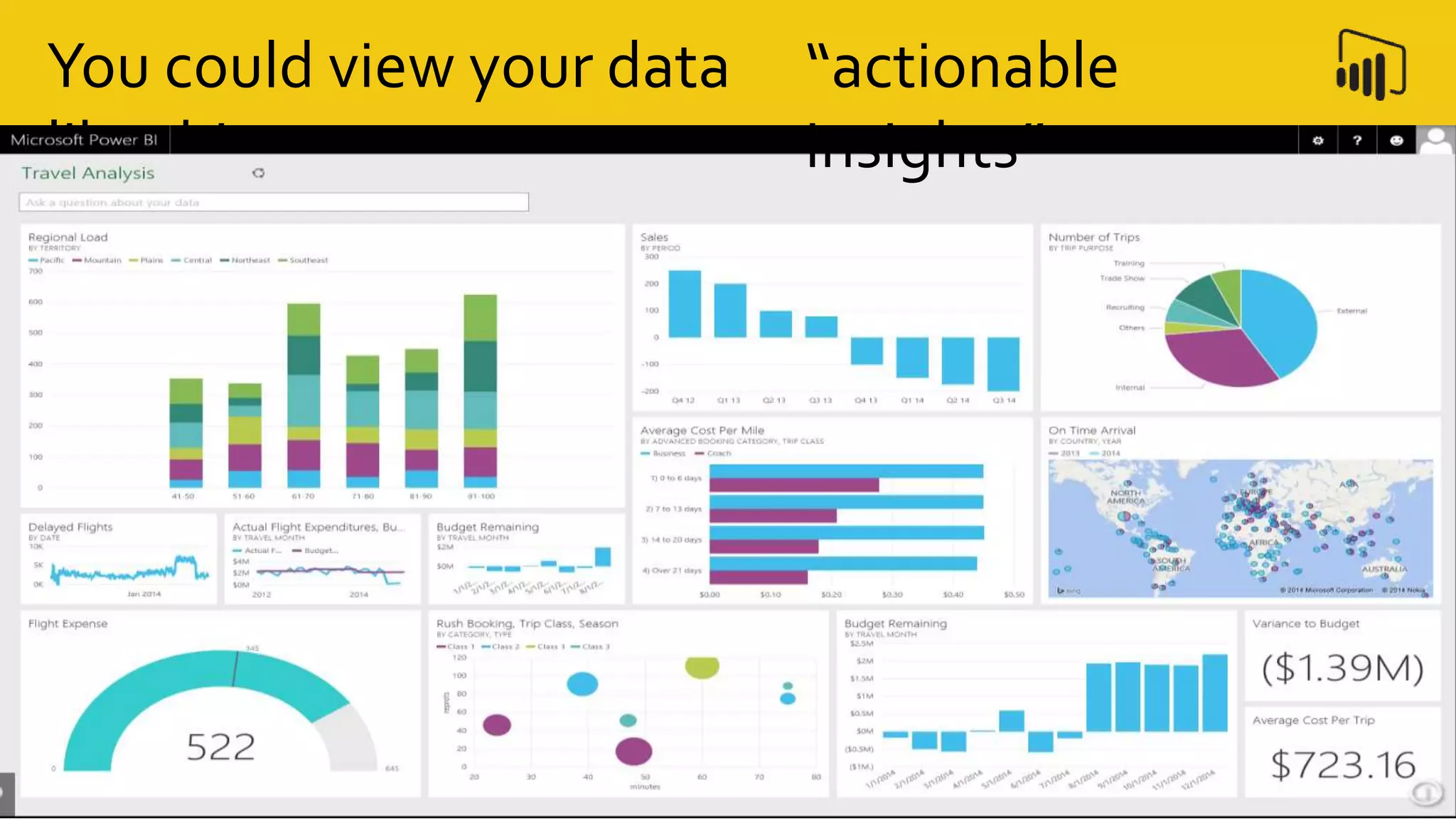
You could view your data
like this …
“actionable
insights”
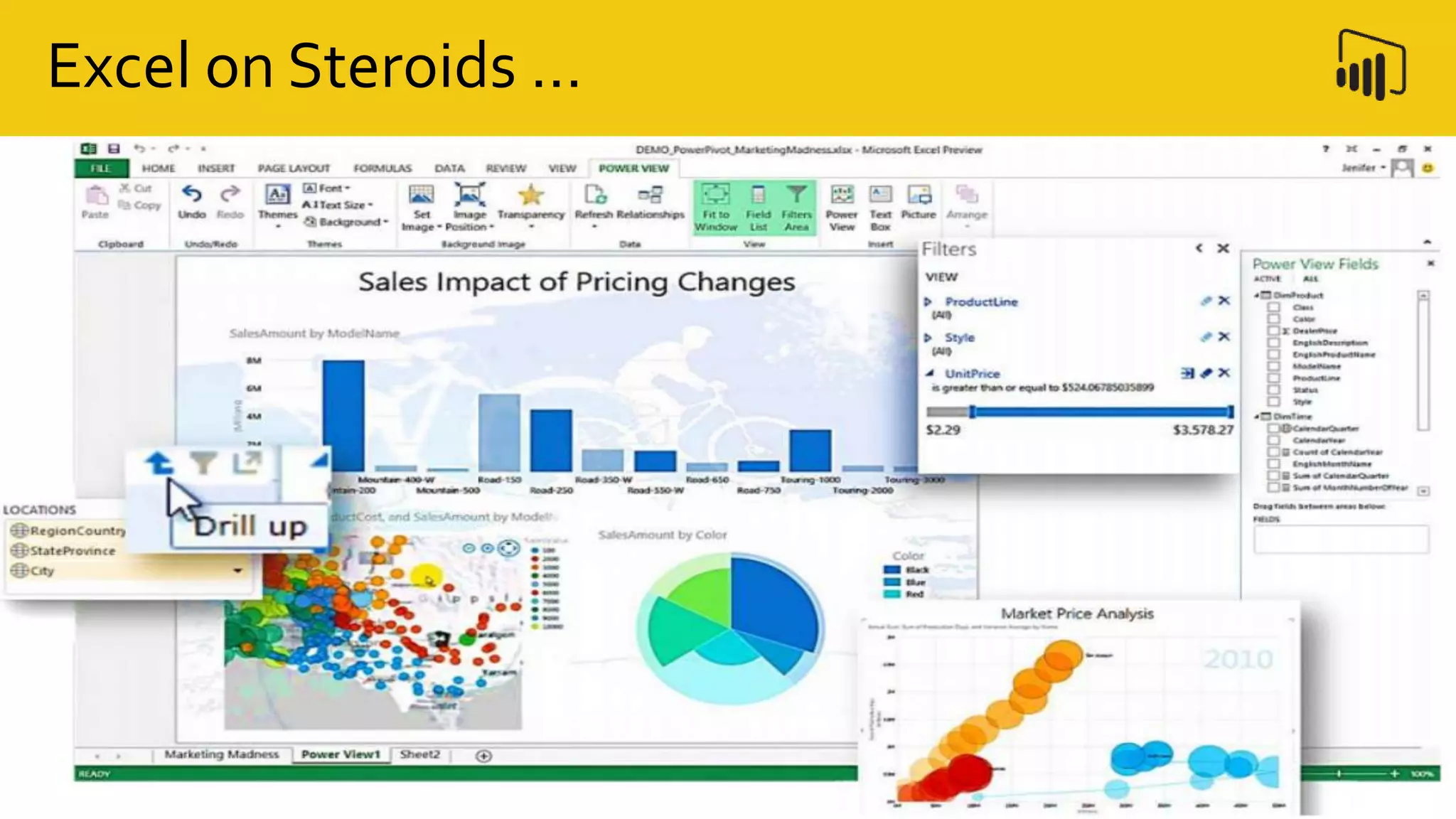
Excel on Steroids …
Feature
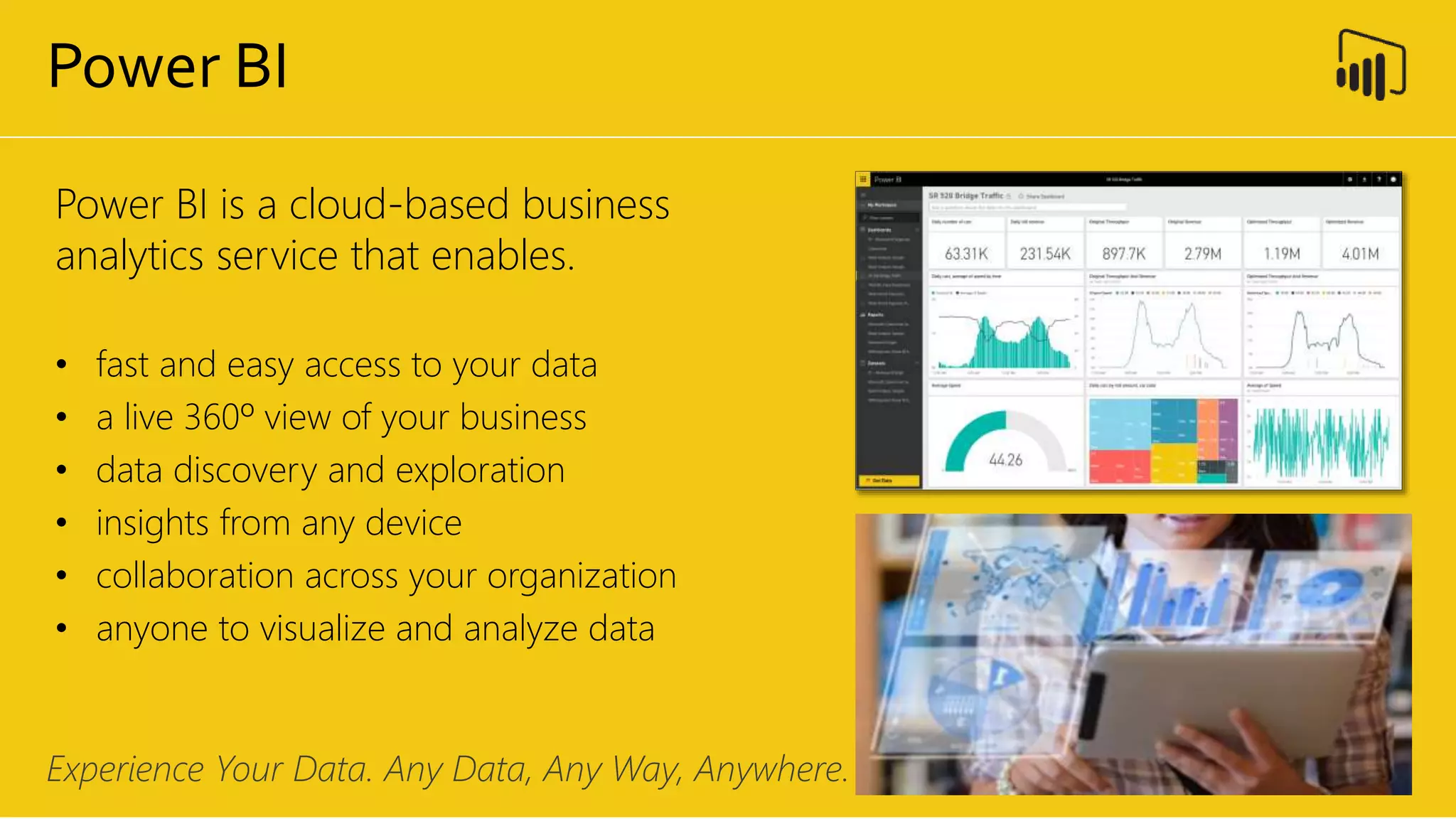
Power BI is a cloud-based business
analytics service that enables.
• fast and easy access to your data
• a live 360º view of your business
• data discovery and exploration
• insights from any device
• collaboration across your organization
• anyone to visualize and analyze data
Experience Your Data. Any Data, Any Way, Anywhere.
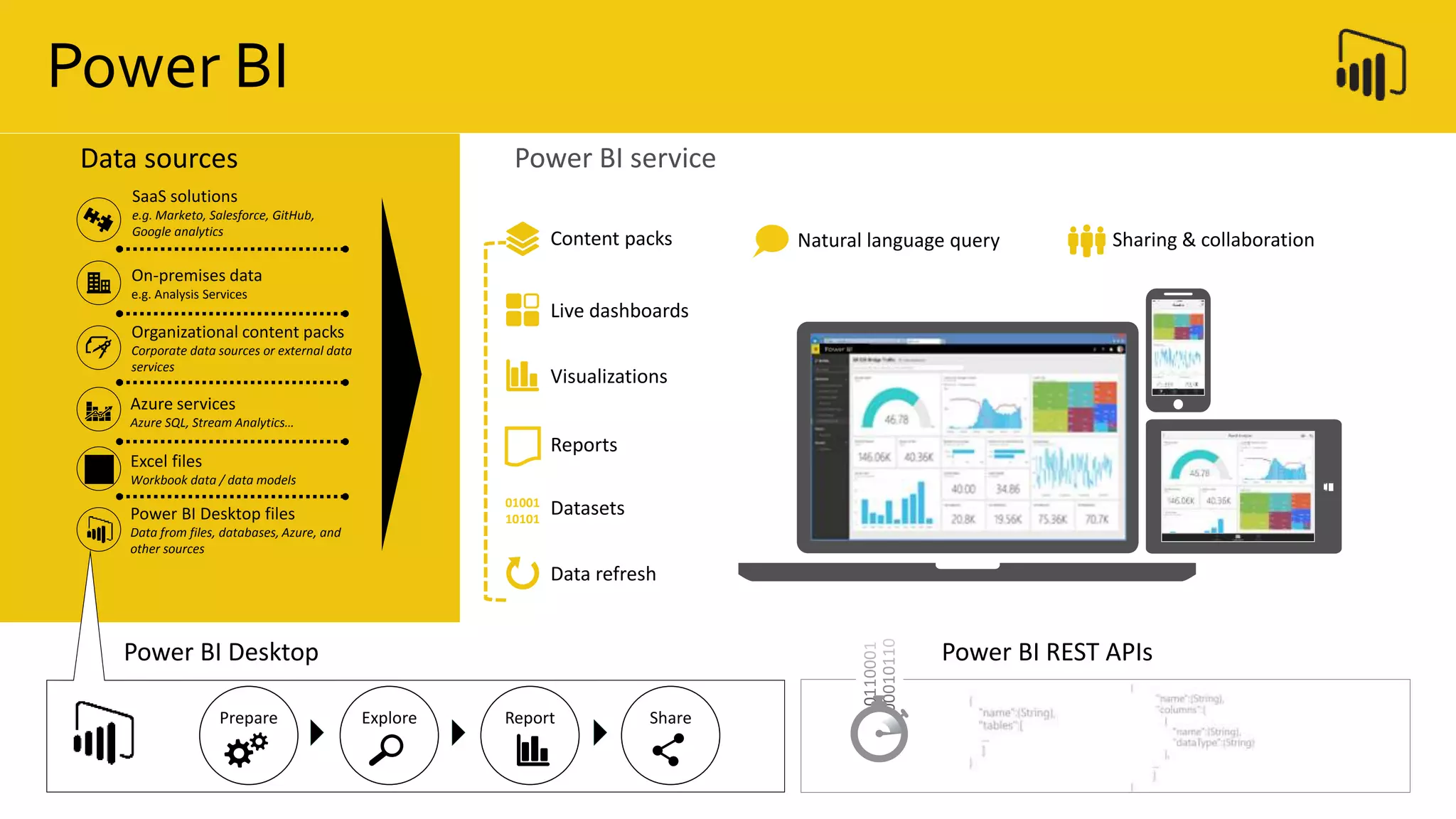
Power BI
Power BI REST APIsPower BI Desktop
Prepare Explore ShareReport
Data sources
SaaS solutions
e.g. Marketo, Salesforce, GitHub,
Google analytics
On-premises data
e.g. Analysis Services
Organizational content packs
Corporate data sources or external data
services
Azure services
Azure SQL, Stream Analytics…
Excel files
Workbook data / data models
Power BI Desktop files
Data from files, databases, Azure, and
other sources
Power BI service
Data refresh
Visualizations
Live dashboards
Content packs Sharing & collaborationNatural language query
Reports
Datasets01001
10101
Power BI
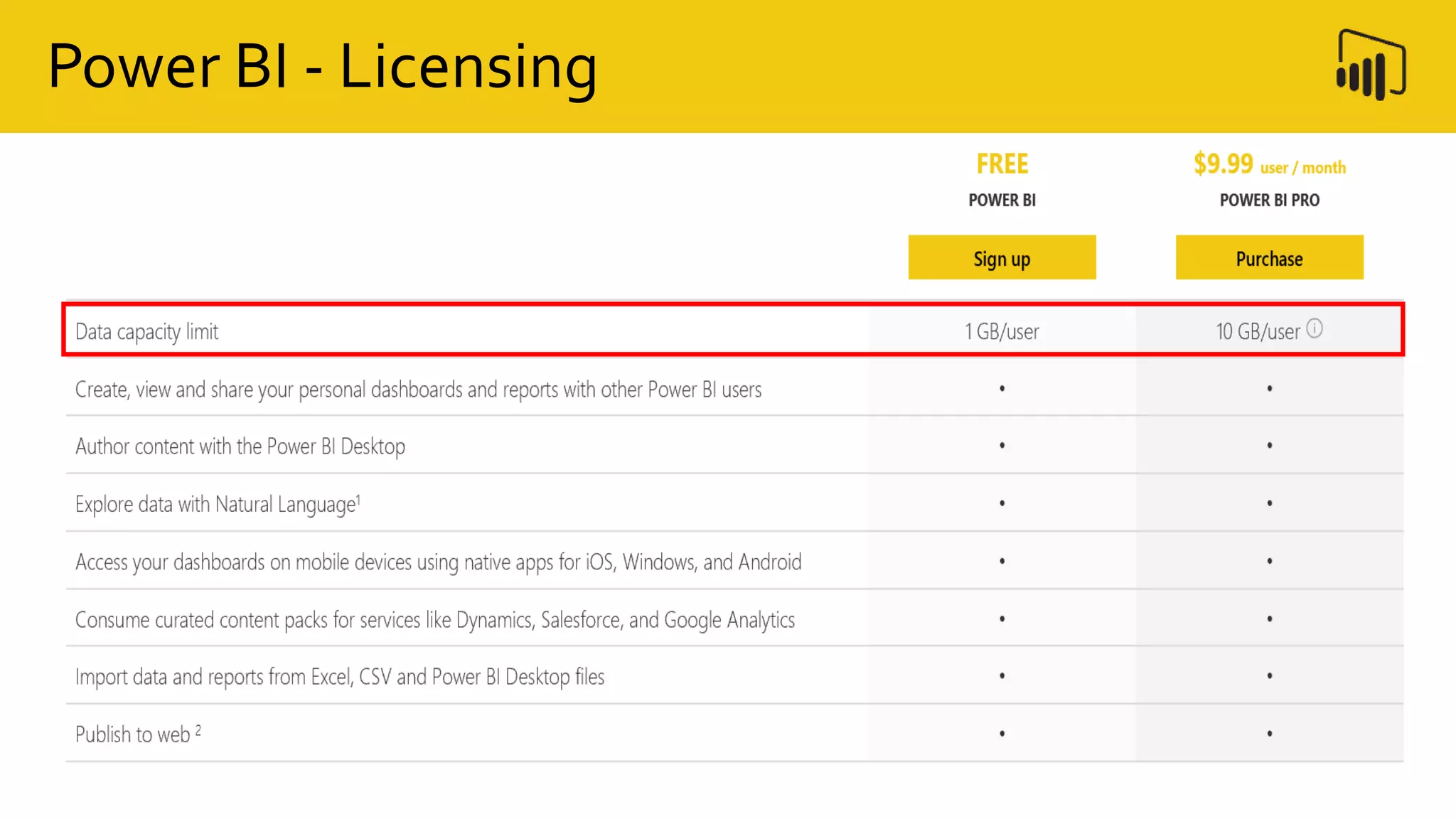
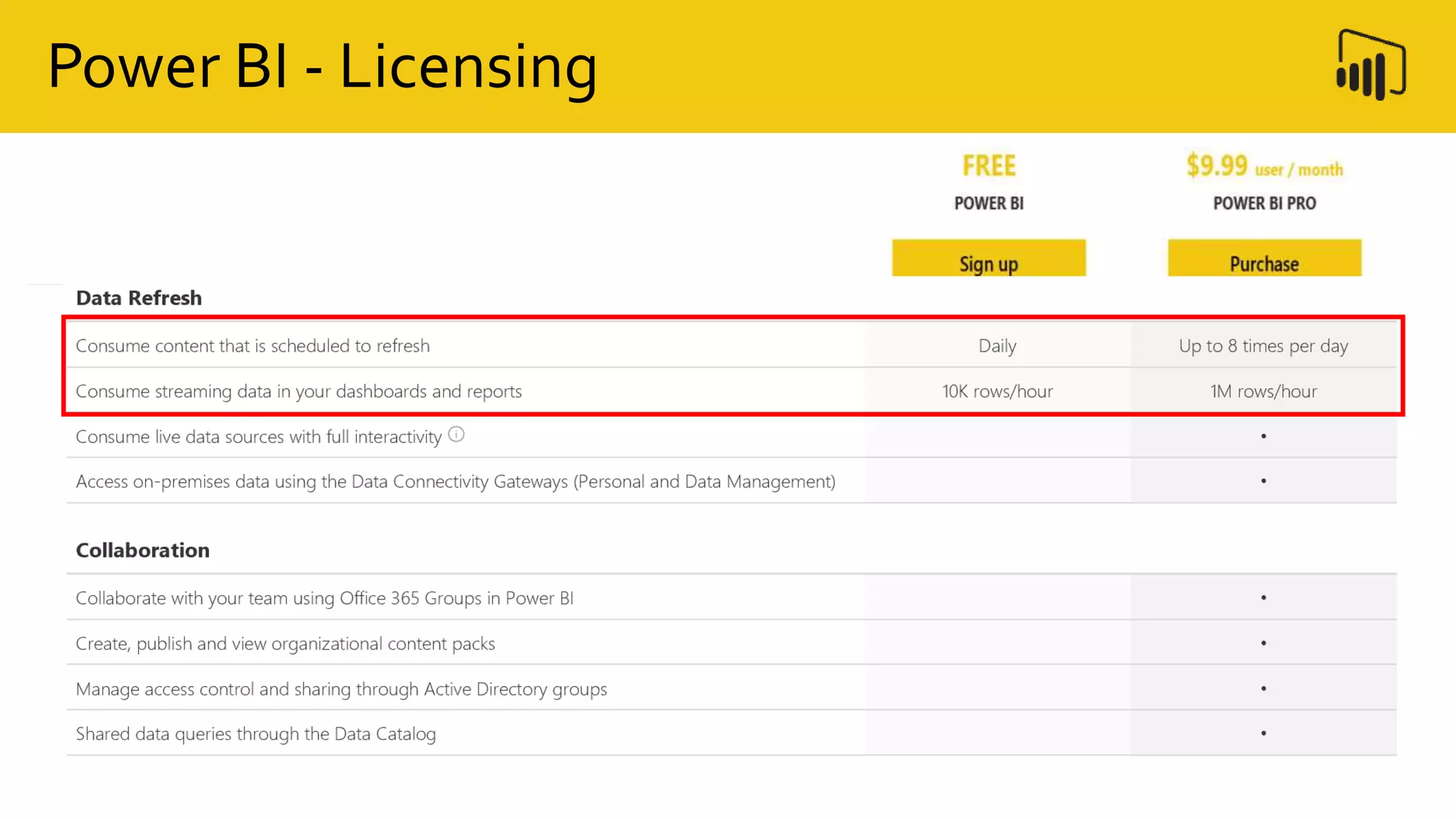
Power BI - Licensing
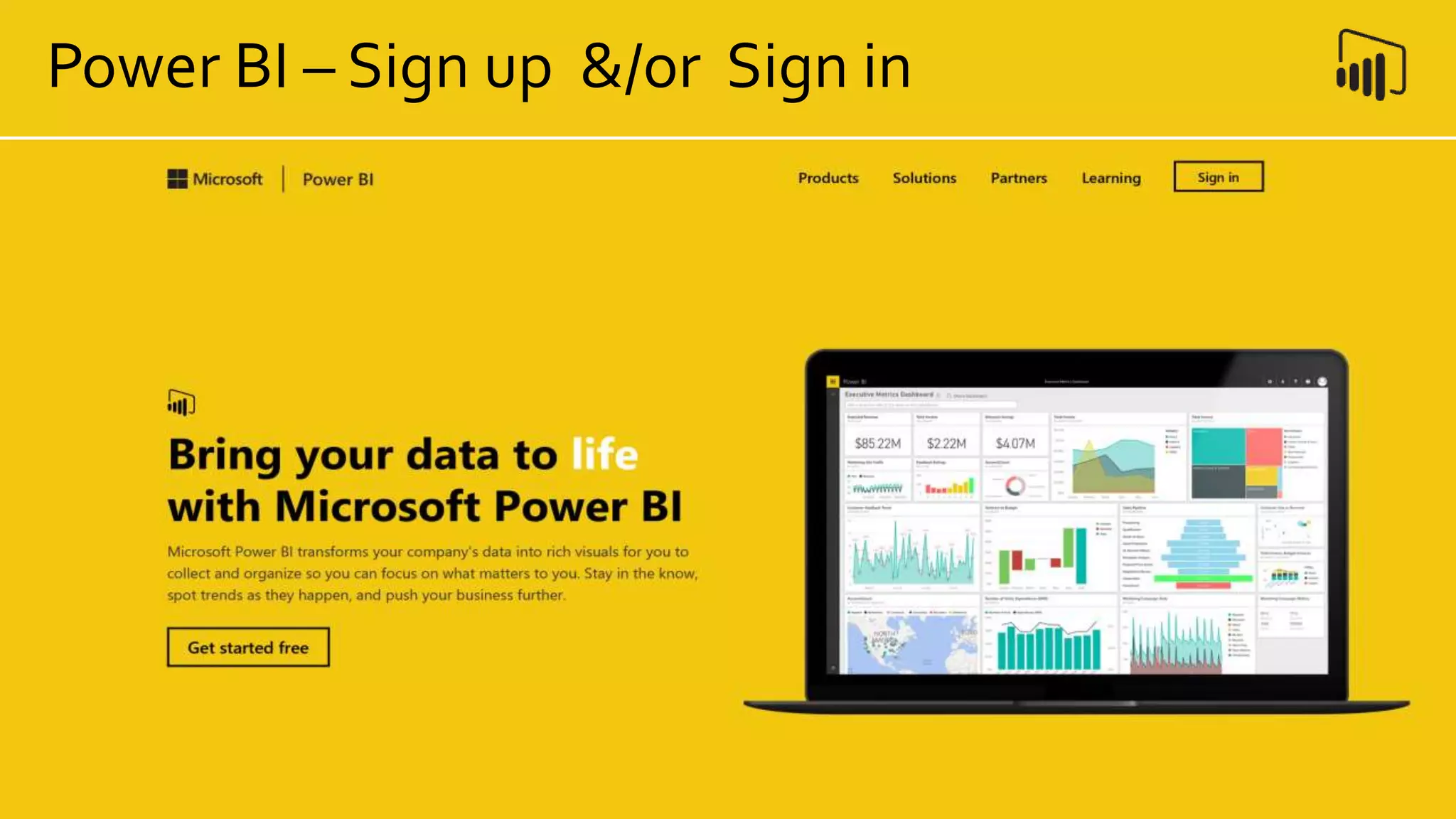
Power BI – Sign up &/or Sign in
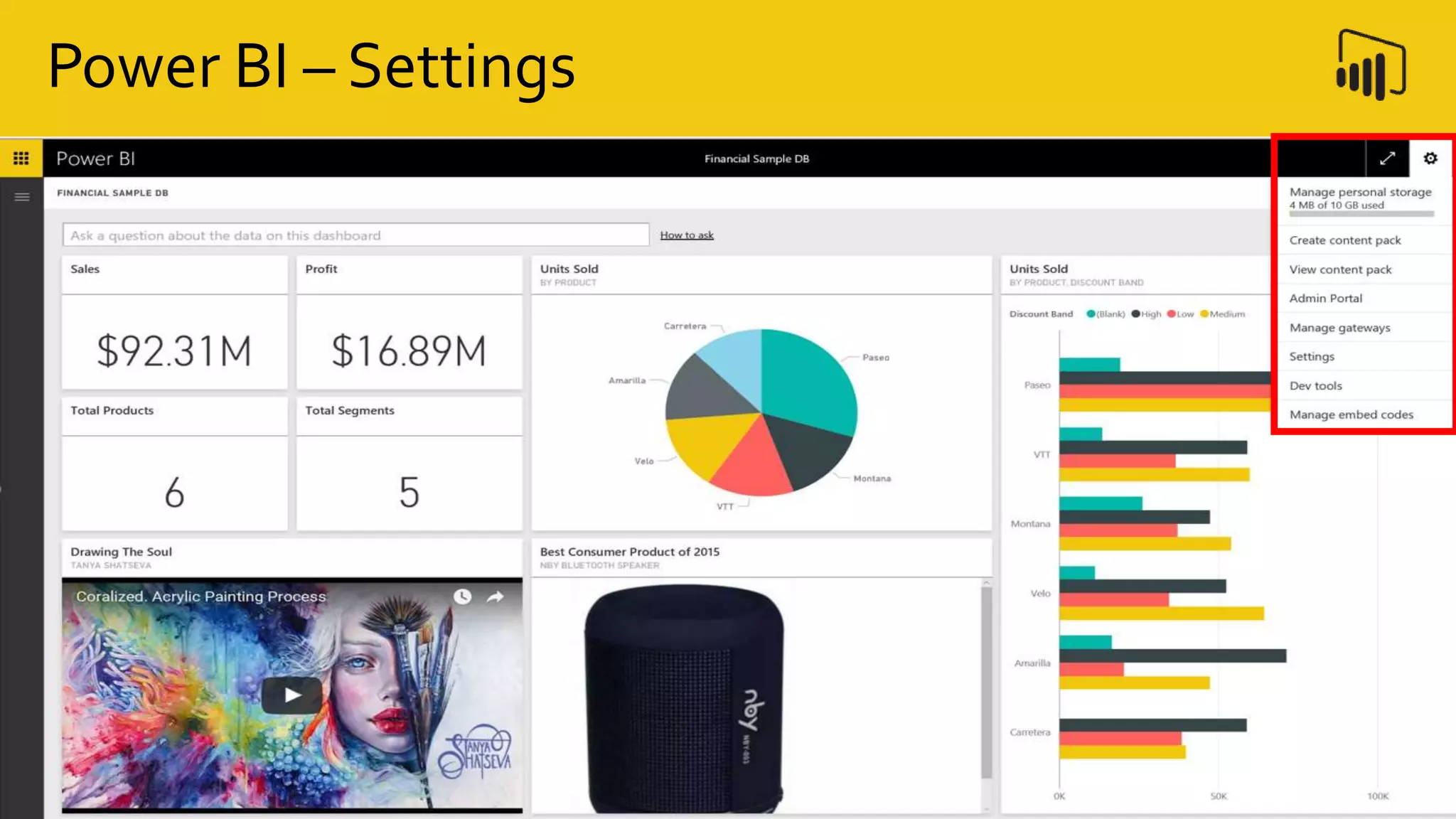
Power BI – Settings
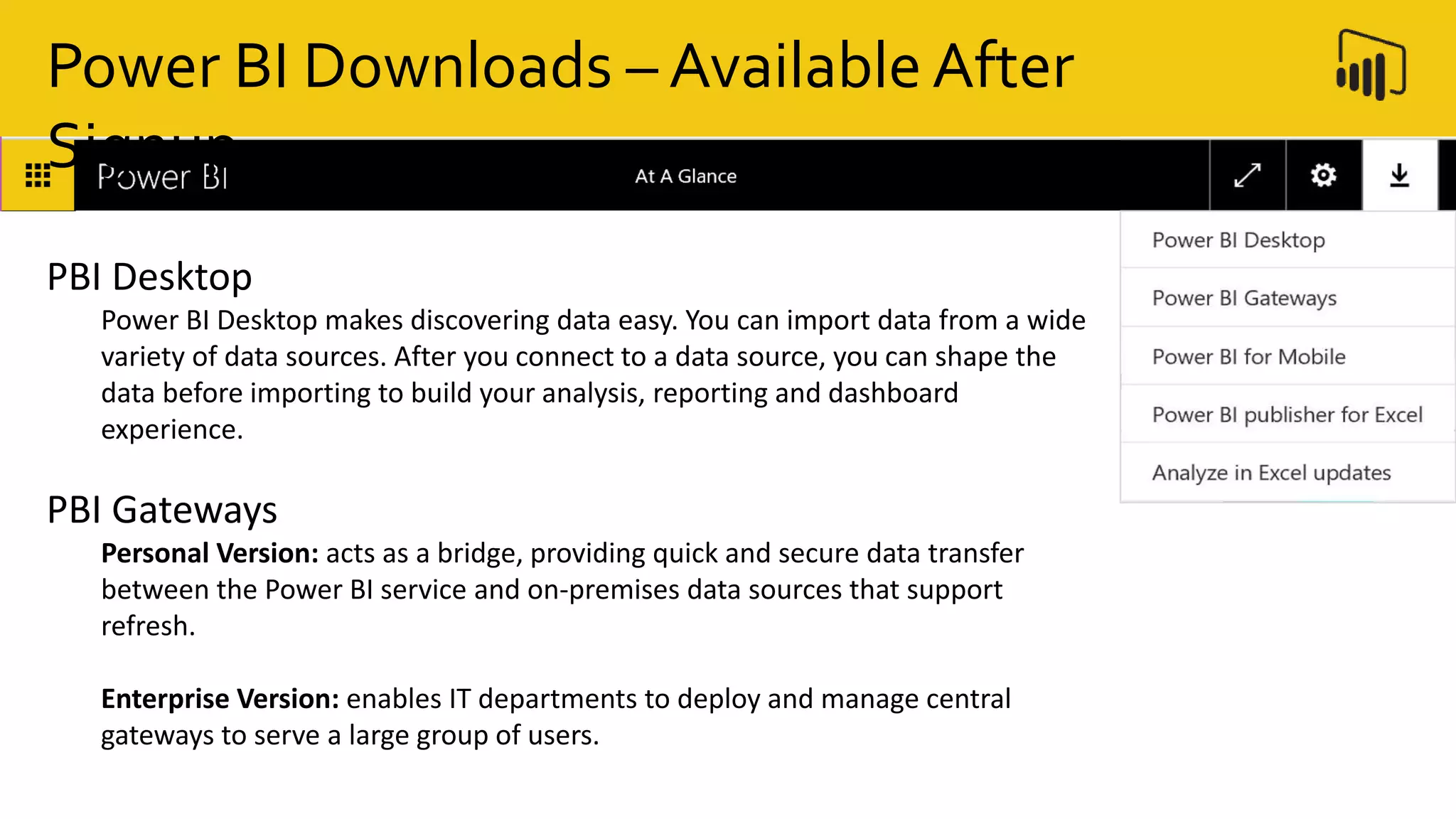
PBI Desktop
Power BI Desktop makes discovering data easy. You can import data from a wide
variety of data sources. After you connect to a data source, you can shape the
data before importing to build your analysis, reporting and dashboard
experience.
PBI Gateways
Personal Version: acts as a bridge, providing quick and secure data transfer
between the Power BI service and on-premises data sources that support
refresh.
Enterprise Version: enables IT departments to deploy and manage central
gateways to serve a large group of users.
Power BI Downloads – Available After
Signup
Power BI Downloads – Available After
Signup
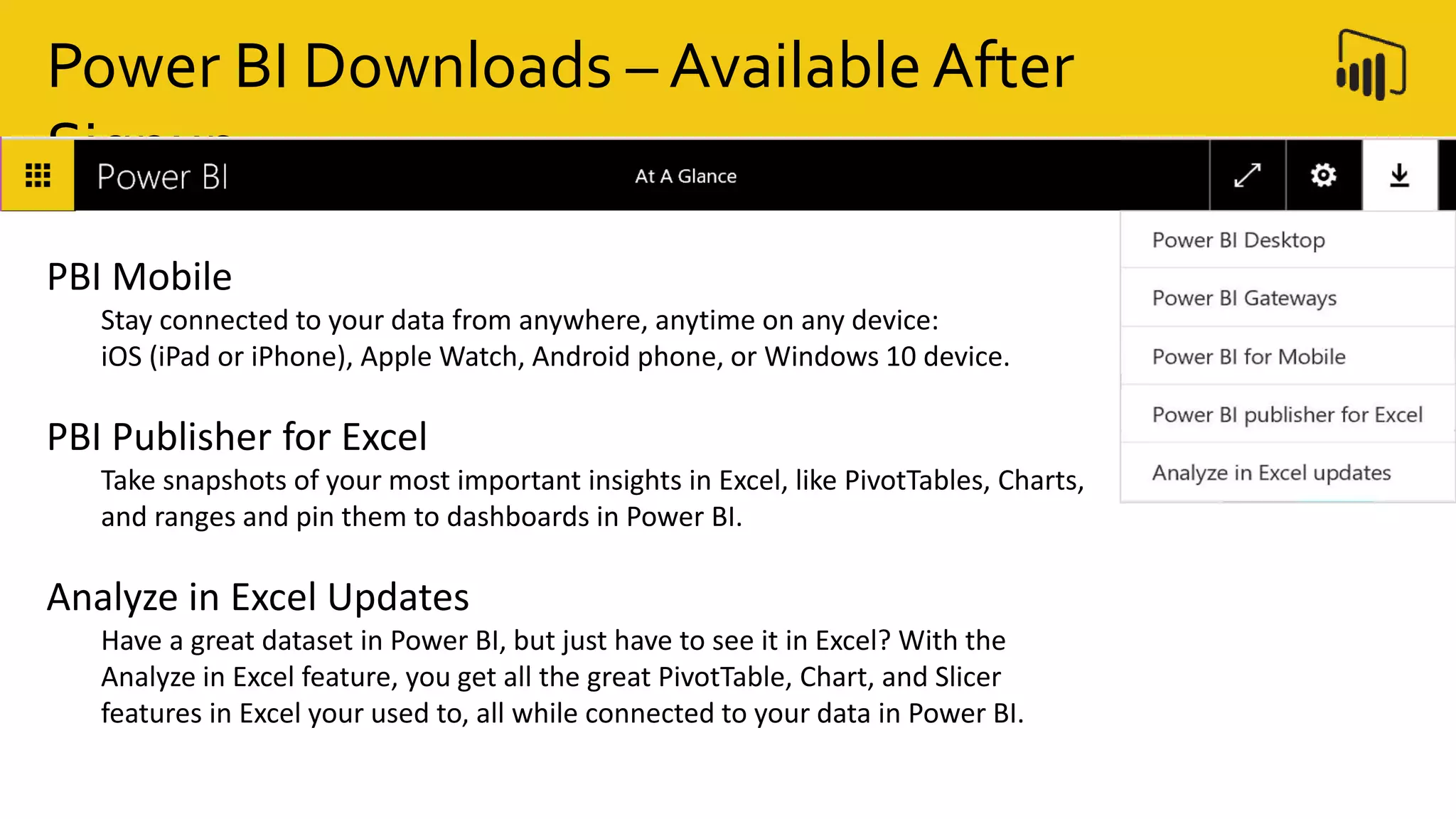
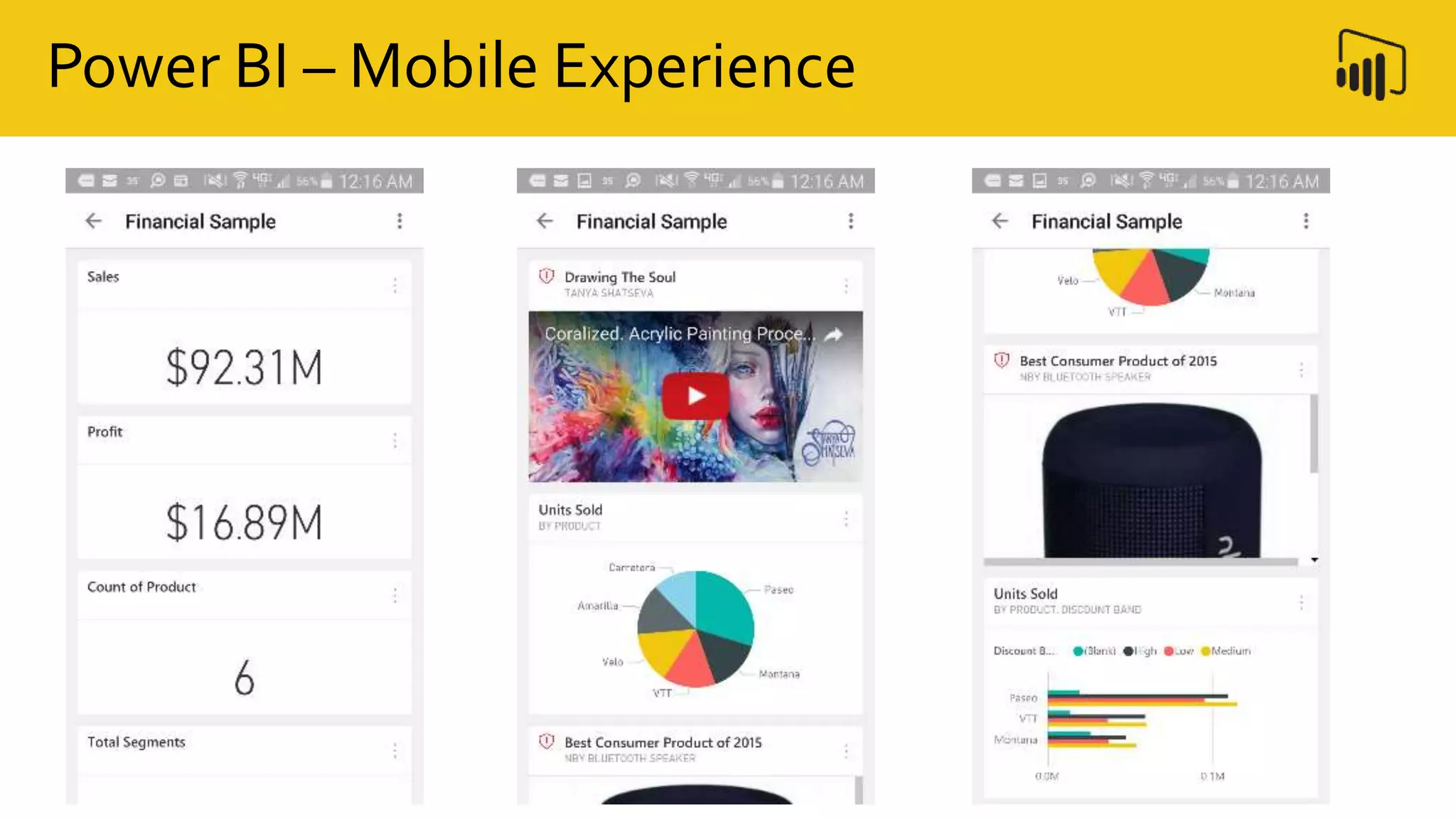
PBI Mobile
Stay connected to your data from anywhere, anytime on any device:
iOS (iPad or iPhone), Apple Watch, Android phone, or Windows 10 device.
PBI Publisher for Excel
Take snapshots of your most important insights in Excel, like PivotTables, Charts,
and ranges and pin them to dashboards in Power BI.
Analyze in Excel Updates
Have a great dataset in Power BI, but just have to see it in Excel? With the
Analyze in Excel feature, you get all the great PivotTable, Chart, and Slicer
features in Excel your used to, all while connected to your data in Power BI.
Power BI – Mobile Experience
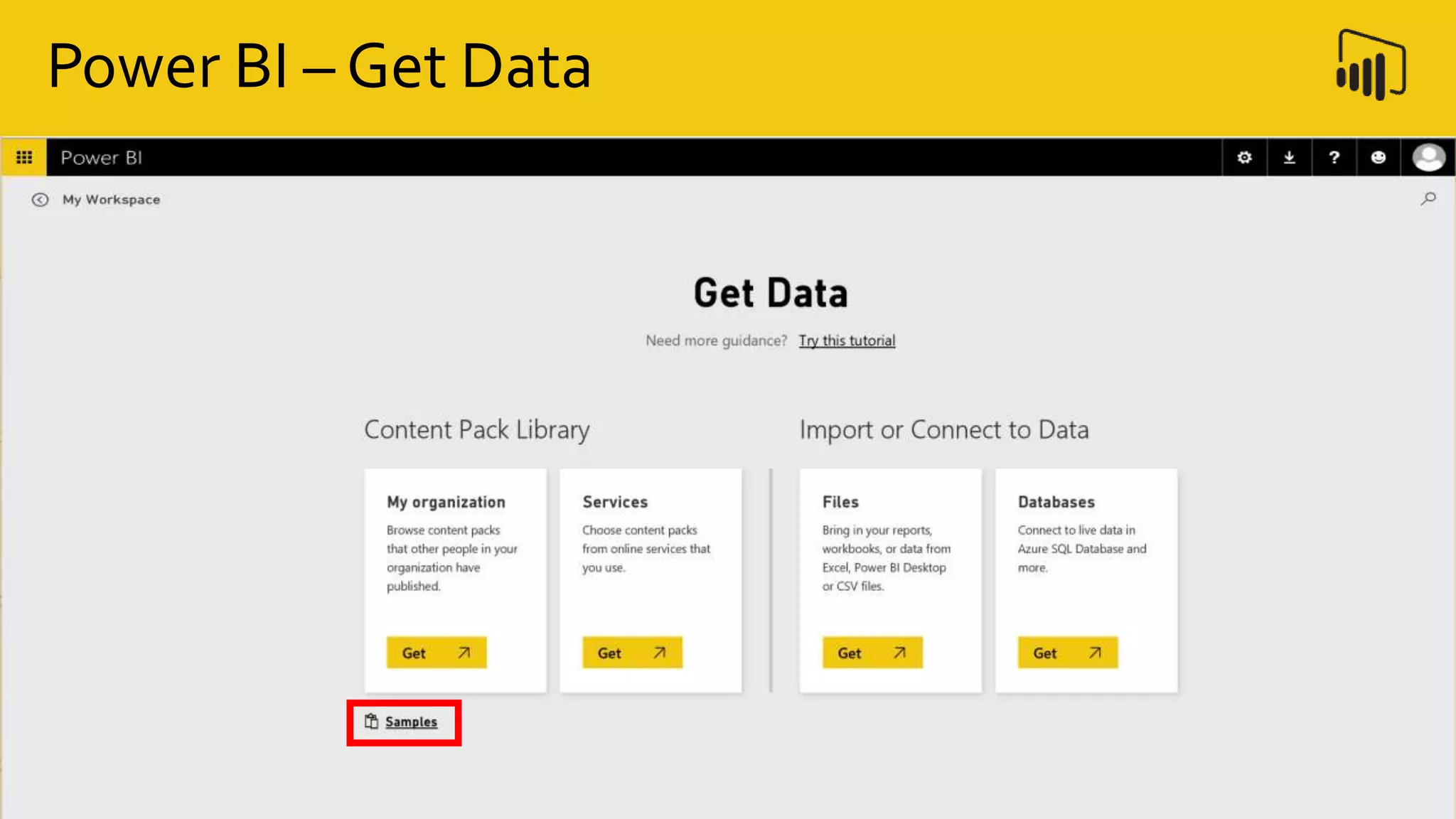
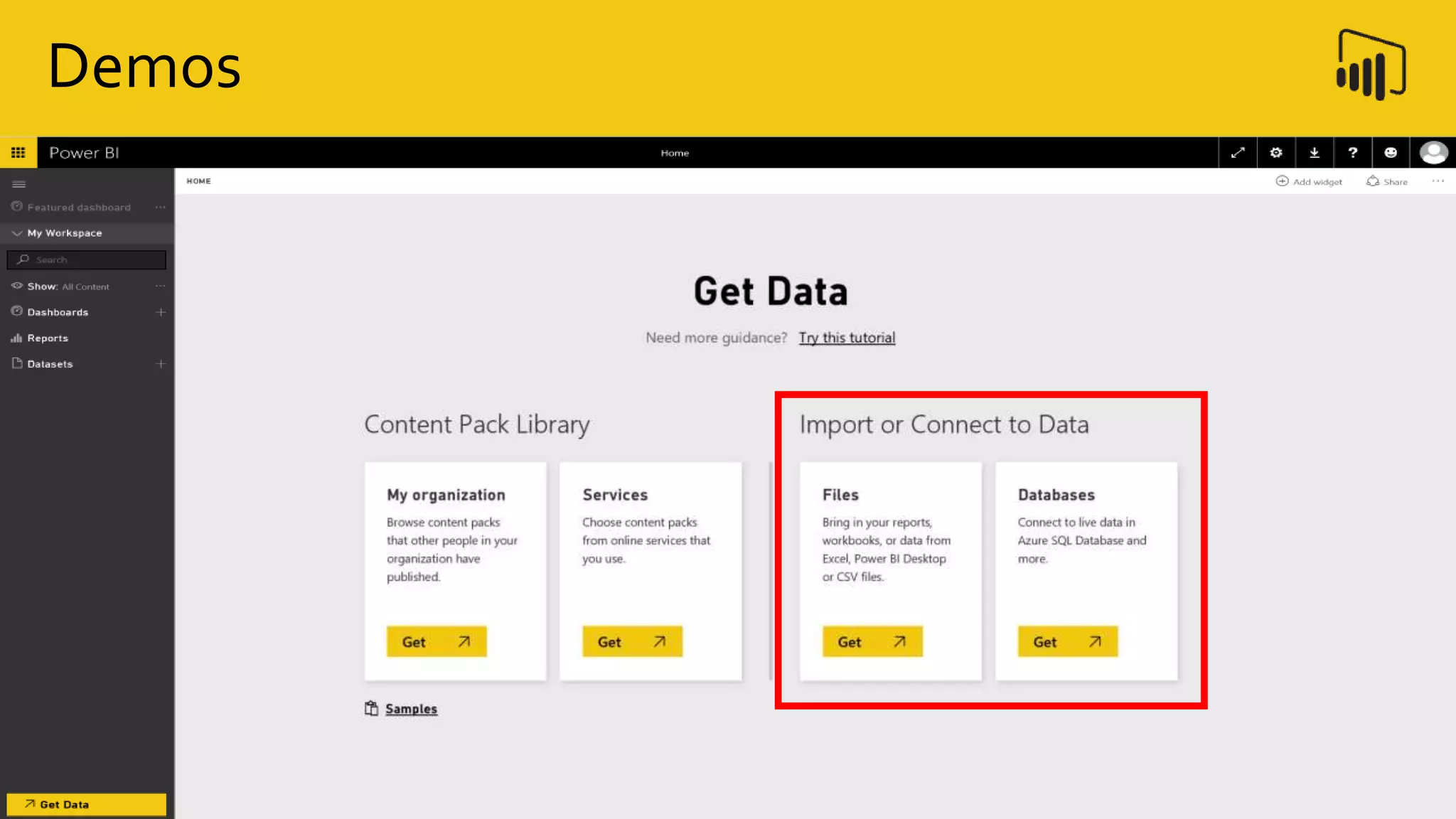
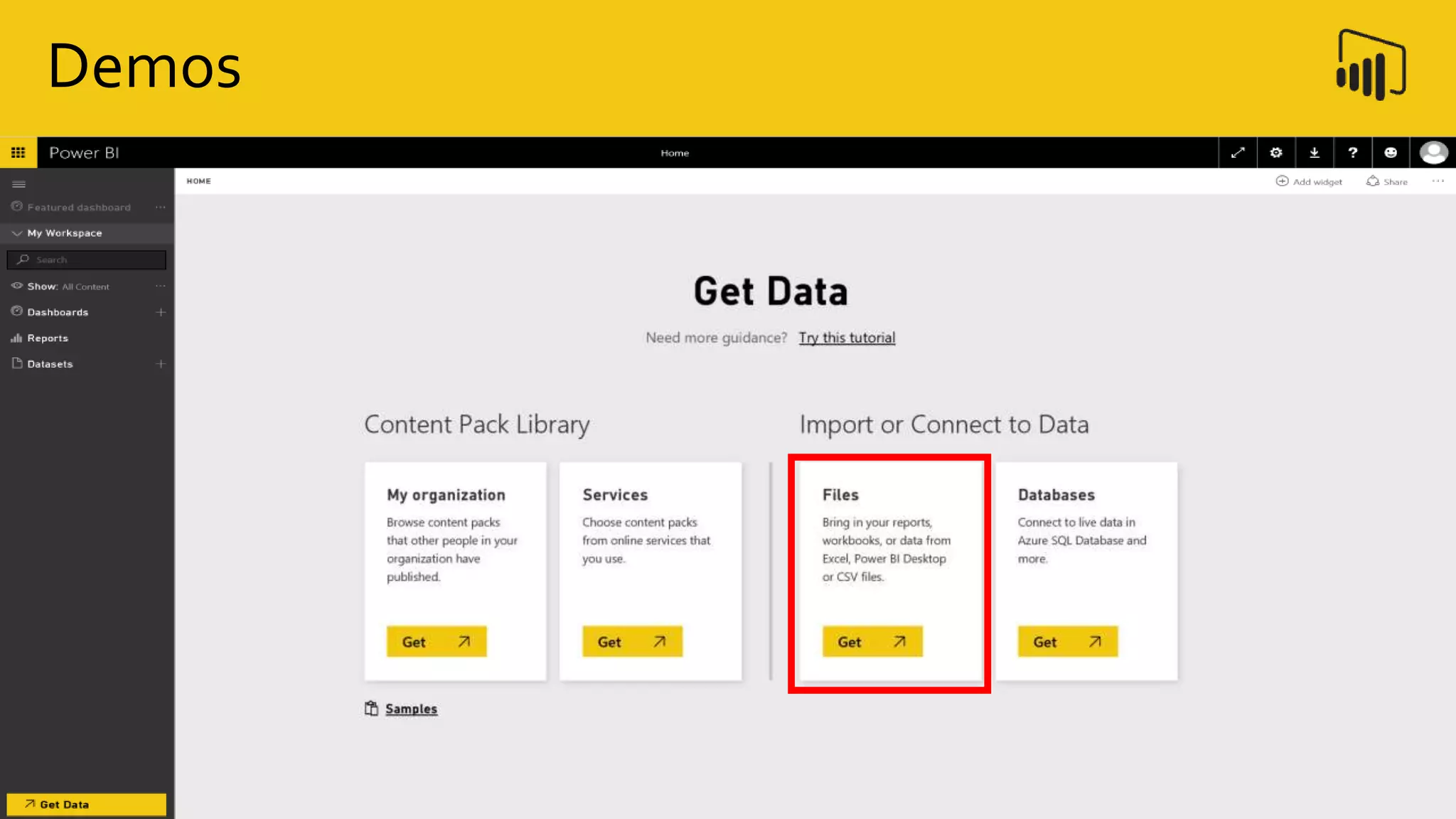
Power BI – Get Data
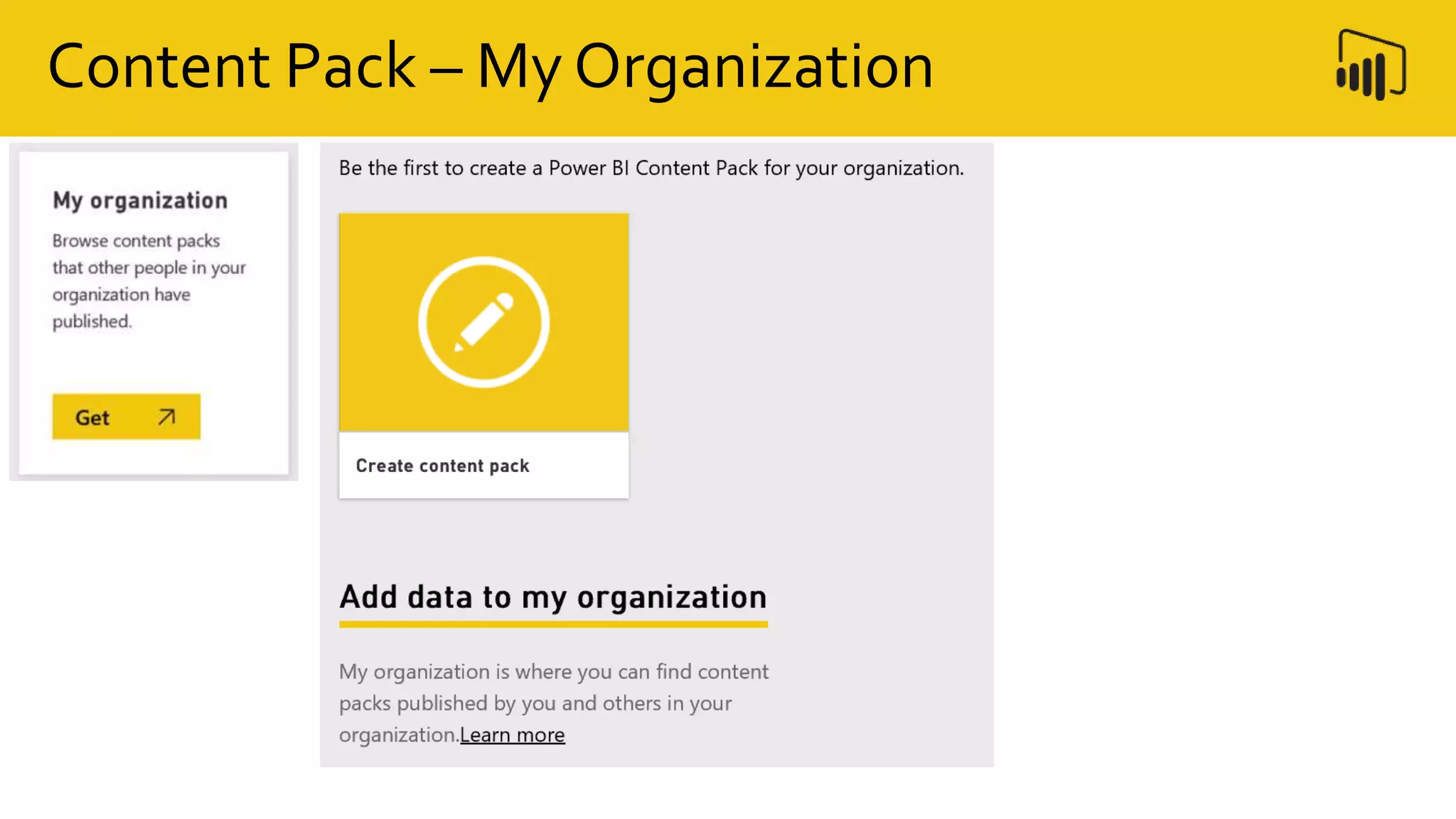
Content Packs
Content Pack – My Organization
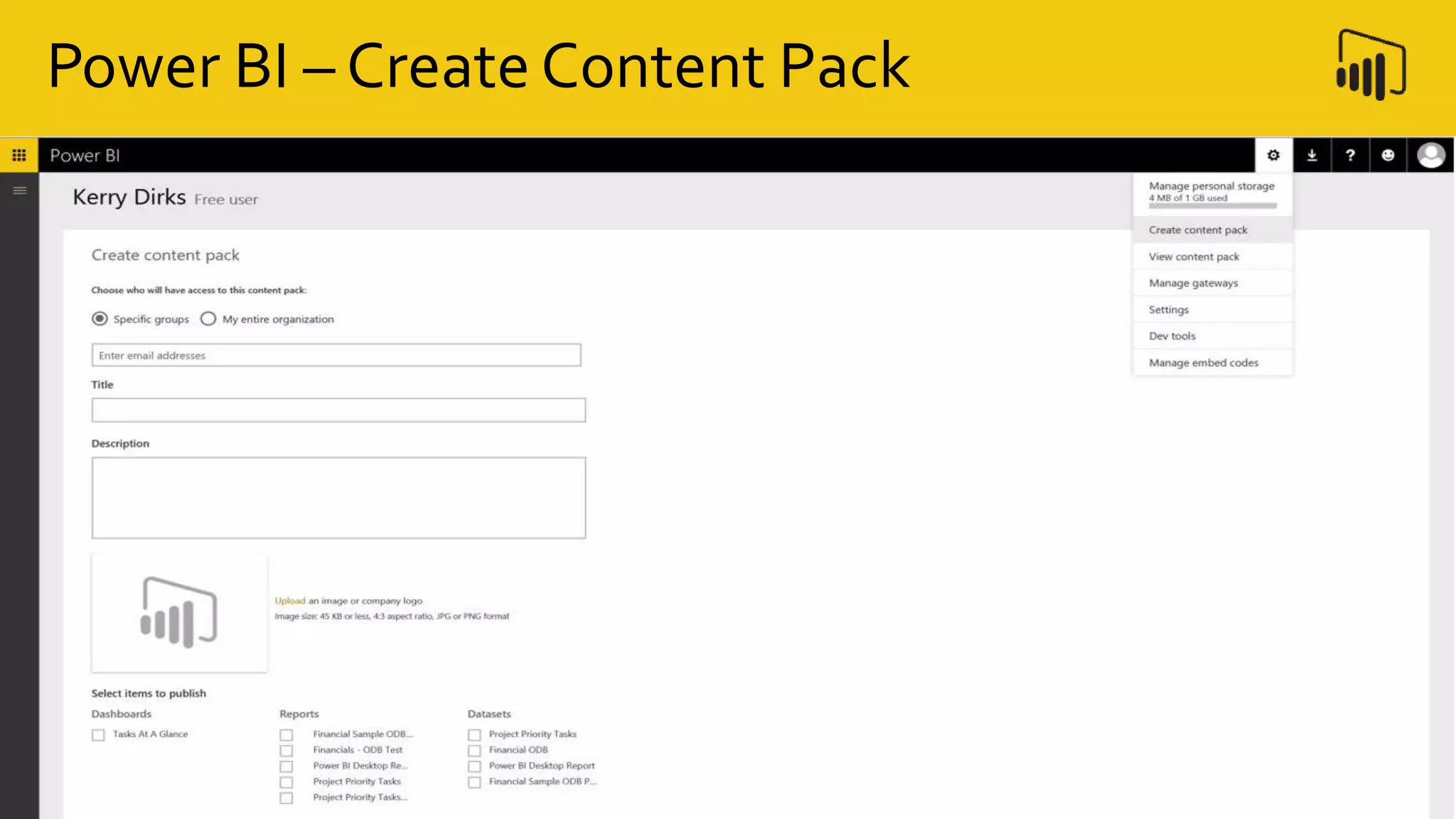
Power BI – Create Content Pack
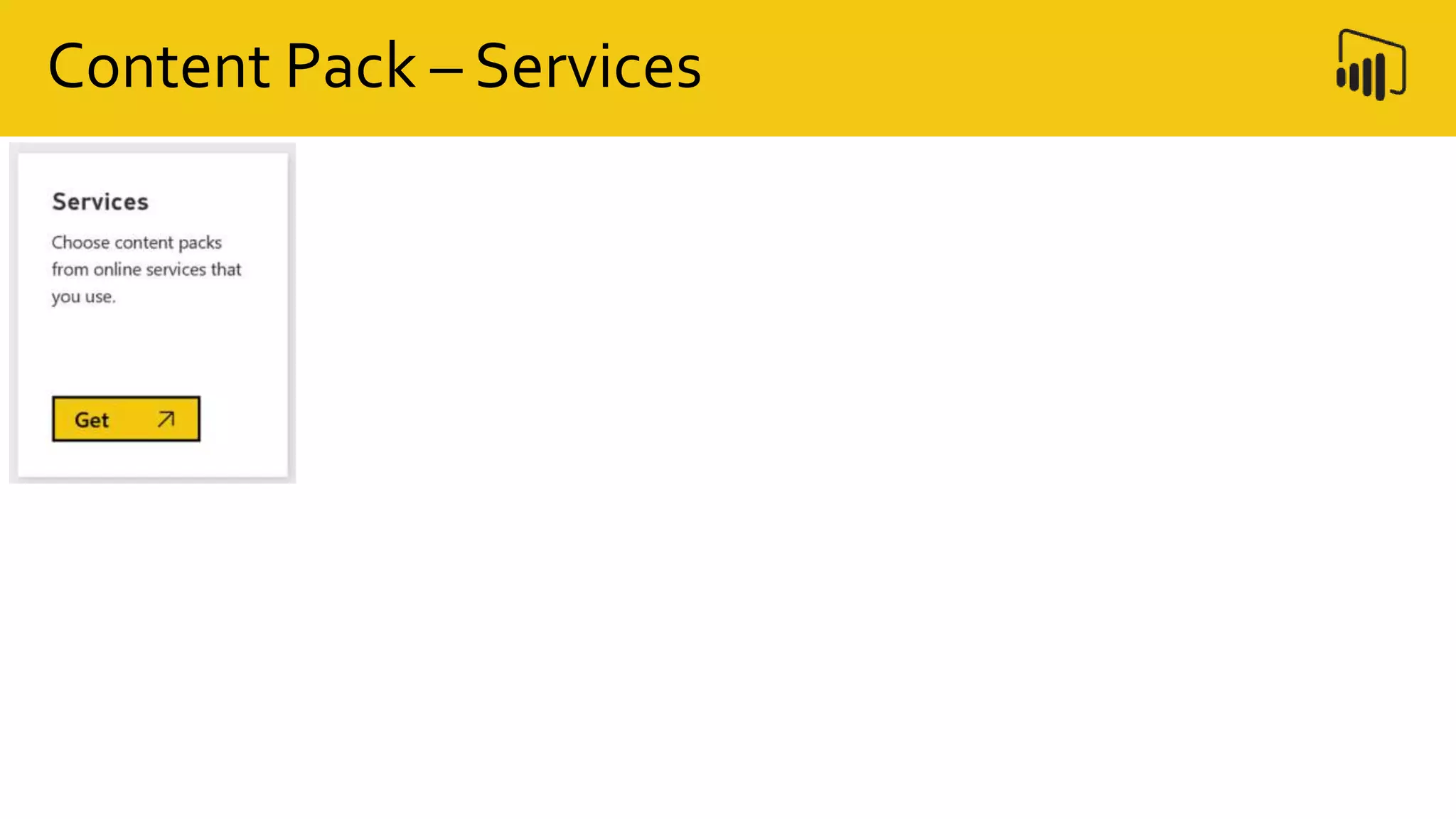
Content Pack – Services
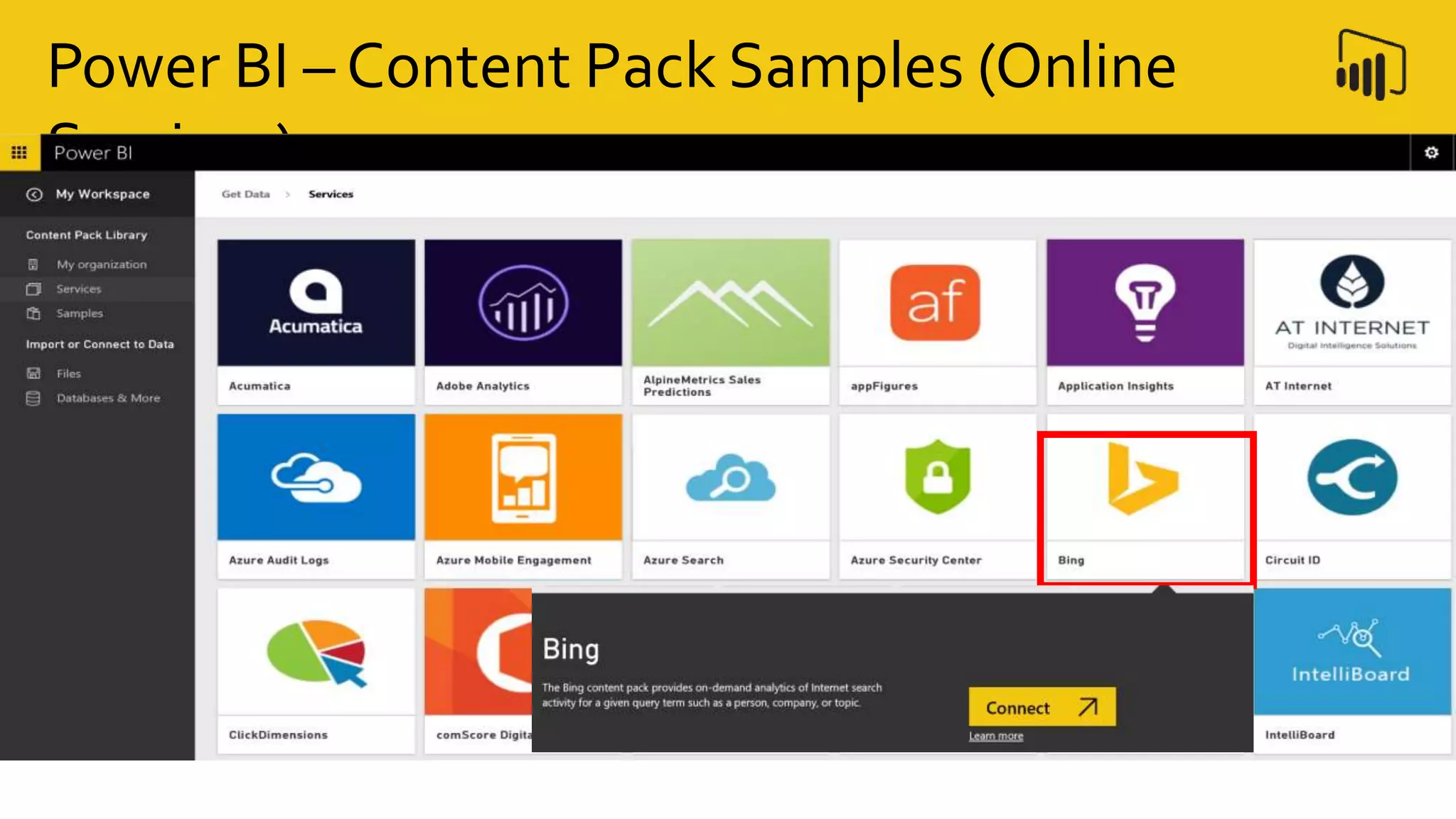
Power BI – Content Pack Samples (Online
Services)
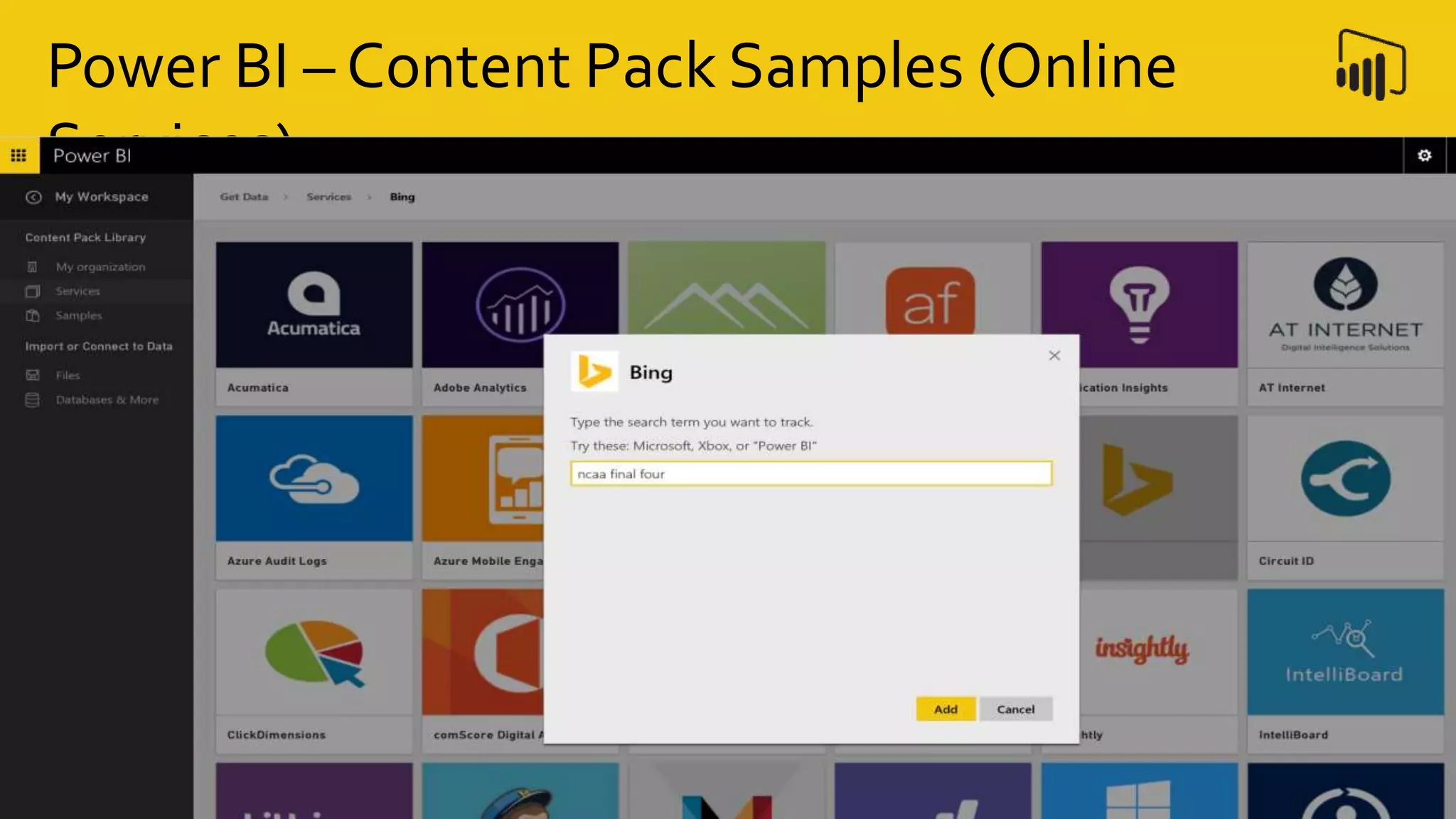
Power BI – Content Pack Samples (Online
Services)
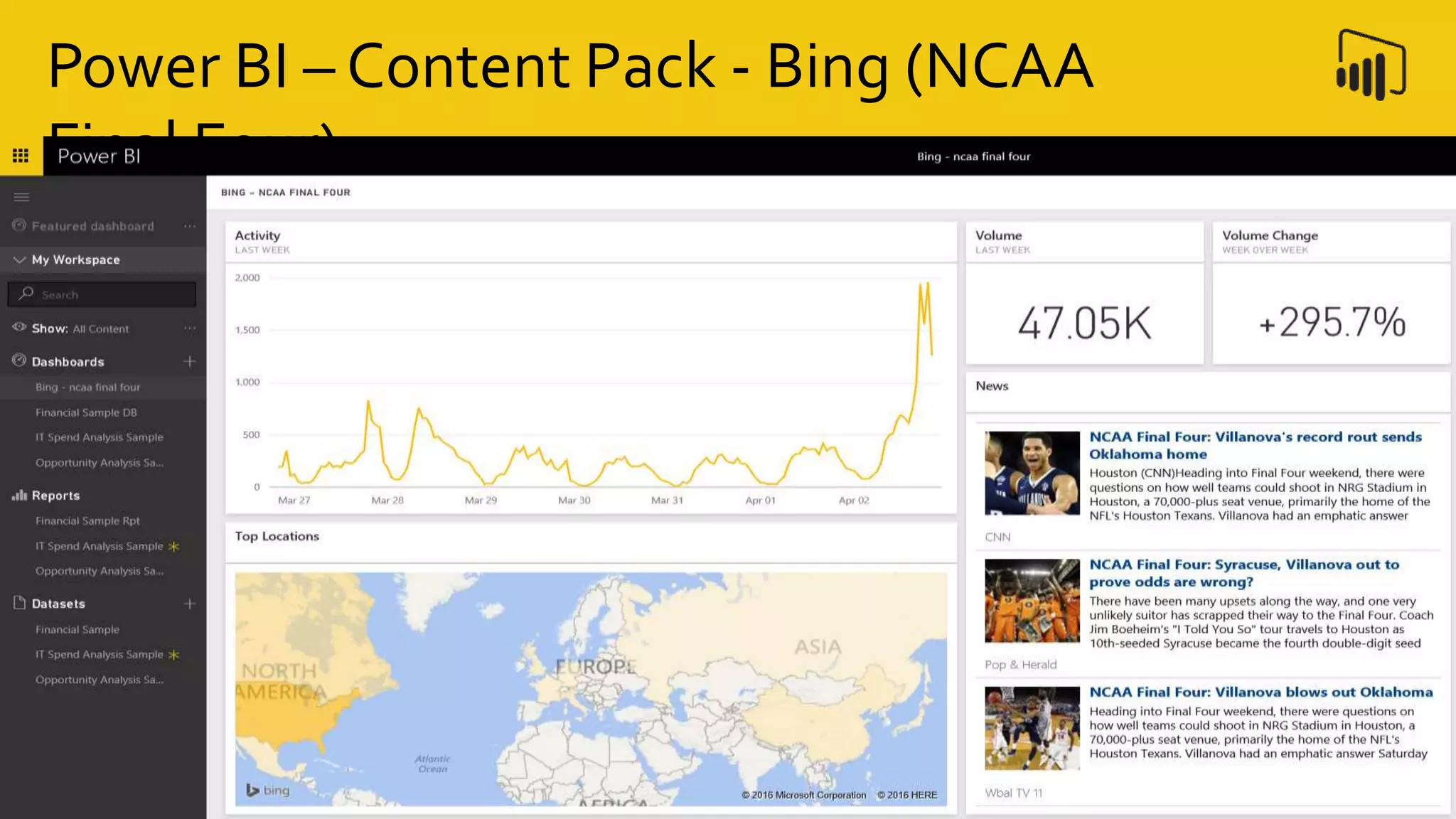
Power BI – Content Pack - Bing (NCAA
Final Four)
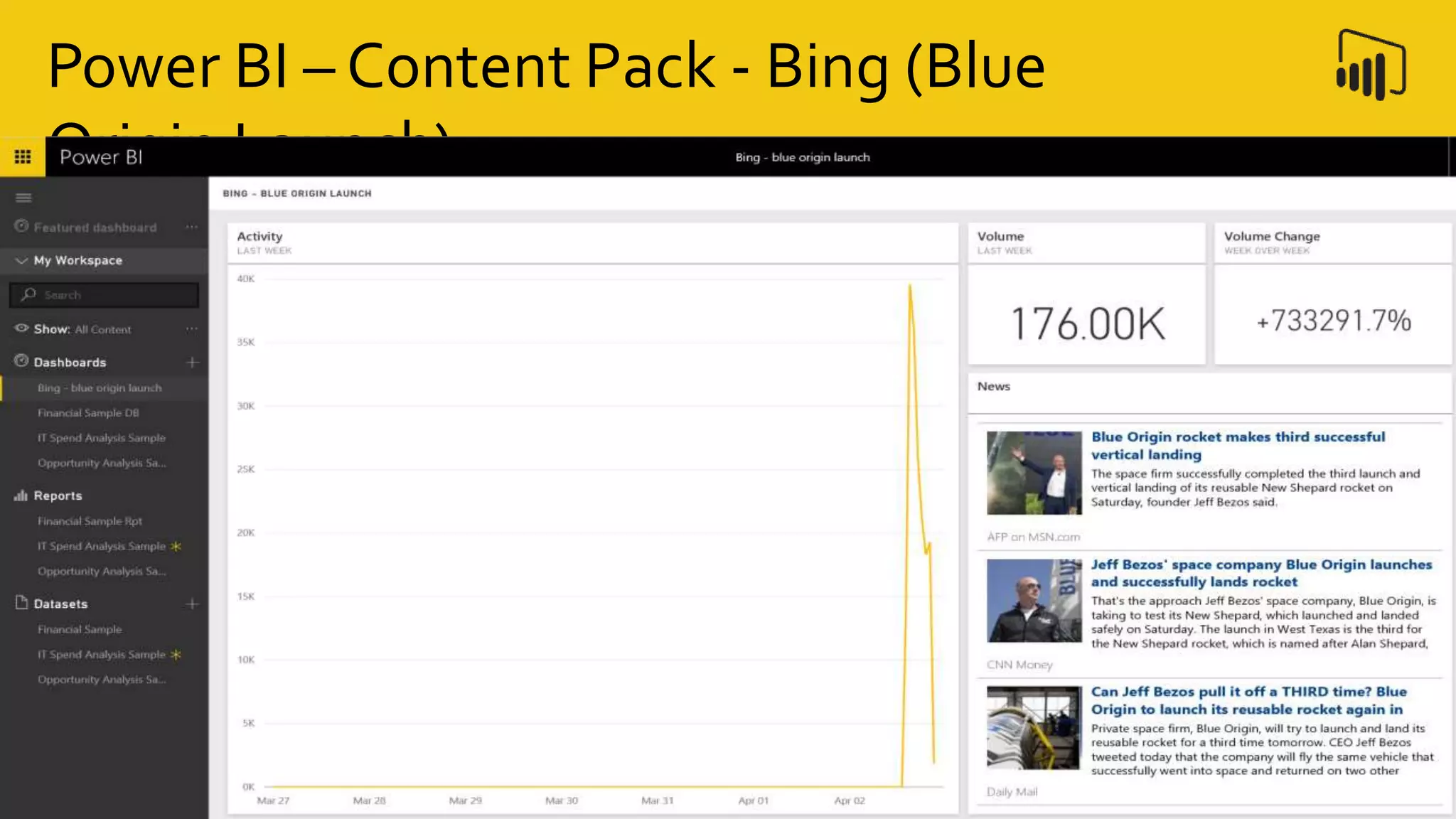
Power BI – Content Pack - Bing (Blue
Origin Launch)
Power BI – Get Data
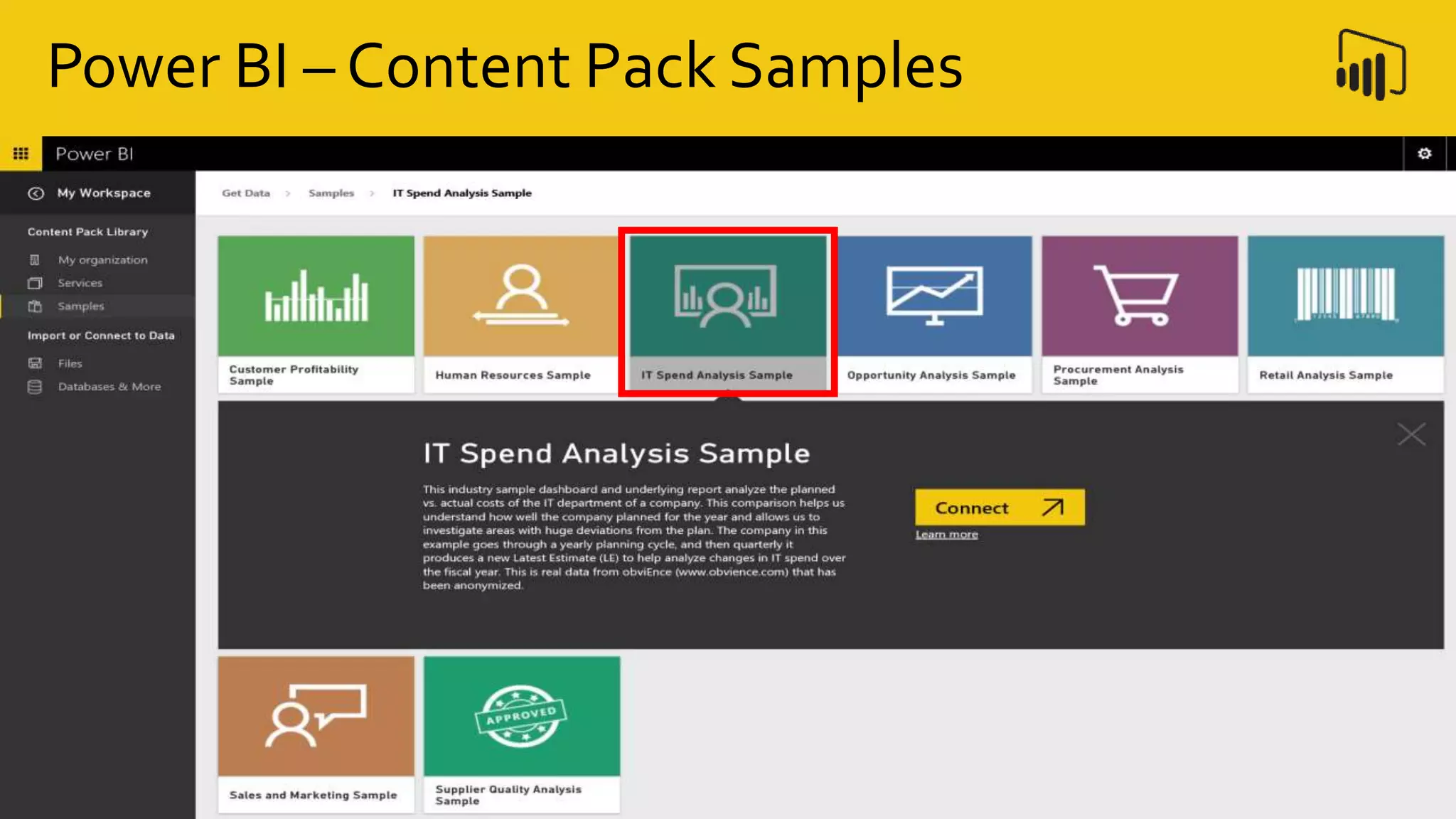
Power BI – Content Pack Samples
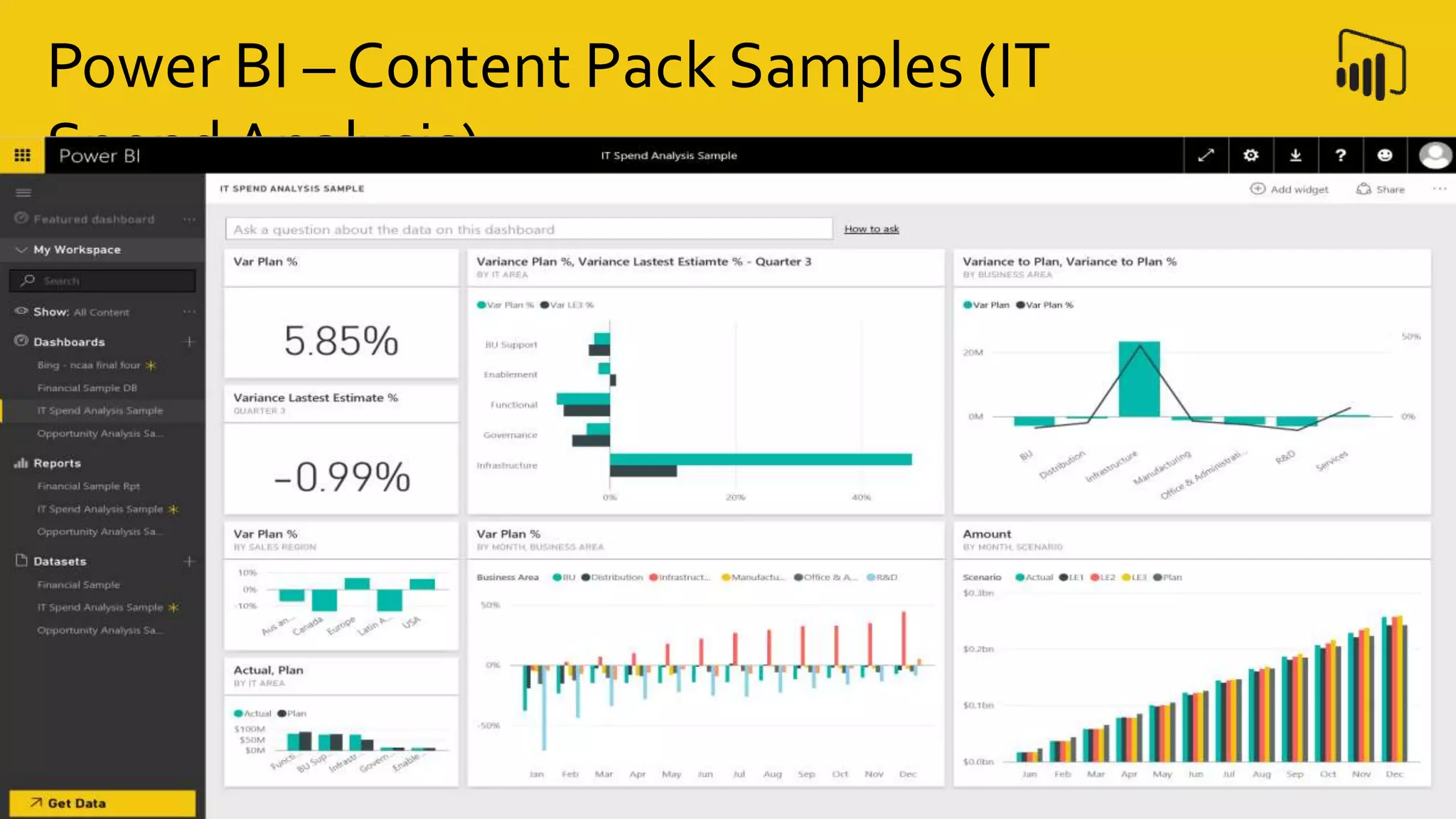
Power BI – Content Pack Samples (IT
Spend Analysis)
Demo Prep
Demos
Topics
• Connections
• Databases
• Reports
• Dashboards
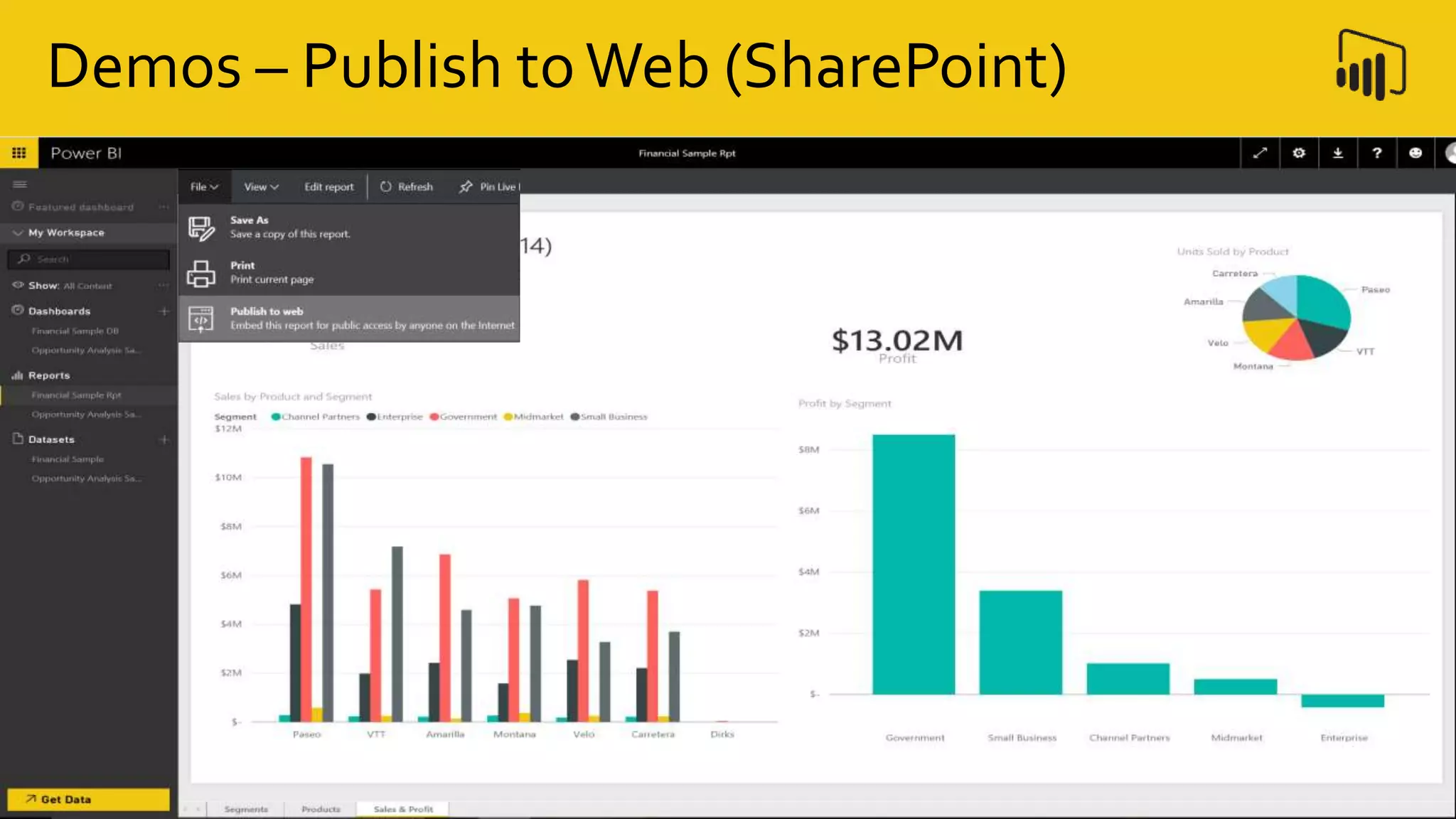
• Publish toWeb (SharePoint Integration)
• Power BI Desktop
Demos
Demos
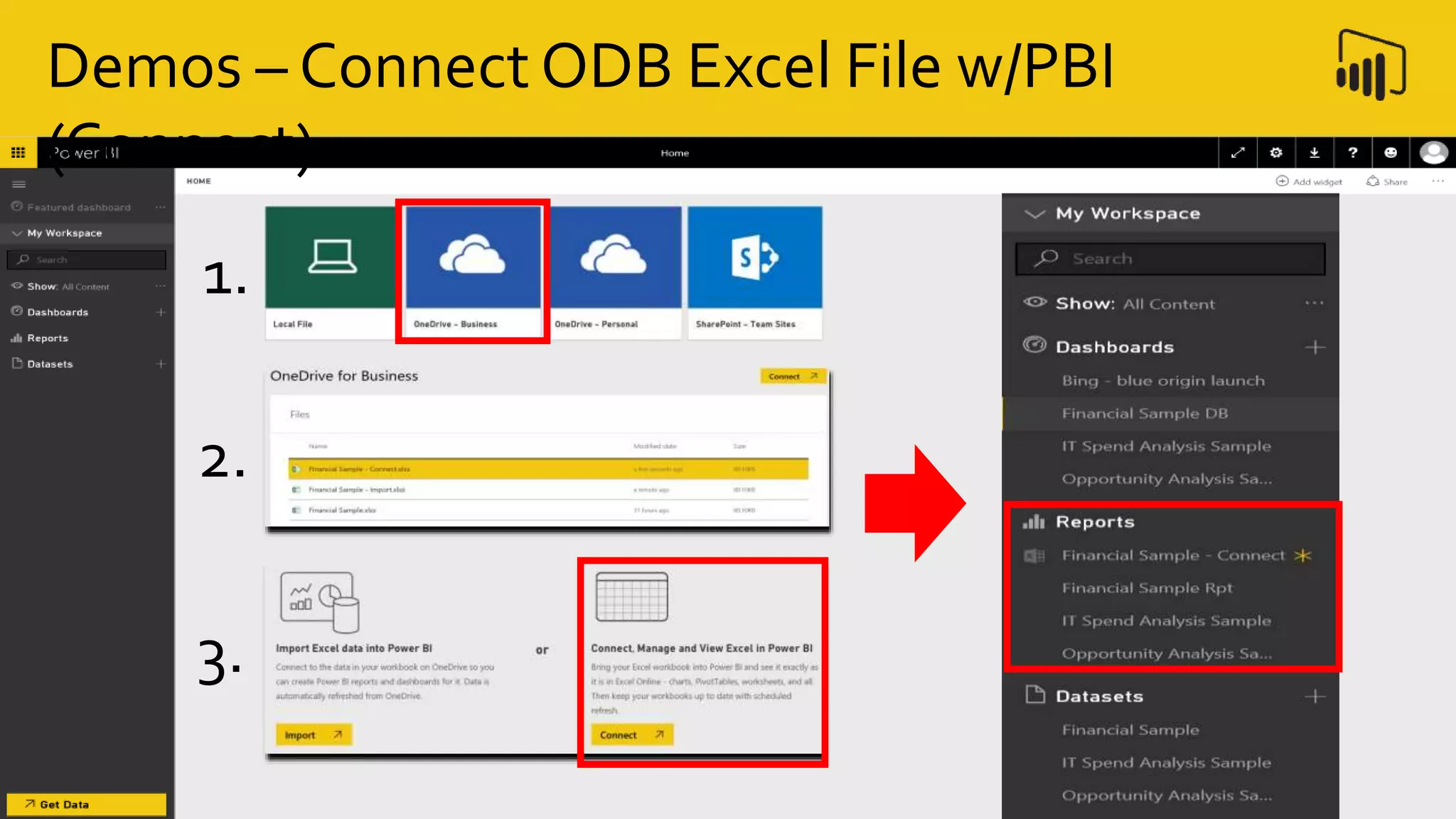
Demos – Connect ODB Excel File w/PBI
(Connect)
1.
2.
3.
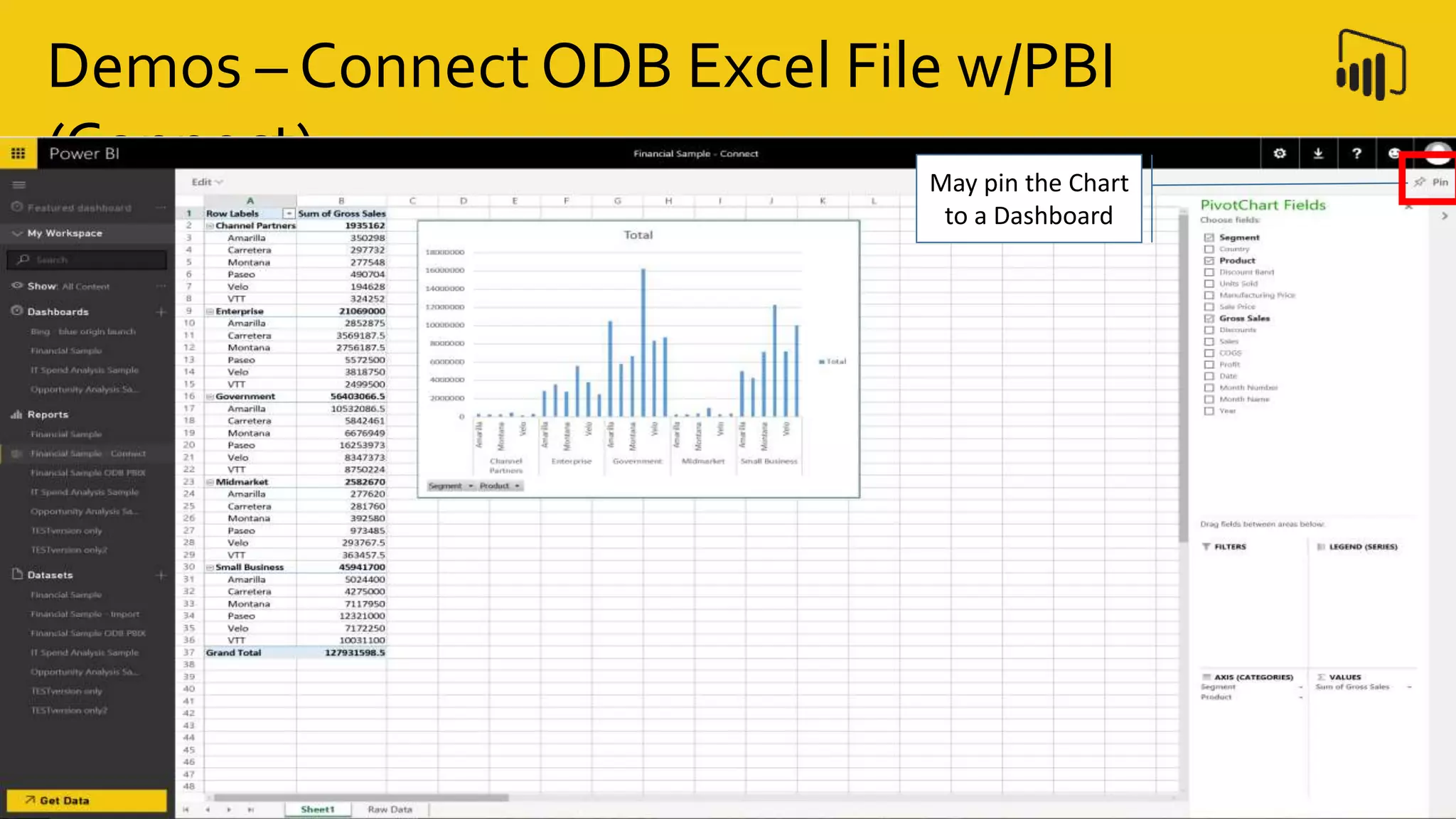
Demos – Connect ODB Excel File w/PBI
(Connect) May pin the Chart
to a Dashboard
Demos – Connect ODB Excel File w/PBI
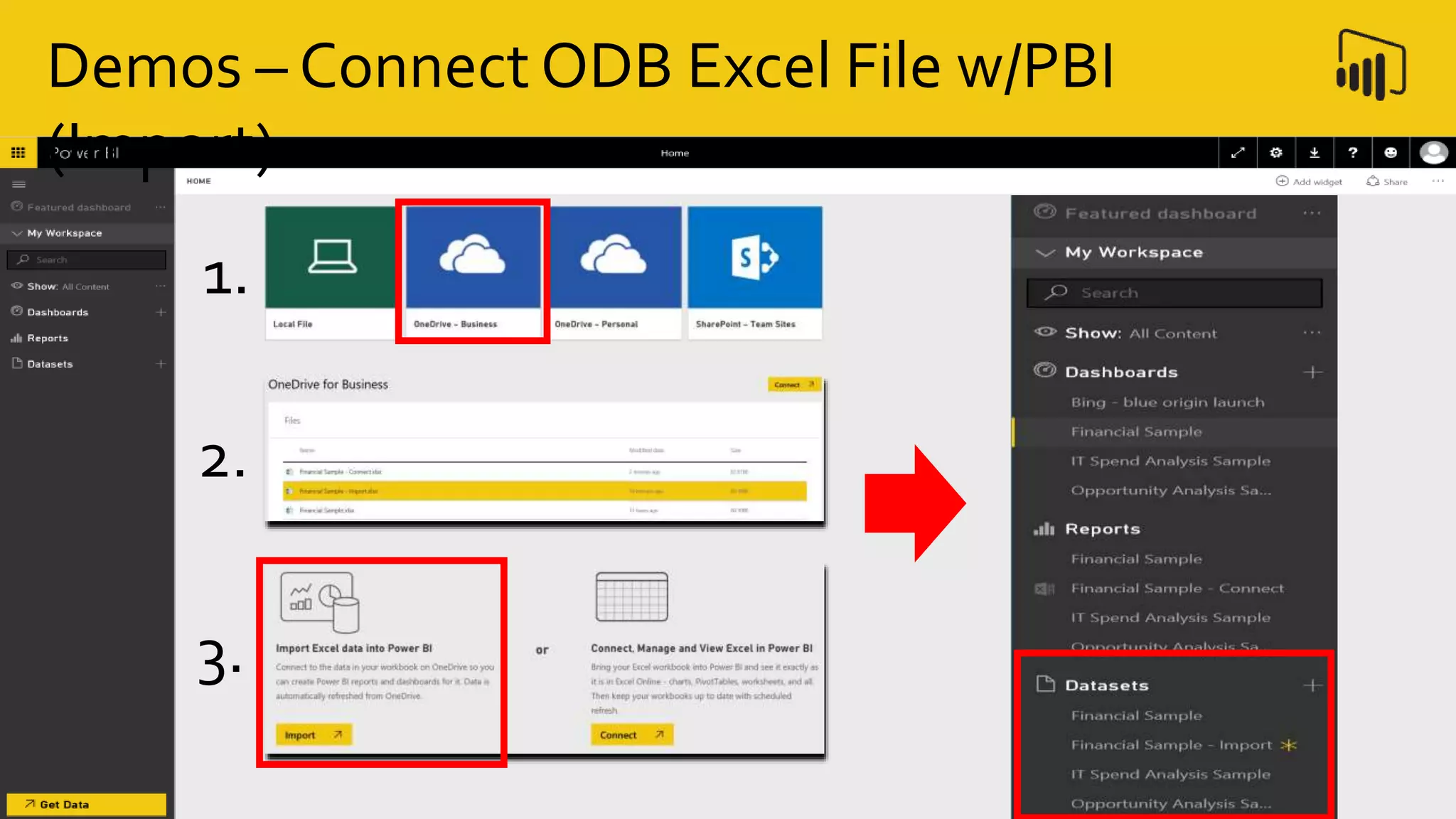
(Import)
1.
2.
3.
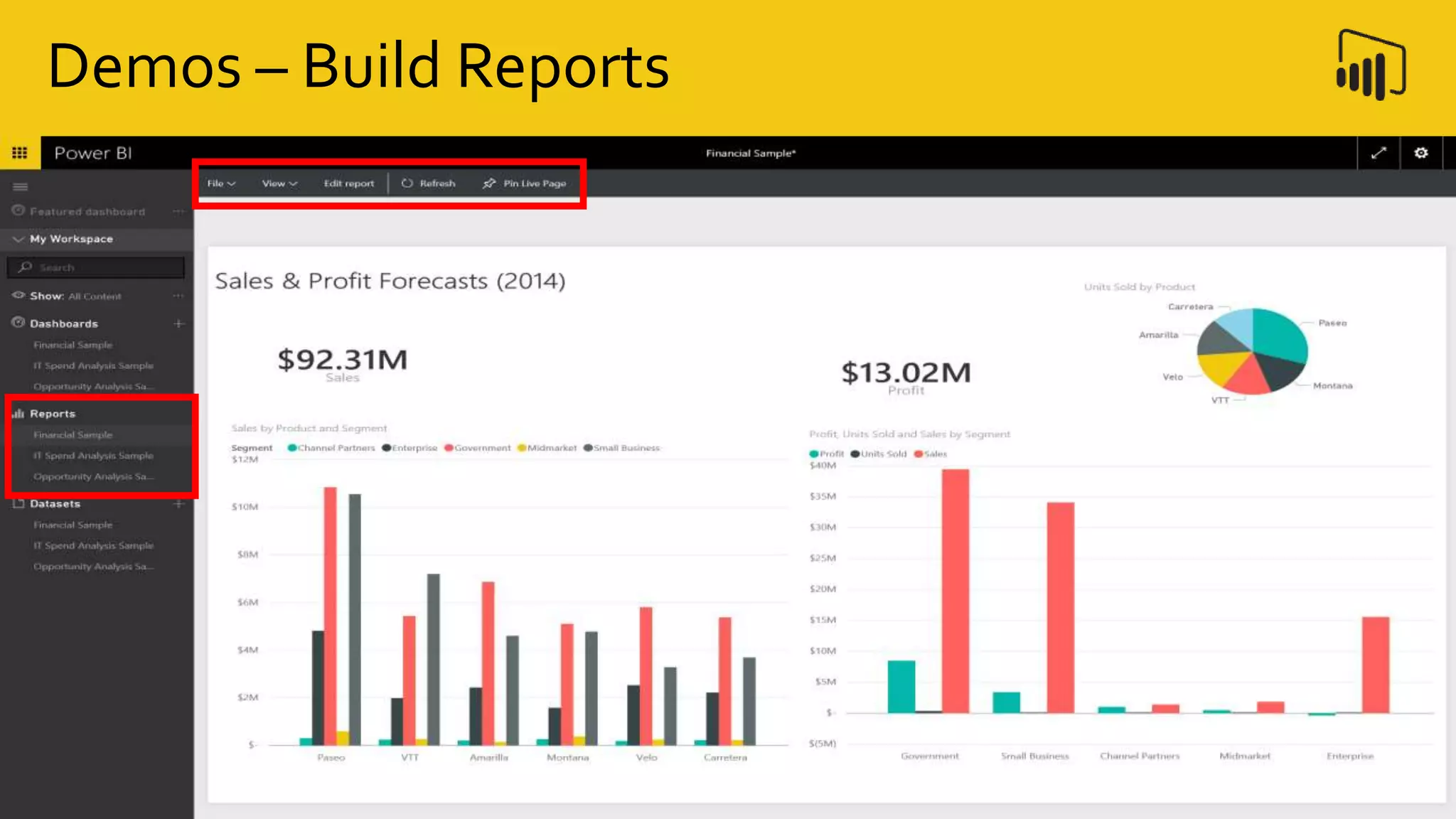
Demos – Build Reports
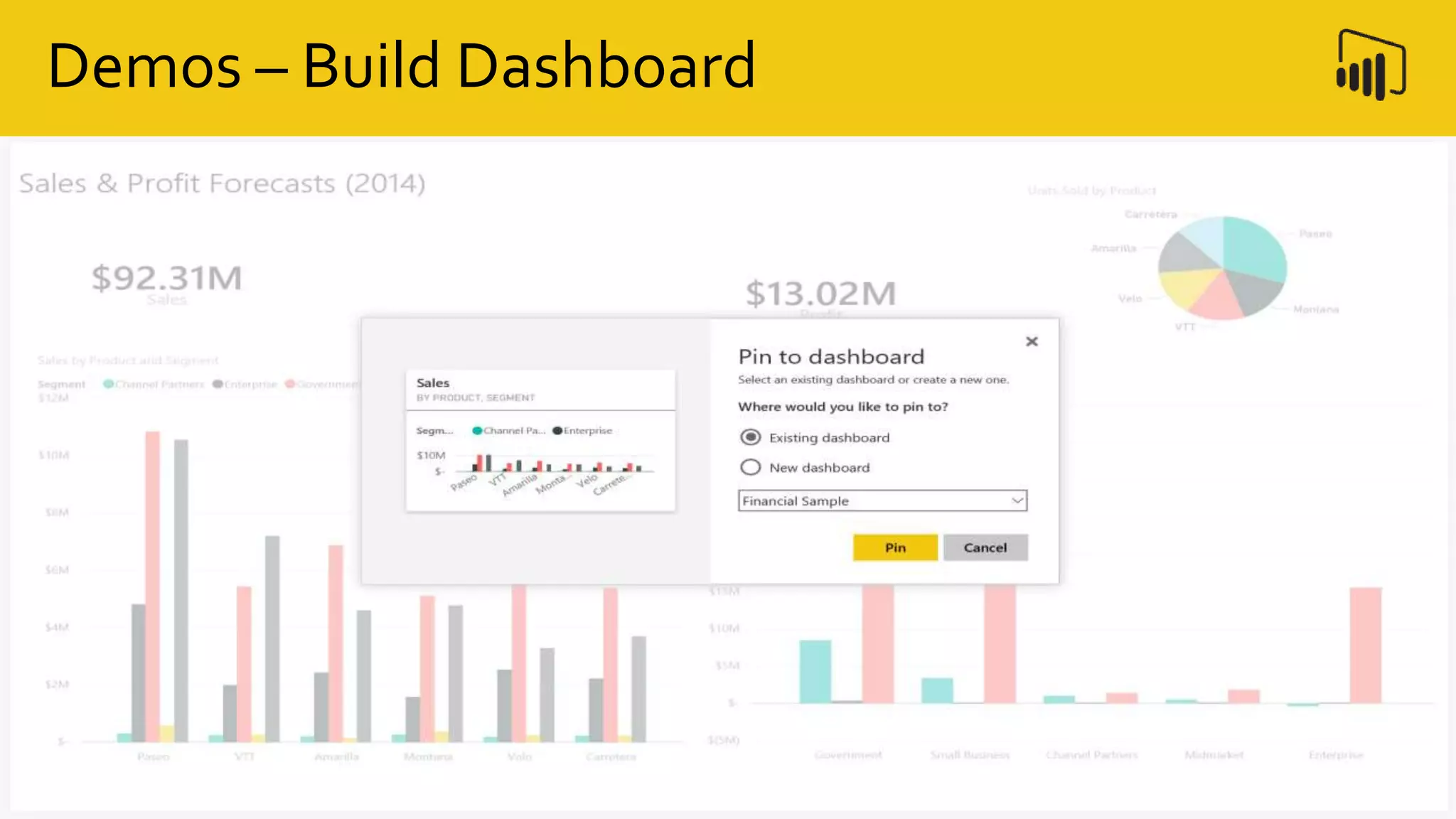
Demos – Build Dashboard
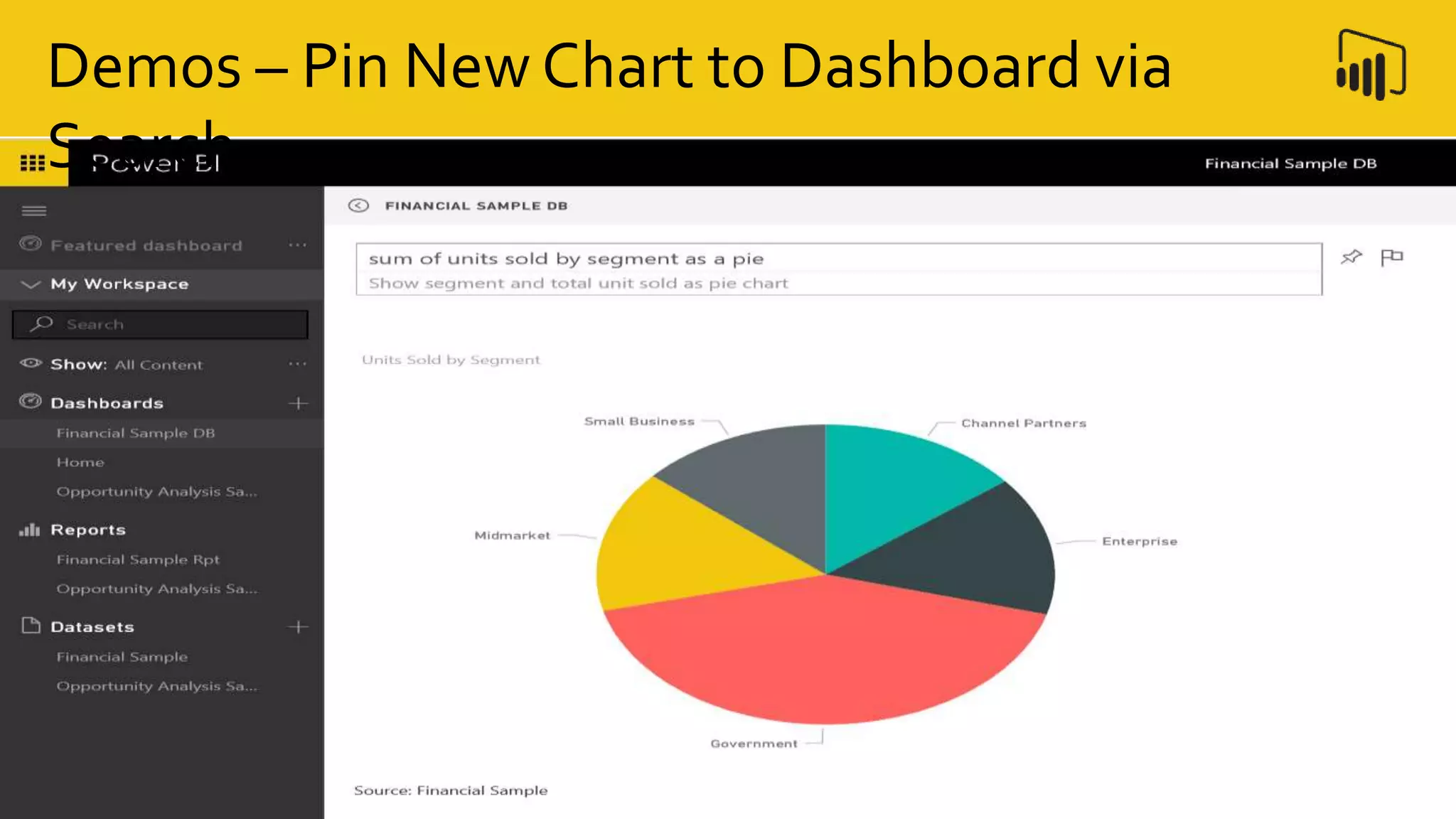
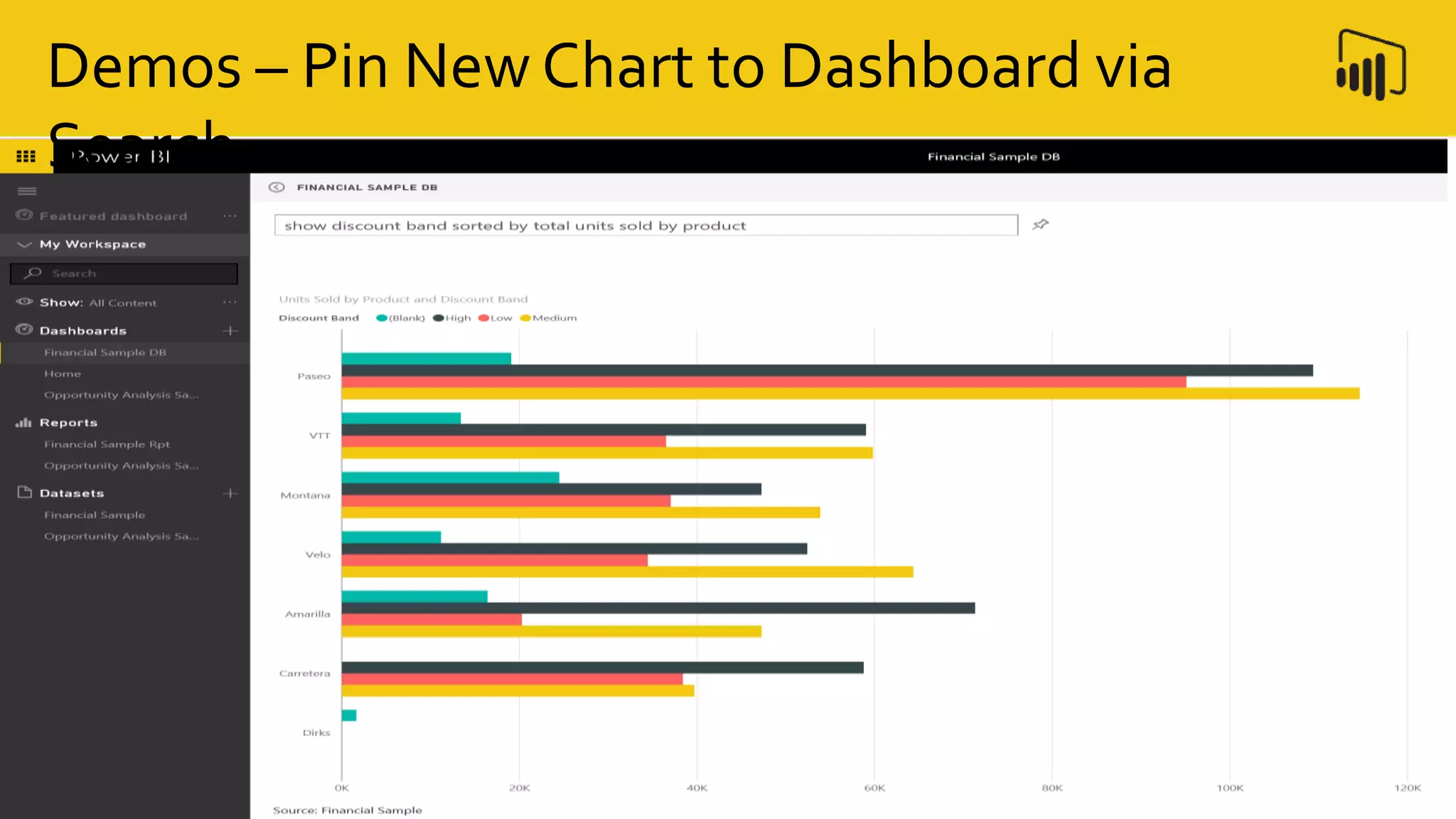
Demos – Pin New Chart to Dashboard via
Search
Demos – Pin New Chart to Dashboard via
Search
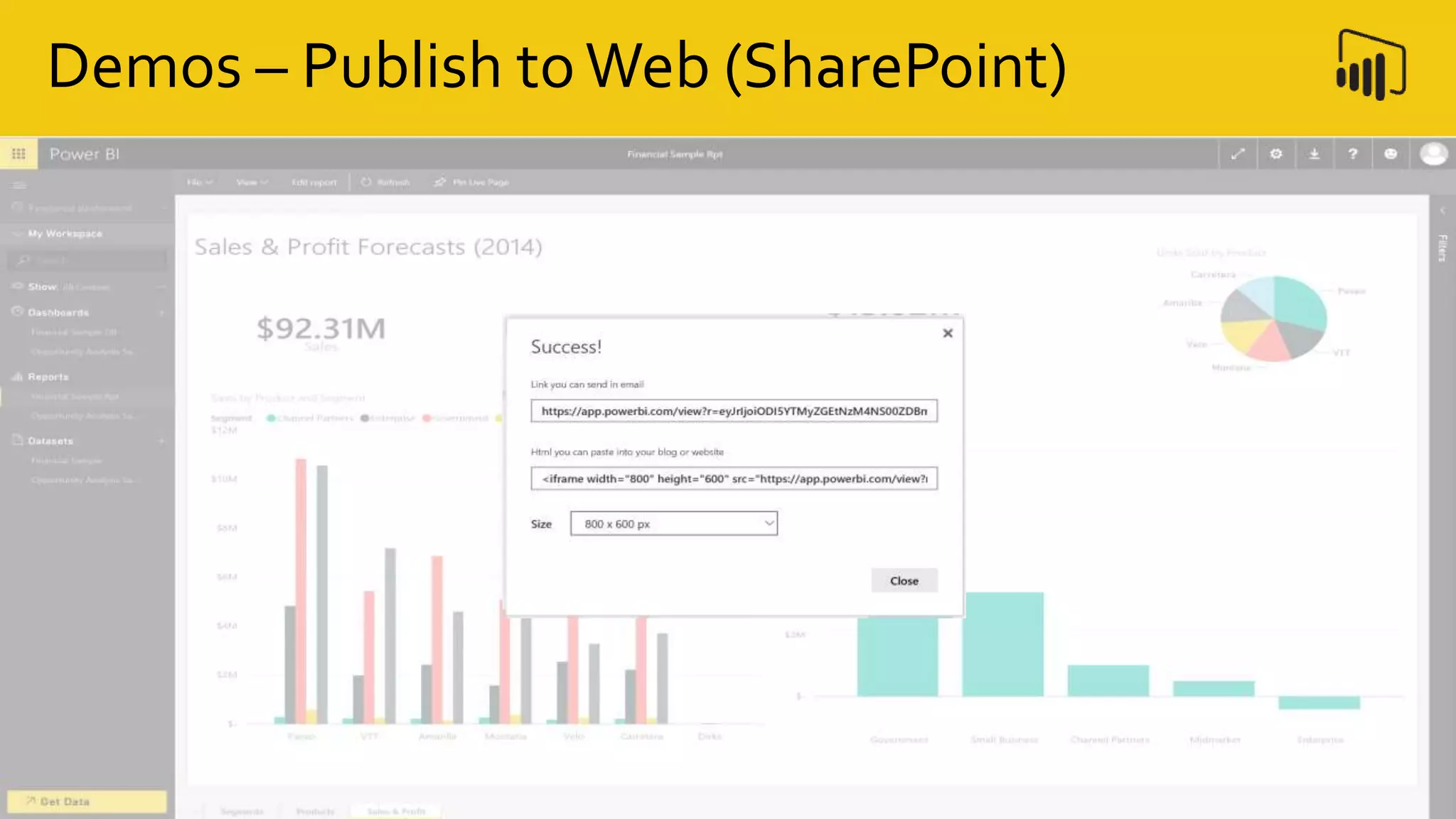
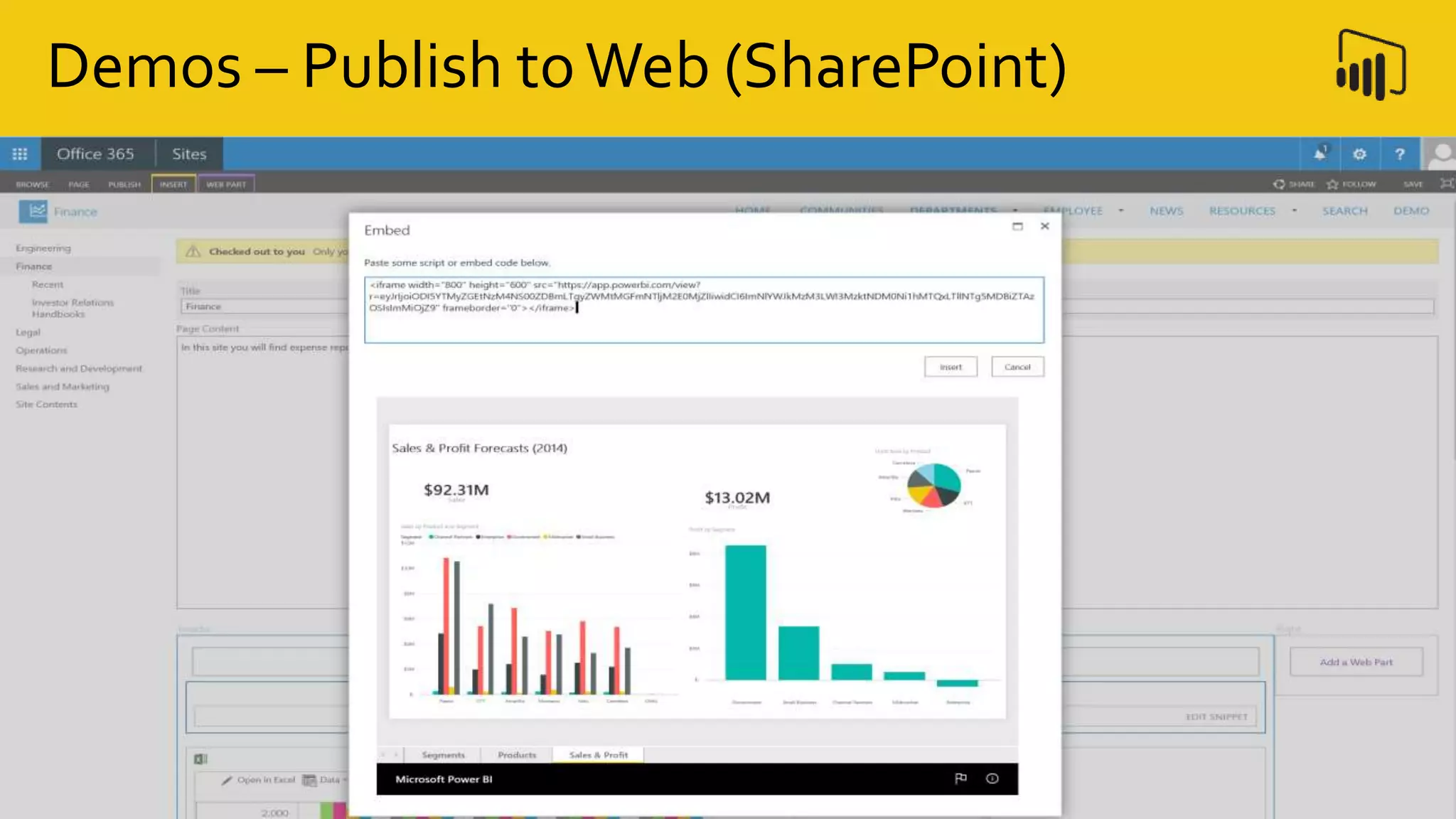
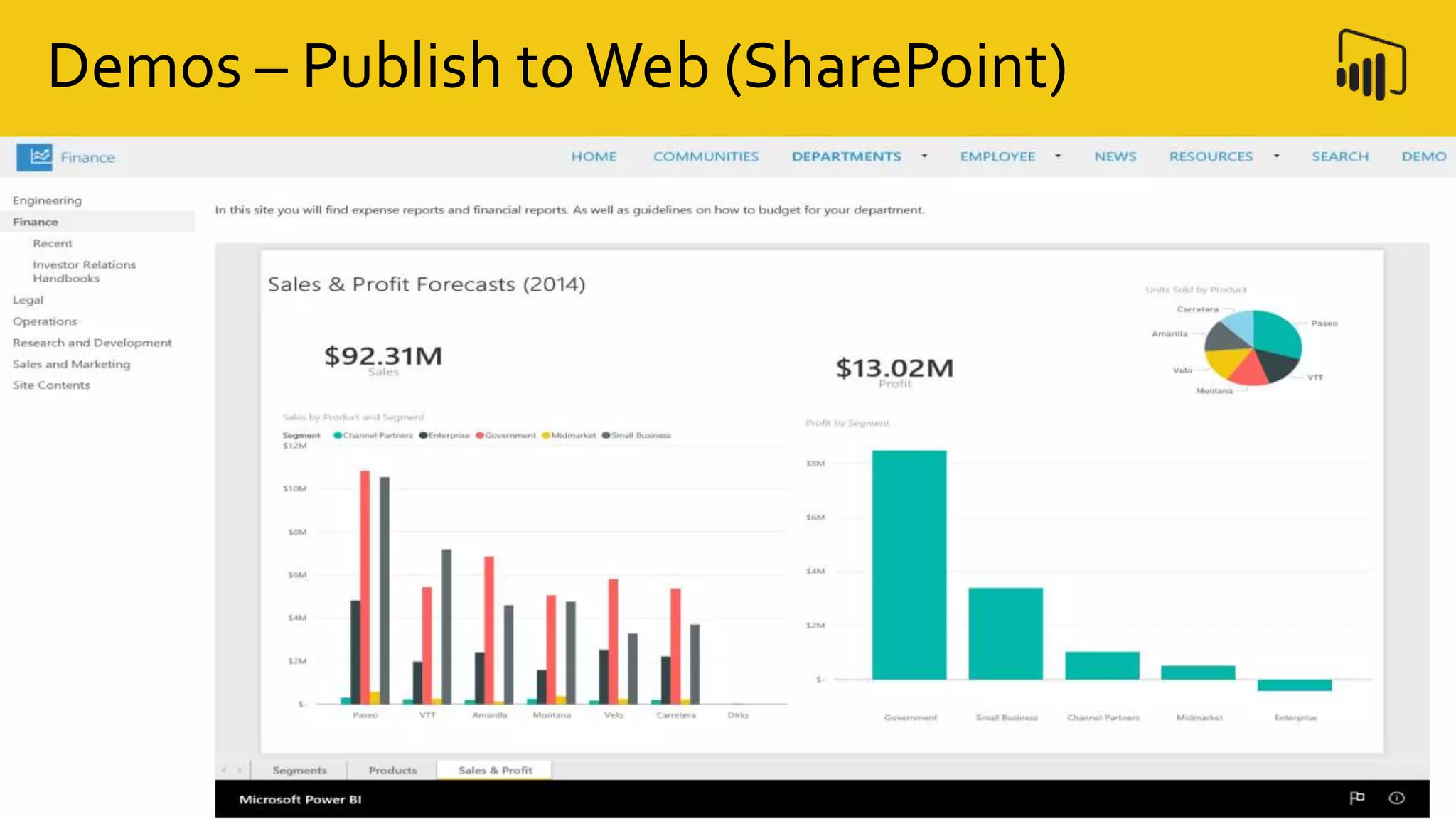
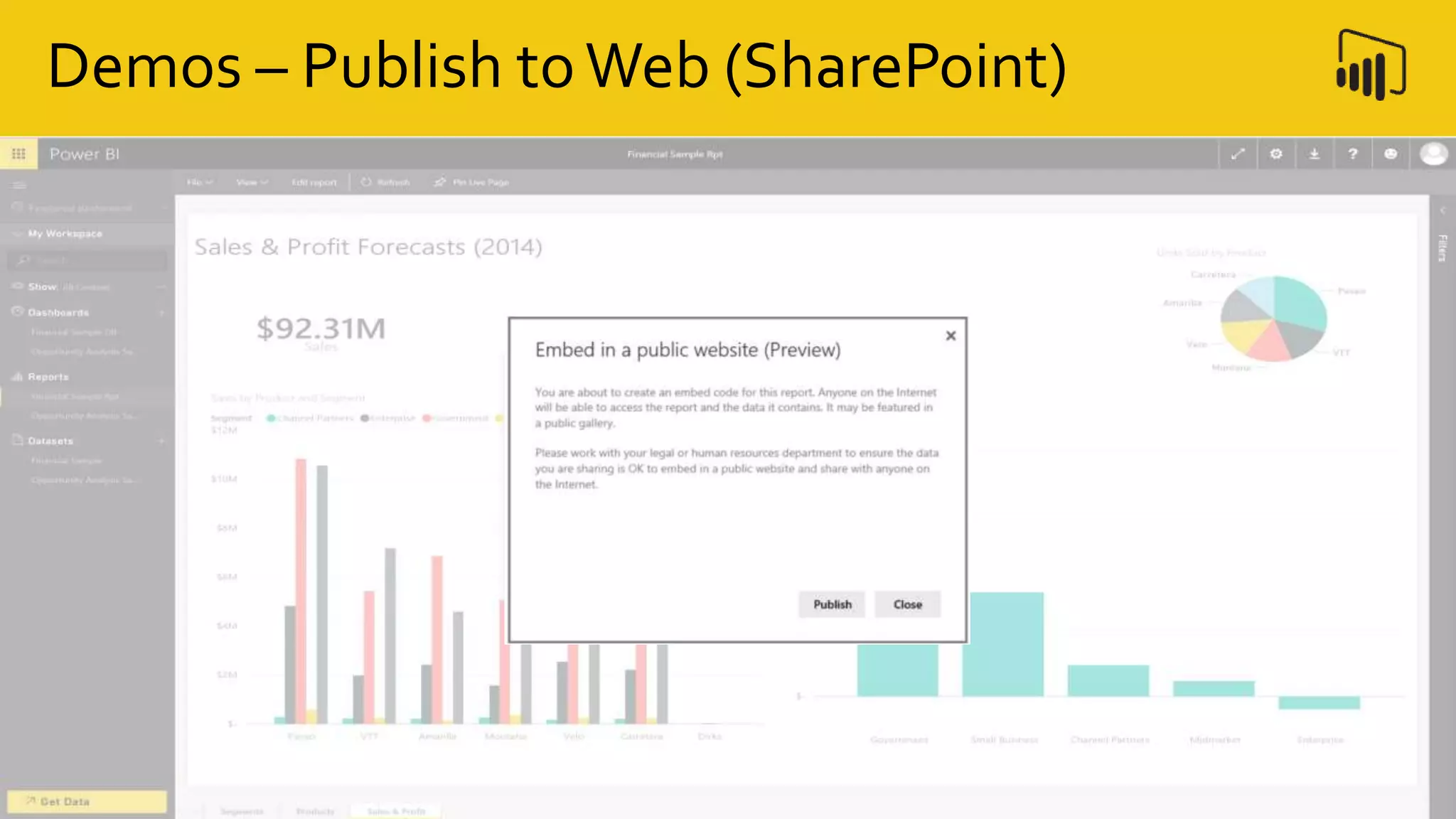
Demos – Publish toWeb (SharePoint)
Demo Walk-Thru
ODB > PBI > SPO
Questions
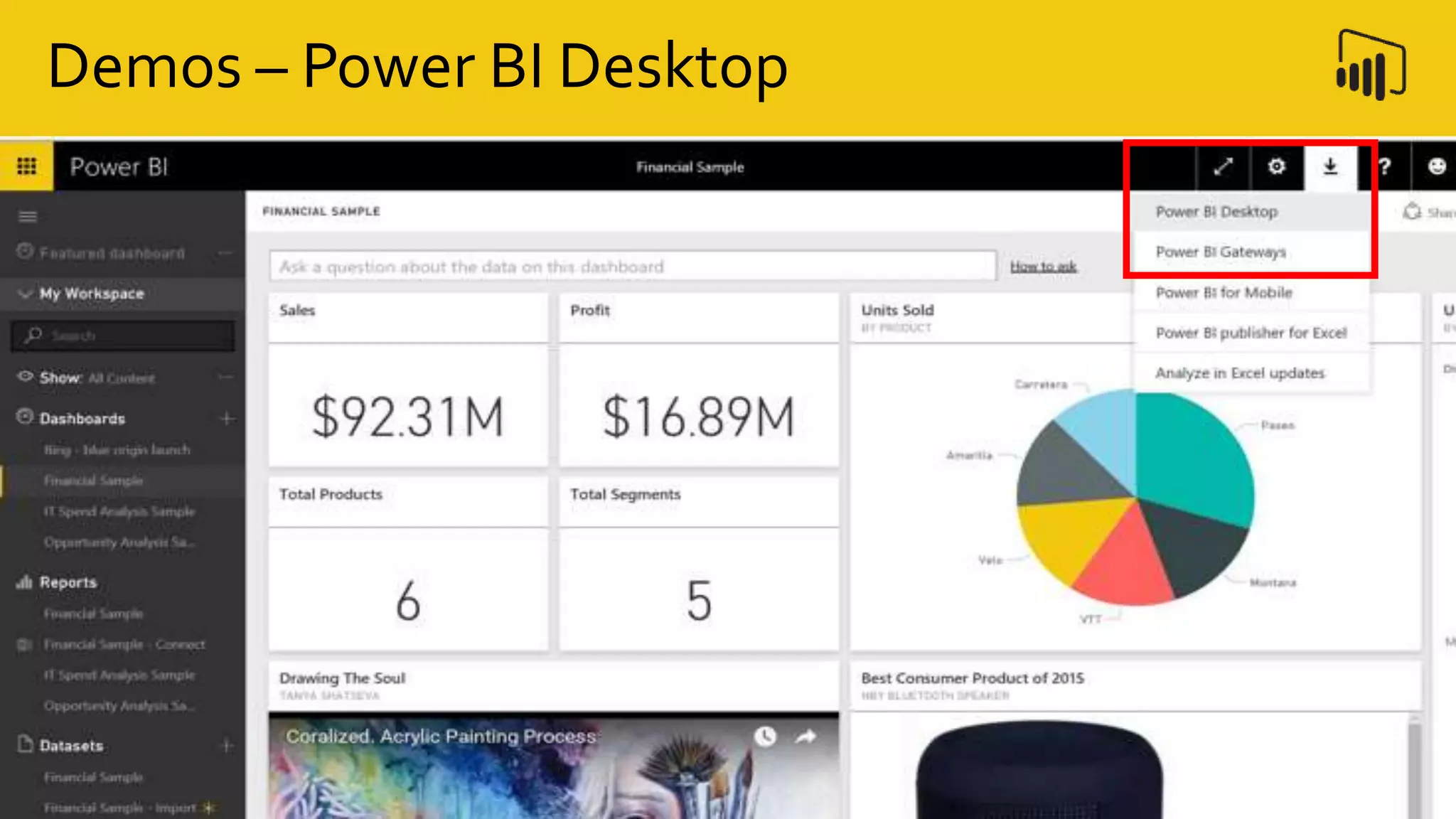
Demos – Power BI Desktop
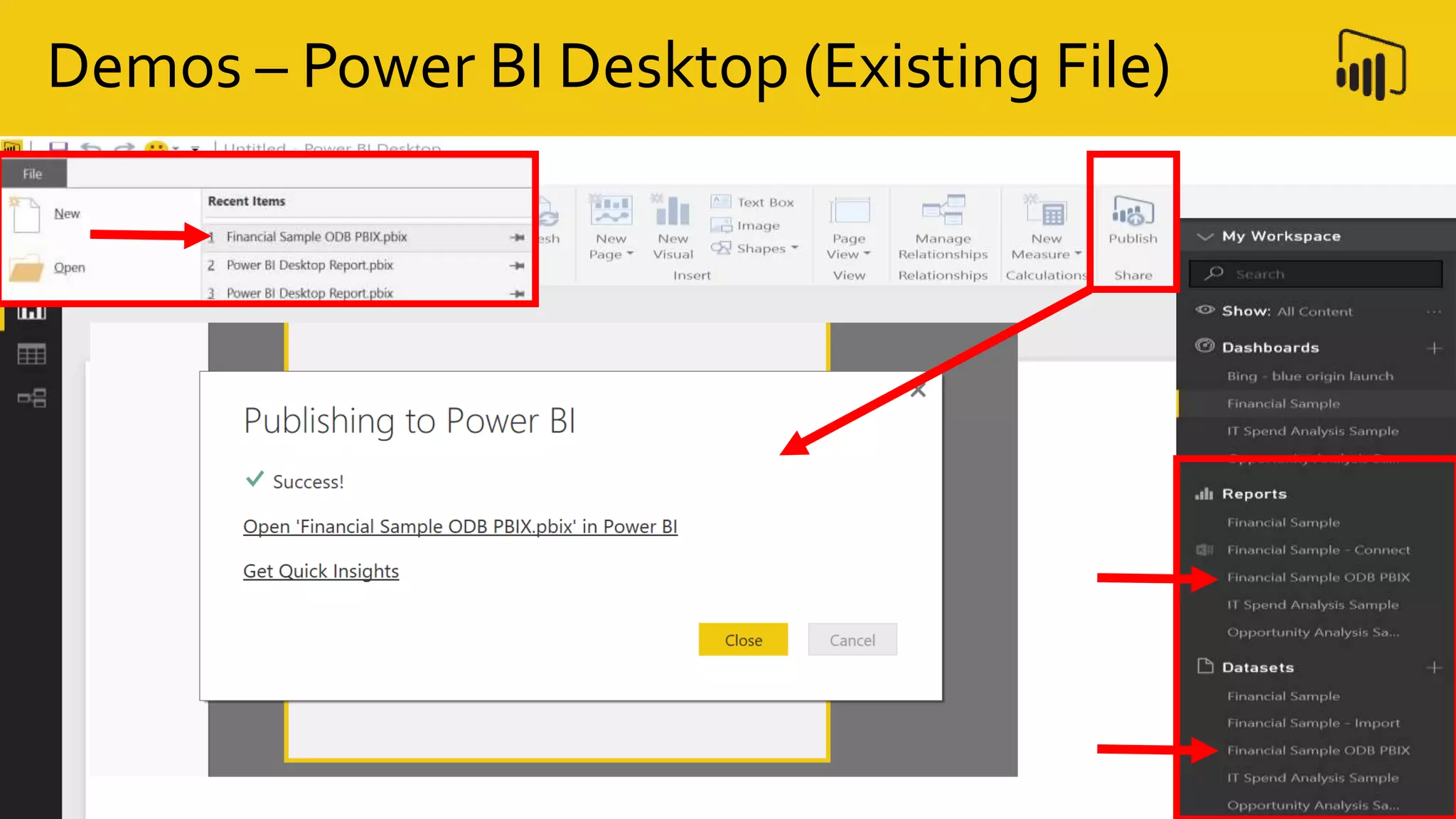
Demos – Power BI Desktop (Existing File)
Demos – Power BI Desktop
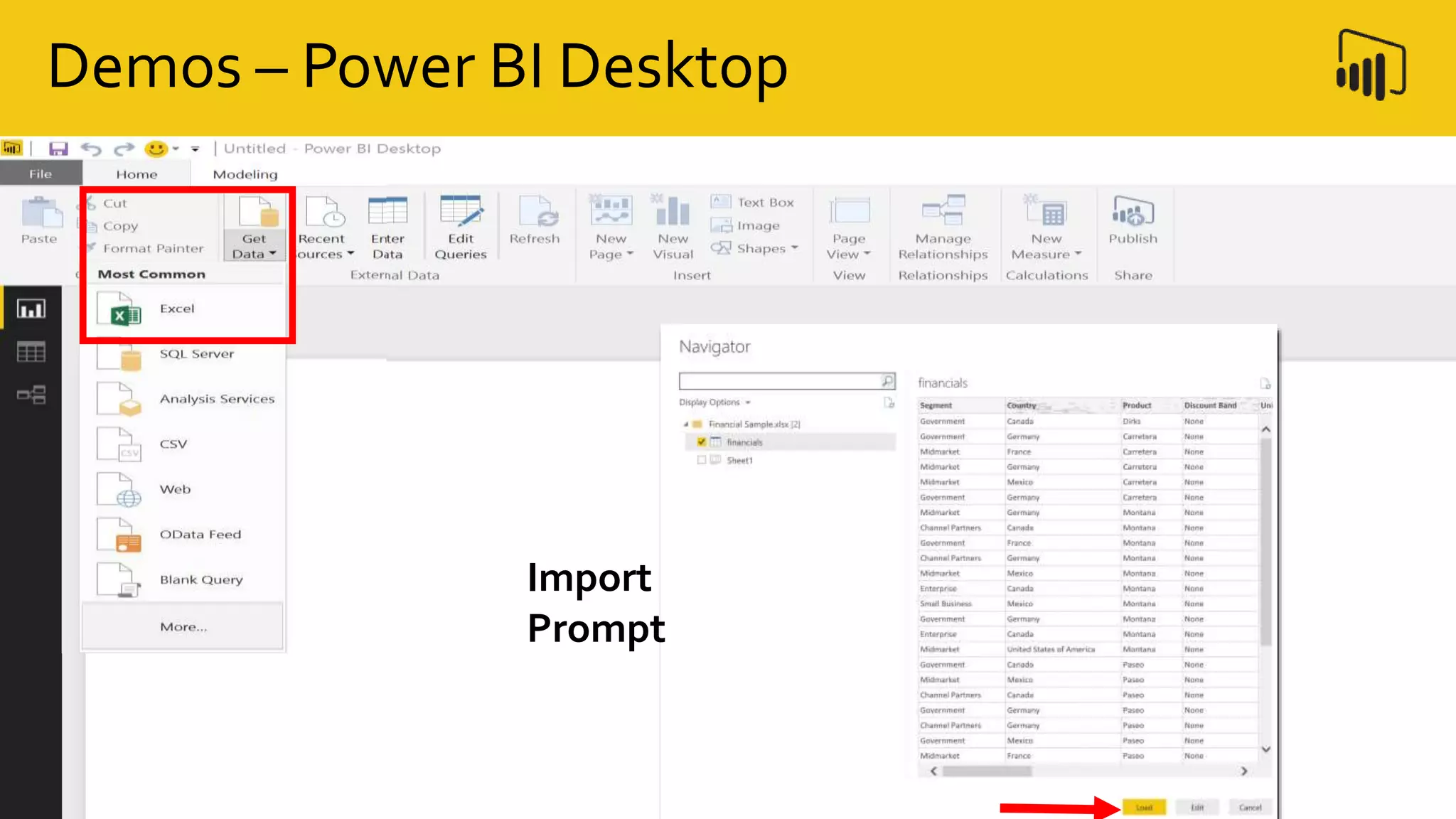
Import
Prompt
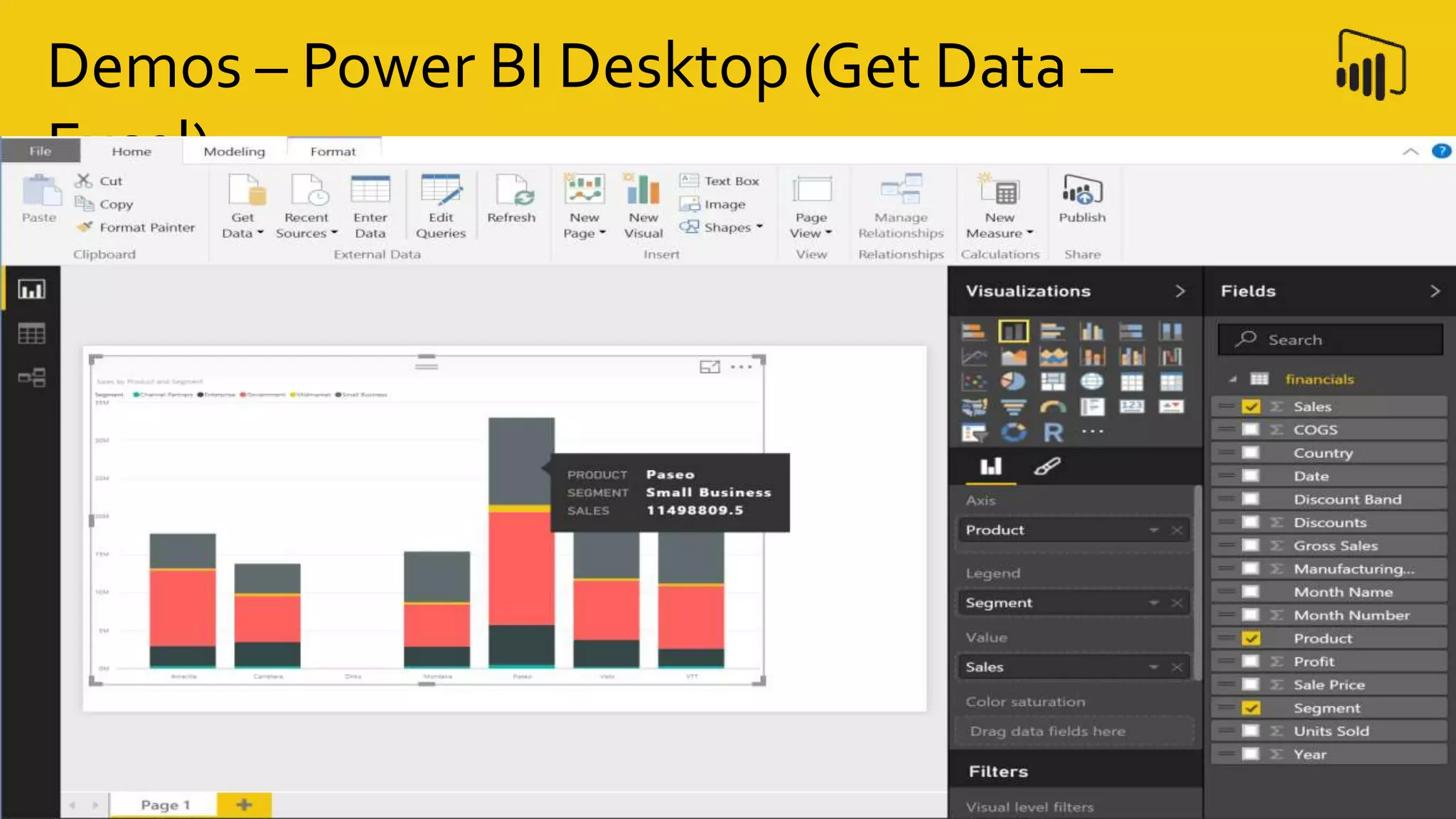
Demos – Power BI Desktop (Get Data –
Excel)
Click to view the Raw Data
Click to view the Data Model / Relationships
Demos – Power BI Desktop (Get Data –
Excel)
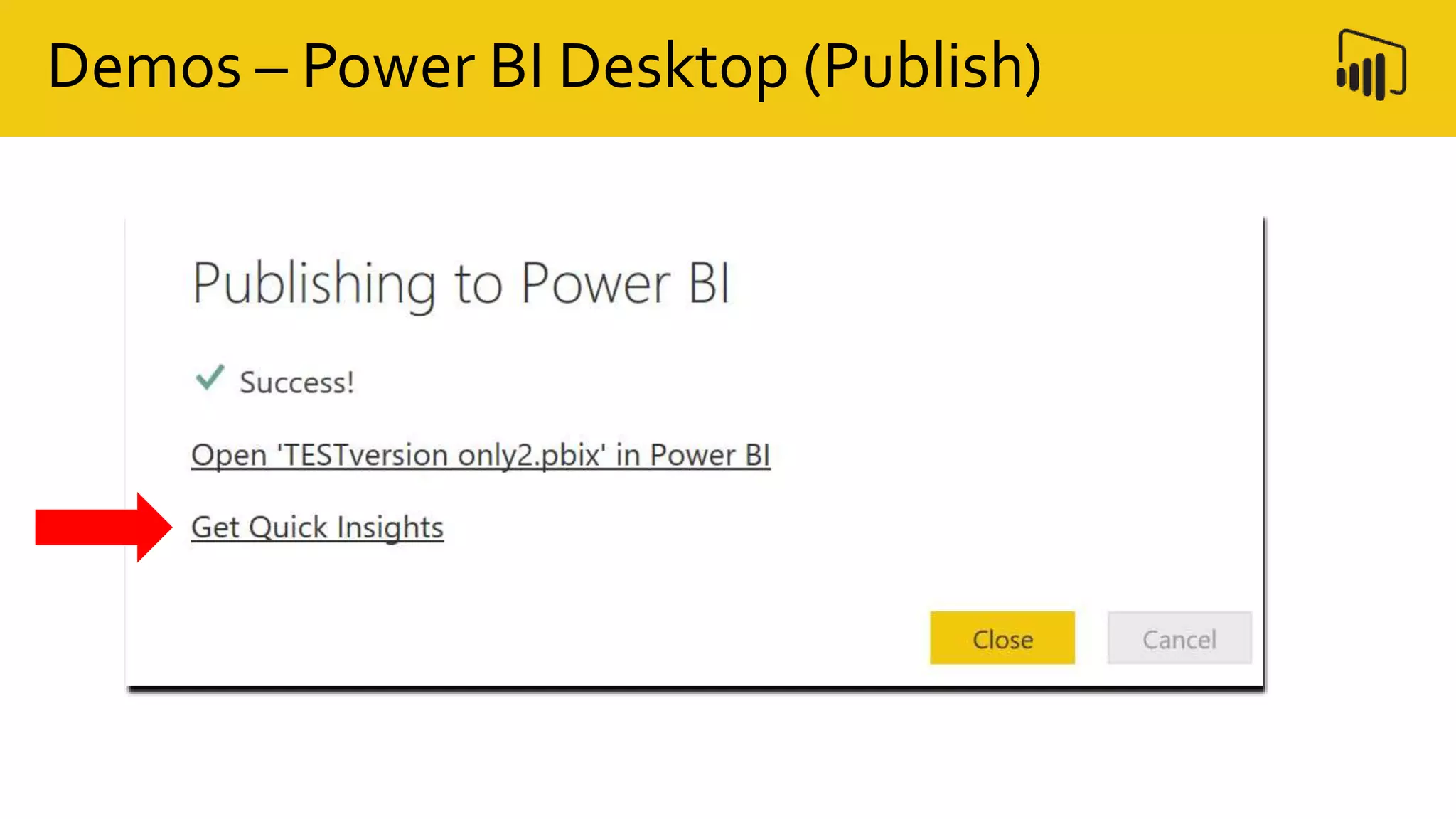
Demos – Power BI Desktop (Publish)
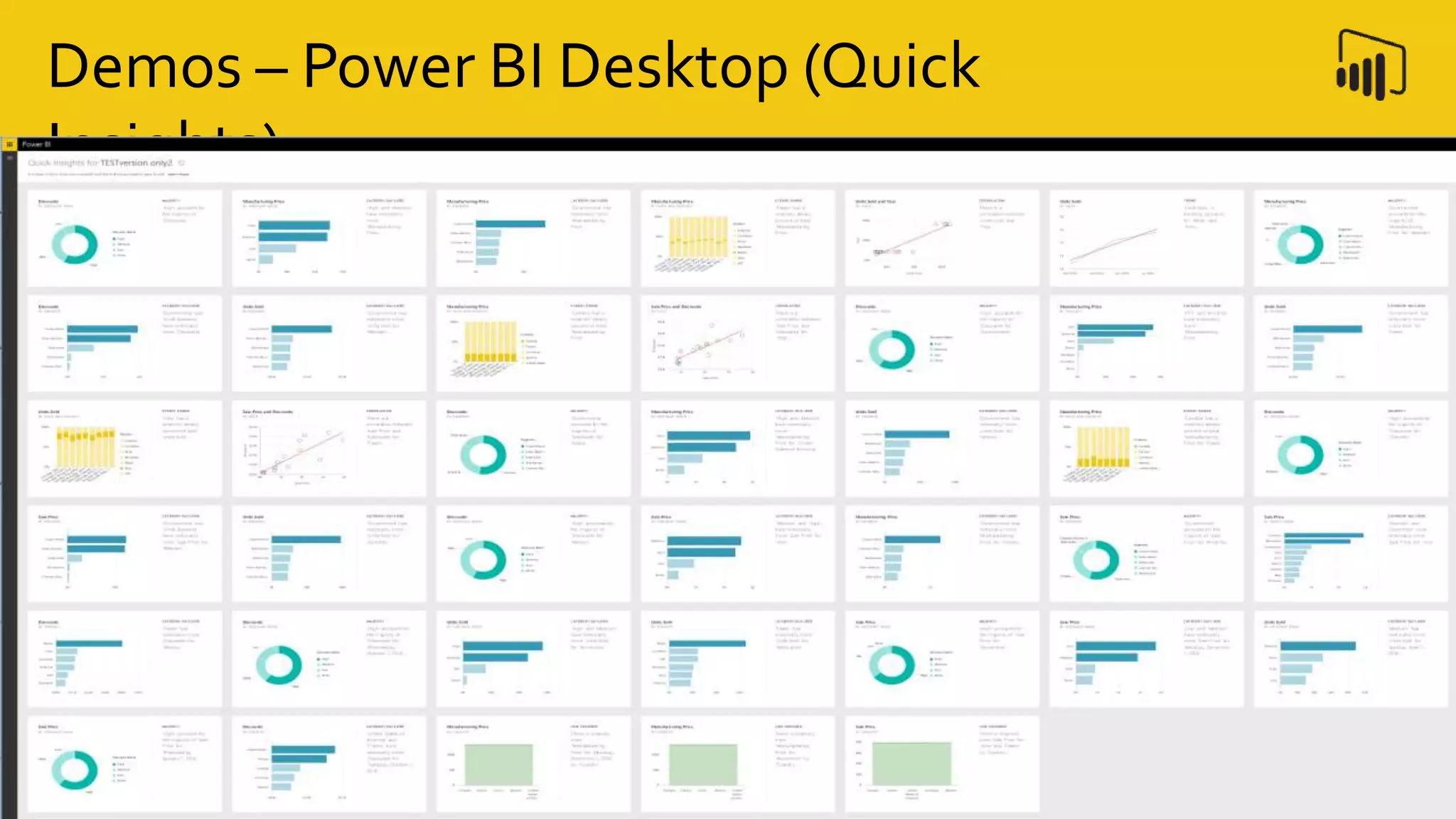
Demos – Power BI Desktop (Quick
Insights)
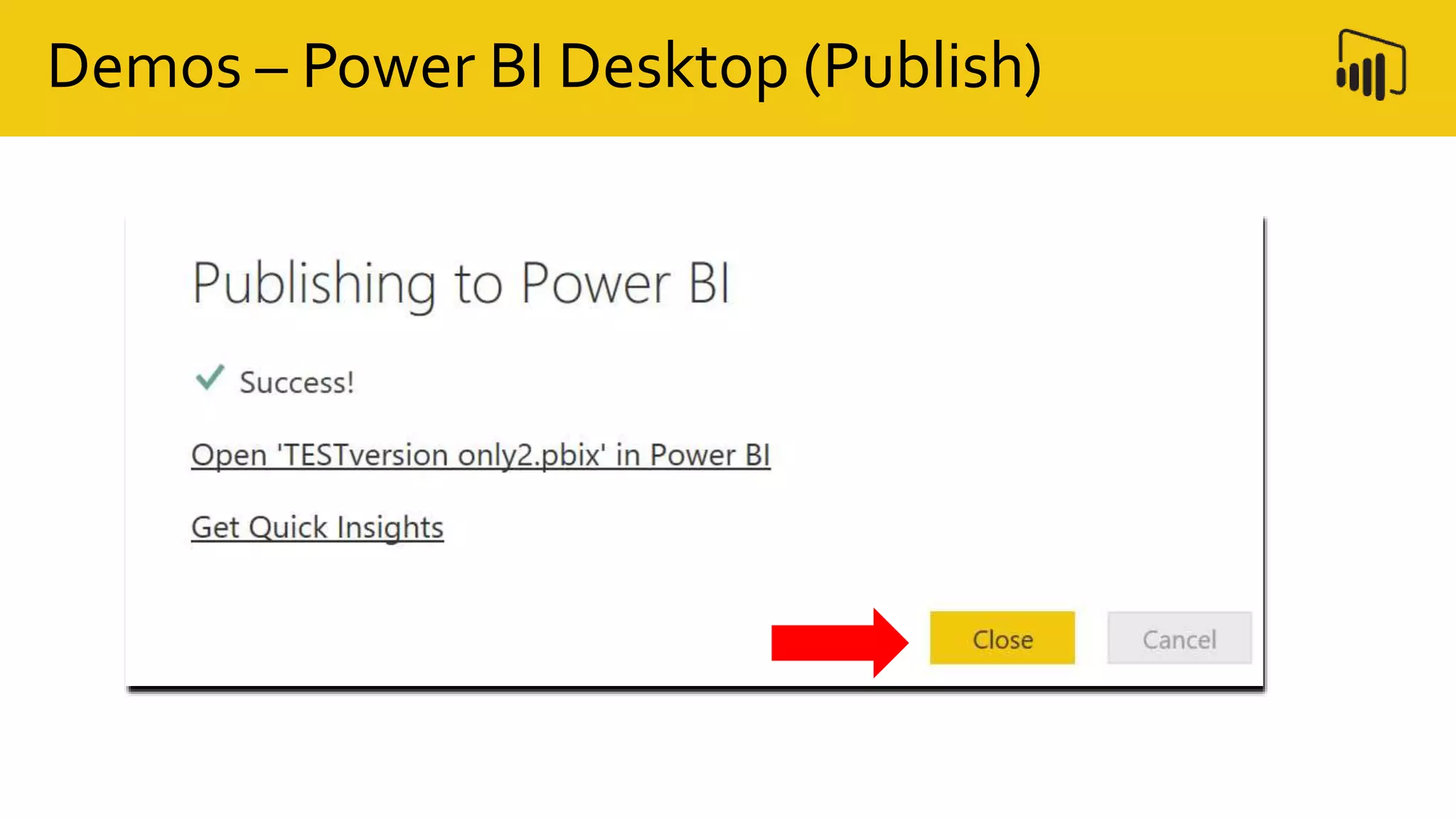
Demos – Power BI Desktop (Publish)
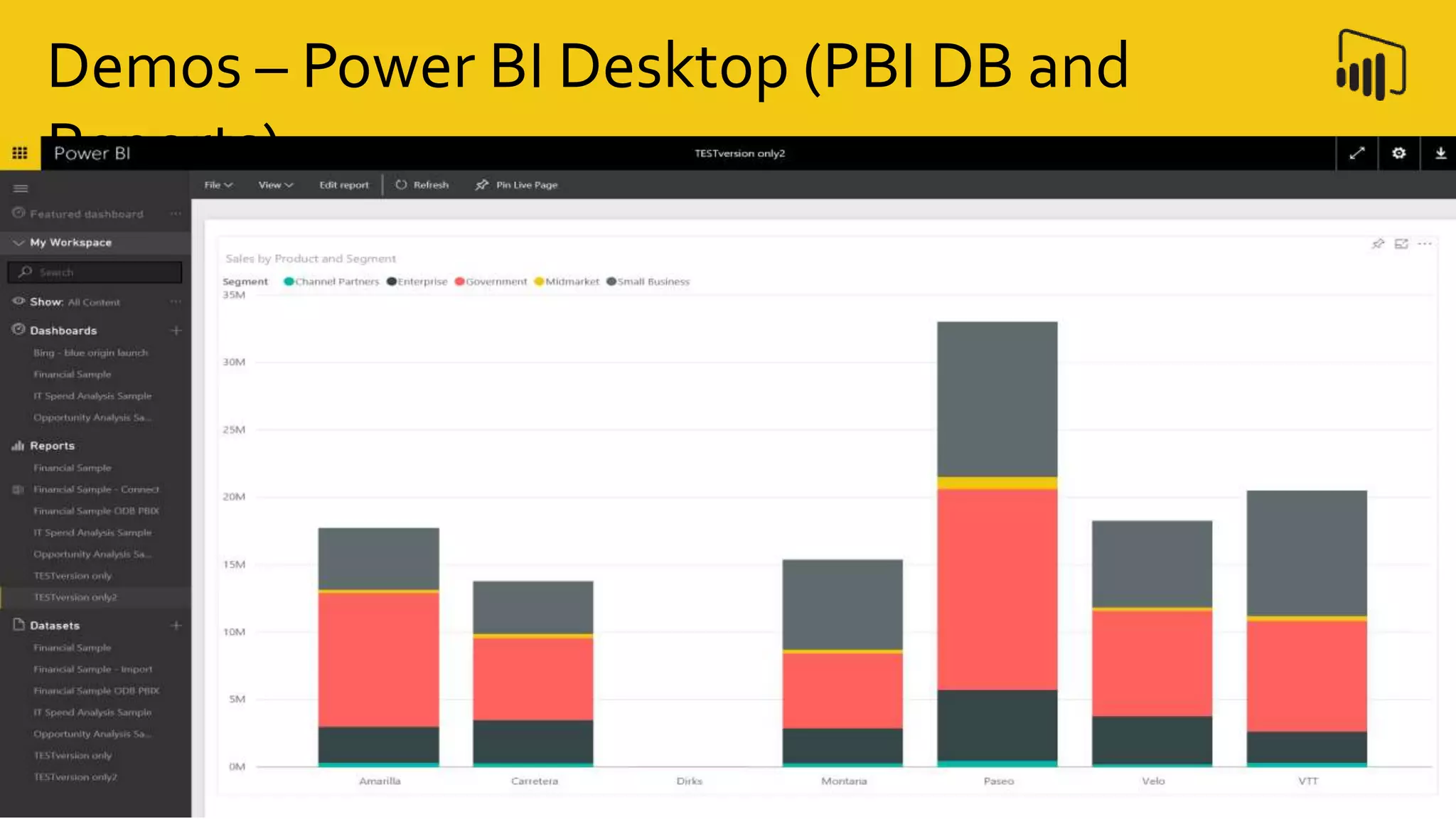
Demos – Power BI Desktop (PBI DB and
Reports)
Demo Walk-Thru
PBI Desktop
Resources
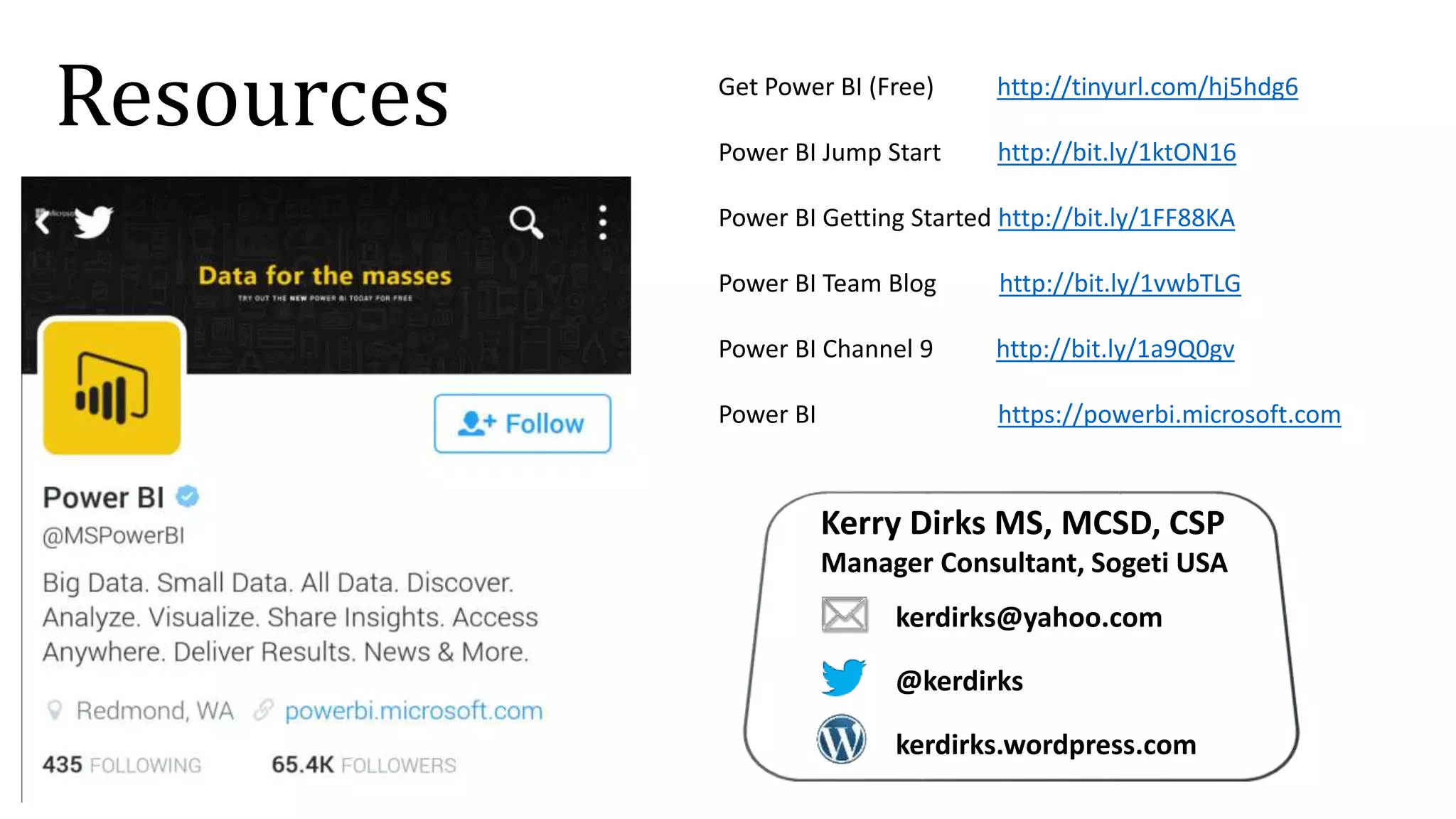
Get Power BI (Free) http://tinyurl.com/hj5hdg6
Power BI Jump Start http://bit.ly/1ktON16
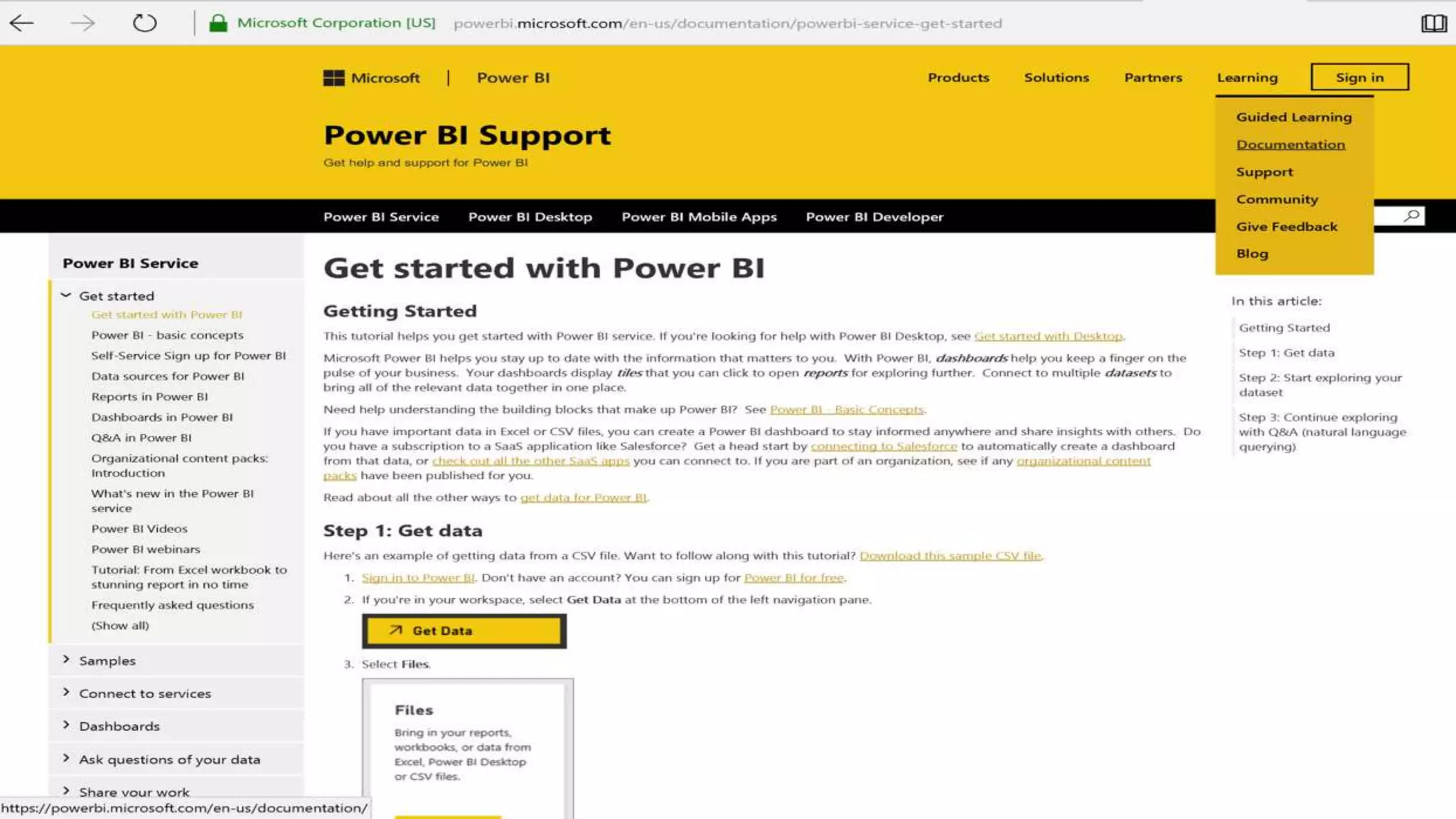
Power BI Getting Started http://bit.ly/1FF88KA
Power BI Team Blog http://bit.ly/1vwbTLG
Power BI Channel 9 http://bit.ly/1a9Q0gv
Power BI https://powerbi.microsoft.com
Resources
Kerry Dirks MS, MCSD, CSP
Manager Consultant, Sogeti USA
kerdirks@yahoo.com
@kerdirks
kerdirks.wordpress.com
Thank You For Attending !
Q & A
Kerry Dirks MS, MCSD
Manager Consultant, Sogeti USA
kerdirks@yahoo.com
@kerdirks
kerdirks.wordpress.com
SPS Omaha Session #

SPS-Power BI Introduction

  • 1.
    4/9/2016 SharePoint Saturday Omaha KerryDirks MCP, MCSD Manager Consultant, Sogeti SharePoint Solution Architect
  • 3.
    Use #SPSOmaha inyour tweets to thank them! ThankYou Sponsors !
  • 4.
    GET TO KNOWSOGETI LOCAL TOUCH—GLOBAL REACH™ AT YOUR SERVICE
  • 5.
    Power BI Agenda • Introduction •Demos • Resources • Q & A
  • 6.
  • 7.
    PBI transforms yourcompany's data into rich visuals [for you to collect and organize] so you can … Power BI (PBI) Focus on what matters [to you] By clearing the clutter Stay in the know With real- time data Spot trends as they happen With insights Push your business further Competitive advantage
  • 8.
    What if …Instead of viewing your data like this ?
  • 9.
    Which is oftenlike viewing your data like this !
  • 10.
    You could viewyour data like this … “actionable insights”
  • 11.
  • 12.
    Feature Power BI isa cloud-based business analytics service that enables. • fast and easy access to your data • a live 360º view of your business • data discovery and exploration • insights from any device • collaboration across your organization • anyone to visualize and analyze data Experience Your Data. Any Data, Any Way, Anywhere. Power BI
  • 13.
    Power BI RESTAPIsPower BI Desktop Prepare Explore ShareReport Data sources SaaS solutions e.g. Marketo, Salesforce, GitHub, Google analytics On-premises data e.g. Analysis Services Organizational content packs Corporate data sources or external data services Azure services Azure SQL, Stream Analytics… Excel files Workbook data / data models Power BI Desktop files Data from files, databases, Azure, and other sources Power BI service Data refresh Visualizations Live dashboards Content packs Sharing & collaborationNatural language query Reports Datasets01001 10101 Power BI
  • 14.
    Power BI -Licensing
  • 15.
    Power BI -Licensing
  • 16.
    Power BI –Sign up &/or Sign in
  • 17.
    Power BI –Settings
  • 18.
    PBI Desktop Power BIDesktop makes discovering data easy. You can import data from a wide variety of data sources. After you connect to a data source, you can shape the data before importing to build your analysis, reporting and dashboard experience. PBI Gateways Personal Version: acts as a bridge, providing quick and secure data transfer between the Power BI service and on-premises data sources that support refresh. Enterprise Version: enables IT departments to deploy and manage central gateways to serve a large group of users. Power BI Downloads – Available After Signup
  • 19.
    Power BI Downloads– Available After Signup PBI Mobile Stay connected to your data from anywhere, anytime on any device: iOS (iPad or iPhone), Apple Watch, Android phone, or Windows 10 device. PBI Publisher for Excel Take snapshots of your most important insights in Excel, like PivotTables, Charts, and ranges and pin them to dashboards in Power BI. Analyze in Excel Updates Have a great dataset in Power BI, but just have to see it in Excel? With the Analyze in Excel feature, you get all the great PivotTable, Chart, and Slicer features in Excel your used to, all while connected to your data in Power BI.
  • 20.
    Power BI –Mobile Experience
  • 21.
    Power BI –Get Data
  • 22.
  • 23.
    Content Pack –My Organization
  • 24.
    Power BI –Create Content Pack
  • 25.
  • 26.
    Power BI –Content Pack Samples (Online Services)
  • 27.
    Power BI –Content Pack Samples (Online Services)
  • 28.
    Power BI –Content Pack - Bing (NCAA Final Four)
  • 29.
    Power BI –Content Pack - Bing (Blue Origin Launch)
  • 30.
    Power BI –Get Data
  • 31.
    Power BI –Content Pack Samples
  • 32.
    Power BI –Content Pack Samples (IT Spend Analysis)
  • 33.
  • 34.
    Demos Topics • Connections • Databases •Reports • Dashboards • Publish toWeb (SharePoint Integration) • Power BI Desktop
  • 35.
  • 36.
  • 37.
    Demos – ConnectODB Excel File w/PBI (Connect) 1. 2. 3.
  • 38.
    Demos – ConnectODB Excel File w/PBI (Connect) May pin the Chart to a Dashboard
  • 39.
    Demos – ConnectODB Excel File w/PBI (Import) 1. 2. 3.
  • 40.
  • 41.
    Demos – BuildDashboard
  • 42.
    Demos – PinNew Chart to Dashboard via Search
  • 43.
    Demos – PinNew Chart to Dashboard via Search
  • 44.
    Demos – PublishtoWeb (SharePoint)
  • 45.
    Demos – PublishtoWeb (SharePoint)
  • 46.
    Demos – PublishtoWeb (SharePoint)
  • 47.
    Demos – PublishtoWeb (SharePoint)
  • 48.
    Demos – PublishtoWeb (SharePoint)
  • 49.
    Demos – PublishtoWeb (SharePoint)
  • 50.
    Demo Walk-Thru ODB >PBI > SPO Questions
  • 51.
    Demos – PowerBI Desktop
  • 52.
    Demos – PowerBI Desktop (Existing File)
  • 53.
    Demos – PowerBI Desktop Import Prompt
  • 54.
    Demos – PowerBI Desktop (Get Data – Excel) Click to view the Raw Data Click to view the Data Model / Relationships
  • 55.
    Demos – PowerBI Desktop (Get Data – Excel)
  • 56.
    Demos – PowerBI Desktop (Publish)
  • 57.
    Demos – PowerBI Desktop (Quick Insights)
  • 58.
    Demos – PowerBI Desktop (Publish)
  • 59.
    Demos – PowerBI Desktop (PBI DB and Reports)
  • 60.
  • 61.
  • 63.
    Get Power BI(Free) http://tinyurl.com/hj5hdg6 Power BI Jump Start http://bit.ly/1ktON16 Power BI Getting Started http://bit.ly/1FF88KA Power BI Team Blog http://bit.ly/1vwbTLG Power BI Channel 9 http://bit.ly/1a9Q0gv Power BI https://powerbi.microsoft.com Resources Kerry Dirks MS, MCSD, CSP Manager Consultant, Sogeti USA kerdirks@yahoo.com @kerdirks kerdirks.wordpress.com
  • 64.
    Thank You ForAttending ! Q & A
  • 65.
    Kerry Dirks MS,MCSD Manager Consultant, Sogeti USA kerdirks@yahoo.com @kerdirks kerdirks.wordpress.com SPS Omaha Session #

Editor's Notes

  • #2 PBI http://powerbi.com … admin@mysogetidemo.onmicrosoft.com Sharepoint https://mysogetidemo.sharepoint.com/sites/contoso/Departments/Finance/Pages/default.aspx O365 http://portal.office.com OneDrive for Business Gateway Power BI Gateway – Personal is running Windows Explorer Open to this Folder \\Desktop\SPS 2016 Omaha NE\SPS-Power BI Presentation Deck and Files Profile Account Verify my Excel profile is connected to https://mysogetidemo-my.sharepoint.com/personal/admin_mysogetidemo_onmicrosoft_com/_layouts/15/onedrive.aspx - open Excel file; open locally - select the Power BI tab in the top navigation - select the Profile icon to verify account details
  • #5 Keep in the notes section: Global delivery centers: Argentina | Australia | Brazil | Canada | Chile | China | France | Germany | Guatemala | India | Italy | Mexico | Morocco |Netherlands | Nordic | Poland | Romania | Spain | Southeast Asia United Kingdom | United States
  • #8 Power BI solves the same problems that businesses have struggled with for years; but with different techniques, tools and features. Focus On What Matters Understand where you are now and what really matters Stay In The Know As your business changes, your data changes … you need the most current data to make the most informed decisions Spot Trends A picture says a 1000 words; visual presentations of your data show trends, how your actions are aligning to your goals & objectives Push Your Business Further You have a business to run and need to provide that service or product better than every other business Many times in our businesses we are simply unaware of where the good data is What are the systems of record within your business? Where is that “One Source of the Truth” for your business as it relates to Your Finances Your Customers Your Vendors Your Clients Ultimately, those are the big ideas behind Power BI.
  • #11 You could view your data like this … And reveal what the business community has coined as “actionable insights”! You have probably seen some of this capabilities if you have ever used Excel 2013 and if you’ve gotten curious and … Activated the add-in included within Excel 2013 called Power Pivot
  • #12 AND if you were more curious … You may have downloaded and activated the additional free add-ins of Power Query Power View Power Map These features provide some great querying, modeling and presentation capabilities. So, we have to ask the question - if I have Excel on Steroids, why would I want Power BI
  • #13 Key message: Power BI is a business analytics service. With Power BI you can now see all of your data through a single pane of glass. Live Power BI dashboards and reports show visualizations and KPIs from data residing both on-premises and in the cloud, providing a consolidated view across your business regardless of where your data lives. Talking points: This is Power BI in a nutshell and the overall benefits to your business. We will look at what this means in more detail on the following slides
  • #14 Power BI Desktop is a visual data exploration tool that enables you to analyze data and create stunning reports. With Power BI Desktop, you are able to: Acquire and prepare data using extensive query capabilities Manipulation and consolidation of multiple data sources is performed in Power BI Desktop – this enables Power BI service users to use data from multiple sources in a single report Establish data structure, then transform and analyze data Visualize and explore your data in new ways through a freeform drag-and-drop canvas Author reports with a broad range of modern data visualizations Publish beautiful, interactive reports directly to powerbi.com Securely share reports through unique, curated content library approach Finally, the Power BI REST API library allows you to customize nearly every aspect of Power BI, including connecting to custom data sources, enabling real-time data streaming from your data source to Power BI, and integrating other applications with Power BI
  • #17 PBI registration requires a Work Email account to get started.
  • #18 One of the first things you will want to explore with the PBI environment is the familiar Site Actions GEAR icon. Select that to reveal The amount of space available With PBI Pro, I have the ability to create a Content Pack Manage my Admin Portal Manage my Gateways (Personal or Enterprise) Manage other settings Dev Tools And finally Manage Embed Codes
  • #19 In addition, PBI Pro
  • #21 One of the first things you will want to explore with the PBI environment is the familiar Site Actions GEAR icon. Select that to reveal The amount of space available With PBI Pro, I have the ability to create a Content Pack Manage my Admin Portal Manage my Gateways (Personal or Enterprise) Manage other settings Dev Tools And finally Manage Embed Codes
  • #24 With our current ‘PRO’ subscription, we have 10GB of storage available.
  • #26 With our current ‘PRO’ subscription, we have 10GB of storage available.
  • #35 The bulk of the remaining presentation will be on these topics in no certain order.
  • #36 With our current ‘PRO’ subscription, we have 10GB of storage available.
  • #38 With this option The Excel File is managed in its entirety in ODB The worksheet data, power views, charts, pivot tables, etc. are all managed within Excel
  • #39 Within PBI Limited ability to manipulate the presentation pieces Do have the ability to pin selected charts or sections of the data to a dashboard NOTE: Do not use the Excel Power View features in Excel as they require Silverlight; even with Silverlight installed, IE still had issues.
  • #40 With this option The Excel File worksheet data is managed within ODB A connection is made between ODB and PBI The remaining presentation details are performed within PBI
  • #49 Embed an HTML Snippet web part onto the page and insert the HTML from the prior Power BI page.
  • #50 Embed an HTML Snippet web part onto the page and insert the HTML from the prior Power BI page.
  • #52 For PBI on the Desktop, download both Desktop Gateways (Personal or Enterprise)
  • #53 If you already have an existing PBI Desktop file, we can simply open that file, make any updates and publish to our PBI Workspace in the Cloud.
  • #54 As we don’t have an existing PBI Desktop file already created, we can start with a simple Excel file. We are greeted with an Import Prompt: Navigator We can continue with the Load OR We can perform some pre-edit cleanup of the data source by clicking on the Edit button We continue with the Load
  • #55 We are greeted with the blank looking canvas. This is actually the Reporting workspace where we can build out our visuals.
  • #56 We are greeted with the blank looking canvas. This is actually the Reporting workspace where we can build out our visuals.
  • #57 We are greeted with the blank looking canvas. This is actually the Reporting workspace where we can build out our visuals.
  • #58 We are greeted with the blank looking canvas. This is actually the Reporting workspace where we can build out our visuals.
  • #59 We are greeted with the blank looking canvas. This is actually the Reporting workspace where we can build out our visuals.
  • #60 We are greeted with the blank looking canvas. This is actually the Reporting workspace where we can build out our visuals.