August 9th – 11th 2021
https://www.collabsummit.org/
Power Automate Techniques that “Saved our Bacon”
Sandra Mahan
Tom Duff
THANK YOU SPONSORS!
Hosted by:
Diamond Sponsors Platinum Sponsors Gold Sponsors
Be sure to visit each sponsor’s channel
in Microsoft Teams for prizes and
extra entries in our big raffle prize
drawing Wednesday!
In order to attend, you must pick up wristbands during the end of day session
on Tuesday at 4:15 in Taneycomo A
*
Power Automate
Techniques that
“Saved our Bacon”
Tom Duff and Sandra Mahan
Your Waiters
Tom Duff Sandra Mahan
SharePoint / Microsoft 365 Administrators
Set the Table
Important housekeeping items to
keep everything running smoothly
Create a Service Account
• Password that doesn't expire
• Allows you to see all your flows in one place
• Flow won't quit running if the person leaves
• Use the service account for the connections
(email, SharePoint list updates)
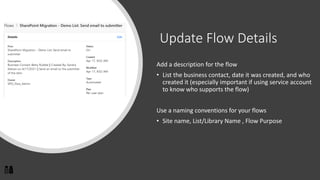
Update Flow Details
Add a description for the flow
• List the business contact, date it was created, and who
created it (especially important if using service account
to know who supports the flow)
Use a naming conventions for your flows
• Site name, List/Library Name , Flow Purpose
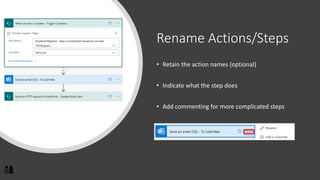
Rename Actions/Steps
• Retain the action names (optional)
• Indicate what the step does
• Add commenting for more complicated steps
Beverage
Update a single column in a
SharePoint list
Chef Tom Riha: https://tomriha.com/update-single-sharepoint-column-in-power-automate-with-http-request/
Send an HTTP Request
to SharePoint
Uri:
_api/web/lists/GetByTitle('<ListName>')/items(<ItemID>)/validateUpdat
eListItem
Body:
{
"formValues":[
{
"FieldName": "<FieldToUpdate>",
"FieldValue": "<ValueToUpdate>"
},
{
"FieldName": "<FieldToUpdate2>",
"FieldValue": "<ValueToUpdate2>"
}
]
}
Potatoes
Keep things running smoothly
Error Handling
Build a notification when a Power Automate flow fails
Message:
• Expression: workflow()['tags']['flowDisplayName']
• Full Path
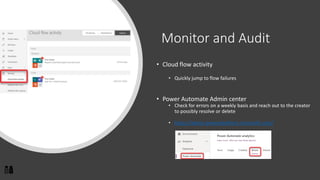
Monitor and Audit
• Cloud flow activity
• Quickly jump to flow failures
• Power Automate Admin center
• Check for errors on a weekly basis and reach out to the creator
to possibly resolve or delete
• https://admin.powerplatform.microsoft.com/
Eggs
Avoid the infinite loop
Chef Scott Shearer: https://o365scott.blog/2019/12/18/stopping-infinite-loops-when-updating-sharepoint-list-items/
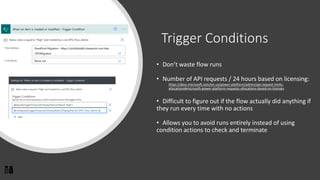
Trigger Conditions
• Don’t waste flow runs
• Number of API requests / 24 hours based on licensing:
https://docs.microsoft.com/en-us/power-platform/admin/api-request-limits-
allocations#microsoft-power-platform-requests-allocations-based-on-licenses
• Difficult to figure out if the flow actually did anything if
they run every time with no actions
• Allows you to avoid runs entirely instead of using
condition actions to check and terminate
Toast
Keep your hyperlinks in an email
from becoming inedible…
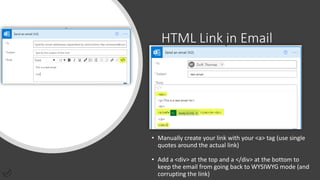
HTML Link in Email
• Manually create your link with your <a> tag (use single
quotes around the actual link)
• Add a <div> at the top and a </div> at the bottom to
keep the email from going back to WYSIWYG mode (and
corrupting the link)
Pancakes
Multi-Value Choice Fields
Chef Laura Rogers: https://wonderlaura.com/2020/09/01/flow-update-multi-select-column/
Multi-Value Choice Fields
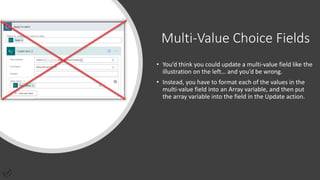
• You’d think you could update a multi-value field like the
illustration on the left… and you’d be wrong.
• Instead, you have to format each of the values in the
multi-value field into an Array variable, and then put
the array variable into the field in the Update action.
Multi-Value Choice Fields
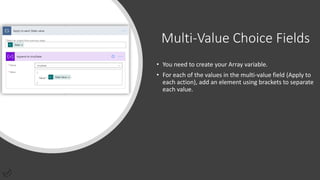
• You need to create your Array variable.
• For each of the values in the multi-value field (Apply to
each action), add an element using brackets to separate
each value.
Multi-Value Choice Fields
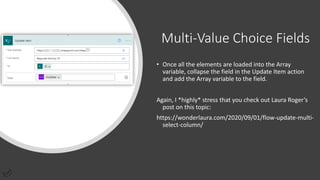
• Once all the elements are loaded into the Array
variable, collapse the field in the Update Item action
and add the Array variable to the field.
Again, I *highly* stress that you check out Laura Roger’s
post on this topic:
https://wonderlaura.com/2020/09/01/flow-update-multi-
select-column/
Cereal and Fruit
How to get a number of items to
process in your flow by using the
Get Items action
Chef Andrew Chomik: https://blog.ion.works/2019/03/17/common-odata-filters-for-microsoft-flow-a-reference-chart-for-users-of-all-kinds/
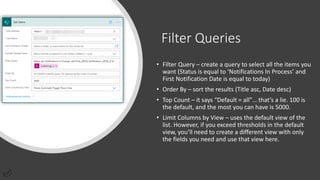
Filter Queries
• Filter Query – create a query to select all the items you
want (Status is equal to ‘Notifications In Process’ and
First Notification Date is equal to today)
• Order By – sort the results (Title asc, Date desc)
• Top Count – it says “Default = all”… that’s a lie. 100 is
the default, and the most you can have is 5000.
• Limit Columns by View – uses the default view of the
list. However, if you exceed thresholds in the default
view, you’ll need to create a different view with only
the fields you need and use that view here.
BACON!!!!
How to manipulate permissions
on SharePoint list items...
(Honestly, this is where I miss SharePoint Designer the
most...)
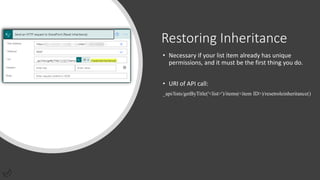
Restoring Inheritance
• Necessary if your list item already has unique
permissions, and it must be the first thing you do.
• URI of API call:
_api/lists/getByTitle('<list>')/items(<item ID>)/resetroleinheritance()
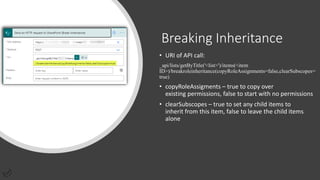
Breaking Inheritance
• URI of API call:
_api/lists/getByTitle('<list>')/items(<item
ID>)/breakroleinheritance(copyRoleAssignments=false,clearSubscopes=
true)
• copyRoleAssigments – true to copy over
existing permissions, false to start with no permissions
• clearSubscopes – true to set any child items to
inherit from this item, false to leave the child items
alone
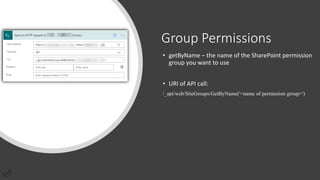
Group Permissions
• getByName – the name of the SharePoint permission
group you want to use
• URI of API call:
/_api/web/SiteGroups/GetByName('<name of permission group>')
Group Permissions
• d.id – this grabs the ID of the SharePoint permission
group from the previous step.
• Enter the following in the Expressions tab:
body('Send_an_HTTP_request_to_xxxx_Owners')['d']['id']
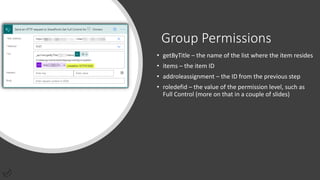
Group Permissions
• getByTitle – the name of the list where the item resides
• items – the item ID
• addroleassignment – the ID from the previous step
• roledefid – the value of the permission level, such as
Full Control (more on that in a couple of slides)
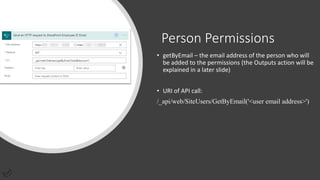
Person Permissions
• getByEmail – the email address of the person who will
be added to the permissions (the Outputs action will be
explained in a later slide)
• URI of API call:
/_api/web/SiteUsers/GetByEmail('<user email address>')
Person Permissions
• d.id – this grabs the ID of the person from the previous
step.
• Enter the following in the Expressions tab:
body('Send_an_HTTP_request_to_Employee_ID_Email')['d']['id']
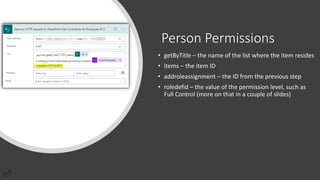
Person Permissions
• getByTitle – the name of the list where the item resides
• items – the item ID
• addroleassignment – the ID from the previous step
• roledefid – the value of the permission level, such as
Full Control (more on that in a couple of slides)
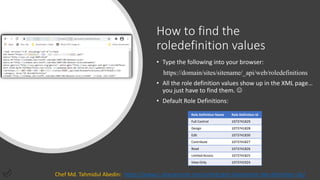
How to find the
roledefinition values
• Type the following into your browser:
https://domain/sites/sitename/_api/web/roledefinitions
• All the role definition values show up in the XML page…
you just have to find them. ☺
• Default Role Definitions:
Role Definition Name Role Definition Id
Full Control 1073741829
Design 1073741828
Edit 1073741830
Contribute 1073741827
Read 1073741826
Limited Access 1073741825
View Only 1073741924
Chef Md. Tahmidul Abedin: https://www.c-sharpcorner.com/article/get-sharepoint-role-definition-ids/
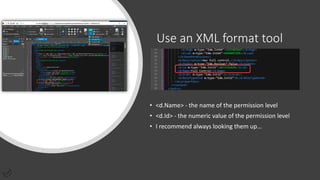
Use an XML format tool
• <d.Name> - the name of the permission level
• <d.Id> - the numeric value of the permission level
• I recommend always looking them up…
Be sure to tip your waiters
Tom Duff
• Twitter - @duffbert
• Website - https://oneminuteofficemagic.com
• LinkedIn - https://www.linkedin.com/in/thomasduff/
• Email - duffbert@gmail.com
Sandra Mahan
• Twitter - @smahan14
• LinkedIn - https://www.linkedin.com/in/sharepointsandra/
• Email – smahan14@gmail.com
• Questions and Answers
• Visit the vendors
Bacon Bits
Leftovers....
Accommodating apostrophes
in an email address
• Apostrophes in email addresses are technically invalid,
but they will still route.
• However, it completely messes up the getByEmail REST
API call when trying to set permissions.
• To work around this, you need to “escape” the single
apostrophe in a Compose action
• Use the following Expression:
replace(body('Get_user_profile_(V2)')?['Mail'], '''', '''''')
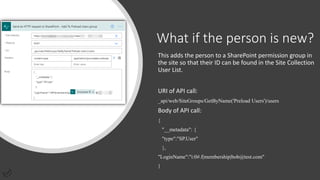
What if the person is new?
This adds the person to a SharePoint permission group in
the site so that their ID can be found in the Site Collection
User List.
URI of API call:
_api/web/SiteGroups/GetByName('Preload Users')/users
Body of API call:
{
"__metadata": {
"type":"SP.User"
},
"LoginName":"i:0#.f|membership|bob@test.com"
}

Power Automate Techniques that "Saved Our Bacon"

  • 1.
    August 9th –11th 2021 https://www.collabsummit.org/ Power Automate Techniques that “Saved our Bacon” Sandra Mahan Tom Duff
  • 2.
    THANK YOU SPONSORS! Hostedby: Diamond Sponsors Platinum Sponsors Gold Sponsors Be sure to visit each sponsor’s channel in Microsoft Teams for prizes and extra entries in our big raffle prize drawing Wednesday!
  • 3.
    In order toattend, you must pick up wristbands during the end of day session on Tuesday at 4:15 in Taneycomo A
  • 4.
  • 5.
    Power Automate Techniques that “Savedour Bacon” Tom Duff and Sandra Mahan
  • 6.
    Your Waiters Tom DuffSandra Mahan SharePoint / Microsoft 365 Administrators
  • 7.
    Set the Table Importanthousekeeping items to keep everything running smoothly
  • 8.
    Create a ServiceAccount • Password that doesn't expire • Allows you to see all your flows in one place • Flow won't quit running if the person leaves • Use the service account for the connections (email, SharePoint list updates)
  • 9.
    Update Flow Details Adda description for the flow • List the business contact, date it was created, and who created it (especially important if using service account to know who supports the flow) Use a naming conventions for your flows • Site name, List/Library Name , Flow Purpose
  • 10.
    Rename Actions/Steps • Retainthe action names (optional) • Indicate what the step does • Add commenting for more complicated steps
  • 11.
    Beverage Update a singlecolumn in a SharePoint list Chef Tom Riha: https://tomriha.com/update-single-sharepoint-column-in-power-automate-with-http-request/
  • 12.
    Send an HTTPRequest to SharePoint Uri: _api/web/lists/GetByTitle('<ListName>')/items(<ItemID>)/validateUpdat eListItem Body: { "formValues":[ { "FieldName": "<FieldToUpdate>", "FieldValue": "<ValueToUpdate>" }, { "FieldName": "<FieldToUpdate2>", "FieldValue": "<ValueToUpdate2>" } ] }
  • 13.
  • 14.
    Error Handling Build anotification when a Power Automate flow fails Message: • Expression: workflow()['tags']['flowDisplayName'] • Full Path
  • 15.
    Monitor and Audit •Cloud flow activity • Quickly jump to flow failures • Power Automate Admin center • Check for errors on a weekly basis and reach out to the creator to possibly resolve or delete • https://admin.powerplatform.microsoft.com/
  • 16.
    Eggs Avoid the infiniteloop Chef Scott Shearer: https://o365scott.blog/2019/12/18/stopping-infinite-loops-when-updating-sharepoint-list-items/
  • 17.
    Trigger Conditions • Don’twaste flow runs • Number of API requests / 24 hours based on licensing: https://docs.microsoft.com/en-us/power-platform/admin/api-request-limits- allocations#microsoft-power-platform-requests-allocations-based-on-licenses • Difficult to figure out if the flow actually did anything if they run every time with no actions • Allows you to avoid runs entirely instead of using condition actions to check and terminate
  • 18.
    Toast Keep your hyperlinksin an email from becoming inedible…
  • 19.
    HTML Link inEmail • Manually create your link with your <a> tag (use single quotes around the actual link) • Add a <div> at the top and a </div> at the bottom to keep the email from going back to WYSIWYG mode (and corrupting the link)
  • 20.
    Pancakes Multi-Value Choice Fields ChefLaura Rogers: https://wonderlaura.com/2020/09/01/flow-update-multi-select-column/
  • 21.
    Multi-Value Choice Fields •You’d think you could update a multi-value field like the illustration on the left… and you’d be wrong. • Instead, you have to format each of the values in the multi-value field into an Array variable, and then put the array variable into the field in the Update action.
  • 22.
    Multi-Value Choice Fields •You need to create your Array variable. • For each of the values in the multi-value field (Apply to each action), add an element using brackets to separate each value.
  • 23.
    Multi-Value Choice Fields •Once all the elements are loaded into the Array variable, collapse the field in the Update Item action and add the Array variable to the field. Again, I *highly* stress that you check out Laura Roger’s post on this topic: https://wonderlaura.com/2020/09/01/flow-update-multi- select-column/
  • 24.
    Cereal and Fruit Howto get a number of items to process in your flow by using the Get Items action Chef Andrew Chomik: https://blog.ion.works/2019/03/17/common-odata-filters-for-microsoft-flow-a-reference-chart-for-users-of-all-kinds/
  • 25.
    Filter Queries • FilterQuery – create a query to select all the items you want (Status is equal to ‘Notifications In Process’ and First Notification Date is equal to today) • Order By – sort the results (Title asc, Date desc) • Top Count – it says “Default = all”… that’s a lie. 100 is the default, and the most you can have is 5000. • Limit Columns by View – uses the default view of the list. However, if you exceed thresholds in the default view, you’ll need to create a different view with only the fields you need and use that view here.
  • 26.
    BACON!!!! How to manipulatepermissions on SharePoint list items... (Honestly, this is where I miss SharePoint Designer the most...)
  • 27.
    Restoring Inheritance • Necessaryif your list item already has unique permissions, and it must be the first thing you do. • URI of API call: _api/lists/getByTitle('<list>')/items(<item ID>)/resetroleinheritance()
  • 28.
    Breaking Inheritance • URIof API call: _api/lists/getByTitle('<list>')/items(<item ID>)/breakroleinheritance(copyRoleAssignments=false,clearSubscopes= true) • copyRoleAssigments – true to copy over existing permissions, false to start with no permissions • clearSubscopes – true to set any child items to inherit from this item, false to leave the child items alone
  • 29.
    Group Permissions • getByName– the name of the SharePoint permission group you want to use • URI of API call: /_api/web/SiteGroups/GetByName('<name of permission group>')
  • 30.
    Group Permissions • d.id– this grabs the ID of the SharePoint permission group from the previous step. • Enter the following in the Expressions tab: body('Send_an_HTTP_request_to_xxxx_Owners')['d']['id']
  • 31.
    Group Permissions • getByTitle– the name of the list where the item resides • items – the item ID • addroleassignment – the ID from the previous step • roledefid – the value of the permission level, such as Full Control (more on that in a couple of slides)
  • 32.
    Person Permissions • getByEmail– the email address of the person who will be added to the permissions (the Outputs action will be explained in a later slide) • URI of API call: /_api/web/SiteUsers/GetByEmail('<user email address>')
  • 33.
    Person Permissions • d.id– this grabs the ID of the person from the previous step. • Enter the following in the Expressions tab: body('Send_an_HTTP_request_to_Employee_ID_Email')['d']['id']
  • 34.
    Person Permissions • getByTitle– the name of the list where the item resides • items – the item ID • addroleassignment – the ID from the previous step • roledefid – the value of the permission level, such as Full Control (more on that in a couple of slides)
  • 35.
    How to findthe roledefinition values • Type the following into your browser: https://domain/sites/sitename/_api/web/roledefinitions • All the role definition values show up in the XML page… you just have to find them. ☺ • Default Role Definitions: Role Definition Name Role Definition Id Full Control 1073741829 Design 1073741828 Edit 1073741830 Contribute 1073741827 Read 1073741826 Limited Access 1073741825 View Only 1073741924 Chef Md. Tahmidul Abedin: https://www.c-sharpcorner.com/article/get-sharepoint-role-definition-ids/
  • 36.
    Use an XMLformat tool • <d.Name> - the name of the permission level • <d.Id> - the numeric value of the permission level • I recommend always looking them up…
  • 37.
    Be sure totip your waiters Tom Duff • Twitter - @duffbert • Website - https://oneminuteofficemagic.com • LinkedIn - https://www.linkedin.com/in/thomasduff/ • Email - duffbert@gmail.com Sandra Mahan • Twitter - @smahan14 • LinkedIn - https://www.linkedin.com/in/sharepointsandra/ • Email – smahan14@gmail.com • Questions and Answers • Visit the vendors
  • 38.
  • 39.
    Accommodating apostrophes in anemail address • Apostrophes in email addresses are technically invalid, but they will still route. • However, it completely messes up the getByEmail REST API call when trying to set permissions. • To work around this, you need to “escape” the single apostrophe in a Compose action • Use the following Expression: replace(body('Get_user_profile_(V2)')?['Mail'], '''', '''''')
  • 40.
    What if theperson is new? This adds the person to a SharePoint permission group in the site so that their ID can be found in the Site Collection User List. URI of API call: _api/web/SiteGroups/GetByName('Preload Users')/users Body of API call: { "__metadata": { "type":"SP.User" }, "LoginName":"i:0#.f|membership|bob@test.com" }