How do I program a
computer?
Three basic ideas
1. Variables
2. Branching
3. Looping
That’s all there is to it. We’ll explore
using a program called Scratch.
Sprites
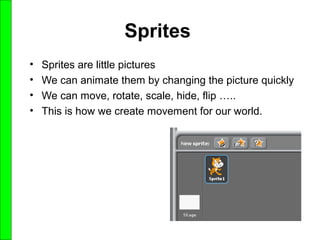
• Sprites are little pictures
• We can animate them by changing the picture quickly
• We can move, rotate, scale, hide, flip …..
• This is how we create movement for our world.
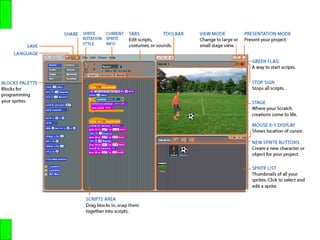
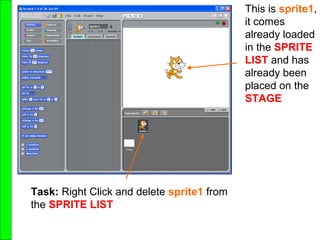
This is sprite1,
it comes
already loaded
in the SPRITE
LIST and has
already been
placed on the
STAGE
Task: Right Click and delete sprite1 from
the SPRITE LIST
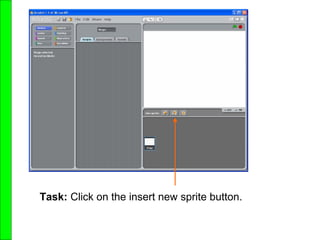
Task: Click on the insert new sprite button.
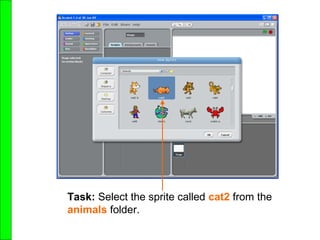
Task: Select the sprite called cat2 from the
animals folder.
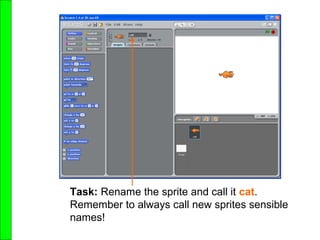
Task: Rename the sprite and call it cat.
Remember to always call new sprites sensible
names!
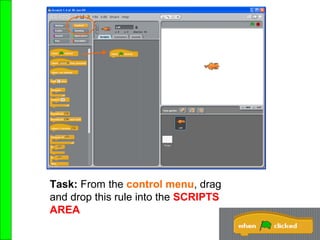
Task: From the control menu, drag
and drop this rule into the SCRIPTS
AREA
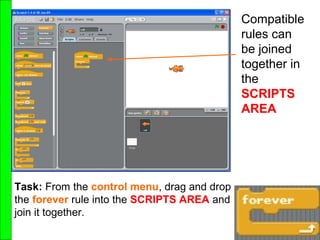
Task: From the control menu, drag and drop
the forever rule into the SCRIPTS AREA and
join it together.
Compatible
rules can
be joined
together in
the
SCRIPTS
AREA
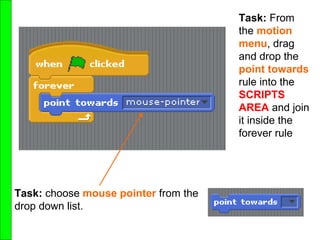
Task: From
the motion
menu, drag
and drop the
point towards
rule into the
SCRIPTS
AREA and join
it inside the
forever rule
Task: choose mouse pointer from the
drop down list.
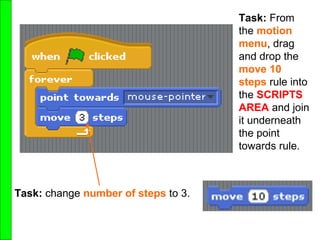
Task: change number of steps to 3.
Task: From
the motion
menu, drag
and drop the
move 10
steps rule into
the SCRIPTS
AREA and join
it underneath
the point
towards rule.
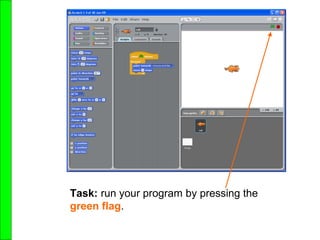
Task: run your program by pressing the
green flag.
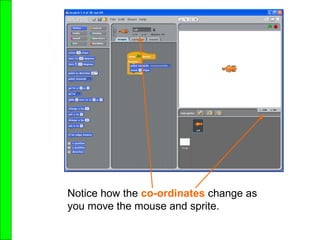
Notice how the co-ordinates change as
you move the mouse and sprite.

Lesson 1

  • 1.
    How do Iprogram a computer?
  • 2.
    Three basic ideas 1.Variables 2. Branching 3. Looping That’s all there is to it. We’ll explore using a program called Scratch.
  • 4.
    Sprites • Sprites arelittle pictures • We can animate them by changing the picture quickly • We can move, rotate, scale, hide, flip ….. • This is how we create movement for our world.
  • 5.
    This is sprite1, itcomes already loaded in the SPRITE LIST and has already been placed on the STAGE Task: Right Click and delete sprite1 from the SPRITE LIST
  • 6.
    Task: Click onthe insert new sprite button.
  • 7.
    Task: Select thesprite called cat2 from the animals folder.
  • 8.
    Task: Rename thesprite and call it cat. Remember to always call new sprites sensible names!
  • 9.
    Task: From thecontrol menu, drag and drop this rule into the SCRIPTS AREA
  • 10.
    Task: From thecontrol menu, drag and drop the forever rule into the SCRIPTS AREA and join it together. Compatible rules can be joined together in the SCRIPTS AREA
  • 11.
    Task: From the motion menu,drag and drop the point towards rule into the SCRIPTS AREA and join it inside the forever rule Task: choose mouse pointer from the drop down list.
  • 12.
    Task: change numberof steps to 3. Task: From the motion menu, drag and drop the move 10 steps rule into the SCRIPTS AREA and join it underneath the point towards rule.
  • 13.
    Task: run yourprogram by pressing the green flag.
  • 14.
    Notice how theco-ordinates change as you move the mouse and sprite.