Scratch 
A visual 
programming 
environment 
By :- Shahswat Singh
Scratch 
Contents 
 Introduction 
 History 
 Objectives 
 Explanation 
 Bibliography
Scratch 
What is Scratch ? 
 Scratch is a visual programming environment that 
makes it easy to create interactive stories, music, 
games, art, and animations – and share those creations 
on the web. 
 Scratch presents powerful opportunities for learning – 
as people program and share with Scratch, they learn to 
think creatively, plan systematically, and work 
collaboratively, while also learning important 
computational ideas.
Scratch 
HISTORY 
 The first version of Scratch was developed in 2003 by 
the Lifelong Kindergarten group, led by Mitchel 
Resnick, at the MIT Media Lab. 
 The first official website was originally launched in 
2006. Scratch 1.0 was then later available to the public 
for download on January 8, 2007. 
 Scratch continued to update their site until late 2012 
when they released Scratch 2.0 which offered many 
updates to the programming system and website design.
Scratch 
Objectives of Scratch unit 
 Intro to visual programming environment 
 Intro to programming with multimedia 
 Story-telling | music-making | game-making 
 Intro to programming concepts 
objects and attributes 
sequence, repetition 
conditions, events, I/O
Scratch 
Secondary objectives 
 Increase student skills with computers 
 Increase student interest in programming 
 Student achievement on fun project 
 Learn Cartesian coordinates, distance computations, 
etc.
Scratch 
Start scratch and let’s go! 
 Open www.scratch.mit.edu and go to option “create”. 
When home, download from www.scratch.mit.edu 
 Click on the cat icon 
 Or, find “scratch” under “Programs” 
 Scratch programming environment comes up quickly
Scratch 
Major components 
 At left: the stage with sprite[s] or objects or actors 
 Center: operations and attributes for the sprites 
 At right: scripts or program[s] for the behavior[s] of the 
sprites 
 A sprite is a small graphic that can be moved 
independently around the screen, producing animated 
effects . 
 Blocks are puzzle-piece shapes that are used to create 
code in Scratch .
Scratch 
Programming In Scratch! 
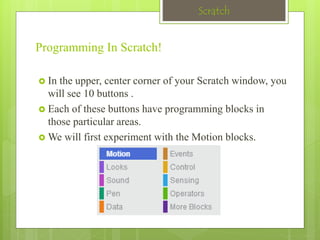
 In the upper, center corner of your Scratch window, you 
will see 10 buttons . 
 Each of these buttons have programming blocks in 
those particular areas. 
We will first experiment with the Motion blocks.
Scratch 
Motion! 
 Motion blocks are the blocks that control 
a sprite's movement. 
 There are 17 Motion blocks in Scratch 2.0 . 
 Ex:- 
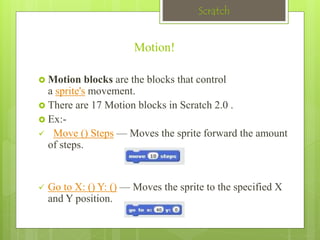
 Move () Steps — Moves the sprite forward the amount 
of steps. 
 Go to X: () Y: () — Moves the sprite to the specified X 
and Y position.
Scratch 
Motion! 
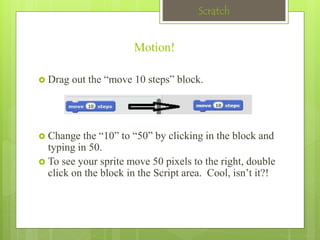
 Drag out the “move 10 steps” block. 
 Change the “10” to “50” by clicking in the block and 
typing in 50. 
 To see your sprite move 50 pixels to the right, double 
click on the block in the Script area. Cool, isn’t it?!
Scratch 
The Scratch Stage 
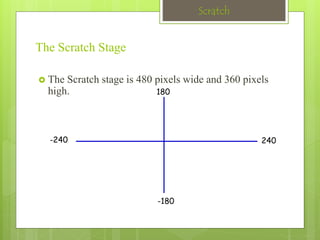
 The Scratch stage is 480 pixels wide and 360 pixels 
high. 
180 
-240 240 
-180
Scratch 
Looks! 
 Looks blocks are the blocks that control a sprite's look. 
 There are 23 Looks blocks in Scratch 2.0. 
 Ex:- 
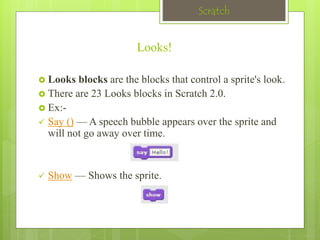
 Say () — A speech bubble appears over the sprite and 
will not go away over time. 
 Show — Shows the sprite.
Scratch 
Sound! 
 Sound blocks are the blocks that control sound and 
MIDI functions. 
 There are 13 Sound blocks in Scratch 2.0. 
 Ex:- 
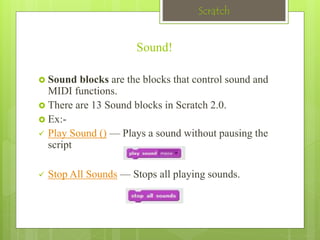
 Play Sound () — Plays a sound without pausing the 
script 
 Stop All Sounds — Stops all playing sounds.
Scratch 
Pen! 
 Pen blocks are the blocks that control the pen. 
 There are 11 Pen blocks in Scratch 2.0. 
 Ex:- 
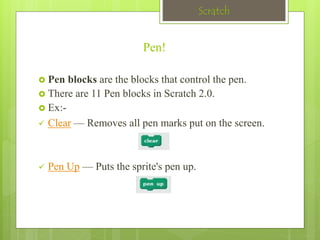
 Clear — Removes all pen marks put on the screen. 
 Pen Up — Puts the sprite's pen up.
Scratch 
Data! 
 Variables blocks are the blocks that hold values 
and strings. 
 There are 5 Variables blocks in Scratch 2.0. 
 Ex:- 
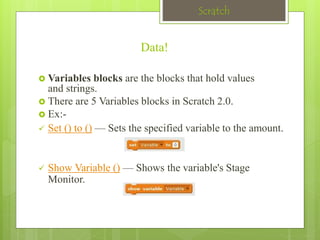
 Set () to () — Sets the specified variable to the amount. 
 Show Variable () — Shows the variable's Stage 
Monitor.
Scratch 
Data! 
 List blocks are the blocks that manage lists. They are 
stored in the Data category. 
 There are 10 List blocks in Scratch 2.0. 
 Ex:- 
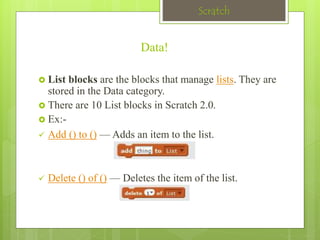
 Add () to () — Adds an item to the list. 
 Delete () of () — Deletes the item of the list.
Scratch 
Event! 
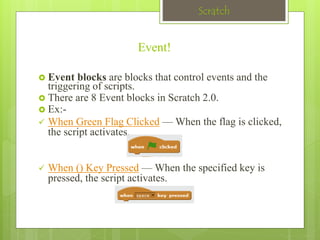
 Event blocks are blocks that control events and the 
triggering of scripts. 
 There are 8 Event blocks in Scratch 2.0. 
 Ex:- 
 When Green Flag Clicked —When the flag is clicked, 
the script activates. 
 When () Key Pressed —When the specified key is 
pressed, the script activates.
Scratch 
Control! 
Control blocks are the blocks that control 
scripts. 
There are 11 Control blocks in Scratch 2.0. 
 Ex:- 
Wait () Secs — Pauses the script for the amount 
of time. 
 Forever — A loop that will never end.
Scratch 
Sensing! 
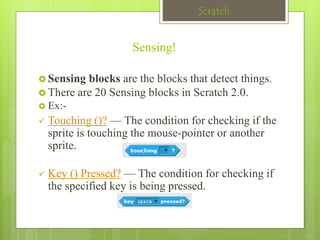
 Sensing blocks are the blocks that detect things. 
 There are 20 Sensing blocks in Scratch 2.0. 
 Ex:- 
 Touching ()? — The condition for checking if the 
sprite is touching the mouse-pointer or another 
sprite. 
 Key () Pressed? — The condition for checking if 
the specified key is being pressed.
Scratch 
Operators! 
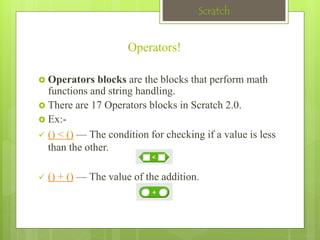
 Operators blocks are the blocks that perform math 
functions and string handling. 
 There are 17 Operators blocks in Scratch 2.0. 
 Ex:- 
 () < () — The condition for checking if a value is less 
than the other. 
 () + () — The value of the addition.
Scratch 
More! 
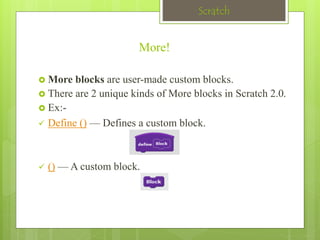
 More blocks are user-made custom blocks. 
 There are 2 unique kinds of More blocks in Scratch 2.0. 
 Ex:- 
 Define () — Defines a custom block. 
 () — A custom block.
Scratch 
Let’s make a small program that on hover on 
sprite say 
“hello world”
Scratch 
Bibliography 
 Books :- 
 Malan, David. "Scratch for Budding Computer Scientists". 
Harvard School of Engineering and Applied Sciences. 
Retrieved 25 January 2014. 
 Harvey, Brian. "Brian Harvey user contributions page". Scratch. 
, July 2008. 
 Research papers :- 
 “Learning Computing through Creating and Connecting”, 
Brennan,K. ; Harvard Univ., Cambridge, MA, USA , 16 July 
2013 
 "Scratch for budding computer scientists". ACM SIGCSE 
Bulletin 39 (1): 223–7. March 2007.
Scratch

Scratch

  • 1.
    Scratch A visual programming environment By :- Shahswat Singh
  • 2.
    Scratch Contents Introduction  History  Objectives  Explanation  Bibliography
  • 3.
    Scratch What isScratch ?  Scratch is a visual programming environment that makes it easy to create interactive stories, music, games, art, and animations – and share those creations on the web.  Scratch presents powerful opportunities for learning – as people program and share with Scratch, they learn to think creatively, plan systematically, and work collaboratively, while also learning important computational ideas.
  • 4.
    Scratch HISTORY The first version of Scratch was developed in 2003 by the Lifelong Kindergarten group, led by Mitchel Resnick, at the MIT Media Lab.  The first official website was originally launched in 2006. Scratch 1.0 was then later available to the public for download on January 8, 2007.  Scratch continued to update their site until late 2012 when they released Scratch 2.0 which offered many updates to the programming system and website design.
  • 5.
    Scratch Objectives ofScratch unit  Intro to visual programming environment  Intro to programming with multimedia  Story-telling | music-making | game-making  Intro to programming concepts objects and attributes sequence, repetition conditions, events, I/O
  • 6.
    Scratch Secondary objectives  Increase student skills with computers  Increase student interest in programming  Student achievement on fun project  Learn Cartesian coordinates, distance computations, etc.
  • 7.
    Scratch Start scratchand let’s go!  Open www.scratch.mit.edu and go to option “create”. When home, download from www.scratch.mit.edu  Click on the cat icon  Or, find “scratch” under “Programs”  Scratch programming environment comes up quickly
  • 8.
    Scratch Major components  At left: the stage with sprite[s] or objects or actors  Center: operations and attributes for the sprites  At right: scripts or program[s] for the behavior[s] of the sprites  A sprite is a small graphic that can be moved independently around the screen, producing animated effects .  Blocks are puzzle-piece shapes that are used to create code in Scratch .
  • 9.
    Scratch Programming InScratch!  In the upper, center corner of your Scratch window, you will see 10 buttons .  Each of these buttons have programming blocks in those particular areas. We will first experiment with the Motion blocks.
  • 10.
    Scratch Motion! Motion blocks are the blocks that control a sprite's movement.  There are 17 Motion blocks in Scratch 2.0 .  Ex:-  Move () Steps — Moves the sprite forward the amount of steps.  Go to X: () Y: () — Moves the sprite to the specified X and Y position.
  • 11.
    Scratch Motion! Drag out the “move 10 steps” block.  Change the “10” to “50” by clicking in the block and typing in 50.  To see your sprite move 50 pixels to the right, double click on the block in the Script area. Cool, isn’t it?!
  • 12.
    Scratch The ScratchStage  The Scratch stage is 480 pixels wide and 360 pixels high. 180 -240 240 -180
  • 13.
    Scratch Looks! Looks blocks are the blocks that control a sprite's look.  There are 23 Looks blocks in Scratch 2.0.  Ex:-  Say () — A speech bubble appears over the sprite and will not go away over time.  Show — Shows the sprite.
  • 14.
    Scratch Sound! Sound blocks are the blocks that control sound and MIDI functions.  There are 13 Sound blocks in Scratch 2.0.  Ex:-  Play Sound () — Plays a sound without pausing the script  Stop All Sounds — Stops all playing sounds.
  • 15.
    Scratch Pen! Pen blocks are the blocks that control the pen.  There are 11 Pen blocks in Scratch 2.0.  Ex:-  Clear — Removes all pen marks put on the screen.  Pen Up — Puts the sprite's pen up.
  • 16.
    Scratch Data! Variables blocks are the blocks that hold values and strings.  There are 5 Variables blocks in Scratch 2.0.  Ex:-  Set () to () — Sets the specified variable to the amount.  Show Variable () — Shows the variable's Stage Monitor.
  • 17.
    Scratch Data! List blocks are the blocks that manage lists. They are stored in the Data category.  There are 10 List blocks in Scratch 2.0.  Ex:-  Add () to () — Adds an item to the list.  Delete () of () — Deletes the item of the list.
  • 18.
    Scratch Event! Event blocks are blocks that control events and the triggering of scripts.  There are 8 Event blocks in Scratch 2.0.  Ex:-  When Green Flag Clicked —When the flag is clicked, the script activates.  When () Key Pressed —When the specified key is pressed, the script activates.
  • 19.
    Scratch Control! Controlblocks are the blocks that control scripts. There are 11 Control blocks in Scratch 2.0.  Ex:- Wait () Secs — Pauses the script for the amount of time.  Forever — A loop that will never end.
  • 20.
    Scratch Sensing! Sensing blocks are the blocks that detect things.  There are 20 Sensing blocks in Scratch 2.0.  Ex:-  Touching ()? — The condition for checking if the sprite is touching the mouse-pointer or another sprite.  Key () Pressed? — The condition for checking if the specified key is being pressed.
  • 21.
    Scratch Operators! Operators blocks are the blocks that perform math functions and string handling.  There are 17 Operators blocks in Scratch 2.0.  Ex:-  () < () — The condition for checking if a value is less than the other.  () + () — The value of the addition.
  • 22.
    Scratch More! More blocks are user-made custom blocks.  There are 2 unique kinds of More blocks in Scratch 2.0.  Ex:-  Define () — Defines a custom block.  () — A custom block.
  • 23.
    Scratch Let’s makea small program that on hover on sprite say “hello world”
  • 24.
    Scratch Bibliography Books :-  Malan, David. "Scratch for Budding Computer Scientists". Harvard School of Engineering and Applied Sciences. Retrieved 25 January 2014.  Harvey, Brian. "Brian Harvey user contributions page". Scratch. , July 2008.  Research papers :-  “Learning Computing through Creating and Connecting”, Brennan,K. ; Harvard Univ., Cambridge, MA, USA , 16 July 2013  "Scratch for budding computer scientists". ACM SIGCSE Bulletin 39 (1): 223–7. March 2007.
  • 25.