Site Manager
Reporting

Site Manager - Reporting

1
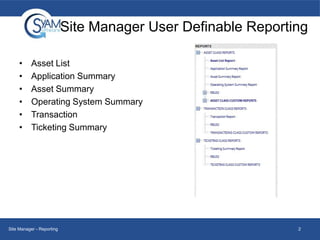
Site Manager User Definable Reporting
•
•
•
•
•
•

Asset List
Application Summary
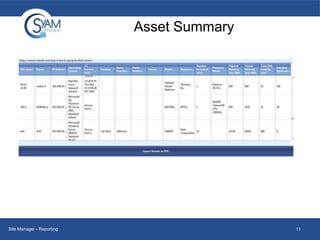
Asset Summary
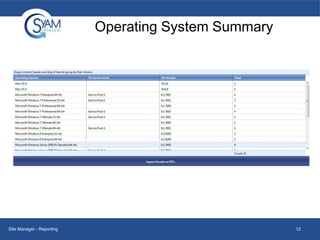
Operating System Summary
Transaction
Ticketing Summary

Site Manager - Reporting

2
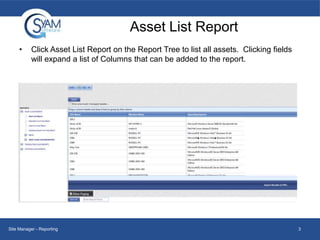
Asset List Report
•

Click Asset List Report on the Report Tree to list all assets. Clicking fields
will expand a list of Columns that can be added to the report.

Site Manager - Reporting

3
Adding Columns to a Report
•
•

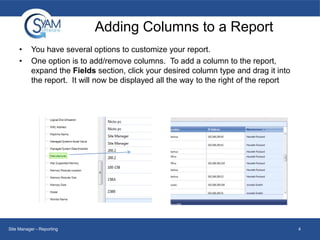
You have several options to customize your report.
One option is to add/remove columns. To add a column to the report,
expand the Fields section, click your desired column type and drag it into
the report. It will now be displayed all the way to the right of the report

Site Manager - Reporting

4
Deleting Columns from the Report
•

•

•

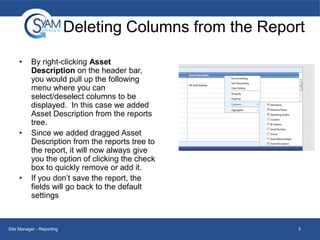
By right-clicking Asset
Description on the header bar,
you would pull up the following
menu where you can
select/deselect columns to be
displayed. In this case we added
Asset Description from the reports
tree.
Since we added dragged Asset
Description from the reports tree to
the report, it will now always give
you the option of clicking the check
box to quickly remove or add it.
If you don’t save the report, the
fields will go back to the default
settings

Site Manager - Reporting

5
Grouping Columns
•

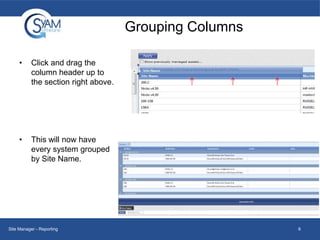
Click and drag the
column header up to
the section right above.

•

This will now have
every system grouped
by Site Name.

Site Manager - Reporting

6
Group Filter Options
•
•

•

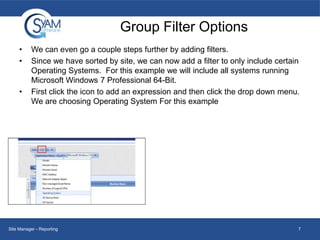
We can even go a couple steps further by adding filters.
Since we have sorted by site, we can now add a filter to only include certain
Operating Systems. For this example we will include all systems running
Microsoft Windows 7 Professional 64-Bit.
First click the icon to add an expression and then click the drop down menu.
We are choosing Operating System For this example

Site Manager - Reporting

7
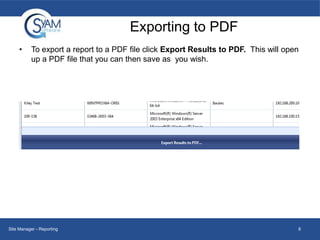
Exporting to PDF
•

To export a report to a PDF file click Export Results to PDF. This will open
up a PDF file that you can then save as you wish.

Site Manager - Reporting

8
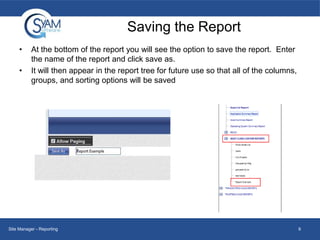
Saving the Report
•
•

At the bottom of the report you will see the option to save the report. Enter
the name of the report and click save as.
It will then appear in the report tree for future use so that all of the columns,
groups, and sorting options will be saved

Site Manager - Reporting

9
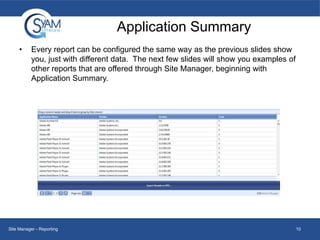
Application Summary
•

Every report can be configured the same way as the previous slides show
you, just with different data. The next few slides will show you examples of
other reports that are offered through Site Manager, beginning with
Application Summary.

Site Manager - Reporting

10
Asset Summary

Site Manager - Reporting

11
Operating System Summary

Site Manager - Reporting

12
Transaction Report
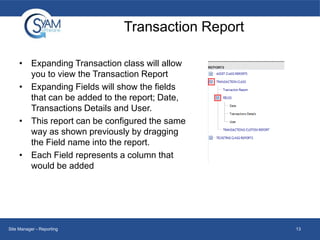
• Expanding Transaction class will allow
you to view the Transaction Report
• Expanding Fields will show the fields
that can be added to the report; Date,
Transactions Details and User.
• This report can be configured the same
way as shown previously by dragging
the Field name into the report.
• Each Field represents a column that
would be added

Site Manager - Reporting

13
Ticketing Summary Report
•

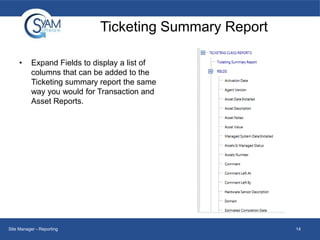
Expand Fields to display a list of
columns that can be added to the
Ticketing summary report the same
way you would for Transaction and
Asset Reports.

Site Manager - Reporting

14
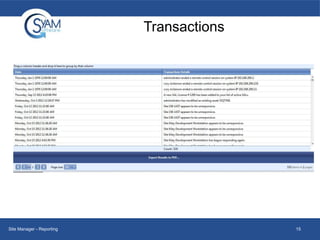
Transactions

Site Manager - Reporting

15
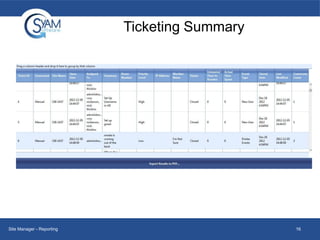
Ticketing Summary

Site Manager - Reporting

16

Reporting

  • 1.
  • 2.
    Site Manager UserDefinable Reporting • • • • • • Asset List Application Summary Asset Summary Operating System Summary Transaction Ticketing Summary Site Manager - Reporting 2
  • 3.
    Asset List Report • ClickAsset List Report on the Report Tree to list all assets. Clicking fields will expand a list of Columns that can be added to the report. Site Manager - Reporting 3
  • 4.
    Adding Columns toa Report • • You have several options to customize your report. One option is to add/remove columns. To add a column to the report, expand the Fields section, click your desired column type and drag it into the report. It will now be displayed all the way to the right of the report Site Manager - Reporting 4
  • 5.
    Deleting Columns fromthe Report • • • By right-clicking Asset Description on the header bar, you would pull up the following menu where you can select/deselect columns to be displayed. In this case we added Asset Description from the reports tree. Since we added dragged Asset Description from the reports tree to the report, it will now always give you the option of clicking the check box to quickly remove or add it. If you don’t save the report, the fields will go back to the default settings Site Manager - Reporting 5
  • 6.
    Grouping Columns • Click anddrag the column header up to the section right above. • This will now have every system grouped by Site Name. Site Manager - Reporting 6
  • 7.
    Group Filter Options • • • Wecan even go a couple steps further by adding filters. Since we have sorted by site, we can now add a filter to only include certain Operating Systems. For this example we will include all systems running Microsoft Windows 7 Professional 64-Bit. First click the icon to add an expression and then click the drop down menu. We are choosing Operating System For this example Site Manager - Reporting 7
  • 8.
    Exporting to PDF • Toexport a report to a PDF file click Export Results to PDF. This will open up a PDF file that you can then save as you wish. Site Manager - Reporting 8
  • 9.
    Saving the Report • • Atthe bottom of the report you will see the option to save the report. Enter the name of the report and click save as. It will then appear in the report tree for future use so that all of the columns, groups, and sorting options will be saved Site Manager - Reporting 9
  • 10.
    Application Summary • Every reportcan be configured the same way as the previous slides show you, just with different data. The next few slides will show you examples of other reports that are offered through Site Manager, beginning with Application Summary. Site Manager - Reporting 10
  • 11.
  • 12.
    Operating System Summary SiteManager - Reporting 12
  • 13.
    Transaction Report • ExpandingTransaction class will allow you to view the Transaction Report • Expanding Fields will show the fields that can be added to the report; Date, Transactions Details and User. • This report can be configured the same way as shown previously by dragging the Field name into the report. • Each Field represents a column that would be added Site Manager - Reporting 13
  • 14.
    Ticketing Summary Report • ExpandFields to display a list of columns that can be added to the Ticketing summary report the same way you would for Transaction and Asset Reports. Site Manager - Reporting 14
  • 15.
  • 16.