Site Manager
Licensing
Initial Configuration of Site Manager
•
•
•
•

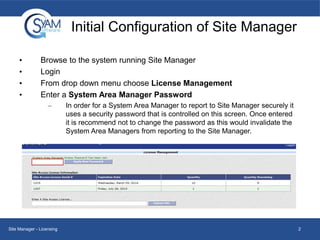
Browse to the system running Site Manager
Login
From drop down menu choose License Management
Enter a System Area Manager Password
–

Site Manager - Licensing

In order for a System Area Manager to report to Site Manager securely it
uses a security password that is controlled on this screen. Once entered
it is recommend not to change the password as this would invalidate the
System Area Managers from reporting to the Site Manager.

2
Site Manager Licensing
•
•
•

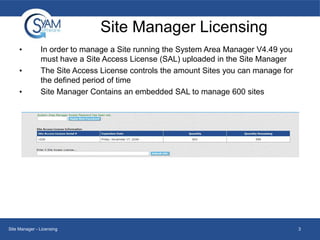
In order to manage a Site running the System Area Manager V4.49 you
must have a Site Access License (SAL) uploaded in the Site Manager
The Site Access License controls the amount Sites you can manage for
the defined period of time
Site Manager Contains an embedded SAL to manage 600 sites

Site Manager - Licensing

3
Configuring the System Area Manager
•
•
•
•
•

System Area Manager V4.49 provides the ability to securely
communicate to Site Manager
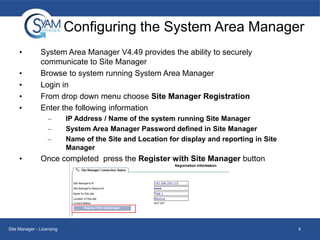
Browse to system running System Area Manager
Login in
From drop down menu choose Site Manager Registration
Enter the following information
–
–
–

•

IP Address / Name of the system running Site Manager
System Area Manager Password defined in Site Manager
Name of the Site and Location for display and reporting in Site
Manager

Once completed press the Register with Site Manager button

Site Manager - Licensing

4
Allocating Site Access Licenses (SAL's)
•
•
•
•
•

•

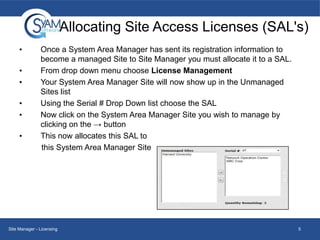
Once a System Area Manager has sent its registration information to
become a managed Site to Site Manager you must allocate it to a SAL.
From drop down menu choose License Management
Your System Area Manager Site will now show up in the Unmanaged
Sites list
Using the Serial # Drop Down list choose the SAL
Now click on the System Area Manager Site you wish to manage by
clicking on the → button
This now allocates this SAL to
this System Area Manager Site

Site Manager - Licensing

5
Managing Sites
•
•
•

•
•

•

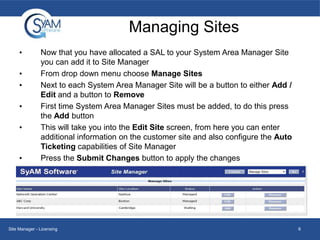
Now that you have allocated a SAL to your System Area Manager Site
you can add it to Site Manager
From drop down menu choose Manage Sites
Next to each System Area Manager Site will be a button to either Add /
Edit and a button to Remove
First time System Area Manager Sites must be added, to do this press
the Add button
This will take you into the Edit Site screen, from here you can enter
additional information on the customer site and also configure the Auto
Ticketing capabilities of Site Manager
Press the Submit Changes button to apply the changes

Site Manager - Licensing

6
Managing Sites – Site Information
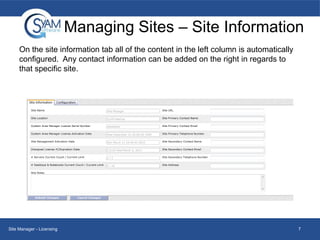
On the site information tab all of the content in the left column is automatically
configured. Any contact information can be added on the right in regards to
that specific site.

Site Manager - Licensing

7
Managing Sites - Configuration
•
•
•
•

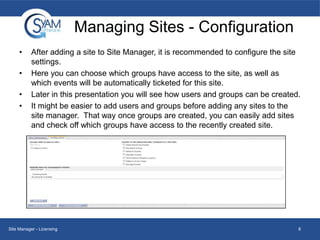
After adding a site to Site Manager, it is recommended to configure the site
settings.
Here you can choose which groups have access to the site, as well as
which events will be automatically ticketed for this site.
Later in this presentation you will see how users and groups can be created.
It might be easier to add users and groups before adding any sites to the
site manager. That way once groups are created, you can easily add sites
and check off which groups have access to the recently created site.

Site Manager - Licensing

8
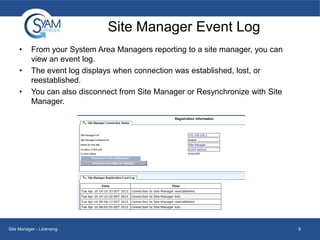
Site Manager Event Log
•
•
•

From your System Area Managers reporting to a site manager, you can
view an event log.
The event log displays when connection was established, lost, or
reestablished.
You can also disconnect from Site Manager or Resynchronize with Site
Manager.

Site Manager - Licensing

9

Licensing

  • 1.
  • 2.
    Initial Configuration ofSite Manager • • • • Browse to the system running Site Manager Login From drop down menu choose License Management Enter a System Area Manager Password – Site Manager - Licensing In order for a System Area Manager to report to Site Manager securely it uses a security password that is controlled on this screen. Once entered it is recommend not to change the password as this would invalidate the System Area Managers from reporting to the Site Manager. 2
  • 3.
    Site Manager Licensing • • • Inorder to manage a Site running the System Area Manager V4.49 you must have a Site Access License (SAL) uploaded in the Site Manager The Site Access License controls the amount Sites you can manage for the defined period of time Site Manager Contains an embedded SAL to manage 600 sites Site Manager - Licensing 3
  • 4.
    Configuring the SystemArea Manager • • • • • System Area Manager V4.49 provides the ability to securely communicate to Site Manager Browse to system running System Area Manager Login in From drop down menu choose Site Manager Registration Enter the following information – – – • IP Address / Name of the system running Site Manager System Area Manager Password defined in Site Manager Name of the Site and Location for display and reporting in Site Manager Once completed press the Register with Site Manager button Site Manager - Licensing 4
  • 5.
    Allocating Site AccessLicenses (SAL's) • • • • • • Once a System Area Manager has sent its registration information to become a managed Site to Site Manager you must allocate it to a SAL. From drop down menu choose License Management Your System Area Manager Site will now show up in the Unmanaged Sites list Using the Serial # Drop Down list choose the SAL Now click on the System Area Manager Site you wish to manage by clicking on the → button This now allocates this SAL to this System Area Manager Site Site Manager - Licensing 5
  • 6.
    Managing Sites • • • • • • Now thatyou have allocated a SAL to your System Area Manager Site you can add it to Site Manager From drop down menu choose Manage Sites Next to each System Area Manager Site will be a button to either Add / Edit and a button to Remove First time System Area Manager Sites must be added, to do this press the Add button This will take you into the Edit Site screen, from here you can enter additional information on the customer site and also configure the Auto Ticketing capabilities of Site Manager Press the Submit Changes button to apply the changes Site Manager - Licensing 6
  • 7.
    Managing Sites –Site Information On the site information tab all of the content in the left column is automatically configured. Any contact information can be added on the right in regards to that specific site. Site Manager - Licensing 7
  • 8.
    Managing Sites -Configuration • • • • After adding a site to Site Manager, it is recommended to configure the site settings. Here you can choose which groups have access to the site, as well as which events will be automatically ticketed for this site. Later in this presentation you will see how users and groups can be created. It might be easier to add users and groups before adding any sites to the site manager. That way once groups are created, you can easily add sites and check off which groups have access to the recently created site. Site Manager - Licensing 8
  • 9.
    Site Manager EventLog • • • From your System Area Managers reporting to a site manager, you can view an event log. The event log displays when connection was established, lost, or reestablished. You can also disconnect from Site Manager or Resynchronize with Site Manager. Site Manager - Licensing 9