Refining charts
in Adobe Illustrator
Kristen Sosulski
Associate Professor of Information Systems @ NYU Stern
Director of Education for the NYU Stern W.R. Berkley Innovation Lab
@sosulski | ks123@nyu.edu | kristensosulski.com
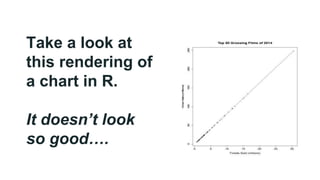
Take a look at
this rendering of
a chart in R.
It doesn’t look
so good….
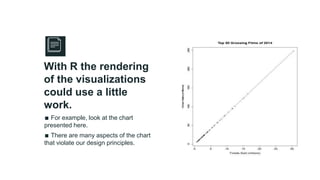
∎ For example, look at the chart
presented here.
∎ There are many aspects of the chart
that violate our design principles.
Place your screenshot here
With R the rendering
of the visualizations
could use a little
work.
DESIGN
Chart junk?
High data ink ratio?
Readability? Font size?
Orientation? PRINCIPLES
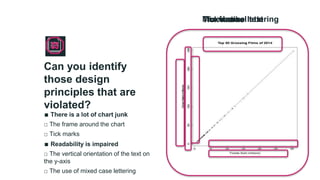
∎ There is a lot of chart junk
□ The frame around the chart
□ Tick marks
∎ Readability is impaired
□ The vertical orientation of the text on
the y-axis
□ The use of mixed case lettering
Place your screenshot here
Can you identify
those design
principles that are
violated?
The frameTick marksThe vertical textMixed case lettering
Editing charts in
ADOBE
ILLUSTRATOR
∎ It’s simple to edit text as well such as
titles, scales, x and y axis labels.
∎ Download this PDF file at
http://bit.ly/illustrator_ex to follow along
with the example or work with your own.
Place your screenshot here
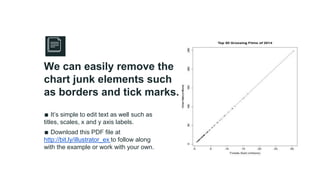
We can easily remove the
chart junk elements such
as borders and tick marks.
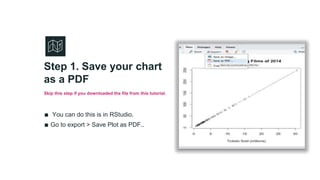
∎ You can do this is in RStudio.
∎ Go to export > Save Plot as PDF..
Place your screenshot here
Step 1. Save your chart
as a PDF
Skip this step if you downloaded the file from this tutorial.
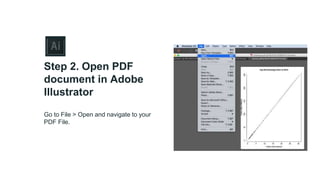
Go to File > Open and navigate to your
PDF File.
Place your screenshot here
Step 2. Open PDF
document in Adobe
Illustrator
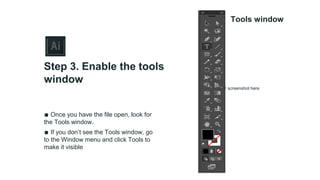
∎ Once you have the file open, look for
the Tools window.
∎ If you don’t see the Tools window, go
to the Window menu and click Tools to
make it visible
Place your screenshot here
Step 3. Enable the tools
window
Tools window
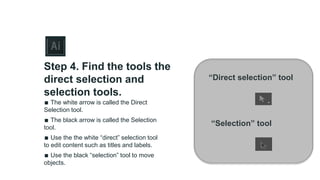
∎ The white arrow is called the Direct
Selection tool.
∎ The black arrow is called the Selection
tool.
∎ Use the the white “direct” selection tool
to edit content such as titles and labels.
∎ Use the black “selection” tool to move
objects.
Step 4. Find the tools the
direct selection and
selection tools.
“Direct selection” tool
“Selection” tool
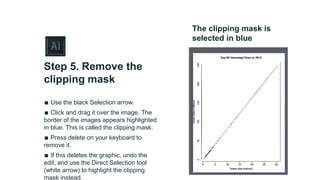
∎ Use the black Selection arrow.
∎ Click and drag it over the image. The
border of the images appears highlighted
in blue. This is called the clipping mask.
∎ Press delete on your keyboard to
remove it.
∎ If this deletes the graphic, undo the
edit, and use the Direct Selection tool
(white arrow) to highlight the clipping
mask instead.
Step 5. Remove the
clipping mask
The clipping mask is
selected in blue
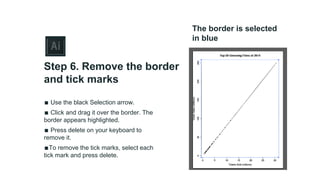
∎ Use the black Selection arrow.
∎ Click and drag it over the border. The
border appears highlighted.
∎ Press delete on your keyboard to
remove it.
∎To remove the tick marks, select each
tick mark and press delete.
Step 6. Remove the border
and tick marks
The border is selected
in blue
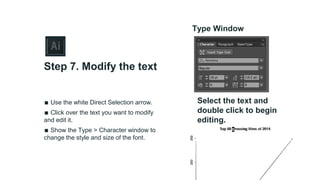
∎ Use the white Direct Selection arrow.
∎ Click over the text you want to modify
and edit it.
∎ Show the Type > Character window to
change the style and size of the font.
Step 7. Modify the text
Type Window
Select the text and
double click to begin
editing.
ADOBE ILLUSTRATOR
LIVE DEMO
https://youtu.be/
qaBO4J_XQ7o
It’s easy to edit your charts in
Adobe Illustrator.
The next step for you to
continue working on it to add
attribution and a story to your
data.
NEXT
STEPS
THANKS!Any questions?
Email: ks123@nyu.edu | twitter: @sosulski
CREDITS
Content created by Kristen Sosulski, Ed.D
Copyright 2016
Special thanks to all the people who made and released these
awesome resources for free:
∎ Presentation template by SlidesCarnival
∎ Photographs by Unsplash

Refining charts using Adobe Illustrator

  • 1.
    Refining charts in AdobeIllustrator Kristen Sosulski Associate Professor of Information Systems @ NYU Stern Director of Education for the NYU Stern W.R. Berkley Innovation Lab @sosulski | ks123@nyu.edu | kristensosulski.com
  • 3.
    Take a lookat this rendering of a chart in R. It doesn’t look so good….
  • 4.
    ∎ For example,look at the chart presented here. ∎ There are many aspects of the chart that violate our design principles. Place your screenshot here With R the rendering of the visualizations could use a little work.
  • 5.
    DESIGN Chart junk? High dataink ratio? Readability? Font size? Orientation? PRINCIPLES
  • 6.
    ∎ There isa lot of chart junk □ The frame around the chart □ Tick marks ∎ Readability is impaired □ The vertical orientation of the text on the y-axis □ The use of mixed case lettering Place your screenshot here Can you identify those design principles that are violated? The frameTick marksThe vertical textMixed case lettering
  • 7.
  • 8.
    ∎ It’s simpleto edit text as well such as titles, scales, x and y axis labels. ∎ Download this PDF file at http://bit.ly/illustrator_ex to follow along with the example or work with your own. Place your screenshot here We can easily remove the chart junk elements such as borders and tick marks.
  • 9.
    ∎ You cando this is in RStudio. ∎ Go to export > Save Plot as PDF.. Place your screenshot here Step 1. Save your chart as a PDF Skip this step if you downloaded the file from this tutorial.
  • 10.
    Go to File> Open and navigate to your PDF File. Place your screenshot here Step 2. Open PDF document in Adobe Illustrator
  • 11.
    ∎ Once youhave the file open, look for the Tools window. ∎ If you don’t see the Tools window, go to the Window menu and click Tools to make it visible Place your screenshot here Step 3. Enable the tools window Tools window
  • 12.
    ∎ The whitearrow is called the Direct Selection tool. ∎ The black arrow is called the Selection tool. ∎ Use the the white “direct” selection tool to edit content such as titles and labels. ∎ Use the black “selection” tool to move objects. Step 4. Find the tools the direct selection and selection tools. “Direct selection” tool “Selection” tool
  • 13.
    ∎ Use theblack Selection arrow. ∎ Click and drag it over the image. The border of the images appears highlighted in blue. This is called the clipping mask. ∎ Press delete on your keyboard to remove it. ∎ If this deletes the graphic, undo the edit, and use the Direct Selection tool (white arrow) to highlight the clipping mask instead. Step 5. Remove the clipping mask The clipping mask is selected in blue
  • 14.
    ∎ Use theblack Selection arrow. ∎ Click and drag it over the border. The border appears highlighted. ∎ Press delete on your keyboard to remove it. ∎To remove the tick marks, select each tick mark and press delete. Step 6. Remove the border and tick marks The border is selected in blue
  • 15.
    ∎ Use thewhite Direct Selection arrow. ∎ Click over the text you want to modify and edit it. ∎ Show the Type > Character window to change the style and size of the font. Step 7. Modify the text Type Window Select the text and double click to begin editing.
  • 16.
  • 19.
    It’s easy toedit your charts in Adobe Illustrator. The next step for you to continue working on it to add attribution and a story to your data. NEXT STEPS
  • 20.
  • 21.
    CREDITS Content created byKristen Sosulski, Ed.D Copyright 2016 Special thanks to all the people who made and released these awesome resources for free: ∎ Presentation template by SlidesCarnival ∎ Photographs by Unsplash