Programs You Need!
Don’t Worry!
• You don’t need all of them, although after you
  hear about them, you may want some (or all)
• We’ll divide them into 3 categories:
  – Security
  – Maintenance
  – Utility
Why?

• Your operating system (XP, Vista, Win 7 or 8)
  likely came with only a minimum of extra
  features
• Without these features, you’re missing out on
  being able to make full use and enjoyment of
  your computer
• In fact, you may be risking your online safety
Why?
• The programs we’ll talk about are all free
• They come with recommendations from the
  Ewing CLC staff and most are:

  – Recommended by other independent parties,
    such as PC Magazine
  – Will help you enjoy your computer more and
    make it run better
Security
• Anti Virus
Security
• Anti Virus
• Firewall
Security
• Anti Virus
• Firewall
• Anti Malware
Security
•   Anti Virus
•   Firewall
•   Anti Malware
•   Cloud Access
    – Make sure your security is AGAP (as good as
      possible)
Security
•   Anti Virus
•   Firewall
•   Anti Malware
•   Cloud Access
    – Make sure your security is AGAP (as good as
      possible)
• Strong passwords
Security
•   Anti Virus
•   Firewall
•   Anti Malware
•   Cloud Access
    – Make sure your security is AGAP (as good as
      possible)
• Strong passwords
• Check online bank accounts frequently
Maintenance
• Eliminate duplicate files
Maintenance
• Eliminate duplicate files
• Check status of program updates
Maintenance
• Eliminate duplicate files
• Check status of program updates
• Fix registry errors
Maintenance
•   Eliminate duplicate files
•   Check status of program updates
•   Fix registry errors
•   Clean out unused programs
Maintenance
•   Eliminate duplicate files
•   Check status of program updates
•   Fix registry errors
•   Clean out unused programs
•   Check hard drive integrity
Maintenance
•   Eliminate duplicate files
•   Check status of program updates
•   Fix registry errors
•   Clean out unused programs
•   Check hard drive integrity
•   Create backups and restore files
Maintenance
•   Eliminate duplicate files
•   Check status of program updates
•   Fix registry errors
•   Clean out unused programs
•   Check hard drive integrity
•   Create backups and restore files
•   Streamline startup operation
Maintenance
•   Eliminate duplicate files
•   Check status of program updates
•   Fix registry errors
•   Clean out unused programs
•   Check hard drive integrity
•   Create backups and restore files
•   Streamline startup operation
•   Wipe clean hard drives
Utility
• Organize your photos and videos
Utility
• Organize your photos and videos
• Send large volumes of photos via. Internet
Utility
• Organize your photos and videos
• Send large volumes of photos via. internet
• Create and send documents easily
Utility
•   Organize your photos and videos
•   Send large volumes of photos via. internet
•   Create and send documents easily
•   Transfer files between PC’s, iPads, iPods,
    Android devices with no docking ports
Utility
• Organize your photos and videos
• Send large volumes of photos via. internet
• Create and send documents easily
• Transfer files between PC’s, iPads, iPods,
  Android devices with no docking ports
• Store your files on “the cloud” to always have
  them accessible no matter what device you’re
  using or where you are
• Stop worrying about backups
What to Look For
• When downloading a program, check its
  credentials
  – Go to Cnetdownload.com and check how many
    have been downloaded
What to Look For
• When downloading a program, check its
  credentials
  – Go to Cnetdownload.com and check how many
    have been downloaded
  – Check comments from other users
What to Look For
• When downloading a program, check its
  credentials
  – Go to Cnetdownload.com and check how many
    have been downloaded
  – Check comments from other users
  – Read carefully each screen to see what you’re
    agreeing to
What to Look For
• When downloading a program, check its
  credentials
  – Go to Cnetdownload.com and check how many
    have been downloaded
  – Check comments from other users
  – Read carefully each screen to see what you’re
    agreeing to
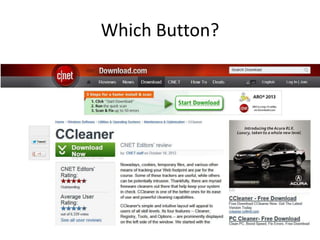
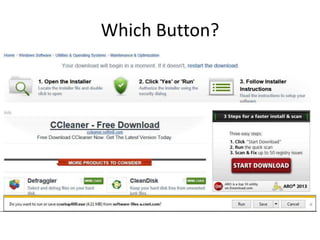
  – Don’t click on the first “download” button you see
What to Look For
• When downloading a program, check its
  credentials
  – Go to Cnetdownload.com and check how many
    have been downloaded
  – Check comments from other users
  – Read carefully each screen to see what you’re
    agreeing to
  – Don’t click on the first “download” button you see
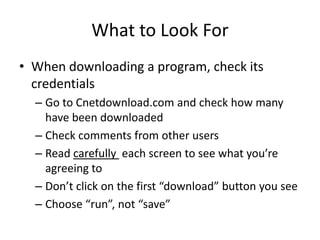
  – Choose “run”, not “save”
Which Button?
Which Button?
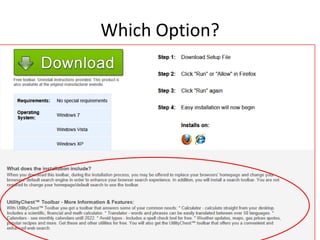
Which Option?
Minimum Defense for Average PC User
• Windows firewall
Minimum Defense for Average PC User
• Windows firewall
• Good anti virus software
Minimum Defense for Average PC User
• Windows firewall
• Good anti virus software
• Automatic Windows updates
Minimum Defense for Average PC User
•   Windows firewall
•   Good anti virus software
•   Automatic Windows updates
•   Latest internet browser (IE 10, Firefox
    17.0, Chrome 23.0)
Minimum Defense for Average PC User
• Windows firewall
• Good anti virus software
• Automatic Windows updates
• Latest internet browser (IE 10, Firefox 17.0,
  Chrome 23.0)
• Antispyware program
Minimum Defense for Average PC User
• Windows firewall
• Good anti virus software
• Automatic Windows updates
• Latest internet browser (IE 10, Firefox 17.0,
  Chrome 23.0)
• Antispyware program
• Regular backups
Microsoft Security Essentials


• Comprehensive malware protection
• XP, Vista & Win7 Protection (use Windows
  Defender for Win8)
• Simple
• Quiet, works in background
• Automatic updates
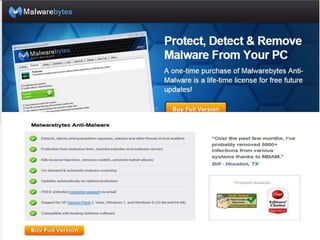
Malwarebytes

• Works well with others
Malwarebytes

• Works well with others
• FAST!
Malwarebytes

• Works well with others
• FAST!
• Chameleon-gets working when otherwise
  locked down
Malwarebytes

• Works well with others
• FAST!
• Chameleon-gets working when otherwise
  locked down
• Free version, but pro is available for a one-
  time fee, no annual renewal
Malwarebytes

• Works well with others
• FAST!
• Chameleon-gets working when otherwise
  locked down
• Free version, but pro is available for a one-
  time fee, no annual renewal
• Supports XP, Vista, Win7 & 8 (32 & 64 bit)
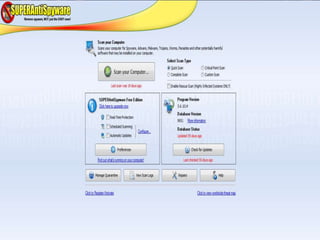
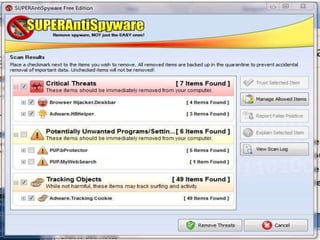
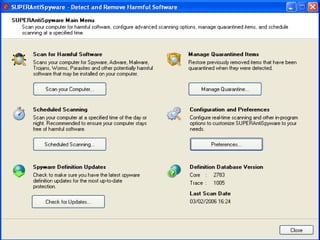
Superantispyware


• Scans for harmful programs
• Removes malware, viruses missed by other
  programs
• Covers areas missed by other antispyware
  programs
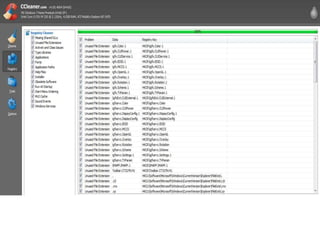
CCleaner


• Cleans unneeded files
CCleaner


• Cleans unneeded files
• Checks for registry errors and inconsistencies
CCleaner


• Cleans unneeded files
• Checks for registry errors and inconsistencies
• Wipes drives
CCleaner


•   Cleans unneeded files
•   Checks for registry errors and inconsistencies
•   Wipes drives
•   Checks for duplicates
CCleaner


•   Cleans unneeded files
•   Checks for registry errors and inconsistencies
•   Wipes drives
•   Checks for duplicates
•   Uninstalls programs
CCleaner


•   Cleans unneeded files
•   Checks for registry errors and inconsistencies
•   Wipes drives
•   Checks for duplicates
•   Uninstalls programs
•   Displays startup programs by application
CCleaner


•   Cleans unneeded files
•   Checks for registry errors and inconsistencies
•   Wipes drives
•   Checks for duplicates
•   Uninstalls programs
•   Displays startup programs by application
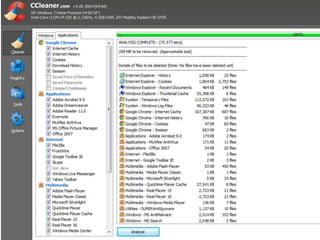
•   Shows system restore points
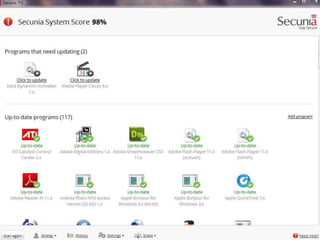
Secunia Personal Software Inspector


•   MS provides updates; most programs do not
•   Scans for out of date programs
•   Helps prevent security breaches
•   One stop for updating multiple programs
Belarc Advisor

• Displays security vulnerabilities
Belarc Advisor

• Displays security vulnerabilities
• Shows software infrequently used
Belarc Advisor

• Displays security vulnerabilities
• Shows software infrequently used
• Displays software license codes
Belarc Advisor

•   Displays security vulnerabilities
•   Shows software infrequently used
•   Displays software license codes
•   Lists status of security patches
Belarc Advisor

•   Displays security vulnerabilities
•   Shows software infrequently used
•   Displays software license codes
•   Lists status of security patches
•   Lists hardware specs
Belarc Advisor

•   Displays security vulnerabilities
•   Shows software infrequently used
•   Displays software license codes
•   Lists status of security patches
•   Lists hardware specs
•   Memory types used
Belarc Advisor

•   Displays security vulnerabilities
•   Shows software infrequently used
•   Displays software license codes
•   Lists status of security patches
•   Lists hardware specs
•   Memory types used
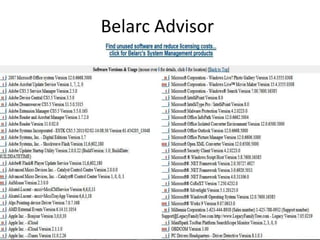
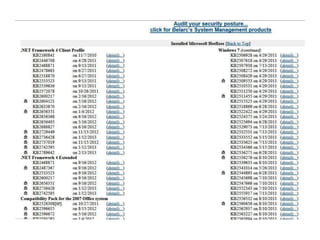
•   Entire computer profile summary
Belarc Advisor
Glary Utilities


• Cleans & scans software
Glary Utilities


• Cleans & scans software
• Recovers files
Glary Utilities


• Cleans & scans software
• Recovers files
• Finds duplicate files
Glary Utilities


•   Cleans & scans software
•   Recovers files
•   Finds duplicate files
•   Manages startup files
Glary Utilities


•   Cleans & scans software
•   Recovers files
•   Finds duplicate files
•   Manages startup files
•   Shreds files
Glary Utilities


•   Cleans & scans software
•   Recovers files
•   Finds duplicate files
•   Manages startup files
•   Shreds files
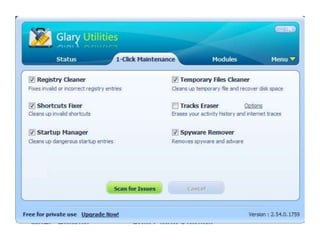
•   Over 37,000,000 downloads
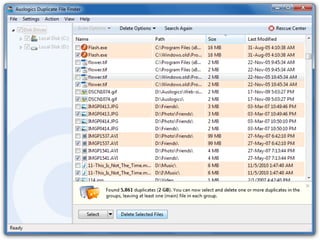
Auslogics Duplicate File Finder


•   Quick
•   Easy
•   Enables clean-up of extra photos, documents
•   Frees up hard drive space
Picasa

• Automatically indexes all your pictures
Picasa

• Automatically indexes all your pictures
• Does not duplicate their file structure
Picasa

• Automatically indexes all your pictures
• Does not duplicate their file structure
• Facial recognition is extraordinary
Picasa

•   Automatically indexes all your pictures
•   Does not duplicate their file structure
•   Facial recognition is extraordinary
•   Basic editing features
Picasa

•   Automatically indexes all your pictures
•   Does not duplicate their file structure
•   Facial recognition is extraordinary
•   Basic editing features
•   Photo timelines
Picasa

•   Automatically indexes all your pictures
•   Does not duplicate their file structure
•   Facial recognition is extraordinary
•   Basic editing features
•   Photo timelines
•   “Face” movies
Picasa

•   Automatically indexes all your pictures
•   Does not duplicate their file structure
•   Facial recognition is extraordinary
•   Basic editing features
•   Photo timelines
•   “Face” movies
•   Store & send large albums over the web
Picasa

•   Automatically indexes all your pictures
•   Does not duplicate their file structure
•   Facial recognition is extraordinary
•   Basic editing features
•   Photo timelines
•   “Face” movies
•   Store & send large albums over the web
•   Imbed audio in slide shows and movies
Picasa Face Recognition- Ageless
Picasa Face Recognition in a Group


         Even tiny images are recognizable
Paint.net


•   Expanded features from MS Paint
•   Special effects are simple to use
•   Layers for professional results
•   Unlimited history in “going back”
Google Docs


• Lets you send all documents directly to
  recipient without email
• Provides reply by recipient even if not on
  gmail
• Allows collaborative updating of documents
The “Cloud”
Why Cloud?
• Automatically synchronize across devices
  – Desktop
  – Laptop
  – iPad
  – iPhone
• No need for backups
• High need for security
Dropbox*


• Automatic backup via the “cloud”
• Transfer documents
  (photos, spreadsheets, letters, etc.) between
  multiple devices
  (PC’s, iPads, iPods, iPhones, MAC computers)
• Have access to them anywhere you are
• *Other “cloud” software will also do this
Cloud Software
• Cloud Access
  – MS Skydrive (No brainer if you have MS products
  – iCloud (No brainer if you have Apple products)
  – Google Cloud 5 GB free until 6/30/13
  – Many others
  – Dropbox (The one to beat)
• Say goodbye to backups(?)
Karen’s Replicator

• Very fast backup
• Unobtrusive
• Skips files that don’t need backing up

  Read more: Karens Replicator - CNET
  Download.com
Win 7/8 File Backup


•   Easy to use
•   Improvement from XP
•   Relatively fast
•   Built in to the operating system
•   Access from start menu
If You Have an “i” Device


• iPad, iPod, iPhone etc., get AirPlay
• Mirror your display on flat screen TV’s
• Need Apple TV device (not really a TV, but a
  wireless receiver/transmitter between your
  device and the flat screen TV)
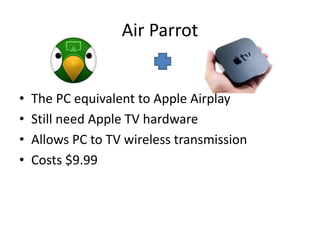
Air Parrot


•   The PC equivalent to Apple Airplay
•   Still need Apple TV hardware
•   Allows PC to TV wireless transmission
•   Costs $9.99
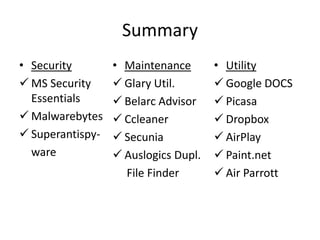
Summary
• Security        • Maintenance       • Utility
 MS Security      Glary Util.        Google DOCS
  Essentials       Belarc Advisor     Picasa
 Malwarebytes     Ccleaner           Dropbox
 Superantispy-    Secunia            AirPlay
  ware             Auslogics Dupl.    Paint.net
                    File Finder        Air Parrott

Programs you need!

  • 1.
  • 2.
    Don’t Worry! • Youdon’t need all of them, although after you hear about them, you may want some (or all) • We’ll divide them into 3 categories: – Security – Maintenance – Utility
  • 3.
    Why? • Your operatingsystem (XP, Vista, Win 7 or 8) likely came with only a minimum of extra features • Without these features, you’re missing out on being able to make full use and enjoyment of your computer • In fact, you may be risking your online safety
  • 4.
    Why? • The programswe’ll talk about are all free • They come with recommendations from the Ewing CLC staff and most are: – Recommended by other independent parties, such as PC Magazine – Will help you enjoy your computer more and make it run better
  • 5.
  • 6.
  • 7.
    Security • Anti Virus •Firewall • Anti Malware
  • 8.
    Security • Anti Virus • Firewall • Anti Malware • Cloud Access – Make sure your security is AGAP (as good as possible)
  • 9.
    Security • Anti Virus • Firewall • Anti Malware • Cloud Access – Make sure your security is AGAP (as good as possible) • Strong passwords
  • 10.
    Security • Anti Virus • Firewall • Anti Malware • Cloud Access – Make sure your security is AGAP (as good as possible) • Strong passwords • Check online bank accounts frequently
  • 11.
  • 12.
    Maintenance • Eliminate duplicatefiles • Check status of program updates
  • 13.
    Maintenance • Eliminate duplicatefiles • Check status of program updates • Fix registry errors
  • 14.
    Maintenance • Eliminate duplicate files • Check status of program updates • Fix registry errors • Clean out unused programs
  • 15.
    Maintenance • Eliminate duplicate files • Check status of program updates • Fix registry errors • Clean out unused programs • Check hard drive integrity
  • 16.
    Maintenance • Eliminate duplicate files • Check status of program updates • Fix registry errors • Clean out unused programs • Check hard drive integrity • Create backups and restore files
  • 17.
    Maintenance • Eliminate duplicate files • Check status of program updates • Fix registry errors • Clean out unused programs • Check hard drive integrity • Create backups and restore files • Streamline startup operation
  • 18.
    Maintenance • Eliminate duplicate files • Check status of program updates • Fix registry errors • Clean out unused programs • Check hard drive integrity • Create backups and restore files • Streamline startup operation • Wipe clean hard drives
  • 19.
    Utility • Organize yourphotos and videos
  • 20.
    Utility • Organize yourphotos and videos • Send large volumes of photos via. Internet
  • 21.
    Utility • Organize yourphotos and videos • Send large volumes of photos via. internet • Create and send documents easily
  • 22.
    Utility • Organize your photos and videos • Send large volumes of photos via. internet • Create and send documents easily • Transfer files between PC’s, iPads, iPods, Android devices with no docking ports
  • 23.
    Utility • Organize yourphotos and videos • Send large volumes of photos via. internet • Create and send documents easily • Transfer files between PC’s, iPads, iPods, Android devices with no docking ports • Store your files on “the cloud” to always have them accessible no matter what device you’re using or where you are • Stop worrying about backups
  • 24.
    What to LookFor • When downloading a program, check its credentials – Go to Cnetdownload.com and check how many have been downloaded
  • 25.
    What to LookFor • When downloading a program, check its credentials – Go to Cnetdownload.com and check how many have been downloaded – Check comments from other users
  • 26.
    What to LookFor • When downloading a program, check its credentials – Go to Cnetdownload.com and check how many have been downloaded – Check comments from other users – Read carefully each screen to see what you’re agreeing to
  • 27.
    What to LookFor • When downloading a program, check its credentials – Go to Cnetdownload.com and check how many have been downloaded – Check comments from other users – Read carefully each screen to see what you’re agreeing to – Don’t click on the first “download” button you see
  • 28.
    What to LookFor • When downloading a program, check its credentials – Go to Cnetdownload.com and check how many have been downloaded – Check comments from other users – Read carefully each screen to see what you’re agreeing to – Don’t click on the first “download” button you see – Choose “run”, not “save”
  • 29.
  • 30.
  • 31.
  • 32.
    Minimum Defense forAverage PC User • Windows firewall
  • 33.
    Minimum Defense forAverage PC User • Windows firewall • Good anti virus software
  • 34.
    Minimum Defense forAverage PC User • Windows firewall • Good anti virus software • Automatic Windows updates
  • 35.
    Minimum Defense forAverage PC User • Windows firewall • Good anti virus software • Automatic Windows updates • Latest internet browser (IE 10, Firefox 17.0, Chrome 23.0)
  • 36.
    Minimum Defense forAverage PC User • Windows firewall • Good anti virus software • Automatic Windows updates • Latest internet browser (IE 10, Firefox 17.0, Chrome 23.0) • Antispyware program
  • 37.
    Minimum Defense forAverage PC User • Windows firewall • Good anti virus software • Automatic Windows updates • Latest internet browser (IE 10, Firefox 17.0, Chrome 23.0) • Antispyware program • Regular backups
  • 38.
    Microsoft Security Essentials •Comprehensive malware protection • XP, Vista & Win7 Protection (use Windows Defender for Win8) • Simple • Quiet, works in background • Automatic updates
  • 40.
  • 41.
    Malwarebytes • Works wellwith others • FAST!
  • 42.
    Malwarebytes • Works wellwith others • FAST! • Chameleon-gets working when otherwise locked down
  • 43.
    Malwarebytes • Works wellwith others • FAST! • Chameleon-gets working when otherwise locked down • Free version, but pro is available for a one- time fee, no annual renewal
  • 44.
    Malwarebytes • Works wellwith others • FAST! • Chameleon-gets working when otherwise locked down • Free version, but pro is available for a one- time fee, no annual renewal • Supports XP, Vista, Win7 & 8 (32 & 64 bit)
  • 45.
    Superantispyware • Scans forharmful programs • Removes malware, viruses missed by other programs • Covers areas missed by other antispyware programs
  • 49.
  • 50.
    CCleaner • Cleans unneededfiles • Checks for registry errors and inconsistencies
  • 51.
    CCleaner • Cleans unneededfiles • Checks for registry errors and inconsistencies • Wipes drives
  • 52.
    CCleaner • Cleans unneeded files • Checks for registry errors and inconsistencies • Wipes drives • Checks for duplicates
  • 53.
    CCleaner • Cleans unneeded files • Checks for registry errors and inconsistencies • Wipes drives • Checks for duplicates • Uninstalls programs
  • 54.
    CCleaner • Cleans unneeded files • Checks for registry errors and inconsistencies • Wipes drives • Checks for duplicates • Uninstalls programs • Displays startup programs by application
  • 55.
    CCleaner • Cleans unneeded files • Checks for registry errors and inconsistencies • Wipes drives • Checks for duplicates • Uninstalls programs • Displays startup programs by application • Shows system restore points
  • 58.
    Secunia Personal SoftwareInspector • MS provides updates; most programs do not • Scans for out of date programs • Helps prevent security breaches • One stop for updating multiple programs
  • 60.
    Belarc Advisor • Displayssecurity vulnerabilities
  • 61.
    Belarc Advisor • Displayssecurity vulnerabilities • Shows software infrequently used
  • 62.
    Belarc Advisor • Displayssecurity vulnerabilities • Shows software infrequently used • Displays software license codes
  • 63.
    Belarc Advisor • Displays security vulnerabilities • Shows software infrequently used • Displays software license codes • Lists status of security patches
  • 64.
    Belarc Advisor • Displays security vulnerabilities • Shows software infrequently used • Displays software license codes • Lists status of security patches • Lists hardware specs
  • 65.
    Belarc Advisor • Displays security vulnerabilities • Shows software infrequently used • Displays software license codes • Lists status of security patches • Lists hardware specs • Memory types used
  • 66.
    Belarc Advisor • Displays security vulnerabilities • Shows software infrequently used • Displays software license codes • Lists status of security patches • Lists hardware specs • Memory types used • Entire computer profile summary
  • 67.
  • 69.
  • 70.
    Glary Utilities • Cleans& scans software • Recovers files
  • 71.
    Glary Utilities • Cleans& scans software • Recovers files • Finds duplicate files
  • 72.
    Glary Utilities • Cleans & scans software • Recovers files • Finds duplicate files • Manages startup files
  • 73.
    Glary Utilities • Cleans & scans software • Recovers files • Finds duplicate files • Manages startup files • Shreds files
  • 74.
    Glary Utilities • Cleans & scans software • Recovers files • Finds duplicate files • Manages startup files • Shreds files • Over 37,000,000 downloads
  • 76.
    Auslogics Duplicate FileFinder • Quick • Easy • Enables clean-up of extra photos, documents • Frees up hard drive space
  • 78.
  • 79.
    Picasa • Automatically indexesall your pictures • Does not duplicate their file structure
  • 80.
    Picasa • Automatically indexesall your pictures • Does not duplicate their file structure • Facial recognition is extraordinary
  • 81.
    Picasa • Automatically indexes all your pictures • Does not duplicate their file structure • Facial recognition is extraordinary • Basic editing features
  • 82.
    Picasa • Automatically indexes all your pictures • Does not duplicate their file structure • Facial recognition is extraordinary • Basic editing features • Photo timelines
  • 83.
    Picasa • Automatically indexes all your pictures • Does not duplicate their file structure • Facial recognition is extraordinary • Basic editing features • Photo timelines • “Face” movies
  • 84.
    Picasa • Automatically indexes all your pictures • Does not duplicate their file structure • Facial recognition is extraordinary • Basic editing features • Photo timelines • “Face” movies • Store & send large albums over the web
  • 85.
    Picasa • Automatically indexes all your pictures • Does not duplicate their file structure • Facial recognition is extraordinary • Basic editing features • Photo timelines • “Face” movies • Store & send large albums over the web • Imbed audio in slide shows and movies
  • 86.
  • 87.
    Picasa Face Recognitionin a Group Even tiny images are recognizable
  • 88.
    Paint.net • Expanded features from MS Paint • Special effects are simple to use • Layers for professional results • Unlimited history in “going back”
  • 89.
    Google Docs • Letsyou send all documents directly to recipient without email • Provides reply by recipient even if not on gmail • Allows collaborative updating of documents
  • 90.
  • 91.
    Why Cloud? • Automaticallysynchronize across devices – Desktop – Laptop – iPad – iPhone • No need for backups • High need for security
  • 92.
    Dropbox* • Automatic backupvia the “cloud” • Transfer documents (photos, spreadsheets, letters, etc.) between multiple devices (PC’s, iPads, iPods, iPhones, MAC computers) • Have access to them anywhere you are • *Other “cloud” software will also do this
  • 93.
    Cloud Software • CloudAccess – MS Skydrive (No brainer if you have MS products – iCloud (No brainer if you have Apple products) – Google Cloud 5 GB free until 6/30/13 – Many others – Dropbox (The one to beat) • Say goodbye to backups(?)
  • 94.
    Karen’s Replicator • Veryfast backup • Unobtrusive • Skips files that don’t need backing up Read more: Karens Replicator - CNET Download.com
  • 95.
    Win 7/8 FileBackup • Easy to use • Improvement from XP • Relatively fast • Built in to the operating system • Access from start menu
  • 96.
    If You Havean “i” Device • iPad, iPod, iPhone etc., get AirPlay • Mirror your display on flat screen TV’s • Need Apple TV device (not really a TV, but a wireless receiver/transmitter between your device and the flat screen TV)
  • 97.
    Air Parrot • The PC equivalent to Apple Airplay • Still need Apple TV hardware • Allows PC to TV wireless transmission • Costs $9.99
  • 98.
    Summary • Security • Maintenance • Utility  MS Security  Glary Util.  Google DOCS Essentials  Belarc Advisor  Picasa  Malwarebytes  Ccleaner  Dropbox  Superantispy-  Secunia  AirPlay ware  Auslogics Dupl.  Paint.net File Finder  Air Parrott