Enterprise PowerShell for Remote 
Security Assessments 
A Practical Approach 
Presented by James Tarala 
Principal Consultant © 2014 Enclave Security
2 
Problem Statement 
• During a security assessment an administrator needs to be 
able to perform tasks against multiple remote machines 
• For example: 
– Generate a user account list from multiple remote machines 
– Reset the password for the local administrator account across all the 
machines in a domain 
– Local a known malicious process on a list of workstations 
– Kill a known malicious process on a list of workstations 
– Query / parse the event log from multiple workstations 
Enterprise PowerShell for Remote Security Assessments © Enclave Security 2014
3 
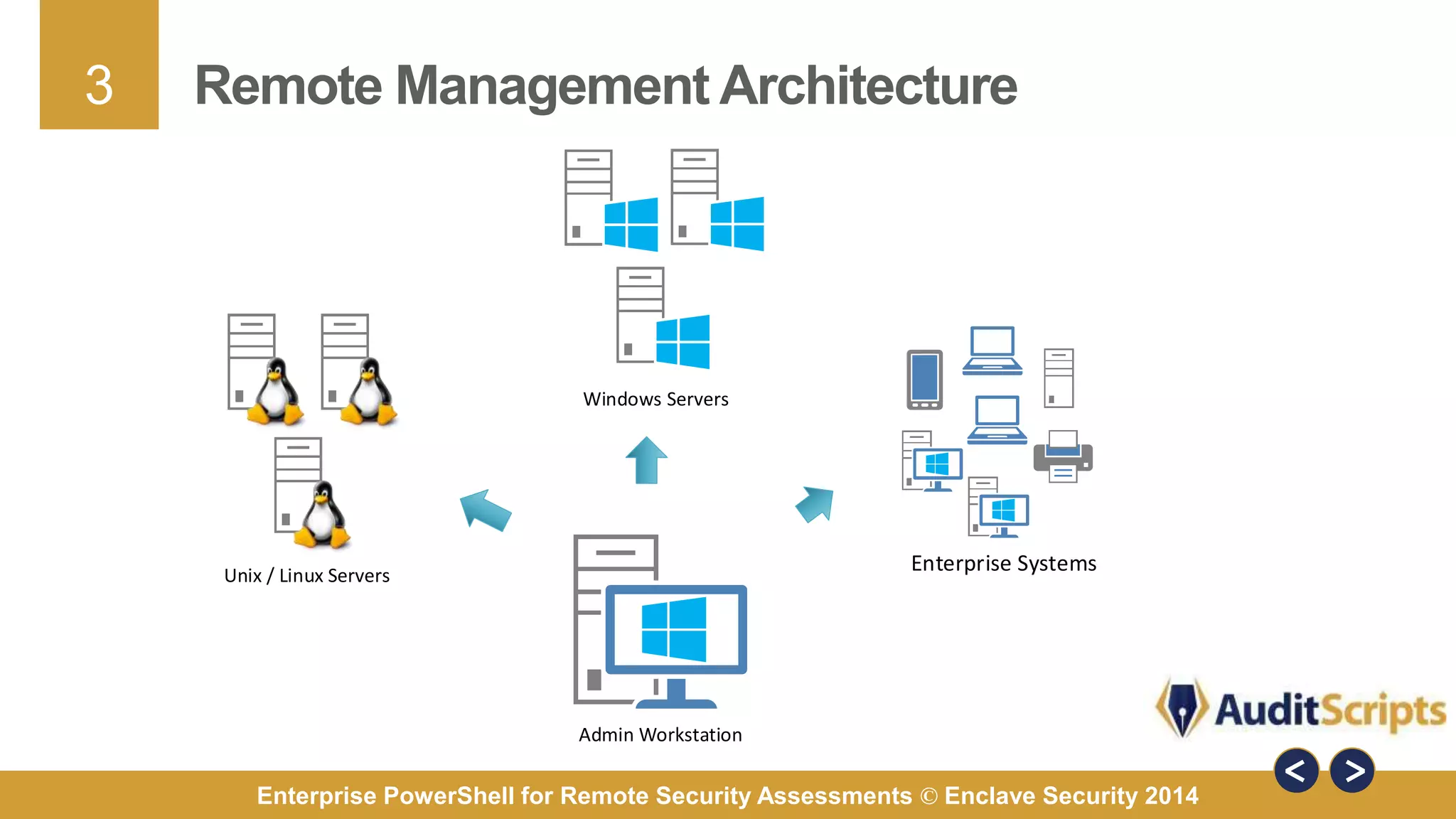
Remote Management Architecture 
Enterprise Systems 
Windows Servers 
Unix / Linux Servers 
Admin Workstation 
Enterprise PowerShell for Remote Security Assessments © Enclave Security 2014
4 
Solution #1: SSH & PowerShell 
• Traditionally, when sysadmins need to perform remote 
command line management, they use SSH 
• One solution is to install an SSH server that serves a 
powershell.exe shell when clients connect 
• Supports Windows and Unix management workstations 
Enterprise PowerShell for Remote Security Assessments © Enclave Security 2014
5 
Advantages of PowerShell SSH Server 
• There are a number of advantages to this approach: 
– Provides an encrypted channel between systems 
– Utilizes standard protocols that are well tested 
– Creates an interactive session with a remote system 
– Can be scripted to allow for automation 
– Firewall rules are simple to create via Windows Firewall 
– Allows for two-factor authentication through the use of key files 
Enterprise PowerShell for Remote Security Assessments © Enclave Security 2014
6 
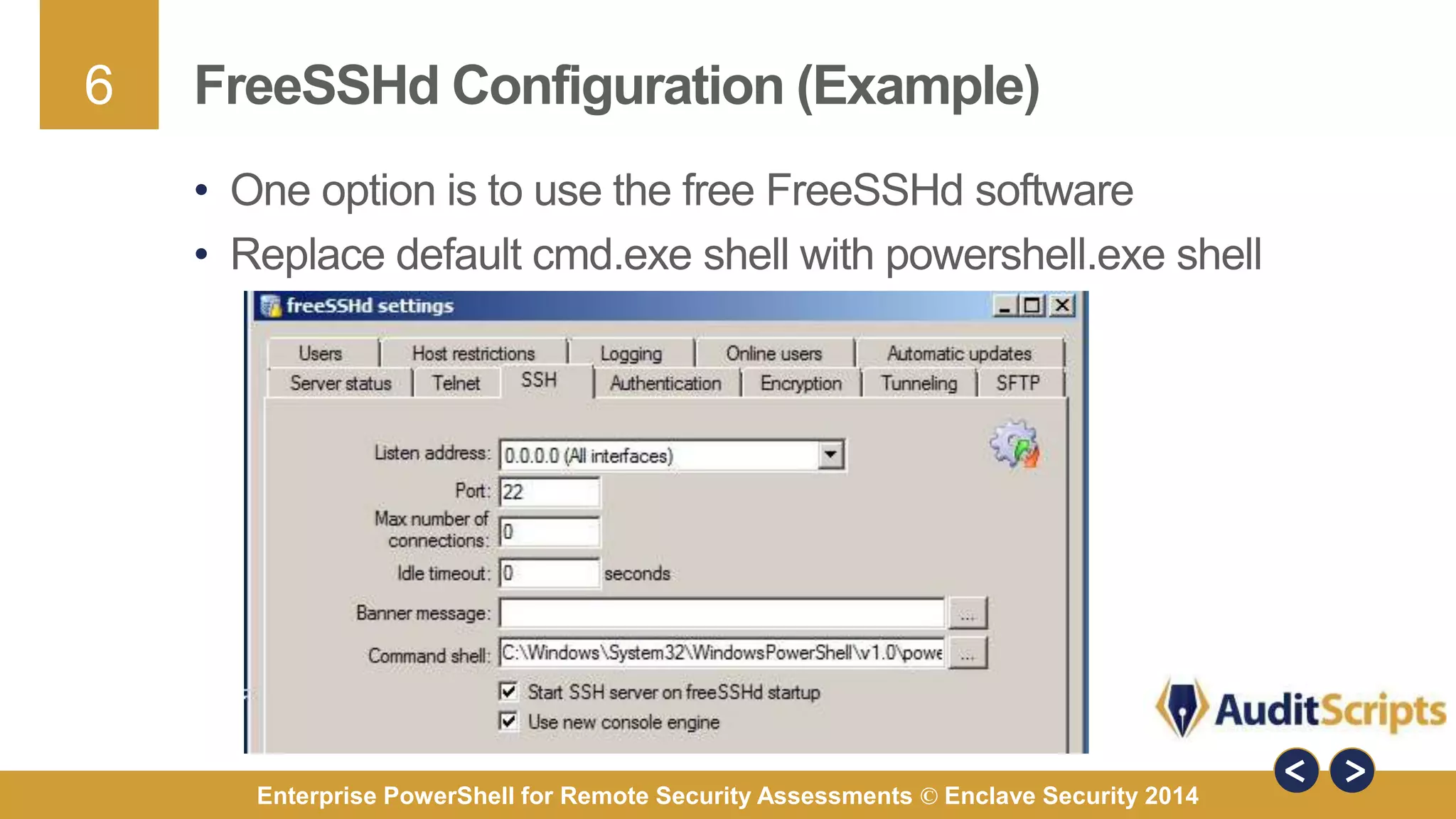
FreeSSHd Configuration (Example) 
• One option is to use the free FreeSSHd software 
• Replace default cmd.exe shell with powershell.exe shell 
Enterprise PowerShell for Remote Security Assessments © Enclave Security 2014
7 
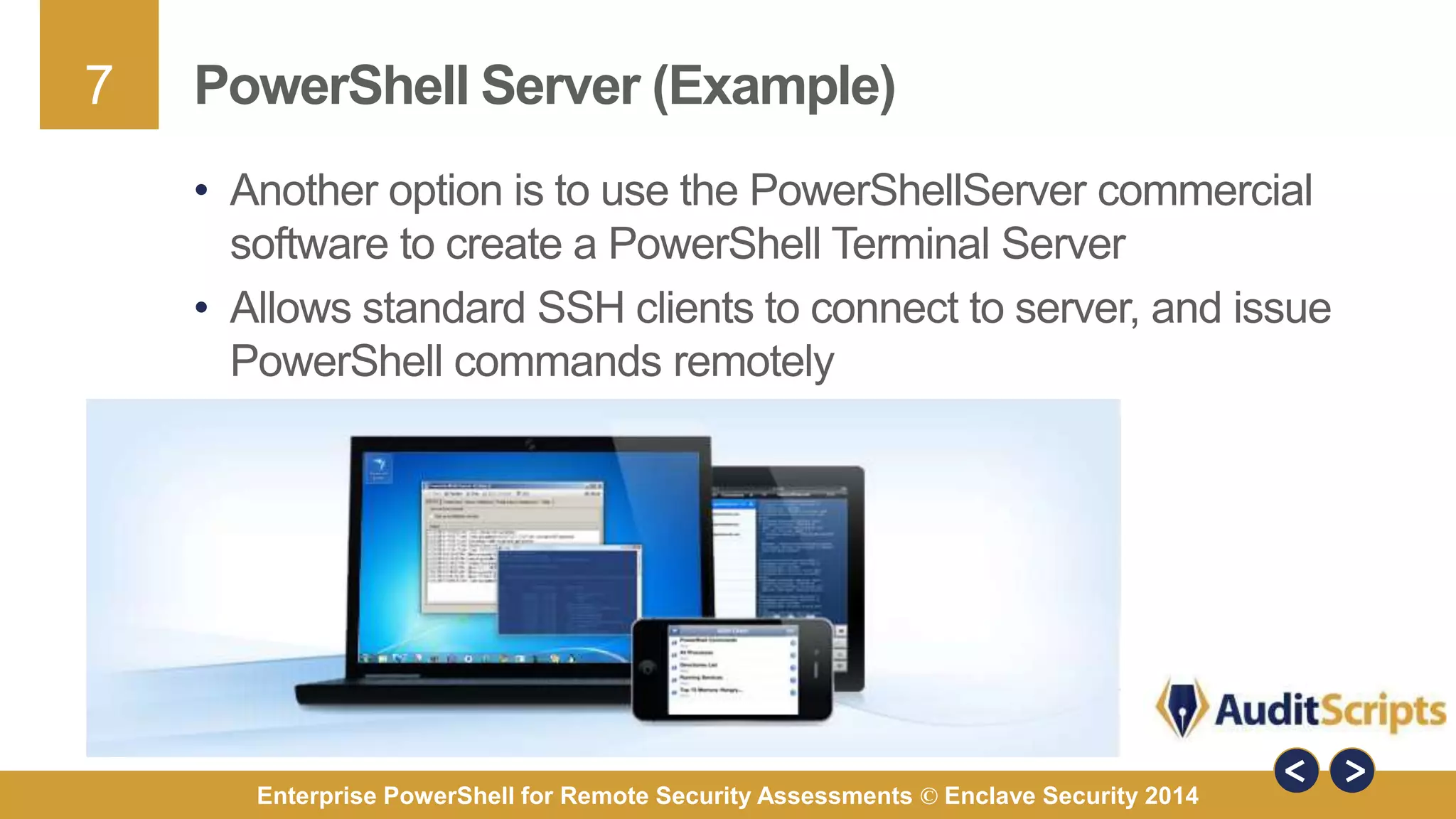
PowerShell Server (Example) 
• Another option is to use the PowerShellServer commercial 
software to create a PowerShell Terminal Server 
• Allows standard SSH clients to connect to server, and issue 
PowerShell commands remotely 
Enterprise PowerShell for Remote Security Assessments © Enclave Security 2014
8 
PowerShell SSH Client via SSH.NET Library 
• Project to create a PowerShell version of an SSH client 
• Free download from Codeplex (https://sshnet.codeplex.com/) 
• Supports a number of standard SSH functions, including: 
– Implementation of standard remote shell 
– SFTP / SCP functionality 
– Tracks progress of uploads / downloads for progress bars 
– Supports key files for authentication 
– Supports standard encryption algorithms / key lengths 
Enterprise PowerShell for Remote Security Assessments © Enclave Security 2014
9 
PowerShell SSH Client via NetCmdlets Tools 
• Commercial third party PowerShell client modules 
• Allows PowerShell clients to run standard network client 
protocols from within a PowerShell session 
• Includes SSH, DNS, Email, LDAP, WebDAV, and more 
Enterprise PowerShell for Remote Security Assessments © Enclave Security 2014
10 
Disadvantages of PowerShell SSH Server 
• Unfortunately, there are disadvantages to these approaches: 
– Third party software has to be installed / configured 
– Third party software must be maintained / kept up to date 
– Third party client software will be necessary 
– Additional licensing costs may be incurred (per system) 
– May not function on all versions of Windows 
– Only supports key files for two-factor authentication 
– Authentication / access must be managed per system 
– Only allows for interactive logon sessions & results of commands may 
be difficult to include in local scripts 
Enterprise PowerShell for Remote Security Assessments © Enclave Security 2014
11 
Solution #2: WS-Management 
• Distributed Management Task Force (DMTF) standard for 
remotely managing systems via web 
• Microsoft first implemented it via Windows Remote 
Management (WinRM) for XP/2003 & Vista/2008 
• Most recent release WinRM 2.0 in PowerShell 2.0 & later 
• Also supports a separate set of protocols using the Common 
Information Model (CIM) – an upgrade to WMI 
Enterprise PowerShell for Remote Security Assessments © Enclave Security 2014
12 
CMDLET Specific vs. Native Remoting 
CMDLET Specific Remoting 
• DCOM or RPC or WinRM 
• Each CMDLET functions differently 
• Different server setup per protocol 
• Different syntax per CMDLET 
• No support for interactive shells 
• No support for disconnecting from 
running commands 
• Parses & processes commands locally 
Native PowerShell Remoting 
• WS-Management v2.0 
• Each CMDLET functions the same 
• Identical server setup for all systems 
• Same syntax for all CMDLETs 
• Support for interactive shells 
• Support for disconnecting and 
reconnecting to running commands 
• Parses & processes commands remotely 
Enterprise PowerShell for Remote Security Assessments © Enclave Security 2014
13 
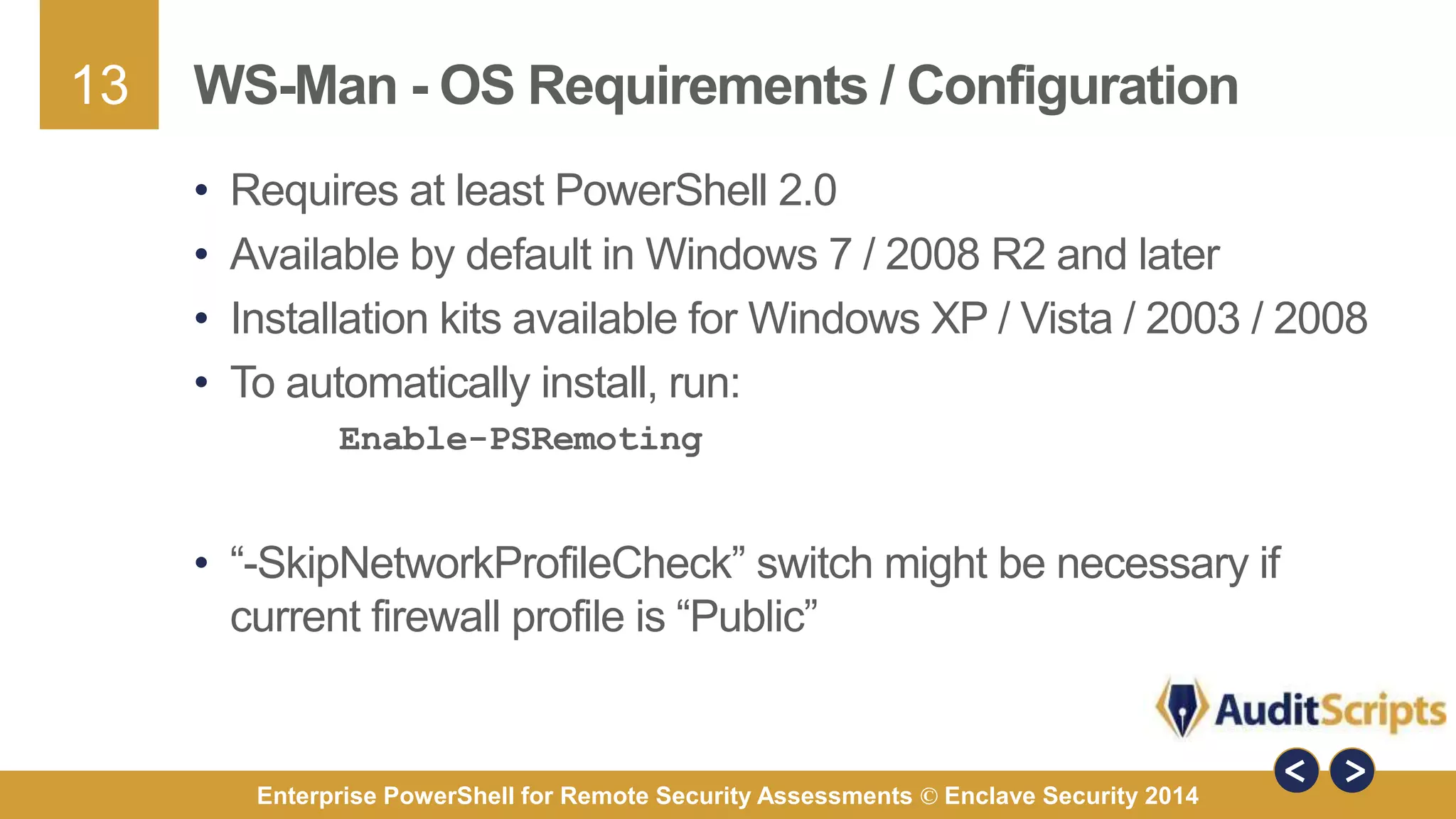
WS-Man - OS Requirements / Configuration 
• Requires at least PowerShell 2.0 
• Available by default in Windows 7 / 2008 R2 and later 
• Installation kits available for Windows XP / Vista / 2003 / 2008 
• To automatically install, run: 
Enable-PSRemoting 
• “-SkipNetworkProfileCheck” switch might be necessary if 
current firewall profile is “Public” 
Enterprise PowerShell for Remote Security Assessments © Enclave Security 2014
14 
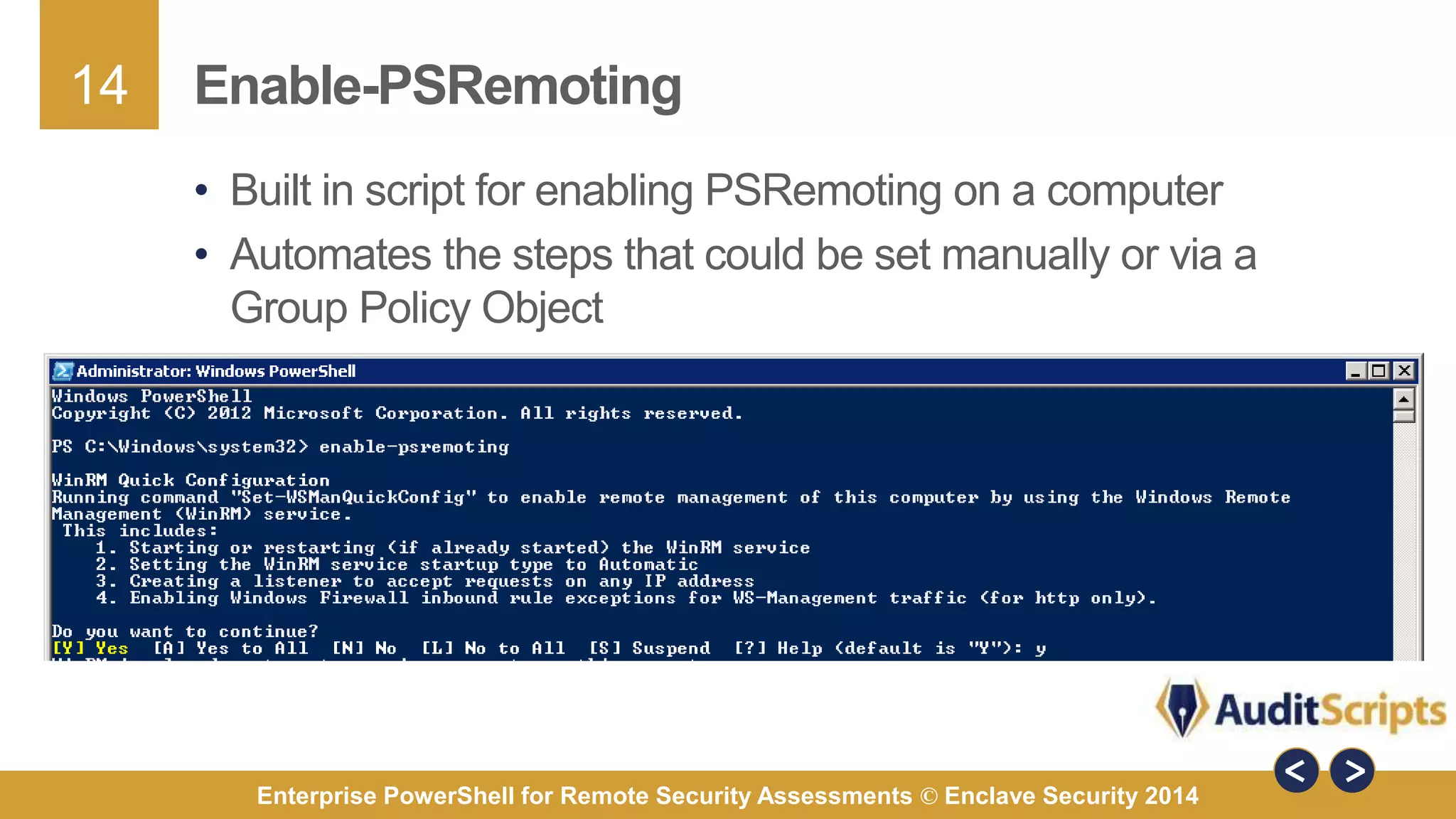
Enable-PSRemoting 
• Built in script for enabling PSRemoting on a computer 
• Automates the steps that could be set manually or via a 
Group Policy Object 
Enterprise PowerShell for Remote Security Assessments © Enclave Security 2014
15 
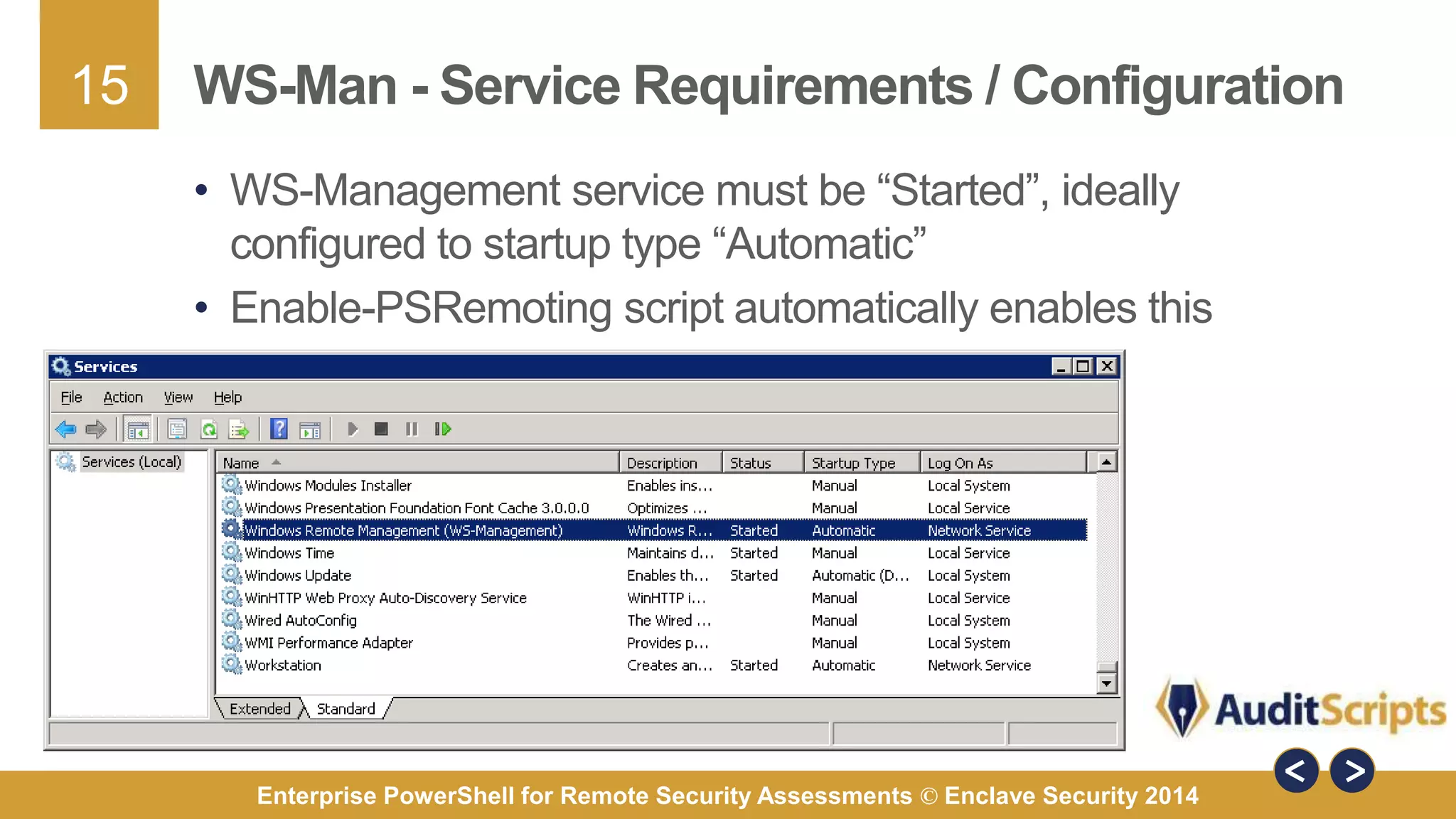
WS-Man - Service Requirements / Configuration 
• WS-Management service must be “Started”, ideally 
configured to startup type “Automatic” 
• Enable-PSRemoting script automatically enables this 
Enterprise PowerShell for Remote Security Assessments © Enclave Security 2014
16 
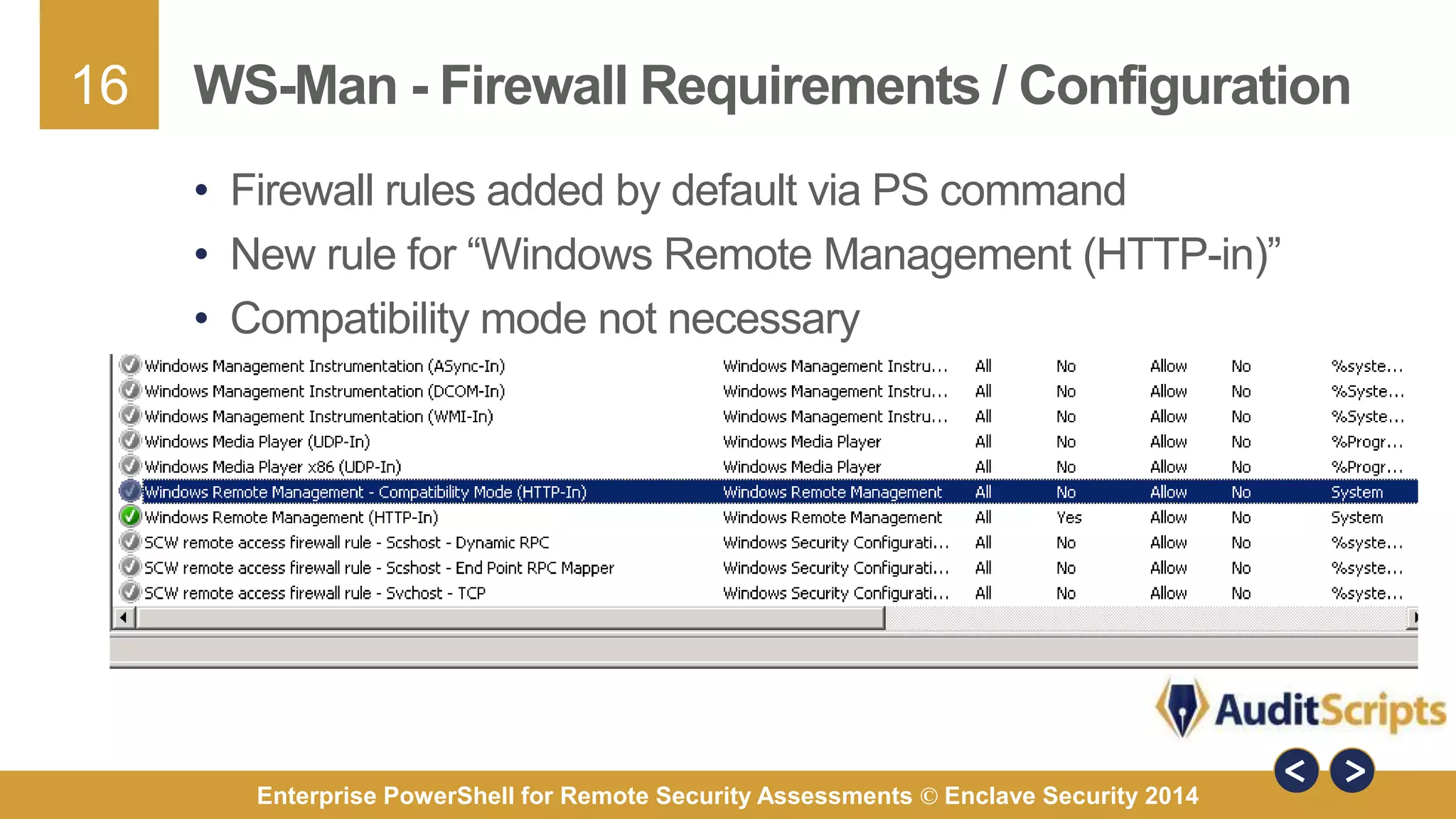
WS-Man - Firewall Requirements / Configuration 
• Firewall rules added by default via PS command 
• New rule for “Windows Remote Management (HTTP-in)” 
• Compatibility mode not necessary 
Enterprise PowerShell for Remote Security Assessments © Enclave Security 2014
17 
WS-Man - HTTP vs HTTPs 
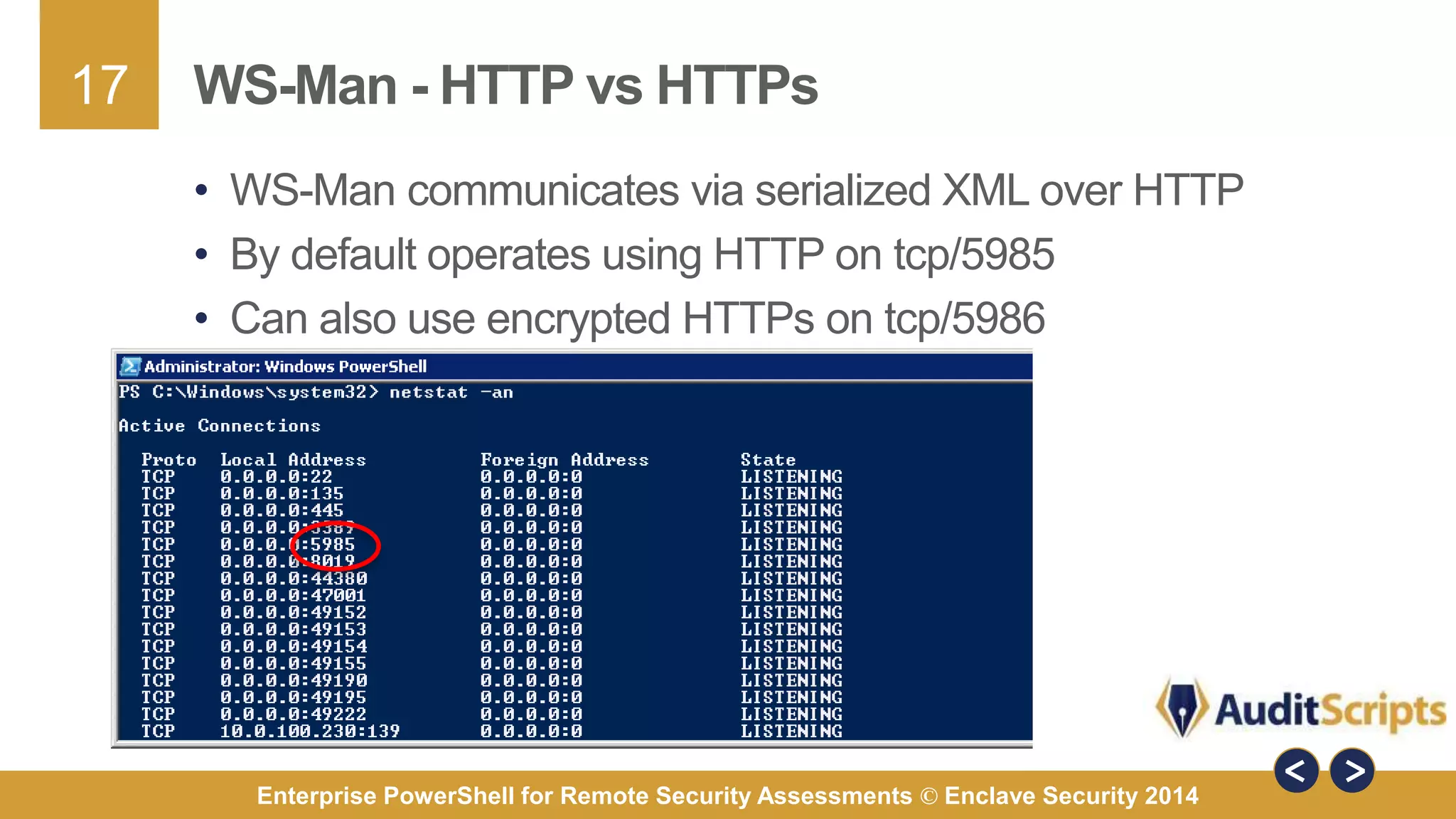
• WS-Man communicates via serialized XML over HTTP 
• By default operates using HTTP on tcp/5985 
• Can also use encrypted HTTPs on tcp/5986 
Enterprise PowerShell for Remote Security Assessments © Enclave Security 2014
18 
WS-Man -Mass Configuration 
• Enable-PSRemoting script can be executed on all machines 
• Group Policies can be set to: 
1. Enable WinRM (Policies > Administrative Templates > Windows Components 
> Windows Remote Management (WinRM) > WinRM Service) 
2. Enable Firewall for tcp/5985 & tcp/5986 (Policies > Administrative Templates > 
Network > Network Connections > Windows Firewall > Domain Profile) 
3. Enable Automatic Service Startup (Policies > Windows Settings > Security 
Settings > System Services) 
4. Legacy clients need PowerShell 2.0 or later & .NET Framework (XP & 2003) 
Enterprise PowerShell for Remote Security Assessments © Enclave Security 2014
19 
PSSession - Like Native SSH for Windows 
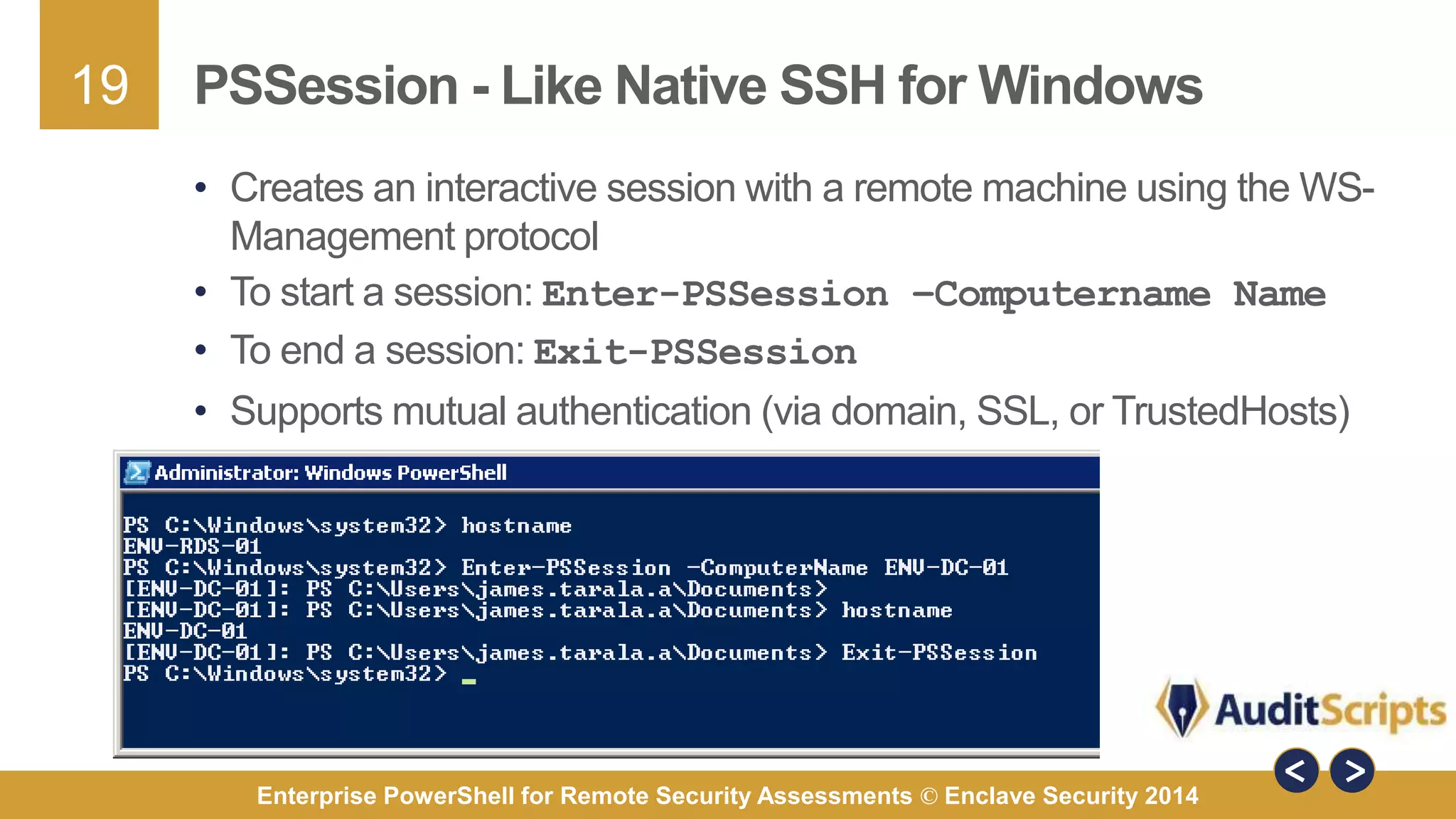
• Creates an interactive session with a remote machine using the WS-Management 
protocol 
• To start a session: Enter-PSSession –Computername Name 
• To end a session: Exit-PSSession 
• Supports mutual authentication (via domain, SSL, or TrustedHosts) 
Enterprise PowerShell for Remote Security Assessments © Enclave Security 2014
20 
PSSession - PowerShell v3.0 
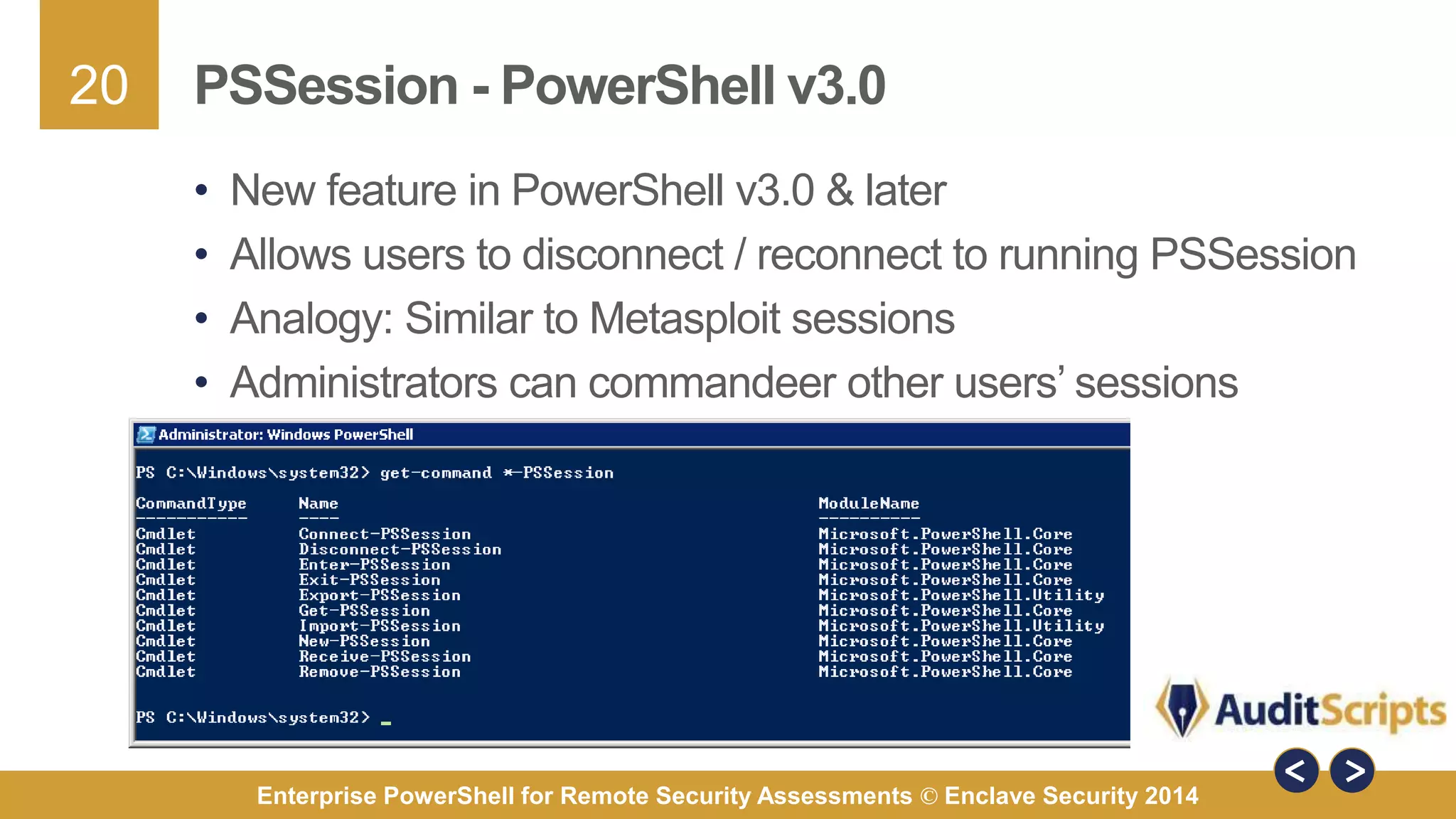
• New feature in PowerShell v3.0 & later 
• Allows users to disconnect / reconnect to running PSSession 
• Analogy: Similar to Metasploit sessions 
• Administrators can commandeer other users’ sessions 
Enterprise PowerShell for Remote Security Assessments © Enclave Security 2014
21 
Connect-PSSession / Disconnect-PSSession 
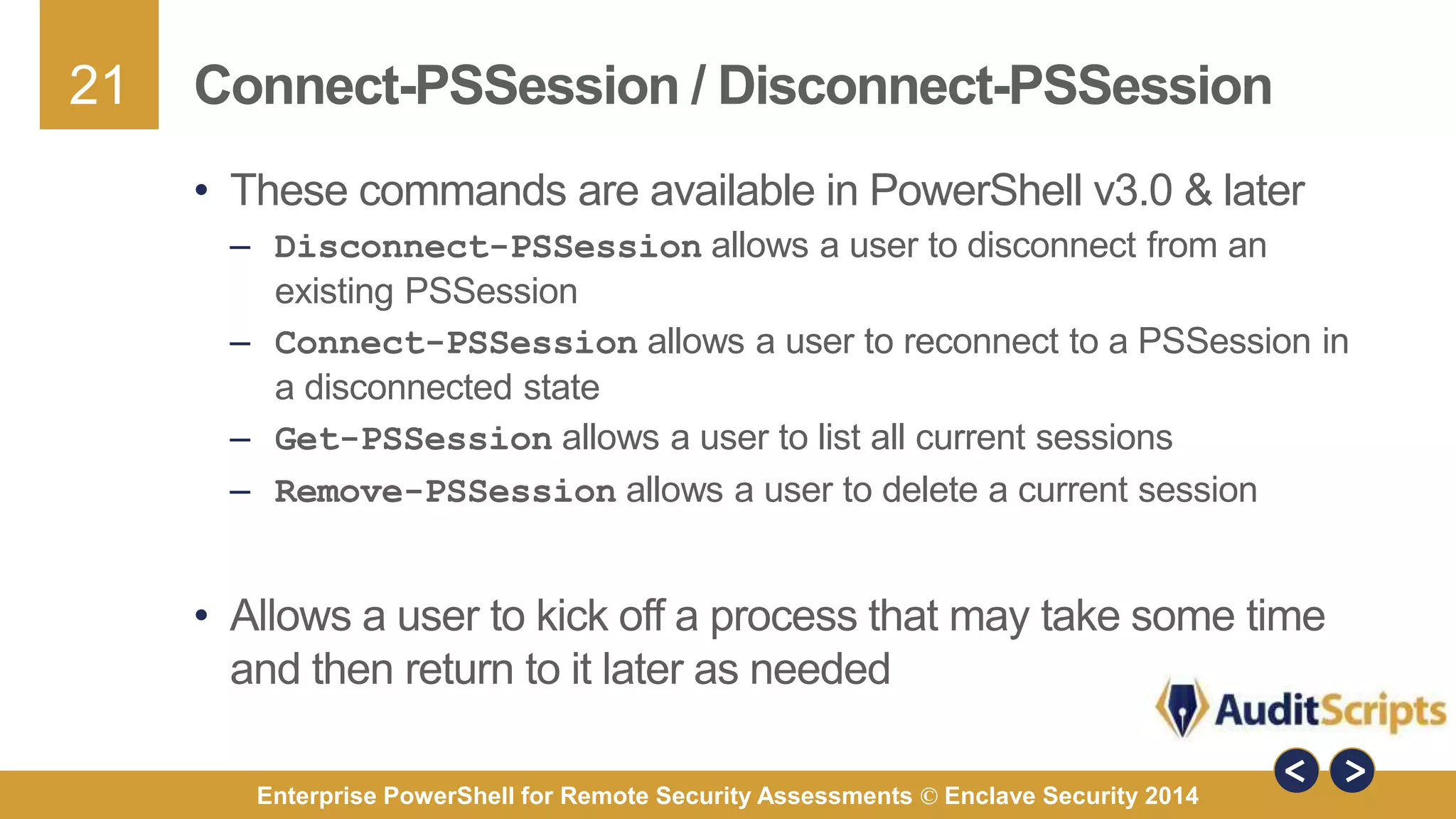
• These commands are available in PowerShell v3.0 & later 
– Disconnect-PSSession allows a user to disconnect from an 
existing PSSession 
– Connect-PSSession allows a user to reconnect to a PSSession in 
a disconnected state 
– Get-PSSession allows a user to list all current sessions 
– Remove-PSSession allows a user to delete a current session 
• Allows a user to kick off a process that may take some time 
and then return to it later as needed 
Enterprise PowerShell for Remote Security Assessments © Enclave Security 2014
22 
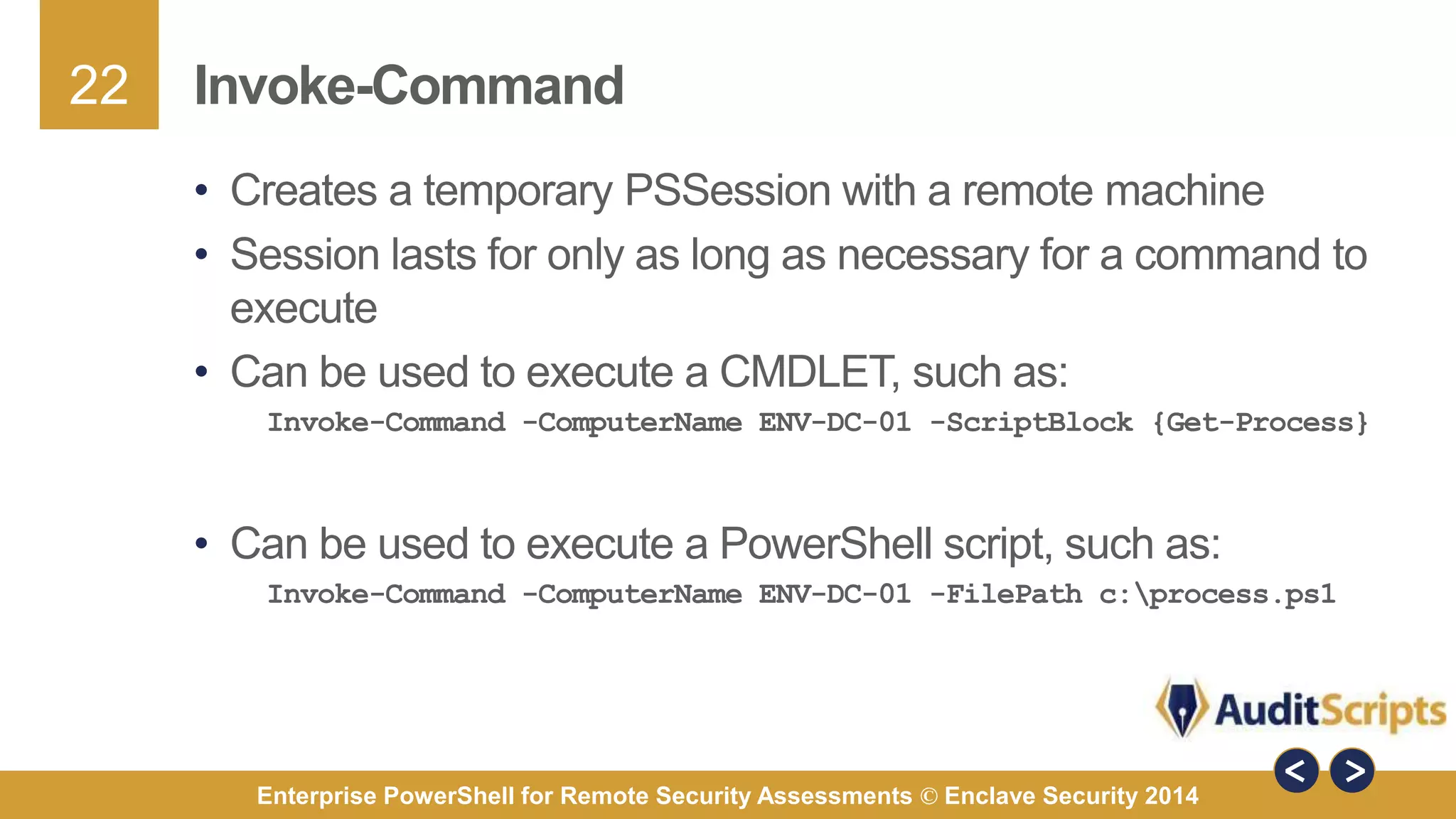
Invoke-Command 
• Creates a temporary PSSession with a remote machine 
• Session lasts for only as long as necessary for a command to 
execute 
• Can be used to execute a CMDLET, such as: 
Invoke-Command -ComputerName ENV-DC-01 -ScriptBlock {Get-Process} 
• Can be used to execute a PowerShell script, such as: 
Invoke-Command -ComputerName ENV-DC-01 -FilePath c:process.ps1 
Enterprise PowerShell for Remote Security Assessments © Enclave Security 2014
23 
Case Study – WS-Management in Action 
• WS-Management can extend PowerShell to give 
administrators the ability to scale security commands 
• These security capabilities can be used by: 
– Incident handlers 
– Penetration testers 
– Forensic analysts 
– IT Auditors 
• The following slides illustrate some of the capabilities 
PowerShell offers via WS-Management 
Enterprise PowerShell for Remote Security Assessments © Enclave Security 2014
24 
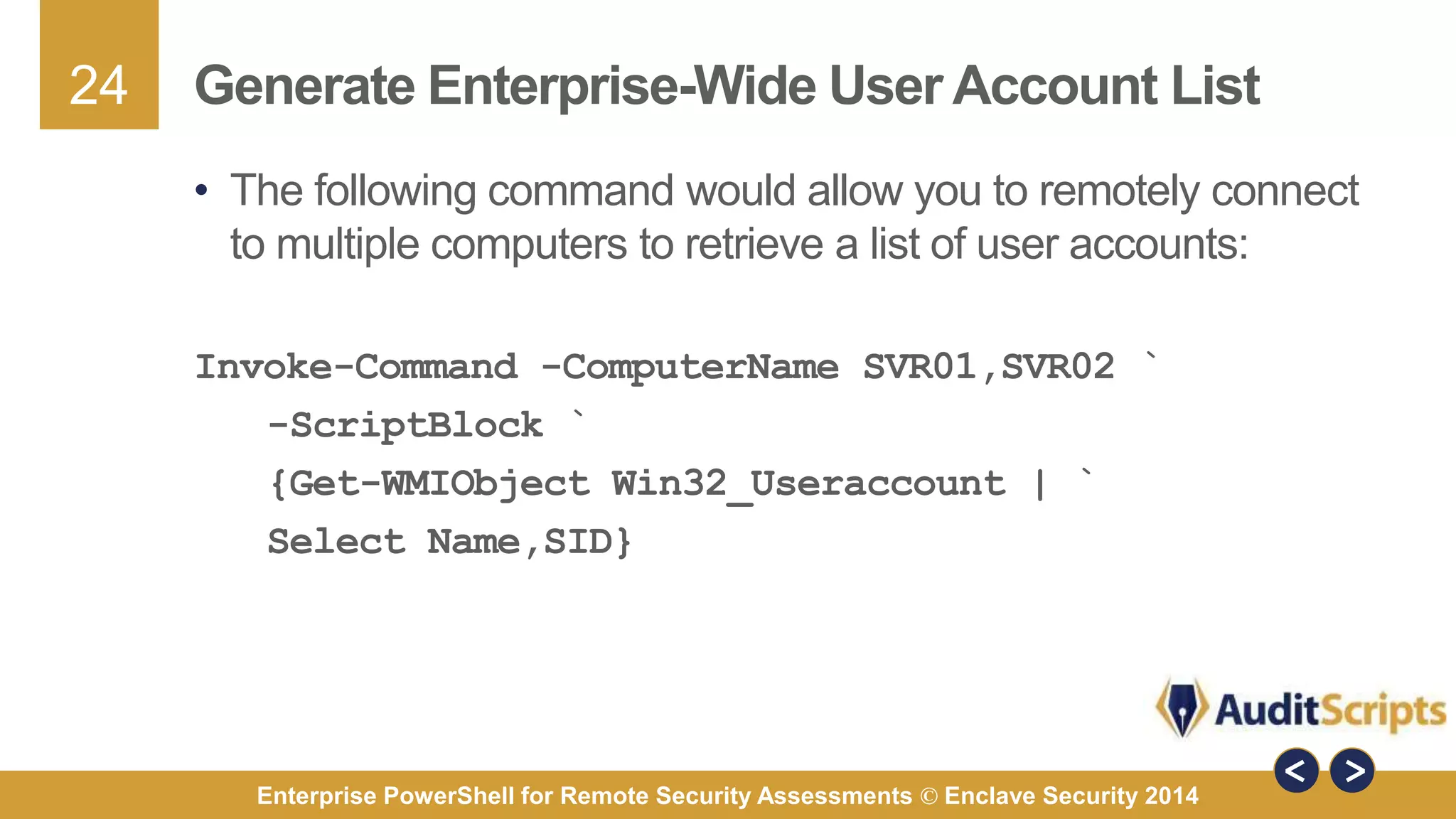
Generate Enterprise-Wide User Account List 
• The following command would allow you to remotely connect 
to multiple computers to retrieve a list of user accounts: 
Invoke-Command -ComputerName SVR01,SVR02 ` 
-ScriptBlock ` 
{Get-WMIObject Win32_Useraccount | ` 
Select Name,SID} 
Enterprise PowerShell for Remote Security Assessments © Enclave Security 2014
25 
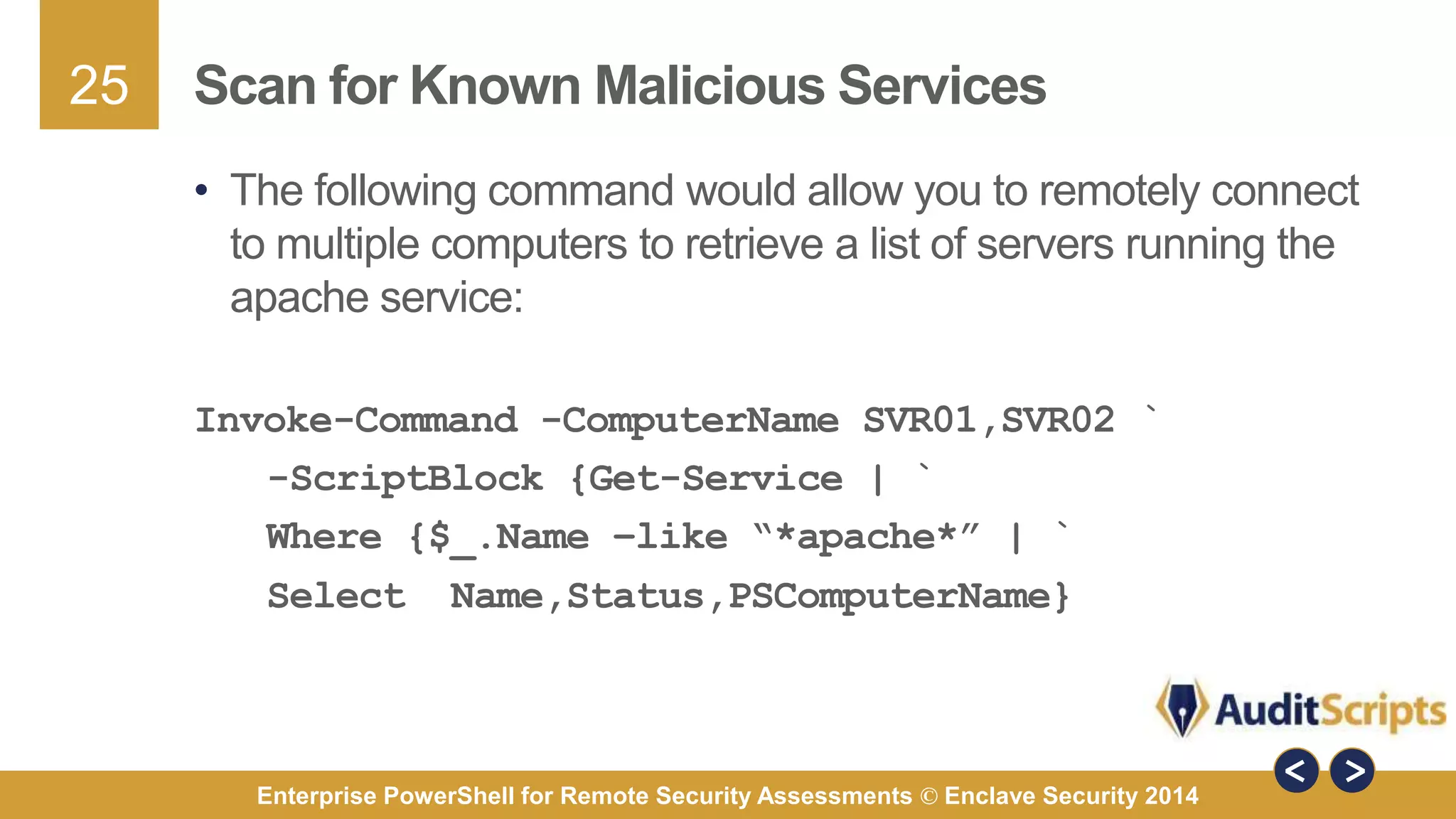
Scan for Known Malicious Services 
• The following command would allow you to remotely connect 
to multiple computers to retrieve a list of servers running the 
apache service: 
Invoke-Command -ComputerName SVR01,SVR02 ` 
-ScriptBlock {Get-Service | ` 
Where {$_.Name –like “*apache*” | ` 
Select Name,Status,PSComputerName} 
Enterprise PowerShell for Remote Security Assessments © Enclave Security 2014
26 
Scan for Known Malicious Processes 
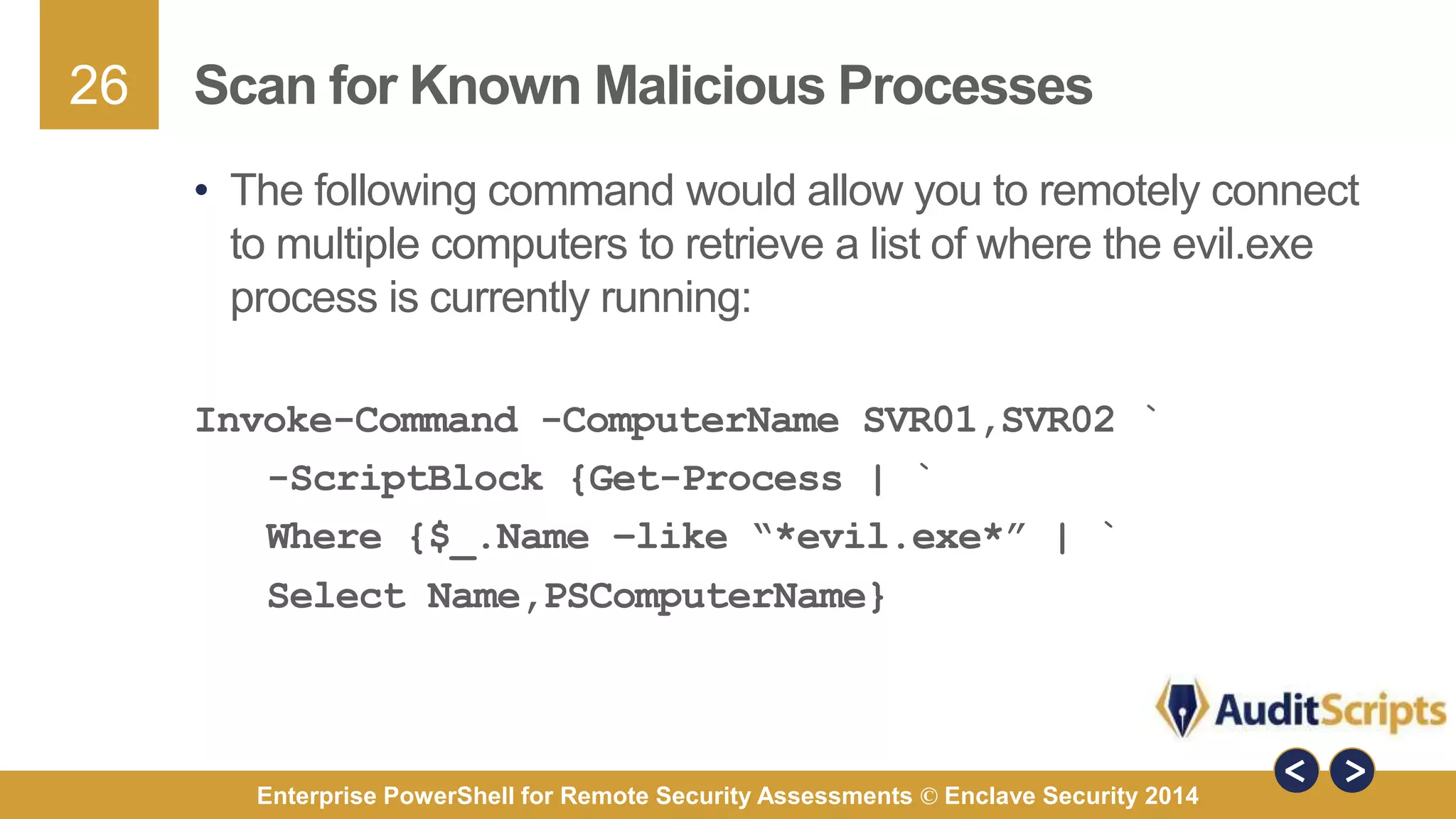
• The following command would allow you to remotely connect 
to multiple computers to retrieve a list of where the evil.exe 
process is currently running: 
Invoke-Command -ComputerName SVR01,SVR02 ` 
-ScriptBlock {Get-Process | ` 
Where {$_.Name –like “*evil.exe*” | ` 
Select Name,PSComputerName} 
Enterprise PowerShell for Remote Security Assessments © Enclave Security 2014
27 
Kill Known Malicious Processes 
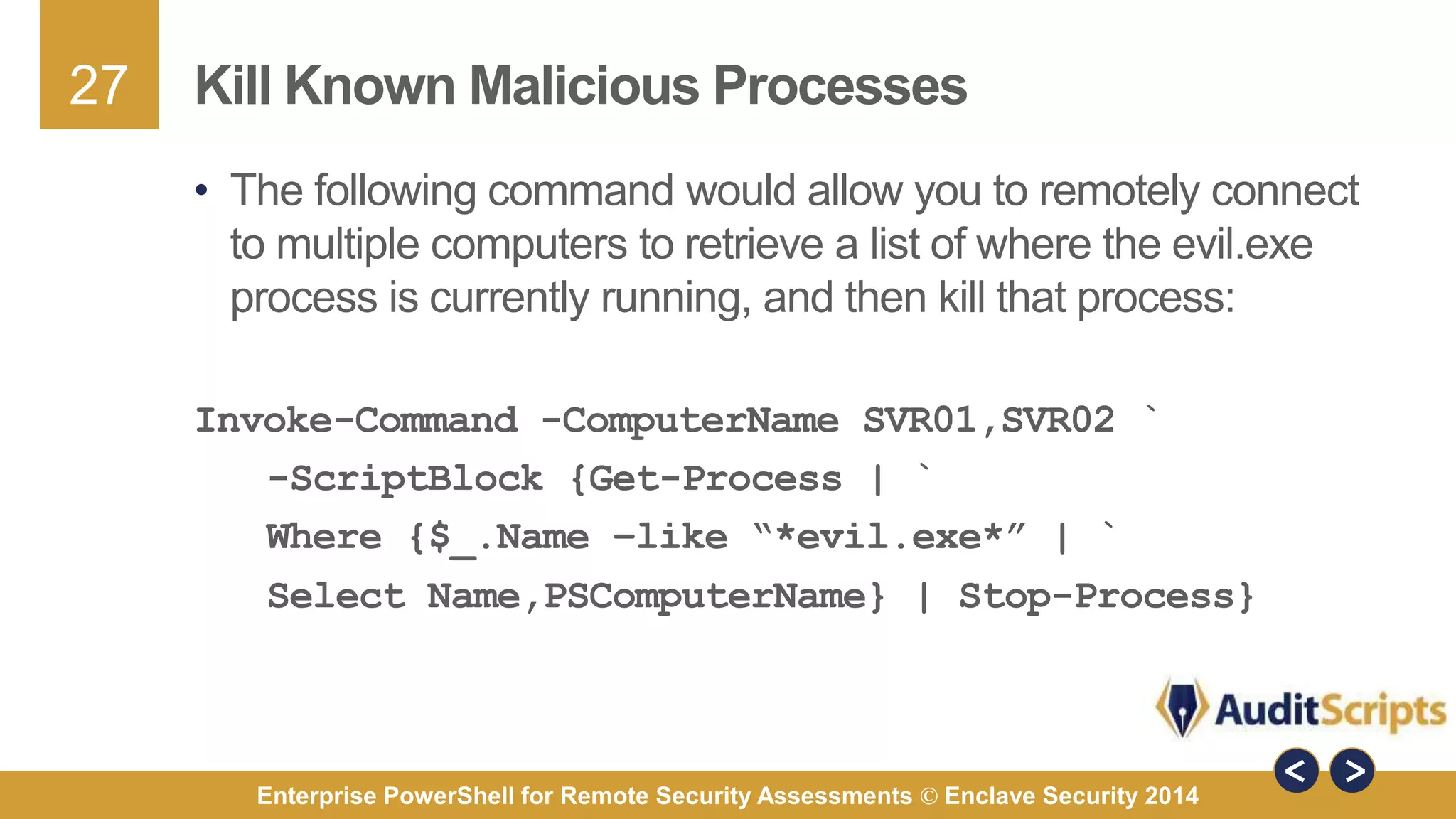
• The following command would allow you to remotely connect 
to multiple computers to retrieve a list of where the evil.exe 
process is currently running, and then kill that process: 
Invoke-Command -ComputerName SVR01,SVR02 ` 
-ScriptBlock {Get-Process | ` 
Where {$_.Name –like “*evil.exe*” | ` 
Select Name,PSComputerName} | Stop-Process} 
Enterprise PowerShell for Remote Security Assessments © Enclave Security 2014
28 
Parse Event Logs for Login Events 
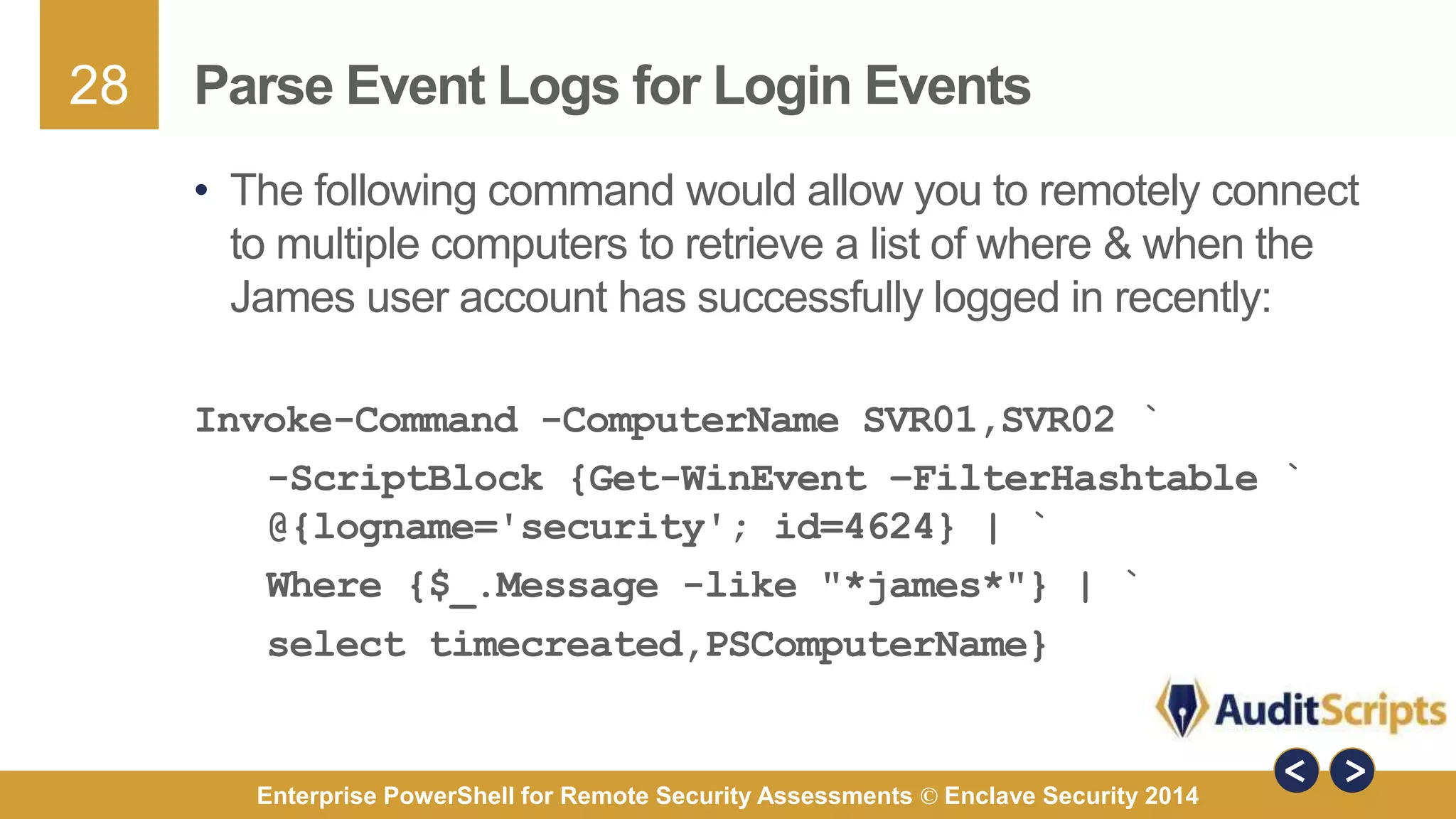
• The following command would allow you to remotely connect 
to multiple computers to retrieve a list of where & when the 
James user account has successfully logged in recently: 
Invoke-Command -ComputerName SVR01,SVR02 ` 
-ScriptBlock {Get-WinEvent –FilterHashtable ` 
@{logname='security'; id=4624} | ` 
Where {$_.Message -like "*james*"} | ` 
select timecreated,PSComputerName} 
Enterprise PowerShell for Remote Security Assessments © Enclave Security 2014
29 
Next Steps 
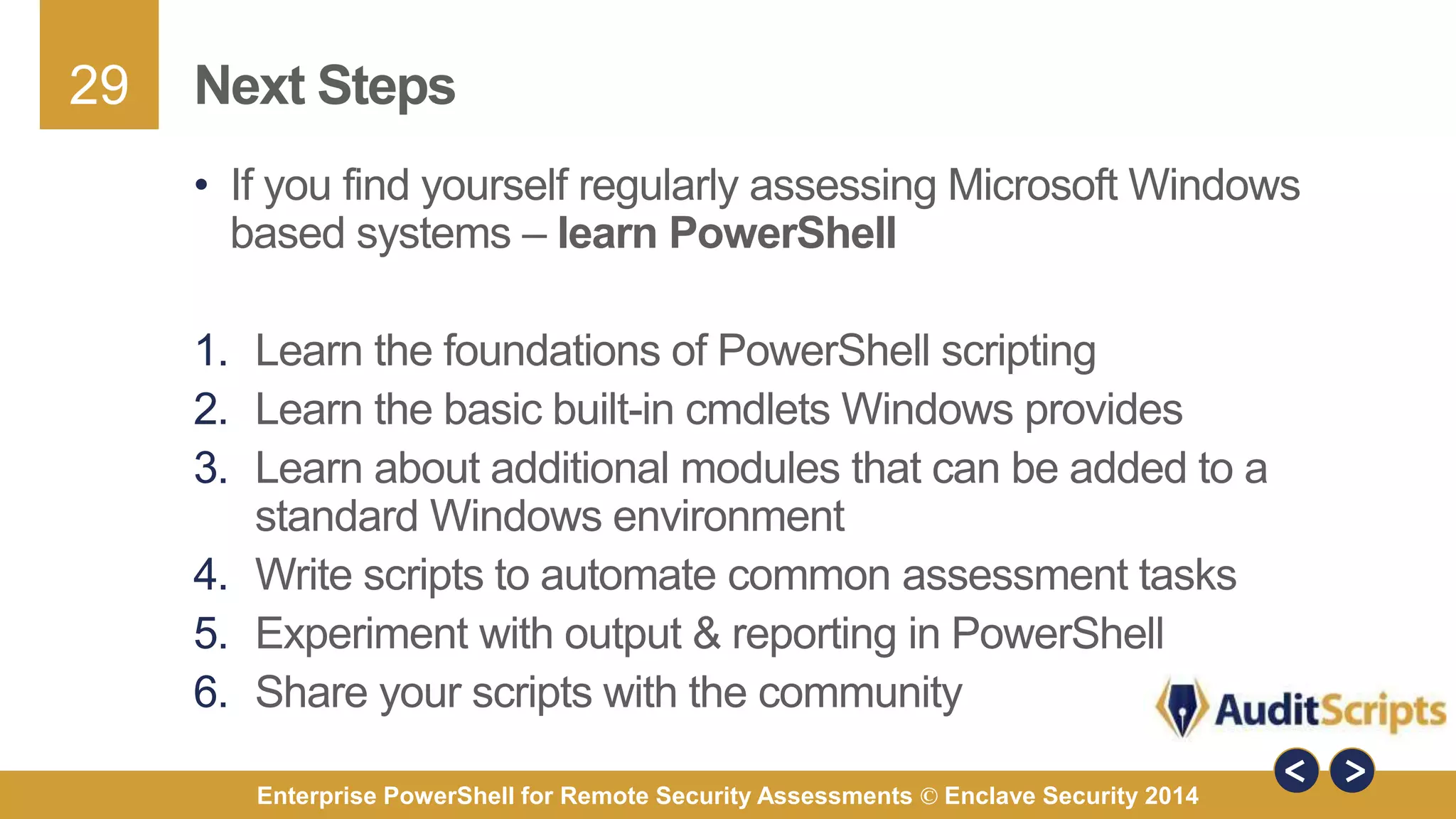
• If you find yourself regularly assessing Microsoft Windows 
based systems – learn PowerShell 
1. Learn the foundations of PowerShell scripting 
2. Learn the basic built-in cmdlets Windows provides 
3. Learn about additional modules that can be added to a 
standard Windows environment 
4. Write scripts to automate common assessment tasks 
5. Experiment with output & reporting in PowerShell 
6. Share your scripts with the community 
Enterprise PowerShell for Remote Security Assessments © Enclave Security 2014
30 
Further Questions 
• James Tarala 
– Principal Consultant & Founder, Enclave Security 
– E-mail: james.tarala@enclavesecurity.com 
– Twitter: @isaudit 
– Website: http://www.auditscripts.com/ 
• Resources for further study: 
– AuditScripts.com Audit Resources 
– SANS SEC 505: Securing Windows & Resisting Malware 
– Windows PowerShell in Action by Bruce Payette 
– PowerShell and WMI by Richard Siddaway 
Enterprise PowerShell for Remote Security Assessments © Enclave Security 2014
31 
References 
• http://windowsitpro.com/powershell/powershell-basics-remote- 
management 
• http://www.netcmdlets.com/overview/unix/ 
• http://www.powershelladmin.com/wiki/SSH_from_PowerShell 
_using_the_SSH.NET_library 
• http://blogs.technet.com/b/heyscriptingguy/archive/2012/11/15 
/digging-into-powershell-remote-authentication.aspx 
Enterprise PowerShell for Remote Security Assessments © Enclave Security 2014

Enterprise PowerShell for Remote Security Assessments

  • 1.
    Enterprise PowerShell forRemote Security Assessments A Practical Approach Presented by James Tarala Principal Consultant © 2014 Enclave Security
  • 2.
    2 Problem Statement • During a security assessment an administrator needs to be able to perform tasks against multiple remote machines • For example: – Generate a user account list from multiple remote machines – Reset the password for the local administrator account across all the machines in a domain – Local a known malicious process on a list of workstations – Kill a known malicious process on a list of workstations – Query / parse the event log from multiple workstations Enterprise PowerShell for Remote Security Assessments © Enclave Security 2014
  • 3.
    3 Remote ManagementArchitecture Enterprise Systems Windows Servers Unix / Linux Servers Admin Workstation Enterprise PowerShell for Remote Security Assessments © Enclave Security 2014
  • 4.
    4 Solution #1:SSH & PowerShell • Traditionally, when sysadmins need to perform remote command line management, they use SSH • One solution is to install an SSH server that serves a powershell.exe shell when clients connect • Supports Windows and Unix management workstations Enterprise PowerShell for Remote Security Assessments © Enclave Security 2014
  • 5.
    5 Advantages ofPowerShell SSH Server • There are a number of advantages to this approach: – Provides an encrypted channel between systems – Utilizes standard protocols that are well tested – Creates an interactive session with a remote system – Can be scripted to allow for automation – Firewall rules are simple to create via Windows Firewall – Allows for two-factor authentication through the use of key files Enterprise PowerShell for Remote Security Assessments © Enclave Security 2014
  • 6.
    6 FreeSSHd Configuration(Example) • One option is to use the free FreeSSHd software • Replace default cmd.exe shell with powershell.exe shell Enterprise PowerShell for Remote Security Assessments © Enclave Security 2014
  • 7.
    7 PowerShell Server(Example) • Another option is to use the PowerShellServer commercial software to create a PowerShell Terminal Server • Allows standard SSH clients to connect to server, and issue PowerShell commands remotely Enterprise PowerShell for Remote Security Assessments © Enclave Security 2014
  • 8.
    8 PowerShell SSHClient via SSH.NET Library • Project to create a PowerShell version of an SSH client • Free download from Codeplex (https://sshnet.codeplex.com/) • Supports a number of standard SSH functions, including: – Implementation of standard remote shell – SFTP / SCP functionality – Tracks progress of uploads / downloads for progress bars – Supports key files for authentication – Supports standard encryption algorithms / key lengths Enterprise PowerShell for Remote Security Assessments © Enclave Security 2014
  • 9.
    9 PowerShell SSHClient via NetCmdlets Tools • Commercial third party PowerShell client modules • Allows PowerShell clients to run standard network client protocols from within a PowerShell session • Includes SSH, DNS, Email, LDAP, WebDAV, and more Enterprise PowerShell for Remote Security Assessments © Enclave Security 2014
  • 10.
    10 Disadvantages ofPowerShell SSH Server • Unfortunately, there are disadvantages to these approaches: – Third party software has to be installed / configured – Third party software must be maintained / kept up to date – Third party client software will be necessary – Additional licensing costs may be incurred (per system) – May not function on all versions of Windows – Only supports key files for two-factor authentication – Authentication / access must be managed per system – Only allows for interactive logon sessions & results of commands may be difficult to include in local scripts Enterprise PowerShell for Remote Security Assessments © Enclave Security 2014
  • 11.
    11 Solution #2:WS-Management • Distributed Management Task Force (DMTF) standard for remotely managing systems via web • Microsoft first implemented it via Windows Remote Management (WinRM) for XP/2003 & Vista/2008 • Most recent release WinRM 2.0 in PowerShell 2.0 & later • Also supports a separate set of protocols using the Common Information Model (CIM) – an upgrade to WMI Enterprise PowerShell for Remote Security Assessments © Enclave Security 2014
  • 12.
    12 CMDLET Specificvs. Native Remoting CMDLET Specific Remoting • DCOM or RPC or WinRM • Each CMDLET functions differently • Different server setup per protocol • Different syntax per CMDLET • No support for interactive shells • No support for disconnecting from running commands • Parses & processes commands locally Native PowerShell Remoting • WS-Management v2.0 • Each CMDLET functions the same • Identical server setup for all systems • Same syntax for all CMDLETs • Support for interactive shells • Support for disconnecting and reconnecting to running commands • Parses & processes commands remotely Enterprise PowerShell for Remote Security Assessments © Enclave Security 2014
  • 13.
    13 WS-Man -OS Requirements / Configuration • Requires at least PowerShell 2.0 • Available by default in Windows 7 / 2008 R2 and later • Installation kits available for Windows XP / Vista / 2003 / 2008 • To automatically install, run: Enable-PSRemoting • “-SkipNetworkProfileCheck” switch might be necessary if current firewall profile is “Public” Enterprise PowerShell for Remote Security Assessments © Enclave Security 2014
  • 14.
    14 Enable-PSRemoting •Built in script for enabling PSRemoting on a computer • Automates the steps that could be set manually or via a Group Policy Object Enterprise PowerShell for Remote Security Assessments © Enclave Security 2014
  • 15.
    15 WS-Man -Service Requirements / Configuration • WS-Management service must be “Started”, ideally configured to startup type “Automatic” • Enable-PSRemoting script automatically enables this Enterprise PowerShell for Remote Security Assessments © Enclave Security 2014
  • 16.
    16 WS-Man -Firewall Requirements / Configuration • Firewall rules added by default via PS command • New rule for “Windows Remote Management (HTTP-in)” • Compatibility mode not necessary Enterprise PowerShell for Remote Security Assessments © Enclave Security 2014
  • 17.
    17 WS-Man -HTTP vs HTTPs • WS-Man communicates via serialized XML over HTTP • By default operates using HTTP on tcp/5985 • Can also use encrypted HTTPs on tcp/5986 Enterprise PowerShell for Remote Security Assessments © Enclave Security 2014
  • 18.
    18 WS-Man -MassConfiguration • Enable-PSRemoting script can be executed on all machines • Group Policies can be set to: 1. Enable WinRM (Policies > Administrative Templates > Windows Components > Windows Remote Management (WinRM) > WinRM Service) 2. Enable Firewall for tcp/5985 & tcp/5986 (Policies > Administrative Templates > Network > Network Connections > Windows Firewall > Domain Profile) 3. Enable Automatic Service Startup (Policies > Windows Settings > Security Settings > System Services) 4. Legacy clients need PowerShell 2.0 or later & .NET Framework (XP & 2003) Enterprise PowerShell for Remote Security Assessments © Enclave Security 2014
  • 19.
    19 PSSession -Like Native SSH for Windows • Creates an interactive session with a remote machine using the WS-Management protocol • To start a session: Enter-PSSession –Computername Name • To end a session: Exit-PSSession • Supports mutual authentication (via domain, SSL, or TrustedHosts) Enterprise PowerShell for Remote Security Assessments © Enclave Security 2014
  • 20.
    20 PSSession -PowerShell v3.0 • New feature in PowerShell v3.0 & later • Allows users to disconnect / reconnect to running PSSession • Analogy: Similar to Metasploit sessions • Administrators can commandeer other users’ sessions Enterprise PowerShell for Remote Security Assessments © Enclave Security 2014
  • 21.
    21 Connect-PSSession /Disconnect-PSSession • These commands are available in PowerShell v3.0 & later – Disconnect-PSSession allows a user to disconnect from an existing PSSession – Connect-PSSession allows a user to reconnect to a PSSession in a disconnected state – Get-PSSession allows a user to list all current sessions – Remove-PSSession allows a user to delete a current session • Allows a user to kick off a process that may take some time and then return to it later as needed Enterprise PowerShell for Remote Security Assessments © Enclave Security 2014
  • 22.
    22 Invoke-Command •Creates a temporary PSSession with a remote machine • Session lasts for only as long as necessary for a command to execute • Can be used to execute a CMDLET, such as: Invoke-Command -ComputerName ENV-DC-01 -ScriptBlock {Get-Process} • Can be used to execute a PowerShell script, such as: Invoke-Command -ComputerName ENV-DC-01 -FilePath c:process.ps1 Enterprise PowerShell for Remote Security Assessments © Enclave Security 2014
  • 23.
    23 Case Study– WS-Management in Action • WS-Management can extend PowerShell to give administrators the ability to scale security commands • These security capabilities can be used by: – Incident handlers – Penetration testers – Forensic analysts – IT Auditors • The following slides illustrate some of the capabilities PowerShell offers via WS-Management Enterprise PowerShell for Remote Security Assessments © Enclave Security 2014
  • 24.
    24 Generate Enterprise-WideUser Account List • The following command would allow you to remotely connect to multiple computers to retrieve a list of user accounts: Invoke-Command -ComputerName SVR01,SVR02 ` -ScriptBlock ` {Get-WMIObject Win32_Useraccount | ` Select Name,SID} Enterprise PowerShell for Remote Security Assessments © Enclave Security 2014
  • 25.
    25 Scan forKnown Malicious Services • The following command would allow you to remotely connect to multiple computers to retrieve a list of servers running the apache service: Invoke-Command -ComputerName SVR01,SVR02 ` -ScriptBlock {Get-Service | ` Where {$_.Name –like “*apache*” | ` Select Name,Status,PSComputerName} Enterprise PowerShell for Remote Security Assessments © Enclave Security 2014
  • 26.
    26 Scan forKnown Malicious Processes • The following command would allow you to remotely connect to multiple computers to retrieve a list of where the evil.exe process is currently running: Invoke-Command -ComputerName SVR01,SVR02 ` -ScriptBlock {Get-Process | ` Where {$_.Name –like “*evil.exe*” | ` Select Name,PSComputerName} Enterprise PowerShell for Remote Security Assessments © Enclave Security 2014
  • 27.
    27 Kill KnownMalicious Processes • The following command would allow you to remotely connect to multiple computers to retrieve a list of where the evil.exe process is currently running, and then kill that process: Invoke-Command -ComputerName SVR01,SVR02 ` -ScriptBlock {Get-Process | ` Where {$_.Name –like “*evil.exe*” | ` Select Name,PSComputerName} | Stop-Process} Enterprise PowerShell for Remote Security Assessments © Enclave Security 2014
  • 28.
    28 Parse EventLogs for Login Events • The following command would allow you to remotely connect to multiple computers to retrieve a list of where & when the James user account has successfully logged in recently: Invoke-Command -ComputerName SVR01,SVR02 ` -ScriptBlock {Get-WinEvent –FilterHashtable ` @{logname='security'; id=4624} | ` Where {$_.Message -like "*james*"} | ` select timecreated,PSComputerName} Enterprise PowerShell for Remote Security Assessments © Enclave Security 2014
  • 29.
    29 Next Steps • If you find yourself regularly assessing Microsoft Windows based systems – learn PowerShell 1. Learn the foundations of PowerShell scripting 2. Learn the basic built-in cmdlets Windows provides 3. Learn about additional modules that can be added to a standard Windows environment 4. Write scripts to automate common assessment tasks 5. Experiment with output & reporting in PowerShell 6. Share your scripts with the community Enterprise PowerShell for Remote Security Assessments © Enclave Security 2014
  • 30.
    30 Further Questions • James Tarala – Principal Consultant & Founder, Enclave Security – E-mail: james.tarala@enclavesecurity.com – Twitter: @isaudit – Website: http://www.auditscripts.com/ • Resources for further study: – AuditScripts.com Audit Resources – SANS SEC 505: Securing Windows & Resisting Malware – Windows PowerShell in Action by Bruce Payette – PowerShell and WMI by Richard Siddaway Enterprise PowerShell for Remote Security Assessments © Enclave Security 2014
  • 31.
    31 References •http://windowsitpro.com/powershell/powershell-basics-remote- management • http://www.netcmdlets.com/overview/unix/ • http://www.powershelladmin.com/wiki/SSH_from_PowerShell _using_the_SSH.NET_library • http://blogs.technet.com/b/heyscriptingguy/archive/2012/11/15 /digging-into-powershell-remote-authentication.aspx Enterprise PowerShell for Remote Security Assessments © Enclave Security 2014

Editor's Notes

  • #2 Enterprise PowerShell for Remote Security Assessments As organizations assess the security of their information systems, the need for automation has become more and more apparent. Not only are organizations attempting to automate their assessments, the need is becoming more pressing to perform assessments centrally against large numbers of enterprise systems. Forensic analysts, incident handlers, penetration testers, and auditors all regularly find themselves in situations where they need to remotely assess a large number of systems through an automated set of tools. Microsoft’s PowerShell scripting language has become the defacto standard for many organizations looking to perform this level of distributed automation. In this presentation James Tarala, of Enclave Security, will describe to students the enterprise capabilities PowerShell offers and show practical examples of how PowerShell can be used to perform large scale Windows security assessments.