





Title


Getting Started


                  TM


  Model 1174
Getting Started, PROFILER 2™


     © Copyright 2005-2006 by Sun Nuclear Corporation. All rights reserved.
     The information contained in this technical manual and the accompanying software program is
     protected by copyright and all rights are reserved by Sun Nuclear Corporation. Copying, duplicat-
     ing, selling, or otherwise distributing any part of this product without the prior written consent of
     Sun Nuclear Corporation is prohibited.
     Sun Nuclear Corporation reserves the right to make periodic modifications of this product without
     obligation to notify any person or entity of such revision.
     This guide is written for:
              PC software:                         version 1.1.0
              Firmware:                            version 1.2.1
     Profiler™, PROFILER 2™, and MapCHECK™ are trademarks of Sun Nuclear Corporation. Other
     trademarks or trade names are the property of their respective owners.
     CAUTION: Any changes or modifications not expressly approved by Sun Nuclear Corporation
     could void the user's authority to operate this equipment.


     Document 1174012, Rev. C , 23 Aug 2006


                                                             Sun Nuclear Corporation
                                                             425-A Pineda Court
                                                             Melbourne, Florida 32940-7508
                                                             telephone 321-259-6862, fax 321-259-7979
                                                             e-mail: Mail@sunnuclear.com
                                                             http://www.sunnuclear.com


ii
Contents
Section 1. Setting up the system . . . . . . . . . . 1                             Section 4. Viewing and printing results . . . .                               21
  Introducing PROFILER 2 . . . . . . . . . . . . . . . . . . . . . 1                 Opening and saving files . . . . . . . . . . . . . . . . . . . .            21
      About the instrument . . . . . . . . . . . . . . . . . . . . . 1                  Selecting file type . . . . . . . . . . . . . . . . . . . . . . .        21
      Setup overview. . . . . . . . . . . . . . . . . . . . . . . . . . 1               Saving files . . . . . . . . . . . . . . . . . . . . . . . . . . . .     21
      Specifications . . . . . . . . . . . . . . . . . . . . . . . . . . . 2         Using the graphical interface. . . . . . . . . . . . . . . . .              22
      Additional sources of information . . . . . . . . . . . 2                      Legend panel . . . . . . . . . . . . . . . . . . . . . . . . . . . . .      22
      Program help . . . . . . . . . . . . . . . . . . . . . . . . . . . 3           View panel . . . . . . . . . . . . . . . . . . . . . . . . . . . . . . .    23
  Setting up hardware and software . . . . . . . . . . . . . 4                       Graph view. . . . . . . . . . . . . . . . . . . . . . . . . . . . . . .     23
      Housing . . . . . . . . . . . . . . . . . . . . . . . . . . . . . . . 4           Description of graph view. . . . . . . . . . . . . . . . .               23
      Power/data interface (P/DI). . . . . . . . . . . . . . . . . 6                    Data points . . . . . . . . . . . . . . . . . . . . . . . . . . . .      24
      Cables . . . . . . . . . . . . . . . . . . . . . . . . . . . . . . . . . 6        Graph scale . . . . . . . . . . . . . . . . . . . . . . . . . . . .      24
      Installing software . . . . . . . . . . . . . . . . . . . . . . . 6               Maximize/minimize graph view . . . . . . . . . . . .                     24
      USB connection . . . . . . . . . . . . . . . . . . . . . . . . . 6                Zoom . . . . . . . . . . . . . . . . . . . . . . . . . . . . . . . . .   25
      Serial connection . . . . . . . . . . . . . . . . . . . . . . . . 7               Normalize the graph . . . . . . . . . . . . . . . . . . . . .            26
  Setting up the USB port . . . . . . . . . . . . . . . . . . . . . 7                   Symmetry . . . . . . . . . . . . . . . . . . . . . . . . . . . . .       26
      Removing the USB drivers . . . . . . . . . . . . . . . . . 9                      Context Menu . . . . . . . . . . . . . . . . . . . . . . . . . .         26
  Launching the software and connecting . . . . . . . . 9                            Header view . . . . . . . . . . . . . . . . . . . . . . . . . . . . . .     26
      Selecting a port . . . . . . . . . . . . . . . . . . . . . . . . 10            Data view . . . . . . . . . . . . . . . . . . . . . . . . . . . . . . . .   27
      To “find” device . . . . . . . . . . . . . . . . . . . . . . . . 10            Analysis panel . . . . . . . . . . . . . . . . . . . . . . . . . . . .      28
      To select a specific port . . . . . . . . . . . . . . . . . . 10                  Analysis panel values . . . . . . . . . . . . . . . . . . . .            28
     Shutdown . . . . . . . . . . . . . . . . . . . . . . . . . . . . . 10              To move analysis panel position . . . . . . . . . . .                    30
  Removing PROFILER 2 software . . . . . . . . . . . . . 10                          Drag and drop positioning . . . . . . . . . . . . . . . . . . .             30
                                                                                        To copy a file. . . . . . . . . . . . . . . . . . . . . . . . . . .      30
Section 2. Calibrating the system . . . . . . . . .                        11
                                                                                        To create a file from a measurement . . . . . . . .                      31
  Array calibration. . . . . . . . . . . . . . . . . . . . . . . . . . .   11
                                                                                        To rearrange files . . . . . . . . . . . . . . . . . . . . . . .         31
     Array calibration fixture . . . . . . . . . . . . . . . . . .         11
                                                                                        To rearrange analysis items . . . . . . . . . . . . . . .                31
     Background measurements . . . . . . . . . . . . . . .                 12
                                                                                     Comparing profiles . . . . . . . . . . . . . . . . . . . . . . . .          31
  Array calibration procedure . . . . . . . . . . . . . . . . . .          12
                                                                                     Movie playback . . . . . . . . . . . . . . . . . . . . . . . . . . .        32
     Calibration setup. . . . . . . . . . . . . . . . . . . . . . . .      12
                                                                                     Importing treatment plans . . . . . . . . . . . . . . . . . . .             32
     Evaluating array calibration results. . . . . . . . . .               13
                                                                                        To import a treatment plan dose map . . . . . . .                        32
     To save the array calibration file. . . . . . . . . . . .             14
                                                                                        Import slice or volume file . . . . . . . . . . . . . . . .              33
     Save array calibration to flash memory . . . . . .                    14
                                                                                        Import display . . . . . . . . . . . . . . . . . . . . . . . . . .       34
  Calculate calibrated detectors (small field) . . . . . .                 15
                                                                                        To use import dialog box tools . . . . . . . . . . . . .                 34
  Dose calibration. . . . . . . . . . . . . . . . . . . . . . . . . . .    15
                                                                                        To measure an equivalent profile . . . . . . . . . . .                   35
     To add a dose measurement . . . . . . . . . . . . . .                 16
                                                                                     Data interpretation. . . . . . . . . . . . . . . . . . . . . . . . .        35
     To save dose calibration to flash . . . . . . . . . . .               16
                                                                                     Export data. . . . . . . . . . . . . . . . . . . . . . . . . . . . . . .    36
  Recalibration interval . . . . . . . . . . . . . . . . . . . . . . .     16
                                                                                        Export ASCII data . . . . . . . . . . . . . . . . . . . . . . .          36
Section 3. Measuring radiation . . . . . . . . . . .                       17           Export to DQA 3 . . . . . . . . . . . . . . . . . . . . . . . .          36
  Positioning PROFILER 2 . . . . . . . . . . . . . . . . . . . .           17        Reports . . . . . . . . . . . . . . . . . . . . . . . . . . . . . . . . .   37
  Loading an array calibration file . . . . . . . . . . . . . .            17
                                                                                   Section 5. Maintaining your system . . . . . . .                              39
  Loading a dose calibration value. . . . . . . . . . . . . .              18
                                                                                     User service . . . . . . . . . . . . . . . . . . . . . . . . . . . . . .    39
  Measuring a single profile. . . . . . . . . . . . . . . . . . .          18
                                                                                        Parts and repairs . . . . . . . . . . . . . . . . . . . . . . . .        39
     Starting the profile measurement . . . . . . . . . .                  18
                                                                                        Storage . . . . . . . . . . . . . . . . . . . . . . . . . . . . . . .    39
     Checking the gain. . . . . . . . . . . . . . . . . . . . . . .        19
                                                                                        Cleaning . . . . . . . . . . . . . . . . . . . . . . . . . . . . . .     39
     Saving the profile . . . . . . . . . . . . . . . . . . . . . . .      19
                                                                                        Disposal and recycling . . . . . . . . . . . . . . . . . . .             39
  Multiple frame capture . . . . . . . . . . . . . . . . . . . . .         20
                                                                                     Software maintenance. . . . . . . . . . . . . . . . . . . . . .             39
  Concatenating two measurements. . . . . . . . . . . .                    20
                                                                                        Verify software version number . . . . . . . . . . . .                   39
  Continuous radiation . . . . . . . . . . . . . . . . . . . . . . .       20
                                                                                        Updating your software and firmware . . . . . . .                        39
  Checking electron energy with a wedge . . . . . . .                      20
                                                                                     Troubleshooting. . . . . . . . . . . . . . . . . . . . . . . . . . .        40
  Photon wedge measurements . . . . . . . . . . . . . . .                  20
                                                                                     Radiation damage . . . . . . . . . . . . . . . . . . . . . . . . .          40
                                                                                     Contacting customer service. . . . . . . . . . . . . . . . .                40


Contents                                                                                                                                                         iii
iv   Contents
1            Setting up the system

Introducing PROFILER 2

        About the instrument
                 PROFILER 2 measures the radiation intensity along X and Y axes in a beam of ionizing radiation.
                 You use the instrument for testing the output of a radiation therapy device such as a linear accel-
                 erator (linac). PROFILER 2 is ideal for machine quality assurance, including beam modeling,
                 verification of dose, beam shape measurement, beam steering adjustments, light-field coinci-
                 dence, electron energy, and measurement of 30 cm dynamic wedges.
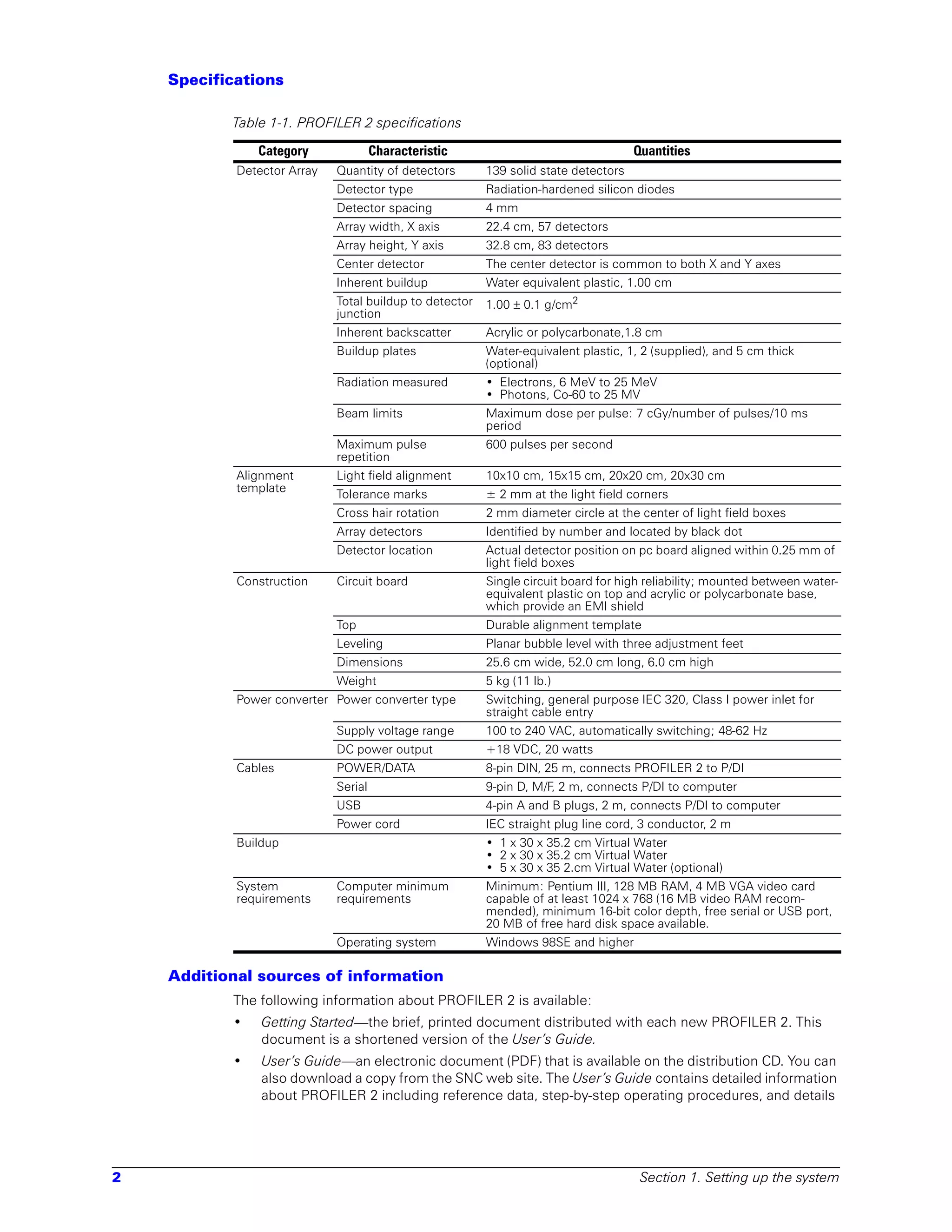
                 PROFILER 2 is quick and easy to use. To make a beam measurement, place the PROFILER 2 detec-
                 tor unit on the treatment table and connect it to the computer. Then expose it to the beam (Figure
                 1-1). As PROFILER 2 is exposed to radiation, the software instantly displays the acquired dose on
                 the monitor.


                                   Control Room                                       Treatment Room
                 Figure 1-1. Using PROFILER 2

        Setup overview
                 PROFILER 2 includes a detector unit, a set of cables, a Power/Data Interface (P/DI), and Windows
                 PC software. You can use the instrument as follows:

                 CAUTION: The electronic section must remain out of the direct beam to prevent damage to the
                 electronics.

                 •   In the treatment room, place the PROFILER 2 on the couch directly under the accelerator
                     beam. Then align the beam field with the detectors using the cross hairs and the accelerator’s
                     light field. Connect the instrument to the P/DI in the control room with the 25-meter power/
                     data cable (threaded permanently through the cable tray or temporarily under the door).
                 •   In the control room, install the PROFILER 2 software on a Windows computer. Connect the
                     P/DI power supply to the power outlet and then to the P/DI unit. Connect the P/DI to a com-
                     puter with USB or serial cable. Launch the software and connect to the instrument.
                 •   Begin taking accelerator measurements.


Introducing PROFILER 2                                                                                            1
Specifications

           Table 1-1. PROFILER 2 specifications

               Category               Characteristic                                 Quantities
            Detector Array   Quantity of detectors       139 solid state detectors
                             Detector type               Radiation-hardened silicon diodes
                             Detector spacing            4 mm
                             Array width, X axis         22.4 cm, 57 detectors
                             Array height, Y axis        32.8 cm, 83 detectors
                             Center detector             The center detector is common to both X and Y axes
                             Inherent buildup            Water equivalent plastic, 1.00 cm
                             Total buildup to detector   1.00 ± 0.1 g/cm2
                             junction
                             Inherent backscatter        Acrylic or polycarbonate,1.8 cm
                             Buildup plates              Water-equivalent plastic, 1, 2 (supplied), and 5 cm thick
                                                         (optional)
                             Radiation measured          • Electrons, 6 MeV to 25 MeV
                                                         • Photons, Co-60 to 25 MV
                             Beam limits                 Maximum dose per pulse: 7 cGy/number of pulses/10 ms
                                                         period
                             Maximum pulse               600 pulses per second
                             repetition
            Alignment        Light field alignment       10x10 cm, 15x15 cm, 20x20 cm, 20x30 cm
            template
                             Tolerance marks             ± 2 mm at the light field corners
                             Cross hair rotation         2 mm diameter circle at the center of light field boxes
                             Array detectors             Identified by number and located by black dot
                             Detector location           Actual detector position on pc board aligned within 0.25 mm of
                                                         light field boxes
            Construction     Circuit board               Single circuit board for high reliability; mounted between water-
                                                         equivalent plastic on top and acrylic or polycarbonate base,
                                                         which provide an EMI shield
                             Top                         Durable alignment template
                             Leveling                    Planar bubble level with three adjustment feet
                             Dimensions                  25.6 cm wide, 52.0 cm long, 6.0 cm high
                             Weight                      5 kg (11 lb.)
            Power converter Power converter type         Switching, general purpose IEC 320, Class I power inlet for
                                                         straight cable entry
                             Supply voltage range        100 to 240 VAC, automatically switching; 48-62 Hz
                             DC power output             +18 VDC, 20 watts
            Cables           POWER/DATA                  8-pin DIN, 25 m, connects PROFILER 2 to P/DI
                             Serial                      9-pin D, M/F, 2 m, connects P/DI to computer
                             USB                         4-pin A and B plugs, 2 m, connects P/DI to computer
                             Power cord                  IEC straight plug line cord, 3 conductor, 2 m
            Buildup                                      • 1 x 30 x 35.2 cm Virtual Water
                                                         • 2 x 30 x 35.2 cm Virtual Water
                                                         • 5 x 30 x 35 2.cm Virtual Water (optional)
            System           Computer minimum            Minimum: Pentium III, 128 MB RAM, 4 MB VGA video card
            requirements     requirements                capable of at least 1024 x 768 (16 MB video RAM recom-
                                                         mended), minimum 16-bit color depth, free serial or USB port,
                                                         20 MB of free hard disk space available.
                             Operating system            Windows 98SE and higher

    Additional sources of information
           The following information about PROFILER 2 is available:
           •    Getting Started—the brief, printed document distributed with each new PROFILER 2. This
                document is a shortened version of the User’s Guide.
           •    User’s Guide—an electronic document (PDF) that is available on the distribution CD. You can
                also download a copy from the SNC web site. The User’s Guide contains detailed information
                about PROFILER 2 including reference data, step-by-step operating procedures, and details


2                                                                                     Section 1. Setting up the system
of calculations. Using Adobe’s free Acrobat Reader (www.adobe.com), you can open, view,
                     and print the User’s Guide. When viewing the User’s Guide on your monitor, use hyperlinks
                     to jump from the table of contents, index, cross-reference, or Acrobat bookmark directly to
                     the item listed.
                 •   TPS Import Filter User’s Guide—an electronic document you can download from the SNC web
                     site. This document provides a description of the import filter and tells how to create dose
                     maps suitable for importing from various TPS systems.
                 •   Program Help—Windows Help that is available on the menu bar when the PROFILER 2 soft-
                     ware is running. The program Help contains most of the same information included in the
                     PROFILER 2 User’s Guide and the TPS Import Filter User’s Guide.

        Program help
                 To get detailed help information, click Help > Contents on the menu. Or press the F1 key. The help
                 system opens in a viewer.


Introducing PROFILER 2                                                                                           3
Setting up hardware and software

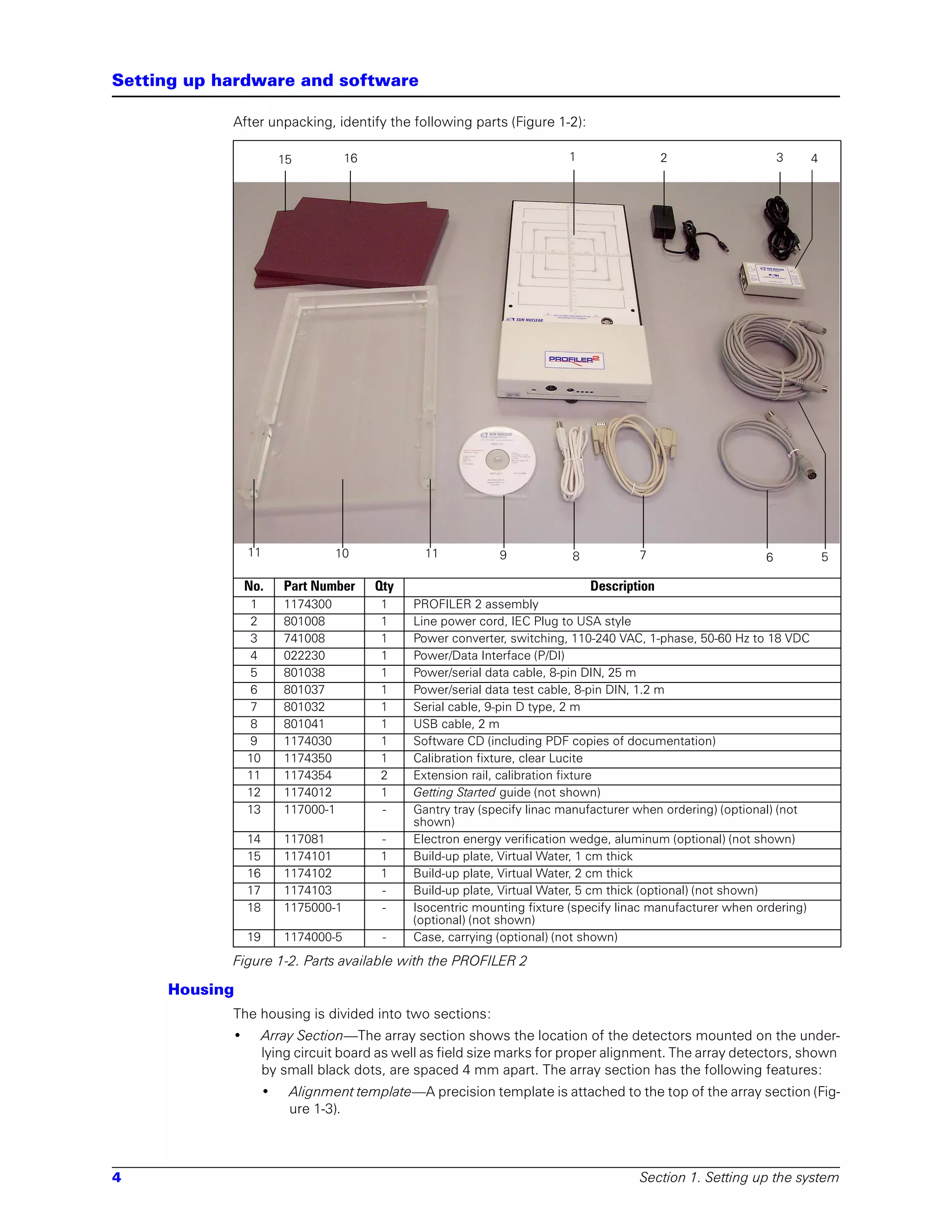
            After unpacking, identify the following parts (Figure 1-2):

                         15          16                                    1                  2                   3      4


                11               10               11           9            8           7                     6              5

                No.      Part Number      Qty                                   Description
                 1       1174300          1     PROFILER 2 assembly
                 2       801008           1     Line power cord, IEC Plug to USA style
                 3       741008           1     Power converter, switching, 110-240 VAC, 1-phase, 50-60 Hz to 18 VDC
                 4       022230           1     Power/Data Interface (P/DI)
                 5       801038           1     Power/serial data cable, 8-pin DIN, 25 m
                 6       801037           1     Power/serial data test cable, 8-pin DIN, 1.2 m
                 7       801032           1     Serial cable, 9-pin D type, 2 m
                 8       801041           1     USB cable, 2 m
                 9       1174030          1     Software CD (including PDF copies of documentation)
                10       1174350          1     Calibration fixture, clear Lucite
                11       1174354          2     Extension rail, calibration fixture
                12       1174012          1     Getting Started guide (not shown)
                13       117000-1         -     Gantry tray (specify linac manufacturer when ordering) (optional) (not
                                                shown)
                14       117081           -     Electron energy verification wedge, aluminum (optional) (not shown)
                15       1174101          1     Build-up plate, Virtual Water, 1 cm thick
                16       1174102          1     Build-up plate, Virtual Water, 2 cm thick
                17       1174103          -     Build-up plate, Virtual Water, 5 cm thick (optional) (not shown)
                18       1175000-1        -     Isocentric mounting fixture (specify linac manufacturer when ordering)
                                                (optional) (not shown)
                19       1174000-5         -    Case, carrying (optional) (not shown)
            Figure 1-2. Parts available with the PROFILER 2

     Housing
            The housing is divided into two sections:
            •        Array Section—The array section shows the location of the detectors mounted on the under-
                     lying circuit board as well as field size marks for proper alignment. The array detectors, shown
                     by small black dots, are spaced 4 mm apart. The array section has the following features:
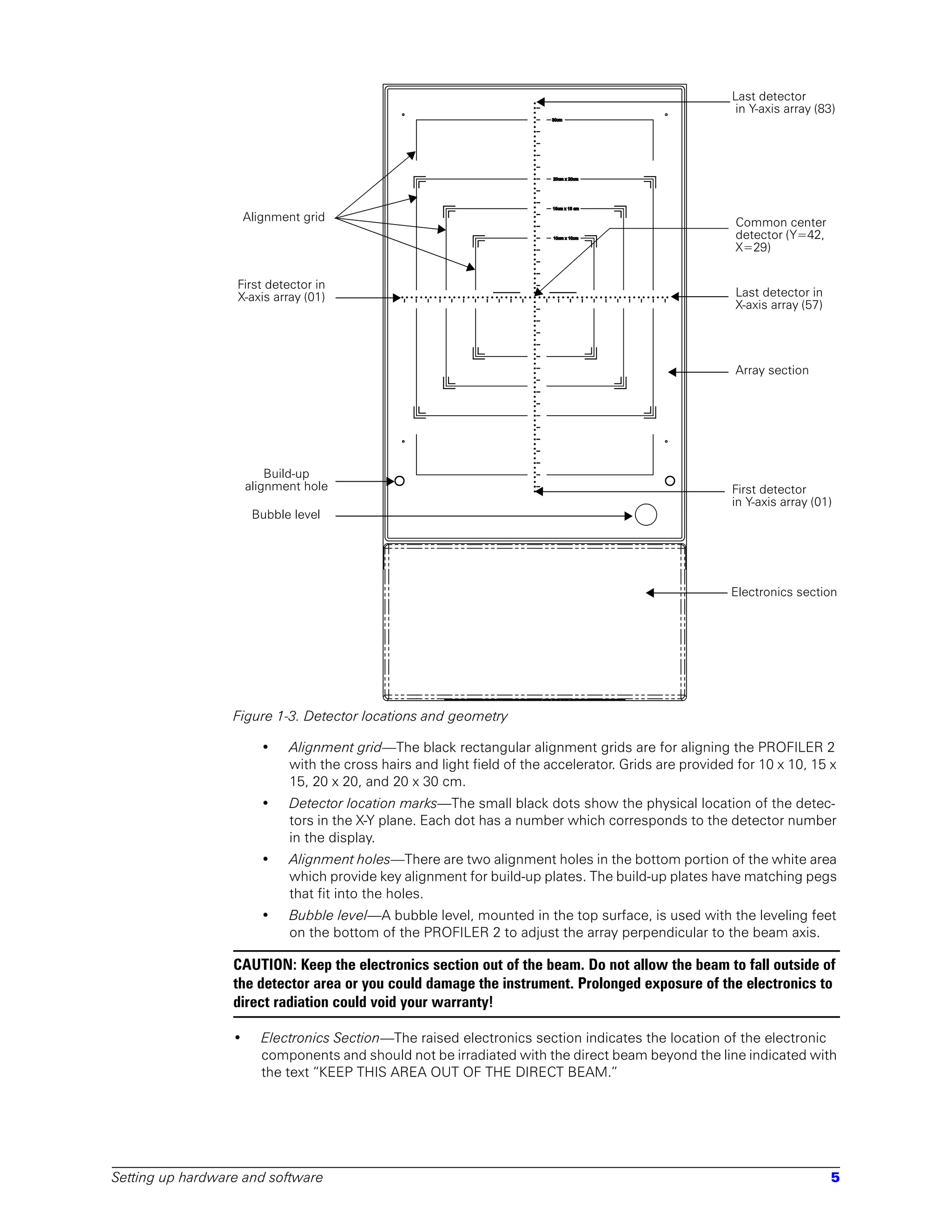
                     •    Alignment template—A precision template is attached to the top of the array section (Fig-
                          ure 1-3).


4                                                                                       Section 1. Setting up the system
Last detector
                                                                                                         in Y-axis array (83)


                      Alignment grid                                                                    Common center
                                                                                                        detector (Y=42,
                                                                                                        X=29)


                  First detector in
                  X-axis array (01)                                                                     Last detector in
                                                                                                        X-axis array (57)


                                                                                                        Array section


                          Build-up
                      alignment hole                                                                    First detector
                                                                                                        in Y-axis array (01)
                       Bubble level


                                                                                                        Electronics section


                  Figure 1-3. Detector locations and geometry

                         •   Alignment grid—The black rectangular alignment grids are for aligning the PROFILER 2
                             with the cross hairs and light field of the accelerator. Grids are provided for 10 x 10, 15 x
                             15, 20 x 20, and 20 x 30 cm.
                         •   Detector location marks—The small black dots show the physical location of the detec-
                             tors in the X-Y plane. Each dot has a number which corresponds to the detector number
                             in the display.
                         •   Alignment holes—There are two alignment holes in the bottom portion of the white area
                             which provide key alignment for build-up plates. The build-up plates have matching pegs
                             that fit into the holes.
                         •   Bubble level—A bubble level, mounted in the top surface, is used with the leveling feet
                             on the bottom of the PROFILER 2 to adjust the array perpendicular to the beam axis.

                  CAUTION: Keep the electronics section out of the beam. Do not allow the beam to fall outside of
                  the detector area or you could damage the instrument. Prolonged exposure of the electronics to
                  direct radiation could void your warranty!

                  •      Electronics Section—The raised electronics section indicates the location of the electronic
                         components and should not be irradiated with the direct beam beyond the line indicated with
                         the text “KEEP THIS AREA OUT OF THE DIRECT BEAM.”


Setting up hardware and software                                                                                            5
Power/data interface (P/DI)
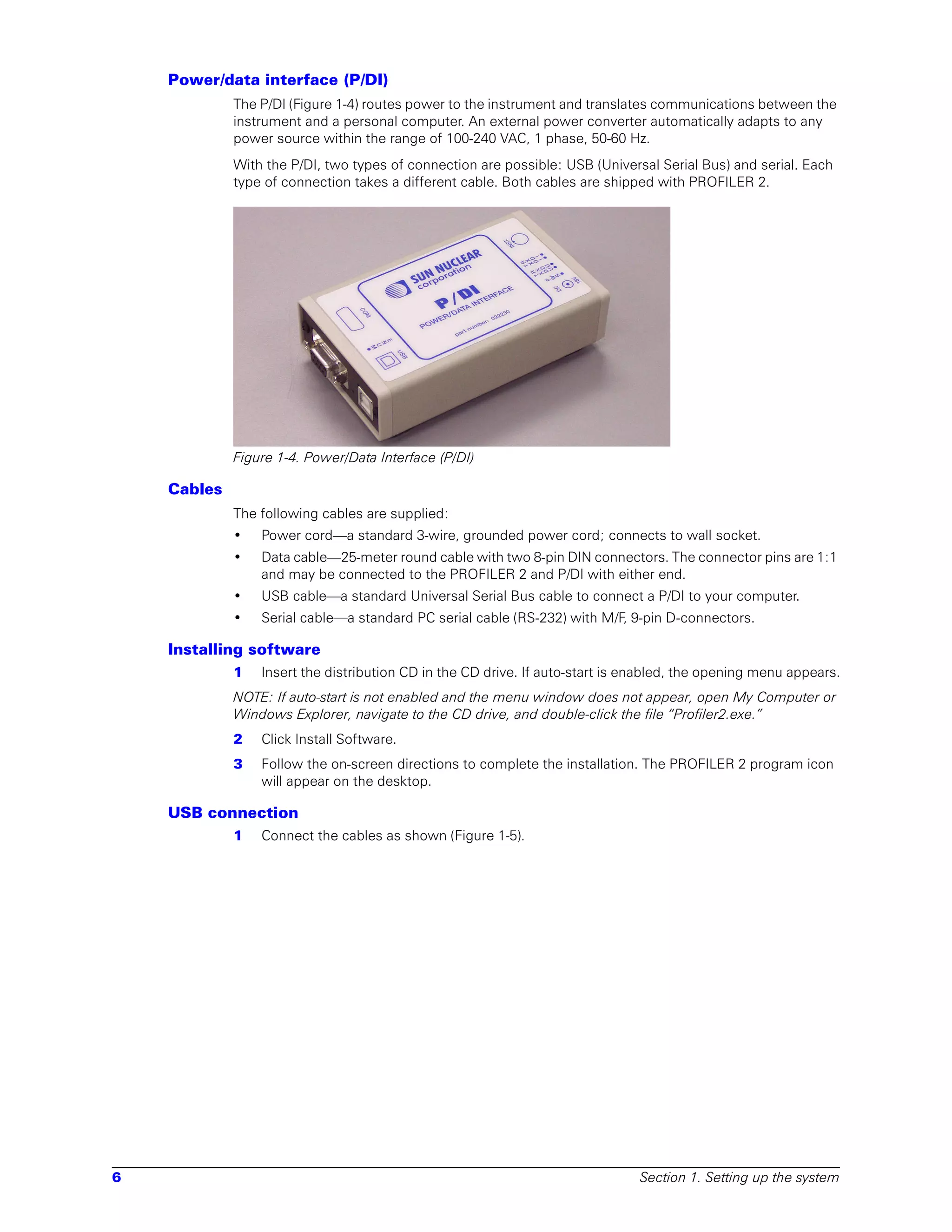
             The P/DI (Figure 1-4) routes power to the instrument and translates communications between the
             instrument and a personal computer. An external power converter automatically adapts to any
             power source within the range of 100-240 VAC, 1 phase, 50-60 Hz.
             With the P/DI, two types of connection are possible: USB (Universal Serial Bus) and serial. Each
             type of connection takes a different cable. Both cables are shipped with PROFILER 2.


             Figure 1-4. Power/Data Interface (P/DI)

    Cables
             The following cables are supplied:
             •   Power cord—a standard 3-wire, grounded power cord; connects to wall socket.
             •   Data cable—25-meter round cable with two 8-pin DIN connectors. The connector pins are 1:1
                 and may be connected to the PROFILER 2 and P/DI with either end.
             •   USB cable—a standard Universal Serial Bus cable to connect a P/DI to your computer.
             •   Serial cable—a standard PC serial cable (RS-232) with M/F, 9-pin D-connectors.

    Installing software
             1   Insert the distribution CD in the CD drive. If auto-start is enabled, the opening menu appears.
             NOTE: If auto-start is not enabled and the menu window does not appear, open My Computer or
             Windows Explorer, navigate to the CD drive, and double-click the file “Profiler2.exe.”
             2   Click Install Software.
             3   Follow the on-screen directions to complete the installation. The PROFILER 2 program icon
                 will appear on the desktop.

    USB connection
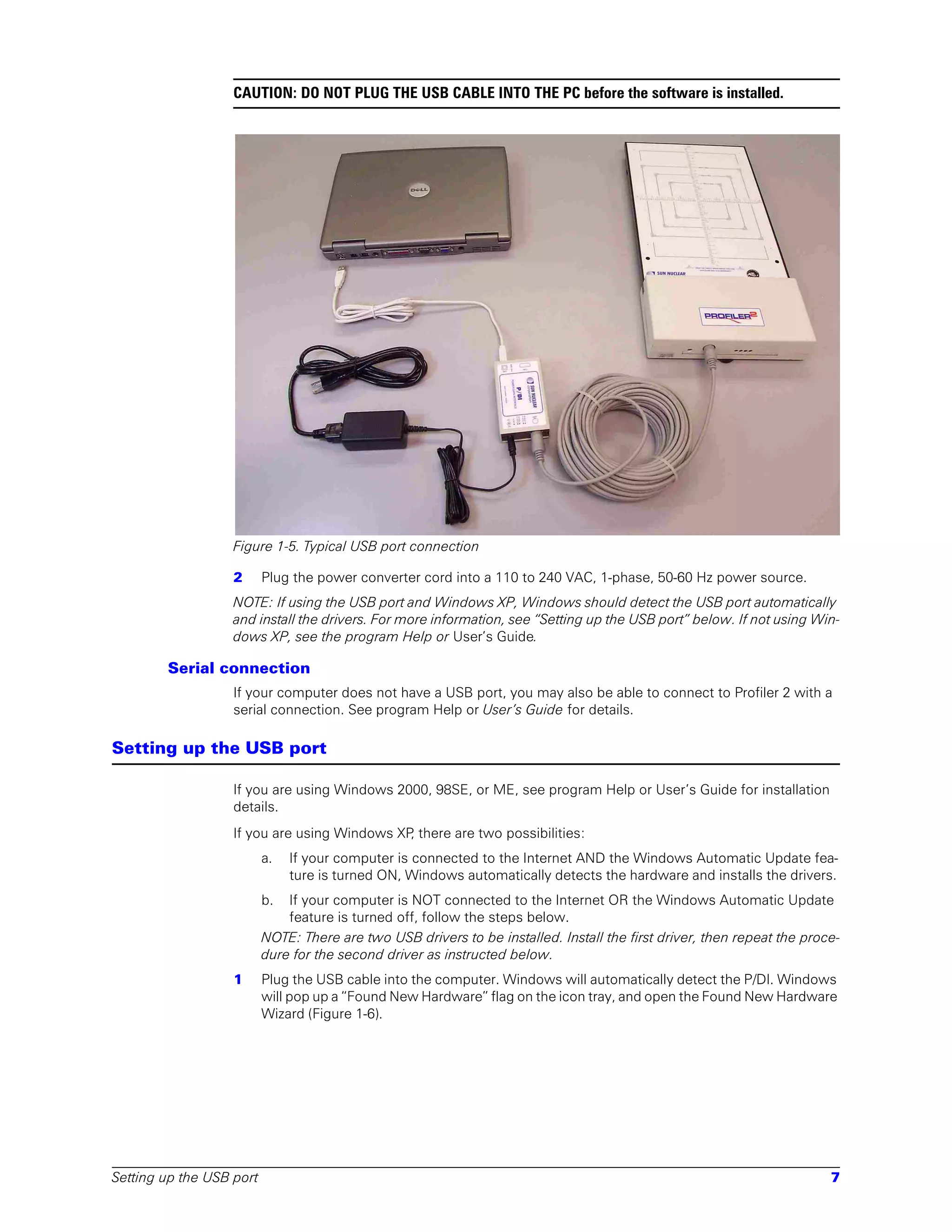
             1   Connect the cables as shown (Figure 1-5).


6                                                                              Section 1. Setting up the system
CAUTION: DO NOT PLUG THE USB CABLE INTO THE PC before the software is installed.


                   Figure 1-5. Typical USB port connection

                   2      Plug the power converter cord into a 110 to 240 VAC, 1-phase, 50-60 Hz power source.
                   NOTE: If using the USB port and Windows XP, Windows should detect the USB port automatically
                   and install the drivers. For more information, see “Setting up the USB port” below. If not using Win-
                   dows XP, see the program Help or User’s Guide.

        Serial connection
                   If your computer does not have a USB port, you may also be able to connect to Profiler 2 with a
                   serial connection. See program Help or User’s Guide for details.

Setting up the USB port

                   If you are using Windows 2000, 98SE, or ME, see program Help or User’s Guide for installation
                   details.
                   If you are using Windows XP there are two possibilities:
                                              ,
                          a.   If your computer is connected to the Internet AND the Windows Automatic Update fea-
                               ture is turned ON, Windows automatically detects the hardware and installs the drivers.
                          b.  If your computer is NOT connected to the Internet OR the Windows Automatic Update
                              feature is turned off, follow the steps below.
                          NOTE: There are two USB drivers to be installed. Install the first driver, then repeat the proce-
                          dure for the second driver as instructed below.
                   1      Plug the USB cable into the computer. Windows will automatically detect the P/DI. Windows
                          will pop up a “Found New Hardware” flag on the icon tray, and open the Found New Hardware
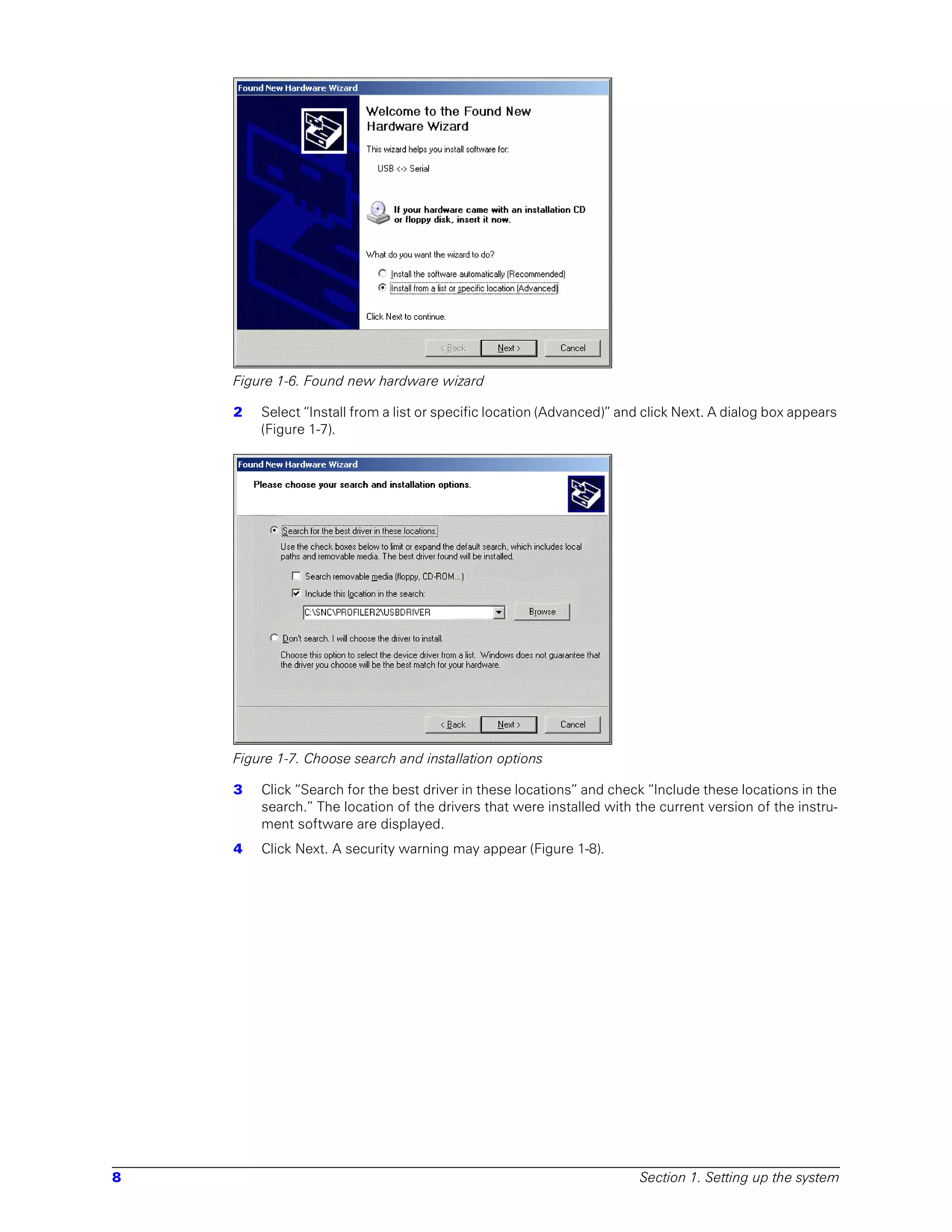
                          Wizard (Figure 1-6).


Setting up the USB port                                                                                                  7
Figure 1-6. Found new hardware wizard

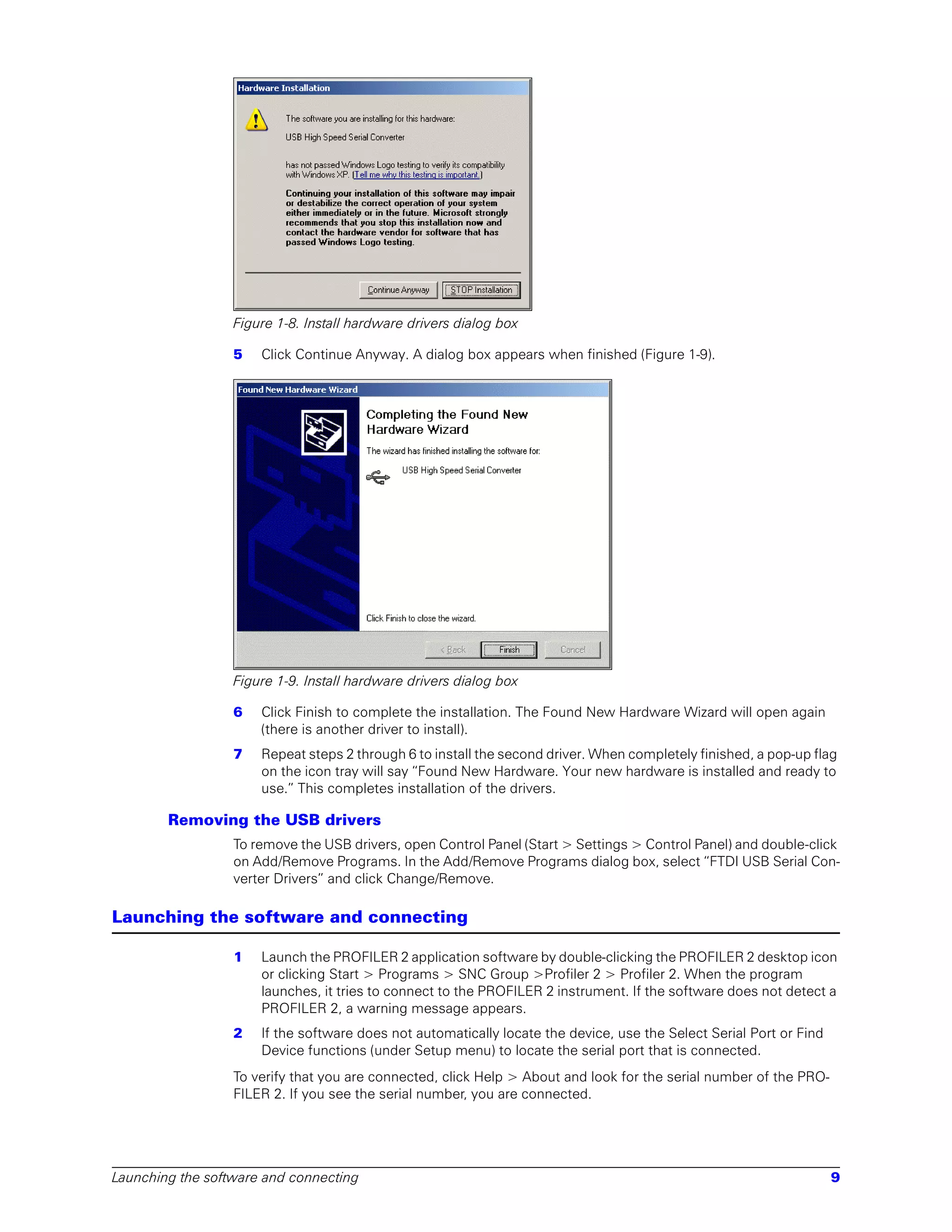
    2   Select “Install from a list or specific location (Advanced)” and click Next. A dialog box appears
        (Figure 1-7).


    Figure 1-7. Choose search and installation options

    3   Click “Search for the best driver in these locations” and check “Include these locations in the
        search.” The location of the drivers that were installed with the current version of the instru-
        ment software are displayed.
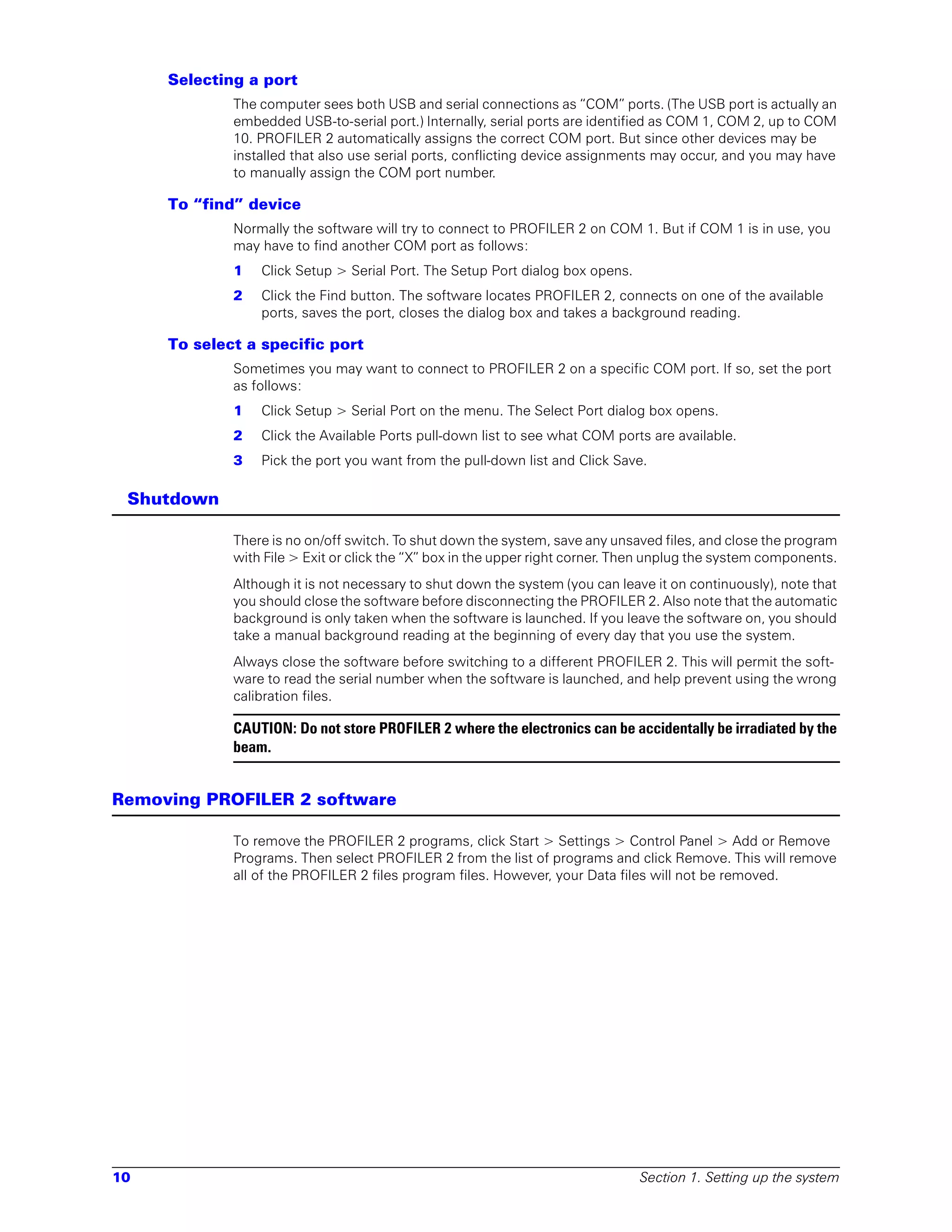
    4   Click Next. A security warning may appear (Figure 1-8).


8                                                                      Section 1. Setting up the system
Figure 1-8. Install hardware drivers dialog box

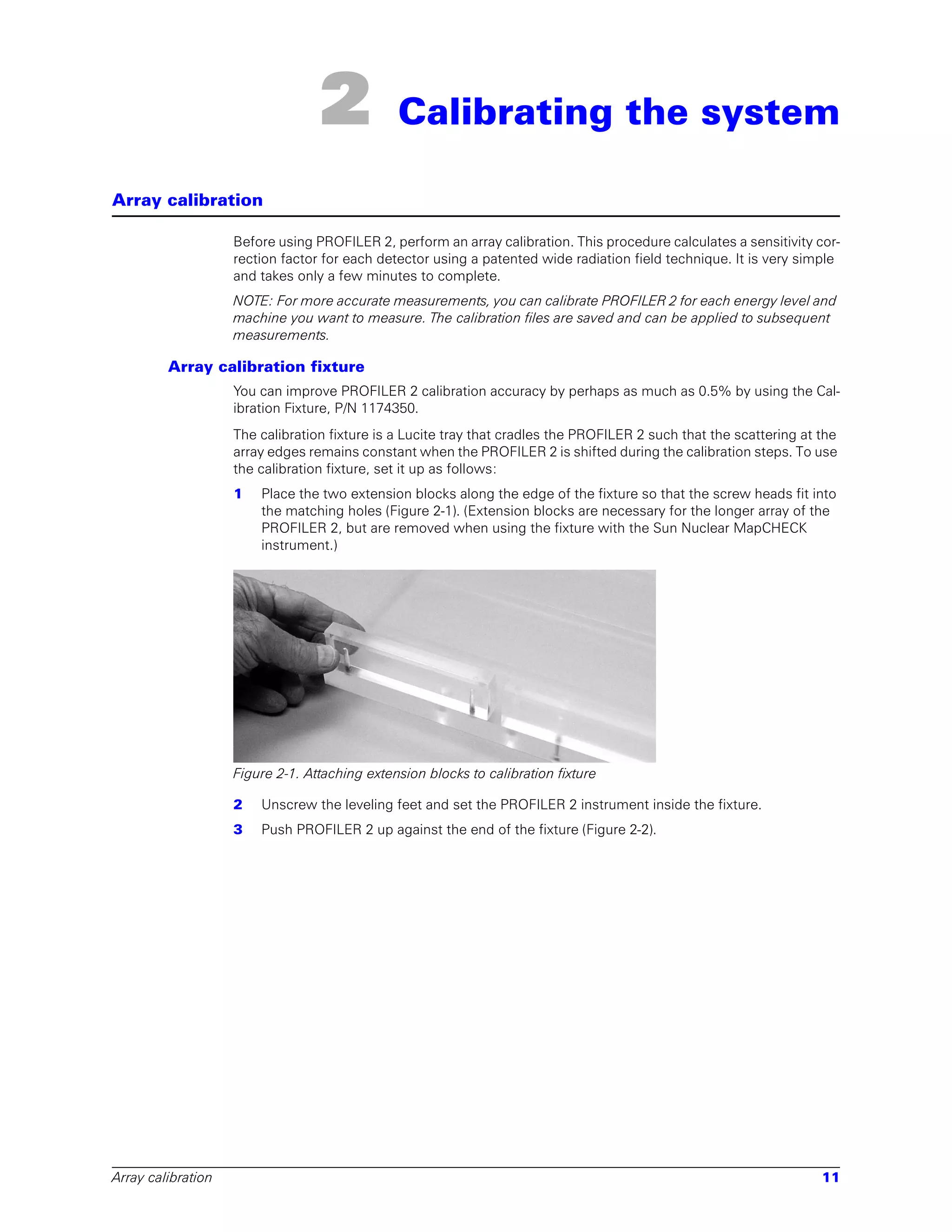
                  5   Click Continue Anyway. A dialog box appears when finished (Figure 1-9).


                  Figure 1-9. Install hardware drivers dialog box

                  6   Click Finish to complete the installation. The Found New Hardware Wizard will open again
                      (there is another driver to install).
                  7   Repeat steps 2 through 6 to install the second driver. When completely finished, a pop-up flag
                      on the icon tray will say “Found New Hardware. Your new hardware is installed and ready to
                      use.” This completes installation of the drivers.

        Removing the USB drivers
                  To remove the USB drivers, open Control Panel (Start > Settings > Control Panel) and double-click
                  on Add/Remove Programs. In the Add/Remove Programs dialog box, select “FTDI USB Serial Con-
                  verter Drivers” and click Change/Remove.

Launching the software and connecting

                  1   Launch the PROFILER 2 application software by double-clicking the PROFILER 2 desktop icon
                      or clicking Start > Programs > SNC Group >Profiler 2 > Profiler 2. When the program
                      launches, it tries to connect to the PROFILER 2 instrument. If the software does not detect a
                      PROFILER 2, a warning message appears.
                  2   If the software does not automatically locate the device, use the Select Serial Port or Find
                      Device functions (under Setup menu) to locate the serial port that is connected.
                  To verify that you are connected, click Help > About and look for the serial number of the PRO-
                  FILER 2. If you see the serial number, you are connected.


Launching the software and connecting                                                                                9
Selecting a port
             The computer sees both USB and serial connections as “COM” ports. (The USB port is actually an
             embedded USB-to-serial port.) Internally, serial ports are identified as COM 1, COM 2, up to COM
             10. PROFILER 2 automatically assigns the correct COM port. But since other devices may be
             installed that also use serial ports, conflicting device assignments may occur, and you may have
             to manually assign the COM port number.

     To “find” device
             Normally the software will try to connect to PROFILER 2 on COM 1. But if COM 1 is in use, you
             may have to find another COM port as follows:
             1   Click Setup > Serial Port. The Setup Port dialog box opens.
             2   Click the Find button. The software locates PROFILER 2, connects on one of the available
                 ports, saves the port, closes the dialog box and takes a background reading.

     To select a specific port
             Sometimes you may want to connect to PROFILER 2 on a specific COM port. If so, set the port
             as follows:
             1   Click Setup > Serial Port on the menu. The Select Port dialog box opens.
             2   Click the Available Ports pull-down list to see what COM ports are available.
             3   Pick the port you want from the pull-down list and Click Save.

 Shutdown

             There is no on/off switch. To shut down the system, save any unsaved files, and close the program
             with File > Exit or click the “X” box in the upper right corner. Then unplug the system components.
             Although it is not necessary to shut down the system (you can leave it on continuously), note that
             you should close the software before disconnecting the PROFILER 2. Also note that the automatic
             background is only taken when the software is launched. If you leave the software on, you should
             take a manual background reading at the beginning of every day that you use the system.
             Always close the software before switching to a different PROFILER 2. This will permit the soft-
             ware to read the serial number when the software is launched, and help prevent using the wrong
             calibration files.

             CAUTION: Do not store PROFILER 2 where the electronics can be accidentally be irradiated by the
             beam.


Removing PROFILER 2 software

             To remove the PROFILER 2 programs, click Start > Settings > Control Panel > Add or Remove
             Programs. Then select PROFILER 2 from the list of programs and click Remove. This will remove
             all of the PROFILER 2 files program files. However, your Data files will not be removed.


10                                                                             Section 1. Setting up the system
2            Calibrating the system

Array calibration

                    Before using PROFILER 2, perform an array calibration. This procedure calculates a sensitivity cor-
                    rection factor for each detector using a patented wide radiation field technique. It is very simple
                    and takes only a few minutes to complete.
                    NOTE: For more accurate measurements, you can calibrate PROFILER 2 for each energy level and
                    machine you want to measure. The calibration files are saved and can be applied to subsequent
                    measurements.

         Array calibration fixture
                    You can improve PROFILER 2 calibration accuracy by perhaps as much as 0.5% by using the Cal-
                    ibration Fixture, P/N 1174350.
                    The calibration fixture is a Lucite tray that cradles the PROFILER 2 such that the scattering at the
                    array edges remains constant when the PROFILER 2 is shifted during the calibration steps. To use
                    the calibration fixture, set it up as follows:
                    1   Place the two extension blocks along the edge of the fixture so that the screw heads fit into
                        the matching holes (Figure 2-1). (Extension blocks are necessary for the longer array of the
                        PROFILER 2, but are removed when using the fixture with the Sun Nuclear MapCHECK
                        instrument.)


                    Figure 2-1. Attaching extension blocks to calibration fixture

                    2   Unscrew the leveling feet and set the PROFILER 2 instrument inside the fixture.
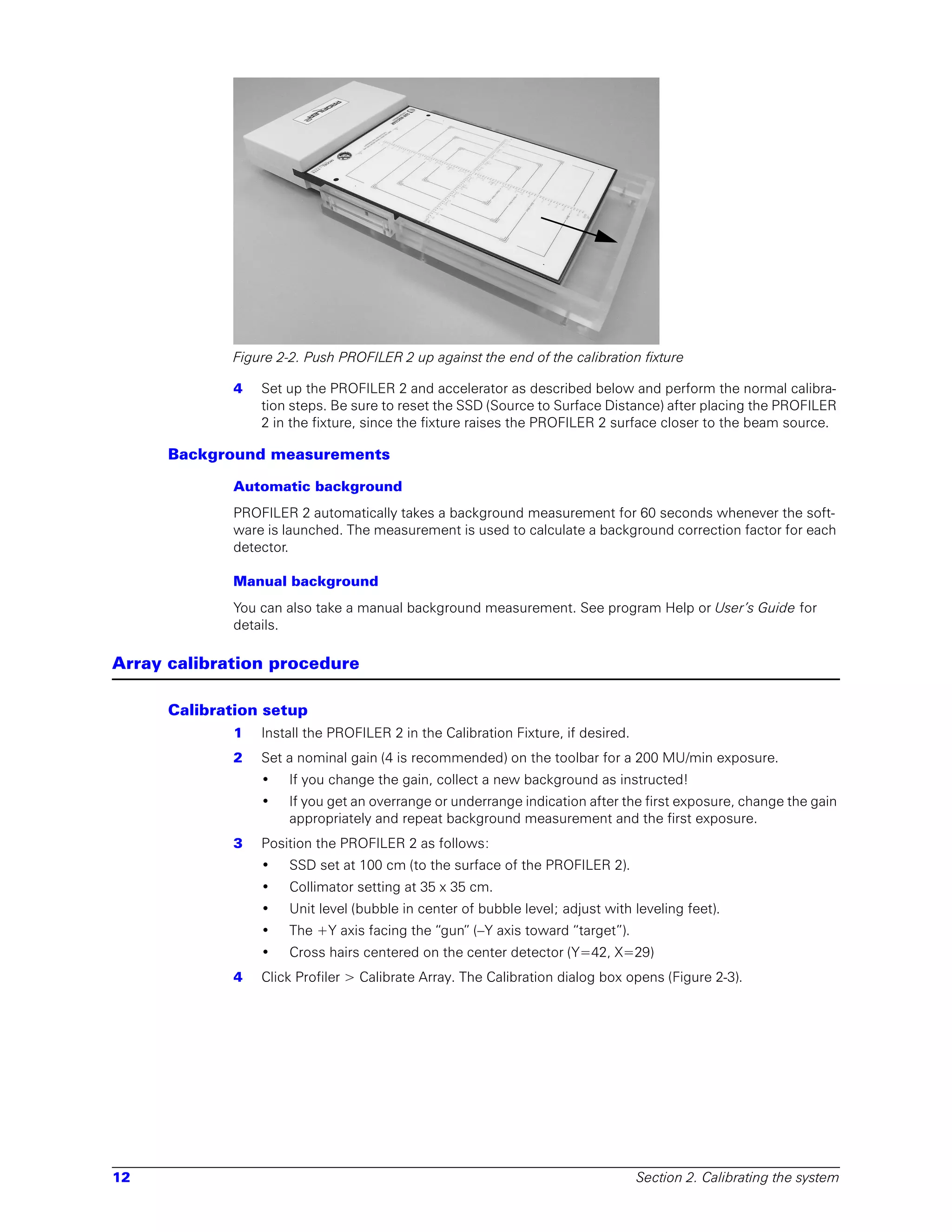
                    3   Push PROFILER 2 up against the end of the fixture (Figure 2-2).


Array calibration                                                                                                    11
Figure 2-2. Push PROFILER 2 up against the end of the calibration fixture

             4   Set up the PROFILER 2 and accelerator as described below and perform the normal calibra-
                 tion steps. Be sure to reset the SSD (Source to Surface Distance) after placing the PROFILER
                 2 in the fixture, since the fixture raises the PROFILER 2 surface closer to the beam source.

      Background measurements

             Automatic background
             PROFILER 2 automatically takes a background measurement for 60 seconds whenever the soft-
             ware is launched. The measurement is used to calculate a background correction factor for each
             detector.

             Manual background
             You can also take a manual background measurement. See program Help or User’s Guide for
             details.

Array calibration procedure

      Calibration setup
             1   Install the PROFILER 2 in the Calibration Fixture, if desired.
             2   Set a nominal gain (4 is recommended) on the toolbar for a 200 MU/min exposure.
                 •    If you change the gain, collect a new background as instructed!
                 •    If you get an overrange or underrange indication after the first exposure, change the gain
                      appropriately and repeat background measurement and the first exposure.
             3   Position the PROFILER 2 as follows:
                 •    SSD set at 100 cm (to the surface of the PROFILER 2).
                 •    Collimator setting at 35 x 35 cm.
                 •    Unit level (bubble in center of bubble level; adjust with leveling feet).
                 •    The +Y axis facing the “gun” (–Y axis toward “target”).
                 •    Cross hairs centered on the center detector (Y=42, X=29)
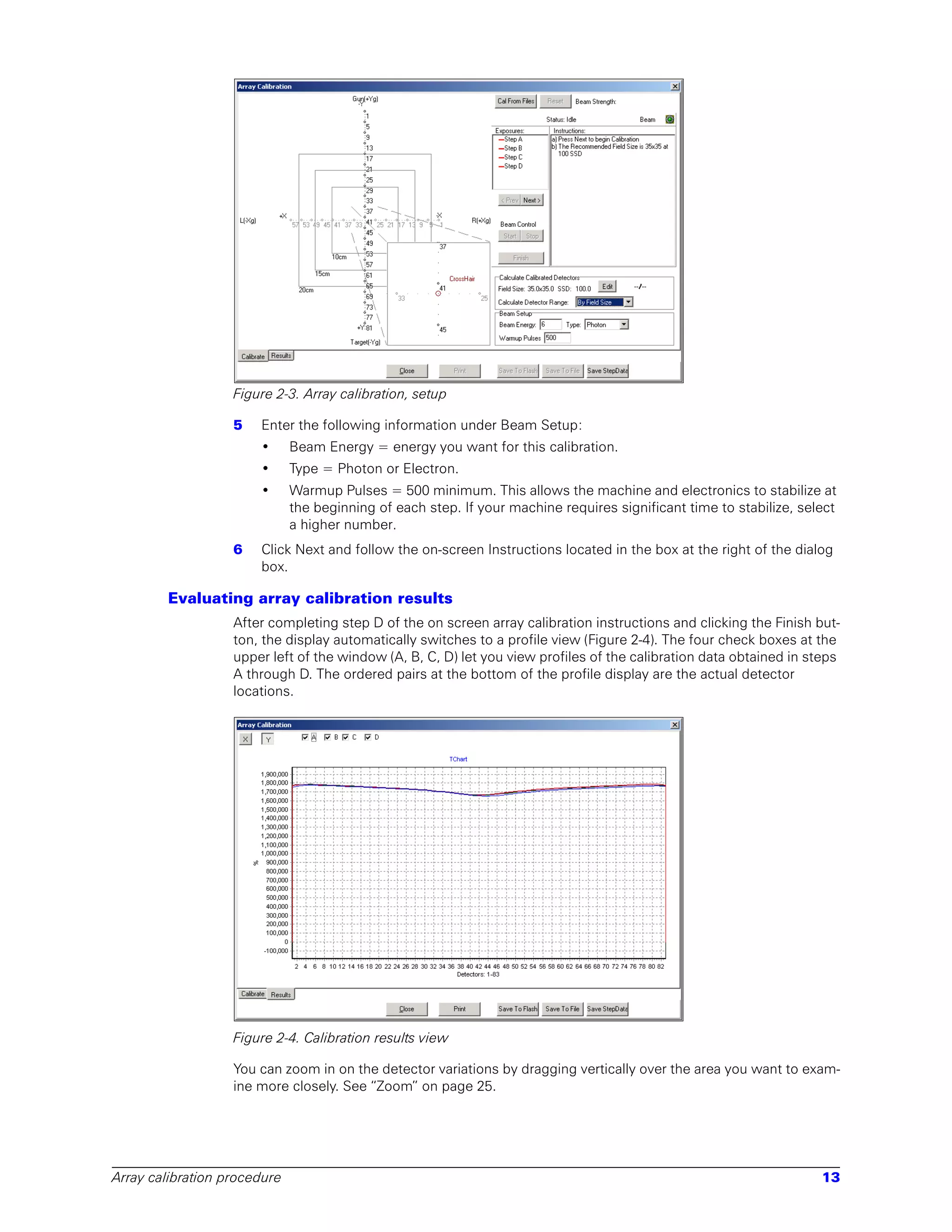
             4   Click Profiler > Calibrate Array. The Calibration dialog box opens (Figure 2-3).


12                                                                                Section 2. Calibrating the system
Figure 2-3. Array calibration, setup

                   5   Enter the following information under Beam Setup:
                       •      Beam Energy = energy you want for this calibration.
                       •      Type = Photon or Electron.
                       •      Warmup Pulses = 500 minimum. This allows the machine and electronics to stabilize at
                              the beginning of each step. If your machine requires significant time to stabilize, select
                              a higher number.
                   6   Click Next and follow the on-screen Instructions located in the box at the right of the dialog
                       box.

        Evaluating array calibration results
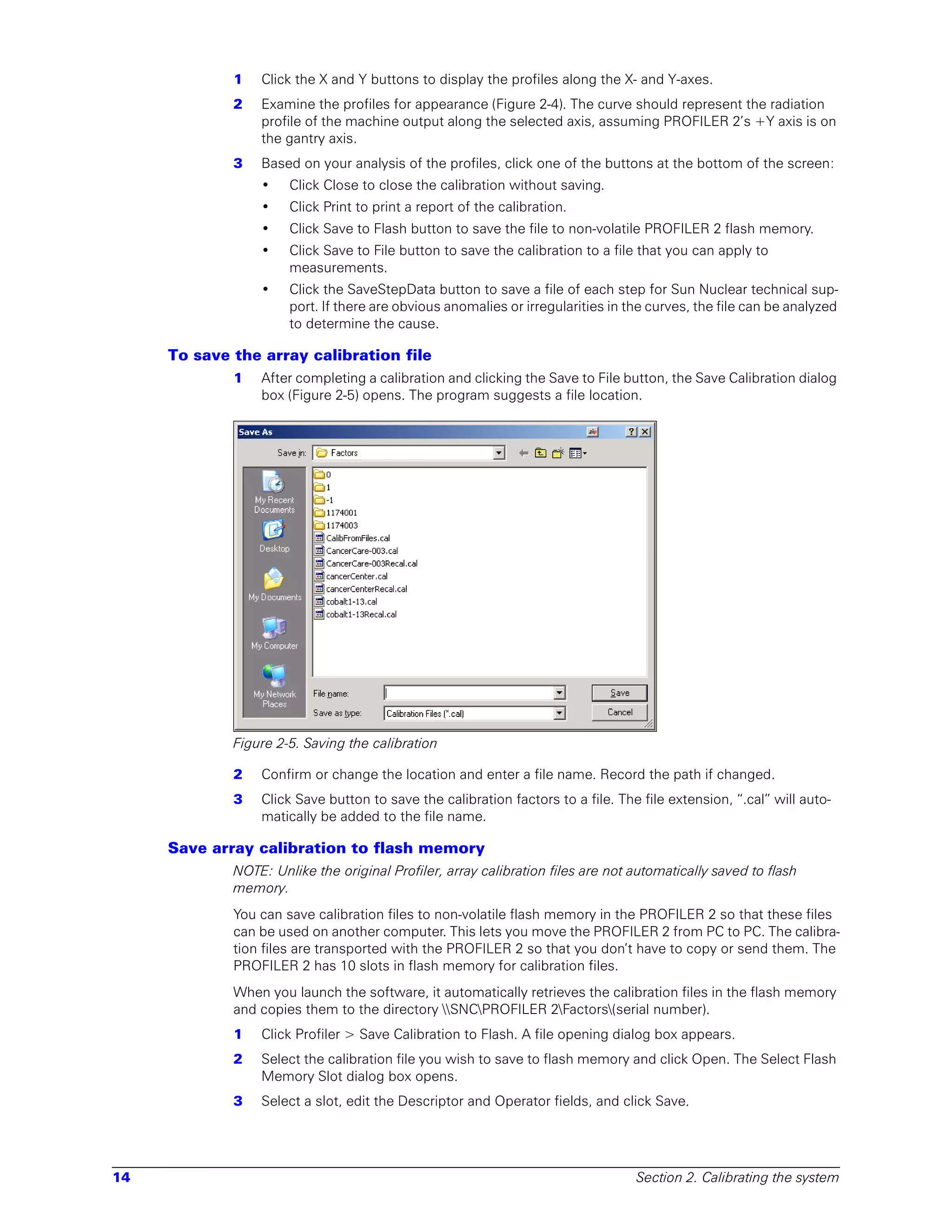
                   After completing step D of the on screen array calibration instructions and clicking the Finish but-
                   ton, the display automatically switches to a profile view (Figure 2-4). The four check boxes at the
                   upper left of the window (A, B, C, D) let you view profiles of the calibration data obtained in steps
                   A through D. The ordered pairs at the bottom of the profile display are the actual detector
                   locations.


                   Figure 2-4. Calibration results view

                   You can zoom in on the detector variations by dragging vertically over the area you want to exam-
                   ine more closely. See “Zoom” on page 25.


Array calibration procedure                                                                                          13
1   Click the X and Y buttons to display the profiles along the X- and Y-axes.
             2   Examine the profiles for appearance (Figure 2-4). The curve should represent the radiation
                 profile of the machine output along the selected axis, assuming PROFILER 2’s +Y axis is on
                 the gantry axis.
             3   Based on your analysis of the profiles, click one of the buttons at the bottom of the screen:
                 •    Click Close to close the calibration without saving.
                 •    Click Print to print a report of the calibration.
                 •    Click Save to Flash button to save the file to non-volatile PROFILER 2 flash memory.
                 •    Click Save to File button to save the calibration to a file that you can apply to
                      measurements.
                 •    Click the SaveStepData button to save a file of each step for Sun Nuclear technical sup-
                      port. If there are obvious anomalies or irregularities in the curves, the file can be analyzed
                      to determine the cause.

     To save the array calibration file
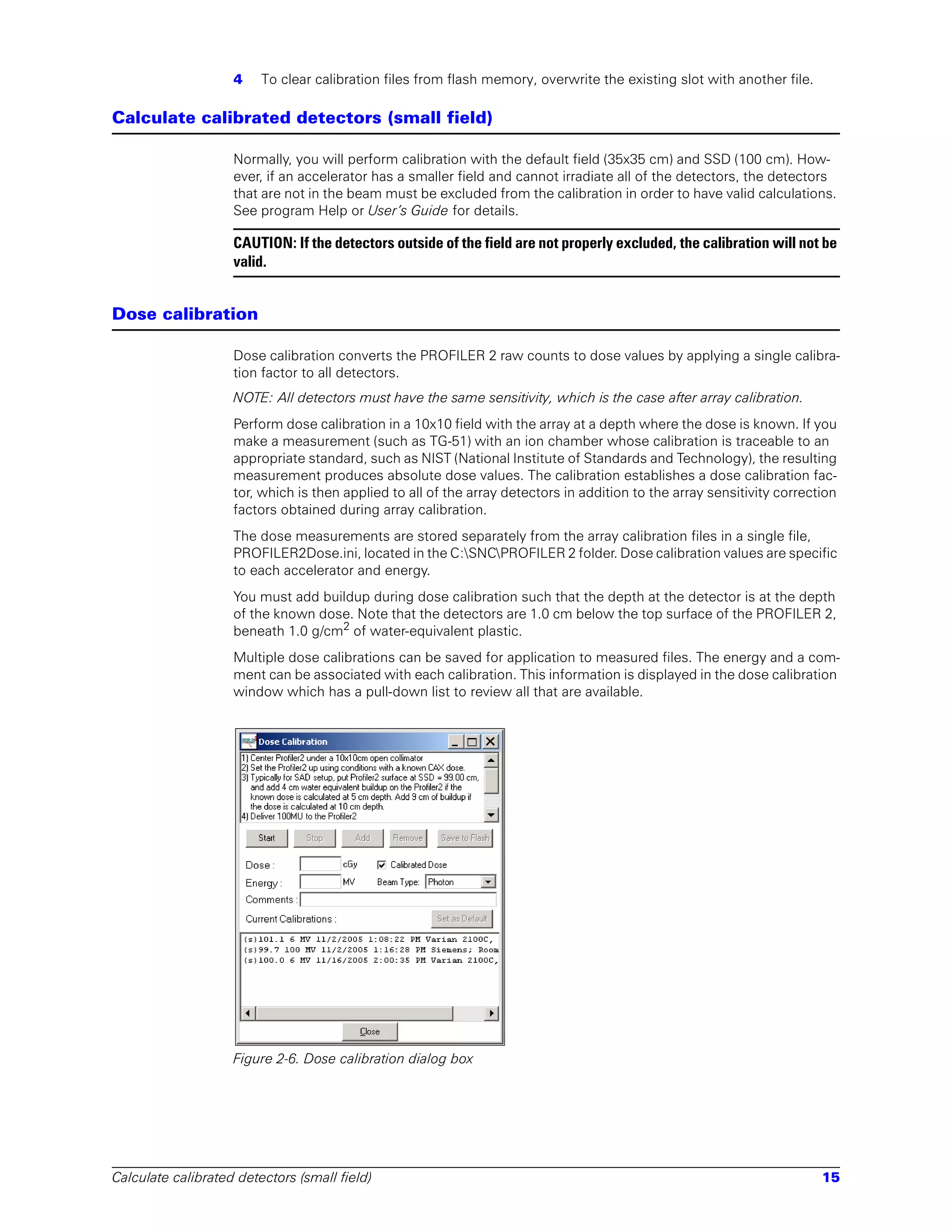
             1   After completing a calibration and clicking the Save to File button, the Save Calibration dialog
                 box (Figure 2-5) opens. The program suggests a file location.


             Figure 2-5. Saving the calibration

             2   Confirm or change the location and enter a file name. Record the path if changed.
             3   Click Save button to save the calibration factors to a file. The file extension, “.cal” will auto-
                 matically be added to the file name.

     Save array calibration to flash memory
             NOTE: Unlike the original Profiler, array calibration files are not automatically saved to flash
             memory.
             You can save calibration files to non-volatile flash memory in the PROFILER 2 so that these files
             can be used on another computer. This lets you move the PROFILER 2 from PC to PC. The calibra-
             tion files are transported with the PROFILER 2 so that you don’t have to copy or send them. The
             PROFILER 2 has 10 slots in flash memory for calibration files.
             When you launch the software, it automatically retrieves the calibration files in the flash memory
             and copies them to the directory SNCPROFILER 2Factors(serial number).
             1   Click Profiler > Save Calibration to Flash. A file opening dialog box appears.
             2   Select the calibration file you wish to save to flash memory and click Open. The Select Flash
                 Memory Slot dialog box opens.
             3   Select a slot, edit the Descriptor and Operator fields, and click Save.


14                                                                               Section 2. Calibrating the system
4    To clear calibration files from flash memory, overwrite the existing slot with another file.

Calculate calibrated detectors (small field)

                    Normally, you will perform calibration with the default field (35x35 cm) and SSD (100 cm). How-
                    ever, if an accelerator has a smaller field and cannot irradiate all of the detectors, the detectors
                    that are not in the beam must be excluded from the calibration in order to have valid calculations.
                    See program Help or User’s Guide for details.

                    CAUTION: If the detectors outside of the field are not properly excluded, the calibration will not be
                    valid.


Dose calibration

                    Dose calibration converts the PROFILER 2 raw counts to dose values by applying a single calibra-
                    tion factor to all detectors.
                    NOTE: All detectors must have the same sensitivity, which is the case after array calibration.
                    Perform dose calibration in a 10x10 field with the array at a depth where the dose is known. If you
                    make a measurement (such as TG-51) with an ion chamber whose calibration is traceable to an
                    appropriate standard, such as NIST (National Institute of Standards and Technology), the resulting
                    measurement produces absolute dose values. The calibration establishes a dose calibration fac-
                    tor, which is then applied to all of the array detectors in addition to the array sensitivity correction
                    factors obtained during array calibration.
                    The dose measurements are stored separately from the array calibration files in a single file,
                    PROFILER2Dose.ini, located in the C:SNCPROFILER 2 folder. Dose calibration values are specific
                    to each accelerator and energy.
                    You must add buildup during dose calibration such that the depth at the detector is at the depth
                    of the known dose. Note that the detectors are 1.0 cm below the top surface of the PROFILER 2,
                    beneath 1.0 g/cm2 of water-equivalent plastic.
                    Multiple dose calibrations can be saved for application to measured files. The energy and a com-
                    ment can be associated with each calibration. This information is displayed in the dose calibration
                    window which has a pull-down list to review all that are available.


                    Figure 2-6. Dose calibration dialog box


Calculate calibrated detectors (small field)                                                                             15
To add a dose measurement
              1   Position PROFILER 2 on the treatment couch, center the cross hairs, and adjust the SSD and
                  buildup to satisfy known dose conditions.
              2   Adjust field size to 10 x 10 cm.
              3   Set up the accelerator to administer a known dose.
              4   Select Calibrate Dose from the Profiler menu. The dialog box opens.
              5   Click the Start button.
              6   Administer the dose as described in the Dose Calibration dialog box.
              7   Click the Stop button.
              8   Enter the actual value of the dose that was delivered to the center detector at its depth in the
                  phantom.
                  NOTE: If the dose delivered by the accelerator is measured with a calibrated device such as
                  an ion chamber traceable to NIST, the Calibrated Dose check box is automatically checked.
                  This tells you that using the traceable setup converts the relative dose measured by the detec-
                  tors to absolute dose. Clear the box if you desire MU and not cGy.
              9   Click Add to add the dose to the Current Calibrations list.
              10 If you want this to be the default dose calibration, click the Set As Default button.
              11 Click Close to exit.

      To save dose calibration to flash
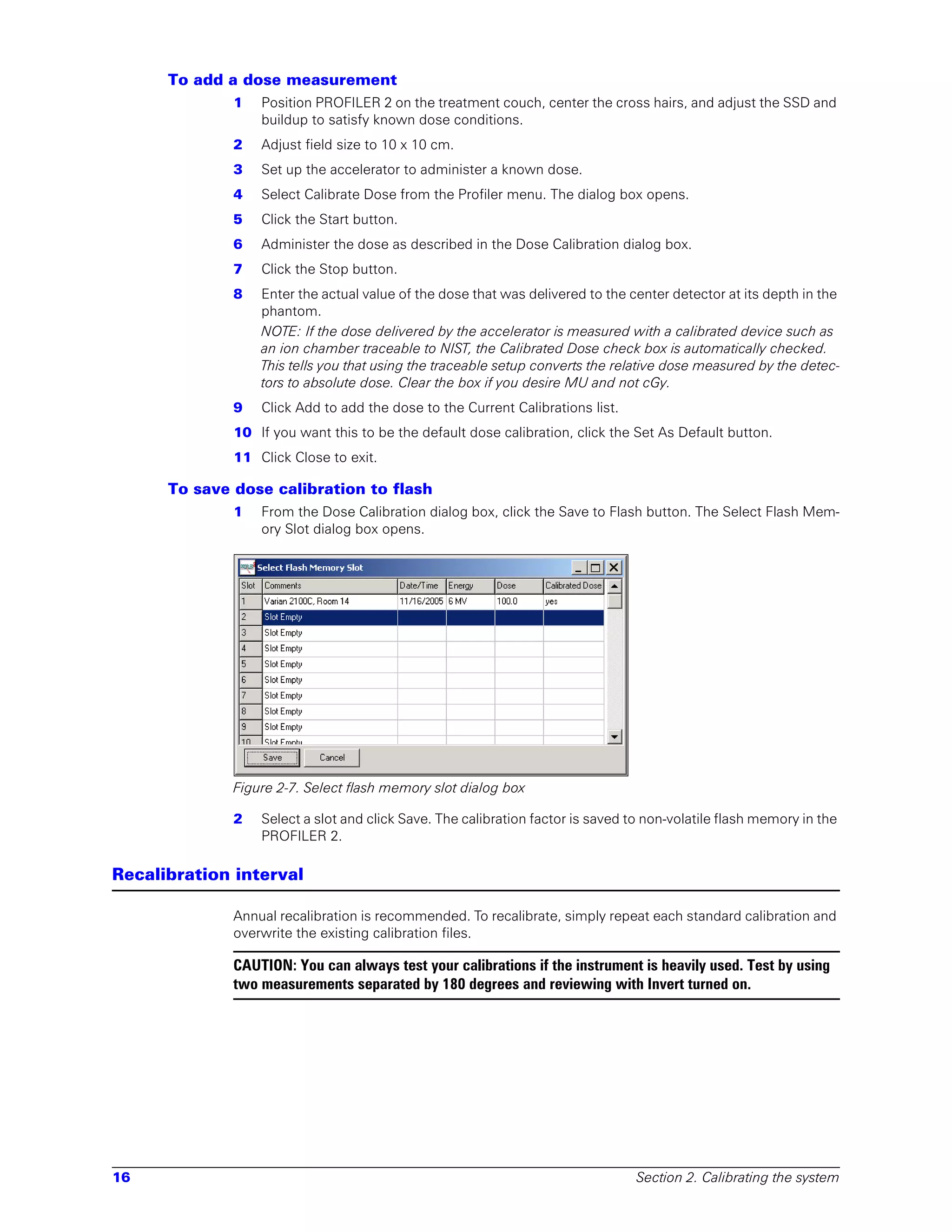
              1   From the Dose Calibration dialog box, click the Save to Flash button. The Select Flash Mem-
                  ory Slot dialog box opens.


              Figure 2-7. Select flash memory slot dialog box

              2   Select a slot and click Save. The calibration factor is saved to non-volatile flash memory in the
                  PROFILER 2.

Recalibration interval

              Annual recalibration is recommended. To recalibrate, simply repeat each standard calibration and
              overwrite the existing calibration files.

              CAUTION: You can always test your calibrations if the instrument is heavily used. Test by using
              two measurements separated by 180 degrees and reviewing with Invert turned on.


16                                                                               Section 2. Calibrating the system
3         Measuring radiation

Positioning PROFILER 2

                 1       Position the PROFILER 2 on the treatment couch for a measurement such that:
                         •   PROFILER 2 detector axes are oriented in the direction of interest for your purposes.
                         •   Note that if a wedge (fixed or flying) is to be measured, the Y detector axis should be par-
                             allel to the wedge slope.
                 2       Adjust couch height to place PROFILER 2 surface at desired SSD (typically 100 cm).
                         •   Note that the detectors are 1.0 cm below the top surface of the PROFILER 2, beneath 1.0
                             g/cm2 of water-equivalent plastic.
                 3       Adjust field size.
                         •   If the couch height is closer than 100 cm, then the field size can be set larger according
                             to the geometric magnification. (Any field size can be set, as long as the electronics area
                             is not irradiated directly.)

                 CAUTION: When adjusting field size, do not expose the electronics section of the unit to a direct
                 beam or heavy scattering. Scattering may be caused by frequent use of high beam energy, large
                 fields, and thick buildup. This may damage the unit and void your warranty. See “Radiation dam-
                 age” on page 40.

                 4       Align the cross hairs with the PROFILER 2 alignment grid.
                 5       Level the PROFILER 2 with the leveling feet, using the bubble indicator to find true level.
                         NOTE: The PROFILER 2 has two buildup alignment holes for positioning the provided buildup
                         plates over the array. For best results, the buildup used should be the same as that used during
                         calibration, but this is only noted for absolute best and reproducible results. Measurement dif-
                         ferences can be determined by using the profile compare function.

Loading an array calibration file

                 Whenever the software is launched, an array calibration file must be loaded as follows:
                 NOTE: The Stop button in the Control bar must be dimmed in order to select a calibration file.
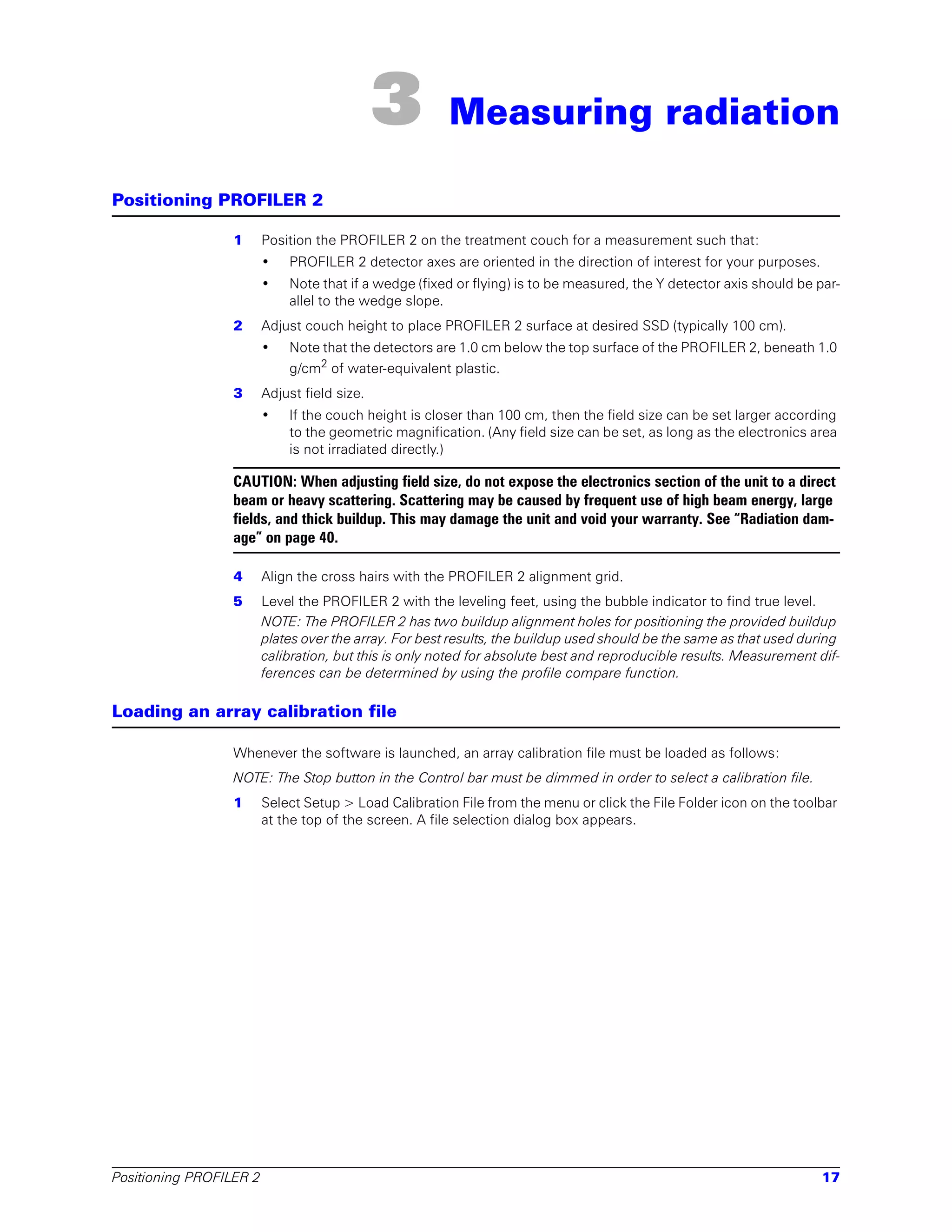
                 1       Select Setup > Load Calibration File from the menu or click the File Folder icon on the toolbar
                         at the top of the screen. A file selection dialog box appears.


Positioning PROFILER 2                                                                                               17
Figure 3-1. Open a calibration file dialog box

             2   Navigate to the location of your calibration files. Calibration files have the file extension “.cal.”
             3   Select the calibration file to load and click Open. The selected calibration file is loaded.
                 NOTE: The default path to the calibration files is “C:SNCPROFILER 2factors‘serial number’.”
                 If other calibration files have been saved under a different path name, that path must be
                 selected in this Open window box.
             The selected file name will now be displayed in the right box on the toolbar below the menu

Loading a dose calibration value

             Before measurement, the desired dose calibration value should be selected as follows:
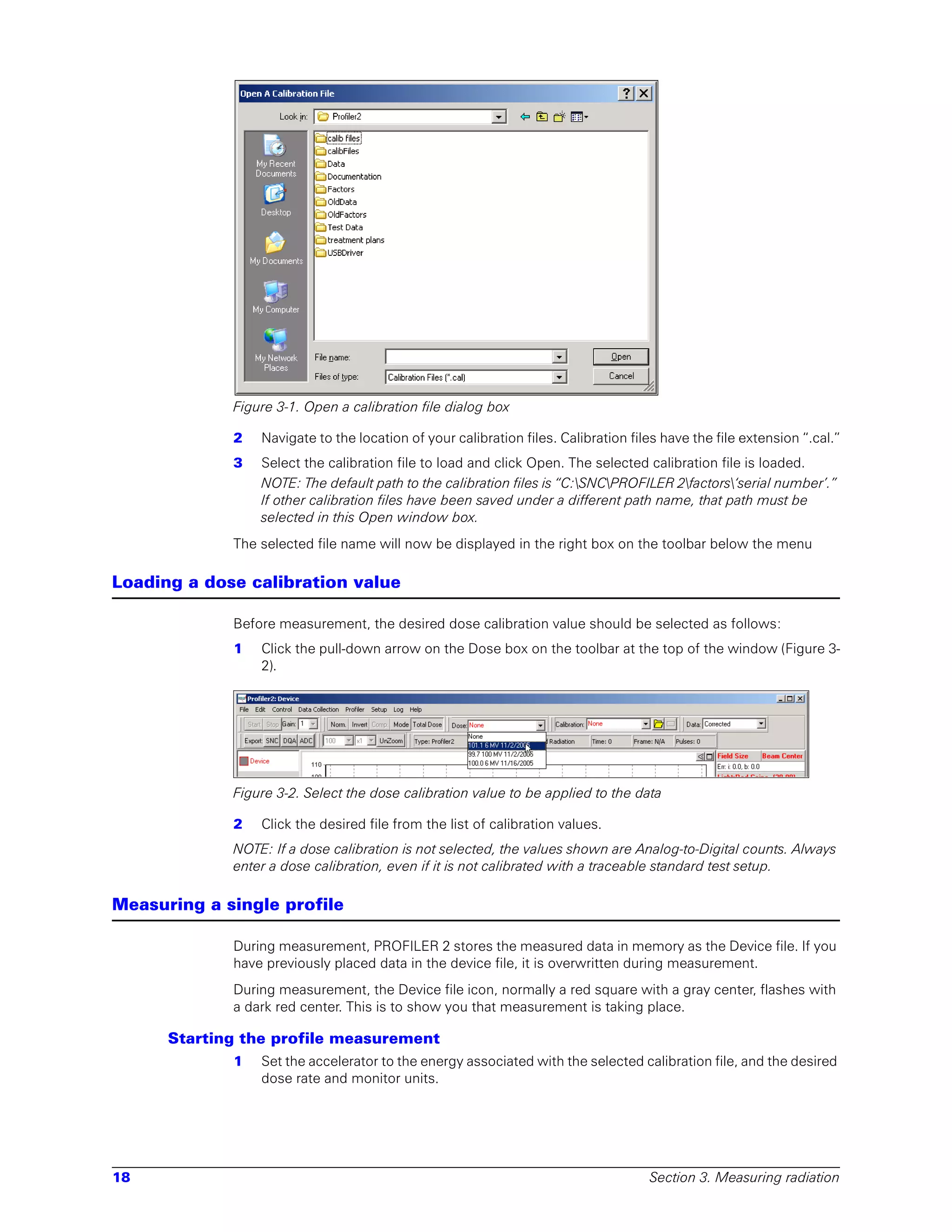
             1   Click the pull-down arrow on the Dose box on the toolbar at the top of the window (Figure 3-
                 2).


             Figure 3-2. Select the dose calibration value to be applied to the data

             2   Click the desired file from the list of calibration values.
             NOTE: If a dose calibration is not selected, the values shown are Analog-to-Digital counts. Always
             enter a dose calibration, even if it is not calibrated with a traceable standard test setup.

Measuring a single profile

             During measurement, PROFILER 2 stores the measured data in memory as the Device file. If you
             have previously placed data in the device file, it is overwritten during measurement.
             During measurement, the Device file icon, normally a red square with a gray center, flashes with
             a dark red center. This is to show you that measurement is taking place.

      Starting the profile measurement
             1   Set the accelerator to the energy associated with the selected calibration file, and the desired
                 dose rate and monitor units.


18                                                                                  Section 3. Measuring radiation
2   Click the Start button on the toolbar. That button will now dim and the Stop button will
                       brighten.
                   3   Turn the beam on. The PC screen will respond with a graph of the profile.
                       NOTE: Graph view must be displayed and the Device file on the Legend panel must be
                       selected to see the profiles as they are acquired.
                   4   When the beam turns off, click the Stop button to terminate the measurement.
                       NOTE: Start and Stop can be selected while the beam is on. This may be useful during gain
                       selection or real time accelerator adjustments. However, when making integrated Dose mea-
                       surements in QA, or Dynamic Wedge, or dose ratios at different gantry angles, always select
                       Start before beam is on and Stop after beam is off.

        Checking the gain
                   During profile measurements, the Stop button must first be pressed before the gain can be
                   adjusted up or down. The available gains are: 1, 2, 4, 8.
                   The amplifier gain in the PROFILER 2 is displayed in the command line, as a number between 1
                   and 8. To the right of this box is a bar graph which shows the measurement status of the amplifier.
                   •   Normal operation will be a green bar operating between 20 and 80%.
                   •   If this bar is full scale or red, the PROFILER 2 gain should be reduced. If this bar is near zero
                       or yellow, then the PROFILER 2 gain should be increased.

        Saving the profile
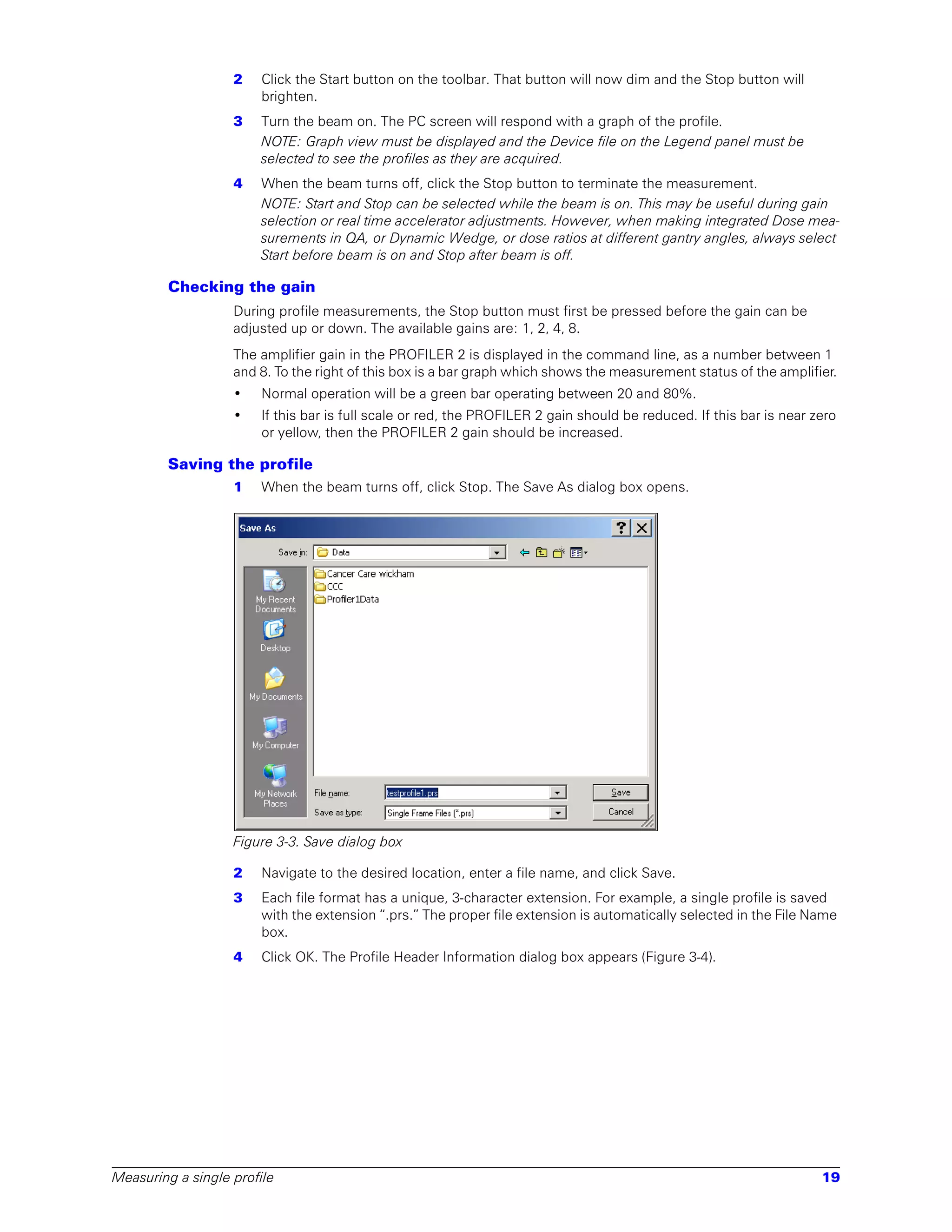
                   1   When the beam turns off, click Stop. The Save As dialog box opens.


                   Figure 3-3. Save dialog box

                   2   Navigate to the desired location, enter a file name, and click Save.
                   3   Each file format has a unique, 3-character extension. For example, a single profile is saved
                       with the extension “.prs.” The proper file extension is automatically selected in the File Name
                       box.
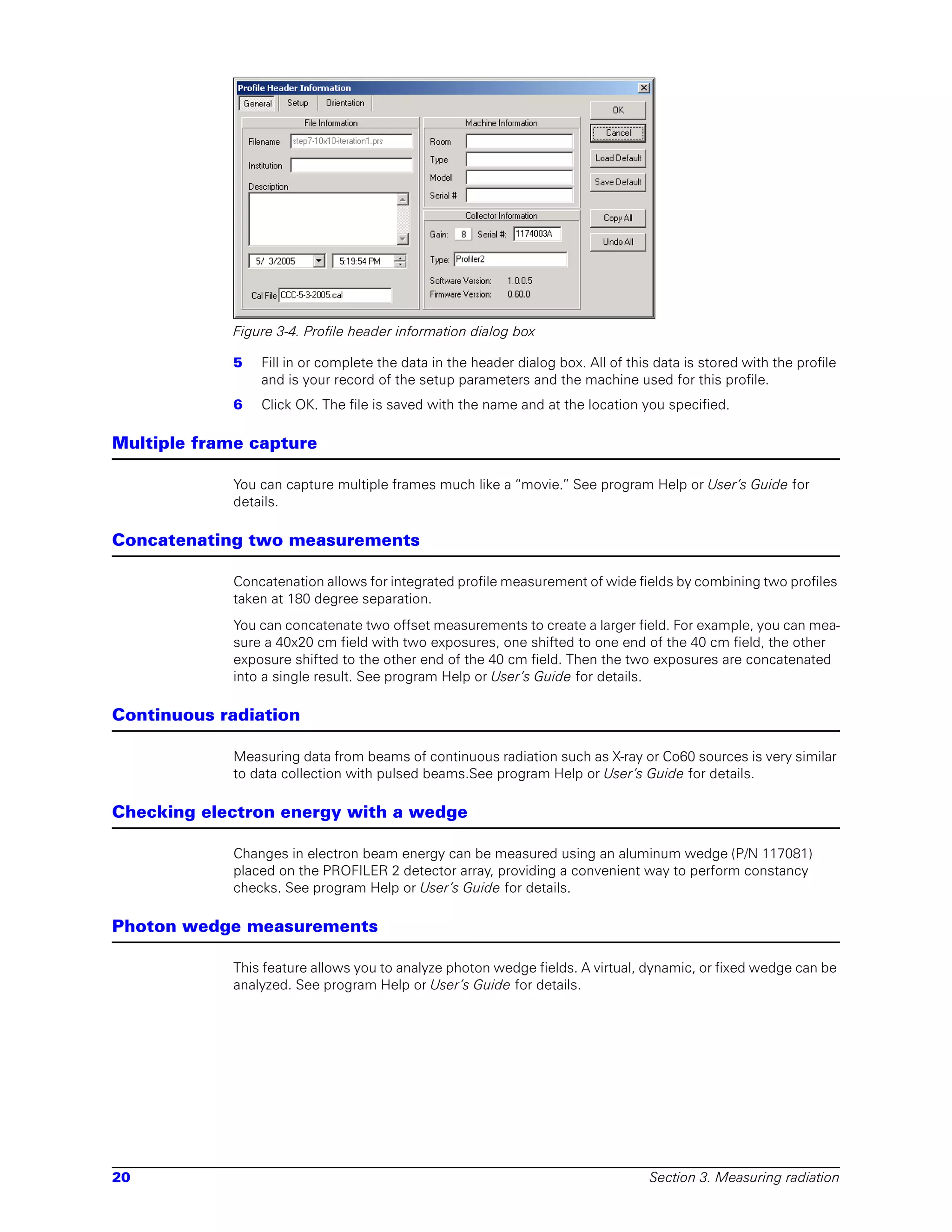
                   4   Click OK. The Profile Header Information dialog box appears (Figure 3-4).


Measuring a single profile                                                                                           19
Figure 3-4. Profile header information dialog box

             5   Fill in or complete the data in the header dialog box. All of this data is stored with the profile
                 and is your record of the setup parameters and the machine used for this profile.
             6   Click OK. The file is saved with the name and at the location you specified.

Multiple frame capture

             You can capture multiple frames much like a “movie.” See program Help or User’s Guide for
             details.

Concatenating two measurements

             Concatenation allows for integrated profile measurement of wide fields by combining two profiles
             taken at 180 degree separation.
             You can concatenate two offset measurements to create a larger field. For example, you can mea-
             sure a 40x20 cm field with two exposures, one shifted to one end of the 40 cm field, the other
             exposure shifted to the other end of the 40 cm field. Then the two exposures are concatenated
             into a single result. See program Help or User’s Guide for details.

Continuous radiation

             Measuring data from beams of continuous radiation such as X-ray or Co60 sources is very similar
             to data collection with pulsed beams.See program Help or User’s Guide for details.

Checking electron energy with a wedge

             Changes in electron beam energy can be measured using an aluminum wedge (P/N 117081)
             placed on the PROFILER 2 detector array, providing a convenient way to perform constancy
             checks. See program Help or User’s Guide for details.

Photon wedge measurements

             This feature allows you to analyze photon wedge fields. A virtual, dynamic, or fixed wedge can be
             analyzed. See program Help or User’s Guide for details.


20                                                                                 Section 3. Measuring radiation
4            Viewing and printing results

Opening and saving files

        Selecting file type
                  Open files by clicking on File > Open and selecting the correct type of file (Figure 4-1).


                  Figure 4-1. Selecting type of file to open

                  There are five selections under Files of Type:
                  •    Single Frame Files (*.prs)—shows single frame PROFILER 2 files.
                  •    Multi-Frame Profiler Files (*.prm)—shows files that contain a series of frames of measured
                       data taken at regular intervals during an exposure and measured with a PROFILER 2. These
                       files are played back like a movie.
                  •    Concatenated Profiler Files (*.prc)—shows composite files made from two different files that
                       have been combined.
                  •    Profiler1 Files—shows all the original Profiler file formats. You can open all types of Profiler 1
                       files. Each type has a different extension. When you have a Profiler1 file selected, there is only
                       a Y axis graph.
                  •    All Files (*.*)—shows all the files in the subdirectory even if they have a non-standard file
                       extension. A proper file with a non-standard extension will open if the file has the correct
                       format.
                  NOTE: File extensions can be made visible by clearing “Hide known file extensions” in Control
                  Panel > Folder Options > View.

        Saving files

                  To save measured data
                  You are prompted to save measured data after you click Stop on the toolbar.

                  To save copied files
                  Copied data becomes a file when you drag it from the original file icon to a blank area on the Leg-
                  end panel. But it is not saved until you close it or close the application.


Opening and saving files                                                                                               21
Using the graphical interface

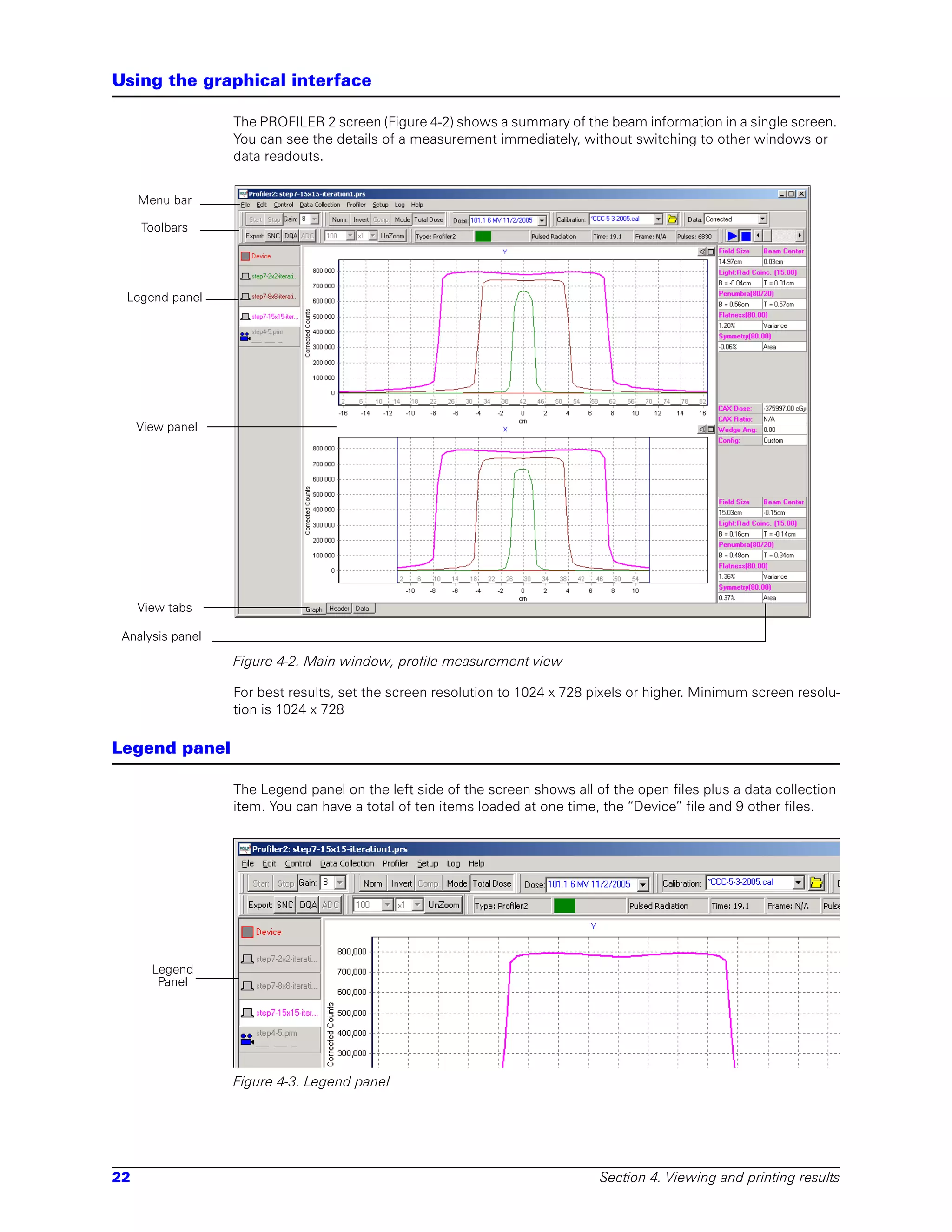
                  The PROFILER 2 screen (Figure 4-2) shows a summary of the beam information in a single screen.
                  You can see the details of a measurement immediately, without switching to other windows or
                  data readouts.


     Menu bar

     Toolbars


 Legend panel


     View panel


     View tabs

 Analysis panel

                  Figure 4-2. Main window, profile measurement view

                  For best results, set the screen resolution to 1024 x 728 pixels or higher. Minimum screen resolu-
                  tion is 1024 x 728

Legend panel

                  The Legend panel on the left side of the screen shows all of the open files plus a data collection
                  item. You can have a total of ten items loaded at one time, the “Device” file and 9 other files.


       Legend
        Panel


                  Figure 4-3. Legend panel


22                                                                           Section 4. Viewing and printing results
Items on the Legend panel have following characteristics:
              •    File names are color-coded; profile graphs and analysis data are the same color.
              •    The first item is the “Device,” the current PROFILER 2 measurement
              •    Files appear in the order loaded; you can change the file order by dragging the column head-
                   ing in the Header and Data views.
              •    You can copy a file by dragging it to an empty space, closing and renaming it.
              •    You can compare two files by selecting one, right clicking the other, and selecting Compare
                   from the context menu.
              •    All graphs are selected to “show” by default, but you can hide individual graphs by clearing
                   the check mark next to Show on the context menu.

View panel

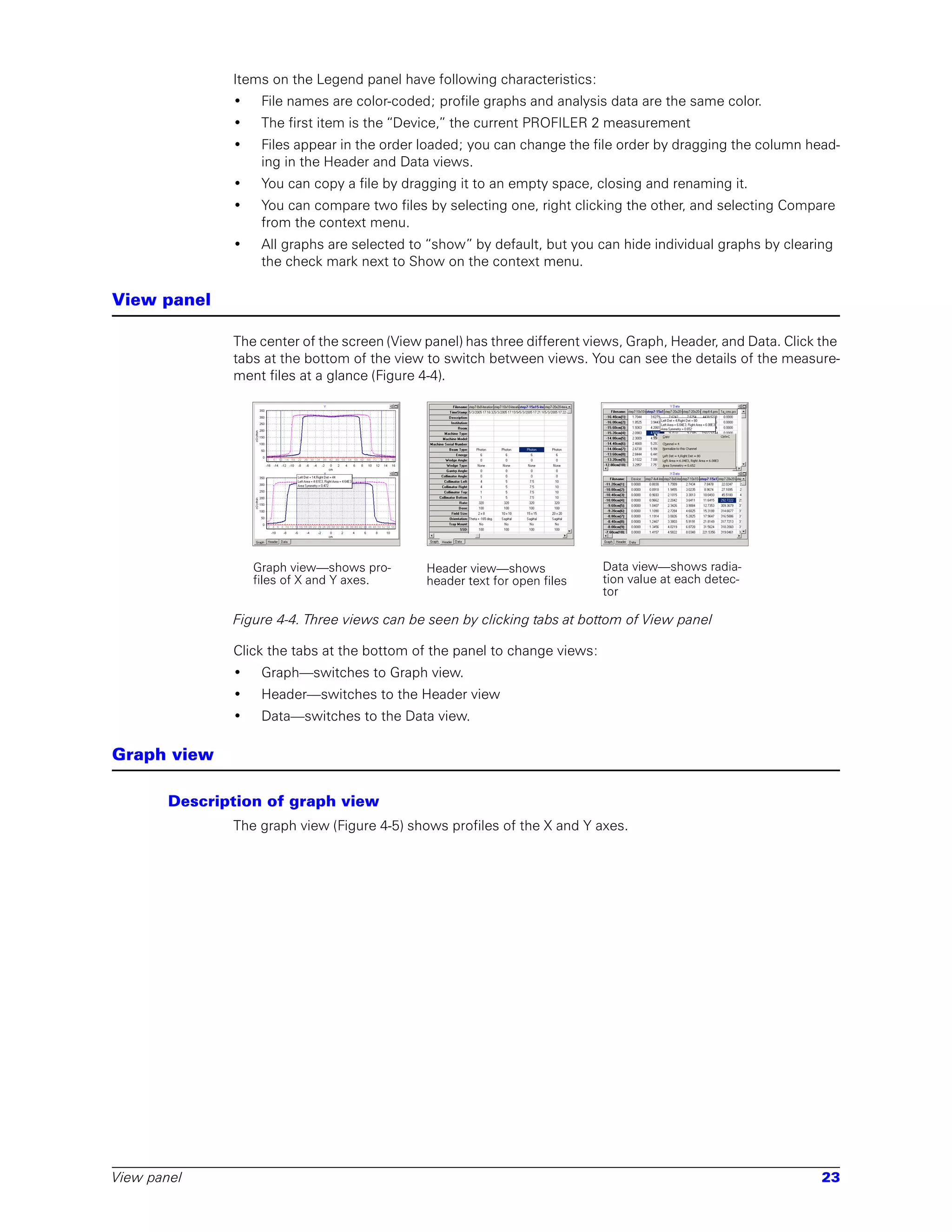
              The center of the screen (View panel) has three different views, Graph, Header, and Data. Click the
              tabs at the bottom of the view to switch between views. You can see the details of the measure-
              ment files at a glance (Figure 4-4).


                  Graph view—shows pro-      Header view—shows             Data view—shows radia-
                  files of X and Y axes.     header text for open files    tion value at each detec-
                                                                           tor

              Figure 4-4. Three views can be seen by clicking tabs at bottom of View panel

              Click the tabs at the bottom of the panel to change views:
              •    Graph—switches to Graph view.
              •    Header—switches to the Header view
              •    Data—switches to the Data view.

Graph view

       Description of graph view
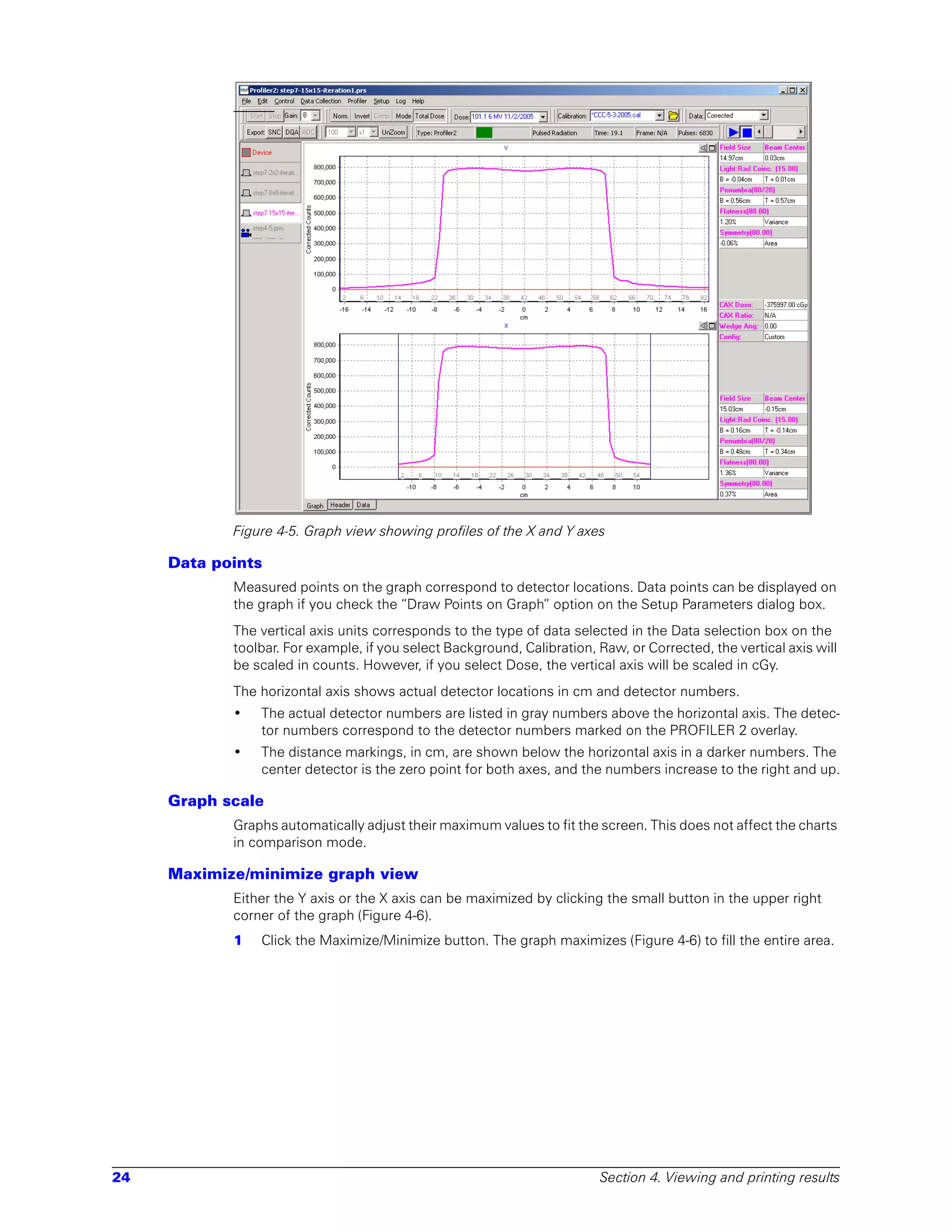
              The graph view (Figure 4-5) shows profiles of the X and Y axes.


View panel                                                                                                    23
Figure 4-5. Graph view showing profiles of the X and Y axes

     Data points
            Measured points on the graph correspond to detector locations. Data points can be displayed on
            the graph if you check the “Draw Points on Graph” option on the Setup Parameters dialog box.
            The vertical axis units corresponds to the type of data selected in the Data selection box on the
            toolbar. For example, if you select Background, Calibration, Raw, or Corrected, the vertical axis will
            be scaled in counts. However, if you select Dose, the vertical axis will be scaled in cGy.
            The horizontal axis shows actual detector locations in cm and detector numbers.
            •   The actual detector numbers are listed in gray numbers above the horizontal axis. The detec-
                tor numbers correspond to the detector numbers marked on the PROFILER 2 overlay.
            •   The distance markings, in cm, are shown below the horizontal axis in a darker numbers. The
                center detector is the zero point for both axes, and the numbers increase to the right and up.

     Graph scale
            Graphs automatically adjust their maximum values to fit the screen. This does not affect the charts
            in comparison mode.

     Maximize/minimize graph view
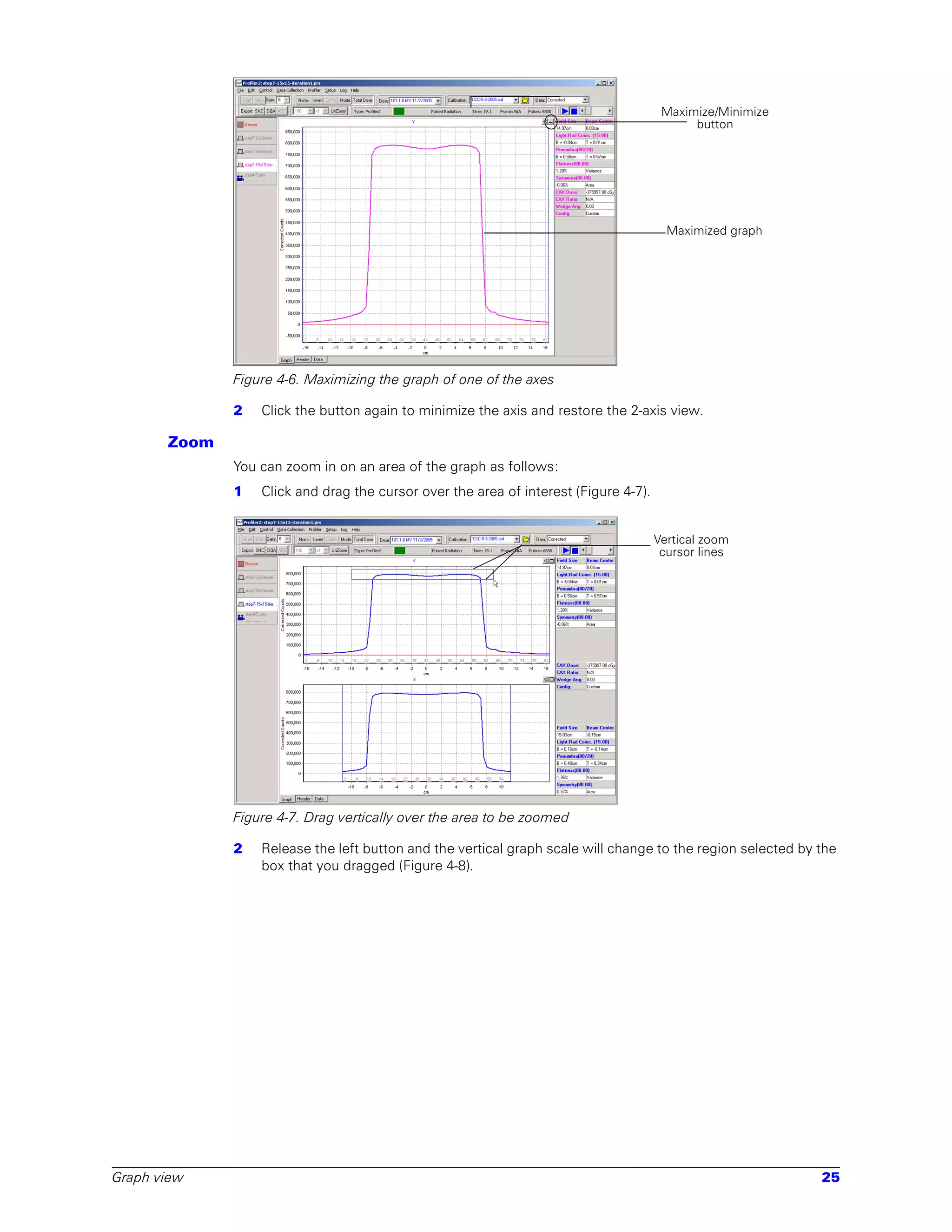
            Either the Y axis or the X axis can be maximized by clicking the small button in the upper right
            corner of the graph (Figure 4-6).
            1   Click the Maximize/Minimize button. The graph maximizes (Figure 4-6) to fill the entire area.


24                                                                       Section 4. Viewing and printing results
Maximize/Minimize
                                                                                            button


                                                                                        Maximized graph


              Figure 4-6. Maximizing the graph of one of the axes

              2   Click the button again to minimize the axis and restore the 2-axis view.

       Zoom
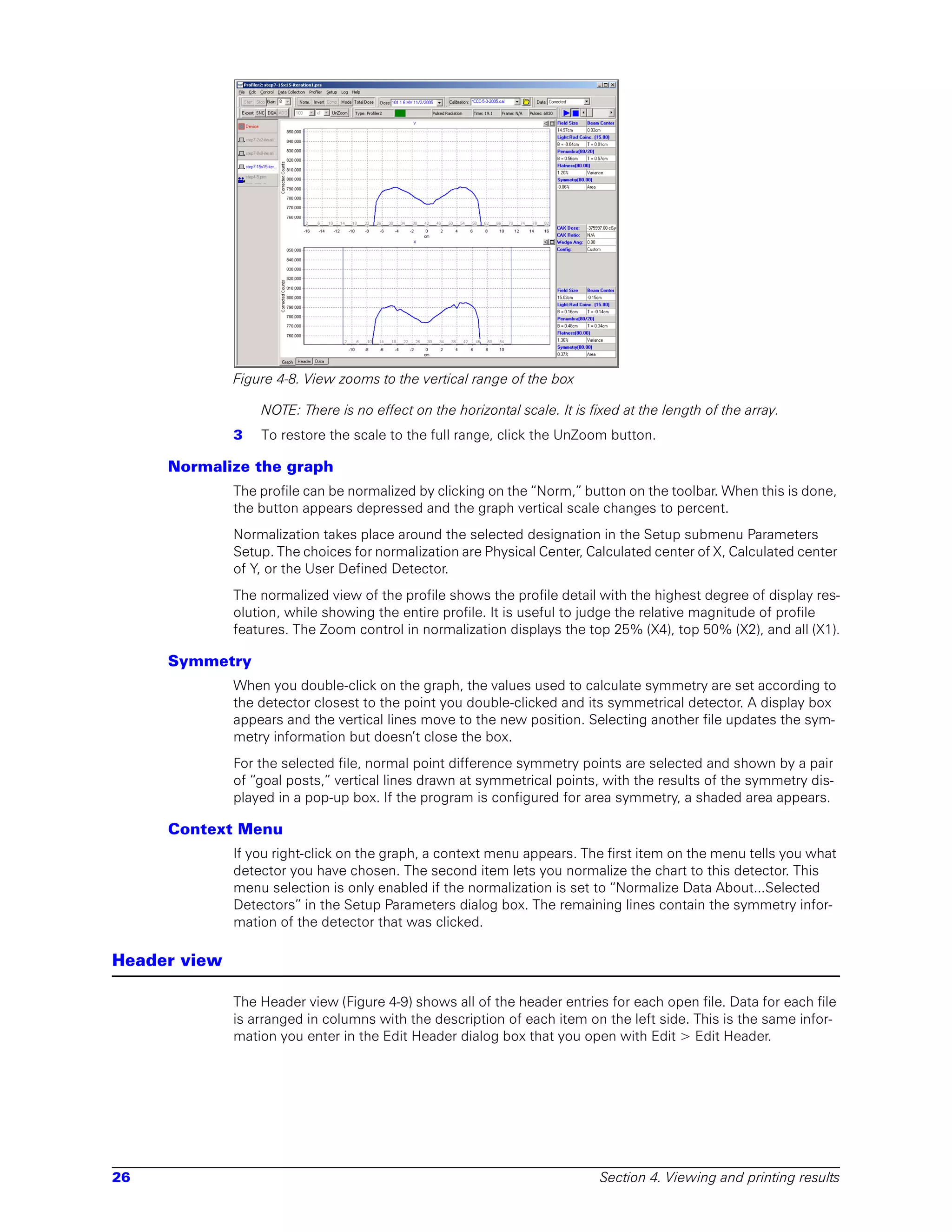
              You can zoom in on an area of the graph as follows:
              1   Click and drag the cursor over the area of interest (Figure 4-7).


                                                                                      Vertical zoom
                                                                                       cursor lines


              Figure 4-7. Drag vertically over the area to be zoomed

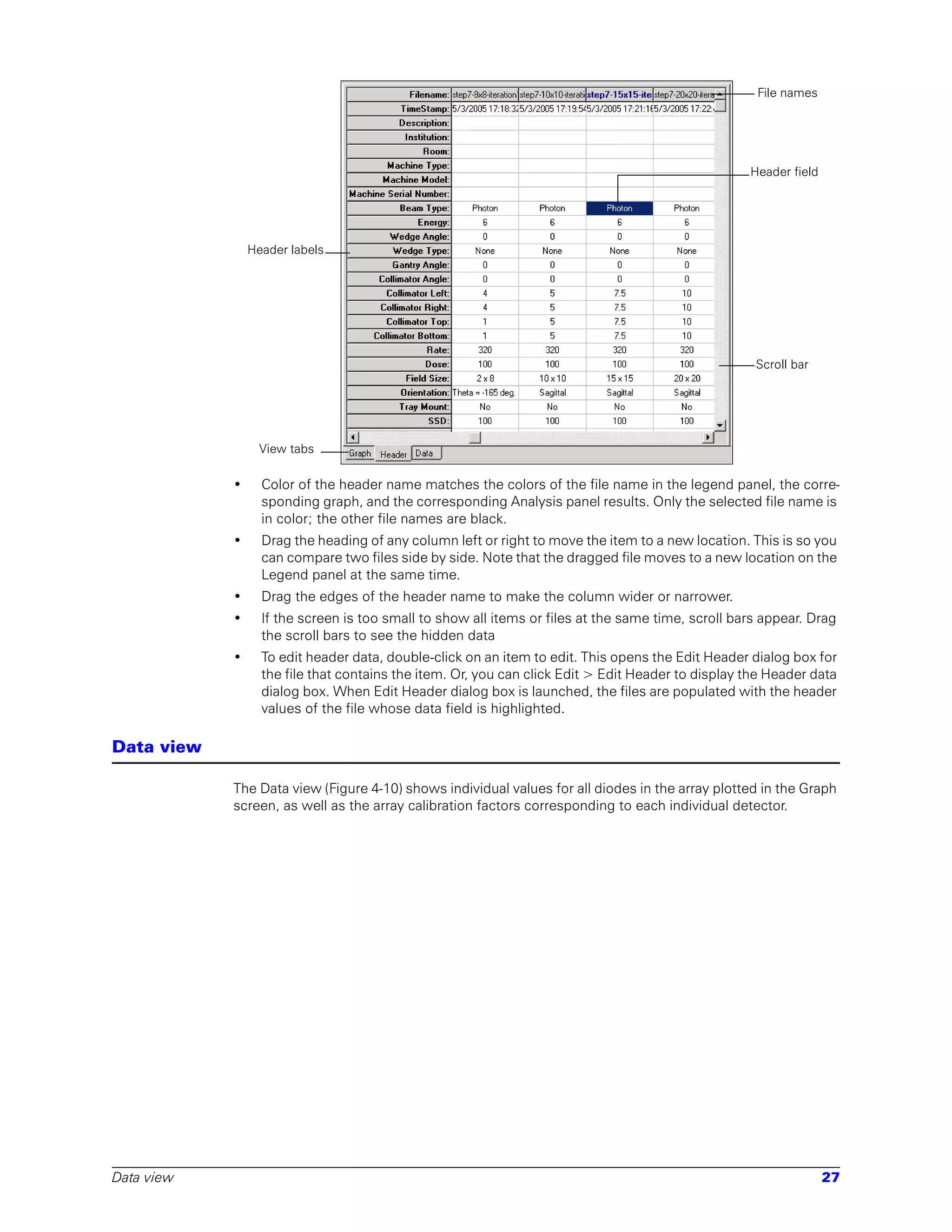
              2   Release the left button and the vertical graph scale will change to the region selected by the
                  box that you dragged (Figure 4-8).


Graph view                                                                                                   25
Figure 4-8. View zooms to the vertical range of the box

                  NOTE: There is no effect on the horizontal scale. It is fixed at the length of the array.
              3   To restore the scale to the full range, click the UnZoom button.

     Normalize the graph
              The profile can be normalized by clicking on the “Norm,” button on the toolbar. When this is done,
              the button appears depressed and the graph vertical scale changes to percent.
              Normalization takes place around the selected designation in the Setup submenu Parameters
              Setup. The choices for normalization are Physical Center, Calculated center of X, Calculated center
              of Y, or the User Defined Detector.
              The normalized view of the profile shows the profile detail with the highest degree of display res-
              olution, while showing the entire profile. It is useful to judge the relative magnitude of profile
              features. The Zoom control in normalization displays the top 25% (X4), top 50% (X2), and all (X1).

     Symmetry
              When you double-click on the graph, the values used to calculate symmetry are set according to
              the detector closest to the point you double-clicked and its symmetrical detector. A display box
              appears and the vertical lines move to the new position. Selecting another file updates the sym-
              metry information but doesn’t close the box.
              For the selected file, normal point difference symmetry points are selected and shown by a pair
              of “goal posts,” vertical lines drawn at symmetrical points, with the results of the symmetry dis-
              played in a pop-up box. If the program is configured for area symmetry, a shaded area appears.

     Context Menu
              If you right-click on the graph, a context menu appears. The first item on the menu tells you what
              detector you have chosen. The second item lets you normalize the chart to this detector. This
              menu selection is only enabled if the normalization is set to “Normalize Data About...Selected
              Detectors” in the Setup Parameters dialog box. The remaining lines contain the symmetry infor-
              mation of the detector that was clicked.

Header view

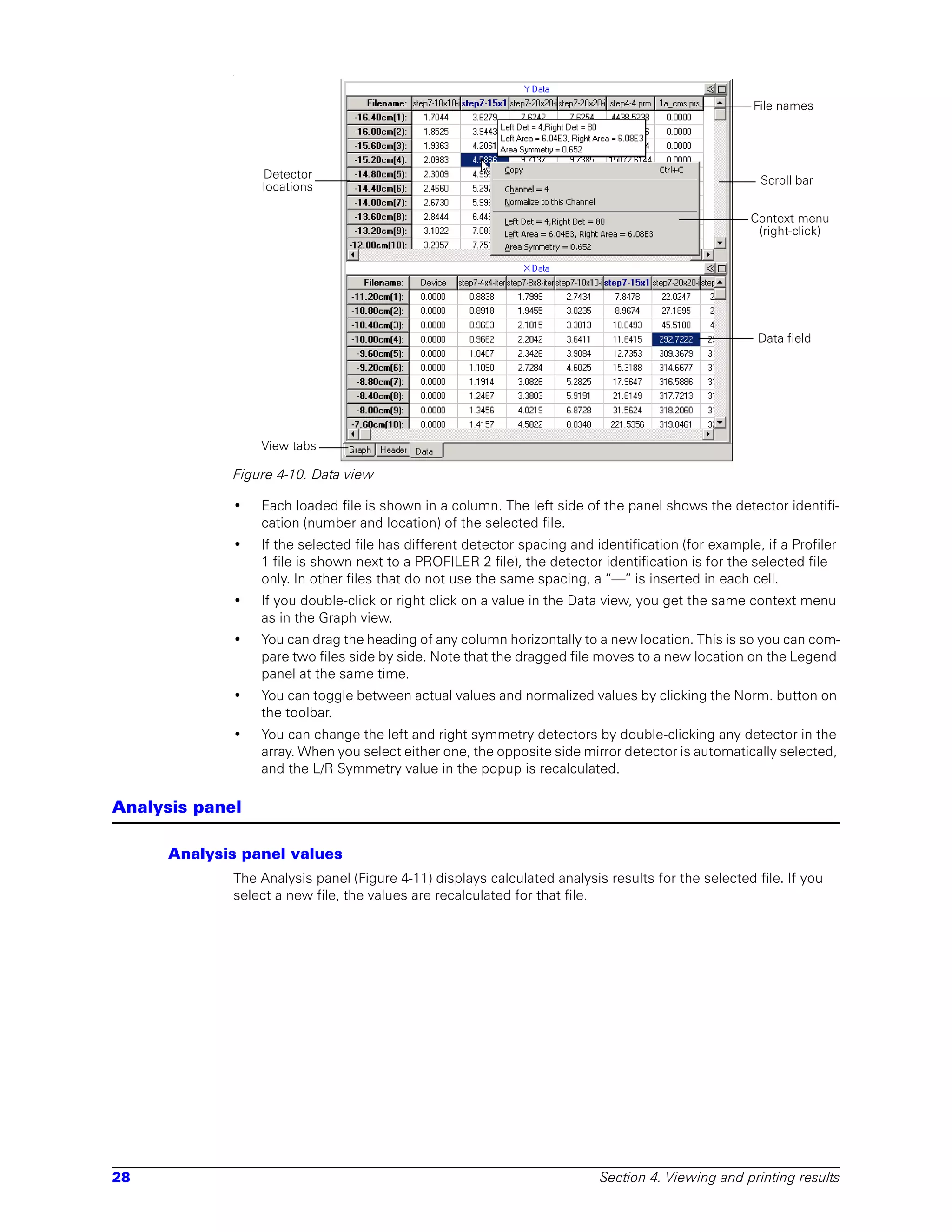
              The Header view (Figure 4-9) shows all of the header entries for each open file. Data for each file
              is arranged in columns with the description of each item on the left side. This is the same infor-
              mation you enter in the Edit Header dialog box that you open with Edit > Edit Header.


26                                                                          Section 4. Viewing and printing results
File names


                                                                                                   Header field


                Header labels


                                                                                                    Scroll bar


                  View tabs

            •     Color of the header name matches the colors of the file name in the legend panel, the corre-
                  sponding graph, and the corresponding Analysis panel results. Only the selected file name is
                  in color; the other file names are black.
            •     Drag the heading of any column left or right to move the item to a new location. This is so you
                  can compare two files side by side. Note that the dragged file moves to a new location on the
                  Legend panel at the same time.
            •     Drag the edges of the header name to make the column wider or narrower.
            •     If the screen is too small to show all items or files at the same time, scroll bars appear. Drag
                  the scroll bars to see the hidden data
            •     To edit header data, double-click on an item to edit. This opens the Edit Header dialog box for
                  the file that contains the item. Or, you can click Edit > Edit Header to display the Header data
                  dialog box. When Edit Header dialog box is launched, the files are populated with the header
                  values of the file whose data field is highlighted.

Data view

            The Data view (Figure 4-10) shows individual values for all diodes in the array plotted in the Graph
            screen, as well as the array calibration factors corresponding to each individual detector.


Data view                                                                                                         27
-


                                                                                                    File names


                 Detector                                                                             Scroll bar
                 locations

                                                                                                    Context menu
                                                                                                     (right-click)


                                                                                                     Data field


                 View tabs

             Figure 4-10. Data view

             •   Each loaded file is shown in a column. The left side of the panel shows the detector identifi-
                 cation (number and location) of the selected file.
             •   If the selected file has different detector spacing and identification (for example, if a Profiler
                 1 file is shown next to a PROFILER 2 file), the detector identification is for the selected file
                 only. In other files that do not use the same spacing, a “—” is inserted in each cell.
             •   If you double-click or right click on a value in the Data view, you get the same context menu
                 as in the Graph view.
             •   You can drag the heading of any column horizontally to a new location. This is so you can com-
                 pare two files side by side. Note that the dragged file moves to a new location on the Legend
                 panel at the same time.
             •   You can toggle between actual values and normalized values by clicking the Norm. button on
                 the toolbar.
             •   You can change the left and right symmetry detectors by double-clicking any detector in the
                 array. When you select either one, the opposite side mirror detector is automatically selected,
                 and the L/R Symmetry value in the popup is recalculated.

Analysis panel

      Analysis panel values
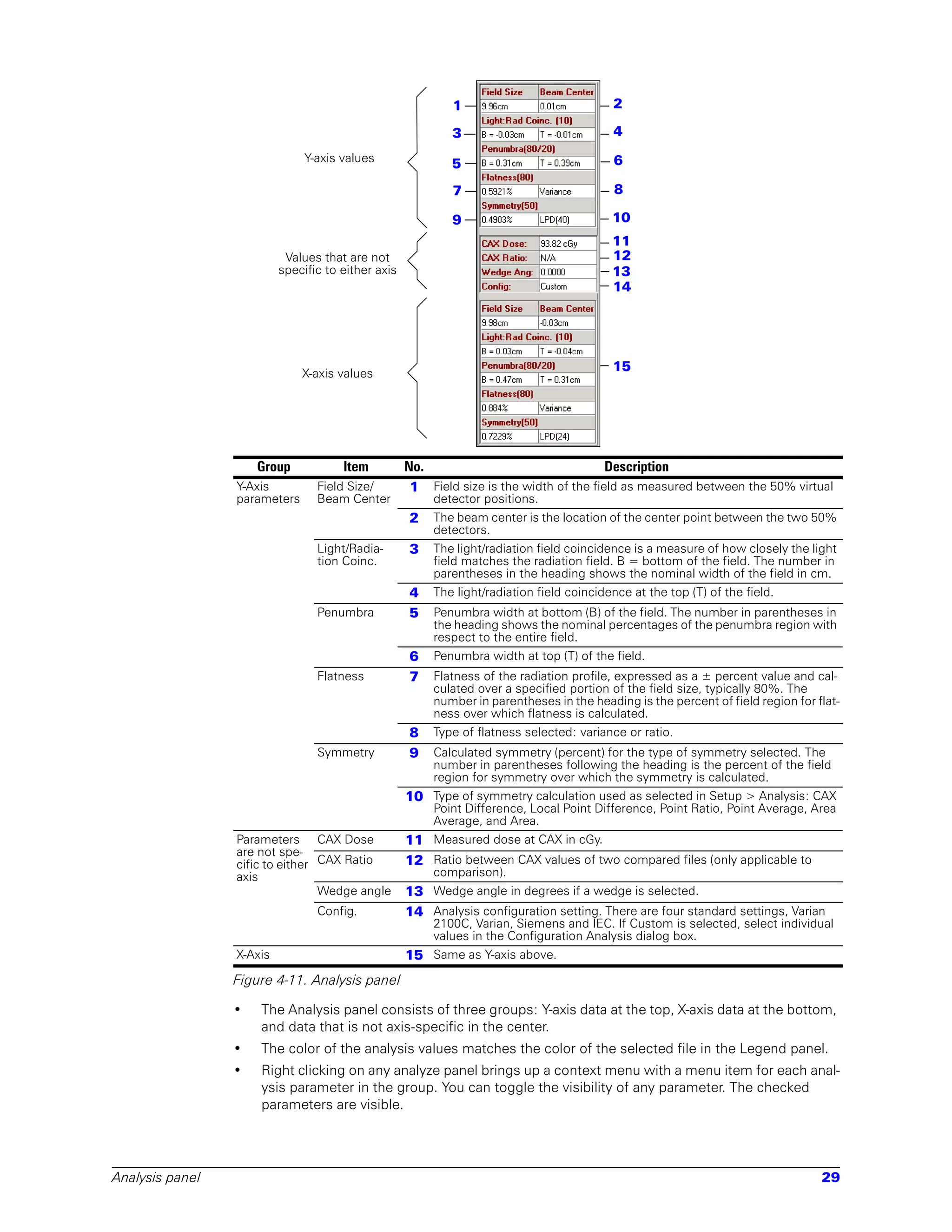
             The Analysis panel (Figure 4-11) displays calculated analysis results for the selected file. If you
             select a new file, the values are recalculated for that file.


28                                                                        Section 4. Viewing and printing results
1                              2

                                                            3                              4
                               Y-axis values                5                              6

                                                            7                              8

                                                            9                              10
                                                                                           11
                           Values that are not                                             12
                          specific to either axis                                          13
                                                                                           14


                              X-axis values
                                                                                           15


                     Group            Item          No.                                  Description
                 Y-Axis          Field Size/         1 Field size is the width of the field as measured between the 50% virtual
                 parameters      Beam Center             detector positions.
                                                    2    The beam center is the location of the center point between the two 50%
                                                         detectors.
                                 Light/Radia-       3    The light/radiation field coincidence is a measure of how closely the light
                                 tion Coinc.             field matches the radiation field. B = bottom of the field. The number in
                                                         parentheses in the heading shows the nominal width of the field in cm.
                                                    4    The light/radiation field coincidence at the top (T) of the field.
                                 Penumbra           5    Penumbra width at bottom (B) of the field. The number in parentheses in
                                                         the heading shows the nominal percentages of the penumbra region with
                                                         respect to the entire field.
                                                    6    Penumbra width at top (T) of the field.
                                 Flatness           7    Flatness of the radiation profile, expressed as a ± percent value and cal-
                                                         culated over a specified portion of the field size, typically 80%. The
                                                         number in parentheses in the heading is the percent of field region for flat-
                                                         ness over which flatness is calculated.
                                                    8    Type of flatness selected: variance or ratio.
                                 Symmetry           9    Calculated symmetry (percent) for the type of symmetry selected. The
                                                         number in parentheses following the heading is the percent of the field
                                                         region for symmetry over which the symmetry is calculated.
                                                    10 Type of symmetry calculation used as selected in Setup > Analysis: CAX
                                                         Point Difference, Local Point Difference, Point Ratio, Point Average, Area
                                                         Average, and Area.
                 Parameters CAX Dose                11 Measured dose at CAX in cGy.
                 are not spe-
                 cific to either CAX Ratio          12 Ratio between CAX values of two compared files (only applicable to
                 axis                                    comparison).
                                 Wedge angle        13 Wedge angle in degrees if a wedge is selected.
                                 Config.            14 Analysis configuration setting. There are four standard settings, Varian
                                                         2100C, Varian, Siemens and IEC. If Custom is selected, select individual
                                                         values in the Configuration Analysis dialog box.
                 X-Axis                             15 Same as Y-axis above.
                 Figure 4-11. Analysis panel

                 •   The Analysis panel consists of three groups: Y-axis data at the top, X-axis data at the bottom,
                     and data that is not axis-specific in the center.
                 •   The color of the analysis values matches the color of the selected file in the Legend panel.
                 •   Right clicking on any analyze panel brings up a context menu with a menu item for each anal-
                     ysis parameter in the group. You can toggle the visibility of any parameter. The checked
                     parameters are visible.


Analysis panel                                                                                                                    29
•   Analysis parameters can be dragged onto each other in order to rearrange their display order.
                 Dragging a parameter upwards in the list inserts that parameter before the parameter it is
                 dropped onto. Dragging a parameter downwards in the list inserts that parameter after the
                 parameter it is dropped onto.
             •   The context menu for the analysis panel has an edit option which allows you to edit individual
                 analysis parameters via a set of simple dialog boxes. Changing settings in these dialog boxes
                 is equivalent to changing the analysis parameters in the Setup > Analysis dialog box.
             •   Analysis fonts can be made larger by checking the Large Analysis Fonts option on the Setup
                 Parameters dialog box (Setup > Parameters).
             You can select which algorithms to use, whether to take the base value as the maximum value of
             the profile, or the value at the center line, the percentage to apply to the base value, and the per-
             centage of the field to use from a set of predefined flatness/symmetry configurations. These
             predefined configurations are designed to match specifications from linac manufacturers and
             standards organizations.

     To move analysis panel position
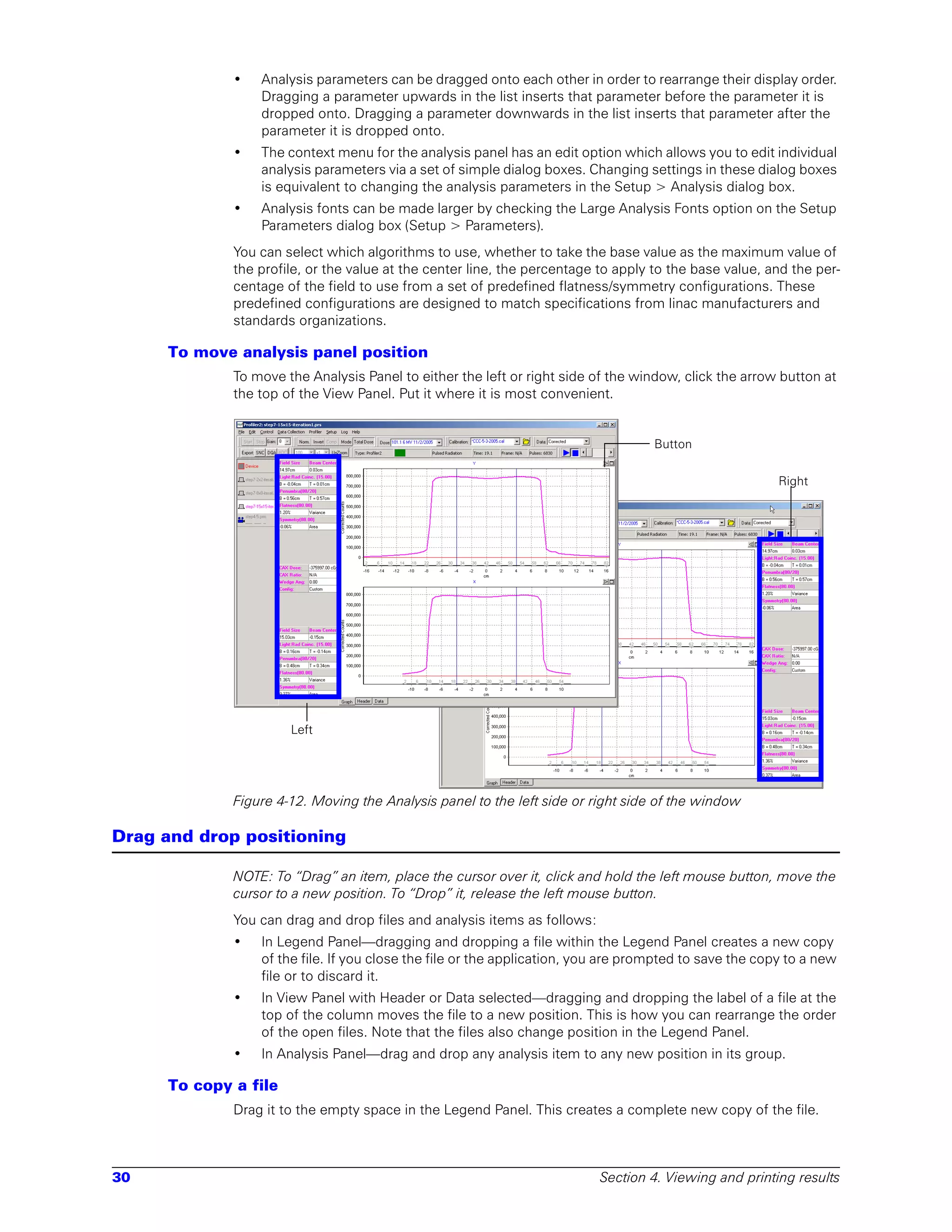
             To move the Analysis Panel to either the left or right side of the window, click the arrow button at
             the top of the View Panel. Put it where it is most convenient.


                                                                                   Button

                                                                                                        Right


                      Left


             Figure 4-12. Moving the Analysis panel to the left side or right side of the window

Drag and drop positioning

             NOTE: To “Drag” an item, place the cursor over it, click and hold the left mouse button, move the
             cursor to a new position. To “Drop” it, release the left mouse button.
             You can drag and drop files and analysis items as follows:
             •   In Legend Panel—dragging and dropping a file within the Legend Panel creates a new copy
                 of the file. If you close the file or the application, you are prompted to save the copy to a new
                 file or to discard it.
             •   In View Panel with Header or Data selected—dragging and dropping the label of a file at the
                 top of the column moves the file to a new position. This is how you can rearrange the order
                 of the open files. Note that the files also change position in the Legend Panel.
             •   In Analysis Panel—drag and drop any analysis item to any new position in its group.

     To copy a file
             Drag it to the empty space in the Legend Panel. This creates a complete new copy of the file.


30                                                                        Section 4. Viewing and printing results
To create a file from a measurement
                     Drag the measurement in the “Device” location to an empty space in the Legend Panel. This cre-
                     ates a file containing the measured data in the device location.

        To rearrange files
                     Drag the title of the column in the Header or Data views. This causes the files to be rearranged in
                     the Legend Panel and in the View panel.

        To rearrange analysis items
                     Drag and drop them to the new position in their group.

Comparing profiles

                     You can compare any two open profiles as follows:
                     1   Select the first profile to be compared.
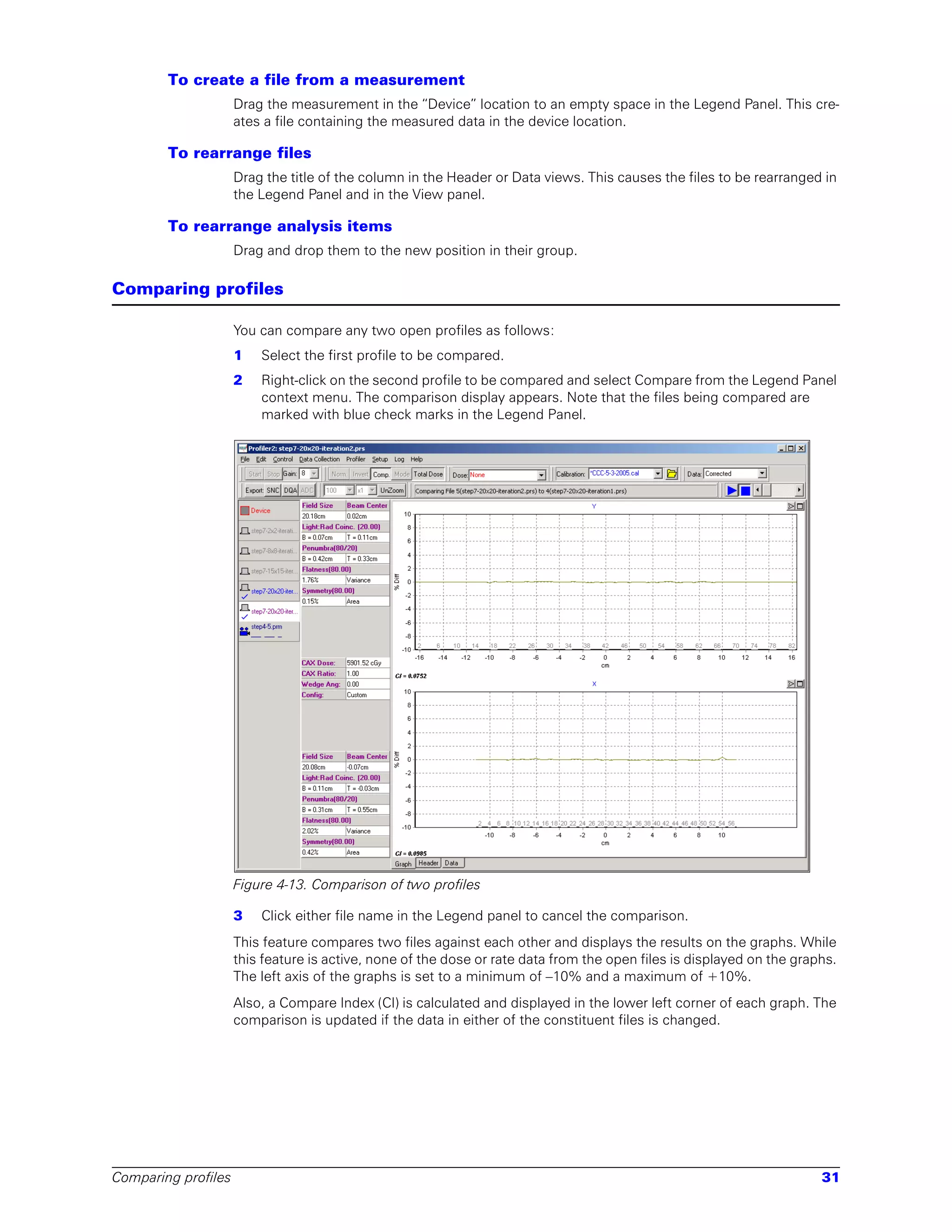
                     2   Right-click on the second profile to be compared and select Compare from the Legend Panel
                         context menu. The comparison display appears. Note that the files being compared are
                         marked with blue check marks in the Legend Panel.


                     Figure 4-13. Comparison of two profiles

                     3   Click either file name in the Legend panel to cancel the comparison.
                     This feature compares two files against each other and displays the results on the graphs. While
                     this feature is active, none of the dose or rate data from the open files is displayed on the graphs.
                     The left axis of the graphs is set to a minimum of –10% and a maximum of +10%.
                     Also, a Compare Index (CI) is calculated and displayed in the lower left corner of each graph. The
                     comparison is updated if the data in either of the constituent files is changed.


Comparing profiles                                                                                                     31
Movie playback

            Multi-frame files store each update in addition to the total data. When a multi-frame file is loaded,
            it is possible to play the file back, at a rate of 1 frame per second. Note that the speed of the play-
            back does not necessarily correspond to the speed at which the frames originally arrived from the
            device. See program Help or User’s Guide for details.

Importing treatment plans

            You can import dose maps created by treatment planning systems. Once imported, these files can
            then be compared to measured profiles.
            Since there are a large number of different file formats, a separate import filter has been devel-
            oped to import the treatment plan files for PROFILER 2. Refer to a separate document, User’s
            Guide, TPS Import Filter (or the program Help) for details of the file formats supported and file prep-
            aration instructions. The data is also available in the online help for the PROFILER 2 application
            program.

     To import a treatment plan dose map
            1    Prepare the dose map as described in the manufacturer’s documentation and in the TPS
                 Import Filter User’s Guide.
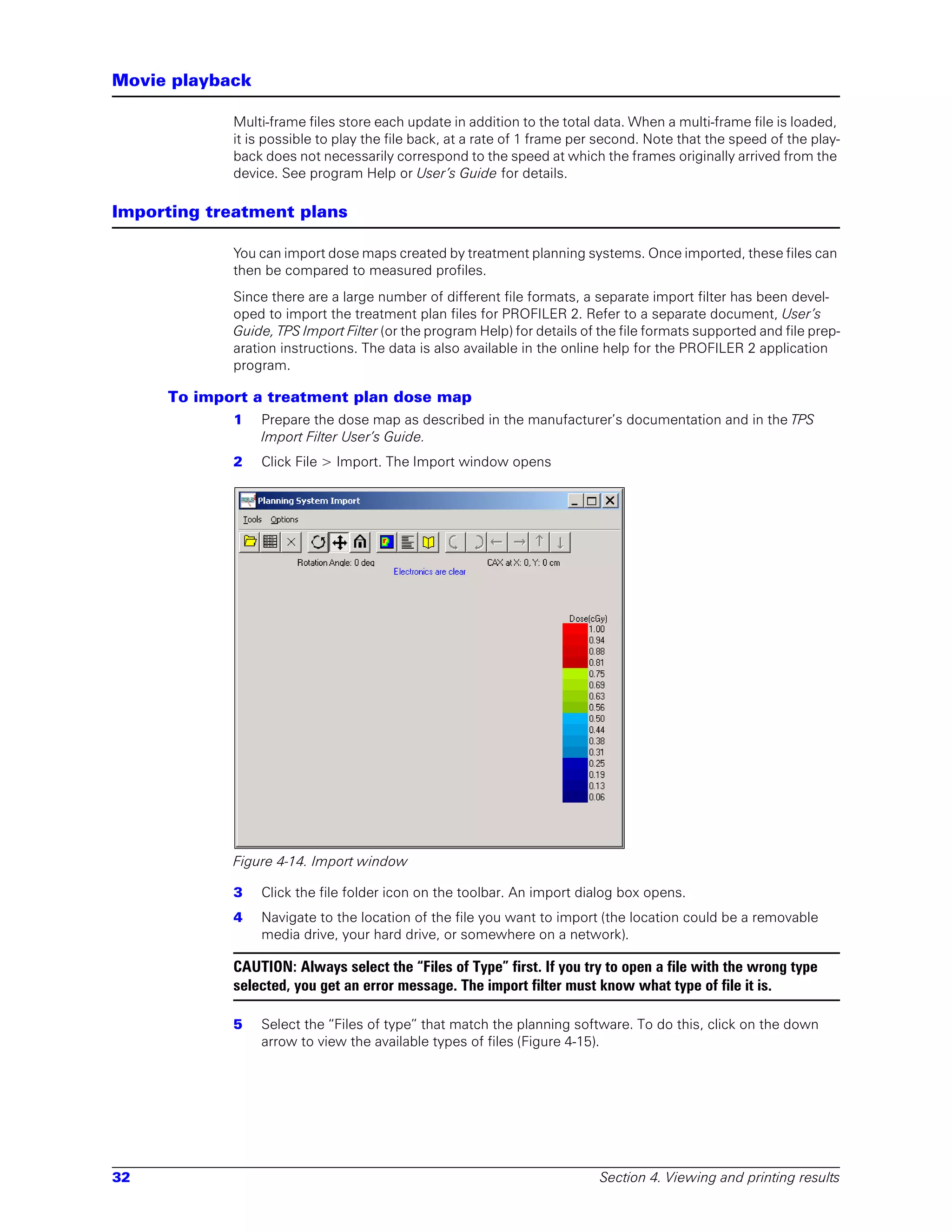
            2    Click File > Import. The Import window opens


            Figure 4-14. Import window

            3    Click the file folder icon on the toolbar. An import dialog box opens.
            4    Navigate to the location of the file you want to import (the location could be a removable
                 media drive, your hard drive, or somewhere on a network).

            CAUTION: Always select the “Files of Type” first. If you try to open a file with the wrong type
            selected, you get an error message. The import filter must know what type of file it is.

            5    Select the “Files of type” that match the planning software. To do this, click on the down
                 arrow to view the available types of files (Figure 4-15).


32                                                                        Section 4. Viewing and printing results
Figure 4-15. When importing, select the proper type of file to import

                  Types of files that can be imported include, but are not limited to, those shown on the pull-down
                  list.
                  6    Select the file you want to import and click Open.

        Import slice or volume file
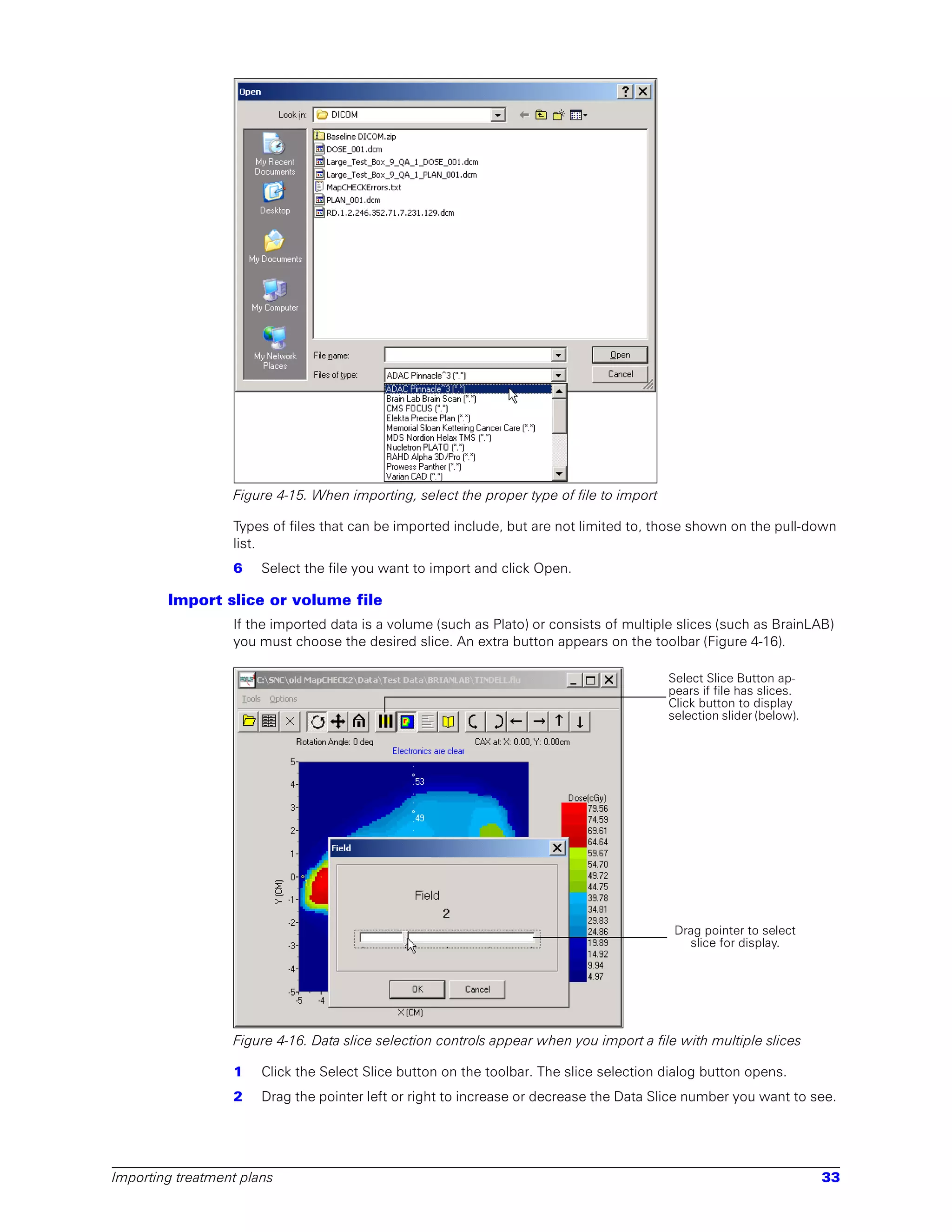
                  If the imported data is a volume (such as Plato) or consists of multiple slices (such as BrainLAB)
                  you must choose the desired slice. An extra button appears on the toolbar (Figure 4-16).

                                                                                          Select Slice Button ap-
                                                                                          pears if file has slices.
                                                                                          Click button to display
                                                                                          selection slider (below).


                                                                                           Drag pointer to select
                                                                                             slice for display.


                  Figure 4-16. Data slice selection controls appear when you import a file with multiple slices

                  1    Click the Select Slice button on the toolbar. The slice selection dialog button opens.
                  2    Drag the pointer left or right to increase or decrease the Data Slice number you want to see.


Importing treatment plans                                                                                             33
3    Click OK to view that slice.

     Import display
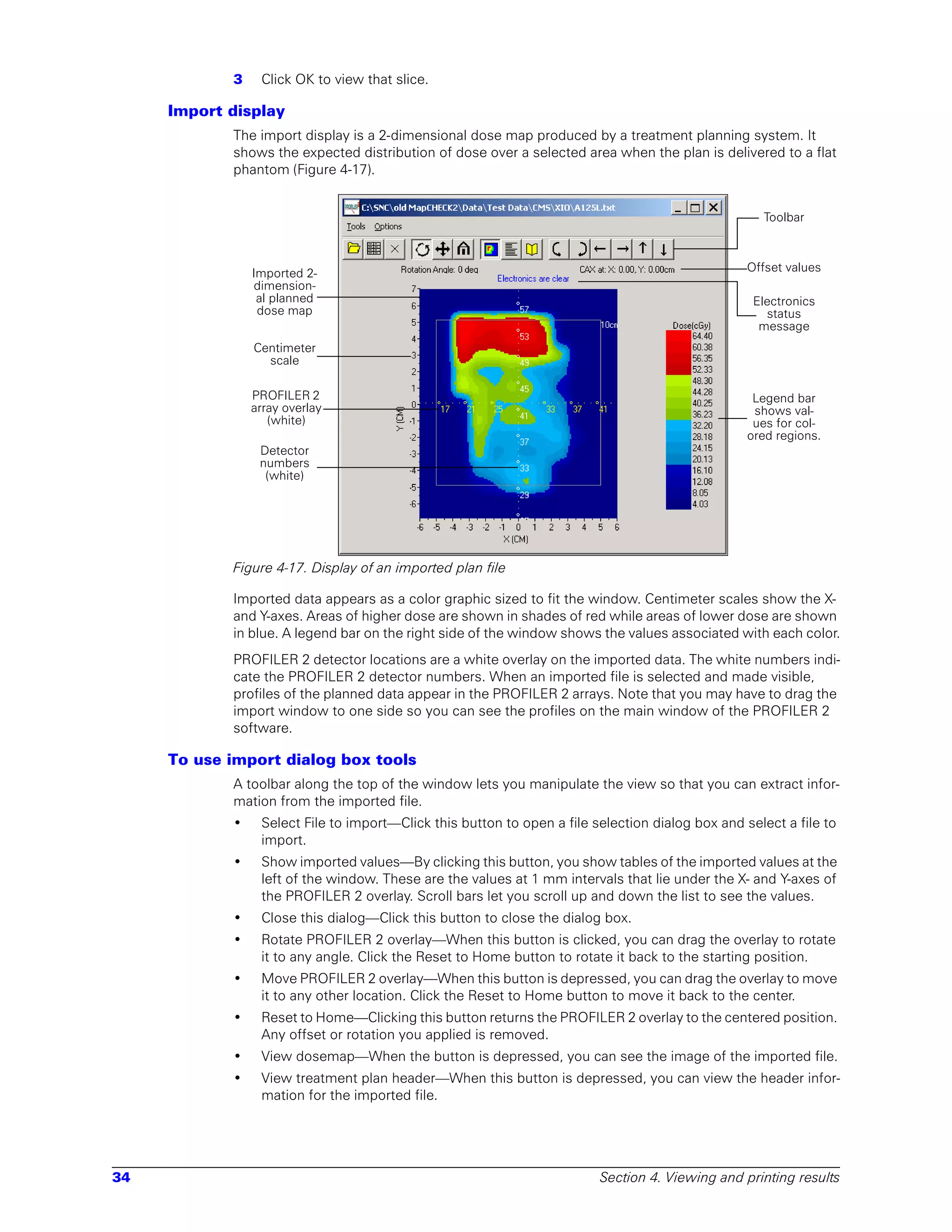
            The import display is a 2-dimensional dose map produced by a treatment planning system. It
            shows the expected distribution of dose over a selected area when the plan is delivered to a flat
            phantom (Figure 4-17).


                                                                                                    Toolbar


                Imported 2-                                                                       Offset values
                dimension-
                 al planned                                                                        Electronics
                 dose map                                                                            status
                                                                                                    message
                Centimeter
                  scale

                PROFILER 2                                                                         Legend bar
                array overlay                                                                      shows val-
                   (white)                                                                         ues for col-
                                                                                                  ored regions.
                 Detector
                 numbers
                  (white)


            Figure 4-17. Display of an imported plan file

            Imported data appears as a color graphic sized to fit the window. Centimeter scales show the X-
            and Y-axes. Areas of higher dose are shown in shades of red while areas of lower dose are shown
            in blue. A legend bar on the right side of the window shows the values associated with each color.
            PROFILER 2 detector locations are a white overlay on the imported data. The white numbers indi-
            cate the PROFILER 2 detector numbers. When an imported file is selected and made visible,
            profiles of the planned data appear in the PROFILER 2 arrays. Note that you may have to drag the
            import window to one side so you can see the profiles on the main window of the PROFILER 2
            software.

     To use import dialog box tools
            A toolbar along the top of the window lets you manipulate the view so that you can extract infor-
            mation from the imported file.
            •    Select File to import—Click this button to open a file selection dialog box and select a file to
                 import.
            •    Show imported values—By clicking this button, you show tables of the imported values at the
                 left of the window. These are the values at 1 mm intervals that lie under the X- and Y-axes of
                 the PROFILER 2 overlay. Scroll bars let you scroll up and down the list to see the values.
            •    Close this dialog—Click this button to close the dialog box.
            •    Rotate PROFILER 2 overlay—When this button is clicked, you can drag the overlay to rotate
                 it to any angle. Click the Reset to Home button to rotate it back to the starting position.
            •    Move PROFILER 2 overlay—When this button is depressed, you can drag the overlay to move
                 it to any other location. Click the Reset to Home button to move it back to the center.
            •    Reset to Home—Clicking this button returns the PROFILER 2 overlay to the centered position.
                 Any offset or rotation you applied is removed.
            •    View dosemap—When the button is depressed, you can see the image of the imported file.
            •    View treatment plan header—When this button is depressed, you can view the header infor-
                 mation for the imported file.


34                                                                       Section 4. Viewing and printing results
•   View orientation instructions—This button displays instructions for orienting the PROFILER 2
                          so that you can measure a profile at any offset or rotation with respect the treatment plan file.
                      •   Rotate the overlay clockwise—Rotates the overlay clockwise in 45 degree increments. Click
                          the Reset to Home button to rotate back to the starting position.
                      •   Rotate the overlay counterclockwise—Rotates the overlay counterclockwise in 45 degree
                          increments. Click the Reset to Home button to rotate back to the starting position.
                      •   Shift PROFILER 2 left—Shifts the PROFILER 2 overlay 1 mm to the left.
                      •   Shift PROFILER 2 right—Shifts the PROFILER 2 overlay 1 mm to the right.
                      •   Shift PROFILER 2 up—Shifts the PROFILER 2 overlay 1 mm up.
                      •   Shift PROFILER 2 down—Shifts the PROFILER 2 overlay 1mm down.

         To measure an equivalent profile
                      You can measure the actual profile from the accelerator and compare it to the profile you observed
                      from the imported plan file.
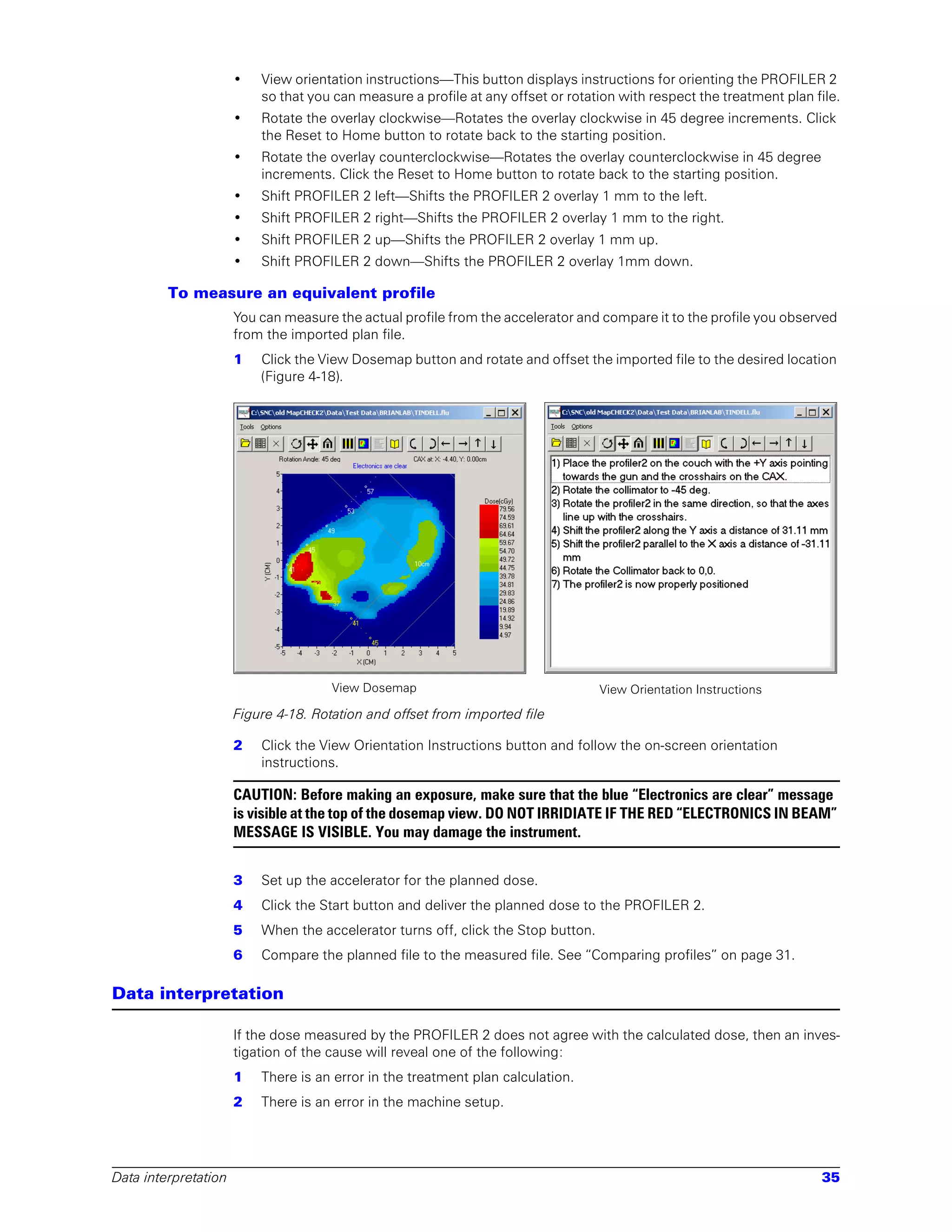
                      1   Click the View Dosemap button and rotate and offset the imported file to the desired location
                          (Figure 4-18).


                                      View Dosemap                                 View Orientation Instructions

                      Figure 4-18. Rotation and offset from imported file

                      2   Click the View Orientation Instructions button and follow the on-screen orientation
                          instructions.

                      CAUTION: Before making an exposure, make sure that the blue “Electronics are clear” message
                      is visible at the top of the dosemap view. DO NOT IRRIDIATE IF THE RED “ELECTRONICS IN BEAM”
                      MESSAGE IS VISIBLE. You may damage the instrument.


                      3   Set up the accelerator for the planned dose.
                      4   Click the Start button and deliver the planned dose to the PROFILER 2.
                      5   When the accelerator turns off, click the Stop button.
                      6   Compare the planned file to the measured file. See “Comparing profiles” on page 31.

Data interpretation

                      If the dose measured by the PROFILER 2 does not agree with the calculated dose, then an inves-
                      tigation of the cause will reveal one of the following:
                      1   There is an error in the treatment plan calculation.
                      2   There is an error in the machine setup.


Data interpretation                                                                                                    35
3   The treatment machine is out of calibration.
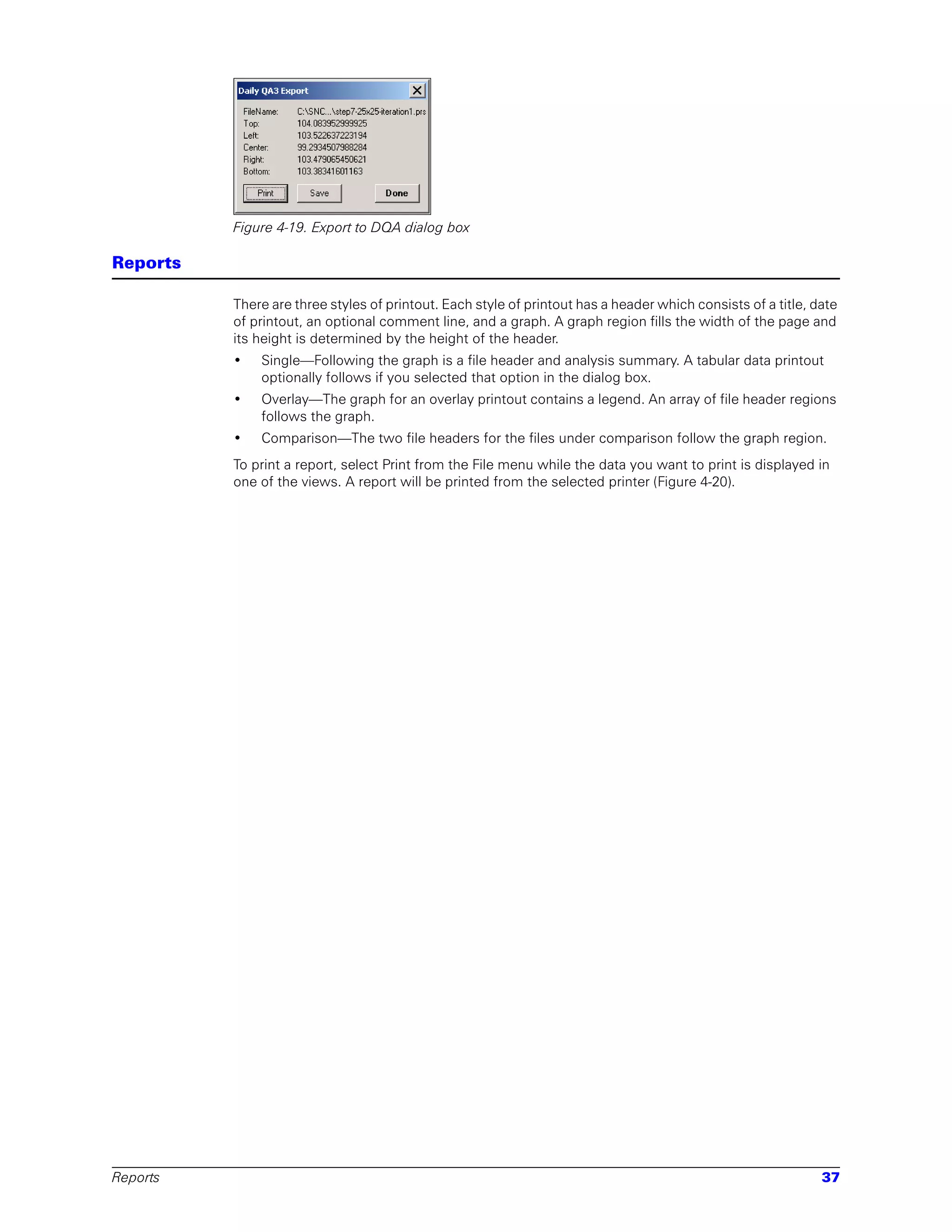
              4   The PROFILER 2 is improperly calibrated.
              5   The PROFILER 2 has failed.
              In this event, the plan and setup should be reviewed by the physicist. If this does not reveal the
              error, the calibration of the machine output and the PROFILER 2 should be tested. If this does not
              reveal the error, then either the error is the result of a non-reproducible setup problem or a PRO-
              FILER 2 failure. Under such a condition, the PROFILER 2 should be used to make another
              measurement of the treatment dose at the next treatment session. If the error persists, the unit
              should be returned to Sun Nuclear Corporation for repair.

              WARNING: Under no conditions should the treatment plan be modified based solely upon
              the measurements of the PROFILER 2 without corroborating evidence of an error resulting
              from situations 1, 2, or 3 as described above.

Export data

              You can export the following data:
              •   PROFILER 2 tab delimited ASCII text format—When exporting in PROFILER 2 tab delimited
                  text format, you can export to the clipboard or directly to a file. The exported file can be
                  opened with a spreadsheet or word processor for off-line analysis. Advanced exporting can
                  be done via the export menu item, but a quick export of just the selected file can be done via
                  the edit/copy or Ctrl+C.
              •   Daily QA 3 instrument data—ASCII data containing measurements from PROFILER 2 diodes
                  that are in the equivalent location of the DQA-3 top, bottom, left, right, and center detectors.
                  These measurements are similar to data in a DQA3 database.
              See program Help or User’s Guide for details.

     Export ASCII data

              By copying
              The software can publish data in tab-delimited text format to the Windows clipboard as follows.
              •   Clicking Ctrl+C while the header grid view or data grid view is active exports only the high-
                  lighted cells. Clicking Ctrl+C while any other control is active exports the currently selected
                  file's header, average dose, and total dose.
              •   Clicking the Copy All button on the edit header dialog box exports only that header.
              •   Clicking Ctrl+C while the edit header dialog box is open exports the highlighted text from the
                  selected control onto the clipboard.

              From menu
              The export dialog box allows you to export comparisons, and more than one file at a time.

     Export to DQA 3
              This feature lets you use a PROFILER 2 device as a daily device. You can view the data or export
              to a text file.
              The Daily QA Export dialog box displays the interpolated values at the Daily QA Check 3 primary
              positions as taken from the currently selected file. Clicking the print button creates a printout (Fig-
              ure 4-19) with the same information displayed on the form. The save button allows you to save a
              simple text file containing the data displayed on the form.


36                                                                          Section 4. Viewing and printing results
Figure 4-19. Export to DQA dialog box

Reports

          There are three styles of printout. Each style of printout has a header which consists of a title, date
          of printout, an optional comment line, and a graph. A graph region fills the width of the page and
          its height is determined by the height of the header.
          •   Single—Following the graph is a file header and analysis summary. A tabular data printout
              optionally follows if you selected that option in the dialog box.
          •   Overlay—The graph for an overlay printout contains a legend. An array of file header regions
              follows the graph.
          •   Comparison—The two file headers for the files under comparison follow the graph region.
          To print a report, select Print from the File menu while the data you want to print is displayed in
          one of the views. A report will be printed from the selected printer (Figure 4-20).


Reports                                                                                                       37
step7-15x15-iteration1.prs - 8/15/2006 1:00:50 PM
                                                                                                                  Y - Sagittal
                            850,000
                            800,000
                            750,000
                            700,000
                            650,000
                            600,000
                            550,000


         Corrected Counts
                            500,000
                            450,000
                            400,000
                            350,000
                            300,000
                            250,000
                            200,000
                            150,000
                            100,000
                             50,000
                                  0
                            -50,000    2    4   6     8   10 12 14 16 18 20 22 24 26 28 30 32 34 36 38 40 42 44 46 48 50 52 54 56 58 60 62 64 66 68 70 72 74 76 78 80 82

                                      -16       -14        -12       -10            -8         -6       -4        -2      0                2          4        6          8            10   12   14   16
                                                                                                                         cm
                                                                                                             X - Transverse
                            850,000
                            800,000
                            750,000
                            700,000
                            650,000
                            600,000
                            550,000
         Corrected Counts


                            500,000
                            450,000
                            400,000
                            350,000
                            300,000
                            250,000
                            200,000
                            150,000
                            100,000
                             50,000
                                  0
                            -50,000                              1   3     5    7    9     11 13 15 17 19 21 23 25 27 29 31 33 35 37 39 41 43 45 47 49 51 53 55 57

                                                                     -10            -8         -6       -4           -2         0          2          4        6          8            10
                                                                                                                               cm
                               Y Analysis                     X Analysis                                           step7-15x15-iterat...                       step7-15x15-iterat...
         Field Size      Beam Center                  Field Size      Beam Center        TimeStamp:                 5/3/2005 17:21:16 Buildup:                           0
         14.97cm         0.03cm                       15.03cm         -0.15cm            Description:                                    Buildup Type:             WaterEquiv
         Light:Rad Coinc. (15.00)                     Light:Rad Coinc. (15.00)           Institution:                                    Collector Model:            Profiler2
         B = -0.04cm     T = 0.01cm                   B = 0.16cm      T = -0.14cm        Room:                                           Collector Serial:          1174003
         Penumbra(80/20)                              Penumbra(80/20)                    Machine Type:                                   Collector Revision:             A
         B = 0.56cm      T = 0.57cm                   B = 0.48cm      T = 0.34cm         Machine Model:                                  Firmware Version:            0.60.0
         Flatness(80.00)                              Flatness(80.00)                    Machine Serial Number:                          Software Version:            1.0.0.5
         1.21%           Variance                     1.36%           Variance           Beam Type:                      Photon          Calibration File:      CCC-5-3-2005.cal
         Symmetry(80.00)                              Symmetry(80.00)                    Energy:                            6            Measurement Mode:           Pulsed
         -0.09%          Area                         0.37%           Area               Wedge Angle:                       0            Nominal Gain:                   8
                                                                                         Wedge Type:                      None
                                                                                         Gantry Angle:                      0
                                                                                         Collimator Angle:                  0
                                                                                         Collimator Left:                  7.5
                                                                                         Collimator Right:                 7.5
                                                                                         Collimator Top:                   7.5
                                                                                         Collimator Bottom:                7.5
                                                                                         Rate:                             320
                                                                                         Dose:                             100
                                                                                         Field Size:                     15 x 15
                                                                                         Orientation:                    Sagittal
                                                                                         Tray Mount:                       No
                                                                                         SSD:                              100
                                                                                         Alignment:                       None


     Figure 4-20. Typical printed report


38                                                                                                                                                                             Section 4. Viewing and printing results
5            Maintaining your system

User service

                  There are no user-serviceable parts in the PROFILER 2 system components. If repairs are required,
                  return the units to Sun Nuclear Corporation for repair.

        Parts and repairs
                  You can order accessories and replacement parts listed. See “Setting up hardware and software”
                  on page 4. Contact Sales department: E-Mail: contactus@sunnuclear.com; telephone: 321-259-
                  6862; fax: 321-259-7979.
                  There are no user-serviceable parts inside the PROFILER 2 instrument or the PDI. If there are
                  problems with the devices, please contact Sun Nuclear Technical Support Department, E-mail:
                  techsupport@sunnuclear.com, telephone 321-259-6862, fax 321-259-7979.
                  Additional service information is available on the SNC web site:
                      http://www.sunnuclear.com/

        Storage
                  Store the PROFILER 2 in an indoor, protected environment away from scattered radiation. Do not
                  store the PROFILER 2 in a treatment room, since scattered radiation or direct radiation when the
                  gantry is rotated may damage electronic circuits.

        Cleaning
                  Clean the unit with a soft dry cloth. Do not use liquid cleaners, solvents, or abrasives.

        Disposal and recycling
                  Do not discard units as waste because they contain small amounts of lead in PC boards. Recycle
                  in accordance with local regulations.

Software maintenance

                  Although the distribution CD contains the latest released software version when the unit was
                  shipped, upgrades or patches may be available later. These changes to the software add features,
                  improve operation, fix problems, or adapt to operating system changes.
                  These upgrades can be downloaded from the Sun Nuclear web site, http://www.sunnuclear.com.
                  Navigate to “Support,” then either “Download” or “Software Upgrades.” Please take a moment to
                  visit the site for the latest upgrade.

        Verify software version number
                  The PROFILER 2 measurement tool incorporates two main software applications, the Windows
                  application which runs on the PC, and the embedded firmware which runs in the PROFILER 2
                  microprocessor. Your version of each of these applications may be verified as follows:
                  1   Launch the PROFILER 2 application.
                  2   From the Help menu, select About. The About PROFILER 2 message appears.
                  3   The first line (Application Version) contains the Windows PC version. The second line contains
                      the embedded firmware version.

        Updating your software and firmware
                  See program Help or User’s Guide for details.


User service                                                                                                     39
Troubleshooting


            Table 5-1. PROFILER 2 troubleshooting

                        Indication                       Probable Cause                            Remedy
             PC unable to connect to instru-   Not properly connected to USB port See “USB connection” on page 6.
             ment via USB port
                                               Wrong operating system               Must be Windows 98SE or higher.
                                                                                    Does not work with Windows 98 or
                                                                                    NT 4.0.
                                               USB drivers not set up               See “Setting up the USB port” on
                                                                                    page 7.
             PC unable to connect to instru-   Not properly connected               See “Serial connection” on page 7.
             ment via serial port
                                               Wrong serial port connected          See “To “find” device” on page 10.
                                               Serial ports not properly configured Set up and configure PC’s serial
                                               in PC                                port. Refer to manufacturer’s
                                                                                    instructions.
             Profiles appear incorrect         Wrong calibration files used         Use correct calibration file.
                                               Improperly calibrated                Recalibrate.


Radiation damage

            Although the diode detectors are designed to be exposed directly to the beam, the electronic pro-
            cessing circuits of PROFILER 2 can be damaged by direct exposure to ionizing radiation.
            Consequently, the electronic circuits are located in the large end of the instrument, out of the
            beam.
            To minimize damage to the electronics:
            •     Keep all direct radiation inside the 20 by 30 cm field area of the top of PROFILER 2.
            •     Never apply any direct radiation beyond the “KEEP DIRECT BEAM ABOVE THIS LINE” on the
                  top surface of PROFILER 2.
            •     Never expose the electronics portion of the instrument in the beam.
            •     Never leave the unit on the couch during warm-up.
            •     Never store the unit where it can accidentally be irradiated, such as a shelf in the treatment
                  room that is irradiated by the beam when the accelerator is rotated.
            •     Avoid frequent use of thick buildup, which may cause scattered radiation that will damage the
                  electronics.
            •     Keep the electronics out of the beam during concatenation, rotation, and offset.

            CAUTION: This device contains optichromic radiation dosimeters in the electronics area. To main-
            tain warranty, direct irradiation of the electronics must be avoided. The dosimeters will be read if
            this device is returned for service. An indication of direct irradiation to the electronics will VOID
            the warranty.


Contacting customer service

            For customer service, contact:
                      Sun Nuclear Corporation
                      425-A Pineda Court
                      Melbourne, Florida 32940-7508
                      telephone 321-259-6862, fax 321-259-7979
                      e-mail techsupport@sunnuclear.com
                      http://www.sunnuclear.com


40                                                                               Section 5. Maintaining your system
Index

Symbols                                   E                                    move analysis panel position 30
.prc 21                                   edit                                 multi-frame files 21
.prm 21                                        header 19                       multiple frame capture 20
.prs 21                                   electron energy 20
                                          electronics section 5                N
A                                         export                               NIST 15, 16
about PROFILER 2 1                             ASCII data 36                   normalize the graph 26
alignment grid 5                               by copying 36
alignment template 4                           to DQA 36                       O
analysis panel 28                         export data 36                       open
     values 28                            extension blocks 11                      a file 21
array calibration 11                                                           opening and saving files 21
     fixture 11                           F                                    opening files 21
     procedure 12                         field size 29
array section 4                           find a serial port 10                P
automatic background 12                   fixture,calibration 11               P/DI 6
                                          flash memory, saving to 14           panel, legend 22
B                                         flatness 29                          part numbers 4
background measurements 12                flying wedge 17                      parts and repairs 39
beam                                      from menu 36                         penumbra 29
    center 29                                                                  photon wedge measurement 20
bubble level 5                            G                                    positioning PROFILER 2 17
                                          gain 19                              power/data interface (P/DI) 6
C                                         Getting Started 2                    Profiler 1 files 21
cables 6                                  goal post display 26                 PROFILER 2 1
calculate                                 graph                                program help 3
      calibrated detectors 15                  view 23
calibration                               graphical interface 22               R
      fixture 11                                                               radiation
      loading array calibration file 17   H                                         damage 40
      setup 12                            hardware 4                                dosimeters 40
calibration interval 16                   header information 19                rearrange analysis items 31
calibration, array 12                     holes, alignment 5                   rearrange files 31
capture, multiple frame 20                housing 4                            recalibration interval 16
CAX                                                                            removing software 10
      dose 29                             I                                    repair 39
      ratio 29                            import                               reports 37
cleaning 39                                    a treatment plan dose map 32
comparing profiles 31                          data 32                         S
concatenating two measurements 20              display 34                      save
configuration 29                               slice or volume file 33               calibration files to flash 14
context menu 26                           import filter user’s guide 3               copied files 21
continuous radiation 20                   information, sources of 2                  measured data 21
copy                                      installing                                 the array calibration file 14
      a file 30                                hardware 4                      save dose calibration to flash 16
create a file from a measurement 31            PROFILER 2 1                    saving
customer service 40                            software 6                            files 21
                                          introduction 1                             the profile 19
D                                                                              scale of graphs 24
data                                      L                                    select
     points 24                            legend panel 22                            a specific serial port 10
     view 27                              light/radiation concidence 29              calibration for profile measurement
detector location marks 5                 load                                                  17
detector numbers 24                             an array calibration file 15   selecting file type 21
distance markings 24                                                           serial port
dose                                      M                                          connection 7
     calibration 15                       manual background 12                       finding 10
     calibration value 18                 maximize/minimize 24                 service 39
     measurement 16                       measure an equivalent profile 35     shutdown 9, 10
drag and drop positioning 30              measuring a single profile 18        single frame files 21
                                          measuring radiation 17               slice in imported file 33


Index                                                                                                                41
software                              U                                     view,
      maintenance 39                  updating software and code files 39        data 27
      version number 39               USB                                        graph 23
software, installing 6                     connection 6                     viewing and printing results 21
software, removing 10                      port setup 7
sources of information 2              USB drivers,                          W
specifications 2                           removing 9                       warranty 43
starting the profile measurement 18   use import dialog tools 34            wedge
storage 39                            user service 39                           angle 29
symmetry 29                           User’s Guide 2                        wedge for electron energy 20
      detector 26                                                           wedge,
                                      V                                         photon 20
T                                     view
treatment plan files 21                      array calibration 13           Z
troubleshooting 40                           panel 23                       zoom 25


42                                                                                                            Index
Warranty
1   INSTRUMENTATION
    a.   This instrument and its accessories, excluding those listed in 1.D. below, are warranted by SUN NUCLEAR
         CORPORATION, against defects in materials and workmanship for a period of one year from the date of orig-
         inal purchase from SUN NUCLEAR CORPORATION. During the warranty period, SUN NUCLEAR
         CORPORATION will repair, or at its option, replace an instrument found to have such defect, at no charge to
         the customer.
         THERE ARE NO WARRANTIES, EXPRESSED OR IMPLIED, INCLUDING WITHOUT LIMITATION, ANY
         IMPLIED WARRANTY OF MERCHANTABILITY OF FITNESS, WHICH EXTEND BEYOND THE DESCRIPTION
         ON THE FACE HEREOF. THIS EXPRESSED WARRANTY EXCLUDES COVERAGE OF AND DOES NOT PRO-
         VIDE RELIEF FOR INCIDENTAL OR CONSEQUENTIAL DAMAGES OF ANY KIND OR NATURE, INCLUDING
         BUT NOT LIMITED TO LOSS OF USE, LOSS OF SALES OR INCONVENIENCE. THE EXCLUSIVE REMEDY OF
         THE PURCHASER IS LIMITED TO REPAIR, RECALIBRATION OR REPLACEMENT OF THE INSTRUMENT AT
         THE OPTION OF SUN NUCLEAR CORPORATION.
    b.   This warranty does not apply if the product, as determined by SUN NUCLEAR CORPORATION, is defective
         due to either abuse, misuse, or modification or service performed by someone other than a SUN NUCLEAR
         CORPORATION authorized repair and calibration facility. Misuse and abuse include, but are not limited to,
         subjecting the instrument to environmental conditions outside the specified limits or allowing the instrument
         to become contaminated by radioactive materials.
    c.   In order to obtain warranty repair service, the instrument must be returned, freight prepaid, to the facility
         cited in 3.B. below. The purchase date, vendor invoice or customer purchase order should be included, along
         with a statement of the problem. Instruments will be returned transportation prepaid to points within the
         United States.
    d.   Because the original manufacturer’s warranty applies, the following items are specifically excluded from this
         warranty: photomultiplier, Geiger-Mueller, and proportional tubes; batteries; ancillary devices, including, but
         not limited to, printers, computers, display devices, etc.; and other components as may be specified in this
         manual.
2   CALIBRATION
    a.   This instrument is warranted to be within its specified accuracy at the time of shipment. If a question arises
         and SUN NUCLEAR CORPORATION determines that the initial calibration is in error, the instrument will be
         re-calibrated by SUN NUCLEAR CORPORATION at no charge. SUN NUCLEAR CORPORATION is not respon-
         sible for calibrations performed by independent laboratories, nor any calibration fees incurred prior to or
         subsequent to SUN NUCLEAR CORPORATION warranty service.
    b.   The return policy is as stated in 1.C. above.
3   NON-WARRANTY SERVICE
    a.   Repairs and/or replacements not covered by this warranty may be performed by SUN NUCLEAR CORPORA-
         TION or a factory authorized service location. Estimates of repair charges may be requested; however, a
         charge for estimate preparation may apply if the repair is later not authorized by the customer.
    b.   The cost of transportation into and out of the service location will be the responsibility of the customer. The
         instrument should be shipped to:


             SUN NUCLEAR CORPORATION
             425-A Pineda Court
             Melbourne, FL 32940 U.S.A
             Phone (321) 259-6862
             Fax (321) 259-7979
Document 1174012, Rev. C
23 Aug 2006


Sun Nuclear Corporation
425A Pineda Court
Melbourne, FL 32940-7508
321-259-6862 Fax: 321-259-7979
www.sunnuclear.com

Profiler2_getting started

  • 1.
  • 2.
    Getting Started, PROFILER2™ © Copyright 2005-2006 by Sun Nuclear Corporation. All rights reserved. The information contained in this technical manual and the accompanying software program is protected by copyright and all rights are reserved by Sun Nuclear Corporation. Copying, duplicat- ing, selling, or otherwise distributing any part of this product without the prior written consent of Sun Nuclear Corporation is prohibited. Sun Nuclear Corporation reserves the right to make periodic modifications of this product without obligation to notify any person or entity of such revision. This guide is written for: PC software: version 1.1.0 Firmware: version 1.2.1 Profiler™, PROFILER 2™, and MapCHECK™ are trademarks of Sun Nuclear Corporation. Other trademarks or trade names are the property of their respective owners. CAUTION: Any changes or modifications not expressly approved by Sun Nuclear Corporation could void the user's authority to operate this equipment. Document 1174012, Rev. C , 23 Aug 2006 Sun Nuclear Corporation 425-A Pineda Court Melbourne, Florida 32940-7508 telephone 321-259-6862, fax 321-259-7979 e-mail: Mail@sunnuclear.com http://www.sunnuclear.com ii
  • 3.
    Contents Section 1. Settingup the system . . . . . . . . . . 1 Section 4. Viewing and printing results . . . . 21 Introducing PROFILER 2 . . . . . . . . . . . . . . . . . . . . . 1 Opening and saving files . . . . . . . . . . . . . . . . . . . . 21 About the instrument . . . . . . . . . . . . . . . . . . . . . 1 Selecting file type . . . . . . . . . . . . . . . . . . . . . . . 21 Setup overview. . . . . . . . . . . . . . . . . . . . . . . . . . 1 Saving files . . . . . . . . . . . . . . . . . . . . . . . . . . . . 21 Specifications . . . . . . . . . . . . . . . . . . . . . . . . . . . 2 Using the graphical interface. . . . . . . . . . . . . . . . . 22 Additional sources of information . . . . . . . . . . . 2 Legend panel . . . . . . . . . . . . . . . . . . . . . . . . . . . . . 22 Program help . . . . . . . . . . . . . . . . . . . . . . . . . . . 3 View panel . . . . . . . . . . . . . . . . . . . . . . . . . . . . . . . 23 Setting up hardware and software . . . . . . . . . . . . . 4 Graph view. . . . . . . . . . . . . . . . . . . . . . . . . . . . . . . 23 Housing . . . . . . . . . . . . . . . . . . . . . . . . . . . . . . . 4 Description of graph view. . . . . . . . . . . . . . . . . 23 Power/data interface (P/DI). . . . . . . . . . . . . . . . . 6 Data points . . . . . . . . . . . . . . . . . . . . . . . . . . . . 24 Cables . . . . . . . . . . . . . . . . . . . . . . . . . . . . . . . . . 6 Graph scale . . . . . . . . . . . . . . . . . . . . . . . . . . . . 24 Installing software . . . . . . . . . . . . . . . . . . . . . . . 6 Maximize/minimize graph view . . . . . . . . . . . . 24 USB connection . . . . . . . . . . . . . . . . . . . . . . . . . 6 Zoom . . . . . . . . . . . . . . . . . . . . . . . . . . . . . . . . . 25 Serial connection . . . . . . . . . . . . . . . . . . . . . . . . 7 Normalize the graph . . . . . . . . . . . . . . . . . . . . . 26 Setting up the USB port . . . . . . . . . . . . . . . . . . . . . 7 Symmetry . . . . . . . . . . . . . . . . . . . . . . . . . . . . . 26 Removing the USB drivers . . . . . . . . . . . . . . . . . 9 Context Menu . . . . . . . . . . . . . . . . . . . . . . . . . . 26 Launching the software and connecting . . . . . . . . 9 Header view . . . . . . . . . . . . . . . . . . . . . . . . . . . . . . 26 Selecting a port . . . . . . . . . . . . . . . . . . . . . . . . 10 Data view . . . . . . . . . . . . . . . . . . . . . . . . . . . . . . . . 27 To “find” device . . . . . . . . . . . . . . . . . . . . . . . . 10 Analysis panel . . . . . . . . . . . . . . . . . . . . . . . . . . . . 28 To select a specific port . . . . . . . . . . . . . . . . . . 10 Analysis panel values . . . . . . . . . . . . . . . . . . . . 28 Shutdown . . . . . . . . . . . . . . . . . . . . . . . . . . . . . 10 To move analysis panel position . . . . . . . . . . . 30 Removing PROFILER 2 software . . . . . . . . . . . . . 10 Drag and drop positioning . . . . . . . . . . . . . . . . . . . 30 To copy a file. . . . . . . . . . . . . . . . . . . . . . . . . . . 30 Section 2. Calibrating the system . . . . . . . . . 11 To create a file from a measurement . . . . . . . . 31 Array calibration. . . . . . . . . . . . . . . . . . . . . . . . . . . 11 To rearrange files . . . . . . . . . . . . . . . . . . . . . . . 31 Array calibration fixture . . . . . . . . . . . . . . . . . . 11 To rearrange analysis items . . . . . . . . . . . . . . . 31 Background measurements . . . . . . . . . . . . . . . 12 Comparing profiles . . . . . . . . . . . . . . . . . . . . . . . . 31 Array calibration procedure . . . . . . . . . . . . . . . . . . 12 Movie playback . . . . . . . . . . . . . . . . . . . . . . . . . . . 32 Calibration setup. . . . . . . . . . . . . . . . . . . . . . . . 12 Importing treatment plans . . . . . . . . . . . . . . . . . . . 32 Evaluating array calibration results. . . . . . . . . . 13 To import a treatment plan dose map . . . . . . . 32 To save the array calibration file. . . . . . . . . . . . 14 Import slice or volume file . . . . . . . . . . . . . . . . 33 Save array calibration to flash memory . . . . . . 14 Import display . . . . . . . . . . . . . . . . . . . . . . . . . . 34 Calculate calibrated detectors (small field) . . . . . . 15 To use import dialog box tools . . . . . . . . . . . . . 34 Dose calibration. . . . . . . . . . . . . . . . . . . . . . . . . . . 15 To measure an equivalent profile . . . . . . . . . . . 35 To add a dose measurement . . . . . . . . . . . . . . 16 Data interpretation. . . . . . . . . . . . . . . . . . . . . . . . . 35 To save dose calibration to flash . . . . . . . . . . . 16 Export data. . . . . . . . . . . . . . . . . . . . . . . . . . . . . . . 36 Recalibration interval . . . . . . . . . . . . . . . . . . . . . . . 16 Export ASCII data . . . . . . . . . . . . . . . . . . . . . . . 36 Section 3. Measuring radiation . . . . . . . . . . . 17 Export to DQA 3 . . . . . . . . . . . . . . . . . . . . . . . . 36 Positioning PROFILER 2 . . . . . . . . . . . . . . . . . . . . 17 Reports . . . . . . . . . . . . . . . . . . . . . . . . . . . . . . . . . 37 Loading an array calibration file . . . . . . . . . . . . . . 17 Section 5. Maintaining your system . . . . . . . 39 Loading a dose calibration value. . . . . . . . . . . . . . 18 User service . . . . . . . . . . . . . . . . . . . . . . . . . . . . . . 39 Measuring a single profile. . . . . . . . . . . . . . . . . . . 18 Parts and repairs . . . . . . . . . . . . . . . . . . . . . . . . 39 Starting the profile measurement . . . . . . . . . . 18 Storage . . . . . . . . . . . . . . . . . . . . . . . . . . . . . . . 39 Checking the gain. . . . . . . . . . . . . . . . . . . . . . . 19 Cleaning . . . . . . . . . . . . . . . . . . . . . . . . . . . . . . 39 Saving the profile . . . . . . . . . . . . . . . . . . . . . . . 19 Disposal and recycling . . . . . . . . . . . . . . . . . . . 39 Multiple frame capture . . . . . . . . . . . . . . . . . . . . . 20 Software maintenance. . . . . . . . . . . . . . . . . . . . . . 39 Concatenating two measurements. . . . . . . . . . . . 20 Verify software version number . . . . . . . . . . . . 39 Continuous radiation . . . . . . . . . . . . . . . . . . . . . . . 20 Updating your software and firmware . . . . . . . 39 Checking electron energy with a wedge . . . . . . . 20 Troubleshooting. . . . . . . . . . . . . . . . . . . . . . . . . . . 40 Photon wedge measurements . . . . . . . . . . . . . . . 20 Radiation damage . . . . . . . . . . . . . . . . . . . . . . . . . 40 Contacting customer service. . . . . . . . . . . . . . . . . 40 Contents iii
  • 4.
    iv Contents
  • 5.
    1 Setting up the system Introducing PROFILER 2 About the instrument PROFILER 2 measures the radiation intensity along X and Y axes in a beam of ionizing radiation. You use the instrument for testing the output of a radiation therapy device such as a linear accel- erator (linac). PROFILER 2 is ideal for machine quality assurance, including beam modeling, verification of dose, beam shape measurement, beam steering adjustments, light-field coinci- dence, electron energy, and measurement of 30 cm dynamic wedges. PROFILER 2 is quick and easy to use. To make a beam measurement, place the PROFILER 2 detec- tor unit on the treatment table and connect it to the computer. Then expose it to the beam (Figure 1-1). As PROFILER 2 is exposed to radiation, the software instantly displays the acquired dose on the monitor. Control Room Treatment Room Figure 1-1. Using PROFILER 2 Setup overview PROFILER 2 includes a detector unit, a set of cables, a Power/Data Interface (P/DI), and Windows PC software. You can use the instrument as follows: CAUTION: The electronic section must remain out of the direct beam to prevent damage to the electronics. • In the treatment room, place the PROFILER 2 on the couch directly under the accelerator beam. Then align the beam field with the detectors using the cross hairs and the accelerator’s light field. Connect the instrument to the P/DI in the control room with the 25-meter power/ data cable (threaded permanently through the cable tray or temporarily under the door). • In the control room, install the PROFILER 2 software on a Windows computer. Connect the P/DI power supply to the power outlet and then to the P/DI unit. Connect the P/DI to a com- puter with USB or serial cable. Launch the software and connect to the instrument. • Begin taking accelerator measurements. Introducing PROFILER 2 1
  • 6.
    Specifications Table 1-1. PROFILER 2 specifications Category Characteristic Quantities Detector Array Quantity of detectors 139 solid state detectors Detector type Radiation-hardened silicon diodes Detector spacing 4 mm Array width, X axis 22.4 cm, 57 detectors Array height, Y axis 32.8 cm, 83 detectors Center detector The center detector is common to both X and Y axes Inherent buildup Water equivalent plastic, 1.00 cm Total buildup to detector 1.00 ± 0.1 g/cm2 junction Inherent backscatter Acrylic or polycarbonate,1.8 cm Buildup plates Water-equivalent plastic, 1, 2 (supplied), and 5 cm thick (optional) Radiation measured • Electrons, 6 MeV to 25 MeV • Photons, Co-60 to 25 MV Beam limits Maximum dose per pulse: 7 cGy/number of pulses/10 ms period Maximum pulse 600 pulses per second repetition Alignment Light field alignment 10x10 cm, 15x15 cm, 20x20 cm, 20x30 cm template Tolerance marks ± 2 mm at the light field corners Cross hair rotation 2 mm diameter circle at the center of light field boxes Array detectors Identified by number and located by black dot Detector location Actual detector position on pc board aligned within 0.25 mm of light field boxes Construction Circuit board Single circuit board for high reliability; mounted between water- equivalent plastic on top and acrylic or polycarbonate base, which provide an EMI shield Top Durable alignment template Leveling Planar bubble level with three adjustment feet Dimensions 25.6 cm wide, 52.0 cm long, 6.0 cm high Weight 5 kg (11 lb.) Power converter Power converter type Switching, general purpose IEC 320, Class I power inlet for straight cable entry Supply voltage range 100 to 240 VAC, automatically switching; 48-62 Hz DC power output +18 VDC, 20 watts Cables POWER/DATA 8-pin DIN, 25 m, connects PROFILER 2 to P/DI Serial 9-pin D, M/F, 2 m, connects P/DI to computer USB 4-pin A and B plugs, 2 m, connects P/DI to computer Power cord IEC straight plug line cord, 3 conductor, 2 m Buildup • 1 x 30 x 35.2 cm Virtual Water • 2 x 30 x 35.2 cm Virtual Water • 5 x 30 x 35 2.cm Virtual Water (optional) System Computer minimum Minimum: Pentium III, 128 MB RAM, 4 MB VGA video card requirements requirements capable of at least 1024 x 768 (16 MB video RAM recom- mended), minimum 16-bit color depth, free serial or USB port, 20 MB of free hard disk space available. Operating system Windows 98SE and higher Additional sources of information The following information about PROFILER 2 is available: • Getting Started—the brief, printed document distributed with each new PROFILER 2. This document is a shortened version of the User’s Guide. • User’s Guide—an electronic document (PDF) that is available on the distribution CD. You can also download a copy from the SNC web site. The User’s Guide contains detailed information about PROFILER 2 including reference data, step-by-step operating procedures, and details 2 Section 1. Setting up the system
  • 7.
    of calculations. UsingAdobe’s free Acrobat Reader (www.adobe.com), you can open, view, and print the User’s Guide. When viewing the User’s Guide on your monitor, use hyperlinks to jump from the table of contents, index, cross-reference, or Acrobat bookmark directly to the item listed. • TPS Import Filter User’s Guide—an electronic document you can download from the SNC web site. This document provides a description of the import filter and tells how to create dose maps suitable for importing from various TPS systems. • Program Help—Windows Help that is available on the menu bar when the PROFILER 2 soft- ware is running. The program Help contains most of the same information included in the PROFILER 2 User’s Guide and the TPS Import Filter User’s Guide. Program help To get detailed help information, click Help > Contents on the menu. Or press the F1 key. The help system opens in a viewer. Introducing PROFILER 2 3
  • 8.
    Setting up hardwareand software After unpacking, identify the following parts (Figure 1-2): 15 16 1 2 3 4 11 10 11 9 8 7 6 5 No. Part Number Qty Description 1 1174300 1 PROFILER 2 assembly 2 801008 1 Line power cord, IEC Plug to USA style 3 741008 1 Power converter, switching, 110-240 VAC, 1-phase, 50-60 Hz to 18 VDC 4 022230 1 Power/Data Interface (P/DI) 5 801038 1 Power/serial data cable, 8-pin DIN, 25 m 6 801037 1 Power/serial data test cable, 8-pin DIN, 1.2 m 7 801032 1 Serial cable, 9-pin D type, 2 m 8 801041 1 USB cable, 2 m 9 1174030 1 Software CD (including PDF copies of documentation) 10 1174350 1 Calibration fixture, clear Lucite 11 1174354 2 Extension rail, calibration fixture 12 1174012 1 Getting Started guide (not shown) 13 117000-1 - Gantry tray (specify linac manufacturer when ordering) (optional) (not shown) 14 117081 - Electron energy verification wedge, aluminum (optional) (not shown) 15 1174101 1 Build-up plate, Virtual Water, 1 cm thick 16 1174102 1 Build-up plate, Virtual Water, 2 cm thick 17 1174103 - Build-up plate, Virtual Water, 5 cm thick (optional) (not shown) 18 1175000-1 - Isocentric mounting fixture (specify linac manufacturer when ordering) (optional) (not shown) 19 1174000-5 - Case, carrying (optional) (not shown) Figure 1-2. Parts available with the PROFILER 2 Housing The housing is divided into two sections: • Array Section—The array section shows the location of the detectors mounted on the under- lying circuit board as well as field size marks for proper alignment. The array detectors, shown by small black dots, are spaced 4 mm apart. The array section has the following features: • Alignment template—A precision template is attached to the top of the array section (Fig- ure 1-3). 4 Section 1. Setting up the system
  • 9.
    Last detector in Y-axis array (83) Alignment grid Common center detector (Y=42, X=29) First detector in X-axis array (01) Last detector in X-axis array (57) Array section Build-up alignment hole First detector in Y-axis array (01) Bubble level Electronics section Figure 1-3. Detector locations and geometry • Alignment grid—The black rectangular alignment grids are for aligning the PROFILER 2 with the cross hairs and light field of the accelerator. Grids are provided for 10 x 10, 15 x 15, 20 x 20, and 20 x 30 cm. • Detector location marks—The small black dots show the physical location of the detec- tors in the X-Y plane. Each dot has a number which corresponds to the detector number in the display. • Alignment holes—There are two alignment holes in the bottom portion of the white area which provide key alignment for build-up plates. The build-up plates have matching pegs that fit into the holes. • Bubble level—A bubble level, mounted in the top surface, is used with the leveling feet on the bottom of the PROFILER 2 to adjust the array perpendicular to the beam axis. CAUTION: Keep the electronics section out of the beam. Do not allow the beam to fall outside of the detector area or you could damage the instrument. Prolonged exposure of the electronics to direct radiation could void your warranty! • Electronics Section—The raised electronics section indicates the location of the electronic components and should not be irradiated with the direct beam beyond the line indicated with the text “KEEP THIS AREA OUT OF THE DIRECT BEAM.” Setting up hardware and software 5
  • 10.
    Power/data interface (P/DI) The P/DI (Figure 1-4) routes power to the instrument and translates communications between the instrument and a personal computer. An external power converter automatically adapts to any power source within the range of 100-240 VAC, 1 phase, 50-60 Hz. With the P/DI, two types of connection are possible: USB (Universal Serial Bus) and serial. Each type of connection takes a different cable. Both cables are shipped with PROFILER 2. Figure 1-4. Power/Data Interface (P/DI) Cables The following cables are supplied: • Power cord—a standard 3-wire, grounded power cord; connects to wall socket. • Data cable—25-meter round cable with two 8-pin DIN connectors. The connector pins are 1:1 and may be connected to the PROFILER 2 and P/DI with either end. • USB cable—a standard Universal Serial Bus cable to connect a P/DI to your computer. • Serial cable—a standard PC serial cable (RS-232) with M/F, 9-pin D-connectors. Installing software 1 Insert the distribution CD in the CD drive. If auto-start is enabled, the opening menu appears. NOTE: If auto-start is not enabled and the menu window does not appear, open My Computer or Windows Explorer, navigate to the CD drive, and double-click the file “Profiler2.exe.” 2 Click Install Software. 3 Follow the on-screen directions to complete the installation. The PROFILER 2 program icon will appear on the desktop. USB connection 1 Connect the cables as shown (Figure 1-5). 6 Section 1. Setting up the system
  • 11.
    CAUTION: DO NOTPLUG THE USB CABLE INTO THE PC before the software is installed. Figure 1-5. Typical USB port connection 2 Plug the power converter cord into a 110 to 240 VAC, 1-phase, 50-60 Hz power source. NOTE: If using the USB port and Windows XP, Windows should detect the USB port automatically and install the drivers. For more information, see “Setting up the USB port” below. If not using Win- dows XP, see the program Help or User’s Guide. Serial connection If your computer does not have a USB port, you may also be able to connect to Profiler 2 with a serial connection. See program Help or User’s Guide for details. Setting up the USB port If you are using Windows 2000, 98SE, or ME, see program Help or User’s Guide for installation details. If you are using Windows XP there are two possibilities: , a. If your computer is connected to the Internet AND the Windows Automatic Update fea- ture is turned ON, Windows automatically detects the hardware and installs the drivers. b. If your computer is NOT connected to the Internet OR the Windows Automatic Update feature is turned off, follow the steps below. NOTE: There are two USB drivers to be installed. Install the first driver, then repeat the proce- dure for the second driver as instructed below. 1 Plug the USB cable into the computer. Windows will automatically detect the P/DI. Windows will pop up a “Found New Hardware” flag on the icon tray, and open the Found New Hardware Wizard (Figure 1-6). Setting up the USB port 7
  • 12.
    Figure 1-6. Foundnew hardware wizard 2 Select “Install from a list or specific location (Advanced)” and click Next. A dialog box appears (Figure 1-7). Figure 1-7. Choose search and installation options 3 Click “Search for the best driver in these locations” and check “Include these locations in the search.” The location of the drivers that were installed with the current version of the instru- ment software are displayed. 4 Click Next. A security warning may appear (Figure 1-8). 8 Section 1. Setting up the system
  • 13.
    Figure 1-8. Installhardware drivers dialog box 5 Click Continue Anyway. A dialog box appears when finished (Figure 1-9). Figure 1-9. Install hardware drivers dialog box 6 Click Finish to complete the installation. The Found New Hardware Wizard will open again (there is another driver to install). 7 Repeat steps 2 through 6 to install the second driver. When completely finished, a pop-up flag on the icon tray will say “Found New Hardware. Your new hardware is installed and ready to use.” This completes installation of the drivers. Removing the USB drivers To remove the USB drivers, open Control Panel (Start > Settings > Control Panel) and double-click on Add/Remove Programs. In the Add/Remove Programs dialog box, select “FTDI USB Serial Con- verter Drivers” and click Change/Remove. Launching the software and connecting 1 Launch the PROFILER 2 application software by double-clicking the PROFILER 2 desktop icon or clicking Start > Programs > SNC Group >Profiler 2 > Profiler 2. When the program launches, it tries to connect to the PROFILER 2 instrument. If the software does not detect a PROFILER 2, a warning message appears. 2 If the software does not automatically locate the device, use the Select Serial Port or Find Device functions (under Setup menu) to locate the serial port that is connected. To verify that you are connected, click Help > About and look for the serial number of the PRO- FILER 2. If you see the serial number, you are connected. Launching the software and connecting 9
  • 14.
    Selecting a port The computer sees both USB and serial connections as “COM” ports. (The USB port is actually an embedded USB-to-serial port.) Internally, serial ports are identified as COM 1, COM 2, up to COM 10. PROFILER 2 automatically assigns the correct COM port. But since other devices may be installed that also use serial ports, conflicting device assignments may occur, and you may have to manually assign the COM port number. To “find” device Normally the software will try to connect to PROFILER 2 on COM 1. But if COM 1 is in use, you may have to find another COM port as follows: 1 Click Setup > Serial Port. The Setup Port dialog box opens. 2 Click the Find button. The software locates PROFILER 2, connects on one of the available ports, saves the port, closes the dialog box and takes a background reading. To select a specific port Sometimes you may want to connect to PROFILER 2 on a specific COM port. If so, set the port as follows: 1 Click Setup > Serial Port on the menu. The Select Port dialog box opens. 2 Click the Available Ports pull-down list to see what COM ports are available. 3 Pick the port you want from the pull-down list and Click Save. Shutdown There is no on/off switch. To shut down the system, save any unsaved files, and close the program with File > Exit or click the “X” box in the upper right corner. Then unplug the system components. Although it is not necessary to shut down the system (you can leave it on continuously), note that you should close the software before disconnecting the PROFILER 2. Also note that the automatic background is only taken when the software is launched. If you leave the software on, you should take a manual background reading at the beginning of every day that you use the system. Always close the software before switching to a different PROFILER 2. This will permit the soft- ware to read the serial number when the software is launched, and help prevent using the wrong calibration files. CAUTION: Do not store PROFILER 2 where the electronics can be accidentally be irradiated by the beam. Removing PROFILER 2 software To remove the PROFILER 2 programs, click Start > Settings > Control Panel > Add or Remove Programs. Then select PROFILER 2 from the list of programs and click Remove. This will remove all of the PROFILER 2 files program files. However, your Data files will not be removed. 10 Section 1. Setting up the system
  • 15.
    2 Calibrating the system Array calibration Before using PROFILER 2, perform an array calibration. This procedure calculates a sensitivity cor- rection factor for each detector using a patented wide radiation field technique. It is very simple and takes only a few minutes to complete. NOTE: For more accurate measurements, you can calibrate PROFILER 2 for each energy level and machine you want to measure. The calibration files are saved and can be applied to subsequent measurements. Array calibration fixture You can improve PROFILER 2 calibration accuracy by perhaps as much as 0.5% by using the Cal- ibration Fixture, P/N 1174350. The calibration fixture is a Lucite tray that cradles the PROFILER 2 such that the scattering at the array edges remains constant when the PROFILER 2 is shifted during the calibration steps. To use the calibration fixture, set it up as follows: 1 Place the two extension blocks along the edge of the fixture so that the screw heads fit into the matching holes (Figure 2-1). (Extension blocks are necessary for the longer array of the PROFILER 2, but are removed when using the fixture with the Sun Nuclear MapCHECK instrument.) Figure 2-1. Attaching extension blocks to calibration fixture 2 Unscrew the leveling feet and set the PROFILER 2 instrument inside the fixture. 3 Push PROFILER 2 up against the end of the fixture (Figure 2-2). Array calibration 11
  • 16.
    Figure 2-2. PushPROFILER 2 up against the end of the calibration fixture 4 Set up the PROFILER 2 and accelerator as described below and perform the normal calibra- tion steps. Be sure to reset the SSD (Source to Surface Distance) after placing the PROFILER 2 in the fixture, since the fixture raises the PROFILER 2 surface closer to the beam source. Background measurements Automatic background PROFILER 2 automatically takes a background measurement for 60 seconds whenever the soft- ware is launched. The measurement is used to calculate a background correction factor for each detector. Manual background You can also take a manual background measurement. See program Help or User’s Guide for details. Array calibration procedure Calibration setup 1 Install the PROFILER 2 in the Calibration Fixture, if desired. 2 Set a nominal gain (4 is recommended) on the toolbar for a 200 MU/min exposure. • If you change the gain, collect a new background as instructed! • If you get an overrange or underrange indication after the first exposure, change the gain appropriately and repeat background measurement and the first exposure. 3 Position the PROFILER 2 as follows: • SSD set at 100 cm (to the surface of the PROFILER 2). • Collimator setting at 35 x 35 cm. • Unit level (bubble in center of bubble level; adjust with leveling feet). • The +Y axis facing the “gun” (–Y axis toward “target”). • Cross hairs centered on the center detector (Y=42, X=29) 4 Click Profiler > Calibrate Array. The Calibration dialog box opens (Figure 2-3). 12 Section 2. Calibrating the system
  • 17.
    Figure 2-3. Arraycalibration, setup 5 Enter the following information under Beam Setup: • Beam Energy = energy you want for this calibration. • Type = Photon or Electron. • Warmup Pulses = 500 minimum. This allows the machine and electronics to stabilize at the beginning of each step. If your machine requires significant time to stabilize, select a higher number. 6 Click Next and follow the on-screen Instructions located in the box at the right of the dialog box. Evaluating array calibration results After completing step D of the on screen array calibration instructions and clicking the Finish but- ton, the display automatically switches to a profile view (Figure 2-4). The four check boxes at the upper left of the window (A, B, C, D) let you view profiles of the calibration data obtained in steps A through D. The ordered pairs at the bottom of the profile display are the actual detector locations. Figure 2-4. Calibration results view You can zoom in on the detector variations by dragging vertically over the area you want to exam- ine more closely. See “Zoom” on page 25. Array calibration procedure 13
  • 18.
    1 Click the X and Y buttons to display the profiles along the X- and Y-axes. 2 Examine the profiles for appearance (Figure 2-4). The curve should represent the radiation profile of the machine output along the selected axis, assuming PROFILER 2’s +Y axis is on the gantry axis. 3 Based on your analysis of the profiles, click one of the buttons at the bottom of the screen: • Click Close to close the calibration without saving. • Click Print to print a report of the calibration. • Click Save to Flash button to save the file to non-volatile PROFILER 2 flash memory. • Click Save to File button to save the calibration to a file that you can apply to measurements. • Click the SaveStepData button to save a file of each step for Sun Nuclear technical sup- port. If there are obvious anomalies or irregularities in the curves, the file can be analyzed to determine the cause. To save the array calibration file 1 After completing a calibration and clicking the Save to File button, the Save Calibration dialog box (Figure 2-5) opens. The program suggests a file location. Figure 2-5. Saving the calibration 2 Confirm or change the location and enter a file name. Record the path if changed. 3 Click Save button to save the calibration factors to a file. The file extension, “.cal” will auto- matically be added to the file name. Save array calibration to flash memory NOTE: Unlike the original Profiler, array calibration files are not automatically saved to flash memory. You can save calibration files to non-volatile flash memory in the PROFILER 2 so that these files can be used on another computer. This lets you move the PROFILER 2 from PC to PC. The calibra- tion files are transported with the PROFILER 2 so that you don’t have to copy or send them. The PROFILER 2 has 10 slots in flash memory for calibration files. When you launch the software, it automatically retrieves the calibration files in the flash memory and copies them to the directory SNCPROFILER 2Factors(serial number). 1 Click Profiler > Save Calibration to Flash. A file opening dialog box appears. 2 Select the calibration file you wish to save to flash memory and click Open. The Select Flash Memory Slot dialog box opens. 3 Select a slot, edit the Descriptor and Operator fields, and click Save. 14 Section 2. Calibrating the system
  • 19.
    4 To clear calibration files from flash memory, overwrite the existing slot with another file. Calculate calibrated detectors (small field) Normally, you will perform calibration with the default field (35x35 cm) and SSD (100 cm). How- ever, if an accelerator has a smaller field and cannot irradiate all of the detectors, the detectors that are not in the beam must be excluded from the calibration in order to have valid calculations. See program Help or User’s Guide for details. CAUTION: If the detectors outside of the field are not properly excluded, the calibration will not be valid. Dose calibration Dose calibration converts the PROFILER 2 raw counts to dose values by applying a single calibra- tion factor to all detectors. NOTE: All detectors must have the same sensitivity, which is the case after array calibration. Perform dose calibration in a 10x10 field with the array at a depth where the dose is known. If you make a measurement (such as TG-51) with an ion chamber whose calibration is traceable to an appropriate standard, such as NIST (National Institute of Standards and Technology), the resulting measurement produces absolute dose values. The calibration establishes a dose calibration fac- tor, which is then applied to all of the array detectors in addition to the array sensitivity correction factors obtained during array calibration. The dose measurements are stored separately from the array calibration files in a single file, PROFILER2Dose.ini, located in the C:SNCPROFILER 2 folder. Dose calibration values are specific to each accelerator and energy. You must add buildup during dose calibration such that the depth at the detector is at the depth of the known dose. Note that the detectors are 1.0 cm below the top surface of the PROFILER 2, beneath 1.0 g/cm2 of water-equivalent plastic. Multiple dose calibrations can be saved for application to measured files. The energy and a com- ment can be associated with each calibration. This information is displayed in the dose calibration window which has a pull-down list to review all that are available. Figure 2-6. Dose calibration dialog box Calculate calibrated detectors (small field) 15
  • 20.
    To add adose measurement 1 Position PROFILER 2 on the treatment couch, center the cross hairs, and adjust the SSD and buildup to satisfy known dose conditions. 2 Adjust field size to 10 x 10 cm. 3 Set up the accelerator to administer a known dose. 4 Select Calibrate Dose from the Profiler menu. The dialog box opens. 5 Click the Start button. 6 Administer the dose as described in the Dose Calibration dialog box. 7 Click the Stop button. 8 Enter the actual value of the dose that was delivered to the center detector at its depth in the phantom. NOTE: If the dose delivered by the accelerator is measured with a calibrated device such as an ion chamber traceable to NIST, the Calibrated Dose check box is automatically checked. This tells you that using the traceable setup converts the relative dose measured by the detec- tors to absolute dose. Clear the box if you desire MU and not cGy. 9 Click Add to add the dose to the Current Calibrations list. 10 If you want this to be the default dose calibration, click the Set As Default button. 11 Click Close to exit. To save dose calibration to flash 1 From the Dose Calibration dialog box, click the Save to Flash button. The Select Flash Mem- ory Slot dialog box opens. Figure 2-7. Select flash memory slot dialog box 2 Select a slot and click Save. The calibration factor is saved to non-volatile flash memory in the PROFILER 2. Recalibration interval Annual recalibration is recommended. To recalibrate, simply repeat each standard calibration and overwrite the existing calibration files. CAUTION: You can always test your calibrations if the instrument is heavily used. Test by using two measurements separated by 180 degrees and reviewing with Invert turned on. 16 Section 2. Calibrating the system
  • 21.
    3 Measuring radiation Positioning PROFILER 2 1 Position the PROFILER 2 on the treatment couch for a measurement such that: • PROFILER 2 detector axes are oriented in the direction of interest for your purposes. • Note that if a wedge (fixed or flying) is to be measured, the Y detector axis should be par- allel to the wedge slope. 2 Adjust couch height to place PROFILER 2 surface at desired SSD (typically 100 cm). • Note that the detectors are 1.0 cm below the top surface of the PROFILER 2, beneath 1.0 g/cm2 of water-equivalent plastic. 3 Adjust field size. • If the couch height is closer than 100 cm, then the field size can be set larger according to the geometric magnification. (Any field size can be set, as long as the electronics area is not irradiated directly.) CAUTION: When adjusting field size, do not expose the electronics section of the unit to a direct beam or heavy scattering. Scattering may be caused by frequent use of high beam energy, large fields, and thick buildup. This may damage the unit and void your warranty. See “Radiation dam- age” on page 40. 4 Align the cross hairs with the PROFILER 2 alignment grid. 5 Level the PROFILER 2 with the leveling feet, using the bubble indicator to find true level. NOTE: The PROFILER 2 has two buildup alignment holes for positioning the provided buildup plates over the array. For best results, the buildup used should be the same as that used during calibration, but this is only noted for absolute best and reproducible results. Measurement dif- ferences can be determined by using the profile compare function. Loading an array calibration file Whenever the software is launched, an array calibration file must be loaded as follows: NOTE: The Stop button in the Control bar must be dimmed in order to select a calibration file. 1 Select Setup > Load Calibration File from the menu or click the File Folder icon on the toolbar at the top of the screen. A file selection dialog box appears. Positioning PROFILER 2 17
  • 22.
    Figure 3-1. Opena calibration file dialog box 2 Navigate to the location of your calibration files. Calibration files have the file extension “.cal.” 3 Select the calibration file to load and click Open. The selected calibration file is loaded. NOTE: The default path to the calibration files is “C:SNCPROFILER 2factors‘serial number’.” If other calibration files have been saved under a different path name, that path must be selected in this Open window box. The selected file name will now be displayed in the right box on the toolbar below the menu Loading a dose calibration value Before measurement, the desired dose calibration value should be selected as follows: 1 Click the pull-down arrow on the Dose box on the toolbar at the top of the window (Figure 3- 2). Figure 3-2. Select the dose calibration value to be applied to the data 2 Click the desired file from the list of calibration values. NOTE: If a dose calibration is not selected, the values shown are Analog-to-Digital counts. Always enter a dose calibration, even if it is not calibrated with a traceable standard test setup. Measuring a single profile During measurement, PROFILER 2 stores the measured data in memory as the Device file. If you have previously placed data in the device file, it is overwritten during measurement. During measurement, the Device file icon, normally a red square with a gray center, flashes with a dark red center. This is to show you that measurement is taking place. Starting the profile measurement 1 Set the accelerator to the energy associated with the selected calibration file, and the desired dose rate and monitor units. 18 Section 3. Measuring radiation
  • 23.
    2 Click the Start button on the toolbar. That button will now dim and the Stop button will brighten. 3 Turn the beam on. The PC screen will respond with a graph of the profile. NOTE: Graph view must be displayed and the Device file on the Legend panel must be selected to see the profiles as they are acquired. 4 When the beam turns off, click the Stop button to terminate the measurement. NOTE: Start and Stop can be selected while the beam is on. This may be useful during gain selection or real time accelerator adjustments. However, when making integrated Dose mea- surements in QA, or Dynamic Wedge, or dose ratios at different gantry angles, always select Start before beam is on and Stop after beam is off. Checking the gain During profile measurements, the Stop button must first be pressed before the gain can be adjusted up or down. The available gains are: 1, 2, 4, 8. The amplifier gain in the PROFILER 2 is displayed in the command line, as a number between 1 and 8. To the right of this box is a bar graph which shows the measurement status of the amplifier. • Normal operation will be a green bar operating between 20 and 80%. • If this bar is full scale or red, the PROFILER 2 gain should be reduced. If this bar is near zero or yellow, then the PROFILER 2 gain should be increased. Saving the profile 1 When the beam turns off, click Stop. The Save As dialog box opens. Figure 3-3. Save dialog box 2 Navigate to the desired location, enter a file name, and click Save. 3 Each file format has a unique, 3-character extension. For example, a single profile is saved with the extension “.prs.” The proper file extension is automatically selected in the File Name box. 4 Click OK. The Profile Header Information dialog box appears (Figure 3-4). Measuring a single profile 19
  • 24.
    Figure 3-4. Profileheader information dialog box 5 Fill in or complete the data in the header dialog box. All of this data is stored with the profile and is your record of the setup parameters and the machine used for this profile. 6 Click OK. The file is saved with the name and at the location you specified. Multiple frame capture You can capture multiple frames much like a “movie.” See program Help or User’s Guide for details. Concatenating two measurements Concatenation allows for integrated profile measurement of wide fields by combining two profiles taken at 180 degree separation. You can concatenate two offset measurements to create a larger field. For example, you can mea- sure a 40x20 cm field with two exposures, one shifted to one end of the 40 cm field, the other exposure shifted to the other end of the 40 cm field. Then the two exposures are concatenated into a single result. See program Help or User’s Guide for details. Continuous radiation Measuring data from beams of continuous radiation such as X-ray or Co60 sources is very similar to data collection with pulsed beams.See program Help or User’s Guide for details. Checking electron energy with a wedge Changes in electron beam energy can be measured using an aluminum wedge (P/N 117081) placed on the PROFILER 2 detector array, providing a convenient way to perform constancy checks. See program Help or User’s Guide for details. Photon wedge measurements This feature allows you to analyze photon wedge fields. A virtual, dynamic, or fixed wedge can be analyzed. See program Help or User’s Guide for details. 20 Section 3. Measuring radiation
  • 25.
    4 Viewing and printing results Opening and saving files Selecting file type Open files by clicking on File > Open and selecting the correct type of file (Figure 4-1). Figure 4-1. Selecting type of file to open There are five selections under Files of Type: • Single Frame Files (*.prs)—shows single frame PROFILER 2 files. • Multi-Frame Profiler Files (*.prm)—shows files that contain a series of frames of measured data taken at regular intervals during an exposure and measured with a PROFILER 2. These files are played back like a movie. • Concatenated Profiler Files (*.prc)—shows composite files made from two different files that have been combined. • Profiler1 Files—shows all the original Profiler file formats. You can open all types of Profiler 1 files. Each type has a different extension. When you have a Profiler1 file selected, there is only a Y axis graph. • All Files (*.*)—shows all the files in the subdirectory even if they have a non-standard file extension. A proper file with a non-standard extension will open if the file has the correct format. NOTE: File extensions can be made visible by clearing “Hide known file extensions” in Control Panel > Folder Options > View. Saving files To save measured data You are prompted to save measured data after you click Stop on the toolbar. To save copied files Copied data becomes a file when you drag it from the original file icon to a blank area on the Leg- end panel. But it is not saved until you close it or close the application. Opening and saving files 21
  • 26.
    Using the graphicalinterface The PROFILER 2 screen (Figure 4-2) shows a summary of the beam information in a single screen. You can see the details of a measurement immediately, without switching to other windows or data readouts. Menu bar Toolbars Legend panel View panel View tabs Analysis panel Figure 4-2. Main window, profile measurement view For best results, set the screen resolution to 1024 x 728 pixels or higher. Minimum screen resolu- tion is 1024 x 728 Legend panel The Legend panel on the left side of the screen shows all of the open files plus a data collection item. You can have a total of ten items loaded at one time, the “Device” file and 9 other files. Legend Panel Figure 4-3. Legend panel 22 Section 4. Viewing and printing results
  • 27.
    Items on theLegend panel have following characteristics: • File names are color-coded; profile graphs and analysis data are the same color. • The first item is the “Device,” the current PROFILER 2 measurement • Files appear in the order loaded; you can change the file order by dragging the column head- ing in the Header and Data views. • You can copy a file by dragging it to an empty space, closing and renaming it. • You can compare two files by selecting one, right clicking the other, and selecting Compare from the context menu. • All graphs are selected to “show” by default, but you can hide individual graphs by clearing the check mark next to Show on the context menu. View panel The center of the screen (View panel) has three different views, Graph, Header, and Data. Click the tabs at the bottom of the view to switch between views. You can see the details of the measure- ment files at a glance (Figure 4-4). Graph view—shows pro- Header view—shows Data view—shows radia- files of X and Y axes. header text for open files tion value at each detec- tor Figure 4-4. Three views can be seen by clicking tabs at bottom of View panel Click the tabs at the bottom of the panel to change views: • Graph—switches to Graph view. • Header—switches to the Header view • Data—switches to the Data view. Graph view Description of graph view The graph view (Figure 4-5) shows profiles of the X and Y axes. View panel 23
  • 28.
    Figure 4-5. Graphview showing profiles of the X and Y axes Data points Measured points on the graph correspond to detector locations. Data points can be displayed on the graph if you check the “Draw Points on Graph” option on the Setup Parameters dialog box. The vertical axis units corresponds to the type of data selected in the Data selection box on the toolbar. For example, if you select Background, Calibration, Raw, or Corrected, the vertical axis will be scaled in counts. However, if you select Dose, the vertical axis will be scaled in cGy. The horizontal axis shows actual detector locations in cm and detector numbers. • The actual detector numbers are listed in gray numbers above the horizontal axis. The detec- tor numbers correspond to the detector numbers marked on the PROFILER 2 overlay. • The distance markings, in cm, are shown below the horizontal axis in a darker numbers. The center detector is the zero point for both axes, and the numbers increase to the right and up. Graph scale Graphs automatically adjust their maximum values to fit the screen. This does not affect the charts in comparison mode. Maximize/minimize graph view Either the Y axis or the X axis can be maximized by clicking the small button in the upper right corner of the graph (Figure 4-6). 1 Click the Maximize/Minimize button. The graph maximizes (Figure 4-6) to fill the entire area. 24 Section 4. Viewing and printing results
  • 29.
    Maximize/Minimize button Maximized graph Figure 4-6. Maximizing the graph of one of the axes 2 Click the button again to minimize the axis and restore the 2-axis view. Zoom You can zoom in on an area of the graph as follows: 1 Click and drag the cursor over the area of interest (Figure 4-7). Vertical zoom cursor lines Figure 4-7. Drag vertically over the area to be zoomed 2 Release the left button and the vertical graph scale will change to the region selected by the box that you dragged (Figure 4-8). Graph view 25
  • 30.
    Figure 4-8. Viewzooms to the vertical range of the box NOTE: There is no effect on the horizontal scale. It is fixed at the length of the array. 3 To restore the scale to the full range, click the UnZoom button. Normalize the graph The profile can be normalized by clicking on the “Norm,” button on the toolbar. When this is done, the button appears depressed and the graph vertical scale changes to percent. Normalization takes place around the selected designation in the Setup submenu Parameters Setup. The choices for normalization are Physical Center, Calculated center of X, Calculated center of Y, or the User Defined Detector. The normalized view of the profile shows the profile detail with the highest degree of display res- olution, while showing the entire profile. It is useful to judge the relative magnitude of profile features. The Zoom control in normalization displays the top 25% (X4), top 50% (X2), and all (X1). Symmetry When you double-click on the graph, the values used to calculate symmetry are set according to the detector closest to the point you double-clicked and its symmetrical detector. A display box appears and the vertical lines move to the new position. Selecting another file updates the sym- metry information but doesn’t close the box. For the selected file, normal point difference symmetry points are selected and shown by a pair of “goal posts,” vertical lines drawn at symmetrical points, with the results of the symmetry dis- played in a pop-up box. If the program is configured for area symmetry, a shaded area appears. Context Menu If you right-click on the graph, a context menu appears. The first item on the menu tells you what detector you have chosen. The second item lets you normalize the chart to this detector. This menu selection is only enabled if the normalization is set to “Normalize Data About...Selected Detectors” in the Setup Parameters dialog box. The remaining lines contain the symmetry infor- mation of the detector that was clicked. Header view The Header view (Figure 4-9) shows all of the header entries for each open file. Data for each file is arranged in columns with the description of each item on the left side. This is the same infor- mation you enter in the Edit Header dialog box that you open with Edit > Edit Header. 26 Section 4. Viewing and printing results
  • 31.
    File names Header field Header labels Scroll bar View tabs • Color of the header name matches the colors of the file name in the legend panel, the corre- sponding graph, and the corresponding Analysis panel results. Only the selected file name is in color; the other file names are black. • Drag the heading of any column left or right to move the item to a new location. This is so you can compare two files side by side. Note that the dragged file moves to a new location on the Legend panel at the same time. • Drag the edges of the header name to make the column wider or narrower. • If the screen is too small to show all items or files at the same time, scroll bars appear. Drag the scroll bars to see the hidden data • To edit header data, double-click on an item to edit. This opens the Edit Header dialog box for the file that contains the item. Or, you can click Edit > Edit Header to display the Header data dialog box. When Edit Header dialog box is launched, the files are populated with the header values of the file whose data field is highlighted. Data view The Data view (Figure 4-10) shows individual values for all diodes in the array plotted in the Graph screen, as well as the array calibration factors corresponding to each individual detector. Data view 27
  • 32.
    - File names Detector Scroll bar locations Context menu (right-click) Data field View tabs Figure 4-10. Data view • Each loaded file is shown in a column. The left side of the panel shows the detector identifi- cation (number and location) of the selected file. • If the selected file has different detector spacing and identification (for example, if a Profiler 1 file is shown next to a PROFILER 2 file), the detector identification is for the selected file only. In other files that do not use the same spacing, a “—” is inserted in each cell. • If you double-click or right click on a value in the Data view, you get the same context menu as in the Graph view. • You can drag the heading of any column horizontally to a new location. This is so you can com- pare two files side by side. Note that the dragged file moves to a new location on the Legend panel at the same time. • You can toggle between actual values and normalized values by clicking the Norm. button on the toolbar. • You can change the left and right symmetry detectors by double-clicking any detector in the array. When you select either one, the opposite side mirror detector is automatically selected, and the L/R Symmetry value in the popup is recalculated. Analysis panel Analysis panel values The Analysis panel (Figure 4-11) displays calculated analysis results for the selected file. If you select a new file, the values are recalculated for that file. 28 Section 4. Viewing and printing results
  • 33.
    1 2 3 4 Y-axis values 5 6 7 8 9 10 11 Values that are not 12 specific to either axis 13 14 X-axis values 15 Group Item No. Description Y-Axis Field Size/ 1 Field size is the width of the field as measured between the 50% virtual parameters Beam Center detector positions. 2 The beam center is the location of the center point between the two 50% detectors. Light/Radia- 3 The light/radiation field coincidence is a measure of how closely the light tion Coinc. field matches the radiation field. B = bottom of the field. The number in parentheses in the heading shows the nominal width of the field in cm. 4 The light/radiation field coincidence at the top (T) of the field. Penumbra 5 Penumbra width at bottom (B) of the field. The number in parentheses in the heading shows the nominal percentages of the penumbra region with respect to the entire field. 6 Penumbra width at top (T) of the field. Flatness 7 Flatness of the radiation profile, expressed as a ± percent value and cal- culated over a specified portion of the field size, typically 80%. The number in parentheses in the heading is the percent of field region for flat- ness over which flatness is calculated. 8 Type of flatness selected: variance or ratio. Symmetry 9 Calculated symmetry (percent) for the type of symmetry selected. The number in parentheses following the heading is the percent of the field region for symmetry over which the symmetry is calculated. 10 Type of symmetry calculation used as selected in Setup > Analysis: CAX Point Difference, Local Point Difference, Point Ratio, Point Average, Area Average, and Area. Parameters CAX Dose 11 Measured dose at CAX in cGy. are not spe- cific to either CAX Ratio 12 Ratio between CAX values of two compared files (only applicable to axis comparison). Wedge angle 13 Wedge angle in degrees if a wedge is selected. Config. 14 Analysis configuration setting. There are four standard settings, Varian 2100C, Varian, Siemens and IEC. If Custom is selected, select individual values in the Configuration Analysis dialog box. X-Axis 15 Same as Y-axis above. Figure 4-11. Analysis panel • The Analysis panel consists of three groups: Y-axis data at the top, X-axis data at the bottom, and data that is not axis-specific in the center. • The color of the analysis values matches the color of the selected file in the Legend panel. • Right clicking on any analyze panel brings up a context menu with a menu item for each anal- ysis parameter in the group. You can toggle the visibility of any parameter. The checked parameters are visible. Analysis panel 29
  • 34.
    Analysis parameters can be dragged onto each other in order to rearrange their display order. Dragging a parameter upwards in the list inserts that parameter before the parameter it is dropped onto. Dragging a parameter downwards in the list inserts that parameter after the parameter it is dropped onto. • The context menu for the analysis panel has an edit option which allows you to edit individual analysis parameters via a set of simple dialog boxes. Changing settings in these dialog boxes is equivalent to changing the analysis parameters in the Setup > Analysis dialog box. • Analysis fonts can be made larger by checking the Large Analysis Fonts option on the Setup Parameters dialog box (Setup > Parameters). You can select which algorithms to use, whether to take the base value as the maximum value of the profile, or the value at the center line, the percentage to apply to the base value, and the per- centage of the field to use from a set of predefined flatness/symmetry configurations. These predefined configurations are designed to match specifications from linac manufacturers and standards organizations. To move analysis panel position To move the Analysis Panel to either the left or right side of the window, click the arrow button at the top of the View Panel. Put it where it is most convenient. Button Right Left Figure 4-12. Moving the Analysis panel to the left side or right side of the window Drag and drop positioning NOTE: To “Drag” an item, place the cursor over it, click and hold the left mouse button, move the cursor to a new position. To “Drop” it, release the left mouse button. You can drag and drop files and analysis items as follows: • In Legend Panel—dragging and dropping a file within the Legend Panel creates a new copy of the file. If you close the file or the application, you are prompted to save the copy to a new file or to discard it. • In View Panel with Header or Data selected—dragging and dropping the label of a file at the top of the column moves the file to a new position. This is how you can rearrange the order of the open files. Note that the files also change position in the Legend Panel. • In Analysis Panel—drag and drop any analysis item to any new position in its group. To copy a file Drag it to the empty space in the Legend Panel. This creates a complete new copy of the file. 30 Section 4. Viewing and printing results
  • 35.
    To create afile from a measurement Drag the measurement in the “Device” location to an empty space in the Legend Panel. This cre- ates a file containing the measured data in the device location. To rearrange files Drag the title of the column in the Header or Data views. This causes the files to be rearranged in the Legend Panel and in the View panel. To rearrange analysis items Drag and drop them to the new position in their group. Comparing profiles You can compare any two open profiles as follows: 1 Select the first profile to be compared. 2 Right-click on the second profile to be compared and select Compare from the Legend Panel context menu. The comparison display appears. Note that the files being compared are marked with blue check marks in the Legend Panel. Figure 4-13. Comparison of two profiles 3 Click either file name in the Legend panel to cancel the comparison. This feature compares two files against each other and displays the results on the graphs. While this feature is active, none of the dose or rate data from the open files is displayed on the graphs. The left axis of the graphs is set to a minimum of –10% and a maximum of +10%. Also, a Compare Index (CI) is calculated and displayed in the lower left corner of each graph. The comparison is updated if the data in either of the constituent files is changed. Comparing profiles 31
  • 36.
    Movie playback Multi-frame files store each update in addition to the total data. When a multi-frame file is loaded, it is possible to play the file back, at a rate of 1 frame per second. Note that the speed of the play- back does not necessarily correspond to the speed at which the frames originally arrived from the device. See program Help or User’s Guide for details. Importing treatment plans You can import dose maps created by treatment planning systems. Once imported, these files can then be compared to measured profiles. Since there are a large number of different file formats, a separate import filter has been devel- oped to import the treatment plan files for PROFILER 2. Refer to a separate document, User’s Guide, TPS Import Filter (or the program Help) for details of the file formats supported and file prep- aration instructions. The data is also available in the online help for the PROFILER 2 application program. To import a treatment plan dose map 1 Prepare the dose map as described in the manufacturer’s documentation and in the TPS Import Filter User’s Guide. 2 Click File > Import. The Import window opens Figure 4-14. Import window 3 Click the file folder icon on the toolbar. An import dialog box opens. 4 Navigate to the location of the file you want to import (the location could be a removable media drive, your hard drive, or somewhere on a network). CAUTION: Always select the “Files of Type” first. If you try to open a file with the wrong type selected, you get an error message. The import filter must know what type of file it is. 5 Select the “Files of type” that match the planning software. To do this, click on the down arrow to view the available types of files (Figure 4-15). 32 Section 4. Viewing and printing results
  • 37.
    Figure 4-15. Whenimporting, select the proper type of file to import Types of files that can be imported include, but are not limited to, those shown on the pull-down list. 6 Select the file you want to import and click Open. Import slice or volume file If the imported data is a volume (such as Plato) or consists of multiple slices (such as BrainLAB) you must choose the desired slice. An extra button appears on the toolbar (Figure 4-16). Select Slice Button ap- pears if file has slices. Click button to display selection slider (below). Drag pointer to select slice for display. Figure 4-16. Data slice selection controls appear when you import a file with multiple slices 1 Click the Select Slice button on the toolbar. The slice selection dialog button opens. 2 Drag the pointer left or right to increase or decrease the Data Slice number you want to see. Importing treatment plans 33
  • 38.
    3 Click OK to view that slice. Import display The import display is a 2-dimensional dose map produced by a treatment planning system. It shows the expected distribution of dose over a selected area when the plan is delivered to a flat phantom (Figure 4-17). Toolbar Imported 2- Offset values dimension- al planned Electronics dose map status message Centimeter scale PROFILER 2 Legend bar array overlay shows val- (white) ues for col- ored regions. Detector numbers (white) Figure 4-17. Display of an imported plan file Imported data appears as a color graphic sized to fit the window. Centimeter scales show the X- and Y-axes. Areas of higher dose are shown in shades of red while areas of lower dose are shown in blue. A legend bar on the right side of the window shows the values associated with each color. PROFILER 2 detector locations are a white overlay on the imported data. The white numbers indi- cate the PROFILER 2 detector numbers. When an imported file is selected and made visible, profiles of the planned data appear in the PROFILER 2 arrays. Note that you may have to drag the import window to one side so you can see the profiles on the main window of the PROFILER 2 software. To use import dialog box tools A toolbar along the top of the window lets you manipulate the view so that you can extract infor- mation from the imported file. • Select File to import—Click this button to open a file selection dialog box and select a file to import. • Show imported values—By clicking this button, you show tables of the imported values at the left of the window. These are the values at 1 mm intervals that lie under the X- and Y-axes of the PROFILER 2 overlay. Scroll bars let you scroll up and down the list to see the values. • Close this dialog—Click this button to close the dialog box. • Rotate PROFILER 2 overlay—When this button is clicked, you can drag the overlay to rotate it to any angle. Click the Reset to Home button to rotate it back to the starting position. • Move PROFILER 2 overlay—When this button is depressed, you can drag the overlay to move it to any other location. Click the Reset to Home button to move it back to the center. • Reset to Home—Clicking this button returns the PROFILER 2 overlay to the centered position. Any offset or rotation you applied is removed. • View dosemap—When the button is depressed, you can see the image of the imported file. • View treatment plan header—When this button is depressed, you can view the header infor- mation for the imported file. 34 Section 4. Viewing and printing results
  • 39.
    View orientation instructions—This button displays instructions for orienting the PROFILER 2 so that you can measure a profile at any offset or rotation with respect the treatment plan file. • Rotate the overlay clockwise—Rotates the overlay clockwise in 45 degree increments. Click the Reset to Home button to rotate back to the starting position. • Rotate the overlay counterclockwise—Rotates the overlay counterclockwise in 45 degree increments. Click the Reset to Home button to rotate back to the starting position. • Shift PROFILER 2 left—Shifts the PROFILER 2 overlay 1 mm to the left. • Shift PROFILER 2 right—Shifts the PROFILER 2 overlay 1 mm to the right. • Shift PROFILER 2 up—Shifts the PROFILER 2 overlay 1 mm up. • Shift PROFILER 2 down—Shifts the PROFILER 2 overlay 1mm down. To measure an equivalent profile You can measure the actual profile from the accelerator and compare it to the profile you observed from the imported plan file. 1 Click the View Dosemap button and rotate and offset the imported file to the desired location (Figure 4-18). View Dosemap View Orientation Instructions Figure 4-18. Rotation and offset from imported file 2 Click the View Orientation Instructions button and follow the on-screen orientation instructions. CAUTION: Before making an exposure, make sure that the blue “Electronics are clear” message is visible at the top of the dosemap view. DO NOT IRRIDIATE IF THE RED “ELECTRONICS IN BEAM” MESSAGE IS VISIBLE. You may damage the instrument. 3 Set up the accelerator for the planned dose. 4 Click the Start button and deliver the planned dose to the PROFILER 2. 5 When the accelerator turns off, click the Stop button. 6 Compare the planned file to the measured file. See “Comparing profiles” on page 31. Data interpretation If the dose measured by the PROFILER 2 does not agree with the calculated dose, then an inves- tigation of the cause will reveal one of the following: 1 There is an error in the treatment plan calculation. 2 There is an error in the machine setup. Data interpretation 35
  • 40.
    3 The treatment machine is out of calibration. 4 The PROFILER 2 is improperly calibrated. 5 The PROFILER 2 has failed. In this event, the plan and setup should be reviewed by the physicist. If this does not reveal the error, the calibration of the machine output and the PROFILER 2 should be tested. If this does not reveal the error, then either the error is the result of a non-reproducible setup problem or a PRO- FILER 2 failure. Under such a condition, the PROFILER 2 should be used to make another measurement of the treatment dose at the next treatment session. If the error persists, the unit should be returned to Sun Nuclear Corporation for repair. WARNING: Under no conditions should the treatment plan be modified based solely upon the measurements of the PROFILER 2 without corroborating evidence of an error resulting from situations 1, 2, or 3 as described above. Export data You can export the following data: • PROFILER 2 tab delimited ASCII text format—When exporting in PROFILER 2 tab delimited text format, you can export to the clipboard or directly to a file. The exported file can be opened with a spreadsheet or word processor for off-line analysis. Advanced exporting can be done via the export menu item, but a quick export of just the selected file can be done via the edit/copy or Ctrl+C. • Daily QA 3 instrument data—ASCII data containing measurements from PROFILER 2 diodes that are in the equivalent location of the DQA-3 top, bottom, left, right, and center detectors. These measurements are similar to data in a DQA3 database. See program Help or User’s Guide for details. Export ASCII data By copying The software can publish data in tab-delimited text format to the Windows clipboard as follows. • Clicking Ctrl+C while the header grid view or data grid view is active exports only the high- lighted cells. Clicking Ctrl+C while any other control is active exports the currently selected file's header, average dose, and total dose. • Clicking the Copy All button on the edit header dialog box exports only that header. • Clicking Ctrl+C while the edit header dialog box is open exports the highlighted text from the selected control onto the clipboard. From menu The export dialog box allows you to export comparisons, and more than one file at a time. Export to DQA 3 This feature lets you use a PROFILER 2 device as a daily device. You can view the data or export to a text file. The Daily QA Export dialog box displays the interpolated values at the Daily QA Check 3 primary positions as taken from the currently selected file. Clicking the print button creates a printout (Fig- ure 4-19) with the same information displayed on the form. The save button allows you to save a simple text file containing the data displayed on the form. 36 Section 4. Viewing and printing results
  • 41.
    Figure 4-19. Exportto DQA dialog box Reports There are three styles of printout. Each style of printout has a header which consists of a title, date of printout, an optional comment line, and a graph. A graph region fills the width of the page and its height is determined by the height of the header. • Single—Following the graph is a file header and analysis summary. A tabular data printout optionally follows if you selected that option in the dialog box. • Overlay—The graph for an overlay printout contains a legend. An array of file header regions follows the graph. • Comparison—The two file headers for the files under comparison follow the graph region. To print a report, select Print from the File menu while the data you want to print is displayed in one of the views. A report will be printed from the selected printer (Figure 4-20). Reports 37
  • 42.
    step7-15x15-iteration1.prs - 8/15/20061:00:50 PM Y - Sagittal 850,000 800,000 750,000 700,000 650,000 600,000 550,000 Corrected Counts 500,000 450,000 400,000 350,000 300,000 250,000 200,000 150,000 100,000 50,000 0 -50,000 2 4 6 8 10 12 14 16 18 20 22 24 26 28 30 32 34 36 38 40 42 44 46 48 50 52 54 56 58 60 62 64 66 68 70 72 74 76 78 80 82 -16 -14 -12 -10 -8 -6 -4 -2 0 2 4 6 8 10 12 14 16 cm X - Transverse 850,000 800,000 750,000 700,000 650,000 600,000 550,000 Corrected Counts 500,000 450,000 400,000 350,000 300,000 250,000 200,000 150,000 100,000 50,000 0 -50,000 1 3 5 7 9 11 13 15 17 19 21 23 25 27 29 31 33 35 37 39 41 43 45 47 49 51 53 55 57 -10 -8 -6 -4 -2 0 2 4 6 8 10 cm Y Analysis X Analysis step7-15x15-iterat... step7-15x15-iterat... Field Size Beam Center Field Size Beam Center TimeStamp: 5/3/2005 17:21:16 Buildup: 0 14.97cm 0.03cm 15.03cm -0.15cm Description: Buildup Type: WaterEquiv Light:Rad Coinc. (15.00) Light:Rad Coinc. (15.00) Institution: Collector Model: Profiler2 B = -0.04cm T = 0.01cm B = 0.16cm T = -0.14cm Room: Collector Serial: 1174003 Penumbra(80/20) Penumbra(80/20) Machine Type: Collector Revision: A B = 0.56cm T = 0.57cm B = 0.48cm T = 0.34cm Machine Model: Firmware Version: 0.60.0 Flatness(80.00) Flatness(80.00) Machine Serial Number: Software Version: 1.0.0.5 1.21% Variance 1.36% Variance Beam Type: Photon Calibration File: CCC-5-3-2005.cal Symmetry(80.00) Symmetry(80.00) Energy: 6 Measurement Mode: Pulsed -0.09% Area 0.37% Area Wedge Angle: 0 Nominal Gain: 8 Wedge Type: None Gantry Angle: 0 Collimator Angle: 0 Collimator Left: 7.5 Collimator Right: 7.5 Collimator Top: 7.5 Collimator Bottom: 7.5 Rate: 320 Dose: 100 Field Size: 15 x 15 Orientation: Sagittal Tray Mount: No SSD: 100 Alignment: None Figure 4-20. Typical printed report 38 Section 4. Viewing and printing results
  • 43.
    5 Maintaining your system User service There are no user-serviceable parts in the PROFILER 2 system components. If repairs are required, return the units to Sun Nuclear Corporation for repair. Parts and repairs You can order accessories and replacement parts listed. See “Setting up hardware and software” on page 4. Contact Sales department: E-Mail: contactus@sunnuclear.com; telephone: 321-259- 6862; fax: 321-259-7979. There are no user-serviceable parts inside the PROFILER 2 instrument or the PDI. If there are problems with the devices, please contact Sun Nuclear Technical Support Department, E-mail: techsupport@sunnuclear.com, telephone 321-259-6862, fax 321-259-7979. Additional service information is available on the SNC web site: http://www.sunnuclear.com/ Storage Store the PROFILER 2 in an indoor, protected environment away from scattered radiation. Do not store the PROFILER 2 in a treatment room, since scattered radiation or direct radiation when the gantry is rotated may damage electronic circuits. Cleaning Clean the unit with a soft dry cloth. Do not use liquid cleaners, solvents, or abrasives. Disposal and recycling Do not discard units as waste because they contain small amounts of lead in PC boards. Recycle in accordance with local regulations. Software maintenance Although the distribution CD contains the latest released software version when the unit was shipped, upgrades or patches may be available later. These changes to the software add features, improve operation, fix problems, or adapt to operating system changes. These upgrades can be downloaded from the Sun Nuclear web site, http://www.sunnuclear.com. Navigate to “Support,” then either “Download” or “Software Upgrades.” Please take a moment to visit the site for the latest upgrade. Verify software version number The PROFILER 2 measurement tool incorporates two main software applications, the Windows application which runs on the PC, and the embedded firmware which runs in the PROFILER 2 microprocessor. Your version of each of these applications may be verified as follows: 1 Launch the PROFILER 2 application. 2 From the Help menu, select About. The About PROFILER 2 message appears. 3 The first line (Application Version) contains the Windows PC version. The second line contains the embedded firmware version. Updating your software and firmware See program Help or User’s Guide for details. User service 39
  • 44.
    Troubleshooting Table 5-1. PROFILER 2 troubleshooting Indication Probable Cause Remedy PC unable to connect to instru- Not properly connected to USB port See “USB connection” on page 6. ment via USB port Wrong operating system Must be Windows 98SE or higher. Does not work with Windows 98 or NT 4.0. USB drivers not set up See “Setting up the USB port” on page 7. PC unable to connect to instru- Not properly connected See “Serial connection” on page 7. ment via serial port Wrong serial port connected See “To “find” device” on page 10. Serial ports not properly configured Set up and configure PC’s serial in PC port. Refer to manufacturer’s instructions. Profiles appear incorrect Wrong calibration files used Use correct calibration file. Improperly calibrated Recalibrate. Radiation damage Although the diode detectors are designed to be exposed directly to the beam, the electronic pro- cessing circuits of PROFILER 2 can be damaged by direct exposure to ionizing radiation. Consequently, the electronic circuits are located in the large end of the instrument, out of the beam. To minimize damage to the electronics: • Keep all direct radiation inside the 20 by 30 cm field area of the top of PROFILER 2. • Never apply any direct radiation beyond the “KEEP DIRECT BEAM ABOVE THIS LINE” on the top surface of PROFILER 2. • Never expose the electronics portion of the instrument in the beam. • Never leave the unit on the couch during warm-up. • Never store the unit where it can accidentally be irradiated, such as a shelf in the treatment room that is irradiated by the beam when the accelerator is rotated. • Avoid frequent use of thick buildup, which may cause scattered radiation that will damage the electronics. • Keep the electronics out of the beam during concatenation, rotation, and offset. CAUTION: This device contains optichromic radiation dosimeters in the electronics area. To main- tain warranty, direct irradiation of the electronics must be avoided. The dosimeters will be read if this device is returned for service. An indication of direct irradiation to the electronics will VOID the warranty. Contacting customer service For customer service, contact: Sun Nuclear Corporation 425-A Pineda Court Melbourne, Florida 32940-7508 telephone 321-259-6862, fax 321-259-7979 e-mail techsupport@sunnuclear.com http://www.sunnuclear.com 40 Section 5. Maintaining your system
  • 45.
    Index Symbols E move analysis panel position 30 .prc 21 edit multi-frame files 21 .prm 21 header 19 multiple frame capture 20 .prs 21 electron energy 20 electronics section 5 N A export NIST 15, 16 about PROFILER 2 1 ASCII data 36 normalize the graph 26 alignment grid 5 by copying 36 alignment template 4 to DQA 36 O analysis panel 28 export data 36 open values 28 extension blocks 11 a file 21 array calibration 11 opening and saving files 21 fixture 11 F opening files 21 procedure 12 field size 29 array section 4 find a serial port 10 P automatic background 12 fixture,calibration 11 P/DI 6 flash memory, saving to 14 panel, legend 22 B flatness 29 part numbers 4 background measurements 12 flying wedge 17 parts and repairs 39 beam from menu 36 penumbra 29 center 29 photon wedge measurement 20 bubble level 5 G positioning PROFILER 2 17 gain 19 power/data interface (P/DI) 6 C Getting Started 2 Profiler 1 files 21 cables 6 goal post display 26 PROFILER 2 1 calculate graph program help 3 calibrated detectors 15 view 23 calibration graphical interface 22 R fixture 11 radiation loading array calibration file 17 H damage 40 setup 12 hardware 4 dosimeters 40 calibration interval 16 header information 19 rearrange analysis items 31 calibration, array 12 holes, alignment 5 rearrange files 31 capture, multiple frame 20 housing 4 recalibration interval 16 CAX removing software 10 dose 29 I repair 39 ratio 29 import reports 37 cleaning 39 a treatment plan dose map 32 comparing profiles 31 data 32 S concatenating two measurements 20 display 34 save configuration 29 slice or volume file 33 calibration files to flash 14 context menu 26 import filter user’s guide 3 copied files 21 continuous radiation 20 information, sources of 2 measured data 21 copy installing the array calibration file 14 a file 30 hardware 4 save dose calibration to flash 16 create a file from a measurement 31 PROFILER 2 1 saving customer service 40 software 6 files 21 introduction 1 the profile 19 D scale of graphs 24 data L select points 24 legend panel 22 a specific serial port 10 view 27 light/radiation concidence 29 calibration for profile measurement detector location marks 5 load 17 detector numbers 24 an array calibration file 15 selecting file type 21 distance markings 24 serial port dose M connection 7 calibration 15 manual background 12 finding 10 calibration value 18 maximize/minimize 24 service 39 measurement 16 measure an equivalent profile 35 shutdown 9, 10 drag and drop positioning 30 measuring a single profile 18 single frame files 21 measuring radiation 17 slice in imported file 33 Index 41
  • 46.
    software U view, maintenance 39 updating software and code files 39 data 27 version number 39 USB graph 23 software, installing 6 connection 6 viewing and printing results 21 software, removing 10 port setup 7 sources of information 2 USB drivers, W specifications 2 removing 9 warranty 43 starting the profile measurement 18 use import dialog tools 34 wedge storage 39 user service 39 angle 29 symmetry 29 User’s Guide 2 wedge for electron energy 20 detector 26 wedge, V photon 20 T view treatment plan files 21 array calibration 13 Z troubleshooting 40 panel 23 zoom 25 42 Index
  • 47.
    Warranty 1 INSTRUMENTATION a. This instrument and its accessories, excluding those listed in 1.D. below, are warranted by SUN NUCLEAR CORPORATION, against defects in materials and workmanship for a period of one year from the date of orig- inal purchase from SUN NUCLEAR CORPORATION. During the warranty period, SUN NUCLEAR CORPORATION will repair, or at its option, replace an instrument found to have such defect, at no charge to the customer. THERE ARE NO WARRANTIES, EXPRESSED OR IMPLIED, INCLUDING WITHOUT LIMITATION, ANY IMPLIED WARRANTY OF MERCHANTABILITY OF FITNESS, WHICH EXTEND BEYOND THE DESCRIPTION ON THE FACE HEREOF. THIS EXPRESSED WARRANTY EXCLUDES COVERAGE OF AND DOES NOT PRO- VIDE RELIEF FOR INCIDENTAL OR CONSEQUENTIAL DAMAGES OF ANY KIND OR NATURE, INCLUDING BUT NOT LIMITED TO LOSS OF USE, LOSS OF SALES OR INCONVENIENCE. THE EXCLUSIVE REMEDY OF THE PURCHASER IS LIMITED TO REPAIR, RECALIBRATION OR REPLACEMENT OF THE INSTRUMENT AT THE OPTION OF SUN NUCLEAR CORPORATION. b. This warranty does not apply if the product, as determined by SUN NUCLEAR CORPORATION, is defective due to either abuse, misuse, or modification or service performed by someone other than a SUN NUCLEAR CORPORATION authorized repair and calibration facility. Misuse and abuse include, but are not limited to, subjecting the instrument to environmental conditions outside the specified limits or allowing the instrument to become contaminated by radioactive materials. c. In order to obtain warranty repair service, the instrument must be returned, freight prepaid, to the facility cited in 3.B. below. The purchase date, vendor invoice or customer purchase order should be included, along with a statement of the problem. Instruments will be returned transportation prepaid to points within the United States. d. Because the original manufacturer’s warranty applies, the following items are specifically excluded from this warranty: photomultiplier, Geiger-Mueller, and proportional tubes; batteries; ancillary devices, including, but not limited to, printers, computers, display devices, etc.; and other components as may be specified in this manual. 2 CALIBRATION a. This instrument is warranted to be within its specified accuracy at the time of shipment. If a question arises and SUN NUCLEAR CORPORATION determines that the initial calibration is in error, the instrument will be re-calibrated by SUN NUCLEAR CORPORATION at no charge. SUN NUCLEAR CORPORATION is not respon- sible for calibrations performed by independent laboratories, nor any calibration fees incurred prior to or subsequent to SUN NUCLEAR CORPORATION warranty service. b. The return policy is as stated in 1.C. above. 3 NON-WARRANTY SERVICE a. Repairs and/or replacements not covered by this warranty may be performed by SUN NUCLEAR CORPORA- TION or a factory authorized service location. Estimates of repair charges may be requested; however, a charge for estimate preparation may apply if the repair is later not authorized by the customer. b. The cost of transportation into and out of the service location will be the responsibility of the customer. The instrument should be shipped to: SUN NUCLEAR CORPORATION 425-A Pineda Court Melbourne, FL 32940 U.S.A Phone (321) 259-6862 Fax (321) 259-7979
  • 48.
    Document 1174012, Rev.C 23 Aug 2006 Sun Nuclear Corporation 425A Pineda Court Melbourne, FL 32940-7508 321-259-6862 Fax: 321-259-7979 www.sunnuclear.com