GE
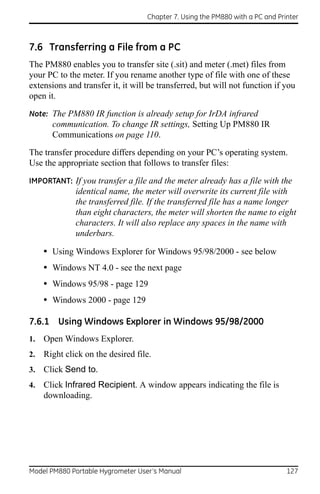
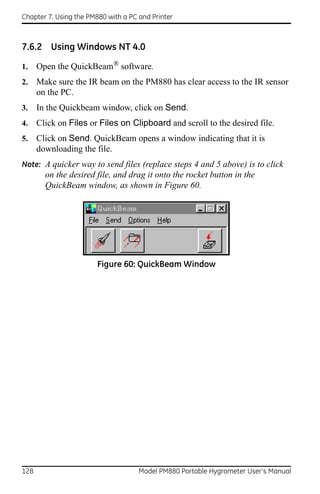
Measurement & Control Solutions     Moisture


Model PM880
Portable Hygrometer
User’s Manual


                                  910-247 Rev. F
                                      May 2011
GE
Measurement & Control Solutions


Model PM880
Portable Hygrometer


User’s Manual
910-247 Rev. F
May 2011


                                                     www.ge-mcs.com

                        ©2011 General Electric Company. All rights reserved.
                         Technical content subject to change without notice.
[no content intended for this page


ii
Preface


Information Paragraphs
•   Note paragraphs provide information that provides a deeper understanding of
    the situation, but is not essential to the proper completion of the instructions.

•   Important paragraphs provide information that emphasizes instructions that
    are essential to proper setup of the equipment. Failure to follow these
    instructions carefully may cause unreliable performance.

•   Caution! paragraphs provide information that alerts the operator to a hazardous
    situation that can cause damage to property or equipment.

•   Warning! paragraphs provide information that alerts the operator to a
    hazardous situation that can cause injury to personnel. Cautionary information
    is also included, when applicable.

Safety Issues
WARNING! It is the responsibility of the user to make sure all local, county,
         state and national codes, regulations, rules and laws related to
         safety and safe operating conditions are met for each
         installation.

Auxiliary Equipment
Local Safety Standards
The user must make sure that he operates all auxiliary equipment in accordance
with local codes, standards, regulations, or laws applicable to safety.

Working Area
WARNING! Auxiliary equipment may have both manual and automatic
         modes of operation. As equipment can move suddenly and
         without warning, do not enter the work cell of this equipment
         during automatic operation, and do not enter the work
         envelope of this equipment during manual operation. If you do,
         serious injury can result.

WARNING! Make sure that power to the auxiliary equipment is turned OFF
         and locked out before you perform maintenance procedures on
         the equipment.


Model PM880 Portable Hygrometer User’s Manual                                       iii
Preface


Qualification of Personnel
Make sure that all personnel have manufacturer-approved training applicable to the
auxiliary equipment.

Personal Safety Equipment
Make sure that operators and maintenance personnel have all safety equipment
applicable to the auxiliary equipment. Examples include safety glasses, protective
headgear, safety shoes, etc.

Unauthorized Operation
Make sure that unauthorized personnel cannot gain access to the operation of the
equipment.

Environmental Compliance
Waste Electrical and Electronic Equipment (WEEE) Directive
GE Measurement & Control Solutions is an active participant in Europe’s Waste
Electrical and Electronic Equipment (WEEE) take-back initiative, directive
2002/96/EC.


The equipment that you bought has required the extraction and use of natural
resources for its production. It may contain hazardous substances that could impact
health and the environment.
In order to avoid the dissemination of those substances in our environment and to
diminish the pressure on the natural resources, we encourage you to use the
appropriate take-back systems. Those systems will reuse or recycle most of the
materials of your end life equipment in a sound way.
The crossed-out wheeled bin symbol invites you to use those systems.
If you need more information on the collection, reuse and recycling systems, please
contact your local or regional waste administration.
Visit http://www.ge-mcs.com/en/about-us/environmental-health-and-
safety/1741-weee-req.html for take-back instructions and more information
about this initiative.


iv                                  Model PM880 Portable Hygrometer User’s Manual
Contents


Chapter 1. Getting Started
1.1 Charging the Battery Pack . . . . . . . . . . . . . . . . . . . . . . . . . . . . . . . . . . . . . . . . . . . . . .2
       1.1.1 Removing the Battery Pack . . . . . . . . . . . . . . . . . . . . . . . . . . . . . . . . . . . . . . .2
       1.1.2 Configuring the Battery Charger . . . . . . . . . . . . . . . . . . . . . . . . . . . . . . . . . .3
       1.1.3 Charging the Battery Pack. . . . . . . . . . . . . . . . . . . . . . . . . . . . . . . . . . . . . . . .4
1.2 Powering On and Off. . . . . . . . . . . . . . . . . . . . . . . . . . . . . . . . . . . . . . . . . . . . . . . . . . . .5
       1.2.1 Powering On . . . . . . . . . . . . . . . . . . . . . . . . . . . . . . . . . . . . . . . . . . . . . . . . . . . . .5
       1.2.2 Powering Off. . . . . . . . . . . . . . . . . . . . . . . . . . . . . . . . . . . . . . . . . . . . . . . . . . . . .6
1.3 Entering Data Using the Keypad. . . . . . . . . . . . . . . . . . . . . . . . . . . . . . . . . . . . . . . . .7
1.4 Entering Setup Data . . . . . . . . . . . . . . . . . . . . . . . . . . . . . . . . . . . . . . . . . . . . . . . . . . . .7
       1.4.1 Selecting Probe Type . . . . . . . . . . . . . . . . . . . . . . . . . . . . . . . . . . . . . . . . . . . . .8
       1.4.2 Entering Calibration Data . . . . . . . . . . . . . . . . . . . . . . . . . . . . . . . . . . . . . . 10
1.5 Displaying Measurements. . . . . . . . . . . . . . . . . . . . . . . . . . . . . . . . . . . . . . . . . . . . . 15
       1.5.1 Selecting the Number of Measurements . . . . . . . . . . . . . . . . . . . . . . . . 15
       1.5.2 Selecting the Types of Measurements . . . . . . . . . . . . . . . . . . . . . . . . . . . 16
1.6 Saving Data in a Site File . . . . . . . . . . . . . . . . . . . . . . . . . . . . . . . . . . . . . . . . . . . . . . 17
       1.6.1 Accessing the Site Manager . . . . . . . . . . . . . . . . . . . . . . . . . . . . . . . . . . . . 17
       1.6.2 Entering a Site Name. . . . . . . . . . . . . . . . . . . . . . . . . . . . . . . . . . . . . . . . . . . 17
Chapter 2. Taking Measurements
2.1 Installing the Probe in a Sample System . . . . . . . . . . . . . . . . . . . . . . . . . . . . . . . 21
       2.1.1 Installing a Moisture Probe . . . . . . . . . . . . . . . . . . . . . . . . . . . . . . . . . . . . . 22
2.2 Connecting the Sample System to the Process . . . . . . . . . . . . . . . . . . . . . . . . . 23
2.3 Making Probe Connections . . . . . . . . . . . . . . . . . . . . . . . . . . . . . . . . . . . . . . . . . . . . 24
2.4 Recalling a Site File . . . . . . . . . . . . . . . . . . . . . . . . . . . . . . . . . . . . . . . . . . . . . . . . . . . 25
       2.4.1 Accessing the Site Manager . . . . . . . . . . . . . . . . . . . . . . . . . . . . . . . . . . . . 25
       2.4.2 Retrieving the Site File. . . . . . . . . . . . . . . . . . . . . . . . . . . . . . . . . . . . . . . . . . 25
2.5 Operating the Sample System . . . . . . . . . . . . . . . . . . . . . . . . . . . . . . . . . . . . . . . . . 26
2.6 Conducting a Leak Test . . . . . . . . . . . . . . . . . . . . . . . . . . . . . . . . . . . . . . . . . . . . . . . 27
2.7 Shutting Down the Sample System . . . . . . . . . . . . . . . . . . . . . . . . . . . . . . . . . . . . 27


Model PM880 Portable Hygrometer User’s Manual                                                                                    v
Contents


Chapter 3. Using the PM880 Screen
3.1 Screen Components . . . . . . . . . . . . . . . . . . . . . . . . . . . . . . . . . . . . . . . . . . . . . . . . . . 30
3.2 Setting Up the Screen to Display Measurements. . . . . . . . . . . . . . . . . . . . . . . . 32
      3.2.1 Selecting the Number of Views (Measurements) . . . . . . . . . . . . . . . . . 32
      3.2.2 Selecting the Types of Measurements . . . . . . . . . . . . . . . . . . . . . . . . . . . 33
      3.2.3 Selecting Numeric, Line or Bar Graph Format. . . . . . . . . . . . . . . . . . . . 34
      3.2.4 Setting Up the Numeric Format . . . . . . . . . . . . . . . . . . . . . . . . . . . . . . . . . 34
      3.2.5 Adjusting the Line/Bar Graph Scale . . . . . . . . . . . . . . . . . . . . . . . . . . . . . 36
3.3 Creating Function Key Shortcuts. . . . . . . . . . . . . . . . . . . . . . . . . . . . . . . . . . . . . . . 37
      3.3.1 Assigning/Re-assigning a Function Key . . . . . . . . . . . . . . . . . . . . . . . . . 38
      3.3.2 Clearing a Function Key . . . . . . . . . . . . . . . . . . . . . . . . . . . . . . . . . . . . . . . . 39
3.4 Using the Backlight . . . . . . . . . . . . . . . . . . . . . . . . . . . . . . . . . . . . . . . . . . . . . . . . . . . 39
      3.4.1 Turning the Backlight On and Off Manually . . . . . . . . . . . . . . . . . . . . . . 39
      3.4.2 Setting the Backlight Timer . . . . . . . . . . . . . . . . . . . . . . . . . . . . . . . . . . . . . 40
3.5 Adjusting the Contrast . . . . . . . . . . . . . . . . . . . . . . . . . . . . . . . . . . . . . . . . . . . . . . . . 41
3.6 Taking a Bitmap Screen Capture - Snapshot . . . . . . . . . . . . . . . . . . . . . . . . . . . 42


vi                                                     Model PM880 Portable Hygrometer User’s Manual
Contents


Chapter 4. Using Special Features
4.1 Selecting English or Metric Units. . . . . . . . . . . . . . . . . . . . . . . . . . . . . . . . . . . . . . . 46
4.2 Entering Date and Time. . . . . . . . . . . . . . . . . . . . . . . . . . . . . . . . . . . . . . . . . . . . . . . 46
4.3 Changing Date and Time Appearance . . . . . . . . . . . . . . . . . . . . . . . . . . . . . . . . . 47
      4.3.1 Accessing the Locale Tab. . . . . . . . . . . . . . . . . . . . . . . . . . . . . . . . . . . . . . . 47
      4.3.1 Selecting the Separator . . . . . . . . . . . . . . . . . . . . . . . . . . . . . . . . . . . . . . . . 48
      4.3.2 Selecting the Date/Time Format . . . . . . . . . . . . . . . . . . . . . . . . . . . . . . . . 48
4.4 Adding a Message to a Site File. . . . . . . . . . . . . . . . . . . . . . . . . . . . . . . . . . . . . . . . 49
      4.4.1 Accessing the Site Manager . . . . . . . . . . . . . . . . . . . . . . . . . . . . . . . . . . . . 49
      4.4.2 Selecting a Site File. . . . . . . . . . . . . . . . . . . . . . . . . . . . . . . . . . . . . . . . . . . . . 49
      4.4.3 Entering a Site Message . . . . . . . . . . . . . . . . . . . . . . . . . . . . . . . . . . . . . . . . 49
4.5 Setting a Probe Calibration Reminder . . . . . . . . . . . . . . . . . . . . . . . . . . . . . . . . . . 50
      4.5.1 Accessing the Probe ID Tab . . . . . . . . . . . . . . . . . . . . . . . . . . . . . . . . . . . . . 50
      4.5.1 Entering Probe Information . . . . . . . . . . . . . . . . . . . . . . . . . . . . . . . . . . . . . 51
4.6 Using Automatic Calibration (AutoCal) . . . . . . . . . . . . . . . . . . . . . . . . . . . . . . . . . 52
4.7 Entering Constants and User Functions . . . . . . . . . . . . . . . . . . . . . . . . . . . . . . . . 54
4.8 Entering a User Constant . . . . . . . . . . . . . . . . . . . . . . . . . . . . . . . . . . . . . . . . . . . . . 55
      4.8.1 Entering a Saturation Constant . . . . . . . . . . . . . . . . . . . . . . . . . . . . . . . . . 56
      4.8.2 Entering User Functions . . . . . . . . . . . . . . . . . . . . . . . . . . . . . . . . . . . . . . . . 58
      4.8.3 Setting Up User Tables . . . . . . . . . . . . . . . . . . . . . . . . . . . . . . . . . . . . . . . . . 62
4.9 Using Computer Enhanced Response. . . . . . . . . . . . . . . . . . . . . . . . . . . . . . . . . . 66
      4.9.1 Response Time Procedure . . . . . . . . . . . . . . . . . . . . . . . . . . . . . . . . . . . . . . 68
4.10Entering Reference Data . . . . . . . . . . . . . . . . . . . . . . . . . . . . . . . . . . . . . . . . . . . . . . 70
4.11Using Sleep Mode. . . . . . . . . . . . . . . . . . . . . . . . . . . . . . . . . . . . . . . . . . . . . . . . . . . . . 72
      4.11.1 Placing the PM880 in Sleep Mode . . . . . . . . . . . . . . . . . . . . . . . . . . . . . . . 72
      4.11.2 Resuming Operation . . . . . . . . . . . . . . . . . . . . . . . . . . . . . . . . . . . . . . . . . . . 72
4.12Displaying Meter Information . . . . . . . . . . . . . . . . . . . . . . . . . . . . . . . . . . . . . . . . . 73
4.13Changing the Display Language. . . . . . . . . . . . . . . . . . . . . . . . . . . . . . . . . . . . . . . 74
4.14Using On-Line Help . . . . . . . . . . . . . . . . . . . . . . . . . . . . . . . . . . . . . . . . . . . . . . . . . . . 75


Model PM880 Portable Hygrometer User’s Manual                                                                               vii
Contents


Chapter 5. Logging Data
5.1 Setting Up a New Log . . . . . . . . . . . . . . . . . . . . . . . . . . . . . . . . . . . . . . . . . . . . . . . . . 78
       5.1.1 Creating a New Log . . . . . . . . . . . . . . . . . . . . . . . . . . . . . . . . . . . . . . . . . . . . 78
       5.1.2 Entering a Log Name. . . . . . . . . . . . . . . . . . . . . . . . . . . . . . . . . . . . . . . . . . . 79
       5.1.1 Selecting General Log Settings. . . . . . . . . . . . . . . . . . . . . . . . . . . . . . . . . . 80
       5.1.2 Selecting a Measurement to Log . . . . . . . . . . . . . . . . . . . . . . . . . . . . . . . . 81
5.2 Pausing a Log . . . . . . . . . . . . . . . . . . . . . . . . . . . . . . . . . . . . . . . . . . . . . . . . . . . . . . . . 82
5.3 Starting or Restarting a Log . . . . . . . . . . . . . . . . . . . . . . . . . . . . . . . . . . . . . . . . . . . 83
5.4 Ending a Log . . . . . . . . . . . . . . . . . . . . . . . . . . . . . . . . . . . . . . . . . . . . . . . . . . . . . . . . . 84
5.5 Viewing All Logs . . . . . . . . . . . . . . . . . . . . . . . . . . . . . . . . . . . . . . . . . . . . . . . . . . . . . . 85
5.6 Viewing Log Setup Details . . . . . . . . . . . . . . . . . . . . . . . . . . . . . . . . . . . . . . . . . . . . . 86
5.7 Displaying Logged Data. . . . . . . . . . . . . . . . . . . . . . . . . . . . . . . . . . . . . . . . . . . . . . . 88
       5.7.1 Using the Graph Format . . . . . . . . . . . . . . . . . . . . . . . . . . . . . . . . . . . . . . . . 88
       5.7.2 Using the Spreadsheet Format. . . . . . . . . . . . . . . . . . . . . . . . . . . . . . . . . . 92
Chapter 6. Managing Files
6.1 Saving a New Site File. . . . . . . . . . . . . . . . . . . . . . . . . . . . . . . . . . . . . . . . . . . . . . . . . 96
6.2 Recalling a Site File . . . . . . . . . . . . . . . . . . . . . . . . . . . . . . . . . . . . . . . . . . . . . . . . . . . 98
6.3 Saving a Site File. . . . . . . . . . . . . . . . . . . . . . . . . . . . . . . . . . . . . . . . . . . . . . . . . . . . . . 99
6.4 Renaming a Site or Log File. . . . . . . . . . . . . . . . . . . . . . . . . . . . . . . . . . . . . . . . . . . 100
       6.4.1 Renaming a Site File. . . . . . . . . . . . . . . . . . . . . . . . . . . . . . . . . . . . . . . . . . . 100
       6.4.2 Renaming a Log File. . . . . . . . . . . . . . . . . . . . . . . . . . . . . . . . . . . . . . . . . . . 102
6.5 Copying a Log . . . . . . . . . . . . . . . . . . . . . . . . . . . . . . . . . . . . . . . . . . . . . . . . . . . . . . . 103
6.6 Deleting All Types of Files. . . . . . . . . . . . . . . . . . . . . . . . . . . . . . . . . . . . . . . . . . . . . 107
6.7 Sorting Files in the Site/Drive/Log Manager . . . . . . . . . . . . . . . . . . . . . . . . . . . 108


viii                                                     Model PM880 Portable Hygrometer User’s Manual
Contents


Chapter 7. Using the PM880 with a PC and Printer
7.1 Setting Up PM880 IR Communications . . . . . . . . . . . . . . . . . . . . . . . . . . . . . . . . 110
       7.1.1 Using the Add Hardware Wizard . . . . . . . . . . . . . . . . . . . . . . . . . . . . . . . 111
       7.1.2 Using Panaview. . . . . . . . . . . . . . . . . . . . . . . . . . . . . . . . . . . . . . . . . . . . . . . 117
7.2 Transferring and Printing Files Key. . . . . . . . . . . . . . . . . . . . . . . . . . . . . . . . . . . . 119
7.3 Printing a Site or Log File . . . . . . . . . . . . . . . . . . . . . . . . . . . . . . . . . . . . . . . . . . . . . 119
       7.3.1 Printing a Site File . . . . . . . . . . . . . . . . . . . . . . . . . . . . . . . . . . . . . . . . . . . . . 120
       7.3.2 Printing a Log File . . . . . . . . . . . . . . . . . . . . . . . . . . . . . . . . . . . . . . . . . . . . . 121
7.4 Printing Reports . . . . . . . . . . . . . . . . . . . . . . . . . . . . . . . . . . . . . . . . . . . . . . . . . . . . . 123
7.5 Transferring a File To a PC. . . . . . . . . . . . . . . . . . . . . . . . . . . . . . . . . . . . . . . . . . . . 124
7.6 Transferring a File from a PC . . . . . . . . . . . . . . . . . . . . . . . . . . . . . . . . . . . . . . . . . 127
       7.6.1 Using Windows Explorer in Windows 95/98/2000. . . . . . . . . . . . . . . 127
       7.6.2 Using Windows NT 4.0 . . . . . . . . . . . . . . . . . . . . . . . . . . . . . . . . . . . . . . . . 128
       7.6.3 Using Windows 95/98 . . . . . . . . . . . . . . . . . . . . . . . . . . . . . . . . . . . . . . . . . 129
       7.6.4 Using Windows 2000. . . . . . . . . . . . . . . . . . . . . . . . . . . . . . . . . . . . . . . . . . 129


Model PM880 Portable Hygrometer User’s Manual                                                                                  ix
Contents


Chapter 8. Maintenance and Troubleshooting
8.1 Checking the PM880 Memory Status. . . . . . . . . . . . . . . . . . . . . . . . . . . . . . . . . . 132
8.2 Checking the Battery Status . . . . . . . . . . . . . . . . . . . . . . . . . . . . . . . . . . . . . . . . . . 133
      8.2.1 While Taking Measurements . . . . . . . . . . . . . . . . . . . . . . . . . . . . . . . . . . . 133
      8.2.2 Using the Battery Command. . . . . . . . . . . . . . . . . . . . . . . . . . . . . . . . . . . 134
8.3 Testing the Screen . . . . . . . . . . . . . . . . . . . . . . . . . . . . . . . . . . . . . . . . . . . . . . . . . . . 135
8.4 Testing the Keypad . . . . . . . . . . . . . . . . . . . . . . . . . . . . . . . . . . . . . . . . . . . . . . . . . . 136
8.5 Testing the Watchdog Timer Circuit . . . . . . . . . . . . . . . . . . . . . . . . . . . . . . . . . . 137
8.6 Resetting to Factory Default Settings . . . . . . . . . . . . . . . . . . . . . . . . . . . . . . . . . 138
8.7 Viewing or Changing Security Settings . . . . . . . . . . . . . . . . . . . . . . . . . . . . . . . . 139
      8.7.1 Setting the Security Passcodes . . . . . . . . . . . . . . . . . . . . . . . . . . . . . . . . 140
      8.7.2 Setting Remote Access Security. . . . . . . . . . . . . . . . . . . . . . . . . . . . . . . . 141
8.8 Updating PM880 Software . . . . . . . . . . . . . . . . . . . . . . . . . . . . . . . . . . . . . . . . . . . 143
      8.8.1 Upgrading Requirements . . . . . . . . . . . . . . . . . . . . . . . . . . . . . . . . . . . . . . 143
      8.8.2 Updating Software Using IrOBEX. . . . . . . . . . . . . . . . . . . . . . . . . . . . . . . 145
      8.8.3 Updating Software Using IrCOMM. . . . . . . . . . . . . . . . . . . . . . . . . . . . . . 147
8.9 Removing/Replacing the Batteries . . . . . . . . . . . . . . . . . . . . . . . . . . . . . . . . . . . . 150
8.10Recharging the Batteries . . . . . . . . . . . . . . . . . . . . . . . . . . . . . . . . . . . . . . . . . . . . . 151
      8.10.1 Removing the Battery Pack . . . . . . . . . . . . . . . . . . . . . . . . . . . . . . . . . . . . 151
      8.10.2 Configuring the Battery Charger . . . . . . . . . . . . . . . . . . . . . . . . . . . . . . . 152
      8.10.3 Charging the Battery Pack. . . . . . . . . . . . . . . . . . . . . . . . . . . . . . . . . . . . . 153
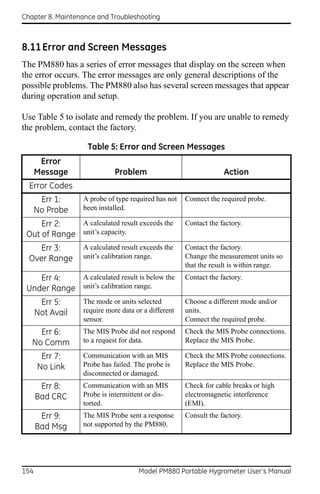
8.11Error and Screen Messages . . . . . . . . . . . . . . . . . . . . . . . . . . . . . . . . . . . . . . . . . . 154
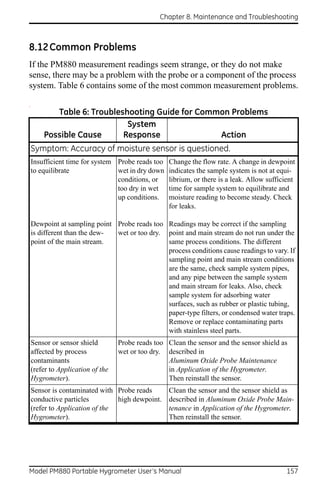
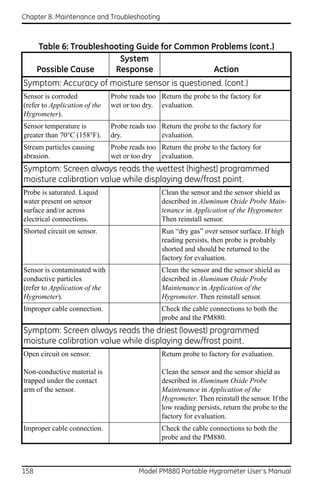
8.12Common Problems . . . . . . . . . . . . . . . . . . . . . . . . . . . . . . . . . . . . . . . . . . . . . . . . . . 157
8.13Replacing and Recalibrating the Moisture Probes. . . . . . . . . . . . . . . . . . . . . . 160
8.14Recalibrating the Pressure Sensors . . . . . . . . . . . . . . . . . . . . . . . . . . . . . . . . . . . 161


x                                                      Model PM880 Portable Hygrometer User’s Manual
Contents


Chapter 9. Features and Specifications
9.1 The PM880 Hygrometer . . . . . . . . . . . . . . . . . . . . . . . . . . . . . . . . . . . . . . . . . . . . . . 163
9.2 Probes . . . . . . . . . . . . . . . . . . . . . . . . . . . . . . . . . . . . . . . . . . . . . . . . . . . . . . . . . . . . . . 164
       9.2.1 M Series and TF Series Moisture Probes . . . . . . . . . . . . . . . . . . . . . . . . 165
       9.2.2 Moisture Image Series Probe . . . . . . . . . . . . . . . . . . . . . . . . . . . . . . . . . . 166
9.3 Cabling . . . . . . . . . . . . . . . . . . . . . . . . . . . . . . . . . . . . . . . . . . . . . . . . . . . . . . . . . . . . . 168
9.4 Overall . . . . . . . . . . . . . . . . . . . . . . . . . . . . . . . . . . . . . . . . . . . . . . . . . . . . . . . . . . . . . . 168
9.5 Operational . . . . . . . . . . . . . . . . . . . . . . . . . . . . . . . . . . . . . . . . . . . . . . . . . . . . . . . . . 169
9.6 Electronics . . . . . . . . . . . . . . . . . . . . . . . . . . . . . . . . . . . . . . . . . . . . . . . . . . . . . . . . . . 170
9.7 Moisture Measurement . . . . . . . . . . . . . . . . . . . . . . . . . . . . . . . . . . . . . . . . . . . . . . 172
9.8 Dew/frost Point Temperature. . . . . . . . . . . . . . . . . . . . . . . . . . . . . . . . . . . . . . . . . 172
9.9 Temperature Measurement . . . . . . . . . . . . . . . . . . . . . . . . . . . . . . . . . . . . . . . . . . 173
9.10Pressure Measurement . . . . . . . . . . . . . . . . . . . . . . . . . . . . . . . . . . . . . . . . . . . . . . 173
9.11Sample System . . . . . . . . . . . . . . . . . . . . . . . . . . . . . . . . . . . . . . . . . . . . . . . . . . . . . . 174
9.12Optional Accessories. . . . . . . . . . . . . . . . . . . . . . . . . . . . . . . . . . . . . . . . . . . . . . . . . 174
Appendix A. Measurement Considerations
A.1 Choosing a Measurement Site. . . . . . . . . . . . . . . . . . . . . . . . . . . . . . . . . . . . . . . . 175
A.2 Moisture/Temperature Probe Considerations. . . . . . . . . . . . . . . . . . . . . . . . . . 176
A.3 Sample System Guidelines . . . . . . . . . . . . . . . . . . . . . . . . . . . . . . . . . . . . . . . . . . . 179
Appendix B. Menu Maps


Model PM880 Portable Hygrometer User’s Manual                                                                                           xi
Contents


           [no content intended for this page]


xii                    Model PM880 Portable Hygrometer User’s Manual
Chapter 1. Getting Started


Chapter 1. Getting Started
The GE PM880 is a versatile, battery-powered portable hygrometer that is
designed for spot sampling moisture measurements. Although the PM880
offers many options, it requires only battery charging and minimal setup to
begin taking measurements.

This chapter is designed to provide a step-by-step guide to getting the meter
up and running as quickly as possible. Additional programming options are
discussed in later chapters.

Follow the sections in this chapter to setup your meter. This chapter
includes the following information:

   •   Charging the Battery Pack
   •   Powering On and Off
   •   Entering Data Using the Keypad
   •   Entering Setup Data
   •   Displaying Measurements
   •   Saving Data in Site Files


Model PM880 Portable Hygrometer User’s Manual                                 1
Chapter 1. Getting Started


1.1 Charging the Battery Pack
The PM880 is powered by a rechargeable NiMH battery pack. When you
receive the PM880, you will need to fully charge the pack. The pack must
be charged for 4-5 hours, until the amber LED on the charger goes out, to
receive the maximum charge. When fully charged, the pack provides 16 to
24 hours of continuous operation, depending on the probe type and the
PM880 usage. An internal battery gauge indicates the remaining power in
the pack.

Before charging the battery pack, make sure the charger is properly
configured. Use the instructions below:

1.1.1 Removing the Battery Pack
1. Make sure you are in a general-purpose location where you can safely
    charge the pack.
WARNING! THE BATTERY PACK CAN BE INSTALLED AND REMOVED IN
              HAZARDOUS AREAS, HOWEVER, IT MUST BE CHARGED IN
              GENERAL-PURPOSE AREAS ONLY.

2. Remove the four thumb screws on the back panel of the PM880 that
    secure the pack.
3. Lift the pack out of the unit.


2                                   Model PM880 Portable Hygrometer User’s Manual
Chapter 1. Getting Started


1.1.2 Configuring the Battery Charger
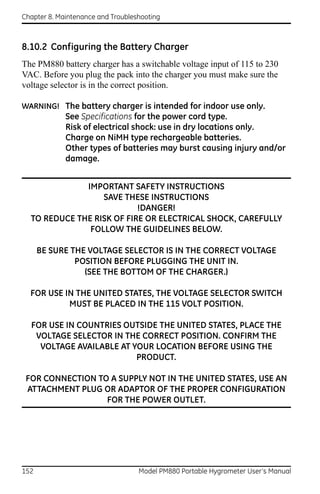
The PM880 battery charger has a switchable voltage input of 115 to
230 VAC. Make sure the voltage selector is in the correct position before
plugging it in.

WARNING! The battery charger is intended for indoor use only.
            See Specifications for power cord type.
            Risk of electrical shock; use in dry locations only.
            Charge on NiMH type rechargeable batteries.
            Other types of batteries may burst,
            causing injury and/or damage.


              IMPORTANT SAFETY INSTRUCTIONS
                  SAVE THESE INSTRUCTIONS
                           !DANGER!
  TO REDUCE THE RISK OF FIRE OR ELECTRICAL SHOCK, CAREFULLY
               FOLLOW THE GUIDELINES BELOW.

    BE SURE THE VOLTAGE SELECTOR IS IN THE CORRECT VOLTAGE
                POSITION BEFORE PLUGGING IT IN.
               (SEE THE BOTTOM OF THE CHARGER.)

  FOR USE IN THE UNITED STATES, THE VOLTAGE SELECTOR SWITCH
           MUST BE PLACED IN THE 115 VOLT POSITION.

FOR USE IN COUNTIRES OUTSIDE THE UNITED STATES, CONFIRM THE
            VOLTAGE AVAILABLE AT YOUR LOCATION
  AND PLACE THE VOLTAGE SELECTOR IN THE CORRECT POSITION
                BEFORE USING THE PRODUCT.

 FOR CONNECTION TO A SUPPLY NOT IN THE UNITED STATES, USE AN
 ATTACHMENT PLUG OR ADAPTOR OF THE PROPER CONFIGURATION
                  FOR THE POWER OUTLET.


Model PM880 Portable Hygrometer User’s Manual                                3
Chapter 1. Getting Started


1.1.3 Charging the Battery Pack
1. Plug the pack into the battery charger.
2. Connect the charger to AC power. When power is applied, the amber
    LED glows and the charger automatically begins charging the pack.
Note: The pack is fully charged when the amber LED goes out
        (approximately 4-5 hours).

IMPORTANT: When you receive your unit, you should completely charge the
               battery pack before using it for the first time.

3. Remove the pack from the charger and reinstall it in the PM880. Refer to
    Checking the Battery Status on page 133 for details on monitoring the
    battery.


4                                   Model PM880 Portable Hygrometer User’s Manual
Chapter 1. Getting Started


1.2 Powering On and Off
IMPORTANT: For CE compliance, the PM880 is classified as a
             battery-powered device.

1.2.1 Powering On
To turn the PM880 on, press the red button in the upper-right-hand corner of
the keypad. Immediately upon powerup the PM880 displays a series of
messages and performs various checks. The screen then appears similar to
the one shown in Figure 1.

Note: If the meter displays a Probe Reminder message, press [ENTER].


                   Figure 1: Screen After Powering On

Note: If the meter fails any of these tests, contact the factory.


Model PM880 Portable Hygrometer User’s Manual                                  5
Chapter 1. Getting Started


1.2.2 Powering Off
1. To turn the PM880 off, press the red key for 3 seconds. The screen now
    appears similar to Figure 2.
2. Press [F1] to shut down the PM880.


                             Figure 2: Shutdown Menu


6                                   Model PM880 Portable Hygrometer User’s Manual
Chapter 1. Getting Started


1.3 Entering Data Using the Keypad
Use the information below to familiarize yourself with how to enter data
using the PM880 keypad.

Use the arrow keys to scroll to a menu topic and then press [ENTER] to open
the menu.

When entering data into a menu window, press:

• The [] key to scroll forward through the menu options.
• The [] key to scroll back through menu options.
• The [F2] key (Cancel) or the [ESC] key to exit a menu at any time and
  return to Operate Mode without changing data.
Note: If you enter an incorrect numeric value, press the [] key to erase
       the last digit entered.

1.4 Entering Setup Data
For immediate operation, the PM880 requires only a moisture probe and its
corresponding calibration data. You should enter data for each site where
you plan to make a measurement. Once entered, you can save it into a file
that can be recalled at the measurement site. Use the sections that follow to
program your meter.

Note: The PM880 has additional menus that enable you to tailor
       measurements as specifically as possible to your particular
       application. For more information on menu options refer to
       Chapter 4, Using Special Features.


Model PM880 Portable Hygrometer User’s Manual                                 7
Chapter 1. Getting Started


1.4.1 Selecting Probe Type
Use the steps below to select the probe type for the measurement site. Refer
to Figure 9 on page 19 for a menu map.

Note: You may also enter a constant value (rather than a live input) for
        moisture, temperature or pressure measurement. For more
        information refer to Entering Constants and User Functions on
        page 54.

1. If the menu is not active, press [MENU].
2. Use the arrow key to scroll to Program and press [ENTER].
3. Use the arrow key to scroll to Probe and press [ENTER]. The screen
    appears similar to Figure 3.


                             Figure 3: Probe Window


8                                  Model PM880 Portable Hygrometer User’s Manual
Chapter 1. Getting Started


1.4.1 Selecting Probe Type (cont.)
4. At Type, press [ENTER] to open the drop-down list of probe types.
Note: If you do not know the probe type, refer to the Calibration Data
       Sheet.

5. Use the arrow keys to scroll to the desired selection and press [ENTER].
6. Press [F3] (OK) to exit.

Next, do one of the following:

   • If you are using an M or TF Series probe, proceed to Entering
      Calibration Data on the next page.
   • If you are using an MIS or an MISP2 Probe, proceed to Displaying
      Measurements on page 15.
Note: If you have an MIS probe that was sent back to the factory for
       calibration without the electronics module, you need to enter
       calibration data as described in Entering Calibration Data on
       page 10.


Model PM880 Portable Hygrometer User’s Manual                                9
Chapter 1. Getting Started


1.4.2 Entering Calibration Data
The PM880 needs moisture and/or pressure calibration data for probes. You
must enter this data when setting up:

     • a new unit
     • a probe(s) sent back to the factory for calibration

Be sure you have the Calibration Data Sheets that are supplied with each
GE probe. Each Calibration Data Sheet consists of a list of data points that
you will need to enter or verify, and lists its corresponding probe serial
number. Calibration Data Sheets are usually packed inside the probe cases.

Since the PM880 enables you to use more than one probe, the meter
provides a place to enter the probe serial number to help you match the
probes to the corresponding site files. The probe serial number is stored as
part of the site file.

Use the sections which follow to enter the serial number, and the moisture
and pressure calibration data for the probes.


10                                 Model PM880 Portable Hygrometer User’s Manual
Chapter 1. Getting Started


1.4.2a    Entering Probe ID
1. If the menu is not active, press [MENU].
2. Use the arrow key to scroll to Program and press [ENTER].
3. Use the arrow key to scroll to Calibrate and press [ENTER].
4. Use the arrow keys to scroll to the Probe ID tab and press [ENTER]. A
   screen similar to Figure 4 appears.


                         Figure 4: Probe ID Window

5. Use the arrow keys to scroll to S/N and press [ENTER].
6. Use the numeric keys to enter the serial number from the Calibration
   Data Sheet and press [ENTER]. The serial number also appears on the
   hex nut of the moisture probe.
7. Use the arrow keys to scroll to the suffix box and press [ENTER] to open
   the drop-down list.
8. Use the arrow keys to scroll to the desired suffix and press [ENTER].
9. Press [F3] (OK) to exit.


Model PM880 Portable Hygrometer User’s Manual                               11
Chapter 1. Getting Started


1.4.2b     Entering Moisture Calibration Data
You need to enter calibration data for M and TF Series probes only. The
Moisture Image Series (MIS) probes store all calibration data in their
electronics module, and upload it into the PM880 memory when needed.

Note: It is not necessary to enter calibration data for the Moisture Image
         Series (MIS) probe unless you send it back to the factory for
         calibration without its electronics module. If this is the case, you
         must manually enter the calibration data as described below.

Note: It is not necessary to enter calibration data for the MISP2 probe.

Enter moisture calibration data (MH or FH) and dewpoint readings (up to
20 data points) for the moisture probe as described below. Refer to Figure 9
on page 19 for a menu map.

Note: If you are using an MIS probe and do not need to enter data, proceed
         to Displaying Measurements on page 15.

1. If the menu is not active, press [MENU].
2. Use the arrow key to scroll to Program and press [ENTER].
3. Use the arrow key to scroll to Calibrate and press [ENTER].
4. If necessary, use the arrow key to scroll to Hygro and press [ENTER]. A
     screen appears similar to Figure 5 on page 13.
5. Press [] to move the pointer to the 00/MH box in the calibration table.

6. Press [ENTER] to change the value. Use the numeric keys to enter the
   desired MH or FH value, and press [ENTER].


12                                 Model PM880 Portable Hygrometer User’s Manual
Chapter 1. Getting Started


1.4.2b Entering Moisture Calibration Data (cont.)


                 Figure 5: Hygro Window in Calibration

7. Press [] to move to the next text box, and press [ENTER]. Use the
   numeric keys to enter the corresponding dewpoint reading and press
   [ENTER].
8. Use the arrow keys to scroll to additional data points and repeat steps 5,
   6 and 7 until you have entered the values for each data point.
Note: To insert an additional data point, press [F1] (Insert).
      To delete a data point, press [F2] (Delete).

9. When you have completed entering values, press [F3] (EXIT).

Next, do one of the following:

   • If the probe has a pressure transducer, proceed to step 3 in Entering
      Pressure Calibration Data on page 14.
   • If the probe does not have a pressure transducer, press [F3] (OK).
      Proceed to Displaying Measurements on page 15.


Model PM880 Portable Hygrometer User’s Manual                                13
Chapter 1. Getting Started


1.4.2c     Entering Pressure Calibration Data
To enter calibration data for the pressure transducer, you must list the zero
and span range in mV (or FP) and psig. Refer to Figure 9 on page 19 for a
menu map.

1. If the menu is not active, press [MENU].
2. Use the arrow key to scroll to Program and press [ENTER].
3. Use the arrow key to scroll to Calibrate and press [ENTER].
4. Use the arrow key to scroll to Pressure and press [ENTER]. The screen
     appears similar to Figure 6.
Note: The corresponding mV value can be in psig (English) or kPa
         (metric). The supplied Calibration Data Sheets list these values in
         psig. If you want to change the system units, refer to Selecting
         English or Metric Units on page 46.


                   Figure 6: Calibration Pressure Window


14                                  Model PM880 Portable Hygrometer User’s Manual
Chapter 1. Getting Started


1.4.2c Entering Pressure Calibration Data (cont.)
5. Press [] to move the pointer to the Zero/mV (Zero/FP) box in the
   table.
6. Press [ENTER] to change the value. Use the numeric keys to enter the
   desired value and press [ENTER].
7. The corresponding pressure value box is highlighted. Use the numeric
   keys to enter the corresponding pressure value and press [ENTER].
8. The span mV box is highlighted. Repeat steps 5, 6 and 7 to enter the
   Span values.
9. When you have completed entering values, press [F3] (Exit).

10. Press [F3] (OK) and proceed to Displaying Measurements.

1.5 Displaying Measurements
The PM880 can display one to four measurement parameters
simultaneously. There are two parts for displaying measurements: selecting
the number of measurements and then selecting the type of measurements.
See Figure 9 on page 19 for a menu map.

1.5.1 Selecting the Number of Measurements
1. If the menu is not active, press [MENU].
2. Use the arrow keys to scroll to Site and press [ENTER].
3. Use the arrow keys to move to the desired number of views or
   measurement windows (1 View, 2 Views, etc.).
4. Press [ENTER] at your selection. The screen displays the designated
   number of views (measurement windows).


Model PM880 Portable Hygrometer User’s Manual                              15
Chapter 1. Getting Started


1.5.2 Selecting the Types of Measurements
1. Press [SEL] or arrow keys to move the pointer to the window you want to
   change and press [ENTER].
2. Use the arrow keys to scroll to Measurement and press [ENTER]. The
     screen appears similar to Figure 7. The left column displays the five
     measurement types and the right column displays the measurement
     units.


                   Figure 7: Select Measurement Window

3. Use the arrow keys to scroll to the desired measurement type and press
   [SEL].
4. Use the arrow keys to select the desired measurement unit (or diagnostic
     parameter).
Note: Press [F3] (No Unit) to display a measurement with no units.

5. Press [F3] (OK).
6. Repeat this section for displaying other measurements.


16                                 Model PM880 Portable Hygrometer User’s Manual
Chapter 1. Getting Started


1.6 Saving Data in a Site File
A site file contains probe ID, calibration data and display setup information
in a file so it can be recalled at the measurement site. Use the following
steps to store the data you have entered into a file (see Figure 9 on page 19
for a menu map):

1.6.1 Accessing the Site Manager
1. If the menu is not active, press [MENU].
2. Use the arrow key to scroll to Site and press [ENTER].
3. Use the arrow key to scroll to Site Manager and press [ENTER].
4. Press [MENU].
5. Use the arrow key to scroll to File and press [ENTER].

1.6.2 Entering a Site Name
1. Use the arrow keys to scroll to New and press [ENTER]. The screen
   appears similar to Figure 8.


                 Figure 8: New Site Name Entry Window


Model PM880 Portable Hygrometer User’s Manual                                17
Chapter 1. Getting Started


1.6.2 Entering a Site Name (cont.)
2. The PM880 displays a default name for the file. If you want to keep the
   default name, skip to step 4. Otherwise, use [F1] to erase the name and
     use the arrow keys to scroll to the desired letter or number and press
     [ENTER].
3. Repeat this procedure until you have created the desired site name of up
     to eight characters.
4. When you have finished, press [F3] (OK).
5. The PM880 prompts you to save the site file as a template. This is useful
     if you need to create multiple sites with similar data. At the prompt, do
     one of the following:
     • Press [F2] (No) if you do not need to use a template, or
     • Press [F3] (Yes) if you do want to use it as a template.

Note: If you are saving a new file as a template, the PM880 will ask if you
      want to Save Current Site, press [F2] (No) or [F3] (Yes).

6. Press [F3] (Exit).
7. Press [MENU]. The new site name is displayed in the upper left corner of
     the screen. You have completed entering site data.
Next, do one of the following:

     • If you are done entering site data, proceed to the next chapter, Taking
       Measurements.
     • If you need to enter information for another site, go back to Entering
       Setup Data on page 7.
Note: If you need to create multiple site files with similar data, you can
         save time by creating one site file and then using Save As in the Site
         Manager to create a copy of that site file with a different name.
         Refer to Renaming a Site File on page 100.


18                                 Model PM880 Portable Hygrometer User’s Manual
Chapter 1. Getting Started


                                                                           Menu


                            Program                                                                                  Site


                                                                               Manager       Save        1 View   2 Views    3 Views    4 Views
             Probe                            Calibrate


 M2    M2T    TF     MISP   None
                                      Hygro     Pressure        Probe ID          File
                                                     Zero FP
                                                                     S/N
               Hygro Constant            MH (FH)                                  New
                                                     Zero kPa
                                         Dew Point
               Temperature Constant                  Span FP
                                                                                    Name
               Pressure Constant                     Span kPa


                                                                                Note: Press [F2] (Cancel) to cancel the entries and return to Menu.
                                                                                     Press [F3] (OK) to confirm the entries and return to Menu.


                                                                  Figure 9: Startup Menu


Model PM880 Portable Hygrometer User’s Manual                                                                                                         19
Chapter 1. Getting Started


                                                [no content intended for this page]


Model PM880 Portable Hygrometer User’s Manual                                                               20
Chapter 2. Taking Measurements


Chapter 2. Taking Measurements
The PM880 hygrometer is part of a measurement system that includes the
electronics, cable, probe and optional sample system. Once the electronics
are properly programmed, you must connect the sample system and probes
to begin taking measurements. This chapter discusses the steps needed to
begin taking basic measurements.

Note: Refer to Appendix A, Measurement Considerations, for more
      information on selecting measurement sites and sample system
      construction.

    • Installing the Probe in a Sample System
    • Connecting the Sample System to the Process
    • Connecting the Probe to the Electronics
    • Recalling a Site File
    • Operating the Sample System
    • Conducting a Leak Test
    • Shutting Down the Sample System

2.1 Installing the Probe in a Sample System
Moisture probes are installed into a portable sample system. The sample
system protects the probes from coming into contact with damaging
elements in the process.

CAUTION!    If you are mounting the moisture probes directly into the
            process line, you must consult the factory for proper
            installation instructions and precautions.


Model PM880 Portable Hygrometer User’s Manual                              21
Chapter 2. Taking Measurements


2.1.1 Installing a Moisture Probe
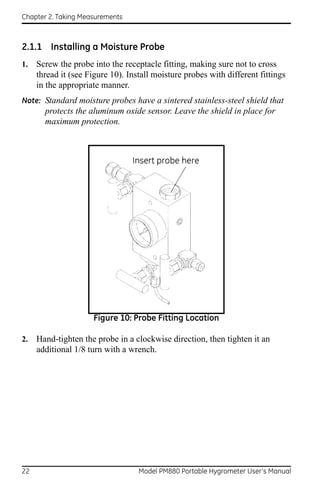
1.   Screw the probe into the receptacle fitting, making sure not to cross
     thread it (see Figure 10). Install moisture probes with different fittings
     in the appropriate manner.
Note: Standard moisture probes have a sintered stainless-steel shield that
       protects the aluminum oxide sensor. Leave the shield in place for
       maximum protection.


                     Figure 10: Probe Fitting Location

2.   Hand-tighten the probe in a clockwise direction, then tighten it an
     additional 1/8 turn with a wrench.


22                                 Model PM880 Portable Hygrometer User’s Manual
Chapter 2. Taking Measurements


2.2 Connecting the Sample System to the Process
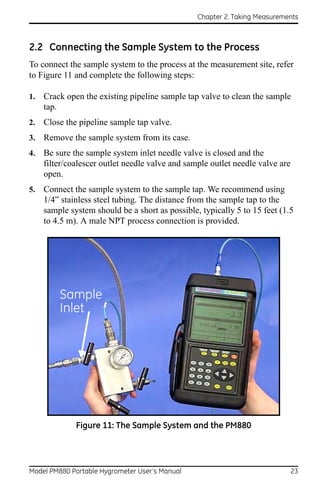
To connect the sample system to the process at the measurement site, refer
to Figure 11 and complete the following steps:

1.   Crack open the existing pipeline sample tap valve to clean the sample
     tap.
2.   Close the pipeline sample tap valve.
3.   Remove the sample system from its case.
4.   Be sure the sample system inlet needle valve is closed and the
     filter/coalescer outlet needle valve and sample outlet needle valve are
     open.
5.   Connect the sample system to the sample tap. We recommend using
     1/4” stainless steel tubing. The distance from the sample tap to the
     sample system should be a short as possible, typically 5 to 15 feet (1.5
     to 4.5 m). A male NPT process connection is provided.


         Sample
         Inlet


              Figure 11: The Sample System and the PM880


Model PM880 Portable Hygrometer User’s Manual                               23
Chapter 2. Taking Measurements


2.3 Making Probe Connections
Use the following steps to make probe connections:

1.   Make sure the PM880 is turned off.
2.   Connect the cable to the probe by inserting the bayonet-type connector
     onto the probe and twisting the shell clockwise until it snaps into a
     locked position.
Note: The connector on the probe cable must be rotated until it aligns with
       the pins in the probe connector, before the cable may be properly
       inserted into the probe and secured.

3.   Connect the other end of the probe cable to the top of the unit by
     aligning the red dot on the cable connector at the 12 o’clock position.
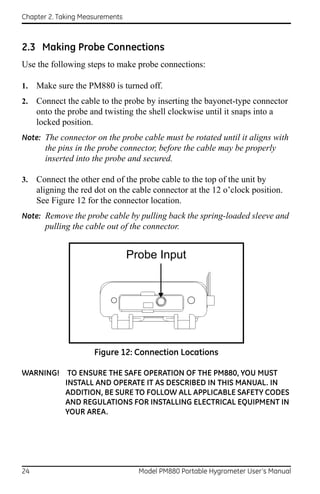
     See Figure 12 for the connector location.
Note: Remove the probe cable by pulling back the spring-loaded sleeve and
       pulling the cable out of the connector.


                                 Probe Input


                     Figure 12: Connection Locations

WARNING! TO ENSURE THE SAFE OPERATION OF THE PM880, YOU MUST
         INSTALL AND OPERATE IT AS DESCRIBED IN THIS MANUAL. IN
         ADDITION, BE SURE TO FOLLOW ALL APPLICABLE SAFETY CODES
         AND REGULATIONS FOR INSTALLING ELECTRICAL EQUIPMENT IN
         YOUR AREA.


24                                 Model PM880 Portable Hygrometer User’s Manual
Chapter 2. Taking Measurements


2.4 Recalling a Site File
To begin taking measurements you must recall the site file that contains data
for the measurement site where you want to take measurements.

2.4.1 Accessing the Site Manager
1.   If the menu is not active, press [MENU].
2.   Use the arrow key to scroll to Site and press [ENTER].
3.   Use the arrow key to scroll to Site Manager and press [ENTER].

2.4.2 Retrieving the Site File
1.   Use the arrow key to scroll to the desired site and press [MENU].
2.   Use the arrow key to scroll to File and press [ENTER].
3.   Use the arrow key to scroll to Open and press [ENTER].
4.   The PM880 asks you to confirm, press [F3] (Yes).
5.   Press [F3] (Exit).
6.   Press [MENU]. The PM880 displays the selected site file in the
     upper-left corner of the screen.


Model PM880 Portable Hygrometer User’s Manual                              25
Chapter 2. Taking Measurements


2.5 Operating the Sample System
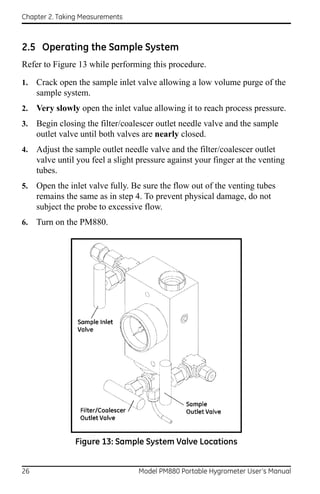
Refer to Figure 13 while performing this procedure.

1.   Crack open the sample inlet valve allowing a low volume purge of the
     sample system.
2.   Very slowly open the inlet value allowing it to reach process pressure.
3.   Begin closing the filter/coalescer outlet needle valve and the sample
     outlet valve until both valves are nearly closed.
4.   Adjust the sample outlet needle valve and the filter/coalescer outlet
     valve until you feel a slight pressure against your finger at the venting
     tubes.
5.   Open the inlet valve fully. Be sure the flow out of the venting tubes
     remains the same as in step 4. To prevent physical damage, do not
     subject the probe to excessive flow.
6.   Turn on the PM880.


                Figure 13: Sample System Valve Locations


26                                 Model PM880 Portable Hygrometer User’s Manual
Chapter 2. Taking Measurements


2.6 Conducting a Leak Test
It is important to eliminate all leaks for safety reasons and to be sure that
measurements are not affected by ambient contamination. Use Snoop Leak
Detector or a soapy solution to verify that all connections, valves and
fittings are leak tight. Tighten any fittings where a leak is detected.

2.7 Shutting Down the Sample System
1.   Close the sample outlet needle valve.
2.   Slowly open the filter/coalescer outlet needle valve several turns to
     blow out any contaminants that may have accumulated in the coalescer,
     valve, or venting tube.
3.   Slowly close the sample inlet valve and allow the sample system to
     depressurize at a rate of approximately 10 psig per second.
4.   Close the sample tap valve (permanently mounted on the pipeline).
5.   Crack the inlet needle valve to relieve the pressure between the sample
     tap valve and the inlet needle valve.
6.   Completely close all three sample system valves.
7.   Remove the sample system from the process, while keeping all valves
     fully closed to avoid moisture contamination from the ambient air.


Model PM880 Portable Hygrometer User’s Manual                              27
Chapter 2. Taking Measurements


                      [no content intended for this page


28                               Model PM880 Portable Hygrometer User’s Manual
Chapter 3. Using the PM880 Screen


Chapter 3. Using the PM880 Screen
Use the sections that follow to setup and make adjustments to the PM880
screen. This chapter discusses the following:

• Screen Components - page 30
• Setting Up the Screen to Display Measurements - page 32
• Creating Function Key Shortcuts - page 37
• Using the Backlight - page 39
• Adjusting the Contrast - page 41
• Taking a Bitmap Screen Capture (Snapshot) - page 42


Model PM880 Portable Hygrometer User’s Manual                                 29
Chapter 3. Using the PM880 Screen


3.1 Screen Components
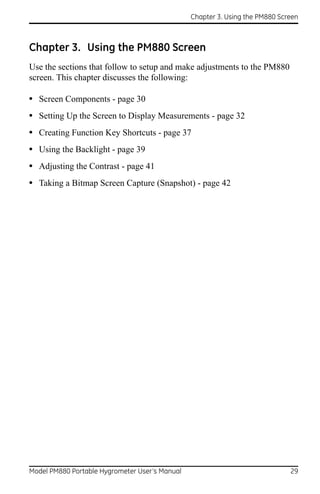
The PM880 screen displays various information (see Figure 14). The top
line of the screen is the status bar that displays the current site, time, date
and battery status during normal operation. However, the status bar changes
to a menu bar during programming.


                            Status/Menu Bar


       Work
       Area


                                                                 System
                                                                  Tray


                 Function Keys          Error Messages


                Figure 14: PM880 Screen in Operate Mode

The middle of the screen is the work area that displays measurements
numerically or as bar or line graphs. During programming, the work area
displays menu prompts. The bottom of the screen displays error messages
(see Error and Screen Messages on page 154 for more details), the system
tray, and the function keys.

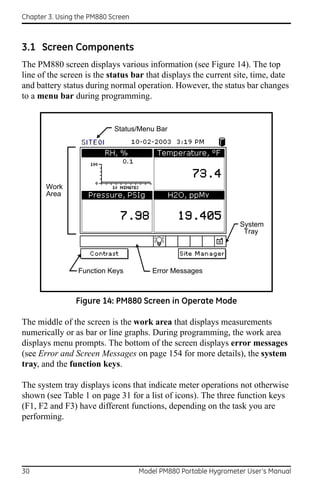
The system tray displays icons that indicate meter operations not otherwise
shown (see Table 1 on page 31 for a list of icons). The three function keys
(F1, F2 and F3) have different functions, depending on the task you are
performing.


30                                  Model PM880 Portable Hygrometer User’s Manual
Chapter 3. Using the PM880 Screen


3.1     Screen Components (cont.)

                      Table 1: Icons in the System Tray
      Icon     Function                          Meaning
                               IR data transfer in progress.
               IR Transfer
                               Indicates the meter encountered an error in
                  Alert
                               operation.
                               Indicates a log is pending (no marks) or
                   Log
                               running (marks).
                               Indicates that backlight has been activated.
                Backlight

              Low Battery      Indicates 10 minutes or less of battery run
                 Alert         time.
                Snapshot       Indicates that the Snapshot function has
                (To file)      been activated, so users can take screen
                               captures.
               (To Printer)


Model PM880 Portable Hygrometer User’s Manual                                 31
Chapter 3. Using the PM880 Screen


3.2 Setting Up the Screen to Display Measurements
The PM880 can display one to four measurements simultaneously. After
you select how many measurements to display, you can select the type of
measurements (dewpoint, temperature, etc.) and the format (numeric, line
or bar graph). In addition, the PM880 offers various options for displaying
data numerically and graphically.

This section consists of the following:

     • Selecting the Number of Views (Measurements) - page 32
     • Selecting the Types of Measurements - page 33
     • Selecting Numeric, Line or Bar Graph Format - page 34
     • Setting Up the Numeric Format - page 34
     • Adjusting the Line/Bar Graph Scale - page 36
Use the section(s) that follow to set up the PM880 screen.

3.2.1 Selecting the Number of Views (Measurements)
1.   If the menu is not active, press [MENU].
2.   Use the arrow keys to scroll to Site and press [ENTER].
3.   Use the arrow keys to move to the desired number of views or
     measurement windows (1 View, 2 Views, etc.).
4.   Press [ENTER] at your selection. The screen displays the designated
     number of views (measurement windows).


32                                  Model PM880 Portable Hygrometer User’s Manual
Chapter 3. Using the PM880 Screen


3.2.2 Selecting the Types of Measurements
1.   Press [SEL] to move the pointer to the window you want to change and
     press [ENTER].
2.   Use the arrow keys to scroll to Measurement and press [ENTER]. The
     screen appears similar to Figure 15. The left column displays the five
     measurement types and the right column displays the measurement
     units.
3.   Use the arrow keys to scroll to the desired measurement type and press
     [SEL].
4.   Use the arrow keys to select the desired measurement unit (or
     diagnostic parameter).
Note: Press [F3] (No Unit) to display a measurement with no units.

5.   Press [F3] (OK).
6.   Repeat this section for displaying other measurements.


                 Figure 15: Select Measurement Window


Model PM880 Portable Hygrometer User’s Manual                                 33
Chapter 3. Using the PM880 Screen


3.2.3 Selecting Numeric, Line or Bar Graph Format
1.   Press [SEL] to move the pointer to the window you want to change and
     press [ENTER].
2.   Use the arrow keys to scroll to View and press [ENTER].
3.   Use the arrow keys to select the desired format and press [ENTER].
The PM880 displays the desired format and returns to taking measurements.

3.2.4 Setting Up the Numeric Format
1.   Press [SEL] to move the pointer to the window you want to change and
     press [ENTER].
2.   Use the arrow keys to scroll to Format and press [ENTER]. The screen
     appears similar to Figure 16.
Note: If FORMAT does not appear in the menu, move to a window that is
       not displaying a line or bar graph, or change the window format to
       numeric as described in the previous section.


                    Figure 16: Number Format Window


34                                  Model PM880 Portable Hygrometer User’s Manual
Chapter 3. Using the PM880 Screen


3.2.4 Setting Up the Numeric Format (cont.)
3.   Use the arrow keys to scroll to Format and press [ENTER].
4.   Use the arrow keys to select the desired selection and press [ENTER].
     You can select from the following:
     • Default - displays the factory default number of decimal digits for the
       selected measurement.
     • Fixed Decimal - specifies how many digits are to the right of the
       decimal.
     • Scientific format - displays the value in mantissa exponent format
       (expressed to the power of 10).
5.   Repeat steps 3 and 4 for Decimal Places or proceed to the next step to
     exit. You can select from 0 to 4 places.
6.   Press [F3] (OK). The PM880 displays the new format and resumes
     taking measurements.


Model PM880 Portable Hygrometer User’s Manual                                 35
Chapter 3. Using the PM880 Screen


3.2.5 Adjusting the Line/Bar Graph Scale
The scale of the line and bar graph can be adjusted at any time. You can also
alter the graph to display details as follows:

1.   Press [SEL] to move the pointer to the window you want to change and
     press [ENTER].
2.   Use the arrow keys to scroll to Limits and press [ENTER]. A screen
     similar to Figure 17 appears


                Figure 17: Line Graph Parameters Window

3.   Use the arrow keys to scroll to Minimum and press [ENTER].
4.   Use the numeric keys to enter the minimum value for the graph and
     press [ENTER].
5.   Repeat steps 3 and 4 for the maximum value.
6.   Do one of the following:
     • If you are using a line graph, proceed to step 7.
     • If you are using a bar graph, proceed to step 10.
7.   Use the arrow keys to scroll to the time interval and press [ENTER].


36                                  Model PM880 Portable Hygrometer User’s Manual
Chapter 3. Using the PM880 Screen


3.2.5 Adjusting the Line/Bar Graph Scale (cont.)
8.   There are two boxes for entering the time interval. The first box is for a
     number (1, 2, etc.). The second box asks for the interval (seconds,
     minutes, hours or days). Use the numeric keys or arrow keys to select
     the desired interval and press [ENTER].
9.   The last three selections enable you to enhance the line graph details.
     Use the arrow keys to scroll to the desired entry and press [ENTER].
     An X in the box activates the option. Choose from the following:
     • Use lines (connect points on graph with lines)
     • Plot average value (not currently available)
     • Show minimum and maximum (not currently available)

10. Press [F3] (OK).
The PM880 displays the new format and returns to taking measurements.

3.3 Creating Function Key Shortcuts
The three function keys at the bottom of the PM880 screen can be
customized to provide shortcuts to the most commonly used functions. For
example, the F1 key can be assigned to go directly to the Log Manager.
Once assigned, a function key can also be cleared. Use the sections below to
perform the desired function.


Model PM880 Portable Hygrometer User’s Manual                                  37
Chapter 3. Using the PM880 Screen


3.3.1 Assigning/Re-assigning a Function Key
The function keys can be assigned using two methods as described below.

Note: You can re-assign the function key at any time by assigning a
       different function.

3.3.1a    Method 1: Using the Site Manager
1.   If the menu is not active, press [MENU].
2.   Use the arrow key to scroll to Site and press [ENTER].
3.   Use the arrow key to scroll to FKeys and press [ENTER].
4.   Use the arrow keys to scroll to the desired key and press [ENTER].
5.   Use the arrow keys to scroll to the desired function from the displayed
     list.
6.   Press [F3] (YES).
The PM880 returns to taking measurements. The newly assigned function
appears above the assigned function key.

3.3.1b    Method 2: Using the Program Menus
1.   Use the keypad to go to the function that you want to assign to the
     function key.
2.   Press the desired function key. A window appears with the question,
     “Assign current menu command (XX) to FKeyX?”
3.   Press [F3] (OK).
The PM880 returns to taking measurements. The newly assigned function
appears above the assigned function key.


38                                  Model PM880 Portable Hygrometer User’s Manual
Chapter 3. Using the PM880 Screen


3.3.2 Clearing a Function Key
1.   If the menu is not active, press [MENU].
2.   Use the arrow key to scroll to Site and press [ENTER].
3.   Use the arrow key to scroll to FKeys and press [ENTER].
4.   Use the arrow keys to scroll to Clear F1 (F2 or F3) and press [ENTER].
The PM880 returns to taking measurements. The previously assigned
function is erased.

3.4 Using the Backlight
The PM880 has a backlight that helps in viewing data. Since the backlight
uses more energy, the PM880 has a backlight timer that can be set to
automatically turn the backlight off after a specified time, in order to
conserve battery life. The PM880 also enables you to turn the backlight on
and off manually. Use the sections that follow to operate the backlight.

3.4.1 Turning the Backlight On and Off Manually
To manually turn the backlight:

     • On - press any key on the keypad and the backlight will stay on for
       the programmed interval. You can also press the power key briefly
       (about one-half second) and the backlight will stay on for 30 minutes.
     • Off - press the red power key briefly (about one-half second).


Model PM880 Portable Hygrometer User’s Manual                                 39
Chapter 3. Using the PM880 Screen


3.4.2 Setting the Backlight Timer
1.   If the menu is not active, press [MENU].
2.   Use the arrow key to scroll to Meter and press [ENTER].
3.   Use the arrow key to scroll to Backlight and press [ENTER].
4.   Use the arrow key to scroll to Backlight Off and press [ENTER].
5.   Use the numeric keys to enter the number of minutes that the backlight
     remains on (from 0 to 60).
6.   Press [ENTER] to confirm the entry.
7.   When you are done, press [F3] (OK).The PM880 returns to taking
     measurements.


40                                  Model PM880 Portable Hygrometer User’s Manual
Chapter 3. Using the PM880 Screen


3.5 Adjusting the Contrast
To adjust the screen contrast:

1.   If the menu is not active, press [MENU].
2.   Use the arrow key to scroll to Meter and press [ENTER].
3.   Use the arrow key to scroll to Contrast and press [ENTER]. A screen
     similar to Figure 18 appears.


                   Figure 18: Display Options Window

4.   Use the arrow keys to scroll to Darker or Lighter.
5.   Press the [ENTER] button repeatedly until the screen has the desired
     contrast.
6.   When you are done, press [F3] (OK).
The PM880 returns to taking measurements.


Model PM880 Portable Hygrometer User’s Manual                                 41
Chapter 3. Using the PM880 Screen


3.6 Taking a Bitmap Screen Capture - Snapshot
The Snapshot option enables you to take a screen capture of the current
screen in bitmap format (.bmp). Bitmaps can be stored in a file or sent
directly to a printer. To take a “snapshot” of the screen:

1.   If the menu is not active, press [MENU].
2.   Use the arrow key to scroll to Meter and press [ENTER].
3.   Use the arrow key to scroll to Snapshot and press [ENTER].
4.   Use the arrow key to scroll to the desired selection and press [ENTER].
     You can choose from the following:
     • Off - to turn the snapshot feature off.
     • To Printer - to send the snapshot to the printer.
     • To File - to send the snapshot to a file.
Note: In order to send a screen capture to a printer, the PM880 must be
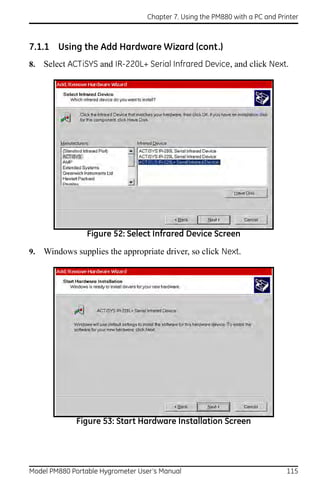
       properly configured to IR transfer. Refer to Setting Up the PM880 IR
       Communications on page 110.

An icon of a printer or camera appears on the system tray (see page 31)
indicating that you have activated the Snapshot option.

5.   To capture a screen, press the “.” (decimal) button twice. The meter
     displays a clock and the message “Screen Dump,” indicating that it is
     performing a screen capture.
Note: The snapshot function is deactivated once the power is turned off.


42                                  Model PM880 Portable Hygrometer User’s Manual
Chapter 3. Using the PM880 Screen


3.6     Using Bitmap Screen Capture - Snapshot (cont.)
6.    If you selected:
      • To Printer - the PM880 indicates it is looking for a receiving printer
        and then transmits the file.
Note: If the sensor cannot locate a printer, a window appears indicating
        that it cannot find a device. If it locates more than one compatible
        infrared device within its range, it asks you to select the desired
        device.

      • To File - the captured file appears as ScreenXX.bmp in the Drive
        Manager. To transfer the file to a PC, follow the instructions in
        Transferring a File to a PC on page 124.


Model PM880 Portable Hygrometer User’s Manual                                  43
Chapter 3. Using the PM880 Screen


                       [no content intended for this page]


44                                  Model PM880 Portable Hygrometer User’s Manual
Chapter 4. Using Special Features


Chapter 4. Using Special Features
The PM880 has a variety of other features to make operation even more
convenient. Below are some of the features available. For other features
related to testing and service functions, refer to Chapter 8, Maintenance and
Troubleshooting.

    • Selecting English or Metric Units - page 46
    • Entering Date and Time - page 46
    • Changing the Date and Time Appearance - page 47
    • Adding a Message to a Site File - page 49
    • Setting a Probe Calibration Reminder - page 50
    • Using Automatic Calibration - page 52
    • Entering Constants and User Functions - page 54
    • Using Computer Enhanced Response - page 66
    • Entering Reference Data - page 70
    • Using the Sleep Mode - page 72
    • Displaying Meter Information - page 73
    • Changing the Display Language - page 74
    • Using On-Line Help - page 75


Model PM880 Portable Hygrometer User’s Manual                                 45
Chapter 4. Using Special Features


4.1 Selecting English or Metric Units
The PM880 enables you to select either English or Metric for global
measurement units. The selected units become the default settings for every
measurement with the metric/English option. To select measurement units:

1.   If the menu is not active, press [MENU].
2.   Use the arrow key to scroll to Meter and press [ENTER].
3.   Use the arrow key to scroll to Units and press [ENTER].
4.   Use the arrow keys to scroll to the desired units and press [ENTER].
5.   Press [F3] (OK) and then [MENU].
The PM880 returns to taking measurements.

4.2 Entering Date and Time
The PM880 displays the current date and time above the measurements in
the upper right corner of the screen. The Date/Time command enables you
to set the date or time. The current date and time are required for correct
data logging operation.
1.   If the menu is not active, press [MENU].
2.   Use the arrow key to scroll to Meter and press [ENTER].
3.   Use the arrow key to scroll to Date/Time and press [ENTER].
4.   Use the arrow keys to scroll to Date and press [ENTER].
5.   Use the numeric and arrow keys to enter the current month, day and
     year, and press [ENTER].
6.   Use the arrow keys to scroll to Time and press [ENTER].
7.   Use the numeric and arrow keys to enter the current time and press
     [ENTER].
8.   Press [F3] (OK) and then [MENU].
The PM880 returns to taking measurements. The new date and time are
displayed.


46                                  Model PM880 Portable Hygrometer User’s Manual
Chapter 4. Using Special Features


4.3 Changing Date and Time Appearance
In addition to setting the correct date and time, you can also change its
presentation to suit local preferences. You can select from various date
formats and a time display of AM/PM or 24-hour time. Use the following
steps to alter the date and time display:

4.3.1 Accessing the Locale Tab
1.   If the menu is not active, press [MENU].
2.   Use the arrow key to scroll to Meter and press [ENTER].
3.   Use the arrow key to scroll to Locale and press [ENTER]. A screen
     similar to Figure 19 appears.


                           Figure 19: Locale Tab


Model PM880 Portable Hygrometer User’s Manual                                 47
Chapter 4. Using Special Features


4.3 Changing Date and Time Appearance (cont.)
4.3.1 Selecting the Separator
1.   Use the arrow keys to scroll to the date separator and press [ENTER].
2.   Use the arrow keys to scroll to the desired separator and press [ENTER].
3.   Repeat steps 1 and 2 for the other separators.

4.3.2 Selecting the Date/Time Format
1.   Use the arrow keys to scroll to Date Format and press [ENTER].
2.   Use the arrow keys to scroll to the desired format and press [ENTER].
3.   Repeat steps 1 and 2 for the time format.
4.   Press [F3] (OK) and then press [MENU].
The PM880 returns to taking measurements. The new date and time formats
are displayed.


48                                  Model PM880 Portable Hygrometer User’s Manual
Chapter 4. Using Special Features


4.4 Adding a Message to a Site File
The Site Manager has a command that enables you to enter a message or
description for each site file (up to 30 characters). The Site Manager
displays the site message with the other file information. Use the following
steps to add a site message:

4.4.1 Accessing the Site Manager
1.   If the menu is not active, press [MENU].
2.   Use the arrow key to scroll to Site and press [ENTER].
3.   Use the arrow key to scroll to Site Manager and press [ENTER].
4.4.2 Selecting a Site File
1.   Use the arrow key to scroll to the desired site.
Note: The list of site files in the Site Manager can be listed chronologically
       or alphabetically. Refer to Sorting Files in the Site/Drive/Log
       Manager on page 108.

2.   Press [MENU].
3.   Use the arrow key to scroll to Site and press [ENTER].
4.   Use the arrow key to scroll to Message and press [ENTER].
4.4.3 Entering a Site Message
1.   Press [F1] (Delete) to delete any unwanted letters or numbers. Use the
     arrow keys to scroll to the desired letter or number and press [ENTER].
     To change case or use special characters, press [SEL] to change the
     character pages.
2.   Repeat this procedure until you have created the desired site message.
3.   When you have finished, press [F3] (OK).
New site information is displayed when the site is selected in Site Manager.

4.   Press [F3] (Exit).


Model PM880 Portable Hygrometer User’s Manual                                  49
Chapter 4. Using Special Features


4.5 Setting a Probe Calibration Reminder
The Probe ID command enables you to enter the probe serial number,
calibration dates and a calibration reminder. Use the following steps to enter
probe data:

4.5.1 Accessing the Probe ID Tab
1.   If the menu is not active, press [MENU].
2.   Use the arrow key to scroll to Program and press [ENTER].
3.   Use the arrow key to scroll to Calibrate and press [ENTER].
4.   Use the arrow keys to scroll to the Probe ID tab and press [ENTER]. A
     screen similar to Figure 20 appears.


                          Figure 20: Probe ID Window


50                                  Model PM880 Portable Hygrometer User’s Manual
Chapter 4. Using Special Features


4.5 Setting a Probe Calibration Reminder (cont.)
4.5.1 Entering Probe Information
1.   Use the arrow keys to scroll to S/N and press [ENTER].
2.   Use the numeric keys to enter the serial number from the Calibration
     Data Sheet and press [ENTER]. The serial number is also scribed on the
     hex nut of the moisture probe.
3.   Use the arrow keys to scroll to the suffix box and press [ENTER] to
     open the drop-down list.
4.   Use the arrow keys to scroll to the desired suffix and press [ENTER].
5.   Use the arrow keys to scroll to Calibrated On and press [ENTER].
6.   Use the numeric and arrow keys to enter the most recent calibration
     date. When you have entered the desired month, day and year, press
     [ENTER].
Note: Refer to the calibration data sheet for the most recent calibration
       date.

7.   Use the arrow keys to move to Cal Reminder and press [ENTER]. This
     prompt asks you to select a time period for the next probe calibration.
     The PM880 will display a calibration reminder for the probe based on
     the last calibration date. GE recommends recalibrating a probe a
     minimum of once a year.
8.   Use the arrow keys to move to the desired selection and press [ENTER].
9.   Press [F3] (OK) and then [MENU].
The PM880 returns to taking measurements.

The calibration reminder is part of the site file; therefore, if you are not
planning to make any more changes to the site file, you should save the new
changes. Refer to Saving a New Site File on page 96.


Model PM880 Portable Hygrometer User’s Manual                                 51
Chapter 4. Using Special Features


4.6 Using Automatic Calibration (AutoCal)
The PM880 automatically calibrates the moisture and pressure
measurement circuitry (AutoCal) at a user-selected interval. Autocal
compensates for any drift in the electronics. GE recommends setting the
AutoCal interval to 8 hours. Set a smaller AutoCal interval more frequently
if the meter is exposed to extreme temperatures or weather conditions.

Note: If you are using only Moisture Image Series (MIS) probes to measure
       moisture, the System Menu is not available.

Use the steps below to enter an AutoCal interval:

1.   If the menu is not active, press [MENU].
2.   Use the arrow key to scroll to Program and press [ENTER].
3.   Use the arrow key to scroll to System and press [ENTER]. A screen
     similar to Figure 21 appears.


                 Figure 21: System Configuration Window


52                                  Model PM880 Portable Hygrometer User’s Manual
Chapter 4. Using Special Features


4.6 Using Automatic Calibration (AutoCal) (cont.)
4.   If necessary, use the arrow keys to move to the AutoCal Interval text
     box.
5.   Press [ENTER] to open the text box. Use the numeric keys to enter the
     desired value (in minutes) and press [ENTER].
Note: GE recommends setting the Autocal interval to 8 hours (480
       minutes).

The next time AutoCal occurs will depend on the length of the time interval
that was selected. See the example below.

EXAMPLE:
The PM880 establishes a fixed schedule, beginning at midnight, using the
interval specified to determine the times of subsequent AutoCals. If you
enter an 8 hour time interval, AutoCal will occur 3 times per day (1 day =
1440 minutes/480 minutes = 3). The fixed schedule will be as follows:

1.   8:00 a.m.
2.   4:00 p.m.
3.   12:00 a.m. (midnight)
If you set the 8 hour AutoCal interval at 8:10 a.m., the next AutoCal will
occur at 4:00 p.m. (excluding the AutoCal performed when first leaving the
System Configuration window).

Next, do one of the following:

     • Use the arrow keys to move to another text box and enter additional
       data.
     • To exit and return to taking measurements, press [F3] (OK) and then
       [MENU].


Model PM880 Portable Hygrometer User’s Manual                                 53
Chapter 4. Using Special Features


4.7 Entering Constants and User Functions
The PM880 enables you to enter two types of constants, a user constant and
a saturation constant, as well as user-defined functions and tables to
manipulate data.

A user constant is a fixed value that is used to multiply the moisture ppm
value (K  PPMv). A saturation constant is used to calculate PPMw in
non-aqueous liquids. If you do not know the saturation constant of the
liquid, contact the factory.

To extend programming capability, user functions enable you to program up
to 8 mathematical equations. The PM880 also enables you to enter up to
6 tables of non-linear or empirical data to support user function equations.

This section consists of the following information:

     • Entering a User Constant - page 55
     • Entering a Saturation Constant - page 56
     • Entering User Functions - page 58
     • Setting Up User Tables - page 62


54                                  Model PM880 Portable Hygrometer User’s Manual
Chapter 4. Using Special Features


4.8 Entering a User Constant
Use the following steps to enter a user constant. The default multiplier is 1.
1.   If the menu is not active, press [MENU].
2.   Use the arrow key to scroll to Program and press [ENTER].
3.   Use the arrow key to scroll to System and press [ENTER]. A screen
     similar to Figure 22 appears.
4.   Use the arrow keys to move to the K  PPMv text box and press
     [ENTER].
5.   Use the numeric keys to enter the desired value and press [ENTER].


                 Figure 22: System Configuration Window

Next, do one of the following:

     • Use the arrow keys to move to another text box and enter additional
       data.
     • To exit and return to taking measurements, press [F3] (OK) and then
       [MENU].


Model PM880 Portable Hygrometer User’s Manual                                 55
Chapter 4. Using Special Features


4.8.1 Entering a Saturation Constant
The PM880 requires a saturation constant in order to calculate ppmw in
non-aqueous liquids. If you do not know the saturation constants of the
process liquid sample, contact the factory. To enter a saturation constant
(Cs), you must enter 1 to 8 data points to represent a curve of Cs (values)
versus temperature.

To enter data for a saturation constant:

1.   If the menu is not active, press [MENU].
2.   Use the arrow key to scroll to Program and press [ENTER].
3.   Use the arrow key to scroll to Calibrate and press [ENTER].
4.   Use the arrow key to scroll to Saturation tab and press [ENTER]. A
     screen similar to Figure 23 appears.


                        Figure 23: Saturation Window


56                                  Model PM880 Portable Hygrometer User’s Manual
Chapter 4. Using Special Features


4.8.1 Entering a Saturation Constant (cont.)
5.   Press [] to move the pointer to the Temp C box in the saturation table
     and press [ENTER].
6.   Use the numeric keys to enter the desired temperature value and press
     [ENTER].
7.   With the Cs text box highlighted, press [ENTER]. Use the numeric keys
     to enter the corresponding Cs value and press [ENTER].
8.   Repeat steps 6 and 7 until you have entered the values for each data
     point.
Note: To insert an additional data point, press [F1] (Insert).
      To delete a data point, press [F2] (Delete).

9.   When you have completed entering values, press [F3] (Exit).

Next, do one of the following:

     • Use the arrow keys to scroll to another tab and program additional
       data (if available, depending on probe type).
     • To exit and return to taking measurements, press [F3] (OK) and then
       [MENU].


Model PM880 Portable Hygrometer User’s Manual                                 57
Chapter 4. Using Special Features


4.8.2 Entering User Functions
User functions enable you to program mathematical equations. You can use
any parameter in the meter to calculate a different parameter. Use the
following steps to enter a user-defined equation:

4.8.2a     Accessing the User Function Command
1.   If the menu is not active, press [MENU].
2.   Use the arrow key to scroll to Program and press [ENTER].
3.   Use the arrow key to scroll to User Functions and press [ENTER]. A
     screen similar to Figure 24 appears.


                      Figure 24: User Functions Window


58                                  Model PM880 Portable Hygrometer User’s Manual
Chapter 4. Using Special Features


4.8.2b    Entering a Label for the Function
1.   The Function box should be highlighted. Press [ENTER] to open the
     drop-down menu.
2.   Use the arrow keys to scroll to the desired function number (User1,
     User2, etc.) and press [ENTER].
3.   Use the arrow keys to move to the Label box and press [ENTER]. A
     screen similar to Figure 25 appears.


                     Figure 25: Text Creation Window

4.   Press [F1] (Delete) to delete any unwanted letters or numbers. Use the
     arrow keys to scroll to the desired character and press [ENTER]. Press
     [SEL] to view additional character selections and symbols for creating a
     label for the function.
5.   Repeat this procedure until you have created the desired units symbol
     for the function of up to thirty-two characters.
6.   When you have finished, press [F3] (OK).


Model PM880 Portable Hygrometer User’s Manual                                 59
Chapter 4. Using Special Features


4.8.2 Entering User Functions (cont.)
4.8.2c     Entering the Units
The steps below describe how to create a units symbol (e.g. degrees C).
This label will appear on the screen when you display the user function
measurement.

1.   Use the arrow keys to move to the Units Sym box and press [ENTER].
     The text creation screen appears again.
2.   Press [SEL] to view the three screens with the available characters and
     symbols for creating the symbol for the units.
3.   Use the arrow keys to scroll to the desired character and press [ENTER].
     Press [F1] (Delete) to delete any unwanted letters or numbers. Press
     [SEL] to view additional character selections and symbols for creating a
     label for the function.
4.   Repeat this procedure until you have created the desired label for the
     function of up to thirty-two characters.
5.   When you have finished, press [F3] (OK).

4.8.2d     Selecting Decimal Digits
1.   Use the arrow keys to move to the Dec box and press [ENTER] to open
     the drop-down menu.
2.   Use the arrow keys to scroll to the desired value (0-4) and press
     [ENTER]. This value refers to the number of digits to the right of the
     decimal point.


60                                  Model PM880 Portable Hygrometer User’s Manual
Chapter 4. Using Special Features


4.8.2e    Entering an Equation
1.   Use the arrow keys to move to the blank box at the bottom of the screen
     and press [ENTER]. A screen similar to Figure 26 appears.
2.   Press [SEL] to view additional characters, symbols and functions for
     creating an equation.
3.   Use the arrow keys to scroll to the desired character and press [ENTER].
     Press [F1] (Delete) to delete any unwanted letters or numbers.
IMPORTANT: To enter a measurement (dewpoint, temperature, etc.) into the
              equation, click on MODE in the middle of the third row. The
              Select Measurement window appears. Select the desired
              measurements, press [SEL], select the desired units and press
              [F3] (OK).


                  Figure 26: Function Creation Window


Model PM880 Portable Hygrometer User’s Manual                                 61
Chapter 4. Using Special Features


4.8.2e Entering an Equation (cont.)
4.   When you have finished entering the equation, press [F3] (OK).
5.   Press [F2] (Check) to test the validity of the function. The PM880
     displays either “OK” or a message such as “Syntax Error.”
6.   Do one of the following:
     • To edit the equation, press [ENTER].
     • To delete the equation, press [F1] (Delete).
     • To confirm the equation and return taking measurements, press [F3]
       (Done) and then press [MENU].
Note: To display the user function on the screen, refer to Displaying
       Measurements on page 15. In the Select Measurement window,
       choose Userfunction and then the units you entered above.

4.8.3 Setting Up User Tables
To support user-defined functions, the PM880 can hold up to 6 tables of
non-linear or empirical data. Users can enter up to 21 X-Y pairs in each
table. The user functions can supply an X value with Table (X). The meter
then interpolates the Y value for a given X, and substitutes it for Table (X)
in the function. (The results are extrapolated if the X value exceeds the
bounds of the table.) Use the following steps to set up a user table:


62                                  Model PM880 Portable Hygrometer User’s Manual
Chapter 4. Using Special Features


4.8.3a    Accessing the User Tables Command
1.   If the menu is not active, press [MENU].
2.   Use the arrow key to scroll to Meter and press [ENTER].
3.   Use the arrow key to scroll to User Tables and press [ENTER]. A
     screen similar to Figure 27 appears.


                      Figure 27: User Tables Window


Model PM880 Portable Hygrometer User’s Manual                                 63
Chapter 4. Using Special Features


4.8.3b     Entering a Label for the Table
1.   The Table box should be highlighted. Press [ENTER] to open the
     drop-down menu.
2.   Use the arrow keys to scroll to the desired table number and press
     [ENTER].
3.   Use the arrow keys to move to the Table ID box and press [ENTER]. A
     screen similar to Figure 28 appears.


                       Figure 28: Text Creation Window

4.   Use the arrow keys to scroll to the desired character and press [ENTER].
     Press [F1] (Delete) to delete any unwanted letters or numbers. Press
     [SEL] to view the three screens with the available characters and
     symbols for creating a label for the table.
5.   Repeat this procedure until you have created the desired label for the
     table of up to thirty-two characters.
6.   When you have finished, press [F3] (OK).
Note: It is not necessary to enter the “#Data Points” or “Max Points” text
       boxes. The meter automatically enters this data.


64                                  Model PM880 Portable Hygrometer User’s Manual
Chapter 4. Using Special Features


4.8.3 Setting Up User Tables (cont.)
4.8.3c    Editing the User Table
1.   Use the arrow keys to move to Edit Tables box and press [ENTER].
2.   Press [] to move the pointer to the 1/Table ID column.
3.   Press [ENTER] to open the text box. Use the numeric keys to enter the
     desired value and press [ENTER].
4.   Press [] to move to the next text box, and press [ENTER]. Use the
     numeric keys to enter the corresponding value and press [ENTER].
5.   Use the arrow keys to scroll to additional data points and repeat steps 2,
     3 and 4 until you have entered the values for each data point.
6.   When you have completed entering values, press [F3] (OK).
7.   To confirm the table and return taking measurements, press [F3] (OK)
     and then press [MENU].


Model PM880 Portable Hygrometer User’s Manual                                  65
Chapter 4. Using Special Features


4.9 Using Computer Enhanced Response
Computer Enhanced Response (CER) uses a dynamic moisture calibration
technique to extrapolate the moisture level to the end point when making
measurements in abrupt “dry down” conditions. The system response time
depends on the relative change in dewpoint. For a change from ambient
moisture levels to trace levels, the unit can respond in 3 to 5 minutes.

The accuracy of enhanced response is ±2oC of the reading the sensor would
have read if it were allowed to reach equilibrium with the gas. To ensure
that CER is as accurate as possible, your application should:

     • have a reasonably constant final dewpoint and flow rate.
     • have a minimum flow rate of one standard cubic foot per hour
       (SCFH).
     • operate at atmospheric pressure (0 psig).
     • have an actual moisture content equal to or wetter than a dew/frost
       point of

         • MIS Probe: –85oC
         • M Series and TF Series Probe: –110oC
Use the steps below to activate computer enhanced response:

4.9.0a     Accessing the Response Command
1.   If the menu is not active, press [MENU].
2.   Use the arrow key to scroll to Program and press [ENTER].
3.   Use the arrow key to scroll to System and press [ENTER]. A screen
     similar to Figure 29 on page 67 appears.


66                                  Model PM880 Portable Hygrometer User’s Manual
Chapter 4. Using Special Features


4.9.0a Accessing the Response Command (cont.)


                Figure 29: System Configuration Window

4.9.0b    Selecting the Response Type
1.   Use the arrow keys to move to the Response box and press [ENTER] to
     open the drop-down menu.
2.   Use the arrow key to select the desired response type and press
     [ENTER]. You can choose from the following:
         • NORM - no computer enhanced response
         • CER - enable computer enhanced response
3.   To return to taking measurements, press [F3] (OK) and then press
     [MENU].


Model PM880 Portable Hygrometer User’s Manual                                 67
Chapter 4. Using Special Features


4.9.1 Response Time Procedure
To effectively utilize CER, the following procedure should be followed:

1.   Connect the moisture probe cable to the moisture probe.
2.   Turn on the PM880 Hygrometer and activate CER per the instructions
     in the previous section.
3.   Expose the moisture probe to the ambient air for approximately ten (10)
     minutes. This is the minimum amount of time needed for the sensing
     element to reach the equilibrium required for CER to operate properly.
Note: The PM880 should display a dewpoint temperature reading in the
       range of 0°C to +14°C, depending on the local ambient conditions.
       If the dewpoint temperature exceeds +20°C, relocate the moisture
       probe to a drier environment to reduce the dewpoint temperature.

Before using CER, it is necessary to purge the pressure regulator, sample
tubing, and sample cell to remove trapped water molecules from the various
surfaces.

Note: The moisture probe should not be installed in the sample cell during
       this purge cycle. A blank probe mount can be used as a plug for the
       sample cell.

4.   Attach the sample gas line to a pressure regulator (set regulate to 0 psig)
     and sample cell with appropriate tubing (stainless steel is
     recommended), and allow the gas flow to purge the system.
5.   After purging, remove the blank probe mount from the sample cell and
     install the moisture probe.
Note: Do not disconnect the moisture probe cable from the moisture probe.


68                                  Model PM880 Portable Hygrometer User’s Manual
Chapter 4. Using Special Features


4.9.1 Response Time Procedure (cont.)
The PM880 will display the actual dewpoint temperature during the initial
dry-down. The display will indicate a bold “E” in the system tray which
means the PM880 is in CER mode. After 2 to 5 minutes, the PM880 will
perform its initial predicted calculation of the equilibrium dewpoint
temperature. When the prediction is made, the display will indicate an “E”
in inverse text (ie. dark background) in the system tray.

6.   Continue to monitor the readings, as the PM880 will continue to update
     its prediction and record the reading once stabilized.

Note: If the dewpoint temperature increases to a wetter value during the
       dry down, the PM880 may not report a prediction and the bold “E”
       will remain on the display. This indicates an unstable moisture
       content in the gas. Verify that the system is leak tight and repeat this
       process.


Model PM880 Portable Hygrometer User’s Manual                                  69
Chapter 4. Using Special Features


4.10 Entering Reference Data
WARNING! DO NOT CHANGE THESE VALUES UNLESS INSTRUCTED BY GE TO
         DO SO.

The PM880 requires reference values for its measurement circuitry for
moisture and pressure inputs. The references are factory calibration values.
These values can be found on the label located inside the battery
compartment.

If instructed by GE to change these values, use the following steps.

1.   If the menu is not active, press [MENU].
2.   Use the arrow keys to scroll to Service and press [ENTER].
3.   Use the arrow keys to scroll to References and press [ENTER]. The
     screen appears similar to Figure 30.


                        Figure 30: References Window


70                                  Model PM880 Portable Hygrometer User’s Manual
Chapter 4. Using Special Features


4.10 Entering Reference Data (cont.)
4.   Use the arrow keys to move to the desired tab and press [ENTER].
5.   Use the arrow keys to move to High Ref and press [ENTER] to open the
     text box.
6.   Use the numeric keys to enter the value recorded on the back of the
     PM880 and press [ENTER].
7.   Repeat steps 5 and 6 for the low reference value.
Next, do one of the following:

     • To exit and return to taking measurements, press [F3] and then
       [MENU].
     • If you need to change values, use the arrow keys to move to the other
       tab and return to step 5 above.


Model PM880 Portable Hygrometer User’s Manual                                 71
Chapter 4. Using Special Features


4.11 Using Sleep Mode
The Sleep Mode keeps the PM880 in a state in which the unit appears
to be off. During Sleep Mode the unit is idle and consumes less power.
When you want to use the unit again, it comes out of Sleep Mode quickly,
performs an AutoCal and is restored exactly as you left it.

4.11.1 Placing the PM880 in Sleep Mode
1.   Press the red power key for 3 seconds. The screen now appears similar
     to Figure 31.
2.   Press [F2] to place the PM880 in Sleep Mode.


                          Figure 31: Shutdown Menu

4.11.2 Resuming Operation
Tap the red power key. The PM880 powers on, performs an AutoCal and
returns to exactly where you left it.


72                                  Model PM880 Portable Hygrometer User’s Manual
Chapter 4. Using Special Features


4.12 Displaying Meter Information
The About command displays software information and other useful data
specific to your meter. Use the following steps to display meter information:

1.   If the menu is not active, press [MENU].
2.   Use the arrow key to scroll to Site and press [ENTER].
3.   Use the arrow key to scroll to About and press [ENTER]. A screen
     similar to Figure 32 appears.


                         Figure 32: About Window

4.   Press [F2] (Next) to list additional data such as the boot program,
     instrument program, FPGA (timing) program, language, help version,
     serial number and PCI number.
5.   Press [F3] (Exit) and then press [MENU].
The PM880 returns to taking measurements.


Model PM880 Portable Hygrometer User’s Manual                                 73
Chapter 4. Using Special Features


4.13 Changing the Display Language
The PM880 user program is available in several languages. To change the
language:

Note: The PM880 defaults to US English. However, one or more alternate
       languages can be installed at any time. Consult your GE
       representative or www.ge-mcs.com for available languages.

1.   If the menu is not active, press [MENU].
2.   Use the arrow key to scroll to Meter and press [ENTER].
Use the arrow key to scroll to Language and press [ENTER]. A screen
similar to Figure 33 appears.


                                Change Language

               Select a Default Language
                 English
                Espanol


                                     Cancel               OK
                    Figure 33: Language Change Window

3.   Use the arrow keys to scroll to the desired language and press [ENTER].
4.   Press [F3] (OK) and then press [MENU].
The meter restarts in the desired language.


74                                  Model PM880 Portable Hygrometer User’s Manual
Chapter 4. Using Special Features


4.14 Using On-Line Help
The PM880 offers on-line help screens that contain descriptions and
instructions for various topics. You can access on-line help at any time by
pressing the [?] key. The on-line help screen that appears depends on what
the meter is doing at the time the [?] key is pushed. While:

    • taking measurements - the on-line help screen displays a table of
      contents.
    • in the user program - the on-line help screen displays the help screen
      relevant to the program menu.
Use the function keys at the bottom of the screen to navigate through
on-line help.


Model PM880 Portable Hygrometer User’s Manual                                 75
Chapter 4. Using Special Features


                        [no content intended for this page]


76                                  Model PM880 Portable Hygrometer User’s Manual
Chapter 5. Logging Data


Chapter 5. Logging Data
Data logging is one of the PM880’s most powerful and flexible features.
The meter enables you to choose up to 12 measurements to log. Logs can
run one at a time or simultaneously. Error and circular logs are also
available. The logged data is internally stored in battery-backed-up
memory.

A fixed amount of memory is assigned to store logs. The frequency of the
time interval, the length of the log run, and the number of logs affect the
amount of memory required for a particular log. For example, a 2 hour log
that records every 5 seconds will use up more memory than a 2 hour log that
records every 5 minutes.

The PM880 also has various tools to enable the following:

   •   setting up a new log - page 78
   •   pausing a log - page 82
   •   starting and restarting a log - page 83
   •   ending a log - page 84
   •   viewing all logs - page 85
   •   viewing log setup details - page 86
   •   viewing logged data in graph or spreadsheet format -
       page 88

The PM880 has additional logging capabilities. For more details on these
functions refer to Chapter 6, Managing Files and Chapter 7, Using the
PM880 with a PC and Printer.


Model PM880 Portable Hygrometer User’s Manual                              77
Chapter 5. Logging Data


5.1 Setting Up a New Log
Use the following steps to create a new log.

Note: If you need to create a log file that is similar to one you have already
         created, you can save time by copying the existing log and editing it.
         Refer to Copying a Log on page 103.

5.1.1 Creating a New Log
1. If the menu is not active, press [MENU].
2. Use the arrow key to scroll to Logging and press [ENTER].
3. Use the arrow key to scroll to New Log and press [ENTER]. A screen
     similar to Figure 34 appears.
Note: You can also create a new log by scrolling to Log Manager, press
      [ENTER], press [MENU], scroll to File, press [ENTER], scroll to
      New and press [ENTER].


                          Figure 34: New Log Window


78                                   Model PM880 Portable Hygrometer User’s Manual
Chapter 5. Logging Data


5.1.2 Entering a Log Name
1. Use the arrow keys to scroll to the desired letter or number and press
   [ENTER]. Press [F1] (Delete) to delete any unwanted letters or numbers.
2. Repeat this procedure until you have created the desired log name of up
   to eight characters.
3. When you have finished, press [F3] (OK). A screen similar to Figure 35
   appears.


                 Figure 35: General Log Format Window


Model PM880 Portable Hygrometer User’s Manual                             79
Chapter 5. Logging Data


5.1 Setting up a New Log (cont.)
5.1.1 Selecting General Log Settings
1. The General tab displays various parameters for log setup. Use the []
     key to scroll to Format and do the following:
     • Use the arrow keys to make a selection and press [ENTER]. Use the
       same procedure for Type.
     • To edit text boxes, scroll to the box and press [ENTER]. Use the []
       and [] keys to scroll to the number to change and use the numeric
       keys to change the number and press [ENTER].
Note: If you choose to run a circular log, you will need to enter the number
         of records you want to log instead of an end date and time.

2. Use the arrow keys to move to the Measurements tab and press
   [ENTER]. A screen similar to Figure 36 appears.


                  Figure 36: Log Measurements Window


80                                Model PM880 Portable Hygrometer User’s Manual
Chapter 5. Logging Data


5.1.2 Selecting a Measurement to Log
1. Use the [] key to step to a box and press [ENTER]. A screen similar to
   Figure 37 appears.


                 Figure 37: Select Measurement Window

2. Use the arrow keys to scroll to the desired measurement type and press
   [SEL].
3. Use the arrow keys to scroll to the desired units and press [F3] (OK).
4. Repeat steps 1 through 3 for up to 12 different parameters.
5. When you have finished, press [F3] (Activate) to start the log. The log
   will begin at the specified date and time.
Note: If you created the log from within the Log Manager, the meter
      returns to the Log Manager, press [F3] (Exit) and then press
      [MENU].

The PM880 returns to taking measurements. A Pencil icon appears in the
bottom right-hand side of the screen.


Model PM880 Portable Hygrometer User’s Manual                               81
Chapter 5. Logging Data


5.2 Pausing a Log
The PM880 has two commands to pause logs: Pause and Pause All Logs.
The PM880 can only pause logs that are currently running.

Note: The PM880 also has an End command that enables you to stop the
         log permanently. See Ending a Log on page 84.

Use the steps below to pause one or more logs:

5.2.0a     Accessing the Log Manager
1. If the menu is not active, press [MENU].
2. Use the arrow key to scroll to Logging and press [ENTER].
3. Use the arrow key to scroll to Log Manager and press [ENTER].

5.2.0b     Selecting a Log File
1. Use the arrow key to scroll to the desired log.
Note: The list of log files in the Log Manager can be listed chronologically
         or alphabetically. Refer to Sorting Files in the Site/Drive/Log
         Manager on page 108.

2. Press [MENU].
3. Use the arrow key to scroll to Log and press [ENTER].
4. Use the arrow key to scroll to Pause or Pause All Logs and press
   [ENTER].
The PM880 returns to the Log Manager, which displays the selected log as
Paused.

Next, do one of the following:
     • To pause another log, repeat the above steps.
     • To return to taking measurements, press [F3] (Exit) and press [MENU].


82                                 Model PM880 Portable Hygrometer User’s Manual
Chapter 5. Logging Data


5.3 Starting or Restarting a Log
The Start and Start All Logs commands enable you to restart a paused log
or start a pending log.

Note: You cannot restart a log that is completed or ended using the End
         command.

Use the following steps to start or restart one or more logs:

5.3.0a     Accessing the Log Manager
1. If the menu is not active, press [MENU].
2. Use the arrow key to scroll to Logging and press [ENTER].
3. Use the arrow key to scroll to Log Manager and press [ENTER].

5.3.0b     Selecting a Log File
1. Use the arrow key to scroll to the desired log.
Note: The list of log files in the Log Manager can be listed chronologically
         or alphabetically. Refer to Sorting Files in the Site/Drive/Log
         Manager on page 108.

2. Press [MENU].
3. Use the arrow key to scroll to Log and press [ENTER].
4. Use the arrow key to scroll to Start or Start All Logs and press
   [ENTER].
The PM880 returns to the Log Manager, which displays the selected log as
Running or Pending.

Next, do one of the following:

   • To start or restart another log, repeat the above steps.
   • To return to taking measurements, press [F3] (Exit) and then press
      [MENU].


Model PM880 Portable Hygrometer User’s Manual                                83
Chapter 5. Logging Data


5.4 Ending a Log
The End and End All Logs commands enables you to stop a log that is
currently running or pending. Once you end a log it cannot be restarted.

Note: The PM880 also has an Pause command that enables you to stop
         the log temporarily. See Pausing a Log on page 82.

Use the following steps to start or restart one or more logs:
5.4.0a     Accessing the Log Manager
1. If the menu is not active, press [MENU].
2. Use the arrow key to scroll to Logging and press [ENTER].
3. Use the arrow key to scroll to Log Manager and press [ENTER].

5.4.0b     Selecting a Log File
1. Use the arrow key to scroll to the desired log.
Note: The list of log files in the Log Manager can be listed chronologically
         or alphabetically. Refer to Sorting Files in the Site/Drive/Log
         Manager on page 108.
2. Press [MENU].
3. Use the arrow key to scroll to Log and press [ENTER].
4. Use the arrow key to scroll to End or End All Logs and press [ENTER].
The PM880 returns to the Log Manager, which displays the selected log as
Finished.

Next, do one of the following:
     • To end another log, repeat the above steps.
     • To return to taking measurements, press [F3] (Exit) and then press
       [MENU].


84                                 Model PM880 Portable Hygrometer User’s Manual
Chapter 5. Logging Data


5.5 Viewing All Logs
Logs are associated with the site in use at the time the log is created (or run).
By default, the Log Manager displays only the logs created with the site file
that is currently running. The Log Manager has a command that enables you
to view all existing logs regardless of the current site file.

Use the following steps to view all existing logs (finished or pending):

5.5.0a    Accessing the Log Manager
1. If the menu is not active, press [MENU].
2. Use the arrow key to scroll to Logging and press [ENTER].
3. Use the arrow key to scroll to Log Manager and press [ENTER].
4. Press [MENU].
5. Use the arrow keys to scroll to Log and press [ENTER].
6. Use the arrow keys to scroll to View All Sites and press [ENTER].
7. To return to taking measurements, press [F3] (Exit) and then press
   [MENU].


Model PM880 Portable Hygrometer User’s Manual                                  85
Chapter 5. Logging Data


5.6 Viewing Log Setup Details
The PM880 enables you to view more than the log details shown in Log
Manager. The Details command enables you to see the log status, date and
time, length, interval, types of measurements logged and service
information.

5.6.0a      Accessing the Log Manager
1. If the menu is not active, press [MENU].
2. Use the arrow key to scroll to Logging and press [ENTER].
3. Use the arrow key to scroll to Log Manager and press [ENTER].

5.6.0b      Selecting a Log
1. Use the arrow key to scroll to the desired log. Logs are associated with
     the site file in use at the time the log is created or run. If you do not see
     the desired log in the list, refer to Viewing All Logs on page 85 to display
     all the existing logs.
Note: The list of log files in the Log Manager can be listed chronologically
         or alphabetically. Refer to Sorting Files in the Site/Drive/Log
         Manager on page 108.

2. Press [MENU].
3. Use the arrow key to scroll to View and press [ENTER].
4. Use the arrow key to scroll to Details and press [ENTER]. A screen
     similar to Figure 38 on page 87 appears.
5. When you are done viewing the log details, press [F3] (Exit).


86                                  Model PM880 Portable Hygrometer User’s Manual
Chapter 5. Logging Data


5.6 Viewing Log Setup Details (cont.)
Next, do one of the following:

   • To view the details of another log, press [ESC] and return to Selecting
      a Log on page 86.
   • To exit and return to taking measurements, press [F3] (Exit) and then
      press [MENU].


                           Figure 38: Log Details


Model PM880 Portable Hygrometer User’s Manual                              87
Chapter 5. Logging Data


5.7 Displaying Logged Data
The PM880 enables you to view logged data in a graph or spreadsheet
format. Graphs and spreadsheets are set up in the Log Manager. Use the
steps below to access the Log Manager and view logged data.

5.7.0a      Accessing the Log Manager
1. If the menu is not active, press [MENU].
2. Use the arrow key to scroll to Logging and press [ENTER].
3. Use the arrow key to scroll to Log Manager and press [ENTER].
4. To view logged data in:

     • graph format, refer to Using the Graph Format below.
     • spreadsheet format, refer to Using the Spreadsheet Format on
        page 92.
5.7.1 Using the Graph Format
5.7.1a      Selecting a Log
1. Use the arrow key to scroll to the desired log. Logs are associated with
     the site file in use at the time the log is created or run. If you do not see
     the desired log in the list, refer to Viewing All Logs on page 85 and
     display all the existing logs in the Log Manager.
Note: The list of log files in the Log Manager can be listed chronologically
         or alphabetically. Refer to Sorting Files in the Site/Drive/Log
         Manager on page 108.

2. Press [MENU].
3. Use the arrow key to scroll to View and press [ENTER].
4. Use the arrow key to scroll to Graph and press [ENTER].


88                                   Model PM880 Portable Hygrometer User’s Manual
Chapter 5. Logging Data


5.7.1b     Selecting a Measurement Parameter
1. The Select Measurement window appears and lists the log measurement
   parameters. Use the arrow keys to select the measurement parameter to
   graph.
Note: The above step will not appear if the log consists of one
         measurement type. Skip to step 3.
2. Press [F3], View. A screen similar to Figure 39 appears.
3. Do one of the following:

   •   To adjust the graph scale, press [F1] (Scale) and go to page 90.
   •   To adjust the time scale, press [F2] (Time) and go to page 91.
   •   To view the next measurement in the log, press [SEL].
   •   To zoom in and out by 200%, press [] to zoom in and [] to zoom
       out. when zoomed, use the [] and [] keys to scroll through the
       graph. The screen displays the range when zoomed. See Figure 39.
   • To exit and return to taking measurements, press [F3] (Exit) twice and
       then press [MENU].


          Displays range
          when zoomed


                  Figure 39: Log Graph Display Window


Model PM880 Portable Hygrometer User’s Manual                               89
Chapter 5. Logging Data


5.7.1 Using the Graph Format (cont.)
5.7.1c     Adjusting the Graph Scale
1. The Y-Axis window appears. Use the arrow keys to scroll to one of the
   following and press [ENTER]:
     • Max - the graph extends to highest logged value.
     • Range - the graph extends from the lowest to the highest logged
       value.
     • Set - the graph extends between a specified minimum and maximum
       value.
2. Do one of the following:

     • If you selected Max or Range, proceed to step 6.
     • If you selected Set, proceed to the next step.

3. Use the arrow keys to scroll to the Minimum text box and press
   [ENTER].
4. Use the numeric keys to enter the desired value and press [ENTER].
5. Repeat steps 3 and 4 to enter the Maximum value.
6. When you have finished, press [F3] (OK) to exit and view the graph.

Next, do one of the following:

     • To return to the Log Manager and view another log, press [F3] (Exit)
       and then press [MENU]. Return to Using the Graph Format on
       page 88.
     • To view logs using the spreadsheet format, press [F3] (Exit), then
       press [MENU] and proceed to Using the Spreadsheet Format on
       page 92.
     • To exit and return to taking measurements, press [F3] (Exit) twice and
       then press [MENU].


90                                Model PM880 Portable Hygrometer User’s Manual
Chapter 5. Logging Data


5.7.1d    Adjusting the Time Scale
1. The Enter Time window appears. Use the arrow keys to scroll to the
   desired text box. Press [ENTER] to open the box.
2. Use the numeric keys to enter the desired number and press [ENTER].
3. Repeat steps 1 and 2 for other entries.
4. When you have finished, press [F3] (OK) to exit and view the graph.

Next, do one of the following:

   • To return to the Log Manager and view another log, press [F3] (Exit)
      and then press [MENU]. Return to Using the Graph Format on
      page 88.
   • To view logs using the spreadsheet format, press [F3] (Exit), then
      press [MENU] and proceed to Using the Spreadsheet Format on
      page 92.
   • To exit and return to taking measurements, press [F3] (Exit) twice and
      then press [MENU].


Model PM880 Portable Hygrometer User’s Manual                             91
Chapter 5. Logging Data


5.7.2 Using the Spreadsheet Format
1. Use the arrow key to scroll to the desired log. Logs are associated with
     the site file in use at the time the log is created or run. If you do not see
     the desired log in the list, refer to Viewing All Logs on page 85 to display
     all the existing logs.
Note: The list of log files in the Log Manager can be listed chronologically
         or alphabetically. Refer to Sorting Files in the Site/Drive/Log
         Manager on page 108.

2. Press [MENU].
Use the arrow key to scroll to View and press [ENTER].

3. Use the arrow key to scroll to Spreadsheet and press [ENTER]. A
     screen similar to Figure 40 appears.


                     Figure 40: Log Spreadsheet Window


92                                  Model PM880 Portable Hygrometer User’s Manual
Chapter 5. Logging Data


5.7.2 Using the Spreadsheet Format (cont.)
4. Use the [] and [] keys to scroll to other columns, or the [] or []
   keys to scroll backward or forward in time.
5. Do one of the following:

   • To adjust the time scale, press [F1] (Time) and refer to Adjusting the
      Time Scale on page 91.
   • To exit and return to taking measurements, press [F3] (Exit) twice and
      then press [MENU].

5.7.2a    Viewing Data at a Specific Time
1. The Enter Time window appears. Use the arrow keys to scroll to the
   desired text box. Press [ENTER] to open the box.
2. Use the numeric keys to enter the desired number and press [ENTER].
3. Repeat steps 1 and 2 for other entries.
4. When you have finished, press [F3] (OK) to exit and view the
   spreadsheet. The PM880 displays the data nearest the time entered.

Next, do one of the following:

   • To return to the Log Manager and view another log, press [F3] (Exit)
      and then press [MENU]. Return to Using the Graph Format on
      page 88.
   • To view logs using the spreadsheet format, press [F3] (Exit), then
      press [MENU] and proceed to Using the Spreadsheet Format on
      page 92.
   • To exit and return to taking measurements, press [F3] (Exit) twice and
      then press [MENU].


Model PM880 Portable Hygrometer User’s Manual                              93
Chapter 5. Logging Data


                          [no content intended for this page]


94                                    Model PM880 Portable Hygrometer User’s Manual
Chapter 6. Managing Files


Chapter 6. Managing Files
The PM880 program provides three useful tools for managing multiple
files: the Site Manager, Drive Manager and Log Manager. The Site
Manager enables you to create, recall, edit, rename and delete site files. The
Drive Manager enables you to transfer and delete all types of files the
PM880 can generate. The Log Manager lets you rename, copy and delete
log files. Use the following sections to perform the desired task:

    • save a new site file - page 96
    • recall an existing site file - page 98
    • save changes to an existing site file - page 99
    • rename a site or log file - page 100
    • copy (clone) a log - page 103
    • delete all types of files - page 107
    • sort files in the Site/Drive/Log Manager (chronologically or
      alphabetically) - page 108
The Site and Log Managers have additional commands for printing and all
the Managers have the ability to transfer files to and from a PC. For more
details on these functions refer to Chapter 7, Using the PM880 with a PC
and Printer.


Model PM880 Portable Hygrometer User’s Manual                                 95
Chapter 6. Managing Files


6.1 Saving a New Site File
Use the steps below to save a new site.

6.1.0a     Accessing the Site Manager
1.   Enter the necessary data and properly setup the screen. See Chapter 1,
     Getting Started, for entering data.
2.   If the menu is not active, press [MENU].
3.   Use the arrow key to scroll to Site and press [ENTER].
4.   Use the arrow key to scroll to Site Manager and press [ENTER].
5.   Press [MENU].
6.   Use the arrow key to scroll to File and press [ENTER].
6.1.0b    Entering a Site Name
1.   Use the arrow key to scroll to New and press [ENTER]. The screen
     appears similar to Figure 41.


              Figure 41: Name Entry Window for a New Site


96                               Model PM880 Portable Hygrometer User’s Manual
Chapter 6. Managing Files


6.1.0b Entering a Site Name (cont.)
2.   Use the arrow keys to scroll to the desired letter or number and press
     [ENTER]. Press [F1] (Delete) to delete any unwanted letters or
     numbers.
3.   Repeat this procedure until you have created the desired site name of up
     to eight characters.
4.   When you have finished, press [F3] (OK).
5.   The PM880 prompt asks you if you want to save the site as a template.
     Saving the site file as a template is useful when you need to create
     multiple sites with similar data. At the prompt, do one of the following:
     • Press [F2] (No) if you do not want to use it as a template, or
     • Press [F3] (Yes) if you do want to use it as a template.
6.   Press [F3] (Exit).
7.   Press [MENU]. The new site file is displayed in the upper left corner of
     the screen.


Model PM880 Portable Hygrometer User’s Manual                                 97
Chapter 6. Managing Files


6.2 Recalling a Site File
Use the following steps to recall a previously programmed site file:

6.2.0a     Accessing the Site Manager
1.   If the menu is not active, press [MENU].
2.   Use the arrow key to scroll to Site and press [ENTER].
3.   Use the arrow key to scroll to Site Manager and press [ENTER].

6.2.0b     Retrieving the Site File
1.   Use the arrow key to scroll to the desired site.
Note: The list of site files in the Site Manager can be listed chronologically
         or alphabetically. Refer to Sorting Files in the Site Manager on
         page 108.

2.   Press [MENU].
3.   Use the arrow key to scroll to File and press [ENTER].
4.   Use the arrow key to scroll to Open and press [ENTER].
5.   The PM880 asks you to confirm. Press [F3] (Yes).
6.   Press [F3] (Exit).
7.   Press [MENU]. The PM880 displays the new site file in the upper-left
     corner of the screen.


98                                 Model PM880 Portable Hygrometer User’s Manual
Chapter 6. Managing Files


6.3 Saving a Site File
Saving changes to an existing site can be done from the Site Menu or the
Site Manager.

6.3.0a     Using the Site Menu
1.   If the menu is not active, press [MENU].
2.   Use the arrow keys to scroll to Site and press [ENTER].
3.   Use the arrow keys to scroll to Save Now and press [ENTER].
4.   The PM880 prompts you to save the current site. Press [F3], (Yes).
5.   Press [MENU]. The PM880 displays the current site file in the upper-left
     corner of the screen.
6.3.0b     Using the Site Manager
1.   If the menu is not active, press [MENU].
2.   Use the arrow key to scroll to Site and press [ENTER].
3.   Use the arrow key to scroll to Site Manager and press [ENTER].
4.   Press [MENU].
5.   Use the arrow key to scroll to File and press [ENTER].
6.   Use the arrow key to scroll to Save and press [ENTER].
7.   The PM880 asks you to confirm. Press [F3] (Yes).
8.   Press [F3] (Exit).
9.   Press [MENU]. The PM880 displays the new site file in the upper-left
     corner of the screen.


Model PM880 Portable Hygrometer User’s Manual                               99
Chapter 6. Managing Files


6.4 Renaming a Site or Log File
Use the appropriate section that follows. To rename:
      • a site file, refer to the section below.
      • a log file, refer to page 102.

6.4.1 Renaming a Site File
The PM880 offers two ways to rename files. In the Site Manager you can
use the following commands:
      • Save As to create a copy of the file with a different name
      • Rename to change the name of the site file.
Use the steps below to perform the desired task.

6.4.1a      Accessing the Site Manager
1.    If the menu is not active, press [MENU].
2.    Use the arrow key to scroll to Site and press [ENTER].
3.    Use the arrow key to scroll to Site Manager and press [ENTER].
6.4.1b      Renaming a Site File
1.    Use the arrow key to scroll to the desired site.
Note: The list of site files in the Site Manager can be listed chronologically
         or alphabetically. Refer to Sorting Files in the Site/Drive/Log
         Manager on page 108.

2.    Press [MENU].
3.    Use the arrow key to scroll to File and press [ENTER].


100                                  Model PM880 Portable Hygrometer User’s Manual
Chapter 6. Managing Files


6.4.1b Renaming a Site File (cont.)
4.   Use the arrow key to scroll to:
     • Save As and press [ENTER] - to create a copy of the file with a
       different name.
     • Rename and press [ENTER] - to change the name of the site file.
5.   Use the arrow keys to scroll to the desired letter or number and press
     [ENTER]. Press [F1] (Delete) to delete any unwanted letters or
     numbers.
6.   Repeat this procedure until you have created the desired site name of up
     to eight characters.
7.   When you have finished, press [F3] (OK).
8.   Do one of the following:
     • If you selected Save As, the PM880 prompts you to save the current
       site, press [F3] (Yes).
     • If you selected Rename, the PM880 renames the file and returns to
       the Site Manager.
Next, do one of the following:
     • If desired, repeat steps 1 through 8 above for another file.
     • To exit and return to taking measurements, press [F3] (Exit) and then
       press [MENU]. The newly renamed site file is displayed in the upper
       left corner of the screen.

Note: The PM880 uses the renamed site file to take measurements. To
        recall a different site file, refer to Recalling a Site File on page 98.


Model PM880 Portable Hygrometer User’s Manual                                 101
Chapter 6. Managing Files


6.4.2 Renaming a Log File
Use the steps below to rename a log file.
6.4.2a      Accessing the Log Manager
1.    If the menu is active, press [MENU].
2.    Use the arrow key to scroll to Logging and press [ENTER].
3.    Use the arrow key to scroll to Log Manager and press [ENTER].
6.4.2b     Renaming a Log File
1.    Use the arrow key to scroll to the desired site.
Note: The list of site files in the Log Manager can be listed chronologically
         or alphabetically. Refer to Sorting Files in the Site/Drive/Log
         Manager on page 108.
2.    Press [MENU].
3.    Use the arrow key to scroll to File and press [ENTER].
4.    Use the arrow key to scroll to Rename and press [ENTER].
5.    Use the arrow keys to scroll to the desired letter or number and press
      [ENTER]. Press [F1] (Delete) to delete any unwanted letters or
      numbers.
6.    Repeat this procedure until you have created the desired log name of up
      to eight characters.
7.    When you have finished, press [F3] (OK).
The PM880 renames the file and returns to the Log Manager.

Next, do one of the following:

      • If desired, repeat steps 1 through 7 above for another file.
      • To exit and return to taking measurements, press [F3] (Exit) and then
        press [MENU].


102                                 Model PM880 Portable Hygrometer User’s Manual
Chapter 6. Managing Files


6.5 Copying a Log
If you need to create another log file that is similar to a log you have already
created, you can save time by copying the existing log and editing it. Use
the followings steps to copy (clone) a log:

6.5.0a     Accessing the Log Manager
1.   If the menu is not active, press [MENU].
2.   Use the arrow key to scroll to Logging and press [ENTER].
3.   Use the arrow key to scroll to Log Manager and press [ENTER].
6.5.0b     Selecting a Log File
1.   Use the arrow key to scroll to the desired log and press [ENTER]. If you
     do not see the desired log in the list, refer to Viewing All Logs on
     page 85 to display all the existing logs.
Note: The list of log files in the Log Manager can be listed chronologically
         or alphabetically. Refer to Sorting Files in the Site/Drive/Log
         Manager on page 108.

2.   Press [MENU].
3.   Use the arrow key to scroll to File and press [ENTER].
4.   Use the arrow key to scroll to Clone Selected Log and press [ENTER].
     The screen now appears similar to Figure 42 on page 104.
Note: If you try to copy a log that is associated with a site file that is not
         currently running, the Clone Selected Log command will be
         grayed out. Use a different log for cloning.


Model PM880 Portable Hygrometer User’s Manual                                103
Chapter 6. Managing Files


6.5     Copying a Log (cont.)


               Figure 42: Name Entry Window for a New Log

6.5.0a     Entering a Log Name
1.    Use the arrow keys to scroll to the desired letter or number and press
      [ENTER]. Press [F1] (Delete) to delete unwanted characters.
2.    Repeat this procedure until you have created the desired site name of up
      to eight characters.
3.    When you have finished, press [F3] (OK).


104                                Model PM880 Portable Hygrometer User’s Manual
Chapter 6. Managing Files


6.5.0b     Editing General Log Settings
1.   The General tab displays various parameters for log setup. Use the []
     key to scroll to Format and do the following:
     • Use the arrow keys to make a selection and press [ENTER]. Use the
        same procedure for Type.
     • To edit text boxes, scroll to the box and press [ENTER]. Use the []
       and [] keys to scroll to the number to be changed, use the numeric
        keys to change the number, and then press [ENTER].
Note:     If you choose to run a circular log, you will need to enter the
         number of records you want to log instead of an end date and time.

2.   Use the arrow keys to move back to the General tab and then move to
     the Measurements tab and press [ENTER]. A screen similar to
     Figure 43 appears.


                  Figure 43: Log Measurements Window


Model PM880 Portable Hygrometer User’s Manual                              105
Chapter 6. Managing Files


6.5.0c     Editing Measurement Settings
1.    Use the [] key to step to a box and press [ENTER]. A screen similar to
      Figure 44 appears.


                  Figure 44: Select Measurement Window

2.    Use the arrow keys to scroll to the desired measurement type and press
      [SEL].
3.    Use the arrow keys to scroll to the desired units and press [F3] (OK).
4.    Repeat steps 1 through 3 for up to 12 different parameters.
5.    When you have finished, press [F3] (Activate) to start the log. The
      PM880 returns to the Log Manager. The log will begin at the specified
      date and time.
Next, do one of the following:
      • To copy another log, repeat the steps beginning in Selecting a Log
        File on page 103.
      • To exit and return to taking measurements, press [F3] (Exit) and then
        press [MENU]. A Pencil icon appears in the bottom right-hand side of
        the screen.


106                                Model PM880 Portable Hygrometer User’s Manual
Chapter 6. Managing Files


6.6 Deleting All Types of Files
Use the steps below to delete unwanted files from the PM880 memory:

Note: If the site file you want to delete is currently active, you must recall
         another site before you can delete it.

6.6.0a     Accessing the Site, Drive or Log Manager
1.   If the menu is active, press [MENU].
2.   To delete:
     • site, meter, log or snapshot files, press Site and press [ENTER].
     • log files only, press Logging and press [ENTER].
3.   Use the arrow key to scroll to:
     • Site Manager and press [ENTER] - to delete site files only.
     • Drive Manager and press [ENTER] - to delete all types of files.
     • Log Manager and press [ENTER] - to delete log files only.
6.6.0b     Deleting a File
1.   Use the arrow key to scroll to the desired file.
Note: The list of site files in the Site/Drive/Log Manager can be listed
         chronologically or alphabetically. Refer to Sorting Files in the
         Site/Drive/Log Manager on page 108.

2.   Press [MENU].
3.   Use the arrow key to scroll to File and press [ENTER].
4.   Use the arrow key to scroll to Delete and press [ENTER]. The Log
     Manager has an additional command to Delete All Logs?
5.   The PM880 asks you to confirm. Press [F3] (Yes). The PM880 returns
     to the Site/Drive/Log Manager.


Model PM880 Portable Hygrometer User’s Manual                                107
Chapter 6. Managing Files


6.6     Deleting All Types of Files (cont.)
Next, do one of the following:
      • If desired, repeat steps 1 through 5 to delete another file.
      • To exit and return to taking measurements, press [F3] (Exit) and then
        press [MENU].

6.7 Sorting Files in the Site/Drive/Log Manager
The Site, Drive or Log Manager can list files in chronological or
alphabetical order. Use the following steps to change the order in which the
files are listed:

1.    From the Site, Drive or Log Manager, press [MENU].
2.    Use the arrow key to scroll to Sort and press [ENTER].
3.    Use the arrow key to scroll to select:
      • By Name and press [ENTER] - to list the files alphabetically.
      • By Date and press [ENTER] - to list the files chronologically.
Next, do one of the following:
      • To exit, press [F3] (Exit) and then press [MENU] to leave the Manager
        and return to taking measurements.
      • Return to performing the desired task(s) in the Manager.


108                                 Model PM880 Portable Hygrometer User’s Manual
Chapter 7. Using the PM880 with a PC and Printer


Chapter 7. Using the PM880 with a PC and Printer
The PM880 has the ability to transfer files to and from a PC. Both the Site
Manager and Drive Manager have a transfer command that allows you to
select a file and beam it to and from the PC and the PM880. The Site
Manager has an additional command that enables you to send site files to a
printer.

Note: While sending or receiving files, the PM880 continues to take
      measurements, but at a slower rate.

To transfer or print files, you must have a built-in infrared sensor or an
infrared sensor connected to the PC and/or printer that is IrDA (Infrared
Data Association) compatible. The PM880 is already setup for IrDA
infrared communications. The PM880 can also communicate with other IR
devices using an IR232 virtual interface; however, this protocol is used for
other applications.

Before the PM880 can communicate with your PC or printer, the IR
function for that device must be activated and set up properly. Consult the
documentation for your device.

Note: If you are using PanaView software (version 1.4.6 or greater), the
      communication connection is made automatically using IrOBEX (IR
      Object Exchange).

If several IrDA meters will be used with one instance of PanaView, be sure
to manually disconnect a meter and remove it from the startup connection
list before breaking the connection and connecting another meter.

Note: If an IrDA meter is not disconnected by the user, and removed from
      the “startup connection list,” a meter of a different serial number
      will display with the ID of the first meter.


Model PM880 Portable Hygrometer User’s Manual                                 109
Chapter 7. Using the PM880 with a PC and Printer


This chapter consists of the following:

      • Setting Up PM880 IR Communications - page 110
      • Transferring and Printing Files Key - page 119
      • Printing Files from the PM880 - page 119
      • Printing Reports - page 123
      • Transferring Files to a PC - page 124
      • Transferring Files from a PC - page 127

7.1 Setting Up PM880 IR Communications
The PM880 is already setup for IrDA (Infrared Data Association) infrared
communications. Most PCs and devices use the IrDA protocol and the
PM880 should not need to be reconfigured. If necessary, the PM880 can
also be configured for IR232 communications.

The PM880 can communicate with PC’s operating with Windows NT
4.0/95/98/2000 or XP. If you are using Windows NT 4.0, you must use
QuickBeam® software. All other operating systems have IR software
capable of communicating with the PM880.

If you are using Windows 2000 or Windows XP, you must use the Add
Hardware wizard to tell Windows that an IR adapter is attached to the serial
port.

Note: The “IR adapter” is a device that plugs into a port and provides
        infrared data transfer.


110                                  Model PM880 Portable Hygrometer User’s Manual
Chapter 7. Using the PM880 with a PC and Printer


7.1.1 Using the Add Hardware Wizard
Note: The following figures represent the Windows 2000 screens. The
       Windows XP process is similar.

For Windows 2000:

1.   Right-click on My Computer, or use the Control panel to get the
     System Properties.
2.   Choose the Hardware tab, and click on the Hardware Wizard button:


                       Figure 45: Hardware Screen

The Welcome screen appears.


Model PM880 Portable Hygrometer User’s Manual                                 111
Chapter 7. Using the PM880 with a PC and Printer


7.1.1 Using the Add Hardware Wizard (cont.)


                          Figure 46: Welcome Screen

3.    Click Next. On the next screen, choose “Add/Troubleshoot a device”
      and click Next.


                Figure 47: Choose a Hardware Task Screen


112                                  Model PM880 Portable Hygrometer User’s Manual
Chapter 7. Using the PM880 with a PC and Printer


7.1.1 Using the Add Hardware Wizard (cont.)
4.   Windows will search, but will not find anything. Allow the search to
     complete.


               Figure 48: New Hardware Detection Screen

5.   When the search finishes, you will see the dialog screen as in Figure 49.
     Choose “Add a new device,” and click Next.


              Figure 49: Choose a Hardware Device Screen


Model PM880 Portable Hygrometer User’s Manual                                 113
Chapter 7. Using the PM880 with a PC and Printer


7.1.1 Using the Add Hardware Wizard (cont.)
6.    On the next screen, choose “No, I want to select the hardware from a
      list,” and click Next.


                   Figure 50: Find New Hardware Screen
7.    Select Infrared Devices from the list, and click Next.


                      Figure 51: Hardware Type Screen


114                                  Model PM880 Portable Hygrometer User’s Manual
Chapter 7. Using the PM880 with a PC and Printer


7.1.1 Using the Add Hardware Wizard (cont.)
8.   Select ACTiSYS and IR-220L+ Serial Infrared Device, and click Next.


                 Figure 52: Select Infrared Device Screen

9.   Windows supplies the appropriate driver, so click Next.


              Figure 53: Start Hardware Installation Screen


Model PM880 Portable Hygrometer User’s Manual                                 115
Chapter 7. Using the PM880 with a PC and Printer


7.1.1 Using the Add Hardware Wizard (cont.)
10. Select the Com port to which the IR adapter is attached.


            Figure 54: Select the Communications Port Screen

The IR support should then be installed automatically.

11. Place the IR adapter in front of the PM880. You should hear a "bong"
      and the following message will pop up:


             Figure 55: Another Available Computer Message

At this point, you can transfer files from the PM880 to the PC using its Site
Manager/Log Manager/Drive Manager or by using PanaView.
Note: The previous figures represent the Windows 2000 screens. The
        Windows XP process is similar.


116                                  Model PM880 Portable Hygrometer User’s Manual
Chapter 7. Using the PM880 with a PC and Printer


7.1.1 Using the Add Hardware Wizard (cont.)
You may have to use the PanaView New Meter Browser to add the IrDA
port. After that, discovery of the PM880 should be automatic:


                   Figure 56: PanaView Meter Browser

7.1.2 Using Panaview
GE offers PanaView software that enables you to perform many PM880
functions using your computer. With PanaView software (version 1.4.6 or
greater), the communication connection is made automatically using
IrOBEX (IR Object Exchange).


Model PM880 Portable Hygrometer User’s Manual                                 117
Chapter 7. Using the PM880 with a PC and Printer


Use these steps if you need to change the PM880 IR set up:

7.1.2a     Accessing the Meter Menu
1.    If the menu is not active, press [MENU].
2.    Use the arrow key to scroll to Meter and press [ENTER].
3.    Use the arrow key to scroll to Communication and press [ENTER]. The
      Communications window appears similar to Figure 57.


                    Figure 57: Communications Window

7.1.2b     Changing Communication Setup
1.    The Communications window displays the various parameters for IR
      setup. Use the arrow keys to scroll to the desired parameters and press
      [ENTER] to select or open a text box.
WARNING! Do NOT change the Node ID unless instructed to by GE.

IMPORTANT: Baud rate, parity, stop bits and data bits are active only when
               IR232 is selected for the communication interface. IR232
               requires the following parameters: 9600, None, 1 and 8
               respectively.

2.    Press [F3] (OK) and then press [MENU]. The PM880 returns to taking
      measurements.


118                                  Model PM880 Portable Hygrometer User’s Manual
Chapter 7. Using the PM880 with a PC and Printer


7.2 Transferring and Printing Files Key
Since the PM880 offers many tools and options for file management,
Table 2 breaks down each Manager and its transferring and printing
capabilities.

                           Table 2: Manager Key
                        Transfer
        File Type       Direction Transfer Using            Print Using
        Site Files     To and From      Site or Drive      Site Manager
          (.sit)            PC            Manager
       Meter Files     To and From     Drive Manager        No Printing
        (.met)              PC
        Log Files         To PC         Drive or Log       Log Manager
         (.log)                          Manager
        Snapshot          To PC        Drive Manager        No Printing
       Files (.bmp)


7.3 Printing a Site or Log File
The PM880 can send site files, log files and snapshots (screen captures) to a
printer. This section describes the steps for printing site and log files. To
print a snapshot, refer to Taking a Bitmap Screen Capture (Snapshot) on
page 42. Use the appropriate section that follows to print a site or log file.

IMPORTANT: The PM880 IR function is already setup for IrDA infrared
             communication. To change IR settings, refer to Setting Up
             PM880 IR Communications on page 110.


Model PM880 Portable Hygrometer User’s Manual                                 119
Chapter 7. Using the PM880 with a PC and Printer


7.3.1 Printing a Site File
7.3.1a      Accessing the Site Manager
1.    If the menu in not active, press [MENU].
2.    Use the arrow key to scroll to Site and press [ENTER].
3.    Use the arrow key to scroll to Site Manager and press [ENTER].

7.3.1b      Selecting a Site File
1.    Use the arrow key to scroll to the desired site.
Note: The list of site files in the Site Manager can be listed chronologically
        or alphabetically. Refer to Sorting Files in the Site/Drive/Log
        Manager on page 108.

2.    Press [MENU].
3.    Use the arrow key to scroll to Site and press [ENTER].
4.    Make sure the IR beam on the PM880 has clear access to the IR sensor
      on the printer.
5.    Use the arrow key to scroll to Print and press [ENTER].
The PM880 indicates that it is searching for a receiving printer. If it spots
more than one compatible infrared device within its range, it asks you to
select the desired device.

6.    Once the PM880 finds the printer, it asks you to confirm, press [F3]
      (Yes) and then press [MENU]. The PM880 returns to the Site Manager.
Next, do one of the following:

      • If desired, repeat steps 1 through 6 in the previous section to print
        another site file.
      • To exit and return to taking measurements, press [F3] (Exit) and then
        press [MENU].


120                                  Model PM880 Portable Hygrometer User’s Manual
Chapter 7. Using the PM880 with a PC and Printer


7.3.2 Printing a Log File
7.3.2a     Accessing the Log Manager
1.   If the menu is not active, press [MENU].
2.   Use the arrow key to scroll to Logging and press [ENTER].
3.   Use the arrow key to scroll to Log Manager and press [ENTER].

7.3.2b     Selecting a Log File
1.   Use the arrow key to scroll to the desired log. Logs are associated with
     the site file in use at the time the log is created or run. If you do not see
     the desired log in the list, refer to Viewing All Logs on page 85 to
     display all the existing logs.
Note: The list of site files in the Log Manager can be listed chronologically
       or alphabetically. Refer to Sorting Files in the Site/Drive/Log
       Manager on page 108.

2.   Press [MENU].
3.   Use the arrow key to scroll to File and press [ENTER].
4.   Use the arrow key to scroll to Print and press [ENTER].


Model PM880 Portable Hygrometer User’s Manual                                   121
Chapter 7. Using the PM880 with a PC and Printer


7.3     Printing a Site or Log File (cont.)
7.3.0a     Entering a Time Window for Printing
1.    The PM880 displays the start and end time of the log (see Figure 58).
      Use the arrow and [ENTER] keys to change the start date and/or time to
      indicate what portion of the log you want to print. Do not edit the time
      to print the entire log.

                 -52.0
                                     Enter Time

                 Start Date          Start Time
                 2003/03/01          13:23:41 PM
                 End Date            End Time
                 2003/03/01          13:53:41 PM


                         Figure 58: Enter Time Window

2.    Make sure the IR beam on the PM880 has clear access to the IR sensor
      on the printer and press [F3] (OK).
The PM880 indicates that it is searching for a receiving printer and then
sends the file. If it spots more than one compatible infrared device within its
range, it asks you to select the desired device.

Note: If the PM880 cannot detect an infrared device, a window appears
      indicating this problem. Reposition the PM880 and press [F3],
        Yes.Consult the factory if the PM880 is unable to make contact with
        your PC.

Next, do one of the following:

      • If desired, repeat the steps beginning in Selecting a Log File on the
        previous page to print another log file.
      • To exit and return to taking measurements, press [F3] (Exit) and then
        press [MENU].


122                                  Model PM880 Portable Hygrometer User’s Manual
Chapter 7. Using the PM880 with a PC and Printer


7.4 Printing Reports
When used with an IR-compatible printer, the PM880 can print out a variety
of data (current site, logs, drive contents, and user functions, tables and
settings) using the Reports command. Use the steps below to print the
desired report:
IMPORTANT: The PM880 IR function is already setup for IrDA infrared
              communication. To change IR settings, refer to Setting Up
              PM880 IR Communications on page 110.
1.   If the menu is not active, press [MENU].
2.   Use the arrow keys to scroll to Service and press [ENTER].
3.   Use the arrow keys to scroll to Reports and press [ENTER]. A screen
     similar to Figure 59 appears.


                         Figure 59: Reports Window

4.   Use the arrow keys to select the desired report.
5.   Make sure the IR beam on the PM880 has clear access to the IR sensor
     on the printer.
6.   Press [F2] (Print) to print out the desired reports.


Model PM880 Portable Hygrometer User’s Manual                                   123
Chapter 7. Using the PM880 with a PC and Printer


7.4     Printing Reports (cont.)
Next, do one of the following:

      • If desired, repeat steps 4 through 6 to print another report.
      • To exit and return to taking measurements, press [F3] (Exit) and then
        press [MENU].
7.5 Transferring a File To a PC
You can use the Site Manager, Drive Manager or the Log Manager to
transfer files to your PC. The Site Manager enables you to transfer site files
only; the Drive Manager enables you to transfer any file in the PM880; and,
the Log Manager enables you to transfer log files only.

Use the steps below to transfer files to your PC:

7.5.0a     Preparing for File Transfer
1.    The PM880 IR function is already setup for IrDA infrared
      communication. To change IR settings, refer to Setting Up PM880 IR
      Communications on page 110.
2.    If you are using Windows NT 4.0, open the QuickBeam® software.
      Proceed to the next section.
7.5.0b     Accessing the Site, Drive or Log Manager
1.    If the menu is not active, press [MENU].
2.    To transfer:
      • site, meter, log or snapshot files, press Site and press [ENTER].
      • log files only, press Logging and press [ENTER].
3.    Use the arrow key to scroll to:
      • Site Manager and press [ENTER] - to transfer site files only.
      • Drive Manager and press [ENTER] - to transfer all types of files.
      • Log Manager and press [ENTER] - to transfer log files only.


124                                  Model PM880 Portable Hygrometer User’s Manual
Chapter 7. Using the PM880 with a PC and Printer


7.5.0c     Selecting a File
1.   Use the arrow key to scroll to the desired file. Logs are associated with
     the site file in use at the time the log is created or run. If you do not see
     the desired log in the list, refer to Viewing All Logs on page 85 to
     display all the existing logs.
IMPORTANT: The list of site files in the Site/Drive/Log Manager can be
              listed chronologically or alphabetically. Refer to Sorting Files
              in the Site/Drive/Log Manager on page 108.

2.   Press [MENU].
3.   Use the arrow key to scroll to:
     • For Site Manager - Site and press [ENTER].
     • For Drive or Log Manager - File and press [ENTER].
4.   Make sure the IR beam on the PM880 has clear access to the IR sensor
     on the PC.
5.   Use the arrow key to scroll to Transfer and press [ENTER].
6.   The PM880 establishes communications with your PC and uploads the
     selected file. Respond to any screen prompts from the PC.
When the upload is complete, the meter returns to the Site/Drive/Log
Manager.

IMPORTANT: If the PM880 cannot detect an infrared device, a window
              appears indicating this problem. Reposition the PM880 and
              press [F3] Yes. Consult the factory if the PM880 is unable to
              make contact with your PC.


Model PM880 Portable Hygrometer User’s Manual                                   125
Chapter 7. Using the PM880 with a PC and Printer


7.5     Transferring a File To a PC (cont.)
7.5.0a     Locating and Viewing the Transferred File
Your PC stores the transferred file in a default location. The location
depends on the PC’s operating system:

      • Windows NT 4.0 - the transferred file is in the QuickBeam Inbox
        folder.
      • Windows 95/98/2000 - the transferred file appears in the default
        folder. The default folder is set in the Windows Control Panel using
        the Wireless Link/Infrared icon

                  .
Next, do one of the following:

      • Use any text editor to open the file on your PC.
      • If desired, repeat steps 1 through 6 (Selecting a File on the previous
        page) to transfer another file.
      • To exit and return to taking measurements, press [F3] (Exit) and then
        press [MENU].


126                                  Model PM880 Portable Hygrometer User’s Manual
Chapter 7. Using the PM880 with a PC and Printer


7.6 Transferring a File from a PC
The PM880 enables you to transfer site (.sit) and meter (.met) files from
your PC to the meter. If you rename another type of file with one of these
extensions and transfer it, it will be transferred, but will not function if you
open it.
Note: The PM880 IR function is already setup for IrDA infrared
       communication. To change IR settings, Setting Up PM880 IR
       Communications on page 110.
The transfer procedure differs depending on your PC’s operating system.
Use the appropriate section that follows to transfer files:

IMPORTANT: If you transfer a file and the meter already has a file with the
              identical name, the meter will overwrite its current file with
              the transferred file. If the transferred file has a name longer
              than eight characters, the meter will shorten the name to eight
              characters. It will also replace any spaces in the name with
              underbars.

     • Using Windows Explorer for Windows 95/98/2000 - see below
     • Windows NT 4.0 - see the next page
     • Windows 95/98 - page 129
     • Windows 2000 - page 129

7.6.1 Using Windows Explorer in Windows 95/98/2000
1.   Open Windows Explorer.
2.   Right click on the desired file.
3.   Click Send to.
4.   Click Infrared Recipient. A window appears indicating the file is
     downloading.


Model PM880 Portable Hygrometer User’s Manual                                  127
Chapter 7. Using the PM880 with a PC and Printer


7.6.2 Using Windows NT 4.0
1.    Open the QuickBeam® software.
2.    Make sure the IR beam on the PM880 has clear access to the IR sensor
      on the PC.
3.    In the Quickbeam window, click on Send.
4.    Click on Files or Files on Clipboard and scroll to the desired file.
5.    Click on Send. QuickBeam opens a window indicating that it is
      downloading the file.
Note: A quicker way to send files (replace steps 4 and 5 above) is to click
        on the desired file, and drag it onto the rocket button in the
        QuickBeam window, as shown in Figure 60.


                       Figure 60: QuickBeam Window


128                                  Model PM880 Portable Hygrometer User’s Manual
Chapter 7. Using the PM880 with a PC and Printer


7.6.3 Using Windows 95/98
1.   Click on the Infrared icon in the System Tray - .
     A window similar to Figure 61 appears.
2.   Select the desired file and click on Send. A window appears indicating
     the file is downloading.

7.6.4 Using Windows 2000
1.   To activate infrared communications on your PC, line up the IR beam
     on the PM880 with the PC’s IR sensor. A window appears indicating IR
     communications is activated.
2.   Click on the Infrared icon in the System Tray - .
     A window similar to Figure 61 appears.
3.   Select the desired file and click on Send. A window appears indicating
     the file is downloading.


                     Figure 61: Wireless Link Window


Model PM880 Portable Hygrometer User’s Manual                                 129
Chapter 7. Using the PM880 with a PC and Printer


                        [no content intended for this page]


130                                  Model PM880 Portable Hygrometer User’s Manual
Chapter 8. Maintenance and Troubleshooting


Chapter 8. Maintenance and Troubleshooting
The PM880 is designed to be maintenance and trouble free. However,
because of process conditions and other factors, minor problems may occur.
The PM880 provides commands to monitor and check its various
components. This section also includes information on some of the most
common problems you may encounter. If you cannot find the information
you need in this chapter, please consult the factory.

CAUTION!    Do not attempt to troubleshoot the PM880 beyond the
            instructions in this chapter. If you do, you may damage
            the unit and void the warranty.

    • Checking the Memory Status - page 132
    • Checking the Battery Status - page 133
    • Testing the Screen - page 135
    • Testing the Keypad - page 136
    • Testing the Watchdog Timer Circuit - page 137
    • Resetting to Factory Default Settings - page 138
    • Viewing and Changing Security Settings - page 139
    • Updating PM880 Software - page 143
    • Removing/Replacing the Batteries - page 150
    • Recharging the Batteries - page 151
    • Error and Screen Messages - page 154
    • Common Problems - page 157
    • Replacing and Recalibrating the Moisture Probes - page 160
    • Recalibrating the Pressure Sensors - page 161
Note: While the MIS Probe and Factory Calibration options appear on the
      Service Menu, they are available only to operators with a Service
      level security code. Consult the factory for further information.


Model PM880 Portable Hygrometer User’s Manual                               131
Chapter 8. Maintenance and Troubleshooting


8.1 Checking the PM880 Memory Status
The PM880 stores all types of files in its memory. Each type of Manager
enables you to monitor the size of a file and the remaining amount of
memory. Use the following steps to check the memory status:

8.1.0a      Accessing the Site, Drive or Log Manager
1.    If the menu is not active, press [MENU].
2.    To check:
      • site, meter, log or snapshot files, press Site and press [ENTER].
      • log files only, press Logging and press [ENTER].
3.    Use the arrow key to scroll to:
      • Site Manager and press [ENTER] - to check site files only.
      • Drive Manager and press [ENTER] - to check all types of files.
      • Log Manager and press [ENTER] - to check log files only.
8.1.0b      Selecting a Log File
1.    Use the arrow key to scroll to the desired files. If you do not see the
      desired log in the list, refer to Viewing All Logs on page 85 to display all
      the existing logs.
Note: The list of files in each Manager can be listed chronologically or
        alphabetically. Refer to Sorting Files in the Site/Drive/Log Manager
        on page 108.

2.    Check the lower right-hand corner of the window. You should see the
      current date and time, the size of the selected file and the remaining
      amount of memory.
Next, do one of the following:

      • To check the size of another file, use the arrow keys to scroll to the
        desired file.
      • To exit and return to taking measurements, press [F3] (Exit) and then
        press [MENU].


132                                 Model PM880 Portable Hygrometer User’s Manual
Chapter 8. Maintenance and Troubleshooting


8.2 Checking the Battery Status
The PM880 provides two ways to monitor the battery status: displaying a
battery icon while taking measurements and using the Battery command.
Refer to the appropriate section that follows for more details.

8.2.1 While Taking Measurements
While taking measurements, the PM880 displays a battery icon in the upper
right corner of the screen. Refer to Table 3for a list of battery icons.

                       Table 3: Battery Status Icons
                        Icon          Battery Status
                                   Full battery
                                    Partially full battery
                                    Empty battery


Model PM880 Portable Hygrometer User’s Manual                               133
Chapter 8. Maintenance and Troubleshooting


8.2.2 Using the Battery Command
The Battery command enables you to monitor the battery status more
closely. Use the following steps to check the battery status:

1.    If the menu is not active, press [MENU].
2.    Use the arrow key to scroll to Meter and press [ENTER].
3.    Use the arrow key to scroll to Battery and press [ENTER]. A screen
      similar to Figure 62 appears.
4.    Press [F3] (Exit) to return to taking measurements.


                    Figure 62: Battery Charger Window


134                                Model PM880 Portable Hygrometer User’s Manual
Chapter 8. Maintenance and Troubleshooting


8.3 Testing the Screen
1.   If the menu is not active, press [MENU].
2.   Use the arrow keys to scroll to Service and press [ENTER].
3.   Use the arrow keys to scroll to Test and press [ENTER].
4.   Use the arrow keys to scroll to Test Screen and press [ENTER]. A
     screen with a checkerboard pattern appears as shown in Figure 63.


                    Figure 63: Functioning Test Screen

5.   Press any key. The screen should redraw with the same checkerboard
     pattern. Make sure the screen redraws properly.
6.   Keep pressing keys to change the screen. The PM880 will sequence
     through a number of dark and light screens before returning to taking
     measurements. Make sure the screen keeps redrawing properly. If it
     does not, please consult the factory.


Model PM880 Portable Hygrometer User’s Manual                               135
Chapter 8. Maintenance and Troubleshooting


8.4 Testing the Keypad
1.    If the menu is not active, press [MENU].
2.    Use the arrow keys to scroll to Service and press [ENTER].
3.    Use the arrow keys to scroll to Test and press [ENTER].
4.    Use the arrow keys to scroll to Test Keys and press [ENTER]. The
      screen appears similar to Figure 64.


                        Figure 64: Test Keys Window

5.    Press any key on the keypad. The corresponding box on the screen
      should darken.
Note: If the box does not darken or if the key does not appear on the screen,
        contact the factory.

6.    Press [F3] and then [MENU] to return to taking measurements. If any
      key does not appear on the screen, contact the factory.


136                                Model PM880 Portable Hygrometer User’s Manual
Chapter 8. Maintenance and Troubleshooting


8.5 Testing the Watchdog Timer Circuit
The PM880 includes a watchdog timer circuit. If a software error causes the
meter to stop responding, this circuit automatically resets the meter.

1.   If the menu is not active, press [MENU].
2.   Use the arrow keys to scroll to Service and press [ENTER].
3.   Use the arrow keys to scroll to Test and press [ENTER].
4.   Use the arrow keys to scroll to Watchdog Test and press [ENTER]. The
     screen appears similar to Figure 65.


                     Figure 65: Watchdog Test Screen

5.   Press [F3] (Yes) to start the test. The PM880 screen becomes blank for a
     few seconds and then begins the boot sequence. If it does not follow this
     sequence, consult the factory.


Model PM880 Portable Hygrometer User’s Manual                               137
Chapter 8. Maintenance and Troubleshooting


8.6 Resetting to Factory Default Settings
The Factory Defaults command enables you to return the meter to its
preprogrammed default settings. The PM880 replaces the default site file
and the global meter settings with the factory default settings. To reset the
meter:

1.    Transfer or print all sites and logs. Refer to Chapter 7, Using the PM880
      with a PC and Printer.
WARNING! ALL SETTINGS IN THE DEFAULT SITE WILL BE RESET.
              BE SURE TO TRANSFER OR PRINT ALL SITES AND LOGS
              BEFORE RESETTING!

2.    If the menu is not active, press [MENU].
3.    Use the arrow keys to scroll to Service and press [ENTER].
4.    Use the arrow keys to scroll to Factory Defaults and press [ENTER].
      The screen appears similar to Figure 66.


                    Figure 66: Factory Defaults Window


138                                Model PM880 Portable Hygrometer User’s Manual
Chapter 8. Maintenance and Troubleshooting


8.6     Resetting to Factory Default Settings (cont.)
5.    Press [F3] (OK) to restore the factory default settings.
6.    The program asks for confirmation: “Are you SURE?” Press [F3] (Yes).
The PM880 replaces the default site file and the global meter settings with
the factory default settings. When the meter returns to taking measurements,
it displays data using the default site.

8.7 Viewing or Changing Security Settings
To guard against accidental or intentional tampering, the PM880 includes a
password-based security system. The system has three security levels.
Individual passcodes protect the three security levels; they consist of one to
eight digits. The three levels are as follows:

      • User Level - allows access to the display and non-critical meter
        settings (such as resetting the clock).
      • Operator Level - allows access to most of the meter settings used to
        set up the meter such as probe selection and calibration data. This
        level also allows you to delete files such as old logs and unneeded
        site files.
      • Service Level - provides access to all meter settings, and is available
        to GE representatives and authorized service agents only.
The backup battery maintains the file system, so that if the battery fails or
the drive is erased, the passcodes will revert to the default values. For both
the User and Operator level, the default code is 2719.

Use the sections that follow to set up security levels and enter new
passcodes.

      • Setting the Security Passcodes - see the next page
      • Setting Remote Access Security - page 141


Model PM880 Portable Hygrometer User’s Manual                                 139
Chapter 8. Maintenance and Troubleshooting


8.7.1 Setting the Security Passcodes
Use the following steps to enter new security passcodes:

1.    If the menu is not active, press [MENU].
2.    Use the arrow keys to scroll to Service and press [ENTER].
3.    Use the arrow keys to scroll to Security Settings and press [ENTER].
4.    Use the arrow keys to move to the Passwords tab and press [ENTER].
      The screen appears similar to Figure 67.


                     Figure 67: Passcode Entry Window

5.    Use the arrow keys to scroll to the desired passcode text box and press
      [ENTER].
6.    Use the numeric keys to enter the new passcode (1 to 8 digits) and press
      [ENTER].
IMPORTANT: Be sure to keep a record of the new passcode.

Next, do one of the following:
      • To change remote access settings, refer step 4 in Setting Remote
        Access Security on page 141.
      • To exit and return to taking measurements, press [F3] (OK) and then
        [MENU].


140                                Model PM880 Portable Hygrometer User’s Manual
Chapter 8. Maintenance and Troubleshooting


8.7.2 Setting Remote Access Security
The PM880 enables you to set remote access security for each security
level. Remote access consists of allowing the PM880 to communicate with
PanaLink (GE software), receive files from a PC using IrDA, and transmit
files to a PC using IrDA. To set remote access:

Note: The remote access security settings are available only to users with
       Operator or Service level passcodes.

1.   Press [MENU].
2.   Use the arrow keys to scroll to Service and press [ENTER].
3.   Use the arrow keys to scroll to Security Settings and press [ENTER].
4.   Use the arrow keys to move to the Level tab and press [ENTER]. The
     screen appears similar to Figure 68.


                     Figure 68: Security Level Window


Model PM880 Portable Hygrometer User’s Manual                               141
Chapter 8. Maintenance and Troubleshooting


8.7.2 Setting Remote Access Security (cont.)
5.    Use the arrow keys to move to Security Level and press [ENTER] to
      open the drop-down menu.
6.    Scroll to the desired level and press [ENTER].
7.    The PM880 may ask you to enter a passcode depending on the level you
      choose. Enter the passcode and press [ENTER].
Note: You can change the remote access security settings for the Service
        Level; however, you will need to enter the passcode for that level.
        Contact the factory.

8.    Use the arrow keys to scroll to the desired options. Press [ENTER].
      When an “X” appears in the box, access is granted.
Next, do one of the following:

      • To change security passcodes, refer to step 4 in Setting the Security
        Passcodes on page 140.
      • To exit and return to taking measurements, press [F3] (OK) and then
        [MENU].


142                                Model PM880 Portable Hygrometer User’s Manual
Chapter 8. Maintenance and Troubleshooting


8.8 Updating PM880 Software
As discussed in Chapter 7, Using the PM880 with a PC or Printer, the
PM880 uses an IR transceiver to transfer files. The IR function can also be
used to upgrade the meter’s user program. The software upgrade includes
the bootloader and instrument software, and the meter and Help string files.

Before you can upgrade the meter’s user program, you should print out or
download logs and other settings stored in the PM880’s memory.

IMPORTANT: To guard against mishap, you should print out, download or
             otherwise record all logs, settings and other data you wish to
             save.

Once you have backed up your data, refer to the section below to begin the
upgrading procedure.

8.8.1 Upgrading Requirements
To use your PC to download the new user program, your computer must
meet the following requirements.

8.8.1a    Infrared Hardware
The PM880 is equipped with a built-in IR sensor. Your PC must have an
infrared sensor (built-in or external). If your PC does not have a built-in IR
sensor, you can purchase a compatible IR adapter. GE recommends the
ActiSys ACT-IR220L+ infrared to RS232 adapter.


Model PM880 Portable Hygrometer User’s Manual                               143
Chapter 8. Maintenance and Troubleshooting


8.8.1b     MicroSoft Windows Operating System
The operating system software must be IrDA compatible. There are two IR
standards supported by MicroSoft Windows operating systems: IrOBEX
and IrCOMM.
      • IrOBEX is the newest standard and is used by most Windows
        operating systems. This standard transfer files faster and tolerates IR
        interruptions better.
      • IrCOMM is an older standard and is used by some Windows
        operating systems. This standard transfers files at a slower rate, but
        can still be used to upgrade the meter’s user program.
GE recommends updating software using the IrOBEX standard; however,
the IrCOMM standard is available for users who have problems with
IrOBEX. Use Table 4 to find out which standard your PC’s operating
system can use.

        Table 4: Windows Operating Systems IrDA Compatibility
      Operating System           IrCOMM             IrOBEX
          Windows XP                         No                        Yes
         Windows 2000                        No                        Yes
         Windows NT 4.0                QuickBeam*                 QuickBeam*
          Windows Me*                        Yes                       Yes
         Windows 98 SE*                      Yes                       Yes
          Windows 98*                        Yes                       Yes
          Windows 95*                        Yes                       Yes
          Windows 3.1                        No                        No
           DOS 6.22                          No                        No
*May require QuickBeam installation under some circumstances when Windows
built-in support fails. QuickBeam is an infrared file software transfer utility from
Extended Systems, Inc. Since Windows NT 4.0 does not provide built-in support
for IR file transfer, QuickBeam is necessary with this operating system.

To upgrade using:
• IrOBEX - see Updating Software using IrOBEX on page 145.
• IrCOMM - see Updating Software using IrCOMM on page 147.

144                                 Model PM880 Portable Hygrometer User’s Manual
Chapter 8. Maintenance and Troubleshooting


8.8.2 Updating Software Using IrOBEX
Use the sections below to upgrade the PM880 software using IrOBEX.

8.8.2a    Setting Up PM880
1.   Press [MENU].
2.   Use the arrow keys to scroll to Service and press [ENTER].
3.   Use the arrow keys to scroll to Flash Update and press [ENTER]. The
     screen appears similar to Figure 69.


                     Figure 69: Flash Update Window

4.   Press [F3] (OK) to confirm that you wish to erase the program.
5.   The meter asks for confirmation. Press [F3] (OK) to continue with the
     update.
6.   After the PM880 reboots, the meter will ask you a series of questions.
     Use the appropriate function key to respond, then refer to the next
     section.


Model PM880 Portable Hygrometer User’s Manual                               145
Chapter 8. Maintenance and Troubleshooting


8.8.2b      Downloading User Program Upgrades
Note: You can also use Infrared Transfer Application (My Computer
        Infrared Recipient) to download files.

1.    Using your PC, open Windows Explorer.
2.    Go to the folder where the upgrade files are stored.
3.    Highlight the desired file(s) by clicking once. The software upgrade
      includes the bootloader and instrument software, and the meter and
      Help string files.
4.    Right click on the file(s).
5.    Be sure the infrared sensor on the meter has a clear path to the infrared
      adapter on the PC.
6.    Select Send To  Infrared Recipient or Nearby Computer (or
      QuickBeam if QuickBeam has been installed)
7.    The computer will display a window showing the status of the file
      upload.


146                                 Model PM880 Portable Hygrometer User’s Manual
Chapter 8. Maintenance and Troubleshooting


8.8.3 Updating Software Using IrCOMM
Use the sections below to upgrade the PM880 software using IrCOMM.

8.8.3a    Setting up the PC
Note: The use of Hyperterminal is shown here as an example. If you are
       using a different communications software, see its manual for
       detailed instructions.

1.   From the Start Menu, click Programs/Accessories/Hyperterminal to
     open the Hyperterminal window.
2.   If the call is not connected, click on Connect from the Call menu in
     Hyperterminal.
3.   From the File menu, click Properties. Be sure the New Connection
     Properties window is set to your virtual infrared port.
Note: You can determine which virtual port your infrared is using by
       opening Infrared Monitor in the Control Panel and clicking on the
       Options tab. It displays the message, “Providing Application Support
       on:” and then lists the virtual infrared port.

8.8.3b    Setting Up PM880
1.   If the menu is not active, press [MENU].
2.   Use the arrow keys to scroll to Service and press [ENTER].
3.   Use the arrow keys to scroll to Flash Update and press [ENTER].
     Screen appears similar to Figure 70 on page 148.
4.   Press [F3] (OK) to confirm that you wish to erase the program.
5.   The meter asks for confirmation. Press [F3] (OK) to continue with the
     update.
6.   After the PM880 reboots, the meter will ask you a series of questions.
     Use the appropriate function key to respond, then refer to the next
     section.


Model PM880 Portable Hygrometer User’s Manual                               147
Chapter 8. Maintenance and Troubleshooting


8.8.3b Setting Up PM880 (cont.)


                      Figure 70: Flash Update Window

8.8.3c     Downloading User Program Upgrades
1.    Be sure the infrared sensor on the meter has a clear path to the infrared
      adapter on the PC.
2.    Return to the PC Hyperterminal program. In the Hyperterminal
      window, pull down the Transfer menu and click Send File. A window
      opens similar to Figure 71.


                Figure 71: Transfer Menu Send File Window


148                                Model PM880 Portable Hygrometer User’s Manual
Chapter 8. Maintenance and Troubleshooting


8.8.3c Downloading User Program Upgrades (cont.)
3.   Click on the replacement software (designated by a.cod extension) from
     the folder where it has been stored.
4.   From the Protocol drop-down menu, select Xmodem.
5.   Click Send. For a successful transfer, the PC window appears similar to
     Figure 72, while the PM880 screen displays the program ID, size, load
     address and a count of blocks being loaded.


                  Figure 72: File Transmission Window


Model PM880 Portable Hygrometer User’s Manual                               149
Chapter 8. Maintenance and Troubleshooting


8.9 Removing/Replacing the Batteries
If you need to replace the rechargeable batteries, use NiMH high energy
rechargeable batteries (GE part number 705-1023).

IMPORTANT: Replace batteries with the specified rechargeable NiMH
               batteries only. Do not attempt to recharge non-rechargeable
               batteries.

To remove/replace the batteries:

1.    Make sure the new battery pack is charged as described in Recharging
      the Batteries on page 151.
2.    Remove the four thumb screws on the back panel that secure the NiMH
      battery pack. Lift the battery pack out of the unit. See Figure 73.
3.    Insert the new battery pack.
4.    Replace the four screws on the back panel.


                 Battery
                 Location
                 (behind panel)


                      Figure 73: NiMH Battery Location


150                                  Model PM880 Portable Hygrometer User’s Manual
Chapter 8. Maintenance and Troubleshooting


8.10 Recharging the Batteries
The PM880 is powered by a rechargeable NiMH battery pack. The batteries
must be charged 4-5 hours until the amber LED on the charger goes out, to
receive the maximum charge. When fully charged, the batteries provide 16
to 24 hours of continuous operation, depending on the probe type and
PM880 usage. An internal battery gauge indicates the remaining power in
the batteries.

Before you recharge the battery pack you must make sure the charger is
properly configured. Use the instructions below to properly charge the
battery pack.

8.10.1 Removing the Battery Pack
1.   Make sure you are in a general-purpose location where you can safely
     charge the pack.
WARNING! THE BATTERY PACK CAN BE INSTALLED AND REMOVED IN
             HAZARDOUS AREAS. HOWEVER, IT MUST BE CHARGED IN
             GENERAL-PURPOSE AREAS ONLY.

2.   Remove the four thumb screws on the back panel of the PM880 that
     secure the pack.
3.   Lift the pack out of the unit.


Model PM880 Portable Hygrometer User’s Manual                               151
Chapter 8. Maintenance and Troubleshooting


8.10.2 Configuring the Battery Charger
The PM880 battery charger has a switchable voltage input of 115 to 230
VAC. Before you plug the pack into the charger you must make sure the
voltage selector is in the correct position.

WARNING! The battery charger is intended for indoor use only.
             See Specifications for the power cord type.
             Risk of electrical shock: use in dry locations only.
             Charge on NiMH type rechargeable batteries.
             Other types of batteries may burst causing injury and/or
             damage.


              IMPORTANT SAFETY INSTRUCTIONS
                  SAVE THESE INSTRUCTIONS
                           !DANGER!
  TO REDUCE THE RISK OF FIRE OR ELECTRICAL SHOCK, CAREFULLY
               FOLLOW THE GUIDELINES BELOW.

      BE SURE THE VOLTAGE SELECTOR IS IN THE CORRECT VOLTAGE
               POSITION BEFORE PLUGGING THE UNIT IN.
                 (SEE THE BOTTOM OF THE CHARGER.)

  FOR USE IN THE UNITED STATES, THE VOLTAGE SELECTOR SWITCH
           MUST BE PLACED IN THE 115 VOLT POSITION.

  FOR USE IN COUNTRIES OUTSIDE THE UNITED STATES, PLACE THE
   VOLTAGE SELECTOR IN THE CORRECT POSITION. CONFIRM THE
    VOLTAGE AVAILABLE AT YOUR LOCATION BEFORE USING THE
                          PRODUCT.

 FOR CONNECTION TO A SUPPLY NOT IN THE UNITED STATES, USE AN
 ATTACHMENT PLUG OR ADAPTOR OF THE PROPER CONFIGURATION
                  FOR THE POWER OUTLET.


152                                Model PM880 Portable Hygrometer User’s Manual
Chapter 8. Maintenance and Troubleshooting


8.10.3 Charging the Battery Pack
1.   Plug the pack into the battery charger.
2.   Connect the charger to AC power. When power is applied, the amber
     LED glows and the charger automatically begins charging the pack.
3.   The pack is fully charged when the amber LED goes out
     (approximately 4-5 hours).
IMPORTANT: When you receive your unit, you should charge the battery
              pack completely before using it for the first time.

4.   Remove the pack from the charger and reinstall it in the PM880. Refer
     to Checking the Battery Status on page 133 for details on monitoring
     the battery.


Model PM880 Portable Hygrometer User’s Manual                               153
Chapter 8. Maintenance and Troubleshooting


8.11 Error and Screen Messages
The PM880 has a series of error messages that display on the screen when
the error occurs. The error messages are only general descriptions of the
possible problems. The PM880 also has several screen messages that appear
during operation and setup.

Use Table 5 to isolate and remedy the problem. If you are unable to remedy
the problem, contact the factory.

                    Table 5: Error and Screen Messages
       Error
      Message                Problem                              Action
  Error Codes
       Err 1:     A probe of type required has not   Connect the required probe.
      No Probe    been installed.

     Err 2:   A calculated result exceeds the        Contact the factory.
 Out of Range unit’s capacity.
    Err 3:        A calculated result exceeds the    Contact the factory.
  Over Range      unit’s calibration range.          Change the measurement units so
                                                     that the result is within range.
    Err 4:   A calculated result is below the        Contact the factory.
 Under Range unit’s calibration range.
       Err 5:     The mode or units selected         Choose a different mode and/or
      Not Avail   require more data or a different   units.
                  sensor.                            Connect the required probe.
     Err 6:       The MIS Probe did not respond      Check the MIS Probe connections.
   No Comm        to a request for data.             Replace the MIS Probe.

       Err 7:     Communication with an MIS          Check the MIS Probe connections.
      No Link     Probe has failed. The probe is     Replace the MIS Probe.
                  disconnected or damaged.
       Err 8:     Communication with an MIS          Check for cable breaks or high
      Bad CRC     Probe is intermittent or dis-      electromagnetic interference
                  torted.                            (EMI).
       Err 9:     The MIS Probe sent a response      Consult the factory.
      Bad Msg     not supported by the PM880.


154                                  Model PM880 Portable Hygrometer User’s Manual
Chapter 8. Maintenance and Troubleshooting


                Table 5: Error and Screen Messages (cont.)
    Error
   Message                    Problem                                Action
    Err 11:   No reference values were                  Enter reference values.
 No Reference entered for a moisture or
                   pressure probe.
  Err 12: No       No calibration curve was entered Enter calibration curve.
  Calibration      for a moisture or pressure probe.

    Err 15:        An internal calibration              Contact the factory.
   Cal Error       reference has failed during
                   AutoCal, or a probe failure is
                   interfering with AutoCal.
     Err 25:       The MIS Probe has not                The PM880 will try to send data;
    No Data        responded, or a calculation is not   wait for next update.
                   yet complete.
   MIS Probe
  Calibration This screen appears when new              Press [F3] (OK) to overwrite
  data will be calibration data is manually             existing data. Pressing OK
 written to the entered in the Calibrate menu.          overwrites the calibration data
                                                        stored in the MIS probe electronics
 attached MIS                                           module.
     probe.                                             Press [F2] (Cancel) to
                                                        discontinue.
  These setup This screen appears when new              Press [F3] (OK) to
 values will be setup data is manually entered in       overwrite existing data. Pressing
 written to the the Service, MIS Probe menu.            OK overwrites the setup data (e.g.
                                                        reference values) stored in the MIS
 attached MIS                                           probe electronics module.
     probe.
                                                        Press [F2] (Cancel) to
                                                        discontinue.


Model PM880 Portable Hygrometer User’s Manual                                           155
Chapter 8. Maintenance and Troubleshooting


                Table 5: Error and Screen Messages (cont.)
       Error
      Message                 Problem                                Action
MIS Probe (cont.)
 No link to the This screen appears when trying Press [F3] (OK) to cancel all
  MIS probe. to write to a disconnected MIS writes. The PM880 will read from
                   probe.                              the next connected MIS probe.

                                                       During the “No Link”condition,
                                                       the Hygro and Pressure tabs in the
                                                       Calibrate menu are disabled. These
                                                       calibration values are erased until a
                                                       new probe is connected.
  A MIS probe      This screen appears after a probe   Press [F3] (OK) to cancel all
  change has       change.                             writes. The PM880 will read data
     been                                              from the next connected MIS
                                                       probe.
   detected.
       MISC
 Probe due for This screen appears at the      Send probe back to factory for
  calibraton.  user-programmed interval in the recalibration. If you are recalibrat-
                   Probe ID tab in the Calibrate       ing a MIS probe, make sure you
                   menu.                               send the electronics module back
                                                       with the probe.

                                                       Press [ENTER] to temporarily
                                                       clear the reminder.

                                                       To turn off the reminder, use the
                                                       Program, Calibrate, Probe ID
                                                       menus. Turn Cal Reminder to
                                                       None.
 If you see this   This screen appears if the          Press [F3] (OK) to continue.
  message, the     watchdog timer circuit fails the    Contact the factory.
 watchdog test     watchdog test (Service, Test,
   has FAILED.     Watchdog Test menu).
 Please consult
 the factory for
  instructions.


156                                   Model PM880 Portable Hygrometer User’s Manual
Chapter 8. Maintenance and Troubleshooting


8.12 Common Problems
If the PM880 measurement readings seem strange, or they do not make
sense, there may be a problem with the probe or a component of the process
system. Table 6 contains some of the most common measurement problems.

.
           Table 6: Troubleshooting Guide for Common Problems
                             System
        Possible Cause      Response              Action
    Symptom: Accuracy of moisture sensor is questioned.
    Insufficient time for system Probe reads too    Change the flow rate. A change in dewpoint
    to equilibrate               wet in dry down    indicates the sample system is not at equi-
                                 conditions, or     librium, or there is a leak. Allow sufficient
                                 too dry in wet     time for sample system to equilibrate and
                                 up conditions.     moisture reading to become steady. Check
                                                    for leaks.

    Dewpoint at sampling point Probe reads too Readings may be correct if the sampling
    is different than the dew- wet or too dry. point and main stream do not run under the
    point of the main stream.                  same process conditions. The different
                                               process conditions cause readings to vary. If
                                               sampling point and main stream conditions
                                               are the same, check sample system pipes,
                                               and any pipe between the sample system
                                               and main stream for leaks. Also, check
                                               sample system for adsorbing water
                                               surfaces, such as rubber or plastic tubing,
                                               paper-type filters, or condensed water traps.
                                               Remove or replace contaminating parts
                                               with stainless steel parts.
    Sensor or sensor shield        Probe reads too Clean the sensor and the sensor shield as
    affected by process            wet or too dry. described in
    contaminants                                   Aluminum Oxide Probe Maintenance
    (refer to Application of the                   in Application of the Hygrometer.
    Hygrometer).                                   Then reinstall the sensor.
    Sensor is contaminated with Probe reads         Clean the sensor and the sensor shield as
    conductive particles         high dewpoint.     described in Aluminum Oxide Probe Main-
    (refer to Application of the                    tenance in Application of the Hygrometer.
    Hygrometer).                                    Then reinstall the sensor.


Model PM880 Portable Hygrometer User’s Manual                                                157
Chapter 8. Maintenance and Troubleshooting


      Table 6: Troubleshooting Guide for Common Problems (cont.)
                          System
      Possible Cause     Response                Action
Symptom: Accuracy of moisture sensor is questioned. (cont.)
Sensor is corroded             Probe reads too Return the probe to the factory for
(refer to Application of the   wet or too dry. evaluation.
Hygrometer).
Sensor temperature is          Probe reads too Return the probe to the factory for
greater than 70°C (158°F).     dry.            evaluation.
Stream particles causing       Probe reads too Return the probe to the factory for
abrasion.                      wet or too dry evaluation.
Symptom: Screen always reads the wettest (highest) programmed
moisture calibration value while displaying dew/frost point.
Probe is saturated. Liquid                      Clean the sensor and the sensor shield as
water present on sensor                         described in Aluminum Oxide Probe Main-
surface and/or across                           tenance in Application of the Hygrometer.
electrical connections.                         Then reinstall sensor.
Shorted circuit on sensor.                      Run “dry gas” over sensor surface. If high
                                                reading persists, then probe is probably
                                                shorted and should be returned to the
                                                factory for evaluation.
Sensor is contaminated with                     Clean the sensor and the sensor shield as
conductive particles                            described in Aluminum Oxide Probe
(refer to Application of the                    Maintenance in Application of the
Hygrometer).                                    Hygrometer. Then reinstall sensor.
Improper cable connection.                      Check the cable connections to both the
                                                probe and the PM880.
Symptom: Screen always reads the driest (lowest) programmed
moisture calibration value while displaying dew/frost point.
Open circuit on sensor.                         Return probe to factory for evaluation.

Non-conductive material is                      Clean the sensor and the sensor shield as
trapped under the contact                       described in Aluminum Oxide Probe
arm of the sensor.                              Maintenance in Application of the
                                                Hygrometer. Then reinstall the sensor. If the
                                                low reading persists, return the probe to the
                                                factory for evaluation.
Improper cable connection.                      Check the cable connections to both the
                                                probe and the PM880.


158                                     Model PM880 Portable Hygrometer User’s Manual
Chapter 8. Maintenance and Troubleshooting


    Table 6: Troubleshooting Guide for Common Problems (cont.)
                        System
    Possible Cause     Response                Action
Symptom: Slow response.
Slow outgassing of system.               Replace system components with stainless
                                         steel or electro-polished stainless steel.
Sensor is contaminated with              Clean the sensor and the sensor shield as
non-conductive particles                 described in Aluminum Oxide Probe
(refer to Application of the             Maintenance in Application of the
Hygrometer)                              Hygrometer. Then reinstall the sensor.
Symptom: Exception screen.
Unrecoverable software                   Contact the factory.
error.


Model PM880 Portable Hygrometer User’s Manual                                    159
Chapter 8. Maintenance and Troubleshooting


8.13 Replacing and Recalibrating the Moisture Probes
Note: Remove the probe cable by pulling back the spring-loaded sleeve and
       pulling the cable out of the connector.

For maximum accuracy you should send moisture probes back to the
factory for recalibration every six months to one year, depending on the
application. Under severe conditions you should send the probes back for
recalibration more frequently; in milder applications you do not need to
recalibrate probes as often. Contact a GE applications engineer for the
recommended calibration frequency for your application.

Note: You can program the PM880 to remind you when it is time to send the
       probes back for recalibration. Refer to Setting a Probe Calibration
       Reminder on page 50.

When you receive new or recalibrated probes, be sure to follow the
instructions in Chapter 1, Getting Started, to install, connect and enter
calibration data for the probe(s). Note that each probe has its own
Calibration Data Sheet with the corresponding probe serial number printed
on it.

You do not have to enter calibration data for the MISP2 Probe or for the
Moisture Image Series (MIS) Probe if you returned both the sensor and the
electronics module to the factory for recalibration. However, you should
verify that the calibration data entered at the factory is correct (see Entering
Setup Data on page 7). If you sent only the sensor part of the MIS Probe to
the factory without the module, you must enter the calibration data
manually.


160                                Model PM880 Portable Hygrometer User’s Manual
Chapter 8. Maintenance and Troubleshooting


8.14 Recalibrating the Pressure Sensors
Since the pressure sensor on a TF Probe or on Moisture Image Series (MIS)
Probes is a strain gage type, the pressure calibration is linear and is
calibrated at 2 data points. Each point consists of a voltage or FP value and
a corresponding pressure value in psig. Check or change the two calibration
data points using the steps below.

1.   Set one of the boxes on the screen to display pressure in mV (or FP) and
     another box to display psig. Refer to Displaying Measurements on
     page 15 to set up the screen.
2.   Expose the pressure sensor to air and record the mV (or FP) and psig
     readings. This reading is for the zero pressure.
3.   Expose the pressure sensor to a known full scale pressure source and
     record the mV (or FP) and psig readings. This reading is for the span
     pressure.
4.   Press [MENU].
5.   Use the arrow key to scroll to Program and press [ENTER].
6.   Use the arrow key to scroll to Calibration and press [ENTER].
7.   Proceed to Entering Pressure Calibration Data on page 14 to complete
     entering data.


Model PM880 Portable Hygrometer User’s Manual                               161
Chapter 8. Maintenance and Troubleshooting


                      [no content intended for this page]


162                                Model PM880 Portable Hygrometer User’s Manual
Chapter 9. Features and Specifications


Chapter 9. Features and Specifications
The Model PM880 is a microprocessor-based portable hygrometer designed
to measure dissolved moisture concentration in gases and non-aqueous
liquids. This highly-advanced industrial analyzer is adaptable to many
applications, and is certified intrinsically safe for use in hazardous
locations.

The complete analyzer, including the hygrometer, cables and measurement
probes, forms a “system” designed to monitor a process accurately and
reliably. The following section discusses each part of this system and lists
specifications.

9.1 The PM880 Hygrometer
The center of the measurement system is the PM880 hygrometer. The front
of the meter has a Liquid Crystal Display, a membrane keypad and menu
keys. See Figure 74.


                      Figure 74: PM880 Hygrometer


Model PM880 Portable Hygrometer User’s Manual                                 163
Chapter 9. Features and Specifications


9.1     The PM880 Hygrometer (cont.)
The top of the PM880 (shown in Figure 75) includes an input for
connecting moisture probes. An internal infrared transceiver enables
communication between the meter and other IR devices, particularly the IR
ports or IR to RS232 adapters of Windows®-based PCs or printers. Users
can send and receive site and log data; they can also program the meter
using the optional PanaView software interface. The PM880 was designed
for use with products that comply to the IrDA protocol.


                                         Probe Cable Input


                                   Infrared
                                 Transceiver

          Figure 75: Probe Connection and Infrared Transceiver

9.2 Probes
Probes are the part of the system that come into contact with the process
flow. The PM880 uses various types of probes to make moisture,
temperature, and pressure measurements.

Note: Only GE standard probes can be used with the PM880.

      • Moisture (M) Series - moisture and temperature.
      • Three Function (TF) Series - moisture, temperature, and pressure.
      • Moisture Image Series (MIS) - moisture, temperature, and pressure.


164                                  Model PM880 Portable Hygrometer User’s Manual
Chapter 9. Features and Specifications


9.2.1 M Series and TF Series Moisture Probes
The M Series and the TF Series probes are very similar. Both probes use the
GE aluminum oxide sensors to measure moisture, and a thermistor bead
(optional) to measure temperature. The TF Series also has an optional
built-in strain-gage-type pressure transducer. The sensor assemblies are
secured to a probe mount and are usually protected with a sintered
stainless-steel shield (TF-9 probes do not have a shield). Other types of
shields are available. See Figure 76.

If the optional temperature thermistor or pressure transducer is not used, the
user can enter fixed values for temperature and pressure into the PM880
memory.
                       XXXXXX


                                 M Series


                                 TF Series

     Figure 76: M & TF Series Probe (ref dwgs 750-042 & 901-152)


Model PM880 Portable Hygrometer User’s Manual                                 165
Chapter 9. Features and Specifications


9.2.1 M Series and TF Series Moisture Probes (cont.)
Although the M and the TF Series probes may be installed directly in the
process line, more often these probes are inserted into a sample system. The
sample system protects the probes and enables the user to easily remove the
probes for calibrating, servicing and cleaning. Sample systems also control
various process and environmental conditions so that the moisture probe or
sample system operates within specifications.

The M and the TF Series probes, when operated with a BASEEFA-
approved PM880, are intrinsically safe and designed to meet the
requirements of IEC/CENELEC zone 0 areas.

The M and TF Series probes measure moisture content in a standard range
from –110°C to 20°C (–166°F to 68°F) dew/frost point temperature and
optionally from –110°C to 60°C (–166°F to 140°F). Both probes optionally
measure temperature in a range of –30°C to 70°C (–22°F to 158°F). The TF
probe optionally measures pressure from 30-300 / 50-500 / 100-1000 /
300-3000 / 500-5000 psig.

9.2.2 Moisture Image Series Probe
The Moisture Image Series probe measures moisture, temperature
(optional), and pressure (optional). The Moisture Image Series probe has its
own electronics module that consists of a built-in microcontroller with
16-bit resolution. See Figure 77.


        Electronics Module


                                              g   GE PANAMETRICS


                   Figure 77: Moisture Image Series Probe


166                                  Model PM880 Portable Hygrometer User’s Manual
Chapter 9. Features and Specifications


9.2.2 Moisture Image Series Probe (cont.)
The MISP2 probe has an integral set of electronics that are permanently
attached (see Figure 78). Do not attempt to separate the probe from the
electronics.


                          Figure 78: MISP2 Probe

The electronics module stores the probe calibration and reference data in
non-volatile memory; therefore, the user never needs to enter the data by
hand. The Moisture Image Series probes also feature continuous
compensation of their own analog circuitry to assure long-term electronic
stability.

The Moisture Image Series probes, when operated with an ATEX certified
PM880, are intrinsically safe and can be used in zone 0 areas.

The Moisture Image Series probes measure moisture content in a standard
range from –110°C to 20°C (–166°F to 68°F) dew/frost point temperature
and optionally from –110°C to 60°C (–166°F to 140°F). In addition, they
can be used to measure temperature in a range of –30°C to 70°C (–22°F to
158°F) and pressure 30-300/50-500/100-1000/300-3000/500-5000 psig.


Model PM880 Portable Hygrometer User’s Manual                                 167
Chapter 9. Features and Specifications


9.3 Cabling
Each probe requires an interconnecting cable. Cables differ depending on
the probe. The various cables are discussed below under the appropriate
probe type. All of these cable assemblies can be ordered from the factory.

9.3.0a     M Series and TF Series Probes
The M and the TF Series probes are connected to the analyzer with a special
GE shielded cable. Probes can be located up to 600 meters (2,000 feet) from
the PM880 (consult the factory for distances up to 1,200 meters). To
measure pressure with a TF probe, the maximum cable length is
approximately 152 meters (500 feet).

9.3.0b     Moisture Image Series Probes
The Moisture Image Series probes can be connected to the PM880 with an
unshielded, twisted-pair cable. Each probe may be located up to 915 meters
(3,000 feet) from the analyzer using 22 AWG twisted pair cable. (Consult
the factory for longer cable lengths.)

9.4 Overall
Channels
Single Channel

Dimensions
• Size: 9.4  5.5 1.5 in. (238  138  38 mm)
• Weight, electronics: 2.5 lb (1.13 kg)
• Weight, sample system: 4 lb (1.8 kg)
Enclosure
NEMA 4X IP67


168                                  Model PM880 Portable Hygrometer User’s Manual
Chapter 9. Features and Specifications


9.5 Operational
Site Parameter Programming
Menu-driven, graphic, operator interface uses keypad and sift-function
keys. Online help functions. Memory storage for saving site parameters.

Data Logging
Memory capacity to log over 100,000 moisture data points. Programmable
keypad for log units, update times, and start and stop times.

Display Functions
Displays measurements and logged data in alphanumeric or graphical
format. Language options: Dutch, English, French, German, Italian,
Portuguese, Russian, Castilian Spanish, Latin-American Spanish and
Swedish.

Display Units
• Moisture: DP temperature, ppmv, ppmw, %RH, lb/MMSCF and others.
• Temperature: °F, °C and °K
• Pressure: psig, bar, kPa (gauge), kg/cm2 (gauge) and others


Model PM880 Portable Hygrometer User’s Manual                                 169
Chapter 9. Features and Specifications


9.6 Electronics
Internal Batteries
Rechargeable. PM880 batteries can be installed or removed in hazardous
areas. Batteries must be recharged in general-purpose areas only.

Battery Life
15 to 24 hours depending on probe type
(battery life reduced when operating below 0oC).

Battery Charger
• Switchable input: 115 to 230 VAC, 50/60 Hz
• Requires approximately 3 hours to full battery charge
• Power cord: CSA Certified and UL Recognized
      Rating: 1250 W, 10 A, 125 V
      Wire: 3 Cond., 18 AWG or equivalent
• Power supply attachment plug:
      CSA Certified and UL Recognized
      Type: 250 V, 10 A
      Mounting: Snap fit in the rectangle hole provided.
Memory
FLASH memory

Operating Temperature
14o to 122°F (–10o to 50°C)
Note: To ensure maximum battery life, do not store batteries at
         temperatures exceeding 95°F (35°C) for longer than one month.

Keypad
25-key, rubberized, tactile membrane

Display
240 200-pixel, graphic backlit LCD


170                                  Model PM880 Portable Hygrometer User’s Manual
Chapter 9. Features and Specifications


9.6   Electronics (cont.)
Printer/Terminal Output
Infrared communications port

Cables
Cable type dependent on probe type: M Series, TF Series, or Moisture
Image Series. LEMO-to-bayonet connector

Cable Length
• Standard: 10 ft (3 m)
• Optional: Consult the factory for other lengths

Hazardous Area Classification
WARNING! Certified when used with battery pack 200-075.
          Substitution of components may impair intrinsic safety.

Electronics - Intrinsic-safety certification:
Bassefa Ltd.
    II 1 G EEx ia IIC T3
(-20oC  Ta  +50°C
Baseefa02ATEX0191; and
Cl I, Div 1, Gr A, B, C, D, Type 6

Battery Charger:
Class 2 Battery Charger
Input: 115 VAC, 150 mA or 230 VAC, 74 mA, 50/60 Hz
Output: 7.5 VDC, 690 mA, 5.2 W

European Compliance
Complies with EMC Directive 2004/108/EC


Model PM880 Portable Hygrometer User’s Manual                                     171
Chapter 9. Features and Specifications


9.7 Moisture Measurement
Compatibility
Compatible with all GE aluminum-oxide moisture probes:
M Series, TF Series and Moisture Image Series. Each probe type requires a
different type of I/O cable.

Calibration
GE moisture sensors are computer calibrated to NIST-traceable moisture
concentrations.

9.8 Dew/Frost Point Temperature
Overall Range Capability
• –110° to 60°C (–166 to 140°F)

Available Range Options
• Standard: –80° to 20°C (–112° to 68°F) with data to –110°C (–166°F)
• Ultra-Low: –110° to –50°C (–166° to –58°F)
• High Range Data: –80° to 60°C (–112° to 140°F)

Calibrated Accuracy at 25°C (77°F)
• ±2°C (3.6°F) from –65° to 10°C (–85° to 50°F)
• ±3°C (5.4°F) from –80° to –66°C (–112° to –87°F)

Repeatability
• ±0.5°C (0.9°F) from –65° to 10°C (–85° to 50°F)
• ±1.0°C (1.8°F) from –80° to –66°C (–112° to –87°F)

Operating Pressure
5 µ of Hg to 5,000 psig (345 bar) limited by pressure sensor —
(see pressure measurement specifications)


172                                  Model PM880 Portable Hygrometer User’s Manual
Chapter 9. Features and Specifications


9.9 Temperature Measurement
Optional thermistor is available for all GE moisture probes.

Range
–30°C to 70°C (–22o to 158oF)

Accuracy
±0.5°C at –30°C

9.10 Pressure Measurement
Optional pressure sensor is available for TF Series and Moisture Image
Series moisture probes

Ranges
• 30 to 300 psig (3 to 12 bar)
• 50 to 500 psig (4 to 35 bar)
• 100 to 1,000 psig (7 to 69 bar)
• 300 to 3,000 psig (21 to 207 bar)
• 500 to 5,000 psig (35 to 345 bar)

Accuracy
±1% at full scale

Proof Pressure
3 times span of available range up to maximum 7,500 psig (518 bar)


Model PM880 Portable Hygrometer User’s Manual                                 173
Chapter 9. Features and Specifications


9.11 Sample System
Specifications for SS880A standard sample system, comprising an inlet
needle valve, a built-in coalescing filter and sample cell with bypass needle
valve and venting tube, a pressure gage (various ranges), and an outlet
needle valve with venting tube.

Wetted Parts
316 SS

Operating Pressure
Configurations available for 300, 500, 1,000, 2,000 or 3,000 psig (21, 35,
69, 207, or 345 bar), dependent on pressure gauge

Maximum Pressure Rating
• Standard: 3,000 psig (207 bar)
• Optional: 5,000 psig (345 bar)

Other Options
• Inlet pressure regulator, 0 to 500 psig (1 to 345 bar) outlet
• Armored flowmeter, 1.3 to 13 SCFH
• 10-ft (3-m), flexible, PTFE-lined, braided-stainless steel hose with
      1/8-in. tube connections. Not recommended for dewpoint temperatures
      below –103°F (–75°C).

9.12 Optional Accessories
• Infrared adapter connects to serial port of desktop or laptop PCs to add
      infrared capability.
• Portable, infrared, thermal printer with rechargeable battery and
      120 to 240 VAC battery charger.
      Printer dimensions: 6.3  6.5  2.3 in. (160  164  59 mm).
      Weight: 13 oz (370 g). Print width: 4 in. (104 mm).
• PC Interface Software - PanaView™ Graphical User Interface.


174                                  Model PM880 Portable Hygrometer User’s Manual
Appendix A. Measurement Considerations


Appendix A. Measurement Considerations
There are a variety of environmental and installation factors that can affect
measurements. These factors should be discussed with a GE applications
engineer or field sales person by the time you receive the PM880. However,
if you decide to add additional measurement sites, this section contains
some basic guidelines for selecting a measurement site and constructing a
sample system. This section includes the following:

    • Choosing a Measurement Site - see below
    • Moisture/Temperature Probe Considerations - page A-176
    • Sample System Guidelines - page A-179

A.1 Choosing a Measurement Site
You should have discussed environmental and installation factors with a GE
applications engineer or field sales person by the time you receive the
PM880. The equipment should be suited to the application and installation
site.

• Choose an installation site for the probes and sample systems that is as
   close to the process line as possible. Avoid long lengths of connecting
   tubing. If long distances are unavoidable, a fast sampling by-pass loop is
   recommended. Do not install any other components, such as filters,
   ahead of the probes or sample system unless instructed to do so by GE.
• Observe all normal safety precautions. Use the probes within their
   maximum pressure and temperature ratings.
• Locate the electronics unit away from high temperatures, strong
   electrical transients, mechanical vibrations, corrosive atmospheres, and
   any other conditions that could damage or interfere with the meter
   operation.


Model PM880 Portable Hygrometer User’s Manual                              175
Appendix A. Measurement Considerations


A.1 Choosing a Measurement Site (cont.)
• Protect the probe cables from excessive physical strain (bending,
      pulling, twisting, etc.). In addition, do not subject the cables to
      temperatures above 65°C (149°F) or below –50°C (–58°F).
• Observe the proper cable restrictions for the probes. You can locate the
      Moisture Image Series probe up to 915 meters (3,000 feet) away from
      the electronics unit with an unshielded twisted-pair cable. The M Series
      and TF Series probes require specially shielded cable. You can locate the
      M and TF probes up to 600 meters (2,000 feet) from the unit. If you are
      measuring pressure with a TF probe, the cable length should not exceed
      152 meters (500 feet).

A.2 Moisture/Temperature Probe Considerations
The M Series, TF Series, and Moisture Image Series probes consist of an
aluminum oxide sensor mounted on a connector head. Standard probe
mounts include a protective stainless steel shield.

The probe sensor materials and housing maximize durability and insure a
minimum of water absorbing surfaces in the vicinity of the aluminum oxide
surface. A sintered stainless steel shield is used to protect the sensor from
high flow rates and particulate matter. The end cap should not be removed
except upon advice from GE.

The sensor has been designed to withstand normal shock and vibration. You
should make sure that the active sensor surface is never touched or allowed
to come into direct contact with foreign objects, since this may adversely
affect performance.

Observing these few simple precautions will result in a long and useful
probe life. GE recommends that probe calibration be checked routinely, at
12-month intervals, or as recommended by our applications engineers for
your particular application.


176                                  Model PM880 Portable Hygrometer User’s Manual
Appendix A. Measurement Considerations


A.2 Moisture/Temperature Probe Considerations (cont.)
The probe will measure the water vapor pressure in its immediate vicinity;
therefore, readings will be influenced by its proximity to the system walls,
materials of construction, and other environmental factors.The sensor can
be operated under vacuum or pressure, flowing or static conditions.

Observe the following environmental precautions.

a. Temperature Range
The standard probe is operable from –110°C to +70°C (–166°F to 158°F).

b. Moisture Condensation
Be sure the temperature is at least 10°C higher than the dew/frost point
temperature. If this condition is not maintained, moisture condensation
could occur on the sensor or in the sample system, which will cause reading
errors. If this happens, dry out the probe following the procedures outlined
in Application of the Hygrometer.

c. Static or Dynamic Use
The sensor performs equally well in still air or where considerable flow
occurs. Its small size makes it ideal for measuring moisture conditions
within completely sealed containers or dry boxes. It will also perform well
under gas flow conditions as high as 10,000 cm/sec and liquid flow
conditions to 10 cm/sec. Refer to Application of the Hygrometer, for
maximum flow rates in gases and liquids.


Model PM880 Portable Hygrometer User’s Manual                              177
Appendix A. Measurement Considerations


A.2 Moisture/Temperature Probe Considerations (cont.)
d. Pressure
The moisture probe directly measures water vapor pressure. The moisture
sensor measures water vapor under vacuum or high pressure conditions
from as little as 5 microns Hg to as high as 5,000 psi total pressure.

e. Long-Term Storage & Operational Stability
Sensors are not affected by continuous abrupt humidity changes, or
damaged by exposure to saturation conditions, even when stored. However,
you should store probes in their original shipping containers in a clean, dry
location. If the probe is saturated during storage, refer to b. Moisture
Condensation on the previous page before installing the probe. For best
performance, do not store probes longer than one to two years from their
calibration date.

f. Freedom from Interference
The sensor is completely unaffected by the presence of a wide variety of
gases or organic liquids. Large concentrations of hydrocarbon gases,
Freon, carbon dioxide, carbon monoxide, and hydrogen have no effect on
sensor water vapor indications. The sensor will operate properly in a
multitude of gaseous or non-conductive liquid environments.

g. Corrosive Materials
Avoid all materials that are corrosive or otherwise damaging to aluminum
or aluminum oxide. These include strongly acidic or basic materials and
primary amines.


178                               Model PM880 Portable Hygrometer User’s Manual
Appendix A. Measurement Considerations


A.3 Sample System Guidelines
A sample system is highly recommended for moisture measurement. The
purpose of a sample system is to condition or control a sample stream to
within the specifications of a probe. The application requirements
determine the design of the sample system. GE applications engineers will
make recommendations based on the following general guidelines:

• Typically, sample systems should be kept very simple. They should
   contain as few components as possible and all or most of those
   components should be located downstream of the measurement probe.
   Figure 79 on the next page shows an example of a simple sample system
   consisting of an explosion-proof housing with a sample cell, a filter, a
   flow meter, a vent valve and two-shut off valves, one at the inlet and one
   at the outlet.
• The sample system components should not be made of any material that
   will affect measurements. A sample system may include a filter to
   remove particulates from the sample stream or a pressure regulator to
   reduce or control the pressure of the stream. However, most common
   filters and pressure regulators are not suitable for sample systems
   because they have wetted parts that may absorb or release components
   (such as moisture) into the sample stream. They may also allow ambient
   contamination to enter the sample stream. In general, you should use
   stainless steel material for all wetted parts.
Contact the GE PCI Division at 1-800-833-9438 (within the USA) or
781-899-2719 (outside the USA) for further instructions.


Model PM880 Portable Hygrometer User’s Manual                              179
Appendix A. Measurement Considerations


A.3 Sample System Guidelines (cont.)


                                                  Sample
                                                   Cell


                                                               Sample
          Sample
                                                               Outlet
           Inlet


                              Vent


                   Figure 79: Typical Moisture Sample System

Note: The actual sample system design is dependent on the application
       requirements.


180                                  Model PM880 Portable Hygrometer User’s Manual
Appendix B. Menu Maps


Appendix B. Menu Maps
This chapter includes menu maps of the PM880 program. Refer to the
following:

    • The Site Menu - page 183
    • The Program Menu - page 184
    • The Meter Menu - page 185
    • The Logging Menu - page 186
    • The Service Menu - page 187


Model PM880 Portable Hygrometer User’s Manual                        181
Appendix B. Menu Maps


                        [no content intended for this page]


182                                 Model PM880 Portable Hygrometer User’s Manual
Appendix B. Menu Maps


                                                                                                 M enu


                                                             S ite          P ro g ra m          M e te r            L og g in g         S e rvice
                                                                               See                 See                  S ee                See
                                                                           F ig ure 8 1        F ig u re 8 2        F ig u re 8 3       F ig u re 8 4


                                 M anager               S a ve             1 V ie w         2 V ie w        3 V iew           4 V iew                             F ke ys               About


                                                                                                                                                          F1     F2        F3      C le ar      C le a r        C le a r
                                                                                                                                                                                    F1           F2              F3
                                      F ile                      S ite                                      S ort
                                                                                                                                                                       M en u Ite m


                                               M e ssa g e       P rin t     T ra n sfe r         Nam e             D ate
                                                                                                                                                                                  D rive
                                                                                                                                                                                M an a ge r

                                                                                                                                                               F ile                                   S o rt


               N ew          O p en           S a ve     S a ve as         R e fre sh        Renam e           D elete                     T ra n sfe r    R efresh          D e lete         N am e            D a te

                    N am e       F ile                           Nam e                              N am e            F ile
                                                                                                                                                                   F ile
              N o te s: P re ss [F 2 ] (C a n ce l) to ca n ce l th e e n trie s an d re tu rn to M e n u.
                        P re ss [F 3 ] (O K ) to co n firm th e e n trie s a n d re tu rn to M e n u .


                                                                                             Figure 80: Site Menu


Model PM880 Portable Hygrometer User’s Manual                                                                                                                                                                              183
Appendix B. Menu Maps


                                                                                                  M enu


                                                               S ite          P ro g ram          M e te r        L o gg ing        S e rvice
                                                               S ee                                 S ee             S ee              S ee
                                                           F ig ure 80                          F ig ure 82      F ig u re 8 3     F ig u re 8 4


              P ro be                                                       C a lib ra te                                                S yste m                                           U se r
                                                                                                                                                                                         F un ction s
                                                                                                                                                A u to C a l In terval
                                                                                                                                                K X PPMv
      M2   M 2T    TF      M IS P       None                H yg ro       P re ssure           S a tu ra tion    P ro b e ID                    R es p o nse
                                                                 M H (F H )      Z e ro FP            Tem p C          S e ria l N u m be r                               U se r1   U se r2       U se r3         U se r4
                                                                 D e w P o int   Z e ro kP a          Cs               C a lib ra te d O n
                  H yg ro C o n stant                                            Span FP                               C a l R e m inde r
                  T e m pe ra ture C on stant                                    S p a n kP a                                                                             U se r1   U se r2       U se r3         U se r4
                  P re ssu re C o nsta nt
                                                                                                                                 N orm       CER       DEF
                                                                                                                                                                                                  La b e l
                                                                                                                                                           T S ystem
                                                                                                                                                                                                  U n its S ym bol
                                                                                                                                                           T S e n so r
                                                                                                                                                                                                  D e cim a l P lace s


                                                                                                                                                                              0      1        2         3          4
                    N o te s: P re ss [F 2 ] (C a n ce l) to c a n ce l th e e n trie s a nd return to M e nu.
                              P re ss [F 3 ] (O K ) to co n firm the e n trie s a n d return to M e nu.
                                                                                                                                                                                                  E q u a tio n


                                                                                       Figure 81: Program Menu

Model PM880 Portable Hygrometer User’s Manual                                                                                                                                                                               184
Appendix B. Menu Maps


               N otes : P re ss [F 2 ] (C an ce l) to ca nc el the e ntries an d return to M enu.                             M en u
                        P re ss [F 3 ] (O K ) to co n firm the en trie s an d re turn to M enu .


                                                                                         S ite           P rog ram            M eter          L og ging           S ervice
                                                                                          S ee               See                                 S ee              S ee
                                                                                      F igure 80         F igure 8 1                         F igure 83        F igu re 84


                           U nits              B a ttery    D a te/T im e     Lo ca le           C o ntra st     B ackligh t       L angu age             C om m un ications               U ser T a bles                     S nap shot
                                                                   D a te                                               B a cklight
                                                                                                                        O ff                                                                         T ab le
                                                                   T im e

                   E nglish         M e tric                                             D arker         L igh ter            E ng lish       O th er                        1        2         3     4         5      6


                                                    S ite M essage                    D a te S e pa rator                                                                                            ID               O ff     P rinter    F ile
                                                                                                                                                                      C om m In te rface
                                                                                                                                                                                                     # D ata P oints
                                                                          –       ,          /                                                                                                       M ax P oints
                                                                                                                                                          IrD A        IR 232
                                                                                                                                                                                                     E d it T ab le s
                                                                                      T im e S e pa rator                                                                        B au d R ate

                                                                              .         :                              3 00     60 0      12 00   240 0     4800      9 600 1 9.2K         3 8.4K      5 7.6K       11 5.2K


                                                                                      D e cim a l                                                                     P a rity

                                                                              .          ,                                       N on e           M ark           S pace           E ven            O dd


                                                                                      D a te F o rm at                                                                S to p B its

                                                           Y Y Y Y /M M       M M /D D           D D /M M                                                     1         2


                                                                                      T im e F o rm at                                                                D ata B its

                                                                     1 2 H ou r        2 4 H our                                                              7         8


                                                                                                         Figure 82: Meter Menu


Model PM880 Portable Hygrometer User’s Manual                                                                                                                                                                                                       185
Appendix B. Menu Maps


                                                                                                                                   M enu


                                                                                            S ite            P ro g ra m           M ete r          L o gg in g           S e rvice
                                                                                            See                 See                 See                                     S ee
                                                                                        F ig ure 8 0        F igu re 8 1        F ig ure 8 2                            F igu re 8 4


                                                                                       L o g M a n a g er                                                                                     N ew L og

                                                                                                                                                                                                     Nam e
                                        F ile                                   Lo g                    V ie w                                               S o rt                                  F orm a t

                                                                                                                                                                                        L in e ar    C ircu la r
                                                                                        D eta ils       G rap h          S pre a d she e t           Nam e            D a te

                                                                                                                                                                                                     T yp e

                                                S ta rt       P a u se      End        P a use A ll         S ta rt A ll      E n d A ll       V ie w A ll                             S tan da rd     E rro r

                                                                       N am e                                                                                                                        S ta rt
                                                                                                                                                                                                     End
                                                                                                                                                                                                     Inte rval
                                                                                                                                                                                                     M e a su re m e n t
                        N ew        C lo n e L o g        R e n am e      D e le te     D ele te A ll       R e fre sh       T ra n sfer
                           N am e                                                                                                   Nam e
                           F o rm a t                           Nam e

            L ine a r      C ircu la r


                           T yp e                                                                              N o tes: P re ss [F 2 ] (C an ce l) to ca n ce l the e n trie s a n d re turn to M e n u.
                                                                                                                        P re ss [F 3 ] (O K ) to co n firm th e en trie s a n d re turn to M e n u.
           S ta n da rd        E rror

                           S ta rt
                           End
                           In te rva l
                           M e asu re m en t


                                                                                                    Figure 83: Logging Menu


Model PM880 Portable Hygrometer User’s Manual                                                                                                                                                                                       186
Appendix B. Menu Maps


                                                                                  M enu


                                                    S ite       P rogram          M e ter         Lo gging       S ervice
                                                     S ee           S ee            S ee             S ee
                                                 F ig ure 80    F igure 81      F ig ure 82      F igure 83


            R e ports             T est                                  R eferences          M IS P robe     F acto ry      F lash       S ecurity       F actory
                                                                                               (F actory      D efaults     U pda te      S ettings     C alibra tion
                                                                                              U se O nly)                                                 (F a ctory
                                                                                                                                                         U se O nly)
                                                                       H ygro     P ressure                                                    E n ter
                         T est       T est       W atchdog                                                                                     P a ssw ord
                        S creen      K eys          T est
                                                                                 H igh
                                                                                 Lo w                                                  Level     P a ssw ord


        D rive C ontents      C urrent S ite      G loba l S ettings      U ser F unctions


          U ser T ables      U se r S e ttings    M en u C om m ands            A ll
                                                                                                N otes:
                                                                                                P ress [F 2] (C a nce l) to cancel the entries and return to M enu.
                                                                                                P ress [F 3] (O K ) to confirm the en trie s and retu rn to M e nu .


                                                                        Figure 84: Service Menu


Model PM880 Portable Hygrometer User’s Manual                                                                                                                           187
Appendix B. Menu Maps


                                                [no content intended for this page]


Model PM880 Portable Hygrometer User’s Manual                                                         188
Index


                                                           A
About Option . . . . . . . . . . . . . . . . . . . . . . . . . . . . . . . . . . . . . . . . . . . . . . . . . . . . . 73
Accessories . . . . . . . . . . . . . . . . . . . . . . . . . . . . . . . . . . . . . . . . . . . . . . . . . . . . . 174
ActiSys ACT-IR220L+ infrared adapter . . . . . . . . . . . . . . . . . . . . . . . . . . . . . . . . 143
Adapter, IR . . . . . . . . . . . . . . . . . . . . . . . . . . . . . . . . . . . . . . . . . . . . . . . . . . . . . . 110
Add Hardware Wizard. . . . . . . . . . . . . . . . . . . . . . . . . . . . . . . . . . . . . . . . . . . . . 111
Auto-Cal . . . . . . . . . . . . . . . . . . . . . . . . . . . . . . . . . . . . . . . . . . . . . . . . . . . . . . . . . 52
                                                        B
Backlight Option . . . . . . . . . . . . . . . . . . . . . . . . . . . . . . . . . . . . . . . . . . . . . . . . . . 39
Backlight, Timeout . . . . . . . . . . . . . . . . . . . . . . . . . . . . . . . . . . . . . . . . . . . . . . . . . 39
Bar Graph, Adjusting Scale . . . . . . . . . . . . . . . . . . . . . . . . . . . . . . . . . . . . . . . . . . 36
Batteries
    Charge. . . . . . . . . . . . . . . . . . . . . . . . . . . . . . . . . . . . . . . . . . . . . . . . . . . . . . 151
    Charger, Settings . . . . . . . . . . . . . . . . . . . . . . . . . . . . . . . . . . . . . . . . . . . 3, 152
    Checking Status . . . . . . . . . . . . . . . . . . . . . . . . . . . . . . . . . . . . . . . . . . . . . . 133
    Initial Charge. . . . . . . . . . . . . . . . . . . . . . . . . . . . . . . . . . . . . . . . . . . . . . . . . . . 2
    Removing Pack . . . . . . . . . . . . . . . . . . . . . . . . . . . . . . . . . . . . . . . . . . . . . 2, 151
    Replacing . . . . . . . . . . . . . . . . . . . . . . . . . . . . . . . . . . . . . . . . . . . . . . . . . . . 150
Battery Option . . . . . . . . . . . . . . . . . . . . . . . . . . . . . . . . . . . . . . . . . . . . . . . . . . . 134
Bitmap Screen Capture, Taking . . . . . . . . . . . . . . . . . . . . . . . . . . . . . . . . . . . . . . 42
                                                    C
Cables
    Installation Restrictions . . . . . . . . . . . . . . . . . . . . . . . . . . . . . . . . . . . . . . . . 176
    M Series Probe . . . . . . . . . . . . . . . . . . . . . . . . . . . . . . . . . . . . . . . . . . . . . . . 168
    Moisture Image Series . . . . . . . . . . . . . . . . . . . . . . . . . . . . . . . . . . . . . . . . . 168
    Pressure Sensors . . . . . . . . . . . . . . . . . . . . . . . . . . . . . . . . . . . . . . . . . . . . . 168
    TF Series Probe . . . . . . . . . . . . . . . . . . . . . . . . . . . . . . . . . . . . . . . . . . . . . . . 168
Calibration
    Auto-Cal, Using . . . . . . . . . . . . . . . . . . . . . . . . . . . . . . . . . . . . . . . . . . . . . . . . 52
    Calibration Reminder for Probes . . . . . . . . . . . . . . . . . . . . . . . . . . . . . . . . . . 50
    Data for Probes. . . . . . . . . . . . . . . . . . . . . . . . . . . . . . . . . . . . . . . . . . . . . . . . 10
    Entering Data for Pressure. . . . . . . . . . . . . . . . . . . . . . . . . . . . . . . . . . . . . . . 14
    Entering Moisture Data . . . . . . . . . . . . . . . . . . . . . . . . . . . . . . . . . . . . . . . . . 12
    Recalibrating Pressure Sensors . . . . . . . . . . . . . . . . . . . . . . . . . . . . . . . . . . 161
    Replacing and Recalibrating Moisture Probes . . . . . . . . . . . . . . . . . . . . . . 160


Model PM880 Portable Hygrometer User’s Manual                                                                          189
Index


                                                C (cont.)
Calibration Reminder, Entering . . . . . . . . . . . . . . . . . . . . . . . . . . . . . . . . . . . . . . 50
CER (Computer Enhanced Response). . . . . . . . . . . . . . . . . . . . . . . . . . . . . . . . . . 66
Checking Battery Status . . . . . . . . . . . . . . . . . . . . . . . . . . . . . . . . . . . . . . . . . . . 133
Checking Memory Status . . . . . . . . . . . . . . . . . . . . . . . . . . . . . . . . . . . . . . . . . . 132
Checks at Power Up . . . . . . . . . . . . . . . . . . . . . . . . . . . . . . . . . . . . . . . . . . . . . . . . 5
Clearing Function Key . . . . . . . . . . . . . . . . . . . . . . . . . . . . . . . . . . . . . . . . . . . . . . 39
Common Problems . . . . . . . . . . . . . . . . . . . . . . . . . . . . . . . . . . . . . . . . . . . . . . . 157
Communications Option. . . . . . . . . . . . . . . . . . . . . . . . . . . 110, 119, 123, 124, 127
Computer Enhanced Response . . . . . . . . . . . . . . . . . . . . . . . . . . . . . . . . . . . . . . 66
    Response Time Procedure. . . . . . . . . . . . . . . . . . . . . . . . . . . . . . . . . . . . . . . 68
Conducting a Leak Test . . . . . . . . . . . . . . . . . . . . . . . . . . . . . . . . . . . . . . . . . . . . 27
Constants, Entering. . . . . . . . . . . . . . . . . . . . . . . . . . . . . . . . . . . . . . . . . . . . . . . . 54
Contrast Option . . . . . . . . . . . . . . . . . . . . . . . . . . . . . . . . . . . . . . . . . . . . . . . . . . . 41
Contrast, Adjusting . . . . . . . . . . . . . . . . . . . . . . . . . . . . . . . . . . . . . . . . . . . . . . . . 41
Copying a Log . . . . . . . . . . . . . . . . . . . . . . . . . . . . . . . . . . . . . . . . . . . . . . . . . . . 103
                                                            D
Date
    Changing Appearance. . . . . . . . . . . . . . . . . . . . . . . . . . . . . . . . . . . . . . . . . . 47
    Entering . . . . . . . . . . . . . . . . . . . . . . . . . . . . . . . . . . . . . . . . . . . . . . . . . . . . . 46
Defaults, Resetting to . . . . . . . . . . . . . . . . . . . . . . . . . . . . . . . . . . . . . . . . . . . . . 138
Deleting Files . . . . . . . . . . . . . . . . . . . . . . . . . . . . . . . . . . . . . . . . . . . . . . . . . . . . 107
Description
    Error Messages. . . . . . . . . . . . . . . . . . . . . . . . . . . . . . . . . . . . . . . . . . . . . . . 154
    Screen . . . . . . . . . . . . . . . . . . . . . . . . . . . . . . . . . . . . . . . . . . . . . . . . . . . . . . . . 7
Diagnostics, Error Messages . . . . . . . . . . . . . . . . . . . . . . . . . . . . . . . . . . . . . . . 154
Display
    Bitmap Screen Capture . . . . . . . . . . . . . . . . . . . . . . . . . . . . . . . . . . . . . . . . . 42
    Contrast, Adjust . . . . . . . . . . . . . . . . . . . . . . . . . . . . . . . . . . . . . . . . . . . . . . . 41
    Date and Time Appearance, Changing. . . . . . . . . . . . . . . . . . . . . . . . . . . . . 47
    Language, Changing . . . . . . . . . . . . . . . . . . . . . . . . . . . . . . . . . . . . . . . . . . . 74
    Messages . . . . . . . . . . . . . . . . . . . . . . . . . . . . . . . . . . . . . . . . . . . . . . . . . . . 154
    Screen . . . . . . . . . . . . . . . . . . . . . . . . . . . . . . . . . . . . . . . . . . . . . . . . . . . . . . . . 7
    Selecting Format . . . . . . . . . . . . . . . . . . . . . . . . . . . . . . . . . . . . . . . . . . . . . . 34
    Testing . . . . . . . . . . . . . . . . . . . . . . . . . . . . . . . . . . . . . . . . . . . . . . . . . . . . . 135
Display Screen, Configuring . . . . . . . . . . . . . . . . . . . . . . . . . . . . . . . . . . . . . . . . . 15
Displaying Details . . . . . . . . . . . . . . . . . . . . . . . . . . . . . . . . . . . . . . . . . . . . . . 86, 87


190                                                  Model PM880 Portable Hygrometer User’s Manual
Index


                                                         E
Electrical Connections . . . . . . . . . . . . . . . . . . . . . . . . . . . . . . . . . . . . . . . . . . . . . . 24
Electronics Unit
    Features . . . . . . . . . . . . . . . . . . . . . . . . . . . . . . . . . . . . . . . . . . . . . . . . . . . . 163
    Installation Site . . . . . . . . . . . . . . . . . . . . . . . . . . . . . . . . . . . . . . . . . . . . . . . 175
    Specifications . . . . . . . . . . . . . . . . . . . . . . . . . . . . . . . . . . . . . . . . . . . . . . . . 170
Ending a Log . . . . . . . . . . . . . . . . . . . . . . . . . . . . . . . . . . . . . . . . . . . . . . . . . . . . . 84
English Units. . . . . . . . . . . . . . . . . . . . . . . . . . . . . . . . . . . . . . . . . . . . . . . . . . . . . . 46
Environmental Compliance. . . . . . . . . . . . . . . . . . . . . . . . . . . . . . . . . . . . . . . . . . iv
Error Messages . . . . . . . . . . . . . . . . . . . . . . . . . . . . . . . . . . . . . . . . . . . . . . . . . . 154
    Battery. . . . . . . . . . . . . . . . . . . . . . . . . . . . . . . . . . . . . . . . . . . . . . . . . . . . 2, 151
                                                          F
Factory Defaults Option . . . . . . . . . . . . . . . . . . . . . . . . . . . . . . . . . . . . . . . . . . . 138
Files
     Deleting . . . . . . . . . . . . . . . . . . . . . . . . . . . . . . . . . . . . . . . . . . . . . . . . . . . . . 107
     Sorting. . . . . . . . . . . . . . . . . . . . . . . . . . . . . . . . . . . . . . . . . . . . . . . . . . . . . . 108
     Transferring from a PC . . . . . . . . . . . . . . . . . . . . . . . . . . . . . . . . . . . . . . . . . 127
     Transferring to a PC . . . . . . . . . . . . . . . . . . . . . . . . . . . . . . . . . . . . . . . . . . . 124
Flash Update, Setting up PC . . . . . . . . . . . . . . . . . . . . . . . . . . . . . . . . . . . . . . . . 147
Format Option . . . . . . . . . . . . . . . . . . . . . . . . . . . . . . . . . . . . . . . . . . . . . . . . . . . . 34
Function Keys
     Clearing . . . . . . . . . . . . . . . . . . . . . . . . . . . . . . . . . . . . . . . . . . . . . . . . . . . . . . 39
     Configuring . . . . . . . . . . . . . . . . . . . . . . . . . . . . . . . . . . . . . . . . . . . . . . . . . . . 37
                                                 G
Graph Scale, Adjusting . . . . . . . . . . . . . . . . . . . . . . . . . . . . . . . . . . . . . . . . . . . . . 36
                                                         H
Help, On-line. . . . . . . . . . . . . . . . . . . . . . . . . . . . . . . . . . . . . . . . . . . . . . . . . . . . . . 75
Hyperterminal, for Software Update . . . . . . . . . . . . . . . . . . . . . . . . . . . . . . . . . 147


Model PM880 Portable Hygrometer User’s Manual                                                                         191
Index


                                                            I
Information Paragraphs . . . . . . . . . . . . . . . . . . . . . . . . . . . . . . . . . . . . . . . . . . . . iii
Installation . . . . . . . . . . . . . . . . . . . . . . . . . . . . . . . . . . . . . . . . . . . . . . . . . . . . . . . 24
     Conducting a Leak Test . . . . . . . . . . . . . . . . . . . . . . . . . . . . . . . . . . . . . . . . . 27
     Connecting the Sample System to the Process . . . . . . . . . . . . . . . . . . . . . . 23
     Moisture Probe Considerations . . . . . . . . . . . . . . . . . . . . . . . . . . . . . . . . . . 176
     Operating the Sample System . . . . . . . . . . . . . . . . . . . . . . . . . . . . . . . . . . . 26
     Probes in Sample System . . . . . . . . . . . . . . . . . . . . . . . . . . . . . . . . . . . . . . . 21
     Sample System. . . . . . . . . . . . . . . . . . . . . . . . . . . . . . . . . . . . . . . . . . . . . . . 179
     Shutting Down the Sample System . . . . . . . . . . . . . . . . . . . . . . . . . . . . . . . 27
     Site Selection . . . . . . . . . . . . . . . . . . . . . . . . . . . . . . . . . . . . . . . . . . . . . . . . 175
IR Adapter . . . . . . . . . . . . . . . . . . . . . . . . . . . . . . . . . . . . . . . . . . . . . . . . . . . . . . 110
IR Communications
     Changing Parameters . . . . . . . . . . . . . . . . . . . . . . . . . 110, 119, 123, 124, 127
                                                      K
Keypad, Testing . . . . . . . . . . . . . . . . . . . . . . . . . . . . . . . . . . . . . . . . . . . . . . . . . . 136
                                                              L
Language Option. . . . . . . . . . . . . . . . . . . . . . . . . . . . . . . . . . . . . . . . . . . . . . . . . . 74
Language, Changing. . . . . . . . . . . . . . . . . . . . . . . . . . . . . . . . . . . . . . . . . . . . . . . 74
Limits Option . . . . . . . . . . . . . . . . . . . . . . . . . . . . . . . . . . . . . . . . . . . . . . . . . . . . . 36
Line Graph, Adjusting Scale . . . . . . . . . . . . . . . . . . . . . . . . . . . . . . . . . . . . . . . . . 36
Log . . . . . . . . . . . . . . . . . . . . . . . . . . . . . . . . . . . . . . . . . . . . . . . . . . . . . . . . . . 86, 87
    Copying. . . . . . . . . . . . . . . . . . . . . . . . . . . . . . . . . . . . . . . . . . . . . . . . . . . . . 103
    Deleting. . . . . . . . . . . . . . . . . . . . . . . . . . . . . . . . . . . . . . . . . . . . . . . . . . . . . 107
    Ending . . . . . . . . . . . . . . . . . . . . . . . . . . . . . . . . . . . . . . . . . . . . . . . . . . . . . . . 84
    in Graph Form . . . . . . . . . . . . . . . . . . . . . . . . . . . . . . . . . . . . . . . . . . . . . . . . 88
    in Spreadsheet Format . . . . . . . . . . . . . . . . . . . . . . . . . . . . . . . . . . . . . . . . . 92
    New. . . . . . . . . . . . . . . . . . . . . . . . . . . . . . . . . . . . . . . . . . . . . . . . . . . . . . . . . 78
    Printing . . . . . . . . . . . . . . . . . . . . . . . . . . . . . . . . . . . . . . . . . . . . . . . . . . . . . 119
    Renaming . . . . . . . . . . . . . . . . . . . . . . . . . . . . . . . . . . . . . . . . . . . . . . . . . . . 100
    Starting/Restarting . . . . . . . . . . . . . . . . . . . . . . . . . . . . . . . . . . . . . . . . . . . . 83
    Stopping . . . . . . . . . . . . . . . . . . . . . . . . . . . . . . . . . . . . . . . . . . . . . . . . . . . . . 82
    Transferring from a PC. . . . . . . . . . . . . . . . . . . . . . . . . . . . . . . . . . . . . . . . . 127
    Transferring to a PC . . . . . . . . . . . . . . . . . . . . . . . . . . . . . . . . . . . . . . . . . . . 124
    Viewing . . . . . . . . . . . . . . . . . . . . . . . . . . . . . . . . . . . . . . . . . . . . . . . . . . . . . . 85
Logging Menu Map . . . . . . . . . . . . . . . . . . . . . . . . . . . . . . . . . . . . . . . . . . . . . . . 186


192                                                   Model PM880 Portable Hygrometer User’s Manual
Index


                                                        M
M Series Probe
    Cables . . . . . . . . . . . . . . . . . . . . . . . . . . . . . . . . . . . . . . . . . . . . . . . . . . . . . . 168
    Description . . . . . . . . . . . . . . . . . . . . . . . . . . . . . . . . . . . . . . . . . . . . . . 165, 166
Measurement Units, Selecting . . . . . . . . . . . . . . . . . . . . . . . . . . . . . . . . . . . . . . . 46
Measurements, Displaying . . . . . . . . . . . . . . . . . . . . . . . . . . . . . . . . . . . . . . . . . . 15
Memory, Checking . . . . . . . . . . . . . . . . . . . . . . . . . . . . . . . . . . . . . . . . . . . . . . . . 132
Meter Information, Displaying . . . . . . . . . . . . . . . . . . . . . . . . . . . . . . . . . . . . . . . 73
Meter Menu, Menu Map . . . . . . . . . . . . . . . . . . . . . . . . . . . . . . . . . . . . . . . . . . . 185
Metric Units . . . . . . . . . . . . . . . . . . . . . . . . . . . . . . . . . . . . . . . . . . . . . . . . . . . . . . 46
Model Number, Viewing . . . . . . . . . . . . . . . . . . . . . . . . . . . . . . . . . . . . . . . . . . . . 73
Moisture
    Auto-Cal, Using . . . . . . . . . . . . . . . . . . . . . . . . . . . . . . . . . . . . . . . . . . . . . . . . 52
    Calibration Data, Entering . . . . . . . . . . . . . . . . . . . . . . . . . . . . . . . . . . . . . . . 12
    Computer Enhanced Response . . . . . . . . . . . . . . . . . . . . . . . . . . . . . . . . . . . 66
Moisture Image Series Probe . . . . . . . . . . . . . . . . . . . . . . . . . . . . . . . . . . . 166, 167
Moisture Probe Connection. . . . . . . . . . . . . . . . . . . . . . . . . . . . . . . . . . . . . . . . . . 24
Moisture Probes
    Considerations for Installation. . . . . . . . . . . . . . . . . . . . . . . . . . . . . . . . . . . 176
    Electrical Connections . . . . . . . . . . . . . . . . . . . . . . . . . . . . . . . . . . . . . . . . . . 24
    M Series. . . . . . . . . . . . . . . . . . . . . . . . . . . . . . . . . . . . . . . . . . . . . . . . . 165, 166
    Moisture Image Series . . . . . . . . . . . . . . . . . . . . . . . . . . . . . . . . . . . . . 166, 167
    Sample System . . . . . . . . . . . . . . . . . . . . . . . . . . . . . . . . . . . . . . . . . . . . . . . 179
    TF Series . . . . . . . . . . . . . . . . . . . . . . . . . . . . . . . . . . . . . . . . . . . . . . . . 165, 166
                                                         O
On-line Help . . . . . . . . . . . . . . . . . . . . . . . . . . . . . . . . . . . . . . . . . . . . . . . . . . . . . . 75
                                                         P
Passcodes . . . . . . . . . . . . . . . . . . . . . . . . . . . . . . . . . . . . . . . . . . . . . . . . . . . . . . 139
Passwords . . . . . . . . . . . . . . . . . . . . . . . . . . . . . . . . . . . . . . . . . . . . . . . . . . . . . . 139
PC File Transfer . . . . . . . . . . . . . . . . . . . . . . . . . . . . . . . . . . . . . . . . . . . . . . . . . . 127
Pipe, Option Menu Map . . . . . . . . . . . . . . . . . . . . . . . . . . . . . . . . . . . . . . . . . . . . 184
PM880
    Powering On/Off. . . . . . . . . . . . . . . . . . . . . . . . . . . . . . . . . . . . . . . . . . . . . . . . 5
    Screen . . . . . . . . . . . . . . . . . . . . . . . . . . . . . . . . . . . . . . . . . . . . . . . . . . . . . . . 30
    Software,Updating . . . . . . . . . . . . . . . . . . . . . . . . . . . . . . . . . . . . . . . . . . . . 143
Power
    Sleep Mode . . . . . . . . . . . . . . . . . . . . . . . . . . . . . . . . . . . . . . . . . . . . . . . . . . . 72
    Turning On and Off . . . . . . . . . . . . . . . . . . . . . . . . . . . . . . . . . . . . . . . . . . . . . . 5


Model PM880 Portable Hygrometer User’s Manual                                                                        193
Index


                                                      P (cont.)
Pressure
     Auto-Cal, Using. . . . . . . . . . . . . . . . . . . . . . . . . . . . . . . . . . . . . . . . . . . . . . . . 52
     Calibration Data, Entering . . . . . . . . . . . . . . . . . . . . . . . . . . . . . . . . . . . . . . . 14
     Recalibrating Sensors . . . . . . . . . . . . . . . . . . . . . . . . . . . . . . . . . . . . . . . . . 161
     Transducer Cables . . . . . . . . . . . . . . . . . . . . . . . . . . . . . . . . . . . . . . . . . . . . 168
     Transmitter Cables. . . . . . . . . . . . . . . . . . . . . . . . . . . . . . . . . . . . . . . . . . . . 168
Printing a Log. . . . . . . . . . . . . . . . . . . . . . . . . . . . . . . . . . . . . . . . . . . . . . . . . . . . 119
Printing a Site. . . . . . . . . . . . . . . . . . . . . . . . . . . . . . . . . . . . . . . . . . . . . . . . . . . . 119
Printing Reports. . . . . . . . . . . . . . . . . . . . . . . . . . . . . . . . . . . . . . . . . . . . . . . . . . 123
Probe ID . . . . . . . . . . . . . . . . . . . . . . . . . . . . . . . . . . . . . . . . . . . . . . . . . . . . . . 11, 50
Probe ID, Entering . . . . . . . . . . . . . . . . . . . . . . . . . . . . . . . . . . . . . . . . . . . . . . . . . 50
Probe Type, Selecting . . . . . . . . . . . . . . . . . . . . . . . . . . . . . . . . . . . . . . . . . . . . . . . 8
Probes
     Auto-Cal, Using. . . . . . . . . . . . . . . . . . . . . . . . . . . . . . . . . . . . . . . . . . . . . . . . 52
     Cables . . . . . . . . . . . . . . . . . . . . . . . . . . . . . . . . . . . . . . . . . . . . . . . . . . . . . . 168
     Calibration Reminder, Entering . . . . . . . . . . . . . . . . . . . . . . . . . . . . . . . . . . . 50
     Entering ID . . . . . . . . . . . . . . . . . . . . . . . . . . . . . . . . . . . . . . . . . . . . . . . . . . . 11
     Reference Date, Entering. . . . . . . . . . . . . . . . . . . . . . . . . . . . . . . . . . . . . . . . 70
     Replacing and Recalibrating . . . . . . . . . . . . . . . . . . . . . . . . . . . . . . . . . . . . 160
     Selecting Type . . . . . . . . . . . . . . . . . . . . . . . . . . . . . . . . . . . . . . . . . . . . . . . . . 8
Program Menu, Menu Map . . . . . . . . . . . . . . . . . . . . . . . . . . . . . . . . . . . . . . . . . 184
                                                        R
Recalling a Site . . . . . . . . . . . . . . . . . . . . . . . . . . . . . . . . . . . . . . . . . . . . . . . . 25, 98
Reference Data, Entering . . . . . . . . . . . . . . . . . . . . . . . . . . . . . . . . . . . . . . . . . . . 70
Refreshing a Site . . . . . . . . . . . . . . . . . . . . . . . . . . . . . . . . . . . . . . . . . . . . . . . . . 108
Renaming a Log . . . . . . . . . . . . . . . . . . . . . . . . . . . . . . . . . . . . . . . . . . . . . . . . . 100
Renaming a Site . . . . . . . . . . . . . . . . . . . . . . . . . . . . . . . . . . . . . . . . . . . . . . . . . 100
Replacing and Recalibrating Moisture Probes . . . . . . . . . . . . . . . . . . . . . . . . . 160
Replacing Batteries . . . . . . . . . . . . . . . . . . . . . . . . . . . . . . . . . . . . . . . . . . . . . . . 150
Reports Option. . . . . . . . . . . . . . . . . . . . . . . . . . . . . . . . . . . . . . . . . . . . . . . . . . . 123
Reports, Printing . . . . . . . . . . . . . . . . . . . . . . . . . . . . . . . . . . . . . . . . . . . . . . . . . 123
Resetting to Factory Defaults . . . . . . . . . . . . . . . . . . . . . . . . . . . . . . . . . . . . . . . 138
Response Time Procedure . . . . . . . . . . . . . . . . . . . . . . . . . . . . . . . . . . . . . . . . . . 68
Response Type . . . . . . . . . . . . . . . . . . . . . . . . . . . . . . . . . . . . . . . . . . . . . . . . . . . 66
Return Policy . . . . . . . . . . . . . . . . . . . . . . . . . . . . . . . . . . . . . . . . . . . . . . . . . . . . 202


194                                                  Model PM880 Portable Hygrometer User’s Manual
Index


                                                         S
Safety
    Auxiliary Equipment . . . . . . . . . . . . . . . . . . . . . . . . . . . . . . . . . . . . . . . . . . . . iii
    General Issues . . . . . . . . . . . . . . . . . . . . . . . . . . . . . . . . . . . . . . . . . . . . . . . . iii
    Personal Equipment . . . . . . . . . . . . . . . . . . . . . . . . . . . . . . . . . . . . . . . . . . . . iv
Sample System
    Connecting to Process . . . . . . . . . . . . . . . . . . . . . . . . . . . . . . . . . . . . . . . . . . 23
    Description of . . . . . . . . . . . . . . . . . . . . . . . . . . . . . . . . . . . . . . . . . . . . . . . . 179
    Installing Probes . . . . . . . . . . . . . . . . . . . . . . . . . . . . . . . . . . . . . . . . . . . . . . . 21
    Leak Test . . . . . . . . . . . . . . . . . . . . . . . . . . . . . . . . . . . . . . . . . . . . . . . . . . . . . 27
    Operating . . . . . . . . . . . . . . . . . . . . . . . . . . . . . . . . . . . . . . . . . . . . . . . . . . . . 26
    Shutting Down . . . . . . . . . . . . . . . . . . . . . . . . . . . . . . . . . . . . . . . . . . . . . . . . 27
    Specifications . . . . . . . . . . . . . . . . . . . . . . . . . . . . . . . . . . . . . . . . . . . . . . . . 174
Saturation Constants, Entering. . . . . . . . . . . . . . . . . . . . . . . . . . . . . . . . . . . . 54, 57
Saving a New Site . . . . . . . . . . . . . . . . . . . . . . . . . . . . . . . . . . . . . . . . . . . . . . . . . 96
Saving a Site. . . . . . . . . . . . . . . . . . . . . . . . . . . . . . . . . . . . . . . . . . . . . . . . . . . . . . 99
Screen
    Bitmap Screen Capture . . . . . . . . . . . . . . . . . . . . . . . . . . . . . . . . . . . . . . . . . 42
    Contrast, Adjust . . . . . . . . . . . . . . . . . . . . . . . . . . . . . . . . . . . . . . . . . . . . . . . 41
    Date and Time Appearance, Changing. . . . . . . . . . . . . . . . . . . . . . . . . . . . . 47
    Description . . . . . . . . . . . . . . . . . . . . . . . . . . . . . . . . . . . . . . . . . . . . . . . . . . . . 7
    Language, Changing . . . . . . . . . . . . . . . . . . . . . . . . . . . . . . . . . . . . . . . . . . . 74
    Selecting Format . . . . . . . . . . . . . . . . . . . . . . . . . . . . . . . . . . . . . . . . . . . . . . 34
    Testing. . . . . . . . . . . . . . . . . . . . . . . . . . . . . . . . . . . . . . . . . . . . . . . . . . . . . . 135
Screen Components . . . . . . . . . . . . . . . . . . . . . . . . . . . . . . . . . . . . . . . . . . . . . . . 30
Screen Messages. . . . . . . . . . . . . . . . . . . . . . . . . . . . . . . . . . . . . . . . . . . . . . . . . 154
Security Settings, Viewing or Changing . . . . . . . . . . . . . . . . . . . . . . . . . . . . . . . 139
Service Menu, Menu Map . . . . . . . . . . . . . . . . . . . . . . . . . . . . . . . . . . . . . . . . . . 187
Shortcuts, Function Key, Configuring . . . . . . . . . . . . . . . . . . . . . . . . . . . . . . . . . . 37


Model PM880 Portable Hygrometer User’s Manual                                                                        195
Index


                                                        S (cont.)
Site
     Creating . . . . . . . . . . . . . . . . . . . . . . . . . . . . . . . . . . . . . . . . . . . . . . . . . . . . . 96
     Creating a Message . . . . . . . . . . . . . . . . . . . . . . . . . . . . . . . . . . . . . . . . . . . . 49
     Deleting. . . . . . . . . . . . . . . . . . . . . . . . . . . . . . . . . . . . . . . . . . . . . . . . . . . . . 107
     Opening . . . . . . . . . . . . . . . . . . . . . . . . . . . . . . . . . . . . . . . . . . . . . . . . . . . . . 98
     Printing . . . . . . . . . . . . . . . . . . . . . . . . . . . . . . . . . . . . . . . . . . . . . . . . . . . . . 119
     Recalling . . . . . . . . . . . . . . . . . . . . . . . . . . . . . . . . . . . . . . . . . . . . . . . . . . 25, 98
     Refreshing. . . . . . . . . . . . . . . . . . . . . . . . . . . . . . . . . . . . . . . . . . . . . . . . . . . 108
     Renaming . . . . . . . . . . . . . . . . . . . . . . . . . . . . . . . . . . . . . . . . . . . . . . . . . . . 100
     Saving . . . . . . . . . . . . . . . . . . . . . . . . . . . . . . . . . . . . . . . . . . . . . . . . . . . . 17, 99
     Saving New. . . . . . . . . . . . . . . . . . . . . . . . . . . . . . . . . . . . . . . . . . . . . . . . . . . 96
     Transferring from a PC. . . . . . . . . . . . . . . . . . . . . . . . . . . . . . . . . . . . . . . . . 127
     Transferring to a PC . . . . . . . . . . . . . . . . . . . . . . . . . . . . . . . . . . . . . . . . . . . 124
Site Selection . . . . . . . . . . . . . . . . . . . . . . . . . . . . . . . . . . . . . . . . . . . . . . . . . . . . 175
Sleep Mode . . . . . . . . . . . . . . . . . . . . . . . . . . . . . . . . . . . . . . . . . . . . . . . . . . . . . . 72
Snapshot, see Bitmap Screen Capture . . . . . . . . . . . . . . . . . . . . . . . . . . . . . . . . 42
Soft Key, see Function Key . . . . . . . . . . . . . . . . . . . . . . . . . . . . . . . . . . . . . . . . . . 38
Software version . . . . . . . . . . . . . . . . . . . . . . . . . . . . . . . . . . . . . . . . . . . . . . . . . . 73
Software, Updating . . . . . . . . . . . . . . . . . . . . . . . . . . . . . . . . . . . . . . . . . . . . . . . 143
Sorting Files . . . . . . . . . . . . . . . . . . . . . . . . . . . . . . . . . . . . . . . . . . . . . . . . . . . . . 108
Specifications . . . . . . . . . . . . . . . . . . . . . . . . . . . . . . . . . . . . . . . . . . . . . . . . . . . . 45
     Accessories. . . . . . . . . . . . . . . . . . . . . . . . . . . . . . . . . . . . . . . . . . . . . . . . . . 174
     Cables . . . . . . . . . . . . . . . . . . . . . . . . . . . . . . . . . . . . . . . . . . . . . . . . . . . . . . 168
     Dew/Frost Point Temperature. . . . . . . . . . . . . . . . . . . . . . . . . . . . . . . . . . . 172
     Electronics . . . . . . . . . . . . . . . . . . . . . . . . . . . . . . . . . . . . . . . . . . . . . . . . . . 170
     Moisture . . . . . . . . . . . . . . . . . . . . . . . . . . . . . . . . . . . . . . . . . . . . . . . . . . . . 172
     Operational. . . . . . . . . . . . . . . . . . . . . . . . . . . . . . . . . . . . . . . . . . . . . . . . . . 169
     Overall. . . . . . . . . . . . . . . . . . . . . . . . . . . . . . . . . . . . . . . . . . . . . . . . . . . . . . 168
     Pressure . . . . . . . . . . . . . . . . . . . . . . . . . . . . . . . . . . . . . . . . . . . . . . . . . . . . 173
     Sample System. . . . . . . . . . . . . . . . . . . . . . . . . . . . . . . . . . . . . . . . . . . . . . . 174
     Temperature. . . . . . . . . . . . . . . . . . . . . . . . . . . . . . . . . . . . . . . . . . . . . . . . . 173
Starting/Restarting a Log . . . . . . . . . . . . . . . . . . . . . . . . . . . . . . . . . . . . . . . . . . . 83
Stop Log . . . . . . . . . . . . . . . . . . . . . . . . . . . . . . . . . . . . . . . . . . . . . . . . . . . . . . . . . 82
Symbols . . . . . . . . . . . . . . . . . . . . . . . . . . . . . . . . . . . . . . . . . . . . . . . . . . . . . . . . . 31


196                                                   Model PM880 Portable Hygrometer User’s Manual
Index


                                                         T
Testing
    Keypad . . . . . . . . . . . . . . . . . . . . . . . . . . . . . . . . . . . . . . . . . . . . . . . . . . . . . 136
    Screen . . . . . . . . . . . . . . . . . . . . . . . . . . . . . . . . . . . . . . . . . . . . . . . . . . . . . . 135
    Watchdog Timer Circuit . . . . . . . . . . . . . . . . . . . . . . . . . . . . . . . . . . . . . . . . 137
TF Series Probe
    Cables . . . . . . . . . . . . . . . . . . . . . . . . . . . . . . . . . . . . . . . . . . . . . . . . . . . . . . 168
    Description . . . . . . . . . . . . . . . . . . . . . . . . . . . . . . . . . . . . . . . . . . . . . . 165, 166
Time
    Changing Appearance . . . . . . . . . . . . . . . . . . . . . . . . . . . . . . . . . . . . . . . . . . 47
    Entering. . . . . . . . . . . . . . . . . . . . . . . . . . . . . . . . . . . . . . . . . . . . . . . . . . . . . . 46
Transferring Files from a PC . . . . . . . . . . . . . . . . . . . . . . . . . . . . . . . . . . . . . . . . 127
Transferring Files to a PC . . . . . . . . . . . . . . . . . . . . . . . . . . . . . . . . . . . . . . . . . . 124
Troubleshooting, Error Messages . . . . . . . . . . . . . . . . . . . . . . . . . . . . . . . . . . . . 154
Turning On/Off . . . . . . . . . . . . . . . . . . . . . . . . . . . . . . . . . . . . . . . . . . . . . . . . . . . . . 5
                                                         U
Units Option . . . . . . . . . . . . . . . . . . . . . . . . . . . . . . . . . . . . . . . . . . . . . . . . . . . . . . 46
Updating Software . . . . . . . . . . . . . . . . . . . . . . . . . . . . . . . . . . . . . . . . . . . . . . . 143
User Constants, Entering. . . . . . . . . . . . . . . . . . . . . . . . . . . . . . . . . . . . . . . . . . . . 54
User Functions
    Entering. . . . . . . . . . . . . . . . . . . . . . . . . . . . . . . . . . . . . . . . . . . . . . . . . . . 54, 58
    Option . . . . . . . . . . . . . . . . . . . . . . . . . . . . . . . . . . . . . . . . . . . . . . . . . . . . . . . 58
User Tables
    Creating. . . . . . . . . . . . . . . . . . . . . . . . . . . . . . . . . . . . . . . . . . . . . . . . . . . . . . 62
    Entering. . . . . . . . . . . . . . . . . . . . . . . . . . . . . . . . . . . . . . . . . . . . . . . . . . . . . . 54
    Option . . . . . . . . . . . . . . . . . . . . . . . . . . . . . . . . . . . . . . . . . . . . . . . . . . . . . . . 62
                                                       V
View All Sites Option . . . . . . . . . . . . . . . . . . . . . . . . . . . . . . . . . . . . . . . . . . . . . . . 85
Viewing Logs . . . . . . . . . . . . . . . . . . . . . . . . . . . . . . . . . . . . . . . . . . . . . . . . . . . . . 85
Voltage Selector. . . . . . . . . . . . . . . . . . . . . . . . . . . . . . . . . . . . . . . . . . . . . . . . 3, 152
                                                        W
Warranty . . . . . . . . . . . . . . . . . . . . . . . . . . . . . . . . . . . . . . . . . . . . . . . . . . . . . . . 201
Watchdog Timer Circuit, Testing. . . . . . . . . . . . . . . . . . . . . . . . . . . . . . . . . . . . . 137
Wizard, Add Hardware . . . . . . . . . . . . . . . . . . . . . . . . . . . . . . . . . . . . . . . . . . . . 111


Model PM880 Portable Hygrometer User’s Manual                                                                        197
Index


        [no content intended for this page]


198                 Model PM880 Portable Hygrometer User’s Manual
Warranty


Warranty
Each instrument manufactured by GE Sensing is warranted to be free from defects
in material and workmanship. Liability under this warranty is limited to restoring
the instrument to normal operation or replacing the instrument, at the sole
discretion of GE Sensing. Fuses and batteries are specifically excluded from any
liability. This warranty is effective from the date of delivery to the original
purchaser. If GE Sensing determines that the equipment was defective, the warranty
period is:

•   one year from delivery for electronic or mechanical failures

•   one year from delivery for sensor shelf life

If GE Sensing determines that the equipment was damaged by misuse, improper
installation, the use of unauthorized replacement parts, or operating conditions
outside the guidelines specified by GE Sensing, the repairs are not covered under
this warranty.


      The warranties set forth herein are exclusive and are in lieu of all
     other warranties whether statutory, express or implied (including
     warranties or merchantability and fitness for a particular purpose,
      and warranties arising from course of dealing or usage or trade).


Model PM880 Portable Hygrometer User’s Manual                                  199
Warranty


Return Policy
If a GE Sensing instrument malfunctions within the warranty period, the following
procedure must be completed:
1.    Notify GE Sensing, giving full details of the problem, and provide the model
      number and serial number of the instrument. If the nature of the problem
      indicates the need for factory service, GE Sensing will issue a RETURN
      AUTHORIZATION NUMBER (RAN), and shipping instructions for the
      return of the instrument to a service center will be provided.
2.    If GE Sensing instructs you to send your instrument to a service center, it must
      be shipped prepaid to the authorized repair station indicated in the shipping
      instructions.
3.    Upon receipt, GE Sensing will evaluate the instrument to determine the cause
      of the malfunction.

Then, one of the following courses of action will then be taken:

•     If the damage is covered under the terms of the warranty, the instrument will be
      repaired at no cost to the owner and returned.

•     If GE Sensing determines that the damage is not covered under the terms of the
      warranty, or if the warranty has expired, an estimate for the cost of the repairs at
      standard rates will be provided. Upon receipt of the owner’s approval to
      proceed, the instrument will be repaired and returned.


200                                     Model PM880 Portable Hygrometer User’s Manual
GE Infrastructure
Sensing                                                      ATEX COMPLIANCE


We,                              GE Infrastructure Sensing, Inc.
                                  1100 Technology Park Drive
                                   Billerica, MA 01821-4111
                                              U.S.A.

as the manufacturer, declare under our sole responsibility that the product

                            Model PM880 Portable Hygrometer

to which this document relates, in accordance with the provisions of ATEX Directive 94/9/EC
Annex II, meets the following specifications:

                                       II 1 G EEx ia IIC T3 (-20°C to +50°C)
                          1180         Baseefa02ATEX0191

Furthermore, these additional requirements and specifications apply to the product:
• Having been designed in accordance with EN 50014, EN 50020, and EN 50284, the
  product meets the fault tolerance requirements of electrical apparatus for category “ia”.
• The product is an electrical apparatus and must be installed in the hazardous area in
  accordance with the requirements of the EC Type Examination Certificate. The
  installation must be carried out in accordance with all appropriate international, national
  and local standard codes and practices and site regulations for flameproof apparatus
  and in accordance with the instructions contained in the manual. Access to the circuitry
  must not be made during operation.
• Only trained, competent personnel may install, operate and maintain the equipment.
• The product has been designed so that the protection afforded will not be reduced due to
  the effects of corrosion of materials, electrical conductivity, impact strength, aging
  resistance or the effects of temperature variations.
• The product cannot be repaired by the user; it must be replaced by an equivalent
  certified product. Repairs should only be carried out by the manufacturer or by an
  approved repairer.
• The product must not be subjected to mechanical or thermal stresses in excess of those
  permitted in the certification documentation and the instruction manual.
• The product contains no exposed parts which produce surface temperature infrared,
  electromagnetic ionizing, or non-electrical dangers.


                                                                 CERT-ATEX-D (Rev. August 2004)
GE                                                                   DECLARATION
Sensing                                                                  OF
                                                                     CONFORMITY
                                                                       DOC-0012, Rev. A


We,                                       GE Sensing
                                 1100 Technology Park Drive
                                     Billerica, MA 01821
                                            USA

declare under our sole responsibility that the
                   Moisture Monitor™ Series MMS35IS Moisture Analyzer
                              PM880 Portable Hygrometer
to which this declaration relates, are in conformity with the following standards:
   • EN 60079-0: 2007
   • EN 60079-1: 2004
   • EN 50020: 1994
   • EN 50284: 1999
   • II 1 G EEx ia IIC T4:
     PM880: Baseefa02ATEX0191 (Baseefa, Buxton, Derbyshire, UK - NoBo 1180)
     MMS35IS: ISSeP01ATEX035X (ISSeP, B7340 Colfontaine, Belgium - NoBo 492)
   • EN 61326-1: 2006, Class A, Table A.1, Portable Equipment
     (For EN 61010-4-3, the MMS35IS meets performance criteria A and, in a limited
     number of frequencies, performance criteria B per EN 61326)
   • EN 61326-2-3: 2006
   Other standards used:
   • EN 50014: 1997 +A1, A2:1999
following the provisions of the 2004/108/EC EMC and 94/9/EC ATEX Directives.
Where products were initially assessed for compliance with the Essential Health and Safety
Requirements of the ATEX Directive 94/9/EC using earlier harmonized standards, a
subsequent review has determined that “technical knowledge” is unaffected by the current
harmonized standards listed above.
The units listed above and any ancillary equipment supplied with them do not bear CE
marking for the Pressure Equipment Directive, as they are supplied in accordance with
Article 3, Section 3 (sound engineering practices and codes of good workmanship) of the
Pressure Equipment Directive 97/23/EC for DN<25.


      Billerica - August 2010
               Issued                                         Mr. Gary Kozinski
                                                 Certification & Standards, Lead Engineer
Customer Support Centers

U.S.A.
The Boston Center
1100 Technology Park Drive
Billerica, MA 01821
U.S.A.
Tel: 800 833 9438 (toll-free)
     978 437 1000
E-mail: sensing@ge.com

Ireland
Sensing House
Shannon Free Zone East
Shannon, County Clare
Ireland
Tel: +35 361 470291
E-mail: gesensingsnnservices@ge.com


                    An ISO 9001:2008 Certified Company
                 www.ge-mcs.com/en/about-us/quality.html


                                www.ge-mcs.com
                  ©2011 General Electric Company. All rights reserved.
                  Technical content subject to change without notice.


910-274 Rev. F

910 247 f-lr-1

  • 1.
    GE Measurement & ControlSolutions Moisture Model PM880 Portable Hygrometer User’s Manual 910-247 Rev. F May 2011
  • 3.
    GE Measurement & ControlSolutions Model PM880 Portable Hygrometer User’s Manual 910-247 Rev. F May 2011 www.ge-mcs.com ©2011 General Electric Company. All rights reserved. Technical content subject to change without notice.
  • 4.
    [no content intendedfor this page ii
  • 5.
    Preface Information Paragraphs • Note paragraphs provide information that provides a deeper understanding of the situation, but is not essential to the proper completion of the instructions. • Important paragraphs provide information that emphasizes instructions that are essential to proper setup of the equipment. Failure to follow these instructions carefully may cause unreliable performance. • Caution! paragraphs provide information that alerts the operator to a hazardous situation that can cause damage to property or equipment. • Warning! paragraphs provide information that alerts the operator to a hazardous situation that can cause injury to personnel. Cautionary information is also included, when applicable. Safety Issues WARNING! It is the responsibility of the user to make sure all local, county, state and national codes, regulations, rules and laws related to safety and safe operating conditions are met for each installation. Auxiliary Equipment Local Safety Standards The user must make sure that he operates all auxiliary equipment in accordance with local codes, standards, regulations, or laws applicable to safety. Working Area WARNING! Auxiliary equipment may have both manual and automatic modes of operation. As equipment can move suddenly and without warning, do not enter the work cell of this equipment during automatic operation, and do not enter the work envelope of this equipment during manual operation. If you do, serious injury can result. WARNING! Make sure that power to the auxiliary equipment is turned OFF and locked out before you perform maintenance procedures on the equipment. Model PM880 Portable Hygrometer User’s Manual iii
  • 6.
    Preface Qualification of Personnel Makesure that all personnel have manufacturer-approved training applicable to the auxiliary equipment. Personal Safety Equipment Make sure that operators and maintenance personnel have all safety equipment applicable to the auxiliary equipment. Examples include safety glasses, protective headgear, safety shoes, etc. Unauthorized Operation Make sure that unauthorized personnel cannot gain access to the operation of the equipment. Environmental Compliance Waste Electrical and Electronic Equipment (WEEE) Directive GE Measurement & Control Solutions is an active participant in Europe’s Waste Electrical and Electronic Equipment (WEEE) take-back initiative, directive 2002/96/EC. The equipment that you bought has required the extraction and use of natural resources for its production. It may contain hazardous substances that could impact health and the environment. In order to avoid the dissemination of those substances in our environment and to diminish the pressure on the natural resources, we encourage you to use the appropriate take-back systems. Those systems will reuse or recycle most of the materials of your end life equipment in a sound way. The crossed-out wheeled bin symbol invites you to use those systems. If you need more information on the collection, reuse and recycling systems, please contact your local or regional waste administration. Visit http://www.ge-mcs.com/en/about-us/environmental-health-and- safety/1741-weee-req.html for take-back instructions and more information about this initiative. iv Model PM880 Portable Hygrometer User’s Manual
  • 7.
    Contents Chapter 1. GettingStarted 1.1 Charging the Battery Pack . . . . . . . . . . . . . . . . . . . . . . . . . . . . . . . . . . . . . . . . . . . . . .2 1.1.1 Removing the Battery Pack . . . . . . . . . . . . . . . . . . . . . . . . . . . . . . . . . . . . . . .2 1.1.2 Configuring the Battery Charger . . . . . . . . . . . . . . . . . . . . . . . . . . . . . . . . . .3 1.1.3 Charging the Battery Pack. . . . . . . . . . . . . . . . . . . . . . . . . . . . . . . . . . . . . . . .4 1.2 Powering On and Off. . . . . . . . . . . . . . . . . . . . . . . . . . . . . . . . . . . . . . . . . . . . . . . . . . . .5 1.2.1 Powering On . . . . . . . . . . . . . . . . . . . . . . . . . . . . . . . . . . . . . . . . . . . . . . . . . . . . .5 1.2.2 Powering Off. . . . . . . . . . . . . . . . . . . . . . . . . . . . . . . . . . . . . . . . . . . . . . . . . . . . .6 1.3 Entering Data Using the Keypad. . . . . . . . . . . . . . . . . . . . . . . . . . . . . . . . . . . . . . . . .7 1.4 Entering Setup Data . . . . . . . . . . . . . . . . . . . . . . . . . . . . . . . . . . . . . . . . . . . . . . . . . . . .7 1.4.1 Selecting Probe Type . . . . . . . . . . . . . . . . . . . . . . . . . . . . . . . . . . . . . . . . . . . . .8 1.4.2 Entering Calibration Data . . . . . . . . . . . . . . . . . . . . . . . . . . . . . . . . . . . . . . 10 1.5 Displaying Measurements. . . . . . . . . . . . . . . . . . . . . . . . . . . . . . . . . . . . . . . . . . . . . 15 1.5.1 Selecting the Number of Measurements . . . . . . . . . . . . . . . . . . . . . . . . 15 1.5.2 Selecting the Types of Measurements . . . . . . . . . . . . . . . . . . . . . . . . . . . 16 1.6 Saving Data in a Site File . . . . . . . . . . . . . . . . . . . . . . . . . . . . . . . . . . . . . . . . . . . . . . 17 1.6.1 Accessing the Site Manager . . . . . . . . . . . . . . . . . . . . . . . . . . . . . . . . . . . . 17 1.6.2 Entering a Site Name. . . . . . . . . . . . . . . . . . . . . . . . . . . . . . . . . . . . . . . . . . . 17 Chapter 2. Taking Measurements 2.1 Installing the Probe in a Sample System . . . . . . . . . . . . . . . . . . . . . . . . . . . . . . . 21 2.1.1 Installing a Moisture Probe . . . . . . . . . . . . . . . . . . . . . . . . . . . . . . . . . . . . . 22 2.2 Connecting the Sample System to the Process . . . . . . . . . . . . . . . . . . . . . . . . . 23 2.3 Making Probe Connections . . . . . . . . . . . . . . . . . . . . . . . . . . . . . . . . . . . . . . . . . . . . 24 2.4 Recalling a Site File . . . . . . . . . . . . . . . . . . . . . . . . . . . . . . . . . . . . . . . . . . . . . . . . . . . 25 2.4.1 Accessing the Site Manager . . . . . . . . . . . . . . . . . . . . . . . . . . . . . . . . . . . . 25 2.4.2 Retrieving the Site File. . . . . . . . . . . . . . . . . . . . . . . . . . . . . . . . . . . . . . . . . . 25 2.5 Operating the Sample System . . . . . . . . . . . . . . . . . . . . . . . . . . . . . . . . . . . . . . . . . 26 2.6 Conducting a Leak Test . . . . . . . . . . . . . . . . . . . . . . . . . . . . . . . . . . . . . . . . . . . . . . . 27 2.7 Shutting Down the Sample System . . . . . . . . . . . . . . . . . . . . . . . . . . . . . . . . . . . . 27 Model PM880 Portable Hygrometer User’s Manual v
  • 8.
    Contents Chapter 3. Usingthe PM880 Screen 3.1 Screen Components . . . . . . . . . . . . . . . . . . . . . . . . . . . . . . . . . . . . . . . . . . . . . . . . . . 30 3.2 Setting Up the Screen to Display Measurements. . . . . . . . . . . . . . . . . . . . . . . . 32 3.2.1 Selecting the Number of Views (Measurements) . . . . . . . . . . . . . . . . . 32 3.2.2 Selecting the Types of Measurements . . . . . . . . . . . . . . . . . . . . . . . . . . . 33 3.2.3 Selecting Numeric, Line or Bar Graph Format. . . . . . . . . . . . . . . . . . . . 34 3.2.4 Setting Up the Numeric Format . . . . . . . . . . . . . . . . . . . . . . . . . . . . . . . . . 34 3.2.5 Adjusting the Line/Bar Graph Scale . . . . . . . . . . . . . . . . . . . . . . . . . . . . . 36 3.3 Creating Function Key Shortcuts. . . . . . . . . . . . . . . . . . . . . . . . . . . . . . . . . . . . . . . 37 3.3.1 Assigning/Re-assigning a Function Key . . . . . . . . . . . . . . . . . . . . . . . . . 38 3.3.2 Clearing a Function Key . . . . . . . . . . . . . . . . . . . . . . . . . . . . . . . . . . . . . . . . 39 3.4 Using the Backlight . . . . . . . . . . . . . . . . . . . . . . . . . . . . . . . . . . . . . . . . . . . . . . . . . . . 39 3.4.1 Turning the Backlight On and Off Manually . . . . . . . . . . . . . . . . . . . . . . 39 3.4.2 Setting the Backlight Timer . . . . . . . . . . . . . . . . . . . . . . . . . . . . . . . . . . . . . 40 3.5 Adjusting the Contrast . . . . . . . . . . . . . . . . . . . . . . . . . . . . . . . . . . . . . . . . . . . . . . . . 41 3.6 Taking a Bitmap Screen Capture - Snapshot . . . . . . . . . . . . . . . . . . . . . . . . . . . 42 vi Model PM880 Portable Hygrometer User’s Manual
  • 9.
    Contents Chapter 4. UsingSpecial Features 4.1 Selecting English or Metric Units. . . . . . . . . . . . . . . . . . . . . . . . . . . . . . . . . . . . . . . 46 4.2 Entering Date and Time. . . . . . . . . . . . . . . . . . . . . . . . . . . . . . . . . . . . . . . . . . . . . . . 46 4.3 Changing Date and Time Appearance . . . . . . . . . . . . . . . . . . . . . . . . . . . . . . . . . 47 4.3.1 Accessing the Locale Tab. . . . . . . . . . . . . . . . . . . . . . . . . . . . . . . . . . . . . . . 47 4.3.1 Selecting the Separator . . . . . . . . . . . . . . . . . . . . . . . . . . . . . . . . . . . . . . . . 48 4.3.2 Selecting the Date/Time Format . . . . . . . . . . . . . . . . . . . . . . . . . . . . . . . . 48 4.4 Adding a Message to a Site File. . . . . . . . . . . . . . . . . . . . . . . . . . . . . . . . . . . . . . . . 49 4.4.1 Accessing the Site Manager . . . . . . . . . . . . . . . . . . . . . . . . . . . . . . . . . . . . 49 4.4.2 Selecting a Site File. . . . . . . . . . . . . . . . . . . . . . . . . . . . . . . . . . . . . . . . . . . . . 49 4.4.3 Entering a Site Message . . . . . . . . . . . . . . . . . . . . . . . . . . . . . . . . . . . . . . . . 49 4.5 Setting a Probe Calibration Reminder . . . . . . . . . . . . . . . . . . . . . . . . . . . . . . . . . . 50 4.5.1 Accessing the Probe ID Tab . . . . . . . . . . . . . . . . . . . . . . . . . . . . . . . . . . . . . 50 4.5.1 Entering Probe Information . . . . . . . . . . . . . . . . . . . . . . . . . . . . . . . . . . . . . 51 4.6 Using Automatic Calibration (AutoCal) . . . . . . . . . . . . . . . . . . . . . . . . . . . . . . . . . 52 4.7 Entering Constants and User Functions . . . . . . . . . . . . . . . . . . . . . . . . . . . . . . . . 54 4.8 Entering a User Constant . . . . . . . . . . . . . . . . . . . . . . . . . . . . . . . . . . . . . . . . . . . . . 55 4.8.1 Entering a Saturation Constant . . . . . . . . . . . . . . . . . . . . . . . . . . . . . . . . . 56 4.8.2 Entering User Functions . . . . . . . . . . . . . . . . . . . . . . . . . . . . . . . . . . . . . . . . 58 4.8.3 Setting Up User Tables . . . . . . . . . . . . . . . . . . . . . . . . . . . . . . . . . . . . . . . . . 62 4.9 Using Computer Enhanced Response. . . . . . . . . . . . . . . . . . . . . . . . . . . . . . . . . . 66 4.9.1 Response Time Procedure . . . . . . . . . . . . . . . . . . . . . . . . . . . . . . . . . . . . . . 68 4.10Entering Reference Data . . . . . . . . . . . . . . . . . . . . . . . . . . . . . . . . . . . . . . . . . . . . . . 70 4.11Using Sleep Mode. . . . . . . . . . . . . . . . . . . . . . . . . . . . . . . . . . . . . . . . . . . . . . . . . . . . . 72 4.11.1 Placing the PM880 in Sleep Mode . . . . . . . . . . . . . . . . . . . . . . . . . . . . . . . 72 4.11.2 Resuming Operation . . . . . . . . . . . . . . . . . . . . . . . . . . . . . . . . . . . . . . . . . . . 72 4.12Displaying Meter Information . . . . . . . . . . . . . . . . . . . . . . . . . . . . . . . . . . . . . . . . . 73 4.13Changing the Display Language. . . . . . . . . . . . . . . . . . . . . . . . . . . . . . . . . . . . . . . 74 4.14Using On-Line Help . . . . . . . . . . . . . . . . . . . . . . . . . . . . . . . . . . . . . . . . . . . . . . . . . . . 75 Model PM880 Portable Hygrometer User’s Manual vii
  • 10.
    Contents Chapter 5. LoggingData 5.1 Setting Up a New Log . . . . . . . . . . . . . . . . . . . . . . . . . . . . . . . . . . . . . . . . . . . . . . . . . 78 5.1.1 Creating a New Log . . . . . . . . . . . . . . . . . . . . . . . . . . . . . . . . . . . . . . . . . . . . 78 5.1.2 Entering a Log Name. . . . . . . . . . . . . . . . . . . . . . . . . . . . . . . . . . . . . . . . . . . 79 5.1.1 Selecting General Log Settings. . . . . . . . . . . . . . . . . . . . . . . . . . . . . . . . . . 80 5.1.2 Selecting a Measurement to Log . . . . . . . . . . . . . . . . . . . . . . . . . . . . . . . . 81 5.2 Pausing a Log . . . . . . . . . . . . . . . . . . . . . . . . . . . . . . . . . . . . . . . . . . . . . . . . . . . . . . . . 82 5.3 Starting or Restarting a Log . . . . . . . . . . . . . . . . . . . . . . . . . . . . . . . . . . . . . . . . . . . 83 5.4 Ending a Log . . . . . . . . . . . . . . . . . . . . . . . . . . . . . . . . . . . . . . . . . . . . . . . . . . . . . . . . . 84 5.5 Viewing All Logs . . . . . . . . . . . . . . . . . . . . . . . . . . . . . . . . . . . . . . . . . . . . . . . . . . . . . . 85 5.6 Viewing Log Setup Details . . . . . . . . . . . . . . . . . . . . . . . . . . . . . . . . . . . . . . . . . . . . . 86 5.7 Displaying Logged Data. . . . . . . . . . . . . . . . . . . . . . . . . . . . . . . . . . . . . . . . . . . . . . . 88 5.7.1 Using the Graph Format . . . . . . . . . . . . . . . . . . . . . . . . . . . . . . . . . . . . . . . . 88 5.7.2 Using the Spreadsheet Format. . . . . . . . . . . . . . . . . . . . . . . . . . . . . . . . . . 92 Chapter 6. Managing Files 6.1 Saving a New Site File. . . . . . . . . . . . . . . . . . . . . . . . . . . . . . . . . . . . . . . . . . . . . . . . . 96 6.2 Recalling a Site File . . . . . . . . . . . . . . . . . . . . . . . . . . . . . . . . . . . . . . . . . . . . . . . . . . . 98 6.3 Saving a Site File. . . . . . . . . . . . . . . . . . . . . . . . . . . . . . . . . . . . . . . . . . . . . . . . . . . . . . 99 6.4 Renaming a Site or Log File. . . . . . . . . . . . . . . . . . . . . . . . . . . . . . . . . . . . . . . . . . . 100 6.4.1 Renaming a Site File. . . . . . . . . . . . . . . . . . . . . . . . . . . . . . . . . . . . . . . . . . . 100 6.4.2 Renaming a Log File. . . . . . . . . . . . . . . . . . . . . . . . . . . . . . . . . . . . . . . . . . . 102 6.5 Copying a Log . . . . . . . . . . . . . . . . . . . . . . . . . . . . . . . . . . . . . . . . . . . . . . . . . . . . . . . 103 6.6 Deleting All Types of Files. . . . . . . . . . . . . . . . . . . . . . . . . . . . . . . . . . . . . . . . . . . . . 107 6.7 Sorting Files in the Site/Drive/Log Manager . . . . . . . . . . . . . . . . . . . . . . . . . . . 108 viii Model PM880 Portable Hygrometer User’s Manual
  • 11.
    Contents Chapter 7. Usingthe PM880 with a PC and Printer 7.1 Setting Up PM880 IR Communications . . . . . . . . . . . . . . . . . . . . . . . . . . . . . . . . 110 7.1.1 Using the Add Hardware Wizard . . . . . . . . . . . . . . . . . . . . . . . . . . . . . . . 111 7.1.2 Using Panaview. . . . . . . . . . . . . . . . . . . . . . . . . . . . . . . . . . . . . . . . . . . . . . . 117 7.2 Transferring and Printing Files Key. . . . . . . . . . . . . . . . . . . . . . . . . . . . . . . . . . . . 119 7.3 Printing a Site or Log File . . . . . . . . . . . . . . . . . . . . . . . . . . . . . . . . . . . . . . . . . . . . . 119 7.3.1 Printing a Site File . . . . . . . . . . . . . . . . . . . . . . . . . . . . . . . . . . . . . . . . . . . . . 120 7.3.2 Printing a Log File . . . . . . . . . . . . . . . . . . . . . . . . . . . . . . . . . . . . . . . . . . . . . 121 7.4 Printing Reports . . . . . . . . . . . . . . . . . . . . . . . . . . . . . . . . . . . . . . . . . . . . . . . . . . . . . 123 7.5 Transferring a File To a PC. . . . . . . . . . . . . . . . . . . . . . . . . . . . . . . . . . . . . . . . . . . . 124 7.6 Transferring a File from a PC . . . . . . . . . . . . . . . . . . . . . . . . . . . . . . . . . . . . . . . . . 127 7.6.1 Using Windows Explorer in Windows 95/98/2000. . . . . . . . . . . . . . . 127 7.6.2 Using Windows NT 4.0 . . . . . . . . . . . . . . . . . . . . . . . . . . . . . . . . . . . . . . . . 128 7.6.3 Using Windows 95/98 . . . . . . . . . . . . . . . . . . . . . . . . . . . . . . . . . . . . . . . . . 129 7.6.4 Using Windows 2000. . . . . . . . . . . . . . . . . . . . . . . . . . . . . . . . . . . . . . . . . . 129 Model PM880 Portable Hygrometer User’s Manual ix
  • 12.
    Contents Chapter 8. Maintenanceand Troubleshooting 8.1 Checking the PM880 Memory Status. . . . . . . . . . . . . . . . . . . . . . . . . . . . . . . . . . 132 8.2 Checking the Battery Status . . . . . . . . . . . . . . . . . . . . . . . . . . . . . . . . . . . . . . . . . . 133 8.2.1 While Taking Measurements . . . . . . . . . . . . . . . . . . . . . . . . . . . . . . . . . . . 133 8.2.2 Using the Battery Command. . . . . . . . . . . . . . . . . . . . . . . . . . . . . . . . . . . 134 8.3 Testing the Screen . . . . . . . . . . . . . . . . . . . . . . . . . . . . . . . . . . . . . . . . . . . . . . . . . . . 135 8.4 Testing the Keypad . . . . . . . . . . . . . . . . . . . . . . . . . . . . . . . . . . . . . . . . . . . . . . . . . . 136 8.5 Testing the Watchdog Timer Circuit . . . . . . . . . . . . . . . . . . . . . . . . . . . . . . . . . . 137 8.6 Resetting to Factory Default Settings . . . . . . . . . . . . . . . . . . . . . . . . . . . . . . . . . 138 8.7 Viewing or Changing Security Settings . . . . . . . . . . . . . . . . . . . . . . . . . . . . . . . . 139 8.7.1 Setting the Security Passcodes . . . . . . . . . . . . . . . . . . . . . . . . . . . . . . . . 140 8.7.2 Setting Remote Access Security. . . . . . . . . . . . . . . . . . . . . . . . . . . . . . . . 141 8.8 Updating PM880 Software . . . . . . . . . . . . . . . . . . . . . . . . . . . . . . . . . . . . . . . . . . . 143 8.8.1 Upgrading Requirements . . . . . . . . . . . . . . . . . . . . . . . . . . . . . . . . . . . . . . 143 8.8.2 Updating Software Using IrOBEX. . . . . . . . . . . . . . . . . . . . . . . . . . . . . . . 145 8.8.3 Updating Software Using IrCOMM. . . . . . . . . . . . . . . . . . . . . . . . . . . . . . 147 8.9 Removing/Replacing the Batteries . . . . . . . . . . . . . . . . . . . . . . . . . . . . . . . . . . . . 150 8.10Recharging the Batteries . . . . . . . . . . . . . . . . . . . . . . . . . . . . . . . . . . . . . . . . . . . . . 151 8.10.1 Removing the Battery Pack . . . . . . . . . . . . . . . . . . . . . . . . . . . . . . . . . . . . 151 8.10.2 Configuring the Battery Charger . . . . . . . . . . . . . . . . . . . . . . . . . . . . . . . 152 8.10.3 Charging the Battery Pack. . . . . . . . . . . . . . . . . . . . . . . . . . . . . . . . . . . . . 153 8.11Error and Screen Messages . . . . . . . . . . . . . . . . . . . . . . . . . . . . . . . . . . . . . . . . . . 154 8.12Common Problems . . . . . . . . . . . . . . . . . . . . . . . . . . . . . . . . . . . . . . . . . . . . . . . . . . 157 8.13Replacing and Recalibrating the Moisture Probes. . . . . . . . . . . . . . . . . . . . . . 160 8.14Recalibrating the Pressure Sensors . . . . . . . . . . . . . . . . . . . . . . . . . . . . . . . . . . . 161 x Model PM880 Portable Hygrometer User’s Manual
  • 13.
    Contents Chapter 9. Featuresand Specifications 9.1 The PM880 Hygrometer . . . . . . . . . . . . . . . . . . . . . . . . . . . . . . . . . . . . . . . . . . . . . . 163 9.2 Probes . . . . . . . . . . . . . . . . . . . . . . . . . . . . . . . . . . . . . . . . . . . . . . . . . . . . . . . . . . . . . . 164 9.2.1 M Series and TF Series Moisture Probes . . . . . . . . . . . . . . . . . . . . . . . . 165 9.2.2 Moisture Image Series Probe . . . . . . . . . . . . . . . . . . . . . . . . . . . . . . . . . . 166 9.3 Cabling . . . . . . . . . . . . . . . . . . . . . . . . . . . . . . . . . . . . . . . . . . . . . . . . . . . . . . . . . . . . . 168 9.4 Overall . . . . . . . . . . . . . . . . . . . . . . . . . . . . . . . . . . . . . . . . . . . . . . . . . . . . . . . . . . . . . . 168 9.5 Operational . . . . . . . . . . . . . . . . . . . . . . . . . . . . . . . . . . . . . . . . . . . . . . . . . . . . . . . . . 169 9.6 Electronics . . . . . . . . . . . . . . . . . . . . . . . . . . . . . . . . . . . . . . . . . . . . . . . . . . . . . . . . . . 170 9.7 Moisture Measurement . . . . . . . . . . . . . . . . . . . . . . . . . . . . . . . . . . . . . . . . . . . . . . 172 9.8 Dew/frost Point Temperature. . . . . . . . . . . . . . . . . . . . . . . . . . . . . . . . . . . . . . . . . 172 9.9 Temperature Measurement . . . . . . . . . . . . . . . . . . . . . . . . . . . . . . . . . . . . . . . . . . 173 9.10Pressure Measurement . . . . . . . . . . . . . . . . . . . . . . . . . . . . . . . . . . . . . . . . . . . . . . 173 9.11Sample System . . . . . . . . . . . . . . . . . . . . . . . . . . . . . . . . . . . . . . . . . . . . . . . . . . . . . . 174 9.12Optional Accessories. . . . . . . . . . . . . . . . . . . . . . . . . . . . . . . . . . . . . . . . . . . . . . . . . 174 Appendix A. Measurement Considerations A.1 Choosing a Measurement Site. . . . . . . . . . . . . . . . . . . . . . . . . . . . . . . . . . . . . . . . 175 A.2 Moisture/Temperature Probe Considerations. . . . . . . . . . . . . . . . . . . . . . . . . . 176 A.3 Sample System Guidelines . . . . . . . . . . . . . . . . . . . . . . . . . . . . . . . . . . . . . . . . . . . 179 Appendix B. Menu Maps Model PM880 Portable Hygrometer User’s Manual xi
  • 14.
    Contents [no content intended for this page] xii Model PM880 Portable Hygrometer User’s Manual
  • 15.
    Chapter 1. GettingStarted Chapter 1. Getting Started The GE PM880 is a versatile, battery-powered portable hygrometer that is designed for spot sampling moisture measurements. Although the PM880 offers many options, it requires only battery charging and minimal setup to begin taking measurements. This chapter is designed to provide a step-by-step guide to getting the meter up and running as quickly as possible. Additional programming options are discussed in later chapters. Follow the sections in this chapter to setup your meter. This chapter includes the following information: • Charging the Battery Pack • Powering On and Off • Entering Data Using the Keypad • Entering Setup Data • Displaying Measurements • Saving Data in Site Files Model PM880 Portable Hygrometer User’s Manual 1
  • 16.
    Chapter 1. GettingStarted 1.1 Charging the Battery Pack The PM880 is powered by a rechargeable NiMH battery pack. When you receive the PM880, you will need to fully charge the pack. The pack must be charged for 4-5 hours, until the amber LED on the charger goes out, to receive the maximum charge. When fully charged, the pack provides 16 to 24 hours of continuous operation, depending on the probe type and the PM880 usage. An internal battery gauge indicates the remaining power in the pack. Before charging the battery pack, make sure the charger is properly configured. Use the instructions below: 1.1.1 Removing the Battery Pack 1. Make sure you are in a general-purpose location where you can safely charge the pack. WARNING! THE BATTERY PACK CAN BE INSTALLED AND REMOVED IN HAZARDOUS AREAS, HOWEVER, IT MUST BE CHARGED IN GENERAL-PURPOSE AREAS ONLY. 2. Remove the four thumb screws on the back panel of the PM880 that secure the pack. 3. Lift the pack out of the unit. 2 Model PM880 Portable Hygrometer User’s Manual
  • 17.
    Chapter 1. GettingStarted 1.1.2 Configuring the Battery Charger The PM880 battery charger has a switchable voltage input of 115 to 230 VAC. Make sure the voltage selector is in the correct position before plugging it in. WARNING! The battery charger is intended for indoor use only. See Specifications for power cord type. Risk of electrical shock; use in dry locations only. Charge on NiMH type rechargeable batteries. Other types of batteries may burst, causing injury and/or damage. IMPORTANT SAFETY INSTRUCTIONS SAVE THESE INSTRUCTIONS !DANGER! TO REDUCE THE RISK OF FIRE OR ELECTRICAL SHOCK, CAREFULLY FOLLOW THE GUIDELINES BELOW. BE SURE THE VOLTAGE SELECTOR IS IN THE CORRECT VOLTAGE POSITION BEFORE PLUGGING IT IN. (SEE THE BOTTOM OF THE CHARGER.) FOR USE IN THE UNITED STATES, THE VOLTAGE SELECTOR SWITCH MUST BE PLACED IN THE 115 VOLT POSITION. FOR USE IN COUNTIRES OUTSIDE THE UNITED STATES, CONFIRM THE VOLTAGE AVAILABLE AT YOUR LOCATION AND PLACE THE VOLTAGE SELECTOR IN THE CORRECT POSITION BEFORE USING THE PRODUCT. FOR CONNECTION TO A SUPPLY NOT IN THE UNITED STATES, USE AN ATTACHMENT PLUG OR ADAPTOR OF THE PROPER CONFIGURATION FOR THE POWER OUTLET. Model PM880 Portable Hygrometer User’s Manual 3
  • 18.
    Chapter 1. GettingStarted 1.1.3 Charging the Battery Pack 1. Plug the pack into the battery charger. 2. Connect the charger to AC power. When power is applied, the amber LED glows and the charger automatically begins charging the pack. Note: The pack is fully charged when the amber LED goes out (approximately 4-5 hours). IMPORTANT: When you receive your unit, you should completely charge the battery pack before using it for the first time. 3. Remove the pack from the charger and reinstall it in the PM880. Refer to Checking the Battery Status on page 133 for details on monitoring the battery. 4 Model PM880 Portable Hygrometer User’s Manual
  • 19.
    Chapter 1. GettingStarted 1.2 Powering On and Off IMPORTANT: For CE compliance, the PM880 is classified as a battery-powered device. 1.2.1 Powering On To turn the PM880 on, press the red button in the upper-right-hand corner of the keypad. Immediately upon powerup the PM880 displays a series of messages and performs various checks. The screen then appears similar to the one shown in Figure 1. Note: If the meter displays a Probe Reminder message, press [ENTER]. Figure 1: Screen After Powering On Note: If the meter fails any of these tests, contact the factory. Model PM880 Portable Hygrometer User’s Manual 5
  • 20.
    Chapter 1. GettingStarted 1.2.2 Powering Off 1. To turn the PM880 off, press the red key for 3 seconds. The screen now appears similar to Figure 2. 2. Press [F1] to shut down the PM880. Figure 2: Shutdown Menu 6 Model PM880 Portable Hygrometer User’s Manual
  • 21.
    Chapter 1. GettingStarted 1.3 Entering Data Using the Keypad Use the information below to familiarize yourself with how to enter data using the PM880 keypad. Use the arrow keys to scroll to a menu topic and then press [ENTER] to open the menu. When entering data into a menu window, press: • The [] key to scroll forward through the menu options. • The [] key to scroll back through menu options. • The [F2] key (Cancel) or the [ESC] key to exit a menu at any time and return to Operate Mode without changing data. Note: If you enter an incorrect numeric value, press the [] key to erase the last digit entered. 1.4 Entering Setup Data For immediate operation, the PM880 requires only a moisture probe and its corresponding calibration data. You should enter data for each site where you plan to make a measurement. Once entered, you can save it into a file that can be recalled at the measurement site. Use the sections that follow to program your meter. Note: The PM880 has additional menus that enable you to tailor measurements as specifically as possible to your particular application. For more information on menu options refer to Chapter 4, Using Special Features. Model PM880 Portable Hygrometer User’s Manual 7
  • 22.
    Chapter 1. GettingStarted 1.4.1 Selecting Probe Type Use the steps below to select the probe type for the measurement site. Refer to Figure 9 on page 19 for a menu map. Note: You may also enter a constant value (rather than a live input) for moisture, temperature or pressure measurement. For more information refer to Entering Constants and User Functions on page 54. 1. If the menu is not active, press [MENU]. 2. Use the arrow key to scroll to Program and press [ENTER]. 3. Use the arrow key to scroll to Probe and press [ENTER]. The screen appears similar to Figure 3. Figure 3: Probe Window 8 Model PM880 Portable Hygrometer User’s Manual
  • 23.
    Chapter 1. GettingStarted 1.4.1 Selecting Probe Type (cont.) 4. At Type, press [ENTER] to open the drop-down list of probe types. Note: If you do not know the probe type, refer to the Calibration Data Sheet. 5. Use the arrow keys to scroll to the desired selection and press [ENTER]. 6. Press [F3] (OK) to exit. Next, do one of the following: • If you are using an M or TF Series probe, proceed to Entering Calibration Data on the next page. • If you are using an MIS or an MISP2 Probe, proceed to Displaying Measurements on page 15. Note: If you have an MIS probe that was sent back to the factory for calibration without the electronics module, you need to enter calibration data as described in Entering Calibration Data on page 10. Model PM880 Portable Hygrometer User’s Manual 9
  • 24.
    Chapter 1. GettingStarted 1.4.2 Entering Calibration Data The PM880 needs moisture and/or pressure calibration data for probes. You must enter this data when setting up: • a new unit • a probe(s) sent back to the factory for calibration Be sure you have the Calibration Data Sheets that are supplied with each GE probe. Each Calibration Data Sheet consists of a list of data points that you will need to enter or verify, and lists its corresponding probe serial number. Calibration Data Sheets are usually packed inside the probe cases. Since the PM880 enables you to use more than one probe, the meter provides a place to enter the probe serial number to help you match the probes to the corresponding site files. The probe serial number is stored as part of the site file. Use the sections which follow to enter the serial number, and the moisture and pressure calibration data for the probes. 10 Model PM880 Portable Hygrometer User’s Manual
  • 25.
    Chapter 1. GettingStarted 1.4.2a Entering Probe ID 1. If the menu is not active, press [MENU]. 2. Use the arrow key to scroll to Program and press [ENTER]. 3. Use the arrow key to scroll to Calibrate and press [ENTER]. 4. Use the arrow keys to scroll to the Probe ID tab and press [ENTER]. A screen similar to Figure 4 appears. Figure 4: Probe ID Window 5. Use the arrow keys to scroll to S/N and press [ENTER]. 6. Use the numeric keys to enter the serial number from the Calibration Data Sheet and press [ENTER]. The serial number also appears on the hex nut of the moisture probe. 7. Use the arrow keys to scroll to the suffix box and press [ENTER] to open the drop-down list. 8. Use the arrow keys to scroll to the desired suffix and press [ENTER]. 9. Press [F3] (OK) to exit. Model PM880 Portable Hygrometer User’s Manual 11
  • 26.
    Chapter 1. GettingStarted 1.4.2b Entering Moisture Calibration Data You need to enter calibration data for M and TF Series probes only. The Moisture Image Series (MIS) probes store all calibration data in their electronics module, and upload it into the PM880 memory when needed. Note: It is not necessary to enter calibration data for the Moisture Image Series (MIS) probe unless you send it back to the factory for calibration without its electronics module. If this is the case, you must manually enter the calibration data as described below. Note: It is not necessary to enter calibration data for the MISP2 probe. Enter moisture calibration data (MH or FH) and dewpoint readings (up to 20 data points) for the moisture probe as described below. Refer to Figure 9 on page 19 for a menu map. Note: If you are using an MIS probe and do not need to enter data, proceed to Displaying Measurements on page 15. 1. If the menu is not active, press [MENU]. 2. Use the arrow key to scroll to Program and press [ENTER]. 3. Use the arrow key to scroll to Calibrate and press [ENTER]. 4. If necessary, use the arrow key to scroll to Hygro and press [ENTER]. A screen appears similar to Figure 5 on page 13. 5. Press [] to move the pointer to the 00/MH box in the calibration table. 6. Press [ENTER] to change the value. Use the numeric keys to enter the desired MH or FH value, and press [ENTER]. 12 Model PM880 Portable Hygrometer User’s Manual
  • 27.
    Chapter 1. GettingStarted 1.4.2b Entering Moisture Calibration Data (cont.) Figure 5: Hygro Window in Calibration 7. Press [] to move to the next text box, and press [ENTER]. Use the numeric keys to enter the corresponding dewpoint reading and press [ENTER]. 8. Use the arrow keys to scroll to additional data points and repeat steps 5, 6 and 7 until you have entered the values for each data point. Note: To insert an additional data point, press [F1] (Insert). To delete a data point, press [F2] (Delete). 9. When you have completed entering values, press [F3] (EXIT). Next, do one of the following: • If the probe has a pressure transducer, proceed to step 3 in Entering Pressure Calibration Data on page 14. • If the probe does not have a pressure transducer, press [F3] (OK). Proceed to Displaying Measurements on page 15. Model PM880 Portable Hygrometer User’s Manual 13
  • 28.
    Chapter 1. GettingStarted 1.4.2c Entering Pressure Calibration Data To enter calibration data for the pressure transducer, you must list the zero and span range in mV (or FP) and psig. Refer to Figure 9 on page 19 for a menu map. 1. If the menu is not active, press [MENU]. 2. Use the arrow key to scroll to Program and press [ENTER]. 3. Use the arrow key to scroll to Calibrate and press [ENTER]. 4. Use the arrow key to scroll to Pressure and press [ENTER]. The screen appears similar to Figure 6. Note: The corresponding mV value can be in psig (English) or kPa (metric). The supplied Calibration Data Sheets list these values in psig. If you want to change the system units, refer to Selecting English or Metric Units on page 46. Figure 6: Calibration Pressure Window 14 Model PM880 Portable Hygrometer User’s Manual
  • 29.
    Chapter 1. GettingStarted 1.4.2c Entering Pressure Calibration Data (cont.) 5. Press [] to move the pointer to the Zero/mV (Zero/FP) box in the table. 6. Press [ENTER] to change the value. Use the numeric keys to enter the desired value and press [ENTER]. 7. The corresponding pressure value box is highlighted. Use the numeric keys to enter the corresponding pressure value and press [ENTER]. 8. The span mV box is highlighted. Repeat steps 5, 6 and 7 to enter the Span values. 9. When you have completed entering values, press [F3] (Exit). 10. Press [F3] (OK) and proceed to Displaying Measurements. 1.5 Displaying Measurements The PM880 can display one to four measurement parameters simultaneously. There are two parts for displaying measurements: selecting the number of measurements and then selecting the type of measurements. See Figure 9 on page 19 for a menu map. 1.5.1 Selecting the Number of Measurements 1. If the menu is not active, press [MENU]. 2. Use the arrow keys to scroll to Site and press [ENTER]. 3. Use the arrow keys to move to the desired number of views or measurement windows (1 View, 2 Views, etc.). 4. Press [ENTER] at your selection. The screen displays the designated number of views (measurement windows). Model PM880 Portable Hygrometer User’s Manual 15
  • 30.
    Chapter 1. GettingStarted 1.5.2 Selecting the Types of Measurements 1. Press [SEL] or arrow keys to move the pointer to the window you want to change and press [ENTER]. 2. Use the arrow keys to scroll to Measurement and press [ENTER]. The screen appears similar to Figure 7. The left column displays the five measurement types and the right column displays the measurement units. Figure 7: Select Measurement Window 3. Use the arrow keys to scroll to the desired measurement type and press [SEL]. 4. Use the arrow keys to select the desired measurement unit (or diagnostic parameter). Note: Press [F3] (No Unit) to display a measurement with no units. 5. Press [F3] (OK). 6. Repeat this section for displaying other measurements. 16 Model PM880 Portable Hygrometer User’s Manual
  • 31.
    Chapter 1. GettingStarted 1.6 Saving Data in a Site File A site file contains probe ID, calibration data and display setup information in a file so it can be recalled at the measurement site. Use the following steps to store the data you have entered into a file (see Figure 9 on page 19 for a menu map): 1.6.1 Accessing the Site Manager 1. If the menu is not active, press [MENU]. 2. Use the arrow key to scroll to Site and press [ENTER]. 3. Use the arrow key to scroll to Site Manager and press [ENTER]. 4. Press [MENU]. 5. Use the arrow key to scroll to File and press [ENTER]. 1.6.2 Entering a Site Name 1. Use the arrow keys to scroll to New and press [ENTER]. The screen appears similar to Figure 8. Figure 8: New Site Name Entry Window Model PM880 Portable Hygrometer User’s Manual 17
  • 32.
    Chapter 1. GettingStarted 1.6.2 Entering a Site Name (cont.) 2. The PM880 displays a default name for the file. If you want to keep the default name, skip to step 4. Otherwise, use [F1] to erase the name and use the arrow keys to scroll to the desired letter or number and press [ENTER]. 3. Repeat this procedure until you have created the desired site name of up to eight characters. 4. When you have finished, press [F3] (OK). 5. The PM880 prompts you to save the site file as a template. This is useful if you need to create multiple sites with similar data. At the prompt, do one of the following: • Press [F2] (No) if you do not need to use a template, or • Press [F3] (Yes) if you do want to use it as a template. Note: If you are saving a new file as a template, the PM880 will ask if you want to Save Current Site, press [F2] (No) or [F3] (Yes). 6. Press [F3] (Exit). 7. Press [MENU]. The new site name is displayed in the upper left corner of the screen. You have completed entering site data. Next, do one of the following: • If you are done entering site data, proceed to the next chapter, Taking Measurements. • If you need to enter information for another site, go back to Entering Setup Data on page 7. Note: If you need to create multiple site files with similar data, you can save time by creating one site file and then using Save As in the Site Manager to create a copy of that site file with a different name. Refer to Renaming a Site File on page 100. 18 Model PM880 Portable Hygrometer User’s Manual
  • 33.
    Chapter 1. GettingStarted Menu Program Site Manager Save 1 View 2 Views 3 Views 4 Views Probe Calibrate M2 M2T TF MISP None Hygro Pressure Probe ID File Zero FP S/N Hygro Constant MH (FH) New Zero kPa Dew Point Temperature Constant Span FP Name Pressure Constant Span kPa Note: Press [F2] (Cancel) to cancel the entries and return to Menu. Press [F3] (OK) to confirm the entries and return to Menu. Figure 9: Startup Menu Model PM880 Portable Hygrometer User’s Manual 19
  • 34.
    Chapter 1. GettingStarted [no content intended for this page] Model PM880 Portable Hygrometer User’s Manual 20
  • 35.
    Chapter 2. TakingMeasurements Chapter 2. Taking Measurements The PM880 hygrometer is part of a measurement system that includes the electronics, cable, probe and optional sample system. Once the electronics are properly programmed, you must connect the sample system and probes to begin taking measurements. This chapter discusses the steps needed to begin taking basic measurements. Note: Refer to Appendix A, Measurement Considerations, for more information on selecting measurement sites and sample system construction. • Installing the Probe in a Sample System • Connecting the Sample System to the Process • Connecting the Probe to the Electronics • Recalling a Site File • Operating the Sample System • Conducting a Leak Test • Shutting Down the Sample System 2.1 Installing the Probe in a Sample System Moisture probes are installed into a portable sample system. The sample system protects the probes from coming into contact with damaging elements in the process. CAUTION! If you are mounting the moisture probes directly into the process line, you must consult the factory for proper installation instructions and precautions. Model PM880 Portable Hygrometer User’s Manual 21
  • 36.
    Chapter 2. TakingMeasurements 2.1.1 Installing a Moisture Probe 1. Screw the probe into the receptacle fitting, making sure not to cross thread it (see Figure 10). Install moisture probes with different fittings in the appropriate manner. Note: Standard moisture probes have a sintered stainless-steel shield that protects the aluminum oxide sensor. Leave the shield in place for maximum protection. Figure 10: Probe Fitting Location 2. Hand-tighten the probe in a clockwise direction, then tighten it an additional 1/8 turn with a wrench. 22 Model PM880 Portable Hygrometer User’s Manual
  • 37.
    Chapter 2. TakingMeasurements 2.2 Connecting the Sample System to the Process To connect the sample system to the process at the measurement site, refer to Figure 11 and complete the following steps: 1. Crack open the existing pipeline sample tap valve to clean the sample tap. 2. Close the pipeline sample tap valve. 3. Remove the sample system from its case. 4. Be sure the sample system inlet needle valve is closed and the filter/coalescer outlet needle valve and sample outlet needle valve are open. 5. Connect the sample system to the sample tap. We recommend using 1/4” stainless steel tubing. The distance from the sample tap to the sample system should be a short as possible, typically 5 to 15 feet (1.5 to 4.5 m). A male NPT process connection is provided. Sample Inlet Figure 11: The Sample System and the PM880 Model PM880 Portable Hygrometer User’s Manual 23
  • 38.
    Chapter 2. TakingMeasurements 2.3 Making Probe Connections Use the following steps to make probe connections: 1. Make sure the PM880 is turned off. 2. Connect the cable to the probe by inserting the bayonet-type connector onto the probe and twisting the shell clockwise until it snaps into a locked position. Note: The connector on the probe cable must be rotated until it aligns with the pins in the probe connector, before the cable may be properly inserted into the probe and secured. 3. Connect the other end of the probe cable to the top of the unit by aligning the red dot on the cable connector at the 12 o’clock position. See Figure 12 for the connector location. Note: Remove the probe cable by pulling back the spring-loaded sleeve and pulling the cable out of the connector. Probe Input Figure 12: Connection Locations WARNING! TO ENSURE THE SAFE OPERATION OF THE PM880, YOU MUST INSTALL AND OPERATE IT AS DESCRIBED IN THIS MANUAL. IN ADDITION, BE SURE TO FOLLOW ALL APPLICABLE SAFETY CODES AND REGULATIONS FOR INSTALLING ELECTRICAL EQUIPMENT IN YOUR AREA. 24 Model PM880 Portable Hygrometer User’s Manual
  • 39.
    Chapter 2. TakingMeasurements 2.4 Recalling a Site File To begin taking measurements you must recall the site file that contains data for the measurement site where you want to take measurements. 2.4.1 Accessing the Site Manager 1. If the menu is not active, press [MENU]. 2. Use the arrow key to scroll to Site and press [ENTER]. 3. Use the arrow key to scroll to Site Manager and press [ENTER]. 2.4.2 Retrieving the Site File 1. Use the arrow key to scroll to the desired site and press [MENU]. 2. Use the arrow key to scroll to File and press [ENTER]. 3. Use the arrow key to scroll to Open and press [ENTER]. 4. The PM880 asks you to confirm, press [F3] (Yes). 5. Press [F3] (Exit). 6. Press [MENU]. The PM880 displays the selected site file in the upper-left corner of the screen. Model PM880 Portable Hygrometer User’s Manual 25
  • 40.
    Chapter 2. TakingMeasurements 2.5 Operating the Sample System Refer to Figure 13 while performing this procedure. 1. Crack open the sample inlet valve allowing a low volume purge of the sample system. 2. Very slowly open the inlet value allowing it to reach process pressure. 3. Begin closing the filter/coalescer outlet needle valve and the sample outlet valve until both valves are nearly closed. 4. Adjust the sample outlet needle valve and the filter/coalescer outlet valve until you feel a slight pressure against your finger at the venting tubes. 5. Open the inlet valve fully. Be sure the flow out of the venting tubes remains the same as in step 4. To prevent physical damage, do not subject the probe to excessive flow. 6. Turn on the PM880. Figure 13: Sample System Valve Locations 26 Model PM880 Portable Hygrometer User’s Manual
  • 41.
    Chapter 2. TakingMeasurements 2.6 Conducting a Leak Test It is important to eliminate all leaks for safety reasons and to be sure that measurements are not affected by ambient contamination. Use Snoop Leak Detector or a soapy solution to verify that all connections, valves and fittings are leak tight. Tighten any fittings where a leak is detected. 2.7 Shutting Down the Sample System 1. Close the sample outlet needle valve. 2. Slowly open the filter/coalescer outlet needle valve several turns to blow out any contaminants that may have accumulated in the coalescer, valve, or venting tube. 3. Slowly close the sample inlet valve and allow the sample system to depressurize at a rate of approximately 10 psig per second. 4. Close the sample tap valve (permanently mounted on the pipeline). 5. Crack the inlet needle valve to relieve the pressure between the sample tap valve and the inlet needle valve. 6. Completely close all three sample system valves. 7. Remove the sample system from the process, while keeping all valves fully closed to avoid moisture contamination from the ambient air. Model PM880 Portable Hygrometer User’s Manual 27
  • 42.
    Chapter 2. TakingMeasurements [no content intended for this page 28 Model PM880 Portable Hygrometer User’s Manual
  • 43.
    Chapter 3. Usingthe PM880 Screen Chapter 3. Using the PM880 Screen Use the sections that follow to setup and make adjustments to the PM880 screen. This chapter discusses the following: • Screen Components - page 30 • Setting Up the Screen to Display Measurements - page 32 • Creating Function Key Shortcuts - page 37 • Using the Backlight - page 39 • Adjusting the Contrast - page 41 • Taking a Bitmap Screen Capture (Snapshot) - page 42 Model PM880 Portable Hygrometer User’s Manual 29
  • 44.
    Chapter 3. Usingthe PM880 Screen 3.1 Screen Components The PM880 screen displays various information (see Figure 14). The top line of the screen is the status bar that displays the current site, time, date and battery status during normal operation. However, the status bar changes to a menu bar during programming. Status/Menu Bar Work Area System Tray Function Keys Error Messages Figure 14: PM880 Screen in Operate Mode The middle of the screen is the work area that displays measurements numerically or as bar or line graphs. During programming, the work area displays menu prompts. The bottom of the screen displays error messages (see Error and Screen Messages on page 154 for more details), the system tray, and the function keys. The system tray displays icons that indicate meter operations not otherwise shown (see Table 1 on page 31 for a list of icons). The three function keys (F1, F2 and F3) have different functions, depending on the task you are performing. 30 Model PM880 Portable Hygrometer User’s Manual
  • 45.
    Chapter 3. Usingthe PM880 Screen 3.1 Screen Components (cont.) Table 1: Icons in the System Tray Icon Function Meaning IR data transfer in progress. IR Transfer Indicates the meter encountered an error in Alert operation. Indicates a log is pending (no marks) or Log running (marks). Indicates that backlight has been activated. Backlight Low Battery Indicates 10 minutes or less of battery run Alert time. Snapshot Indicates that the Snapshot function has (To file) been activated, so users can take screen captures. (To Printer) Model PM880 Portable Hygrometer User’s Manual 31
  • 46.
    Chapter 3. Usingthe PM880 Screen 3.2 Setting Up the Screen to Display Measurements The PM880 can display one to four measurements simultaneously. After you select how many measurements to display, you can select the type of measurements (dewpoint, temperature, etc.) and the format (numeric, line or bar graph). In addition, the PM880 offers various options for displaying data numerically and graphically. This section consists of the following: • Selecting the Number of Views (Measurements) - page 32 • Selecting the Types of Measurements - page 33 • Selecting Numeric, Line or Bar Graph Format - page 34 • Setting Up the Numeric Format - page 34 • Adjusting the Line/Bar Graph Scale - page 36 Use the section(s) that follow to set up the PM880 screen. 3.2.1 Selecting the Number of Views (Measurements) 1. If the menu is not active, press [MENU]. 2. Use the arrow keys to scroll to Site and press [ENTER]. 3. Use the arrow keys to move to the desired number of views or measurement windows (1 View, 2 Views, etc.). 4. Press [ENTER] at your selection. The screen displays the designated number of views (measurement windows). 32 Model PM880 Portable Hygrometer User’s Manual
  • 47.
    Chapter 3. Usingthe PM880 Screen 3.2.2 Selecting the Types of Measurements 1. Press [SEL] to move the pointer to the window you want to change and press [ENTER]. 2. Use the arrow keys to scroll to Measurement and press [ENTER]. The screen appears similar to Figure 15. The left column displays the five measurement types and the right column displays the measurement units. 3. Use the arrow keys to scroll to the desired measurement type and press [SEL]. 4. Use the arrow keys to select the desired measurement unit (or diagnostic parameter). Note: Press [F3] (No Unit) to display a measurement with no units. 5. Press [F3] (OK). 6. Repeat this section for displaying other measurements. Figure 15: Select Measurement Window Model PM880 Portable Hygrometer User’s Manual 33
  • 48.
    Chapter 3. Usingthe PM880 Screen 3.2.3 Selecting Numeric, Line or Bar Graph Format 1. Press [SEL] to move the pointer to the window you want to change and press [ENTER]. 2. Use the arrow keys to scroll to View and press [ENTER]. 3. Use the arrow keys to select the desired format and press [ENTER]. The PM880 displays the desired format and returns to taking measurements. 3.2.4 Setting Up the Numeric Format 1. Press [SEL] to move the pointer to the window you want to change and press [ENTER]. 2. Use the arrow keys to scroll to Format and press [ENTER]. The screen appears similar to Figure 16. Note: If FORMAT does not appear in the menu, move to a window that is not displaying a line or bar graph, or change the window format to numeric as described in the previous section. Figure 16: Number Format Window 34 Model PM880 Portable Hygrometer User’s Manual
  • 49.
    Chapter 3. Usingthe PM880 Screen 3.2.4 Setting Up the Numeric Format (cont.) 3. Use the arrow keys to scroll to Format and press [ENTER]. 4. Use the arrow keys to select the desired selection and press [ENTER]. You can select from the following: • Default - displays the factory default number of decimal digits for the selected measurement. • Fixed Decimal - specifies how many digits are to the right of the decimal. • Scientific format - displays the value in mantissa exponent format (expressed to the power of 10). 5. Repeat steps 3 and 4 for Decimal Places or proceed to the next step to exit. You can select from 0 to 4 places. 6. Press [F3] (OK). The PM880 displays the new format and resumes taking measurements. Model PM880 Portable Hygrometer User’s Manual 35
  • 50.
    Chapter 3. Usingthe PM880 Screen 3.2.5 Adjusting the Line/Bar Graph Scale The scale of the line and bar graph can be adjusted at any time. You can also alter the graph to display details as follows: 1. Press [SEL] to move the pointer to the window you want to change and press [ENTER]. 2. Use the arrow keys to scroll to Limits and press [ENTER]. A screen similar to Figure 17 appears Figure 17: Line Graph Parameters Window 3. Use the arrow keys to scroll to Minimum and press [ENTER]. 4. Use the numeric keys to enter the minimum value for the graph and press [ENTER]. 5. Repeat steps 3 and 4 for the maximum value. 6. Do one of the following: • If you are using a line graph, proceed to step 7. • If you are using a bar graph, proceed to step 10. 7. Use the arrow keys to scroll to the time interval and press [ENTER]. 36 Model PM880 Portable Hygrometer User’s Manual
  • 51.
    Chapter 3. Usingthe PM880 Screen 3.2.5 Adjusting the Line/Bar Graph Scale (cont.) 8. There are two boxes for entering the time interval. The first box is for a number (1, 2, etc.). The second box asks for the interval (seconds, minutes, hours or days). Use the numeric keys or arrow keys to select the desired interval and press [ENTER]. 9. The last three selections enable you to enhance the line graph details. Use the arrow keys to scroll to the desired entry and press [ENTER]. An X in the box activates the option. Choose from the following: • Use lines (connect points on graph with lines) • Plot average value (not currently available) • Show minimum and maximum (not currently available) 10. Press [F3] (OK). The PM880 displays the new format and returns to taking measurements. 3.3 Creating Function Key Shortcuts The three function keys at the bottom of the PM880 screen can be customized to provide shortcuts to the most commonly used functions. For example, the F1 key can be assigned to go directly to the Log Manager. Once assigned, a function key can also be cleared. Use the sections below to perform the desired function. Model PM880 Portable Hygrometer User’s Manual 37
  • 52.
    Chapter 3. Usingthe PM880 Screen 3.3.1 Assigning/Re-assigning a Function Key The function keys can be assigned using two methods as described below. Note: You can re-assign the function key at any time by assigning a different function. 3.3.1a Method 1: Using the Site Manager 1. If the menu is not active, press [MENU]. 2. Use the arrow key to scroll to Site and press [ENTER]. 3. Use the arrow key to scroll to FKeys and press [ENTER]. 4. Use the arrow keys to scroll to the desired key and press [ENTER]. 5. Use the arrow keys to scroll to the desired function from the displayed list. 6. Press [F3] (YES). The PM880 returns to taking measurements. The newly assigned function appears above the assigned function key. 3.3.1b Method 2: Using the Program Menus 1. Use the keypad to go to the function that you want to assign to the function key. 2. Press the desired function key. A window appears with the question, “Assign current menu command (XX) to FKeyX?” 3. Press [F3] (OK). The PM880 returns to taking measurements. The newly assigned function appears above the assigned function key. 38 Model PM880 Portable Hygrometer User’s Manual
  • 53.
    Chapter 3. Usingthe PM880 Screen 3.3.2 Clearing a Function Key 1. If the menu is not active, press [MENU]. 2. Use the arrow key to scroll to Site and press [ENTER]. 3. Use the arrow key to scroll to FKeys and press [ENTER]. 4. Use the arrow keys to scroll to Clear F1 (F2 or F3) and press [ENTER]. The PM880 returns to taking measurements. The previously assigned function is erased. 3.4 Using the Backlight The PM880 has a backlight that helps in viewing data. Since the backlight uses more energy, the PM880 has a backlight timer that can be set to automatically turn the backlight off after a specified time, in order to conserve battery life. The PM880 also enables you to turn the backlight on and off manually. Use the sections that follow to operate the backlight. 3.4.1 Turning the Backlight On and Off Manually To manually turn the backlight: • On - press any key on the keypad and the backlight will stay on for the programmed interval. You can also press the power key briefly (about one-half second) and the backlight will stay on for 30 minutes. • Off - press the red power key briefly (about one-half second). Model PM880 Portable Hygrometer User’s Manual 39
  • 54.
    Chapter 3. Usingthe PM880 Screen 3.4.2 Setting the Backlight Timer 1. If the menu is not active, press [MENU]. 2. Use the arrow key to scroll to Meter and press [ENTER]. 3. Use the arrow key to scroll to Backlight and press [ENTER]. 4. Use the arrow key to scroll to Backlight Off and press [ENTER]. 5. Use the numeric keys to enter the number of minutes that the backlight remains on (from 0 to 60). 6. Press [ENTER] to confirm the entry. 7. When you are done, press [F3] (OK).The PM880 returns to taking measurements. 40 Model PM880 Portable Hygrometer User’s Manual
  • 55.
    Chapter 3. Usingthe PM880 Screen 3.5 Adjusting the Contrast To adjust the screen contrast: 1. If the menu is not active, press [MENU]. 2. Use the arrow key to scroll to Meter and press [ENTER]. 3. Use the arrow key to scroll to Contrast and press [ENTER]. A screen similar to Figure 18 appears. Figure 18: Display Options Window 4. Use the arrow keys to scroll to Darker or Lighter. 5. Press the [ENTER] button repeatedly until the screen has the desired contrast. 6. When you are done, press [F3] (OK). The PM880 returns to taking measurements. Model PM880 Portable Hygrometer User’s Manual 41
  • 56.
    Chapter 3. Usingthe PM880 Screen 3.6 Taking a Bitmap Screen Capture - Snapshot The Snapshot option enables you to take a screen capture of the current screen in bitmap format (.bmp). Bitmaps can be stored in a file or sent directly to a printer. To take a “snapshot” of the screen: 1. If the menu is not active, press [MENU]. 2. Use the arrow key to scroll to Meter and press [ENTER]. 3. Use the arrow key to scroll to Snapshot and press [ENTER]. 4. Use the arrow key to scroll to the desired selection and press [ENTER]. You can choose from the following: • Off - to turn the snapshot feature off. • To Printer - to send the snapshot to the printer. • To File - to send the snapshot to a file. Note: In order to send a screen capture to a printer, the PM880 must be properly configured to IR transfer. Refer to Setting Up the PM880 IR Communications on page 110. An icon of a printer or camera appears on the system tray (see page 31) indicating that you have activated the Snapshot option. 5. To capture a screen, press the “.” (decimal) button twice. The meter displays a clock and the message “Screen Dump,” indicating that it is performing a screen capture. Note: The snapshot function is deactivated once the power is turned off. 42 Model PM880 Portable Hygrometer User’s Manual
  • 57.
    Chapter 3. Usingthe PM880 Screen 3.6 Using Bitmap Screen Capture - Snapshot (cont.) 6. If you selected: • To Printer - the PM880 indicates it is looking for a receiving printer and then transmits the file. Note: If the sensor cannot locate a printer, a window appears indicating that it cannot find a device. If it locates more than one compatible infrared device within its range, it asks you to select the desired device. • To File - the captured file appears as ScreenXX.bmp in the Drive Manager. To transfer the file to a PC, follow the instructions in Transferring a File to a PC on page 124. Model PM880 Portable Hygrometer User’s Manual 43
  • 58.
    Chapter 3. Usingthe PM880 Screen [no content intended for this page] 44 Model PM880 Portable Hygrometer User’s Manual
  • 59.
    Chapter 4. UsingSpecial Features Chapter 4. Using Special Features The PM880 has a variety of other features to make operation even more convenient. Below are some of the features available. For other features related to testing and service functions, refer to Chapter 8, Maintenance and Troubleshooting. • Selecting English or Metric Units - page 46 • Entering Date and Time - page 46 • Changing the Date and Time Appearance - page 47 • Adding a Message to a Site File - page 49 • Setting a Probe Calibration Reminder - page 50 • Using Automatic Calibration - page 52 • Entering Constants and User Functions - page 54 • Using Computer Enhanced Response - page 66 • Entering Reference Data - page 70 • Using the Sleep Mode - page 72 • Displaying Meter Information - page 73 • Changing the Display Language - page 74 • Using On-Line Help - page 75 Model PM880 Portable Hygrometer User’s Manual 45
  • 60.
    Chapter 4. UsingSpecial Features 4.1 Selecting English or Metric Units The PM880 enables you to select either English or Metric for global measurement units. The selected units become the default settings for every measurement with the metric/English option. To select measurement units: 1. If the menu is not active, press [MENU]. 2. Use the arrow key to scroll to Meter and press [ENTER]. 3. Use the arrow key to scroll to Units and press [ENTER]. 4. Use the arrow keys to scroll to the desired units and press [ENTER]. 5. Press [F3] (OK) and then [MENU]. The PM880 returns to taking measurements. 4.2 Entering Date and Time The PM880 displays the current date and time above the measurements in the upper right corner of the screen. The Date/Time command enables you to set the date or time. The current date and time are required for correct data logging operation. 1. If the menu is not active, press [MENU]. 2. Use the arrow key to scroll to Meter and press [ENTER]. 3. Use the arrow key to scroll to Date/Time and press [ENTER]. 4. Use the arrow keys to scroll to Date and press [ENTER]. 5. Use the numeric and arrow keys to enter the current month, day and year, and press [ENTER]. 6. Use the arrow keys to scroll to Time and press [ENTER]. 7. Use the numeric and arrow keys to enter the current time and press [ENTER]. 8. Press [F3] (OK) and then [MENU]. The PM880 returns to taking measurements. The new date and time are displayed. 46 Model PM880 Portable Hygrometer User’s Manual
  • 61.
    Chapter 4. UsingSpecial Features 4.3 Changing Date and Time Appearance In addition to setting the correct date and time, you can also change its presentation to suit local preferences. You can select from various date formats and a time display of AM/PM or 24-hour time. Use the following steps to alter the date and time display: 4.3.1 Accessing the Locale Tab 1. If the menu is not active, press [MENU]. 2. Use the arrow key to scroll to Meter and press [ENTER]. 3. Use the arrow key to scroll to Locale and press [ENTER]. A screen similar to Figure 19 appears. Figure 19: Locale Tab Model PM880 Portable Hygrometer User’s Manual 47
  • 62.
    Chapter 4. UsingSpecial Features 4.3 Changing Date and Time Appearance (cont.) 4.3.1 Selecting the Separator 1. Use the arrow keys to scroll to the date separator and press [ENTER]. 2. Use the arrow keys to scroll to the desired separator and press [ENTER]. 3. Repeat steps 1 and 2 for the other separators. 4.3.2 Selecting the Date/Time Format 1. Use the arrow keys to scroll to Date Format and press [ENTER]. 2. Use the arrow keys to scroll to the desired format and press [ENTER]. 3. Repeat steps 1 and 2 for the time format. 4. Press [F3] (OK) and then press [MENU]. The PM880 returns to taking measurements. The new date and time formats are displayed. 48 Model PM880 Portable Hygrometer User’s Manual
  • 63.
    Chapter 4. UsingSpecial Features 4.4 Adding a Message to a Site File The Site Manager has a command that enables you to enter a message or description for each site file (up to 30 characters). The Site Manager displays the site message with the other file information. Use the following steps to add a site message: 4.4.1 Accessing the Site Manager 1. If the menu is not active, press [MENU]. 2. Use the arrow key to scroll to Site and press [ENTER]. 3. Use the arrow key to scroll to Site Manager and press [ENTER]. 4.4.2 Selecting a Site File 1. Use the arrow key to scroll to the desired site. Note: The list of site files in the Site Manager can be listed chronologically or alphabetically. Refer to Sorting Files in the Site/Drive/Log Manager on page 108. 2. Press [MENU]. 3. Use the arrow key to scroll to Site and press [ENTER]. 4. Use the arrow key to scroll to Message and press [ENTER]. 4.4.3 Entering a Site Message 1. Press [F1] (Delete) to delete any unwanted letters or numbers. Use the arrow keys to scroll to the desired letter or number and press [ENTER]. To change case or use special characters, press [SEL] to change the character pages. 2. Repeat this procedure until you have created the desired site message. 3. When you have finished, press [F3] (OK). New site information is displayed when the site is selected in Site Manager. 4. Press [F3] (Exit). Model PM880 Portable Hygrometer User’s Manual 49
  • 64.
    Chapter 4. UsingSpecial Features 4.5 Setting a Probe Calibration Reminder The Probe ID command enables you to enter the probe serial number, calibration dates and a calibration reminder. Use the following steps to enter probe data: 4.5.1 Accessing the Probe ID Tab 1. If the menu is not active, press [MENU]. 2. Use the arrow key to scroll to Program and press [ENTER]. 3. Use the arrow key to scroll to Calibrate and press [ENTER]. 4. Use the arrow keys to scroll to the Probe ID tab and press [ENTER]. A screen similar to Figure 20 appears. Figure 20: Probe ID Window 50 Model PM880 Portable Hygrometer User’s Manual
  • 65.
    Chapter 4. UsingSpecial Features 4.5 Setting a Probe Calibration Reminder (cont.) 4.5.1 Entering Probe Information 1. Use the arrow keys to scroll to S/N and press [ENTER]. 2. Use the numeric keys to enter the serial number from the Calibration Data Sheet and press [ENTER]. The serial number is also scribed on the hex nut of the moisture probe. 3. Use the arrow keys to scroll to the suffix box and press [ENTER] to open the drop-down list. 4. Use the arrow keys to scroll to the desired suffix and press [ENTER]. 5. Use the arrow keys to scroll to Calibrated On and press [ENTER]. 6. Use the numeric and arrow keys to enter the most recent calibration date. When you have entered the desired month, day and year, press [ENTER]. Note: Refer to the calibration data sheet for the most recent calibration date. 7. Use the arrow keys to move to Cal Reminder and press [ENTER]. This prompt asks you to select a time period for the next probe calibration. The PM880 will display a calibration reminder for the probe based on the last calibration date. GE recommends recalibrating a probe a minimum of once a year. 8. Use the arrow keys to move to the desired selection and press [ENTER]. 9. Press [F3] (OK) and then [MENU]. The PM880 returns to taking measurements. The calibration reminder is part of the site file; therefore, if you are not planning to make any more changes to the site file, you should save the new changes. Refer to Saving a New Site File on page 96. Model PM880 Portable Hygrometer User’s Manual 51
  • 66.
    Chapter 4. UsingSpecial Features 4.6 Using Automatic Calibration (AutoCal) The PM880 automatically calibrates the moisture and pressure measurement circuitry (AutoCal) at a user-selected interval. Autocal compensates for any drift in the electronics. GE recommends setting the AutoCal interval to 8 hours. Set a smaller AutoCal interval more frequently if the meter is exposed to extreme temperatures or weather conditions. Note: If you are using only Moisture Image Series (MIS) probes to measure moisture, the System Menu is not available. Use the steps below to enter an AutoCal interval: 1. If the menu is not active, press [MENU]. 2. Use the arrow key to scroll to Program and press [ENTER]. 3. Use the arrow key to scroll to System and press [ENTER]. A screen similar to Figure 21 appears. Figure 21: System Configuration Window 52 Model PM880 Portable Hygrometer User’s Manual
  • 67.
    Chapter 4. UsingSpecial Features 4.6 Using Automatic Calibration (AutoCal) (cont.) 4. If necessary, use the arrow keys to move to the AutoCal Interval text box. 5. Press [ENTER] to open the text box. Use the numeric keys to enter the desired value (in minutes) and press [ENTER]. Note: GE recommends setting the Autocal interval to 8 hours (480 minutes). The next time AutoCal occurs will depend on the length of the time interval that was selected. See the example below. EXAMPLE: The PM880 establishes a fixed schedule, beginning at midnight, using the interval specified to determine the times of subsequent AutoCals. If you enter an 8 hour time interval, AutoCal will occur 3 times per day (1 day = 1440 minutes/480 minutes = 3). The fixed schedule will be as follows: 1. 8:00 a.m. 2. 4:00 p.m. 3. 12:00 a.m. (midnight) If you set the 8 hour AutoCal interval at 8:10 a.m., the next AutoCal will occur at 4:00 p.m. (excluding the AutoCal performed when first leaving the System Configuration window). Next, do one of the following: • Use the arrow keys to move to another text box and enter additional data. • To exit and return to taking measurements, press [F3] (OK) and then [MENU]. Model PM880 Portable Hygrometer User’s Manual 53
  • 68.
    Chapter 4. UsingSpecial Features 4.7 Entering Constants and User Functions The PM880 enables you to enter two types of constants, a user constant and a saturation constant, as well as user-defined functions and tables to manipulate data. A user constant is a fixed value that is used to multiply the moisture ppm value (K  PPMv). A saturation constant is used to calculate PPMw in non-aqueous liquids. If you do not know the saturation constant of the liquid, contact the factory. To extend programming capability, user functions enable you to program up to 8 mathematical equations. The PM880 also enables you to enter up to 6 tables of non-linear or empirical data to support user function equations. This section consists of the following information: • Entering a User Constant - page 55 • Entering a Saturation Constant - page 56 • Entering User Functions - page 58 • Setting Up User Tables - page 62 54 Model PM880 Portable Hygrometer User’s Manual
  • 69.
    Chapter 4. UsingSpecial Features 4.8 Entering a User Constant Use the following steps to enter a user constant. The default multiplier is 1. 1. If the menu is not active, press [MENU]. 2. Use the arrow key to scroll to Program and press [ENTER]. 3. Use the arrow key to scroll to System and press [ENTER]. A screen similar to Figure 22 appears. 4. Use the arrow keys to move to the K  PPMv text box and press [ENTER]. 5. Use the numeric keys to enter the desired value and press [ENTER]. Figure 22: System Configuration Window Next, do one of the following: • Use the arrow keys to move to another text box and enter additional data. • To exit and return to taking measurements, press [F3] (OK) and then [MENU]. Model PM880 Portable Hygrometer User’s Manual 55
  • 70.
    Chapter 4. UsingSpecial Features 4.8.1 Entering a Saturation Constant The PM880 requires a saturation constant in order to calculate ppmw in non-aqueous liquids. If you do not know the saturation constants of the process liquid sample, contact the factory. To enter a saturation constant (Cs), you must enter 1 to 8 data points to represent a curve of Cs (values) versus temperature. To enter data for a saturation constant: 1. If the menu is not active, press [MENU]. 2. Use the arrow key to scroll to Program and press [ENTER]. 3. Use the arrow key to scroll to Calibrate and press [ENTER]. 4. Use the arrow key to scroll to Saturation tab and press [ENTER]. A screen similar to Figure 23 appears. Figure 23: Saturation Window 56 Model PM880 Portable Hygrometer User’s Manual
  • 71.
    Chapter 4. UsingSpecial Features 4.8.1 Entering a Saturation Constant (cont.) 5. Press [] to move the pointer to the Temp C box in the saturation table and press [ENTER]. 6. Use the numeric keys to enter the desired temperature value and press [ENTER]. 7. With the Cs text box highlighted, press [ENTER]. Use the numeric keys to enter the corresponding Cs value and press [ENTER]. 8. Repeat steps 6 and 7 until you have entered the values for each data point. Note: To insert an additional data point, press [F1] (Insert). To delete a data point, press [F2] (Delete). 9. When you have completed entering values, press [F3] (Exit). Next, do one of the following: • Use the arrow keys to scroll to another tab and program additional data (if available, depending on probe type). • To exit and return to taking measurements, press [F3] (OK) and then [MENU]. Model PM880 Portable Hygrometer User’s Manual 57
  • 72.
    Chapter 4. UsingSpecial Features 4.8.2 Entering User Functions User functions enable you to program mathematical equations. You can use any parameter in the meter to calculate a different parameter. Use the following steps to enter a user-defined equation: 4.8.2a Accessing the User Function Command 1. If the menu is not active, press [MENU]. 2. Use the arrow key to scroll to Program and press [ENTER]. 3. Use the arrow key to scroll to User Functions and press [ENTER]. A screen similar to Figure 24 appears. Figure 24: User Functions Window 58 Model PM880 Portable Hygrometer User’s Manual
  • 73.
    Chapter 4. UsingSpecial Features 4.8.2b Entering a Label for the Function 1. The Function box should be highlighted. Press [ENTER] to open the drop-down menu. 2. Use the arrow keys to scroll to the desired function number (User1, User2, etc.) and press [ENTER]. 3. Use the arrow keys to move to the Label box and press [ENTER]. A screen similar to Figure 25 appears. Figure 25: Text Creation Window 4. Press [F1] (Delete) to delete any unwanted letters or numbers. Use the arrow keys to scroll to the desired character and press [ENTER]. Press [SEL] to view additional character selections and symbols for creating a label for the function. 5. Repeat this procedure until you have created the desired units symbol for the function of up to thirty-two characters. 6. When you have finished, press [F3] (OK). Model PM880 Portable Hygrometer User’s Manual 59
  • 74.
    Chapter 4. UsingSpecial Features 4.8.2 Entering User Functions (cont.) 4.8.2c Entering the Units The steps below describe how to create a units symbol (e.g. degrees C). This label will appear on the screen when you display the user function measurement. 1. Use the arrow keys to move to the Units Sym box and press [ENTER]. The text creation screen appears again. 2. Press [SEL] to view the three screens with the available characters and symbols for creating the symbol for the units. 3. Use the arrow keys to scroll to the desired character and press [ENTER]. Press [F1] (Delete) to delete any unwanted letters or numbers. Press [SEL] to view additional character selections and symbols for creating a label for the function. 4. Repeat this procedure until you have created the desired label for the function of up to thirty-two characters. 5. When you have finished, press [F3] (OK). 4.8.2d Selecting Decimal Digits 1. Use the arrow keys to move to the Dec box and press [ENTER] to open the drop-down menu. 2. Use the arrow keys to scroll to the desired value (0-4) and press [ENTER]. This value refers to the number of digits to the right of the decimal point. 60 Model PM880 Portable Hygrometer User’s Manual
  • 75.
    Chapter 4. UsingSpecial Features 4.8.2e Entering an Equation 1. Use the arrow keys to move to the blank box at the bottom of the screen and press [ENTER]. A screen similar to Figure 26 appears. 2. Press [SEL] to view additional characters, symbols and functions for creating an equation. 3. Use the arrow keys to scroll to the desired character and press [ENTER]. Press [F1] (Delete) to delete any unwanted letters or numbers. IMPORTANT: To enter a measurement (dewpoint, temperature, etc.) into the equation, click on MODE in the middle of the third row. The Select Measurement window appears. Select the desired measurements, press [SEL], select the desired units and press [F3] (OK). Figure 26: Function Creation Window Model PM880 Portable Hygrometer User’s Manual 61
  • 76.
    Chapter 4. UsingSpecial Features 4.8.2e Entering an Equation (cont.) 4. When you have finished entering the equation, press [F3] (OK). 5. Press [F2] (Check) to test the validity of the function. The PM880 displays either “OK” or a message such as “Syntax Error.” 6. Do one of the following: • To edit the equation, press [ENTER]. • To delete the equation, press [F1] (Delete). • To confirm the equation and return taking measurements, press [F3] (Done) and then press [MENU]. Note: To display the user function on the screen, refer to Displaying Measurements on page 15. In the Select Measurement window, choose Userfunction and then the units you entered above. 4.8.3 Setting Up User Tables To support user-defined functions, the PM880 can hold up to 6 tables of non-linear or empirical data. Users can enter up to 21 X-Y pairs in each table. The user functions can supply an X value with Table (X). The meter then interpolates the Y value for a given X, and substitutes it for Table (X) in the function. (The results are extrapolated if the X value exceeds the bounds of the table.) Use the following steps to set up a user table: 62 Model PM880 Portable Hygrometer User’s Manual
  • 77.
    Chapter 4. UsingSpecial Features 4.8.3a Accessing the User Tables Command 1. If the menu is not active, press [MENU]. 2. Use the arrow key to scroll to Meter and press [ENTER]. 3. Use the arrow key to scroll to User Tables and press [ENTER]. A screen similar to Figure 27 appears. Figure 27: User Tables Window Model PM880 Portable Hygrometer User’s Manual 63
  • 78.
    Chapter 4. UsingSpecial Features 4.8.3b Entering a Label for the Table 1. The Table box should be highlighted. Press [ENTER] to open the drop-down menu. 2. Use the arrow keys to scroll to the desired table number and press [ENTER]. 3. Use the arrow keys to move to the Table ID box and press [ENTER]. A screen similar to Figure 28 appears. Figure 28: Text Creation Window 4. Use the arrow keys to scroll to the desired character and press [ENTER]. Press [F1] (Delete) to delete any unwanted letters or numbers. Press [SEL] to view the three screens with the available characters and symbols for creating a label for the table. 5. Repeat this procedure until you have created the desired label for the table of up to thirty-two characters. 6. When you have finished, press [F3] (OK). Note: It is not necessary to enter the “#Data Points” or “Max Points” text boxes. The meter automatically enters this data. 64 Model PM880 Portable Hygrometer User’s Manual
  • 79.
    Chapter 4. UsingSpecial Features 4.8.3 Setting Up User Tables (cont.) 4.8.3c Editing the User Table 1. Use the arrow keys to move to Edit Tables box and press [ENTER]. 2. Press [] to move the pointer to the 1/Table ID column. 3. Press [ENTER] to open the text box. Use the numeric keys to enter the desired value and press [ENTER]. 4. Press [] to move to the next text box, and press [ENTER]. Use the numeric keys to enter the corresponding value and press [ENTER]. 5. Use the arrow keys to scroll to additional data points and repeat steps 2, 3 and 4 until you have entered the values for each data point. 6. When you have completed entering values, press [F3] (OK). 7. To confirm the table and return taking measurements, press [F3] (OK) and then press [MENU]. Model PM880 Portable Hygrometer User’s Manual 65
  • 80.
    Chapter 4. UsingSpecial Features 4.9 Using Computer Enhanced Response Computer Enhanced Response (CER) uses a dynamic moisture calibration technique to extrapolate the moisture level to the end point when making measurements in abrupt “dry down” conditions. The system response time depends on the relative change in dewpoint. For a change from ambient moisture levels to trace levels, the unit can respond in 3 to 5 minutes. The accuracy of enhanced response is ±2oC of the reading the sensor would have read if it were allowed to reach equilibrium with the gas. To ensure that CER is as accurate as possible, your application should: • have a reasonably constant final dewpoint and flow rate. • have a minimum flow rate of one standard cubic foot per hour (SCFH). • operate at atmospheric pressure (0 psig). • have an actual moisture content equal to or wetter than a dew/frost point of • MIS Probe: –85oC • M Series and TF Series Probe: –110oC Use the steps below to activate computer enhanced response: 4.9.0a Accessing the Response Command 1. If the menu is not active, press [MENU]. 2. Use the arrow key to scroll to Program and press [ENTER]. 3. Use the arrow key to scroll to System and press [ENTER]. A screen similar to Figure 29 on page 67 appears. 66 Model PM880 Portable Hygrometer User’s Manual
  • 81.
    Chapter 4. UsingSpecial Features 4.9.0a Accessing the Response Command (cont.) Figure 29: System Configuration Window 4.9.0b Selecting the Response Type 1. Use the arrow keys to move to the Response box and press [ENTER] to open the drop-down menu. 2. Use the arrow key to select the desired response type and press [ENTER]. You can choose from the following: • NORM - no computer enhanced response • CER - enable computer enhanced response 3. To return to taking measurements, press [F3] (OK) and then press [MENU]. Model PM880 Portable Hygrometer User’s Manual 67
  • 82.
    Chapter 4. UsingSpecial Features 4.9.1 Response Time Procedure To effectively utilize CER, the following procedure should be followed: 1. Connect the moisture probe cable to the moisture probe. 2. Turn on the PM880 Hygrometer and activate CER per the instructions in the previous section. 3. Expose the moisture probe to the ambient air for approximately ten (10) minutes. This is the minimum amount of time needed for the sensing element to reach the equilibrium required for CER to operate properly. Note: The PM880 should display a dewpoint temperature reading in the range of 0°C to +14°C, depending on the local ambient conditions. If the dewpoint temperature exceeds +20°C, relocate the moisture probe to a drier environment to reduce the dewpoint temperature. Before using CER, it is necessary to purge the pressure regulator, sample tubing, and sample cell to remove trapped water molecules from the various surfaces. Note: The moisture probe should not be installed in the sample cell during this purge cycle. A blank probe mount can be used as a plug for the sample cell. 4. Attach the sample gas line to a pressure regulator (set regulate to 0 psig) and sample cell with appropriate tubing (stainless steel is recommended), and allow the gas flow to purge the system. 5. After purging, remove the blank probe mount from the sample cell and install the moisture probe. Note: Do not disconnect the moisture probe cable from the moisture probe. 68 Model PM880 Portable Hygrometer User’s Manual
  • 83.
    Chapter 4. UsingSpecial Features 4.9.1 Response Time Procedure (cont.) The PM880 will display the actual dewpoint temperature during the initial dry-down. The display will indicate a bold “E” in the system tray which means the PM880 is in CER mode. After 2 to 5 minutes, the PM880 will perform its initial predicted calculation of the equilibrium dewpoint temperature. When the prediction is made, the display will indicate an “E” in inverse text (ie. dark background) in the system tray. 6. Continue to monitor the readings, as the PM880 will continue to update its prediction and record the reading once stabilized. Note: If the dewpoint temperature increases to a wetter value during the dry down, the PM880 may not report a prediction and the bold “E” will remain on the display. This indicates an unstable moisture content in the gas. Verify that the system is leak tight and repeat this process. Model PM880 Portable Hygrometer User’s Manual 69
  • 84.
    Chapter 4. UsingSpecial Features 4.10 Entering Reference Data WARNING! DO NOT CHANGE THESE VALUES UNLESS INSTRUCTED BY GE TO DO SO. The PM880 requires reference values for its measurement circuitry for moisture and pressure inputs. The references are factory calibration values. These values can be found on the label located inside the battery compartment. If instructed by GE to change these values, use the following steps. 1. If the menu is not active, press [MENU]. 2. Use the arrow keys to scroll to Service and press [ENTER]. 3. Use the arrow keys to scroll to References and press [ENTER]. The screen appears similar to Figure 30. Figure 30: References Window 70 Model PM880 Portable Hygrometer User’s Manual
  • 85.
    Chapter 4. UsingSpecial Features 4.10 Entering Reference Data (cont.) 4. Use the arrow keys to move to the desired tab and press [ENTER]. 5. Use the arrow keys to move to High Ref and press [ENTER] to open the text box. 6. Use the numeric keys to enter the value recorded on the back of the PM880 and press [ENTER]. 7. Repeat steps 5 and 6 for the low reference value. Next, do one of the following: • To exit and return to taking measurements, press [F3] and then [MENU]. • If you need to change values, use the arrow keys to move to the other tab and return to step 5 above. Model PM880 Portable Hygrometer User’s Manual 71
  • 86.
    Chapter 4. UsingSpecial Features 4.11 Using Sleep Mode The Sleep Mode keeps the PM880 in a state in which the unit appears to be off. During Sleep Mode the unit is idle and consumes less power. When you want to use the unit again, it comes out of Sleep Mode quickly, performs an AutoCal and is restored exactly as you left it. 4.11.1 Placing the PM880 in Sleep Mode 1. Press the red power key for 3 seconds. The screen now appears similar to Figure 31. 2. Press [F2] to place the PM880 in Sleep Mode. Figure 31: Shutdown Menu 4.11.2 Resuming Operation Tap the red power key. The PM880 powers on, performs an AutoCal and returns to exactly where you left it. 72 Model PM880 Portable Hygrometer User’s Manual
  • 87.
    Chapter 4. UsingSpecial Features 4.12 Displaying Meter Information The About command displays software information and other useful data specific to your meter. Use the following steps to display meter information: 1. If the menu is not active, press [MENU]. 2. Use the arrow key to scroll to Site and press [ENTER]. 3. Use the arrow key to scroll to About and press [ENTER]. A screen similar to Figure 32 appears. Figure 32: About Window 4. Press [F2] (Next) to list additional data such as the boot program, instrument program, FPGA (timing) program, language, help version, serial number and PCI number. 5. Press [F3] (Exit) and then press [MENU]. The PM880 returns to taking measurements. Model PM880 Portable Hygrometer User’s Manual 73
  • 88.
    Chapter 4. UsingSpecial Features 4.13 Changing the Display Language The PM880 user program is available in several languages. To change the language: Note: The PM880 defaults to US English. However, one or more alternate languages can be installed at any time. Consult your GE representative or www.ge-mcs.com for available languages. 1. If the menu is not active, press [MENU]. 2. Use the arrow key to scroll to Meter and press [ENTER]. Use the arrow key to scroll to Language and press [ENTER]. A screen similar to Figure 33 appears. Change Language Select a Default Language English Espanol Cancel OK Figure 33: Language Change Window 3. Use the arrow keys to scroll to the desired language and press [ENTER]. 4. Press [F3] (OK) and then press [MENU]. The meter restarts in the desired language. 74 Model PM880 Portable Hygrometer User’s Manual
  • 89.
    Chapter 4. UsingSpecial Features 4.14 Using On-Line Help The PM880 offers on-line help screens that contain descriptions and instructions for various topics. You can access on-line help at any time by pressing the [?] key. The on-line help screen that appears depends on what the meter is doing at the time the [?] key is pushed. While: • taking measurements - the on-line help screen displays a table of contents. • in the user program - the on-line help screen displays the help screen relevant to the program menu. Use the function keys at the bottom of the screen to navigate through on-line help. Model PM880 Portable Hygrometer User’s Manual 75
  • 90.
    Chapter 4. UsingSpecial Features [no content intended for this page] 76 Model PM880 Portable Hygrometer User’s Manual
  • 91.
    Chapter 5. LoggingData Chapter 5. Logging Data Data logging is one of the PM880’s most powerful and flexible features. The meter enables you to choose up to 12 measurements to log. Logs can run one at a time or simultaneously. Error and circular logs are also available. The logged data is internally stored in battery-backed-up memory. A fixed amount of memory is assigned to store logs. The frequency of the time interval, the length of the log run, and the number of logs affect the amount of memory required for a particular log. For example, a 2 hour log that records every 5 seconds will use up more memory than a 2 hour log that records every 5 minutes. The PM880 also has various tools to enable the following: • setting up a new log - page 78 • pausing a log - page 82 • starting and restarting a log - page 83 • ending a log - page 84 • viewing all logs - page 85 • viewing log setup details - page 86 • viewing logged data in graph or spreadsheet format - page 88 The PM880 has additional logging capabilities. For more details on these functions refer to Chapter 6, Managing Files and Chapter 7, Using the PM880 with a PC and Printer. Model PM880 Portable Hygrometer User’s Manual 77
  • 92.
    Chapter 5. LoggingData 5.1 Setting Up a New Log Use the following steps to create a new log. Note: If you need to create a log file that is similar to one you have already created, you can save time by copying the existing log and editing it. Refer to Copying a Log on page 103. 5.1.1 Creating a New Log 1. If the menu is not active, press [MENU]. 2. Use the arrow key to scroll to Logging and press [ENTER]. 3. Use the arrow key to scroll to New Log and press [ENTER]. A screen similar to Figure 34 appears. Note: You can also create a new log by scrolling to Log Manager, press [ENTER], press [MENU], scroll to File, press [ENTER], scroll to New and press [ENTER]. Figure 34: New Log Window 78 Model PM880 Portable Hygrometer User’s Manual
  • 93.
    Chapter 5. LoggingData 5.1.2 Entering a Log Name 1. Use the arrow keys to scroll to the desired letter or number and press [ENTER]. Press [F1] (Delete) to delete any unwanted letters or numbers. 2. Repeat this procedure until you have created the desired log name of up to eight characters. 3. When you have finished, press [F3] (OK). A screen similar to Figure 35 appears. Figure 35: General Log Format Window Model PM880 Portable Hygrometer User’s Manual 79
  • 94.
    Chapter 5. LoggingData 5.1 Setting up a New Log (cont.) 5.1.1 Selecting General Log Settings 1. The General tab displays various parameters for log setup. Use the [] key to scroll to Format and do the following: • Use the arrow keys to make a selection and press [ENTER]. Use the same procedure for Type. • To edit text boxes, scroll to the box and press [ENTER]. Use the [] and [] keys to scroll to the number to change and use the numeric keys to change the number and press [ENTER]. Note: If you choose to run a circular log, you will need to enter the number of records you want to log instead of an end date and time. 2. Use the arrow keys to move to the Measurements tab and press [ENTER]. A screen similar to Figure 36 appears. Figure 36: Log Measurements Window 80 Model PM880 Portable Hygrometer User’s Manual
  • 95.
    Chapter 5. LoggingData 5.1.2 Selecting a Measurement to Log 1. Use the [] key to step to a box and press [ENTER]. A screen similar to Figure 37 appears. Figure 37: Select Measurement Window 2. Use the arrow keys to scroll to the desired measurement type and press [SEL]. 3. Use the arrow keys to scroll to the desired units and press [F3] (OK). 4. Repeat steps 1 through 3 for up to 12 different parameters. 5. When you have finished, press [F3] (Activate) to start the log. The log will begin at the specified date and time. Note: If you created the log from within the Log Manager, the meter returns to the Log Manager, press [F3] (Exit) and then press [MENU]. The PM880 returns to taking measurements. A Pencil icon appears in the bottom right-hand side of the screen. Model PM880 Portable Hygrometer User’s Manual 81
  • 96.
    Chapter 5. LoggingData 5.2 Pausing a Log The PM880 has two commands to pause logs: Pause and Pause All Logs. The PM880 can only pause logs that are currently running. Note: The PM880 also has an End command that enables you to stop the log permanently. See Ending a Log on page 84. Use the steps below to pause one or more logs: 5.2.0a Accessing the Log Manager 1. If the menu is not active, press [MENU]. 2. Use the arrow key to scroll to Logging and press [ENTER]. 3. Use the arrow key to scroll to Log Manager and press [ENTER]. 5.2.0b Selecting a Log File 1. Use the arrow key to scroll to the desired log. Note: The list of log files in the Log Manager can be listed chronologically or alphabetically. Refer to Sorting Files in the Site/Drive/Log Manager on page 108. 2. Press [MENU]. 3. Use the arrow key to scroll to Log and press [ENTER]. 4. Use the arrow key to scroll to Pause or Pause All Logs and press [ENTER]. The PM880 returns to the Log Manager, which displays the selected log as Paused. Next, do one of the following: • To pause another log, repeat the above steps. • To return to taking measurements, press [F3] (Exit) and press [MENU]. 82 Model PM880 Portable Hygrometer User’s Manual
  • 97.
    Chapter 5. LoggingData 5.3 Starting or Restarting a Log The Start and Start All Logs commands enable you to restart a paused log or start a pending log. Note: You cannot restart a log that is completed or ended using the End command. Use the following steps to start or restart one or more logs: 5.3.0a Accessing the Log Manager 1. If the menu is not active, press [MENU]. 2. Use the arrow key to scroll to Logging and press [ENTER]. 3. Use the arrow key to scroll to Log Manager and press [ENTER]. 5.3.0b Selecting a Log File 1. Use the arrow key to scroll to the desired log. Note: The list of log files in the Log Manager can be listed chronologically or alphabetically. Refer to Sorting Files in the Site/Drive/Log Manager on page 108. 2. Press [MENU]. 3. Use the arrow key to scroll to Log and press [ENTER]. 4. Use the arrow key to scroll to Start or Start All Logs and press [ENTER]. The PM880 returns to the Log Manager, which displays the selected log as Running or Pending. Next, do one of the following: • To start or restart another log, repeat the above steps. • To return to taking measurements, press [F3] (Exit) and then press [MENU]. Model PM880 Portable Hygrometer User’s Manual 83
  • 98.
    Chapter 5. LoggingData 5.4 Ending a Log The End and End All Logs commands enables you to stop a log that is currently running or pending. Once you end a log it cannot be restarted. Note: The PM880 also has an Pause command that enables you to stop the log temporarily. See Pausing a Log on page 82. Use the following steps to start or restart one or more logs: 5.4.0a Accessing the Log Manager 1. If the menu is not active, press [MENU]. 2. Use the arrow key to scroll to Logging and press [ENTER]. 3. Use the arrow key to scroll to Log Manager and press [ENTER]. 5.4.0b Selecting a Log File 1. Use the arrow key to scroll to the desired log. Note: The list of log files in the Log Manager can be listed chronologically or alphabetically. Refer to Sorting Files in the Site/Drive/Log Manager on page 108. 2. Press [MENU]. 3. Use the arrow key to scroll to Log and press [ENTER]. 4. Use the arrow key to scroll to End or End All Logs and press [ENTER]. The PM880 returns to the Log Manager, which displays the selected log as Finished. Next, do one of the following: • To end another log, repeat the above steps. • To return to taking measurements, press [F3] (Exit) and then press [MENU]. 84 Model PM880 Portable Hygrometer User’s Manual
  • 99.
    Chapter 5. LoggingData 5.5 Viewing All Logs Logs are associated with the site in use at the time the log is created (or run). By default, the Log Manager displays only the logs created with the site file that is currently running. The Log Manager has a command that enables you to view all existing logs regardless of the current site file. Use the following steps to view all existing logs (finished or pending): 5.5.0a Accessing the Log Manager 1. If the menu is not active, press [MENU]. 2. Use the arrow key to scroll to Logging and press [ENTER]. 3. Use the arrow key to scroll to Log Manager and press [ENTER]. 4. Press [MENU]. 5. Use the arrow keys to scroll to Log and press [ENTER]. 6. Use the arrow keys to scroll to View All Sites and press [ENTER]. 7. To return to taking measurements, press [F3] (Exit) and then press [MENU]. Model PM880 Portable Hygrometer User’s Manual 85
  • 100.
    Chapter 5. LoggingData 5.6 Viewing Log Setup Details The PM880 enables you to view more than the log details shown in Log Manager. The Details command enables you to see the log status, date and time, length, interval, types of measurements logged and service information. 5.6.0a Accessing the Log Manager 1. If the menu is not active, press [MENU]. 2. Use the arrow key to scroll to Logging and press [ENTER]. 3. Use the arrow key to scroll to Log Manager and press [ENTER]. 5.6.0b Selecting a Log 1. Use the arrow key to scroll to the desired log. Logs are associated with the site file in use at the time the log is created or run. If you do not see the desired log in the list, refer to Viewing All Logs on page 85 to display all the existing logs. Note: The list of log files in the Log Manager can be listed chronologically or alphabetically. Refer to Sorting Files in the Site/Drive/Log Manager on page 108. 2. Press [MENU]. 3. Use the arrow key to scroll to View and press [ENTER]. 4. Use the arrow key to scroll to Details and press [ENTER]. A screen similar to Figure 38 on page 87 appears. 5. When you are done viewing the log details, press [F3] (Exit). 86 Model PM880 Portable Hygrometer User’s Manual
  • 101.
    Chapter 5. LoggingData 5.6 Viewing Log Setup Details (cont.) Next, do one of the following: • To view the details of another log, press [ESC] and return to Selecting a Log on page 86. • To exit and return to taking measurements, press [F3] (Exit) and then press [MENU]. Figure 38: Log Details Model PM880 Portable Hygrometer User’s Manual 87
  • 102.
    Chapter 5. LoggingData 5.7 Displaying Logged Data The PM880 enables you to view logged data in a graph or spreadsheet format. Graphs and spreadsheets are set up in the Log Manager. Use the steps below to access the Log Manager and view logged data. 5.7.0a Accessing the Log Manager 1. If the menu is not active, press [MENU]. 2. Use the arrow key to scroll to Logging and press [ENTER]. 3. Use the arrow key to scroll to Log Manager and press [ENTER]. 4. To view logged data in: • graph format, refer to Using the Graph Format below. • spreadsheet format, refer to Using the Spreadsheet Format on page 92. 5.7.1 Using the Graph Format 5.7.1a Selecting a Log 1. Use the arrow key to scroll to the desired log. Logs are associated with the site file in use at the time the log is created or run. If you do not see the desired log in the list, refer to Viewing All Logs on page 85 and display all the existing logs in the Log Manager. Note: The list of log files in the Log Manager can be listed chronologically or alphabetically. Refer to Sorting Files in the Site/Drive/Log Manager on page 108. 2. Press [MENU]. 3. Use the arrow key to scroll to View and press [ENTER]. 4. Use the arrow key to scroll to Graph and press [ENTER]. 88 Model PM880 Portable Hygrometer User’s Manual
  • 103.
    Chapter 5. LoggingData 5.7.1b Selecting a Measurement Parameter 1. The Select Measurement window appears and lists the log measurement parameters. Use the arrow keys to select the measurement parameter to graph. Note: The above step will not appear if the log consists of one measurement type. Skip to step 3. 2. Press [F3], View. A screen similar to Figure 39 appears. 3. Do one of the following: • To adjust the graph scale, press [F1] (Scale) and go to page 90. • To adjust the time scale, press [F2] (Time) and go to page 91. • To view the next measurement in the log, press [SEL]. • To zoom in and out by 200%, press [] to zoom in and [] to zoom out. when zoomed, use the [] and [] keys to scroll through the graph. The screen displays the range when zoomed. See Figure 39. • To exit and return to taking measurements, press [F3] (Exit) twice and then press [MENU]. Displays range when zoomed Figure 39: Log Graph Display Window Model PM880 Portable Hygrometer User’s Manual 89
  • 104.
    Chapter 5. LoggingData 5.7.1 Using the Graph Format (cont.) 5.7.1c Adjusting the Graph Scale 1. The Y-Axis window appears. Use the arrow keys to scroll to one of the following and press [ENTER]: • Max - the graph extends to highest logged value. • Range - the graph extends from the lowest to the highest logged value. • Set - the graph extends between a specified minimum and maximum value. 2. Do one of the following: • If you selected Max or Range, proceed to step 6. • If you selected Set, proceed to the next step. 3. Use the arrow keys to scroll to the Minimum text box and press [ENTER]. 4. Use the numeric keys to enter the desired value and press [ENTER]. 5. Repeat steps 3 and 4 to enter the Maximum value. 6. When you have finished, press [F3] (OK) to exit and view the graph. Next, do one of the following: • To return to the Log Manager and view another log, press [F3] (Exit) and then press [MENU]. Return to Using the Graph Format on page 88. • To view logs using the spreadsheet format, press [F3] (Exit), then press [MENU] and proceed to Using the Spreadsheet Format on page 92. • To exit and return to taking measurements, press [F3] (Exit) twice and then press [MENU]. 90 Model PM880 Portable Hygrometer User’s Manual
  • 105.
    Chapter 5. LoggingData 5.7.1d Adjusting the Time Scale 1. The Enter Time window appears. Use the arrow keys to scroll to the desired text box. Press [ENTER] to open the box. 2. Use the numeric keys to enter the desired number and press [ENTER]. 3. Repeat steps 1 and 2 for other entries. 4. When you have finished, press [F3] (OK) to exit and view the graph. Next, do one of the following: • To return to the Log Manager and view another log, press [F3] (Exit) and then press [MENU]. Return to Using the Graph Format on page 88. • To view logs using the spreadsheet format, press [F3] (Exit), then press [MENU] and proceed to Using the Spreadsheet Format on page 92. • To exit and return to taking measurements, press [F3] (Exit) twice and then press [MENU]. Model PM880 Portable Hygrometer User’s Manual 91
  • 106.
    Chapter 5. LoggingData 5.7.2 Using the Spreadsheet Format 1. Use the arrow key to scroll to the desired log. Logs are associated with the site file in use at the time the log is created or run. If you do not see the desired log in the list, refer to Viewing All Logs on page 85 to display all the existing logs. Note: The list of log files in the Log Manager can be listed chronologically or alphabetically. Refer to Sorting Files in the Site/Drive/Log Manager on page 108. 2. Press [MENU]. Use the arrow key to scroll to View and press [ENTER]. 3. Use the arrow key to scroll to Spreadsheet and press [ENTER]. A screen similar to Figure 40 appears. Figure 40: Log Spreadsheet Window 92 Model PM880 Portable Hygrometer User’s Manual
  • 107.
    Chapter 5. LoggingData 5.7.2 Using the Spreadsheet Format (cont.) 4. Use the [] and [] keys to scroll to other columns, or the [] or [] keys to scroll backward or forward in time. 5. Do one of the following: • To adjust the time scale, press [F1] (Time) and refer to Adjusting the Time Scale on page 91. • To exit and return to taking measurements, press [F3] (Exit) twice and then press [MENU]. 5.7.2a Viewing Data at a Specific Time 1. The Enter Time window appears. Use the arrow keys to scroll to the desired text box. Press [ENTER] to open the box. 2. Use the numeric keys to enter the desired number and press [ENTER]. 3. Repeat steps 1 and 2 for other entries. 4. When you have finished, press [F3] (OK) to exit and view the spreadsheet. The PM880 displays the data nearest the time entered. Next, do one of the following: • To return to the Log Manager and view another log, press [F3] (Exit) and then press [MENU]. Return to Using the Graph Format on page 88. • To view logs using the spreadsheet format, press [F3] (Exit), then press [MENU] and proceed to Using the Spreadsheet Format on page 92. • To exit and return to taking measurements, press [F3] (Exit) twice and then press [MENU]. Model PM880 Portable Hygrometer User’s Manual 93
  • 108.
    Chapter 5. LoggingData [no content intended for this page] 94 Model PM880 Portable Hygrometer User’s Manual
  • 109.
    Chapter 6. ManagingFiles Chapter 6. Managing Files The PM880 program provides three useful tools for managing multiple files: the Site Manager, Drive Manager and Log Manager. The Site Manager enables you to create, recall, edit, rename and delete site files. The Drive Manager enables you to transfer and delete all types of files the PM880 can generate. The Log Manager lets you rename, copy and delete log files. Use the following sections to perform the desired task: • save a new site file - page 96 • recall an existing site file - page 98 • save changes to an existing site file - page 99 • rename a site or log file - page 100 • copy (clone) a log - page 103 • delete all types of files - page 107 • sort files in the Site/Drive/Log Manager (chronologically or alphabetically) - page 108 The Site and Log Managers have additional commands for printing and all the Managers have the ability to transfer files to and from a PC. For more details on these functions refer to Chapter 7, Using the PM880 with a PC and Printer. Model PM880 Portable Hygrometer User’s Manual 95
  • 110.
    Chapter 6. ManagingFiles 6.1 Saving a New Site File Use the steps below to save a new site. 6.1.0a Accessing the Site Manager 1. Enter the necessary data and properly setup the screen. See Chapter 1, Getting Started, for entering data. 2. If the menu is not active, press [MENU]. 3. Use the arrow key to scroll to Site and press [ENTER]. 4. Use the arrow key to scroll to Site Manager and press [ENTER]. 5. Press [MENU]. 6. Use the arrow key to scroll to File and press [ENTER]. 6.1.0b Entering a Site Name 1. Use the arrow key to scroll to New and press [ENTER]. The screen appears similar to Figure 41. Figure 41: Name Entry Window for a New Site 96 Model PM880 Portable Hygrometer User’s Manual
  • 111.
    Chapter 6. ManagingFiles 6.1.0b Entering a Site Name (cont.) 2. Use the arrow keys to scroll to the desired letter or number and press [ENTER]. Press [F1] (Delete) to delete any unwanted letters or numbers. 3. Repeat this procedure until you have created the desired site name of up to eight characters. 4. When you have finished, press [F3] (OK). 5. The PM880 prompt asks you if you want to save the site as a template. Saving the site file as a template is useful when you need to create multiple sites with similar data. At the prompt, do one of the following: • Press [F2] (No) if you do not want to use it as a template, or • Press [F3] (Yes) if you do want to use it as a template. 6. Press [F3] (Exit). 7. Press [MENU]. The new site file is displayed in the upper left corner of the screen. Model PM880 Portable Hygrometer User’s Manual 97
  • 112.
    Chapter 6. ManagingFiles 6.2 Recalling a Site File Use the following steps to recall a previously programmed site file: 6.2.0a Accessing the Site Manager 1. If the menu is not active, press [MENU]. 2. Use the arrow key to scroll to Site and press [ENTER]. 3. Use the arrow key to scroll to Site Manager and press [ENTER]. 6.2.0b Retrieving the Site File 1. Use the arrow key to scroll to the desired site. Note: The list of site files in the Site Manager can be listed chronologically or alphabetically. Refer to Sorting Files in the Site Manager on page 108. 2. Press [MENU]. 3. Use the arrow key to scroll to File and press [ENTER]. 4. Use the arrow key to scroll to Open and press [ENTER]. 5. The PM880 asks you to confirm. Press [F3] (Yes). 6. Press [F3] (Exit). 7. Press [MENU]. The PM880 displays the new site file in the upper-left corner of the screen. 98 Model PM880 Portable Hygrometer User’s Manual
  • 113.
    Chapter 6. ManagingFiles 6.3 Saving a Site File Saving changes to an existing site can be done from the Site Menu or the Site Manager. 6.3.0a Using the Site Menu 1. If the menu is not active, press [MENU]. 2. Use the arrow keys to scroll to Site and press [ENTER]. 3. Use the arrow keys to scroll to Save Now and press [ENTER]. 4. The PM880 prompts you to save the current site. Press [F3], (Yes). 5. Press [MENU]. The PM880 displays the current site file in the upper-left corner of the screen. 6.3.0b Using the Site Manager 1. If the menu is not active, press [MENU]. 2. Use the arrow key to scroll to Site and press [ENTER]. 3. Use the arrow key to scroll to Site Manager and press [ENTER]. 4. Press [MENU]. 5. Use the arrow key to scroll to File and press [ENTER]. 6. Use the arrow key to scroll to Save and press [ENTER]. 7. The PM880 asks you to confirm. Press [F3] (Yes). 8. Press [F3] (Exit). 9. Press [MENU]. The PM880 displays the new site file in the upper-left corner of the screen. Model PM880 Portable Hygrometer User’s Manual 99
  • 114.
    Chapter 6. ManagingFiles 6.4 Renaming a Site or Log File Use the appropriate section that follows. To rename: • a site file, refer to the section below. • a log file, refer to page 102. 6.4.1 Renaming a Site File The PM880 offers two ways to rename files. In the Site Manager you can use the following commands: • Save As to create a copy of the file with a different name • Rename to change the name of the site file. Use the steps below to perform the desired task. 6.4.1a Accessing the Site Manager 1. If the menu is not active, press [MENU]. 2. Use the arrow key to scroll to Site and press [ENTER]. 3. Use the arrow key to scroll to Site Manager and press [ENTER]. 6.4.1b Renaming a Site File 1. Use the arrow key to scroll to the desired site. Note: The list of site files in the Site Manager can be listed chronologically or alphabetically. Refer to Sorting Files in the Site/Drive/Log Manager on page 108. 2. Press [MENU]. 3. Use the arrow key to scroll to File and press [ENTER]. 100 Model PM880 Portable Hygrometer User’s Manual
  • 115.
    Chapter 6. ManagingFiles 6.4.1b Renaming a Site File (cont.) 4. Use the arrow key to scroll to: • Save As and press [ENTER] - to create a copy of the file with a different name. • Rename and press [ENTER] - to change the name of the site file. 5. Use the arrow keys to scroll to the desired letter or number and press [ENTER]. Press [F1] (Delete) to delete any unwanted letters or numbers. 6. Repeat this procedure until you have created the desired site name of up to eight characters. 7. When you have finished, press [F3] (OK). 8. Do one of the following: • If you selected Save As, the PM880 prompts you to save the current site, press [F3] (Yes). • If you selected Rename, the PM880 renames the file and returns to the Site Manager. Next, do one of the following: • If desired, repeat steps 1 through 8 above for another file. • To exit and return to taking measurements, press [F3] (Exit) and then press [MENU]. The newly renamed site file is displayed in the upper left corner of the screen. Note: The PM880 uses the renamed site file to take measurements. To recall a different site file, refer to Recalling a Site File on page 98. Model PM880 Portable Hygrometer User’s Manual 101
  • 116.
    Chapter 6. ManagingFiles 6.4.2 Renaming a Log File Use the steps below to rename a log file. 6.4.2a Accessing the Log Manager 1. If the menu is active, press [MENU]. 2. Use the arrow key to scroll to Logging and press [ENTER]. 3. Use the arrow key to scroll to Log Manager and press [ENTER]. 6.4.2b Renaming a Log File 1. Use the arrow key to scroll to the desired site. Note: The list of site files in the Log Manager can be listed chronologically or alphabetically. Refer to Sorting Files in the Site/Drive/Log Manager on page 108. 2. Press [MENU]. 3. Use the arrow key to scroll to File and press [ENTER]. 4. Use the arrow key to scroll to Rename and press [ENTER]. 5. Use the arrow keys to scroll to the desired letter or number and press [ENTER]. Press [F1] (Delete) to delete any unwanted letters or numbers. 6. Repeat this procedure until you have created the desired log name of up to eight characters. 7. When you have finished, press [F3] (OK). The PM880 renames the file and returns to the Log Manager. Next, do one of the following: • If desired, repeat steps 1 through 7 above for another file. • To exit and return to taking measurements, press [F3] (Exit) and then press [MENU]. 102 Model PM880 Portable Hygrometer User’s Manual
  • 117.
    Chapter 6. ManagingFiles 6.5 Copying a Log If you need to create another log file that is similar to a log you have already created, you can save time by copying the existing log and editing it. Use the followings steps to copy (clone) a log: 6.5.0a Accessing the Log Manager 1. If the menu is not active, press [MENU]. 2. Use the arrow key to scroll to Logging and press [ENTER]. 3. Use the arrow key to scroll to Log Manager and press [ENTER]. 6.5.0b Selecting a Log File 1. Use the arrow key to scroll to the desired log and press [ENTER]. If you do not see the desired log in the list, refer to Viewing All Logs on page 85 to display all the existing logs. Note: The list of log files in the Log Manager can be listed chronologically or alphabetically. Refer to Sorting Files in the Site/Drive/Log Manager on page 108. 2. Press [MENU]. 3. Use the arrow key to scroll to File and press [ENTER]. 4. Use the arrow key to scroll to Clone Selected Log and press [ENTER]. The screen now appears similar to Figure 42 on page 104. Note: If you try to copy a log that is associated with a site file that is not currently running, the Clone Selected Log command will be grayed out. Use a different log for cloning. Model PM880 Portable Hygrometer User’s Manual 103
  • 118.
    Chapter 6. ManagingFiles 6.5 Copying a Log (cont.) Figure 42: Name Entry Window for a New Log 6.5.0a Entering a Log Name 1. Use the arrow keys to scroll to the desired letter or number and press [ENTER]. Press [F1] (Delete) to delete unwanted characters. 2. Repeat this procedure until you have created the desired site name of up to eight characters. 3. When you have finished, press [F3] (OK). 104 Model PM880 Portable Hygrometer User’s Manual
  • 119.
    Chapter 6. ManagingFiles 6.5.0b Editing General Log Settings 1. The General tab displays various parameters for log setup. Use the [] key to scroll to Format and do the following: • Use the arrow keys to make a selection and press [ENTER]. Use the same procedure for Type. • To edit text boxes, scroll to the box and press [ENTER]. Use the [] and [] keys to scroll to the number to be changed, use the numeric keys to change the number, and then press [ENTER]. Note: If you choose to run a circular log, you will need to enter the number of records you want to log instead of an end date and time. 2. Use the arrow keys to move back to the General tab and then move to the Measurements tab and press [ENTER]. A screen similar to Figure 43 appears. Figure 43: Log Measurements Window Model PM880 Portable Hygrometer User’s Manual 105
  • 120.
    Chapter 6. ManagingFiles 6.5.0c Editing Measurement Settings 1. Use the [] key to step to a box and press [ENTER]. A screen similar to Figure 44 appears. Figure 44: Select Measurement Window 2. Use the arrow keys to scroll to the desired measurement type and press [SEL]. 3. Use the arrow keys to scroll to the desired units and press [F3] (OK). 4. Repeat steps 1 through 3 for up to 12 different parameters. 5. When you have finished, press [F3] (Activate) to start the log. The PM880 returns to the Log Manager. The log will begin at the specified date and time. Next, do one of the following: • To copy another log, repeat the steps beginning in Selecting a Log File on page 103. • To exit and return to taking measurements, press [F3] (Exit) and then press [MENU]. A Pencil icon appears in the bottom right-hand side of the screen. 106 Model PM880 Portable Hygrometer User’s Manual
  • 121.
    Chapter 6. ManagingFiles 6.6 Deleting All Types of Files Use the steps below to delete unwanted files from the PM880 memory: Note: If the site file you want to delete is currently active, you must recall another site before you can delete it. 6.6.0a Accessing the Site, Drive or Log Manager 1. If the menu is active, press [MENU]. 2. To delete: • site, meter, log or snapshot files, press Site and press [ENTER]. • log files only, press Logging and press [ENTER]. 3. Use the arrow key to scroll to: • Site Manager and press [ENTER] - to delete site files only. • Drive Manager and press [ENTER] - to delete all types of files. • Log Manager and press [ENTER] - to delete log files only. 6.6.0b Deleting a File 1. Use the arrow key to scroll to the desired file. Note: The list of site files in the Site/Drive/Log Manager can be listed chronologically or alphabetically. Refer to Sorting Files in the Site/Drive/Log Manager on page 108. 2. Press [MENU]. 3. Use the arrow key to scroll to File and press [ENTER]. 4. Use the arrow key to scroll to Delete and press [ENTER]. The Log Manager has an additional command to Delete All Logs? 5. The PM880 asks you to confirm. Press [F3] (Yes). The PM880 returns to the Site/Drive/Log Manager. Model PM880 Portable Hygrometer User’s Manual 107
  • 122.
    Chapter 6. ManagingFiles 6.6 Deleting All Types of Files (cont.) Next, do one of the following: • If desired, repeat steps 1 through 5 to delete another file. • To exit and return to taking measurements, press [F3] (Exit) and then press [MENU]. 6.7 Sorting Files in the Site/Drive/Log Manager The Site, Drive or Log Manager can list files in chronological or alphabetical order. Use the following steps to change the order in which the files are listed: 1. From the Site, Drive or Log Manager, press [MENU]. 2. Use the arrow key to scroll to Sort and press [ENTER]. 3. Use the arrow key to scroll to select: • By Name and press [ENTER] - to list the files alphabetically. • By Date and press [ENTER] - to list the files chronologically. Next, do one of the following: • To exit, press [F3] (Exit) and then press [MENU] to leave the Manager and return to taking measurements. • Return to performing the desired task(s) in the Manager. 108 Model PM880 Portable Hygrometer User’s Manual
  • 123.
    Chapter 7. Usingthe PM880 with a PC and Printer Chapter 7. Using the PM880 with a PC and Printer The PM880 has the ability to transfer files to and from a PC. Both the Site Manager and Drive Manager have a transfer command that allows you to select a file and beam it to and from the PC and the PM880. The Site Manager has an additional command that enables you to send site files to a printer. Note: While sending or receiving files, the PM880 continues to take measurements, but at a slower rate. To transfer or print files, you must have a built-in infrared sensor or an infrared sensor connected to the PC and/or printer that is IrDA (Infrared Data Association) compatible. The PM880 is already setup for IrDA infrared communications. The PM880 can also communicate with other IR devices using an IR232 virtual interface; however, this protocol is used for other applications. Before the PM880 can communicate with your PC or printer, the IR function for that device must be activated and set up properly. Consult the documentation for your device. Note: If you are using PanaView software (version 1.4.6 or greater), the communication connection is made automatically using IrOBEX (IR Object Exchange). If several IrDA meters will be used with one instance of PanaView, be sure to manually disconnect a meter and remove it from the startup connection list before breaking the connection and connecting another meter. Note: If an IrDA meter is not disconnected by the user, and removed from the “startup connection list,” a meter of a different serial number will display with the ID of the first meter. Model PM880 Portable Hygrometer User’s Manual 109
  • 124.
    Chapter 7. Usingthe PM880 with a PC and Printer This chapter consists of the following: • Setting Up PM880 IR Communications - page 110 • Transferring and Printing Files Key - page 119 • Printing Files from the PM880 - page 119 • Printing Reports - page 123 • Transferring Files to a PC - page 124 • Transferring Files from a PC - page 127 7.1 Setting Up PM880 IR Communications The PM880 is already setup for IrDA (Infrared Data Association) infrared communications. Most PCs and devices use the IrDA protocol and the PM880 should not need to be reconfigured. If necessary, the PM880 can also be configured for IR232 communications. The PM880 can communicate with PC’s operating with Windows NT 4.0/95/98/2000 or XP. If you are using Windows NT 4.0, you must use QuickBeam® software. All other operating systems have IR software capable of communicating with the PM880. If you are using Windows 2000 or Windows XP, you must use the Add Hardware wizard to tell Windows that an IR adapter is attached to the serial port. Note: The “IR adapter” is a device that plugs into a port and provides infrared data transfer. 110 Model PM880 Portable Hygrometer User’s Manual
  • 125.
    Chapter 7. Usingthe PM880 with a PC and Printer 7.1.1 Using the Add Hardware Wizard Note: The following figures represent the Windows 2000 screens. The Windows XP process is similar. For Windows 2000: 1. Right-click on My Computer, or use the Control panel to get the System Properties. 2. Choose the Hardware tab, and click on the Hardware Wizard button: Figure 45: Hardware Screen The Welcome screen appears. Model PM880 Portable Hygrometer User’s Manual 111
  • 126.
    Chapter 7. Usingthe PM880 with a PC and Printer 7.1.1 Using the Add Hardware Wizard (cont.) Figure 46: Welcome Screen 3. Click Next. On the next screen, choose “Add/Troubleshoot a device” and click Next. Figure 47: Choose a Hardware Task Screen 112 Model PM880 Portable Hygrometer User’s Manual
  • 127.
    Chapter 7. Usingthe PM880 with a PC and Printer 7.1.1 Using the Add Hardware Wizard (cont.) 4. Windows will search, but will not find anything. Allow the search to complete. Figure 48: New Hardware Detection Screen 5. When the search finishes, you will see the dialog screen as in Figure 49. Choose “Add a new device,” and click Next. Figure 49: Choose a Hardware Device Screen Model PM880 Portable Hygrometer User’s Manual 113
  • 128.
    Chapter 7. Usingthe PM880 with a PC and Printer 7.1.1 Using the Add Hardware Wizard (cont.) 6. On the next screen, choose “No, I want to select the hardware from a list,” and click Next. Figure 50: Find New Hardware Screen 7. Select Infrared Devices from the list, and click Next. Figure 51: Hardware Type Screen 114 Model PM880 Portable Hygrometer User’s Manual
  • 129.
    Chapter 7. Usingthe PM880 with a PC and Printer 7.1.1 Using the Add Hardware Wizard (cont.) 8. Select ACTiSYS and IR-220L+ Serial Infrared Device, and click Next. Figure 52: Select Infrared Device Screen 9. Windows supplies the appropriate driver, so click Next. Figure 53: Start Hardware Installation Screen Model PM880 Portable Hygrometer User’s Manual 115
  • 130.
    Chapter 7. Usingthe PM880 with a PC and Printer 7.1.1 Using the Add Hardware Wizard (cont.) 10. Select the Com port to which the IR adapter is attached. Figure 54: Select the Communications Port Screen The IR support should then be installed automatically. 11. Place the IR adapter in front of the PM880. You should hear a "bong" and the following message will pop up: Figure 55: Another Available Computer Message At this point, you can transfer files from the PM880 to the PC using its Site Manager/Log Manager/Drive Manager or by using PanaView. Note: The previous figures represent the Windows 2000 screens. The Windows XP process is similar. 116 Model PM880 Portable Hygrometer User’s Manual
  • 131.
    Chapter 7. Usingthe PM880 with a PC and Printer 7.1.1 Using the Add Hardware Wizard (cont.) You may have to use the PanaView New Meter Browser to add the IrDA port. After that, discovery of the PM880 should be automatic: Figure 56: PanaView Meter Browser 7.1.2 Using Panaview GE offers PanaView software that enables you to perform many PM880 functions using your computer. With PanaView software (version 1.4.6 or greater), the communication connection is made automatically using IrOBEX (IR Object Exchange). Model PM880 Portable Hygrometer User’s Manual 117
  • 132.
    Chapter 7. Usingthe PM880 with a PC and Printer Use these steps if you need to change the PM880 IR set up: 7.1.2a Accessing the Meter Menu 1. If the menu is not active, press [MENU]. 2. Use the arrow key to scroll to Meter and press [ENTER]. 3. Use the arrow key to scroll to Communication and press [ENTER]. The Communications window appears similar to Figure 57. Figure 57: Communications Window 7.1.2b Changing Communication Setup 1. The Communications window displays the various parameters for IR setup. Use the arrow keys to scroll to the desired parameters and press [ENTER] to select or open a text box. WARNING! Do NOT change the Node ID unless instructed to by GE. IMPORTANT: Baud rate, parity, stop bits and data bits are active only when IR232 is selected for the communication interface. IR232 requires the following parameters: 9600, None, 1 and 8 respectively. 2. Press [F3] (OK) and then press [MENU]. The PM880 returns to taking measurements. 118 Model PM880 Portable Hygrometer User’s Manual
  • 133.
    Chapter 7. Usingthe PM880 with a PC and Printer 7.2 Transferring and Printing Files Key Since the PM880 offers many tools and options for file management, Table 2 breaks down each Manager and its transferring and printing capabilities. Table 2: Manager Key Transfer File Type Direction Transfer Using Print Using Site Files To and From Site or Drive Site Manager (.sit) PC Manager Meter Files To and From Drive Manager No Printing (.met) PC Log Files To PC Drive or Log Log Manager (.log) Manager Snapshot To PC Drive Manager No Printing Files (.bmp) 7.3 Printing a Site or Log File The PM880 can send site files, log files and snapshots (screen captures) to a printer. This section describes the steps for printing site and log files. To print a snapshot, refer to Taking a Bitmap Screen Capture (Snapshot) on page 42. Use the appropriate section that follows to print a site or log file. IMPORTANT: The PM880 IR function is already setup for IrDA infrared communication. To change IR settings, refer to Setting Up PM880 IR Communications on page 110. Model PM880 Portable Hygrometer User’s Manual 119
  • 134.
    Chapter 7. Usingthe PM880 with a PC and Printer 7.3.1 Printing a Site File 7.3.1a Accessing the Site Manager 1. If the menu in not active, press [MENU]. 2. Use the arrow key to scroll to Site and press [ENTER]. 3. Use the arrow key to scroll to Site Manager and press [ENTER]. 7.3.1b Selecting a Site File 1. Use the arrow key to scroll to the desired site. Note: The list of site files in the Site Manager can be listed chronologically or alphabetically. Refer to Sorting Files in the Site/Drive/Log Manager on page 108. 2. Press [MENU]. 3. Use the arrow key to scroll to Site and press [ENTER]. 4. Make sure the IR beam on the PM880 has clear access to the IR sensor on the printer. 5. Use the arrow key to scroll to Print and press [ENTER]. The PM880 indicates that it is searching for a receiving printer. If it spots more than one compatible infrared device within its range, it asks you to select the desired device. 6. Once the PM880 finds the printer, it asks you to confirm, press [F3] (Yes) and then press [MENU]. The PM880 returns to the Site Manager. Next, do one of the following: • If desired, repeat steps 1 through 6 in the previous section to print another site file. • To exit and return to taking measurements, press [F3] (Exit) and then press [MENU]. 120 Model PM880 Portable Hygrometer User’s Manual
  • 135.
    Chapter 7. Usingthe PM880 with a PC and Printer 7.3.2 Printing a Log File 7.3.2a Accessing the Log Manager 1. If the menu is not active, press [MENU]. 2. Use the arrow key to scroll to Logging and press [ENTER]. 3. Use the arrow key to scroll to Log Manager and press [ENTER]. 7.3.2b Selecting a Log File 1. Use the arrow key to scroll to the desired log. Logs are associated with the site file in use at the time the log is created or run. If you do not see the desired log in the list, refer to Viewing All Logs on page 85 to display all the existing logs. Note: The list of site files in the Log Manager can be listed chronologically or alphabetically. Refer to Sorting Files in the Site/Drive/Log Manager on page 108. 2. Press [MENU]. 3. Use the arrow key to scroll to File and press [ENTER]. 4. Use the arrow key to scroll to Print and press [ENTER]. Model PM880 Portable Hygrometer User’s Manual 121
  • 136.
    Chapter 7. Usingthe PM880 with a PC and Printer 7.3 Printing a Site or Log File (cont.) 7.3.0a Entering a Time Window for Printing 1. The PM880 displays the start and end time of the log (see Figure 58). Use the arrow and [ENTER] keys to change the start date and/or time to indicate what portion of the log you want to print. Do not edit the time to print the entire log. -52.0 Enter Time Start Date Start Time 2003/03/01 13:23:41 PM End Date End Time 2003/03/01 13:53:41 PM Figure 58: Enter Time Window 2. Make sure the IR beam on the PM880 has clear access to the IR sensor on the printer and press [F3] (OK). The PM880 indicates that it is searching for a receiving printer and then sends the file. If it spots more than one compatible infrared device within its range, it asks you to select the desired device. Note: If the PM880 cannot detect an infrared device, a window appears indicating this problem. Reposition the PM880 and press [F3], Yes.Consult the factory if the PM880 is unable to make contact with your PC. Next, do one of the following: • If desired, repeat the steps beginning in Selecting a Log File on the previous page to print another log file. • To exit and return to taking measurements, press [F3] (Exit) and then press [MENU]. 122 Model PM880 Portable Hygrometer User’s Manual
  • 137.
    Chapter 7. Usingthe PM880 with a PC and Printer 7.4 Printing Reports When used with an IR-compatible printer, the PM880 can print out a variety of data (current site, logs, drive contents, and user functions, tables and settings) using the Reports command. Use the steps below to print the desired report: IMPORTANT: The PM880 IR function is already setup for IrDA infrared communication. To change IR settings, refer to Setting Up PM880 IR Communications on page 110. 1. If the menu is not active, press [MENU]. 2. Use the arrow keys to scroll to Service and press [ENTER]. 3. Use the arrow keys to scroll to Reports and press [ENTER]. A screen similar to Figure 59 appears. Figure 59: Reports Window 4. Use the arrow keys to select the desired report. 5. Make sure the IR beam on the PM880 has clear access to the IR sensor on the printer. 6. Press [F2] (Print) to print out the desired reports. Model PM880 Portable Hygrometer User’s Manual 123
  • 138.
    Chapter 7. Usingthe PM880 with a PC and Printer 7.4 Printing Reports (cont.) Next, do one of the following: • If desired, repeat steps 4 through 6 to print another report. • To exit and return to taking measurements, press [F3] (Exit) and then press [MENU]. 7.5 Transferring a File To a PC You can use the Site Manager, Drive Manager or the Log Manager to transfer files to your PC. The Site Manager enables you to transfer site files only; the Drive Manager enables you to transfer any file in the PM880; and, the Log Manager enables you to transfer log files only. Use the steps below to transfer files to your PC: 7.5.0a Preparing for File Transfer 1. The PM880 IR function is already setup for IrDA infrared communication. To change IR settings, refer to Setting Up PM880 IR Communications on page 110. 2. If you are using Windows NT 4.0, open the QuickBeam® software. Proceed to the next section. 7.5.0b Accessing the Site, Drive or Log Manager 1. If the menu is not active, press [MENU]. 2. To transfer: • site, meter, log or snapshot files, press Site and press [ENTER]. • log files only, press Logging and press [ENTER]. 3. Use the arrow key to scroll to: • Site Manager and press [ENTER] - to transfer site files only. • Drive Manager and press [ENTER] - to transfer all types of files. • Log Manager and press [ENTER] - to transfer log files only. 124 Model PM880 Portable Hygrometer User’s Manual
  • 139.
    Chapter 7. Usingthe PM880 with a PC and Printer 7.5.0c Selecting a File 1. Use the arrow key to scroll to the desired file. Logs are associated with the site file in use at the time the log is created or run. If you do not see the desired log in the list, refer to Viewing All Logs on page 85 to display all the existing logs. IMPORTANT: The list of site files in the Site/Drive/Log Manager can be listed chronologically or alphabetically. Refer to Sorting Files in the Site/Drive/Log Manager on page 108. 2. Press [MENU]. 3. Use the arrow key to scroll to: • For Site Manager - Site and press [ENTER]. • For Drive or Log Manager - File and press [ENTER]. 4. Make sure the IR beam on the PM880 has clear access to the IR sensor on the PC. 5. Use the arrow key to scroll to Transfer and press [ENTER]. 6. The PM880 establishes communications with your PC and uploads the selected file. Respond to any screen prompts from the PC. When the upload is complete, the meter returns to the Site/Drive/Log Manager. IMPORTANT: If the PM880 cannot detect an infrared device, a window appears indicating this problem. Reposition the PM880 and press [F3] Yes. Consult the factory if the PM880 is unable to make contact with your PC. Model PM880 Portable Hygrometer User’s Manual 125
  • 140.
    Chapter 7. Usingthe PM880 with a PC and Printer 7.5 Transferring a File To a PC (cont.) 7.5.0a Locating and Viewing the Transferred File Your PC stores the transferred file in a default location. The location depends on the PC’s operating system: • Windows NT 4.0 - the transferred file is in the QuickBeam Inbox folder. • Windows 95/98/2000 - the transferred file appears in the default folder. The default folder is set in the Windows Control Panel using the Wireless Link/Infrared icon . Next, do one of the following: • Use any text editor to open the file on your PC. • If desired, repeat steps 1 through 6 (Selecting a File on the previous page) to transfer another file. • To exit and return to taking measurements, press [F3] (Exit) and then press [MENU]. 126 Model PM880 Portable Hygrometer User’s Manual
  • 141.
    Chapter 7. Usingthe PM880 with a PC and Printer 7.6 Transferring a File from a PC The PM880 enables you to transfer site (.sit) and meter (.met) files from your PC to the meter. If you rename another type of file with one of these extensions and transfer it, it will be transferred, but will not function if you open it. Note: The PM880 IR function is already setup for IrDA infrared communication. To change IR settings, Setting Up PM880 IR Communications on page 110. The transfer procedure differs depending on your PC’s operating system. Use the appropriate section that follows to transfer files: IMPORTANT: If you transfer a file and the meter already has a file with the identical name, the meter will overwrite its current file with the transferred file. If the transferred file has a name longer than eight characters, the meter will shorten the name to eight characters. It will also replace any spaces in the name with underbars. • Using Windows Explorer for Windows 95/98/2000 - see below • Windows NT 4.0 - see the next page • Windows 95/98 - page 129 • Windows 2000 - page 129 7.6.1 Using Windows Explorer in Windows 95/98/2000 1. Open Windows Explorer. 2. Right click on the desired file. 3. Click Send to. 4. Click Infrared Recipient. A window appears indicating the file is downloading. Model PM880 Portable Hygrometer User’s Manual 127
  • 142.
    Chapter 7. Usingthe PM880 with a PC and Printer 7.6.2 Using Windows NT 4.0 1. Open the QuickBeam® software. 2. Make sure the IR beam on the PM880 has clear access to the IR sensor on the PC. 3. In the Quickbeam window, click on Send. 4. Click on Files or Files on Clipboard and scroll to the desired file. 5. Click on Send. QuickBeam opens a window indicating that it is downloading the file. Note: A quicker way to send files (replace steps 4 and 5 above) is to click on the desired file, and drag it onto the rocket button in the QuickBeam window, as shown in Figure 60. Figure 60: QuickBeam Window 128 Model PM880 Portable Hygrometer User’s Manual
  • 143.
    Chapter 7. Usingthe PM880 with a PC and Printer 7.6.3 Using Windows 95/98 1. Click on the Infrared icon in the System Tray - . A window similar to Figure 61 appears. 2. Select the desired file and click on Send. A window appears indicating the file is downloading. 7.6.4 Using Windows 2000 1. To activate infrared communications on your PC, line up the IR beam on the PM880 with the PC’s IR sensor. A window appears indicating IR communications is activated. 2. Click on the Infrared icon in the System Tray - . A window similar to Figure 61 appears. 3. Select the desired file and click on Send. A window appears indicating the file is downloading. Figure 61: Wireless Link Window Model PM880 Portable Hygrometer User’s Manual 129
  • 144.
    Chapter 7. Usingthe PM880 with a PC and Printer [no content intended for this page] 130 Model PM880 Portable Hygrometer User’s Manual
  • 145.
    Chapter 8. Maintenanceand Troubleshooting Chapter 8. Maintenance and Troubleshooting The PM880 is designed to be maintenance and trouble free. However, because of process conditions and other factors, minor problems may occur. The PM880 provides commands to monitor and check its various components. This section also includes information on some of the most common problems you may encounter. If you cannot find the information you need in this chapter, please consult the factory. CAUTION! Do not attempt to troubleshoot the PM880 beyond the instructions in this chapter. If you do, you may damage the unit and void the warranty. • Checking the Memory Status - page 132 • Checking the Battery Status - page 133 • Testing the Screen - page 135 • Testing the Keypad - page 136 • Testing the Watchdog Timer Circuit - page 137 • Resetting to Factory Default Settings - page 138 • Viewing and Changing Security Settings - page 139 • Updating PM880 Software - page 143 • Removing/Replacing the Batteries - page 150 • Recharging the Batteries - page 151 • Error and Screen Messages - page 154 • Common Problems - page 157 • Replacing and Recalibrating the Moisture Probes - page 160 • Recalibrating the Pressure Sensors - page 161 Note: While the MIS Probe and Factory Calibration options appear on the Service Menu, they are available only to operators with a Service level security code. Consult the factory for further information. Model PM880 Portable Hygrometer User’s Manual 131
  • 146.
    Chapter 8. Maintenanceand Troubleshooting 8.1 Checking the PM880 Memory Status The PM880 stores all types of files in its memory. Each type of Manager enables you to monitor the size of a file and the remaining amount of memory. Use the following steps to check the memory status: 8.1.0a Accessing the Site, Drive or Log Manager 1. If the menu is not active, press [MENU]. 2. To check: • site, meter, log or snapshot files, press Site and press [ENTER]. • log files only, press Logging and press [ENTER]. 3. Use the arrow key to scroll to: • Site Manager and press [ENTER] - to check site files only. • Drive Manager and press [ENTER] - to check all types of files. • Log Manager and press [ENTER] - to check log files only. 8.1.0b Selecting a Log File 1. Use the arrow key to scroll to the desired files. If you do not see the desired log in the list, refer to Viewing All Logs on page 85 to display all the existing logs. Note: The list of files in each Manager can be listed chronologically or alphabetically. Refer to Sorting Files in the Site/Drive/Log Manager on page 108. 2. Check the lower right-hand corner of the window. You should see the current date and time, the size of the selected file and the remaining amount of memory. Next, do one of the following: • To check the size of another file, use the arrow keys to scroll to the desired file. • To exit and return to taking measurements, press [F3] (Exit) and then press [MENU]. 132 Model PM880 Portable Hygrometer User’s Manual
  • 147.
    Chapter 8. Maintenanceand Troubleshooting 8.2 Checking the Battery Status The PM880 provides two ways to monitor the battery status: displaying a battery icon while taking measurements and using the Battery command. Refer to the appropriate section that follows for more details. 8.2.1 While Taking Measurements While taking measurements, the PM880 displays a battery icon in the upper right corner of the screen. Refer to Table 3for a list of battery icons. Table 3: Battery Status Icons Icon Battery Status Full battery Partially full battery Empty battery Model PM880 Portable Hygrometer User’s Manual 133
  • 148.
    Chapter 8. Maintenanceand Troubleshooting 8.2.2 Using the Battery Command The Battery command enables you to monitor the battery status more closely. Use the following steps to check the battery status: 1. If the menu is not active, press [MENU]. 2. Use the arrow key to scroll to Meter and press [ENTER]. 3. Use the arrow key to scroll to Battery and press [ENTER]. A screen similar to Figure 62 appears. 4. Press [F3] (Exit) to return to taking measurements. Figure 62: Battery Charger Window 134 Model PM880 Portable Hygrometer User’s Manual
  • 149.
    Chapter 8. Maintenanceand Troubleshooting 8.3 Testing the Screen 1. If the menu is not active, press [MENU]. 2. Use the arrow keys to scroll to Service and press [ENTER]. 3. Use the arrow keys to scroll to Test and press [ENTER]. 4. Use the arrow keys to scroll to Test Screen and press [ENTER]. A screen with a checkerboard pattern appears as shown in Figure 63. Figure 63: Functioning Test Screen 5. Press any key. The screen should redraw with the same checkerboard pattern. Make sure the screen redraws properly. 6. Keep pressing keys to change the screen. The PM880 will sequence through a number of dark and light screens before returning to taking measurements. Make sure the screen keeps redrawing properly. If it does not, please consult the factory. Model PM880 Portable Hygrometer User’s Manual 135
  • 150.
    Chapter 8. Maintenanceand Troubleshooting 8.4 Testing the Keypad 1. If the menu is not active, press [MENU]. 2. Use the arrow keys to scroll to Service and press [ENTER]. 3. Use the arrow keys to scroll to Test and press [ENTER]. 4. Use the arrow keys to scroll to Test Keys and press [ENTER]. The screen appears similar to Figure 64. Figure 64: Test Keys Window 5. Press any key on the keypad. The corresponding box on the screen should darken. Note: If the box does not darken or if the key does not appear on the screen, contact the factory. 6. Press [F3] and then [MENU] to return to taking measurements. If any key does not appear on the screen, contact the factory. 136 Model PM880 Portable Hygrometer User’s Manual
  • 151.
    Chapter 8. Maintenanceand Troubleshooting 8.5 Testing the Watchdog Timer Circuit The PM880 includes a watchdog timer circuit. If a software error causes the meter to stop responding, this circuit automatically resets the meter. 1. If the menu is not active, press [MENU]. 2. Use the arrow keys to scroll to Service and press [ENTER]. 3. Use the arrow keys to scroll to Test and press [ENTER]. 4. Use the arrow keys to scroll to Watchdog Test and press [ENTER]. The screen appears similar to Figure 65. Figure 65: Watchdog Test Screen 5. Press [F3] (Yes) to start the test. The PM880 screen becomes blank for a few seconds and then begins the boot sequence. If it does not follow this sequence, consult the factory. Model PM880 Portable Hygrometer User’s Manual 137
  • 152.
    Chapter 8. Maintenanceand Troubleshooting 8.6 Resetting to Factory Default Settings The Factory Defaults command enables you to return the meter to its preprogrammed default settings. The PM880 replaces the default site file and the global meter settings with the factory default settings. To reset the meter: 1. Transfer or print all sites and logs. Refer to Chapter 7, Using the PM880 with a PC and Printer. WARNING! ALL SETTINGS IN THE DEFAULT SITE WILL BE RESET. BE SURE TO TRANSFER OR PRINT ALL SITES AND LOGS BEFORE RESETTING! 2. If the menu is not active, press [MENU]. 3. Use the arrow keys to scroll to Service and press [ENTER]. 4. Use the arrow keys to scroll to Factory Defaults and press [ENTER]. The screen appears similar to Figure 66. Figure 66: Factory Defaults Window 138 Model PM880 Portable Hygrometer User’s Manual
  • 153.
    Chapter 8. Maintenanceand Troubleshooting 8.6 Resetting to Factory Default Settings (cont.) 5. Press [F3] (OK) to restore the factory default settings. 6. The program asks for confirmation: “Are you SURE?” Press [F3] (Yes). The PM880 replaces the default site file and the global meter settings with the factory default settings. When the meter returns to taking measurements, it displays data using the default site. 8.7 Viewing or Changing Security Settings To guard against accidental or intentional tampering, the PM880 includes a password-based security system. The system has three security levels. Individual passcodes protect the three security levels; they consist of one to eight digits. The three levels are as follows: • User Level - allows access to the display and non-critical meter settings (such as resetting the clock). • Operator Level - allows access to most of the meter settings used to set up the meter such as probe selection and calibration data. This level also allows you to delete files such as old logs and unneeded site files. • Service Level - provides access to all meter settings, and is available to GE representatives and authorized service agents only. The backup battery maintains the file system, so that if the battery fails or the drive is erased, the passcodes will revert to the default values. For both the User and Operator level, the default code is 2719. Use the sections that follow to set up security levels and enter new passcodes. • Setting the Security Passcodes - see the next page • Setting Remote Access Security - page 141 Model PM880 Portable Hygrometer User’s Manual 139
  • 154.
    Chapter 8. Maintenanceand Troubleshooting 8.7.1 Setting the Security Passcodes Use the following steps to enter new security passcodes: 1. If the menu is not active, press [MENU]. 2. Use the arrow keys to scroll to Service and press [ENTER]. 3. Use the arrow keys to scroll to Security Settings and press [ENTER]. 4. Use the arrow keys to move to the Passwords tab and press [ENTER]. The screen appears similar to Figure 67. Figure 67: Passcode Entry Window 5. Use the arrow keys to scroll to the desired passcode text box and press [ENTER]. 6. Use the numeric keys to enter the new passcode (1 to 8 digits) and press [ENTER]. IMPORTANT: Be sure to keep a record of the new passcode. Next, do one of the following: • To change remote access settings, refer step 4 in Setting Remote Access Security on page 141. • To exit and return to taking measurements, press [F3] (OK) and then [MENU]. 140 Model PM880 Portable Hygrometer User’s Manual
  • 155.
    Chapter 8. Maintenanceand Troubleshooting 8.7.2 Setting Remote Access Security The PM880 enables you to set remote access security for each security level. Remote access consists of allowing the PM880 to communicate with PanaLink (GE software), receive files from a PC using IrDA, and transmit files to a PC using IrDA. To set remote access: Note: The remote access security settings are available only to users with Operator or Service level passcodes. 1. Press [MENU]. 2. Use the arrow keys to scroll to Service and press [ENTER]. 3. Use the arrow keys to scroll to Security Settings and press [ENTER]. 4. Use the arrow keys to move to the Level tab and press [ENTER]. The screen appears similar to Figure 68. Figure 68: Security Level Window Model PM880 Portable Hygrometer User’s Manual 141
  • 156.
    Chapter 8. Maintenanceand Troubleshooting 8.7.2 Setting Remote Access Security (cont.) 5. Use the arrow keys to move to Security Level and press [ENTER] to open the drop-down menu. 6. Scroll to the desired level and press [ENTER]. 7. The PM880 may ask you to enter a passcode depending on the level you choose. Enter the passcode and press [ENTER]. Note: You can change the remote access security settings for the Service Level; however, you will need to enter the passcode for that level. Contact the factory. 8. Use the arrow keys to scroll to the desired options. Press [ENTER]. When an “X” appears in the box, access is granted. Next, do one of the following: • To change security passcodes, refer to step 4 in Setting the Security Passcodes on page 140. • To exit and return to taking measurements, press [F3] (OK) and then [MENU]. 142 Model PM880 Portable Hygrometer User’s Manual
  • 157.
    Chapter 8. Maintenanceand Troubleshooting 8.8 Updating PM880 Software As discussed in Chapter 7, Using the PM880 with a PC or Printer, the PM880 uses an IR transceiver to transfer files. The IR function can also be used to upgrade the meter’s user program. The software upgrade includes the bootloader and instrument software, and the meter and Help string files. Before you can upgrade the meter’s user program, you should print out or download logs and other settings stored in the PM880’s memory. IMPORTANT: To guard against mishap, you should print out, download or otherwise record all logs, settings and other data you wish to save. Once you have backed up your data, refer to the section below to begin the upgrading procedure. 8.8.1 Upgrading Requirements To use your PC to download the new user program, your computer must meet the following requirements. 8.8.1a Infrared Hardware The PM880 is equipped with a built-in IR sensor. Your PC must have an infrared sensor (built-in or external). If your PC does not have a built-in IR sensor, you can purchase a compatible IR adapter. GE recommends the ActiSys ACT-IR220L+ infrared to RS232 adapter. Model PM880 Portable Hygrometer User’s Manual 143
  • 158.
    Chapter 8. Maintenanceand Troubleshooting 8.8.1b MicroSoft Windows Operating System The operating system software must be IrDA compatible. There are two IR standards supported by MicroSoft Windows operating systems: IrOBEX and IrCOMM. • IrOBEX is the newest standard and is used by most Windows operating systems. This standard transfer files faster and tolerates IR interruptions better. • IrCOMM is an older standard and is used by some Windows operating systems. This standard transfers files at a slower rate, but can still be used to upgrade the meter’s user program. GE recommends updating software using the IrOBEX standard; however, the IrCOMM standard is available for users who have problems with IrOBEX. Use Table 4 to find out which standard your PC’s operating system can use. Table 4: Windows Operating Systems IrDA Compatibility Operating System IrCOMM IrOBEX Windows XP No Yes Windows 2000 No Yes Windows NT 4.0 QuickBeam* QuickBeam* Windows Me* Yes Yes Windows 98 SE* Yes Yes Windows 98* Yes Yes Windows 95* Yes Yes Windows 3.1 No No DOS 6.22 No No *May require QuickBeam installation under some circumstances when Windows built-in support fails. QuickBeam is an infrared file software transfer utility from Extended Systems, Inc. Since Windows NT 4.0 does not provide built-in support for IR file transfer, QuickBeam is necessary with this operating system. To upgrade using: • IrOBEX - see Updating Software using IrOBEX on page 145. • IrCOMM - see Updating Software using IrCOMM on page 147. 144 Model PM880 Portable Hygrometer User’s Manual
  • 159.
    Chapter 8. Maintenanceand Troubleshooting 8.8.2 Updating Software Using IrOBEX Use the sections below to upgrade the PM880 software using IrOBEX. 8.8.2a Setting Up PM880 1. Press [MENU]. 2. Use the arrow keys to scroll to Service and press [ENTER]. 3. Use the arrow keys to scroll to Flash Update and press [ENTER]. The screen appears similar to Figure 69. Figure 69: Flash Update Window 4. Press [F3] (OK) to confirm that you wish to erase the program. 5. The meter asks for confirmation. Press [F3] (OK) to continue with the update. 6. After the PM880 reboots, the meter will ask you a series of questions. Use the appropriate function key to respond, then refer to the next section. Model PM880 Portable Hygrometer User’s Manual 145
  • 160.
    Chapter 8. Maintenanceand Troubleshooting 8.8.2b Downloading User Program Upgrades Note: You can also use Infrared Transfer Application (My Computer Infrared Recipient) to download files. 1. Using your PC, open Windows Explorer. 2. Go to the folder where the upgrade files are stored. 3. Highlight the desired file(s) by clicking once. The software upgrade includes the bootloader and instrument software, and the meter and Help string files. 4. Right click on the file(s). 5. Be sure the infrared sensor on the meter has a clear path to the infrared adapter on the PC. 6. Select Send To  Infrared Recipient or Nearby Computer (or QuickBeam if QuickBeam has been installed) 7. The computer will display a window showing the status of the file upload. 146 Model PM880 Portable Hygrometer User’s Manual
  • 161.
    Chapter 8. Maintenanceand Troubleshooting 8.8.3 Updating Software Using IrCOMM Use the sections below to upgrade the PM880 software using IrCOMM. 8.8.3a Setting up the PC Note: The use of Hyperterminal is shown here as an example. If you are using a different communications software, see its manual for detailed instructions. 1. From the Start Menu, click Programs/Accessories/Hyperterminal to open the Hyperterminal window. 2. If the call is not connected, click on Connect from the Call menu in Hyperterminal. 3. From the File menu, click Properties. Be sure the New Connection Properties window is set to your virtual infrared port. Note: You can determine which virtual port your infrared is using by opening Infrared Monitor in the Control Panel and clicking on the Options tab. It displays the message, “Providing Application Support on:” and then lists the virtual infrared port. 8.8.3b Setting Up PM880 1. If the menu is not active, press [MENU]. 2. Use the arrow keys to scroll to Service and press [ENTER]. 3. Use the arrow keys to scroll to Flash Update and press [ENTER]. Screen appears similar to Figure 70 on page 148. 4. Press [F3] (OK) to confirm that you wish to erase the program. 5. The meter asks for confirmation. Press [F3] (OK) to continue with the update. 6. After the PM880 reboots, the meter will ask you a series of questions. Use the appropriate function key to respond, then refer to the next section. Model PM880 Portable Hygrometer User’s Manual 147
  • 162.
    Chapter 8. Maintenanceand Troubleshooting 8.8.3b Setting Up PM880 (cont.) Figure 70: Flash Update Window 8.8.3c Downloading User Program Upgrades 1. Be sure the infrared sensor on the meter has a clear path to the infrared adapter on the PC. 2. Return to the PC Hyperterminal program. In the Hyperterminal window, pull down the Transfer menu and click Send File. A window opens similar to Figure 71. Figure 71: Transfer Menu Send File Window 148 Model PM880 Portable Hygrometer User’s Manual
  • 163.
    Chapter 8. Maintenanceand Troubleshooting 8.8.3c Downloading User Program Upgrades (cont.) 3. Click on the replacement software (designated by a.cod extension) from the folder where it has been stored. 4. From the Protocol drop-down menu, select Xmodem. 5. Click Send. For a successful transfer, the PC window appears similar to Figure 72, while the PM880 screen displays the program ID, size, load address and a count of blocks being loaded. Figure 72: File Transmission Window Model PM880 Portable Hygrometer User’s Manual 149
  • 164.
    Chapter 8. Maintenanceand Troubleshooting 8.9 Removing/Replacing the Batteries If you need to replace the rechargeable batteries, use NiMH high energy rechargeable batteries (GE part number 705-1023). IMPORTANT: Replace batteries with the specified rechargeable NiMH batteries only. Do not attempt to recharge non-rechargeable batteries. To remove/replace the batteries: 1. Make sure the new battery pack is charged as described in Recharging the Batteries on page 151. 2. Remove the four thumb screws on the back panel that secure the NiMH battery pack. Lift the battery pack out of the unit. See Figure 73. 3. Insert the new battery pack. 4. Replace the four screws on the back panel. Battery Location (behind panel) Figure 73: NiMH Battery Location 150 Model PM880 Portable Hygrometer User’s Manual
  • 165.
    Chapter 8. Maintenanceand Troubleshooting 8.10 Recharging the Batteries The PM880 is powered by a rechargeable NiMH battery pack. The batteries must be charged 4-5 hours until the amber LED on the charger goes out, to receive the maximum charge. When fully charged, the batteries provide 16 to 24 hours of continuous operation, depending on the probe type and PM880 usage. An internal battery gauge indicates the remaining power in the batteries. Before you recharge the battery pack you must make sure the charger is properly configured. Use the instructions below to properly charge the battery pack. 8.10.1 Removing the Battery Pack 1. Make sure you are in a general-purpose location where you can safely charge the pack. WARNING! THE BATTERY PACK CAN BE INSTALLED AND REMOVED IN HAZARDOUS AREAS. HOWEVER, IT MUST BE CHARGED IN GENERAL-PURPOSE AREAS ONLY. 2. Remove the four thumb screws on the back panel of the PM880 that secure the pack. 3. Lift the pack out of the unit. Model PM880 Portable Hygrometer User’s Manual 151
  • 166.
    Chapter 8. Maintenanceand Troubleshooting 8.10.2 Configuring the Battery Charger The PM880 battery charger has a switchable voltage input of 115 to 230 VAC. Before you plug the pack into the charger you must make sure the voltage selector is in the correct position. WARNING! The battery charger is intended for indoor use only. See Specifications for the power cord type. Risk of electrical shock: use in dry locations only. Charge on NiMH type rechargeable batteries. Other types of batteries may burst causing injury and/or damage. IMPORTANT SAFETY INSTRUCTIONS SAVE THESE INSTRUCTIONS !DANGER! TO REDUCE THE RISK OF FIRE OR ELECTRICAL SHOCK, CAREFULLY FOLLOW THE GUIDELINES BELOW. BE SURE THE VOLTAGE SELECTOR IS IN THE CORRECT VOLTAGE POSITION BEFORE PLUGGING THE UNIT IN. (SEE THE BOTTOM OF THE CHARGER.) FOR USE IN THE UNITED STATES, THE VOLTAGE SELECTOR SWITCH MUST BE PLACED IN THE 115 VOLT POSITION. FOR USE IN COUNTRIES OUTSIDE THE UNITED STATES, PLACE THE VOLTAGE SELECTOR IN THE CORRECT POSITION. CONFIRM THE VOLTAGE AVAILABLE AT YOUR LOCATION BEFORE USING THE PRODUCT. FOR CONNECTION TO A SUPPLY NOT IN THE UNITED STATES, USE AN ATTACHMENT PLUG OR ADAPTOR OF THE PROPER CONFIGURATION FOR THE POWER OUTLET. 152 Model PM880 Portable Hygrometer User’s Manual
  • 167.
    Chapter 8. Maintenanceand Troubleshooting 8.10.3 Charging the Battery Pack 1. Plug the pack into the battery charger. 2. Connect the charger to AC power. When power is applied, the amber LED glows and the charger automatically begins charging the pack. 3. The pack is fully charged when the amber LED goes out (approximately 4-5 hours). IMPORTANT: When you receive your unit, you should charge the battery pack completely before using it for the first time. 4. Remove the pack from the charger and reinstall it in the PM880. Refer to Checking the Battery Status on page 133 for details on monitoring the battery. Model PM880 Portable Hygrometer User’s Manual 153
  • 168.
    Chapter 8. Maintenanceand Troubleshooting 8.11 Error and Screen Messages The PM880 has a series of error messages that display on the screen when the error occurs. The error messages are only general descriptions of the possible problems. The PM880 also has several screen messages that appear during operation and setup. Use Table 5 to isolate and remedy the problem. If you are unable to remedy the problem, contact the factory. Table 5: Error and Screen Messages Error Message Problem Action Error Codes Err 1: A probe of type required has not Connect the required probe. No Probe been installed. Err 2: A calculated result exceeds the Contact the factory. Out of Range unit’s capacity. Err 3: A calculated result exceeds the Contact the factory. Over Range unit’s calibration range. Change the measurement units so that the result is within range. Err 4: A calculated result is below the Contact the factory. Under Range unit’s calibration range. Err 5: The mode or units selected Choose a different mode and/or Not Avail require more data or a different units. sensor. Connect the required probe. Err 6: The MIS Probe did not respond Check the MIS Probe connections. No Comm to a request for data. Replace the MIS Probe. Err 7: Communication with an MIS Check the MIS Probe connections. No Link Probe has failed. The probe is Replace the MIS Probe. disconnected or damaged. Err 8: Communication with an MIS Check for cable breaks or high Bad CRC Probe is intermittent or dis- electromagnetic interference torted. (EMI). Err 9: The MIS Probe sent a response Consult the factory. Bad Msg not supported by the PM880. 154 Model PM880 Portable Hygrometer User’s Manual
  • 169.
    Chapter 8. Maintenanceand Troubleshooting Table 5: Error and Screen Messages (cont.) Error Message Problem Action Err 11: No reference values were Enter reference values. No Reference entered for a moisture or pressure probe. Err 12: No No calibration curve was entered Enter calibration curve. Calibration for a moisture or pressure probe. Err 15: An internal calibration Contact the factory. Cal Error reference has failed during AutoCal, or a probe failure is interfering with AutoCal. Err 25: The MIS Probe has not The PM880 will try to send data; No Data responded, or a calculation is not wait for next update. yet complete. MIS Probe Calibration This screen appears when new Press [F3] (OK) to overwrite data will be calibration data is manually existing data. Pressing OK written to the entered in the Calibrate menu. overwrites the calibration data stored in the MIS probe electronics attached MIS module. probe. Press [F2] (Cancel) to discontinue. These setup This screen appears when new Press [F3] (OK) to values will be setup data is manually entered in overwrite existing data. Pressing written to the the Service, MIS Probe menu. OK overwrites the setup data (e.g. reference values) stored in the MIS attached MIS probe electronics module. probe. Press [F2] (Cancel) to discontinue. Model PM880 Portable Hygrometer User’s Manual 155
  • 170.
    Chapter 8. Maintenanceand Troubleshooting Table 5: Error and Screen Messages (cont.) Error Message Problem Action MIS Probe (cont.) No link to the This screen appears when trying Press [F3] (OK) to cancel all MIS probe. to write to a disconnected MIS writes. The PM880 will read from probe. the next connected MIS probe. During the “No Link”condition, the Hygro and Pressure tabs in the Calibrate menu are disabled. These calibration values are erased until a new probe is connected. A MIS probe This screen appears after a probe Press [F3] (OK) to cancel all change has change. writes. The PM880 will read data been from the next connected MIS probe. detected. MISC Probe due for This screen appears at the Send probe back to factory for calibraton. user-programmed interval in the recalibration. If you are recalibrat- Probe ID tab in the Calibrate ing a MIS probe, make sure you menu. send the electronics module back with the probe. Press [ENTER] to temporarily clear the reminder. To turn off the reminder, use the Program, Calibrate, Probe ID menus. Turn Cal Reminder to None. If you see this This screen appears if the Press [F3] (OK) to continue. message, the watchdog timer circuit fails the Contact the factory. watchdog test watchdog test (Service, Test, has FAILED. Watchdog Test menu). Please consult the factory for instructions. 156 Model PM880 Portable Hygrometer User’s Manual
  • 171.
    Chapter 8. Maintenanceand Troubleshooting 8.12 Common Problems If the PM880 measurement readings seem strange, or they do not make sense, there may be a problem with the probe or a component of the process system. Table 6 contains some of the most common measurement problems. . Table 6: Troubleshooting Guide for Common Problems System Possible Cause Response Action Symptom: Accuracy of moisture sensor is questioned. Insufficient time for system Probe reads too Change the flow rate. A change in dewpoint to equilibrate wet in dry down indicates the sample system is not at equi- conditions, or librium, or there is a leak. Allow sufficient too dry in wet time for sample system to equilibrate and up conditions. moisture reading to become steady. Check for leaks. Dewpoint at sampling point Probe reads too Readings may be correct if the sampling is different than the dew- wet or too dry. point and main stream do not run under the point of the main stream. same process conditions. The different process conditions cause readings to vary. If sampling point and main stream conditions are the same, check sample system pipes, and any pipe between the sample system and main stream for leaks. Also, check sample system for adsorbing water surfaces, such as rubber or plastic tubing, paper-type filters, or condensed water traps. Remove or replace contaminating parts with stainless steel parts. Sensor or sensor shield Probe reads too Clean the sensor and the sensor shield as affected by process wet or too dry. described in contaminants Aluminum Oxide Probe Maintenance (refer to Application of the in Application of the Hygrometer. Hygrometer). Then reinstall the sensor. Sensor is contaminated with Probe reads Clean the sensor and the sensor shield as conductive particles high dewpoint. described in Aluminum Oxide Probe Main- (refer to Application of the tenance in Application of the Hygrometer. Hygrometer). Then reinstall the sensor. Model PM880 Portable Hygrometer User’s Manual 157
  • 172.
    Chapter 8. Maintenanceand Troubleshooting Table 6: Troubleshooting Guide for Common Problems (cont.) System Possible Cause Response Action Symptom: Accuracy of moisture sensor is questioned. (cont.) Sensor is corroded Probe reads too Return the probe to the factory for (refer to Application of the wet or too dry. evaluation. Hygrometer). Sensor temperature is Probe reads too Return the probe to the factory for greater than 70°C (158°F). dry. evaluation. Stream particles causing Probe reads too Return the probe to the factory for abrasion. wet or too dry evaluation. Symptom: Screen always reads the wettest (highest) programmed moisture calibration value while displaying dew/frost point. Probe is saturated. Liquid Clean the sensor and the sensor shield as water present on sensor described in Aluminum Oxide Probe Main- surface and/or across tenance in Application of the Hygrometer. electrical connections. Then reinstall sensor. Shorted circuit on sensor. Run “dry gas” over sensor surface. If high reading persists, then probe is probably shorted and should be returned to the factory for evaluation. Sensor is contaminated with Clean the sensor and the sensor shield as conductive particles described in Aluminum Oxide Probe (refer to Application of the Maintenance in Application of the Hygrometer). Hygrometer. Then reinstall sensor. Improper cable connection. Check the cable connections to both the probe and the PM880. Symptom: Screen always reads the driest (lowest) programmed moisture calibration value while displaying dew/frost point. Open circuit on sensor. Return probe to factory for evaluation. Non-conductive material is Clean the sensor and the sensor shield as trapped under the contact described in Aluminum Oxide Probe arm of the sensor. Maintenance in Application of the Hygrometer. Then reinstall the sensor. If the low reading persists, return the probe to the factory for evaluation. Improper cable connection. Check the cable connections to both the probe and the PM880. 158 Model PM880 Portable Hygrometer User’s Manual
  • 173.
    Chapter 8. Maintenanceand Troubleshooting Table 6: Troubleshooting Guide for Common Problems (cont.) System Possible Cause Response Action Symptom: Slow response. Slow outgassing of system. Replace system components with stainless steel or electro-polished stainless steel. Sensor is contaminated with Clean the sensor and the sensor shield as non-conductive particles described in Aluminum Oxide Probe (refer to Application of the Maintenance in Application of the Hygrometer) Hygrometer. Then reinstall the sensor. Symptom: Exception screen. Unrecoverable software Contact the factory. error. Model PM880 Portable Hygrometer User’s Manual 159
  • 174.
    Chapter 8. Maintenanceand Troubleshooting 8.13 Replacing and Recalibrating the Moisture Probes Note: Remove the probe cable by pulling back the spring-loaded sleeve and pulling the cable out of the connector. For maximum accuracy you should send moisture probes back to the factory for recalibration every six months to one year, depending on the application. Under severe conditions you should send the probes back for recalibration more frequently; in milder applications you do not need to recalibrate probes as often. Contact a GE applications engineer for the recommended calibration frequency for your application. Note: You can program the PM880 to remind you when it is time to send the probes back for recalibration. Refer to Setting a Probe Calibration Reminder on page 50. When you receive new or recalibrated probes, be sure to follow the instructions in Chapter 1, Getting Started, to install, connect and enter calibration data for the probe(s). Note that each probe has its own Calibration Data Sheet with the corresponding probe serial number printed on it. You do not have to enter calibration data for the MISP2 Probe or for the Moisture Image Series (MIS) Probe if you returned both the sensor and the electronics module to the factory for recalibration. However, you should verify that the calibration data entered at the factory is correct (see Entering Setup Data on page 7). If you sent only the sensor part of the MIS Probe to the factory without the module, you must enter the calibration data manually. 160 Model PM880 Portable Hygrometer User’s Manual
  • 175.
    Chapter 8. Maintenanceand Troubleshooting 8.14 Recalibrating the Pressure Sensors Since the pressure sensor on a TF Probe or on Moisture Image Series (MIS) Probes is a strain gage type, the pressure calibration is linear and is calibrated at 2 data points. Each point consists of a voltage or FP value and a corresponding pressure value in psig. Check or change the two calibration data points using the steps below. 1. Set one of the boxes on the screen to display pressure in mV (or FP) and another box to display psig. Refer to Displaying Measurements on page 15 to set up the screen. 2. Expose the pressure sensor to air and record the mV (or FP) and psig readings. This reading is for the zero pressure. 3. Expose the pressure sensor to a known full scale pressure source and record the mV (or FP) and psig readings. This reading is for the span pressure. 4. Press [MENU]. 5. Use the arrow key to scroll to Program and press [ENTER]. 6. Use the arrow key to scroll to Calibration and press [ENTER]. 7. Proceed to Entering Pressure Calibration Data on page 14 to complete entering data. Model PM880 Portable Hygrometer User’s Manual 161
  • 176.
    Chapter 8. Maintenanceand Troubleshooting [no content intended for this page] 162 Model PM880 Portable Hygrometer User’s Manual
  • 177.
    Chapter 9. Featuresand Specifications Chapter 9. Features and Specifications The Model PM880 is a microprocessor-based portable hygrometer designed to measure dissolved moisture concentration in gases and non-aqueous liquids. This highly-advanced industrial analyzer is adaptable to many applications, and is certified intrinsically safe for use in hazardous locations. The complete analyzer, including the hygrometer, cables and measurement probes, forms a “system” designed to monitor a process accurately and reliably. The following section discusses each part of this system and lists specifications. 9.1 The PM880 Hygrometer The center of the measurement system is the PM880 hygrometer. The front of the meter has a Liquid Crystal Display, a membrane keypad and menu keys. See Figure 74. Figure 74: PM880 Hygrometer Model PM880 Portable Hygrometer User’s Manual 163
  • 178.
    Chapter 9. Featuresand Specifications 9.1 The PM880 Hygrometer (cont.) The top of the PM880 (shown in Figure 75) includes an input for connecting moisture probes. An internal infrared transceiver enables communication between the meter and other IR devices, particularly the IR ports or IR to RS232 adapters of Windows®-based PCs or printers. Users can send and receive site and log data; they can also program the meter using the optional PanaView software interface. The PM880 was designed for use with products that comply to the IrDA protocol. Probe Cable Input Infrared Transceiver Figure 75: Probe Connection and Infrared Transceiver 9.2 Probes Probes are the part of the system that come into contact with the process flow. The PM880 uses various types of probes to make moisture, temperature, and pressure measurements. Note: Only GE standard probes can be used with the PM880. • Moisture (M) Series - moisture and temperature. • Three Function (TF) Series - moisture, temperature, and pressure. • Moisture Image Series (MIS) - moisture, temperature, and pressure. 164 Model PM880 Portable Hygrometer User’s Manual
  • 179.
    Chapter 9. Featuresand Specifications 9.2.1 M Series and TF Series Moisture Probes The M Series and the TF Series probes are very similar. Both probes use the GE aluminum oxide sensors to measure moisture, and a thermistor bead (optional) to measure temperature. The TF Series also has an optional built-in strain-gage-type pressure transducer. The sensor assemblies are secured to a probe mount and are usually protected with a sintered stainless-steel shield (TF-9 probes do not have a shield). Other types of shields are available. See Figure 76. If the optional temperature thermistor or pressure transducer is not used, the user can enter fixed values for temperature and pressure into the PM880 memory. XXXXXX M Series TF Series Figure 76: M & TF Series Probe (ref dwgs 750-042 & 901-152) Model PM880 Portable Hygrometer User’s Manual 165
  • 180.
    Chapter 9. Featuresand Specifications 9.2.1 M Series and TF Series Moisture Probes (cont.) Although the M and the TF Series probes may be installed directly in the process line, more often these probes are inserted into a sample system. The sample system protects the probes and enables the user to easily remove the probes for calibrating, servicing and cleaning. Sample systems also control various process and environmental conditions so that the moisture probe or sample system operates within specifications. The M and the TF Series probes, when operated with a BASEEFA- approved PM880, are intrinsically safe and designed to meet the requirements of IEC/CENELEC zone 0 areas. The M and TF Series probes measure moisture content in a standard range from –110°C to 20°C (–166°F to 68°F) dew/frost point temperature and optionally from –110°C to 60°C (–166°F to 140°F). Both probes optionally measure temperature in a range of –30°C to 70°C (–22°F to 158°F). The TF probe optionally measures pressure from 30-300 / 50-500 / 100-1000 / 300-3000 / 500-5000 psig. 9.2.2 Moisture Image Series Probe The Moisture Image Series probe measures moisture, temperature (optional), and pressure (optional). The Moisture Image Series probe has its own electronics module that consists of a built-in microcontroller with 16-bit resolution. See Figure 77. Electronics Module g GE PANAMETRICS Figure 77: Moisture Image Series Probe 166 Model PM880 Portable Hygrometer User’s Manual
  • 181.
    Chapter 9. Featuresand Specifications 9.2.2 Moisture Image Series Probe (cont.) The MISP2 probe has an integral set of electronics that are permanently attached (see Figure 78). Do not attempt to separate the probe from the electronics. Figure 78: MISP2 Probe The electronics module stores the probe calibration and reference data in non-volatile memory; therefore, the user never needs to enter the data by hand. The Moisture Image Series probes also feature continuous compensation of their own analog circuitry to assure long-term electronic stability. The Moisture Image Series probes, when operated with an ATEX certified PM880, are intrinsically safe and can be used in zone 0 areas. The Moisture Image Series probes measure moisture content in a standard range from –110°C to 20°C (–166°F to 68°F) dew/frost point temperature and optionally from –110°C to 60°C (–166°F to 140°F). In addition, they can be used to measure temperature in a range of –30°C to 70°C (–22°F to 158°F) and pressure 30-300/50-500/100-1000/300-3000/500-5000 psig. Model PM880 Portable Hygrometer User’s Manual 167
  • 182.
    Chapter 9. Featuresand Specifications 9.3 Cabling Each probe requires an interconnecting cable. Cables differ depending on the probe. The various cables are discussed below under the appropriate probe type. All of these cable assemblies can be ordered from the factory. 9.3.0a M Series and TF Series Probes The M and the TF Series probes are connected to the analyzer with a special GE shielded cable. Probes can be located up to 600 meters (2,000 feet) from the PM880 (consult the factory for distances up to 1,200 meters). To measure pressure with a TF probe, the maximum cable length is approximately 152 meters (500 feet). 9.3.0b Moisture Image Series Probes The Moisture Image Series probes can be connected to the PM880 with an unshielded, twisted-pair cable. Each probe may be located up to 915 meters (3,000 feet) from the analyzer using 22 AWG twisted pair cable. (Consult the factory for longer cable lengths.) 9.4 Overall Channels Single Channel Dimensions • Size: 9.4  5.5 1.5 in. (238  138  38 mm) • Weight, electronics: 2.5 lb (1.13 kg) • Weight, sample system: 4 lb (1.8 kg) Enclosure NEMA 4X IP67 168 Model PM880 Portable Hygrometer User’s Manual
  • 183.
    Chapter 9. Featuresand Specifications 9.5 Operational Site Parameter Programming Menu-driven, graphic, operator interface uses keypad and sift-function keys. Online help functions. Memory storage for saving site parameters. Data Logging Memory capacity to log over 100,000 moisture data points. Programmable keypad for log units, update times, and start and stop times. Display Functions Displays measurements and logged data in alphanumeric or graphical format. Language options: Dutch, English, French, German, Italian, Portuguese, Russian, Castilian Spanish, Latin-American Spanish and Swedish. Display Units • Moisture: DP temperature, ppmv, ppmw, %RH, lb/MMSCF and others. • Temperature: °F, °C and °K • Pressure: psig, bar, kPa (gauge), kg/cm2 (gauge) and others Model PM880 Portable Hygrometer User’s Manual 169
  • 184.
    Chapter 9. Featuresand Specifications 9.6 Electronics Internal Batteries Rechargeable. PM880 batteries can be installed or removed in hazardous areas. Batteries must be recharged in general-purpose areas only. Battery Life 15 to 24 hours depending on probe type (battery life reduced when operating below 0oC). Battery Charger • Switchable input: 115 to 230 VAC, 50/60 Hz • Requires approximately 3 hours to full battery charge • Power cord: CSA Certified and UL Recognized Rating: 1250 W, 10 A, 125 V Wire: 3 Cond., 18 AWG or equivalent • Power supply attachment plug: CSA Certified and UL Recognized Type: 250 V, 10 A Mounting: Snap fit in the rectangle hole provided. Memory FLASH memory Operating Temperature 14o to 122°F (–10o to 50°C) Note: To ensure maximum battery life, do not store batteries at temperatures exceeding 95°F (35°C) for longer than one month. Keypad 25-key, rubberized, tactile membrane Display 240 200-pixel, graphic backlit LCD 170 Model PM880 Portable Hygrometer User’s Manual
  • 185.
    Chapter 9. Featuresand Specifications 9.6 Electronics (cont.) Printer/Terminal Output Infrared communications port Cables Cable type dependent on probe type: M Series, TF Series, or Moisture Image Series. LEMO-to-bayonet connector Cable Length • Standard: 10 ft (3 m) • Optional: Consult the factory for other lengths Hazardous Area Classification WARNING! Certified when used with battery pack 200-075. Substitution of components may impair intrinsic safety. Electronics - Intrinsic-safety certification: Bassefa Ltd. II 1 G EEx ia IIC T3 (-20oC  Ta  +50°C Baseefa02ATEX0191; and Cl I, Div 1, Gr A, B, C, D, Type 6 Battery Charger: Class 2 Battery Charger Input: 115 VAC, 150 mA or 230 VAC, 74 mA, 50/60 Hz Output: 7.5 VDC, 690 mA, 5.2 W European Compliance Complies with EMC Directive 2004/108/EC Model PM880 Portable Hygrometer User’s Manual 171
  • 186.
    Chapter 9. Featuresand Specifications 9.7 Moisture Measurement Compatibility Compatible with all GE aluminum-oxide moisture probes: M Series, TF Series and Moisture Image Series. Each probe type requires a different type of I/O cable. Calibration GE moisture sensors are computer calibrated to NIST-traceable moisture concentrations. 9.8 Dew/Frost Point Temperature Overall Range Capability • –110° to 60°C (–166 to 140°F) Available Range Options • Standard: –80° to 20°C (–112° to 68°F) with data to –110°C (–166°F) • Ultra-Low: –110° to –50°C (–166° to –58°F) • High Range Data: –80° to 60°C (–112° to 140°F) Calibrated Accuracy at 25°C (77°F) • ±2°C (3.6°F) from –65° to 10°C (–85° to 50°F) • ±3°C (5.4°F) from –80° to –66°C (–112° to –87°F) Repeatability • ±0.5°C (0.9°F) from –65° to 10°C (–85° to 50°F) • ±1.0°C (1.8°F) from –80° to –66°C (–112° to –87°F) Operating Pressure 5 µ of Hg to 5,000 psig (345 bar) limited by pressure sensor — (see pressure measurement specifications) 172 Model PM880 Portable Hygrometer User’s Manual
  • 187.
    Chapter 9. Featuresand Specifications 9.9 Temperature Measurement Optional thermistor is available for all GE moisture probes. Range –30°C to 70°C (–22o to 158oF) Accuracy ±0.5°C at –30°C 9.10 Pressure Measurement Optional pressure sensor is available for TF Series and Moisture Image Series moisture probes Ranges • 30 to 300 psig (3 to 12 bar) • 50 to 500 psig (4 to 35 bar) • 100 to 1,000 psig (7 to 69 bar) • 300 to 3,000 psig (21 to 207 bar) • 500 to 5,000 psig (35 to 345 bar) Accuracy ±1% at full scale Proof Pressure 3 times span of available range up to maximum 7,500 psig (518 bar) Model PM880 Portable Hygrometer User’s Manual 173
  • 188.
    Chapter 9. Featuresand Specifications 9.11 Sample System Specifications for SS880A standard sample system, comprising an inlet needle valve, a built-in coalescing filter and sample cell with bypass needle valve and venting tube, a pressure gage (various ranges), and an outlet needle valve with venting tube. Wetted Parts 316 SS Operating Pressure Configurations available for 300, 500, 1,000, 2,000 or 3,000 psig (21, 35, 69, 207, or 345 bar), dependent on pressure gauge Maximum Pressure Rating • Standard: 3,000 psig (207 bar) • Optional: 5,000 psig (345 bar) Other Options • Inlet pressure regulator, 0 to 500 psig (1 to 345 bar) outlet • Armored flowmeter, 1.3 to 13 SCFH • 10-ft (3-m), flexible, PTFE-lined, braided-stainless steel hose with 1/8-in. tube connections. Not recommended for dewpoint temperatures below –103°F (–75°C). 9.12 Optional Accessories • Infrared adapter connects to serial port of desktop or laptop PCs to add infrared capability. • Portable, infrared, thermal printer with rechargeable battery and 120 to 240 VAC battery charger. Printer dimensions: 6.3  6.5  2.3 in. (160  164  59 mm). Weight: 13 oz (370 g). Print width: 4 in. (104 mm). • PC Interface Software - PanaView™ Graphical User Interface. 174 Model PM880 Portable Hygrometer User’s Manual
  • 189.
    Appendix A. MeasurementConsiderations Appendix A. Measurement Considerations There are a variety of environmental and installation factors that can affect measurements. These factors should be discussed with a GE applications engineer or field sales person by the time you receive the PM880. However, if you decide to add additional measurement sites, this section contains some basic guidelines for selecting a measurement site and constructing a sample system. This section includes the following: • Choosing a Measurement Site - see below • Moisture/Temperature Probe Considerations - page A-176 • Sample System Guidelines - page A-179 A.1 Choosing a Measurement Site You should have discussed environmental and installation factors with a GE applications engineer or field sales person by the time you receive the PM880. The equipment should be suited to the application and installation site. • Choose an installation site for the probes and sample systems that is as close to the process line as possible. Avoid long lengths of connecting tubing. If long distances are unavoidable, a fast sampling by-pass loop is recommended. Do not install any other components, such as filters, ahead of the probes or sample system unless instructed to do so by GE. • Observe all normal safety precautions. Use the probes within their maximum pressure and temperature ratings. • Locate the electronics unit away from high temperatures, strong electrical transients, mechanical vibrations, corrosive atmospheres, and any other conditions that could damage or interfere with the meter operation. Model PM880 Portable Hygrometer User’s Manual 175
  • 190.
    Appendix A. MeasurementConsiderations A.1 Choosing a Measurement Site (cont.) • Protect the probe cables from excessive physical strain (bending, pulling, twisting, etc.). In addition, do not subject the cables to temperatures above 65°C (149°F) or below –50°C (–58°F). • Observe the proper cable restrictions for the probes. You can locate the Moisture Image Series probe up to 915 meters (3,000 feet) away from the electronics unit with an unshielded twisted-pair cable. The M Series and TF Series probes require specially shielded cable. You can locate the M and TF probes up to 600 meters (2,000 feet) from the unit. If you are measuring pressure with a TF probe, the cable length should not exceed 152 meters (500 feet). A.2 Moisture/Temperature Probe Considerations The M Series, TF Series, and Moisture Image Series probes consist of an aluminum oxide sensor mounted on a connector head. Standard probe mounts include a protective stainless steel shield. The probe sensor materials and housing maximize durability and insure a minimum of water absorbing surfaces in the vicinity of the aluminum oxide surface. A sintered stainless steel shield is used to protect the sensor from high flow rates and particulate matter. The end cap should not be removed except upon advice from GE. The sensor has been designed to withstand normal shock and vibration. You should make sure that the active sensor surface is never touched or allowed to come into direct contact with foreign objects, since this may adversely affect performance. Observing these few simple precautions will result in a long and useful probe life. GE recommends that probe calibration be checked routinely, at 12-month intervals, or as recommended by our applications engineers for your particular application. 176 Model PM880 Portable Hygrometer User’s Manual
  • 191.
    Appendix A. MeasurementConsiderations A.2 Moisture/Temperature Probe Considerations (cont.) The probe will measure the water vapor pressure in its immediate vicinity; therefore, readings will be influenced by its proximity to the system walls, materials of construction, and other environmental factors.The sensor can be operated under vacuum or pressure, flowing or static conditions. Observe the following environmental precautions. a. Temperature Range The standard probe is operable from –110°C to +70°C (–166°F to 158°F). b. Moisture Condensation Be sure the temperature is at least 10°C higher than the dew/frost point temperature. If this condition is not maintained, moisture condensation could occur on the sensor or in the sample system, which will cause reading errors. If this happens, dry out the probe following the procedures outlined in Application of the Hygrometer. c. Static or Dynamic Use The sensor performs equally well in still air or where considerable flow occurs. Its small size makes it ideal for measuring moisture conditions within completely sealed containers or dry boxes. It will also perform well under gas flow conditions as high as 10,000 cm/sec and liquid flow conditions to 10 cm/sec. Refer to Application of the Hygrometer, for maximum flow rates in gases and liquids. Model PM880 Portable Hygrometer User’s Manual 177
  • 192.
    Appendix A. MeasurementConsiderations A.2 Moisture/Temperature Probe Considerations (cont.) d. Pressure The moisture probe directly measures water vapor pressure. The moisture sensor measures water vapor under vacuum or high pressure conditions from as little as 5 microns Hg to as high as 5,000 psi total pressure. e. Long-Term Storage & Operational Stability Sensors are not affected by continuous abrupt humidity changes, or damaged by exposure to saturation conditions, even when stored. However, you should store probes in their original shipping containers in a clean, dry location. If the probe is saturated during storage, refer to b. Moisture Condensation on the previous page before installing the probe. For best performance, do not store probes longer than one to two years from their calibration date. f. Freedom from Interference The sensor is completely unaffected by the presence of a wide variety of gases or organic liquids. Large concentrations of hydrocarbon gases, Freon, carbon dioxide, carbon monoxide, and hydrogen have no effect on sensor water vapor indications. The sensor will operate properly in a multitude of gaseous or non-conductive liquid environments. g. Corrosive Materials Avoid all materials that are corrosive or otherwise damaging to aluminum or aluminum oxide. These include strongly acidic or basic materials and primary amines. 178 Model PM880 Portable Hygrometer User’s Manual
  • 193.
    Appendix A. MeasurementConsiderations A.3 Sample System Guidelines A sample system is highly recommended for moisture measurement. The purpose of a sample system is to condition or control a sample stream to within the specifications of a probe. The application requirements determine the design of the sample system. GE applications engineers will make recommendations based on the following general guidelines: • Typically, sample systems should be kept very simple. They should contain as few components as possible and all or most of those components should be located downstream of the measurement probe. Figure 79 on the next page shows an example of a simple sample system consisting of an explosion-proof housing with a sample cell, a filter, a flow meter, a vent valve and two-shut off valves, one at the inlet and one at the outlet. • The sample system components should not be made of any material that will affect measurements. A sample system may include a filter to remove particulates from the sample stream or a pressure regulator to reduce or control the pressure of the stream. However, most common filters and pressure regulators are not suitable for sample systems because they have wetted parts that may absorb or release components (such as moisture) into the sample stream. They may also allow ambient contamination to enter the sample stream. In general, you should use stainless steel material for all wetted parts. Contact the GE PCI Division at 1-800-833-9438 (within the USA) or 781-899-2719 (outside the USA) for further instructions. Model PM880 Portable Hygrometer User’s Manual 179
  • 194.
    Appendix A. MeasurementConsiderations A.3 Sample System Guidelines (cont.) Sample Cell Sample Sample Outlet Inlet Vent Figure 79: Typical Moisture Sample System Note: The actual sample system design is dependent on the application requirements. 180 Model PM880 Portable Hygrometer User’s Manual
  • 195.
    Appendix B. MenuMaps Appendix B. Menu Maps This chapter includes menu maps of the PM880 program. Refer to the following: • The Site Menu - page 183 • The Program Menu - page 184 • The Meter Menu - page 185 • The Logging Menu - page 186 • The Service Menu - page 187 Model PM880 Portable Hygrometer User’s Manual 181
  • 196.
    Appendix B. MenuMaps [no content intended for this page] 182 Model PM880 Portable Hygrometer User’s Manual
  • 197.
    Appendix B. MenuMaps M enu S ite P ro g ra m M e te r L og g in g S e rvice See See S ee See F ig ure 8 1 F ig u re 8 2 F ig u re 8 3 F ig u re 8 4 M anager S a ve 1 V ie w 2 V ie w 3 V iew 4 V iew F ke ys About F1 F2 F3 C le ar C le a r C le a r F1 F2 F3 F ile S ite S ort M en u Ite m M e ssa g e P rin t T ra n sfe r Nam e D ate D rive M an a ge r F ile S o rt N ew O p en S a ve S a ve as R e fre sh Renam e D elete T ra n sfe r R efresh D e lete N am e D a te N am e F ile Nam e N am e F ile F ile N o te s: P re ss [F 2 ] (C a n ce l) to ca n ce l th e e n trie s an d re tu rn to M e n u. P re ss [F 3 ] (O K ) to co n firm th e e n trie s a n d re tu rn to M e n u . Figure 80: Site Menu Model PM880 Portable Hygrometer User’s Manual 183
  • 198.
    Appendix B. MenuMaps M enu S ite P ro g ram M e te r L o gg ing S e rvice S ee S ee S ee S ee F ig ure 80 F ig ure 82 F ig u re 8 3 F ig u re 8 4 P ro be C a lib ra te S yste m U se r F un ction s A u to C a l In terval K X PPMv M2 M 2T TF M IS P None H yg ro P re ssure S a tu ra tion P ro b e ID R es p o nse M H (F H ) Z e ro FP Tem p C S e ria l N u m be r U se r1 U se r2 U se r3 U se r4 D e w P o int Z e ro kP a Cs C a lib ra te d O n H yg ro C o n stant Span FP C a l R e m inde r T e m pe ra ture C on stant S p a n kP a U se r1 U se r2 U se r3 U se r4 P re ssu re C o nsta nt N orm CER DEF La b e l T S ystem U n its S ym bol T S e n so r D e cim a l P lace s 0 1 2 3 4 N o te s: P re ss [F 2 ] (C a n ce l) to c a n ce l th e e n trie s a nd return to M e nu. P re ss [F 3 ] (O K ) to co n firm the e n trie s a n d return to M e nu. E q u a tio n Figure 81: Program Menu Model PM880 Portable Hygrometer User’s Manual 184
  • 199.
    Appendix B. MenuMaps N otes : P re ss [F 2 ] (C an ce l) to ca nc el the e ntries an d return to M enu. M en u P re ss [F 3 ] (O K ) to co n firm the en trie s an d re turn to M enu . S ite P rog ram M eter L og ging S ervice S ee See S ee S ee F igure 80 F igure 8 1 F igure 83 F igu re 84 U nits B a ttery D a te/T im e Lo ca le C o ntra st B ackligh t L angu age C om m un ications U ser T a bles S nap shot D a te B a cklight O ff T ab le T im e E nglish M e tric D arker L igh ter E ng lish O th er 1 2 3 4 5 6 S ite M essage D a te S e pa rator ID O ff P rinter F ile C om m In te rface # D ata P oints – , / M ax P oints IrD A IR 232 E d it T ab le s T im e S e pa rator B au d R ate . : 3 00 60 0 12 00 240 0 4800 9 600 1 9.2K 3 8.4K 5 7.6K 11 5.2K D e cim a l P a rity . , N on e M ark S pace E ven O dd D a te F o rm at S to p B its Y Y Y Y /M M M M /D D D D /M M 1 2 T im e F o rm at D ata B its 1 2 H ou r 2 4 H our 7 8 Figure 82: Meter Menu Model PM880 Portable Hygrometer User’s Manual 185
  • 200.
    Appendix B. MenuMaps M enu S ite P ro g ra m M ete r L o gg in g S e rvice See See See S ee F ig ure 8 0 F igu re 8 1 F ig ure 8 2 F igu re 8 4 L o g M a n a g er N ew L og Nam e F ile Lo g V ie w S o rt F orm a t L in e ar C ircu la r D eta ils G rap h S pre a d she e t Nam e D a te T yp e S ta rt P a u se End P a use A ll S ta rt A ll E n d A ll V ie w A ll S tan da rd E rro r N am e S ta rt End Inte rval M e a su re m e n t N ew C lo n e L o g R e n am e D e le te D ele te A ll R e fre sh T ra n sfer N am e Nam e F o rm a t Nam e L ine a r C ircu la r T yp e N o tes: P re ss [F 2 ] (C an ce l) to ca n ce l the e n trie s a n d re turn to M e n u. P re ss [F 3 ] (O K ) to co n firm th e en trie s a n d re turn to M e n u. S ta n da rd E rror S ta rt End In te rva l M e asu re m en t Figure 83: Logging Menu Model PM880 Portable Hygrometer User’s Manual 186
  • 201.
    Appendix B. MenuMaps M enu S ite P rogram M e ter Lo gging S ervice S ee S ee S ee S ee F ig ure 80 F igure 81 F ig ure 82 F igure 83 R e ports T est R eferences M IS P robe F acto ry F lash S ecurity F actory (F actory D efaults U pda te S ettings C alibra tion U se O nly) (F a ctory U se O nly) H ygro P ressure E n ter T est T est W atchdog P a ssw ord S creen K eys T est H igh Lo w Level P a ssw ord D rive C ontents C urrent S ite G loba l S ettings U ser F unctions U ser T ables U se r S e ttings M en u C om m ands A ll N otes: P ress [F 2] (C a nce l) to cancel the entries and return to M enu. P ress [F 3] (O K ) to confirm the en trie s and retu rn to M e nu . Figure 84: Service Menu Model PM880 Portable Hygrometer User’s Manual 187
  • 202.
    Appendix B. MenuMaps [no content intended for this page] Model PM880 Portable Hygrometer User’s Manual 188
  • 203.
    Index A About Option . . . . . . . . . . . . . . . . . . . . . . . . . . . . . . . . . . . . . . . . . . . . . . . . . . . . . 73 Accessories . . . . . . . . . . . . . . . . . . . . . . . . . . . . . . . . . . . . . . . . . . . . . . . . . . . . . 174 ActiSys ACT-IR220L+ infrared adapter . . . . . . . . . . . . . . . . . . . . . . . . . . . . . . . . 143 Adapter, IR . . . . . . . . . . . . . . . . . . . . . . . . . . . . . . . . . . . . . . . . . . . . . . . . . . . . . . 110 Add Hardware Wizard. . . . . . . . . . . . . . . . . . . . . . . . . . . . . . . . . . . . . . . . . . . . . 111 Auto-Cal . . . . . . . . . . . . . . . . . . . . . . . . . . . . . . . . . . . . . . . . . . . . . . . . . . . . . . . . . 52 B Backlight Option . . . . . . . . . . . . . . . . . . . . . . . . . . . . . . . . . . . . . . . . . . . . . . . . . . 39 Backlight, Timeout . . . . . . . . . . . . . . . . . . . . . . . . . . . . . . . . . . . . . . . . . . . . . . . . . 39 Bar Graph, Adjusting Scale . . . . . . . . . . . . . . . . . . . . . . . . . . . . . . . . . . . . . . . . . . 36 Batteries Charge. . . . . . . . . . . . . . . . . . . . . . . . . . . . . . . . . . . . . . . . . . . . . . . . . . . . . . 151 Charger, Settings . . . . . . . . . . . . . . . . . . . . . . . . . . . . . . . . . . . . . . . . . . . 3, 152 Checking Status . . . . . . . . . . . . . . . . . . . . . . . . . . . . . . . . . . . . . . . . . . . . . . 133 Initial Charge. . . . . . . . . . . . . . . . . . . . . . . . . . . . . . . . . . . . . . . . . . . . . . . . . . . 2 Removing Pack . . . . . . . . . . . . . . . . . . . . . . . . . . . . . . . . . . . . . . . . . . . . . 2, 151 Replacing . . . . . . . . . . . . . . . . . . . . . . . . . . . . . . . . . . . . . . . . . . . . . . . . . . . 150 Battery Option . . . . . . . . . . . . . . . . . . . . . . . . . . . . . . . . . . . . . . . . . . . . . . . . . . . 134 Bitmap Screen Capture, Taking . . . . . . . . . . . . . . . . . . . . . . . . . . . . . . . . . . . . . . 42 C Cables Installation Restrictions . . . . . . . . . . . . . . . . . . . . . . . . . . . . . . . . . . . . . . . . 176 M Series Probe . . . . . . . . . . . . . . . . . . . . . . . . . . . . . . . . . . . . . . . . . . . . . . . 168 Moisture Image Series . . . . . . . . . . . . . . . . . . . . . . . . . . . . . . . . . . . . . . . . . 168 Pressure Sensors . . . . . . . . . . . . . . . . . . . . . . . . . . . . . . . . . . . . . . . . . . . . . 168 TF Series Probe . . . . . . . . . . . . . . . . . . . . . . . . . . . . . . . . . . . . . . . . . . . . . . . 168 Calibration Auto-Cal, Using . . . . . . . . . . . . . . . . . . . . . . . . . . . . . . . . . . . . . . . . . . . . . . . . 52 Calibration Reminder for Probes . . . . . . . . . . . . . . . . . . . . . . . . . . . . . . . . . . 50 Data for Probes. . . . . . . . . . . . . . . . . . . . . . . . . . . . . . . . . . . . . . . . . . . . . . . . 10 Entering Data for Pressure. . . . . . . . . . . . . . . . . . . . . . . . . . . . . . . . . . . . . . . 14 Entering Moisture Data . . . . . . . . . . . . . . . . . . . . . . . . . . . . . . . . . . . . . . . . . 12 Recalibrating Pressure Sensors . . . . . . . . . . . . . . . . . . . . . . . . . . . . . . . . . . 161 Replacing and Recalibrating Moisture Probes . . . . . . . . . . . . . . . . . . . . . . 160 Model PM880 Portable Hygrometer User’s Manual 189
  • 204.
    Index C (cont.) Calibration Reminder, Entering . . . . . . . . . . . . . . . . . . . . . . . . . . . . . . . . . . . . . . 50 CER (Computer Enhanced Response). . . . . . . . . . . . . . . . . . . . . . . . . . . . . . . . . . 66 Checking Battery Status . . . . . . . . . . . . . . . . . . . . . . . . . . . . . . . . . . . . . . . . . . . 133 Checking Memory Status . . . . . . . . . . . . . . . . . . . . . . . . . . . . . . . . . . . . . . . . . . 132 Checks at Power Up . . . . . . . . . . . . . . . . . . . . . . . . . . . . . . . . . . . . . . . . . . . . . . . . 5 Clearing Function Key . . . . . . . . . . . . . . . . . . . . . . . . . . . . . . . . . . . . . . . . . . . . . . 39 Common Problems . . . . . . . . . . . . . . . . . . . . . . . . . . . . . . . . . . . . . . . . . . . . . . . 157 Communications Option. . . . . . . . . . . . . . . . . . . . . . . . . . . 110, 119, 123, 124, 127 Computer Enhanced Response . . . . . . . . . . . . . . . . . . . . . . . . . . . . . . . . . . . . . . 66 Response Time Procedure. . . . . . . . . . . . . . . . . . . . . . . . . . . . . . . . . . . . . . . 68 Conducting a Leak Test . . . . . . . . . . . . . . . . . . . . . . . . . . . . . . . . . . . . . . . . . . . . 27 Constants, Entering. . . . . . . . . . . . . . . . . . . . . . . . . . . . . . . . . . . . . . . . . . . . . . . . 54 Contrast Option . . . . . . . . . . . . . . . . . . . . . . . . . . . . . . . . . . . . . . . . . . . . . . . . . . . 41 Contrast, Adjusting . . . . . . . . . . . . . . . . . . . . . . . . . . . . . . . . . . . . . . . . . . . . . . . . 41 Copying a Log . . . . . . . . . . . . . . . . . . . . . . . . . . . . . . . . . . . . . . . . . . . . . . . . . . . 103 D Date Changing Appearance. . . . . . . . . . . . . . . . . . . . . . . . . . . . . . . . . . . . . . . . . . 47 Entering . . . . . . . . . . . . . . . . . . . . . . . . . . . . . . . . . . . . . . . . . . . . . . . . . . . . . 46 Defaults, Resetting to . . . . . . . . . . . . . . . . . . . . . . . . . . . . . . . . . . . . . . . . . . . . . 138 Deleting Files . . . . . . . . . . . . . . . . . . . . . . . . . . . . . . . . . . . . . . . . . . . . . . . . . . . . 107 Description Error Messages. . . . . . . . . . . . . . . . . . . . . . . . . . . . . . . . . . . . . . . . . . . . . . . 154 Screen . . . . . . . . . . . . . . . . . . . . . . . . . . . . . . . . . . . . . . . . . . . . . . . . . . . . . . . . 7 Diagnostics, Error Messages . . . . . . . . . . . . . . . . . . . . . . . . . . . . . . . . . . . . . . . 154 Display Bitmap Screen Capture . . . . . . . . . . . . . . . . . . . . . . . . . . . . . . . . . . . . . . . . . 42 Contrast, Adjust . . . . . . . . . . . . . . . . . . . . . . . . . . . . . . . . . . . . . . . . . . . . . . . 41 Date and Time Appearance, Changing. . . . . . . . . . . . . . . . . . . . . . . . . . . . . 47 Language, Changing . . . . . . . . . . . . . . . . . . . . . . . . . . . . . . . . . . . . . . . . . . . 74 Messages . . . . . . . . . . . . . . . . . . . . . . . . . . . . . . . . . . . . . . . . . . . . . . . . . . . 154 Screen . . . . . . . . . . . . . . . . . . . . . . . . . . . . . . . . . . . . . . . . . . . . . . . . . . . . . . . . 7 Selecting Format . . . . . . . . . . . . . . . . . . . . . . . . . . . . . . . . . . . . . . . . . . . . . . 34 Testing . . . . . . . . . . . . . . . . . . . . . . . . . . . . . . . . . . . . . . . . . . . . . . . . . . . . . 135 Display Screen, Configuring . . . . . . . . . . . . . . . . . . . . . . . . . . . . . . . . . . . . . . . . . 15 Displaying Details . . . . . . . . . . . . . . . . . . . . . . . . . . . . . . . . . . . . . . . . . . . . . . 86, 87 190 Model PM880 Portable Hygrometer User’s Manual
  • 205.
    Index E Electrical Connections . . . . . . . . . . . . . . . . . . . . . . . . . . . . . . . . . . . . . . . . . . . . . . 24 Electronics Unit Features . . . . . . . . . . . . . . . . . . . . . . . . . . . . . . . . . . . . . . . . . . . . . . . . . . . . 163 Installation Site . . . . . . . . . . . . . . . . . . . . . . . . . . . . . . . . . . . . . . . . . . . . . . . 175 Specifications . . . . . . . . . . . . . . . . . . . . . . . . . . . . . . . . . . . . . . . . . . . . . . . . 170 Ending a Log . . . . . . . . . . . . . . . . . . . . . . . . . . . . . . . . . . . . . . . . . . . . . . . . . . . . . 84 English Units. . . . . . . . . . . . . . . . . . . . . . . . . . . . . . . . . . . . . . . . . . . . . . . . . . . . . . 46 Environmental Compliance. . . . . . . . . . . . . . . . . . . . . . . . . . . . . . . . . . . . . . . . . . iv Error Messages . . . . . . . . . . . . . . . . . . . . . . . . . . . . . . . . . . . . . . . . . . . . . . . . . . 154 Battery. . . . . . . . . . . . . . . . . . . . . . . . . . . . . . . . . . . . . . . . . . . . . . . . . . . . 2, 151 F Factory Defaults Option . . . . . . . . . . . . . . . . . . . . . . . . . . . . . . . . . . . . . . . . . . . 138 Files Deleting . . . . . . . . . . . . . . . . . . . . . . . . . . . . . . . . . . . . . . . . . . . . . . . . . . . . . 107 Sorting. . . . . . . . . . . . . . . . . . . . . . . . . . . . . . . . . . . . . . . . . . . . . . . . . . . . . . 108 Transferring from a PC . . . . . . . . . . . . . . . . . . . . . . . . . . . . . . . . . . . . . . . . . 127 Transferring to a PC . . . . . . . . . . . . . . . . . . . . . . . . . . . . . . . . . . . . . . . . . . . 124 Flash Update, Setting up PC . . . . . . . . . . . . . . . . . . . . . . . . . . . . . . . . . . . . . . . . 147 Format Option . . . . . . . . . . . . . . . . . . . . . . . . . . . . . . . . . . . . . . . . . . . . . . . . . . . . 34 Function Keys Clearing . . . . . . . . . . . . . . . . . . . . . . . . . . . . . . . . . . . . . . . . . . . . . . . . . . . . . . 39 Configuring . . . . . . . . . . . . . . . . . . . . . . . . . . . . . . . . . . . . . . . . . . . . . . . . . . . 37 G Graph Scale, Adjusting . . . . . . . . . . . . . . . . . . . . . . . . . . . . . . . . . . . . . . . . . . . . . 36 H Help, On-line. . . . . . . . . . . . . . . . . . . . . . . . . . . . . . . . . . . . . . . . . . . . . . . . . . . . . . 75 Hyperterminal, for Software Update . . . . . . . . . . . . . . . . . . . . . . . . . . . . . . . . . 147 Model PM880 Portable Hygrometer User’s Manual 191
  • 206.
    Index I Information Paragraphs . . . . . . . . . . . . . . . . . . . . . . . . . . . . . . . . . . . . . . . . . . . . iii Installation . . . . . . . . . . . . . . . . . . . . . . . . . . . . . . . . . . . . . . . . . . . . . . . . . . . . . . . 24 Conducting a Leak Test . . . . . . . . . . . . . . . . . . . . . . . . . . . . . . . . . . . . . . . . . 27 Connecting the Sample System to the Process . . . . . . . . . . . . . . . . . . . . . . 23 Moisture Probe Considerations . . . . . . . . . . . . . . . . . . . . . . . . . . . . . . . . . . 176 Operating the Sample System . . . . . . . . . . . . . . . . . . . . . . . . . . . . . . . . . . . 26 Probes in Sample System . . . . . . . . . . . . . . . . . . . . . . . . . . . . . . . . . . . . . . . 21 Sample System. . . . . . . . . . . . . . . . . . . . . . . . . . . . . . . . . . . . . . . . . . . . . . . 179 Shutting Down the Sample System . . . . . . . . . . . . . . . . . . . . . . . . . . . . . . . 27 Site Selection . . . . . . . . . . . . . . . . . . . . . . . . . . . . . . . . . . . . . . . . . . . . . . . . 175 IR Adapter . . . . . . . . . . . . . . . . . . . . . . . . . . . . . . . . . . . . . . . . . . . . . . . . . . . . . . 110 IR Communications Changing Parameters . . . . . . . . . . . . . . . . . . . . . . . . . 110, 119, 123, 124, 127 K Keypad, Testing . . . . . . . . . . . . . . . . . . . . . . . . . . . . . . . . . . . . . . . . . . . . . . . . . . 136 L Language Option. . . . . . . . . . . . . . . . . . . . . . . . . . . . . . . . . . . . . . . . . . . . . . . . . . 74 Language, Changing. . . . . . . . . . . . . . . . . . . . . . . . . . . . . . . . . . . . . . . . . . . . . . . 74 Limits Option . . . . . . . . . . . . . . . . . . . . . . . . . . . . . . . . . . . . . . . . . . . . . . . . . . . . . 36 Line Graph, Adjusting Scale . . . . . . . . . . . . . . . . . . . . . . . . . . . . . . . . . . . . . . . . . 36 Log . . . . . . . . . . . . . . . . . . . . . . . . . . . . . . . . . . . . . . . . . . . . . . . . . . . . . . . . . . 86, 87 Copying. . . . . . . . . . . . . . . . . . . . . . . . . . . . . . . . . . . . . . . . . . . . . . . . . . . . . 103 Deleting. . . . . . . . . . . . . . . . . . . . . . . . . . . . . . . . . . . . . . . . . . . . . . . . . . . . . 107 Ending . . . . . . . . . . . . . . . . . . . . . . . . . . . . . . . . . . . . . . . . . . . . . . . . . . . . . . . 84 in Graph Form . . . . . . . . . . . . . . . . . . . . . . . . . . . . . . . . . . . . . . . . . . . . . . . . 88 in Spreadsheet Format . . . . . . . . . . . . . . . . . . . . . . . . . . . . . . . . . . . . . . . . . 92 New. . . . . . . . . . . . . . . . . . . . . . . . . . . . . . . . . . . . . . . . . . . . . . . . . . . . . . . . . 78 Printing . . . . . . . . . . . . . . . . . . . . . . . . . . . . . . . . . . . . . . . . . . . . . . . . . . . . . 119 Renaming . . . . . . . . . . . . . . . . . . . . . . . . . . . . . . . . . . . . . . . . . . . . . . . . . . . 100 Starting/Restarting . . . . . . . . . . . . . . . . . . . . . . . . . . . . . . . . . . . . . . . . . . . . 83 Stopping . . . . . . . . . . . . . . . . . . . . . . . . . . . . . . . . . . . . . . . . . . . . . . . . . . . . . 82 Transferring from a PC. . . . . . . . . . . . . . . . . . . . . . . . . . . . . . . . . . . . . . . . . 127 Transferring to a PC . . . . . . . . . . . . . . . . . . . . . . . . . . . . . . . . . . . . . . . . . . . 124 Viewing . . . . . . . . . . . . . . . . . . . . . . . . . . . . . . . . . . . . . . . . . . . . . . . . . . . . . . 85 Logging Menu Map . . . . . . . . . . . . . . . . . . . . . . . . . . . . . . . . . . . . . . . . . . . . . . . 186 192 Model PM880 Portable Hygrometer User’s Manual
  • 207.
    Index M M Series Probe Cables . . . . . . . . . . . . . . . . . . . . . . . . . . . . . . . . . . . . . . . . . . . . . . . . . . . . . . 168 Description . . . . . . . . . . . . . . . . . . . . . . . . . . . . . . . . . . . . . . . . . . . . . . 165, 166 Measurement Units, Selecting . . . . . . . . . . . . . . . . . . . . . . . . . . . . . . . . . . . . . . . 46 Measurements, Displaying . . . . . . . . . . . . . . . . . . . . . . . . . . . . . . . . . . . . . . . . . . 15 Memory, Checking . . . . . . . . . . . . . . . . . . . . . . . . . . . . . . . . . . . . . . . . . . . . . . . . 132 Meter Information, Displaying . . . . . . . . . . . . . . . . . . . . . . . . . . . . . . . . . . . . . . . 73 Meter Menu, Menu Map . . . . . . . . . . . . . . . . . . . . . . . . . . . . . . . . . . . . . . . . . . . 185 Metric Units . . . . . . . . . . . . . . . . . . . . . . . . . . . . . . . . . . . . . . . . . . . . . . . . . . . . . . 46 Model Number, Viewing . . . . . . . . . . . . . . . . . . . . . . . . . . . . . . . . . . . . . . . . . . . . 73 Moisture Auto-Cal, Using . . . . . . . . . . . . . . . . . . . . . . . . . . . . . . . . . . . . . . . . . . . . . . . . 52 Calibration Data, Entering . . . . . . . . . . . . . . . . . . . . . . . . . . . . . . . . . . . . . . . 12 Computer Enhanced Response . . . . . . . . . . . . . . . . . . . . . . . . . . . . . . . . . . . 66 Moisture Image Series Probe . . . . . . . . . . . . . . . . . . . . . . . . . . . . . . . . . . . 166, 167 Moisture Probe Connection. . . . . . . . . . . . . . . . . . . . . . . . . . . . . . . . . . . . . . . . . . 24 Moisture Probes Considerations for Installation. . . . . . . . . . . . . . . . . . . . . . . . . . . . . . . . . . . 176 Electrical Connections . . . . . . . . . . . . . . . . . . . . . . . . . . . . . . . . . . . . . . . . . . 24 M Series. . . . . . . . . . . . . . . . . . . . . . . . . . . . . . . . . . . . . . . . . . . . . . . . . 165, 166 Moisture Image Series . . . . . . . . . . . . . . . . . . . . . . . . . . . . . . . . . . . . . 166, 167 Sample System . . . . . . . . . . . . . . . . . . . . . . . . . . . . . . . . . . . . . . . . . . . . . . . 179 TF Series . . . . . . . . . . . . . . . . . . . . . . . . . . . . . . . . . . . . . . . . . . . . . . . . 165, 166 O On-line Help . . . . . . . . . . . . . . . . . . . . . . . . . . . . . . . . . . . . . . . . . . . . . . . . . . . . . . 75 P Passcodes . . . . . . . . . . . . . . . . . . . . . . . . . . . . . . . . . . . . . . . . . . . . . . . . . . . . . . 139 Passwords . . . . . . . . . . . . . . . . . . . . . . . . . . . . . . . . . . . . . . . . . . . . . . . . . . . . . . 139 PC File Transfer . . . . . . . . . . . . . . . . . . . . . . . . . . . . . . . . . . . . . . . . . . . . . . . . . . 127 Pipe, Option Menu Map . . . . . . . . . . . . . . . . . . . . . . . . . . . . . . . . . . . . . . . . . . . . 184 PM880 Powering On/Off. . . . . . . . . . . . . . . . . . . . . . . . . . . . . . . . . . . . . . . . . . . . . . . . 5 Screen . . . . . . . . . . . . . . . . . . . . . . . . . . . . . . . . . . . . . . . . . . . . . . . . . . . . . . . 30 Software,Updating . . . . . . . . . . . . . . . . . . . . . . . . . . . . . . . . . . . . . . . . . . . . 143 Power Sleep Mode . . . . . . . . . . . . . . . . . . . . . . . . . . . . . . . . . . . . . . . . . . . . . . . . . . . 72 Turning On and Off . . . . . . . . . . . . . . . . . . . . . . . . . . . . . . . . . . . . . . . . . . . . . . 5 Model PM880 Portable Hygrometer User’s Manual 193
  • 208.
    Index P (cont.) Pressure Auto-Cal, Using. . . . . . . . . . . . . . . . . . . . . . . . . . . . . . . . . . . . . . . . . . . . . . . . 52 Calibration Data, Entering . . . . . . . . . . . . . . . . . . . . . . . . . . . . . . . . . . . . . . . 14 Recalibrating Sensors . . . . . . . . . . . . . . . . . . . . . . . . . . . . . . . . . . . . . . . . . 161 Transducer Cables . . . . . . . . . . . . . . . . . . . . . . . . . . . . . . . . . . . . . . . . . . . . 168 Transmitter Cables. . . . . . . . . . . . . . . . . . . . . . . . . . . . . . . . . . . . . . . . . . . . 168 Printing a Log. . . . . . . . . . . . . . . . . . . . . . . . . . . . . . . . . . . . . . . . . . . . . . . . . . . . 119 Printing a Site. . . . . . . . . . . . . . . . . . . . . . . . . . . . . . . . . . . . . . . . . . . . . . . . . . . . 119 Printing Reports. . . . . . . . . . . . . . . . . . . . . . . . . . . . . . . . . . . . . . . . . . . . . . . . . . 123 Probe ID . . . . . . . . . . . . . . . . . . . . . . . . . . . . . . . . . . . . . . . . . . . . . . . . . . . . . . 11, 50 Probe ID, Entering . . . . . . . . . . . . . . . . . . . . . . . . . . . . . . . . . . . . . . . . . . . . . . . . . 50 Probe Type, Selecting . . . . . . . . . . . . . . . . . . . . . . . . . . . . . . . . . . . . . . . . . . . . . . . 8 Probes Auto-Cal, Using. . . . . . . . . . . . . . . . . . . . . . . . . . . . . . . . . . . . . . . . . . . . . . . . 52 Cables . . . . . . . . . . . . . . . . . . . . . . . . . . . . . . . . . . . . . . . . . . . . . . . . . . . . . . 168 Calibration Reminder, Entering . . . . . . . . . . . . . . . . . . . . . . . . . . . . . . . . . . . 50 Entering ID . . . . . . . . . . . . . . . . . . . . . . . . . . . . . . . . . . . . . . . . . . . . . . . . . . . 11 Reference Date, Entering. . . . . . . . . . . . . . . . . . . . . . . . . . . . . . . . . . . . . . . . 70 Replacing and Recalibrating . . . . . . . . . . . . . . . . . . . . . . . . . . . . . . . . . . . . 160 Selecting Type . . . . . . . . . . . . . . . . . . . . . . . . . . . . . . . . . . . . . . . . . . . . . . . . . 8 Program Menu, Menu Map . . . . . . . . . . . . . . . . . . . . . . . . . . . . . . . . . . . . . . . . . 184 R Recalling a Site . . . . . . . . . . . . . . . . . . . . . . . . . . . . . . . . . . . . . . . . . . . . . . . . 25, 98 Reference Data, Entering . . . . . . . . . . . . . . . . . . . . . . . . . . . . . . . . . . . . . . . . . . . 70 Refreshing a Site . . . . . . . . . . . . . . . . . . . . . . . . . . . . . . . . . . . . . . . . . . . . . . . . . 108 Renaming a Log . . . . . . . . . . . . . . . . . . . . . . . . . . . . . . . . . . . . . . . . . . . . . . . . . 100 Renaming a Site . . . . . . . . . . . . . . . . . . . . . . . . . . . . . . . . . . . . . . . . . . . . . . . . . 100 Replacing and Recalibrating Moisture Probes . . . . . . . . . . . . . . . . . . . . . . . . . 160 Replacing Batteries . . . . . . . . . . . . . . . . . . . . . . . . . . . . . . . . . . . . . . . . . . . . . . . 150 Reports Option. . . . . . . . . . . . . . . . . . . . . . . . . . . . . . . . . . . . . . . . . . . . . . . . . . . 123 Reports, Printing . . . . . . . . . . . . . . . . . . . . . . . . . . . . . . . . . . . . . . . . . . . . . . . . . 123 Resetting to Factory Defaults . . . . . . . . . . . . . . . . . . . . . . . . . . . . . . . . . . . . . . . 138 Response Time Procedure . . . . . . . . . . . . . . . . . . . . . . . . . . . . . . . . . . . . . . . . . . 68 Response Type . . . . . . . . . . . . . . . . . . . . . . . . . . . . . . . . . . . . . . . . . . . . . . . . . . . 66 Return Policy . . . . . . . . . . . . . . . . . . . . . . . . . . . . . . . . . . . . . . . . . . . . . . . . . . . . 202 194 Model PM880 Portable Hygrometer User’s Manual
  • 209.
    Index S Safety Auxiliary Equipment . . . . . . . . . . . . . . . . . . . . . . . . . . . . . . . . . . . . . . . . . . . . iii General Issues . . . . . . . . . . . . . . . . . . . . . . . . . . . . . . . . . . . . . . . . . . . . . . . . iii Personal Equipment . . . . . . . . . . . . . . . . . . . . . . . . . . . . . . . . . . . . . . . . . . . . iv Sample System Connecting to Process . . . . . . . . . . . . . . . . . . . . . . . . . . . . . . . . . . . . . . . . . . 23 Description of . . . . . . . . . . . . . . . . . . . . . . . . . . . . . . . . . . . . . . . . . . . . . . . . 179 Installing Probes . . . . . . . . . . . . . . . . . . . . . . . . . . . . . . . . . . . . . . . . . . . . . . . 21 Leak Test . . . . . . . . . . . . . . . . . . . . . . . . . . . . . . . . . . . . . . . . . . . . . . . . . . . . . 27 Operating . . . . . . . . . . . . . . . . . . . . . . . . . . . . . . . . . . . . . . . . . . . . . . . . . . . . 26 Shutting Down . . . . . . . . . . . . . . . . . . . . . . . . . . . . . . . . . . . . . . . . . . . . . . . . 27 Specifications . . . . . . . . . . . . . . . . . . . . . . . . . . . . . . . . . . . . . . . . . . . . . . . . 174 Saturation Constants, Entering. . . . . . . . . . . . . . . . . . . . . . . . . . . . . . . . . . . . 54, 57 Saving a New Site . . . . . . . . . . . . . . . . . . . . . . . . . . . . . . . . . . . . . . . . . . . . . . . . . 96 Saving a Site. . . . . . . . . . . . . . . . . . . . . . . . . . . . . . . . . . . . . . . . . . . . . . . . . . . . . . 99 Screen Bitmap Screen Capture . . . . . . . . . . . . . . . . . . . . . . . . . . . . . . . . . . . . . . . . . 42 Contrast, Adjust . . . . . . . . . . . . . . . . . . . . . . . . . . . . . . . . . . . . . . . . . . . . . . . 41 Date and Time Appearance, Changing. . . . . . . . . . . . . . . . . . . . . . . . . . . . . 47 Description . . . . . . . . . . . . . . . . . . . . . . . . . . . . . . . . . . . . . . . . . . . . . . . . . . . . 7 Language, Changing . . . . . . . . . . . . . . . . . . . . . . . . . . . . . . . . . . . . . . . . . . . 74 Selecting Format . . . . . . . . . . . . . . . . . . . . . . . . . . . . . . . . . . . . . . . . . . . . . . 34 Testing. . . . . . . . . . . . . . . . . . . . . . . . . . . . . . . . . . . . . . . . . . . . . . . . . . . . . . 135 Screen Components . . . . . . . . . . . . . . . . . . . . . . . . . . . . . . . . . . . . . . . . . . . . . . . 30 Screen Messages. . . . . . . . . . . . . . . . . . . . . . . . . . . . . . . . . . . . . . . . . . . . . . . . . 154 Security Settings, Viewing or Changing . . . . . . . . . . . . . . . . . . . . . . . . . . . . . . . 139 Service Menu, Menu Map . . . . . . . . . . . . . . . . . . . . . . . . . . . . . . . . . . . . . . . . . . 187 Shortcuts, Function Key, Configuring . . . . . . . . . . . . . . . . . . . . . . . . . . . . . . . . . . 37 Model PM880 Portable Hygrometer User’s Manual 195
  • 210.
    Index S (cont.) Site Creating . . . . . . . . . . . . . . . . . . . . . . . . . . . . . . . . . . . . . . . . . . . . . . . . . . . . . 96 Creating a Message . . . . . . . . . . . . . . . . . . . . . . . . . . . . . . . . . . . . . . . . . . . . 49 Deleting. . . . . . . . . . . . . . . . . . . . . . . . . . . . . . . . . . . . . . . . . . . . . . . . . . . . . 107 Opening . . . . . . . . . . . . . . . . . . . . . . . . . . . . . . . . . . . . . . . . . . . . . . . . . . . . . 98 Printing . . . . . . . . . . . . . . . . . . . . . . . . . . . . . . . . . . . . . . . . . . . . . . . . . . . . . 119 Recalling . . . . . . . . . . . . . . . . . . . . . . . . . . . . . . . . . . . . . . . . . . . . . . . . . . 25, 98 Refreshing. . . . . . . . . . . . . . . . . . . . . . . . . . . . . . . . . . . . . . . . . . . . . . . . . . . 108 Renaming . . . . . . . . . . . . . . . . . . . . . . . . . . . . . . . . . . . . . . . . . . . . . . . . . . . 100 Saving . . . . . . . . . . . . . . . . . . . . . . . . . . . . . . . . . . . . . . . . . . . . . . . . . . . . 17, 99 Saving New. . . . . . . . . . . . . . . . . . . . . . . . . . . . . . . . . . . . . . . . . . . . . . . . . . . 96 Transferring from a PC. . . . . . . . . . . . . . . . . . . . . . . . . . . . . . . . . . . . . . . . . 127 Transferring to a PC . . . . . . . . . . . . . . . . . . . . . . . . . . . . . . . . . . . . . . . . . . . 124 Site Selection . . . . . . . . . . . . . . . . . . . . . . . . . . . . . . . . . . . . . . . . . . . . . . . . . . . . 175 Sleep Mode . . . . . . . . . . . . . . . . . . . . . . . . . . . . . . . . . . . . . . . . . . . . . . . . . . . . . . 72 Snapshot, see Bitmap Screen Capture . . . . . . . . . . . . . . . . . . . . . . . . . . . . . . . . 42 Soft Key, see Function Key . . . . . . . . . . . . . . . . . . . . . . . . . . . . . . . . . . . . . . . . . . 38 Software version . . . . . . . . . . . . . . . . . . . . . . . . . . . . . . . . . . . . . . . . . . . . . . . . . . 73 Software, Updating . . . . . . . . . . . . . . . . . . . . . . . . . . . . . . . . . . . . . . . . . . . . . . . 143 Sorting Files . . . . . . . . . . . . . . . . . . . . . . . . . . . . . . . . . . . . . . . . . . . . . . . . . . . . . 108 Specifications . . . . . . . . . . . . . . . . . . . . . . . . . . . . . . . . . . . . . . . . . . . . . . . . . . . . 45 Accessories. . . . . . . . . . . . . . . . . . . . . . . . . . . . . . . . . . . . . . . . . . . . . . . . . . 174 Cables . . . . . . . . . . . . . . . . . . . . . . . . . . . . . . . . . . . . . . . . . . . . . . . . . . . . . . 168 Dew/Frost Point Temperature. . . . . . . . . . . . . . . . . . . . . . . . . . . . . . . . . . . 172 Electronics . . . . . . . . . . . . . . . . . . . . . . . . . . . . . . . . . . . . . . . . . . . . . . . . . . 170 Moisture . . . . . . . . . . . . . . . . . . . . . . . . . . . . . . . . . . . . . . . . . . . . . . . . . . . . 172 Operational. . . . . . . . . . . . . . . . . . . . . . . . . . . . . . . . . . . . . . . . . . . . . . . . . . 169 Overall. . . . . . . . . . . . . . . . . . . . . . . . . . . . . . . . . . . . . . . . . . . . . . . . . . . . . . 168 Pressure . . . . . . . . . . . . . . . . . . . . . . . . . . . . . . . . . . . . . . . . . . . . . . . . . . . . 173 Sample System. . . . . . . . . . . . . . . . . . . . . . . . . . . . . . . . . . . . . . . . . . . . . . . 174 Temperature. . . . . . . . . . . . . . . . . . . . . . . . . . . . . . . . . . . . . . . . . . . . . . . . . 173 Starting/Restarting a Log . . . . . . . . . . . . . . . . . . . . . . . . . . . . . . . . . . . . . . . . . . . 83 Stop Log . . . . . . . . . . . . . . . . . . . . . . . . . . . . . . . . . . . . . . . . . . . . . . . . . . . . . . . . . 82 Symbols . . . . . . . . . . . . . . . . . . . . . . . . . . . . . . . . . . . . . . . . . . . . . . . . . . . . . . . . . 31 196 Model PM880 Portable Hygrometer User’s Manual
  • 211.
    Index T Testing Keypad . . . . . . . . . . . . . . . . . . . . . . . . . . . . . . . . . . . . . . . . . . . . . . . . . . . . . 136 Screen . . . . . . . . . . . . . . . . . . . . . . . . . . . . . . . . . . . . . . . . . . . . . . . . . . . . . . 135 Watchdog Timer Circuit . . . . . . . . . . . . . . . . . . . . . . . . . . . . . . . . . . . . . . . . 137 TF Series Probe Cables . . . . . . . . . . . . . . . . . . . . . . . . . . . . . . . . . . . . . . . . . . . . . . . . . . . . . . 168 Description . . . . . . . . . . . . . . . . . . . . . . . . . . . . . . . . . . . . . . . . . . . . . . 165, 166 Time Changing Appearance . . . . . . . . . . . . . . . . . . . . . . . . . . . . . . . . . . . . . . . . . . 47 Entering. . . . . . . . . . . . . . . . . . . . . . . . . . . . . . . . . . . . . . . . . . . . . . . . . . . . . . 46 Transferring Files from a PC . . . . . . . . . . . . . . . . . . . . . . . . . . . . . . . . . . . . . . . . 127 Transferring Files to a PC . . . . . . . . . . . . . . . . . . . . . . . . . . . . . . . . . . . . . . . . . . 124 Troubleshooting, Error Messages . . . . . . . . . . . . . . . . . . . . . . . . . . . . . . . . . . . . 154 Turning On/Off . . . . . . . . . . . . . . . . . . . . . . . . . . . . . . . . . . . . . . . . . . . . . . . . . . . . . 5 U Units Option . . . . . . . . . . . . . . . . . . . . . . . . . . . . . . . . . . . . . . . . . . . . . . . . . . . . . . 46 Updating Software . . . . . . . . . . . . . . . . . . . . . . . . . . . . . . . . . . . . . . . . . . . . . . . 143 User Constants, Entering. . . . . . . . . . . . . . . . . . . . . . . . . . . . . . . . . . . . . . . . . . . . 54 User Functions Entering. . . . . . . . . . . . . . . . . . . . . . . . . . . . . . . . . . . . . . . . . . . . . . . . . . . 54, 58 Option . . . . . . . . . . . . . . . . . . . . . . . . . . . . . . . . . . . . . . . . . . . . . . . . . . . . . . . 58 User Tables Creating. . . . . . . . . . . . . . . . . . . . . . . . . . . . . . . . . . . . . . . . . . . . . . . . . . . . . . 62 Entering. . . . . . . . . . . . . . . . . . . . . . . . . . . . . . . . . . . . . . . . . . . . . . . . . . . . . . 54 Option . . . . . . . . . . . . . . . . . . . . . . . . . . . . . . . . . . . . . . . . . . . . . . . . . . . . . . . 62 V View All Sites Option . . . . . . . . . . . . . . . . . . . . . . . . . . . . . . . . . . . . . . . . . . . . . . . 85 Viewing Logs . . . . . . . . . . . . . . . . . . . . . . . . . . . . . . . . . . . . . . . . . . . . . . . . . . . . . 85 Voltage Selector. . . . . . . . . . . . . . . . . . . . . . . . . . . . . . . . . . . . . . . . . . . . . . . . 3, 152 W Warranty . . . . . . . . . . . . . . . . . . . . . . . . . . . . . . . . . . . . . . . . . . . . . . . . . . . . . . . 201 Watchdog Timer Circuit, Testing. . . . . . . . . . . . . . . . . . . . . . . . . . . . . . . . . . . . . 137 Wizard, Add Hardware . . . . . . . . . . . . . . . . . . . . . . . . . . . . . . . . . . . . . . . . . . . . 111 Model PM880 Portable Hygrometer User’s Manual 197
  • 212.
    Index [no content intended for this page] 198 Model PM880 Portable Hygrometer User’s Manual
  • 213.
    Warranty Warranty Each instrument manufacturedby GE Sensing is warranted to be free from defects in material and workmanship. Liability under this warranty is limited to restoring the instrument to normal operation or replacing the instrument, at the sole discretion of GE Sensing. Fuses and batteries are specifically excluded from any liability. This warranty is effective from the date of delivery to the original purchaser. If GE Sensing determines that the equipment was defective, the warranty period is: • one year from delivery for electronic or mechanical failures • one year from delivery for sensor shelf life If GE Sensing determines that the equipment was damaged by misuse, improper installation, the use of unauthorized replacement parts, or operating conditions outside the guidelines specified by GE Sensing, the repairs are not covered under this warranty. The warranties set forth herein are exclusive and are in lieu of all other warranties whether statutory, express or implied (including warranties or merchantability and fitness for a particular purpose, and warranties arising from course of dealing or usage or trade). Model PM880 Portable Hygrometer User’s Manual 199
  • 214.
    Warranty Return Policy If aGE Sensing instrument malfunctions within the warranty period, the following procedure must be completed: 1. Notify GE Sensing, giving full details of the problem, and provide the model number and serial number of the instrument. If the nature of the problem indicates the need for factory service, GE Sensing will issue a RETURN AUTHORIZATION NUMBER (RAN), and shipping instructions for the return of the instrument to a service center will be provided. 2. If GE Sensing instructs you to send your instrument to a service center, it must be shipped prepaid to the authorized repair station indicated in the shipping instructions. 3. Upon receipt, GE Sensing will evaluate the instrument to determine the cause of the malfunction. Then, one of the following courses of action will then be taken: • If the damage is covered under the terms of the warranty, the instrument will be repaired at no cost to the owner and returned. • If GE Sensing determines that the damage is not covered under the terms of the warranty, or if the warranty has expired, an estimate for the cost of the repairs at standard rates will be provided. Upon receipt of the owner’s approval to proceed, the instrument will be repaired and returned. 200 Model PM880 Portable Hygrometer User’s Manual
  • 215.
    GE Infrastructure Sensing ATEX COMPLIANCE We, GE Infrastructure Sensing, Inc. 1100 Technology Park Drive Billerica, MA 01821-4111 U.S.A. as the manufacturer, declare under our sole responsibility that the product Model PM880 Portable Hygrometer to which this document relates, in accordance with the provisions of ATEX Directive 94/9/EC Annex II, meets the following specifications: II 1 G EEx ia IIC T3 (-20°C to +50°C) 1180 Baseefa02ATEX0191 Furthermore, these additional requirements and specifications apply to the product: • Having been designed in accordance with EN 50014, EN 50020, and EN 50284, the product meets the fault tolerance requirements of electrical apparatus for category “ia”. • The product is an electrical apparatus and must be installed in the hazardous area in accordance with the requirements of the EC Type Examination Certificate. The installation must be carried out in accordance with all appropriate international, national and local standard codes and practices and site regulations for flameproof apparatus and in accordance with the instructions contained in the manual. Access to the circuitry must not be made during operation. • Only trained, competent personnel may install, operate and maintain the equipment. • The product has been designed so that the protection afforded will not be reduced due to the effects of corrosion of materials, electrical conductivity, impact strength, aging resistance or the effects of temperature variations. • The product cannot be repaired by the user; it must be replaced by an equivalent certified product. Repairs should only be carried out by the manufacturer or by an approved repairer. • The product must not be subjected to mechanical or thermal stresses in excess of those permitted in the certification documentation and the instruction manual. • The product contains no exposed parts which produce surface temperature infrared, electromagnetic ionizing, or non-electrical dangers. CERT-ATEX-D (Rev. August 2004)
  • 216.
    GE DECLARATION Sensing OF CONFORMITY DOC-0012, Rev. A We, GE Sensing 1100 Technology Park Drive Billerica, MA 01821 USA declare under our sole responsibility that the Moisture Monitor™ Series MMS35IS Moisture Analyzer PM880 Portable Hygrometer to which this declaration relates, are in conformity with the following standards: • EN 60079-0: 2007 • EN 60079-1: 2004 • EN 50020: 1994 • EN 50284: 1999 • II 1 G EEx ia IIC T4: PM880: Baseefa02ATEX0191 (Baseefa, Buxton, Derbyshire, UK - NoBo 1180) MMS35IS: ISSeP01ATEX035X (ISSeP, B7340 Colfontaine, Belgium - NoBo 492) • EN 61326-1: 2006, Class A, Table A.1, Portable Equipment (For EN 61010-4-3, the MMS35IS meets performance criteria A and, in a limited number of frequencies, performance criteria B per EN 61326) • EN 61326-2-3: 2006 Other standards used: • EN 50014: 1997 +A1, A2:1999 following the provisions of the 2004/108/EC EMC and 94/9/EC ATEX Directives. Where products were initially assessed for compliance with the Essential Health and Safety Requirements of the ATEX Directive 94/9/EC using earlier harmonized standards, a subsequent review has determined that “technical knowledge” is unaffected by the current harmonized standards listed above. The units listed above and any ancillary equipment supplied with them do not bear CE marking for the Pressure Equipment Directive, as they are supplied in accordance with Article 3, Section 3 (sound engineering practices and codes of good workmanship) of the Pressure Equipment Directive 97/23/EC for DN<25. Billerica - August 2010 Issued Mr. Gary Kozinski Certification & Standards, Lead Engineer
  • 218.
    Customer Support Centers U.S.A. TheBoston Center 1100 Technology Park Drive Billerica, MA 01821 U.S.A. Tel: 800 833 9438 (toll-free) 978 437 1000 E-mail: sensing@ge.com Ireland Sensing House Shannon Free Zone East Shannon, County Clare Ireland Tel: +35 361 470291 E-mail: gesensingsnnservices@ge.com An ISO 9001:2008 Certified Company www.ge-mcs.com/en/about-us/quality.html www.ge-mcs.com ©2011 General Electric Company. All rights reserved. Technical content subject to change without notice. 910-274 Rev. F