PROCESSING DATA
How Computers Represent Data
Number Systems – a manner of counting. Several number systems exist.
Decimal number system - used by humans to count, contains ten distinct digits and digits
combine to make larger numbers.
To a computer, everything is number. Numbers are numbers; letters and punctuation
marks are numbers; sound and pictures are numbers. Even the computer’s own instructions
are numbers.
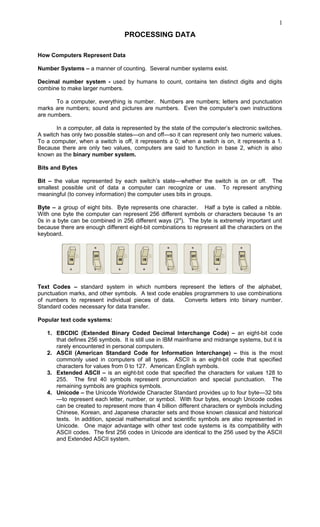
In a computer, all data is represented by the state of the computer’s electronic switches.
A switch has only two possible states—on and off—so it can represent only two numeric values.
To a computer, when a switch is off, it represents a 0; when a switch is on, it represents a 1.
Because there are only two values, computers are said to function in base 2, which is also
known as the binary number system.
Bits and Bytes
Bit – the value represented by each switch’s state—whether the switch is on or off. The
smallest possible unit of data a computer can recognize or use. To represent anything
meaningful (to convey information) the computer uses bits in groups.
Byte – a group of eight bits. Byte represents one character. Half a byte is called a nibble.
With one byte the computer can represent 256 different symbols or characters because 1s an
0s in a byte can be combined in 256 different ways (28
). The byte is extremely important unit
because there are enough different eight-bit combinations to represent all the characters on the
keyboard.
Text Codes – standard system in which numbers represent the letters of the alphabet,
punctuation marks, and other symbols. A text code enables programmers to use combinations
of numbers to represent individual pieces of data. Converts letters into binary number.
Standard codes necessary for data transfer.
Popular text code systems:
1. EBCDIC (Extended Binary Coded Decimal Interchange Code) – an eight-bit code
that defines 256 symbols. It is still use in IBM mainframe and midrange systems, but it is
rarely encountered in personal computers.
2. ASCII (American Standard Code for Information Interchange) – this is the most
commonly used in computers of all types. ASCII is an eight-bit code that specified
characters for values from 0 to 127. American English symbols.
3. Extended ASCII – is an eight-bit code that specified the characters for values 128 to
255. The first 40 symbols represent pronunciation and special punctuation. The
remaining symbols are graphics symbols.
4. Unicode – the Unicode Worldwide Character Standard provides up to four byte—32 bits
—to represent each letter, number, or symbol. With four bytes, enough Unicode codes
can be created to represent more than 4 billion different characters or symbols including
Chinese, Korean, and Japanese character sets and those known classical and historical
texts. In addition, special mathematical and scientific symbols are also represented in
Unicode. One major advantage with other text code systems is its compatibility with
ASCII codes. The first 256 codes in Unicode are identical to the 256 used by the ASCII
and Extended ASCII system.
1
How Computers Process Data
Two components that handle processing in a computer: the central processing unit (CPU) and
the memory. Both are located on the computer’s motherboard
CPU – brain of the computer consists of several million tiny electronic switches, called
transistors. In an average microcomputer, the entire CPU is a single unit, called
microprocessor. Every CPU has at least two basic pars:
1. Control Unit – controls all computer’s resources. Directs the flow of data through the
CPU as well as to and from other devices. Hub of the computer. The CPU’s instructions
for carrying out commands are built into the control unit. The instructions, or instruction
set, list all the operations that the CPU can perform. Each instruction in the instruction
set is expressed in microcode—a series of basic directions that tell the CPU how to
execute more complex operations.
2. Arithmetic and Logic Unit – the component of the CPU that handles arithmetic and
logical functions. The computer can perform two operations: logical and arithmetic
operations.
Registers – high-speed memory locations built directly into the CPU that are
used to hold the data currently being processed. ALU used the register to hold
the data currently being used for a calculation.
Machine Cycles – the complete series of steps a CPU takes in executing an instruction. The
machine cycle is broken down into two smaller cycles: instruction cycle and execution cycle.
During the instruction cycle, the CPU takes two steps:
1. Fetching – before the CPU can execute an instruction, the CU must retrieve (fetch) a
command or data from the computer’s memory.
2. Decoding – before a command can be executed, the CU must break down (decode) the
command into instructions that correspond to those in the CPU’s instruction set.
In the execution cycle the CPU:
1. Executing – when the command is executed, the CPU carries out the instructions in
order to convert them into microcode.
2. Storing – the CPU may be required to store the results of an instruction in memory.
CPU performance is often measured in millions of instructions per second (MIPS). Newer
CPUs can be measured in billions of instructions per second (BIPS).
Pipelining (pipeline processing) – a technique that enables a processor to execute more
instructions in a given time. In pipelining, the CPU begins executing a new instruction before
the current instruction is completed.
Multitasking – the capability of an operating system to load multiple programs into memory at
one time and to perform two or more processes concurrently, such as printing a document while
editing another. For the CPU to perform tasks for more than one program, the OS and CPU
create threads. A thread is one instruction from a program. The CPU will execute one thread
from a program at one time.
MEMORY
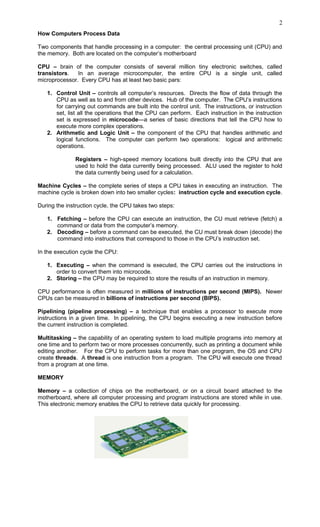
Memory – a collection of chips on the motherboard, or on a circuit board attached to the
motherboard, where all computer processing and program instructions are stored while in use.
This electronic memory enables the CPU to retrieve data quickly for processing.
2
Two types of built in memory:
1. Non-volatile memory – permanent memory. Non-volatile chips hold data even the
computer is unplugged. During normal use, the data in these chips is only read and
used so the memory is called read-only memory (ROM). Chips that cannot be
changed are called programmable read only memory (PROM). PROM chips are often
found on hard drives and printers.
ROM contains a set of start-up instructions called the basic input output
system (BIOS) for a computer. In addition to booting the machine, BIOS
contains another set of routines, which ensure that the system is functioning
properly and all expected hardware devices are present. This routine is called
the power on self test (POST).
Flash Memory – is a special type of non-volatile memory chip that combines the
best features of RAM and ROM. It is often used in portable digital devices for
storage. Examples: Digital camera, portable MP 3 players, USB “keychain”
storage devices
2. Volatile memory – non-permanent memory. This requires power to store data. The
volatile memory in a computer is RAM. RAM’s job is to hold programs and data while
they are in use. RAM consists of chips on a small circuit board. Single in-line memory
modules (SIMMs) and dual in-line memory modules (DIMMs) chips found in desktop
computers, while the smaller, small outline DIMM (SO-DIMM) chips are found in laptop
computers.
Memory Address – is a number that indicates a location on the memory chips, just as
post office box number indicates a slot into which mail is placed.
Factors Affecting Processing:
1. Registers – the size of the registers, which is sometimes called word size, indicates the
amount of data with which the computer can work at a given time. The bigger the word
size, the more quickly the computer can process a set of data. 32-bit processor, 64-bit
processor, or even 64-bit computers are terminologies that refer to the size of the
registers in the processor.
2. Memory and Computing Power – more RAM, the computer run faster and can use
bigger, more powerful programs, and those programs can access bigger data files.
When the computer needs to access other parts of an operating system or a
program on the disk, it can unload, or swap out, nonessential part from RAM to
the hard disk. Then the computer can load, swap in, the program code or data it
needs.
Virtual memory – swapping unused contents of RAM to the hard disk.
3. The Computer’s Internal Clock – every computer has a system clock, which is used
to time processing operations. The clock is driven by a quarts crystal. When electricity
is applied, the molecules in the crystal vibrate millions of times per second, a rate that
never changes. The speed of the vibrations is determined by the thickness of the
crystal.
Clock speed is measured in Hertz (Hz) which is a measure of cycles per
second.
Clock cycle is a single tick, or the time it takes to turn a transistor off and on
again.
4. The Bus – a pathway between the components of a computer. A group of parallel
wires. The bus’s width or the number of wires in the bus determines the speed at which
data is transmitted between hardware components.
Two main buses in a computer:
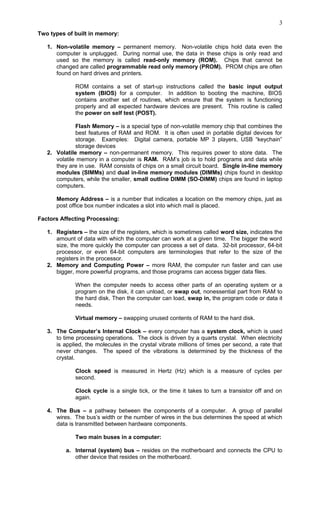
a. Internal (system) bus – resides on the motherboard and connects the CPU to
other device that resides on the motherboard.
3
Parts of the system bus:
a.1. Data bus – an electrical pathway that connects the CPU, memory,
and other hardware devices on the motherboard.
FrontSide Bus – transfers eight bytes at a time (64-bit data bus).
a.2. Address bus – is a set of wires similar to the data bus but connects
only the CPU and RAM and carries only memory address.
b. External (expansion) bus – connects external devices such as keyboard,
mouse, modem, printer, etc. to the CPU.
Cables from disk drives and other internal devices are plugged into the bus
External Bus Standards:
 Industry Standard Architecture (ISA) bus – is a 16-bit data bus. Became the
de facto industry standard in the mid-1980s and is still used in many computers
to attach slower devices like modems and input devices to the CPU.
 Local bus – used to attach faster devices to CPU. This is an internal system
bus that runs between components on the motherboard.
 Peripheral Component Interconnect (PCI) bus – a type of local bus designed
by Intel to make it easier to integrate new data types, such as audio, video, and
graphics.
 Accelerated Graphics Port (AGP) bus – incorporates special architecture that
allows the video card to access the system’s RAM directly, greatly increasing the
speed of graphics performance. AGP standard has led to development of many
types of accelerated video cards that support 3-D and full-motion video.
 Universal Serial bus (USB) – new bus found on all modern machines. Unlike
PCI and AGP, USB is a how swappable bus. The user can connect then
disconnect a USB device without affecting the machine. USB supports up to 127
devices connected in either daisy chain or hub layout.
 IEE 1394 (FireWire) – ports were once found only on Macintosh computers, but
they are now increasingly common in IBM-compatible PCs. FireWire is used to
connect video devices such as cameras and video cameras.
 PC Card bus – used exclusively on laptop computers. Like USB, PC card is hot
swappable. PC card is about the size of a stack of four credit cards. Common
uses: WiFi cards, network cards, external modems. CardBus is the most
common PC card and mainly and external extension of an internal PCI bus.
4
5. Cache Memory – similar to RAM except that it is extremely fast compared to normal
memory and it is used in different way. Cache is present in several places in a
computer. Most hard drives and network cards have cache present to speed up data
access.
Most computers have several caches:
a. Level-1 (L1) cache – the CPUs resident cache have as much as 256 KB built in.
Holds recently used data.
b. Level-2 (L2) cache – used to be found on motherboard, however, Intel and AMD
found that placing L2 cache on the CPU greatly increased CPU response. Holds
upcoming data.
c. Level-3 (L3) cache – motherboard resident cache found on very-high-end
computers. Hold possible upcoming data.
A Look Inside the Processor
A processor’s performance—even its capability to function—is dictated by its internal
design, or architecture.
The chips architecture determines
» Location of CPU parts
» Bit size
» Number of registers
» Pipelines
– main difference between CPUs
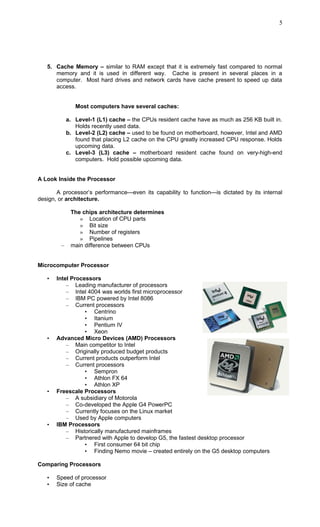
Microcomputer Processor
• Intel Processors
– Leading manufacturer of processors
– Intel 4004 was worlds first microprocessor
– IBM PC powered by Intel 8086
– Current processors
• Centrino
• Itanium
• Pentium IV
• Xeon
• Advanced Micro Devices (AMD) Processors
– Main competitor to Intel
– Originally produced budget products
– Current products outperform Intel
– Current processors
• Sempron
• Athlon FX 64
• Athlon XP
• Freescale Processors
– A subsidiary of Motorola
– Co-developed the Apple G4 PowerPC
– Currently focuses on the Linux market
– Used by Apple computers
• IBM Processors
– Historically manufactured mainframes
– Partnered with Apple to develop G5, the fastest desktop processor
• First consumer 64 bit chip
• Finding Nemo movie – created entirely on the G5 desktop computers
Comparing Processors
• Speed of processor
• Size of cache
5
• Number of registers
• Bit size
• Speed of Front side bus
Advanced Processors
• RISC (Reduced Instruction Set Computing ) processors
– Smaller instruction sets
– Faster and less expensive
– PowerPC and G5
• Parallel Processing
– Multiple processors in a system
– Symmetric Multiple Processing
• Number of processors is a power of 2
– Massively Parallel Processing
• Thousands of processors
• Mainframes and super computers
Extending the Processor’s Power to Other Devices:
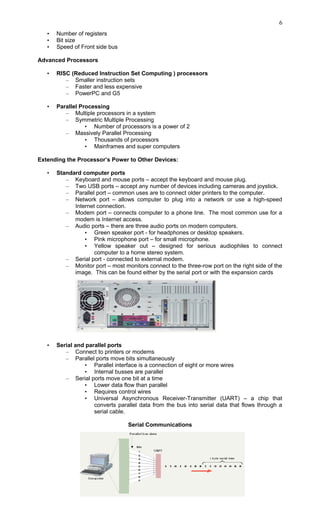
• Standard computer ports
– Keyboard and mouse ports – accept the keyboard and mouse plug.
– Two USB ports – accept any number of devices including cameras and joystick.
– Parallel port – common uses are to connect older printers to the computer.
– Network port – allows computer to plug into a network or use a high-speed
Internet connection.
– Modem port – connects computer to a phone line. The most common use for a
modem is Internet access.
– Audio ports – there are three audio ports on modern computers.
• Green speaker port - for headphones or desktop speakers.
• Pink microphone port – for small microphone.
• Yellow speaker out – designed for serious audiophiles to connect
computer to a home stereo system.
– Serial port - connected to external modem.
– Monitor port – most monitors connect to the three-row port on the right side of the
image. This can be found either by the serial port or with the expansion cards
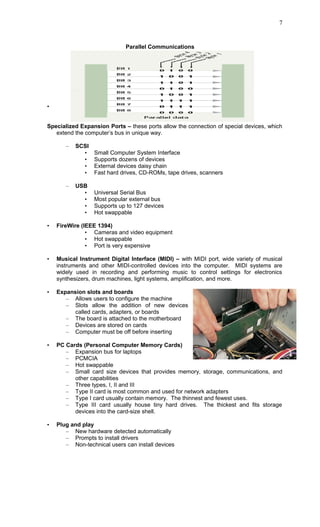
• Serial and parallel ports
– Connect to printers or modems
– Parallel ports move bits simultaneously
• Parallel interface is a connection of eight or more wires
• Internal busses are parallel
– Serial ports move one bit at a time
• Lower data flow than parallel
• Requires control wires
• Universal Asynchronous Receiver-Transmitter (UART) – a chip that
converts parallel data from the bus into serial data that flows through a
serial cable.
Serial Communications
6
Parallel Communications
•
Specialized Expansion Ports – these ports allow the connection of special devices, which
extend the computer’s bus in unique way.
– SCSI
• Small Computer System Interface
• Supports dozens of devices
• External devices daisy chain
• Fast hard drives, CD-ROMs, tape drives, scanners
– USB
• Universal Serial Bus
• Most popular external bus
• Supports up to 127 devices
• Hot swappable
• FireWire (IEEE 1394)
• Cameras and video equipment
• Hot swappable
• Port is very expensive
• Musical Instrument Digital Interface (MIDI) – with MIDI port, wide variety of musical
instruments and other MIDI-controlled devices into the computer. MIDI systems are
widely used in recording and performing music to control settings for electronics
synthesizers, drum machines, light systems, amplification, and more.
• Expansion slots and boards
– Allows users to configure the machine
– Slots allow the addition of new devices
called cards, adapters, or boards
– The board is attached to the motherboard
– Devices are stored on cards
– Computer must be off before inserting
• PC Cards (Personal Computer Memory Cards)
– Expansion bus for laptops
– PCMCIA
– Hot swappable
– Small card size devices that provides memory, storage, communications, and
other capabilities
– Three types, I, II and III
– Type II card is most common and used for network adapters
– Type I card usually contain memory. The thinnest and fewest uses.
– Type III card usually house tiny hard drives. The thickest and fits storage
devices into the card-size shell.
• Plug and play
– New hardware detected automatically
– Prompts to install drivers
– Non-technical users can install devices
7

Processing Data

  • 1.
    PROCESSING DATA How ComputersRepresent Data Number Systems – a manner of counting. Several number systems exist. Decimal number system - used by humans to count, contains ten distinct digits and digits combine to make larger numbers. To a computer, everything is number. Numbers are numbers; letters and punctuation marks are numbers; sound and pictures are numbers. Even the computer’s own instructions are numbers. In a computer, all data is represented by the state of the computer’s electronic switches. A switch has only two possible states—on and off—so it can represent only two numeric values. To a computer, when a switch is off, it represents a 0; when a switch is on, it represents a 1. Because there are only two values, computers are said to function in base 2, which is also known as the binary number system. Bits and Bytes Bit – the value represented by each switch’s state—whether the switch is on or off. The smallest possible unit of data a computer can recognize or use. To represent anything meaningful (to convey information) the computer uses bits in groups. Byte – a group of eight bits. Byte represents one character. Half a byte is called a nibble. With one byte the computer can represent 256 different symbols or characters because 1s an 0s in a byte can be combined in 256 different ways (28 ). The byte is extremely important unit because there are enough different eight-bit combinations to represent all the characters on the keyboard. Text Codes – standard system in which numbers represent the letters of the alphabet, punctuation marks, and other symbols. A text code enables programmers to use combinations of numbers to represent individual pieces of data. Converts letters into binary number. Standard codes necessary for data transfer. Popular text code systems: 1. EBCDIC (Extended Binary Coded Decimal Interchange Code) – an eight-bit code that defines 256 symbols. It is still use in IBM mainframe and midrange systems, but it is rarely encountered in personal computers. 2. ASCII (American Standard Code for Information Interchange) – this is the most commonly used in computers of all types. ASCII is an eight-bit code that specified characters for values from 0 to 127. American English symbols. 3. Extended ASCII – is an eight-bit code that specified the characters for values 128 to 255. The first 40 symbols represent pronunciation and special punctuation. The remaining symbols are graphics symbols. 4. Unicode – the Unicode Worldwide Character Standard provides up to four byte—32 bits —to represent each letter, number, or symbol. With four bytes, enough Unicode codes can be created to represent more than 4 billion different characters or symbols including Chinese, Korean, and Japanese character sets and those known classical and historical texts. In addition, special mathematical and scientific symbols are also represented in Unicode. One major advantage with other text code systems is its compatibility with ASCII codes. The first 256 codes in Unicode are identical to the 256 used by the ASCII and Extended ASCII system. 1
  • 2.
    How Computers ProcessData Two components that handle processing in a computer: the central processing unit (CPU) and the memory. Both are located on the computer’s motherboard CPU – brain of the computer consists of several million tiny electronic switches, called transistors. In an average microcomputer, the entire CPU is a single unit, called microprocessor. Every CPU has at least two basic pars: 1. Control Unit – controls all computer’s resources. Directs the flow of data through the CPU as well as to and from other devices. Hub of the computer. The CPU’s instructions for carrying out commands are built into the control unit. The instructions, or instruction set, list all the operations that the CPU can perform. Each instruction in the instruction set is expressed in microcode—a series of basic directions that tell the CPU how to execute more complex operations. 2. Arithmetic and Logic Unit – the component of the CPU that handles arithmetic and logical functions. The computer can perform two operations: logical and arithmetic operations. Registers – high-speed memory locations built directly into the CPU that are used to hold the data currently being processed. ALU used the register to hold the data currently being used for a calculation. Machine Cycles – the complete series of steps a CPU takes in executing an instruction. The machine cycle is broken down into two smaller cycles: instruction cycle and execution cycle. During the instruction cycle, the CPU takes two steps: 1. Fetching – before the CPU can execute an instruction, the CU must retrieve (fetch) a command or data from the computer’s memory. 2. Decoding – before a command can be executed, the CU must break down (decode) the command into instructions that correspond to those in the CPU’s instruction set. In the execution cycle the CPU: 1. Executing – when the command is executed, the CPU carries out the instructions in order to convert them into microcode. 2. Storing – the CPU may be required to store the results of an instruction in memory. CPU performance is often measured in millions of instructions per second (MIPS). Newer CPUs can be measured in billions of instructions per second (BIPS). Pipelining (pipeline processing) – a technique that enables a processor to execute more instructions in a given time. In pipelining, the CPU begins executing a new instruction before the current instruction is completed. Multitasking – the capability of an operating system to load multiple programs into memory at one time and to perform two or more processes concurrently, such as printing a document while editing another. For the CPU to perform tasks for more than one program, the OS and CPU create threads. A thread is one instruction from a program. The CPU will execute one thread from a program at one time. MEMORY Memory – a collection of chips on the motherboard, or on a circuit board attached to the motherboard, where all computer processing and program instructions are stored while in use. This electronic memory enables the CPU to retrieve data quickly for processing. 2
  • 3.
    Two types ofbuilt in memory: 1. Non-volatile memory – permanent memory. Non-volatile chips hold data even the computer is unplugged. During normal use, the data in these chips is only read and used so the memory is called read-only memory (ROM). Chips that cannot be changed are called programmable read only memory (PROM). PROM chips are often found on hard drives and printers. ROM contains a set of start-up instructions called the basic input output system (BIOS) for a computer. In addition to booting the machine, BIOS contains another set of routines, which ensure that the system is functioning properly and all expected hardware devices are present. This routine is called the power on self test (POST). Flash Memory – is a special type of non-volatile memory chip that combines the best features of RAM and ROM. It is often used in portable digital devices for storage. Examples: Digital camera, portable MP 3 players, USB “keychain” storage devices 2. Volatile memory – non-permanent memory. This requires power to store data. The volatile memory in a computer is RAM. RAM’s job is to hold programs and data while they are in use. RAM consists of chips on a small circuit board. Single in-line memory modules (SIMMs) and dual in-line memory modules (DIMMs) chips found in desktop computers, while the smaller, small outline DIMM (SO-DIMM) chips are found in laptop computers. Memory Address – is a number that indicates a location on the memory chips, just as post office box number indicates a slot into which mail is placed. Factors Affecting Processing: 1. Registers – the size of the registers, which is sometimes called word size, indicates the amount of data with which the computer can work at a given time. The bigger the word size, the more quickly the computer can process a set of data. 32-bit processor, 64-bit processor, or even 64-bit computers are terminologies that refer to the size of the registers in the processor. 2. Memory and Computing Power – more RAM, the computer run faster and can use bigger, more powerful programs, and those programs can access bigger data files. When the computer needs to access other parts of an operating system or a program on the disk, it can unload, or swap out, nonessential part from RAM to the hard disk. Then the computer can load, swap in, the program code or data it needs. Virtual memory – swapping unused contents of RAM to the hard disk. 3. The Computer’s Internal Clock – every computer has a system clock, which is used to time processing operations. The clock is driven by a quarts crystal. When electricity is applied, the molecules in the crystal vibrate millions of times per second, a rate that never changes. The speed of the vibrations is determined by the thickness of the crystal. Clock speed is measured in Hertz (Hz) which is a measure of cycles per second. Clock cycle is a single tick, or the time it takes to turn a transistor off and on again. 4. The Bus – a pathway between the components of a computer. A group of parallel wires. The bus’s width or the number of wires in the bus determines the speed at which data is transmitted between hardware components. Two main buses in a computer: a. Internal (system) bus – resides on the motherboard and connects the CPU to other device that resides on the motherboard. 3
  • 4.
    Parts of thesystem bus: a.1. Data bus – an electrical pathway that connects the CPU, memory, and other hardware devices on the motherboard. FrontSide Bus – transfers eight bytes at a time (64-bit data bus). a.2. Address bus – is a set of wires similar to the data bus but connects only the CPU and RAM and carries only memory address. b. External (expansion) bus – connects external devices such as keyboard, mouse, modem, printer, etc. to the CPU. Cables from disk drives and other internal devices are plugged into the bus External Bus Standards:  Industry Standard Architecture (ISA) bus – is a 16-bit data bus. Became the de facto industry standard in the mid-1980s and is still used in many computers to attach slower devices like modems and input devices to the CPU.  Local bus – used to attach faster devices to CPU. This is an internal system bus that runs between components on the motherboard.  Peripheral Component Interconnect (PCI) bus – a type of local bus designed by Intel to make it easier to integrate new data types, such as audio, video, and graphics.  Accelerated Graphics Port (AGP) bus – incorporates special architecture that allows the video card to access the system’s RAM directly, greatly increasing the speed of graphics performance. AGP standard has led to development of many types of accelerated video cards that support 3-D and full-motion video.  Universal Serial bus (USB) – new bus found on all modern machines. Unlike PCI and AGP, USB is a how swappable bus. The user can connect then disconnect a USB device without affecting the machine. USB supports up to 127 devices connected in either daisy chain or hub layout.  IEE 1394 (FireWire) – ports were once found only on Macintosh computers, but they are now increasingly common in IBM-compatible PCs. FireWire is used to connect video devices such as cameras and video cameras.  PC Card bus – used exclusively on laptop computers. Like USB, PC card is hot swappable. PC card is about the size of a stack of four credit cards. Common uses: WiFi cards, network cards, external modems. CardBus is the most common PC card and mainly and external extension of an internal PCI bus. 4
  • 5.
    5. Cache Memory– similar to RAM except that it is extremely fast compared to normal memory and it is used in different way. Cache is present in several places in a computer. Most hard drives and network cards have cache present to speed up data access. Most computers have several caches: a. Level-1 (L1) cache – the CPUs resident cache have as much as 256 KB built in. Holds recently used data. b. Level-2 (L2) cache – used to be found on motherboard, however, Intel and AMD found that placing L2 cache on the CPU greatly increased CPU response. Holds upcoming data. c. Level-3 (L3) cache – motherboard resident cache found on very-high-end computers. Hold possible upcoming data. A Look Inside the Processor A processor’s performance—even its capability to function—is dictated by its internal design, or architecture. The chips architecture determines » Location of CPU parts » Bit size » Number of registers » Pipelines – main difference between CPUs Microcomputer Processor • Intel Processors – Leading manufacturer of processors – Intel 4004 was worlds first microprocessor – IBM PC powered by Intel 8086 – Current processors • Centrino • Itanium • Pentium IV • Xeon • Advanced Micro Devices (AMD) Processors – Main competitor to Intel – Originally produced budget products – Current products outperform Intel – Current processors • Sempron • Athlon FX 64 • Athlon XP • Freescale Processors – A subsidiary of Motorola – Co-developed the Apple G4 PowerPC – Currently focuses on the Linux market – Used by Apple computers • IBM Processors – Historically manufactured mainframes – Partnered with Apple to develop G5, the fastest desktop processor • First consumer 64 bit chip • Finding Nemo movie – created entirely on the G5 desktop computers Comparing Processors • Speed of processor • Size of cache 5
  • 6.
    • Number ofregisters • Bit size • Speed of Front side bus Advanced Processors • RISC (Reduced Instruction Set Computing ) processors – Smaller instruction sets – Faster and less expensive – PowerPC and G5 • Parallel Processing – Multiple processors in a system – Symmetric Multiple Processing • Number of processors is a power of 2 – Massively Parallel Processing • Thousands of processors • Mainframes and super computers Extending the Processor’s Power to Other Devices: • Standard computer ports – Keyboard and mouse ports – accept the keyboard and mouse plug. – Two USB ports – accept any number of devices including cameras and joystick. – Parallel port – common uses are to connect older printers to the computer. – Network port – allows computer to plug into a network or use a high-speed Internet connection. – Modem port – connects computer to a phone line. The most common use for a modem is Internet access. – Audio ports – there are three audio ports on modern computers. • Green speaker port - for headphones or desktop speakers. • Pink microphone port – for small microphone. • Yellow speaker out – designed for serious audiophiles to connect computer to a home stereo system. – Serial port - connected to external modem. – Monitor port – most monitors connect to the three-row port on the right side of the image. This can be found either by the serial port or with the expansion cards • Serial and parallel ports – Connect to printers or modems – Parallel ports move bits simultaneously • Parallel interface is a connection of eight or more wires • Internal busses are parallel – Serial ports move one bit at a time • Lower data flow than parallel • Requires control wires • Universal Asynchronous Receiver-Transmitter (UART) – a chip that converts parallel data from the bus into serial data that flows through a serial cable. Serial Communications 6
  • 7.
    Parallel Communications • Specialized ExpansionPorts – these ports allow the connection of special devices, which extend the computer’s bus in unique way. – SCSI • Small Computer System Interface • Supports dozens of devices • External devices daisy chain • Fast hard drives, CD-ROMs, tape drives, scanners – USB • Universal Serial Bus • Most popular external bus • Supports up to 127 devices • Hot swappable • FireWire (IEEE 1394) • Cameras and video equipment • Hot swappable • Port is very expensive • Musical Instrument Digital Interface (MIDI) – with MIDI port, wide variety of musical instruments and other MIDI-controlled devices into the computer. MIDI systems are widely used in recording and performing music to control settings for electronics synthesizers, drum machines, light systems, amplification, and more. • Expansion slots and boards – Allows users to configure the machine – Slots allow the addition of new devices called cards, adapters, or boards – The board is attached to the motherboard – Devices are stored on cards – Computer must be off before inserting • PC Cards (Personal Computer Memory Cards) – Expansion bus for laptops – PCMCIA – Hot swappable – Small card size devices that provides memory, storage, communications, and other capabilities – Three types, I, II and III – Type II card is most common and used for network adapters – Type I card usually contain memory. The thinnest and fewest uses. – Type III card usually house tiny hard drives. The thickest and fits storage devices into the card-size shell. • Plug and play – New hardware detected automatically – Prompts to install drivers – Non-technical users can install devices 7