Basic Computer Hardware
HIMANI OJHA FROM JAISALMER
A computer is:
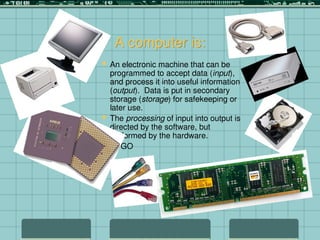
 An electronic machine that can be
programmed to accept data (input),
and process it into useful information
(output). Data is put in secondary
storage (storage) for safekeeping or
later use.
 The processing of input into output is
directed by the software, but
performed by the hardware.
 GI/GO
Computer systems consist of the
following hardware components:
 Input devices accept data or commands in a form useable by computers. Data and
commands can also be sent to the processing unit; e.g., keyboards, mice, scanners,
microphone, digital camera.
 Output devices display the processed information understandably and usefully; e.g. printers,
monitors, speakers.
 Processing devices are contained in a computer’s system unit and are comprised of
circuitry. The main circuit board is the motherboard, with its central processing unit (CPU)
and memory.
 Storage devices include secondary storage for data and programs outside the computer’s
processing unit; e.g., hard disk drives, floppy disk drives, Zip® drives, CD-ROM, CD-RW and
DVD-ROM drives. Drives read from and write to storage media (the physical material that can
store data and programs).
 Communication devices provide connections between computers and communication
networks, allowing for exchange of information and data with other computers via
transmission media such as cables, telephone lines, and satellites.
Graphic Representation of Computer Components:
SOURCE: http://spruce.flint.umich.edu/~weli/courses/bus181/notes/chap4.html
Computers process data by means of
a binary system.
 Computers are devices powered by electricity, which has two discrete states: On or
Off.
 Two digits represent these states: 0 for the electronic state of Off, and 1
representing On (the presence of an electronic charge).
 To be processed, all data in a computer system (words, symbols, pictures, videos,
sounds) must be reduced to a string of binary digits. (The process of converting
data from other formats into binary digits is called digitization.)
 A binary digit 1 or 0 is called a bit, the smallest unit of data in a computer system.
Eight bits grouped together as a unit are called a byte, which provides enough
combinations of 0s and 1s to represent 256 individual characters, including
numbers, upper and lower case alphabet letters, punctuation marks and other
characters.
And, then what?
Coding Schemes define
the patterns of bytes
 Coding schemes, such as ASCII,
EBCDIC, and Unicode, provide the
means to interact with a computer that
recognizes only bits (on/off states).
 When you press a letter on a
keyboard, the electronic signals are
converted into binary form and stored
into memory. The computer then
processes the data as bytes of
information and converts them to the
letters you see on the monitor screen
or on a printed page.
SOURCE: http://spruce.flint.umich.edu/~weli/courses/bus181/notes/chap4.html
The System Unit
Sources: Tom’s Hardware site: http://www.tomshardware.com
The System Unit houses
the central processing unit,
memory modules,
expansion slots, and
electronic circuitry as well
as expansion cards that are
all attached to the
motherboard; along with
disk drives, a fan or fans to
keep it cool, and the power
supply.
All other devices (monitor,
keyboard, mouse, etc., are
linked either directly or
indirectly into the system
unit.
Front of the System Unit
 Drives are housed in drive bays
which are accessed at the front of
the case.
 Internal drives, such as the hard
disk drive, are installed in internal
bays that are not typically as
accessible as the external drives
pictured here.
 System Unit cases come in a huge
array of types and styles,
depending upon hardware needs.
The Motherboard and CPU
 The motherboard is the main circuit
board of a microcomputer. It contains
the central processing unit (CPU), the
Basic Input/Output System (BIOS),
memory, mass storage interfaces,
serial and parallel ports, expansion
slots, and all the controllers for
standard peripheral devices like the
keyboard, disk drive and display
screen.
 BIOS stands for Basic Input/Output
System. It is the lowest-level software
in the computer; it acts as an interface
between the hardware (especially the
chipset and processor) and the
operating system. The BIOS provides
access to the system hardware and
enables the creation of the higher-level
operating systems that you use to run
your applications.
 The BIOS is also responsible for
allowing you to control your computer's
hardware settings, for booting up the
machine when you turn on the power
or hit the reset button, and various
other system functions.
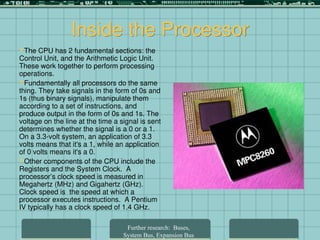
Inside the Processor
The CPU has 2 fundamental sections: the
Control Unit, and the Arithmetic Logic Unit.
These work together to perform processing
operations.
Fundamentally all processors do the same
thing. They take signals in the form of 0s and
1s (thus binary signals), manipulate them
according to a set of instructions, and
produce output in the form of 0s and 1s. The
voltage on the line at the time a signal is sent
determines whether the signal is a 0 or a 1.
On a 3.3-volt system, an application of 3.3
volts means that it's a 1, while an application
of 0 volts means it's a 0.
Other components of the CPU include the
Registers and the System Clock. A
processor’s clock speed is measured in
Megahertz (MHz) and Gigahertz (GHz).
Clock speed is the speed at which a
processor executes instructions. A Pentium
IV typically has a clock speed of 1.4 GHz.
Further research: Buses,
System Bus, Expansion Bus
ROM: Read Only Memory
ROM is nonvolatile. ROM
chips contain permanently
written data, called firmware
(your BIOS lives here).
ROM contains the programs
that direct the computer to
load the operating system
and related files when the
computer is powered on.
ROM chips are usually
recorded when they’re
manufactured.
Flash memory is
reprogrammable memory.
You can upgrade the logic
capabilities by simply
downloading new software.
This saves the expense of
replacing circuit boards and
chips.
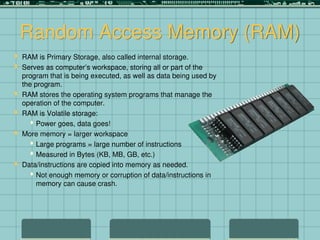
Random Access Memory (RAM)
 RAM is Primary Storage, also called internal storage.
 Serves as computer’s workspace, storing all or part of the
program that is being executed, as well as data being used by
the program.
 RAM stores the operating system programs that manage the
operation of the computer.
 RAM is Volatile storage:
 Power goes, data goes!
 More memory = larger workspace
 Large programs = large number of instructions
 Measured in Bytes (KB, MB, GB, etc.)
 Data/instructions are copied into memory as needed.
 Not enough memory or corruption of data/instructions in
memory can cause crash.
More About RAM:
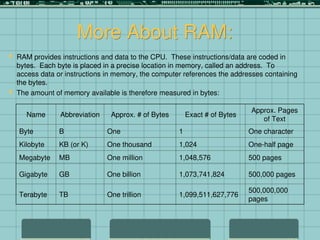
 RAM provides instructions and data to the CPU. These instructions/data are coded in
bytes. Each byte is placed in a precise location in memory, called an address. To
access data or instructions in memory, the computer references the addresses containing
the bytes.
 The amount of memory available is therefore measured in bytes:
Name Abbreviation Approx. # of Bytes Exact # of Bytes
Approx. Pages
of Text
Byte B One 1 One character
Kilobyte KB (or K) One thousand 1,024 One-half page
Megabyte MB One million 1,048,576 500 pages
Gigabyte GB One billion 1,073,741,824 500,000 pages
Terabyte TB One trillion 1,099,511,627,776
500,000,000
pages
RAM continued--
 Ram chips consist of millions of
switches that are sensitive to changes
in electric current. When you turn on
your computer, operating system files
are loaded from a storage device (the
hard disk, usually) into RAM, and they
remain there as long as your computer
is running. RAM contents changes as
programs are executed.
 Two basic types of RAM are Dynamic
RAM (DRAM), and Static RAM
(SRAM). Most computers today use
DRAM (specifically, Synchronous
DRAM or SDRAM), which is faster
because it is synchronized to the
system clock.
 RAM chips are typically packaged on
small circuit boards called memory
modules, which are inserted into
special slots on the motherboard.
 DIMMs, or dual inline memory
modules provide a 64-bit data path to
the processor. Older SIMMs only
provide a 32-bit path.
 The amount of RAM needed depends
on the types of applications you intend
to run on the computer. Software
programs indicate the minimum
amount of RAM required to run. How
much RAM determines how many
programs and how much data your
computer can handle at one time.
Topic not covered: The Cache
Why is RAM so important?
 Aside from the processor, the two most important factors affecting a
computer system’s performance are RAM and hard disk capacity.
 Hard disks are typically huge, with GBs of storage, so the primary limiting
factor is the amount of installed RAM.
 Without enough RAM, the operating system must swap out storage space
with your hard disk. The OS creates a Paging File (swap file) to
supplement RAM (workspace). This is Virtual Memory.
 Virtual memory is inherently slow! RAM speed can typically be 120,000
times FASTER than the hard disk—so the less you must rely on virtual
memory (swapping files between RAM and hard disk), the faster your
system will perform.
Expansion Slots and Cards
 Expansion slots are sockets to
provide direct connections to the
common electrical bus, allowing
you to insert a circuit board into
the motherboard.
 Typical Expansion Cards:
Video Cards
Sound Cards
Modem Cards
Network Interface Cards (NIC)
 Laptops and portable computers
typically have PC Cards – thin
credit-card sized devices used to
add memory, disk drives, etc.
 For further research about
connecting devices to your
computer, look up:
Peripheral Component
Interconnect (PCI)
Accelerated Graphics Port (AGP)
Industry Standard Architecture
(ISA)
Universal Serial Bus (USB)
Small Computer System Interface
(SCSI)
Integrated Drive Electronics (IDE)
Expansion Cards
Accelerated Graphics Port (AGP)
Peripheral Component Interconnect (PCI)
•Expansion Cards plug into the expansion
slots found on the motherboard.
Convenient way to add extra ports or
expand the computer’s capabilities.
Ports
 Ports are sockets that allow you to
plug in device connectors to
access the common electrical bus
on the motherboard.
 Ports are usually found on the
back of the system unit, but newer
styles also have some of them
conveniently located on the front.
 Ports allow specific types of
connectors (which partly reflects
changing technology as well as
various kinds of technology).
Types of Ports
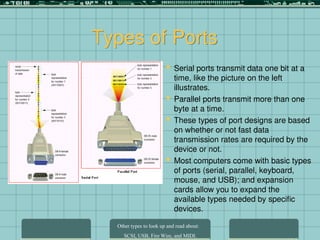
 Serial ports transmit data one bit at a
time, like the picture on the left
illustrates.
 Parallel ports transmit more than one
byte at a time.
 These types of port designs are based
on whether or not fast data
transmission rates are required by the
device or not.
 Most computers come with basic types
of ports (serial, parallel, keyboard,
mouse, and USB); and expansion
cards allow you to expand the
available types needed by specific
devices.
Other types to look up and read about:
SCSI, USB, Fire Wire, and MIDI.
Different Types of Connectors
 Understanding the differences
among connector types is
useful and important, as the
cable required to attach a
device to your computer is
specific to its connector, not to
mention the port on the
computer.
Fire wire connectors and port.
(Also called IEEE 1394)
Non-Volatile Storage Devices
Disk drives
Internal & External
Hard drives
Removable disk drives
Floppy disks (1.4 MB)
ZIP disks (100/250 MB)
CD-ROM (700MB), DVD-ROM (~5GB/side)
> read only (-ROM), write once (-R), re-
writeable (-RW)
Combination drive
> CD-RW/DVD-ROM, CD-RW/DVD-R
Many other forms
Memory Stick, MultiMediaCard,
CompactFlash, and SmartMedia
External Hard Drives
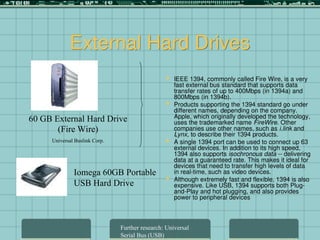
 IEEE 1394, commonly called Fire Wire, is a very
fast external bus standard that supports data
transfer rates of up to 400Mbps (in 1394a) and
800Mbps (in 1394b).
 Products supporting the 1394 standard go under
different names, depending on the company.
Apple, which originally developed the technology,
uses the trademarked name FireWire. Other
companies use other names, such as i.link and
Lynx, to describe their 1394 products.
 A single 1394 port can be used to connect up 63
external devices. In addition to its high speed,
1394 also supports isochronous data -- delivering
data at a guaranteed rate. This makes it ideal for
devices that need to transfer high levels of data
in real-time, such as video devices.
 Although extremely fast and flexible, 1394 is also
expensive. Like USB, 1394 supports both Plug-
and-Play and hot plugging, and also provides
power to peripheral devices
60 GB External Hard Drive
(Fire Wire)
Universal Buslink Corp.
Iomega 60GB Portable
USB Hard Drive
Further research: Universal
Serial Bus (USB)
Thanks
Himani Ojha

CompterBasicknowledgeforstudentsfundamental.ppt

  • 1.
    Basic Computer Hardware HIMANIOJHA FROM JAISALMER
  • 2.
    A computer is: An electronic machine that can be programmed to accept data (input), and process it into useful information (output). Data is put in secondary storage (storage) for safekeeping or later use.  The processing of input into output is directed by the software, but performed by the hardware.  GI/GO
  • 3.
    Computer systems consistof the following hardware components:  Input devices accept data or commands in a form useable by computers. Data and commands can also be sent to the processing unit; e.g., keyboards, mice, scanners, microphone, digital camera.  Output devices display the processed information understandably and usefully; e.g. printers, monitors, speakers.  Processing devices are contained in a computer’s system unit and are comprised of circuitry. The main circuit board is the motherboard, with its central processing unit (CPU) and memory.  Storage devices include secondary storage for data and programs outside the computer’s processing unit; e.g., hard disk drives, floppy disk drives, Zip® drives, CD-ROM, CD-RW and DVD-ROM drives. Drives read from and write to storage media (the physical material that can store data and programs).  Communication devices provide connections between computers and communication networks, allowing for exchange of information and data with other computers via transmission media such as cables, telephone lines, and satellites.
  • 4.
    Graphic Representation ofComputer Components: SOURCE: http://spruce.flint.umich.edu/~weli/courses/bus181/notes/chap4.html
  • 5.
    Computers process databy means of a binary system.  Computers are devices powered by electricity, which has two discrete states: On or Off.  Two digits represent these states: 0 for the electronic state of Off, and 1 representing On (the presence of an electronic charge).  To be processed, all data in a computer system (words, symbols, pictures, videos, sounds) must be reduced to a string of binary digits. (The process of converting data from other formats into binary digits is called digitization.)  A binary digit 1 or 0 is called a bit, the smallest unit of data in a computer system. Eight bits grouped together as a unit are called a byte, which provides enough combinations of 0s and 1s to represent 256 individual characters, including numbers, upper and lower case alphabet letters, punctuation marks and other characters.
  • 6.
    And, then what? CodingSchemes define the patterns of bytes  Coding schemes, such as ASCII, EBCDIC, and Unicode, provide the means to interact with a computer that recognizes only bits (on/off states).  When you press a letter on a keyboard, the electronic signals are converted into binary form and stored into memory. The computer then processes the data as bytes of information and converts them to the letters you see on the monitor screen or on a printed page. SOURCE: http://spruce.flint.umich.edu/~weli/courses/bus181/notes/chap4.html
  • 7.
    The System Unit Sources:Tom’s Hardware site: http://www.tomshardware.com The System Unit houses the central processing unit, memory modules, expansion slots, and electronic circuitry as well as expansion cards that are all attached to the motherboard; along with disk drives, a fan or fans to keep it cool, and the power supply. All other devices (monitor, keyboard, mouse, etc., are linked either directly or indirectly into the system unit.
  • 8.
    Front of theSystem Unit  Drives are housed in drive bays which are accessed at the front of the case.  Internal drives, such as the hard disk drive, are installed in internal bays that are not typically as accessible as the external drives pictured here.  System Unit cases come in a huge array of types and styles, depending upon hardware needs.
  • 9.
    The Motherboard andCPU  The motherboard is the main circuit board of a microcomputer. It contains the central processing unit (CPU), the Basic Input/Output System (BIOS), memory, mass storage interfaces, serial and parallel ports, expansion slots, and all the controllers for standard peripheral devices like the keyboard, disk drive and display screen.  BIOS stands for Basic Input/Output System. It is the lowest-level software in the computer; it acts as an interface between the hardware (especially the chipset and processor) and the operating system. The BIOS provides access to the system hardware and enables the creation of the higher-level operating systems that you use to run your applications.  The BIOS is also responsible for allowing you to control your computer's hardware settings, for booting up the machine when you turn on the power or hit the reset button, and various other system functions.
  • 10.
    Inside the Processor TheCPU has 2 fundamental sections: the Control Unit, and the Arithmetic Logic Unit. These work together to perform processing operations. Fundamentally all processors do the same thing. They take signals in the form of 0s and 1s (thus binary signals), manipulate them according to a set of instructions, and produce output in the form of 0s and 1s. The voltage on the line at the time a signal is sent determines whether the signal is a 0 or a 1. On a 3.3-volt system, an application of 3.3 volts means that it's a 1, while an application of 0 volts means it's a 0. Other components of the CPU include the Registers and the System Clock. A processor’s clock speed is measured in Megahertz (MHz) and Gigahertz (GHz). Clock speed is the speed at which a processor executes instructions. A Pentium IV typically has a clock speed of 1.4 GHz. Further research: Buses, System Bus, Expansion Bus
  • 11.
    ROM: Read OnlyMemory ROM is nonvolatile. ROM chips contain permanently written data, called firmware (your BIOS lives here). ROM contains the programs that direct the computer to load the operating system and related files when the computer is powered on. ROM chips are usually recorded when they’re manufactured. Flash memory is reprogrammable memory. You can upgrade the logic capabilities by simply downloading new software. This saves the expense of replacing circuit boards and chips.
  • 12.
    Random Access Memory(RAM)  RAM is Primary Storage, also called internal storage.  Serves as computer’s workspace, storing all or part of the program that is being executed, as well as data being used by the program.  RAM stores the operating system programs that manage the operation of the computer.  RAM is Volatile storage:  Power goes, data goes!  More memory = larger workspace  Large programs = large number of instructions  Measured in Bytes (KB, MB, GB, etc.)  Data/instructions are copied into memory as needed.  Not enough memory or corruption of data/instructions in memory can cause crash.
  • 13.
    More About RAM: RAM provides instructions and data to the CPU. These instructions/data are coded in bytes. Each byte is placed in a precise location in memory, called an address. To access data or instructions in memory, the computer references the addresses containing the bytes.  The amount of memory available is therefore measured in bytes: Name Abbreviation Approx. # of Bytes Exact # of Bytes Approx. Pages of Text Byte B One 1 One character Kilobyte KB (or K) One thousand 1,024 One-half page Megabyte MB One million 1,048,576 500 pages Gigabyte GB One billion 1,073,741,824 500,000 pages Terabyte TB One trillion 1,099,511,627,776 500,000,000 pages
  • 14.
    RAM continued--  Ramchips consist of millions of switches that are sensitive to changes in electric current. When you turn on your computer, operating system files are loaded from a storage device (the hard disk, usually) into RAM, and they remain there as long as your computer is running. RAM contents changes as programs are executed.  Two basic types of RAM are Dynamic RAM (DRAM), and Static RAM (SRAM). Most computers today use DRAM (specifically, Synchronous DRAM or SDRAM), which is faster because it is synchronized to the system clock.  RAM chips are typically packaged on small circuit boards called memory modules, which are inserted into special slots on the motherboard.  DIMMs, or dual inline memory modules provide a 64-bit data path to the processor. Older SIMMs only provide a 32-bit path.  The amount of RAM needed depends on the types of applications you intend to run on the computer. Software programs indicate the minimum amount of RAM required to run. How much RAM determines how many programs and how much data your computer can handle at one time. Topic not covered: The Cache
  • 15.
    Why is RAMso important?  Aside from the processor, the two most important factors affecting a computer system’s performance are RAM and hard disk capacity.  Hard disks are typically huge, with GBs of storage, so the primary limiting factor is the amount of installed RAM.  Without enough RAM, the operating system must swap out storage space with your hard disk. The OS creates a Paging File (swap file) to supplement RAM (workspace). This is Virtual Memory.  Virtual memory is inherently slow! RAM speed can typically be 120,000 times FASTER than the hard disk—so the less you must rely on virtual memory (swapping files between RAM and hard disk), the faster your system will perform.
  • 16.
    Expansion Slots andCards  Expansion slots are sockets to provide direct connections to the common electrical bus, allowing you to insert a circuit board into the motherboard.  Typical Expansion Cards: Video Cards Sound Cards Modem Cards Network Interface Cards (NIC)  Laptops and portable computers typically have PC Cards – thin credit-card sized devices used to add memory, disk drives, etc.  For further research about connecting devices to your computer, look up: Peripheral Component Interconnect (PCI) Accelerated Graphics Port (AGP) Industry Standard Architecture (ISA) Universal Serial Bus (USB) Small Computer System Interface (SCSI) Integrated Drive Electronics (IDE)
  • 17.
    Expansion Cards Accelerated GraphicsPort (AGP) Peripheral Component Interconnect (PCI) •Expansion Cards plug into the expansion slots found on the motherboard. Convenient way to add extra ports or expand the computer’s capabilities.
  • 18.
    Ports  Ports aresockets that allow you to plug in device connectors to access the common electrical bus on the motherboard.  Ports are usually found on the back of the system unit, but newer styles also have some of them conveniently located on the front.  Ports allow specific types of connectors (which partly reflects changing technology as well as various kinds of technology).
  • 19.
    Types of Ports Serial ports transmit data one bit at a time, like the picture on the left illustrates.  Parallel ports transmit more than one byte at a time.  These types of port designs are based on whether or not fast data transmission rates are required by the device or not.  Most computers come with basic types of ports (serial, parallel, keyboard, mouse, and USB); and expansion cards allow you to expand the available types needed by specific devices. Other types to look up and read about: SCSI, USB, Fire Wire, and MIDI.
  • 20.
    Different Types ofConnectors  Understanding the differences among connector types is useful and important, as the cable required to attach a device to your computer is specific to its connector, not to mention the port on the computer. Fire wire connectors and port. (Also called IEEE 1394)
  • 21.
    Non-Volatile Storage Devices Diskdrives Internal & External Hard drives Removable disk drives Floppy disks (1.4 MB) ZIP disks (100/250 MB) CD-ROM (700MB), DVD-ROM (~5GB/side) > read only (-ROM), write once (-R), re- writeable (-RW) Combination drive > CD-RW/DVD-ROM, CD-RW/DVD-R Many other forms Memory Stick, MultiMediaCard, CompactFlash, and SmartMedia
  • 22.
    External Hard Drives IEEE 1394, commonly called Fire Wire, is a very fast external bus standard that supports data transfer rates of up to 400Mbps (in 1394a) and 800Mbps (in 1394b).  Products supporting the 1394 standard go under different names, depending on the company. Apple, which originally developed the technology, uses the trademarked name FireWire. Other companies use other names, such as i.link and Lynx, to describe their 1394 products.  A single 1394 port can be used to connect up 63 external devices. In addition to its high speed, 1394 also supports isochronous data -- delivering data at a guaranteed rate. This makes it ideal for devices that need to transfer high levels of data in real-time, such as video devices.  Although extremely fast and flexible, 1394 is also expensive. Like USB, 1394 supports both Plug- and-Play and hot plugging, and also provides power to peripheral devices 60 GB External Hard Drive (Fire Wire) Universal Buslink Corp. Iomega 60GB Portable USB Hard Drive Further research: Universal Serial Bus (USB)
  • 23.