
R.D.SIVAKUMAR, M.Sc.,M.Phil.,M.Tech.,
Assistant Professor of Computer Science &
Assistant Professor and Head, Department of M.Com.(CA),
Ayya Nadar Janaki Ammal College,
Sivakasi – 626 124.
Mobile: 099440-42243
e-mail : sivamsccsit@gmail.com
website: www.rdsivakumar.blogspot.in
Logging Off and Shutting Down
Logging off is the process of closing the desktop and returning to the Windows Log
In screen. Suppose you want to come out of your work, you can do either of the
following two. You can close your session or you can shut down the computer.
Suppose you want to Log off without shutting down the computer, follow the
following steps :
(1) Save all your unsaved documents
(2) Click the Start button (or press Winkey or Ctrl + Esc; Winkey pronounced as
Win-key that lies between Ctrl and Alt keys, the Start menu will be displayed.
(3) Click the Log off button (or press L or l key) Log Off is at the bottom of the Start
menu.
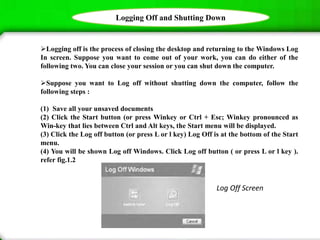
(4) You will be shown Log off Windows. Click Log off button ( or press L or l key ).
refer fig.1.2
Log Off Screen
Logging Off and Shutting Down
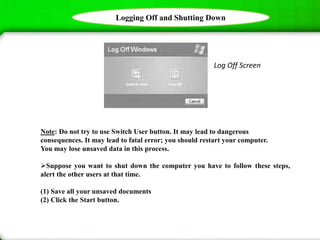
Log Off Screen
Note: Do not try to use Switch User button. It may lead to dangerous
consequences. It may lead to fatal error; you should restart your computer.
You may lose unsaved data in this process.
Suppose you want to shut down the computer you have to follow these steps,
alert the other users at that time.
(1) Save all your unsaved documents
(2) Click the Start button.
Logging Off and Shutting Down
(3) Click Turn Off Computer button ( or press U or u key).You will be Shown
Turn Off Computer Window with three options, along with cancel.
(4) If you have changed your mind not to shut down the computer click
Cancel, button at the bottom.
(5) If you want to shut down the computer click Turn Off button ( or press U
or u key ). You can also Turn Off the computer by the key combinations of
Alt+F4 and then click Turn Off button.
(6) Suppose you have dual operating system, if you want to switch over to the
other operating system then you can click Restart button. This will be useful
when you install new software also.
(7) There is yet another Choice Stand By. This may be very useful for
notebook computer. This action will save power. If you have Hibernate facility,
you can make use of it. Place the cursor on Stand By button and press Shift
key, Stand By will change into Hibernate. If you click the Hibernate button
(Shift + Click Stand By) and Switch off computer, the computer can be started
comparatively quickly, in the next time, when you open the system.
Thank you..!!

Logging Off and Shutting Down - R.D.Sivakumar

  • 1.
    R.D.SIVAKUMAR, M.Sc.,M.Phil.,M.Tech., Assistant Professorof Computer Science & Assistant Professor and Head, Department of M.Com.(CA), Ayya Nadar Janaki Ammal College, Sivakasi – 626 124. Mobile: 099440-42243 e-mail : sivamsccsit@gmail.com website: www.rdsivakumar.blogspot.in Logging Off and Shutting Down
  • 2.
    Logging Off andShutting Down Logging off is the process of closing the desktop and returning to the Windows Log In screen. Suppose you want to come out of your work, you can do either of the following two. You can close your session or you can shut down the computer. Suppose you want to Log off without shutting down the computer, follow the following steps : (1) Save all your unsaved documents (2) Click the Start button (or press Winkey or Ctrl + Esc; Winkey pronounced as Win-key that lies between Ctrl and Alt keys, the Start menu will be displayed. (3) Click the Log off button (or press L or l key) Log Off is at the bottom of the Start menu. (4) You will be shown Log off Windows. Click Log off button ( or press L or l key ). refer fig.1.2 Log Off Screen
  • 3.
    Logging Off andShutting Down Log Off Screen Note: Do not try to use Switch User button. It may lead to dangerous consequences. It may lead to fatal error; you should restart your computer. You may lose unsaved data in this process. Suppose you want to shut down the computer you have to follow these steps, alert the other users at that time. (1) Save all your unsaved documents (2) Click the Start button.
  • 4.
    Logging Off andShutting Down (3) Click Turn Off Computer button ( or press U or u key).You will be Shown Turn Off Computer Window with three options, along with cancel. (4) If you have changed your mind not to shut down the computer click Cancel, button at the bottom. (5) If you want to shut down the computer click Turn Off button ( or press U or u key ). You can also Turn Off the computer by the key combinations of Alt+F4 and then click Turn Off button. (6) Suppose you have dual operating system, if you want to switch over to the other operating system then you can click Restart button. This will be useful when you install new software also. (7) There is yet another Choice Stand By. This may be very useful for notebook computer. This action will save power. If you have Hibernate facility, you can make use of it. Place the cursor on Stand By button and press Shift key, Stand By will change into Hibernate. If you click the Hibernate button (Shift + Click Stand By) and Switch off computer, the computer can be started comparatively quickly, in the next time, when you open the system.
  • 5.