Fun with Flickr!
Flickr Basics During this Flickr class, you will learn how to: Create a Flickr account Upload photos Add titles to photos Tag photos Create a photo set Fun stuff
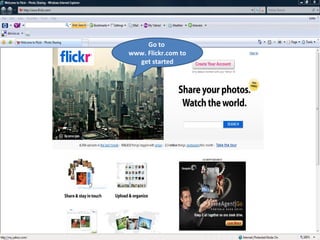
Go to  www. Flickr.com to get started
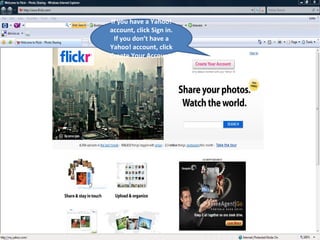
If you have a Yahoo! account, click Sign in. If you don’t have a Yahoo! account, click Create Your Account.
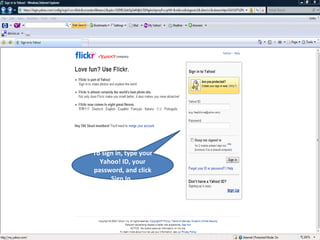
To sign in, type your Yahoo! ID, your password, and click Sign In.
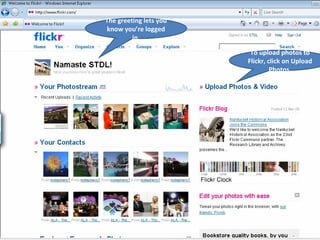
The greeting lets you know you’re logged in. To upload photos to Flickr, click on Upload Photos.
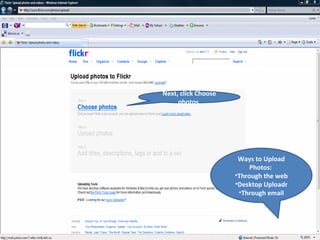
Next, click Choose photos. Ways to Upload Photos:  Through the web Desktop Uploadr Through email
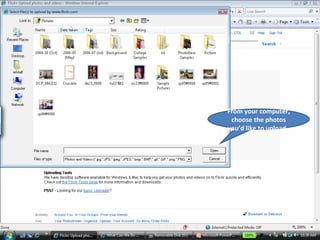
From your computer, choose the photos you’d like to upload.
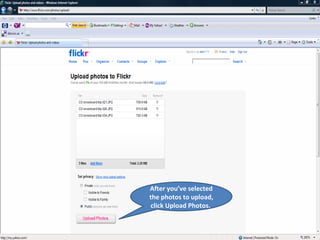
After you’ve selected the photos to upload, click Upload Photos.
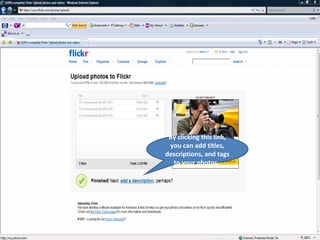
By clicking this link, you can add titles, descriptions, and tags to your photos.
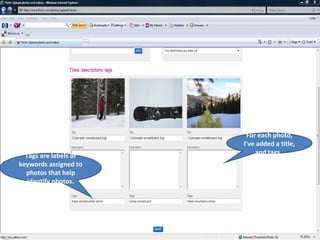
For each photo, I’ve added a title, and tags.  Tags are labels or keywords assigned to photos that help identify photos.
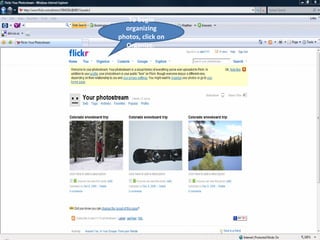
To begin organizing photos, click on Organize.
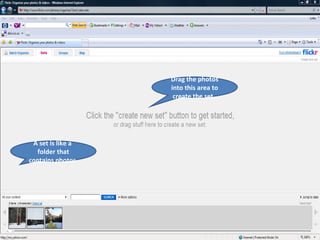
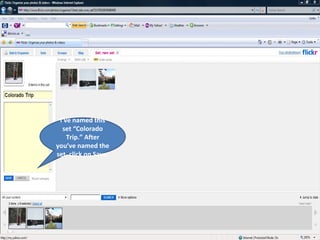
Drag the photos into this area to create the set.  A set is like a  folder that contains photos.
I’ve named this set “Colorado Trip.” After you’ve named the set, click on Save.
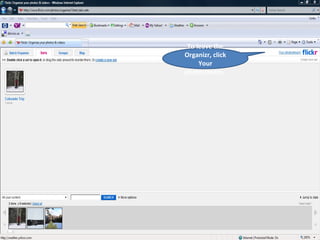
To leave the Organizr, click Your photostream.
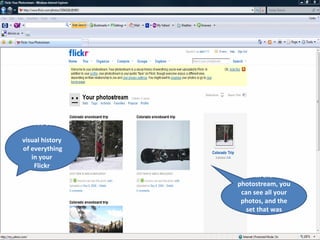
In the photostream, you can see all your photos, and the set that was created.  Photostream: A  visual history  of everything in your  Flickr  account.
Fun Stuff Contacts Notes Comments Favorite photos Geotagging Create products from photos
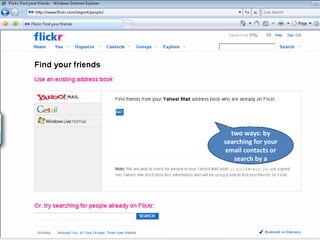
Add contacts in two ways: by searching for your email contacts or search by a person’s name.
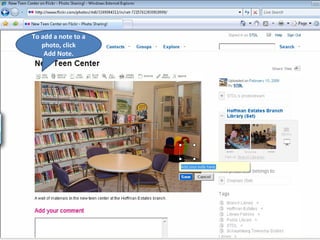
To add a note to a photo, click Add Note.
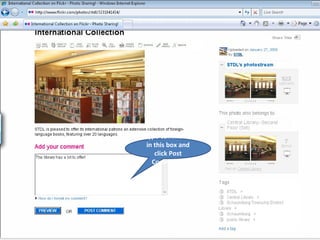
Type comments in this box and click Post Comment.
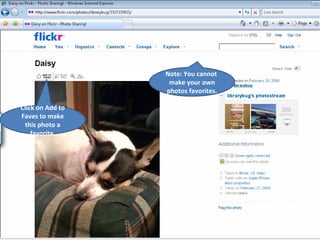
Click on Add to Faves to make this photo a favorite. Note: You cannot  make your own photos favorites.
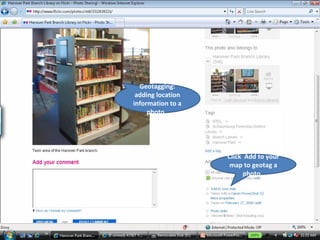
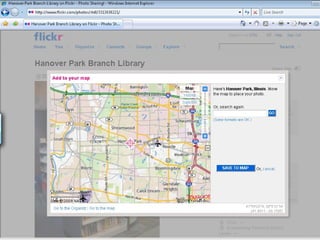
Geotagging: Adding location information to photos. Click  Add to your map to geotag a photo.  Geotagging: adding location information to a photo.
 
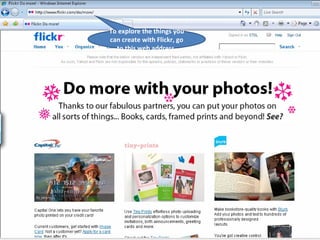
To explore the things you can create with Flickr, go to this web address.
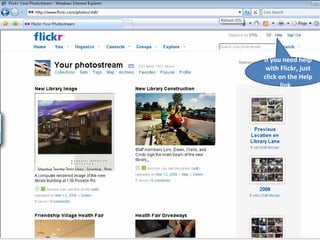
If you need help with Flickr, just click on the Help link.
More Flickr Help Flickr FAQs http://www.flickr.com/help/faq/ Get the Most Out of Flickr http://www.flickr.com/get_the_most.gne

Flickr Tutorial

  • 1.
  • 2.
    Flickr Basics Duringthis Flickr class, you will learn how to: Create a Flickr account Upload photos Add titles to photos Tag photos Create a photo set Fun stuff
  • 3.
    Go to www. Flickr.com to get started
  • 4.
    If you havea Yahoo! account, click Sign in. If you don’t have a Yahoo! account, click Create Your Account.
  • 5.
    To sign in,type your Yahoo! ID, your password, and click Sign In.
  • 6.
    The greeting letsyou know you’re logged in. To upload photos to Flickr, click on Upload Photos.
  • 7.
    Next, click Choosephotos. Ways to Upload Photos: Through the web Desktop Uploadr Through email
  • 8.
    From your computer,choose the photos you’d like to upload.
  • 9.
    After you’ve selectedthe photos to upload, click Upload Photos.
  • 10.
    By clicking thislink, you can add titles, descriptions, and tags to your photos.
  • 11.
    For each photo,I’ve added a title, and tags. Tags are labels or keywords assigned to photos that help identify photos.
  • 12.
    To begin organizingphotos, click on Organize.
  • 13.
    Drag the photosinto this area to create the set. A set is like a folder that contains photos.
  • 14.
    I’ve named thisset “Colorado Trip.” After you’ve named the set, click on Save.
  • 15.
    To leave theOrganizr, click Your photostream.
  • 16.
    In the photostream,you can see all your photos, and the set that was created. Photostream: A visual history of everything in your Flickr account.
  • 17.
    Fun Stuff ContactsNotes Comments Favorite photos Geotagging Create products from photos
  • 18.
    Add contacts intwo ways: by searching for your email contacts or search by a person’s name.
  • 19.
    To add anote to a photo, click Add Note.
  • 20.
    Type comments inthis box and click Post Comment.
  • 21.
    Click on Addto Faves to make this photo a favorite. Note: You cannot make your own photos favorites.
  • 22.
    Geotagging: Adding locationinformation to photos. Click Add to your map to geotag a photo. Geotagging: adding location information to a photo.
  • 23.
  • 24.
    To explore thethings you can create with Flickr, go to this web address.
  • 25.
    If you needhelp with Flickr, just click on the Help link.
  • 26.
    More Flickr HelpFlickr FAQs http://www.flickr.com/help/faq/ Get the Most Out of Flickr http://www.flickr.com/get_the_most.gne