Dr. Girija Narasimhan 1
Part 9- Report using VB.NET
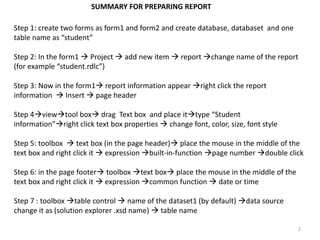
Step 1: create two forms as form1 and form2 and create database, databaset and one
table name as “student”
Step 2: In the form1  Project  add new item  report change name of the report
(for example “student.rdlc”)
Step 3: Now in the form1 report information appear right click the report
information  Insert  page header
Step 4viewtool box drag Text box and place ittype “Student
information”right click text box properties  change font, color, size, font style
Step 5: toolbox  text box (in the page header) place the mouse in the middle of the
text box and right click it  expression built-in-function page number double click
Step 6: in the page footer toolbox text box place the mouse in the middle of the
text box and right click it  expression common function  date or time
Step 7 : toolbox table control  name of the dataset1 (by default) data source
change it as (solution explorer .xsd name)  table name
2
SUMMARY FOR PREPARING REPORT
Step 8: the above design will appear- right click the “Database symbol”
Step 9: insert one-by-one all the column in the table
Suppose required extra column then Right click the column top  then insert column 
right or left
3
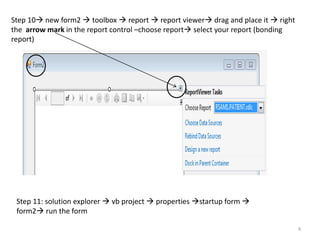
Step 10 new form2  toolbox  report  report viewer drag and place it  right
the arrow mark in the report control –choose report select your report (bonding
report)
Step 11: solution explorer  vb project  properties startup form 
form2 run the form
4

Part 9 report using vb.net

  • 1.
    Dr. Girija Narasimhan1 Part 9- Report using VB.NET
  • 2.
    Step 1: createtwo forms as form1 and form2 and create database, databaset and one table name as “student” Step 2: In the form1  Project  add new item  report change name of the report (for example “student.rdlc”) Step 3: Now in the form1 report information appear right click the report information  Insert  page header Step 4viewtool box drag Text box and place ittype “Student information”right click text box properties  change font, color, size, font style Step 5: toolbox  text box (in the page header) place the mouse in the middle of the text box and right click it  expression built-in-function page number double click Step 6: in the page footer toolbox text box place the mouse in the middle of the text box and right click it  expression common function  date or time Step 7 : toolbox table control  name of the dataset1 (by default) data source change it as (solution explorer .xsd name)  table name 2 SUMMARY FOR PREPARING REPORT
  • 3.
    Step 8: theabove design will appear- right click the “Database symbol” Step 9: insert one-by-one all the column in the table Suppose required extra column then Right click the column top  then insert column  right or left 3
  • 4.
    Step 10 newform2  toolbox  report  report viewer drag and place it  right the arrow mark in the report control –choose report select your report (bonding report) Step 11: solution explorer  vb project  properties startup form  form2 run the form 4