Student Management
System
Software
 Developed at:
Visual studio 2022
 Developed by:
Hamza Ashfaq
Ahsan Raza
 Language used:
C#
 Framework:GunaUI,BunifoUI
Objectives
 The main objective of the system is to computerize
the maintenance of the student detail and the student
file management,class compilation,and the student
section in the school.
 In the proposed system, the administrator can
insert,delete and modify the student records per the
requirements the student marks and details can be
easily maintained in this system. This project will
helps to smooth the process of the student activities.
Applications
 To use for various straems' students.
 To gather students information.
 Different reports and queries can be generate based on
vast option related to students,course,category and even
for the entire school.
 This is the main module in the proposed project.The
administrator can read and write any information about
any members such as students,teachers and coursesin the
school. They can also update,create and delete the record
of members as requirements and implementation pass.
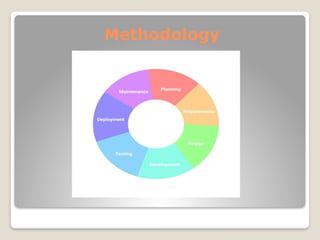
Methodology
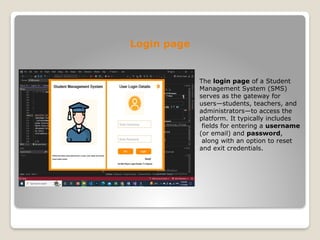
Login page
The login page of a Student
Management System (SMS)
serves as the gateway for
users—students, teachers, and
administrators—to access the
platform. It typically includes
fields for entering a username
(or email) and password,
along with an option to reset
and exit credentials.
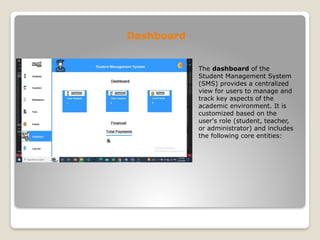
Dashboard
The dashboard of the
Student Management System
(SMS) provides a centralized
view for users to manage and
track key aspects of the
academic environment. It is
customized based on the
user's role (student, teacher,
or administrator) and includes
the following core entities:
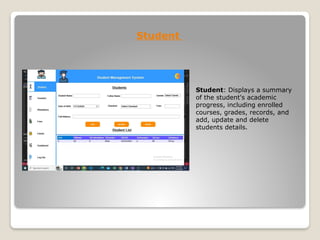
Student
Student: Displays a summary
of the student's academic
progress, including enrolled
courses, grades, records, and
add, update and delete
students details.
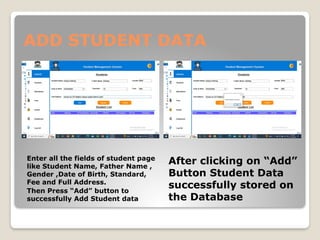
ADD STUDENT DATA
Enter all the fields of student page
like Student Name, Father Name ,
Gender ,Date of Birth, Standard,
Fee and Full Address.
Then Press “Add” button to
successfully Add Student data
After clicking on “Add”
Button Student Data
successfully stored on
the Database
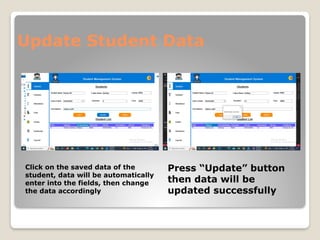
Update Student Data
Click on the saved data of the
student, data will be automatically
enter into the fields, then change
the data accordingly
Press “Update” button
then data will be
updated successfully
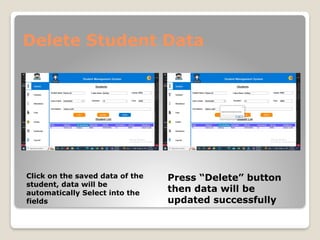
Delete Student Data
Click on the saved data of the
student, data will be
automatically Select into the
fields
Press “Delete” button
then data will be
updated successfully
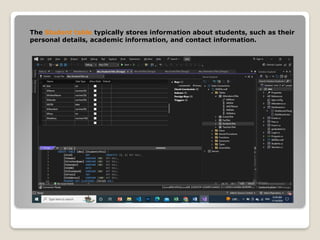
The Student table typically stores information about students, such as their
personal details, academic information, and contact information.
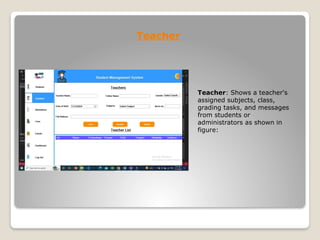
Teacher
Teacher: Shows a teacher's
assigned subjects, class,
grading tasks, and messages
from students or
administrators as shown in
figure:
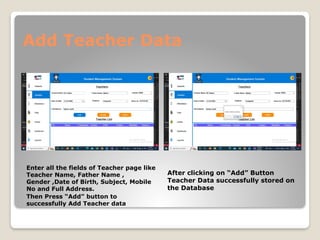
Add Teacher Data
Enter all the fields of Teacher page like
Teacher Name, Father Name ,
Gender ,Date of Birth, Subject, Mobile
No and Full Address.
Then Press “Add” button to
successfully Add Teacher data
After clicking on “Add” Button
Teacher Data successfully stored on
the Database
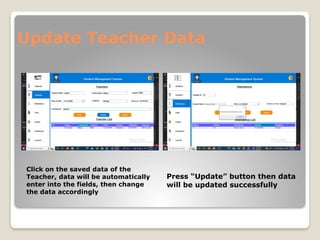
Update Teacher Data
Click on the saved data of the
Teacher, data will be automatically
enter into the fields, then change
the data accordingly
Press “Update” button then data
will be updated successfully
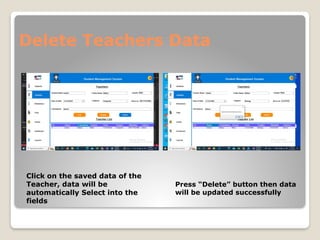
Delete Teachers Data
Click on the saved data of the
Teacher, data will be
automatically Select into the
fields
Press “Delete” button then data
will be updated successfully
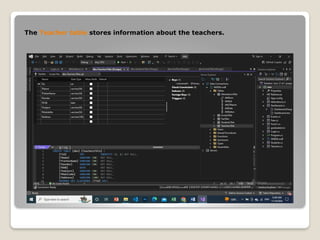
The Teacher table stores information about the teachers.
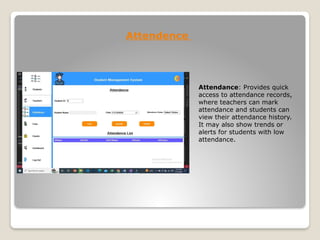
Attendence
Attendance: Provides quick
access to attendance records,
where teachers can mark
attendance and students can
view their attendance history.
It may also show trends or
alerts for students with low
attendance.
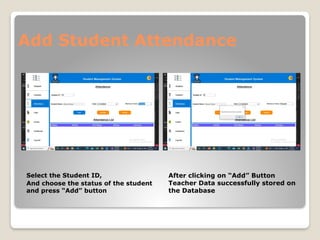
Add Student Attendance
Select the Student ID,
And choose the status of the student
and press “Add” button
After clicking on “Add” Button
Teacher Data successfully stored on
the Database
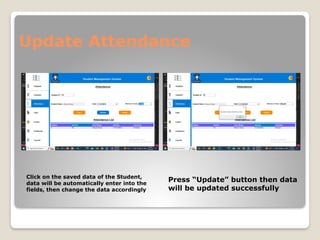
Update Attendance
Click on the saved data of the Student,
data will be automatically enter into the
fields, then change the data accordingly
Press “Update” button then data
will be updated successfully
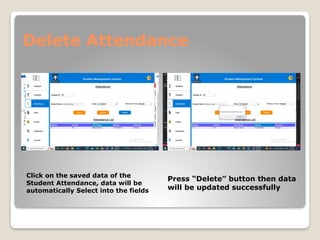
Delete Attendance
Click on the saved data of the
Student Attendance, data will be
automatically Select into the fields
Press “Delete” button then data
will be updated successfully
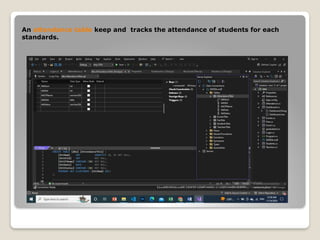
An attendance table keep and tracks the attendance of students for each
standards.
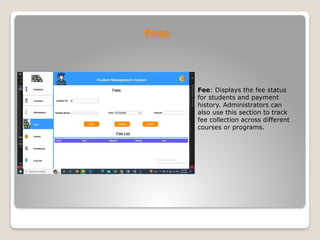
Fees
Fee: Displays the fee status
for students and payment
history. Administrators can
also use this section to track
fee collection across different
courses or programs.
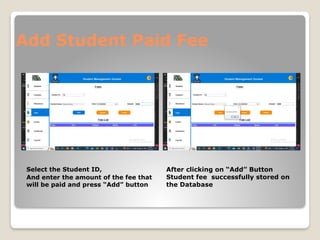
Add Student Paid Fee
Select the Student ID,
And enter the amount of the fee that
will be paid and press “Add” button
After clicking on “Add” Button
Student fee successfully stored on
the Database
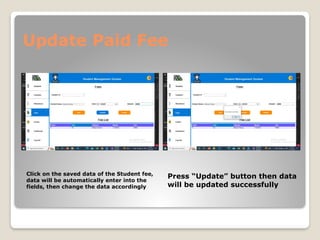
Update Paid Fee
Click on the saved data of the Student fee,
data will be automatically enter into the
fields, then change the data accordingly
Press “Update” button then data
will be updated successfully
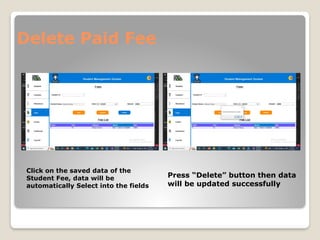
Delete Paid Fee
Click on the saved data of the
Student Fee, data will be
automatically Select into the fields
Press “Delete” button then data
will be updated successfully
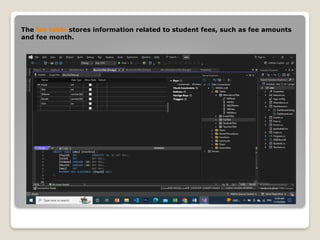
The fee table stores information related to student fees, such as fee amounts
and fee month.
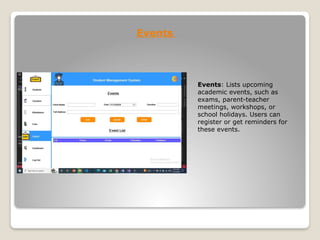
Events
Events: Lists upcoming
academic events, such as
exams, parent-teacher
meetings, workshops, or
school holidays. Users can
register or get reminders for
these events.
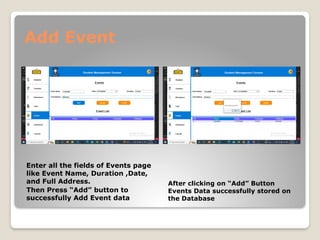
Add Event
Enter all the fields of Events page
like Event Name, Duration ,Date,
and Full Address.
Then Press “Add” button to
successfully Add Event data
After clicking on “Add” Button
Events Data successfully stored on
the Database
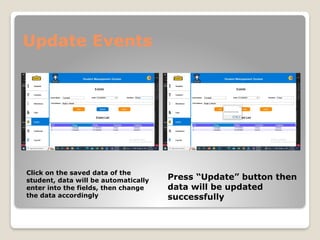
Update Events
Click on the saved data of the
student, data will be automatically
enter into the fields, then change
the data accordingly
Press “Update” button then
data will be updated
successfully
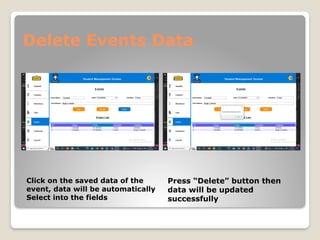
Delete Events Data
Click on the saved data of the
event, data will be automatically
Select into the fields
Press “Delete” button then
data will be updated
successfully
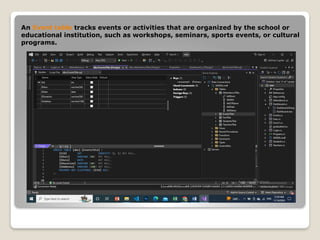
An Event table tracks events or activities that are organized by the school or
educational institution, such as workshops, seminars, sports events, or cultural
programs.
Thank you..
Student Management System ( desktop application).pptx

Student Management System ( desktop application).pptx

  • 1.
  • 2.
     Developed at: Visualstudio 2022  Developed by: Hamza Ashfaq Ahsan Raza  Language used: C#  Framework:GunaUI,BunifoUI
  • 3.
    Objectives  The mainobjective of the system is to computerize the maintenance of the student detail and the student file management,class compilation,and the student section in the school.  In the proposed system, the administrator can insert,delete and modify the student records per the requirements the student marks and details can be easily maintained in this system. This project will helps to smooth the process of the student activities.
  • 4.
    Applications  To usefor various straems' students.  To gather students information.  Different reports and queries can be generate based on vast option related to students,course,category and even for the entire school.  This is the main module in the proposed project.The administrator can read and write any information about any members such as students,teachers and coursesin the school. They can also update,create and delete the record of members as requirements and implementation pass.
  • 5.
  • 6.
    Login page The loginpage of a Student Management System (SMS) serves as the gateway for users—students, teachers, and administrators—to access the platform. It typically includes fields for entering a username (or email) and password, along with an option to reset and exit credentials.
  • 7.
    Dashboard The dashboard ofthe Student Management System (SMS) provides a centralized view for users to manage and track key aspects of the academic environment. It is customized based on the user's role (student, teacher, or administrator) and includes the following core entities:
  • 8.
    Student Student: Displays asummary of the student's academic progress, including enrolled courses, grades, records, and add, update and delete students details.
  • 9.
    ADD STUDENT DATA Enterall the fields of student page like Student Name, Father Name , Gender ,Date of Birth, Standard, Fee and Full Address. Then Press “Add” button to successfully Add Student data After clicking on “Add” Button Student Data successfully stored on the Database
  • 10.
    Update Student Data Clickon the saved data of the student, data will be automatically enter into the fields, then change the data accordingly Press “Update” button then data will be updated successfully
  • 11.
    Delete Student Data Clickon the saved data of the student, data will be automatically Select into the fields Press “Delete” button then data will be updated successfully
  • 12.
    The Student tabletypically stores information about students, such as their personal details, academic information, and contact information.
  • 13.
    Teacher Teacher: Shows ateacher's assigned subjects, class, grading tasks, and messages from students or administrators as shown in figure:
  • 14.
    Add Teacher Data Enterall the fields of Teacher page like Teacher Name, Father Name , Gender ,Date of Birth, Subject, Mobile No and Full Address. Then Press “Add” button to successfully Add Teacher data After clicking on “Add” Button Teacher Data successfully stored on the Database
  • 15.
    Update Teacher Data Clickon the saved data of the Teacher, data will be automatically enter into the fields, then change the data accordingly Press “Update” button then data will be updated successfully
  • 16.
    Delete Teachers Data Clickon the saved data of the Teacher, data will be automatically Select into the fields Press “Delete” button then data will be updated successfully
  • 17.
    The Teacher tablestores information about the teachers.
  • 18.
    Attendence Attendance: Provides quick accessto attendance records, where teachers can mark attendance and students can view their attendance history. It may also show trends or alerts for students with low attendance.
  • 19.
    Add Student Attendance Selectthe Student ID, And choose the status of the student and press “Add” button After clicking on “Add” Button Teacher Data successfully stored on the Database
  • 20.
    Update Attendance Click onthe saved data of the Student, data will be automatically enter into the fields, then change the data accordingly Press “Update” button then data will be updated successfully
  • 21.
    Delete Attendance Click onthe saved data of the Student Attendance, data will be automatically Select into the fields Press “Delete” button then data will be updated successfully
  • 22.
    An attendance tablekeep and tracks the attendance of students for each standards.
  • 23.
    Fees Fee: Displays thefee status for students and payment history. Administrators can also use this section to track fee collection across different courses or programs.
  • 24.
    Add Student PaidFee Select the Student ID, And enter the amount of the fee that will be paid and press “Add” button After clicking on “Add” Button Student fee successfully stored on the Database
  • 25.
    Update Paid Fee Clickon the saved data of the Student fee, data will be automatically enter into the fields, then change the data accordingly Press “Update” button then data will be updated successfully
  • 26.
    Delete Paid Fee Clickon the saved data of the Student Fee, data will be automatically Select into the fields Press “Delete” button then data will be updated successfully
  • 27.
    The fee tablestores information related to student fees, such as fee amounts and fee month.
  • 28.
    Events Events: Lists upcoming academicevents, such as exams, parent-teacher meetings, workshops, or school holidays. Users can register or get reminders for these events.
  • 29.
    Add Event Enter allthe fields of Events page like Event Name, Duration ,Date, and Full Address. Then Press “Add” button to successfully Add Event data After clicking on “Add” Button Events Data successfully stored on the Database
  • 30.
    Update Events Click onthe saved data of the student, data will be automatically enter into the fields, then change the data accordingly Press “Update” button then data will be updated successfully
  • 31.
    Delete Events Data Clickon the saved data of the event, data will be automatically Select into the fields Press “Delete” button then data will be updated successfully
  • 32.
    An Event tabletracks events or activities that are organized by the school or educational institution, such as workshops, seminars, sports events, or cultural programs.
  • 33.